Zoom in to label a diagram precisely
Label the parts of a flower with arrows that point exactly at the petal, leaf, stem and roots, by zooming in, panning across the scene with the space bar, and snapping back to Fit to check the whole diagram.
- Level
- Beginner
- Time
- About 10 min
- Steps
- 9
- Updated
- Oct 19, 2026
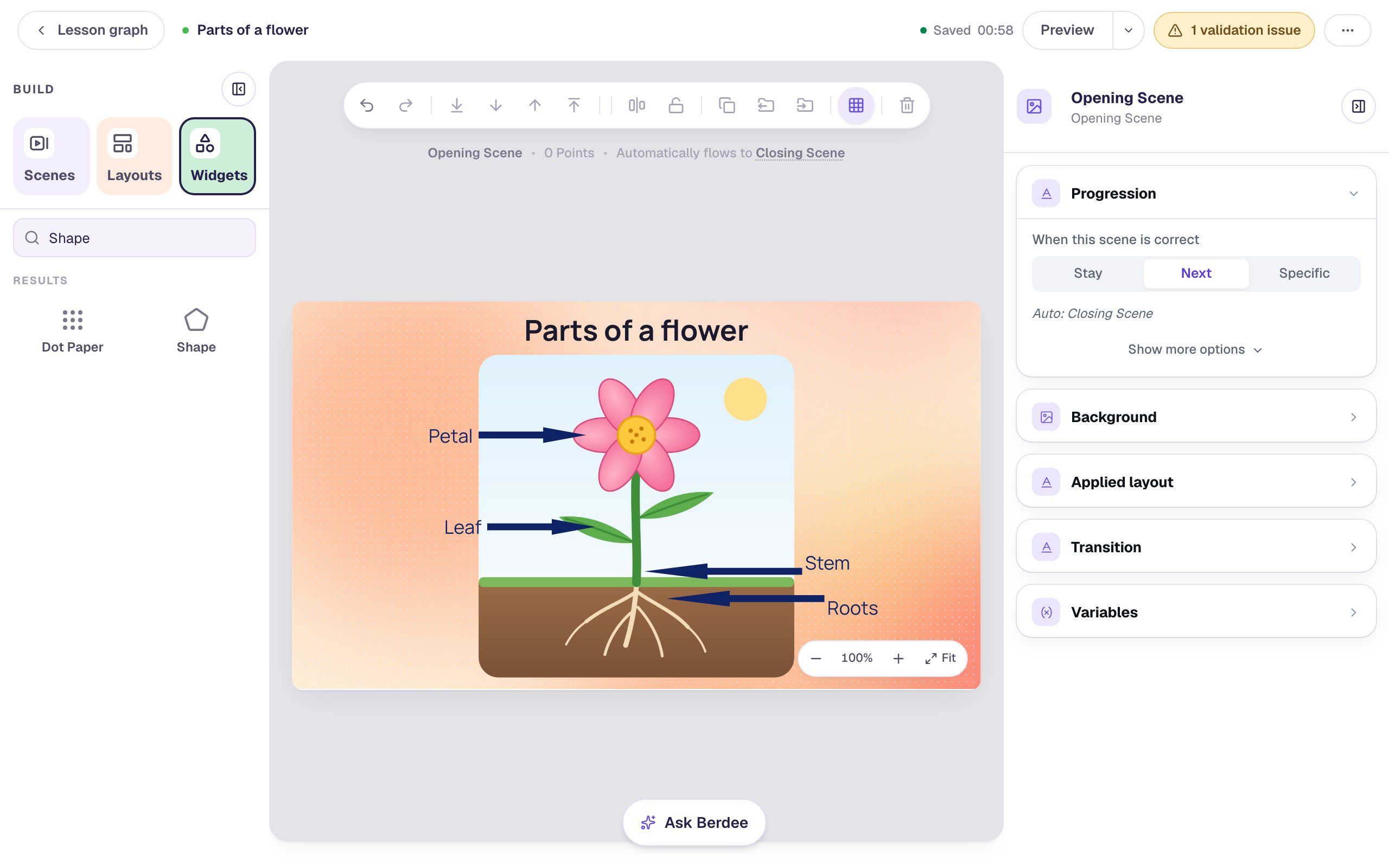
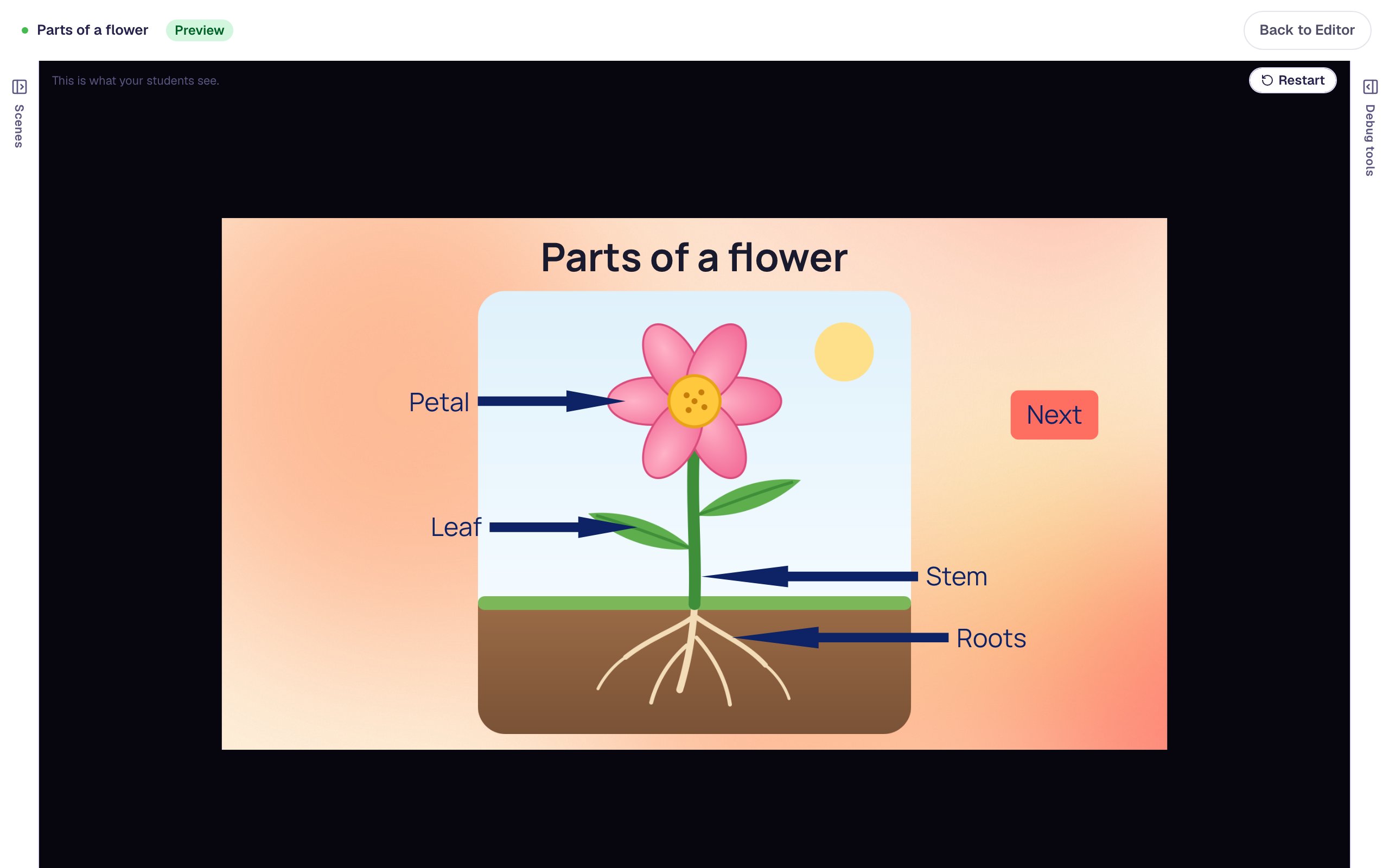
A "Parts of a flower" diagram whose four arrows each point exactly at their part, followed by a quick question about the roots.
Get the finished lesson
Skip straight to the result, or keep it open beside the steps. Add this tutorial's lesson to your account and explore how it works in the studio.
Free to sign up, and you'll come straight back here. I have an account
A labelled diagram only teaches if every label points at the right thing. An arrow that stops just short of the petal, or lands on the stem instead of the leaf, tells a student the wrong name for the part they're looking at.
At the studio's normal view an arrow's tip is a few pixels across, so lining it up by eye is guesswork. In this tutorial you'll label a flower diagram with four arrows and zoom in to put each tip exactly on its part. You'll move around the zoomed-in scene with the space bar, pinch toward the corner you want, and snap back to Fit to check the whole scene the way students see it. It ends with a quick question about the diagram, so you can try it as a student. If you've never added a widget before, start with Build your first quiz question.
Step 1: Put the diagram on the scene
Start a blank lesson and name it (we used Parts of a flower). Click an empty part of the canvas, open Background in the properties panel, click Choose a style, and pick a gradient. We used Mesh sunrise, and gave the Closing Scene the same one so the ending matches.
From the Widgets tab, add a Heading, type Parts of a flower, set its Font Size to 40 and drag it to the top middle.
Then add an Image. In Style & Layout, click Show more options and set Width to 440 and Height to 450. Click Choose image, open the Upload tab and choose your diagram. We drew a simple flower with its roots in the soil. Open Accessibility and write Alt Text for students who use a screen reader, saying what the picture shows: A pink flower with a yellow centre, a green stem with two leaves, and roots spreading through brown soil.
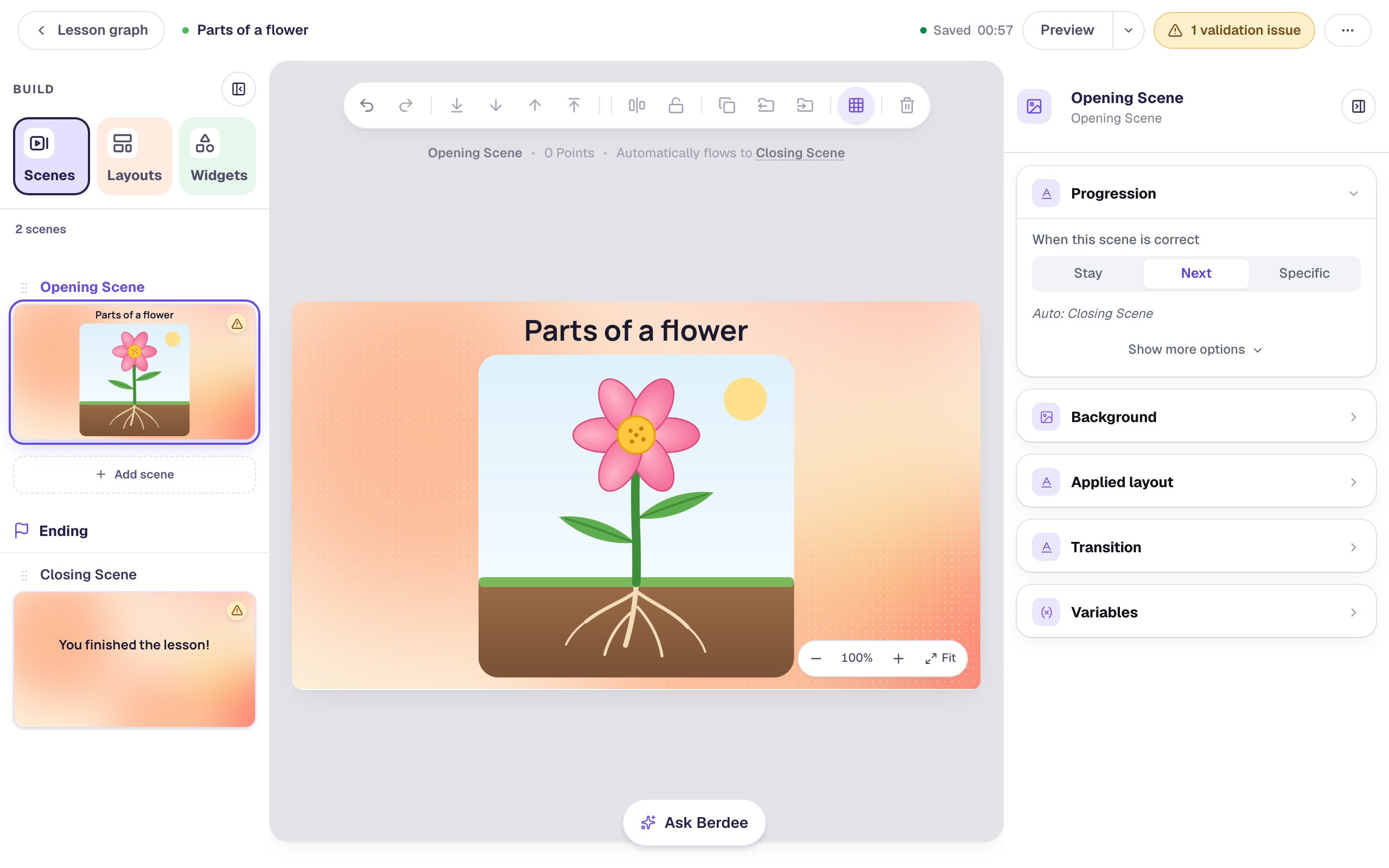
The small cluster in the bottom-right corner of the canvas is the zoom control: −, the zoom percentage, +, and Fit. At 100% the whole scene is on screen, which is the view the studio calls Fit.
Step 2: Add a label and an arrow by eye
Add a Body text and type Petal. Set its Font Size to 26. In Style & Layout, choose Fixed width, set Width to 110, click Align right so the word ends next to its arrow, and pick a dark navy Text Color.
Now add a Shape. Its window opens straight away: pick Arrow right from the library and click Save. In Style & Layout, set Width to 150 and Height to 22, pick the same navy for Fill Color, and set Stroke width to 0.
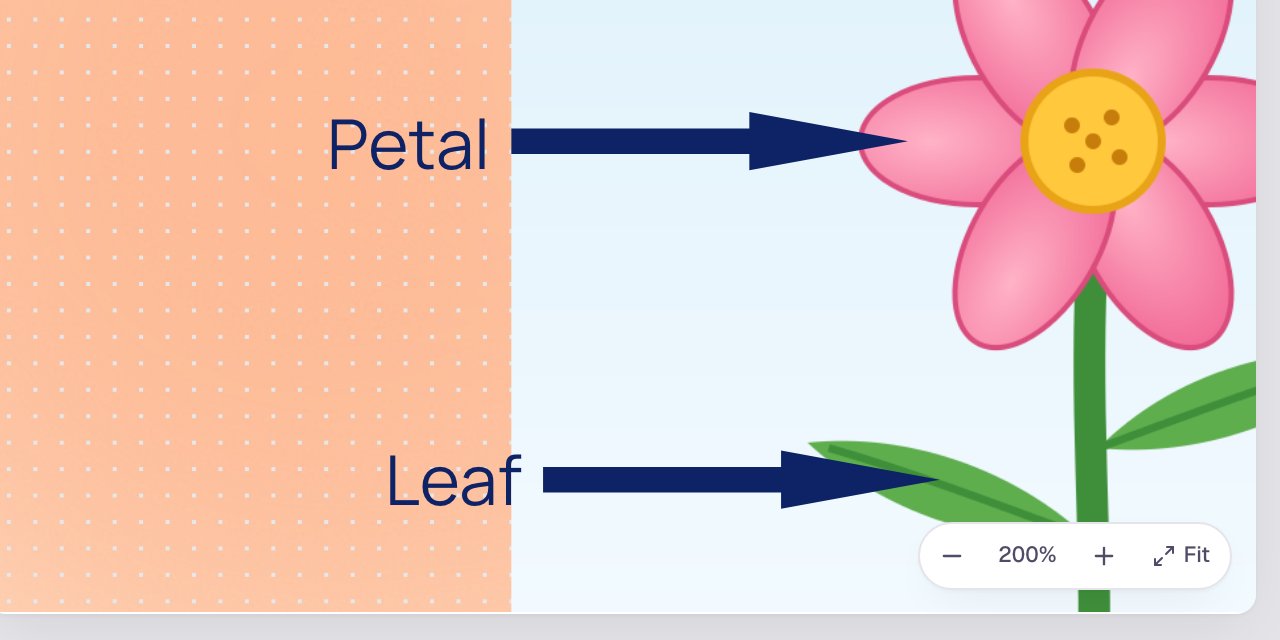
Drag the arrow so its tip touches the left petal, and the word sits just before the arrow. At 100% it looks close enough, but look again:
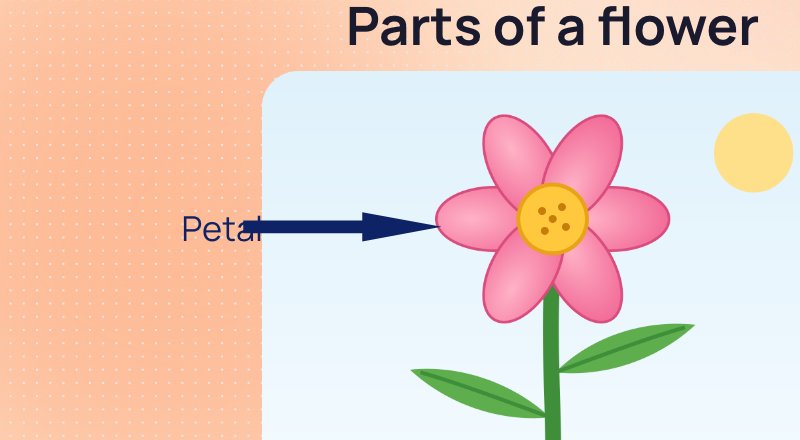
The tip stops in the sky, a little short of the petal, and the word runs into the arrow's tail. At this size those few pixels are hard to see and harder to grab. Zooming in makes them easy.
Step 3: Zoom in to 200%
Click + in the zoom controls three times. The percentage steps from 100% to 125%, 150% and then 200%, zooming in on the middle of the canvas.
200% means twice as big as Fit, not twice life size: the percentage is always measured from the view where the whole scene fits. The keyboard does the same thing: ⌘ + (Mac) or Ctrl + (Windows, Chromebook) zooms in one step, and ⌘ − or Ctrl − zooms out.
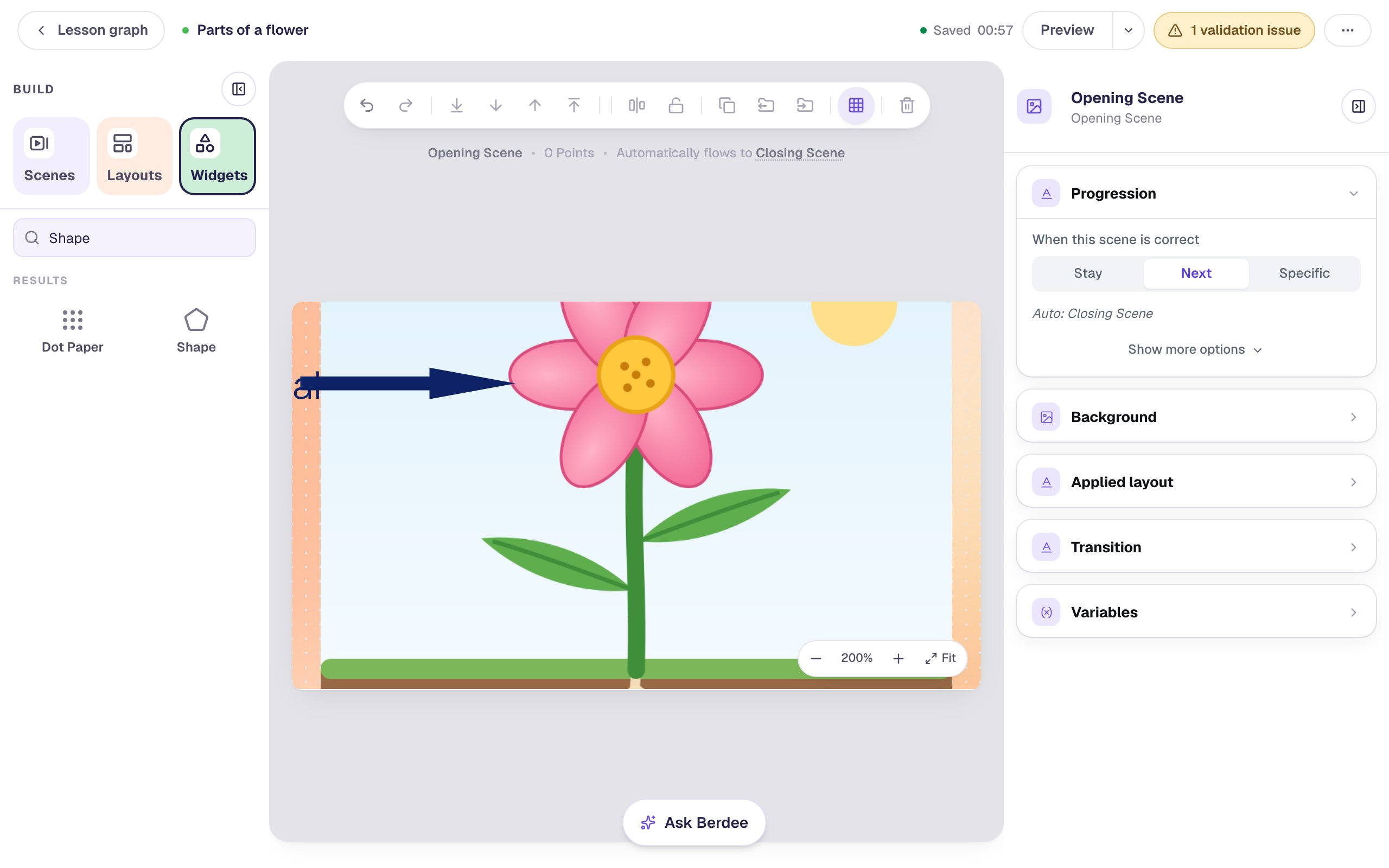
Zooming doesn't change the lesson. Your students still see the whole scene; only your view of it is bigger.
Step 4: Hold Space and drag, then point the arrow
The word Petal is cut off at the left edge. To bring it into view, hold the space bar and drag the canvas. The pointer turns into a hand while Space is down, and the whole scene moves with it, not just one widget. Let go of Space to go back to selecting and dragging widgets.
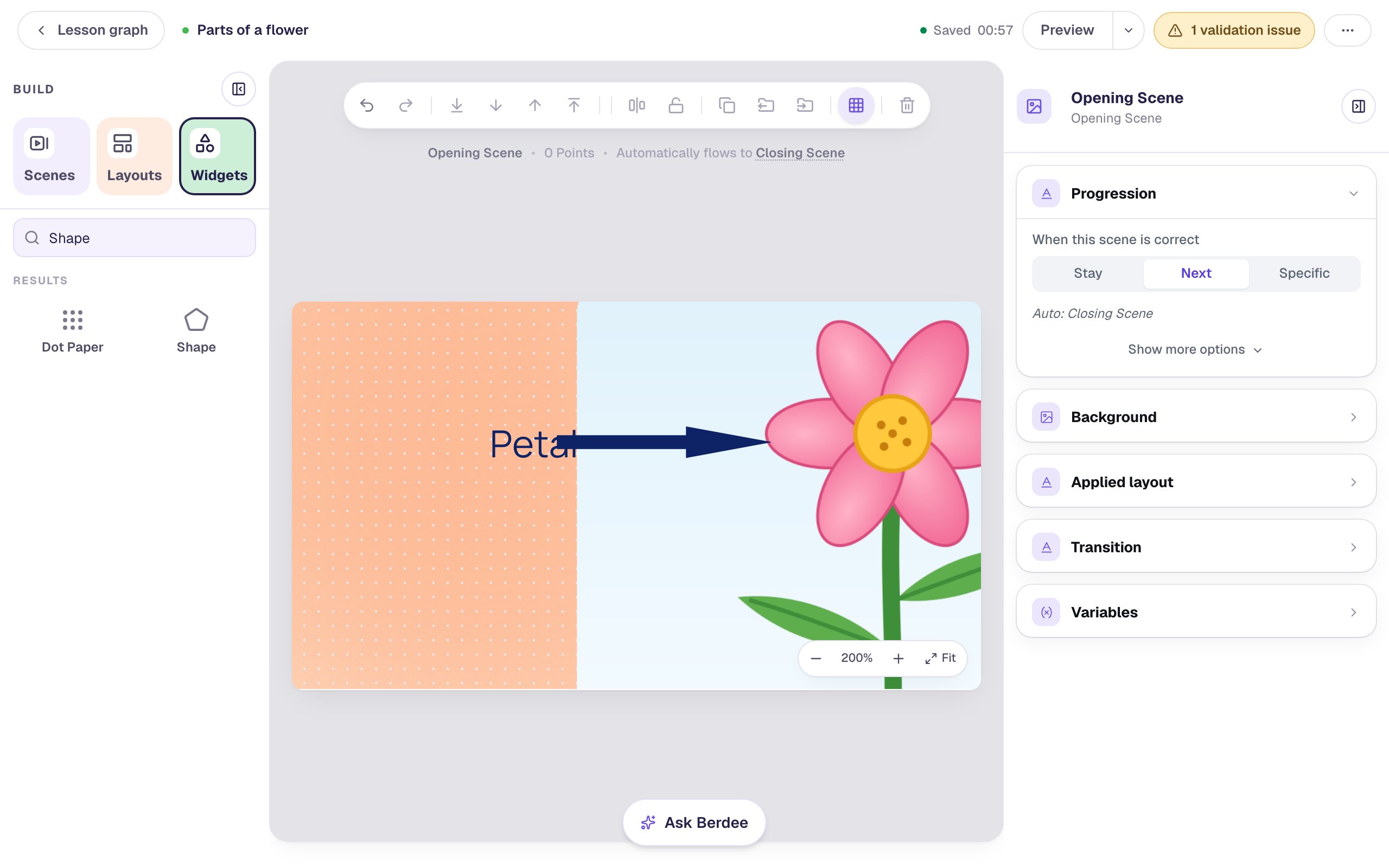
Now the gap is easy to see. Click the arrow's shaft to select it and drag it until the tip sits right on the petal. Then drag the word so it ends just before the arrow's tail. For the last pixel, the arrow keys nudge the selected widget one pixel at a time (hold Shift for ten).
Step 5: Copy the arrow and the word for the leaf
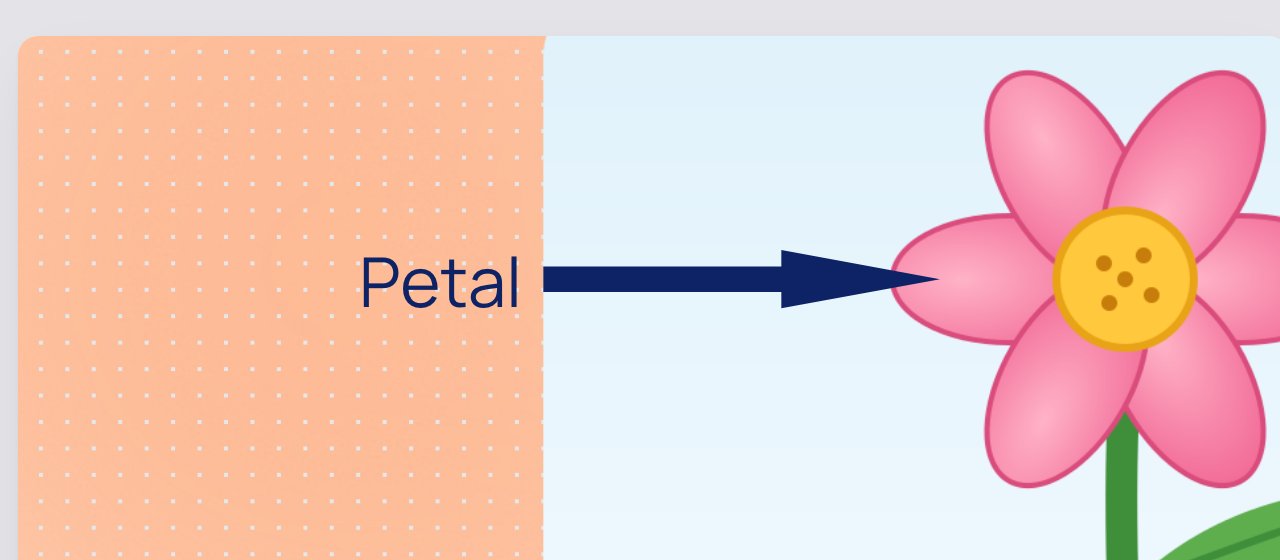
The leaf is just below, still in view at 200%. You don't need to style a new arrow: click the Petal arrow and press ⌘ D (Mac) or Ctrl D to copy it. The copy comes out selected, so drag it straight onto the leaf on the left. Then click the word Petal, press ⌘ D again, change the copy's Text to Leaf in the properties panel, and drag it to the new arrow's tail.
A copy keeps everything you set on the original: its size, colour, and alignment.
Step 6: Add the right-hand labels, then pinch toward the roots
The stem and roots are easier to label from the right. Press ⌘ 0 (Mac) or Ctrl 0 to go back to the whole scene first.
Copy the Leaf arrow, click ⚙ Configure, set Direction to Left and click Save. Make it a little longer, Width 220, so its word clears the picture. Copy the word Leaf too, change it to Stem, and click Align left, since this word starts after its arrow. Drag both near the stem. Then copy the Stem arrow and word, change the word to Roots, and drag them near the roots. Place all of them by eye. You'll fix the tips up close.
This time, zoom in on the corner you care about instead of the middle. Pinch on a trackpad with the pointer over the roots, or hold Ctrl and scroll the mouse wheel. The canvas zooms toward wherever the pointer is, so the roots stay under it as they grow. Then drag each arrow's tip onto its part, as in Step 4.
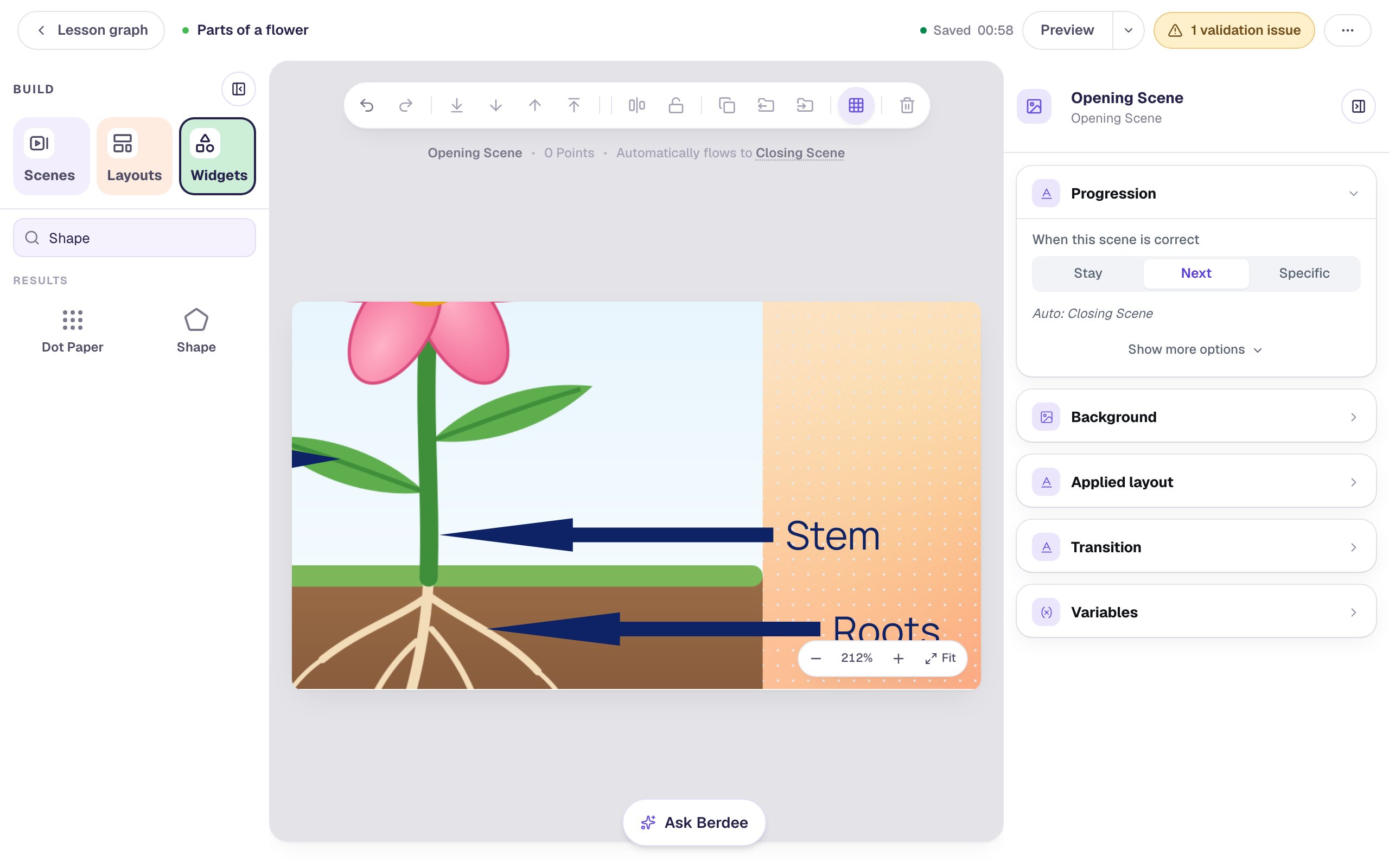
The zoom controls float over the bottom-right corner of the canvas. If they cover something you want to reach, hold Space and drag it into the open.
Step 7: Snap back to Fit and check the whole scene
Click Fit in the zoom controls. The whole scene is back on screen, exactly as students will see it. Check your work here, not zoomed in: if the labels read well at 100%, they read well on a student's screen.
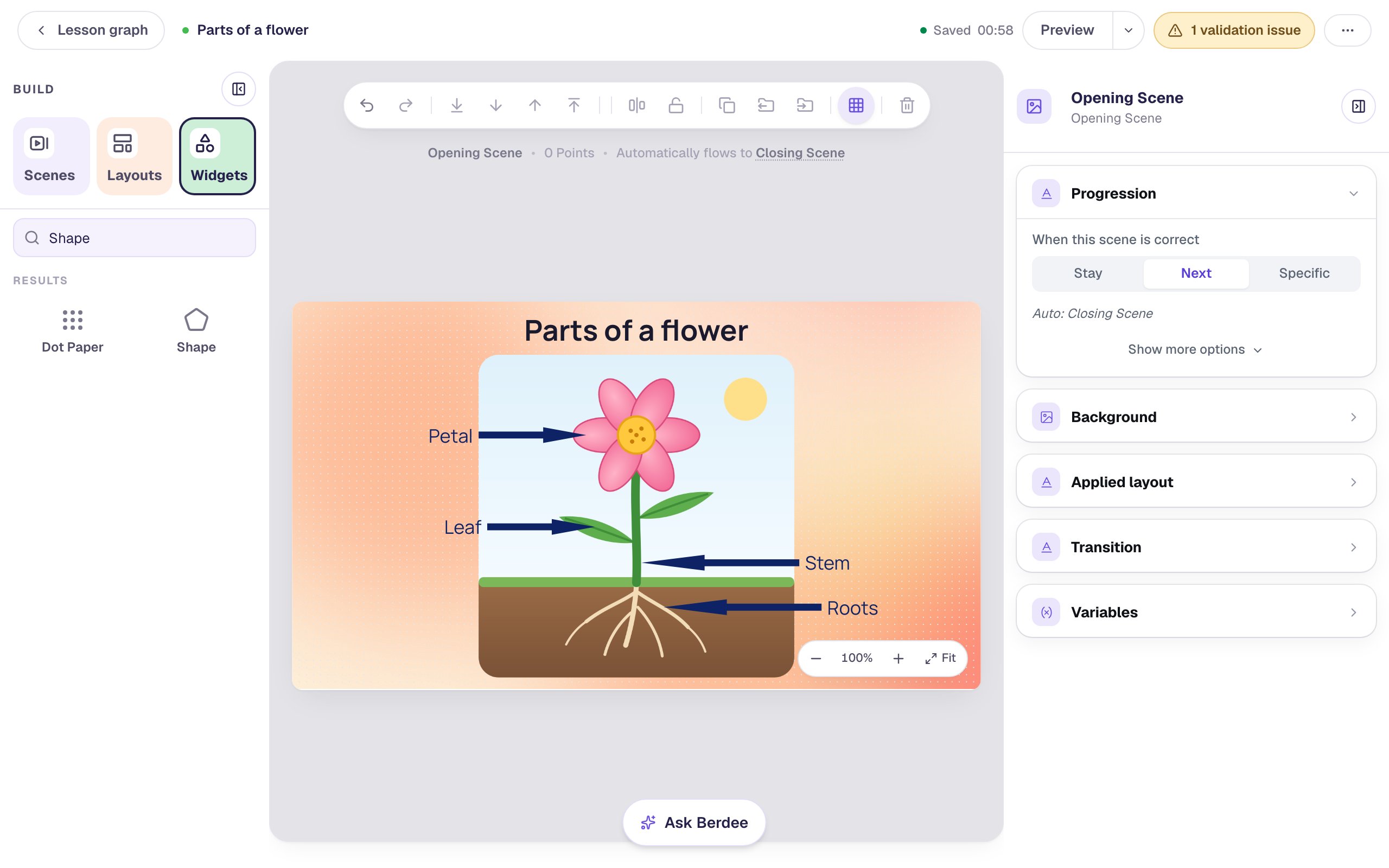
The arrows don't need Alt Text. The word beside each one already names the part, so a student using a screen reader hears Petal, Leaf, Stem and Roots, and a shape left with its starting alt text is skipped as decoration. Describe a shape only when it carries meaning of its own.
Each scene starts at Fit when you switch to it, so you never open a scene zoomed in by accident.
Step 8: Add a quick check on the next scene
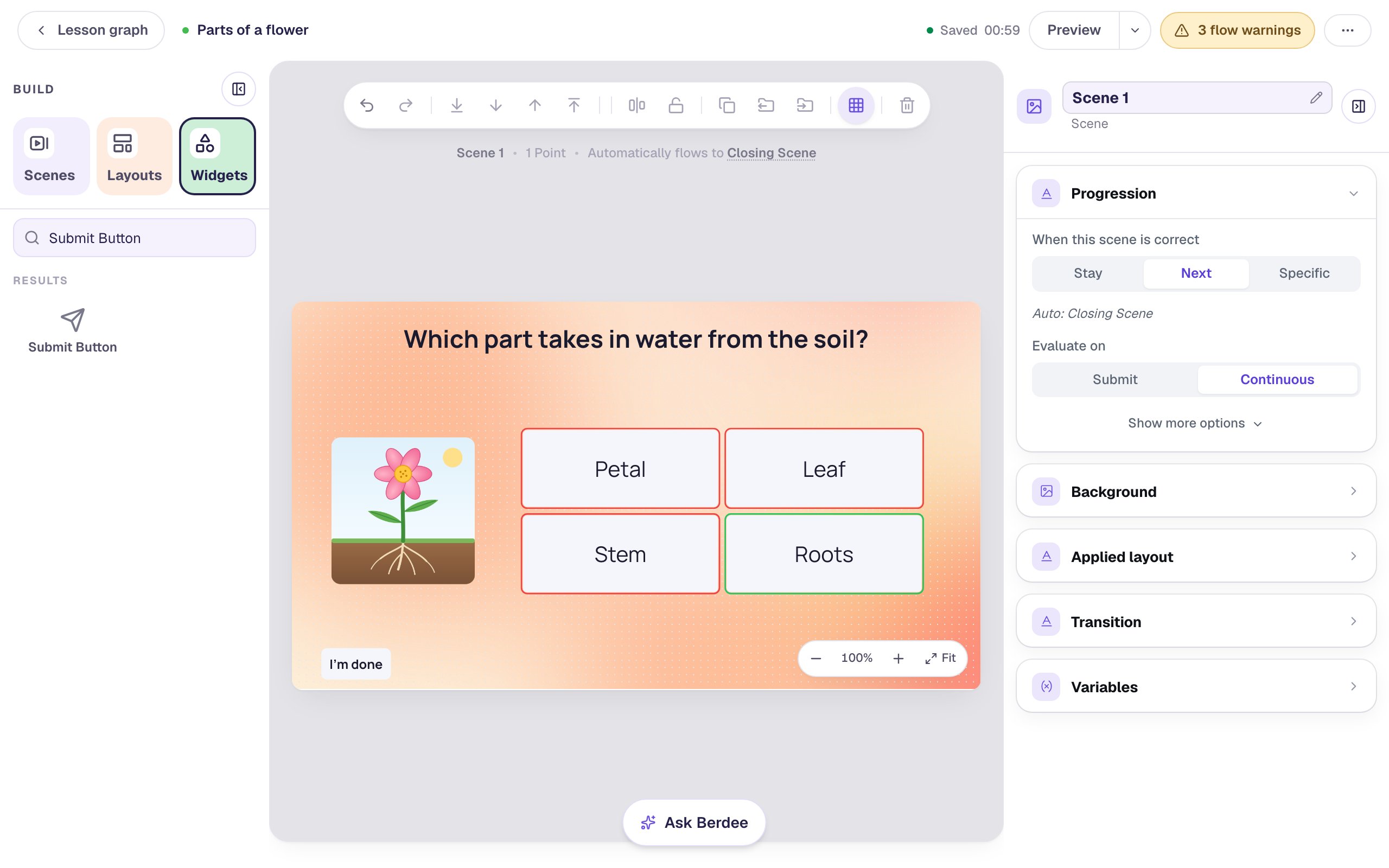
Open the Scenes tab and click Add scene. Give it the same background, and add a Heading: Which part takes in water from the soil? at Font Size 34.
Add a smaller copy of the diagram on the left (an Image, Width 200, Height 205, with its own Alt Text, such as The same flower, with its roots in the soil). Then add a Multi Choice. In Configure, type the answers Petal, Leaf, Stem and Roots, mark Roots correct (the first answer starts marked; marking Roots moves the mark), and click Save. In Style & Layout, set Width 560, Height 230 and Font Size 30, and turn on Show correctness so a wrong pick turns red.
Add a Submit Button, set its Label to I'm done and Submits to Lesson, and put it in the bottom-left corner. Every lesson needs one button that finishes it.
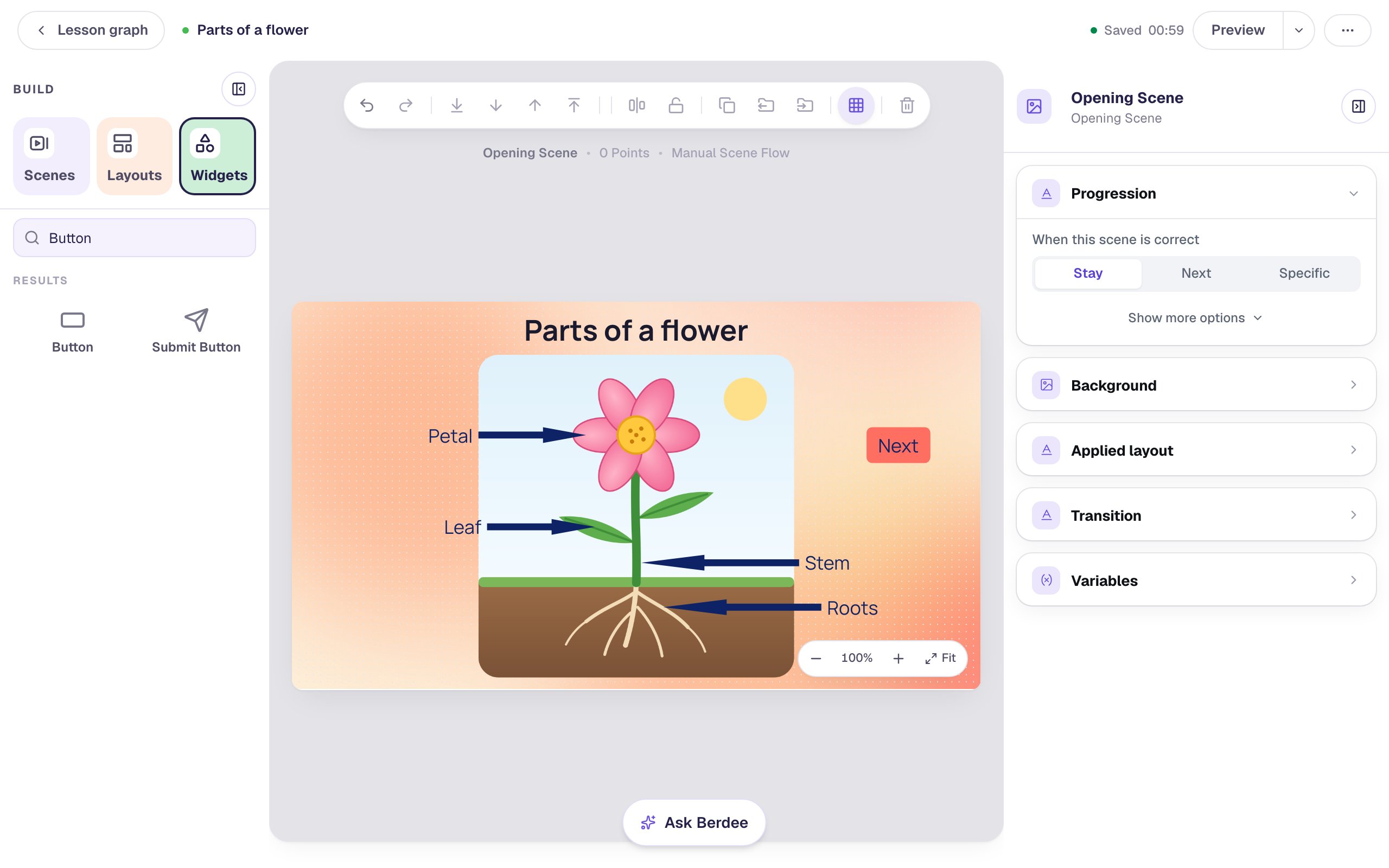
Go back to the Opening Scene and add a Button with the Label Next. Click Behaviors on the widget's toolbar, choose Make this a "Next" button, and click Add behavior. Drag it to the empty space at the top right, clear of the labels. Last, set the scene's Progression to Stay, so the diagram waits until the student is ready.
Step 9: Try it as a student
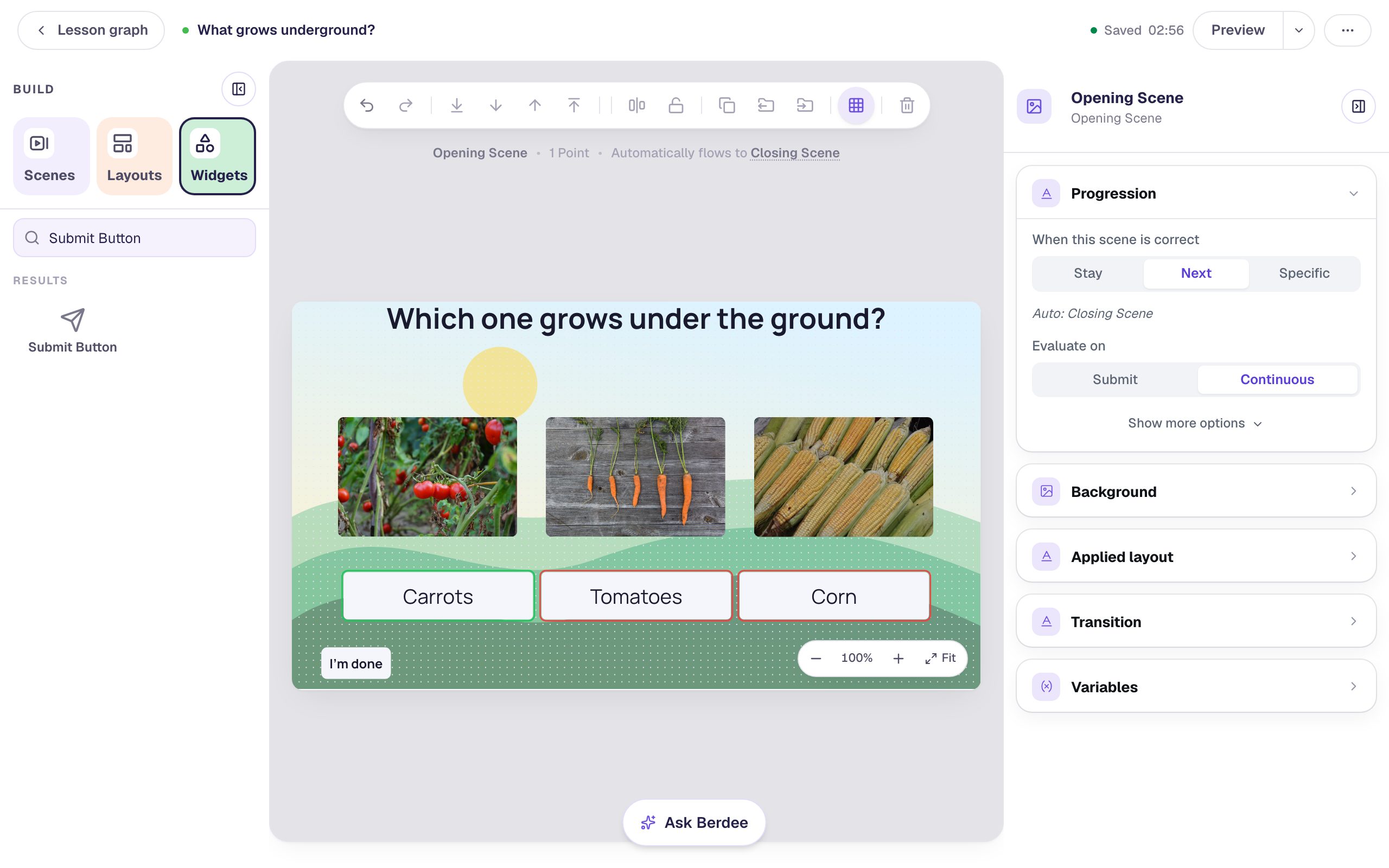
Click Preview. Look at the diagram, click Next, then try a wrong answer before the right one:
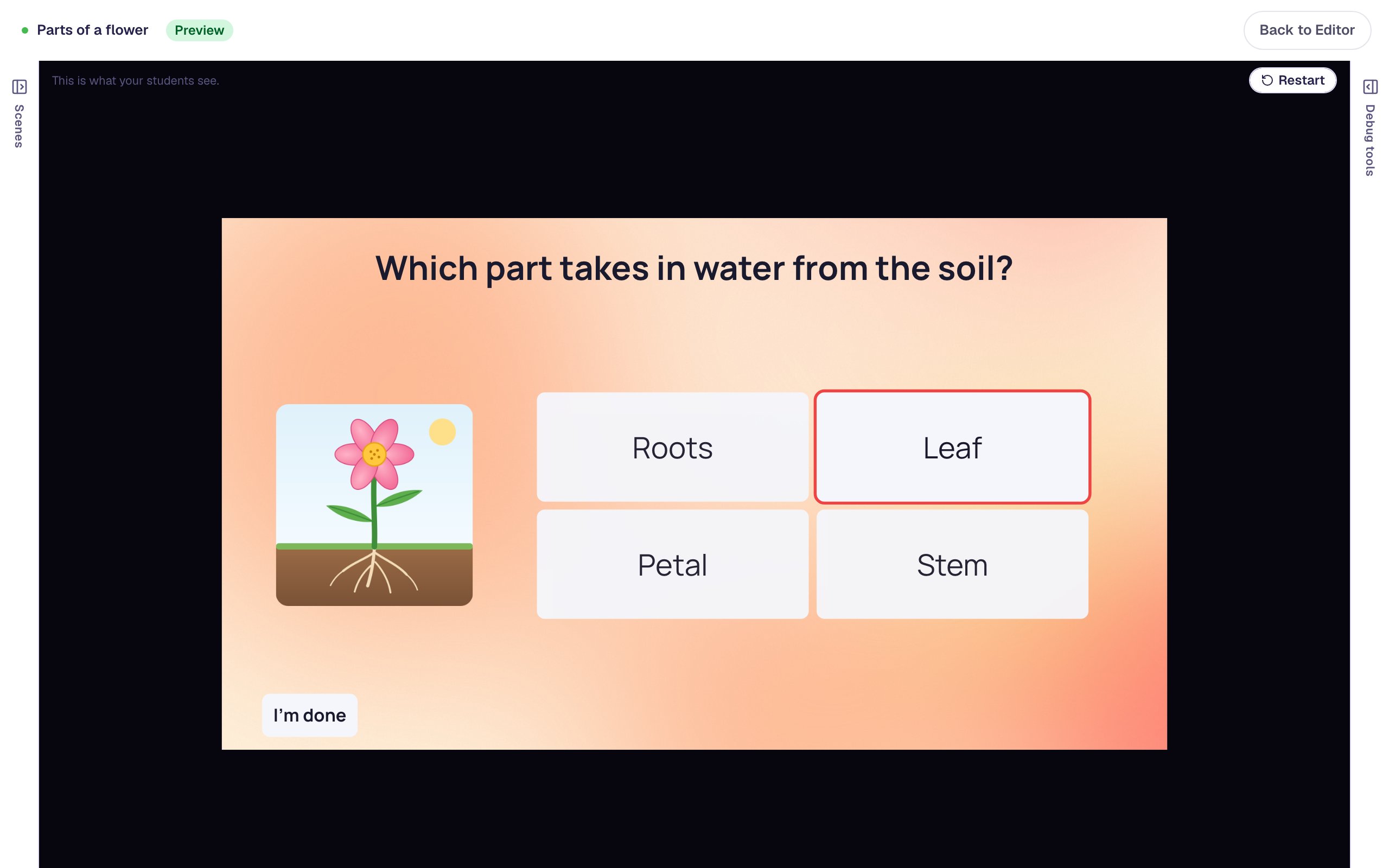
The answers are shuffled for every student, so they may be in a different order than in the studio. A wrong pick turns red:
Roots is right, so the scene moves on to the Closing Scene:

What you built
You labelled a diagram whose arrows each point exactly at their part, using the studio's camera:
- + zoomed in one step at a time, and the percentage told you how far: 200% is twice as big as Fit,
- holding Space and dragging moved the zoomed-in canvas without moving any widget,
- ⌘ D copied a finished arrow or label, so every label matches the first,
- pinching, or Ctrl and scrolling, zoomed toward the roots instead of the middle,
- the arrow keys nudged a selected widget one pixel at a time, and
- Fit (or ⌘ 0) put the whole scene back on screen, so you checked it the way students see it.
The same habit works on any fiddly scene: zoom in to place, zoom out to judge. To line up whole rows of widgets without zooming at all, try Line up pictures with Tidy up, Gap, and Lock. To let students choose the labels themselves, try Label a diagram with dropdowns.
Make this lesson yours
Add the lesson you just watched being built to your account, then change it for your class: your questions, your pictures, your colors.
Free to sign up, and you'll come straight back here. I have an account