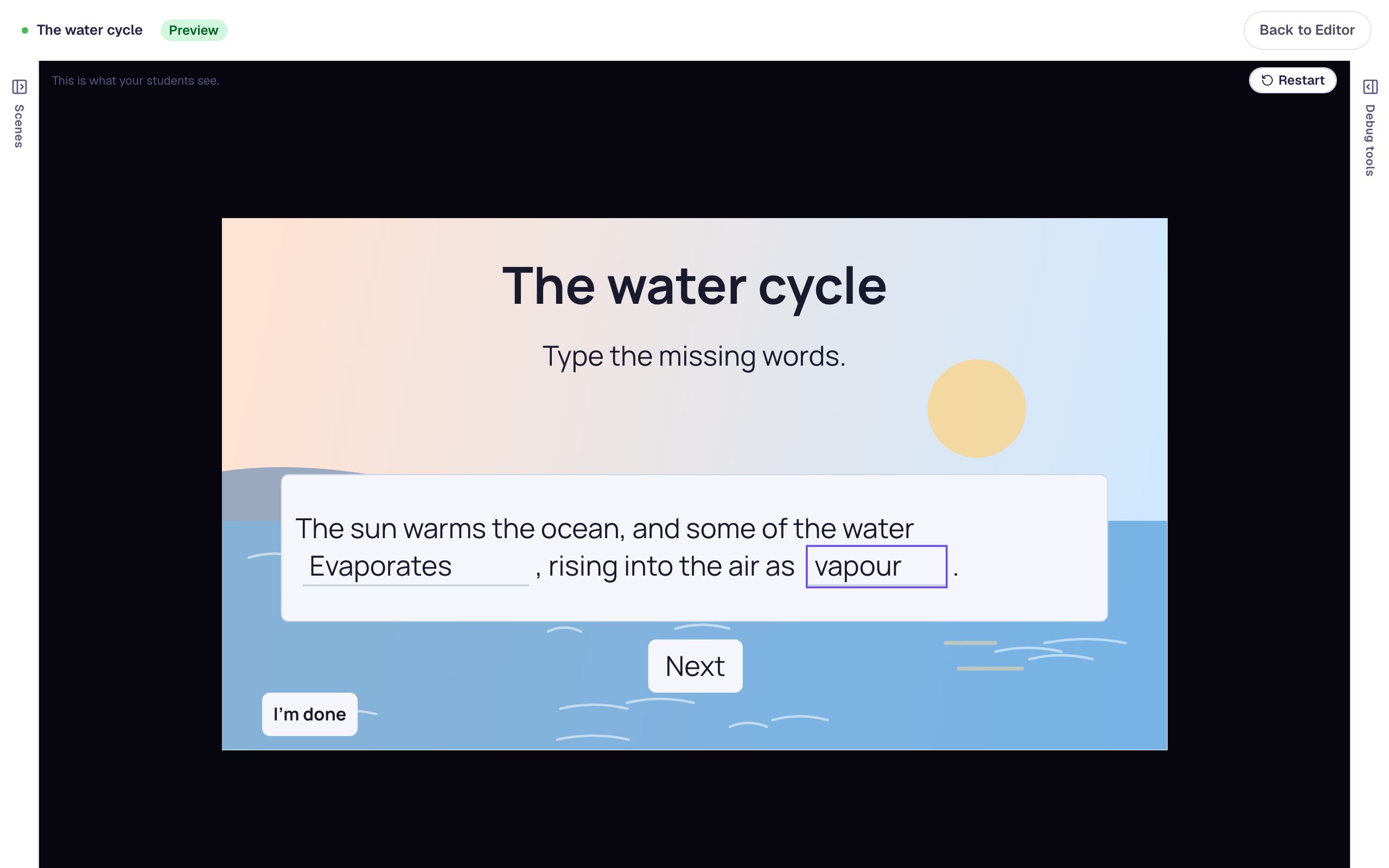
Add your own photos by dropping them on a scene
Drag three of your own photos onto the canvas at once, line them up, describe each one for screen readers, paste a fourth onto the ending, and reuse one from your media library, all without opening a single upload window.
- Level
- Beginner
- Time
- About 10 min
- Steps
- 8
- Updated
- Oct 19, 2026
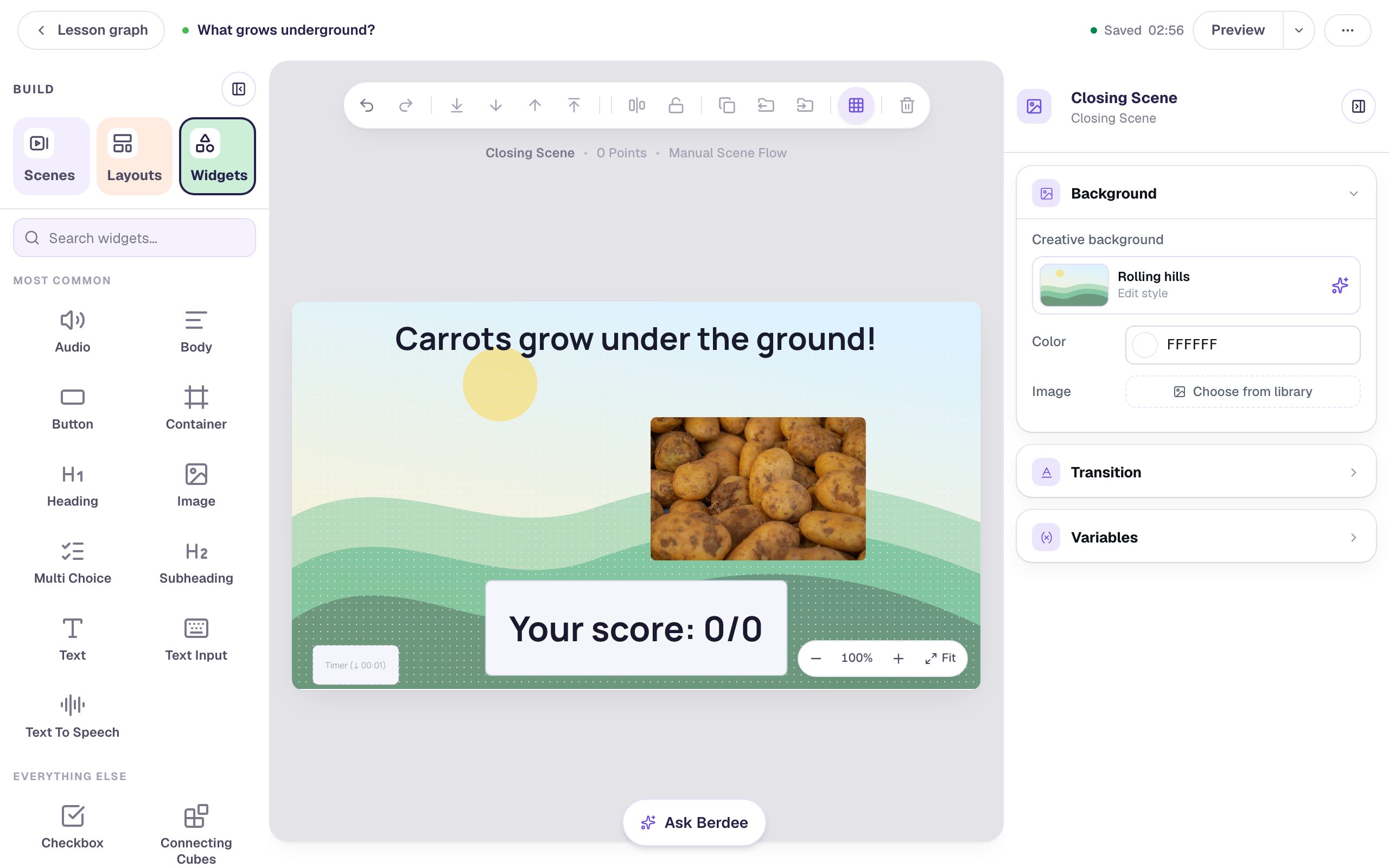
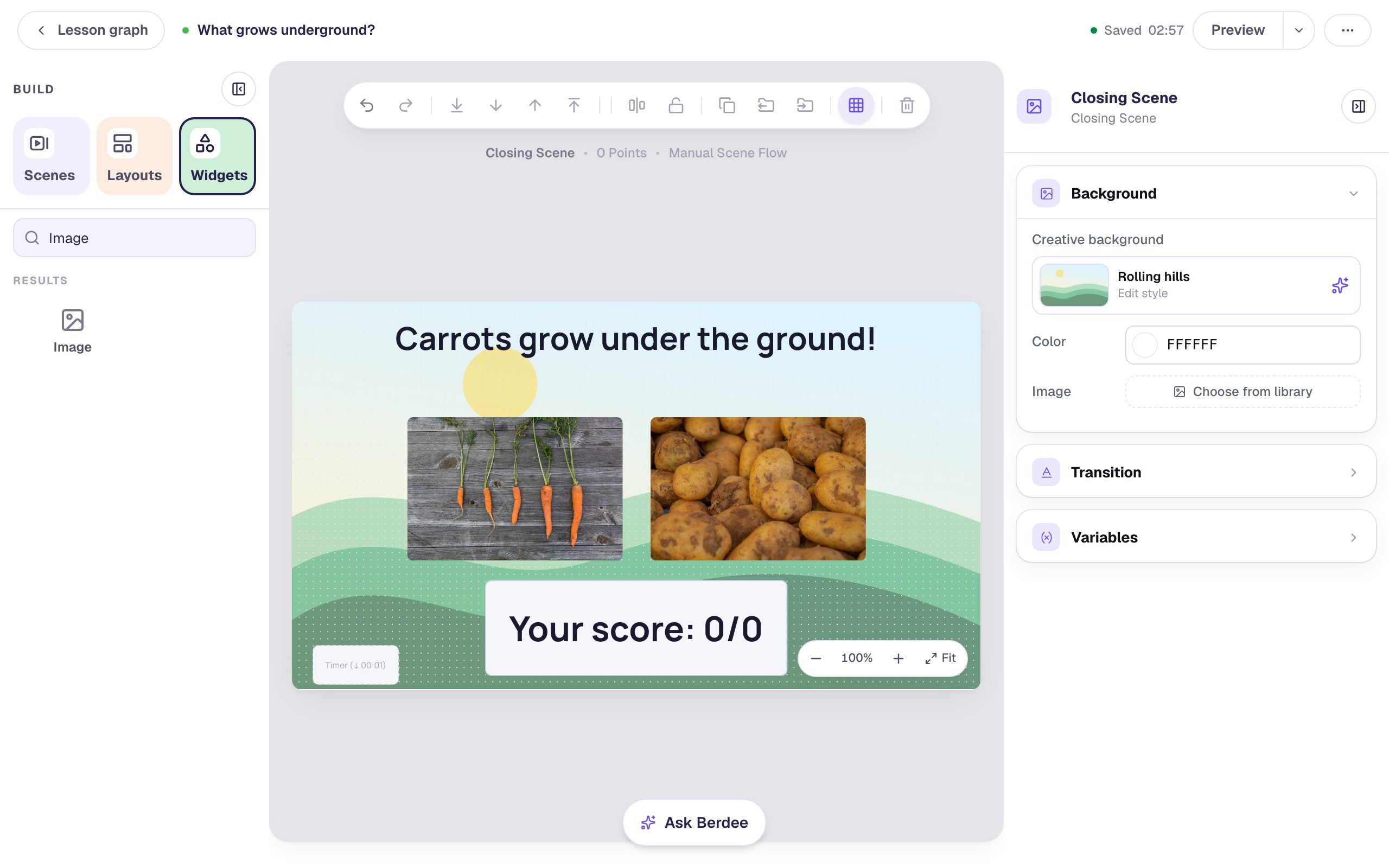
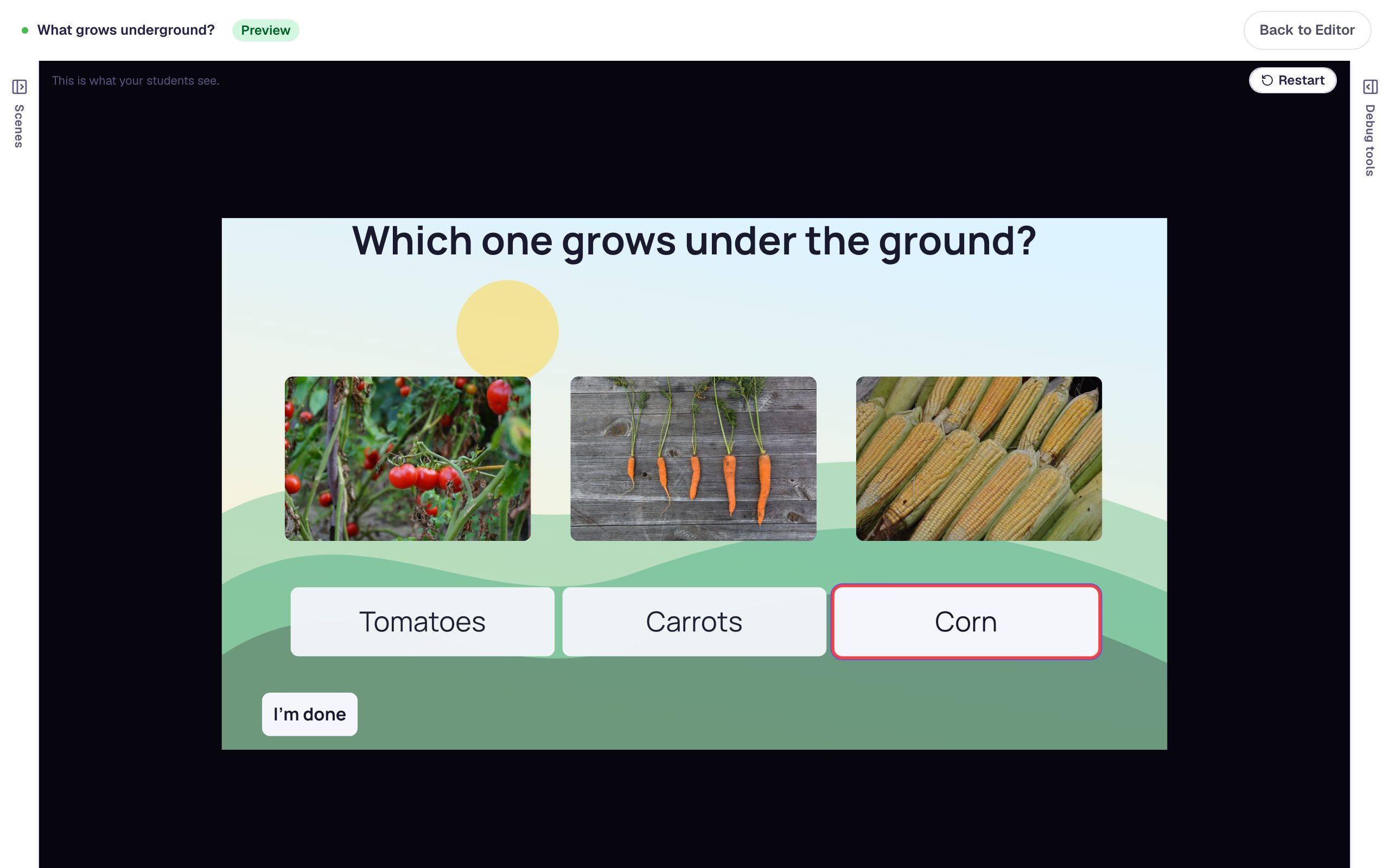
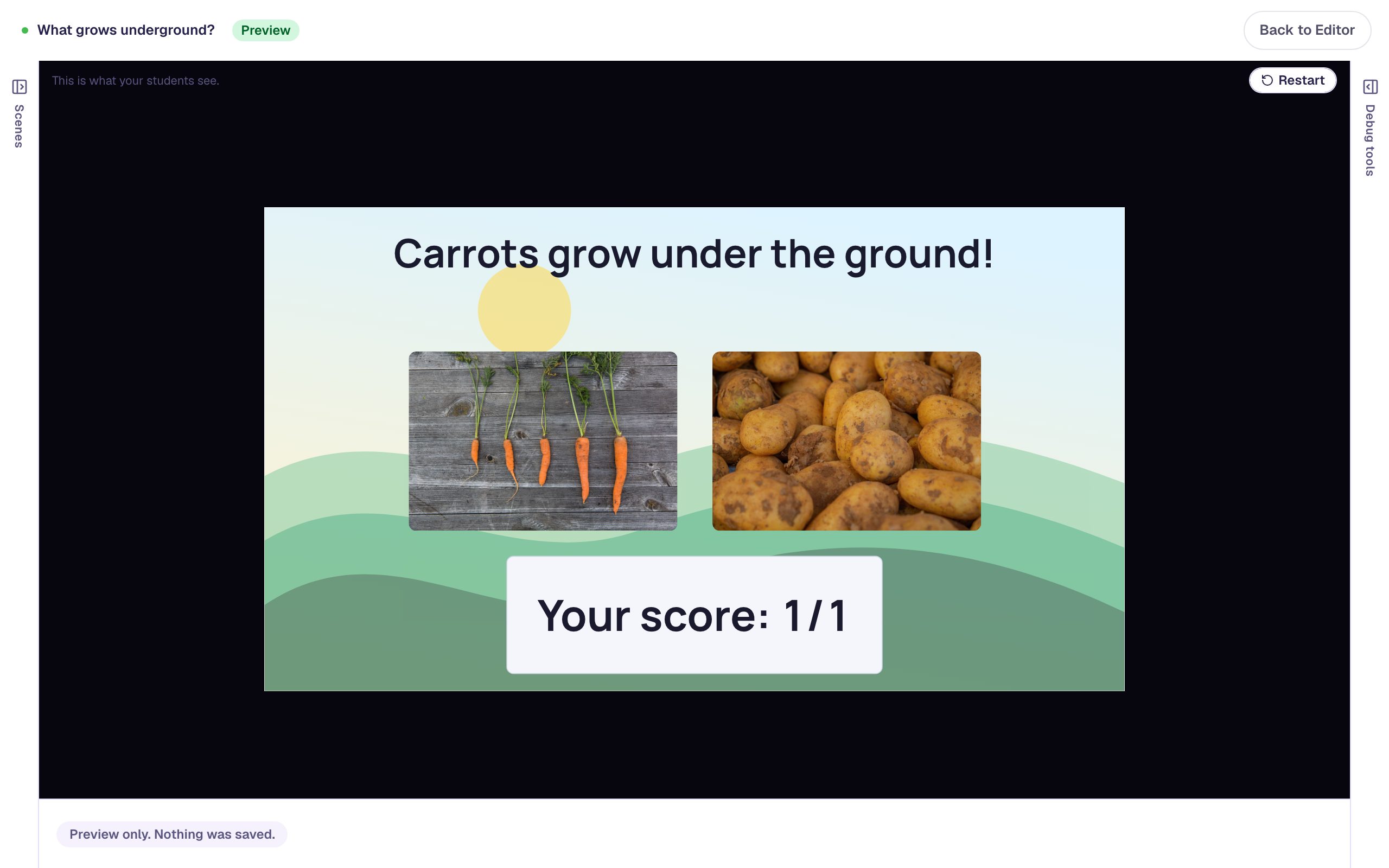
A "What grows underground?" lesson with three of your own vegetable photos lined up over a three-answer question, and an ending that shows the carrots and a pasted photo of potatoes above the student's score.
Get the finished lesson
Skip straight to the result, or keep it open beside the steps. Add this tutorial's lesson to your account and explore how it works in the studio.
Free to sign up, and you'll come straight back here. I have an account
The pictures that work best in a lesson are often ones you already have: a photo from your class garden, a scan from the textbook, the shells you brought in for science. You don't need to open a window and upload them one by one. Drag the files from your desktop straight onto the scene, or copy a picture and paste it, and Berdee turns each one into an image for you.
In this tutorial you'll build a one-question lesson, Which one grows under the ground?, from three vegetable photos you drop in at once. You'll line them up, describe each one so students using a screen reader know what's in it, paste a fourth photo onto the ending, and reuse one of the first three without uploading it again. If you've never added a widget before, start with Build your first quiz question.
Step 1: Set up the question scene
Start a blank lesson and name it (we used What grows underground?). Click an empty part of the canvas, open Background in the properties panel, and click Choose a style. We picked Rolling hills from the Nature group, and gave the Closing Scene the same background so the ending matches.
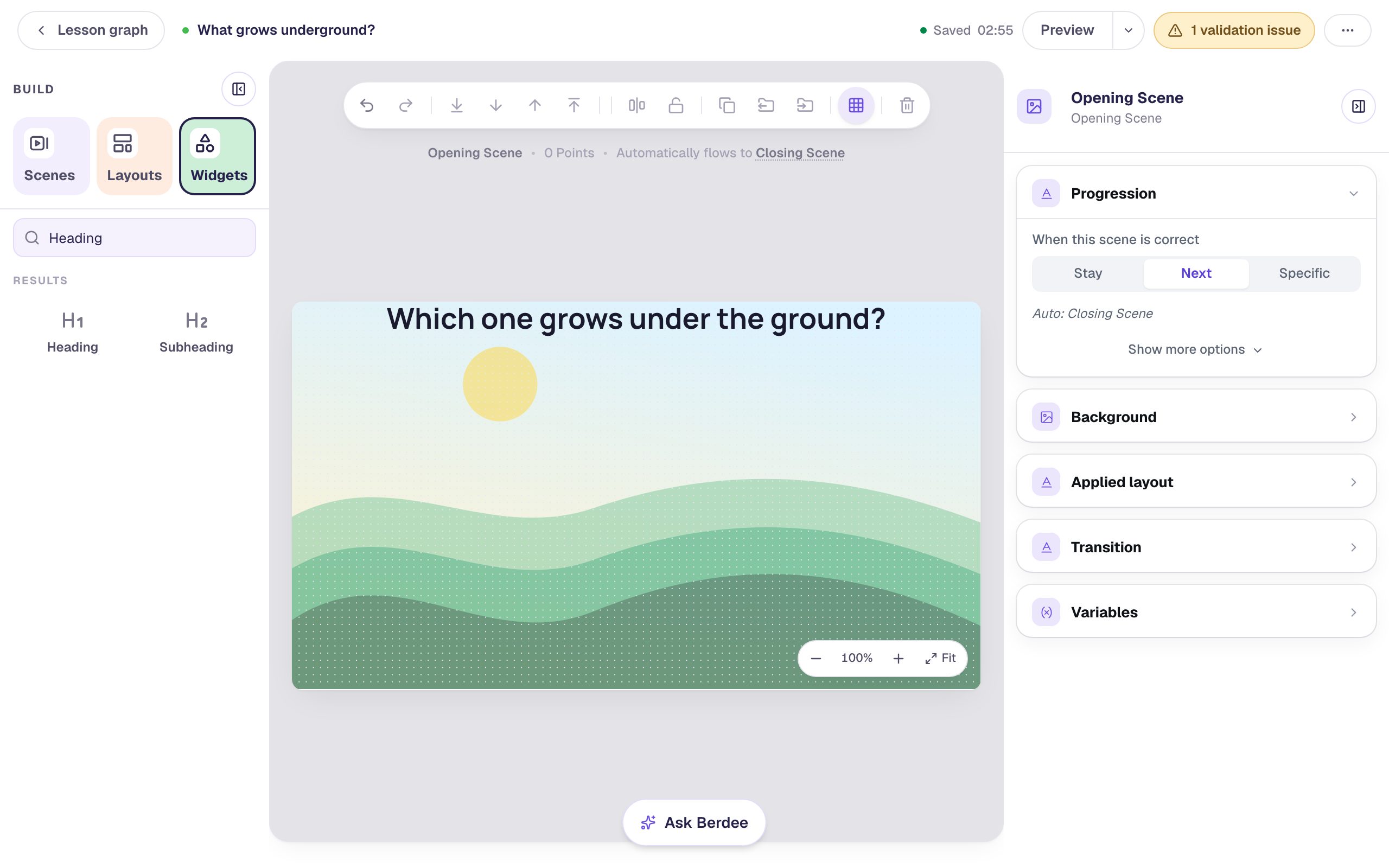
Back on the Opening Scene, add a Heading from the Widgets tab and type Which one grows under the ground?. Set its Font Size to 40 so it fits on one line, drag it to the top, and centre it with Align & distribute › Align horizontal centres.
Step 2: Drop three photos onto the scene at once
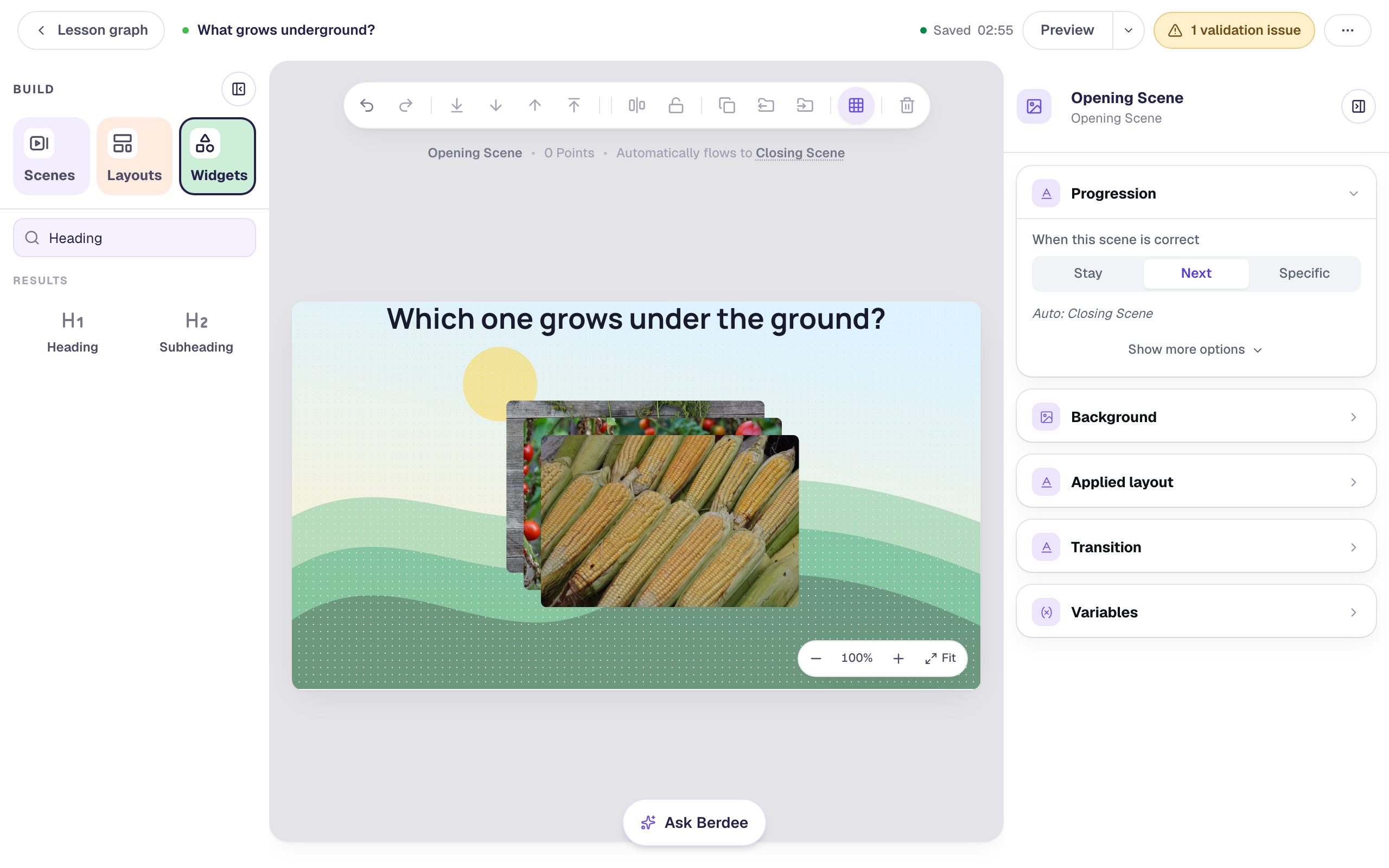
Find your photos in Finder (on a Mac) or File Explorer (on Windows). Ours are carrots.jpg, tomatoes.jpg and corn.jpg. Select all three, drag them over the canvas, and let go. While you drag, the scene shows a dashed outline and Drop to add to this scene, and Adding image… appears in the corner while they upload.
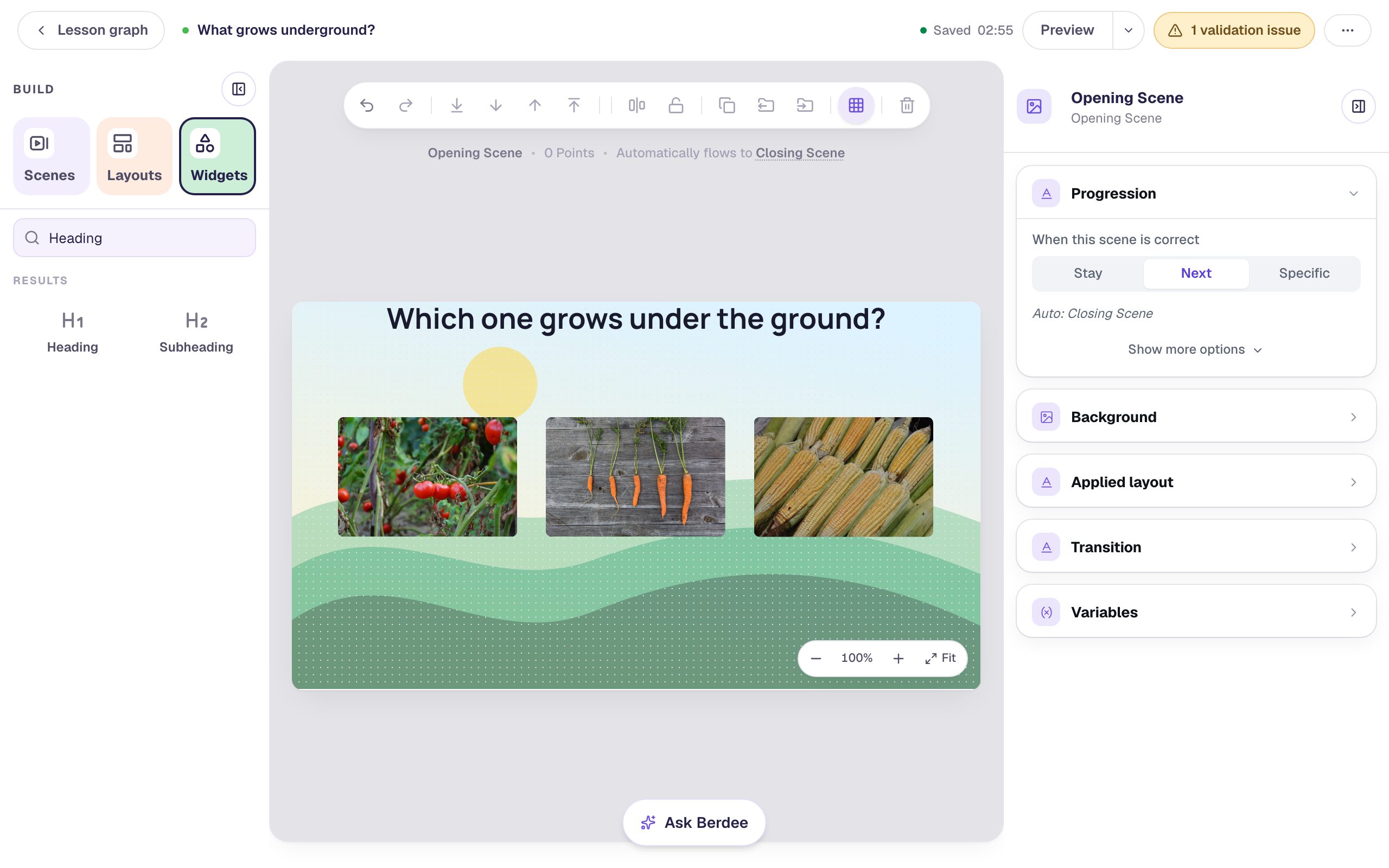
Each file becomes its own Image widget, sized to the photo's own shape, so nothing arrives squashed. They land where you let go, fanned out a little so you can tell them apart:
The canvas takes JPG, PNG, WebP and still GIF files of up to 10 MB each. If a file can't go on, a one-line message above the canvas says why. A photo from an iPhone is often a HEIC file, which most students' browsers can't show: export it as a JPEG first.
Step 3: Make them the same size and line them up
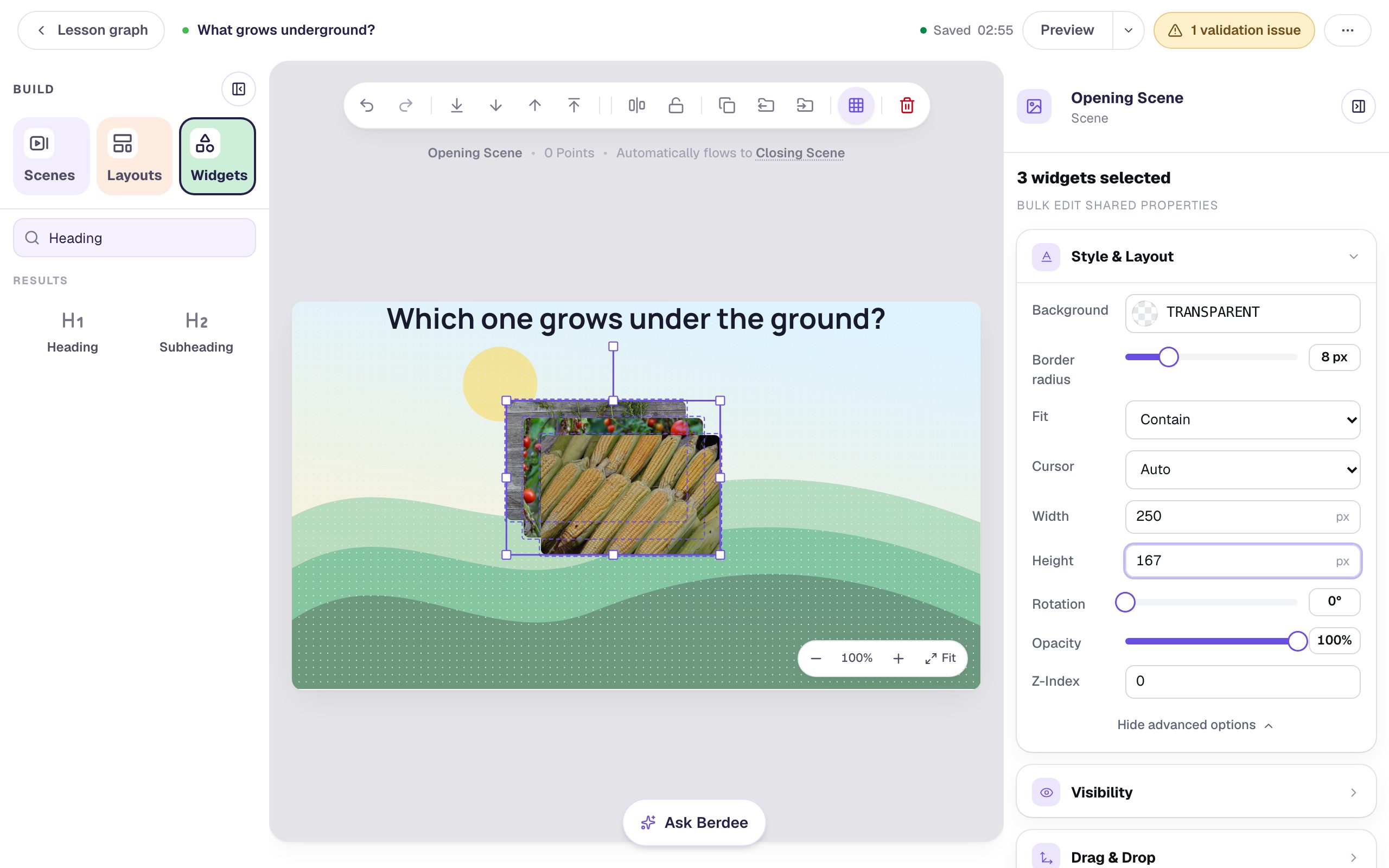
The photos are on top of each other, so clicking one only picks the top photo. Instead, drag a box across empty space around all three, starting outside them. The properties panel says 3 widgets selected.
Open Style & Layout, click Show more options, and set Width to 250 and Height to 167. All three change at once, and because our photos are all the same 3:2 shape, nothing is stretched.
Drag the photos apart into a rough row: one near the left edge, one near the right, one in the middle. Then select all three again (click the first, Shift-click the others), open Align & distribute, and click Tidy up. The photos snap into a straight row with equal gaps. Type 40 in Gap across and press Enter for a little more room between them.
Tidy up keeps the first and last photos where they are, so put the left photo where you want the row to start. Ours starts 65 pixels from the edge, which centres a row of three 250-pixel photos with 40-pixel gaps.
Step 4: Describe each photo for screen readers
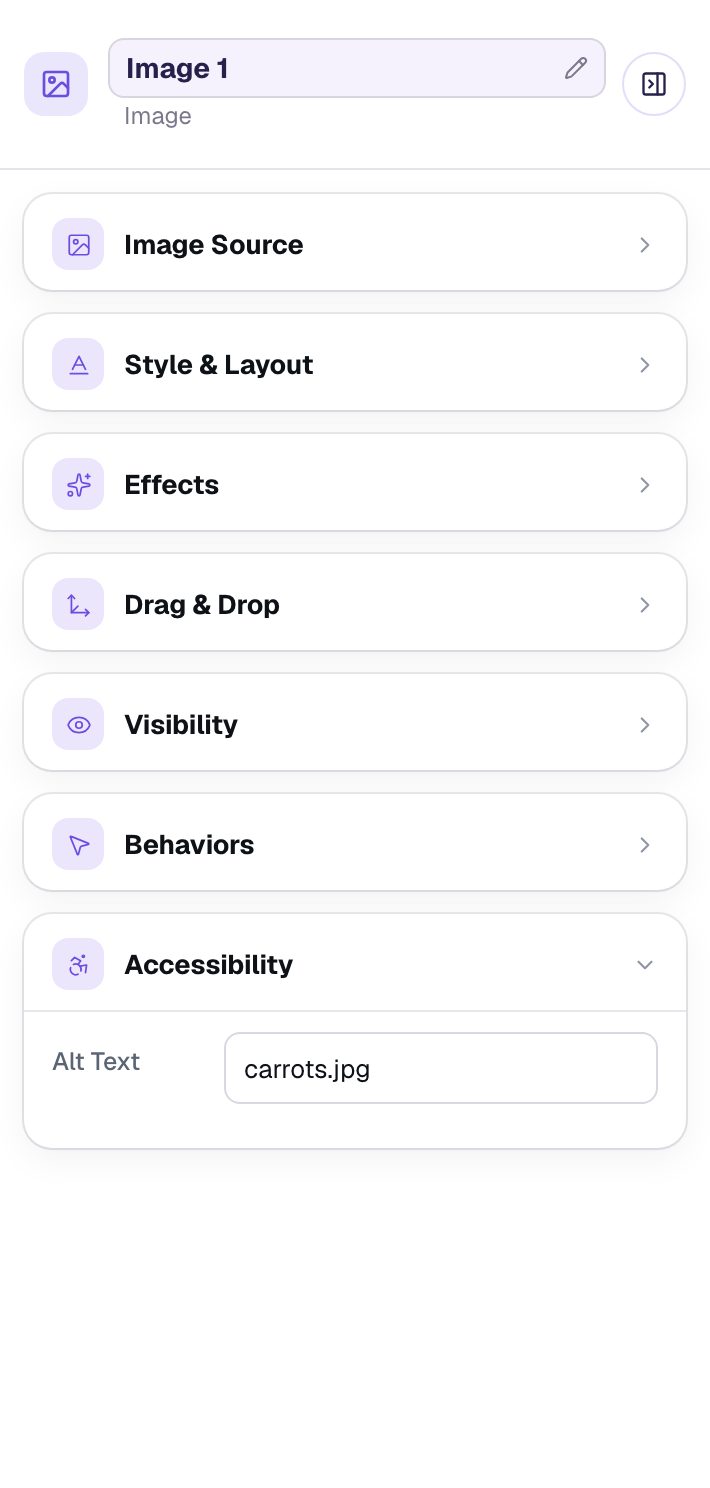
Click the carrot photo and open Accessibility. Alt Text holds the file name, carrots.jpg, because that's all Berdee knows about a photo you drop in. A student using a screen reader would hear "carrots dot jpg", and a file named IMG_4017.jpg would tell them nothing at all.
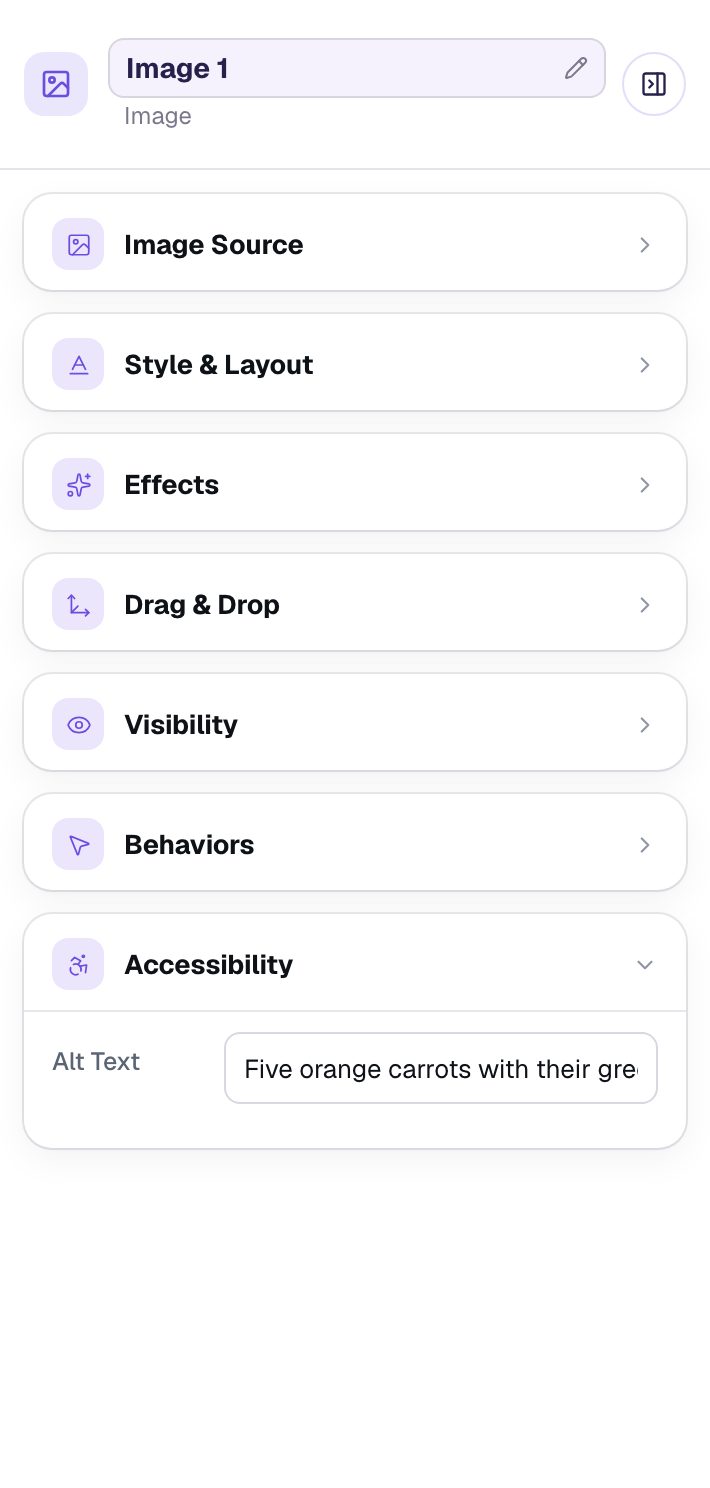
Replace it with one short sentence about what a student would see: Five orange carrots with their green tops, on a wooden table. Do the same for the other two: Red tomatoes hanging from a tomato plant and Ears of yellow corn with their green husks peeled back.
Don't give away the answer in the alt text, and don't start with "Image of": the screen reader already says it's an image.
Step 5: Add the answers
Add a Multi Choice question and click ⚙ Configure. Type the answers Carrots, Tomatoes and Corn, and delete the fourth answer with its trash button. Carrots is the first answer, which starts marked correct, so leave the marks as they are and click Save.
In Style & Layout, set Width to 820 and Height to 70 so the three answers sit in one row, set Font Size to 28, and turn on Show correctness so each pick answers back. Drag it under the photos and centre it with Align horizontal centres.
Every lesson needs one button that finishes it, so add a Submit Button, set its Label to I'm done and Submits to Lesson, and put it in the bottom-left corner.
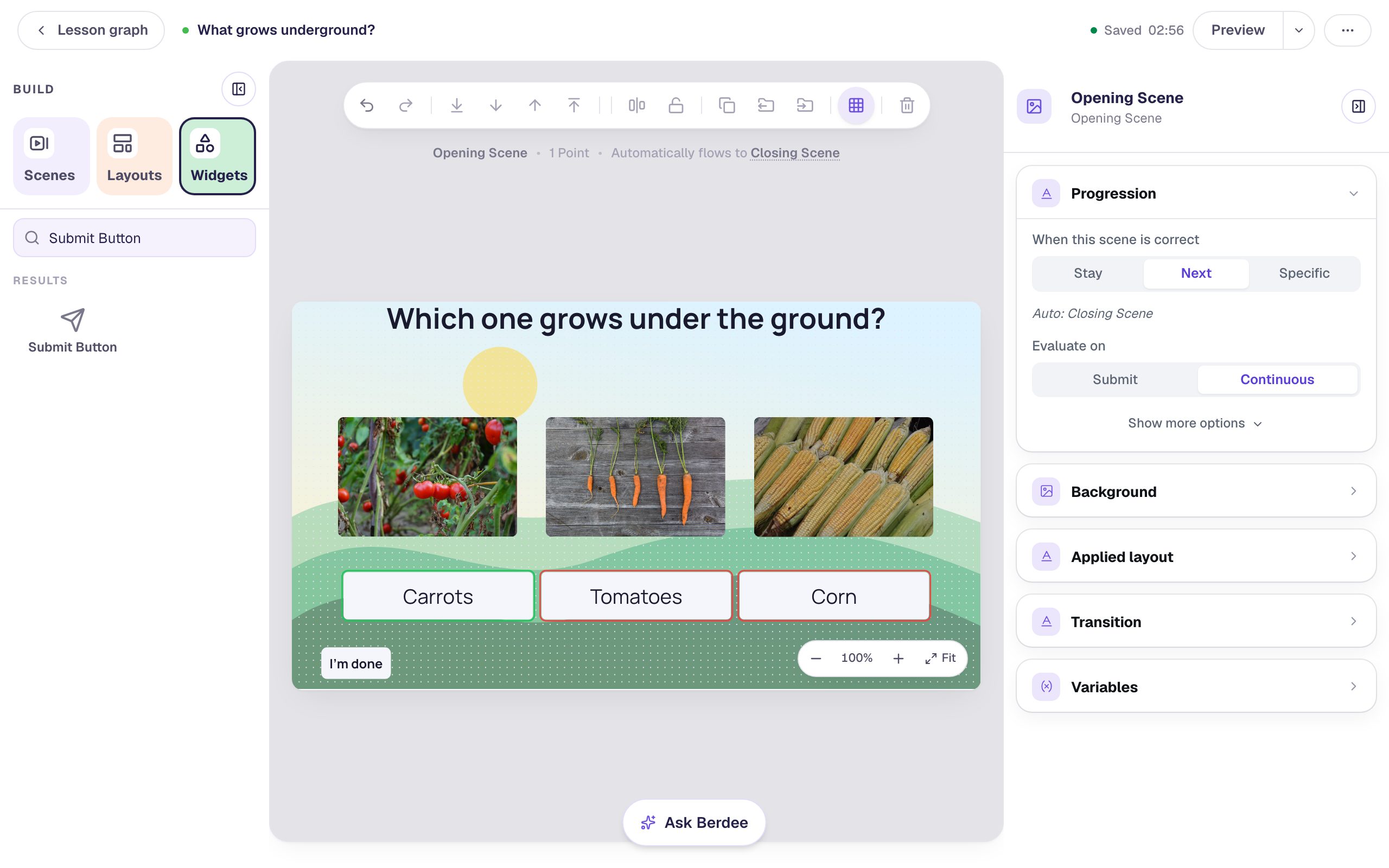
Students see the answers in a shuffled order, so they can't just learn that the first answer under the first photo is right.
Step 6: Paste a photo onto the ending
Open the Closing Scene. It starts with You finished the lesson!, the student's score, and a burst of confetti. Keep all three and make room for two photos:
- Double-click You finished the lesson!, select its words, and type
Carrots grow under the ground!. Set Font Size to 44, drag it to the top, and centre it. - Click the score box, set its Width to
420, and drag it to the bottom, centred.
Now paste a photo. Open a picture of potatoes anywhere you can copy it: a web page you have permission to use, a document, or the photo in Preview or Photos. Copy it (⌘ C on a Mac, Ctrl C on Windows). Then click an empty part of the scene and press ⌘ V (Ctrl V).
A pasted picture lands in the middle of what you can see of the canvas. Click the scene first: if the cursor is still in a box, like the widget search, the paste goes into the box instead.
Give it alt text (A pile of potatoes with soil still on them), set it to 300 by 200, and drag it to the right of the middle.
Step 7: Use a photo again from your library
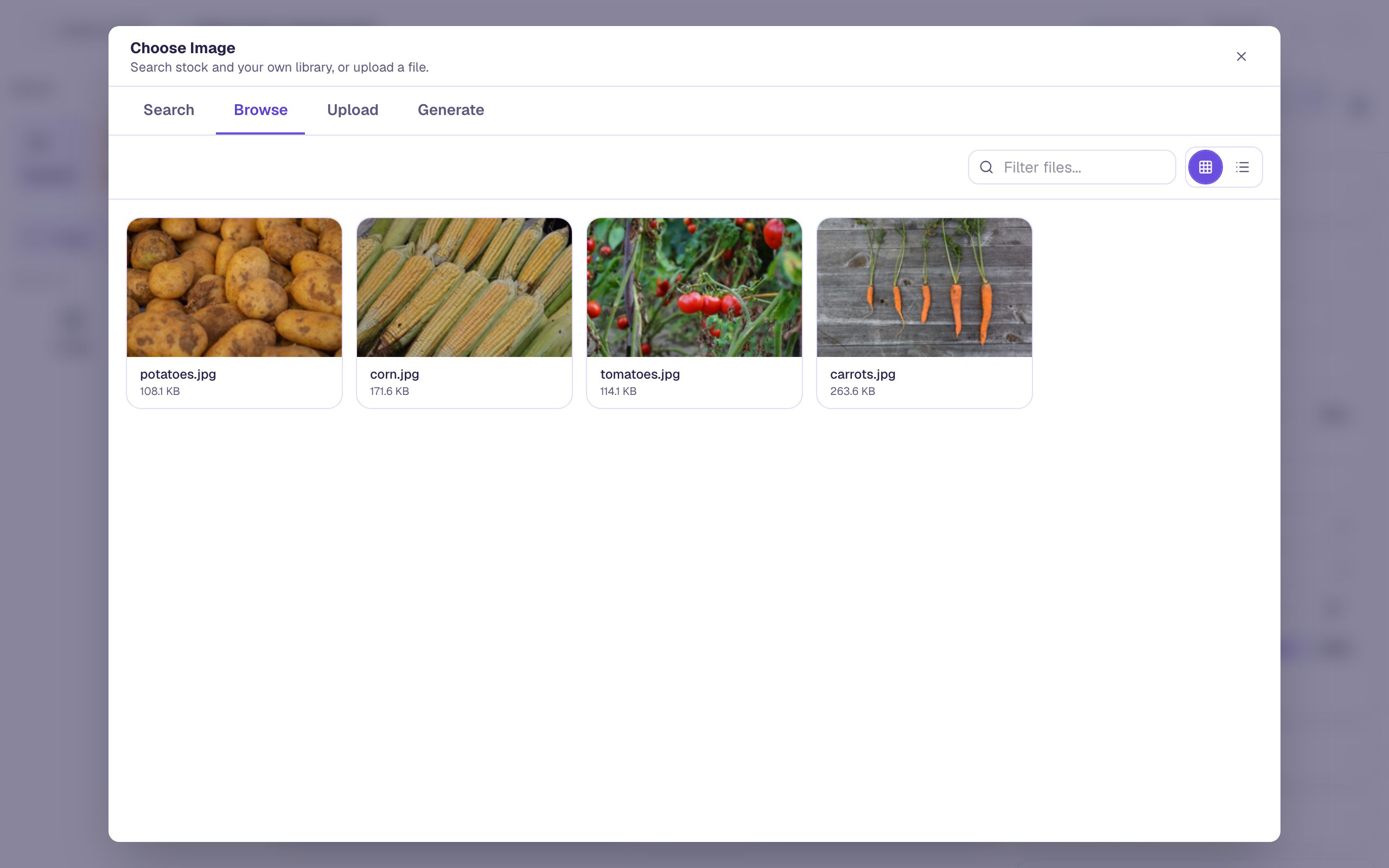
Every photo you drop or paste also goes into your media library, so you can use it again in this lesson or any other without uploading it a second time. Put the carrots beside the potatoes:
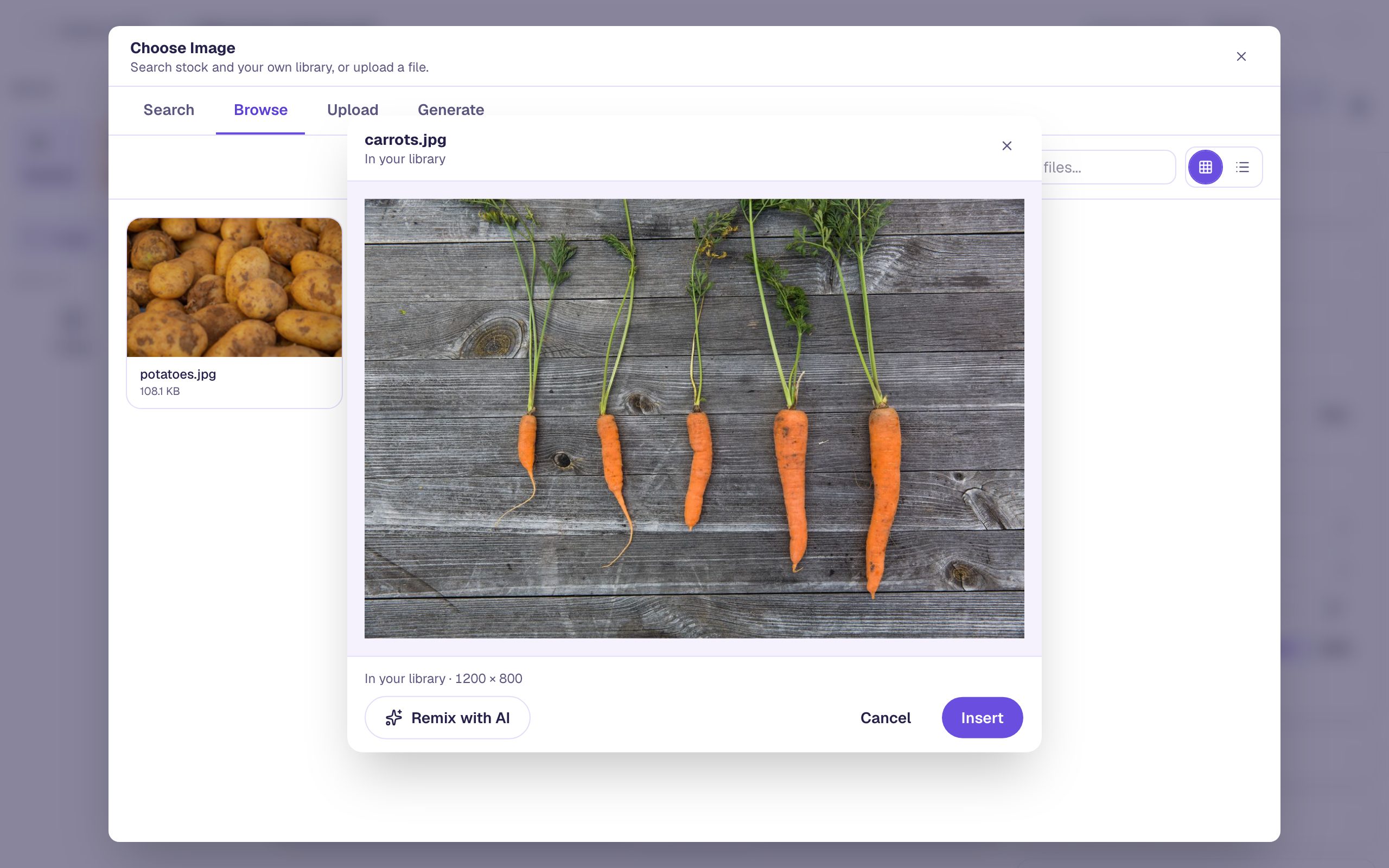
Add an Image, set it to 300 by 200, and drag it to the left of the potatoes. Click Choose image on it and open the Browse tab. All four of your photos are there:
Click carrots.jpg, then Insert.
A photo chosen from the library starts with its file name as alt text too, so describe it again: Five orange carrots with their green tops, on a wooden table.
Step 8: Try it as a student
Go back to the Opening Scene and click Preview. Try a wrong answer first, then the right one:
A wrong pick turns red, and the student can try again:
Carrots is right, so the lesson moves on to the ending, with confetti and the student's score:
What you built
You built a lesson from your own photos without opening an upload window once:
- dropping three files on the scene made three Images at once, each sized to its photo,
- one Width and Height change sized all three, and Tidy up with a Gap across of 40 lined them up,
- Alt Text on every photo replaced its file name with a sentence a screen reader can say,
- pasting with ⌘ V put a copied picture straight onto the ending, and
- the Browse tab of Choose image reused a photo you'd already dropped, with no second upload.
Next, give each photo a name underneath and lock the finished row in Line up pictures with Tidy up, Gap, and Lock, or make the photos themselves the answers in Ask a "select all that apply" question with pictures.
Make this lesson yours
Add the lesson you just watched being built to your account, then change it for your class: your questions, your pictures, your colors.
Free to sign up, and you'll come straight back here. I have an account