Tilt and layer photos like a scrapbook page
Turn a row of photos into a hand-made scrapbook page. Tilt each photo with Rotation, choose which one sits on top with To Front, and hold them down with see-through tape made from a Shape and Opacity.
- Level
- Beginner
- Time
- About 10 min
- Steps
- 8
- Updated
- Oct 19, 2026
A Rainforest Animals title page on kraft paper, with three tilted, overlapping animal photos held down by see-through strips of tape and a Let's explore button.
Get the finished lesson
Skip straight to the result, or keep it open beside the steps. Add this tutorial's lesson to your account and explore how it works in the studio.
Free to sign up, and you'll come straight back here. I have an account
Photos lined up in a perfect row look like a form. Tip them a little, let them overlap, and tape them down, and the same photos look like a page someone made by hand. It's a small change that makes a title page feel warm and inviting for young students.
In this tutorial you'll build a title page for a unit on rainforest animals: a toucan, a tree frog, and a sloth on kraft paper, each one tilted, the frog lying on top, and a strip of see-through tape across every photo. You'll use three settings every widget has: Rotation, layer order, and Opacity.
Step 1: Lay down the paper and a title
Start a new lesson from scratch, then click Untitled lesson at the top left and name it Rainforest animals.
- Click the gray area around the scene so the scene itself is selected. On the right, open Background, click Choose a style, click the Textures tab, and choose Kraft paper. Click Apply background.
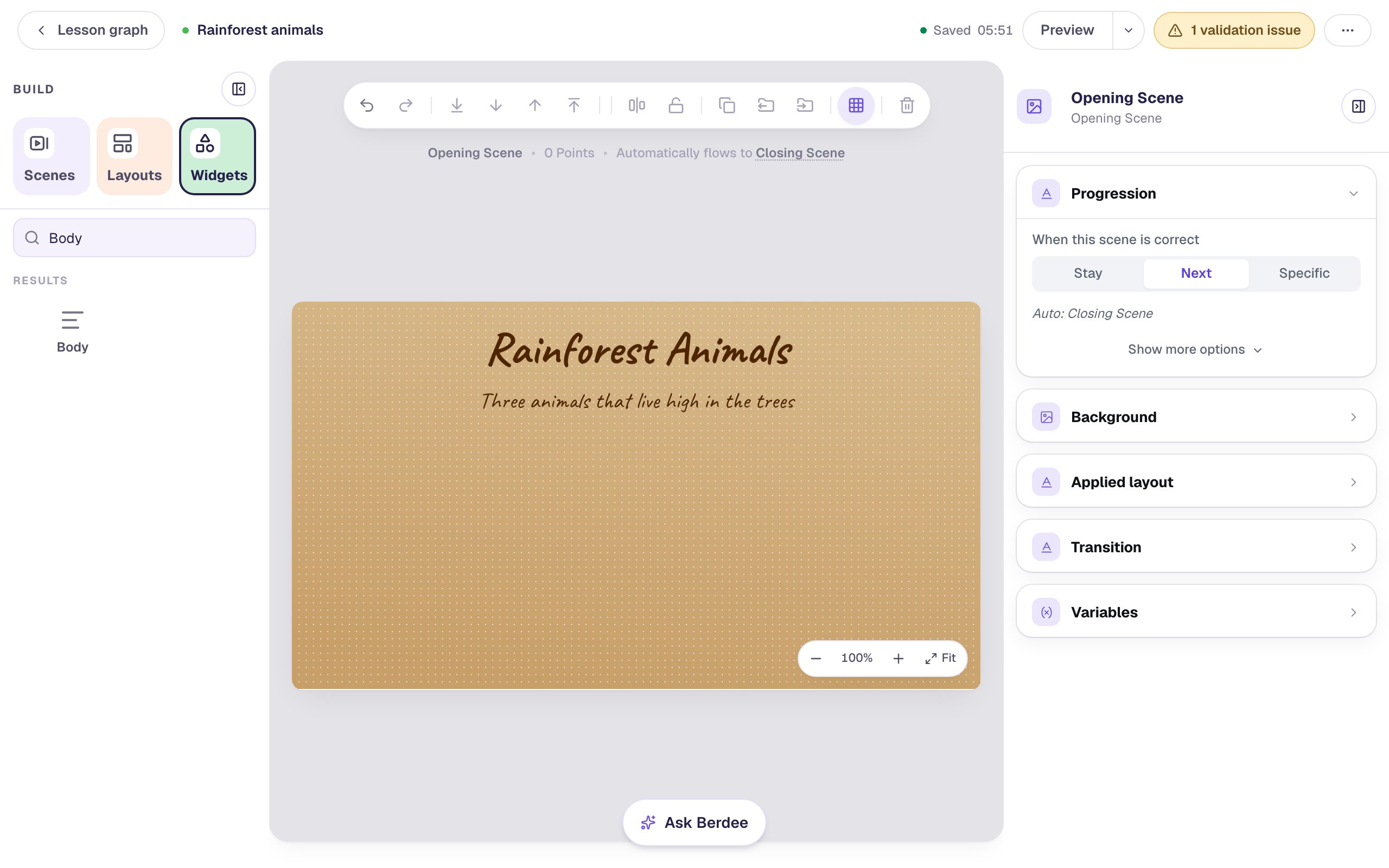
- Click the Widgets tab on the left, search for
Heading, click it, and typeRainforest Animals. In Style & Layout, click Font, typeCaveat, and pick it. It looks like handwriting, which suits a scrapbook. Set Font size to64and Text Color to a dark brown. - Add a Body under it that says
Three animals that live high in the trees, in the same font and color, at size32.
To center each line, select it, click Align & distribute in the toolbar at the top of the canvas, and click Align horizontal centres.
Step 2: Add three photos in a row
Add the first photo:
- Search the widgets for
Imageand click it. - In Style & Layout, click Show more options and set Width to
300and Height to210. Drag the frame to the left half of the scene, under the title. - Click Choose image in the small bar above it, search for
toucan branch, click a photo you like, and click Import & insert. - Set Fit to Cover so the photo fills its frame.
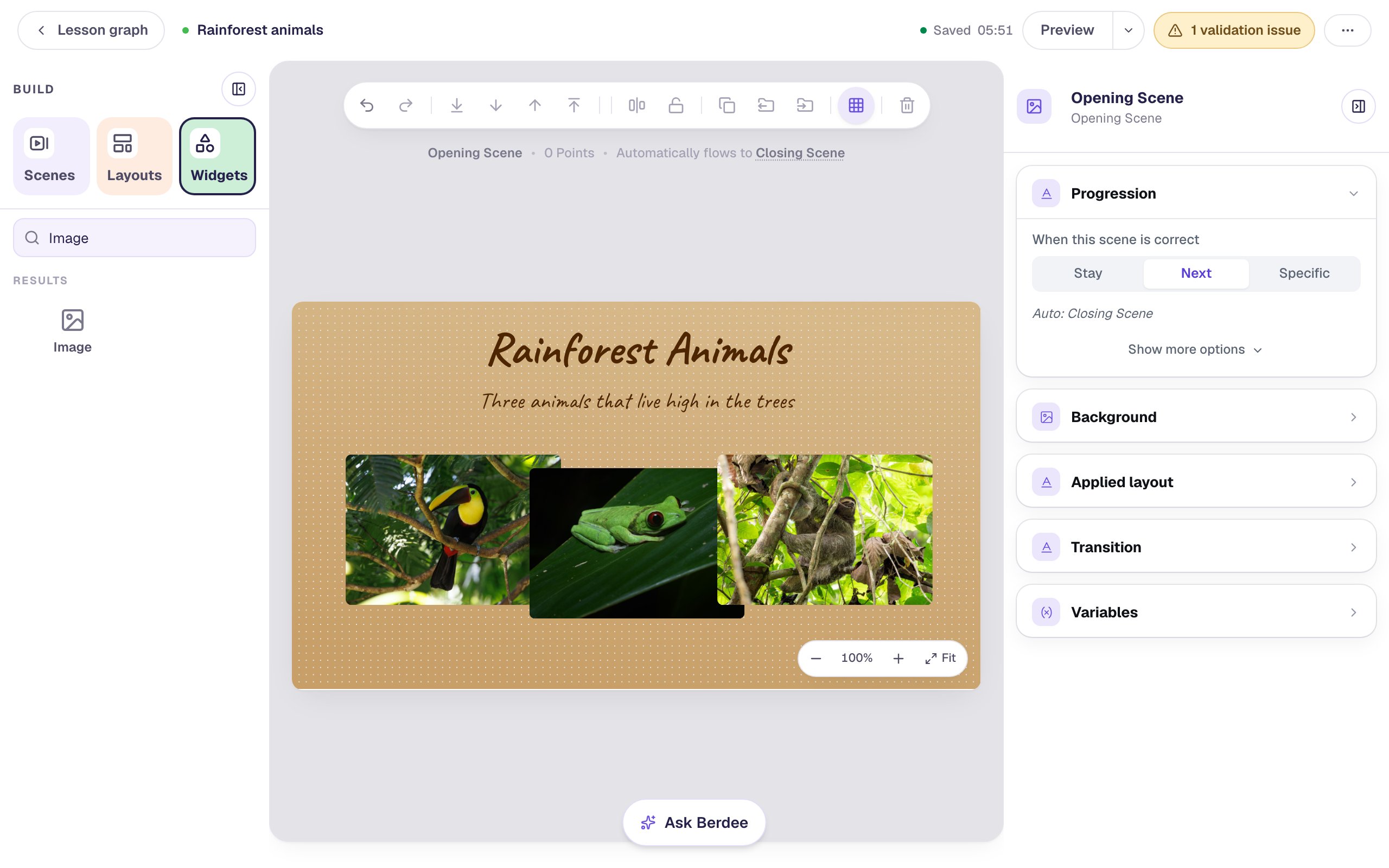
Add a frog photo (red eyed tree frog leaf) and a sloth photo (three toed sloth rainforest) the same way. Put the frog in the middle and the sloth on the right, close enough that each one's edge overlaps its neighbor's a little.
Then give each photo a description for students who use a screen reader. Select it, open Accessibility, and replace the file name in Alt Text with what the photo shows, like A toucan with a yellow chest and a huge yellow and brown beak, perched on a branch.
Step 3: Tilt a photo to the right
Click the frog. In Style & Layout, click Show more options. Below Width and Height are two sliders, Rotation and Opacity.
Drag the Rotation slider a little way to the right, until the box beside it reads 5°. The photo turns clockwise around its middle. To land on an exact number, click the slider and press ← or →: each press turns it by 1°.
Keep the tilts small. Between 3° and 10° looks hand-placed; more than that starts to look like the photo is falling off the page.
Step 4: Tilt the other two to the left
Rotation counts all the way around, from 0° to 360°. There are no negative numbers, so a small tilt to the left is a number just under 360: 352° is 8° to the left.
- Click the toucan.
- Click the Rotation slider close to its right end. Clicking the slider jumps straight to that spot, so the photo doesn't spin all the way around on the way.
- Press ← or → until it reads 352°.
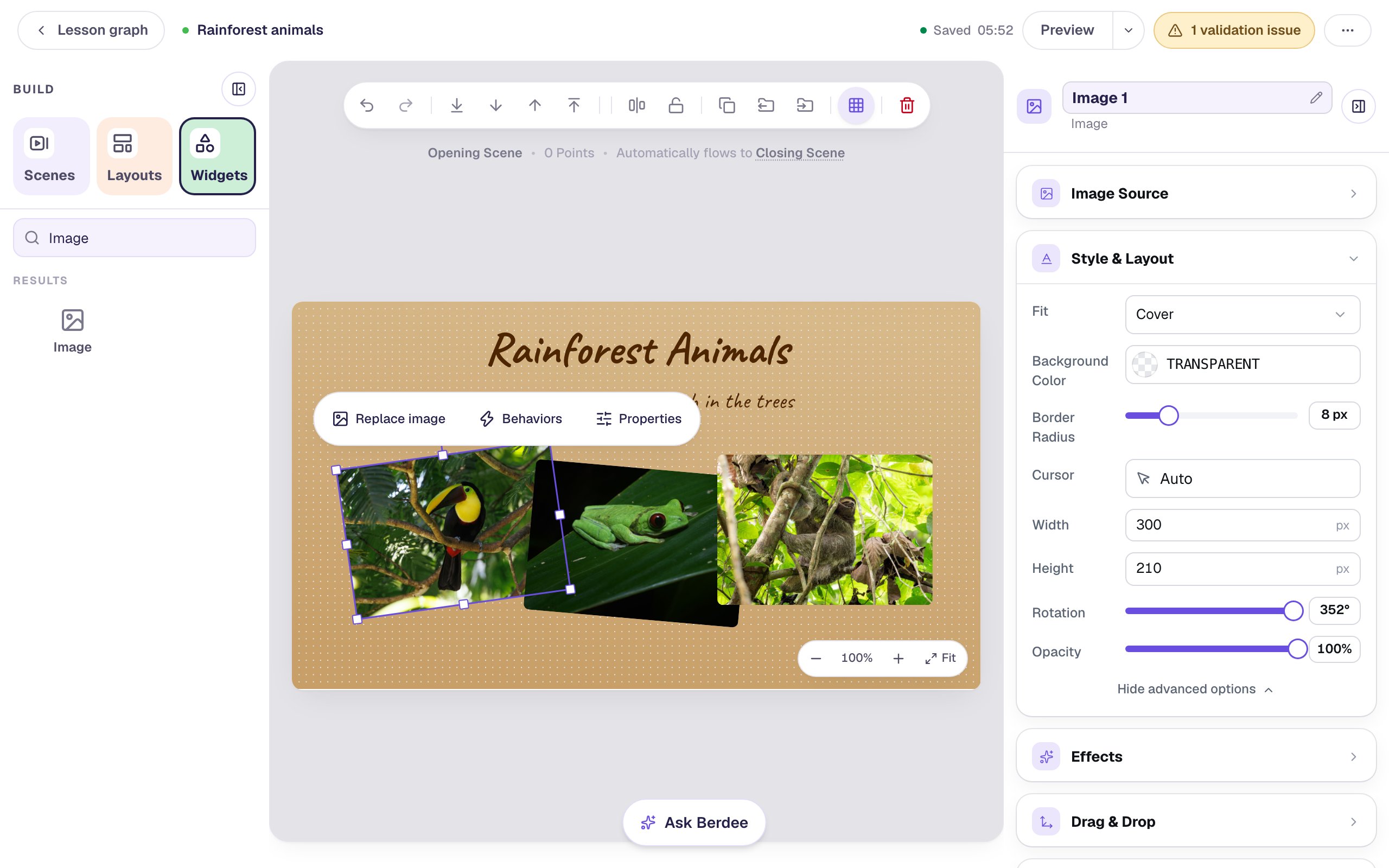
Do the same for the sloth, at 354°. Alternating left, right, left keeps the page from leaning to one side:
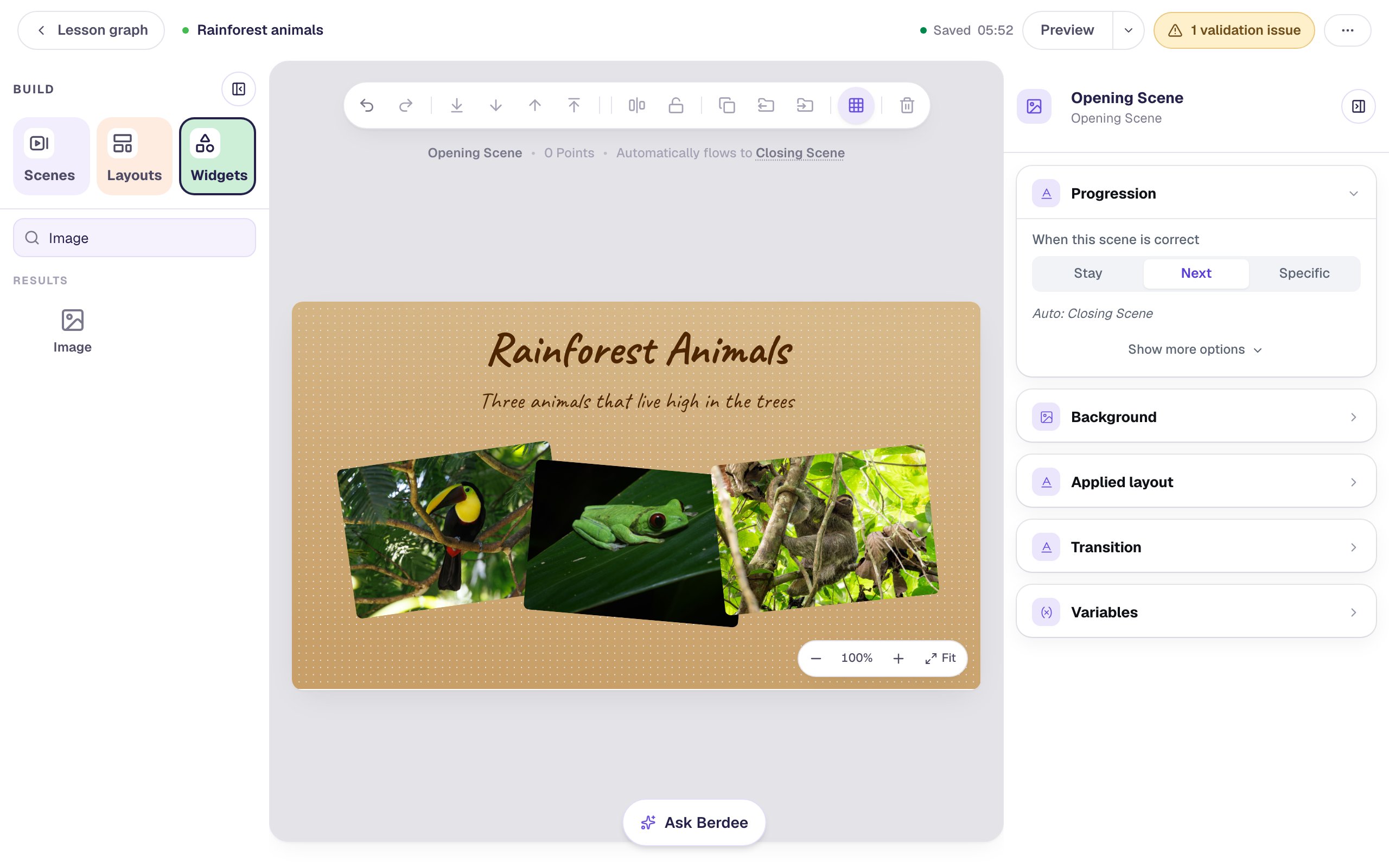
The studio also has a rotate handle above a selected widget, but right now the bar with Replace image, Behaviors, and Properties covers it. The Rotation slider is the reliable way to tilt a widget.
Step 5: Put the frog on top
Where two photos overlap, the one you added last sits on top. That's why the sloth covers the frog's right edge. The frog is the middle of the page, so bring it in front of both neighbors.
Click the frog, then click To Front in the toolbar at the top of the canvas (the arrow pointing up to a line). Now the frog lies over the sloth as well as the toucan.
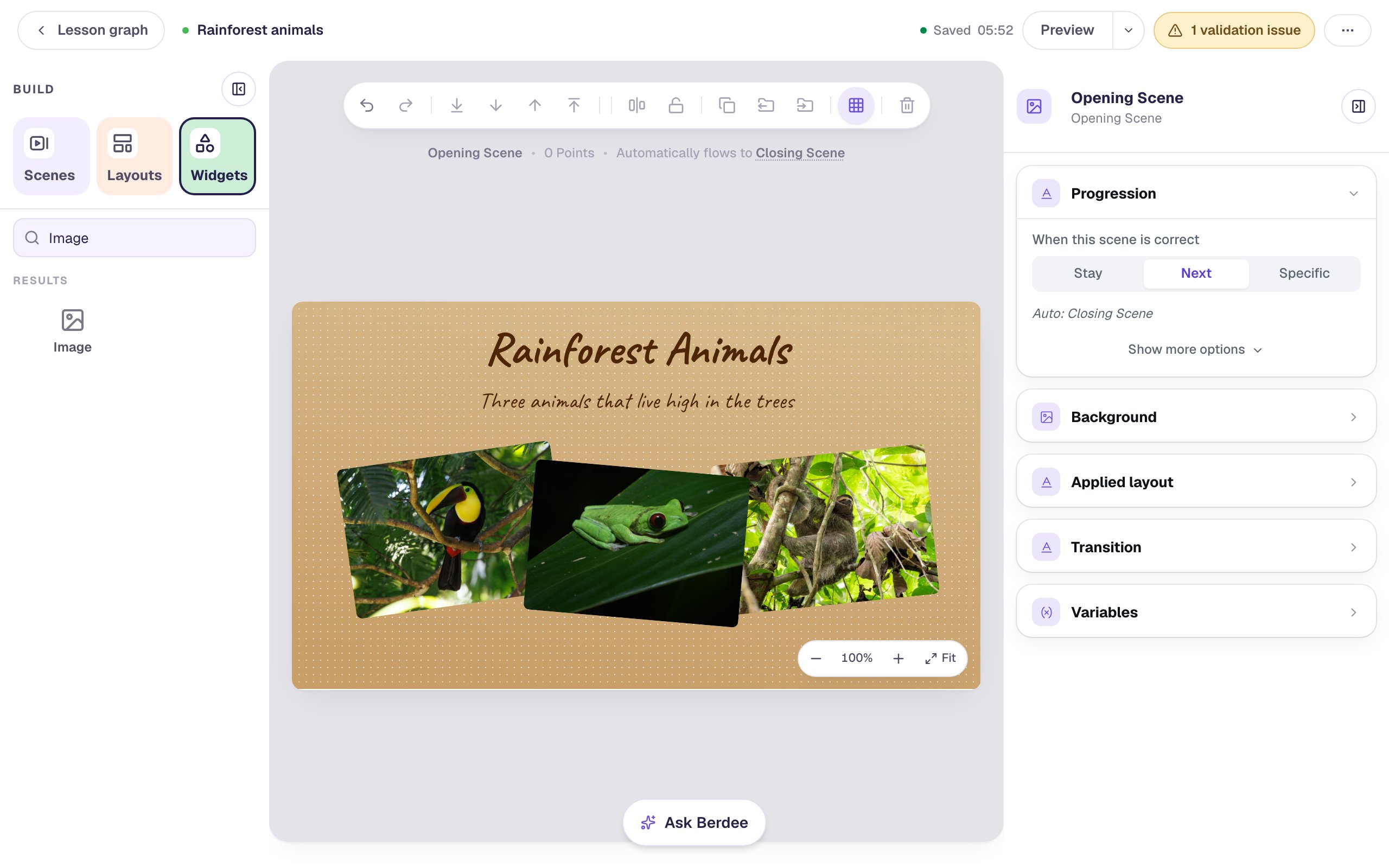
The buttons beside it move a widget one step at a time: Up and Down move it above or below just the next widget, and To Back sends it behind everything. You can also right-click a widget and use Arrange.
Step 6: Hold the photos down with see-through tape
A strip of tape is a thin rectangle. Search the widgets for Shape, click it, choose Rectangle, and click Save. Then, in Style & Layout:
- Set Fill Color to a pale yellow and Stroke Width to
0. - Under Show more options, set Width to
120and Height to34. - Drag it across the top edge of the toucan photo and set Rotation to
340°, so it crosses the corner at an angle.
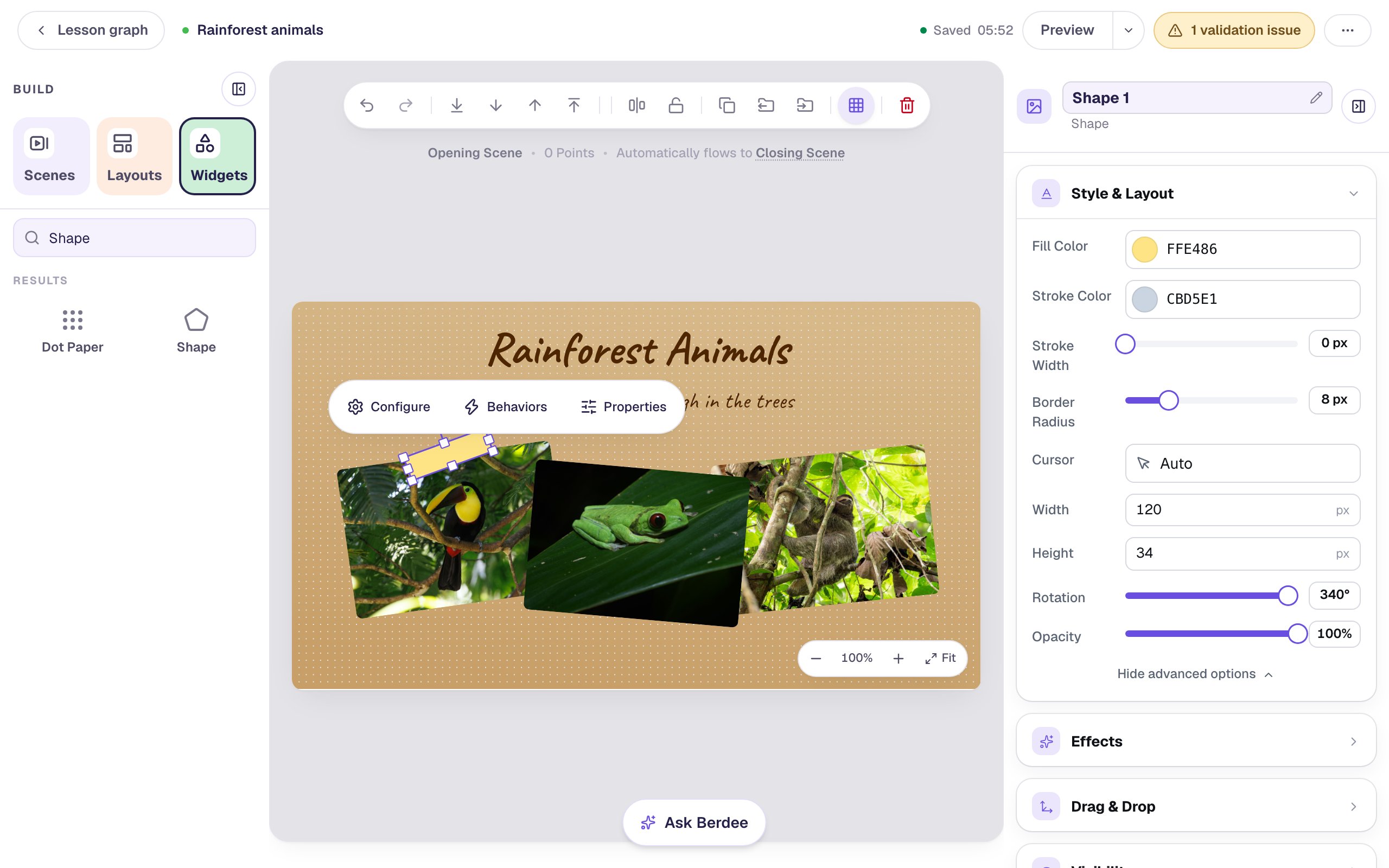
It looks more like a sticker than tape, because it hides the photo underneath. Real tape lets the picture show through, and that's what Opacity does:
Drag Opacity down to 70%. The tape turns see-through, and you can see leaves and branches through it.
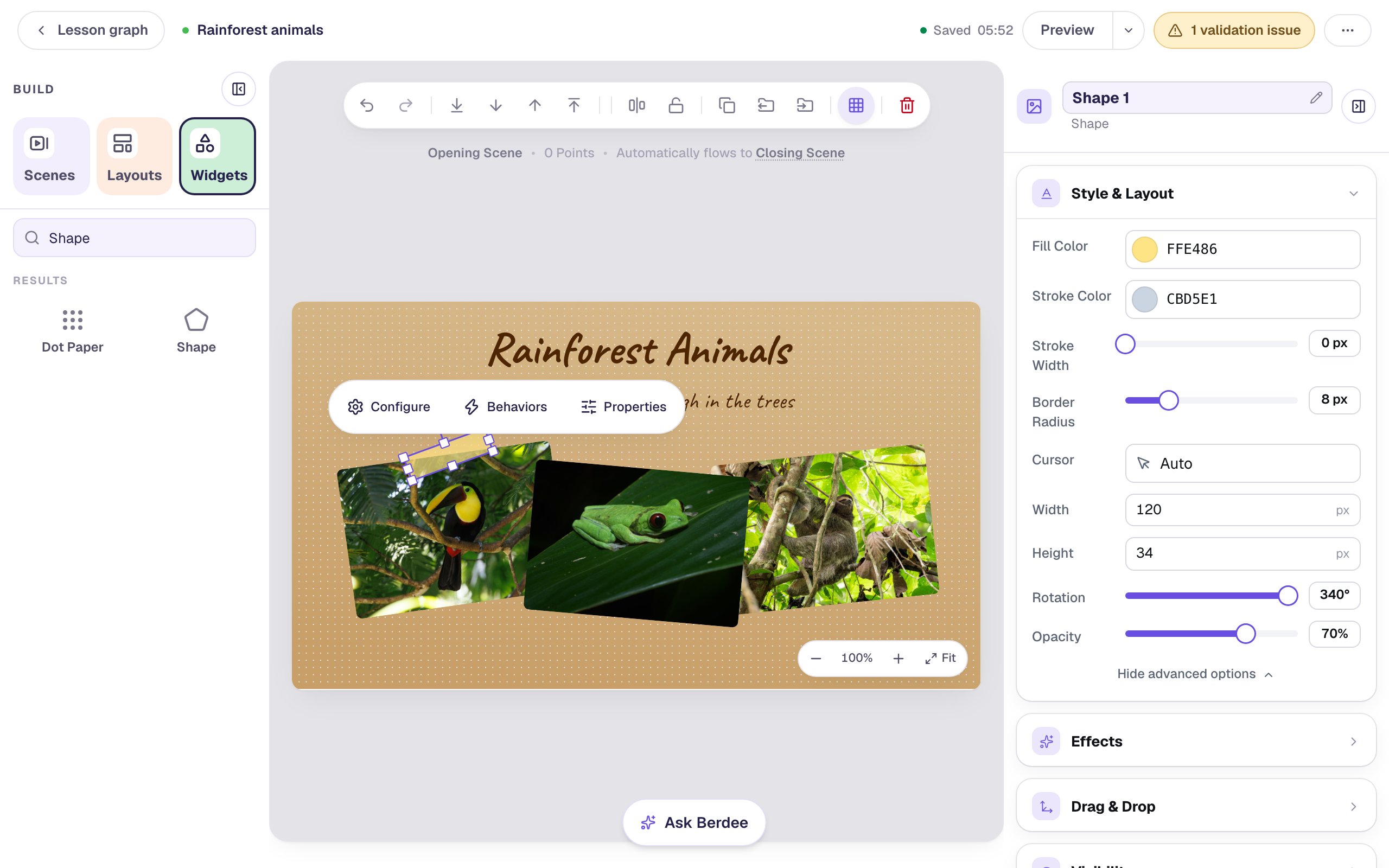
Now copy it. With the tape selected, press ⌘ D (Ctrl D on Windows). The copy keeps its color, size, tilt, and opacity. Drag it across the top of the frog and set its Rotation to 15°, then make one more copy for the sloth at 345°. Each copy is added last, so it sits on top of its photo.
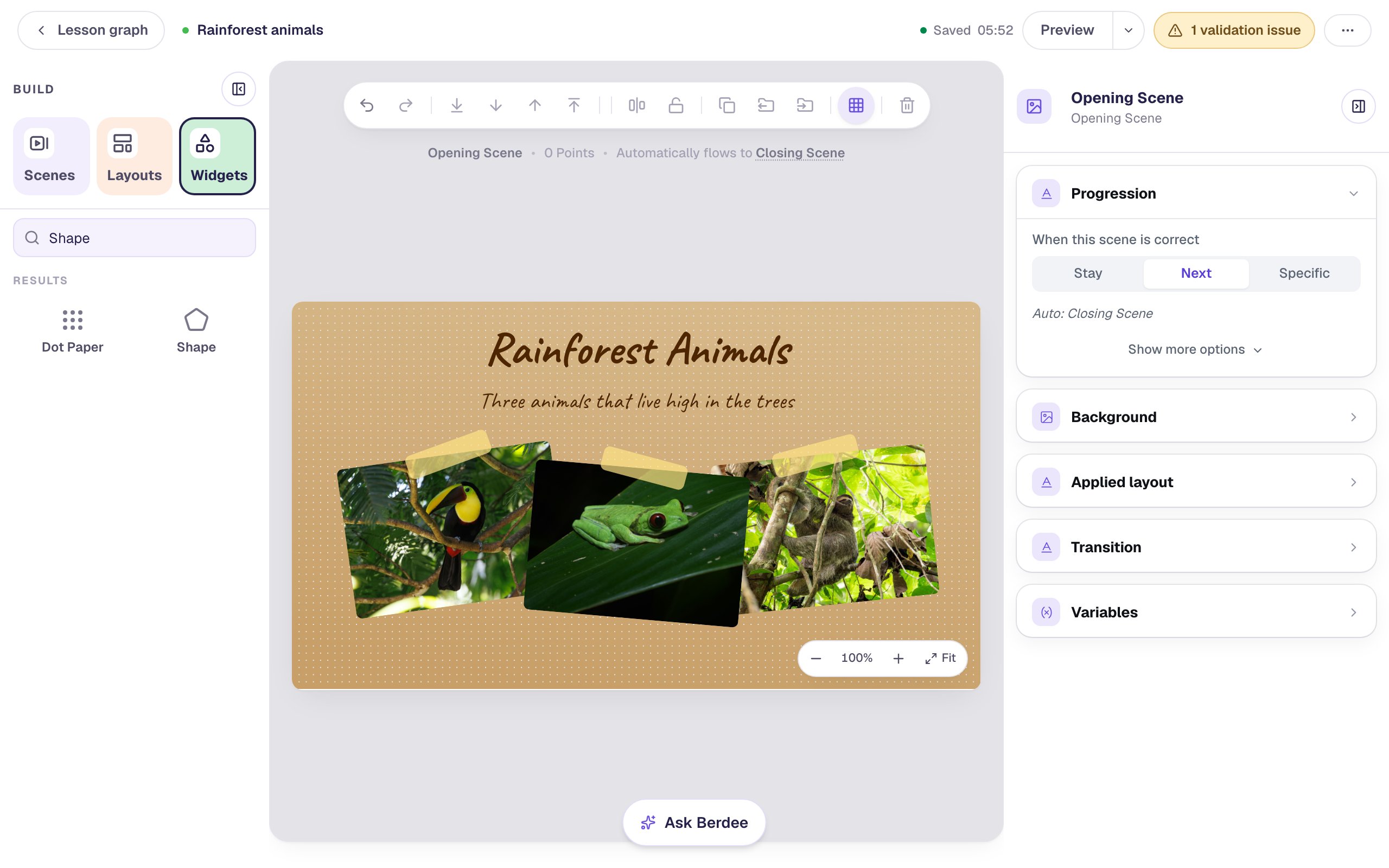
Opacity fades the whole widget. Use it on decorations like this tape, never on the text or buttons students need to read.
Step 7: Add a button to start
Add a Button under the photos. Click Configure in the bar above it, change Label to Let's explore, and click Save. In Style & Layout, set its Background to a dark green and its Text to white, so the label is easy to read.
Click Behaviors in the bar above the button, then Make this a "Next" button, and click Add behavior.
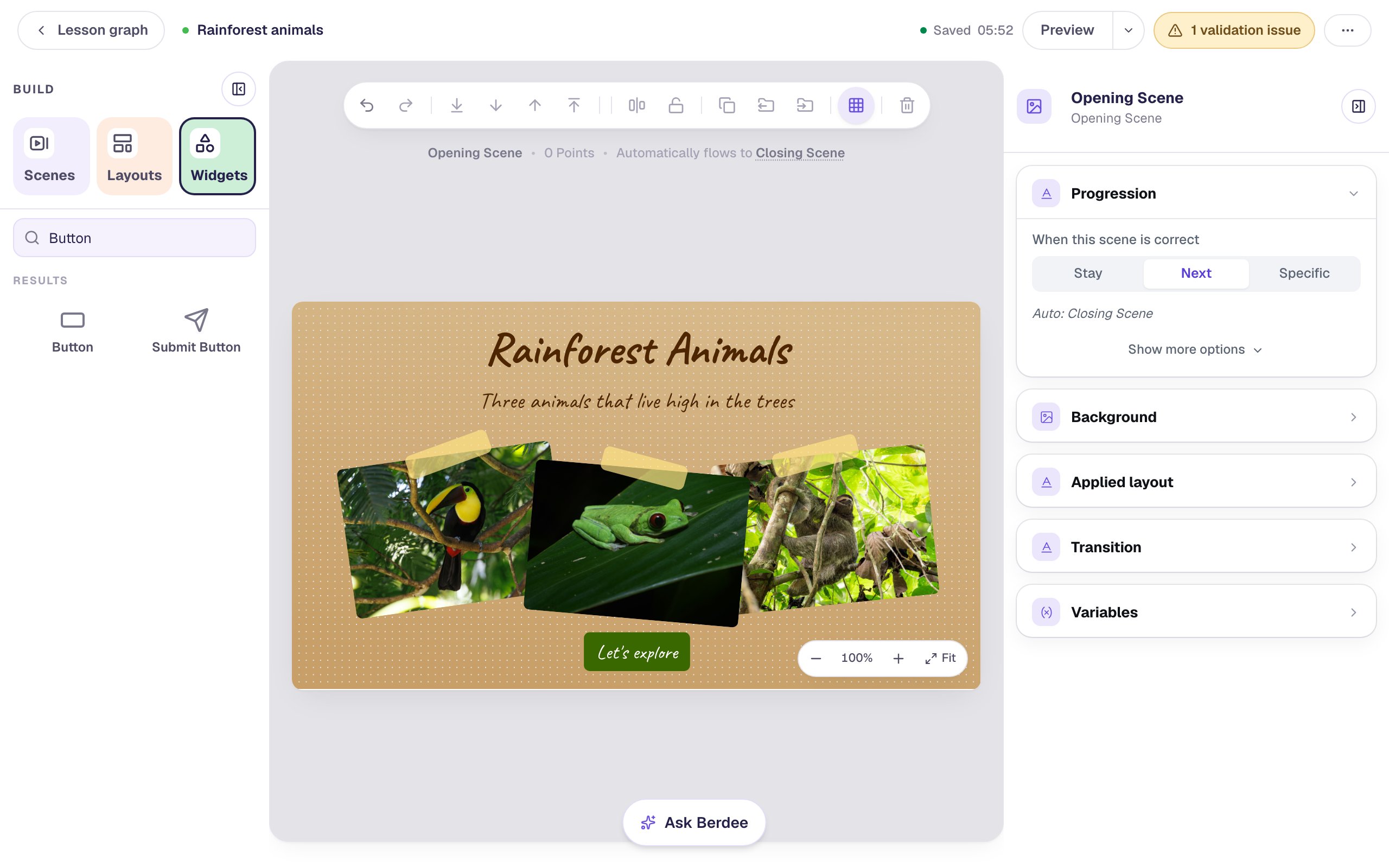
The yellow pill at the top right says 1 validation issue. That's about how the lesson ends, not how this page looks, so you can leave it for now.
Step 8: See it as a student
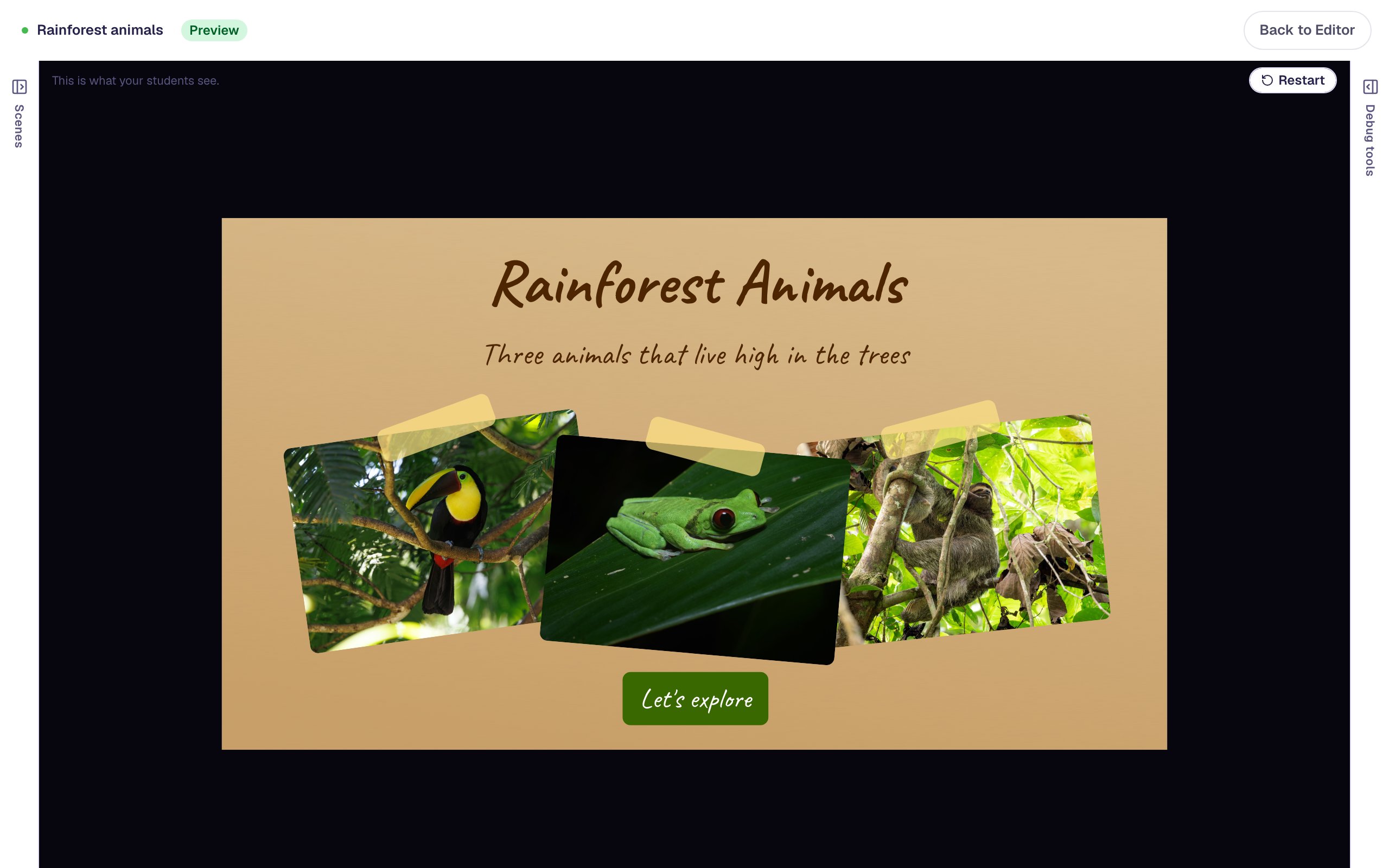
Click Preview at the top of the studio:
Every tilt, the frog on top, and the see-through tape look the same for students as they did in the studio.
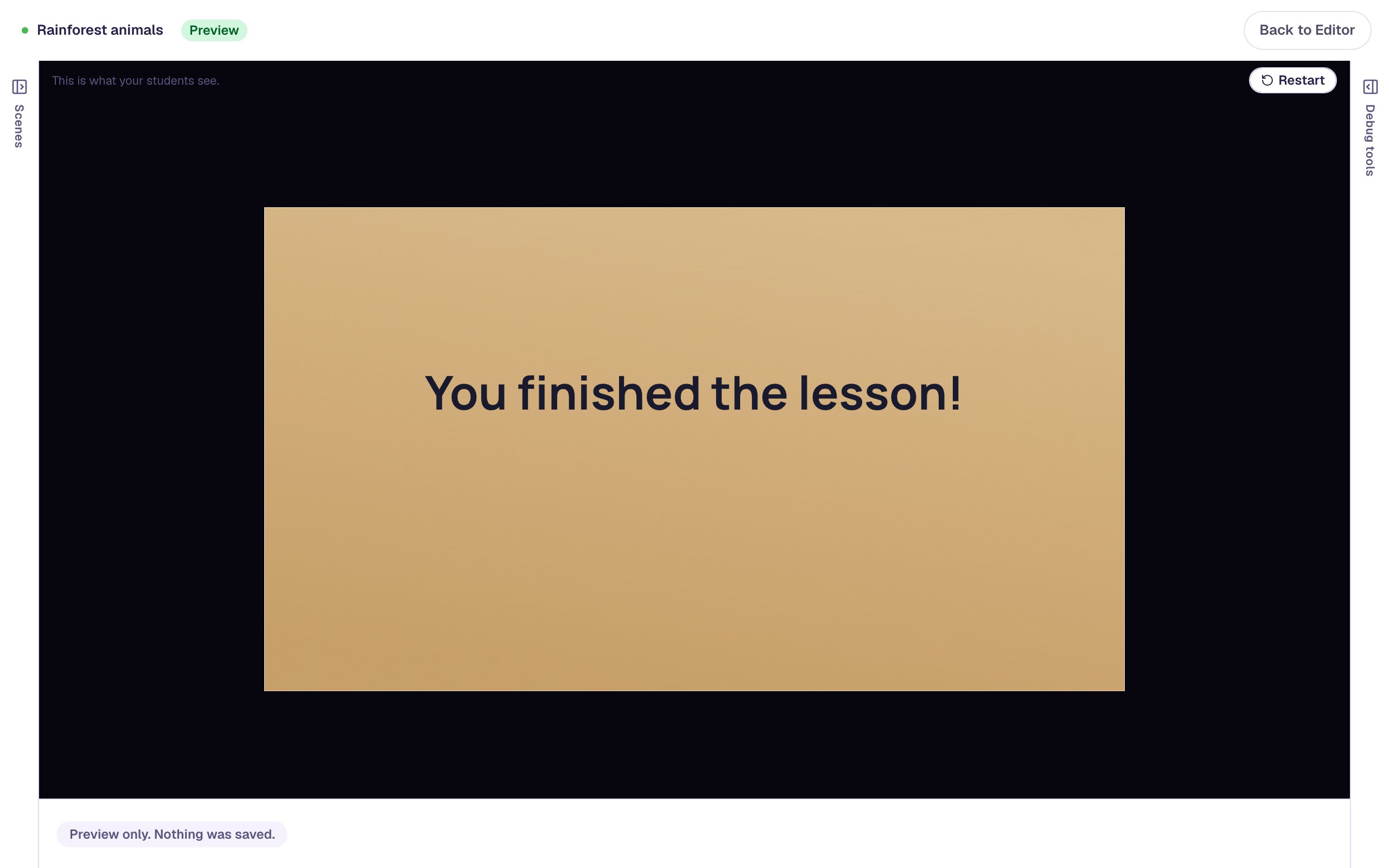
Click Let's explore and the lesson moves on to its ending.
What you built
You built a scrapbook title page with:
- three photos tilted with Rotation, alternating left and right, where a left tilt is a number just under 360°,
- the middle photo brought to the front so it lies over both neighbors,
- strips of tape made from a Shape, made see-through with Opacity, and copied with ⌘ D, and
- a button that starts the lesson.
The same three settings work on every widget. Tilt a sticky-note Shape behind a Body for a hand-written note, or lay a see-through color band behind a heading so it stands out on a busy photo.
To line pictures up perfectly straight instead, try Line up pictures with Tidy up, Gap, and Lock. To make the photos arrive one after another when the page opens, try Make a scene come alive with effects.
Make this lesson yours
Add the lesson you just watched being built to your account, then change it for your class: your questions, your pictures, your colors.
Free to sign up, and you'll come straight back here. I have an account