Let anyone play a lesson with a code
Turn on a lesson's play code so families at a science night can play it at /go, with no class or roster to set up. Choose a code that's easy to say, share the link, and turn it off when the night is over.
- Level
- Beginner
- Time
- About 8 min
- Steps
- 7
- Updated
- Nov 9, 2026
An animal habitats sorting lesson that anyone can play by typing ANIMALNIGHT at /go, with a count of how many players opened it.
Get the finished lesson
Skip straight to the result, or keep it open beside the steps. Add this tutorial's lesson to your account and explore how it works in the studio.
Free to sign up, and you'll come straight back here. I have an account
Some lessons are for one evening, not one class: a family science night, a substitute day, a tutoring trial, a booth at the school fair. Setting up a roster for people you'll see once is more work than the lesson. A play code skips it. Anyone who types the code at /go plays the lesson straight away, with no account and no sign-in.
In this tutorial Ms. Rivera runs a family science night. She turns on a play code for her Animal homes sorting lesson, changes it to ANIMALNIGHT so it's easy to read off a slide, and a family plays it on their own laptop. Afterwards she checks how many players opened it and turns the code off.
Players are anonymous. They don't appear on your Students page, they don't count toward your plan's student limit, and their answers don't go into any student's grades.
Step 1: Open the lesson's page
Play codes live on the lesson's own page, not in the studio.
- Open Lessons and click the lesson.
- Scroll down past Assignments to the Play code card.
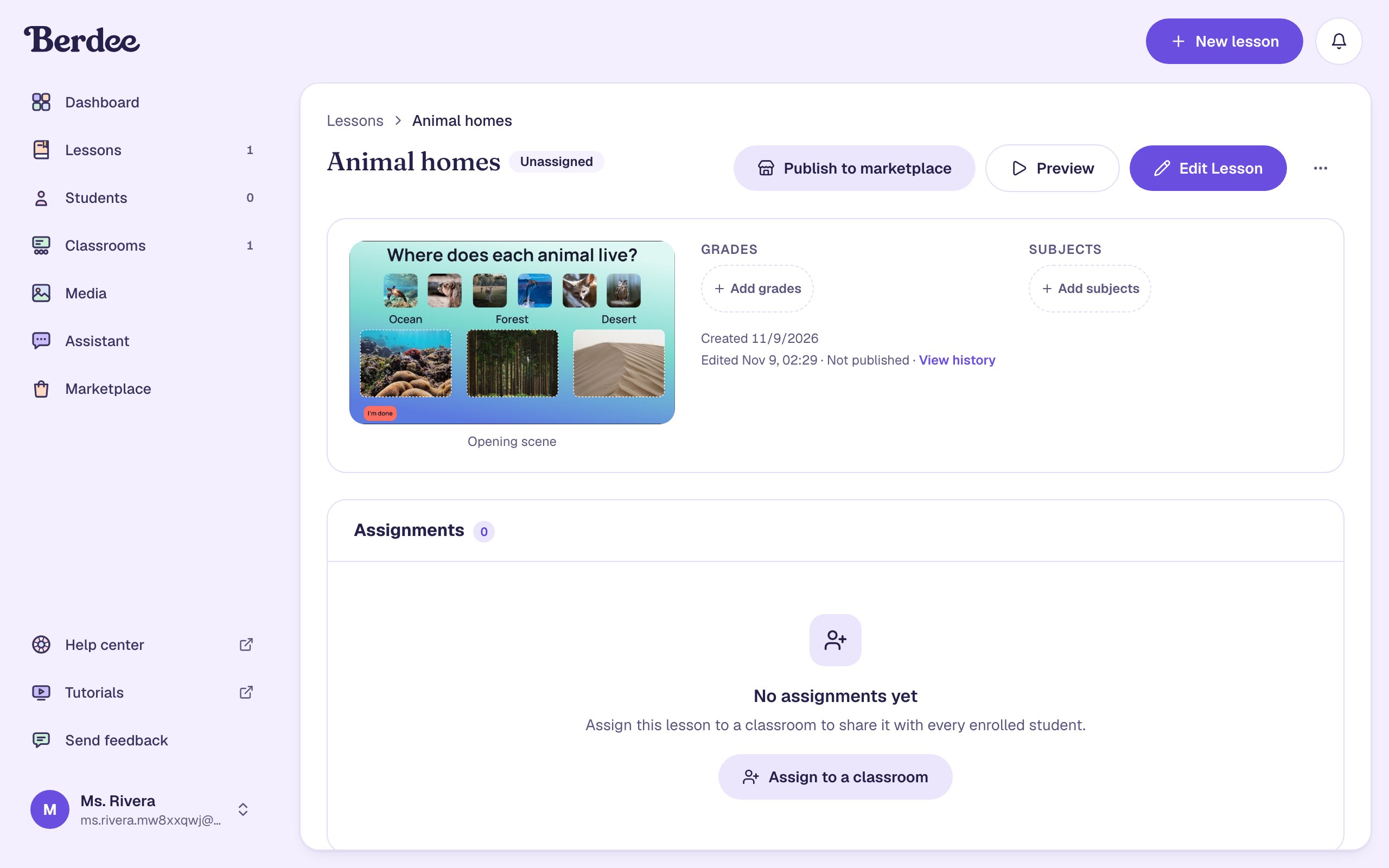

You only see the card on lessons you made or copied. A lesson you bought from the marketplace can't have a play code, because its license covers your own students: assign it to a class instead.
Step 2: Turn on the play code
Click Turn on play code. Berdee makes a random six-character code, such as JRE3AS, and shows it with Copy code and Copy link buttons.
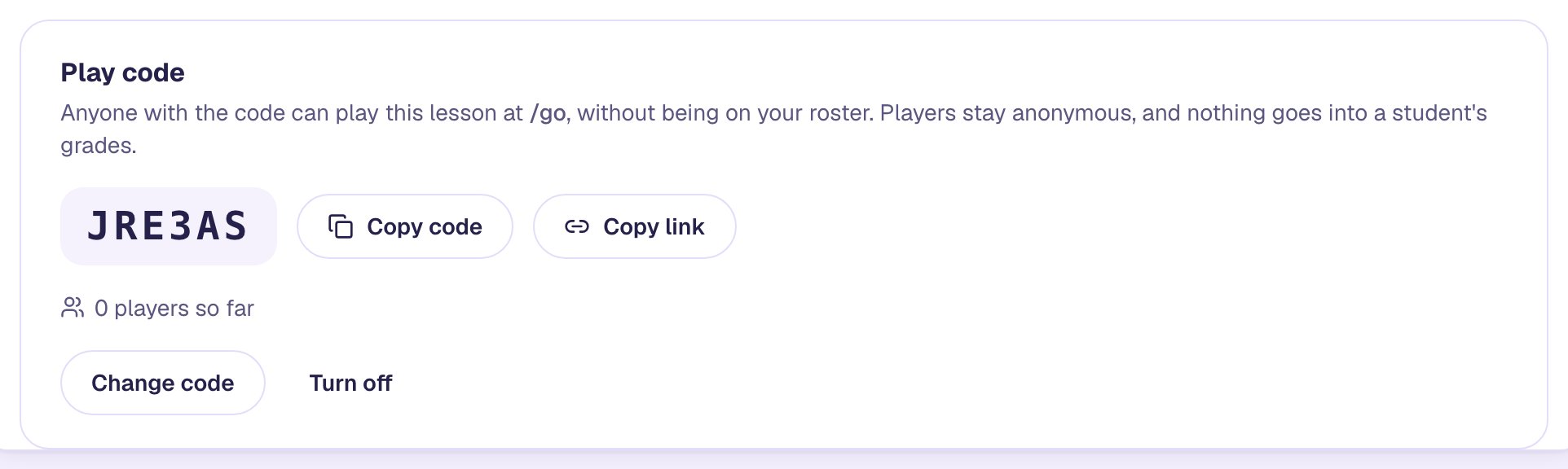
The lesson has to be ready for students first. If it has problems to fix, Berdee says so here and leaves the code off: open it in the studio, fix what the publish check lists, and try again.
Step 3: Choose a code that's easy to say
A random code is fine to paste into a message, but a room full of parents reading it off a projector will mix up letters. On a paid plan you can choose your own.
- Click Change code.
- Under Your own code, type
ANIMALNIGHT. Use 4 to 20 letters and numbers. - Click Save code.
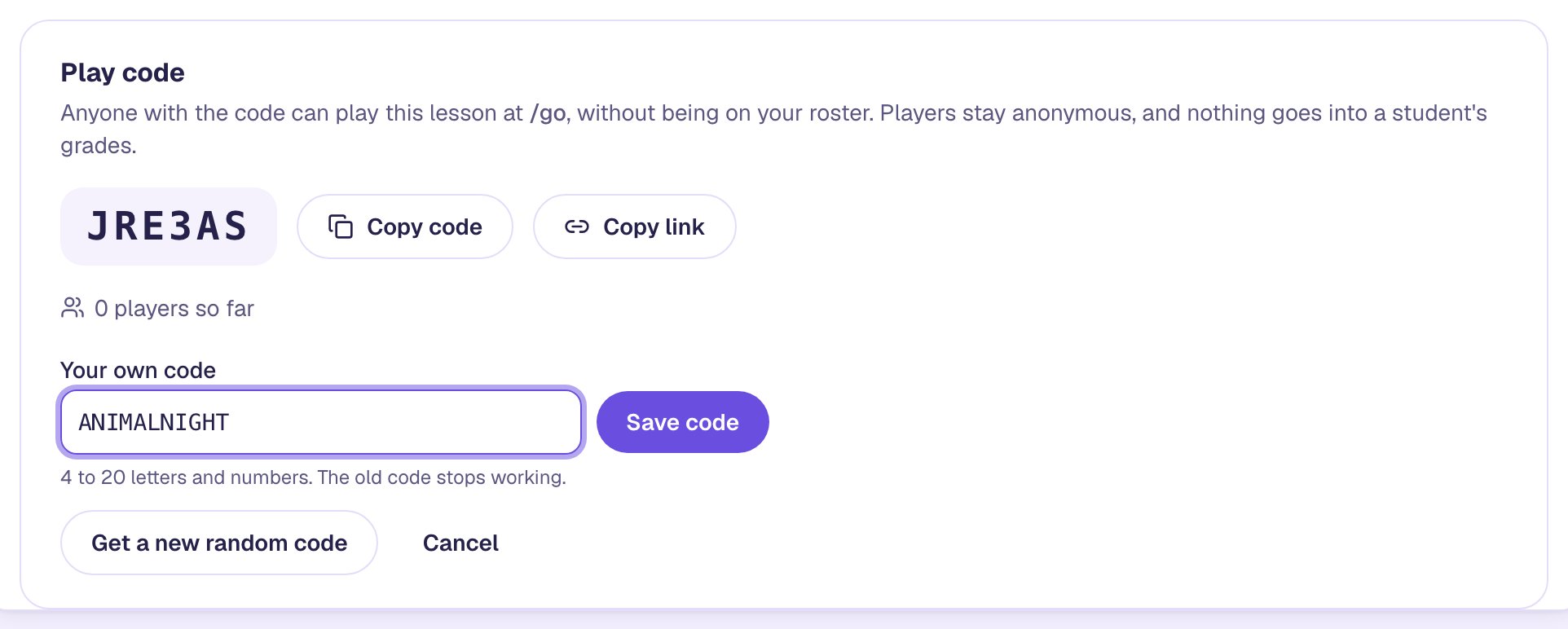
Every code is unique across Berdee, so if someone already uses yours, Berdee says it's taken: add a year or your school's initials. A code of exactly eight letters and numbers is refused too, because it would look like a student's own access code.
On the Free plan the card offers Get a new random code instead, which swaps the code for a fresh random one.
Step 4: Share the code or the link
Click Copy link to copy a link that opens the lesson in one step, ending in /go/ANIMALNIGHT. Put it in the school newsletter or a QR code on the welcome table. For the slide on the projector, the code and the /go address are enough.
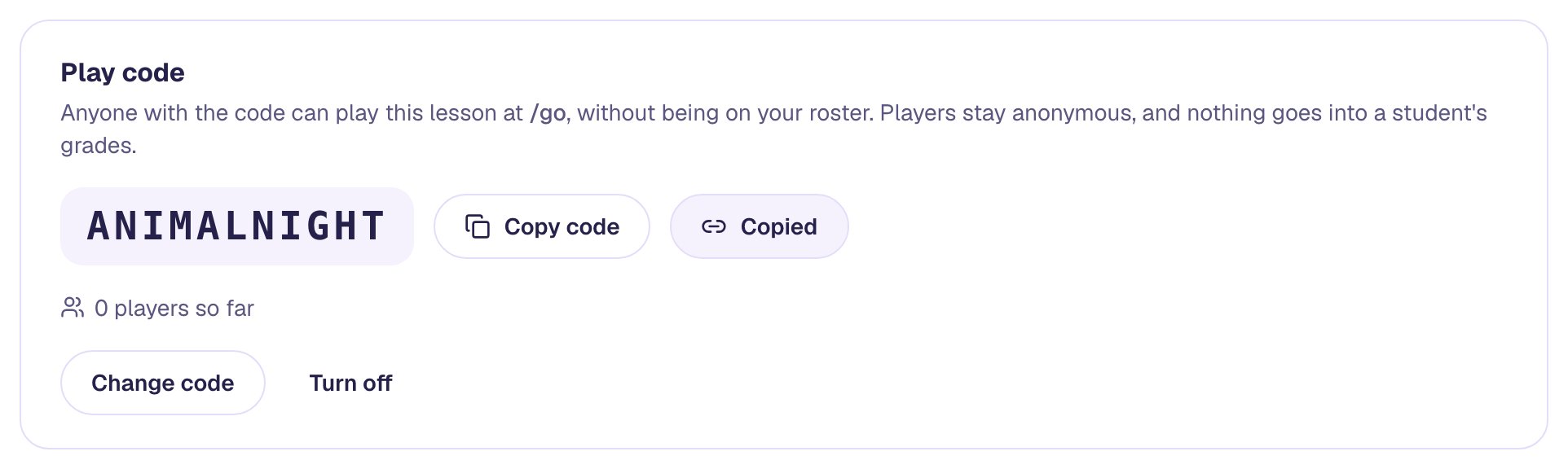
A play code is meant to be shared, unlike a student's own access code, which signs in one student and should stay private.
Step 5: A family plays at /go
The family doesn't need an account. On any laptop, tablet or phone they:
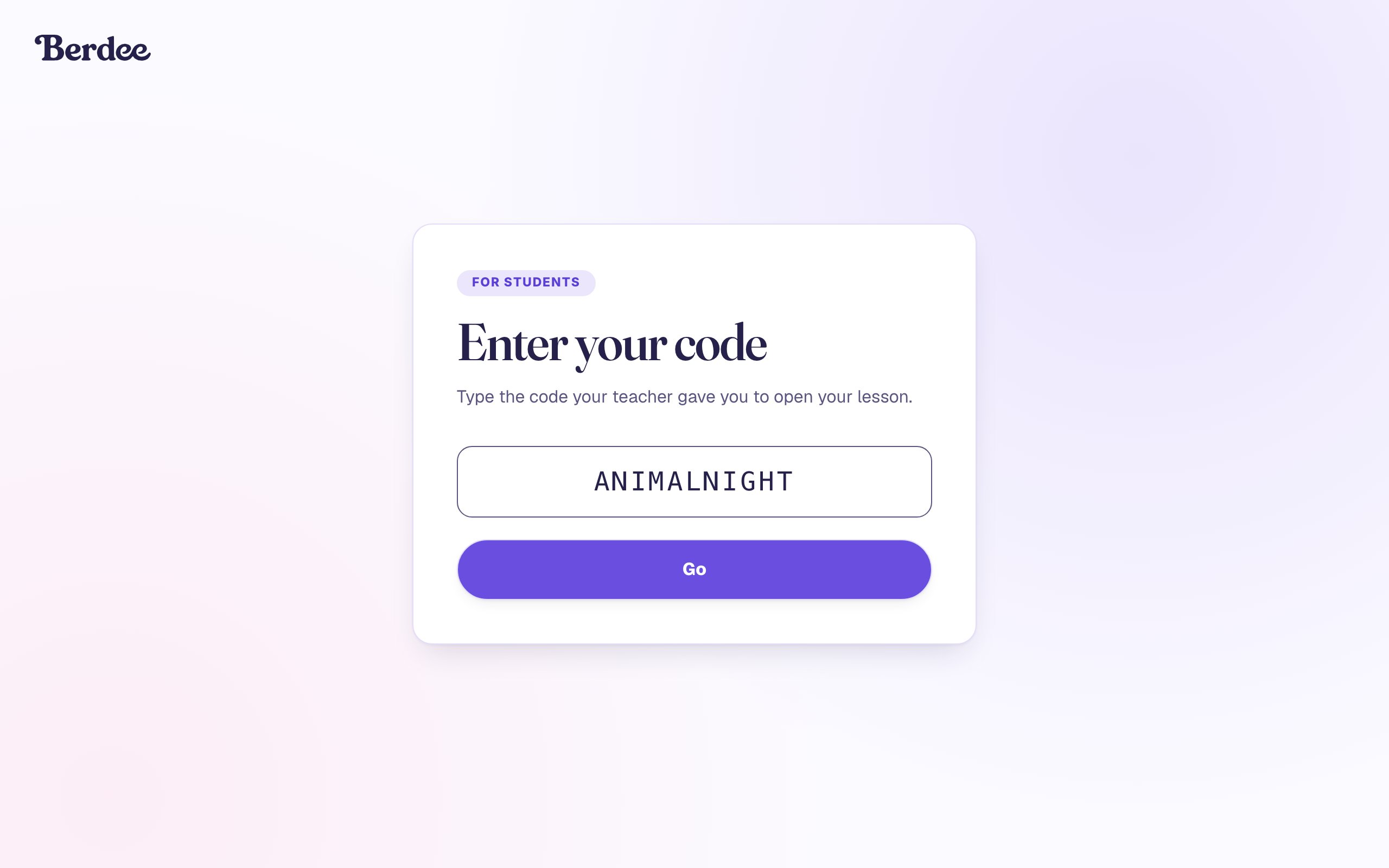
- Go to /go on Berdee.
- Type the code. Small letters work:
animalnightopensANIMALNIGHT, and the box shows it in capitals as they type. - Click Go.
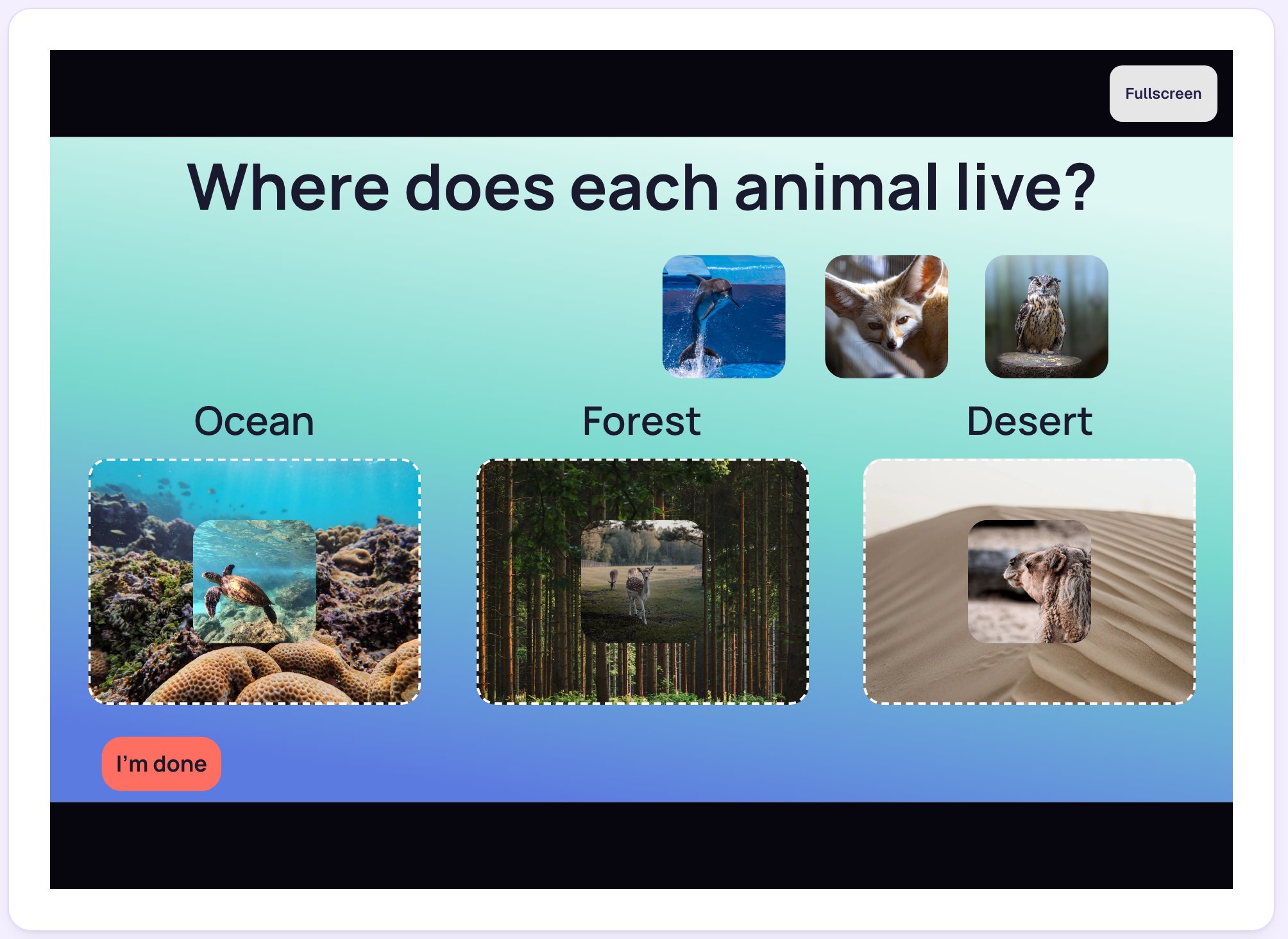
Then they play the lesson exactly as a student would. Here they drag each animal to the place it lives.
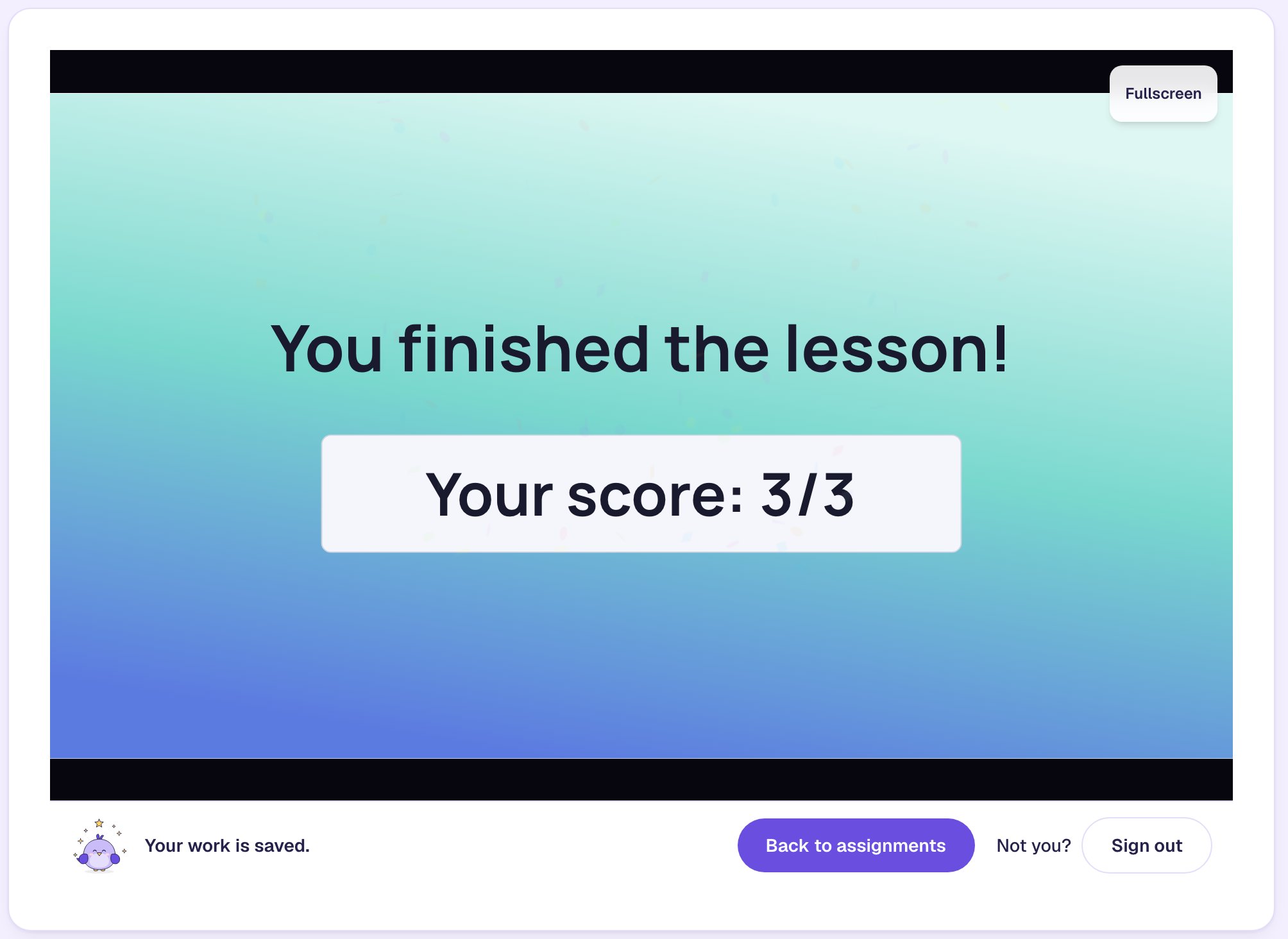
If they reload the page or open the code again in the same browser, they carry on where they were. Closing the browser ends their visit, so the next family on the same laptop starts fresh.
Step 6: See how many people played
Back on the lesson's page, the card counts every player who opened the lesson.
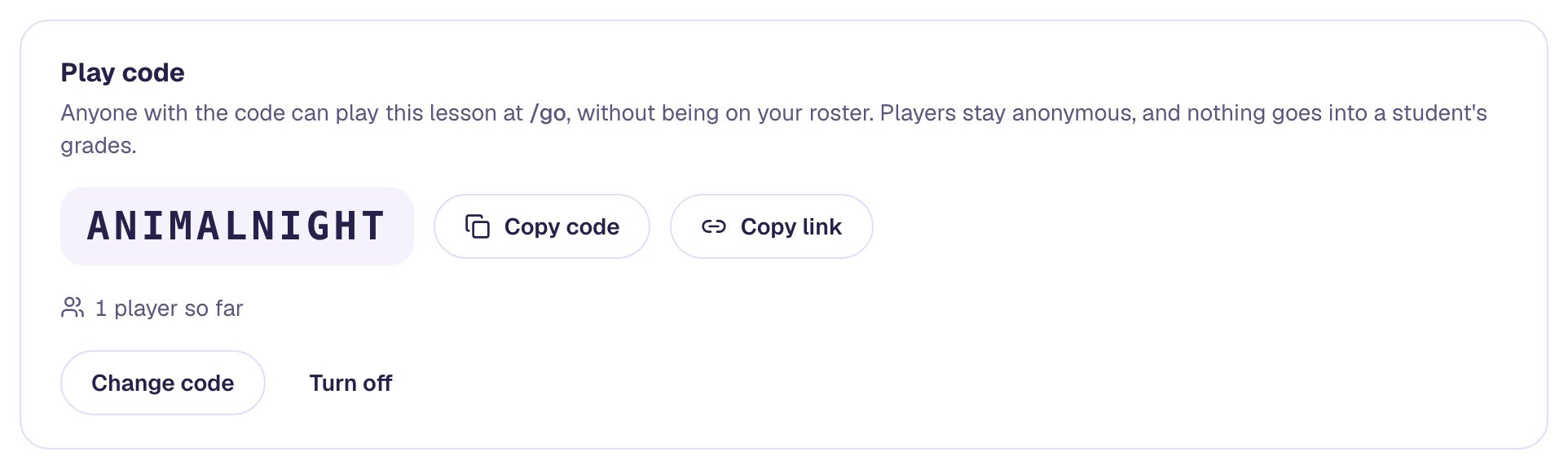
You can't see players' answers yet. Berdee records each play, so the results will be there when that view arrives. To see each child's answers, assign the lesson to a class instead: see Assign a lesson and see how a student did.
Step 7: Turn it off when the night is over
Click Turn off on the card. New players can't open the lesson any more, though anyone already in it can finish. Someone who types the code now gets the same message as for a mistyped code.
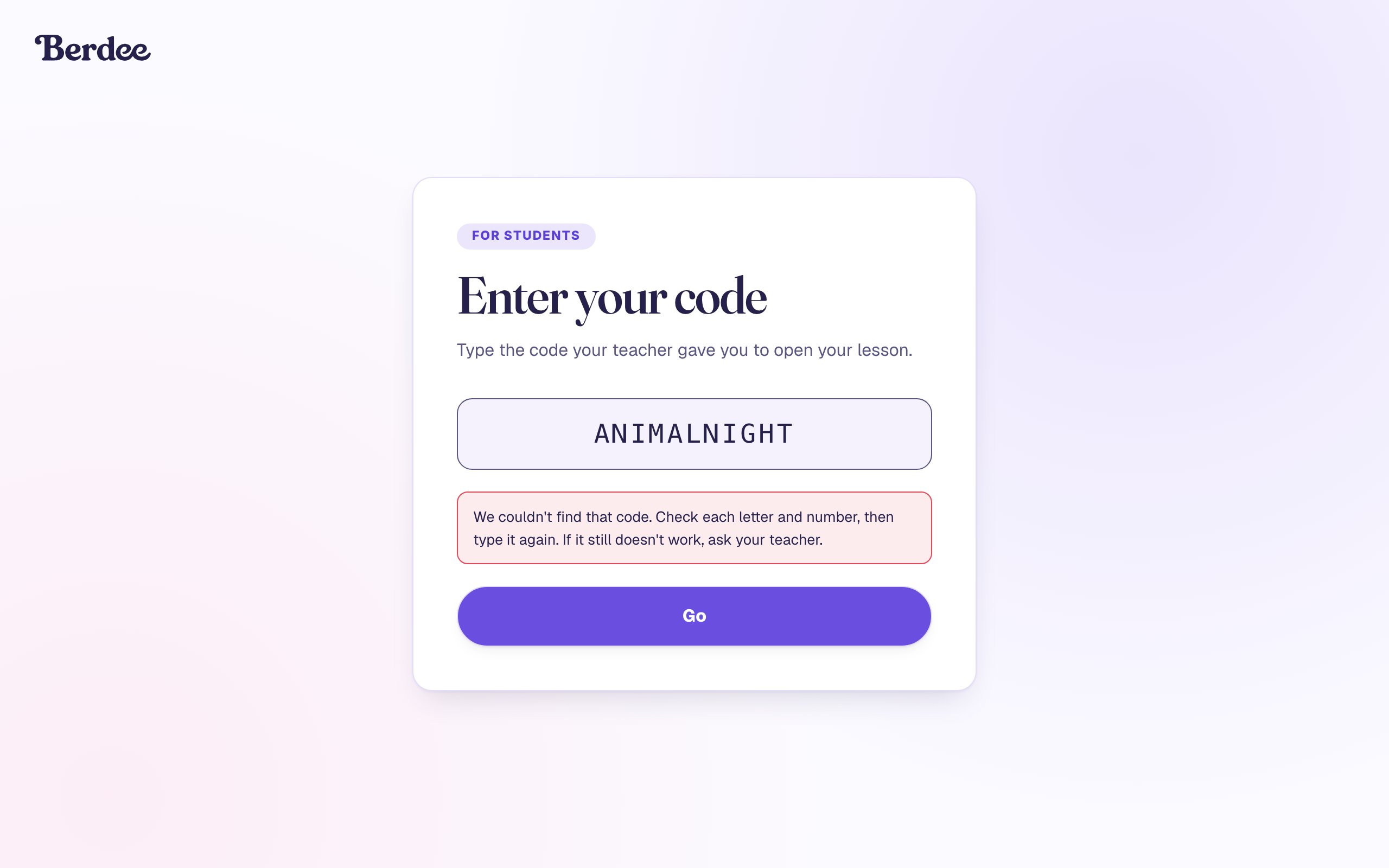
Turning it off keeps the code. Next year, click Turn on play code again and ANIMALNIGHT works again, so last year's flyer is still right.
What you built
A lesson anyone can play for one evening, with nothing to set up for the people playing it:
- Turn on play code gave the lesson a random code that works on every plan.
- Change code swapped it for
ANIMALNIGHT, which is easy to read off a slide. - Copy link made a one-step link for the newsletter.
- A family typed the code at /go, in small letters, and played without an account.
- The card counted 1 player so far, and Turn off closed the lesson to new players.
For a lesson your own students play, with their names and results, see Assign a lesson and see how a student did. To give a whole lesson to another teacher instead, see Share a lesson with a colleague.
Make this lesson yours
Add the lesson you just watched being built to your account, then change it for your class: your questions, your pictures, your colors.
Free to sign up, and you'll come straight back here. I have an account