Act out a story problem on fingers
Use the Fingers widget's Act it out mode for a "5 frogs, 2 jump away" story. Students start with five fingers up and put fingers down as the frogs jump, with a hint for the most common slip.
- Level
- Beginner
- Time
- About 10 min
- Steps
- 7
- Updated
- Oct 17, 2026
A one-scene kindergarten story problem where students put fingers down on a drawn hand as 2 of 5 frogs jump away, get a hint if they put down only one, and see the numeral 3 when they're right.
Get the finished lesson
Skip straight to the result, or keep it open beside the steps. Add this tutorial's lesson to your account and explore how it works in the studio.
Free to sign up, and you'll come straight back here. I have an account
"5 frogs sit on a log. 2 jump into the pond. How many are left?" Young children solve a story like this by acting it out: they hold up 5 fingers, put 2 down, and count what's left. Fingers are a quantity they always have with them.
The Fingers widget draws a hand in Berdee, each finger up or down, so the count on screen is always exactly right. In Act it out mode the hand starts with some fingers up, and students put fingers down (or up) as the story changes, then tap ✓ Done.
In this tutorial you'll build a one-scene lesson called Frogs on a log. Students see a frog, read the story, start with 5 fingers up, and put down one finger for each frog that jumps. If they put down only one, a hint reminds them that 2 frogs jumped. When they're right, the numeral 3 appears under the hand.
Step 1: Set the scene
Start a blank lesson (New lesson, then Start from scratch) and name it Frogs on a log by clicking Untitled lesson at the top left.
Give the scene a pond-colored background. Click an empty spot on the scene, open Background, click Choose a style, and pick Lagoon gradient. Give the Closing Scene the same background so the ending matches.
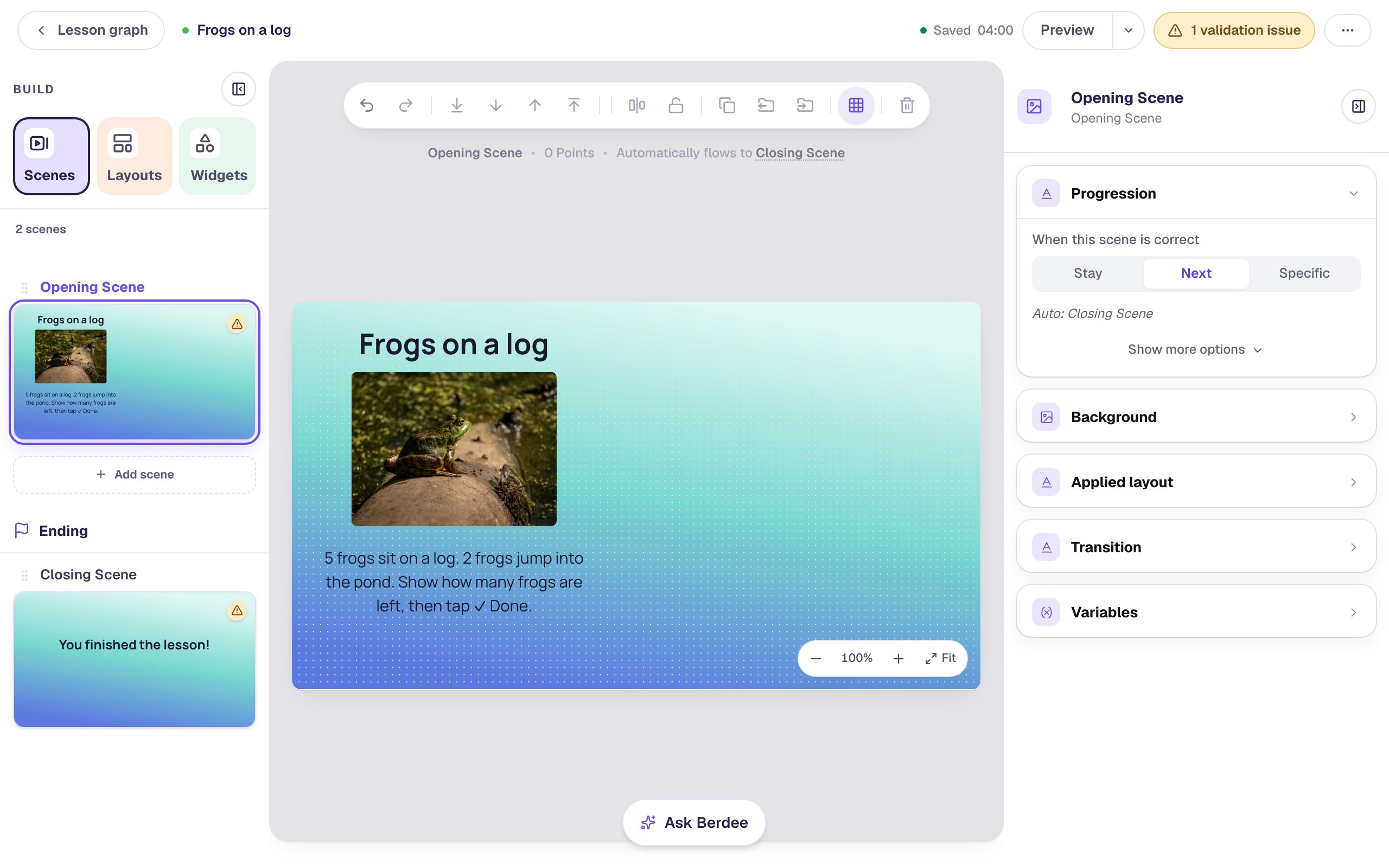
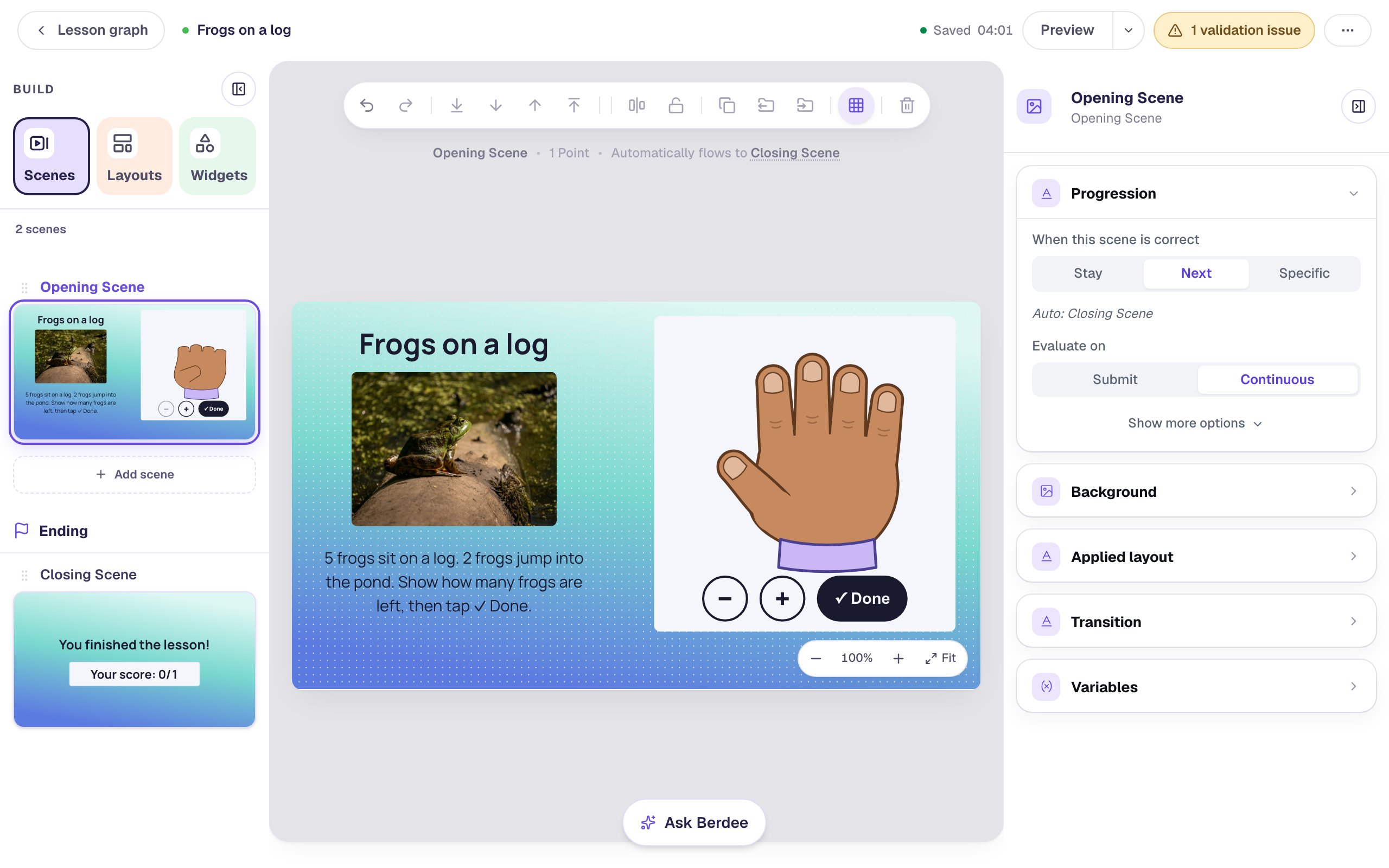
The story goes on the left half of the scene, and the hand will go on the right:
- A Heading:
Frogs on a log. Set it to Fixed width,400wide, and Font Size40. - An Image under it,
360wide and215tall. Click Choose image, search the stock photos forbullfrog on a log, and import a frog sitting on a log. Then open Accessibility and change Alt Text toA big green bullfrog sitting on a log in a sunny pond, so a screen reader says what the picture shows rather than the photo's file name. - A Body under the picture:
5 frogs sit on a log. 2 frogs jump into the pond. Show how many frogs are left, then tap ✓ Done.Set it to Fixed width,400wide, and Font Size22.
To have the story read aloud for children who can't read it yet, add a Text To Speech player beside it, as in Read a question aloud for early readers.
Step 2: Add a Fingers widget
Search the Widgets tab for Fingers and click it. Two hands land on the scene, with −, + and ✓ Done buttons under them.
In Style & Layout, click Show more options and set Width to 420 and Height to 440. Drag the widget to the right half of the scene, beside the story.
Two more small things, so the lesson reads well later:
- Click the widget's name at the top of the properties panel and rename it
Frog fingers. You'll pick it by that name in Step 5. - Open Accessibility and change Alt Text to
A hand for showing how many frogs are left on the log. A screen reader says it before it reads out the fingers.
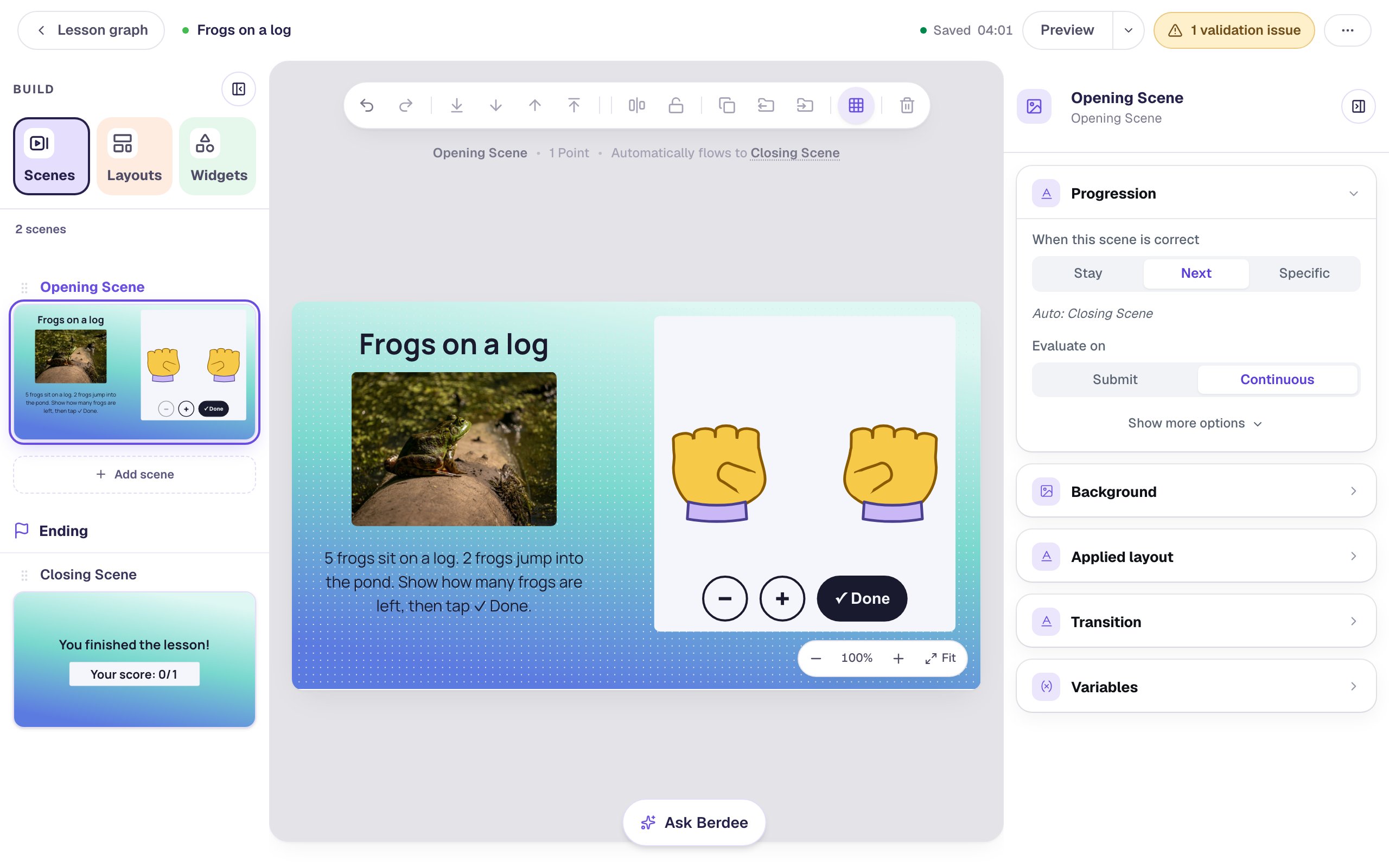
A new Fingers widget starts in Show me mode, with two hands and no fingers up: students raise fingers to show a number. For a story that starts with frogs already on the log, you'll switch it to Act it out.
Step 3: Start with 5 fingers up, end at 3
Select the widget and click the floating ⚙ Configure button.
- Under What students do, click Act it out.
- Set Hands to 1 hand. Five frogs fit on one hand, and a single big hand is easier for small fingers to tap.
- Set Fingers up at the start to
5: the 5 frogs on the log. - Set The answer: fingers up at the end to
3: the frogs left after 2 jump away.
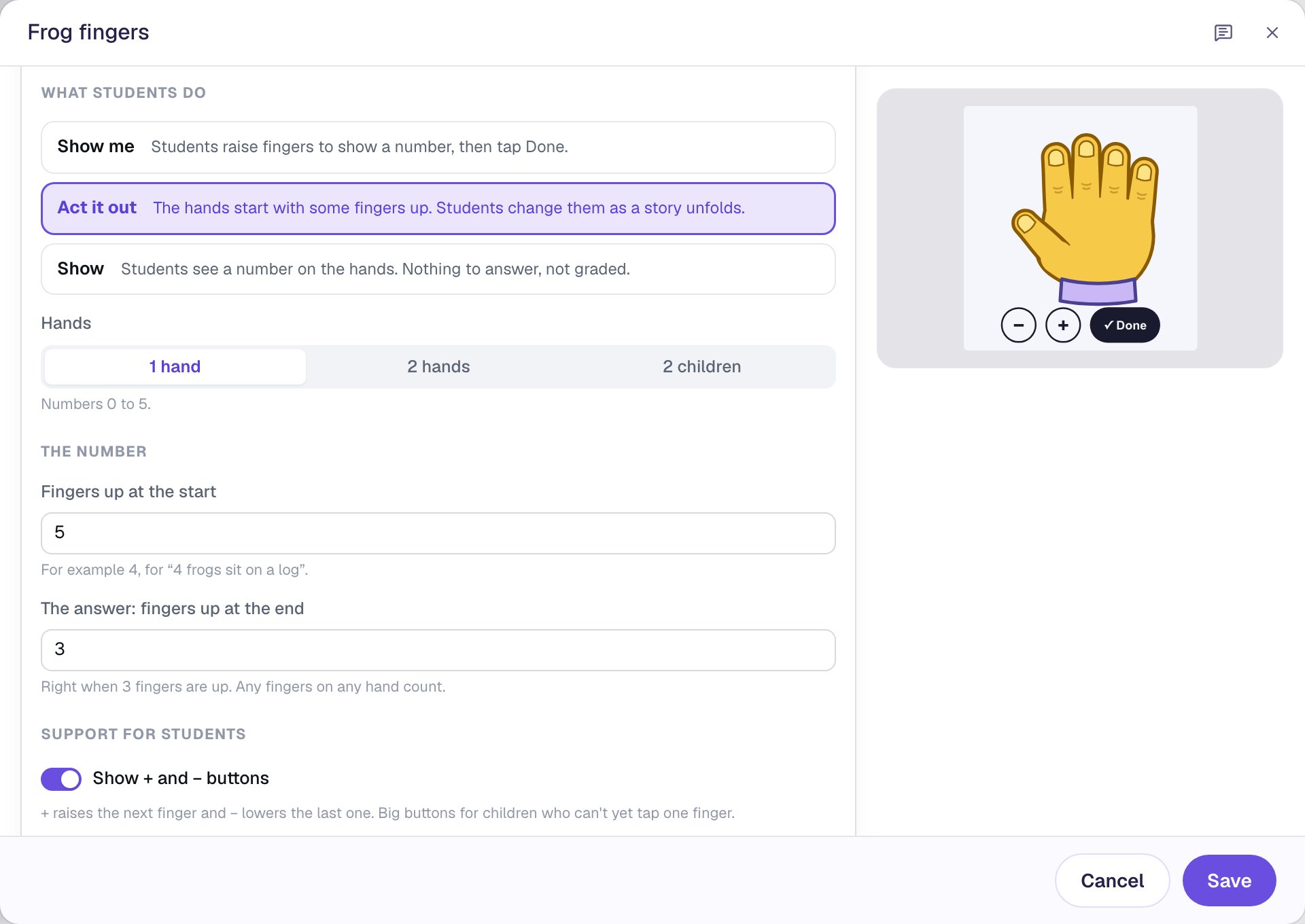
Any fingers count. A child who puts down the thumb and the index finger is as right as one who puts down the ring and little fingers: Berdee only checks that 3 are up when they tap ✓ Done. And because nothing is checked until ✓ Done, a child who passes 3 on the way to 2 and comes back isn't marked wrong.
Step 4: Show the numeral after a right answer, and choose a skin tone
Scroll down the same window to Support for students.
- Leave Show + and − buttons on. − puts down the last finger that went up, for children who can't yet tap one finger.
- Leave Say the count out loud on. Each time a finger goes up, the device says the new number in its own voice.
- Set Show the number as a numeral to After a right answer. When the child gets it right, a big 3 appears under the hand, linking the fingers to the written number.
Under Look, choose a Skin tone. It applies to every Fingers widget in the lesson.
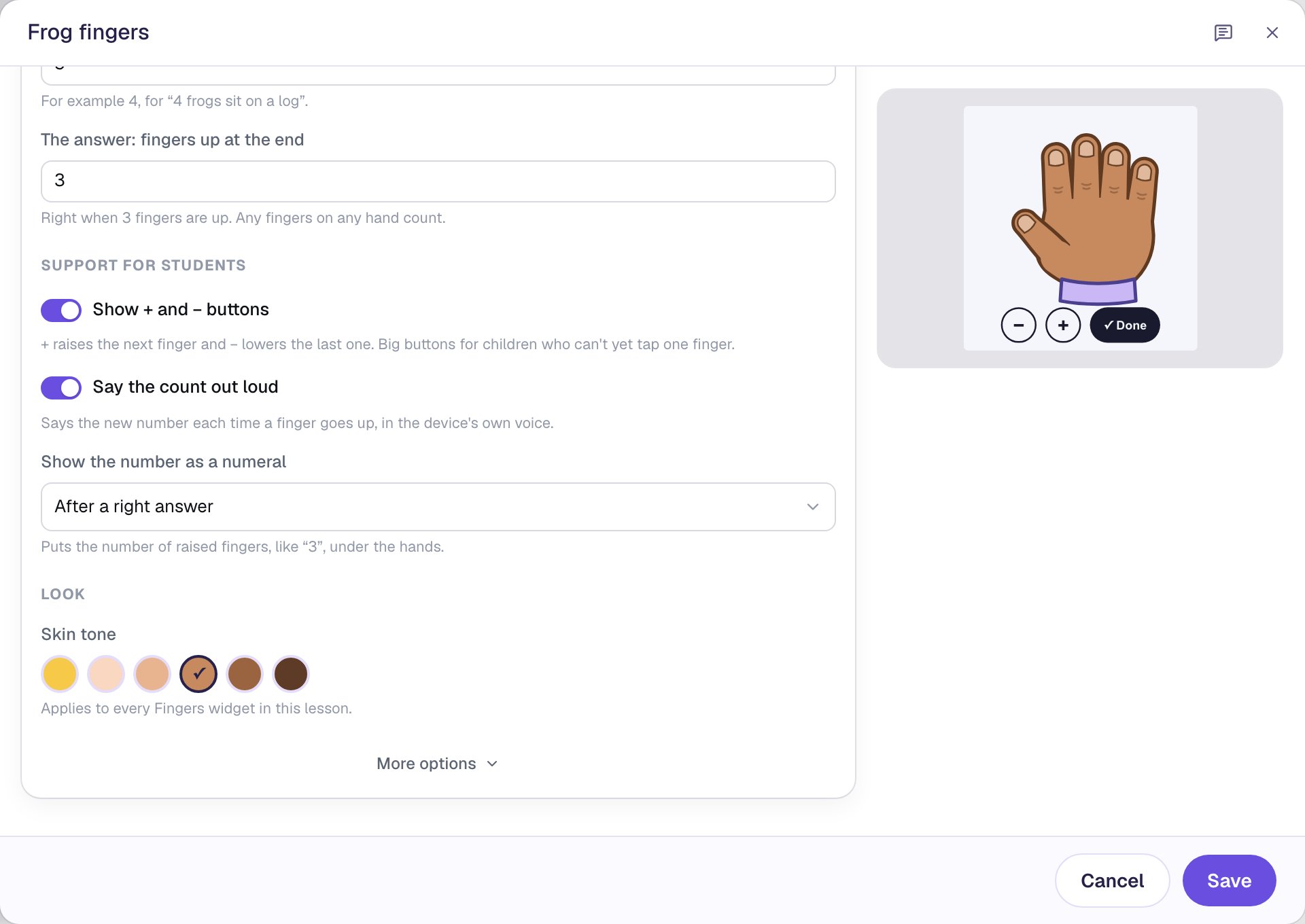
Click Save. The hand on the scene now shows all five fingers up, ready for the story.
Step 5: Add a hint for one finger down
The most common slip in a "take away 2" story is taking away only 1. When a child taps ✓ Done with 4 fingers up, a hint can send them back to the story instead of just "Try again".
With the widget selected, open Behaviors in the properties panel:
- Click Add Behavior and choose On Done. It runs every time a student taps ✓ Done.
- The action starts on Display Message. Type the hint:
2 frogs jumped away. Put down one more finger. - Click Add Condition. Pick Fingers: Frog fingers, then Fingers up, leave equals, and type
4.
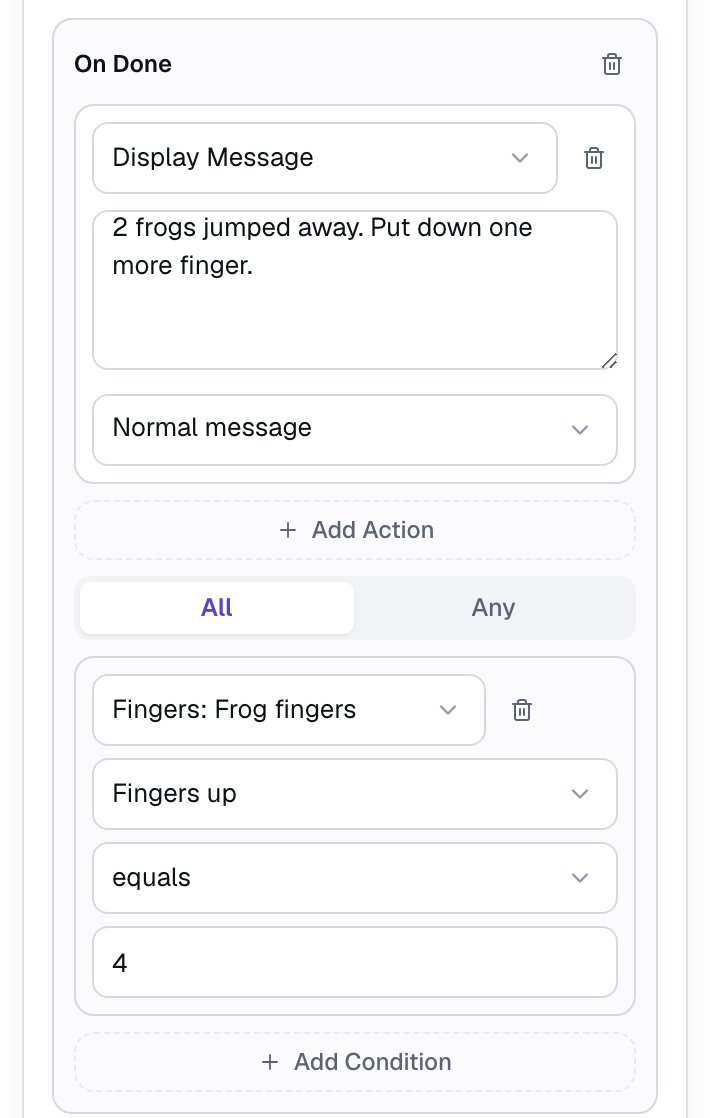
The condition is what makes it a hint, not a nag. On Done runs on every tap, right answers included, so without the condition a child who answered 3 would see the hint too. Add a second On Done behavior if you want a different hint for another slip, such as 2 fingers up ("Only 2 frogs jumped. How many are still on the log?").
The hand stays as the child left it after a wrong ✓ Done, so they put down one more finger instead of starting the story over.
Step 6: Hold the right answer on screen, and add an "I'm done" button
When the hand is right, the scene moves on to the ending by itself, as the line above the canvas says. By default that happens after 0.6 seconds, too fast for a child to see the 3. Click an empty spot on the scene. In Progression, click Show more options and set Advance delay to 3000 ms.
Every lesson also needs one button that finishes it: Berdee won't publish a lesson without one. It's also a way out for a child who gets stuck.
- Search the Widgets tab for
Submit Buttonand click it. - In Content, change Label to
I'm doneand set Submits to Lesson. - Set its Font Size to
20. In Style & Layout, set Background to a dark navy and Text to white. Drag it to the bottom left, under the story.
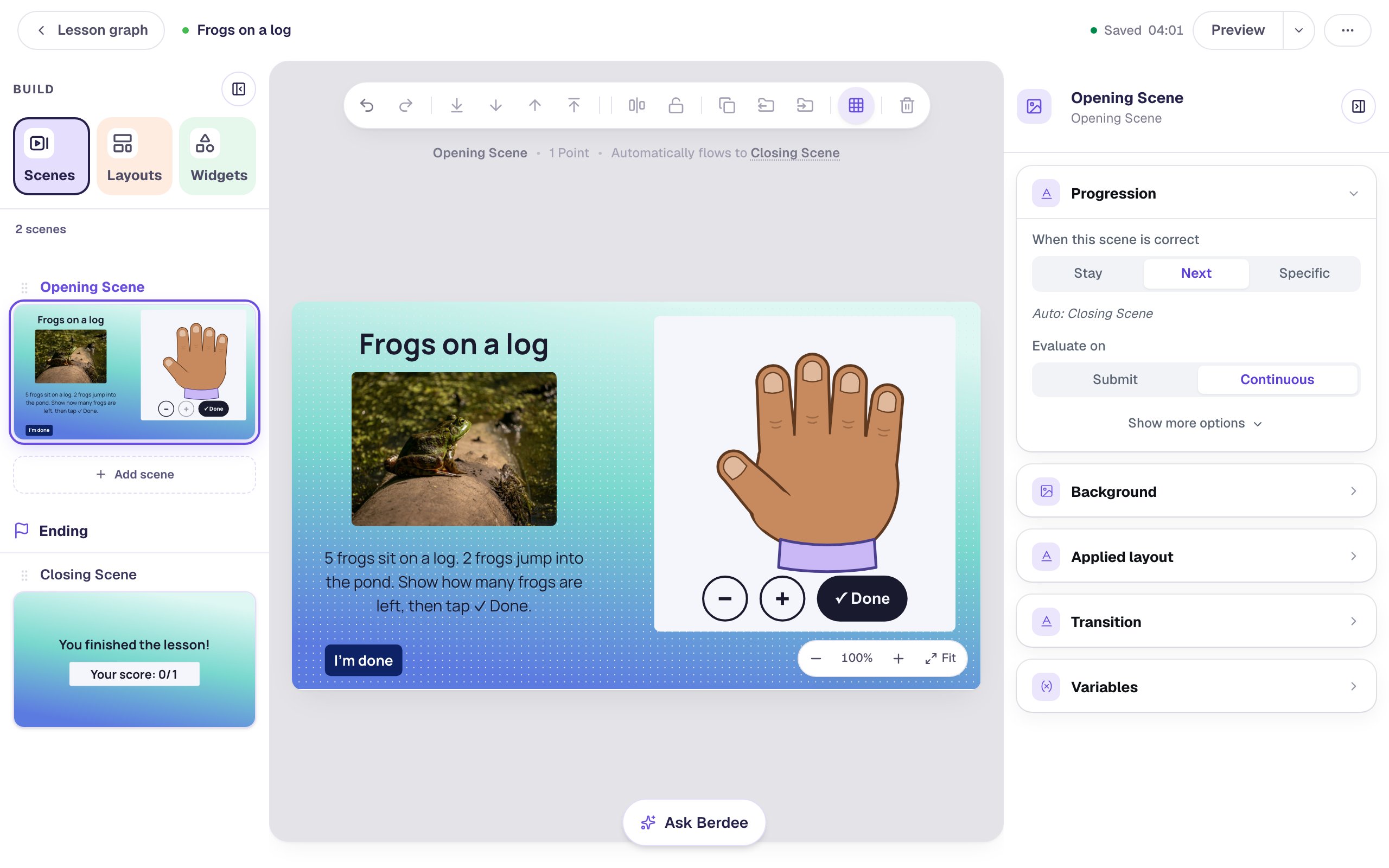
The hand still moves the lesson on by itself when a child answers right; I'm done is only there for a child who wants to stop.
Step 7: Play the story in Preview
Click Preview. Students see the frog, the story, and a hand with all five fingers up. The + button is greyed out: every finger is already up.
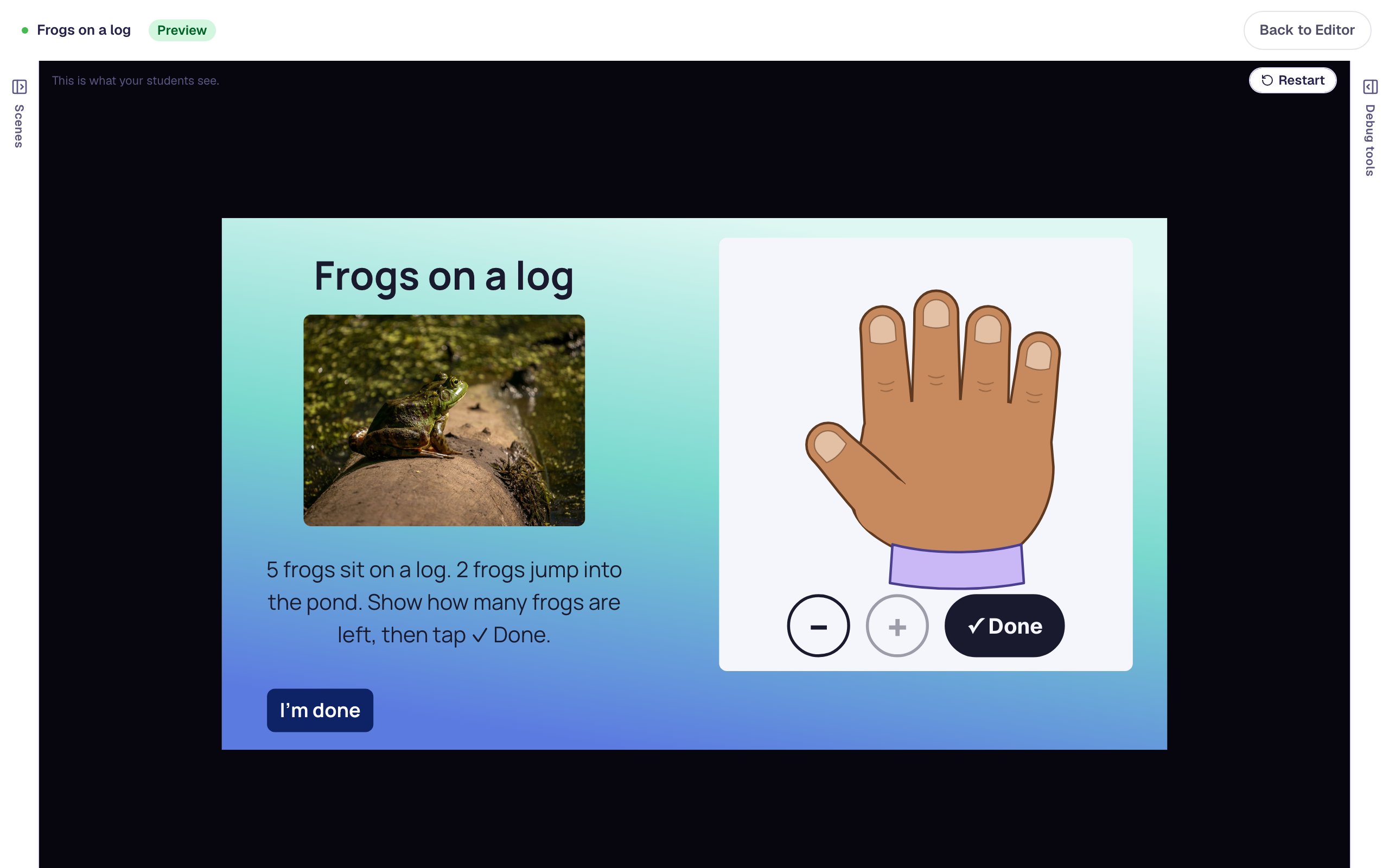
Act out the slip first. Tap the little finger to put it down, then tap ✓ Done:
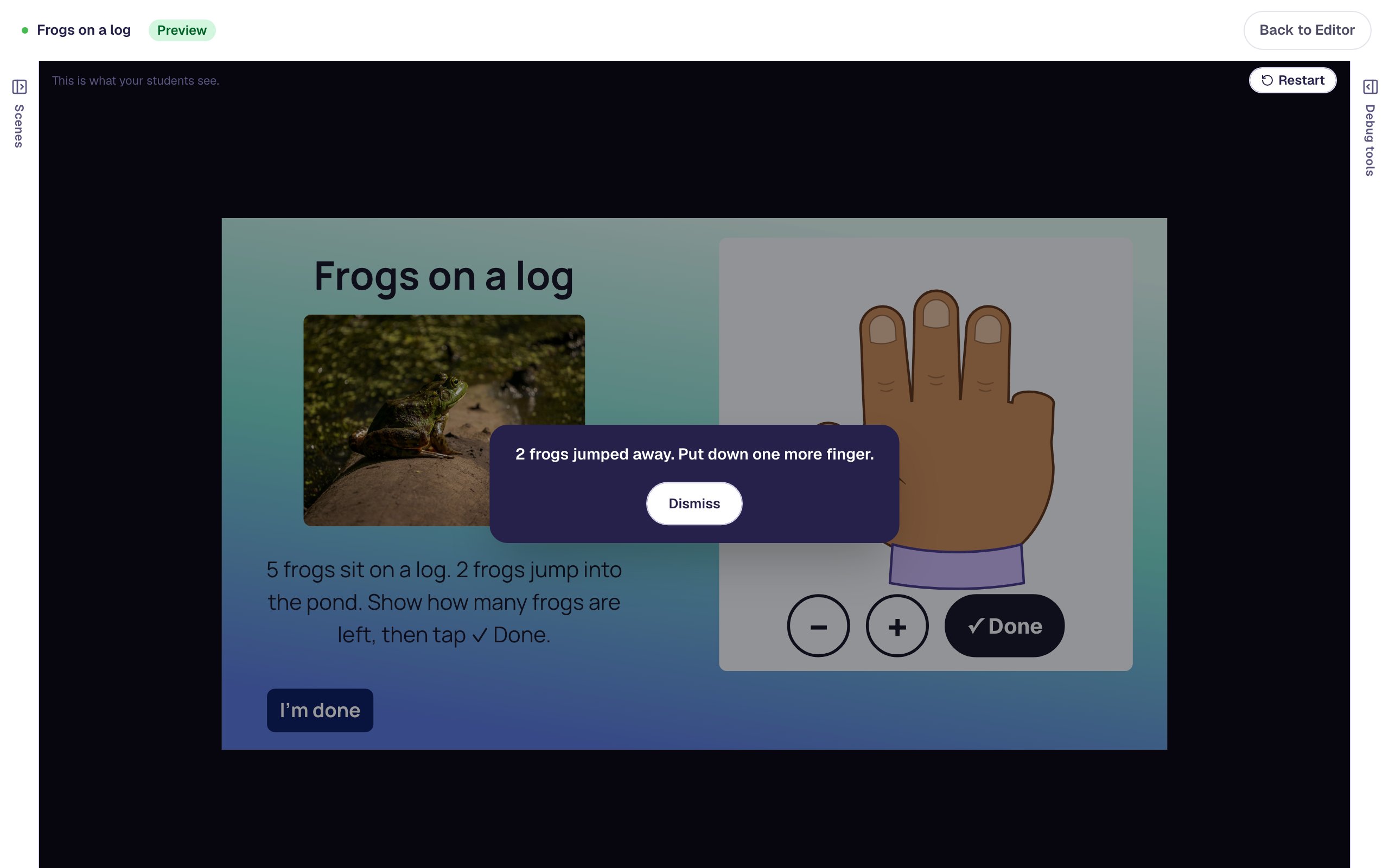
The hint shows because 4 fingers were up. Tap Dismiss, put down the ring finger too, and tap ✓ Done again:
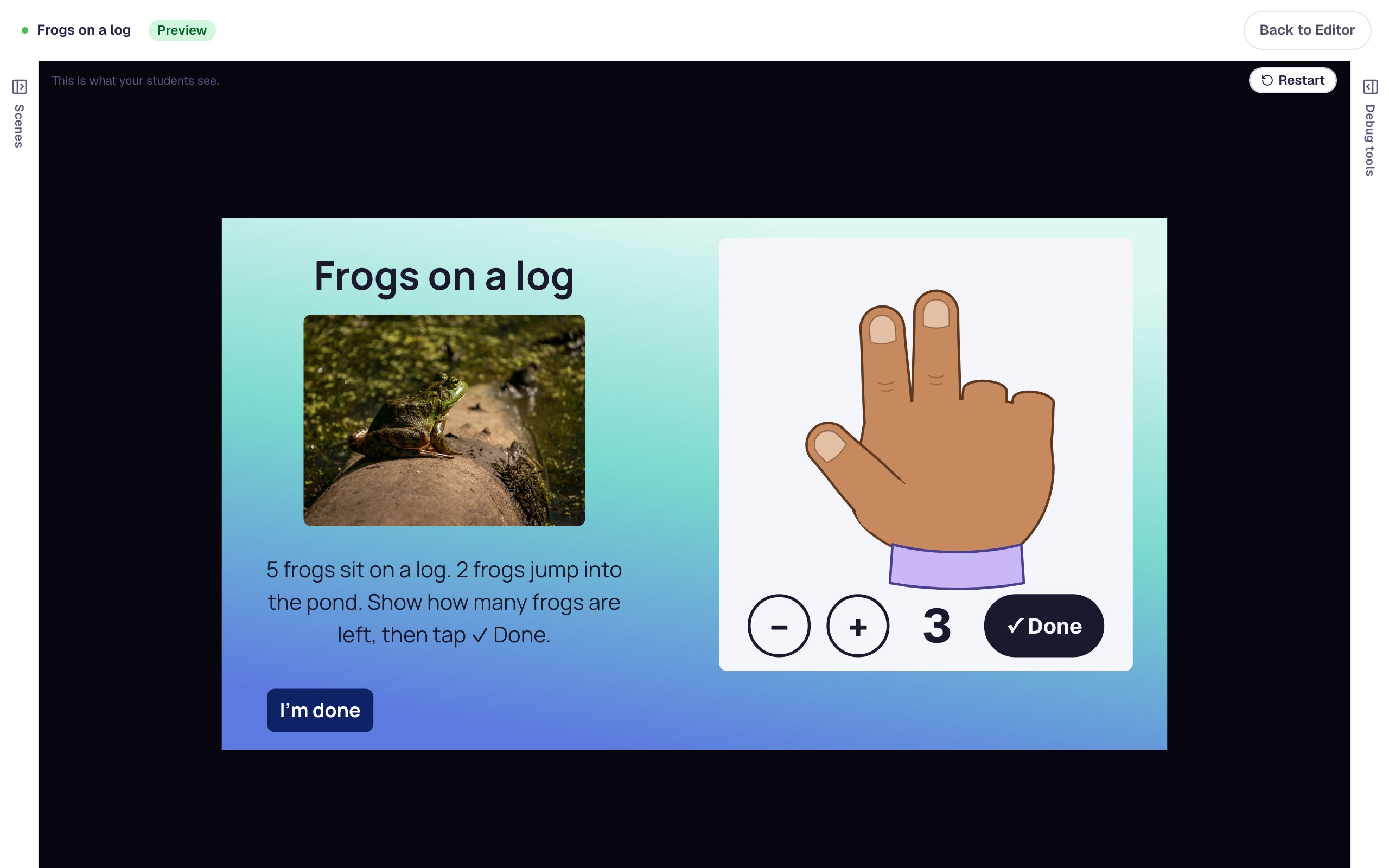
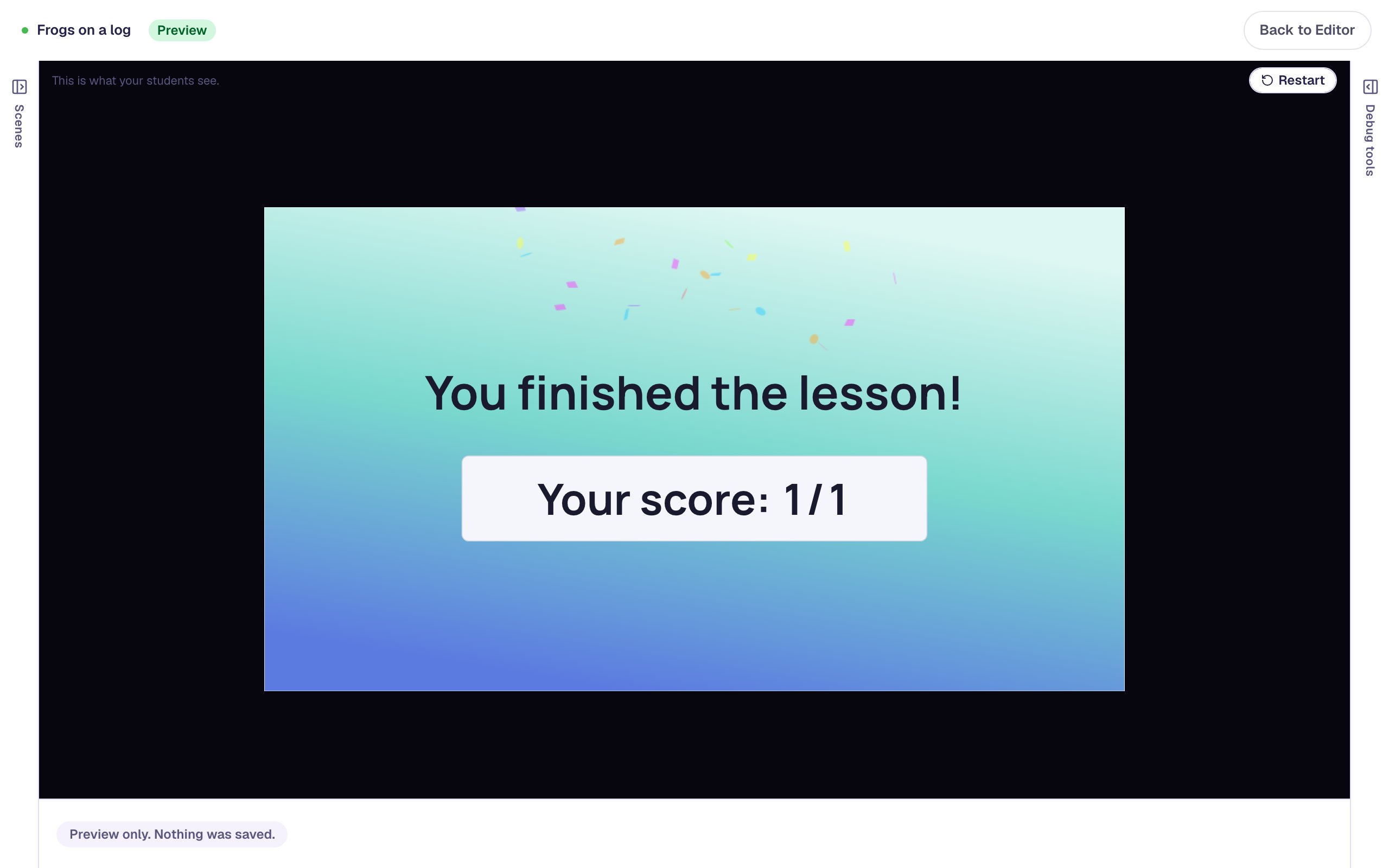
After three seconds the lesson moves on to the ending, with a score of 1 out of 1.
On each student's attempt page you'll see what they showed, like "Showed 4, then 3 ✓ · 2 tries". Each tap on ✓ Done counts as one try, so you can see who needed the hint.
Berdee can't see a child's real fingers, and it never uses the camera. Keep saying "Show me on your fingers" in class, then "Now show it on the hand".
What you built
You built a one-scene kindergarten story problem with:
- a Fingers widget in Act it out mode on 1 hand, starting with 5 fingers up and right at 3,
- + and − buttons, the count said out loud, and the numeral shown After a right answer,
- an On Done hint that shows only when 4 fingers are up, the most common slip,
- an Advance delay so children see the 3, and an I'm done button so the lesson can be published.
To make the next story, change the numbers: 4 at the start and 1 at the end for "4 ducks, 3 swim away", or start at 2 and end at 4 for a story where frogs hop _onto_ the log and children raise fingers. For numbers past 5, set Hands to 2 hands. For more counting practice, follow Build a number on a ten frame, or have children build the story with cubes in Build and compare towers of connecting cubes.
Make this lesson yours
Add the lesson you just watched being built to your account, then change it for your class: your questions, your pictures, your colors.
Free to sign up, and you'll come straight back here. I have an account