Compare two-digit numbers with <, >, and =
Use Base-Ten Blocks in Compare mode so students see which of 34 and 43 is greater, with a hint when they read the ones first, then have them write 34 < 43 with a Number Sentence's sign box.
- Level
- Beginner
- Time
- About 15 min
- Steps
- 8
- Updated
- Nov 3, 2026
A two-scene "Greater or less?" lesson where students tap the greater of two base-ten models, then choose the sign that makes 34 ○ 43 true.
Get the finished lesson
Skip straight to the result, or keep it open beside the steps. Add this tutorial's lesson to your account and explore how it works in the studio.
Free to sign up, and you'll come straight back here. I have an account
34 and 43 use the same two digits, and that's exactly why first graders mix them up. A child who looks at the 4 in 34 before the 3 can decide 34 is the bigger number. Base-ten blocks fix this: 4 towers of ten next to 3 towers of ten makes it obvious which number has more tens, so students learn to compare the tens first. Once they can see it, they're ready to write it with a sign.
In this tutorial you'll build a two-scene lesson called Greater or less?:
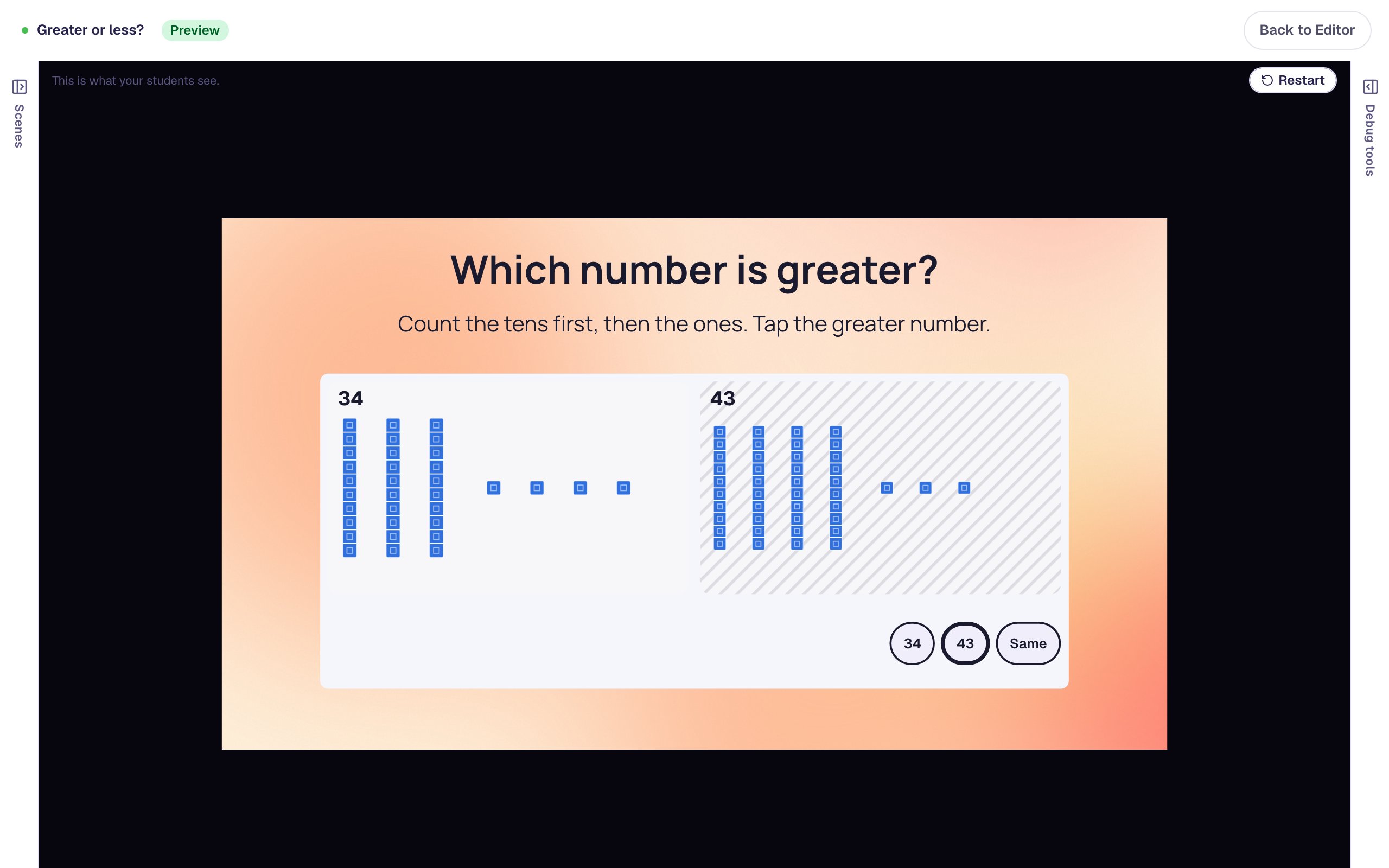
- Which number is greater? Students see 34 and 43 as towers of ten and single cubes and tap the greater one. If they tap 34, a hint reminds them to look at the tens.
- Now write it with a sign. A Number Sentence shows
34 ○ 43, and students tap the circle and choose <, = or >.
You'll use two widget modes no other tutorial covers: Base-Ten Blocks' Compare, and a Number Sentence with a sign box.
Step 1: Set the scene
Start a blank lesson (New lesson, then Start from scratch) and name it Greater or less? by clicking Untitled lesson at the top left.
Give the scene a warm background. Click an empty spot on the scene, open Background, click Choose a style, and pick Mesh sunrise under Gradients. Give the Closing Scene the same background so the ending matches.
Then add what students read first:
- A Heading at the top:
Which number is greater?. Set its Font Size to40. - A Body under it:
Count the tens first, then the ones. Tap the greater number.Set it to Fixed width, about780wide, then set its Font Size to22.
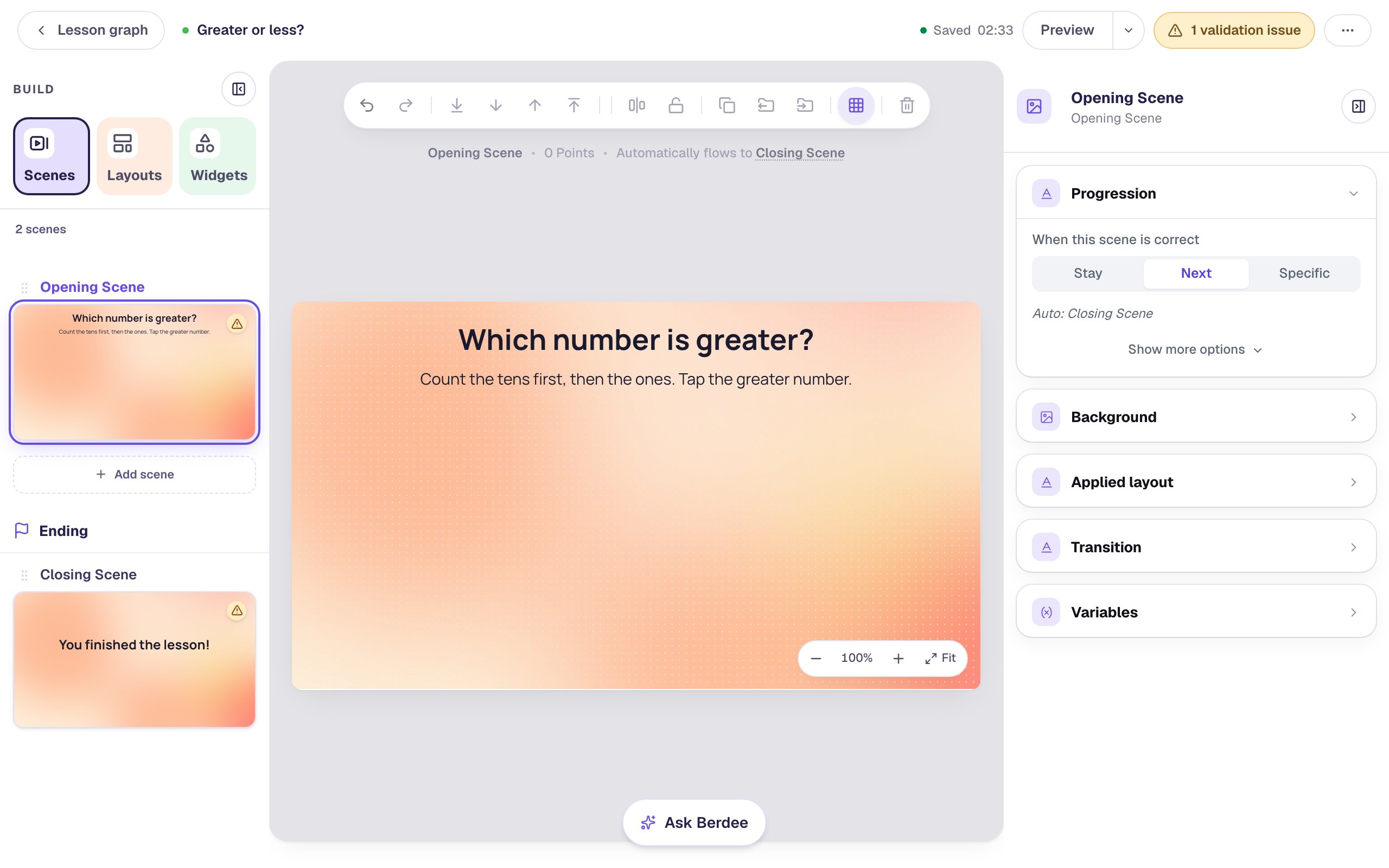
The second line is the strategy itself. Children who hear "count the tens first" every time will start doing it without being told.
Step 2: Add Base-Ten Blocks and choose Compare
Search the Widgets tab for Base-Ten Blocks and click it. Under Style & Layout, click Show more options, set Width to 760 and Height to 320, and drag it under the text.
A new Base-Ten Blocks widget shows one model of 47. Click ⚙ Configure in the pill above it, and under What students do, click Compare:
Compare puts two little mats side by side, Model A on the left and Model B on the right. Students don't build anything: they look at both and tap their answer. Like every graded mode, it's tagged Graded.
Leave Look on Cubes: towers of ten single cubes, the way Grade 1 builds numbers with connecting cubes.
Step 3: Build 34 and 43
Each model has + and − buttons for its pieces, but typing is quicker. Next to Or type:, set:
- Model A:
3tens and4ones. - Model B:
4tens and3ones.
The line above each pair of boxes reads the model back in words, like 3 towers of ten and 4 single cubes: 34, so you can check it at a glance.
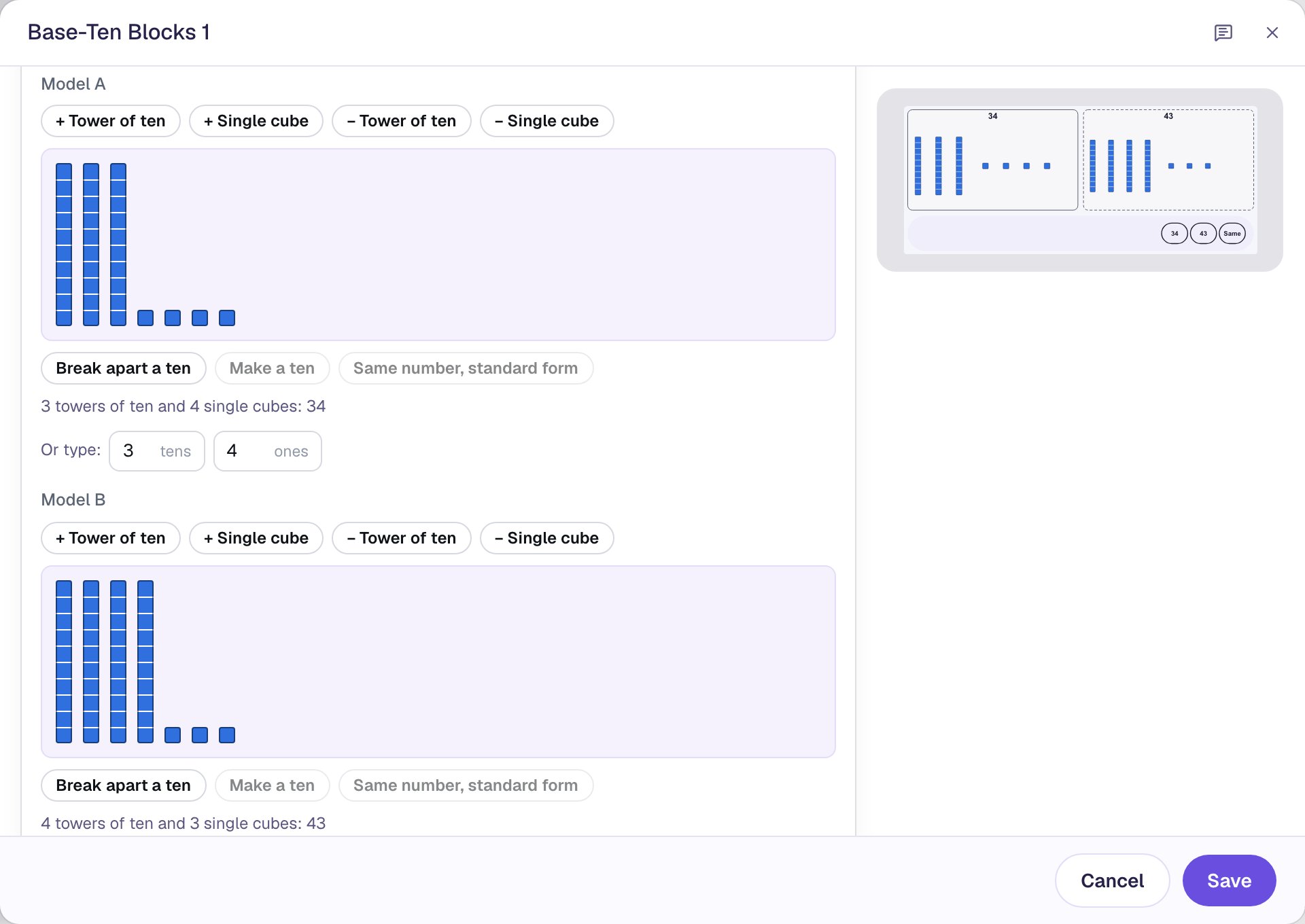
Now scroll down to Question and leave it on Which is greater?. Students get three buttons: one for each model, and Same, for a pair that's equal.
Click More options at the bottom, and set Name the models to By their numbers. The buttons then read 34 and 43 instead of A and B, so students practice saying "43 is greater" with the real numbers.
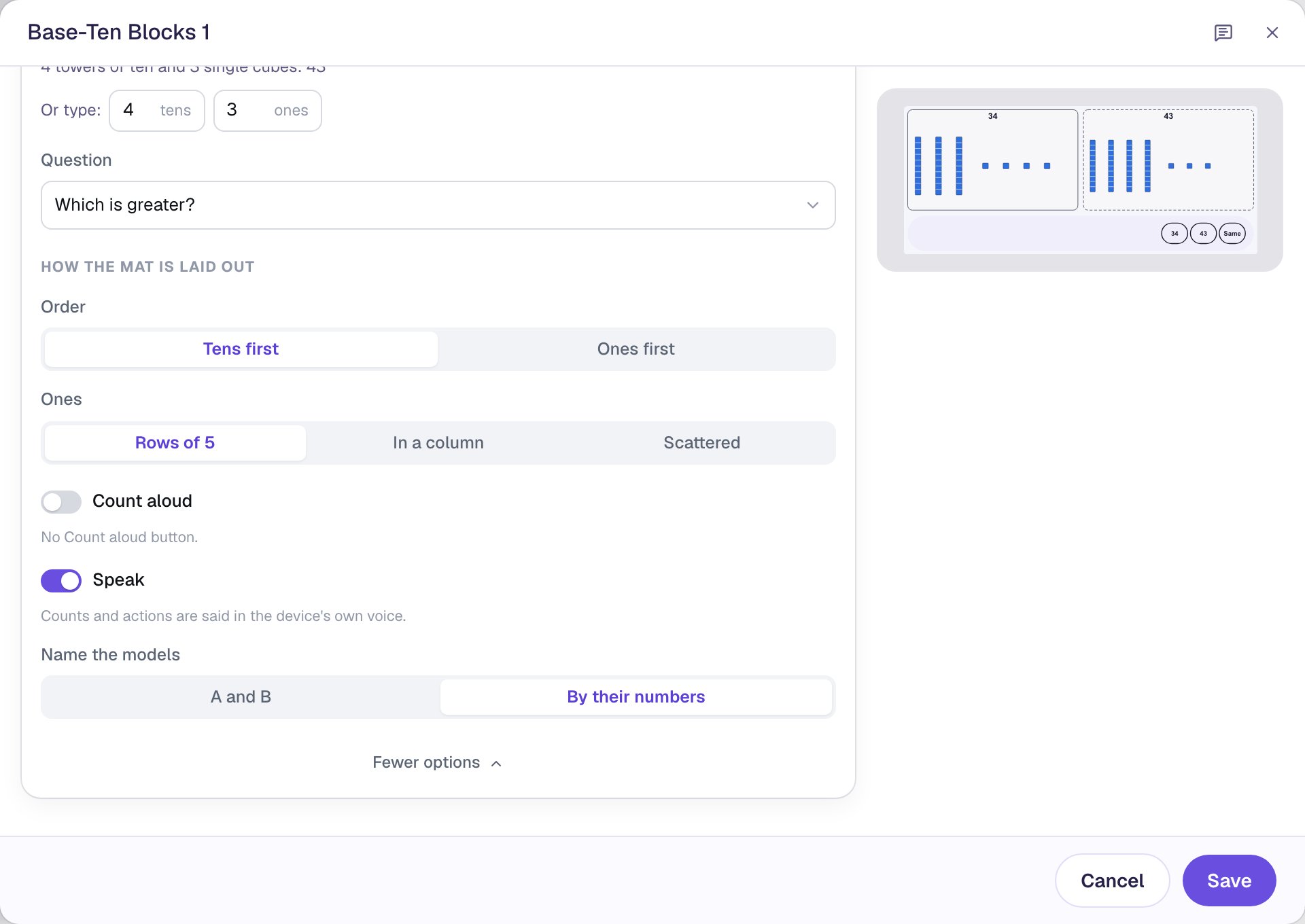
Keep Order on Tens first, so each mat shows its towers before its single cubes, just as the number is read. Click Save.
Step 4: Add a hint for a wrong tap
A student who taps 34 has almost certainly compared the ones (4 is more than 3). Tell them what to look at instead.
With the blocks selected, open Behaviors in the panel on the right:
- Click Add Behavior and choose On Done. Compare counts each answer tap as Done.
- The behavior starts as Display Message. Type the hint:
Look at the tens first. 4 tens is more than 3 tens. - Set the message style to Failure message, so it shows in red.
- Click Add Condition, choose Base-Ten Blocks: Base-Ten Blocks 1, then Is incorrect.
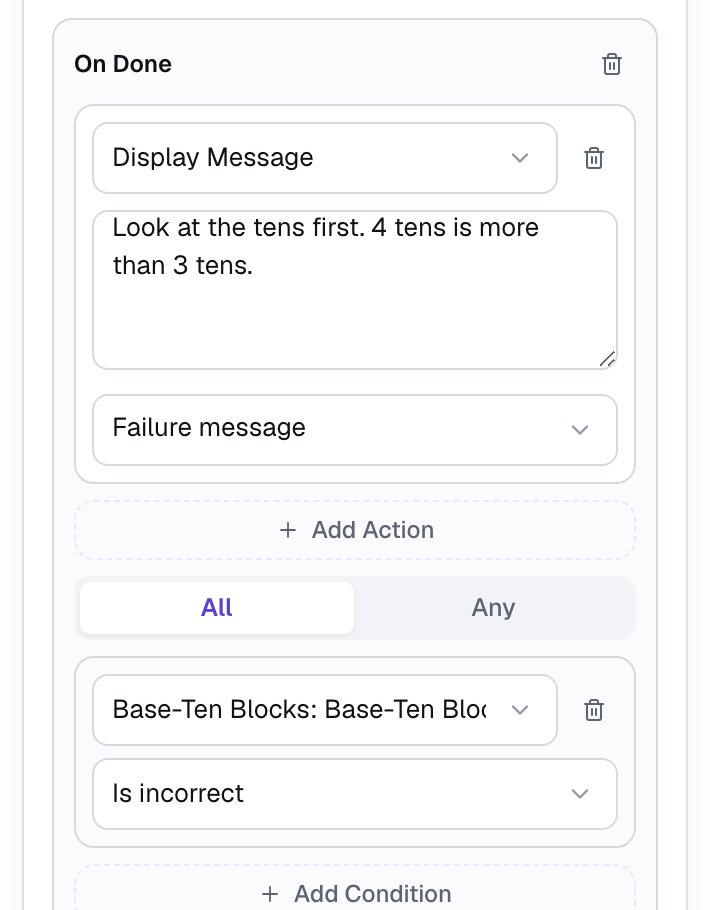
Without the condition, the hint would show after every tap, right ones too.
Step 5: Give students time to see their answer
When the answer is right, the scene moves on by itself (the line above the canvas says Automatically flows to Closing Scene for now). By default it waits less than a second. Click an empty spot on the scene, open Progression, click Show more options and set Advance delay to 2500 ms.
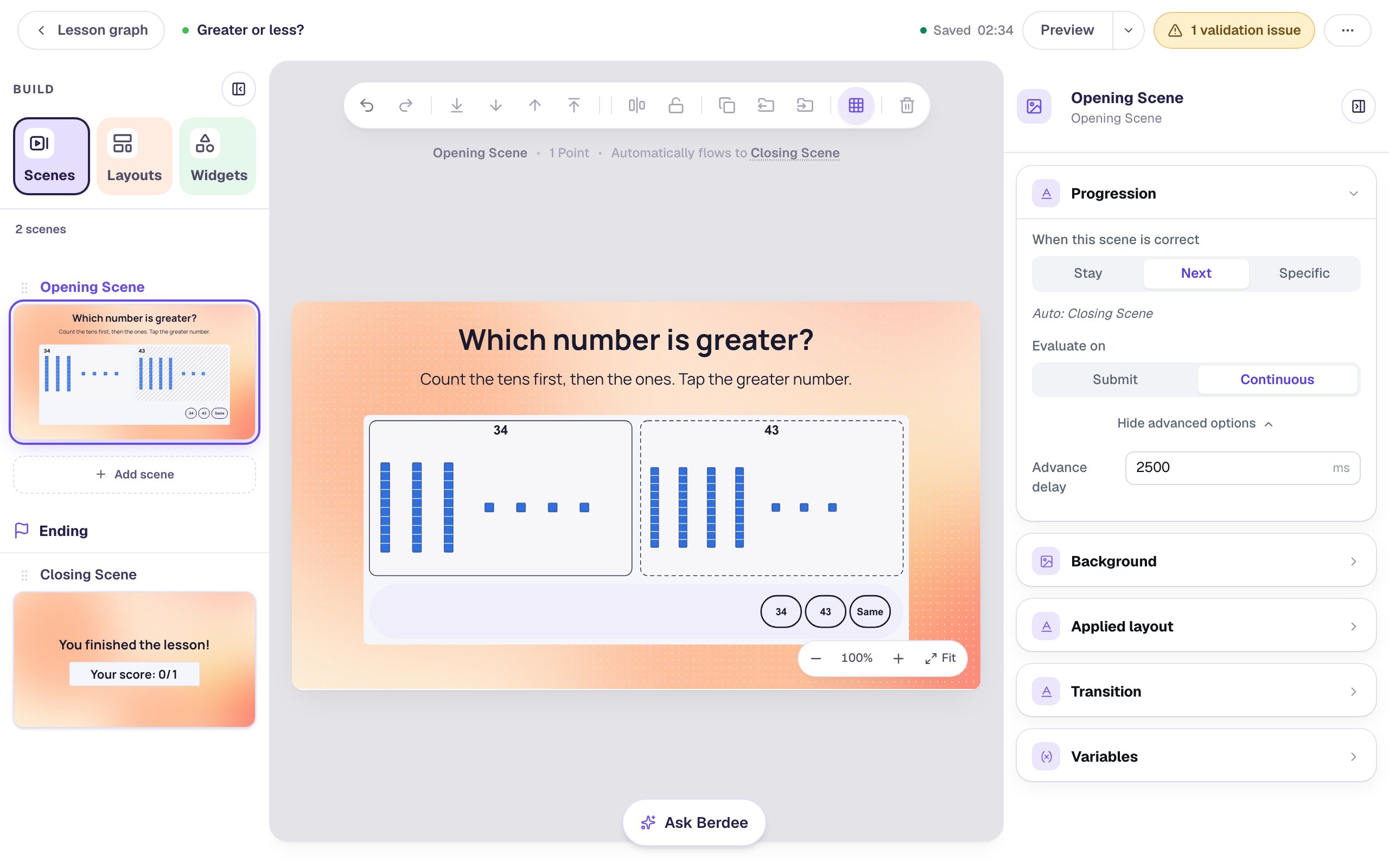
Evaluate on is Continuous, so the scene checks the answer the moment a student taps a button. There's no Check button to find.
Step 6: Add a scene where students write it with a sign
Now students write what they just saw. In the Scenes panel, click Add scene. The new scene goes just before the ending. Double-click its name and call it Use a sign. Give it the same Mesh sunrise background and the same Advance delay of 2500 ms.
Add a Heading, Now write it with a sign, at 40, and a Body, 34 is less than 43. Tap the circle, then pick the sign., at 22.
Then search the Widgets tab for Number Sentence and click it. Set Width to 560 and Height to 300, and click ⚙ Configure:
- Under Start from, click
6 ○ 4. It's the comparison sentence: two shown numbers with a round sign box between them. - Click the
6and set Number to34. Click the4and set Number to43. - Click the round sign box. It's set to Students choose. Under Answer, click <.
Students choose from already offers <, = and >, which is what first graders need. Older students can get ≤, ≥ and ≠ too, by ticking them.
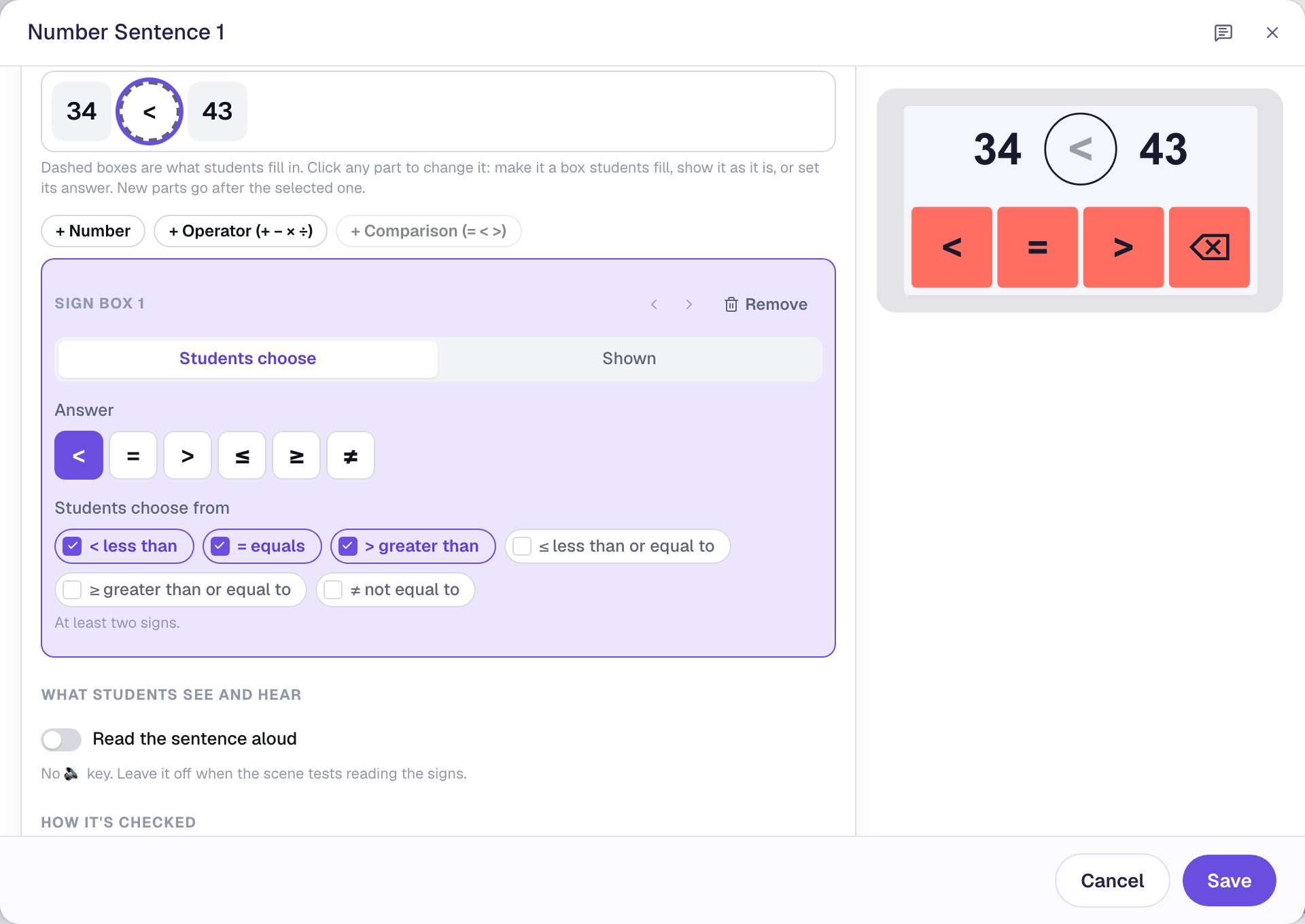
Leave Read the sentence aloud off. It adds a speaker key that reads the filled sentence, like "34 is less than 43", which would give the answer away on a scene about reading the signs. Click Save.
Step 7: Add an "I'm done" button
Every lesson needs one button that lets a student finish, and it's a way out for a student who gets stuck.
- Search the Widgets tab for
Submit Buttonand click it. - In Content, change Label to
I'm doneand set Submits to Lesson. - Set its Font Size to
18and drag it to the bottom left, away from the sign keys.
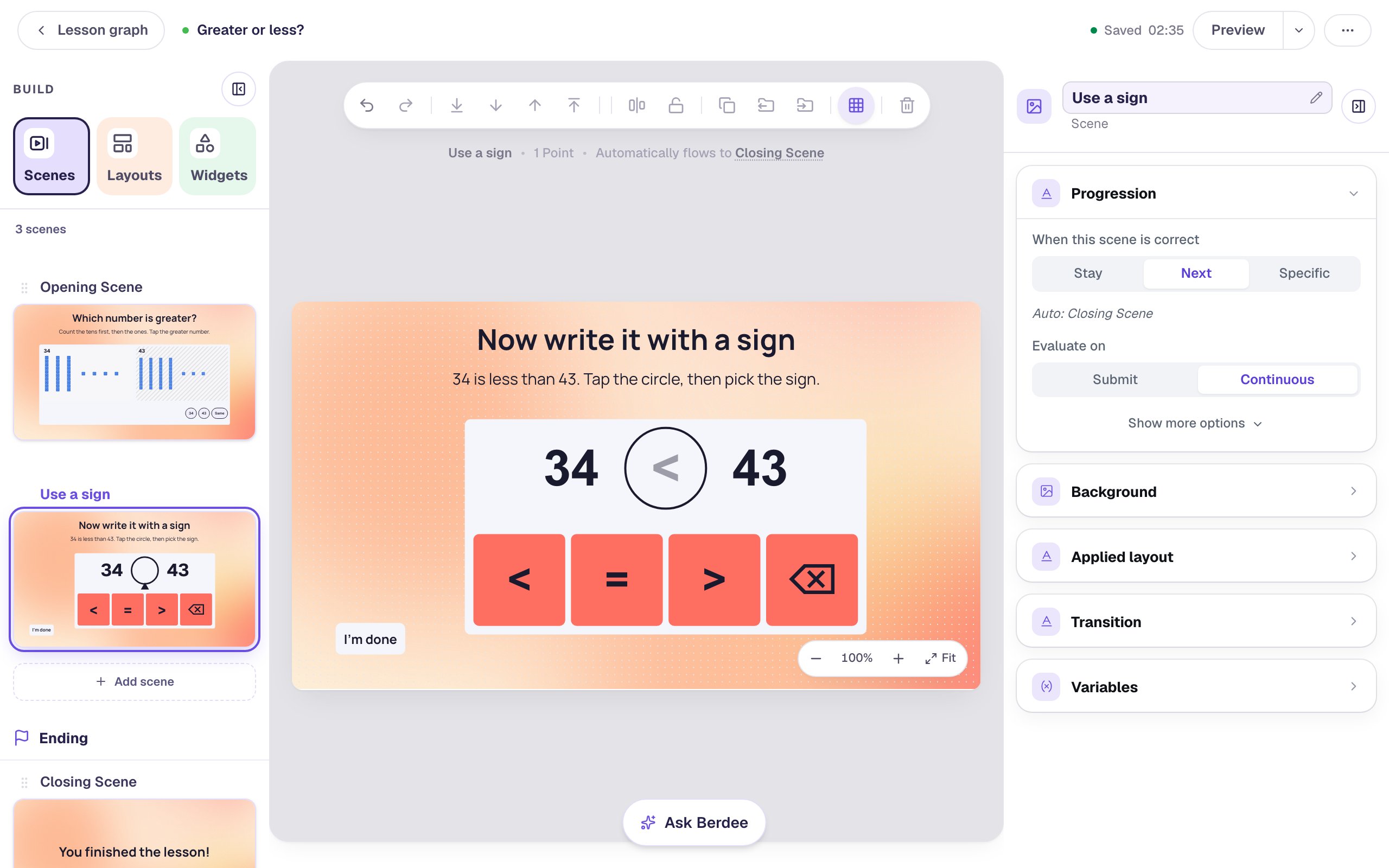
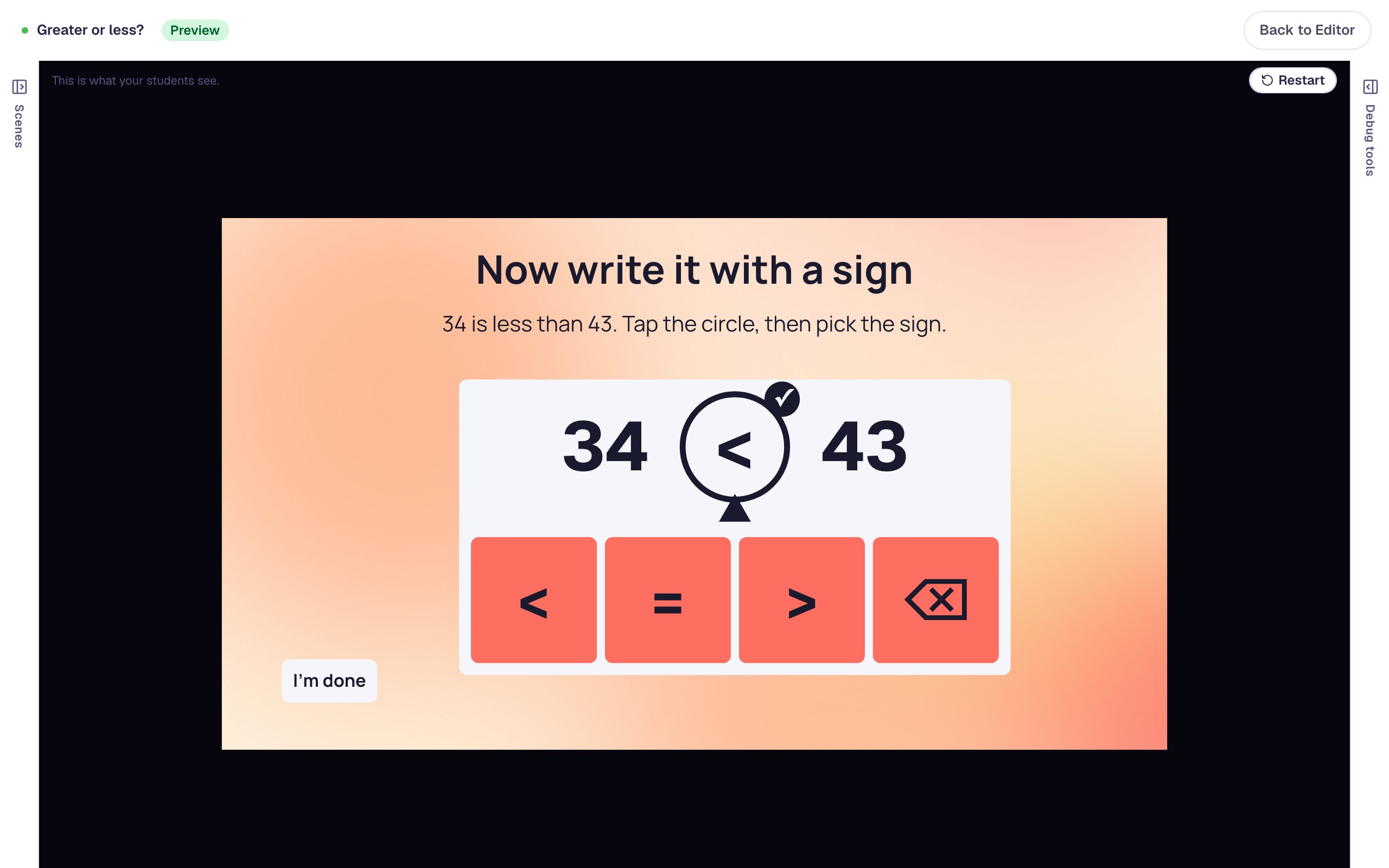
On the canvas the sign box shows its answer, <, in grey, so you can check it. Students see an empty circle.
Step 8: Try it as a student
Open the Opening Scene and click Preview. Make the classic mistake first: tap 34.
The hint appears over the blocks.
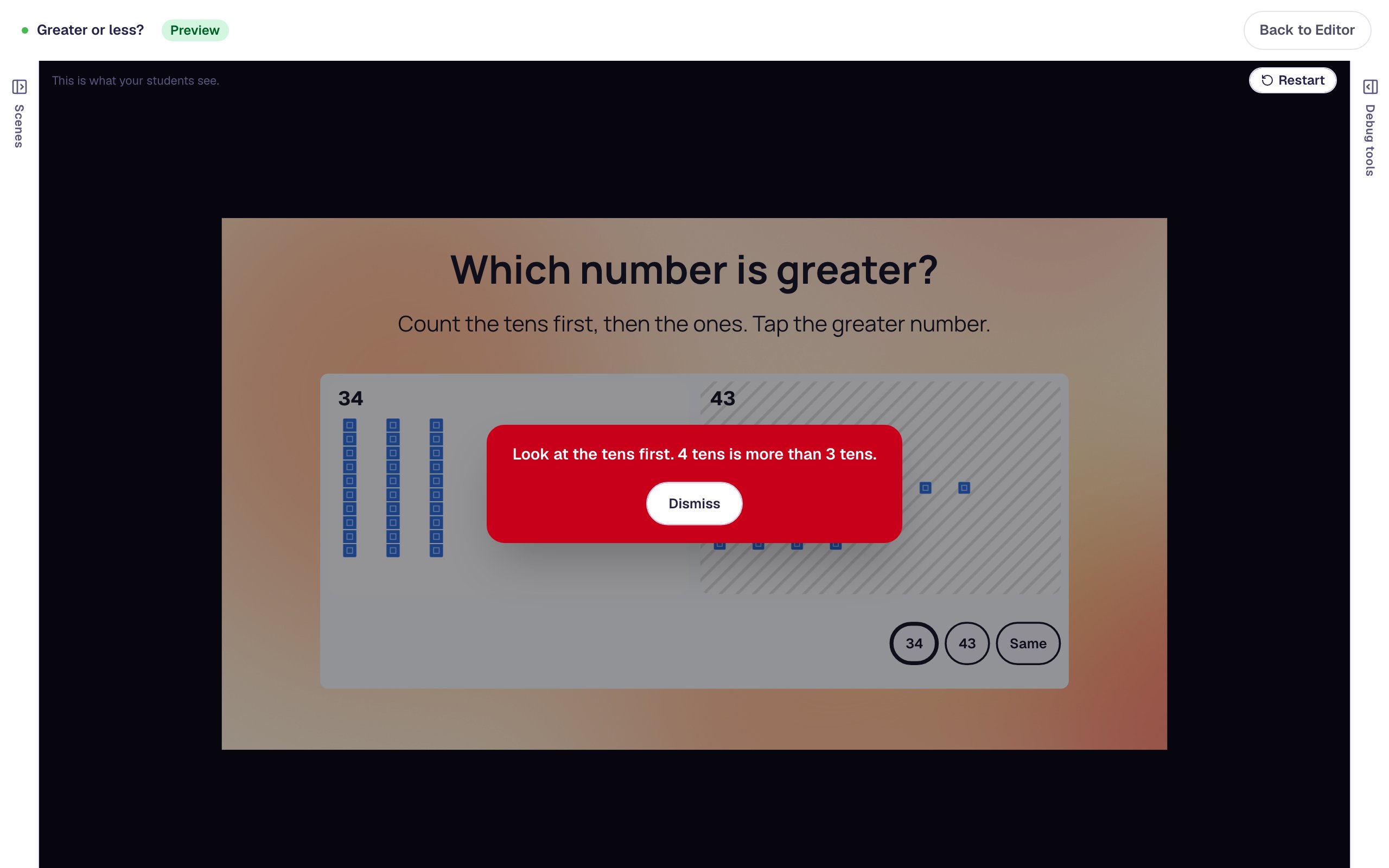
Tap Dismiss, then tap 43. The button you tapped gets a thick outline, and after the delay the lesson moves on.
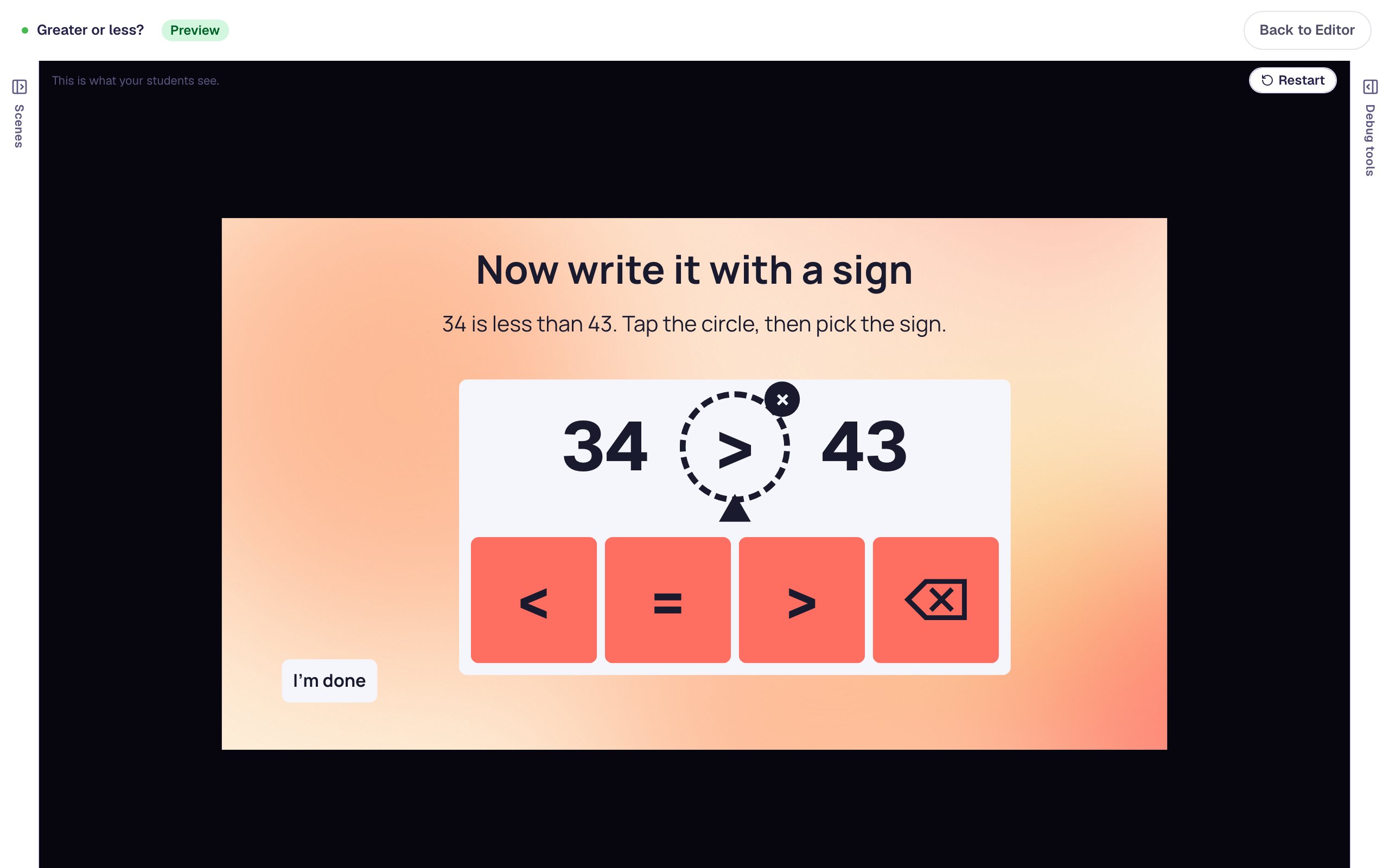
On Use a sign, the circle is already selected (it has a pointer under it), so the keys below are signs. Tap > first:
The sentence is checked as soon as the circle is filled. 34 > 43 isn't true, so the circle gets an × and a dashed outline. Color is never the only clue.
Tap the circle, then tap <. 34 < 43 gets a ✓.
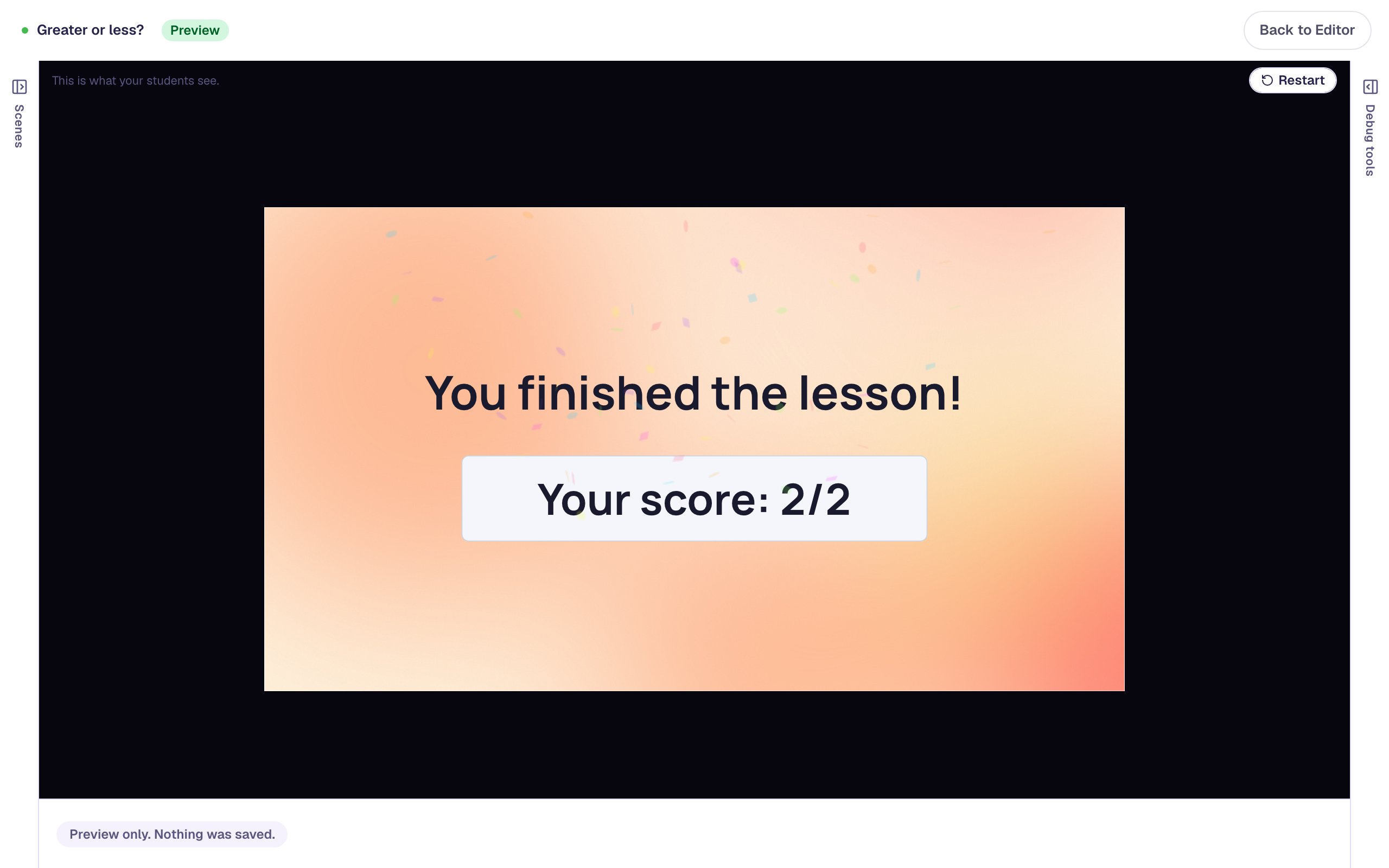
What you built
You built a two-scene math lesson with:
- Base-Ten Blocks in Compare mode, showing 34 and 43 as towers of ten and single cubes, with the answer buttons named by their numbers,
- a red hint on On Done that shows only when the answer Is incorrect, pointing students to the tens,
- a Number Sentence started from
6 ○ 4, changed to34 ○ 43, with a sign box students fill from <, = and >, - a longer Advance delay so students see their answer, and an I'm done button as a way out.
For more practice, add a scene with Which is less? or a pair like 52 and 52 for Same. For a harder one, build 4 tens and 15 ones (55) against 5 tens and 2 ones (52): the model with fewer tens is greater, so students have to make a ten in their heads. To have students build numbers with the blocks themselves, see Build a three-digit number with base-ten blocks, and for a sentence with number boxes, Write an addition sentence for a ten frame.
Make this lesson yours
Add the lesson you just watched being built to your account, then change it for your class: your questions, your pictures, your colors.
Free to sign up, and you'll come straight back here. I have an account