Count on to find how many more
Use the Ten Frame's Add on mode for a "some more" story problem. The frame opens with Leo's 6 books, students add books until there are 8, and a Number Sentence asks how many he got.
- Level
- Beginner
- Time
- About 15 min
- Steps
- 7
- Updated
- Nov 5, 2026
A two-scene "Counting on with books" lesson where students count on from 6 to 8, then from 9 to 12 across two ten frames, and fill in 6 + □ = 8 and 9 + □ = 12.
Get the finished lesson
Skip straight to the result, or keep it open beside the steps. Add this tutorial's lesson to your account and explore how it works in the studio.
Free to sign up, and you'll come straight back here. I have an account
First graders meet story problems where the change is hidden: "Leo has 6 books. He gets some more. Now he has 8. How many did he get?" The strategy they learn is counting on. Keep the 6, say "7, 8", and the books you added are the answer. A child who starts over from 1 every time hasn't made that jump yet.
The Ten Frame's Add on mode is built for this. The frame opens with the starting group already in place, and students can't move it. They add counters until the frame holds the total, and the device counts on out loud: the first book added says "7", not "1".
In this tutorial you'll build a two-scene lesson called Counting on with books:
- Leo has 6 books and ends up with 8. Students add books to a ten frame, tap Done, and fill in
6 + □ = 8. - Mia has 9 books and ends up with 12, so students count on past 10, across two ten frames, and fill in
9 + □ = 12.
Step 1: Set the scene
Start a blank lesson (New lesson, then Start from scratch) and name it Counting on with books by clicking Untitled lesson at the top left.
Give the scene a calm background. Click an empty spot on the scene, open Background, click Choose a style, and pick Lagoon gradient. Give the Closing Scene the same background so the ending matches.
Then add the story:
- A Heading at the top:
Leo's books. Set its Font Size to40, choose Fixed width, and set Width to600, so it stays on one line on every screen. - A Body under it:
Leo has 6 books. He gets some more. Now he has 8. Add books until there are 8. How many did he get?Set it to Fixed width, about820wide, then set its Font Size to22.
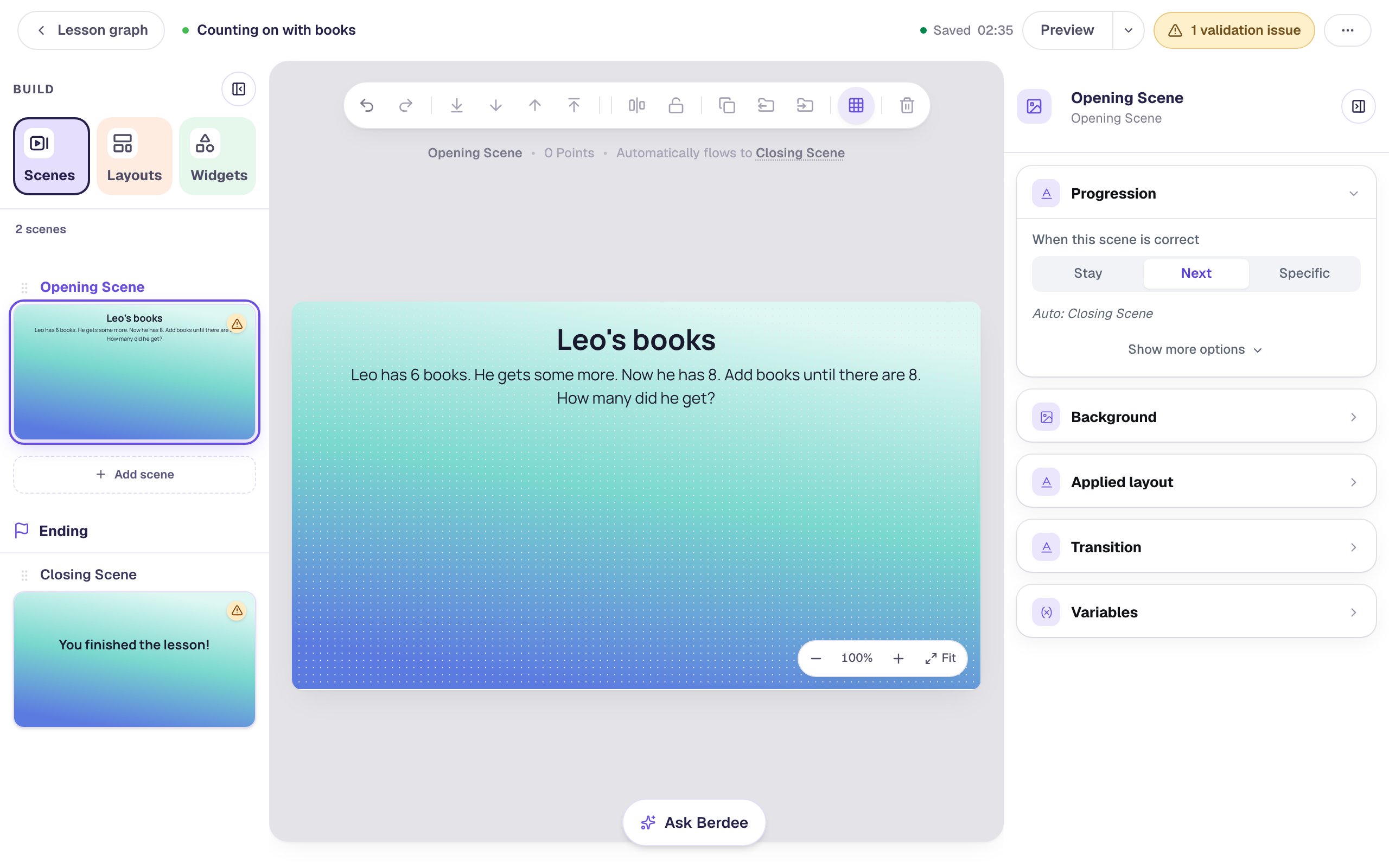
The story says what to do with the frame ("Add books until there are 8") before it asks the question, so students act it out first and answer second.
Step 2: Start the frame with Leo's 6 books
Search the Widgets tab for Ten Frame and click it. Under Style & Layout, click Show more options, set Width to 420 and Height to 230, and drag it to the left side of the scene, under the story.
Click ⚙ Configure in the pill above the frame:
- Under Frame, click 10-frame.
- Leave What students do on Build, and under What students make, choose Add on.
- Set Start with to
6and Total to8.
The note under Total spells out the problem in plain words: Students add 2 to make 8 in all. It even suggests the next step, a Number Sentence like 6 + □ = 8.
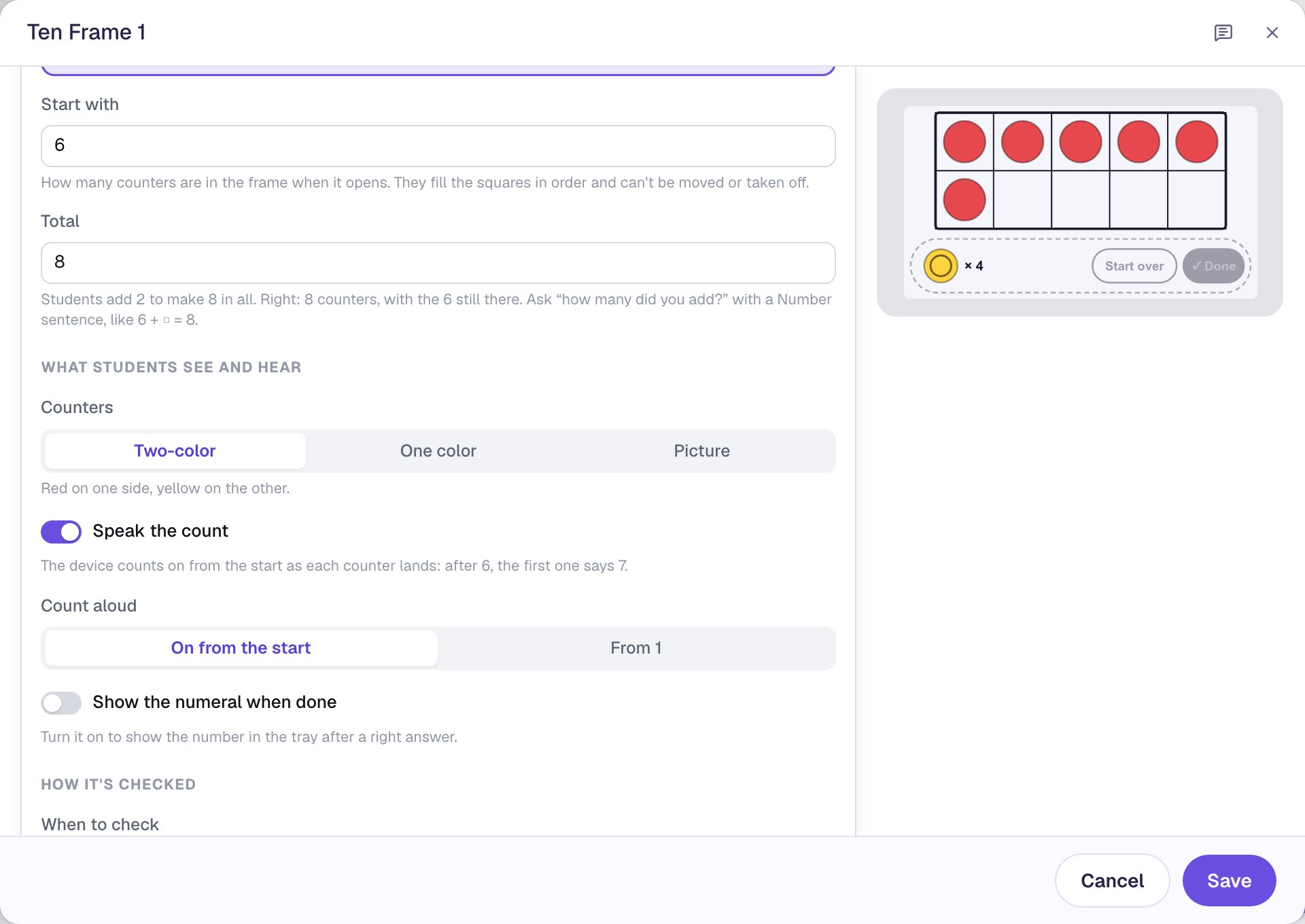
Three things work for you here without any setting:
- The start group stays put. Students can't move or remove Leo's 6 books, so they can only count on from them. A tap on one just wiggles it.
- The tray holds only the squares left. There are 4 empty squares, so there are 4 books to add, and nobody can fill the frame past 10.
- Speak the count is on, and Count aloud is On from the start, so the first book added says "7". Choose From 1 if you'd rather it counted only the added books.
Step 3: Make the counters books
Red and yellow dots work, but this is a story about books. Under What students see and hear, set Counters to Picture, click Choose a picture, and pick a book from your media library or upload one.
Then turn on Show the numeral when done. When a student taps Done with the right number of books, the total appears in the tray.
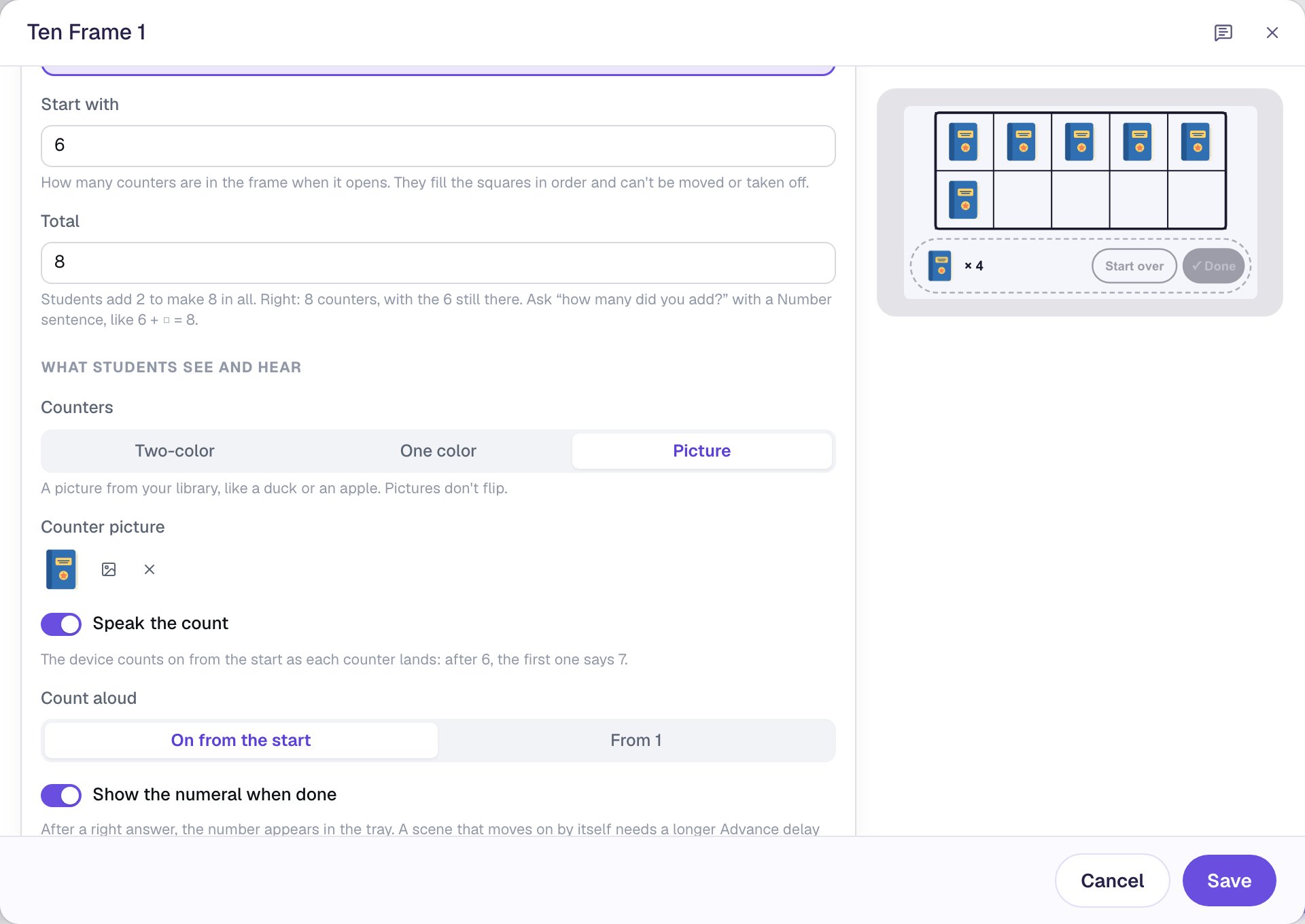
Picture counters don't flip, but you don't need flipping here: the books students add carry a ring, so the two groups never look the same. Click Save.
Step 4: Ask how many with a Number Sentence
The frame grades the total, 8. The question in the story is how many Leo got, so ask it with a Number Sentence.
Search the Widgets tab for Number Sentence and click it. Under Style & Layout, set Width to 400 and Height to 300, and drag it to the right of the frame. Click ⚙ Configure:
- Under The sentence, find Start from and click
□ + □ = □. - Click the last box, choose Shown, and set Number to
8. - Click the first box, choose Shown, and set Number to
6. - Click the box that's left and set its Answer to
2.
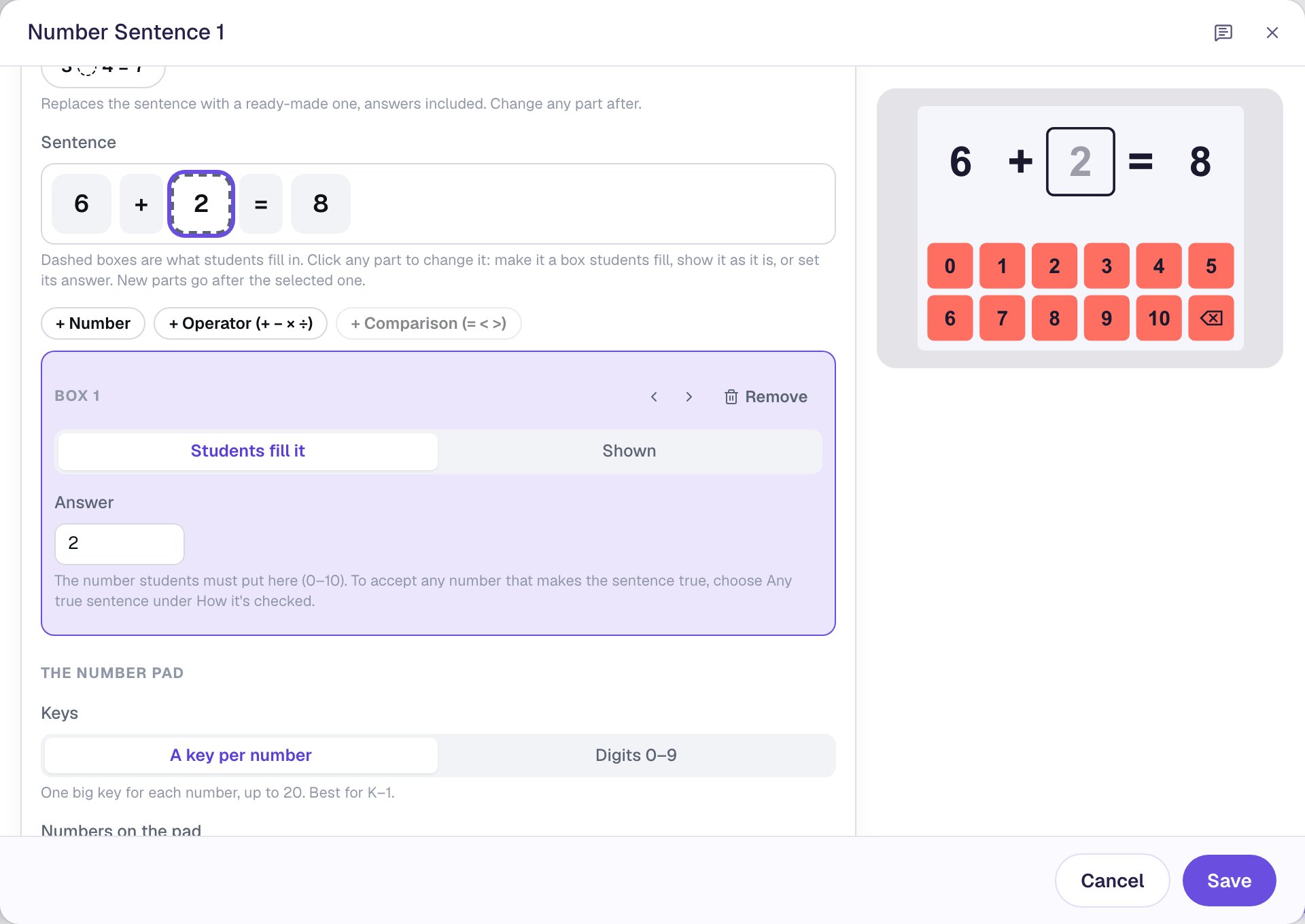
The 6 and the 8 come straight from the story, so they're shown. Only the change is a box. Click Save.
Step 5: Give students time to see the ✓
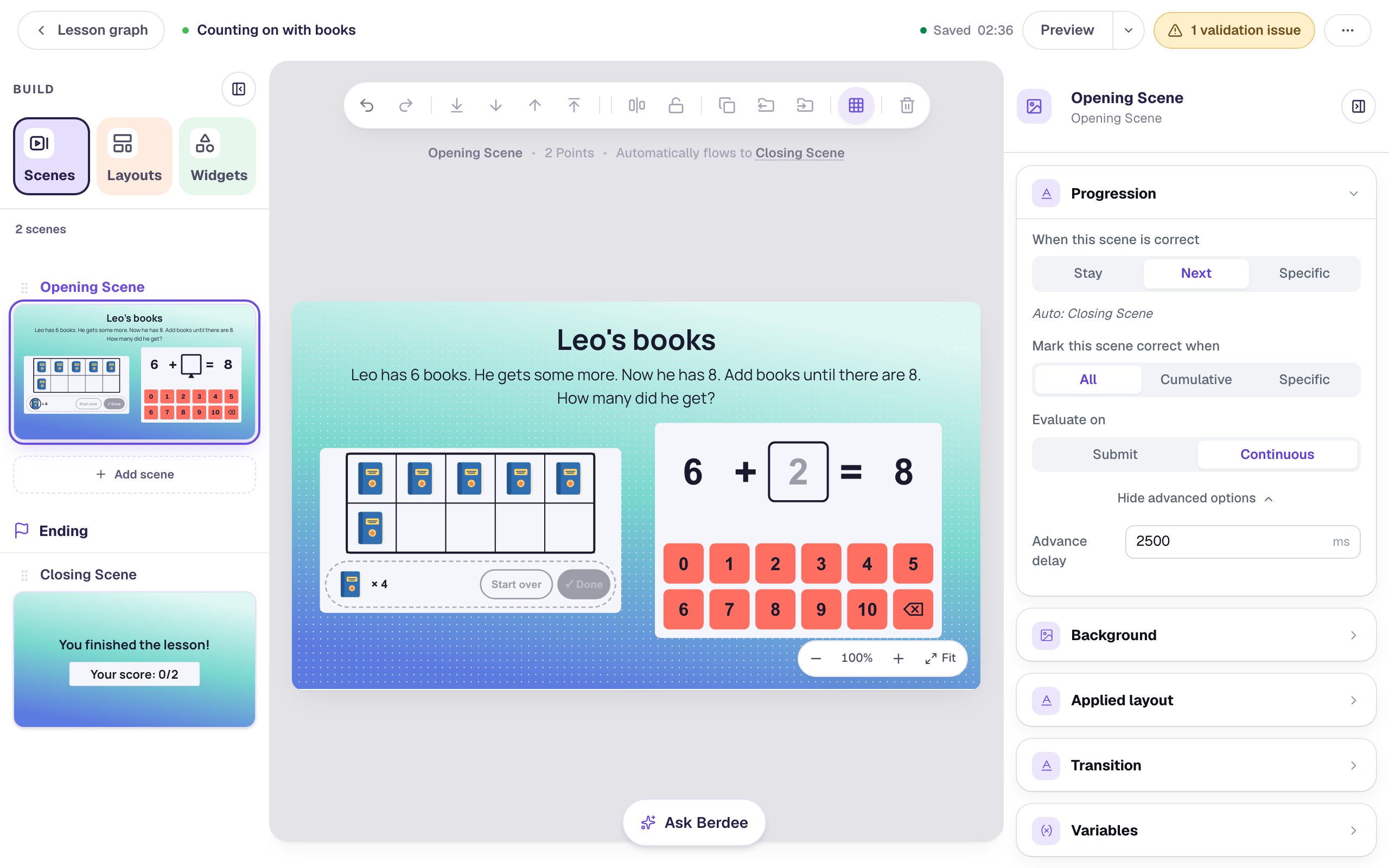
The scene now has two graded parts, the frame and the sentence. Under Progression, Mark this scene correct when is All, so the scene moves on once both are right. By default it waits only 0.6 seconds, which is too quick for a child to see the ✓.
Click an empty spot on the scene. In Progression, click Show more options and set Advance delay to 2500 ms.
Step 6: Count on past 10 with two frames
The second story crosses 10: "Mia has 9 books. She gets some more. Now she has 12." Build it from a copy of the first scene.
- In the Scenes panel, click Add scene. Click its name at the top of the properties panel and call it
Mia's books. - Give it the same Lagoon gradient background and the same Advance delay of
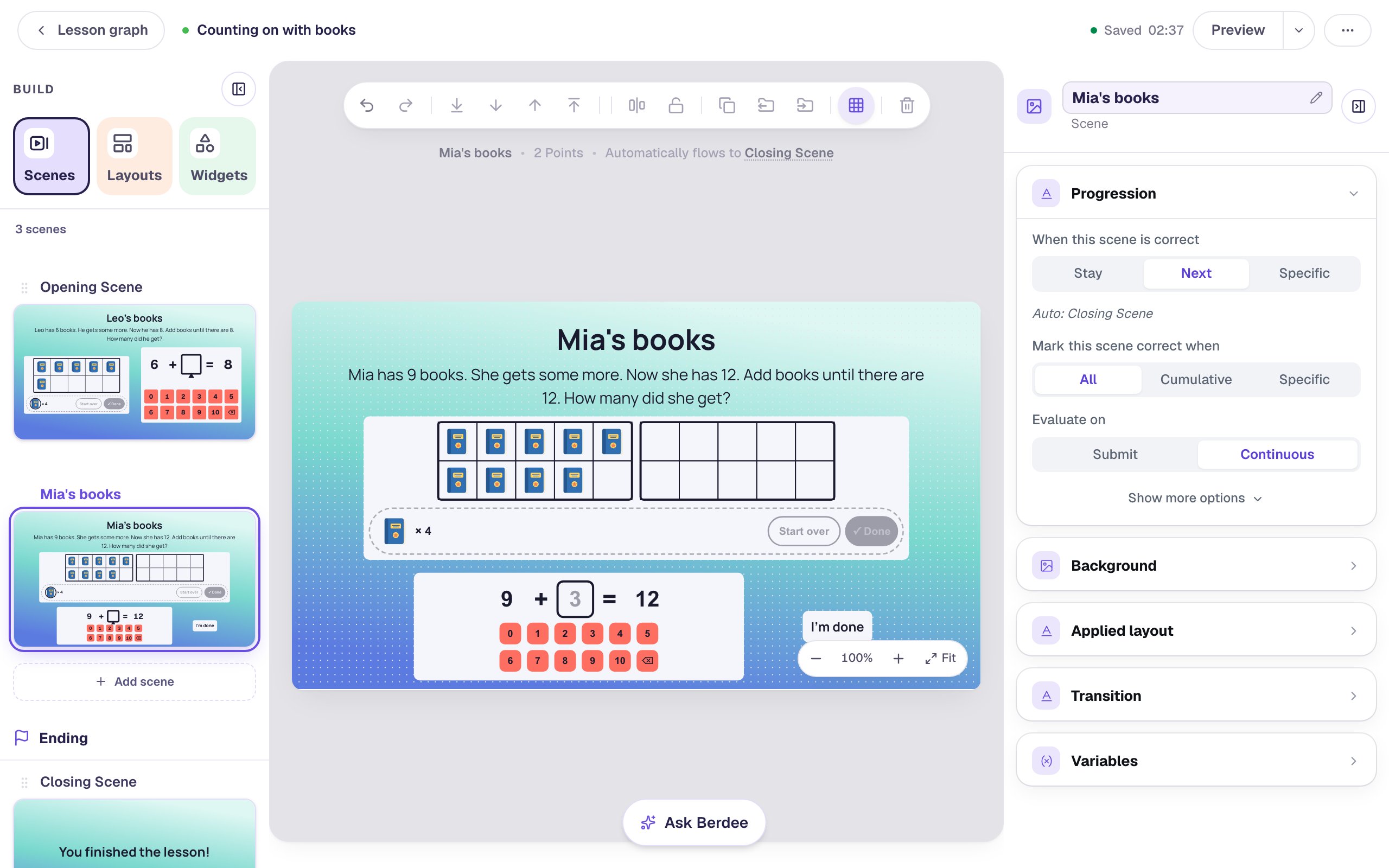
2500ms. - Go back to the Opening Scene, drag a box from an empty corner across all four widgets, click Copy to Scene, and choose Mia's books.
- On Mia's books, change the heading to
Mia's booksand the story toMia has 9 books. She gets some more. Now she has 12. Add books until there are 12. How many did she get?
Two ten frames side by side need more room. Select the frame, set Width to 760 and Height to 200, and drag it under the story. Then click ⚙ Configure:
- Set Number of frames to
2. - Set Start with to
9and Total to12. The note reads Students add 3 to make 12 in all.
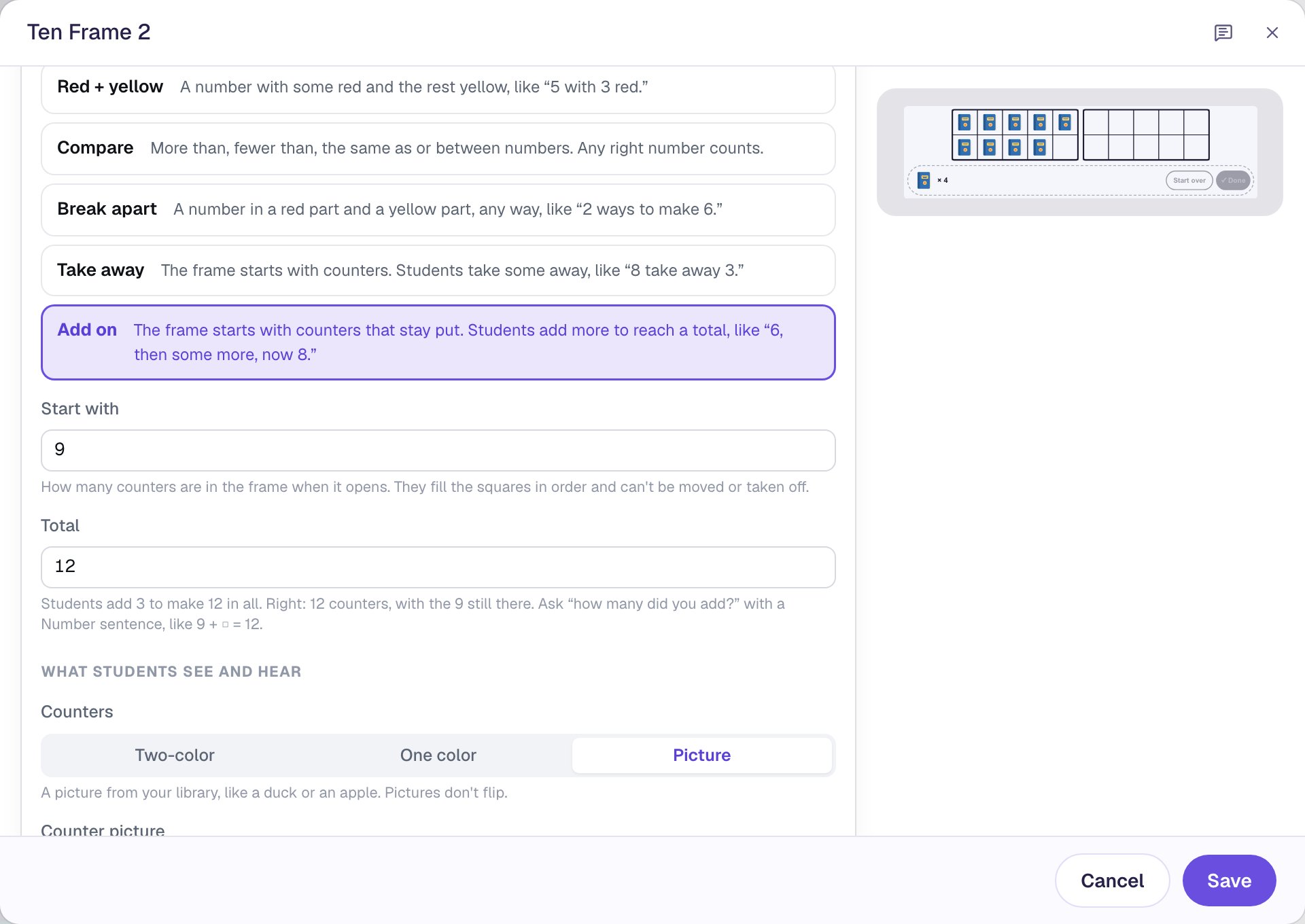
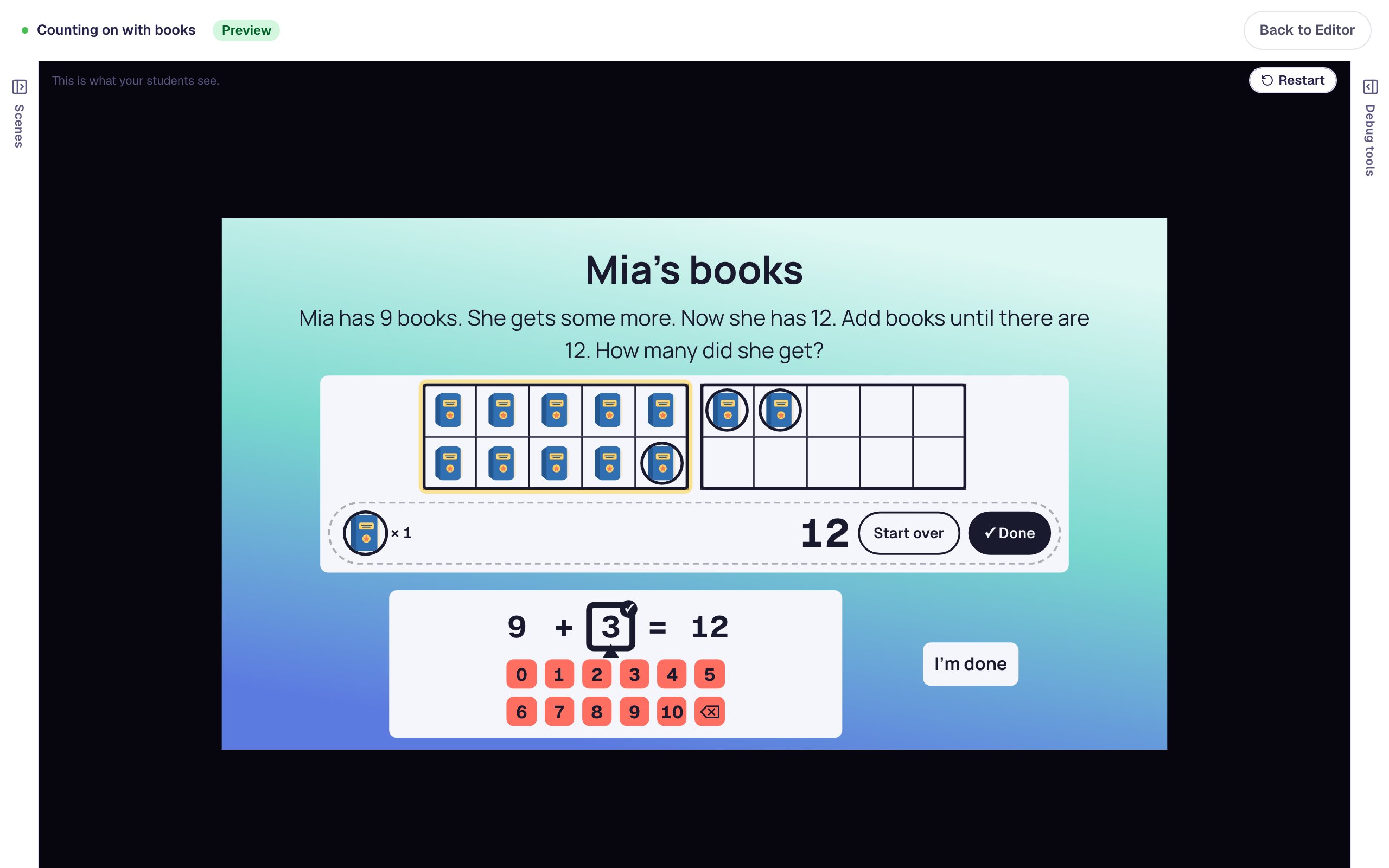
The first book a student adds fills the tenth square, and the next ones start the second frame: "10 and 2 more" is right there in the picture. Click Save.
Select the copied Number Sentence, click ⚙ Configure, click the shown 8 and set its Number to 12, click the shown 6 and set it to 9, and give the box the Answer 3. Click Save, then set its Width to 460 and Height to 150 and drag it under the frames.
Last, every lesson needs a way to finish. Search the Widgets tab for Submit Button, change its Label to I'm done, set Submits to Lesson, set its Font Size to 18, and drag it to the right of the sentence.
Step 7: Try it as a student
Open the Opening Scene and click Preview. Tap the book in the tray once, so the frame holds 7, and tap ✓ Done:
Seven isn't eight, so nothing is checked off. The books stay where they are, so the child doesn't start over. They add one more.
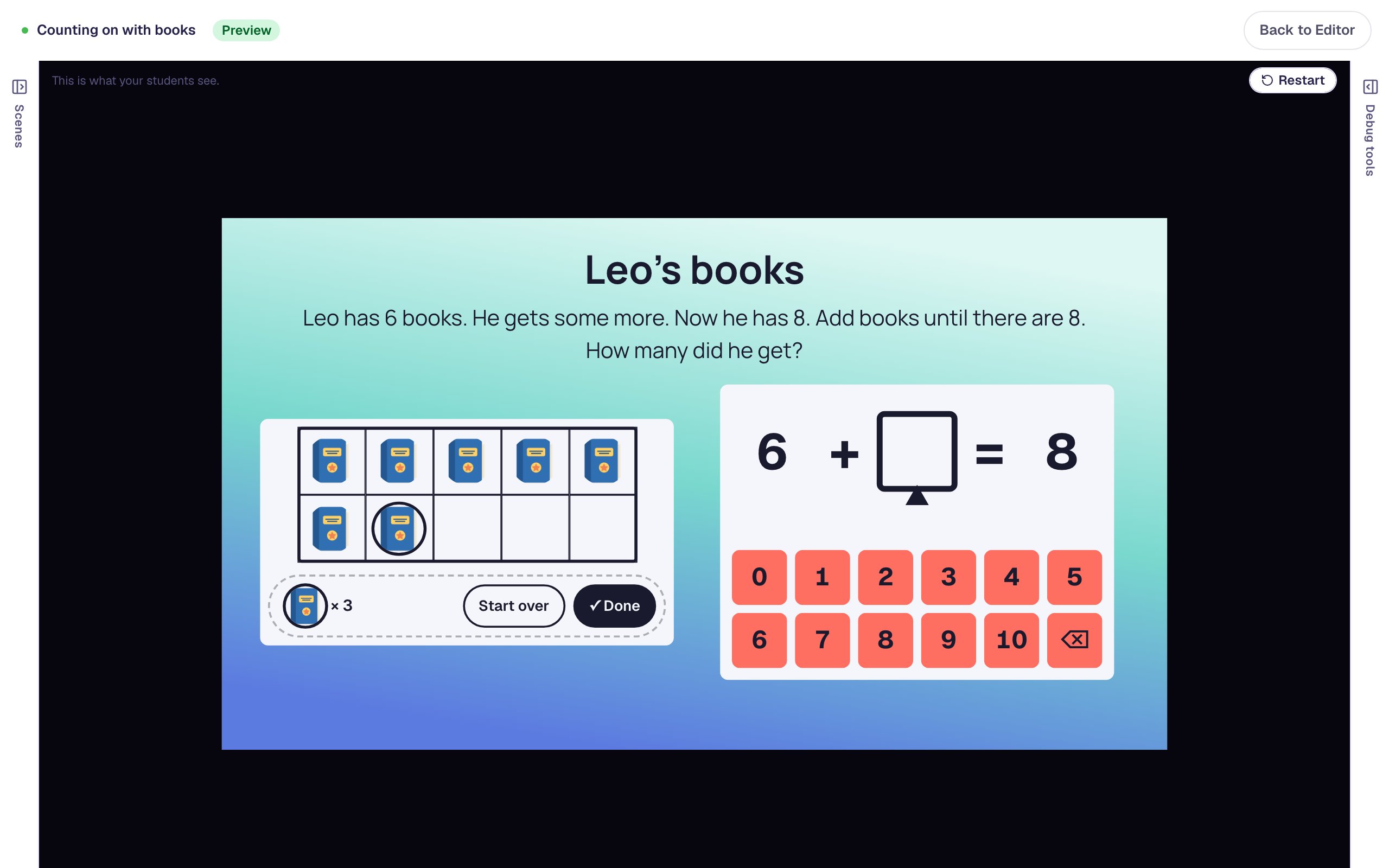
Tap the tray again and tap ✓ Done. Eight is right, so 8 appears in the tray.
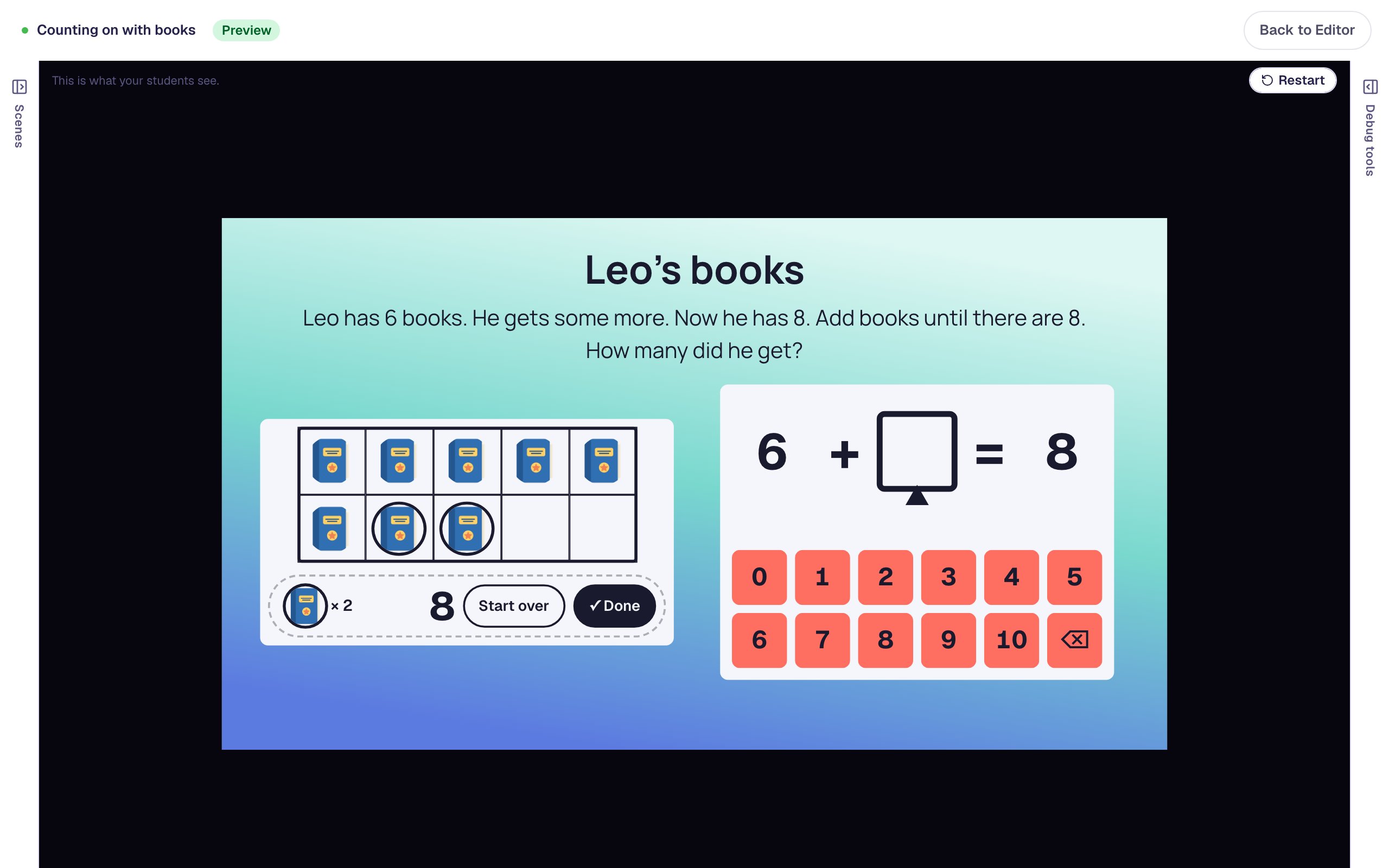
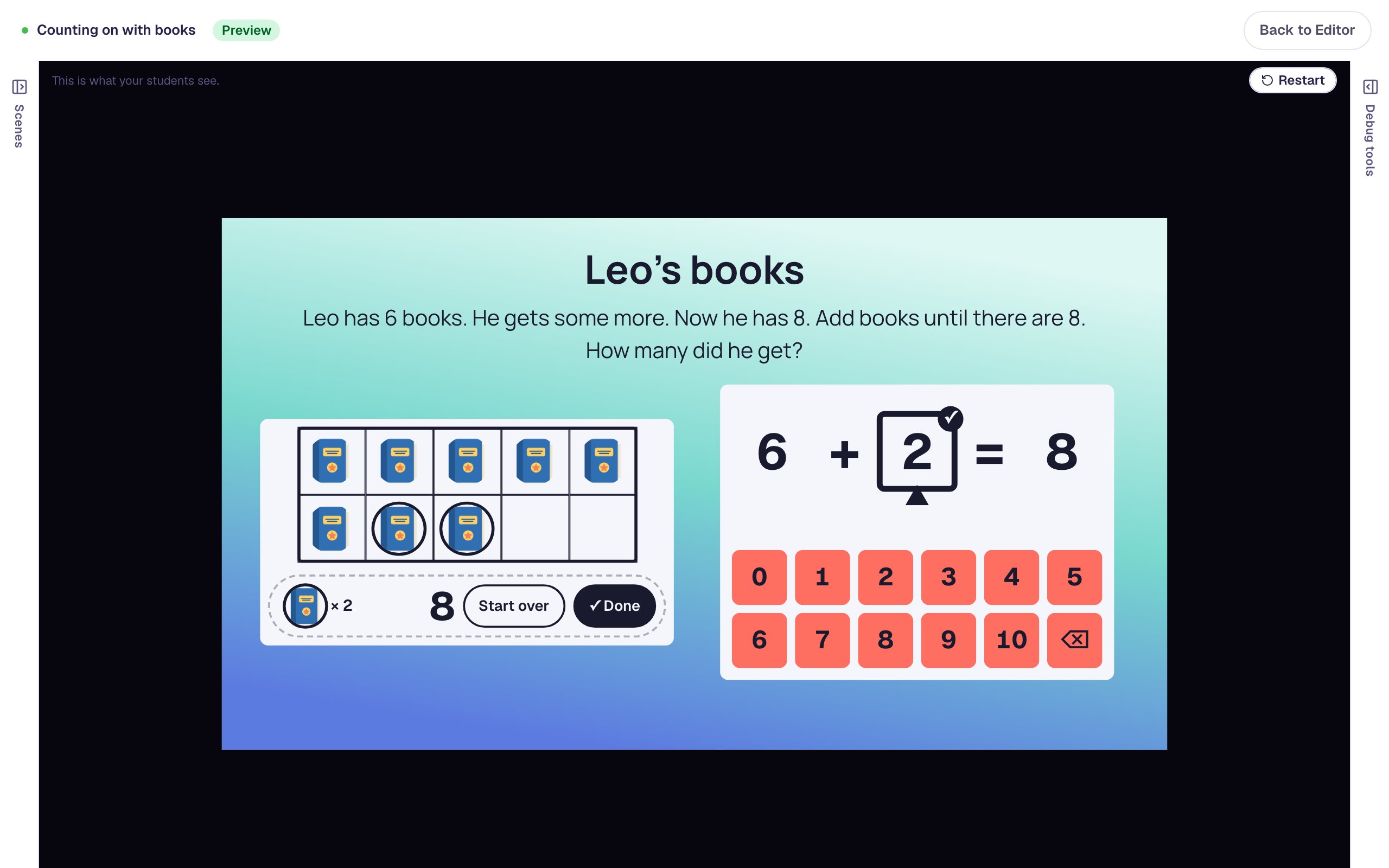
Now the answer is on screen: two ringed books. Tap 2 on the number pad. The box gets a ✓, and after the delay the lesson moves on.
On Mia's books, tap the tray three times: the first book fills the tenth square, and the next two start the second frame. Tap ✓ Done, then 3.
Tap I'm done to finish.

When you assign the lesson, each student's attempt page tells the story of how they counted: "Started with 6 · added 2 · 8 in all ✓", or "first Done at 7, then 8 ✓". If a line ends "touched the start group 6 times", the child probably counted all from 1 instead of counting on, which is worth a word with them.
What you built
You built a two-scene story-problem lesson with:
- a Ten Frame in Add on mode that opens with the starting group and counts on out loud,
- picture counters, so students add books to a pile of books, with a ring on each one they add,
- a Number Sentence with the start and the total shown, so the only box is the change,
- a second story that counts on past 10 across two ten frames,
- a longer Advance delay so students see their ✓, and an I'm done button as a way out.
For the opposite story, "Leo had 8 books and gave 3 away", choose Take away under What students make: the frame starts full and students take counters off. If your students are still learning to read a frame, start with Build a number on a ten frame, and when they're ready to write the whole fact themselves, Write an addition sentence for a ten frame asks for every box.
Make this lesson yours
Add the lesson you just watched being built to your account, then change it for your class: your questions, your pictures, your colors.
Free to sign up, and you'll come straight back here. I have an account