Tap the words that show how someone feels
Turn one message in a Message Thread into a question. Students tap the words that show how the sender feels, and earn partial credit for each right word.
- Level
- Beginner
- Time
- About 10 min
- Steps
- 6
- Updated
- Nov 5, 2026
A reading-for-feelings scene where students read a science fair team's group chat, tap the two words that show Jada is nervous, check their answer, and see which words were right.
Get the finished lesson
Skip straight to the result, or keep it open beside the steps. Add this tutorial's lesson to your account and explore how it works in the studio.
Free to sign up, and you'll come straight back here. I have an account
A multiple choice question can ask how someone feels. Asking students to point at the words that tell them is harder, and it's the skill that carries over to every text they read: finding the evidence. A Message Thread can ask that question itself. Pick one message, mark the words that matter, and students tap them right in the chat bubble.
In this tutorial you'll build Feelings in a text: a science fair team's group chat the night before the fair. Jada's volcano won't erupt, and students tap the words in her message that show she's nervous.
Step 1: Set the scene and write the chat
Start a blank lesson (New lesson, then Start from scratch) and name it Feelings in a text by clicking Untitled lesson at the top.
With nothing selected, open Background, click Choose a style, pick Gradients, then Lagoon gradient, and click Apply background. Give the Closing Scene the same background, so the ending matches.
Back on the Opening Scene, add two text widgets on the right half:
- A Heading with the question:
How is Jada feeling? - A Body at about 24 px with the directions:
Read the chat. Tap the words in Jada's message that show she is nervous.
Now add a Message Thread from the Widgets tab. In Style & Layout, click Show more options and set Width to 400 and Height to 480, then drag it to the left of the scene. Select it and click ⚙ Configure on its pill, then fill in the chat:
- Set Title to
Science fair team. - Write three messages, using + Add message for the third:
Mr. Ortiz,3:30 PM:The science fair is tomorrow! Bring your projects by 8 AM. 🔬Jada,3:42 PM:Our volcano still won't erupt. I'm so worried, and my hands are shaking.Sam,3:43 PM:We can fix it at lunch! I'll bring more baking soda.
- Set Me to Sam, so students read the chat from Sam's phone.
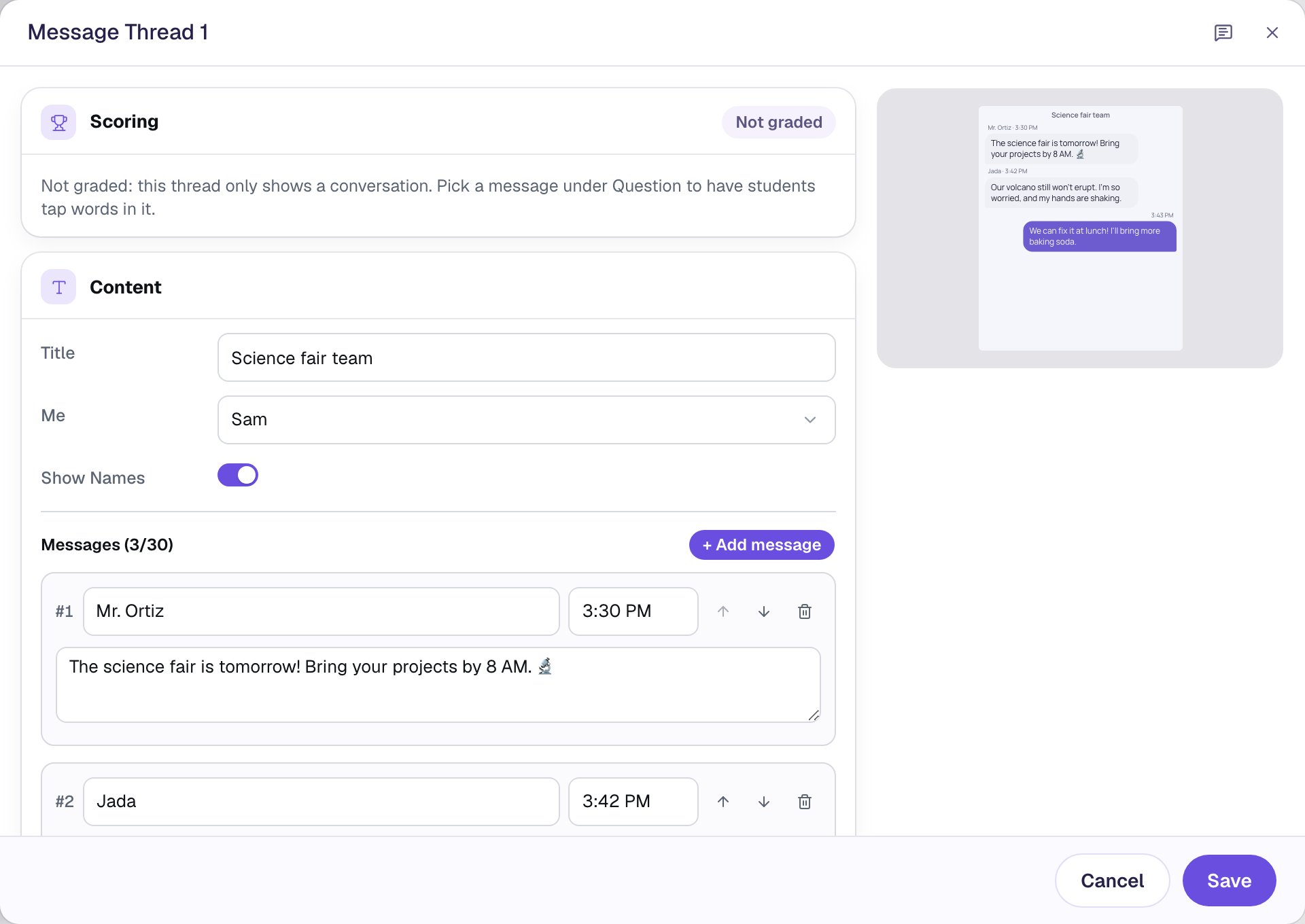
Look at the Scoring box at the top of the dialog: Not graded. A thread on its own is just something to read. The next step turns it into a question.
Step 2: Pick the message students tap in
Scroll down past the messages to Question. Open Students tap in and choose Jada's message, #2 Jada: Our volcano still won't erupt…. Leave Select by on Words, so each tap picks one word.
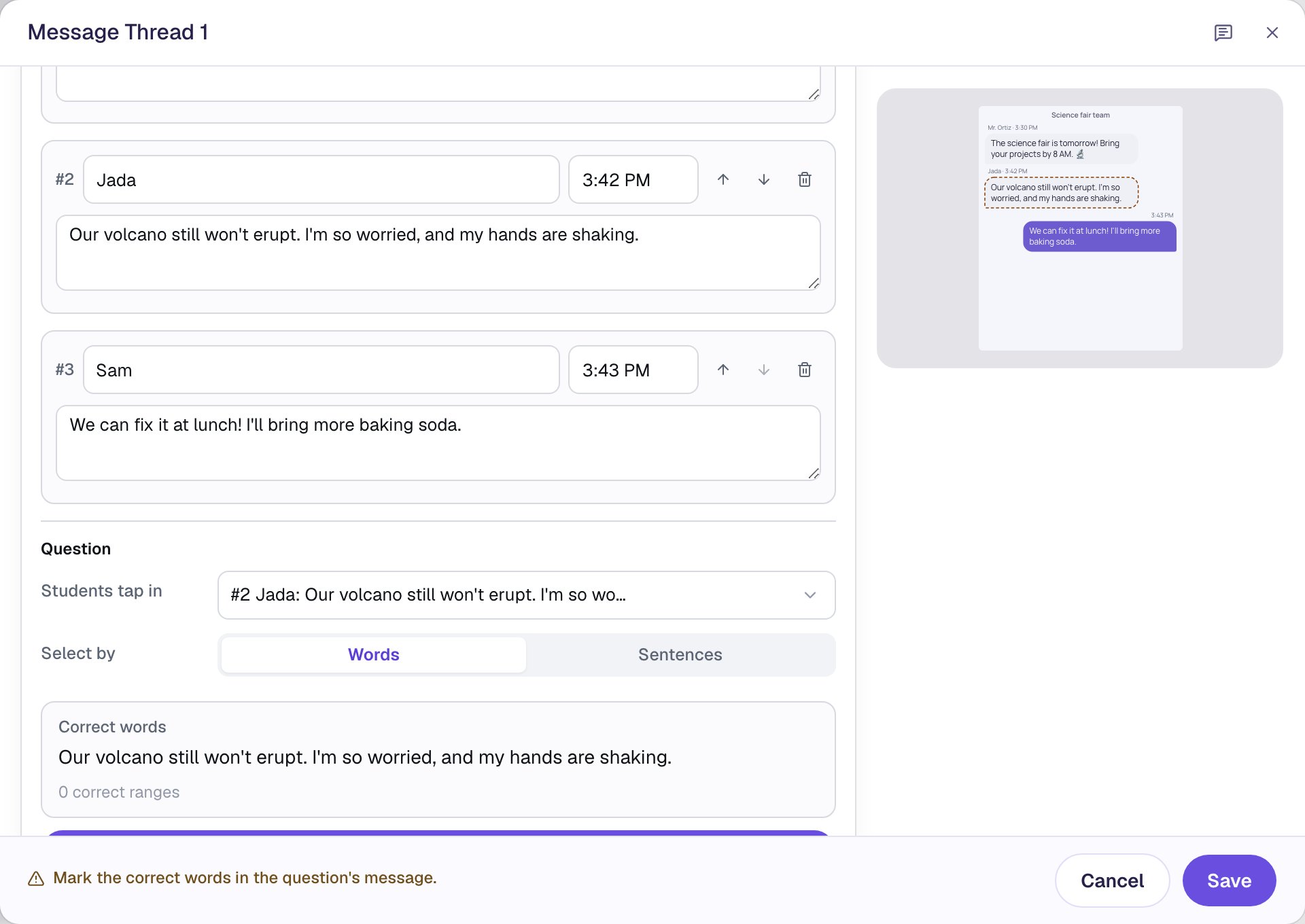
Only one message in a thread can be the question. Sentences makes one tap pick a whole sentence instead, which suits a longer message where you ask "Which sentence shows…?".
Step 3: Mark the words that show she's nervous
Click Mark correct words. A window opens with Jada's message in it. Select the word worried by dragging across it, and click Mark as correct. Do the same for shaking.
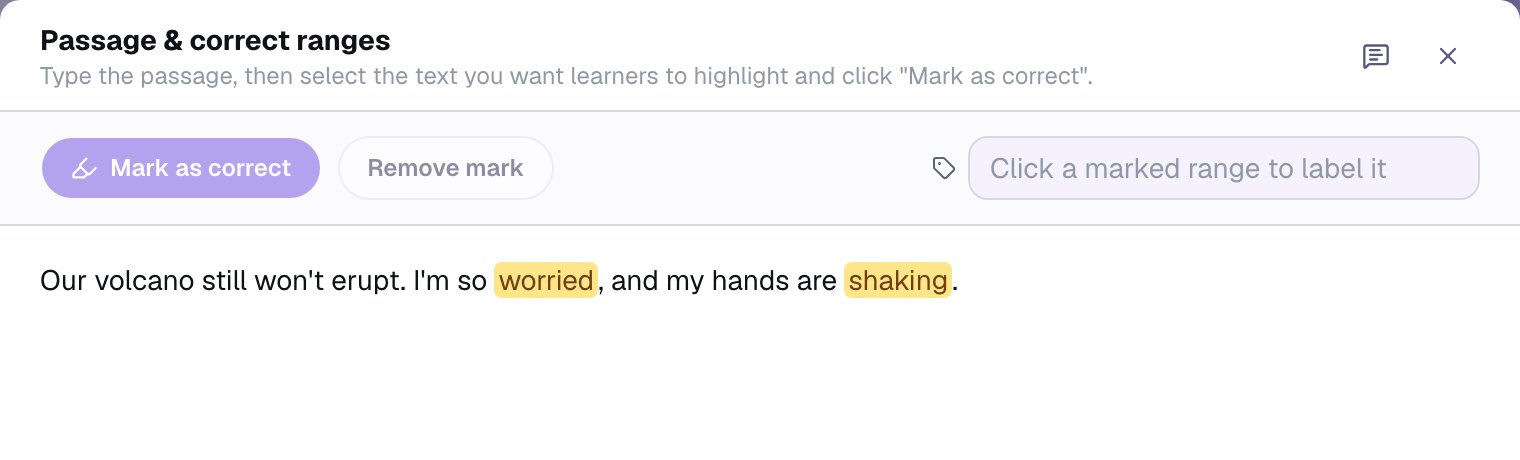
Mark only the word itself, not the comma or period after it. Students tap whole words, so worried, still counts when they tap it.
Why only two? "Won't erupt" is a problem, not a feeling, and "hands" alone says nothing about how Jada feels. Choosing what to leave unmarked is half of writing a good question like this. Click Save to go back to the Configure dialog.
Step 4: Give partial credit
Scroll back to the top of the dialog. The Scoring box now has its controls:
- Set Points to
2, one for each word. - Leave Correct when on All ranges, so full marks need both words.
- Turn on Partial Credit.
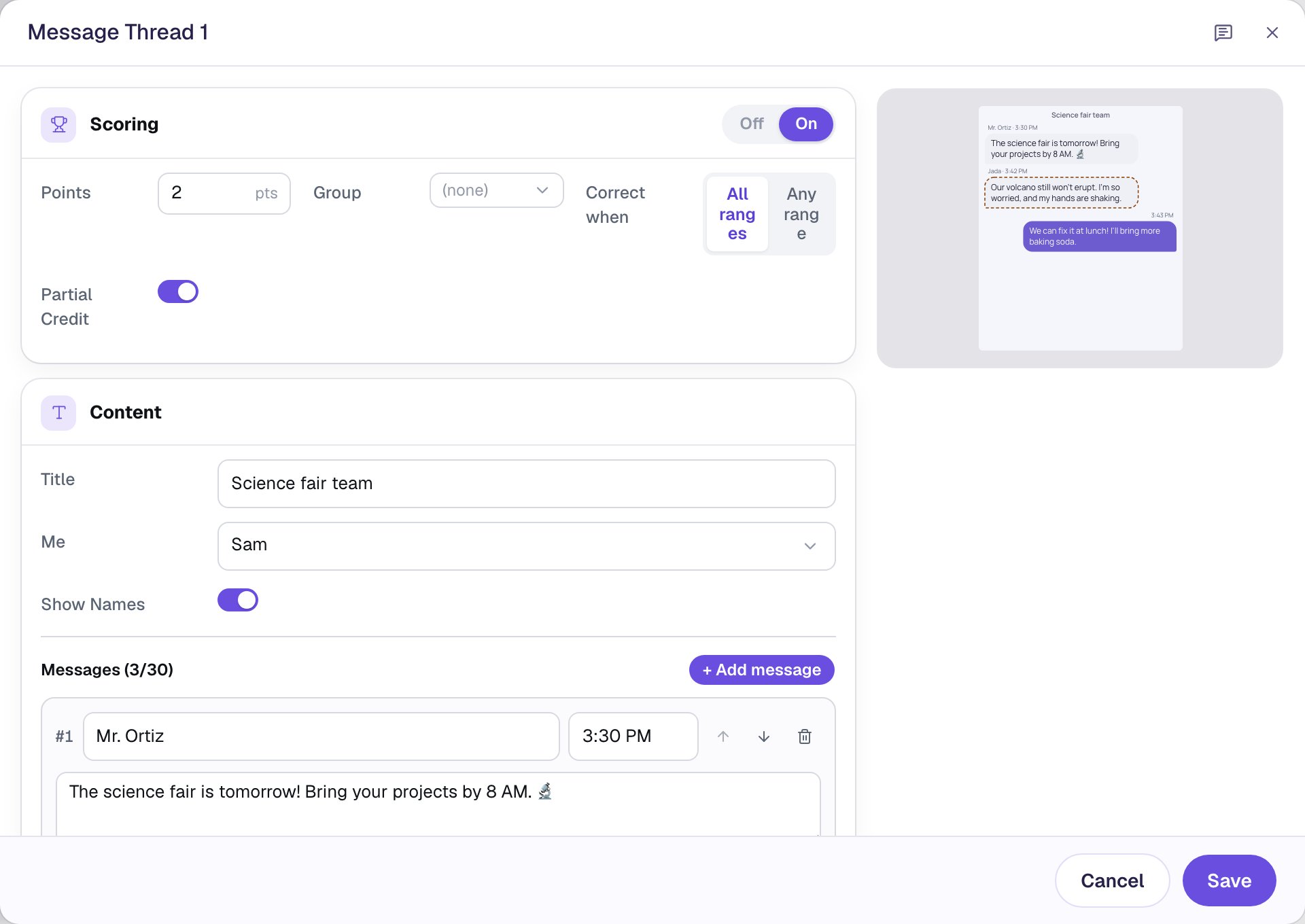
With partial credit on, each right word earns its share, and each wrong word cancels one out. A student who taps every word in the message to be safe earns nothing, so guessing doesn't pay.
Click Save. On the canvas, Jada's bubble has a dashed outline, so you can always see which message is the question.
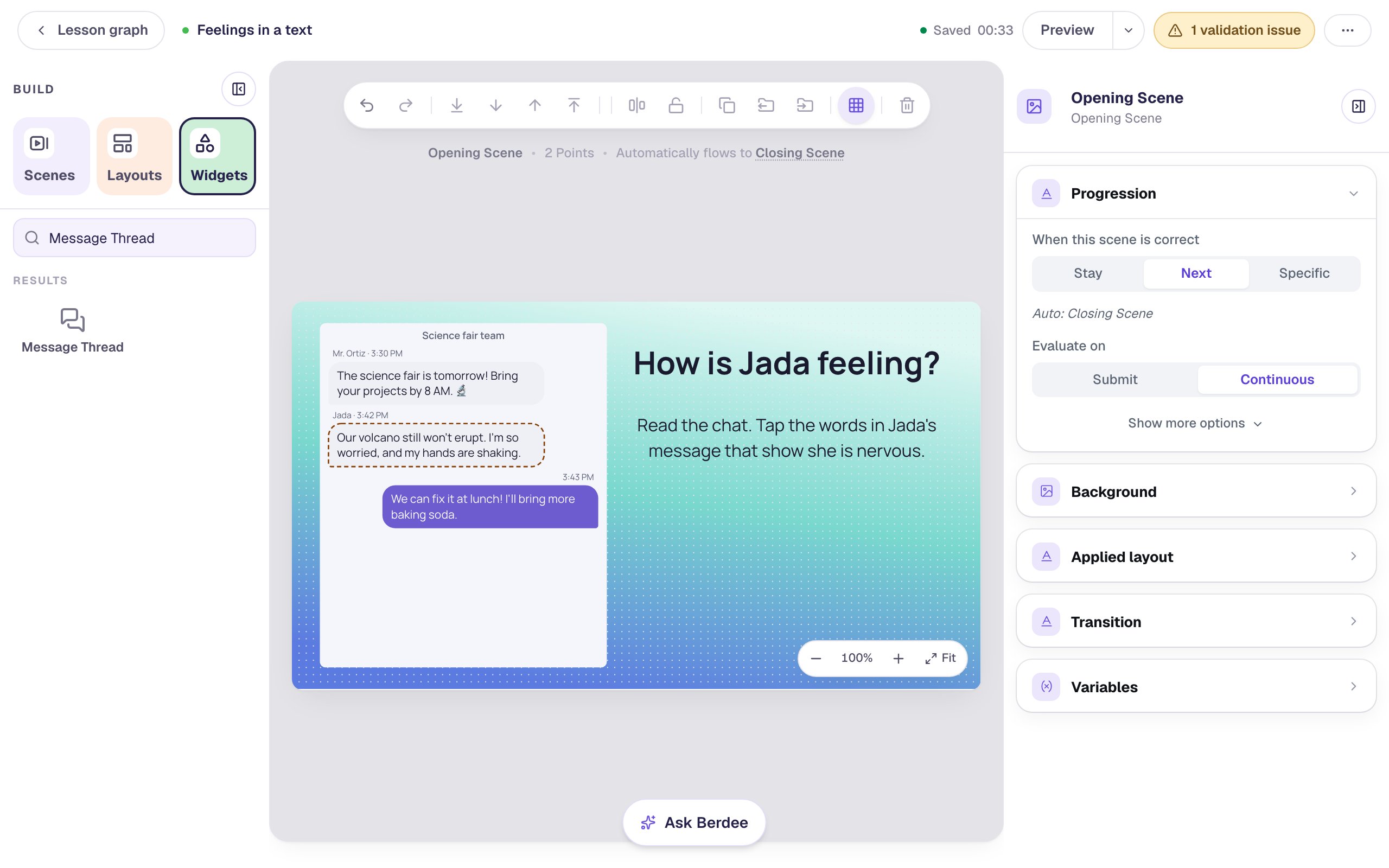
Leave some empty space at the bottom of the thread. The canvas shows Jada's message as plain text, but students see every word as its own button, big enough for a finger, so her bubble grows taller when they play.
Step 5: Add Check and Next buttons
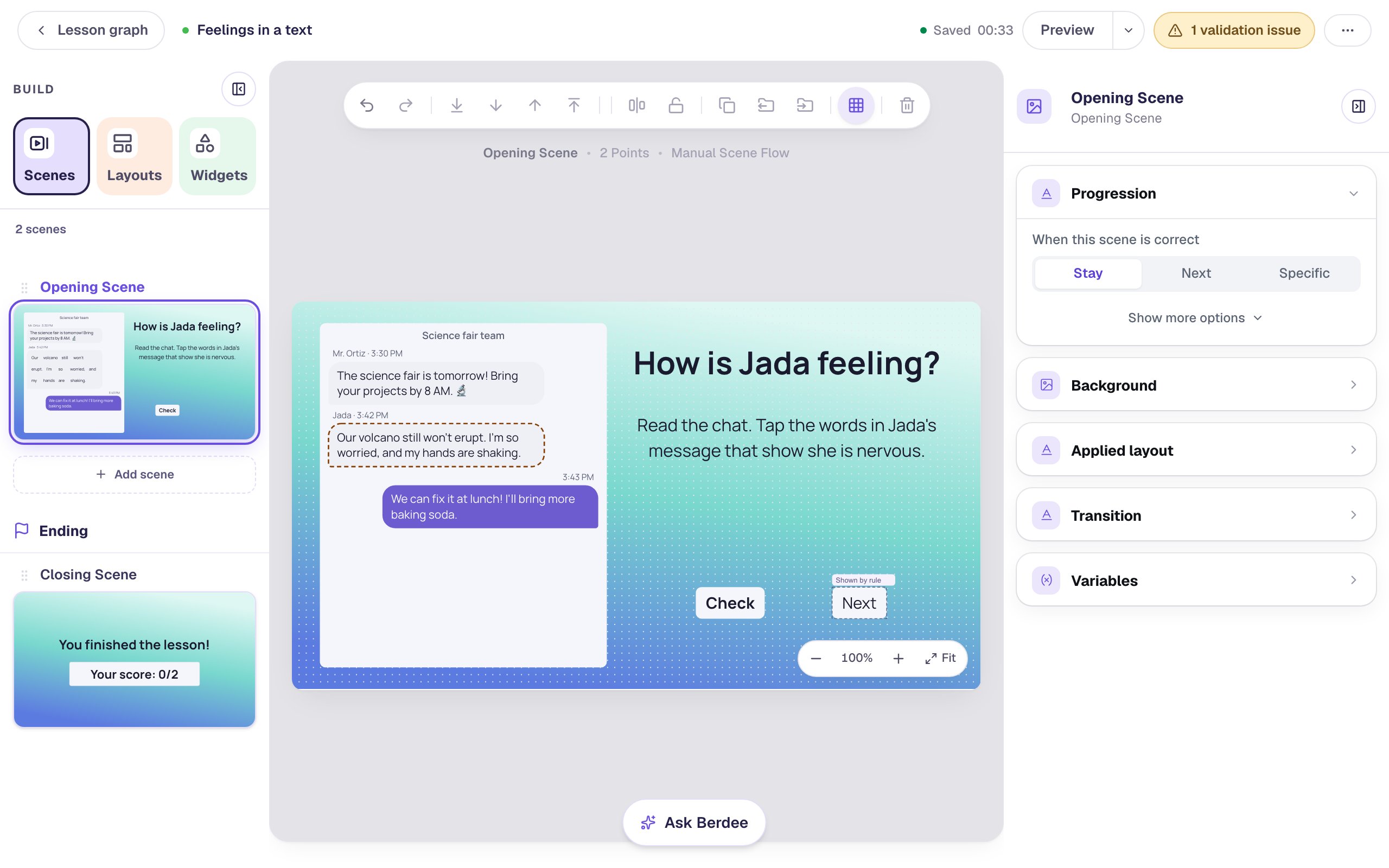
Students should see which words were right before the lesson moves on. That takes a Check button, a scene that waits, and a Next button that shows up after checking. It's the same setup as Ask students to highlight the evidence in a passage:
- Add a Submit Button, set its Label to
Check, and leave Submits on Current scene. Put it under the directions. - Click an empty part of the canvas and, under Progression, choose Stay. Otherwise a right answer would carry students straight to the ending before they saw it marked.
- Add a Button, label it
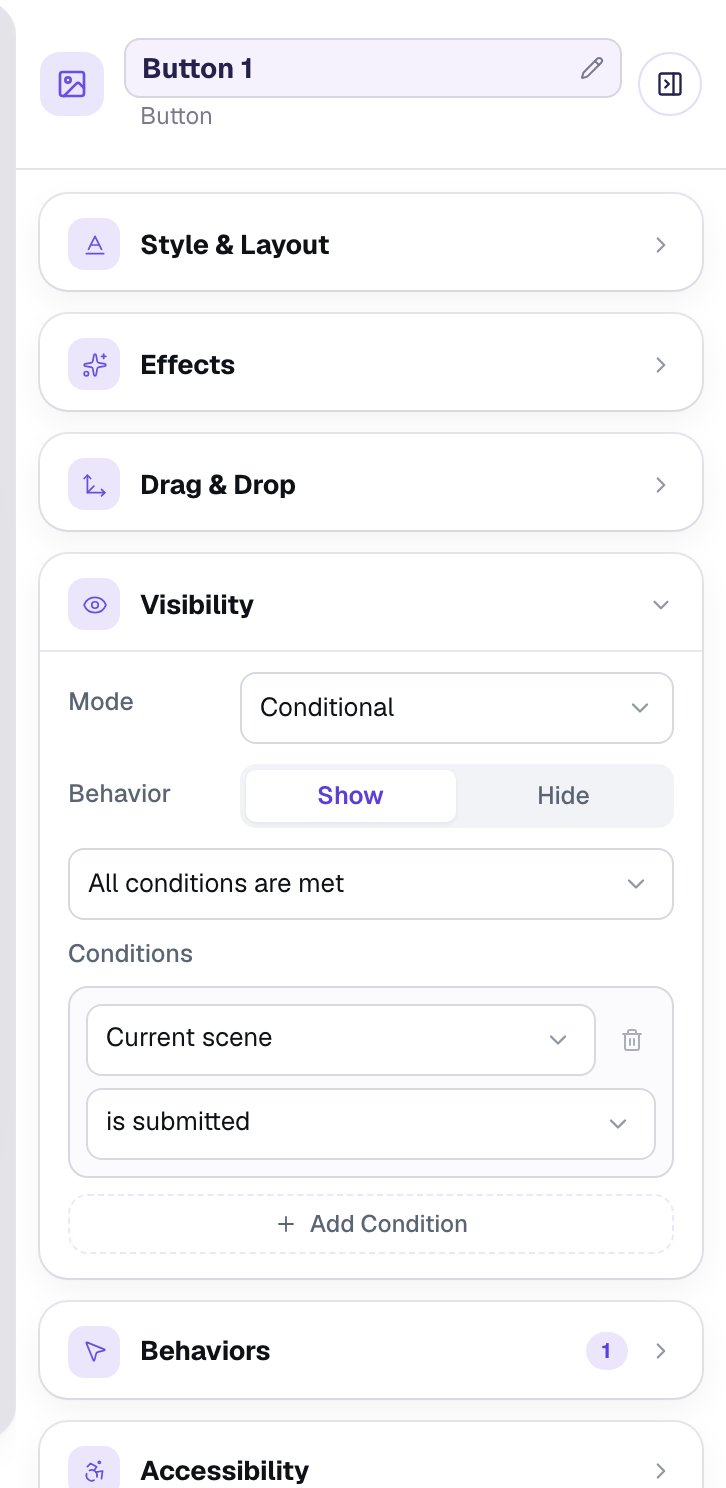
Next, open Behaviors and choose Make this a "Next" button. Put it beside Check. - With Next selected, open Visibility, set the mode to Conditional, and build the rule Current scene is submitted.
Step 6: Try it as a student
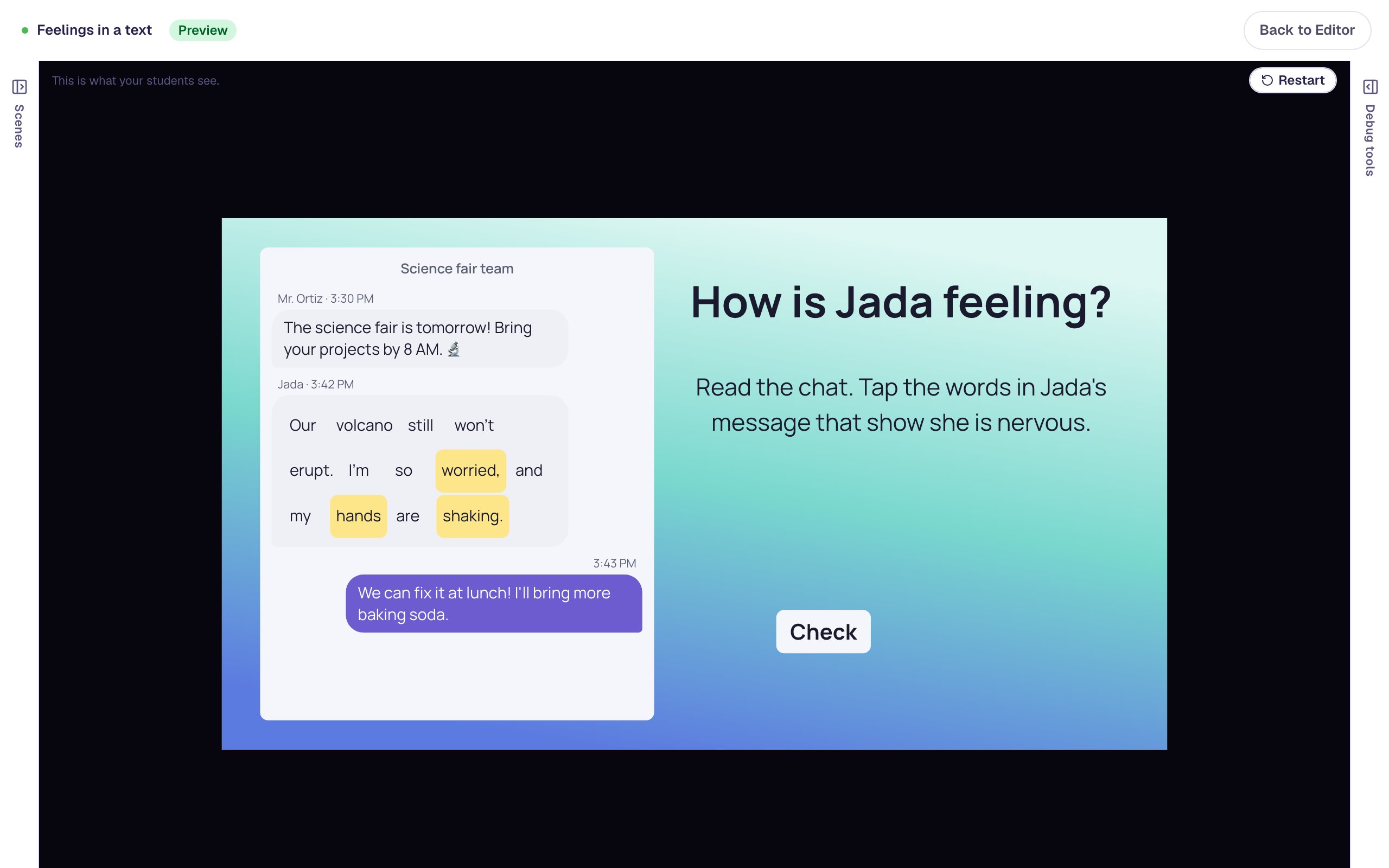
Click Preview. Tap worried, then a word that doesn't fit, like hands, then shaking, and press Check.
A tapped word turns yellow, and tapping it again takes it back.
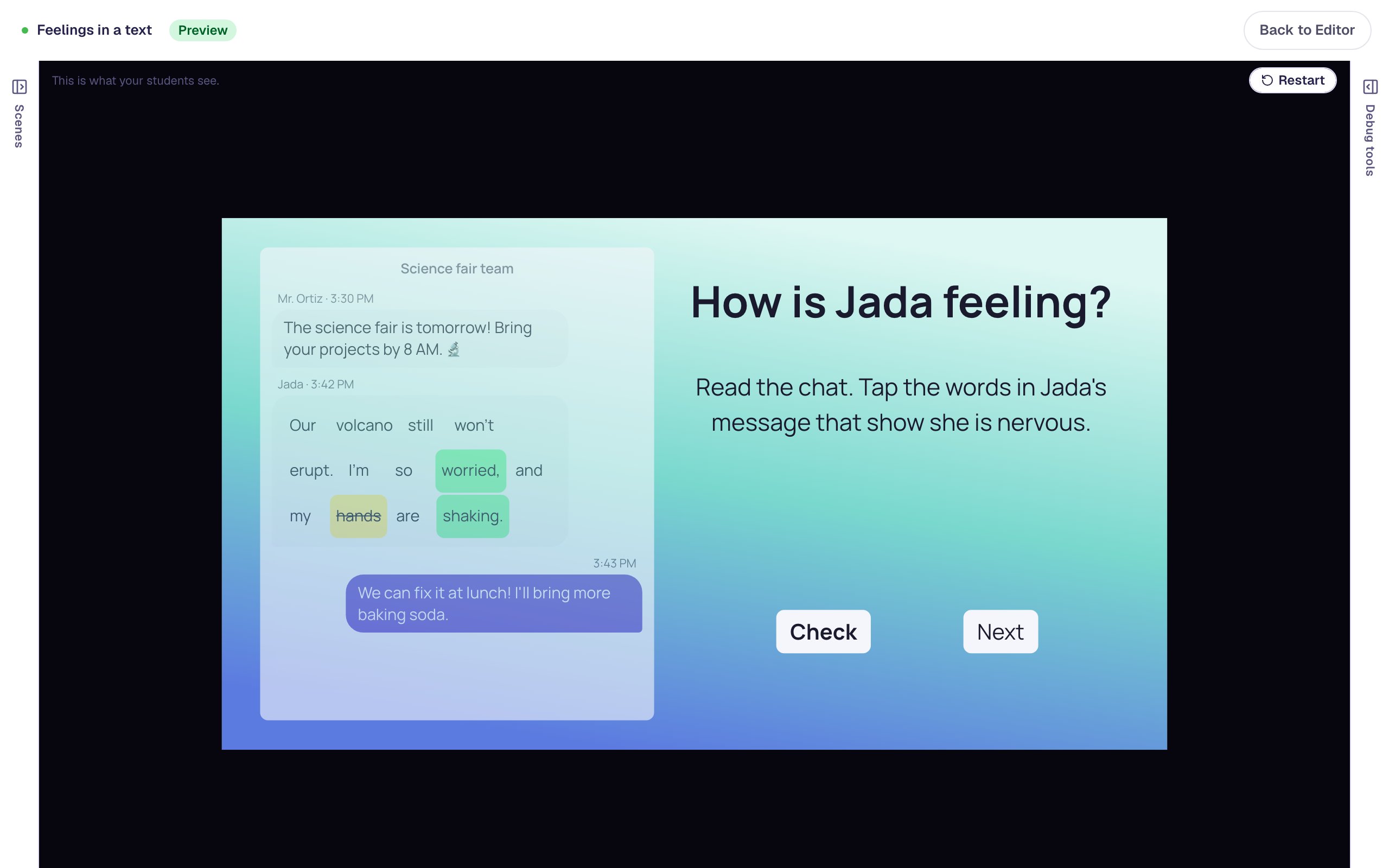
After Check, the right words turn green and the wrong one is crossed out. The chat locks, and Next appears.
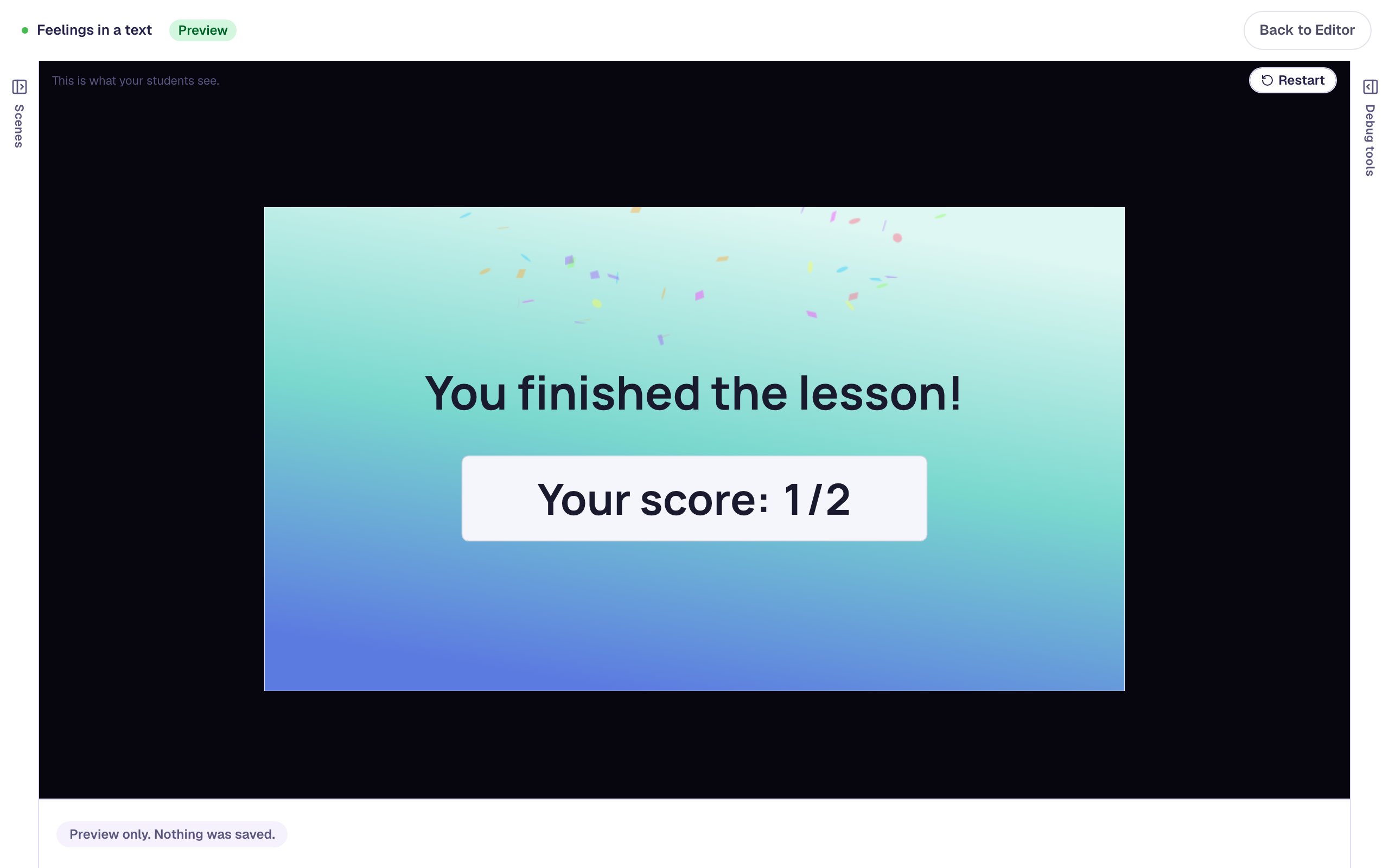
The score is 1 out of 2: two right words, minus one for hands. Tap only worried and shaking and it's 2 out of 2.
What you built
You built a reading scene where:
- a Message Thread shows a team's group chat the night before the science fair,
- one of Jada's messages is the question, with
worriedandshakingmarked as the right words, - partial credit gives a point for each right word and takes one away for each wrong one, and
- Check shows which words were right before Next moves on.
Before you publish, add a Submit Button set to Lesson somewhere in the lesson: every lesson needs one, and the validation pill will remind you. To ask about the feeling itself as well, add a multiple choice question like the one in Ask how someone feels in a group chat.
Make this lesson yours
Add the lesson you just watched being built to your account, then change it for your class: your questions, your pictures, your colors.
Free to sign up, and you'll come straight back here. I have an account