Make a Spanish listening quiz with pictures
Build a two-question world-language quiz where students press play, hear a Spanish sentence read by a voice that speaks Spanish, and tap the picture it names. Set the lesson's voice once, then duplicate the first question for the next word.
- Level
- Beginner
- Time
- About 15 min
- Steps
- 9
- Updated
- Oct 30, 2026
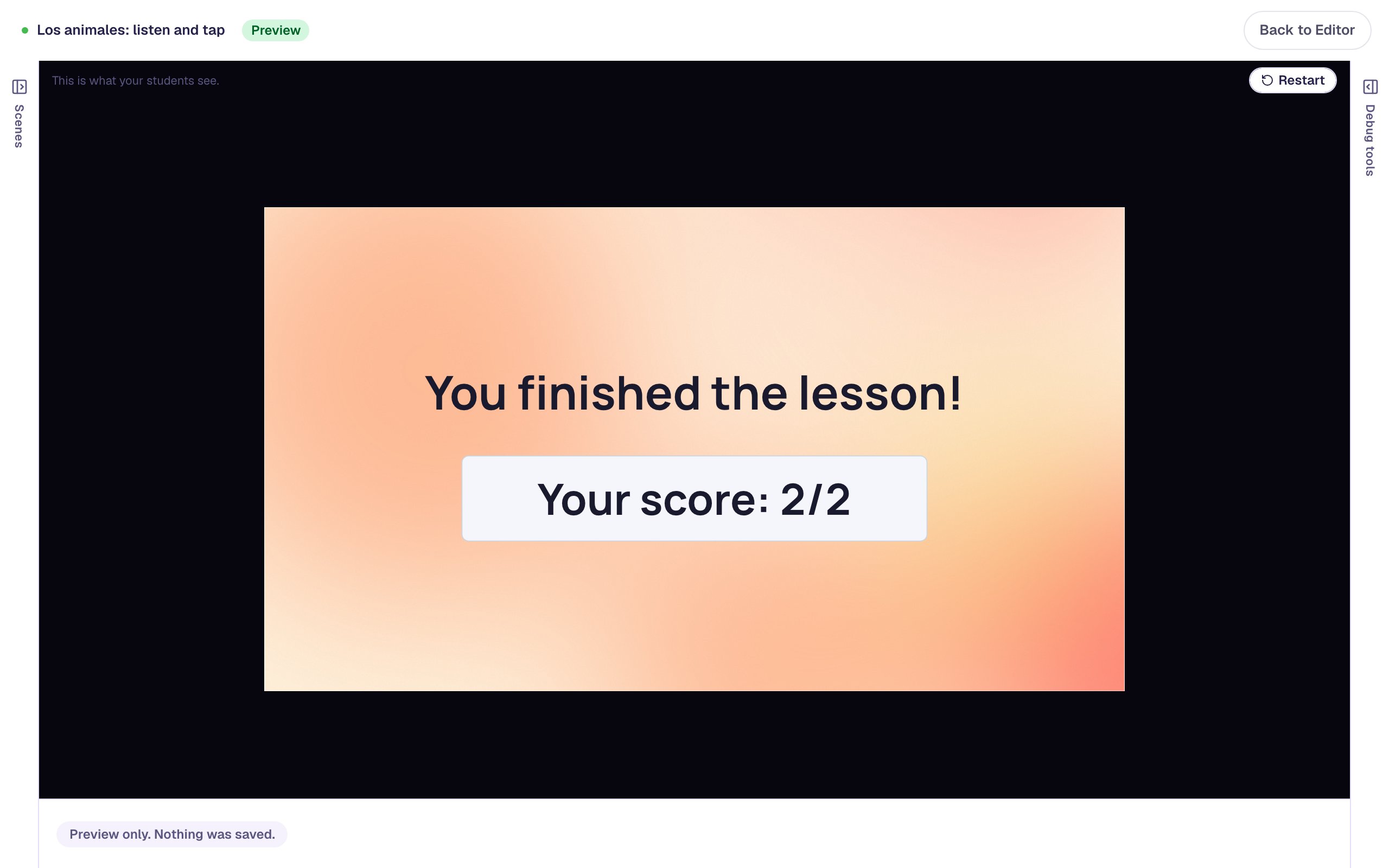
A "Los animales" lesson with a title scene, two listening questions (el perro, el gato) that each play a Spanish sentence and offer three animal photos, and an ending that shows the score.
Get the finished lesson
Skip straight to the result, or keep it open beside the steps. Add this tutorial's lesson to your account and explore how it works in the studio.
Free to sign up, and you'll come straight back here. I have an account
Listening is the skill students practise least on their own: a worksheet can show a Spanish word, but it can't say it. In Berdee, a Text To Speech player says it for you. Type ¿Dónde está el perro?, and students hear it read aloud as often as they press play. Put three animal photos underneath and they show they understood by tapping the right one, with no English in between.
In this tutorial you'll build a short quiz called Los animales:
- a title scene with a ¡Vamos! button,
- El perro: students hear
¿Dónde está el perro?and tap the dog, - El gato: students hear
¿Dónde está el gato?and tap the cat, - and an ending that shows their score.
The trick that makes it sound right is the lesson's voice. Most of Berdee's narrators are American English voices and read Spanish with an English accent. Rachel reads Spanish, French and other languages the way a native speaker would, and you set her once for the whole lesson.
Making a recording uses your plan's text-to-speech allowance, so it's available on Plus and above (see AI and Voice). The finished lesson from this tutorial works on any plan: add it to your account and its recordings play as they are.
New to recordings? Read a question aloud for early readers covers the Text To Speech player in more detail. This tutorial moves quickly through the parts it already covers.
Step 1: Make the title scene
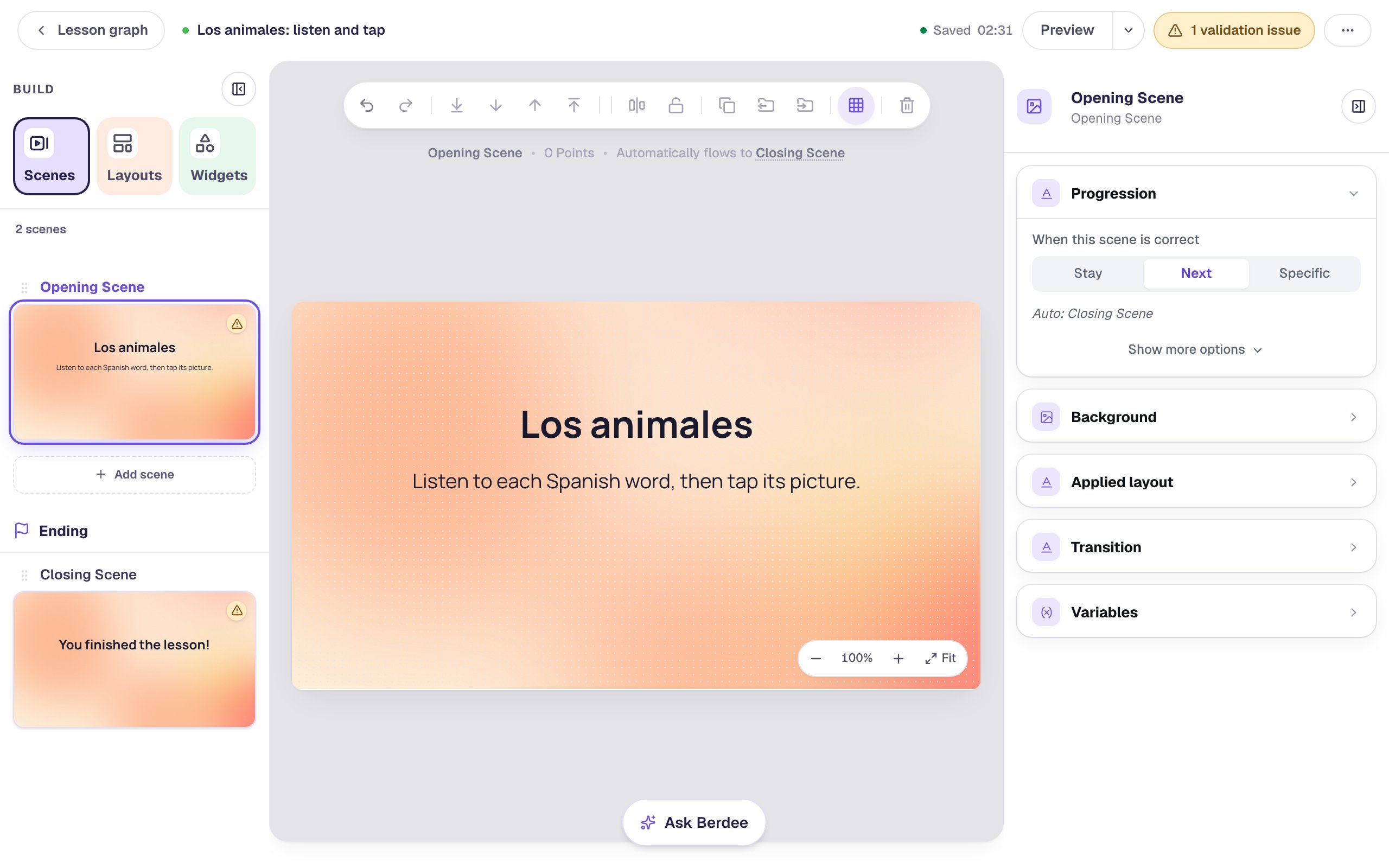
Start a blank lesson (New lesson, then Start from scratch) and name it Los animales: listen and tap by clicking Untitled lesson at the top.
With nothing selected, open Background, click Choose a style, pick Mesh sunrise and click Apply background. Select the Closing Scene in the Scenes panel and give it the same background, so the ending matches.
Back on the Opening Scene, add a Heading that says Los animales and drag it towards the middle. Under it, add a Body text, Listen to each Spanish word, then tap its picture., at Font Size 28. You'll add a start button in Step 8, once the question scenes exist for it to point to.
Step 2: Choose a voice that speaks Spanish
Click the lesson's name at the top to open Lesson settings. Under Voice, choose Rachel — Calm, clear narrator; reads any language, then click Save changes.
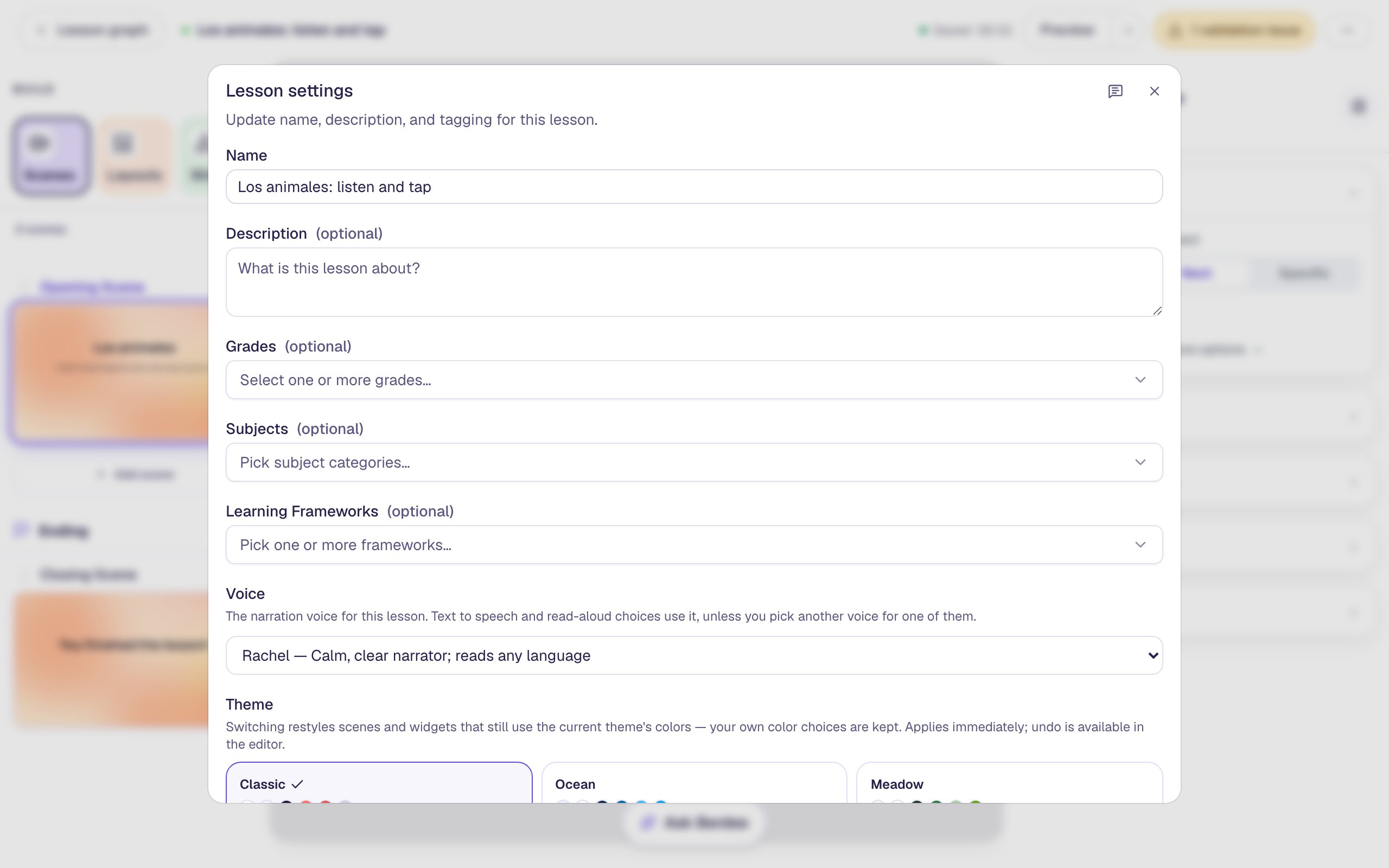
This is the lesson's narration voice. Every Text To Speech player you add follows it, so you set it once instead of on every player. The starting voice, Jessica, is an American English voice: she would read ¿Dónde está el perro? like an English speaker sounding it out, which is the opposite of what a listening quiz needs.
If you change the lesson's voice after making recordings, Lesson settings tells you how many are in the old voice and offers to make them again.
Step 3: Add the first question scene
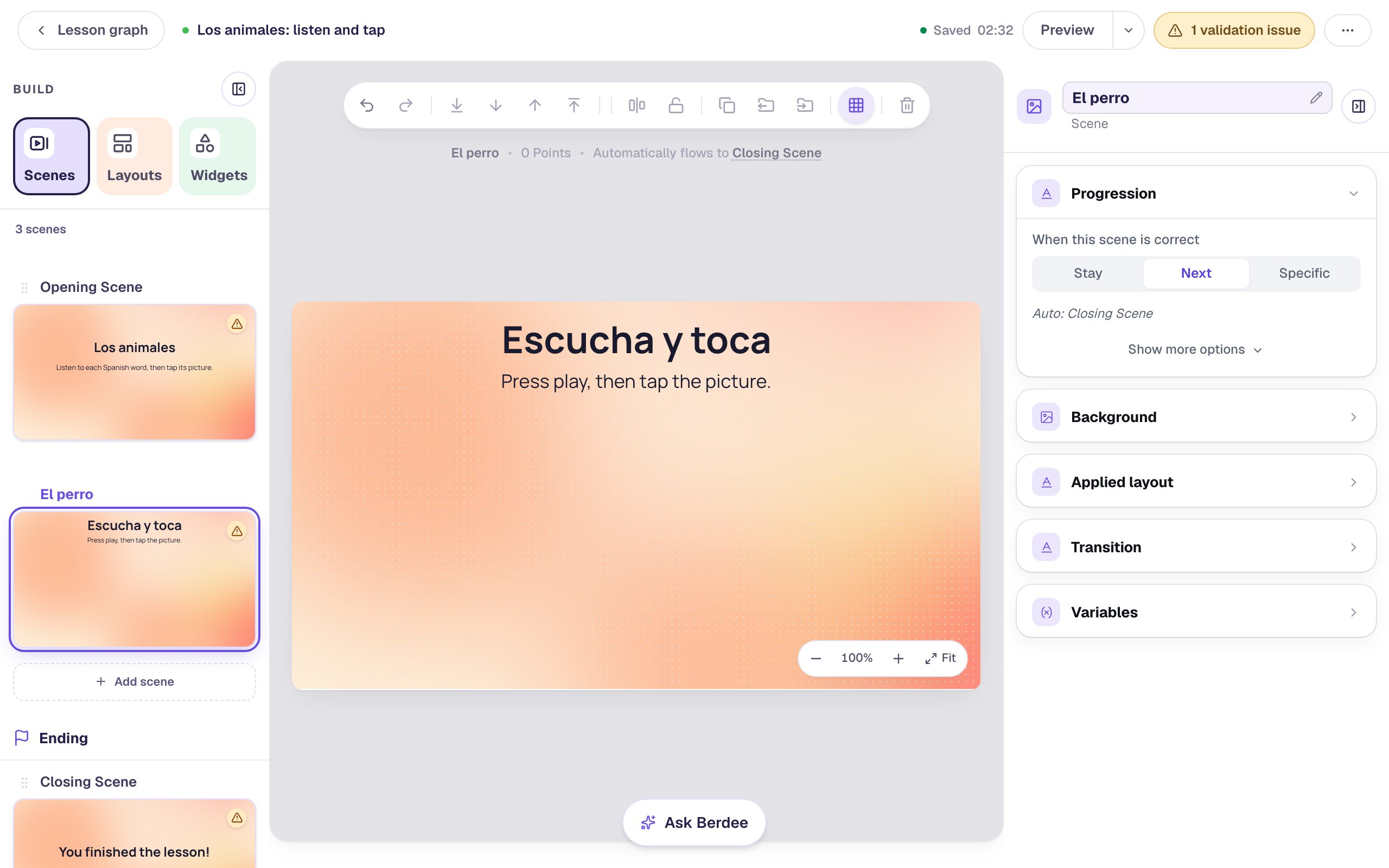
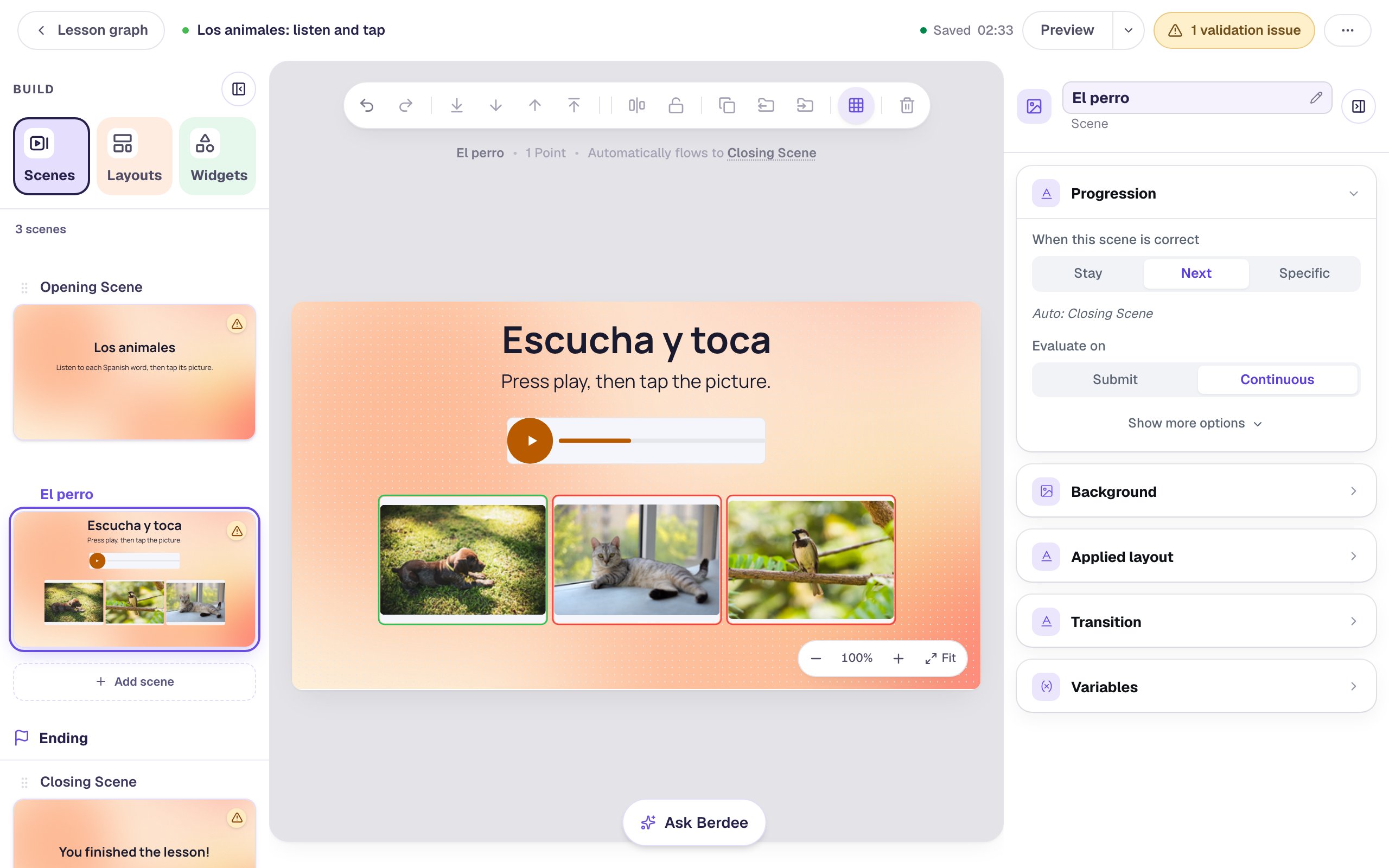
In the Scenes tab, click Add scene. Double-click the new scene's name and call it El perro, then give it the same Mesh sunrise background.
Add a Heading that says Escucha y toca ("Listen and tap") at the top, and a Body text under it at Font Size 26: Press play, then tap the picture. Students who are new to Spanish get the direction in English; the heading gives them a phrase they'll hear in class.
Step 4: Record the Spanish sentence
In Widgets, search for aloud and click Text To Speech. Drag the player under the direction, then click ⚙ Configure in the pill above it.
In Text, type ¿Dónde está el perro? ("Where is the dog?"). Type the accents and the opening ¿: the voice uses them to say the sentence as a question. The Voice list already shows Rachel, because the player follows the lesson's voice.
Click Generate Audio, wait a few seconds, then click Preview to hear it.
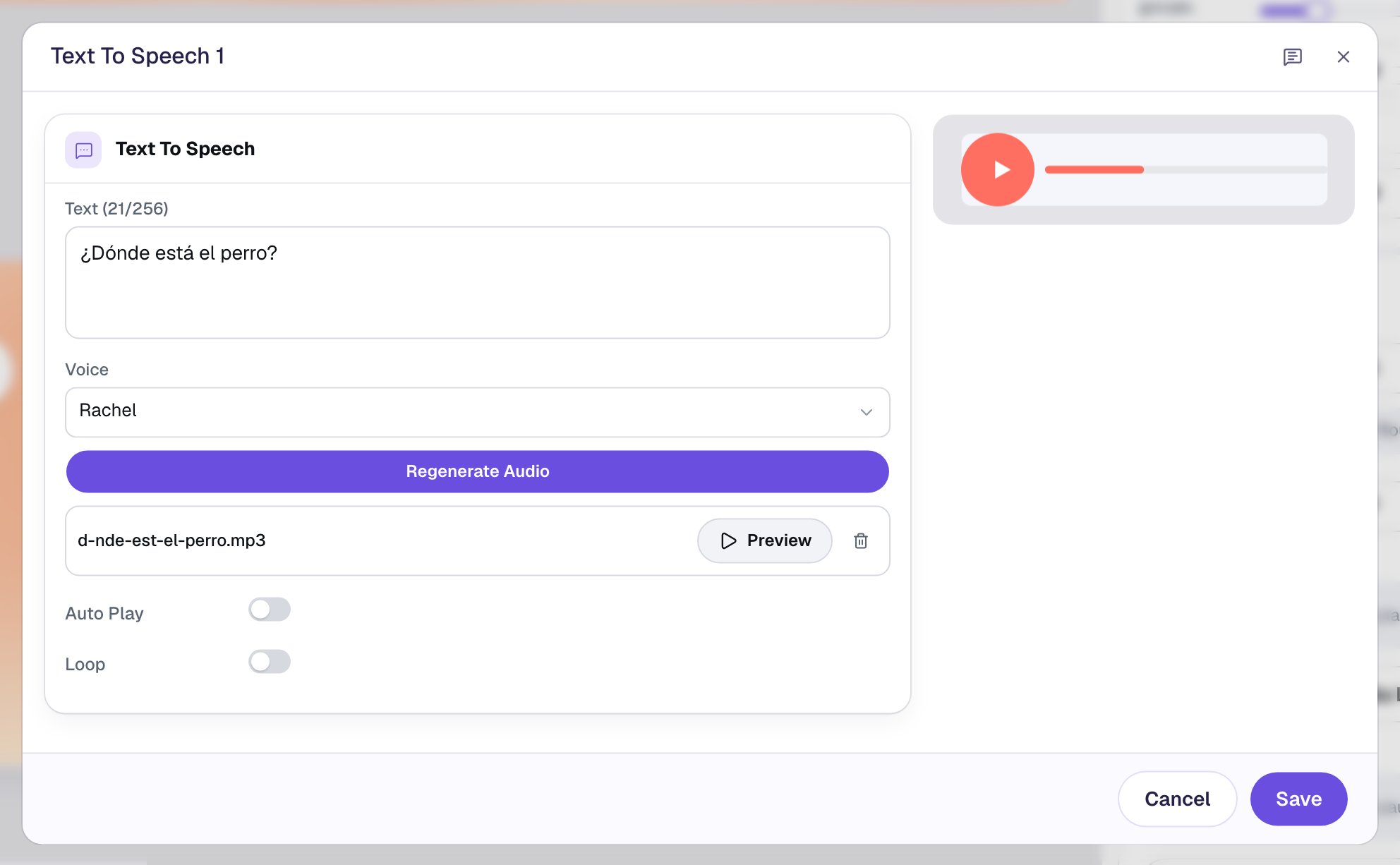
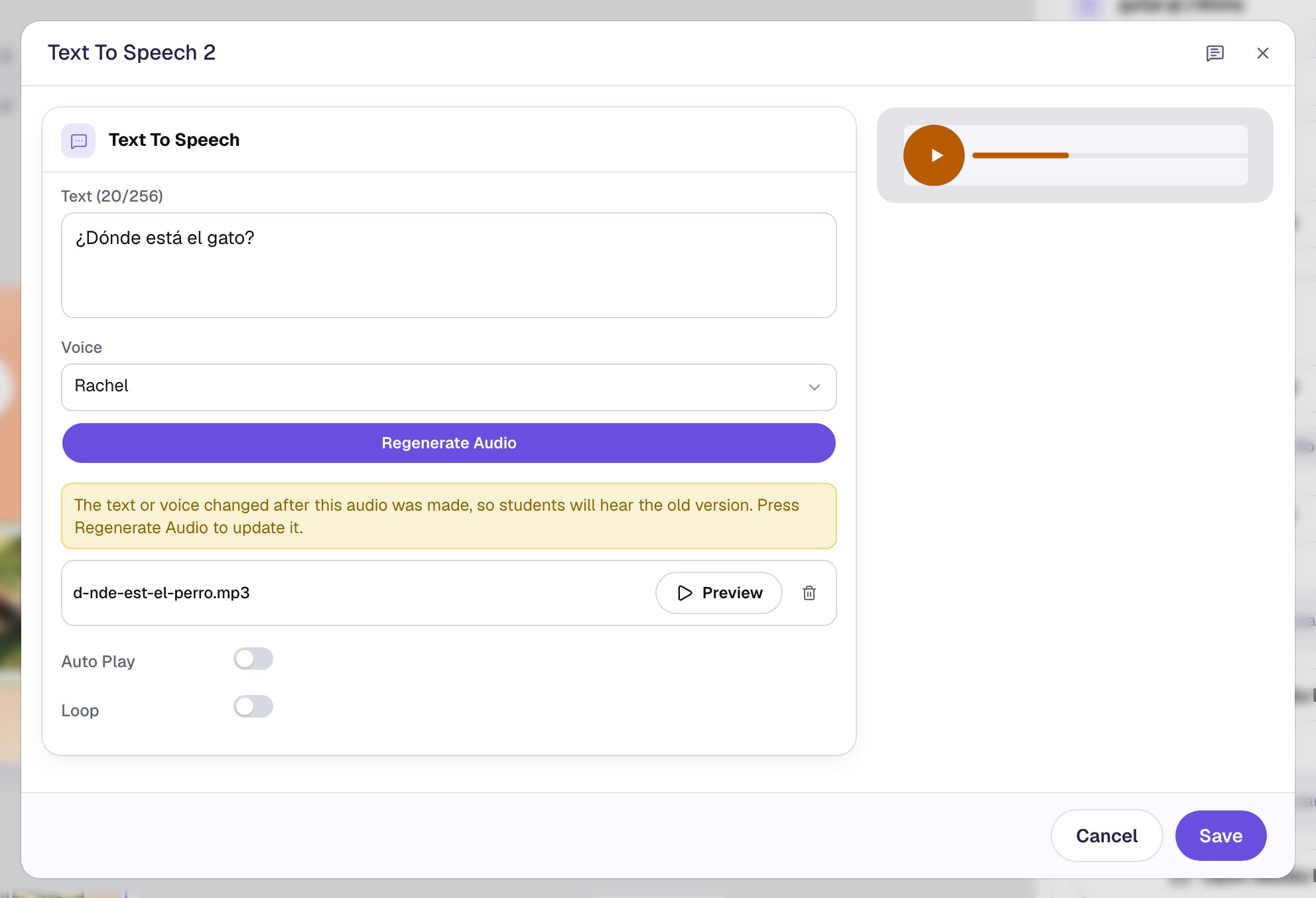
Listening first is free: Preview plays the recording you already made. If a word sounds wrong, change the text and click Regenerate Audio. Click Save.
Step 5: Make the play button big and easy to find
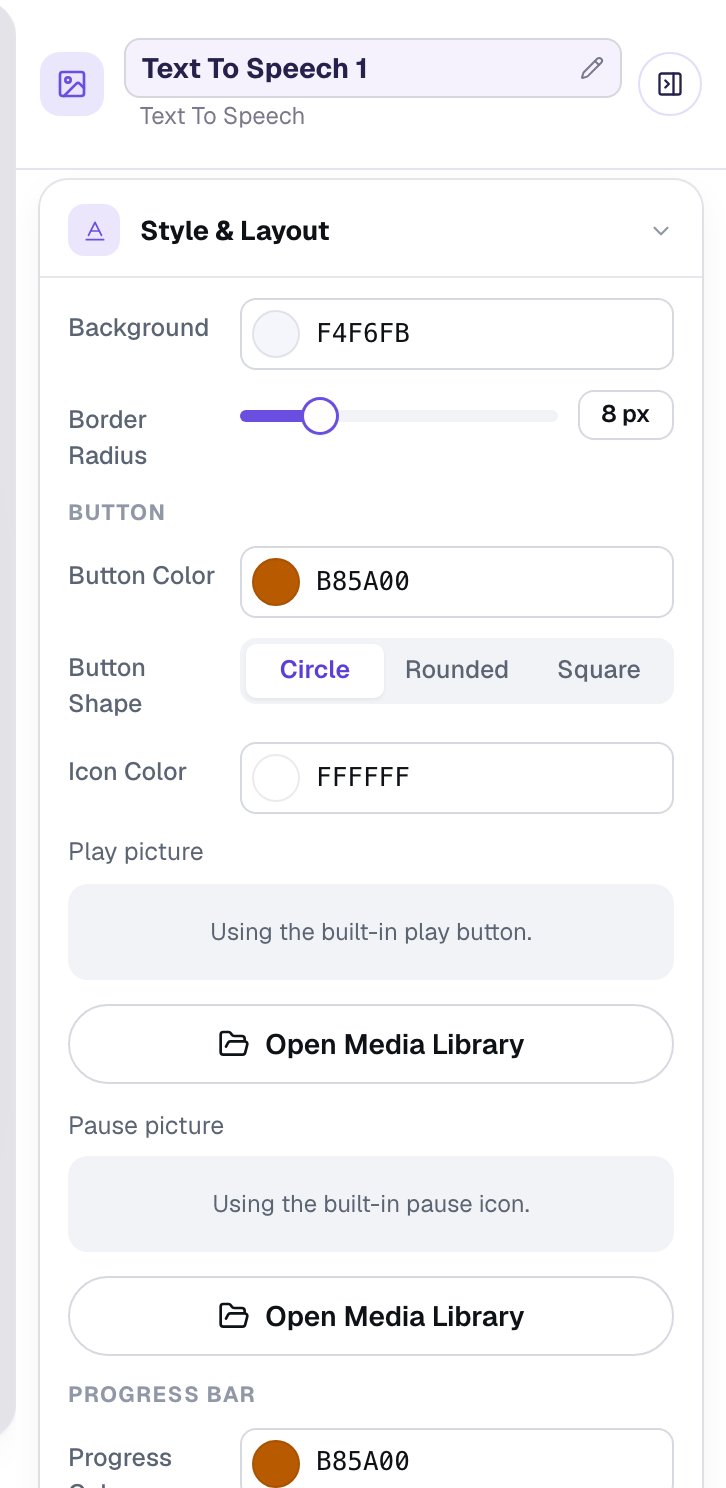
With the player selected, open Style & Layout, click Show more options, and set Width to 360 and Height to 64. The play button is as tall as the player, so this gives students a big target on a tablet.
The starting coral is pale behind its white play icon. Click the colour next to Button Color and pick the dark orange #b85a00, then do the same for Progress Color.
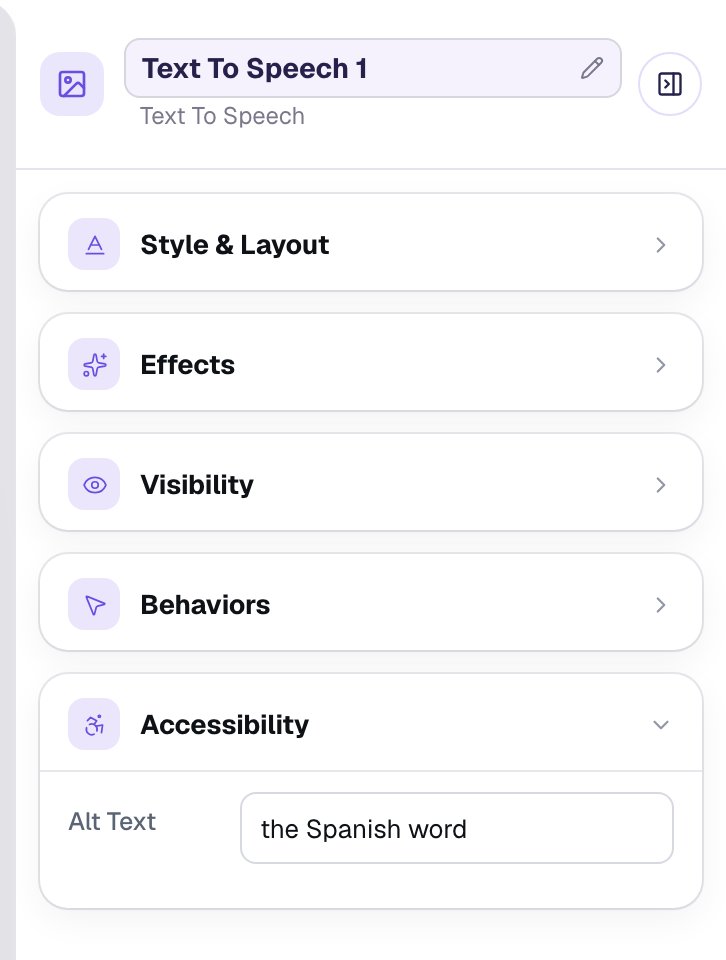
Then open Accessibility and set Alt Text to the Spanish word. A screen reader announces the button as "Play the Spanish word".
Step 6: Add three picture answers
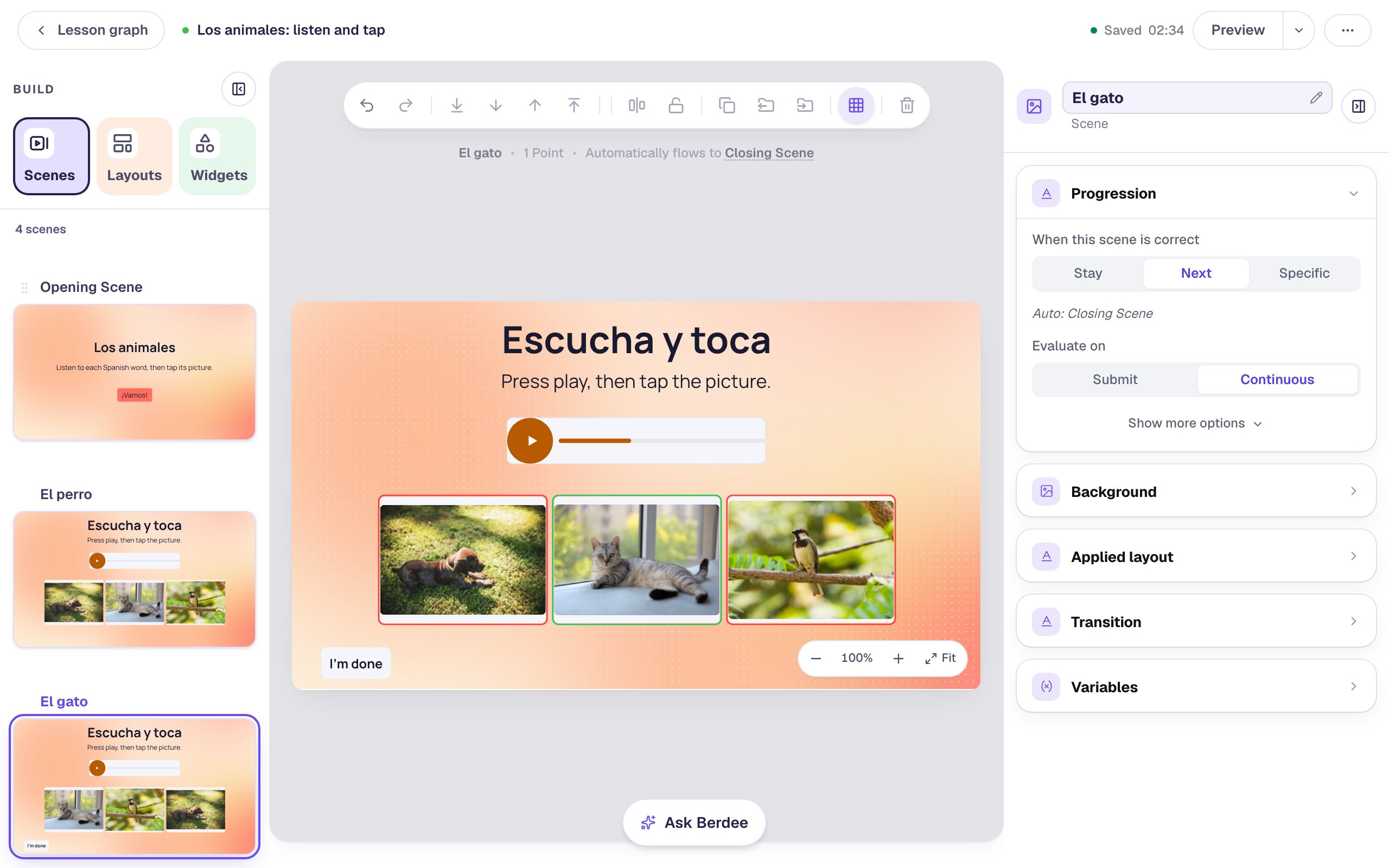
In Widgets, search for Multi Choice and add one. Under Show more options in Style & Layout, set Width to 720 and Height to 180, so the answers sit side by side in one row, and drag it under the player.
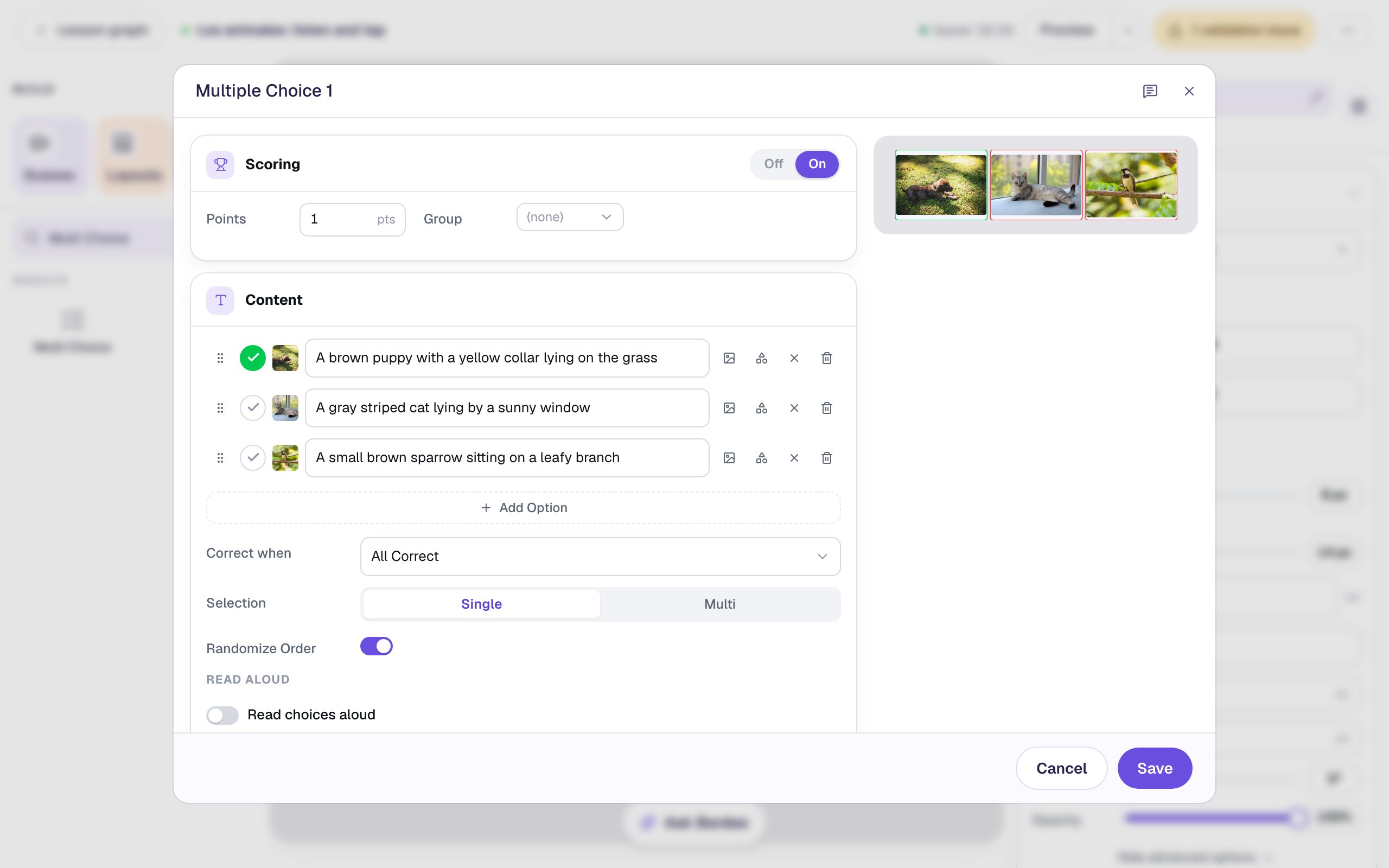
Click ⚙ Configure. A new question has four options, so click the bin beside the fourth. Then, for each answer, click the picture button beside it, search the stock photos and choose one: puppy in grass for the first, cat for the second and bird on branch for the third. Pick wide photos with one clear animal in them.
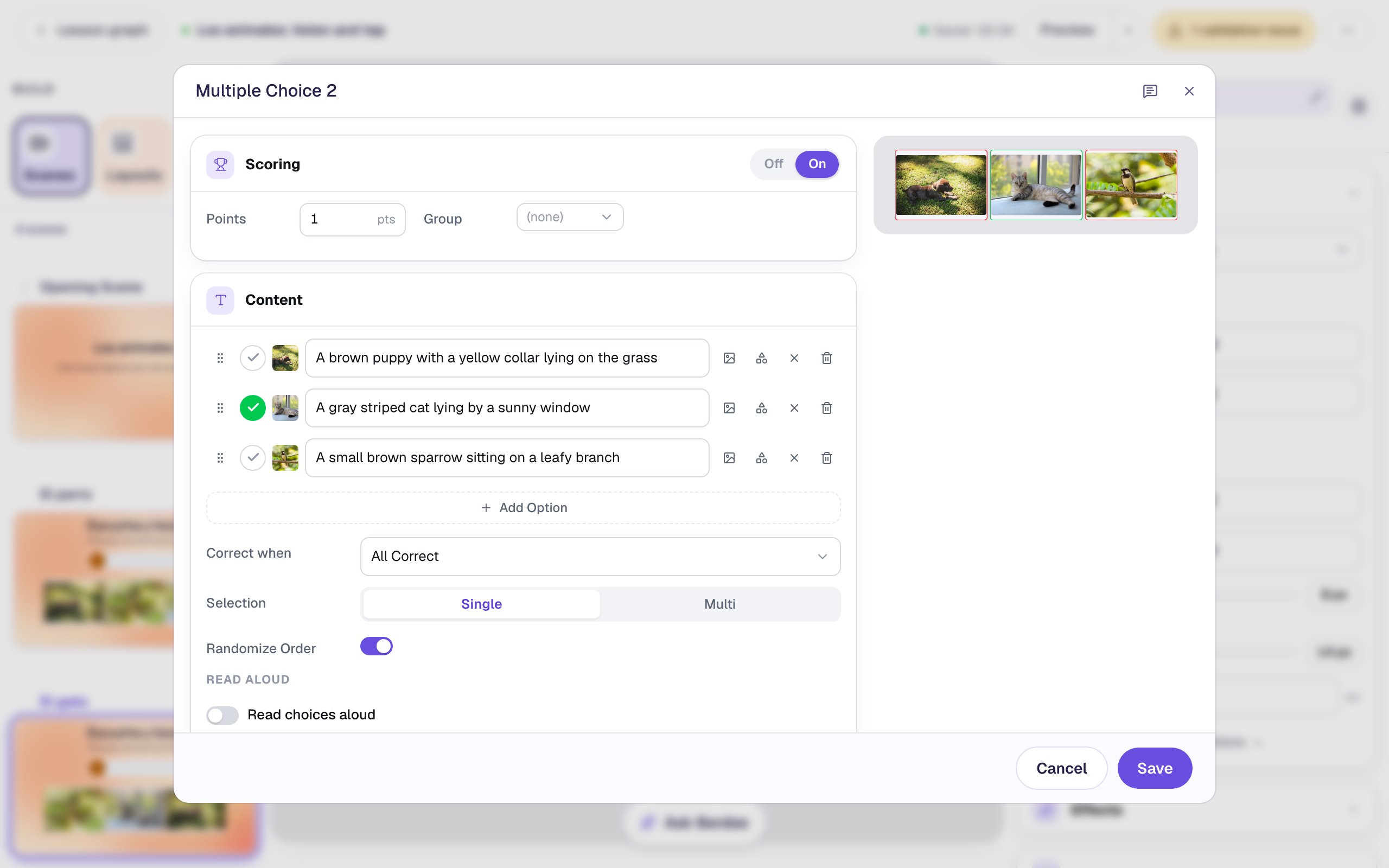
Once an answer has a picture, its text box describes the picture for screen readers instead of showing on the button. Describe what a student would see in each one: A brown puppy with a yellow collar lying on the grass, A gray striped cat lying by a sunny window and A small brown sparrow sitting on a leafy branch. Keep the descriptions in English: they're for students who can't see the photos, and the Spanish is what they hear.
The first answer starts marked correct (the green tick), which is the dog. Leave Randomize Order on, so the dog isn't always in the same place.
Click Save. Then, in Style & Layout, switch on Show correctness, so a wrong tap turns red in front of the student and they know to listen again.
Step 7: Duplicate the scene for the next word
The second question is the same scene with a different word, so copy it rather than building it again. In the Scenes tab, hover over El perro and click Duplicate scene. Rename the copy El gato.
On El gato, two things change:
- The sentence. Select the player, click ⚙ Configure, and change the text to
¿Dónde está el gato?. The copy still holds the dog recording, and a yellow note says so: students would hear the old sentence. Click Regenerate Audio, then Save.
- The right answer. Select the question, click ⚙ Configure, and move the tick from the dog to the cat: click the dog's tick to clear it, then the cat's to mark it. Click Save.
Duplicate again for each new word, el pájaro (the bird) and beyond. Add more photos to the question as the word list grows.
Step 8: Add a start button and a finishing button
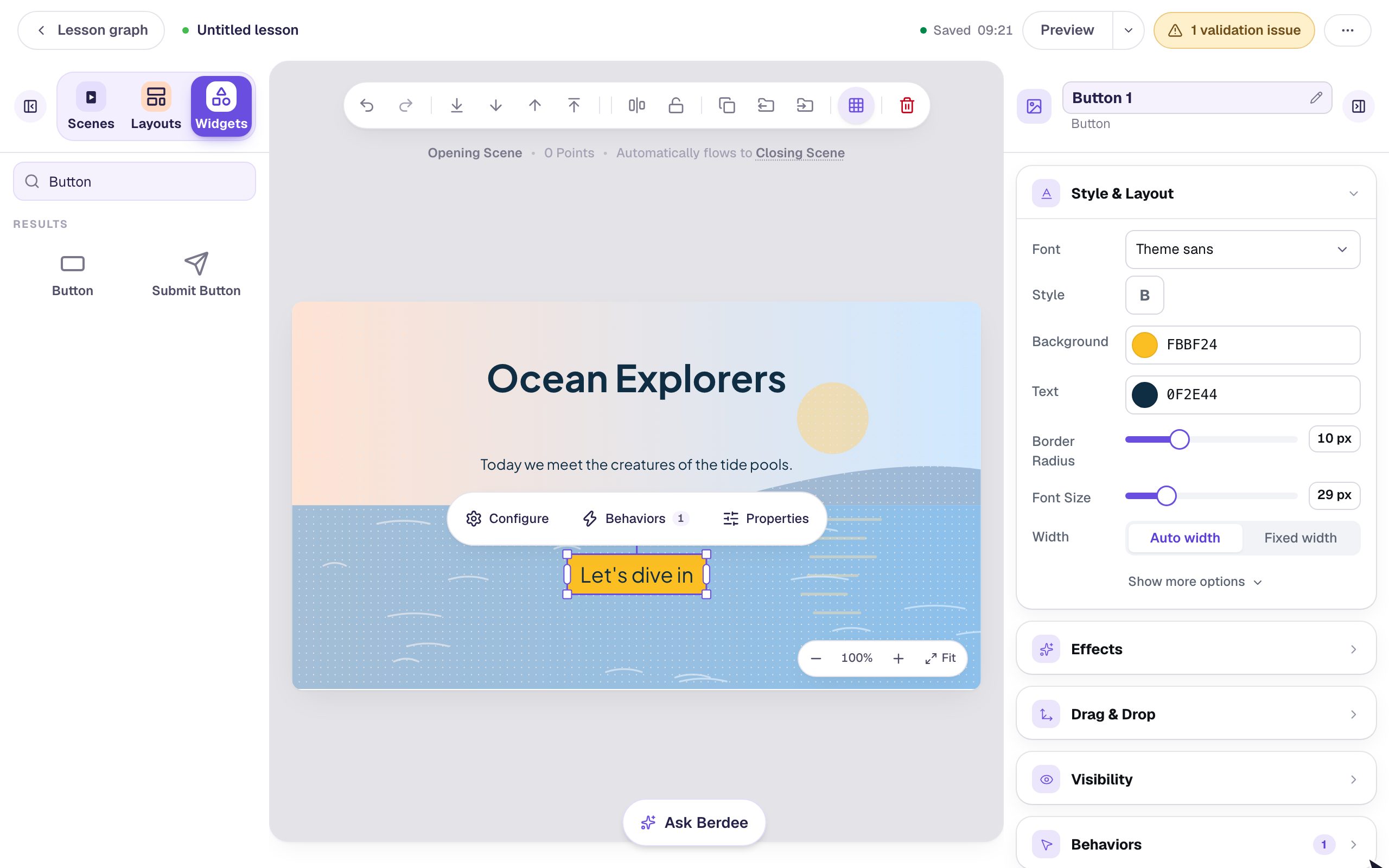
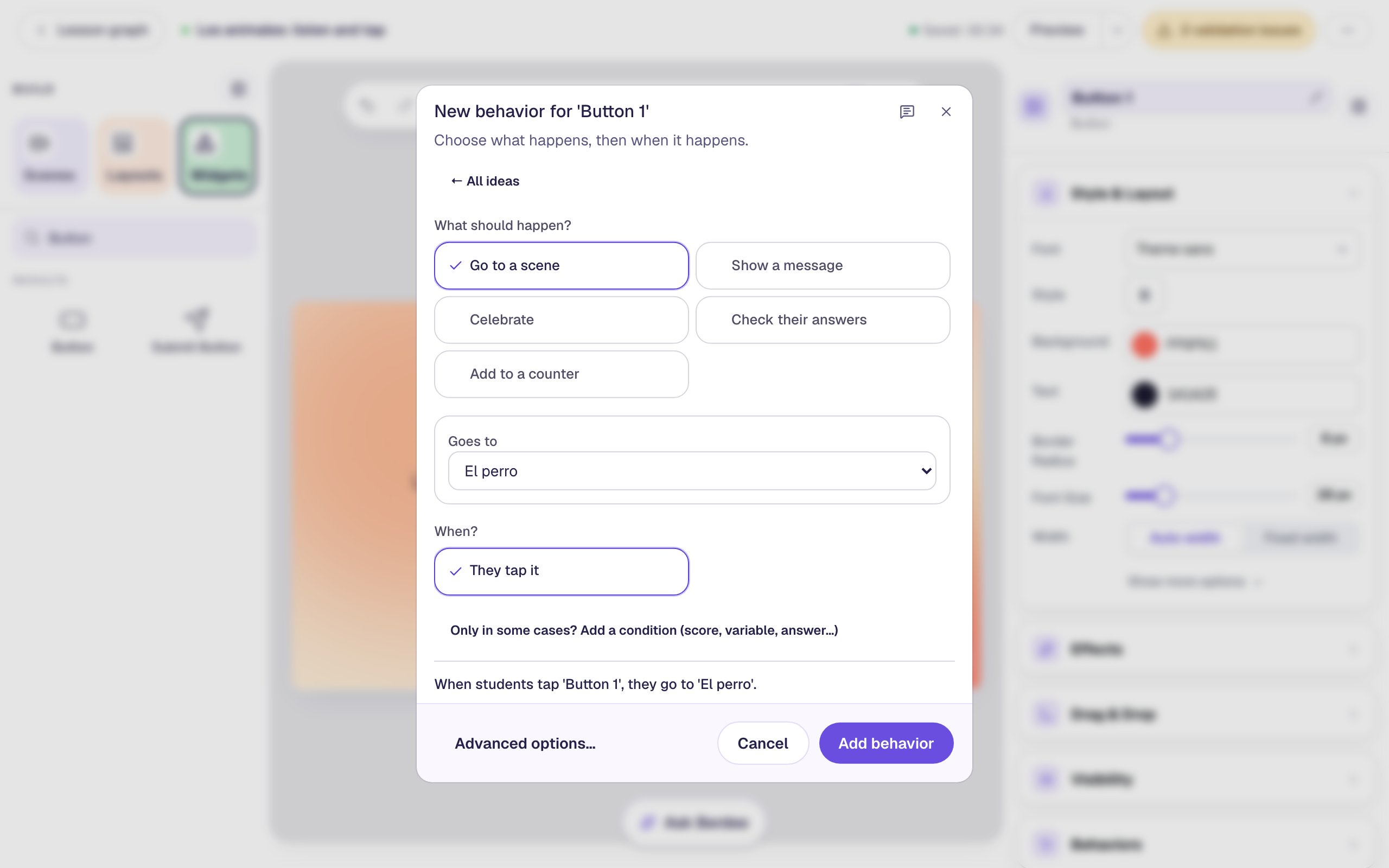
Now the questions exist, give the title scene its start button. Open the Opening Scene, add a Button, click ⚙ Configure and set its Label to ¡Vamos! ("Let's go!"). Set its Font Size to 28 and drag it under the text. Then click Behaviors in the pill above it and choose Make this a "Next" button. It's set to go to El perro; click Add behavior.
A lesson also needs a Submit button set to Lesson before you can publish it. On El gato, add a Submit Button, change its Label to I'm done, choose Lesson, and drag it to the bottom-left corner. Students who tap the cat move on by themselves; this button is for a student who wants to stop early.
Step 9: Preview it as a student
Open the Opening Scene and click Preview. Click ¡Vamos!, press play, and answer the way a student might: a wrong tap first, then the right one.
The clip is silent, but in your browser you'll hear Rachel. The photos come in a different order each time. A wrong tap turns red and keeps the student on the question, so they can listen again and try another photo.
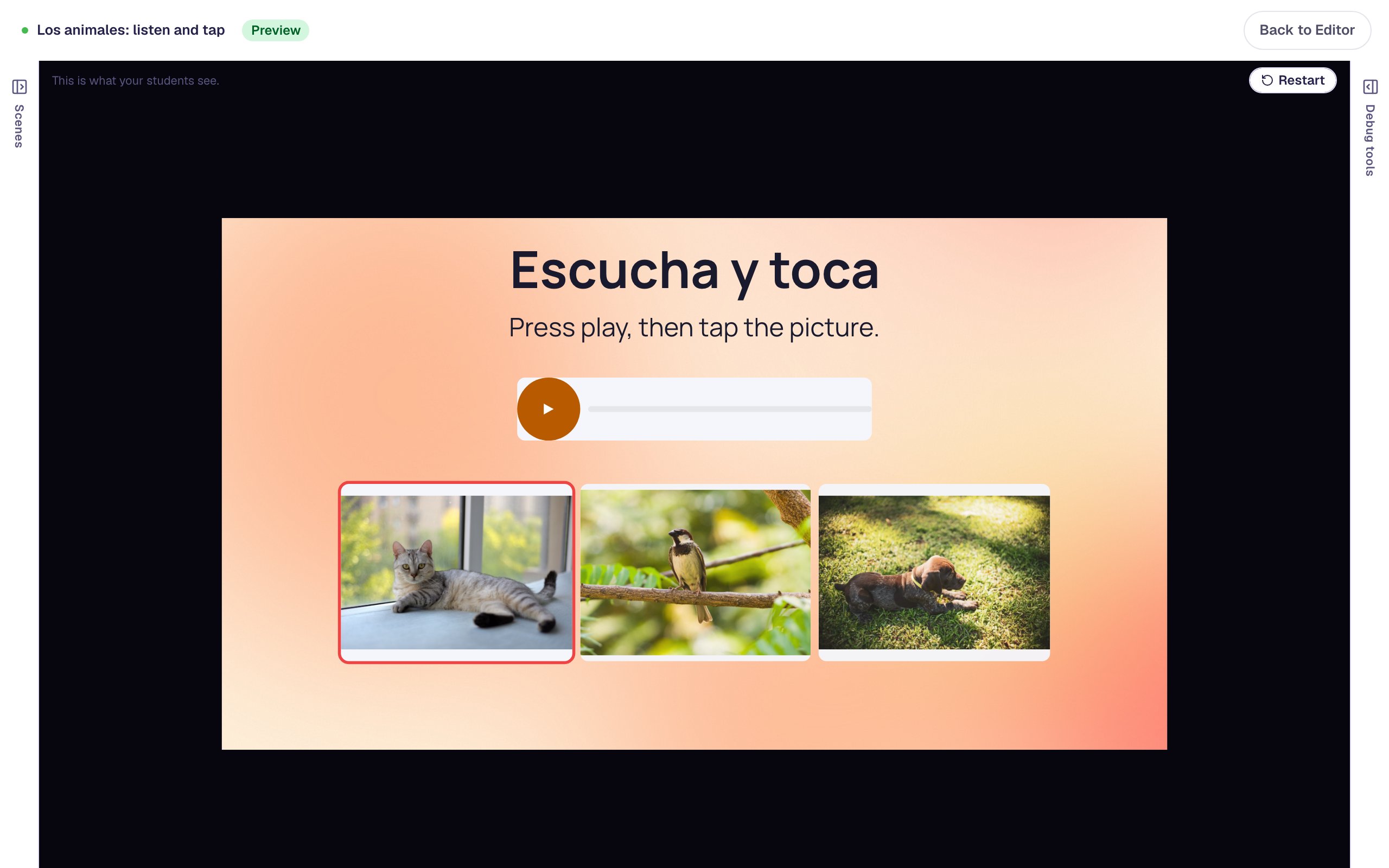
Tapping the right photo moves straight on to the next word, and after El gato the ending shows the score.
What you built
A listening quiz students can do on their own, with no reading in Spanish:
- A lesson voice, Rachel, that reads Spanish properly, set once for every recording.
- A big, labelled play button on each question that says the sentence as often as students need.
- Three photos to choose from, shuffled each time, that turn red on a wrong tap.
- A question scene you duplicate for each new word, changing only the sentence and the tick.
The same pattern works for any language Rachel reads (French, German, Italian and more), and for any vocabulary you can photograph: colours, food, classroom objects. To let students hear each picture's name before they choose, see Let pre-readers hear every answer choice. To have students type what they hear instead, see Give a spelling test students listen to. For a vocabulary deck to study first, see Make a deck of vocabulary flashcards.
Make this lesson yours
Add the lesson you just watched being built to your account, then change it for your class: your questions, your pictures, your colors.
Free to sign up, and you'll come straight back here. I have an account