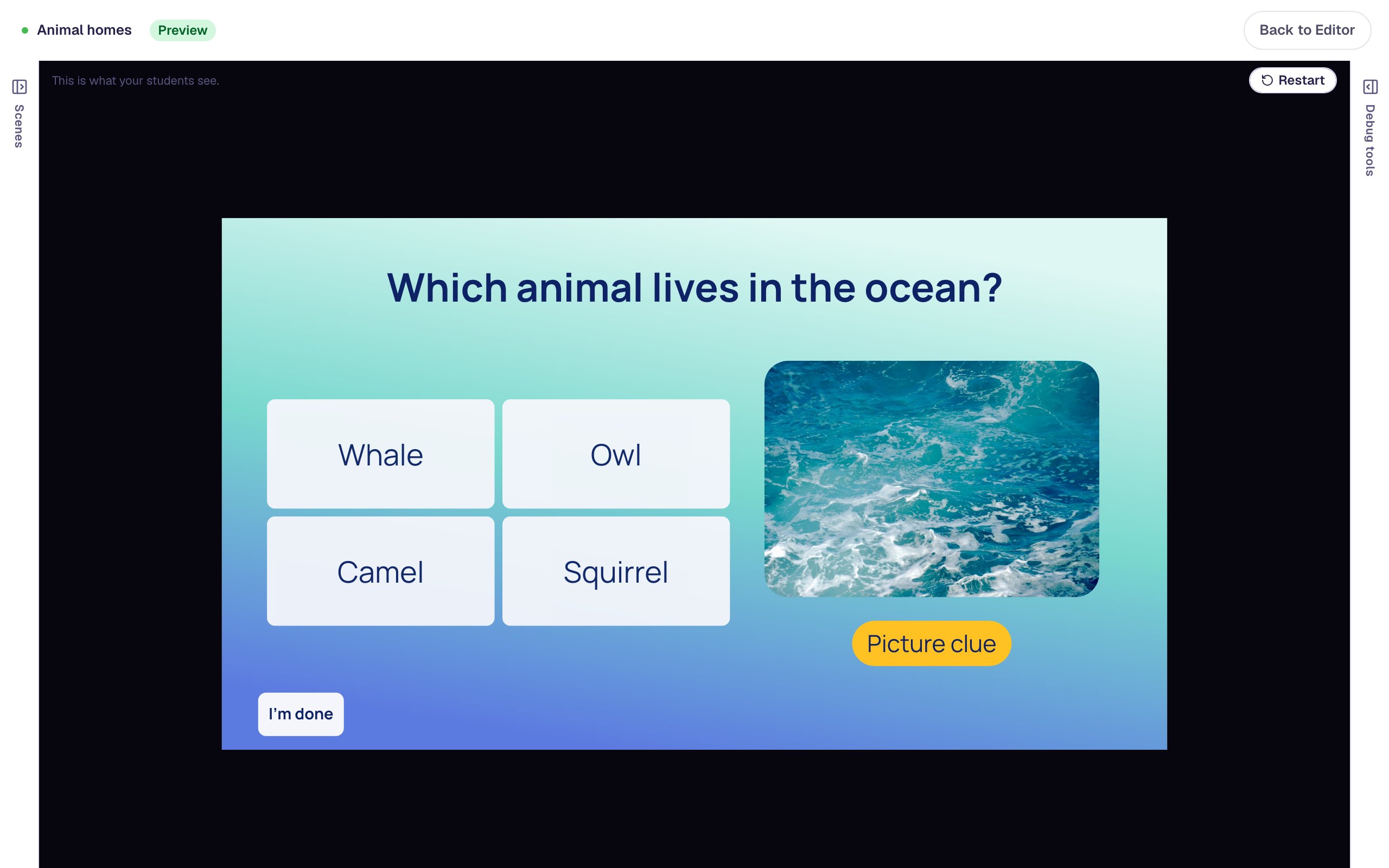
Build a silly story from words students pick
Students pick a describing word, an animal and an action from three dropdowns, and the next scene tells a story with their words in it. Set Variable copies each dropdown's choice into a variable with Widget property, and {{ }} placeholders show it.
- Level
- Intermediate
- Time
- About 20 min
- Steps
- 6
- Updated
- Oct 20, 2026
A two-scene lesson where students choose three words, press Tell my story!, and read a moon story built from their own choices, as many times as they like.
Get the finished lesson
Skip straight to the result, or keep it open beside the steps. Add this tutorial's lesson to your account and explore how it works in the studio.
Free to sign up, and you'll come straight back here. I have an account
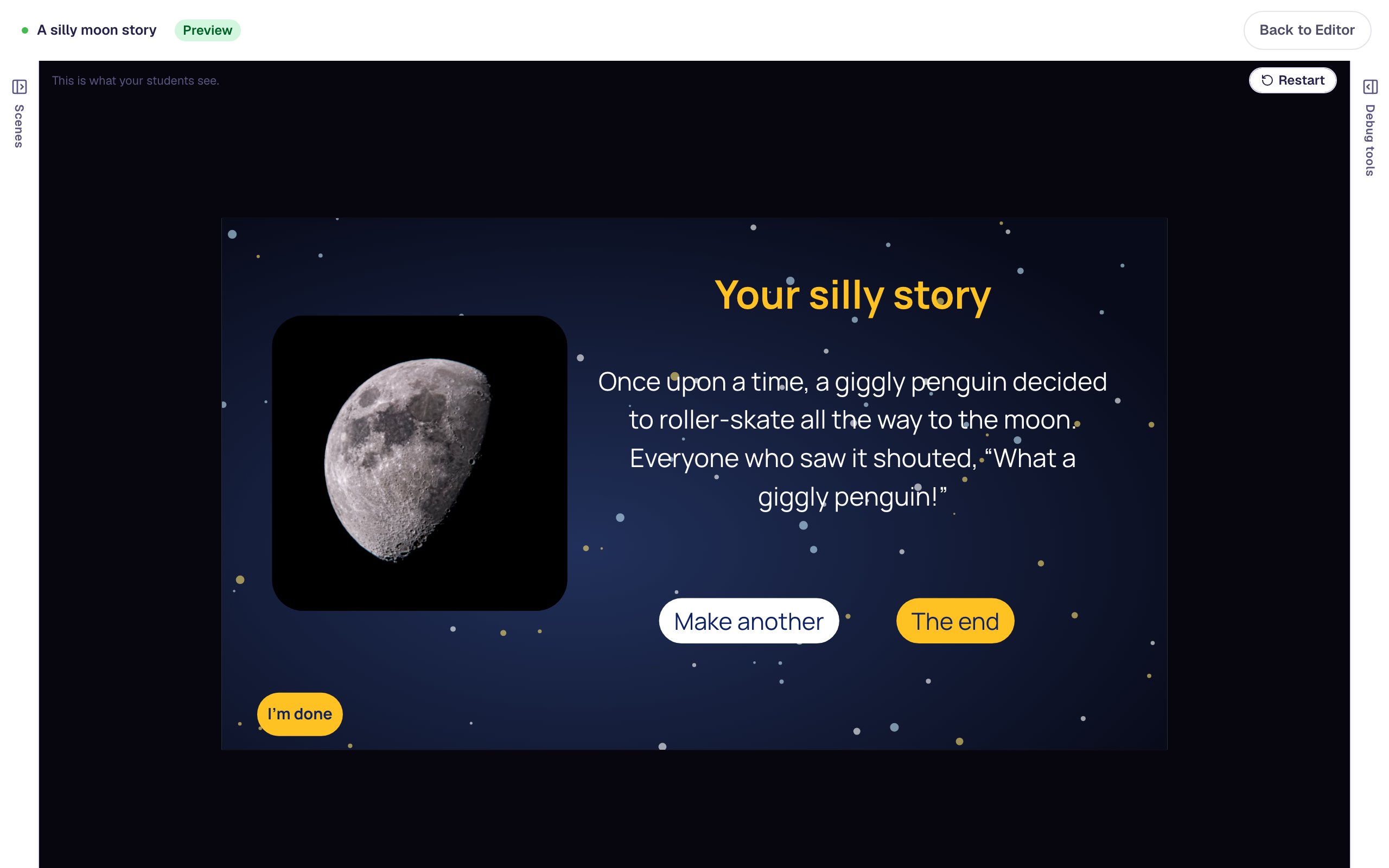
Fill-in stories are a favorite way to practice parts of speech. A student picks a describing word, an animal and something to do, and gets back a story that's theirs, and usually ridiculous: "Once upon a time, a giggly penguin decided to roller-skate all the way to the moon."
In this tutorial you'll build one in two scenes. Students choose from three Dropdowns, and a Tell my story! button copies each choice into a variable and opens a story scene. The story is written once, with a placeholder like {{ animal }} wherever a student's word goes, so every combination works without writing a scene for each.
Remember a student's choice and use it later introduces variables and placeholders with two buttons that each save a fixed word. This tutorial goes a step further: one button saves whatever the student picked, using Set Variable with Widget property. You don't need to do the first one first, but it helps.
Step 1: Make the three word lists
Start a blank lesson (New lesson, then Start from scratch) and name it A silly moon story. On the Opening Scene:
- Open Background, choose Choose a style, and pick Starfield from Nature. Click Apply background.
- Add a Heading that says
Make a silly moon storyand a Body that saysPick one word from each list. Then press Tell my story!. Make both white so they stand out on the night sky. - Add three Subheadings in a row, in yellow:
A describing word,An animalandSomething to do. These label the lists.
Now add the first list. Add a Dropdown and click ⚙ Configure:
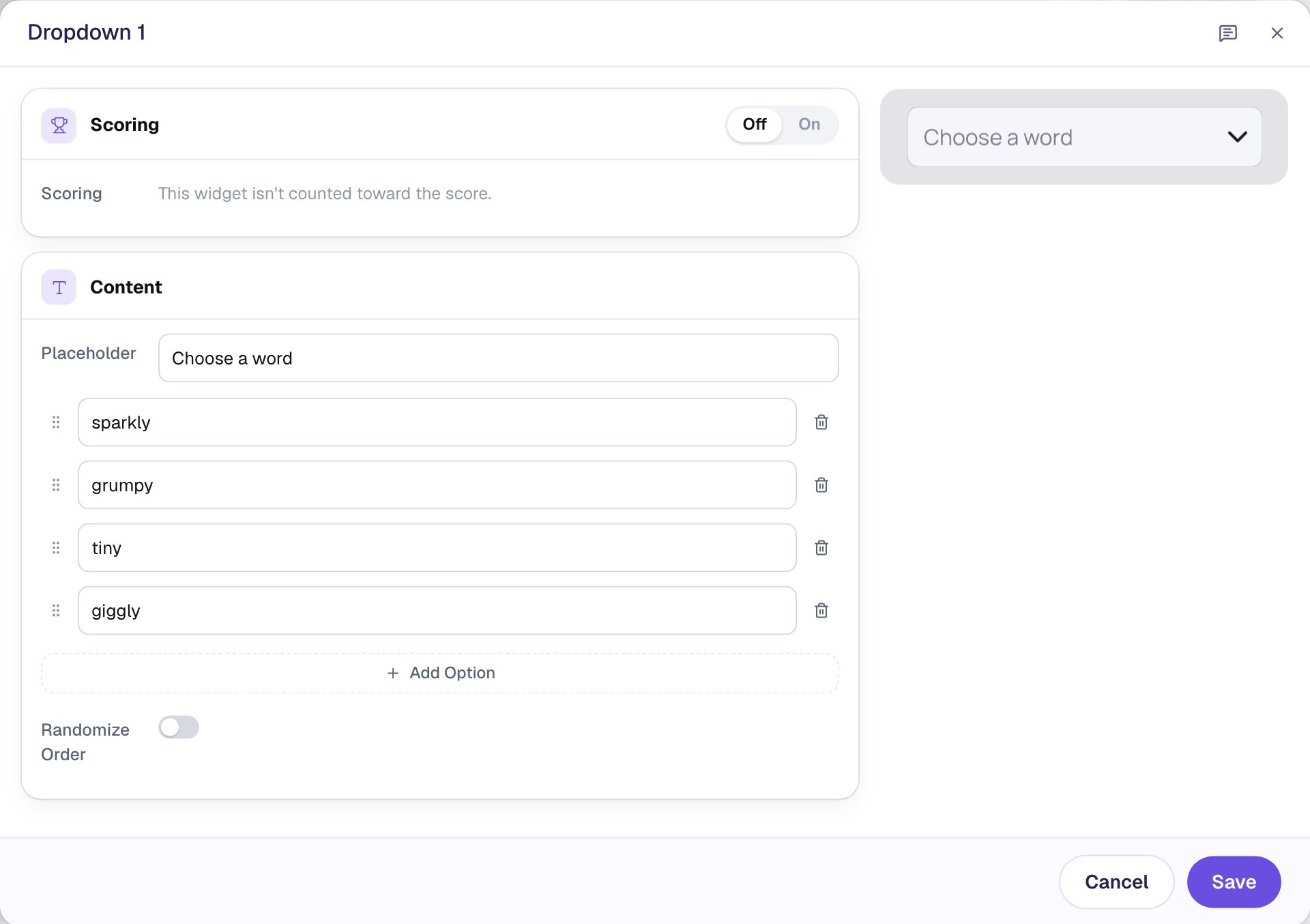
- Change the Placeholder to
Choose a word. Students see this until they pick. - A new dropdown has three options. Click Add Option for a fourth, then type
sparkly,grumpy,tinyandgiggly. - Set Scoring to Off. There's no right answer here, so the dropdown shouldn't count toward a score. The green ticks that mark a correct option disappear.
Click Save. Then, in the properties panel:
- Rename the dropdown
Describing word(click its name at the top of the panel). You'll pick it by this name in the next steps. - Open Accessibility and type
A describing wordin Alt Text. A screen reader reads this name aloud. Left alone, all three dropdowns would be read as "Answer dropdown", and a student who can't see the labels wouldn't know which list is which. - Set its Font Size to
22and its width to270, and drag it under its label.
Add the other two the same way:
| Name | Placeholder | Alt Text | Options |
|---|---|---|---|
Animal | Choose an animal | An animal | penguin, dragon, hamster, giraffe |
Action | Choose an action | Something to do | hop, dance, tiptoe, roller-skate |
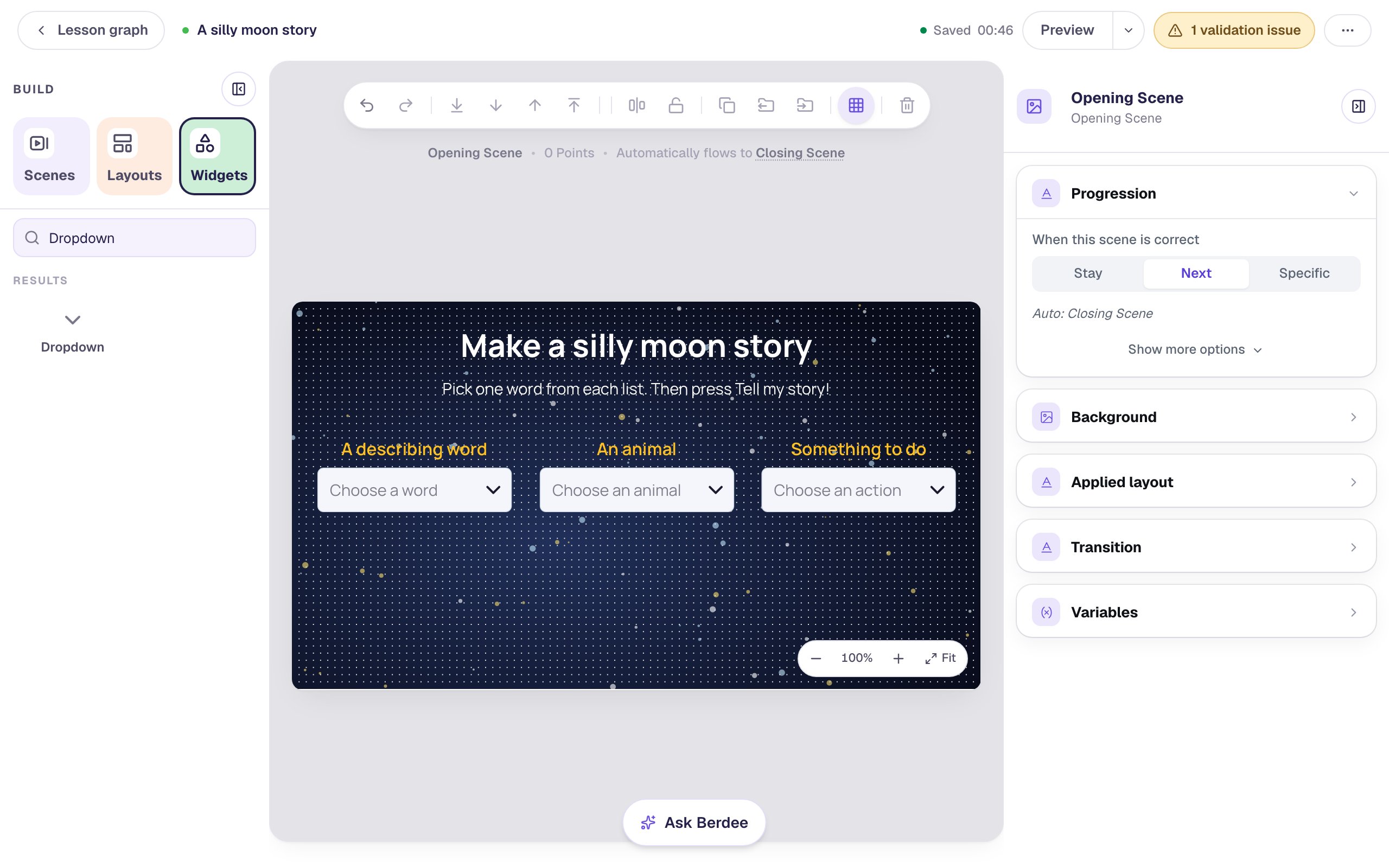
Pick words that fit every sentence they'll land in. The story will say "a {{ adjective }} {{ animal }}", so every describing word starts with a consonant ("a giggly", never "a icy"), and every action fits after "decided to".
Step 2: Create three variables
A variable is a named place where the lesson keeps a value while a student works. It belongs to the whole lesson, so a word saved on the first scene is still there on the story scene. You need one per list.
- Click ⋯ (More lesson options) at the top right of the studio and choose Variables.
- Click New variable, then Some text.
- Under What text should it start as?, type
brave. - Under What is this variable called?, type
adjective.
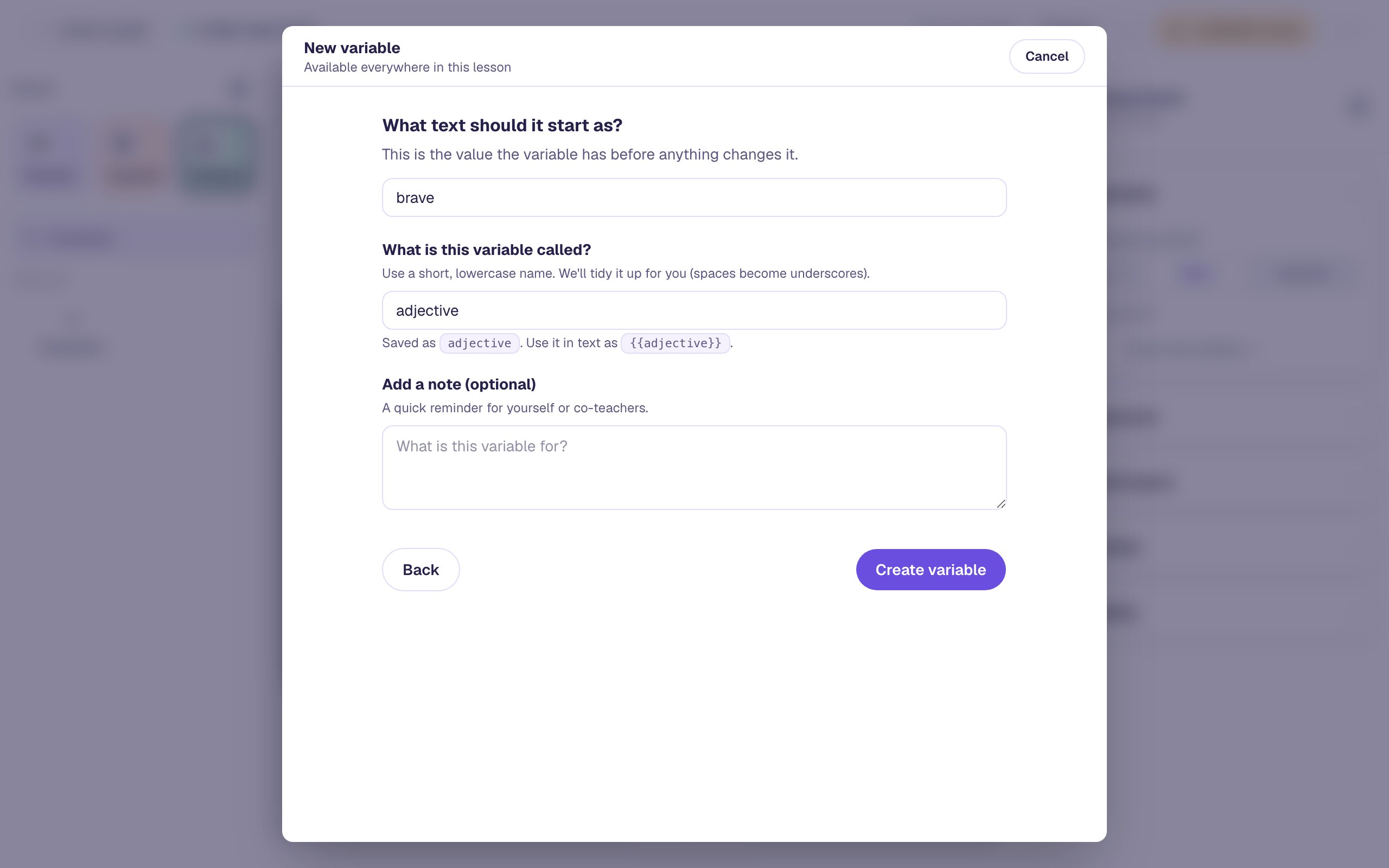
Click Create variable, close the dialog, and do the same twice more: animal starting as turtle, and action starting as walk. Open Variables again and all three are listed:
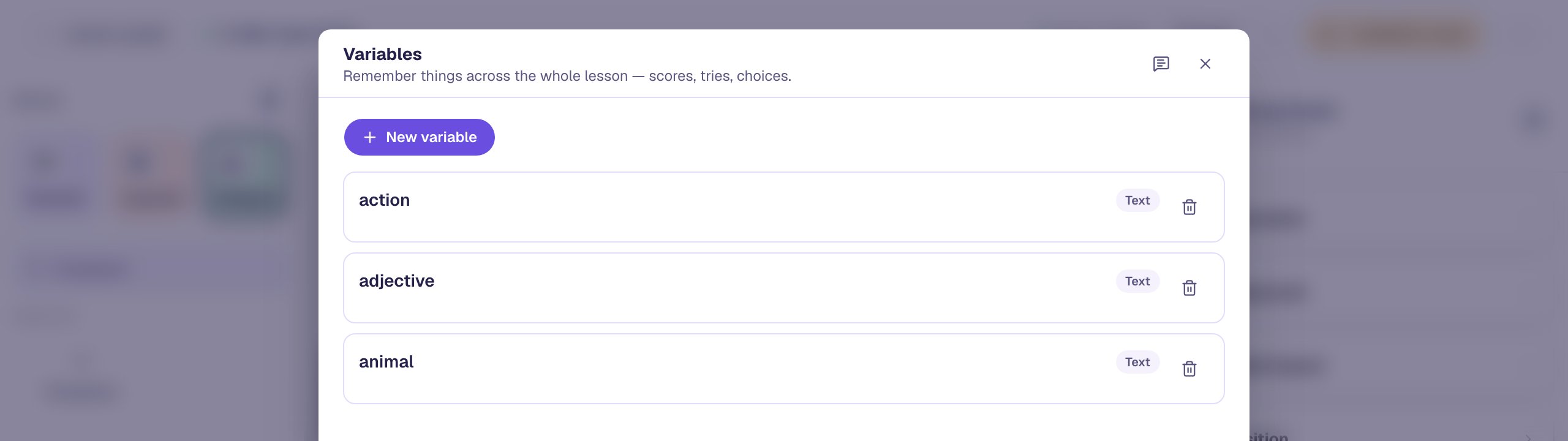
The starting values make a sensible story on their own ("a brave turtle decided to walk"), so the story scene never shows a blank, even before anything is saved.
Step 3: Write the story scene
Open the Scenes tab, click Add scene, and rename the new scene Story. Give it the same Starfield background, then:
- Add an Image of the moon (search the stock photos for
moon craters close up), set it to300×300, Fit to Cover, and drag it to the left. Open Accessibility and describe it in Alt Text:A close-up of the moon with its craters showing, against a dark sky. - Add a yellow Heading that says
Your silly story. - Add a white Body,
26px and520wide, with the story. Type each variable's name between double curly braces where a student's word goes:
Once upon a time, a {{ adjective }} {{ animal }} decided to {{ action }} all the way to the moon. Everyone who saw it shouted, "What a {{ adjective }} {{ animal }}!"
- Add a white Button labeled
Make anotherwith an On Press behavior that does Navigate to Scene → Opening Scene, so students can try new words. - Add a yellow Button labeled
The endthat navigates to Closing Scene. - Add a small Submit Button in the bottom-left corner: Label
I'm done, Submits set to Lesson. Every lesson needs one way to finish early, or it can't be published.
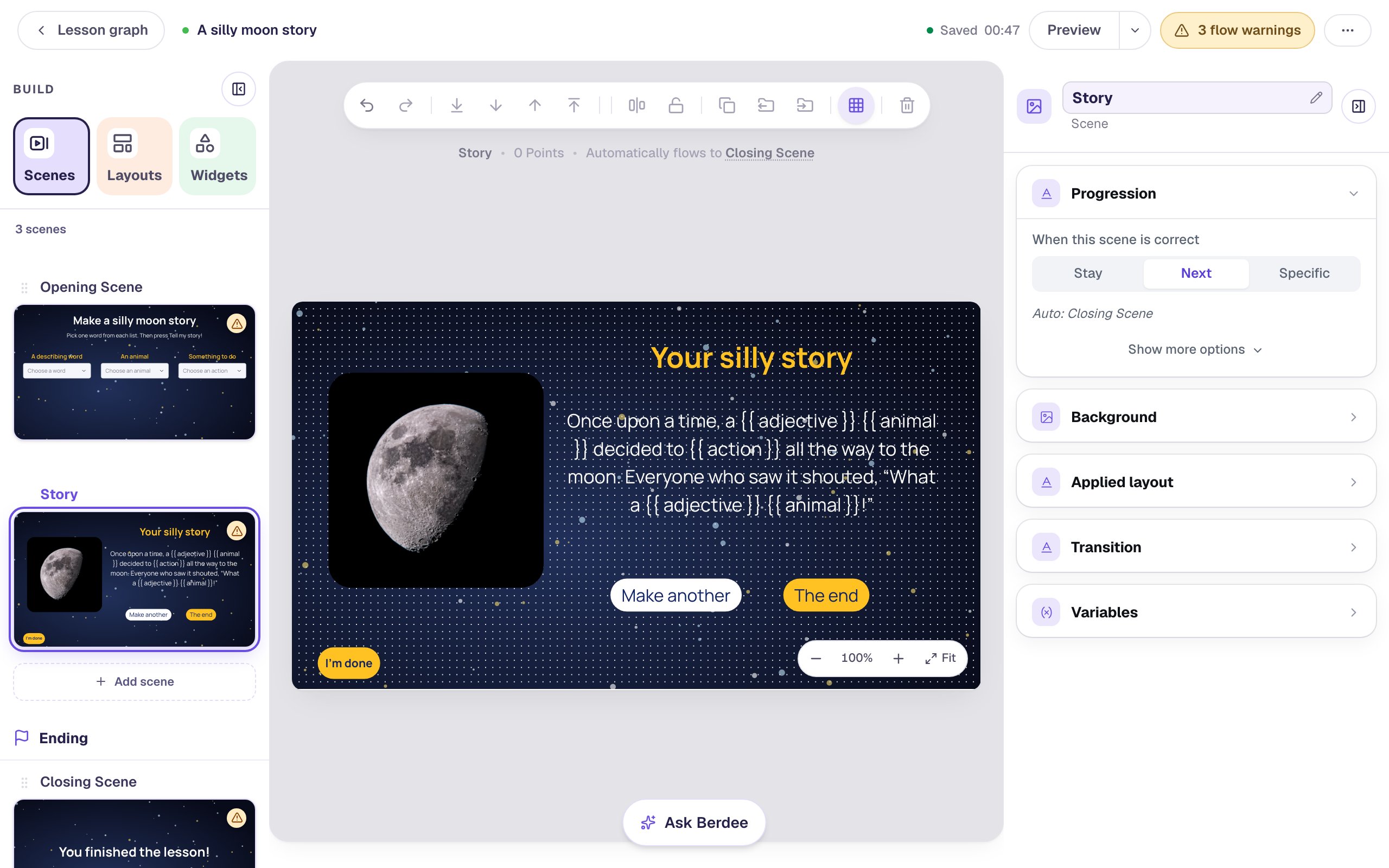
A placeholder can be used as often as you like: {{ adjective }} and {{ animal }} each appear twice. The canvas shows the braces exactly as you typed them, because it doesn't know what a student will pick. Students never see the braces.
The top bar now says 3 flow warnings. That's expected: nothing leads to Story yet. The next step fixes it.
Step 4: Save the words when Tell my story! is pressed
Go back to the Opening Scene and add a yellow Button labeled Tell my story! under the lists. Its one behavior saves all three words, then opens the story. Actions run top to bottom, so the words are saved before the student leaves the scene.
Select Tell my story!, open Behaviors, click Add Behavior, and choose On Press. Then:
- Change the first action to Set Variable and pick adjective.
- Change Static value to Widget property, and pick Describing word → Selected value.
- Click Add Action and do the same for animal with Animal → Selected value, and again for action with Action → Selected value.
- Click Add Action once more, change it to Navigate to Scene, and pick Story.
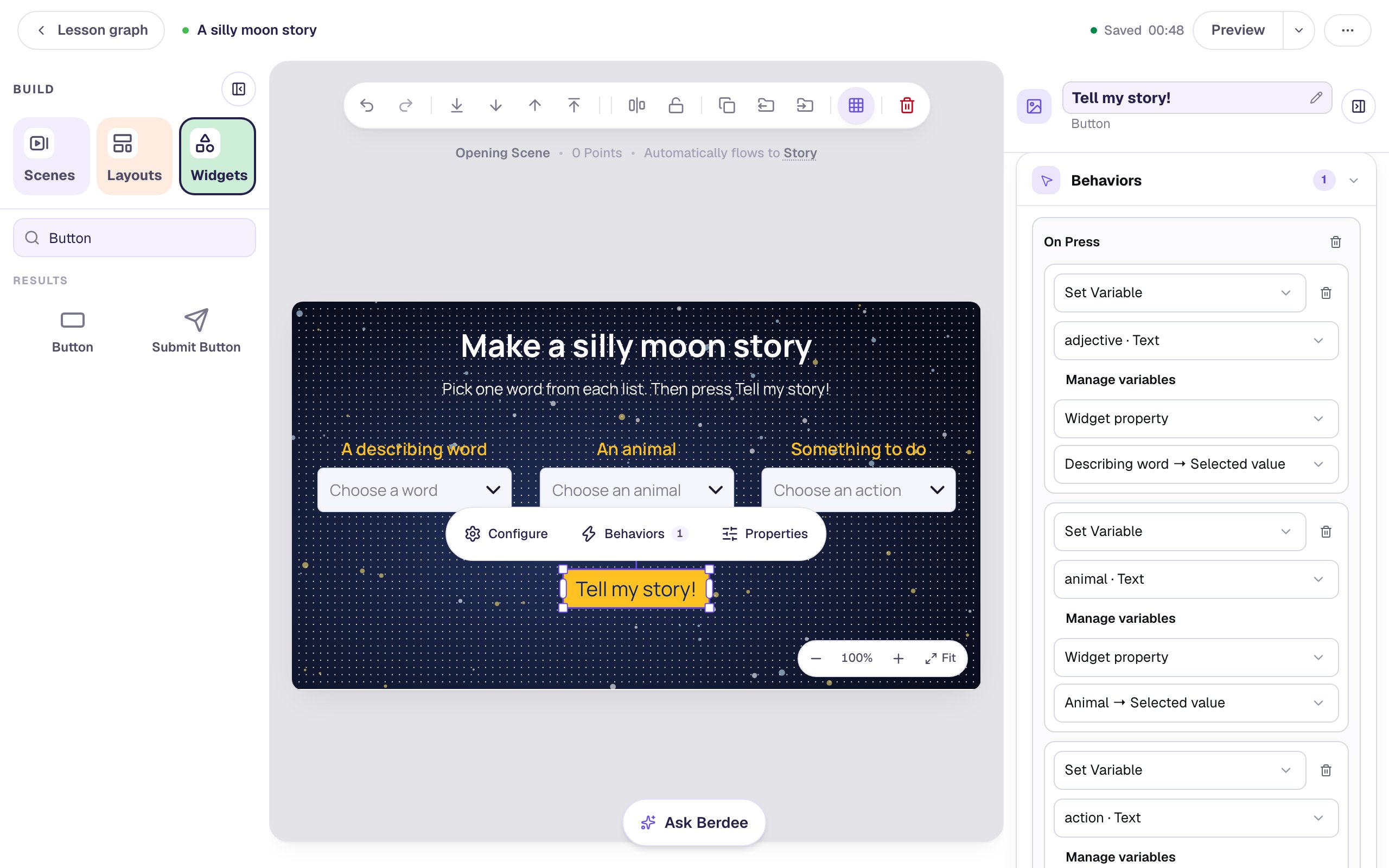
Widget property is the important choice. Static value would save the same word for every student, the way the buttons in Remember a student's choice and use it later do. Widget property reads the dropdown at the moment the student presses the button, so whatever they picked lands in the variable. A dropdown's Selected value is the text of the chosen option, exactly as you typed it.
Step 5: Show the button only after all three are picked
A dropdown that hasn't been touched has nothing selected, so pressing Tell my story! too early would save an empty word over the starting value and leave a gap in the story. Hide the button until every list has a word.
With Tell my story! still selected, open Visibility:
- Change Mode to Conditional. Behavior is Show and the match is All conditions are met, which is what you want.
- In the first condition, pick Dropdown: Describing word, then Is answered.
- Click Add Condition and pick Dropdown: Animal, Is answered.
- Add one more for Dropdown: Action, Is answered.
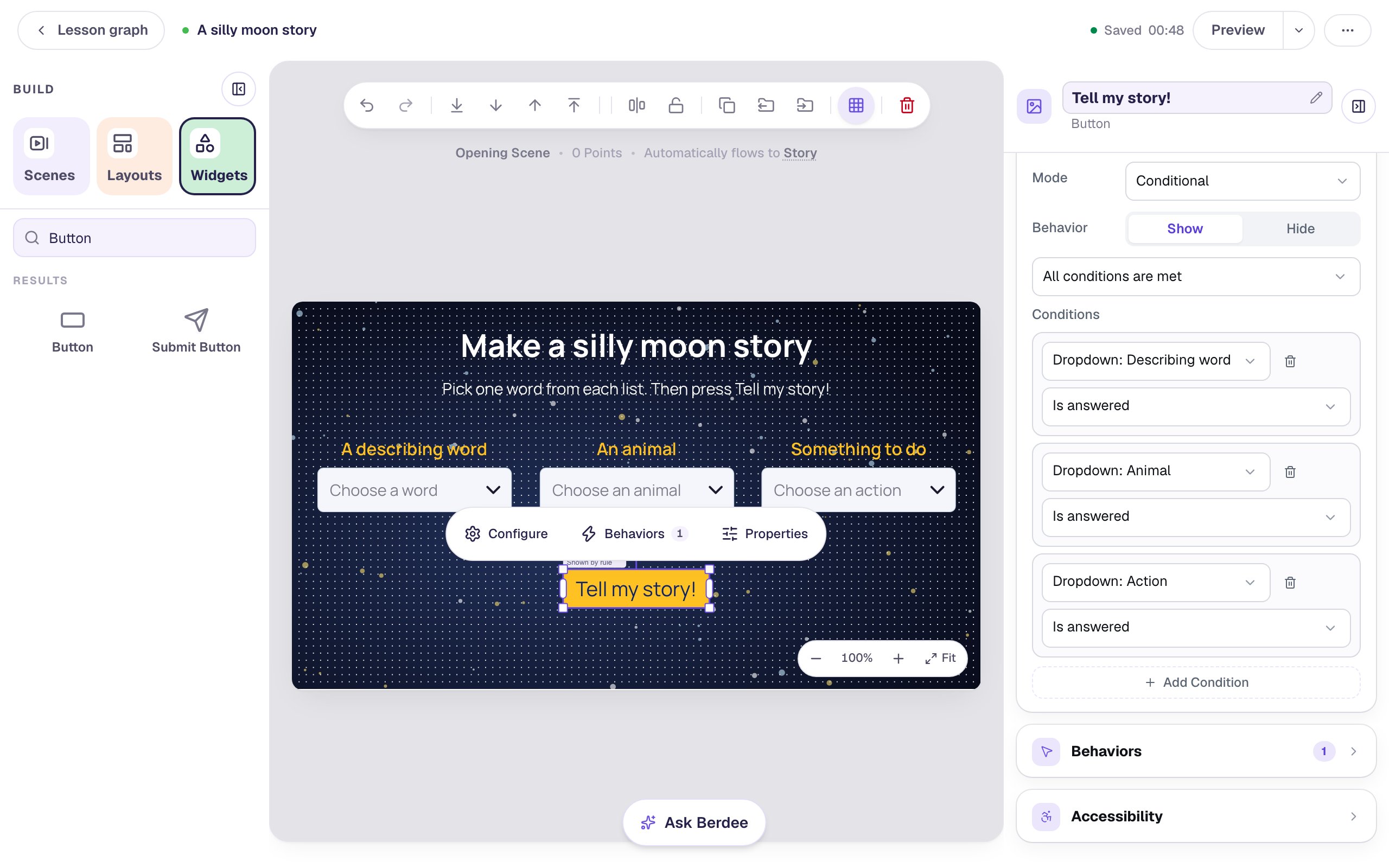
The button stays visible in the studio, with a small Shown by rule tag, so you can still select and edit it. Students see it only once the rule is true.
Step 6: Try it as a student
Make sure you're on the Opening Scene, since Preview starts on the scene you're editing, and click Preview.
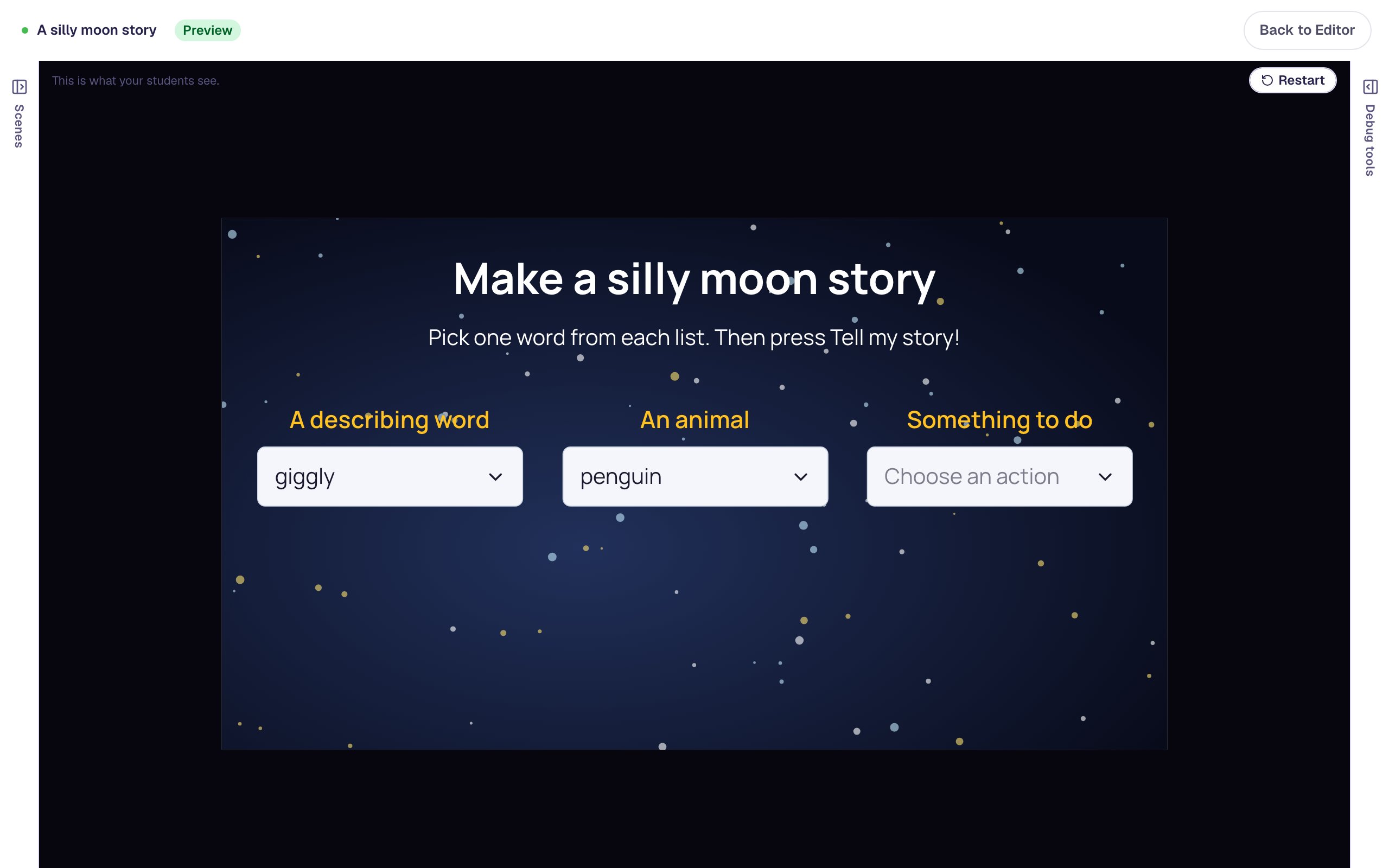
- Choose
gigglyandpenguin. There's no Tell my story! button yet, because one list is still empty.
- Choose
roller-skate. Tell my story! appears. Press it.
- Press Make another, choose three new words, and tell the story again:
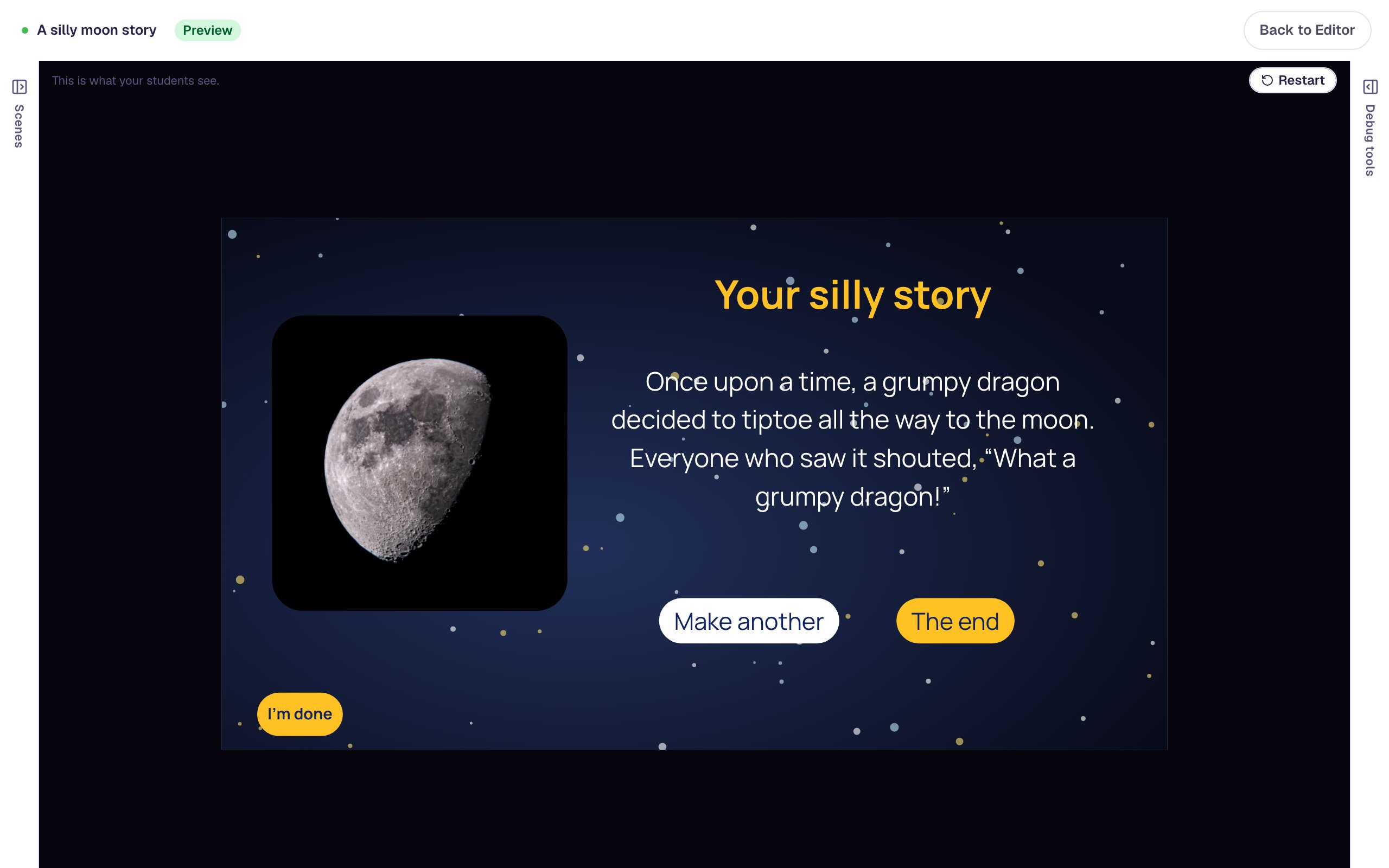
The lists keep the words from last time, so a student can change just one and see how the story changes. That's a good moment to ask: what kind of word did you change?
Press The end to finish:
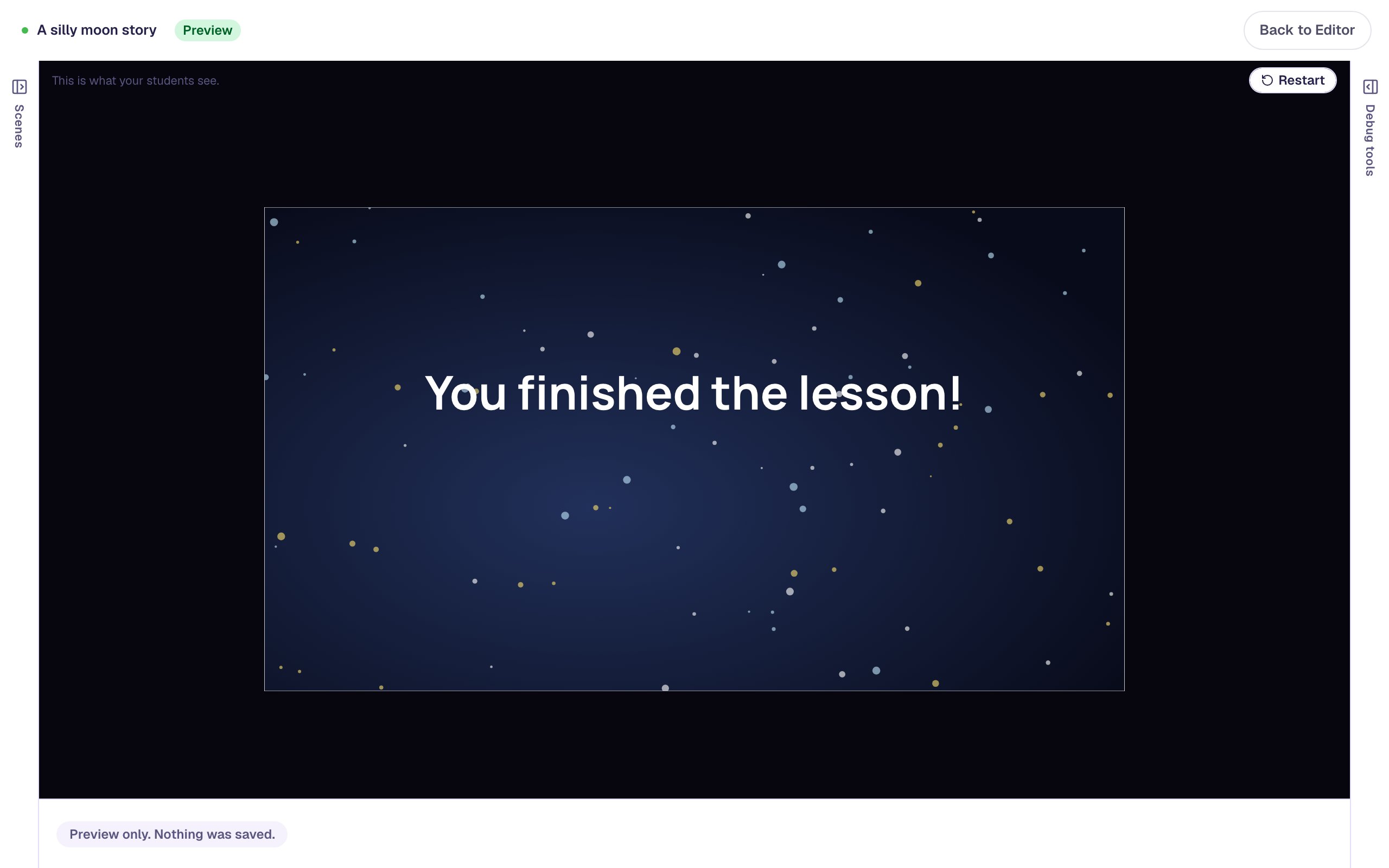
The Closing Scene's message starts as dark text, which disappears on a dark background. Select it in the studio and set its Text Color to white.
If a story ever shows a starting value (a brave turtle) instead of the student's words, check the button's actions: each Set Variable needs Widget property, not Static value, and Navigate to Scene has to come last. Show debug tools at the bottom of the preview has a Variables tab that shows what each variable holds.
What you built
A fill-in story lesson:
- three ungraded Dropdowns, each with its own word list, placeholder and Alt Text,
- three Text variables,
adjective,animalandaction, with starting values that make sense on their own, - a Tell my story! button whose On Press behavior copies each dropdown's Selected value into its variable with Set Variable → Widget property, then opens the story, and which shows only when every dropdown Is answered, and
- one Story scene whose text uses
{{ adjective }},{{ animal }}and{{ action }}, with a way back for another story.
Swap the lists to practice anything with parts: nouns and verbs for a grammar lesson, a planet and a fact for science, a character and a setting as a writing warm-up. For a story starter that's picked by chance instead, see Spin a wheel to pick a story starter. To count something a student does instead of saving a word, see Show a live count of what students discover.
Make this lesson yours
Add the lesson you just watched being built to your account, then change it for your class: your questions, your pictures, your colors.
Free to sign up, and you'll come straight back here. I have an account