Reveal how close a student's estimate was
Students type an estimate into a Number Input, a button saves it in a number variable with Set Variable → Widget property, and the next scene shows their number beside the real one, with a "So close!" message only for estimates within 20.
- Level
- Intermediate
- Time
- About 20 min
- Steps
- 7
- Updated
- Oct 24, 2026
A two-scene lesson where students estimate how many bones are in the human body, then see their own number, the real answer, and a message that depends on how close they were.
Get the finished lesson
Skip straight to the result, or keep it open beside the steps. Add this tutorial's lesson to your account and explore how it works in the studio.
Free to sign up, and you'll come straight back here. I have an account
Estimating builds number sense, but only if students find out how close they got. A guess that vanishes the moment they move on teaches nothing. A reveal that says "You estimated 200. A grown-up has 206 bones!" lets them compare the two numbers themselves.
In this tutorial you'll build a two-scene science warm-up. On the first scene students type an estimate into a Number Input, and a Check my estimate button saves it in a variable. The second scene shows their number with {{ estimate }}, gives the real answer, and shows one of two messages: So close! for estimates within 20 of 206, and Good thinking! for everyone else.
The Number Input is ungraded. An estimate isn't right or wrong, so the lesson compares the student's number to the answer instead of marking it.
If you haven't used variables before, Remember a student's choice and use it later introduces them with two buttons that each save a fixed word.
Step 1: Set up the estimate scene
Start a blank lesson (New lesson, then Start from scratch) and name it How many bones?. On the Opening Scene:
- Open Background, choose Choose a style, and pick Blueprint grid from Patterns. Click Apply background. The deep blue grid gives the lesson a science-lab look.
- Add an Image, set it to
260×400, and drag it to the left. Search the stock photos forhuman skeleton modeland pick a photo of a whole skeleton standing up. Set Fit to Cover and round the corners with Border radius. Open Accessibility and describe the picture in Alt Text:A white model of a human skeleton standing upright, from the skull down to the knees. - Add a white Heading that asks
How many bones are in your body?, and a white Body under it:Make your best estimate. Type a number, then press Check my estimate.
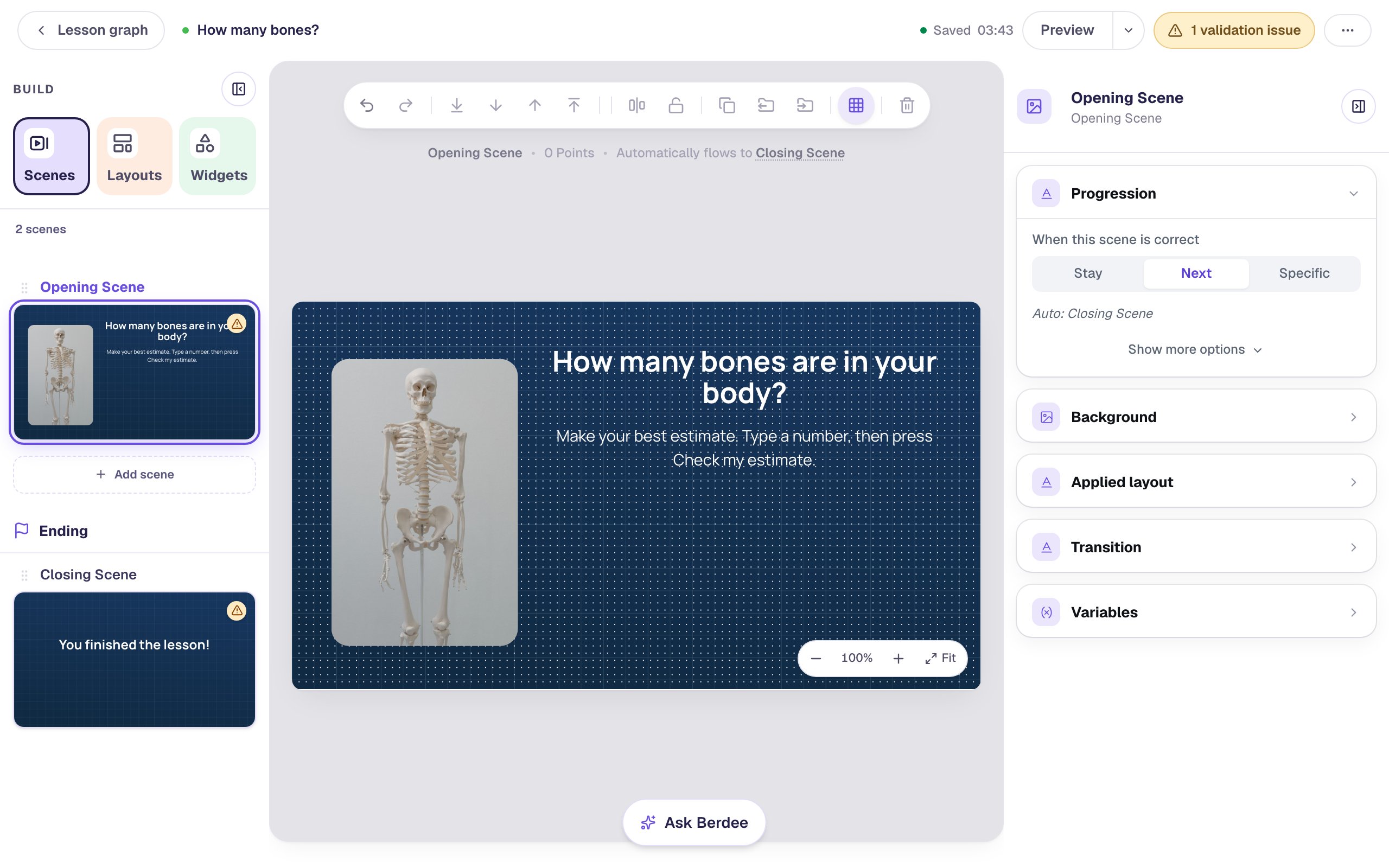
Do the same on the Closing Scene so the lesson ends on the same background. Its message starts as dark text, which is hard to read on dark blue, so select it and set its Text Color to white.
Step 2: Add a Number Input for the estimate
Add a Number Input and click ⚙ Configure:
- Set Scoring to Off. An estimate has no right answer, so it shouldn't count toward a score.
- Change Largest Answer to
1000. A new Number Input only accepts 0 to 100, and plenty of students will guess more than that. - Turn Show Step Buttons off. Nobody wants to tap + two hundred times.
- Type
Your estimateas the Placeholder, the hint students see in the empty box.
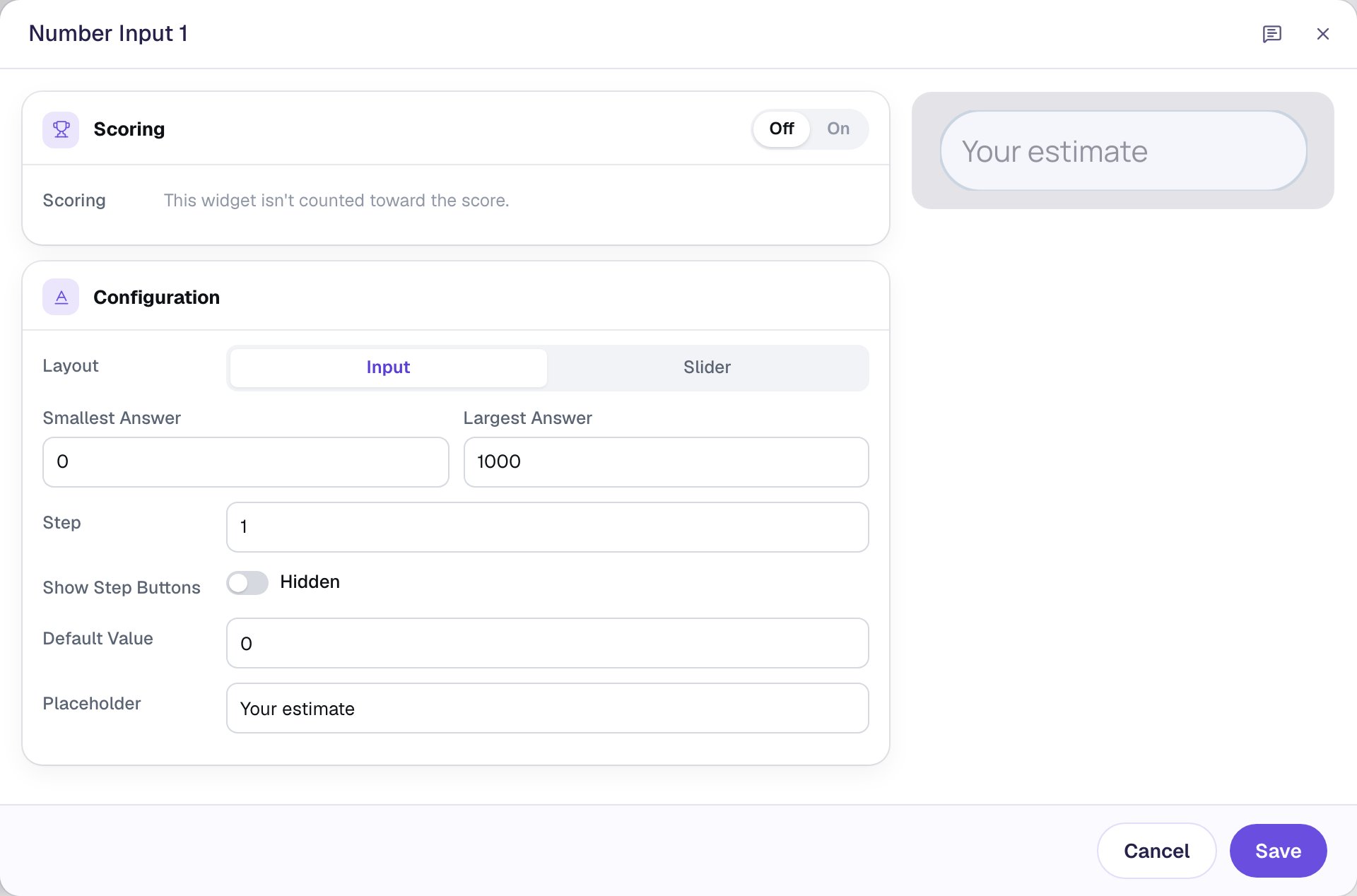
Click Save. Then, in the properties panel:
- Rename the widget
Estimate(click its name at the top of the panel). You'll pick it by this name in Step 5. - Open Accessibility and type
Your estimate of how many bonesin Alt Text. A screen reader reads this name for the box; left alone, it says "Number input", which doesn't say what to type. - Set its Font Size to
32and its width to260, and drag it under the instructions.
Step 3: Create a number variable
Text on another scene can't read a Number Input, but it can read a variable. A variable belongs to the whole lesson, so a number saved in it on the first scene is still there on the next one.
- Click ⋯ (More lesson options) at the top right of the studio and choose Variables.
- Click New variable, then A number.
- Leave the starting value at
0, and typeestimateas the name.
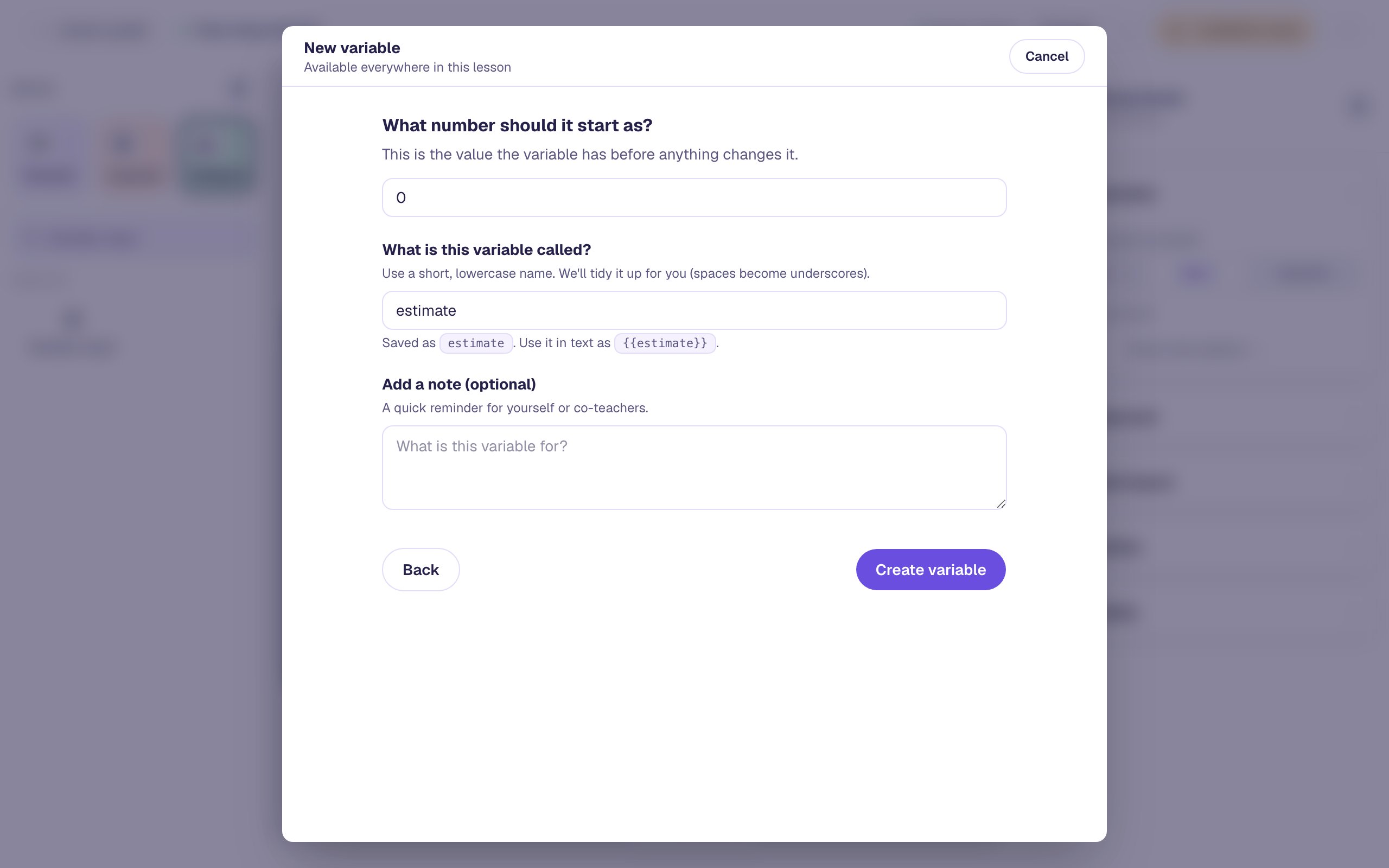
Click Create variable, then close the dialog.
Step 4: Build the reveal scene
Open the Scenes tab, click Add scene, and rename the new scene Reveal. Give it the same Blueprint grid background, then:
- Add an Image on the right,
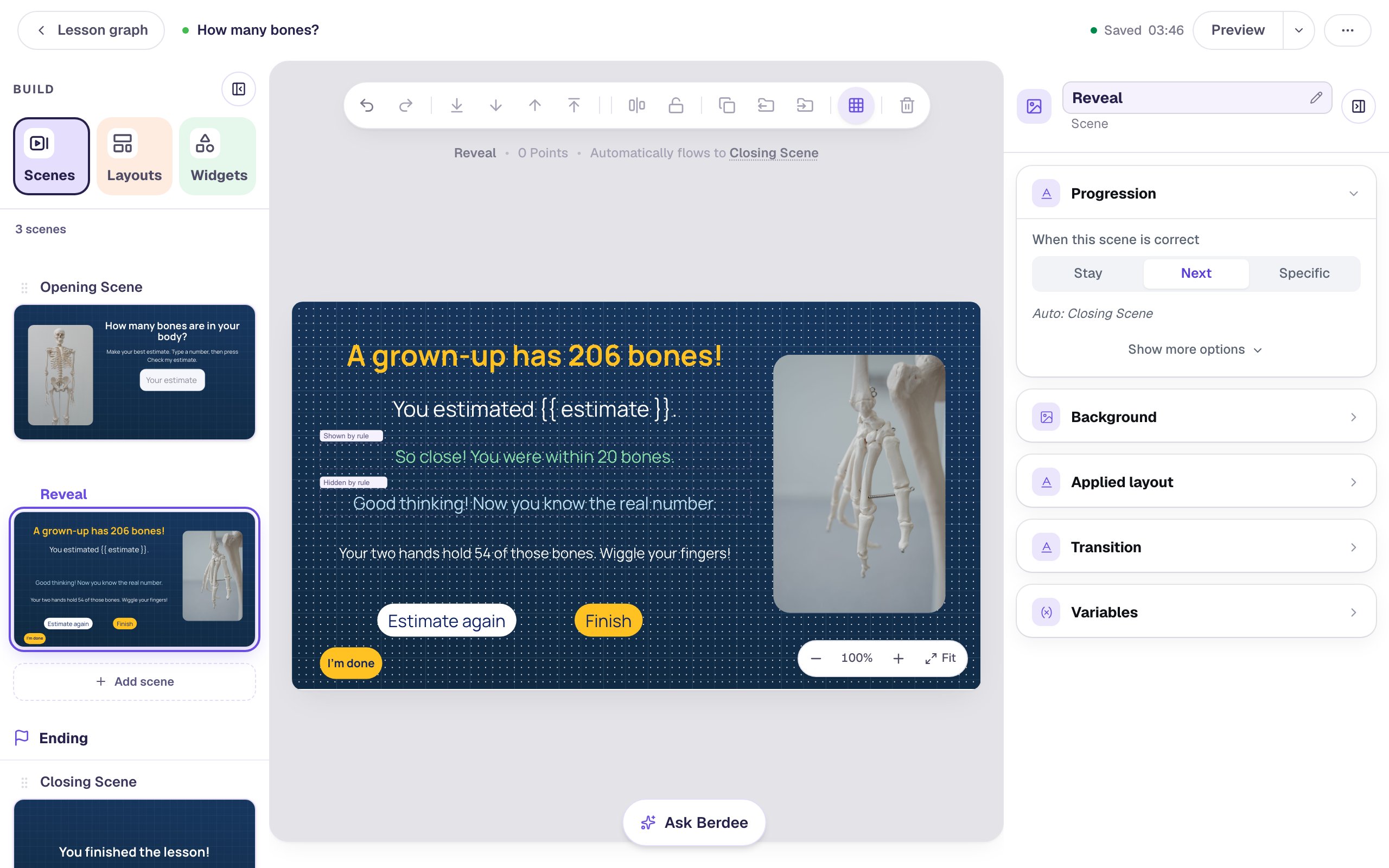
240×360, with a stock photo of a skeleton's hand (searchskeleton hand model). Set Fit to Cover, and describe it in Alt Text:A model of the bones in a human hand, with long, thin finger bones. - Add a yellow Heading with the answer:
A grown-up has 206 bones! - Add a white Body at
30px and600wide that shows the student's number. Type the variable's name between double curly braces:You estimated {{ estimate }}. - Leave a gap under it for the messages in Step 6, then add a smaller white Body with a fun fact:
Your two hands hold 54 of those bones. Wiggle your fingers! - Add a white Button labeled
Estimate againwith an On Press behavior that does Navigate to Scene → Opening Scene, and a yellow Button labeledFinishthat navigates to Closing Scene. - Add a small Submit Button in the bottom-left corner: Label
I'm done, Submits set to Lesson. A lesson can't be published without one.
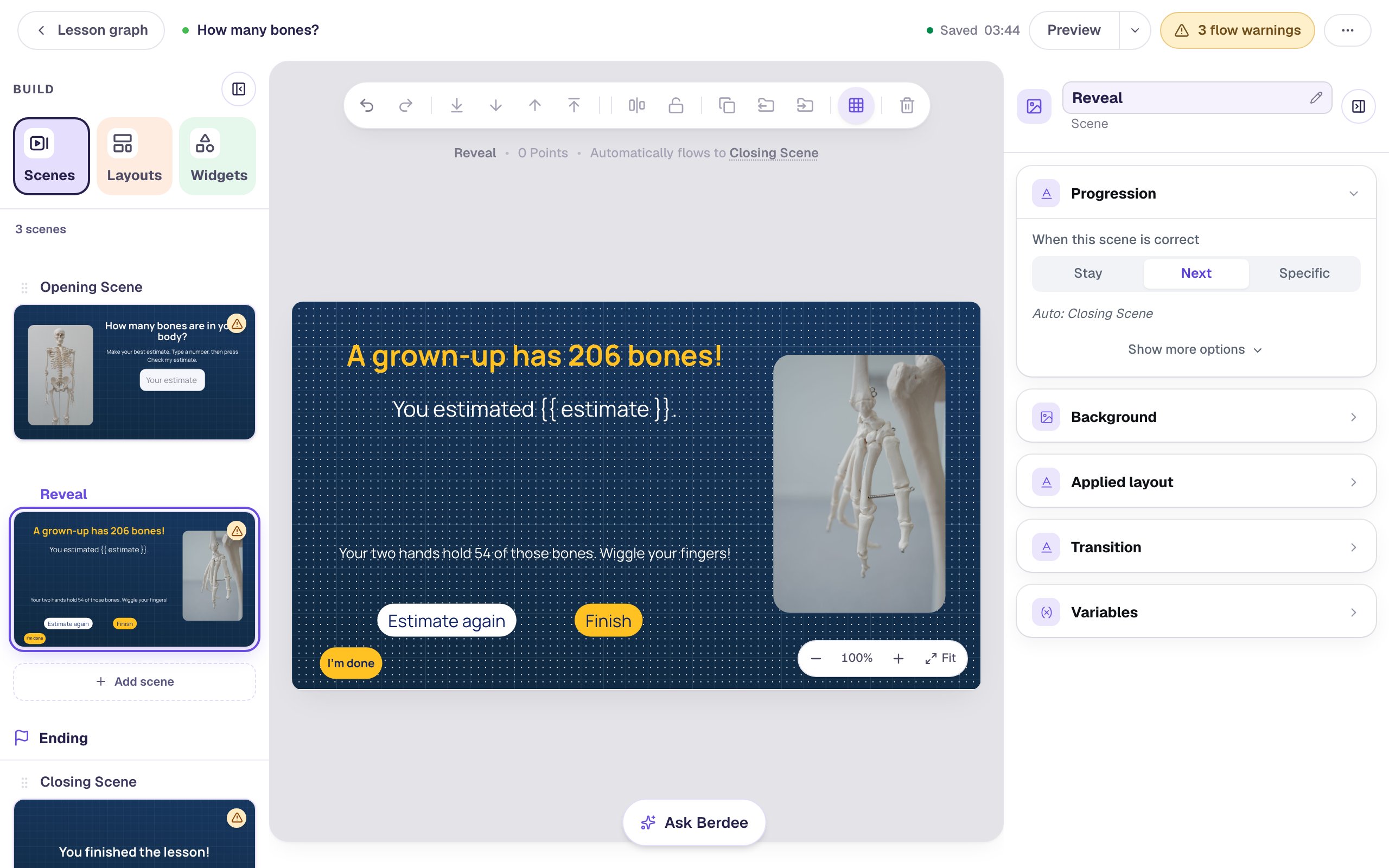
The canvas shows {{ estimate }} exactly as you typed it, because it doesn't know what a student will type. Students never see the braces. Give any text with a placeholder a fixed width, as here. A number like 1000 is longer than the placeholder, and a box sized to fit the braces would wrap when students see it.
The top bar now says 3 flow warnings, because nothing leads to Reveal yet. The next step fixes that.
Step 5: Save the estimate when Check my estimate is pressed
Go back to the Opening Scene and add a yellow Button labeled Check my estimate under the Number Input. Its behavior saves the number and then opens Reveal. Actions run top to bottom, so the number is saved before the student leaves the scene.
Select Check my estimate, open Behaviors, click Add Behavior, and choose On Press. Then:
- Change the first action to Set Variable and pick estimate · Number.
- Change Static value to Widget property, and pick Estimate → Current value.
- Click Add Action, change it to Navigate to Scene, and pick Reveal.
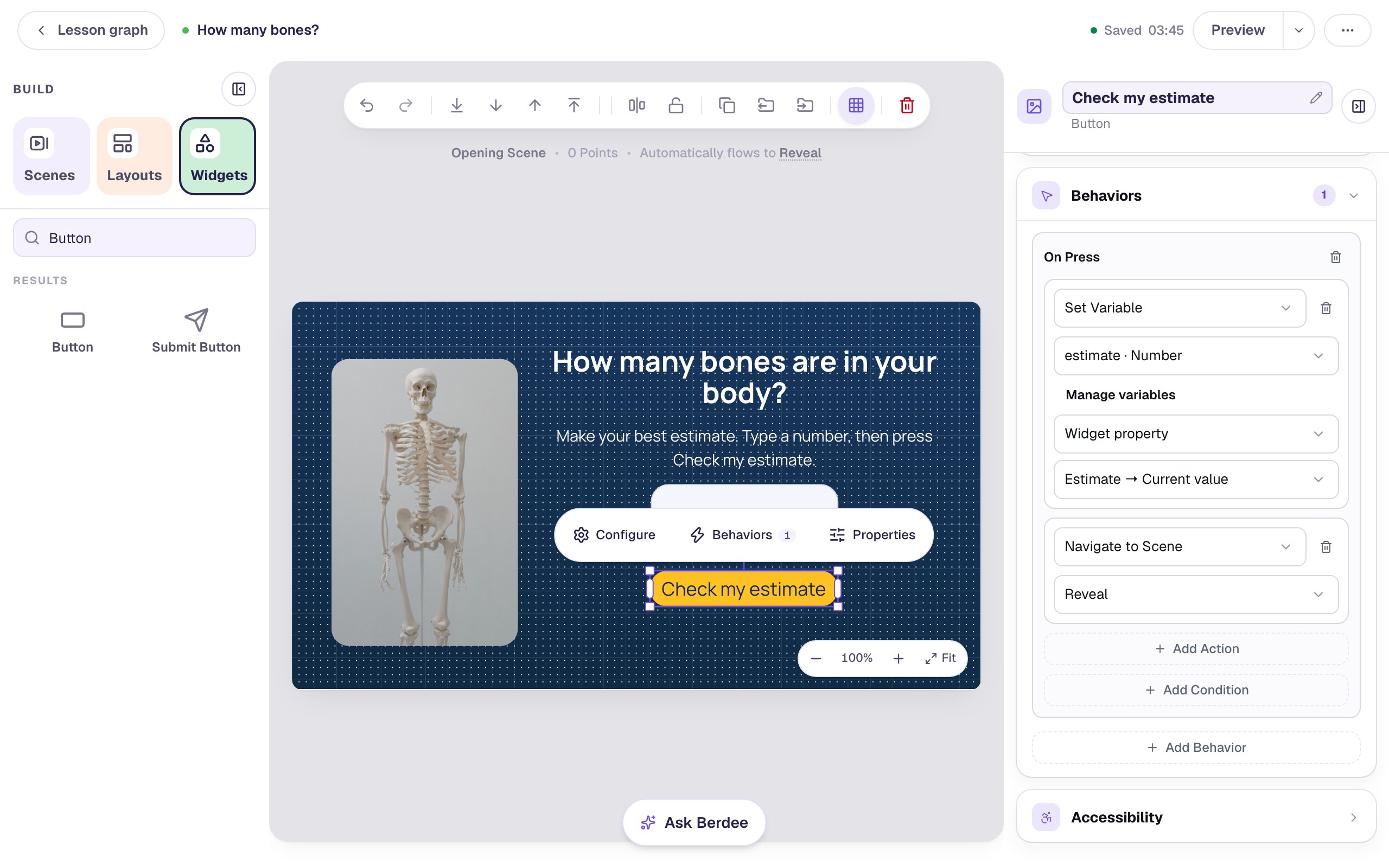
Widget property is what makes this work. Static value would save the same number for every student. Widget property reads the Number Input at the moment the student presses the button, so whatever they typed lands in estimate.
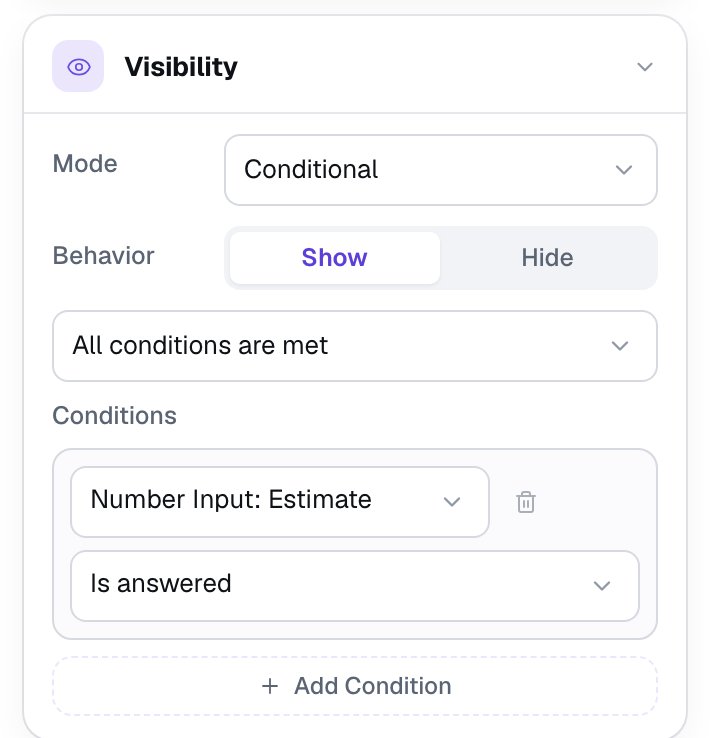
A student who presses the button with an empty box would see "You estimated 0." So hide the button until there's a number. Open Visibility, change Mode to Conditional, and set the condition to Number Input: Estimate, Is answered:
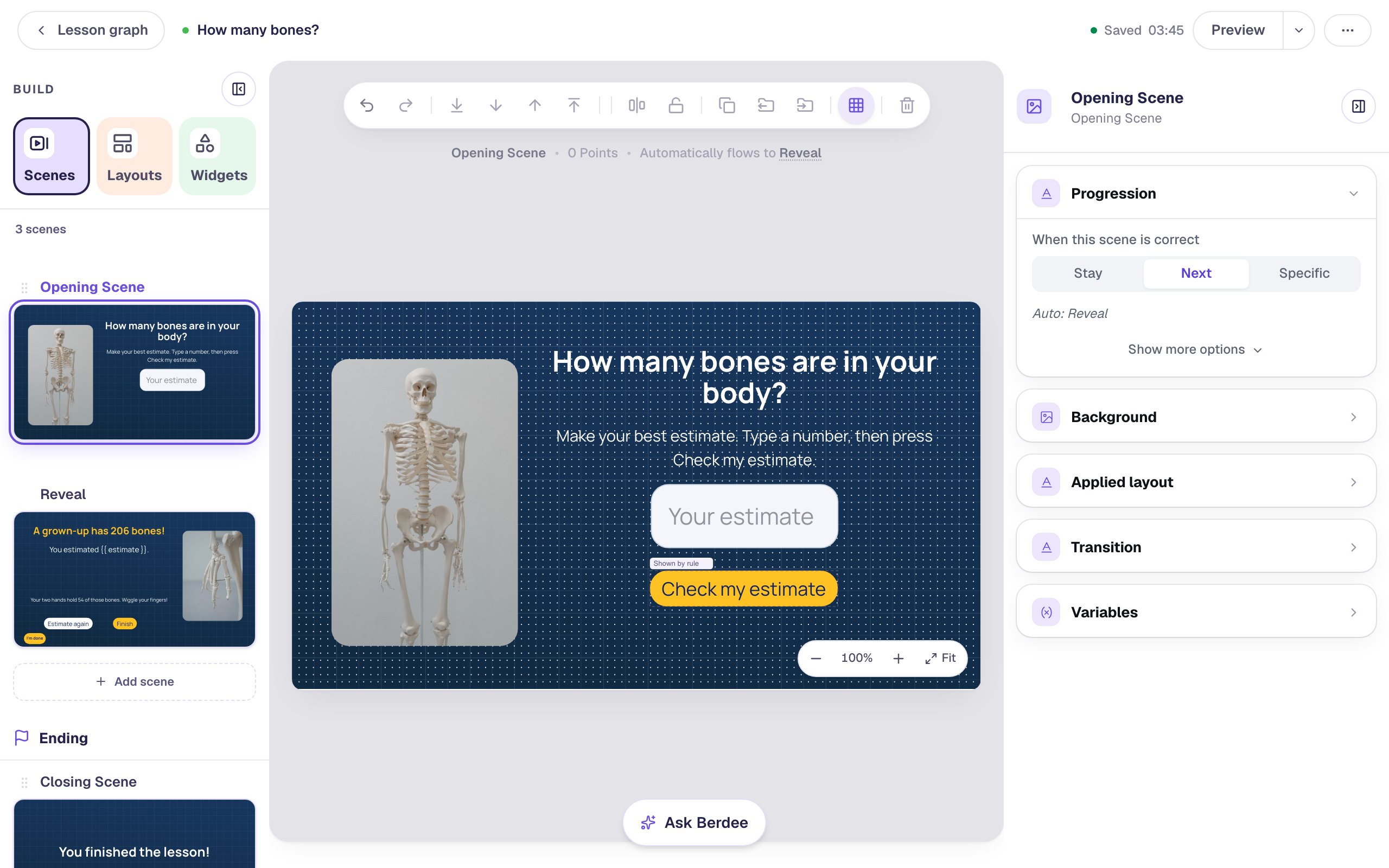
In the studio the button stays on the canvas with a small Shown by rule tag, so you can still select and edit it:
Step 6: Show a message that depends on how close they were
Now the reveal can react to the number. Two messages share one rule: "the estimate is between 186 and 226", which means within 20 of 206. One message shows when the rule is true, and the other hides when it's true.
Open Reveal and add a green Body, 24 px and 600 wide, in the gap under "You estimated": So close! You were within 20 bones. Rename it Close message. Then, with it selected:
- Open Visibility and change Mode to Conditional. Leave Behavior on Show and the match on All conditions are met.
- In the first condition, pick Variable: estimate, then is at least. Change the value type from Text to Number and type
186. - Click Add Condition and do the same with is at most and
226.
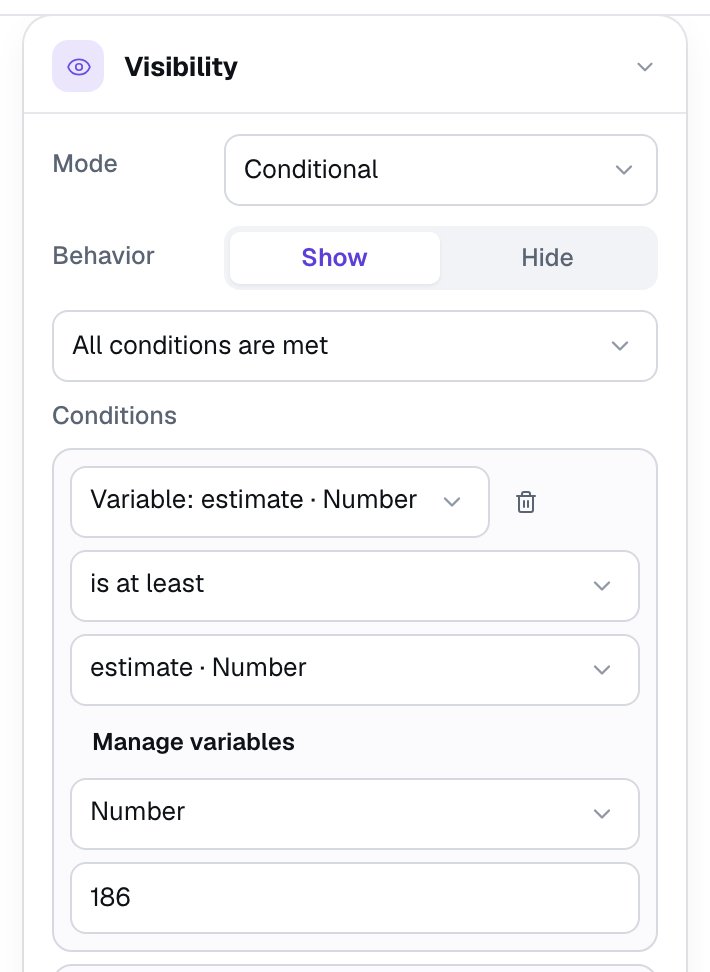
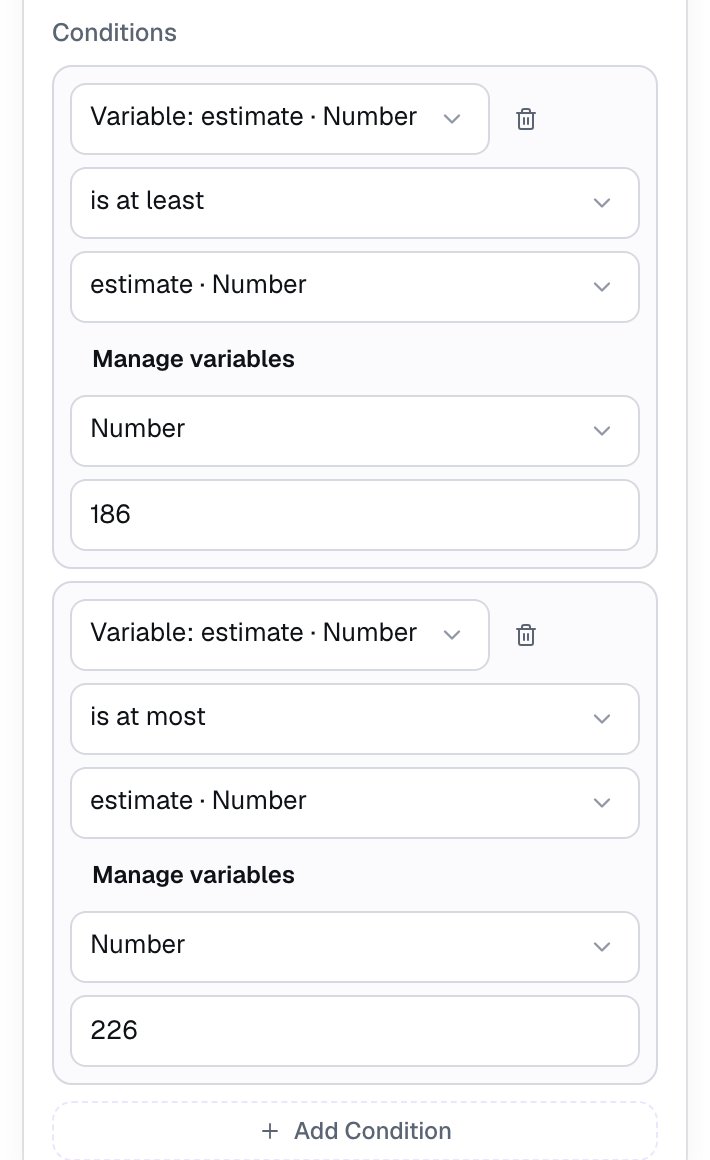
Each condition row repeats the variable in a second list under the comparison, with a Manage variables link. Leave it on estimate · Number. The value type starts on Text even for a number variable: switch it to Number so the estimate is compared as a number.
Now add the message for everyone else: a light blue Body under the first one, Good thinking! Now you know the real number., renamed Keep going message. Give it the same two conditions, but this time click Hide in Behavior:
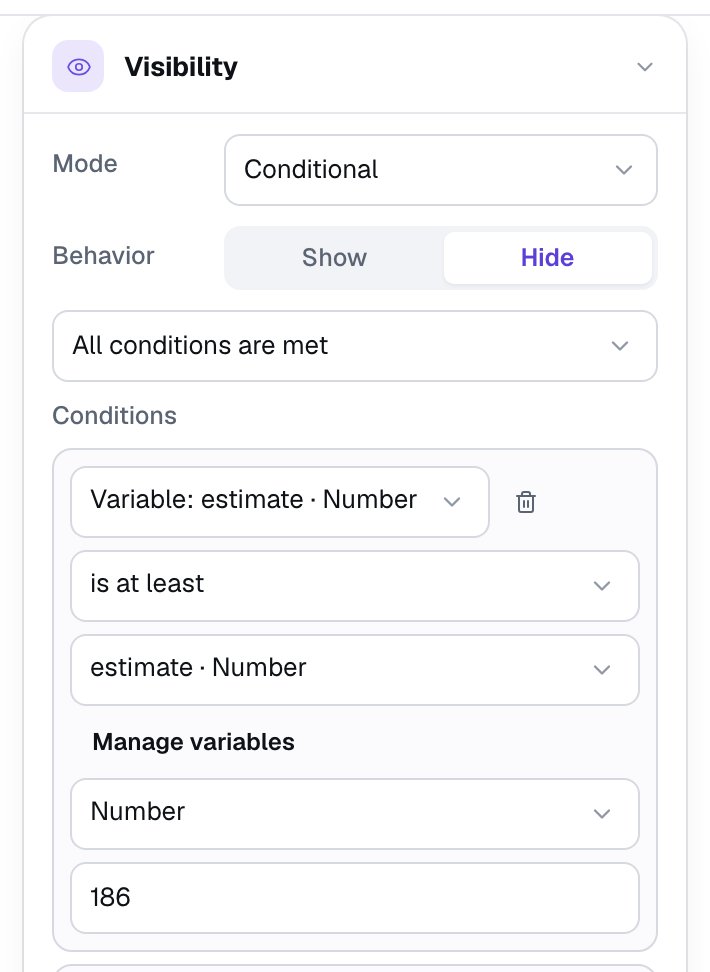
Using the same rule with Show on one message and Hide on the other means exactly one appears, whatever the student typed. You never have to write "below 186 or above 226" as a separate rule. To change what counts as close, change both messages' numbers to match.
Step 7: Try it as a student
Make sure you're on the Opening Scene, since Preview starts on the scene you're editing, and click Preview. First, try a guess that's far off:
- The box is empty, so there's no Check my estimate button yet.
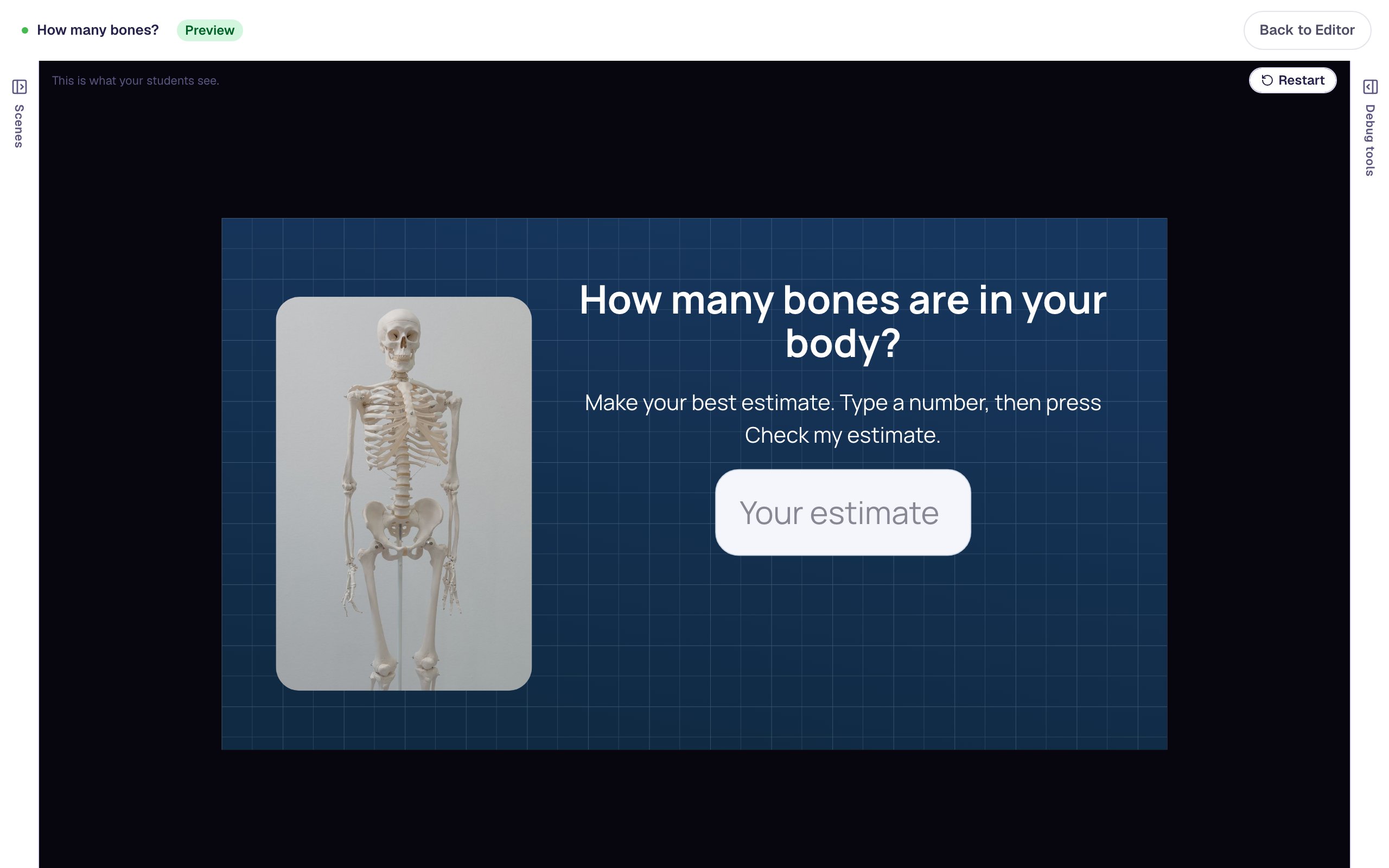
- Type
100and press Check my estimate. The reveal says "You estimated 100." and shows Good thinking!:
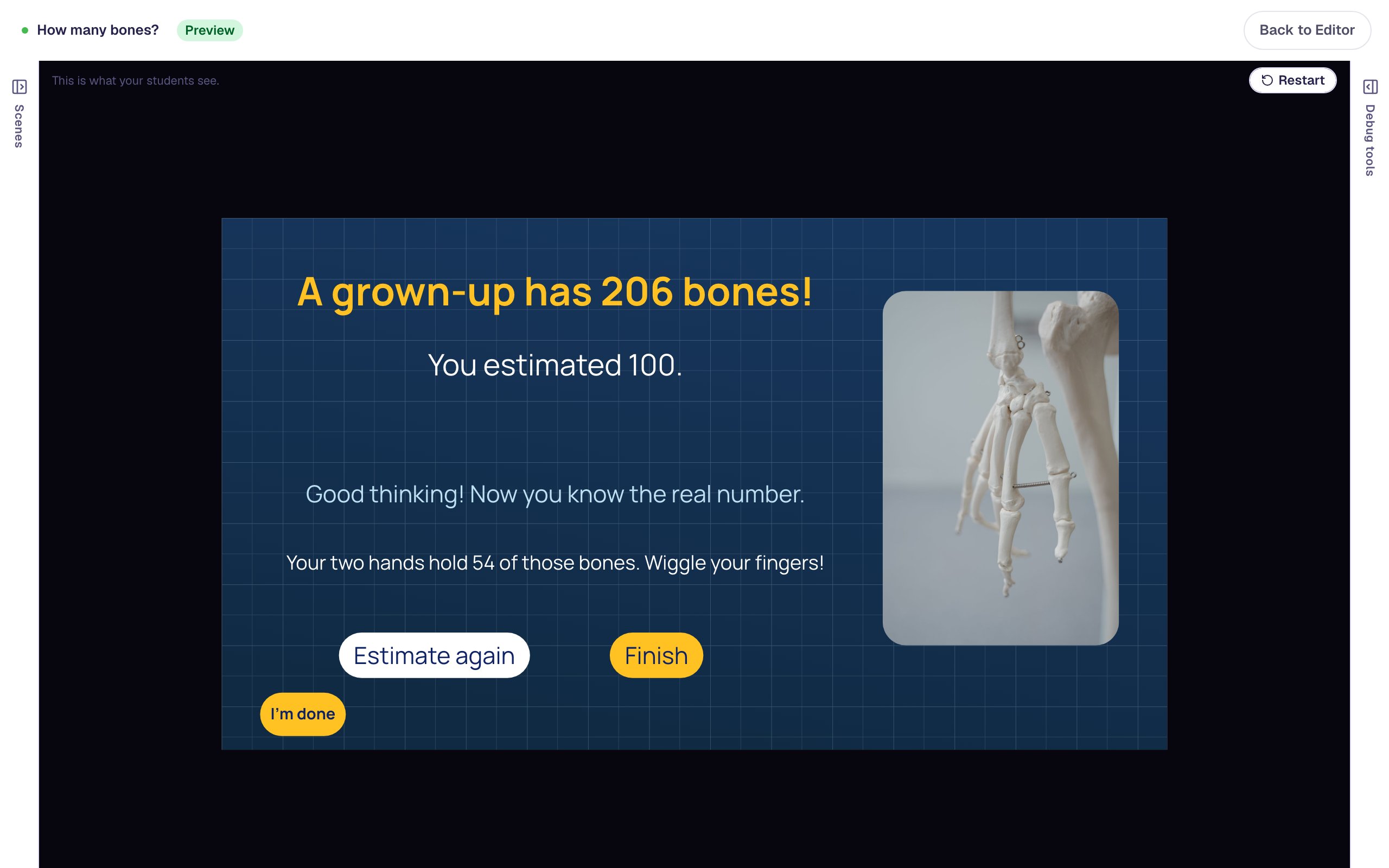
- Press Estimate again, type
200, and check again:
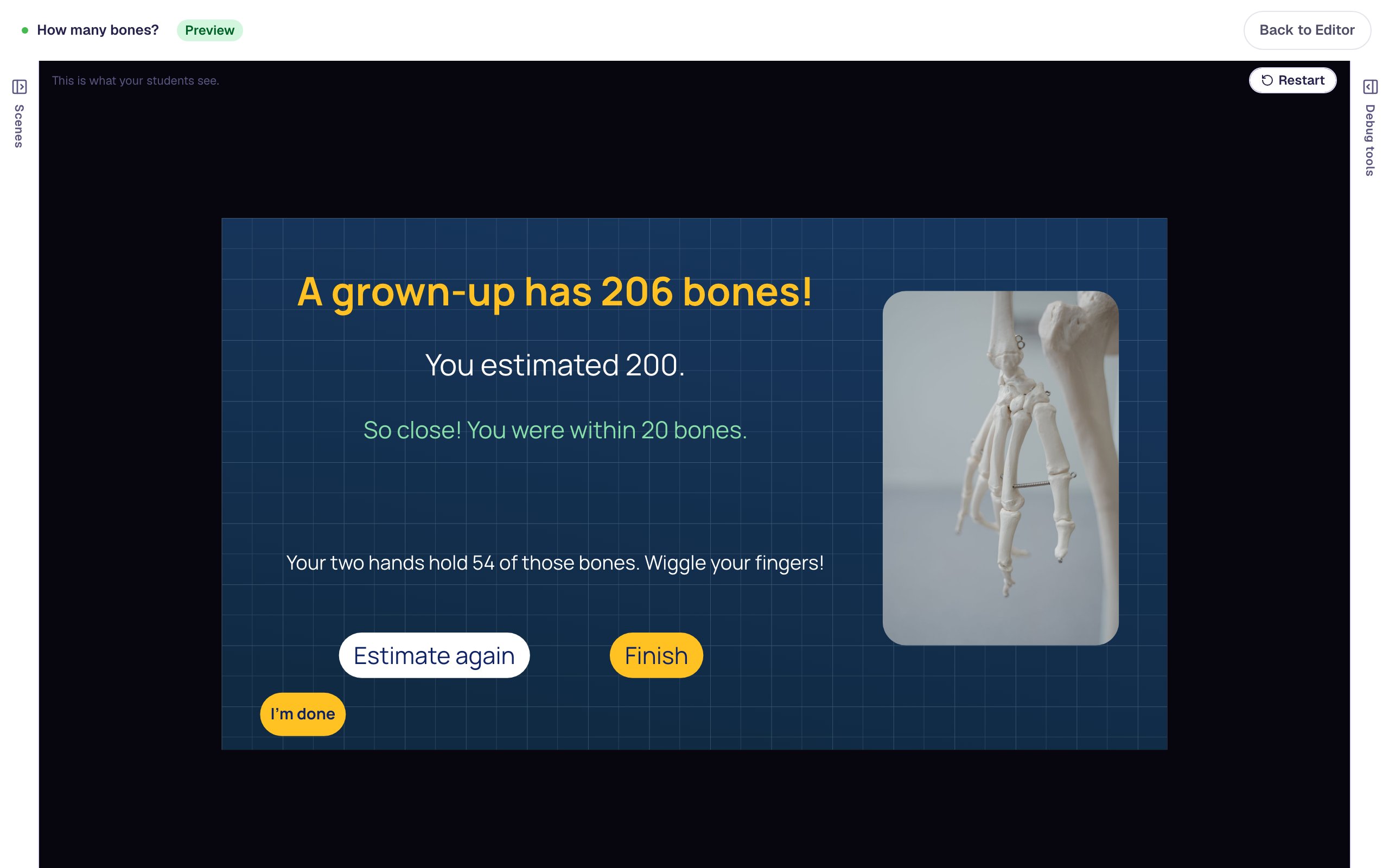
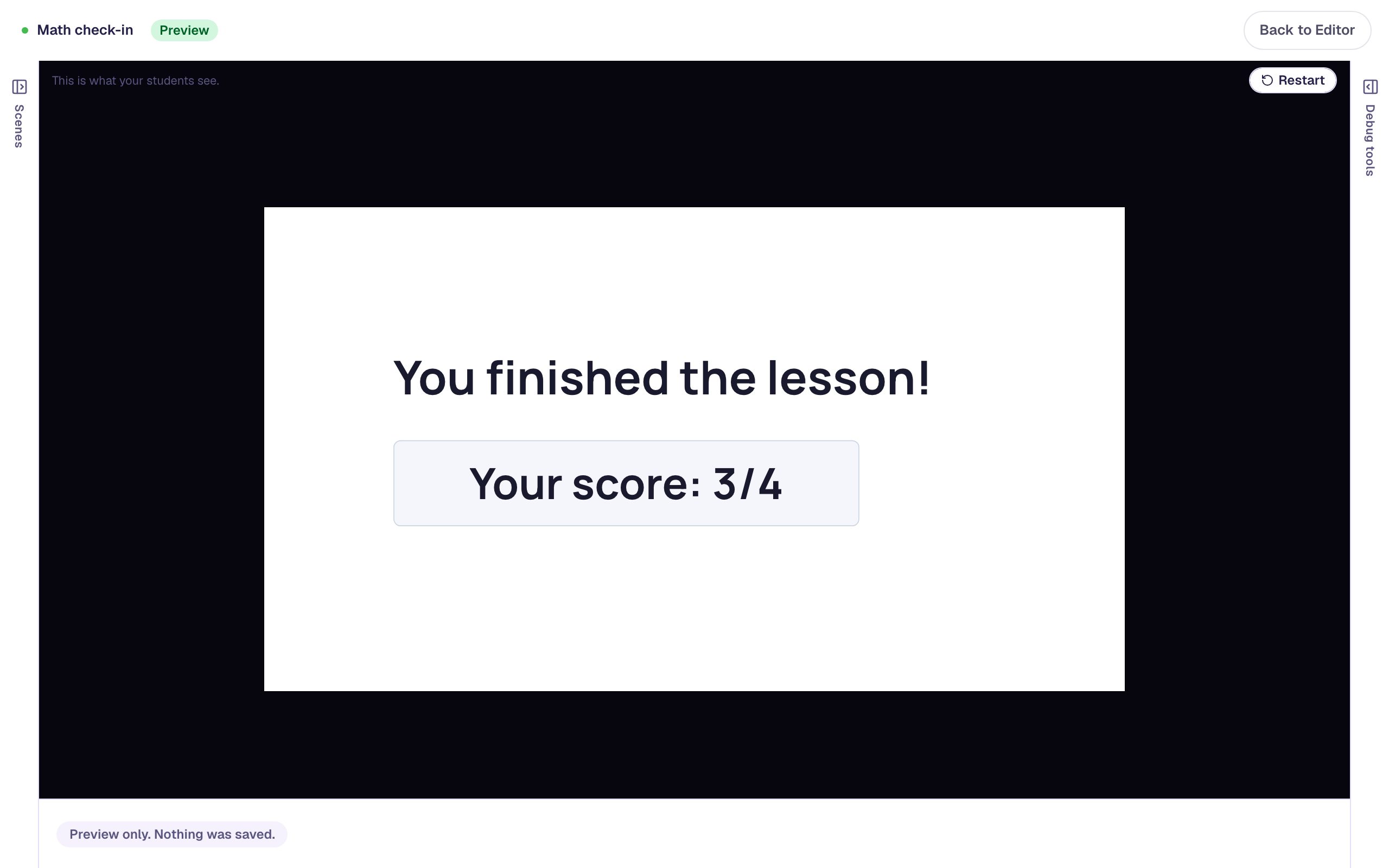
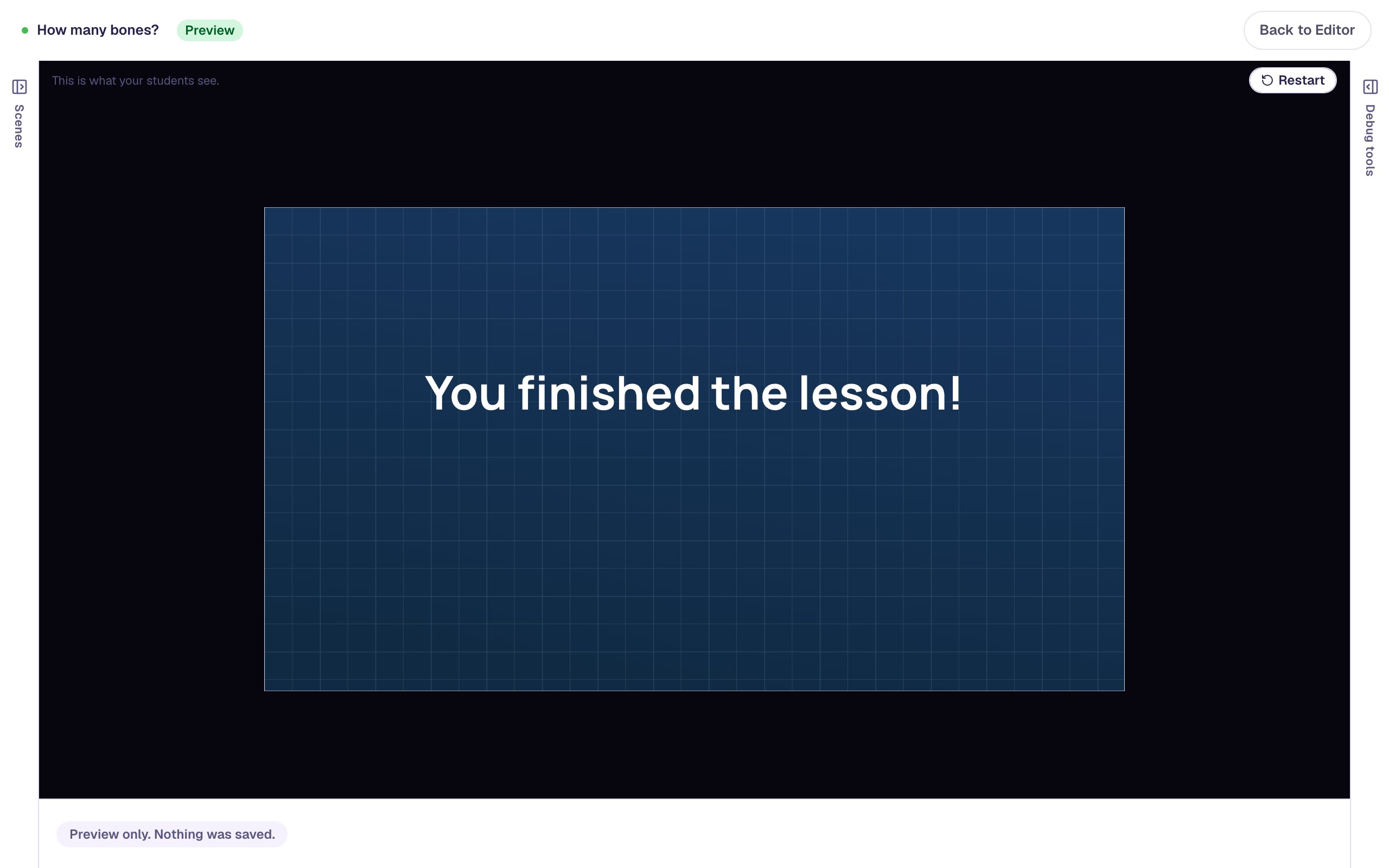
Each press of Check my estimate saves whatever is in the box right then, so a second estimate replaces the first. Press Finish to reach the ending:
If the reveal ever says "You estimated 0." after you typed a number, check the button's actions: Set Variable needs Widget property, not Static value, and Navigate to Scene has to come after it. Show debug tools at the right edge of the preview has a Variables tab that shows what estimate holds.
What you built
An estimation warm-up:
- an ungraded Number Input named
Estimate, with room for answers up to 1000, - a number variable,
estimate, - a Check my estimate button that shows only once the box Is answered, and whose On Press behavior copies the Number Input's Current value into
estimatewith Set Variable → Widget property, then opens the reveal, - a Reveal scene that shows the student's number with
{{ estimate }}, and - two messages with the same two conditions (is at least 186, is at most 226): one set to Show and one to Hide, so exactly one appears.
The same pattern works for any estimate with a known answer: the number of jelly beans in a jar you counted, how many seconds a minute of jumping jacks takes, or the height of a tree in your schoolyard. To have the Number Input itself mark a close answer as right instead, see Accept close-enough answers to a number question. To make a prediction with choices rather than a number, see Ask students to predict before you reveal.
Make this lesson yours
Add the lesson you just watched being built to your account, then change it for your class: your questions, your pictures, your colors.
Free to sign up, and you'll come straight back here. I have an account