Accept close-enough answers to a number question
Ask students to estimate the Eiffel Tower's height and place 3/4 on a number line, and use Tolerance so an answer that's close still counts as right.
- Level
- Beginner
- Time
- About 15 min
- Steps
- 7
An "Estimation station" lesson with a typed estimate that accepts anything from 300 to 360 meters and a slider number line that accepts 0.7 to 0.8, ending on a score out of 2.
Get the finished lesson
Skip straight to the result, or keep it open beside the steps. Add this tutorial's lesson to your account and explore how it works in the studio.
Free to sign up, and you'll come straight back here. I have an account
Some questions don't have one exact answer a student could be expected to hit. Nobody knows the Eiffel Tower is exactly 330 meters tall, but a student who guesses 310 has a good sense of scale, and one who guesses 50 doesn't. A dot dragged onto a number line lands near 3/4, not on it. If Berdee only accepted the exact number, both students would be marked wrong.
A Number Input has a setting for this: Tolerance, how far an answer can be from the correct one and still count. In this tutorial you'll build a two-question estimation lesson:
- a typed guess at the Eiffel Tower's height, right anywhere from
300to360meters, and - a slider number line where students drag a dot to 3/4, right anywhere from
0.7to0.8.
If you haven't used the studio before, start with Build your first quiz question: this tutorial moves quickly through the parts it already covers.
Step 1: Set up two question scenes
Start a blank lesson (New lesson, then Start from scratch) and name it Estimation station by clicking Untitled lesson at the top.
In the Scenes panel, click Add scene. Select the new scene, click its name at the top of the properties panel, and call it Number line. Make both scenes now: each scene's Next button points at a specific scene, so the one it goes to has to exist first.
Give every scene a background, the Closing Scene too, so nothing is a bare white page: with nothing selected, open Background, click Choose a style, pick Gradients, then Mesh sunrise, and click Apply background.
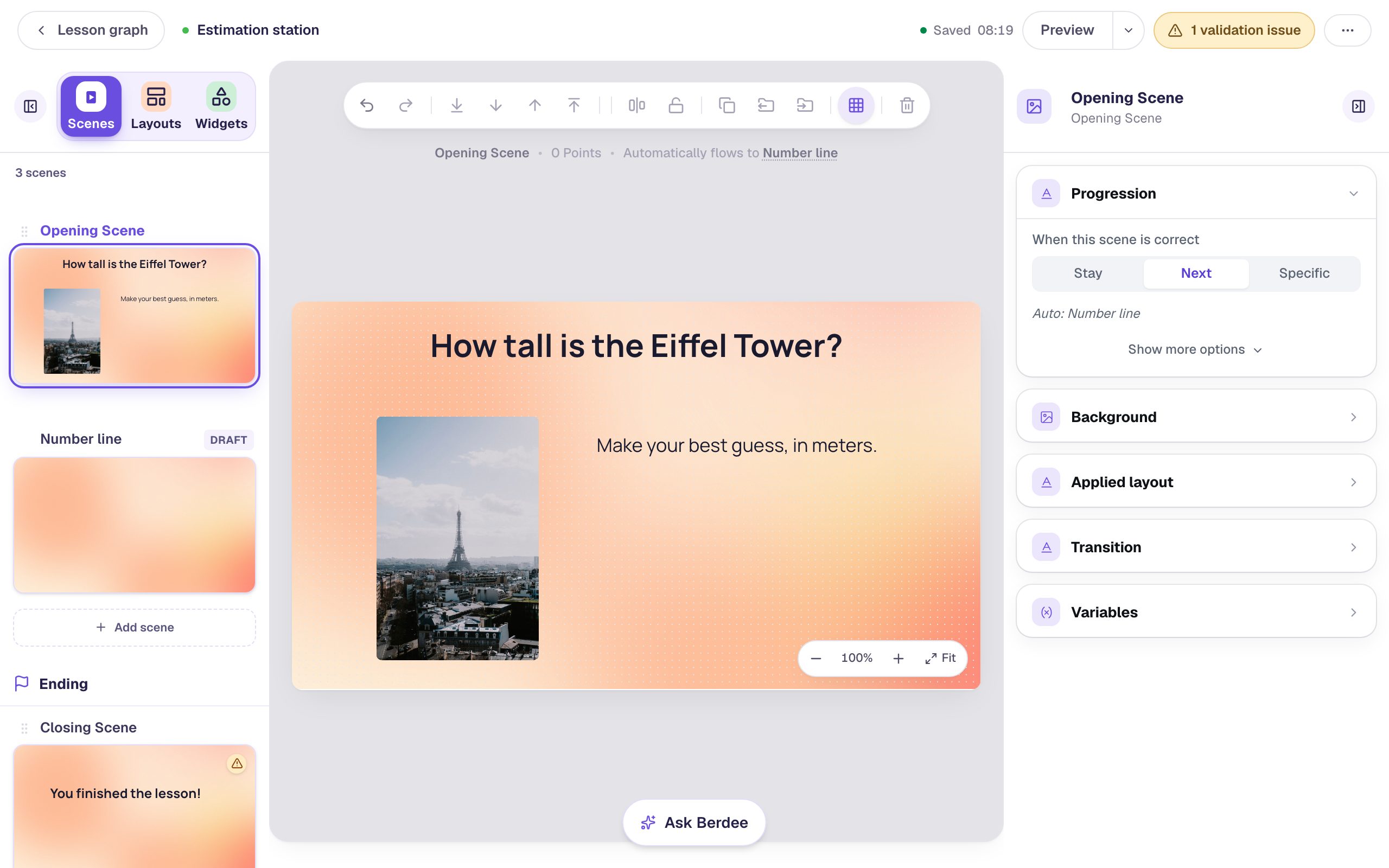
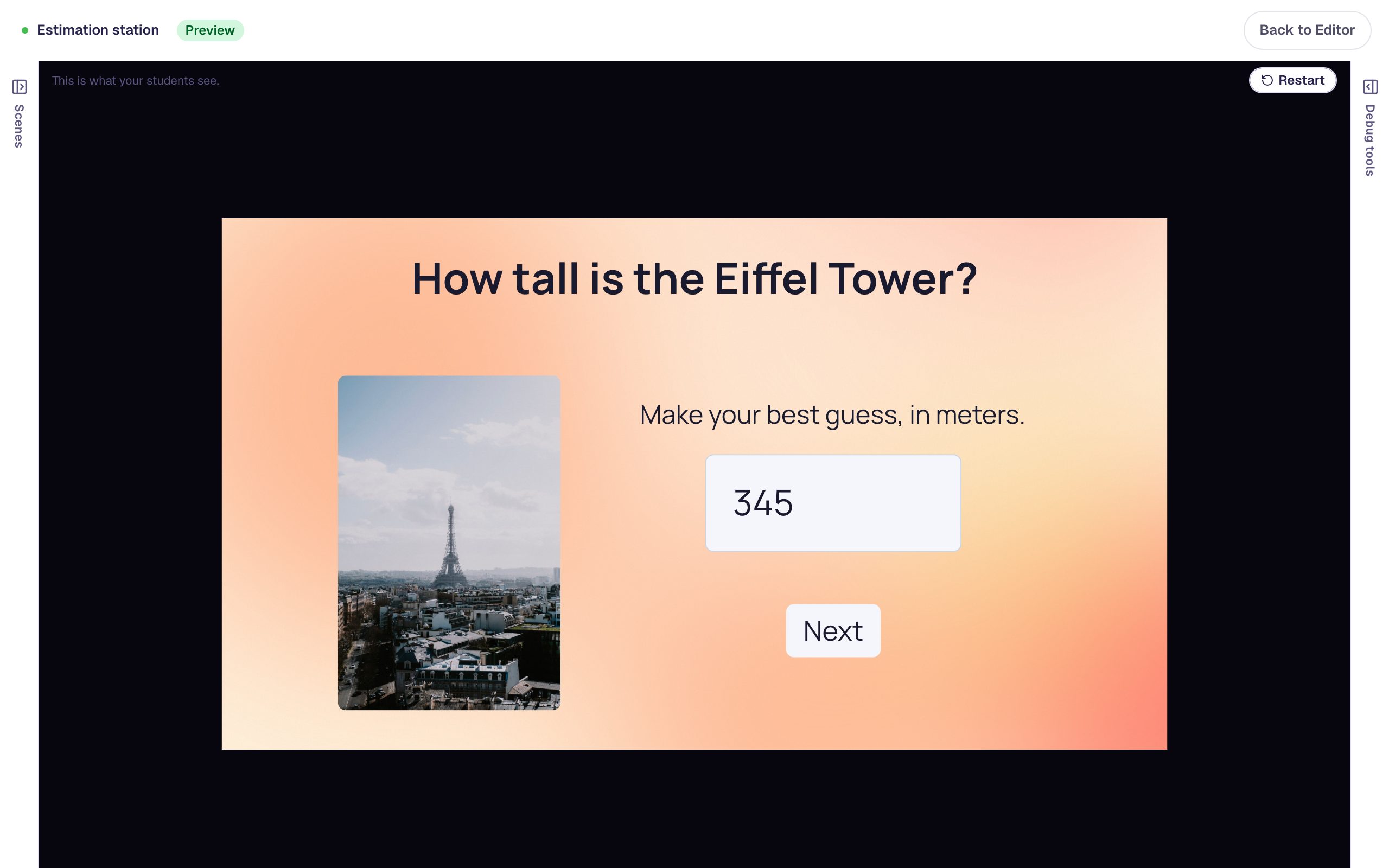
On the Opening Scene, add a Heading that asks How tall is the Eiffel Tower?, then an Image. Click Choose image, search the stock photos for Eiffel Tower, and import one. Last, add a Body text that says it's an estimate: Make your best guess, in meters.
Saying the unit matters. A student who answers in feet (about 1,083) is thinking correctly but would be marked wrong.
Step 2: Add the question and say how close counts
In Widgets, search for Number Input and click it, then click ⚙ Configure above it. At the top of Configuration:
- Set Correct Value to
330. - Set Tolerance to
30.
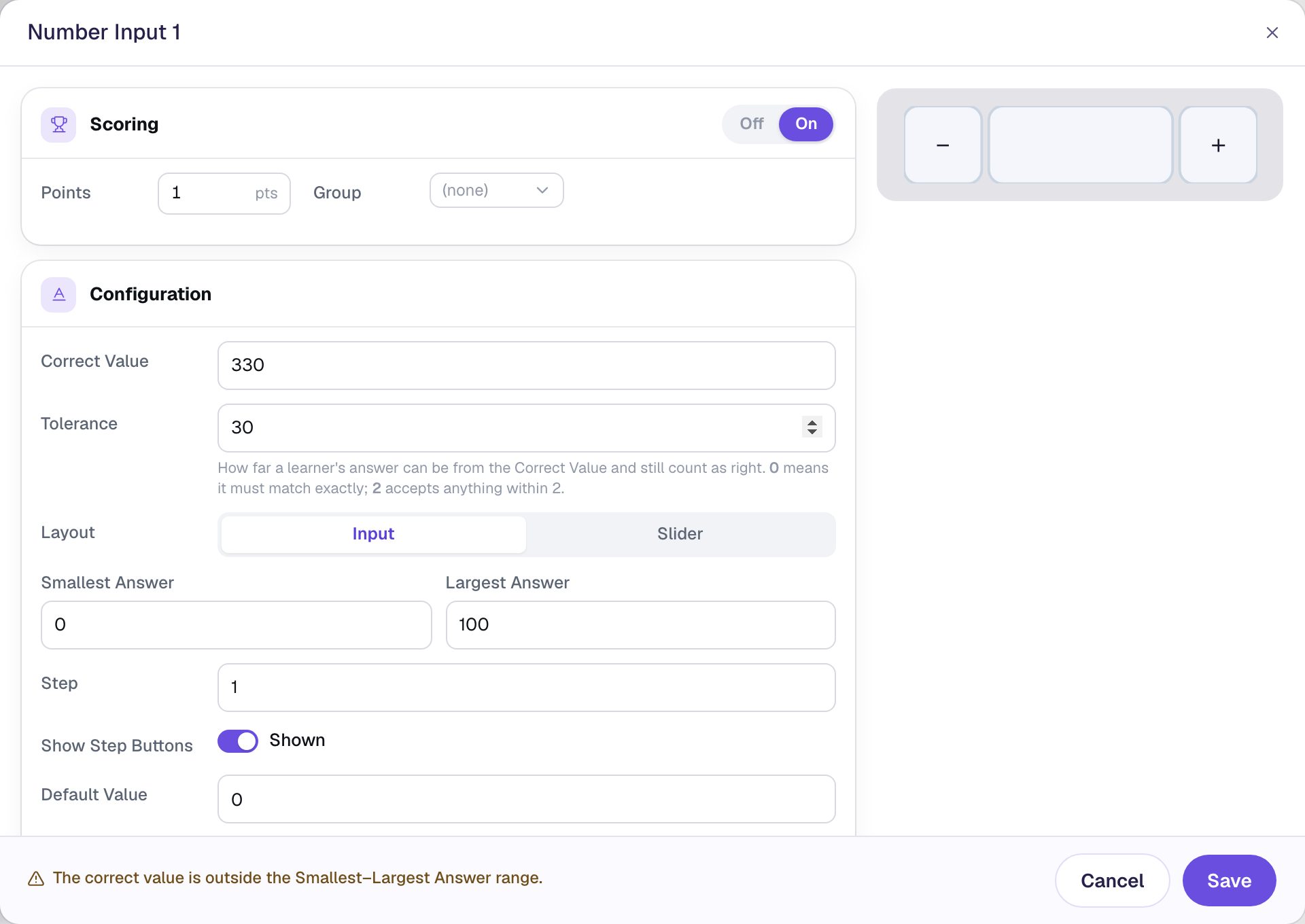
A warning appears at the bottom: The correct value is outside the Smallest–Largest Answer range. A new Number Input only allows answers up to 100, so nobody could type 330. You'll fix that in the next step.
Tolerance counts in both directions, and both ends count: with 330 and 30, every answer from 300 to 360 is right, and 299 or 361 is wrong. Pick a tolerance that matches what you're teaching. For an estimate, about 10% of the answer is generous without accepting a wild guess. For a measurement, use how precisely students can read the ruler. A tolerance of 0 means only the exact number counts.
Step 3: Set the range and the hint
Still in Configuration, below Layout:
- Leave Smallest Answer at
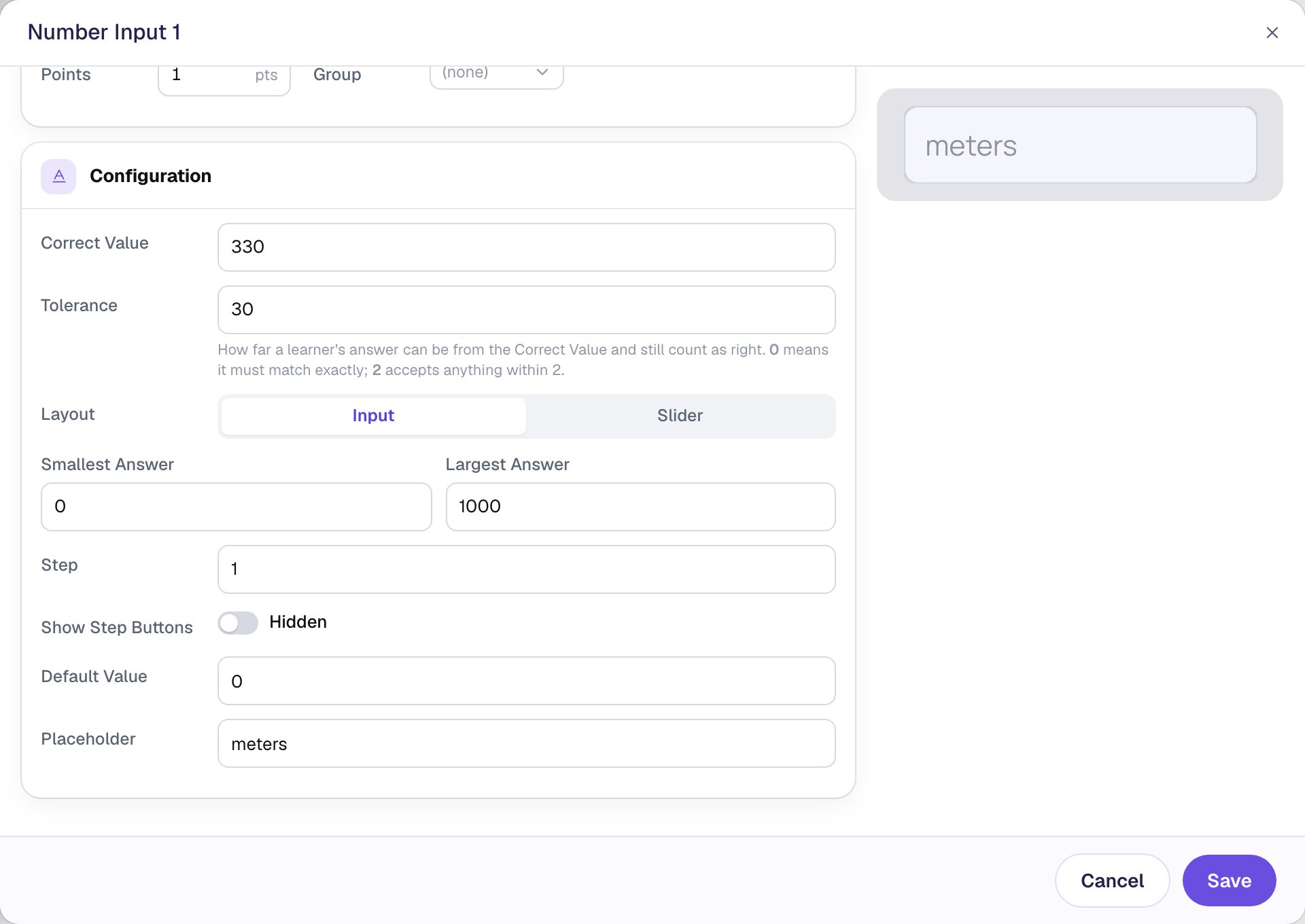
0and set Largest Answer to1000. The warning goes away. Students can't enter anything outside this range, so make it wide enough that a wrong guess is still possible, not just wide enough for the right one. - Turn Show Step Buttons off. The − and + buttons move by Step (1), which helps younger students count up to
7but is no use for reaching330. - Set Placeholder to
meters. It shows in the empty box, so students see the unit right where they type.
Click Save. Rename the widget Tower guess (click its name at the top of the properties panel), so it reads well in results. In Style & Layout, set Font Size to 36, then click Show more options and set Width to 260 so a three-digit guess fits comfortably. Drag the box under the Body text.
Step 4: Add a Next button, and make the scene wait for it
Add a Button, click ⚙ Configure, change its Label to Next, and click Save. Then click Behaviors, choose Make this a "Next" button, check that Goes to says Number line, and click Add behavior.
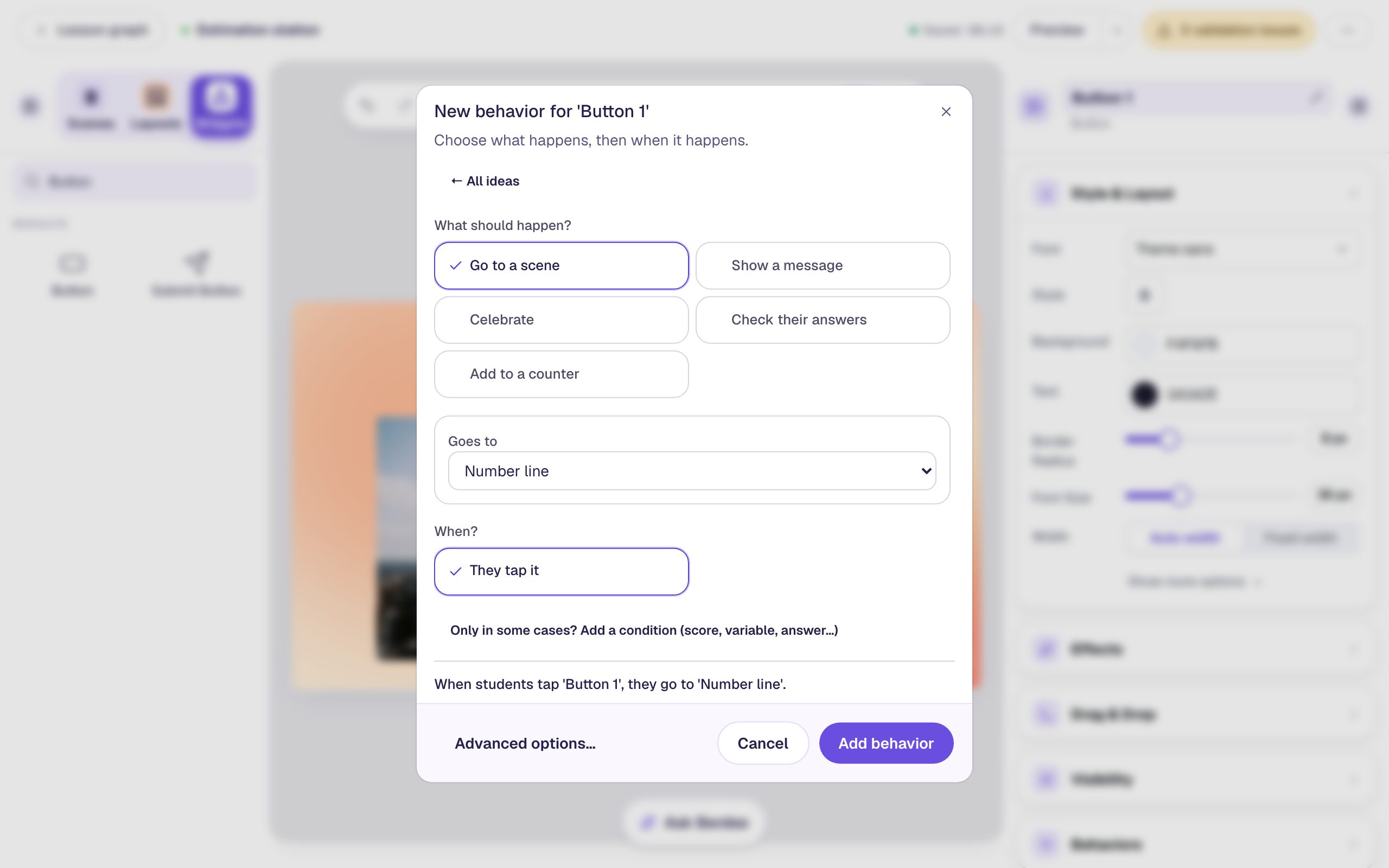
Set the button's Font Size to 28 and drag it under the number box. Then click an empty spot on the scene so nothing is selected, and in Progression change When this scene is correct from Next to Stay.
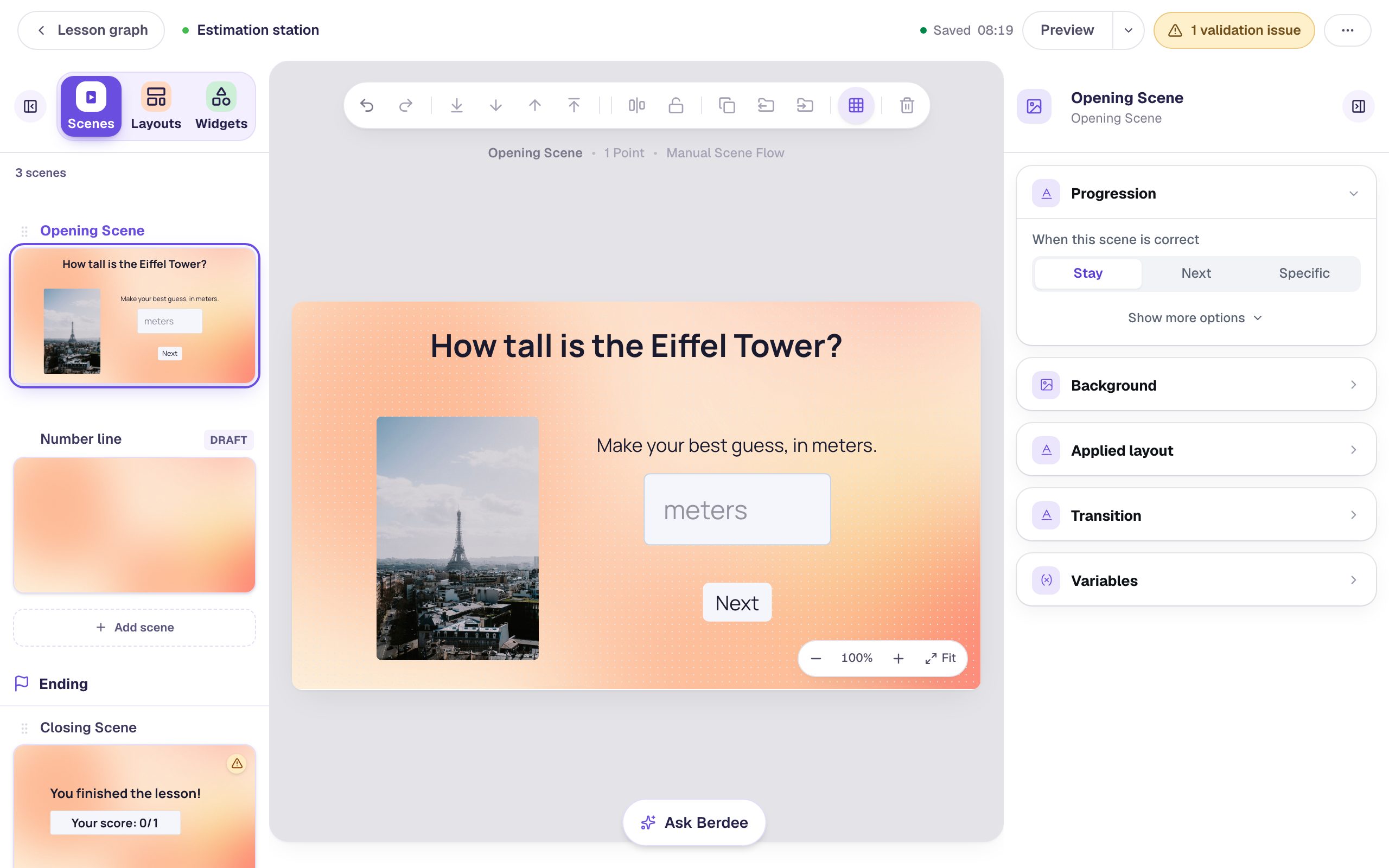
Why Stay? With Next, the scene moves on by itself the moment the answer is right. A typed answer is checked when the student clicks away from the box, so
310would whisk them off the scene while50would sit there, and the scene's reaction gives the answer away. A slider is worse: it's checked on every move, so a student dragging the dot from 0 towards 1 would be sent on as it passes 3/4. With Stay, nothing happens until they press Next, right or wrong.
Step 5: Turn a Number Input into a number line
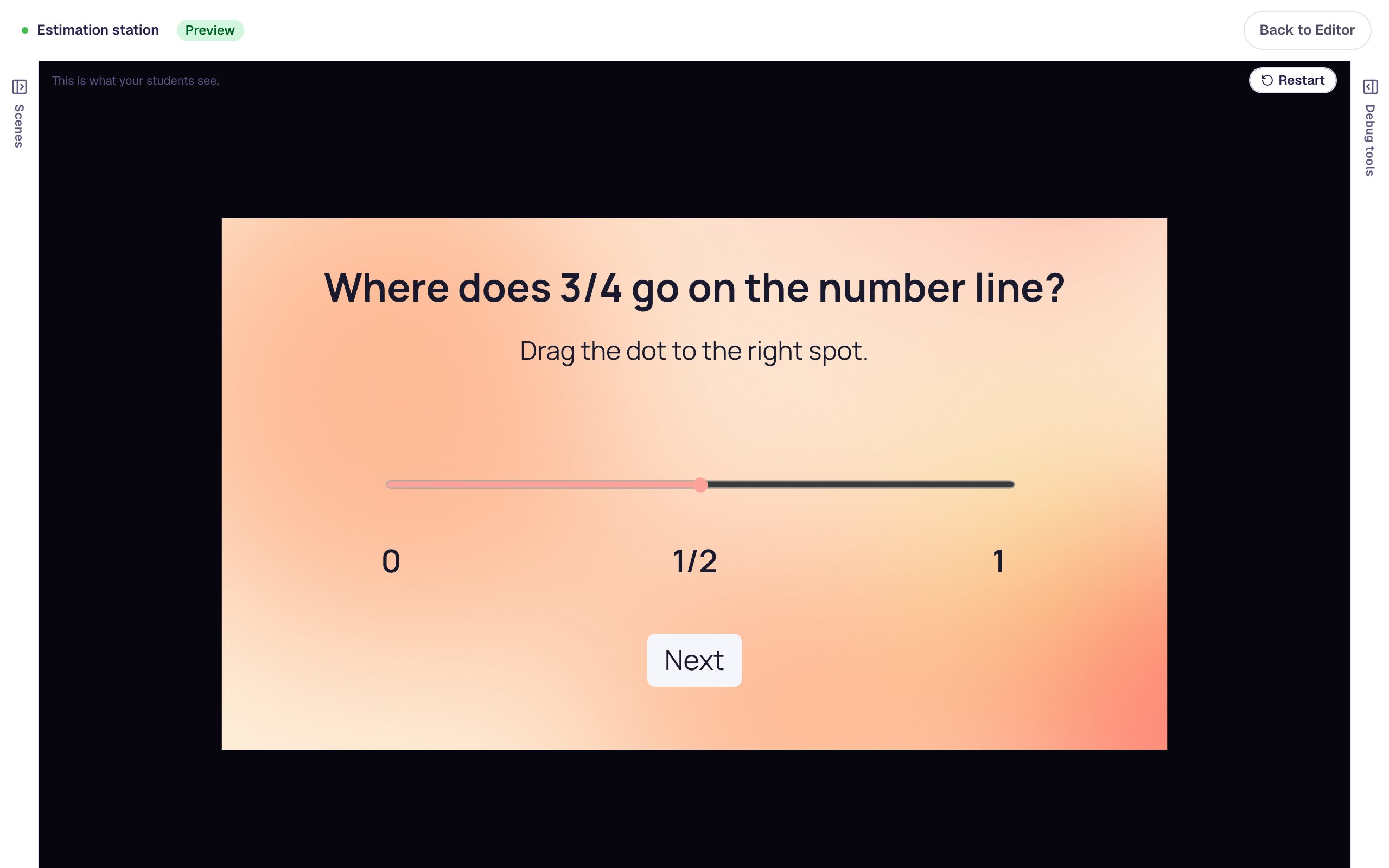
Open the Number line scene. Add a Heading (Where does 3/4 go on the number line?) and a Body (Drag the dot to the right spot.). Then add another Number Input and click ⚙ Configure:
- Set Layout to Slider.
- Set Largest Answer to
1(Smallest Answer is already0). - Set Step to
0.05, so the dot moves in twentieths. - Set Correct Value to
0.75and Tolerance to0.05.
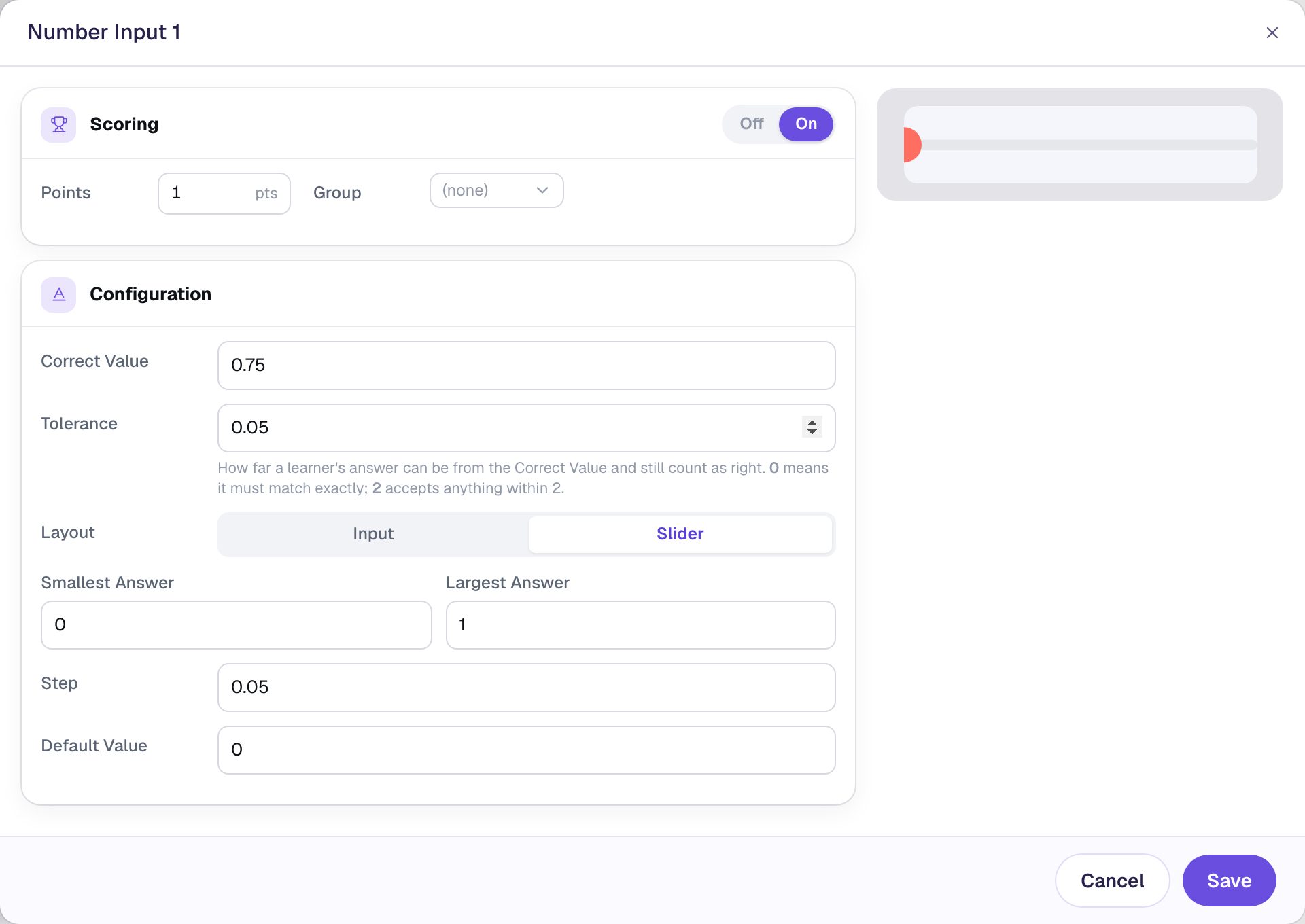
The tolerance is what makes a slider fair. Dragging a dot exactly onto a tick is fiddly, especially on a tablet. With Tolerance 0.05, a student who lands one step either side of 3/4, on 0.7 or 0.8, still gets it right.
Check the Step against the answer. If the slider's steps never land on the Correct Value (a Step of 0.1 never reaches 0.75), the window warns you, because only the tolerance could make any answer right.
Click Save and rename the widget Number line. Set Font Size to 36, then Width to 640, and drag the slider to the middle of the scene. On the canvas the slider sits in a pale box; students only see the line and the dot.
Step 6: Label the number line
A slider has no numbers on it, so students can't tell where 0 and 1 are. Add three Subheading texts, 0, 1/2 and 1, and drag them under the left end, the middle, and the right end of the slider.
Then add a Next button as in Step 4 (this one goes to the Closing Scene) and set Progression to Stay.
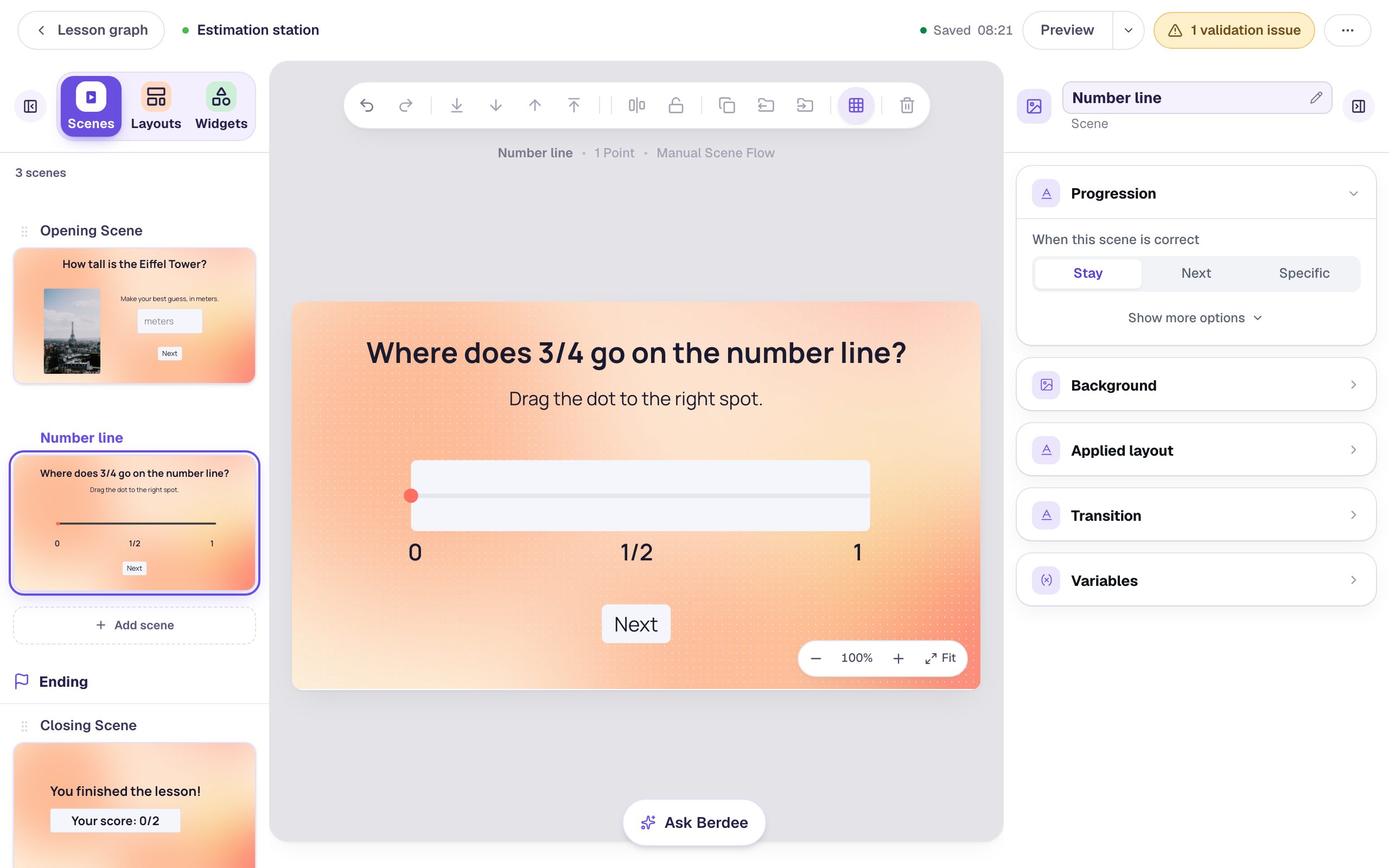
The 1/2 in the middle gives students something to reason from: 3/4 is halfway between 1/2 and 1. Leave it out to make the question harder.
Step 7: Try it as a student
Go back to the Opening Scene and click Preview. Answer like a student:
- Type
345and press Next. It's 15 meters out, inside the tolerance, so it counts as right.
- On the number line, drag the dot to the
1/2mark and press Next. That's 0.25 away from 3/4, far outside the tolerance, so it's wrong.
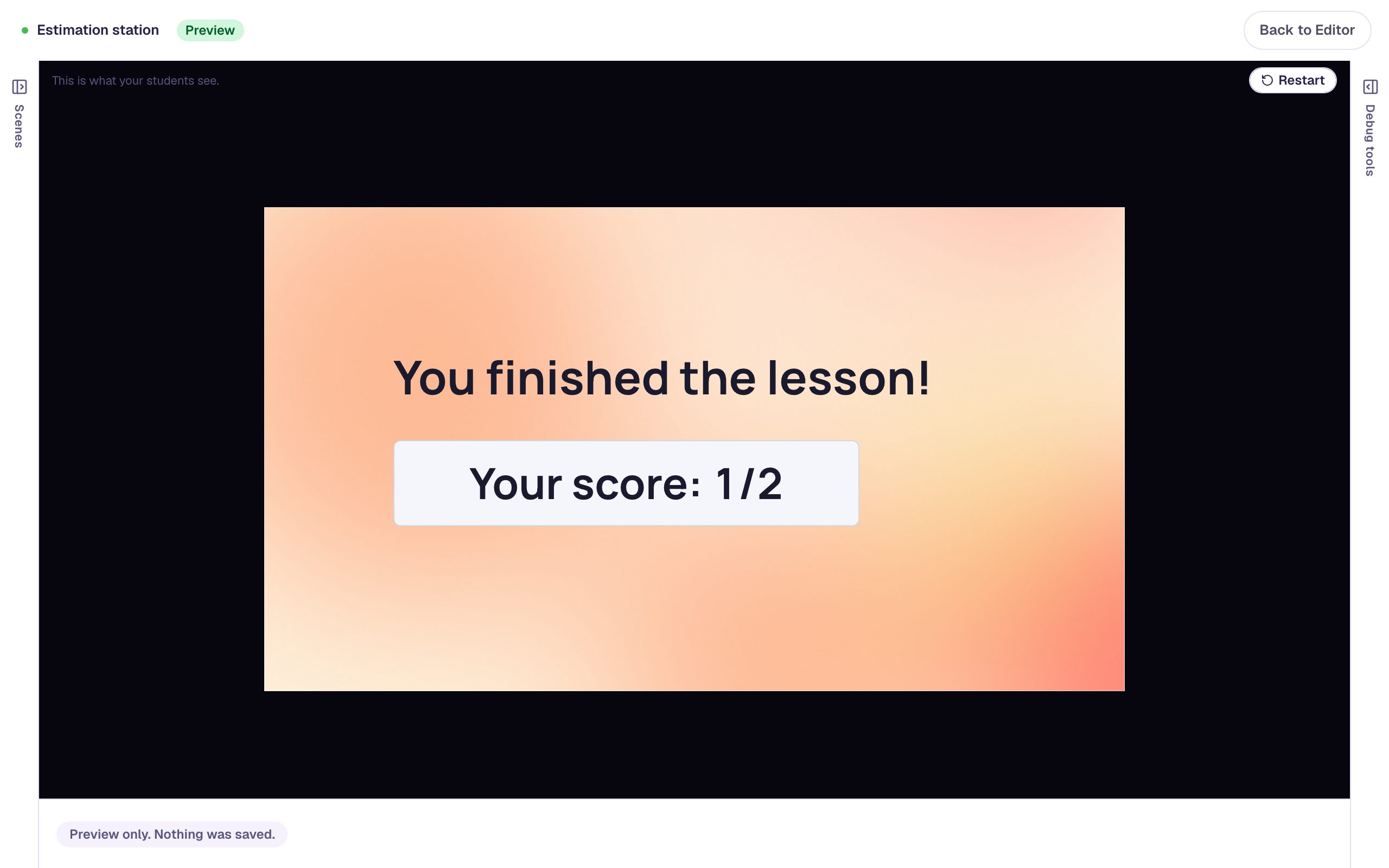
The ending shows Your score: 1/2. Preview again and drag the dot a little short of the right end, between 1/2 and 1: anywhere from 0.7 to 0.8 earns the second point.
A slider nobody moves is graded where its dot starts, at 0 here, so skipping the number line counts as wrong rather than as no answer.
What you built
A two-question estimation lesson where close counts:
- a typed Number Input with Correct Value
330and Tolerance30, so any guess from 300 to 360 meters is right, - a Smallest Answer–Largest Answer range wide enough for a wrong guess, a Placeholder with the unit, and no step buttons,
- the same widget as a Slider from
0to1, labelled with Subheadings into a number line, with a Tolerance of one step either side of 3/4, and - Next buttons and Stay progression, so an answer is only checked when the student says they're done.
To make one question worth more than another, see Make some questions count more, and one not at all. To score a problem with several answers as one question, continue with Score a three-part word problem as one question.
Make this lesson yours
Add the lesson you just watched being built to your account, then change it for your class: your questions, your pictures, your colors.
Free to sign up, and you'll come straight back here. I have an account