Score a three-part word problem as one question
Group the answers to a multi-part problem in a container so they earn one score together, then decide whether students need every part right or most of them.
- Level
- Intermediate
- Time
- About 15 min
- Steps
- 8
A bake-sale word problem with three answers that count as one 3-point question, first all-or-nothing, then passing with two of three parts right.
Get the finished lesson
Skip straight to the result, or keep it open beside the steps. Add this tutorial's lesson to your account and explore how it works in the studio.
Free to sign up, and you'll come straight back here. I have an account
A word problem often has several steps: work out the total, then what's left, then how it's shared. If each answer box is its own question, a student who gets the first step right but the last step wrong still collects most of the points, and a three-step problem counts three times as much as a one-step one.
In this tutorial you'll build a bake-sale problem with three answer boxes and group them in a container, so the whole problem earns one score. Then you'll choose how strict it is: every part right, or at least two of the three. If you haven't set points on a question before, start with Make some questions count more, and one not at all.
Step 1: Write the problem
Start a blank lesson (New lesson, then Start from scratch) and name it Bake sale math. On the Opening Scene, give the scene a background and add:
- a Heading:
Bake sale math, - an Image of cookies (in Choose image, search the stock photos for
chocolate chip cookies), - a Body with the story:
Lena bakes 4 trays of 6 cookies. She sells 18 at the bake sale and shares the rest equally with 3 friends., and - one Subheading per part:
a) How many cookies are there?,b) How many are left after the sale?, andc) How many does each friend get?
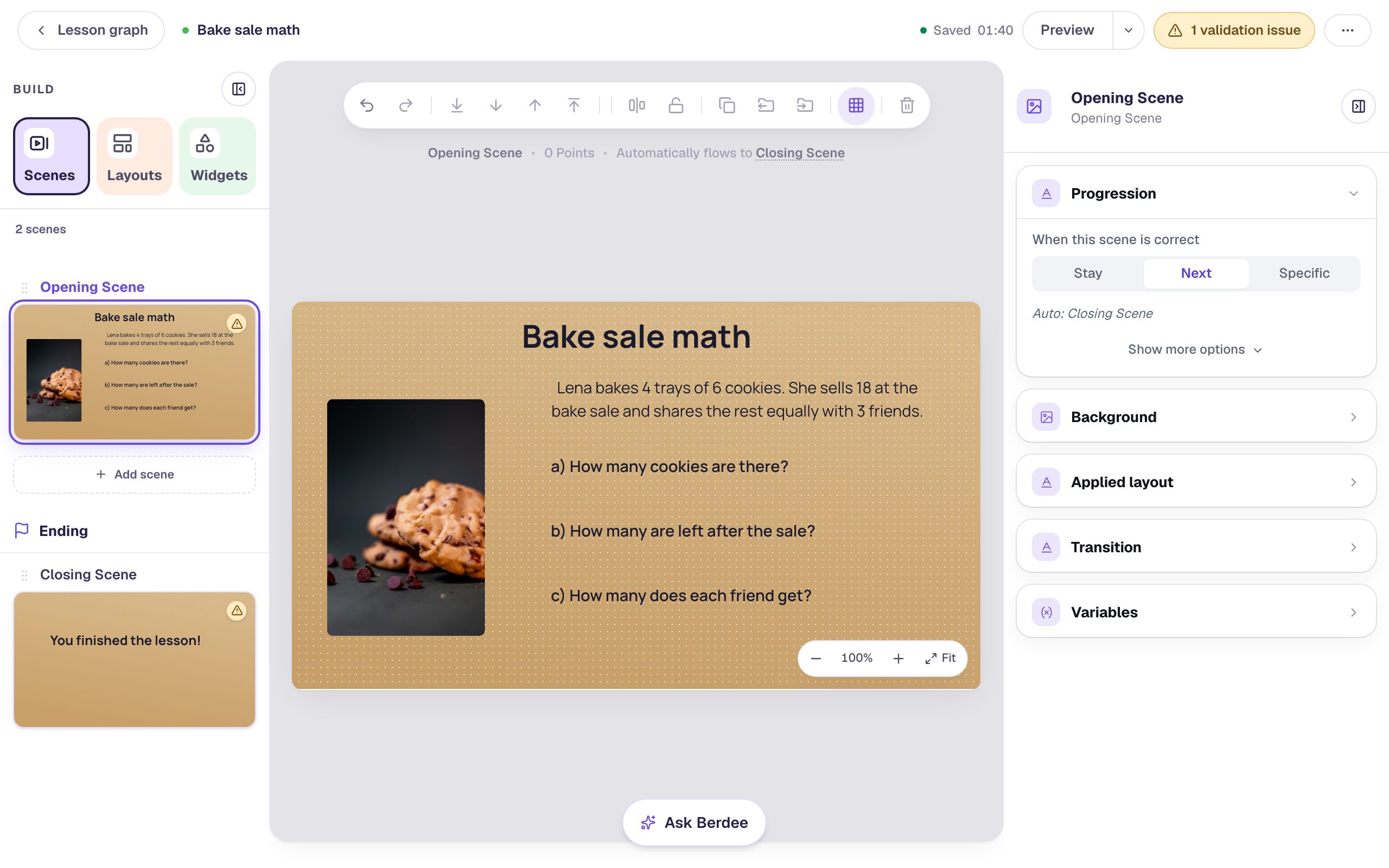
To line the three questions up on one edge, select each one and, under Style & Layout, choose Fixed width, set Width to 400, and click Align left.
Step 2: Add an answer box for each part
Add a Number Input and click ⚙ Configure. Set Correct Value to 24 and switch Show Step Buttons off, so students type the number rather than clicking up to it.

Click Save, rename it Part a (click its name at the top of the properties panel), and drag it next to question a. Do the same twice more for Part b (Correct Value 6) and Part c (Correct Value 2).
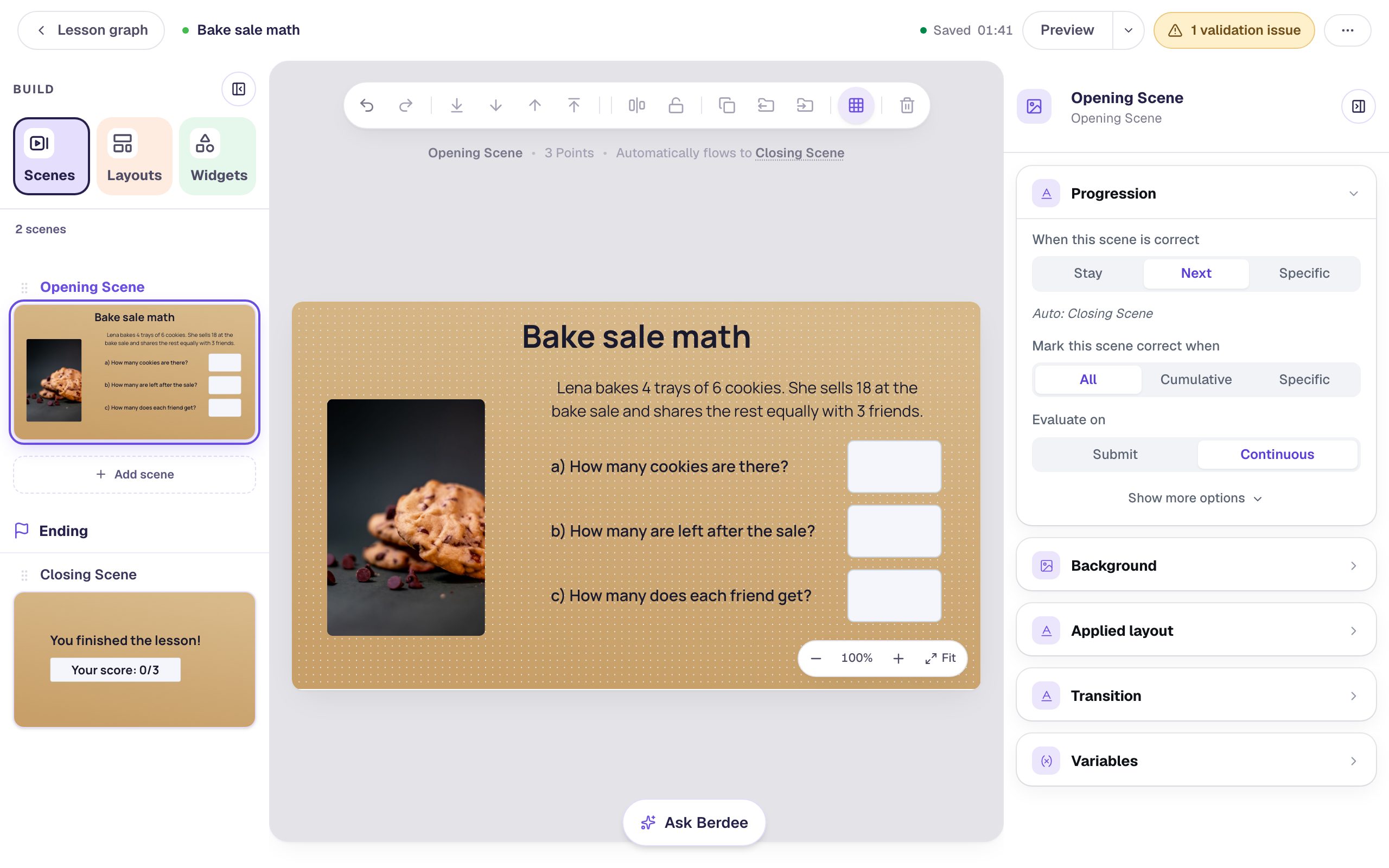
Look at the strip above the scene: 3 Points. Each box is worth 1 point on its own, so a student who gets a and b right but c wrong would score 2 out of 3, even though they never reached the answer.
Step 3: Add a container around the answers
A Container groups widgets so they move, show, hide, and score together. In the Widgets tab, search for Container and click it. Rename it Bake sale problem, so it's easy to recognize.
Then make it the right size: in Layout, click Show advanced layout, set Width to 170 and Height to 290, and drag the container by its purple name tab until it surrounds the three answer boxes.
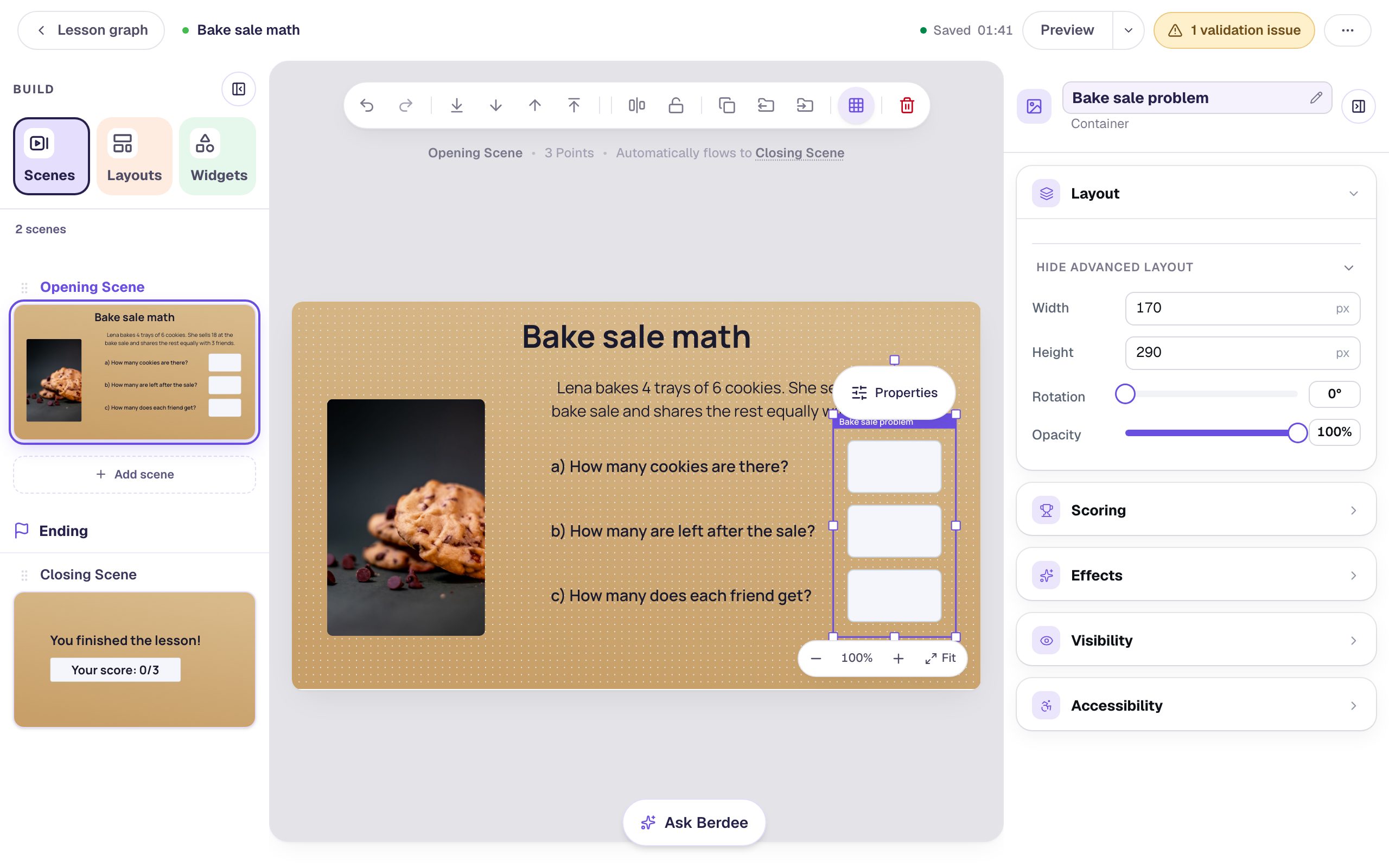
Students never see a container. In the studio it's a dashed outline with a name tab, and the tab is the only part you can grab: clicking inside it selects whatever is underneath.
Step 4: Move the answers into the container
Putting a container on top of the answers doesn't put them inside it. Move each one in:
- Right-click the Part a box.
- Point at Move to Container.
- Click Bake sale problem.
Repeat for Part b and Part c. A widget that's already inside a container offers Remove from Container in the same menu instead, which is a quick way to check you didn't miss one.
The questions can stay outside the container. Only the answers need to be inside for the score, but you can move the questions in as well if you want the whole problem to move as one.
Step 5: Score the container instead of its parts
Click the container's name tab to select it, open Scoring, and turn on Enable Scoring for this container.
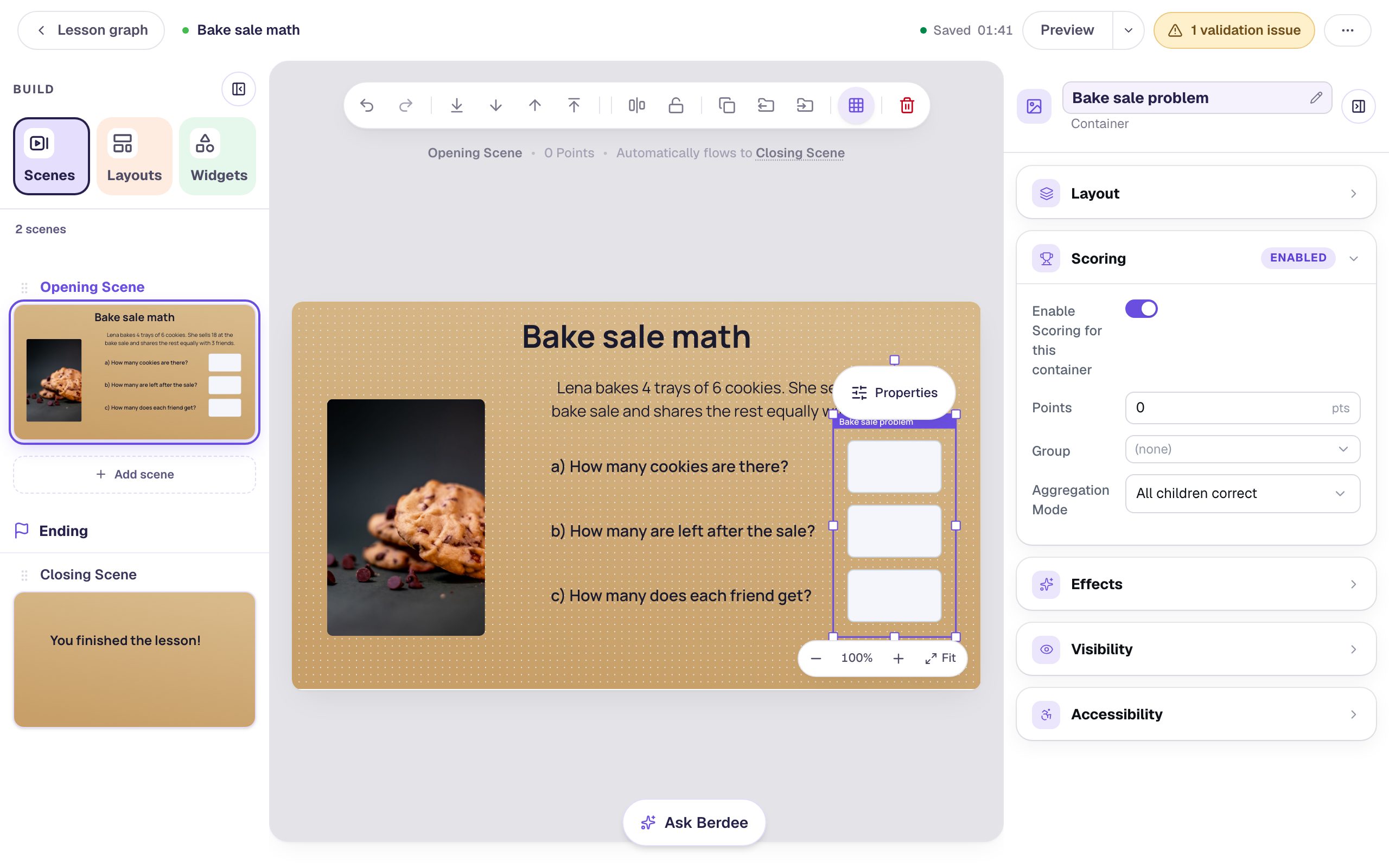
The strip above the scene changes from 3 Points to 0 Points. The container now owns its children's scores: the answers are still checked, but they no longer count on their own. The container pays out instead, and a new container is worth 0 points, so until you change that the whole problem counts for nothing.
Set Points to 3, so the problem is still worth 3, and leave Aggregation Mode on All children correct.
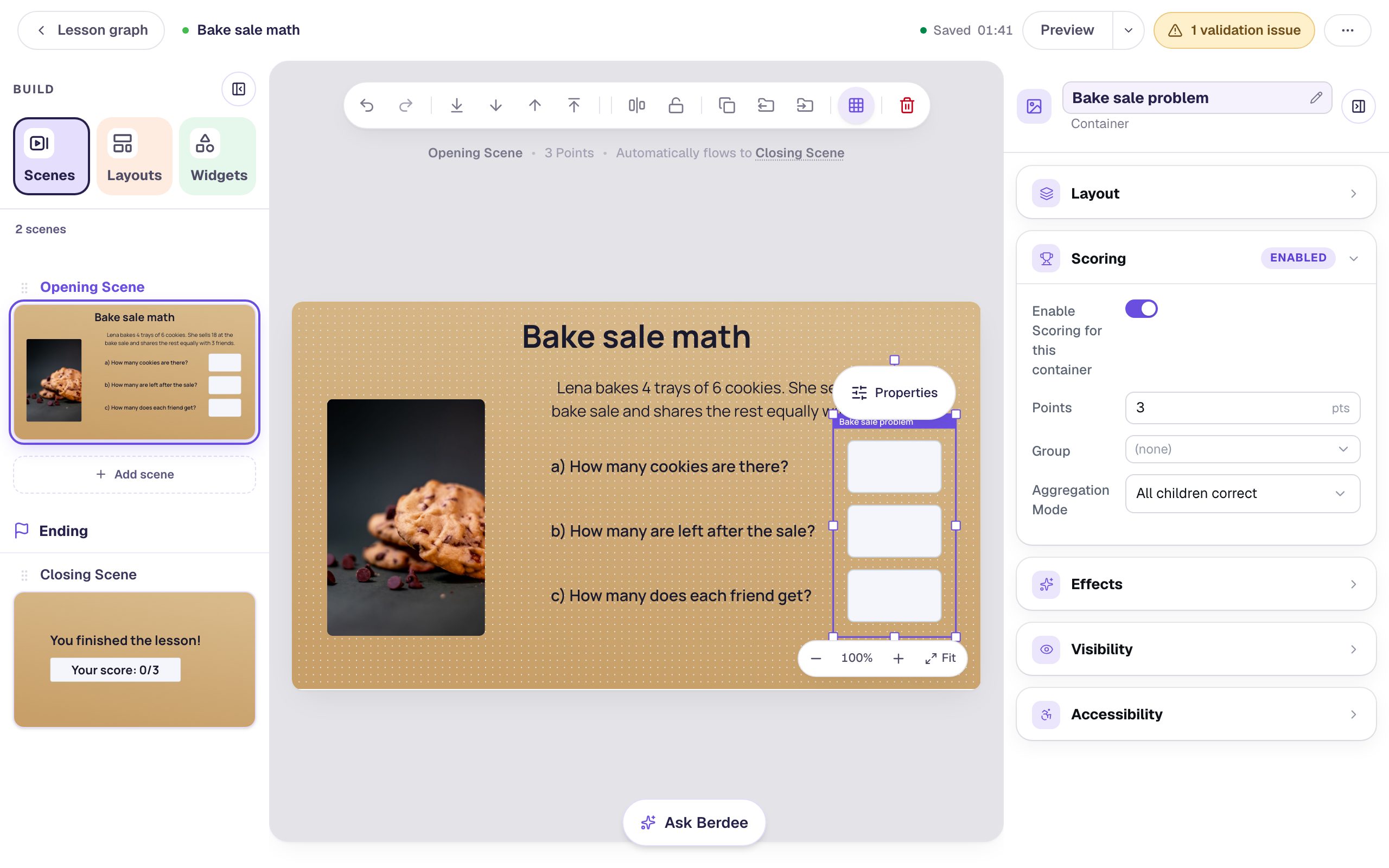
Now the problem is worth 3 points, earned only when all three answers are right.
Step 6: Add a Check my work button
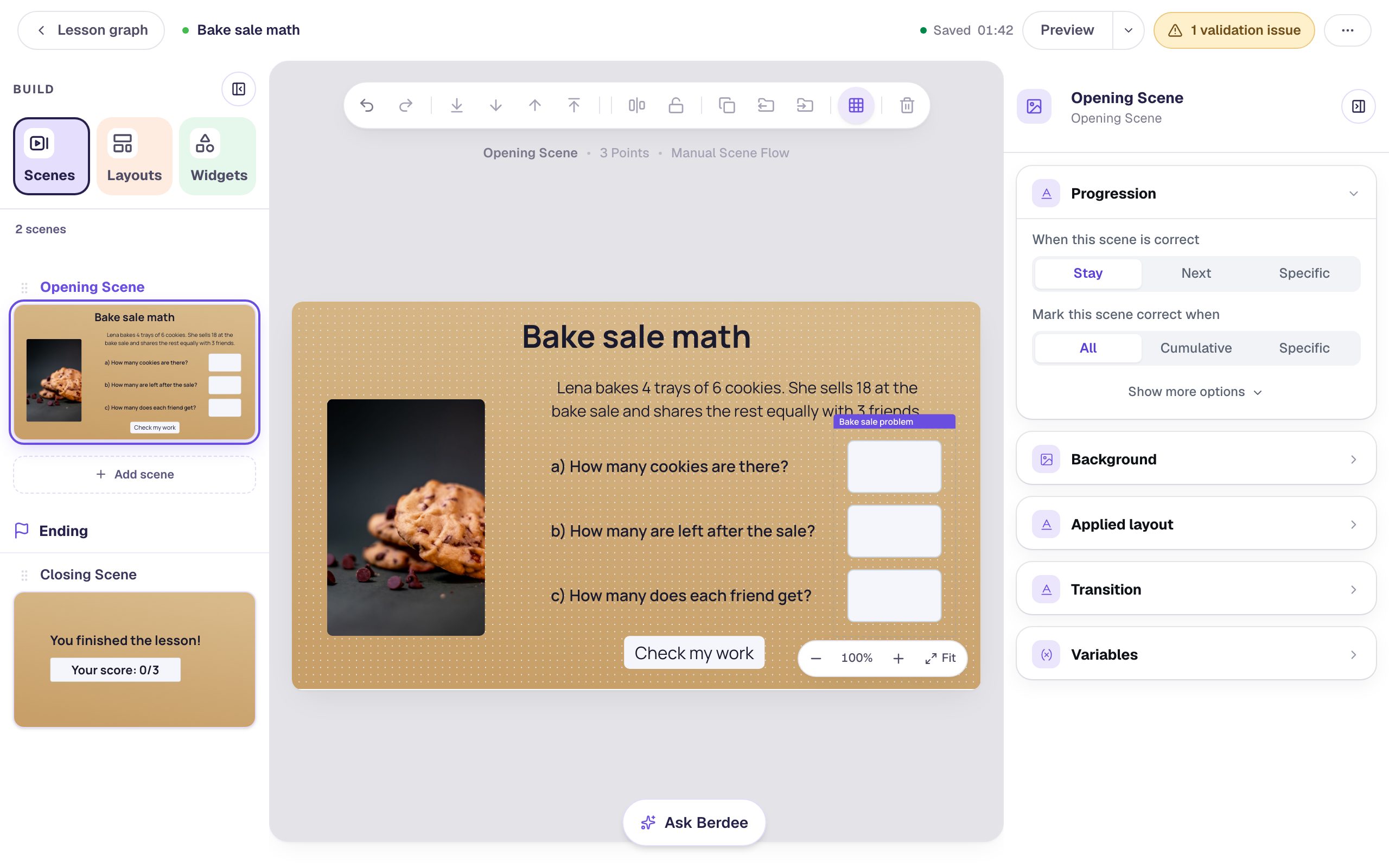
The scene shouldn't move on the moment the last box is filled in. Add a Button, click ⚙ Configure, set its Label to Check my work, and click Save. Then click Behaviors, choose Make this a "Next" button, check that it goes to the Closing Scene, and click Add behavior.
Last, click an empty spot on the scene so nothing is selected, and in Progression change When this scene is correct to Stay. Now students move on only when they press the button.
Step 7: Try it with one part wrong
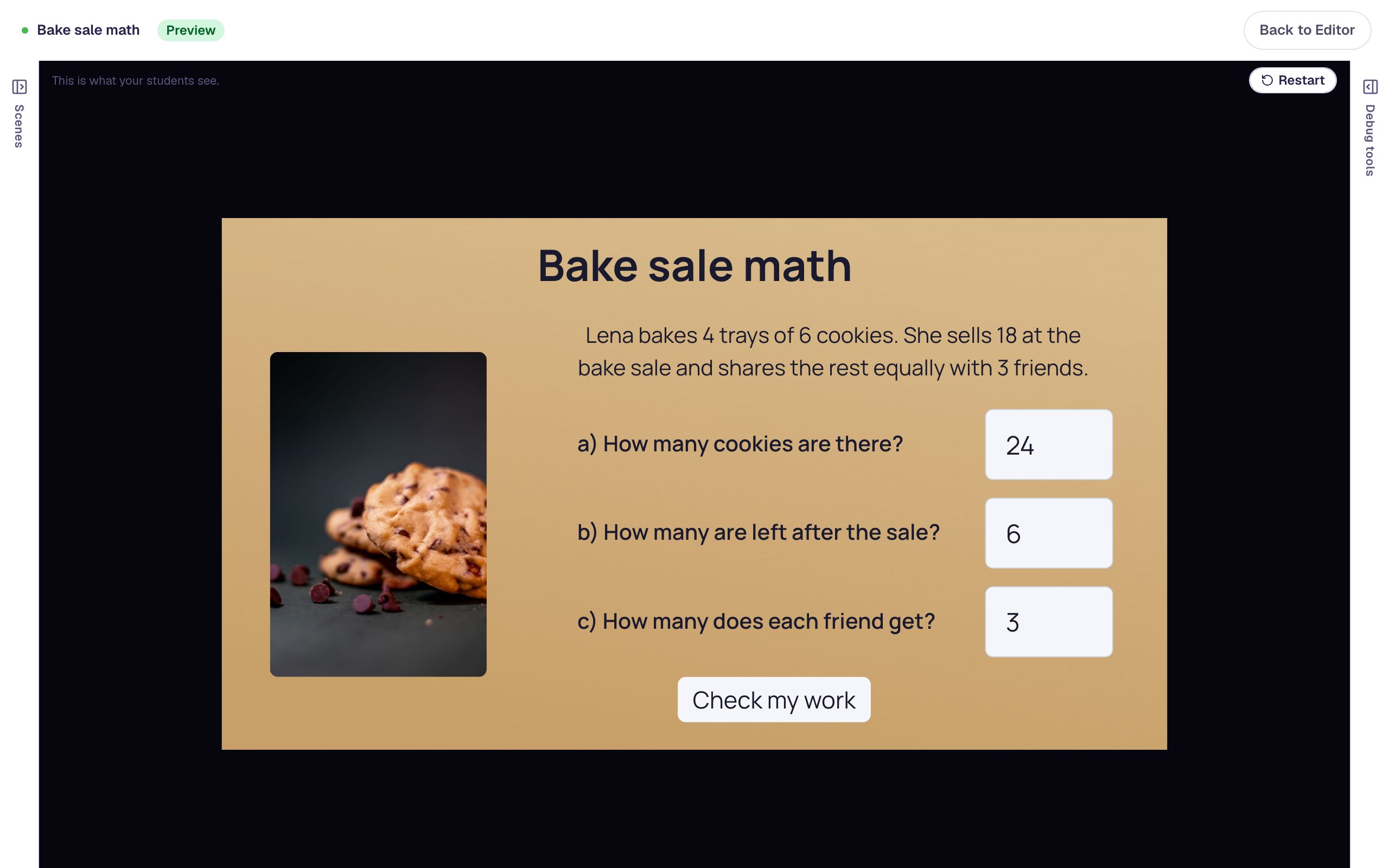
Click Preview and answer like a student who slips on the last step: type 24, then 6, then 3 (the right answer is 2), and press Check my work.
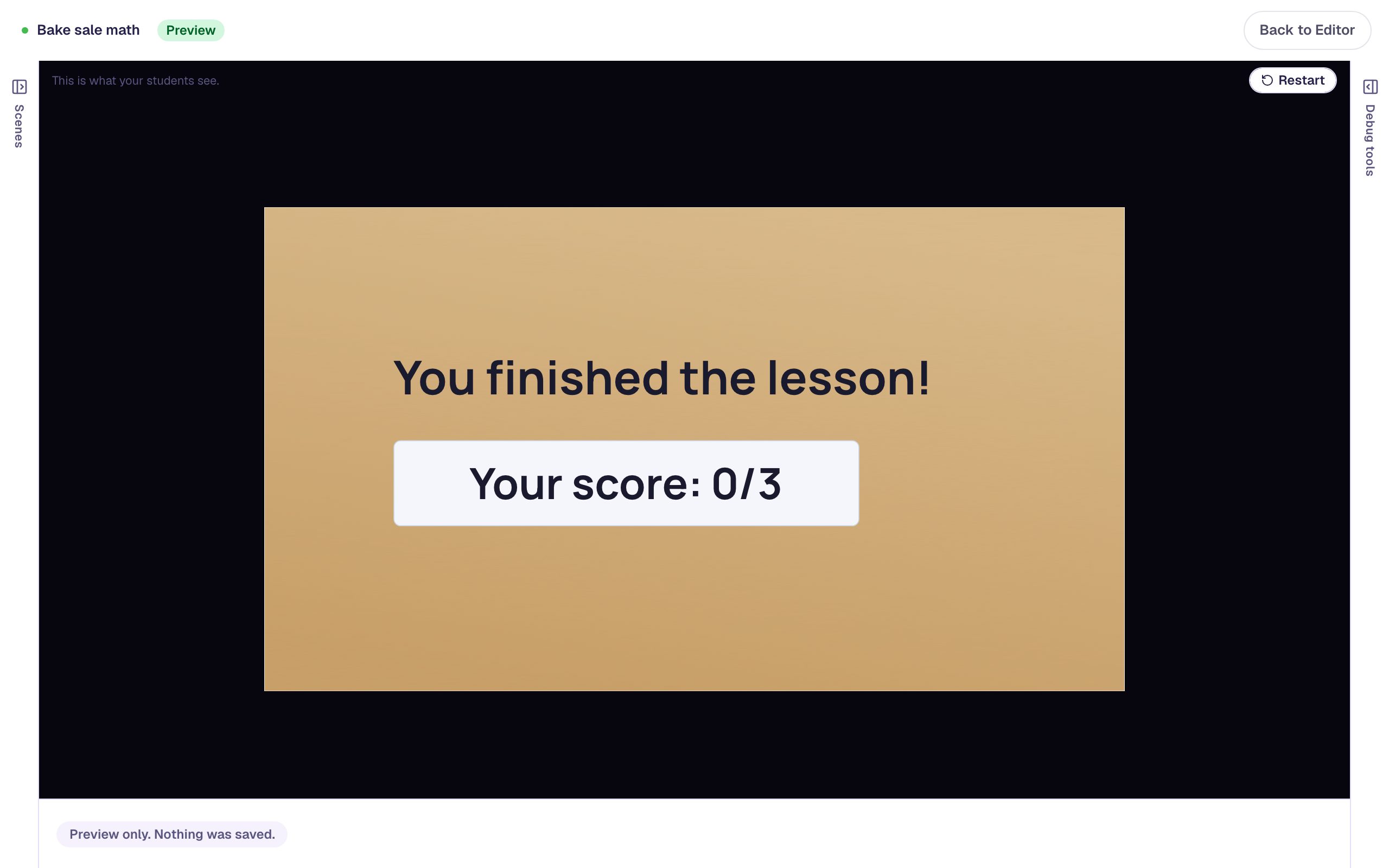
The ending shows Your score: 0/3. With All children correct, the problem is all or nothing, like a final answer that's either right or not.
Step 8: Pass with two parts out of three
All or nothing can be harsh on a problem with several steps. To give the points for getting most of it right, click Back to Editor, select the container by its name tab, and in Scoring change Aggregation Mode to Minimum total score. Set Minimum Points to 2.
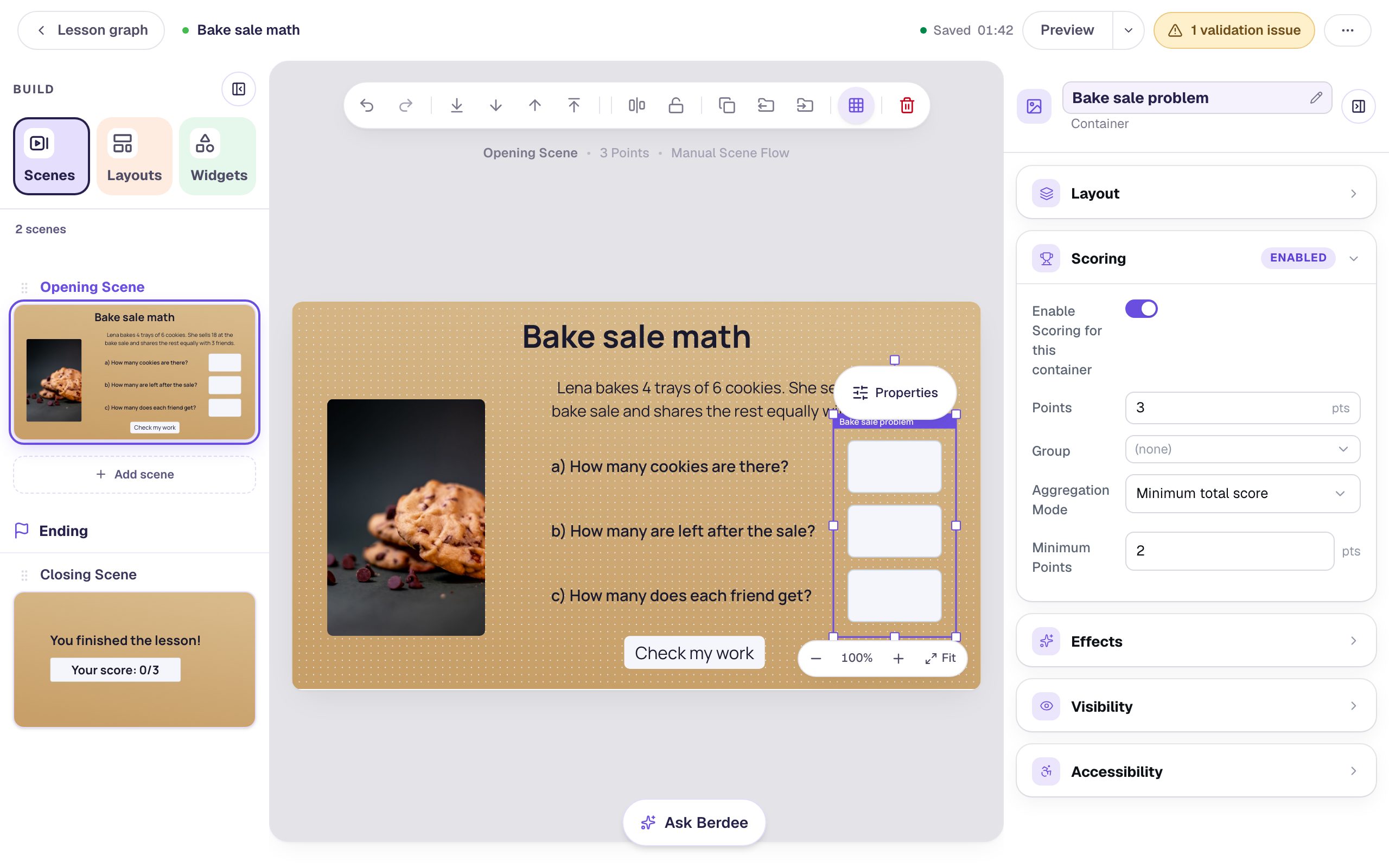
Minimum Points adds up the points the answer boxes earn on their own: each is worth 1, so 2 means "at least two parts right". If the parts were worth different amounts, you'd set it from their points instead, or choose Minimum percentage to say "at least 60%".
Preview again with the same answers, 24, 6, and 3:
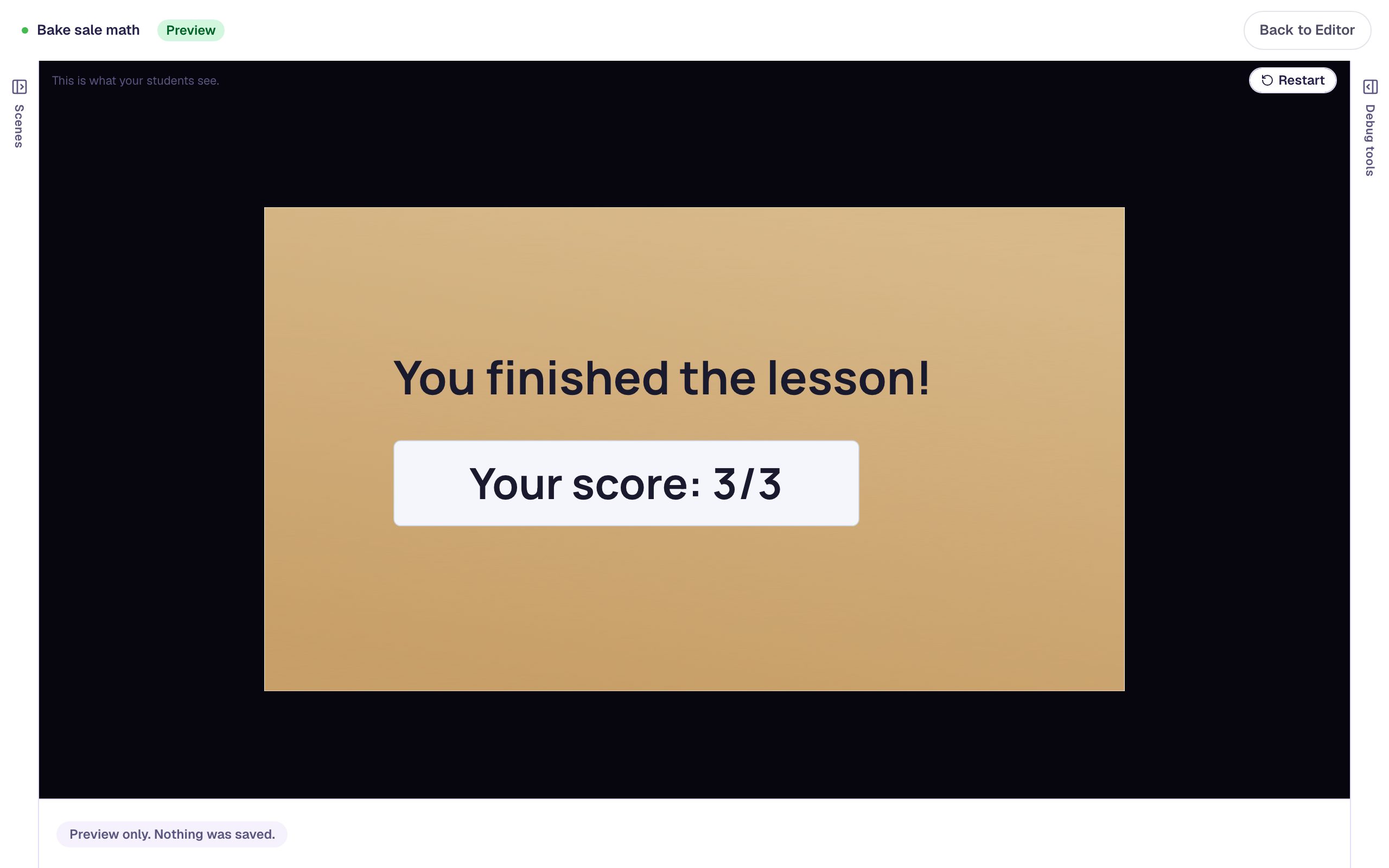
This time the ending shows Your score: 3/3. The container's rule passed, so it earned its full 3 points. A container never gives partial credit itself: it pays its Points when the rule passes and 0 when it doesn't, so choose the rule that matches what "solved" means for your problem.
What you built
A three-part word problem that counts as one question:
- three Number Input answer boxes, one per step,
- a Container around them, with the answers moved in through Move to Container,
- container scoring worth 3 points, so the parts no longer count on their own,
- All children correct for an all-or-nothing problem, or Minimum total score to pass with most parts right, and
- a Check my work button with Stay progression, so students finish every part before they're checked.
The same pattern works for any group of answers that belong together: three blanks in one sentence, a diagram with labels to match, or a set of questions about one passage. To send students somewhere different depending on how they did, continue with Send students down different paths by their score.
Make this lesson yours
Add the lesson you just watched being built to your account, then change it for your class: your questions, your pictures, your colors.
Free to sign up, and you'll come straight back here. I have an account