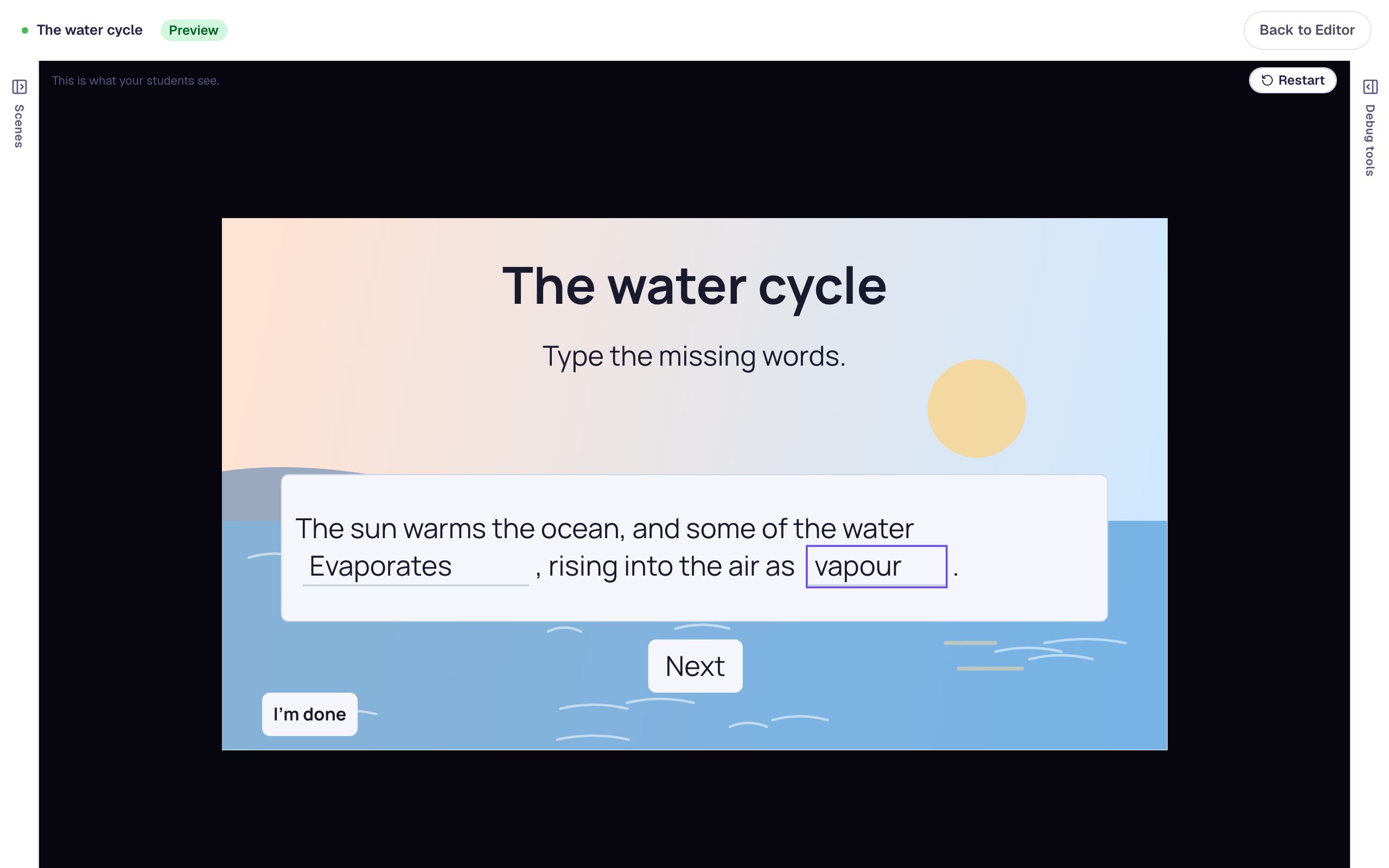
Split a crowded scene into two
Turn one scene that teaches and quizzes at the same time into a reading scene and a question scene. Add a scene, move the question onto it with Move to Scene, give each one room, and add a Next button.
- Level
- Beginner
- Time
- About 8 min
- Steps
- 7
- Updated
- Oct 24, 2026
A volcano lesson whose crowded page is now two calm scenes, a short reading with a big photo and a Next button, then one large question that moves on to the ending.
Get the finished lesson
Skip straight to the result, or keep it open beside the steps. Add this tutorial's lesson to your account and explore how it works in the studio.
Free to sign up, and you'll come straight back here. I have an account
It's tempting to put everything on one scene: the reading, a picture, and the question about it. Then the text gets small, the picture gets smaller, and students are asked a question while the answer is still on the screen next to it.
The fix is to split the scene in two: one scene to read, then one scene to answer. In this tutorial you'll take a crowded page from a lesson called All about volcanoes and split it without retyping a word. You'll add a scene, move the question onto it with Move to Scene, give each scene room to breathe, and add a Next button so students can move from the reading to the question.
If you haven't built a question before, start with Build your first quiz question.
Step 1: Spot a scene that does two jobs
Here's the scene we start with. It's called Volcanoes, and it has:
- a Heading that says
How a volcano erupts, - a photo of an erupting volcano,
- a short Body passage that explains magma and lava,
- a second Body with the question
What do we call melted rock that is still under the ground?, and - a Multi Choice question with the answers
Magma,Lava,Ash, andSteam.
Every scene in the lesson has the Mountain range background (Background → Choose a style → Nature).
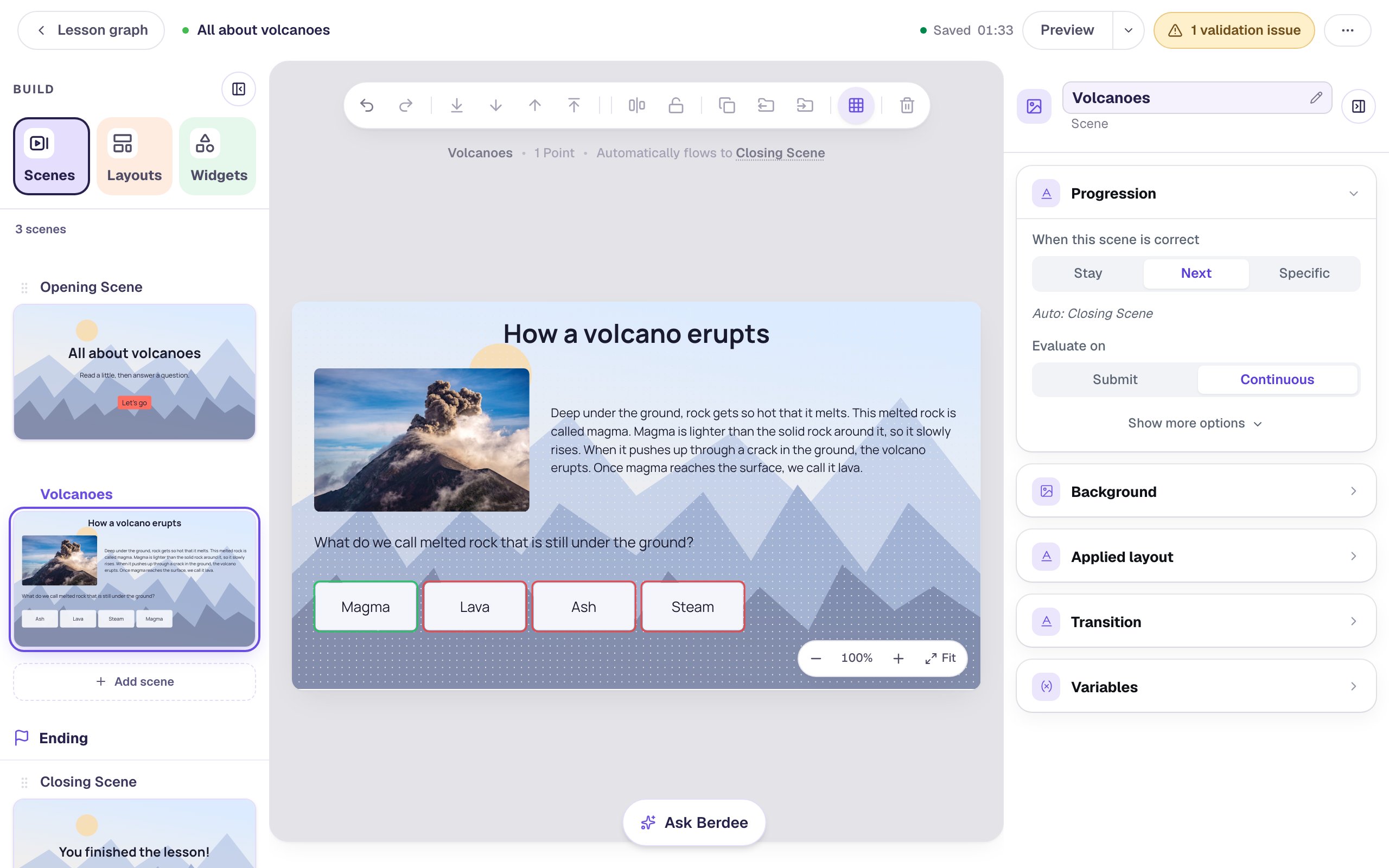
Two signs tell you a scene should become two:
- It teaches and checks at the same time. The passage says "This melted rock is called magma" a few lines above the question that asks for that word.
- Everything is small so that everything fits. The passage is 17 px and the answers are cramped along the bottom.
You don't need to start over. Everything here is good; it just belongs on two screens.
Step 2: Add a scene and name both scenes
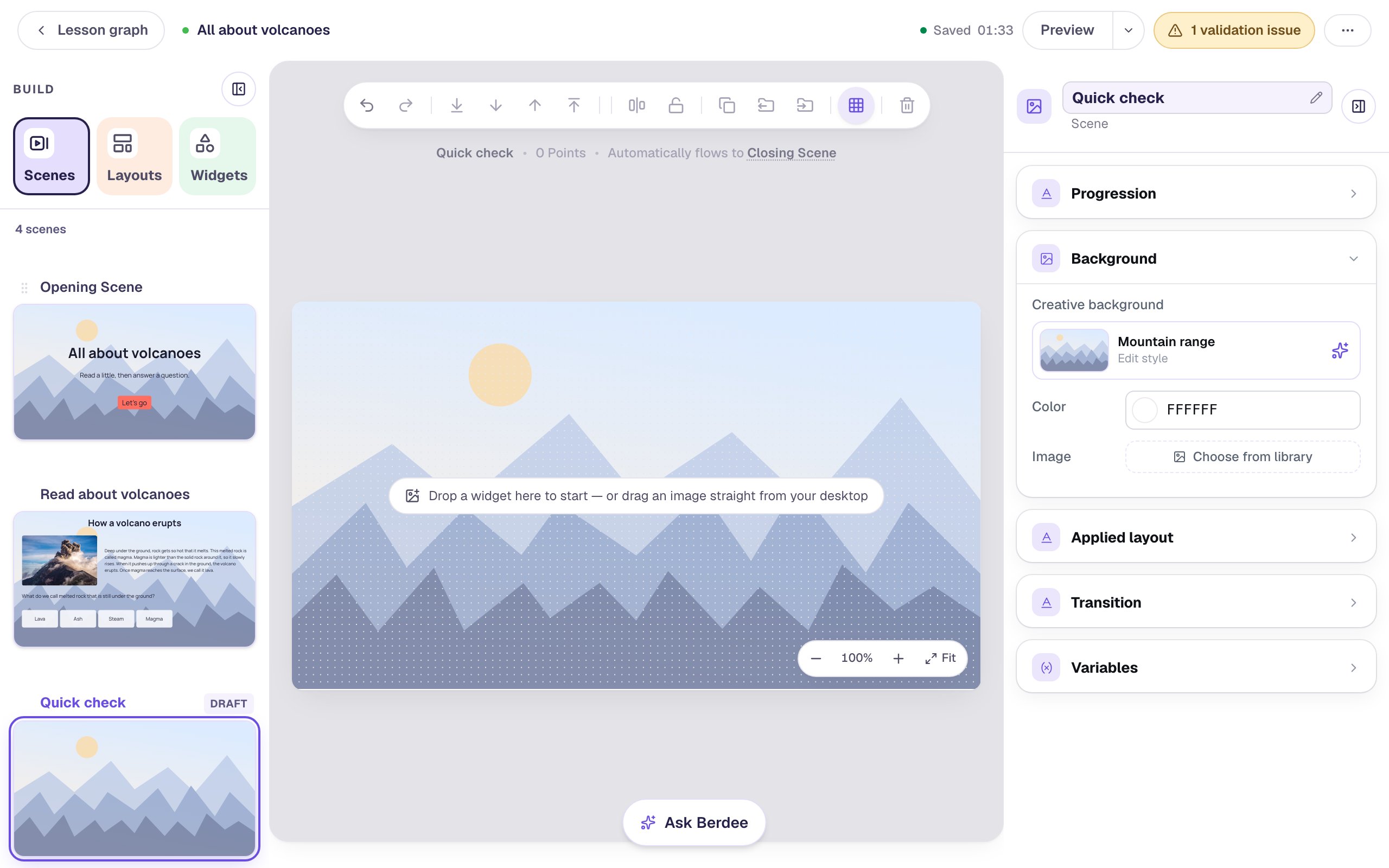
Open the Scenes tab on the left and click Add scene under your scenes. The new scene, Scene 1, lands right after Volcanoes and before the Ending, which is exactly where the question should go.
Now name both scenes for what they do. Double-click Scene 1's name, type Quick check, and press Enter. Then double-click Volcanoes and rename it Read about volcanoes.
Good names pay off right away: in the next step you'll choose where the question goes from a list of scene names, and Quick check is much easier to find than Scene 1.
A new scene starts white and empty, with a Draft tag in the scene list until you put something on it. With Quick check open and nothing selected, open Background, click Choose a style, pick Nature → Mountain range, and click Apply background, so it matches the rest of the lesson.
Step 3: Move the question onto the new scene
Go back to Read about volcanoes. The question is two widgets, the question text and the answers, and they should travel together:
- Click the question text,
What do we call melted rock…. - Hold Shift and click one of the answers. Both are now selected, and the properties panel says 2 widgets selected.
- In the toolbar above the canvas, click Move to Scene (the folder with an arrow pointing out) and choose Quick check.
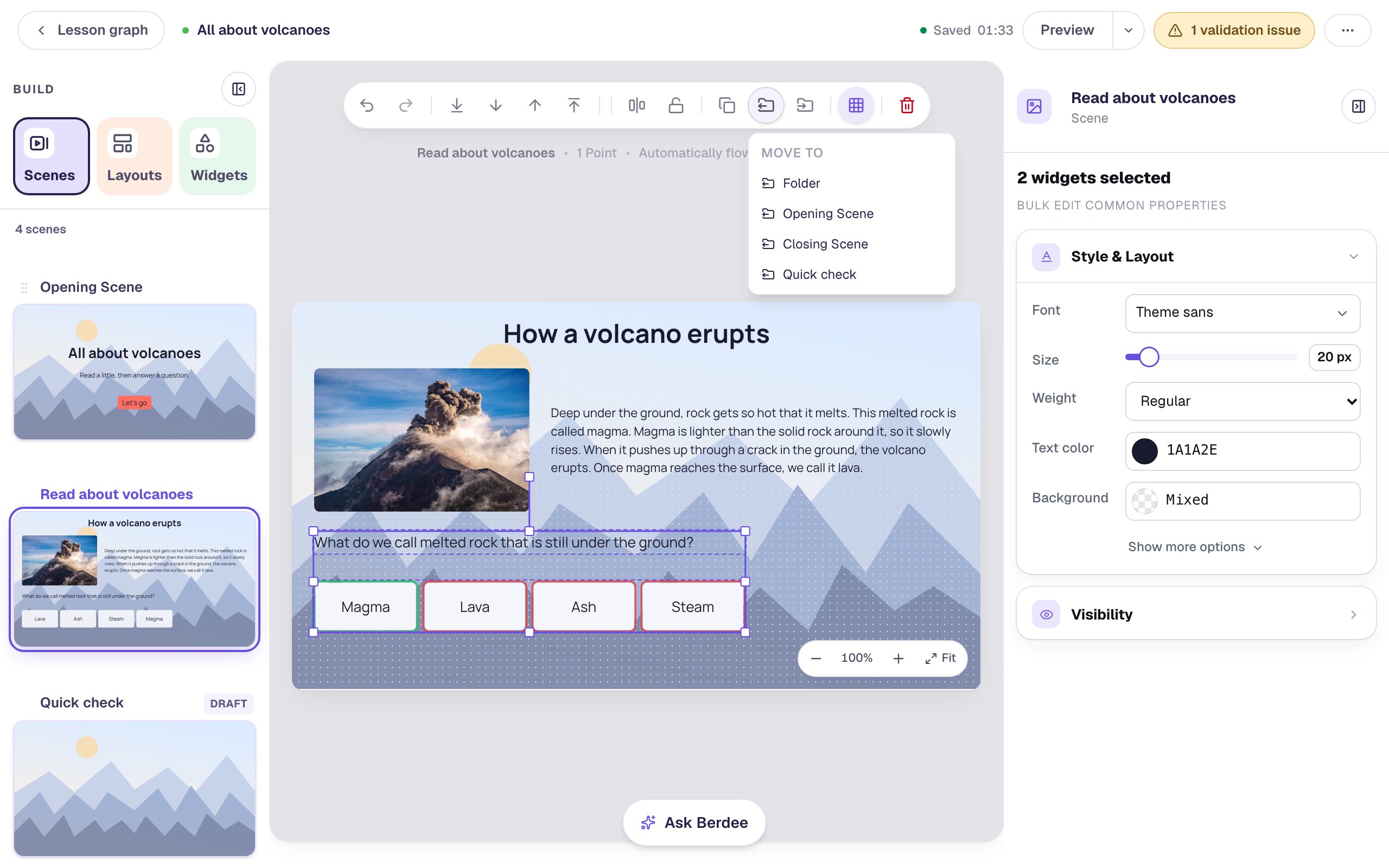
Pick your scene by its name. The menu can also list Folder: that's a container every lesson has behind the scenes, not a page students see, so don't move widgets there.
The question and its answers leave this scene and land on Quick check in the same spot, with everything you set up still in place: the four answers, Magma marked correct, and the scoring. Nothing is copied, so there's no stray second question to clean up later.
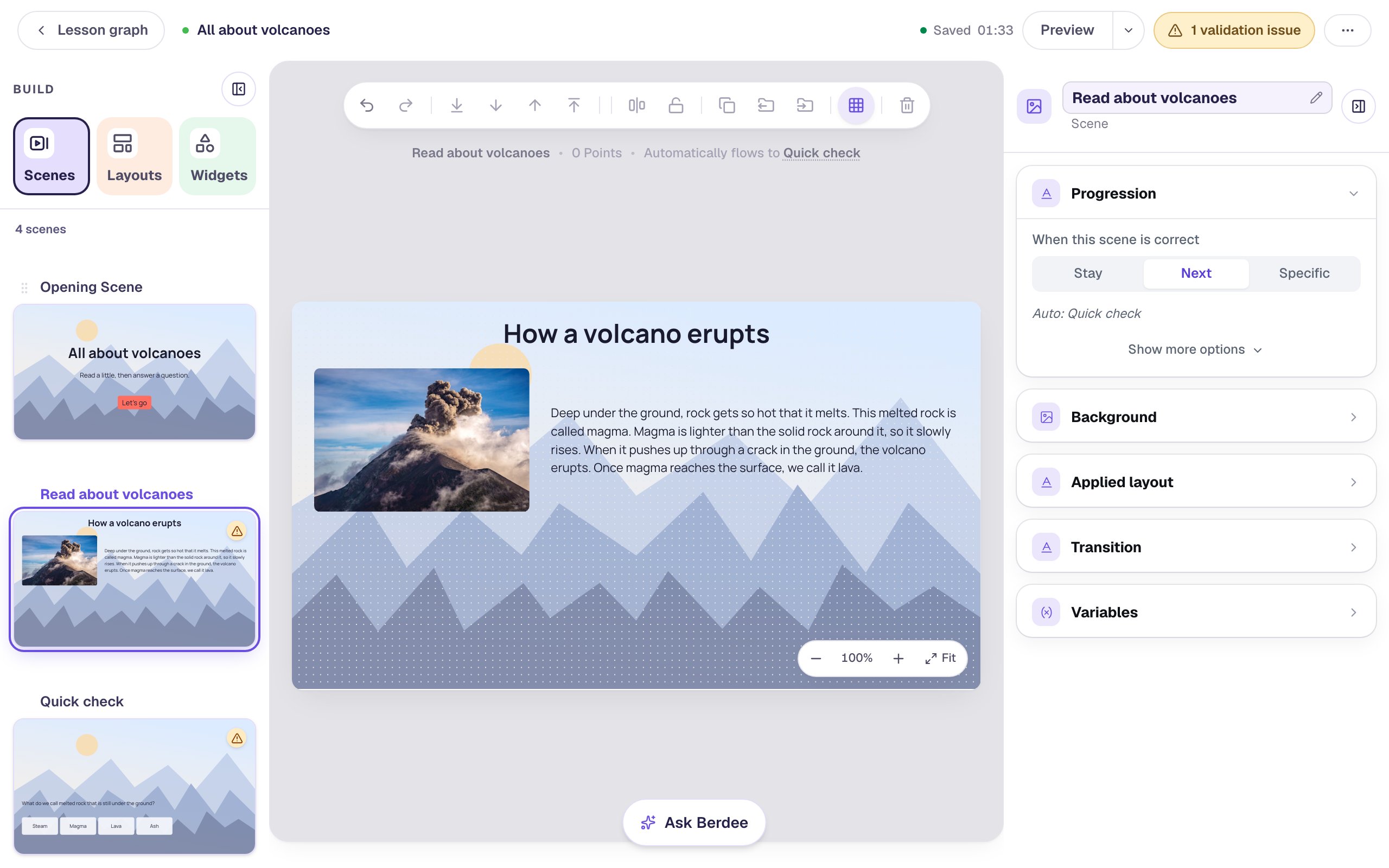
If you want the same widget on both scenes, use Copy to Scene, the button right next to it, instead. For a question, moving is what you want.
Step 4: Give the reading room to breathe
The reading scene now has half its space free, so let everything grow:
- The photo: click it and drag its bottom-right corner handle outward, then drag the photo into the space below the heading. Ours ends up 410 × 273 (Style & Layout → Show more options → Width and Height).
- The passage: select it and raise its font size from 17 to
22px in Style & Layout. Give it a Fixed width of440so its lines stay short enough to read comfortably, and place it to the right of the photo. - The heading: raise it to
48px.
Students can now read the passage from across the room, and the photo is big enough to see the ash cloud.
Step 5: Add a Next button to the reading scene
A scene with a question moves on by itself once the answer is right. The reading scene has no question any more, so nothing tells it when the student is done. Give it a button.
Add a Button from the Widgets tab, open ⚙ Configure, and change its Label to Next. Then click Behaviors on the widget's pill and choose Make this a "Next" button. Check that Goes to says Quick check, then click Add behavior.
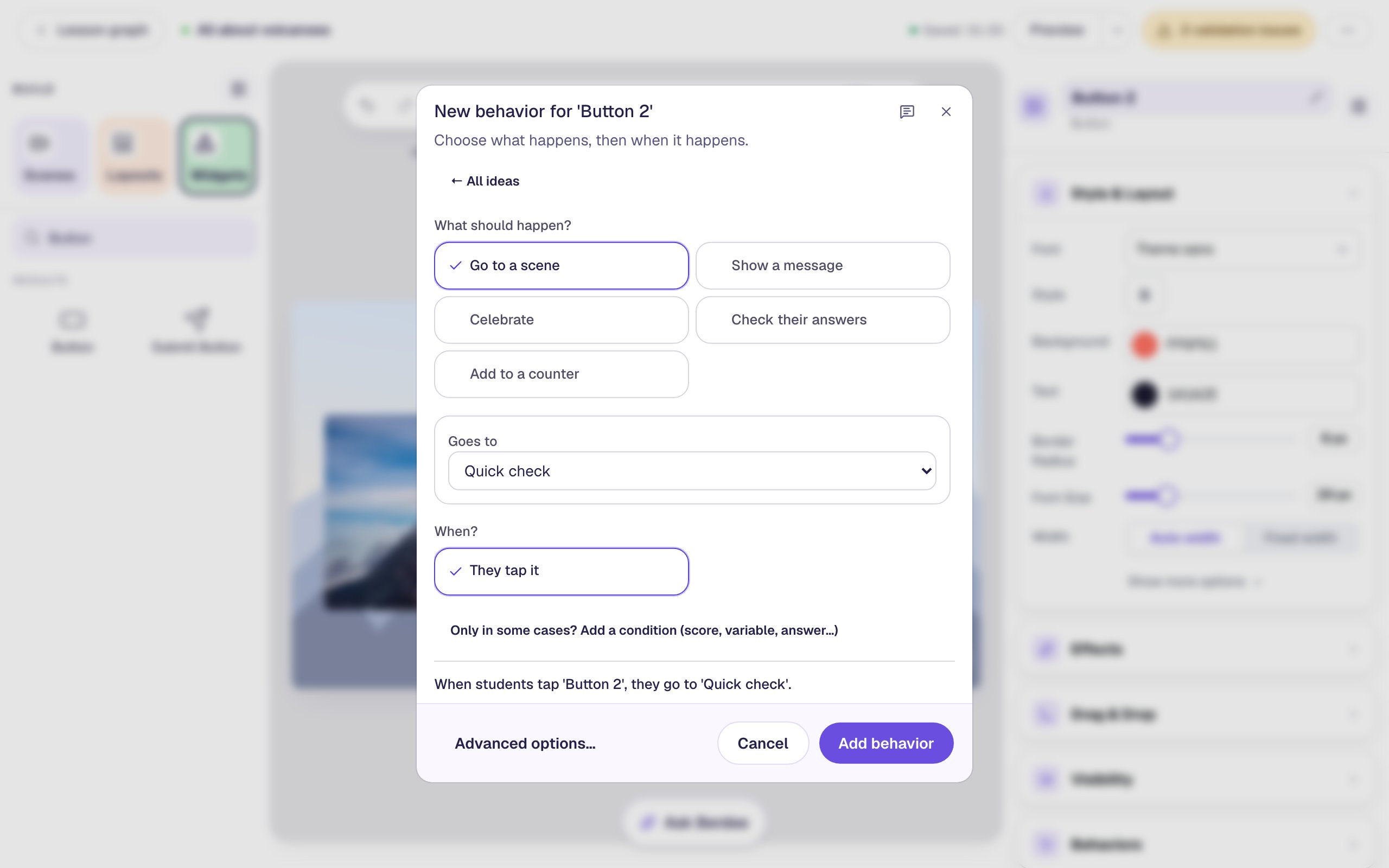
Make the label 26 px and place the button at the bottom middle of the scene.
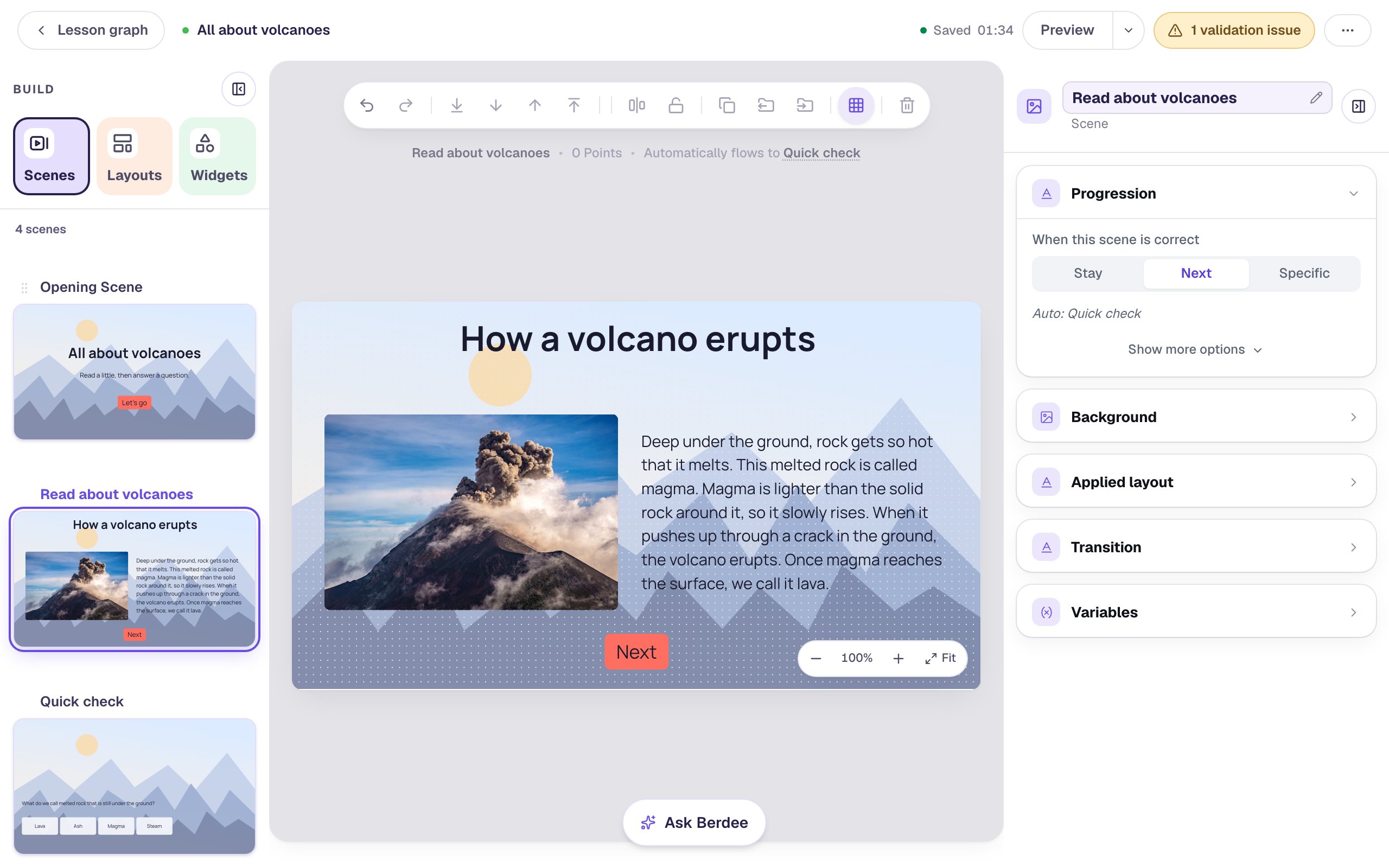
The button points at Quick check itself, not "whatever scene comes next". If you later add a scene between these two, open the button's behavior and change Goes to.
Step 6: Make the question the star of its scene
Open Quick check. The question arrived exactly where it was on the old scene, small and near the bottom. Now it has the whole screen:
- Select the question text, raise it to
34px, give it a Fixed width of760, and move it to the top third of the scene. - Select the answers, raise them to
32px, set Width760and Height140, and center them under the question.
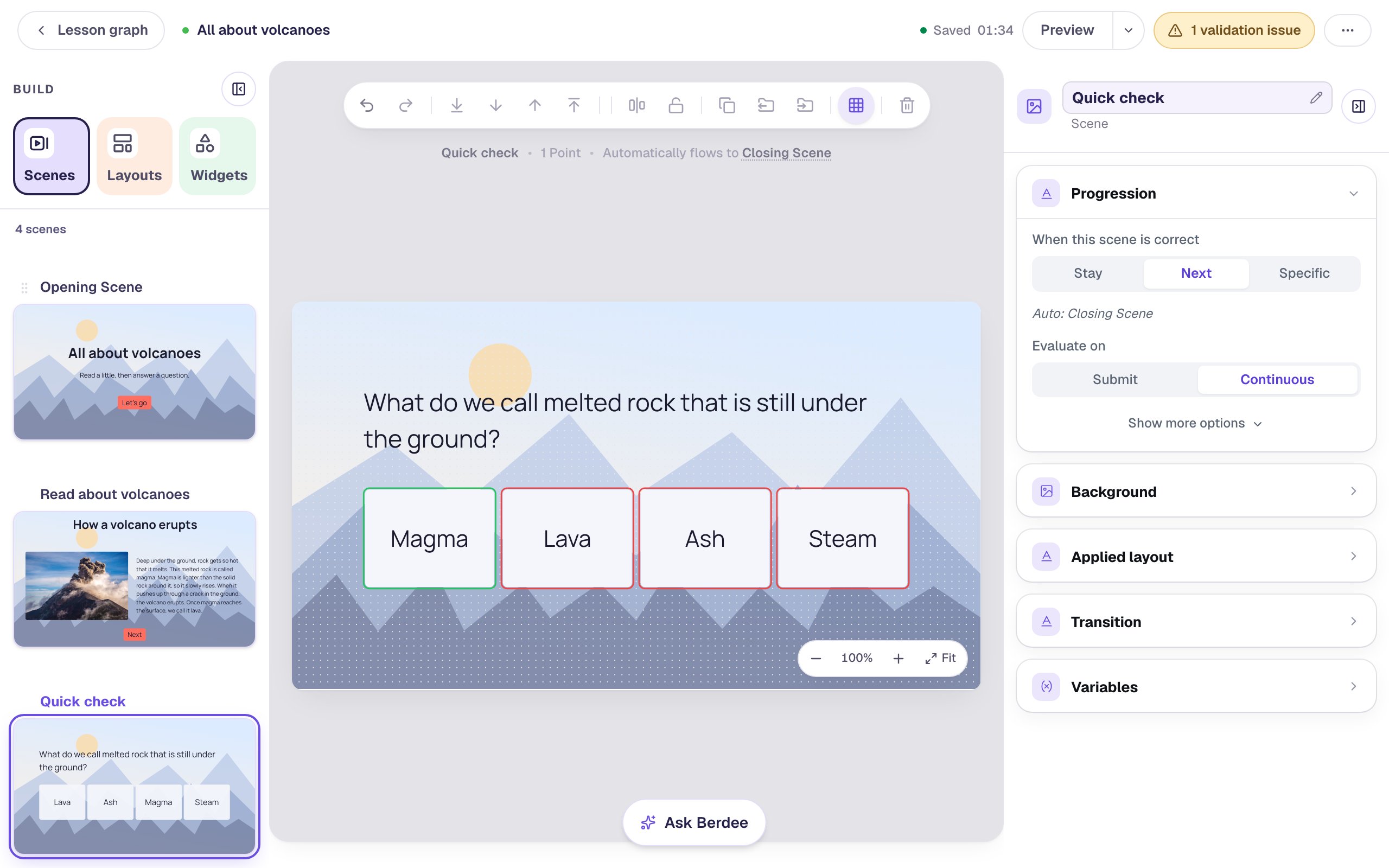
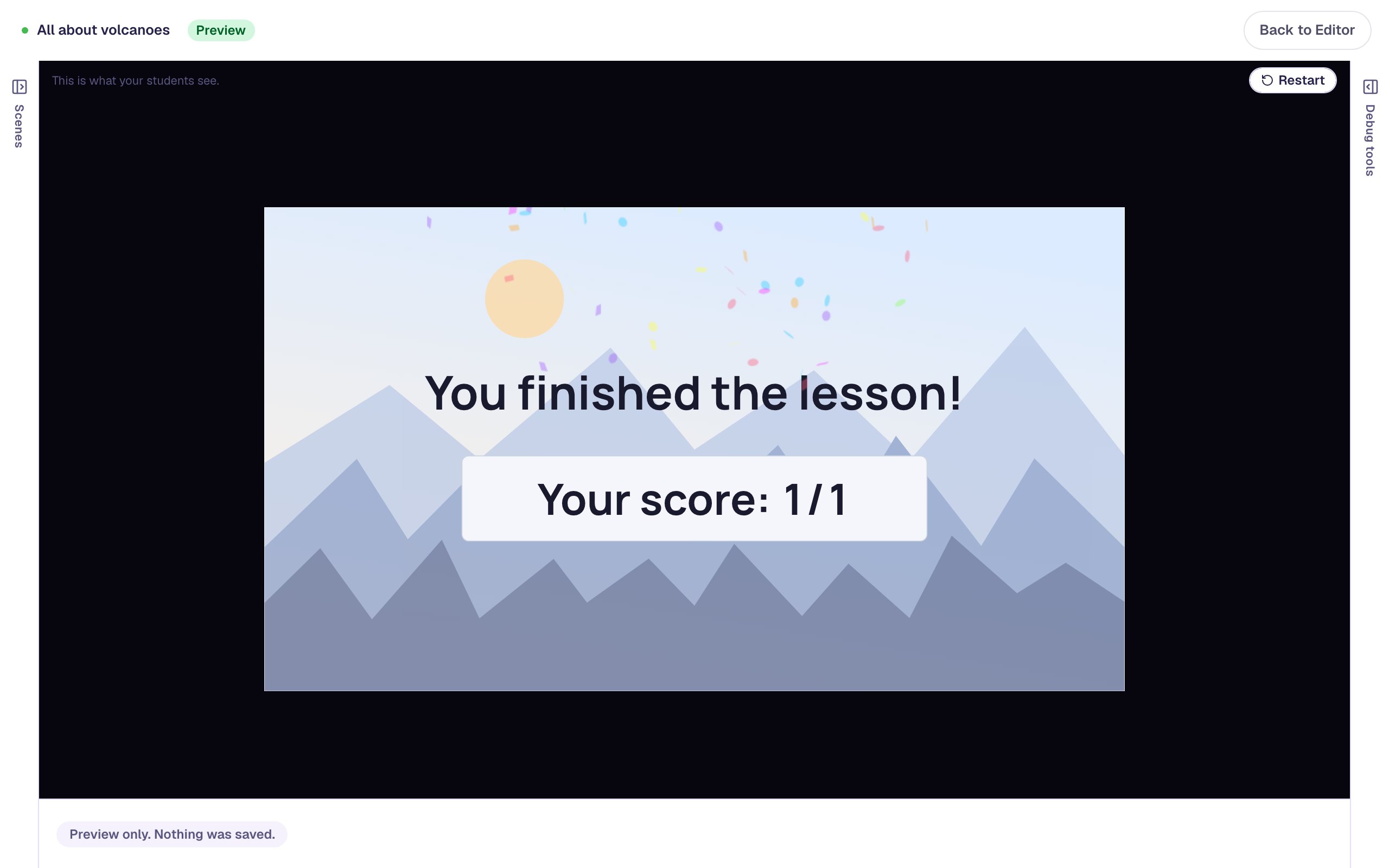
Look at the line above the canvas: Automatically flows to Closing Scene. This scene's Progression is set to Next, so a right answer moves the student on to the ending with no button needed.
Step 7: Preview it
Open the Opening Scene and click Preview. Press Let's go, read the page, and press Next.
On Quick check the question has the screen to itself. The answers are shuffled for each student, so they may not be in the order you typed them.
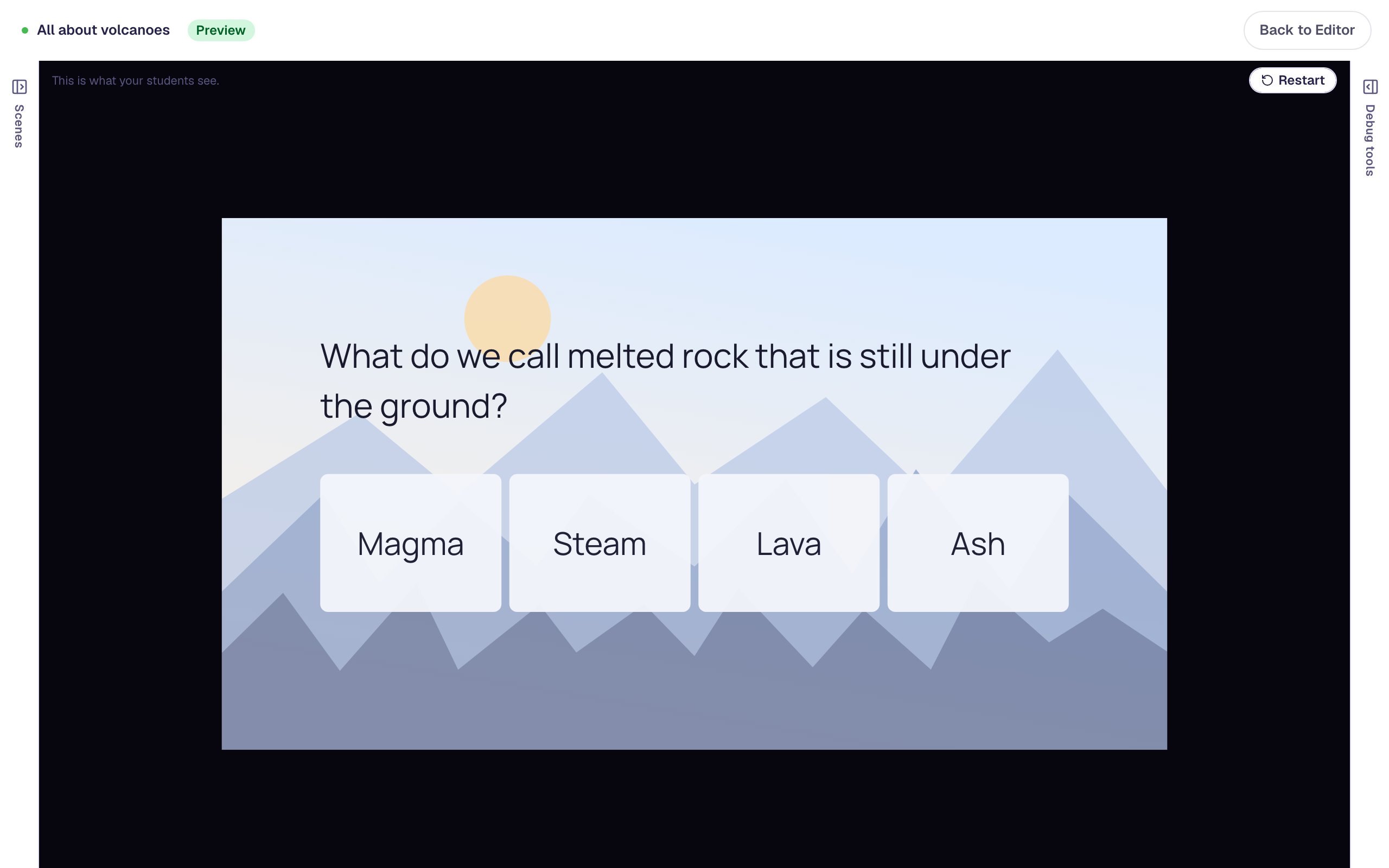
Pick Lava first. It's wrong, so nothing happens and the student can try again. Then pick Magma, and the lesson moves straight on to the ending.
What you built
A volcano lesson where a crowded page became two clear scenes:
- a new scene, added with Add scene and named for its job,
- a question moved, not rebuilt: two widgets selected with Shift-click and sent to Quick check with Move to Scene, keeping their answers and scoring,
- a reading scene with a bigger photo, a larger passage, and a Next button, and
- a question scene with large text that moves on to the ending by itself.
Use the same split whenever a scene starts to feel crowded: a story and its comprehension questions, a worked example and the practice problem, a video and the question about it. To build several question scenes from one, try Build a three-question quiz by duplicating a scene. To make the passage itself easier to read, try Make a reading passage easy to read.
Make this lesson yours
Add the lesson you just watched being built to your account, then change it for your class: your questions, your pictures, your colors.
Free to sign up, and you'll come straight back here. I have an account