Use a photo as a scene background
Fill a scene with a rainforest photo from the stock library, put the words on a see-through card so they stay easy to read, and reuse the same photo on the next scenes.
- Level
- Beginner
- Time
- About 10 min
- Steps
- 8
- Updated
- Oct 23, 2026
A three-scene rainforest lesson with the same full-scene photo behind a title card, a question card, and the ending.
Get the finished lesson
Skip straight to the result, or keep it open beside the steps. Add this tutorial's lesson to your account and explore how it works in the studio.
Free to sign up, and you'll come straight back here. I have an account
A photo that fills the whole scene puts students somewhere: a rainforest, a city street, the surface of the Moon. In this tutorial you'll build a short lesson called Into the rainforest. A rainforest photo sits behind every scene, and the words sit on a soft white card so they stay easy to read on top of a busy picture.
You'll also see why the shape of the photo matters, and how to reuse a photo you've already brought in without searching for it again.
Step 1: Choose a photo for the background
Create a new lesson from scratch and name it Into the rainforest (click Untitled lesson at the top). Click an empty spot on the scene so nothing is selected: the panel on the right now shows the scene's own settings. Open Background. Under Image, click Choose from library.
The Choose Image window opens on Search. Type tropical rainforest and press Enter, then click a photo you like:
Before you import it, look at the size under the photo. A background is stretched to fill the whole scene, so the photo should already be about the scene's shape: wide, almost twice as wide as it is tall. This one is 7008 × 3944, a perfect fit.
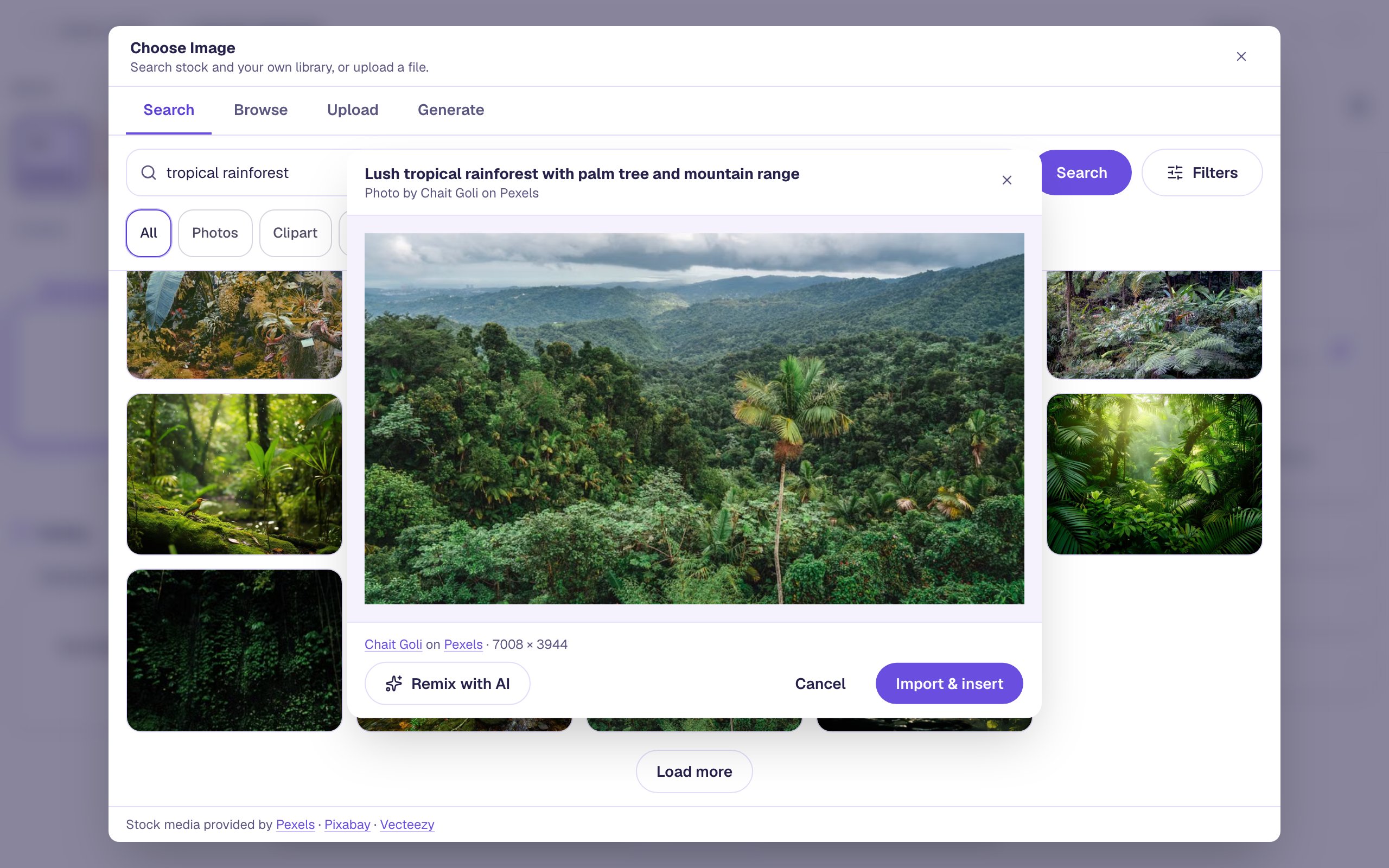
A photo that's closer to square (4000 × 3000, say) still works, but Berdee stretches it sideways to fill the scene. Hills and leaves hide a little stretching; faces, animals and round things look wider than they should. If the size isn't wide, cancel and pick another photo.
Click Import & insert:
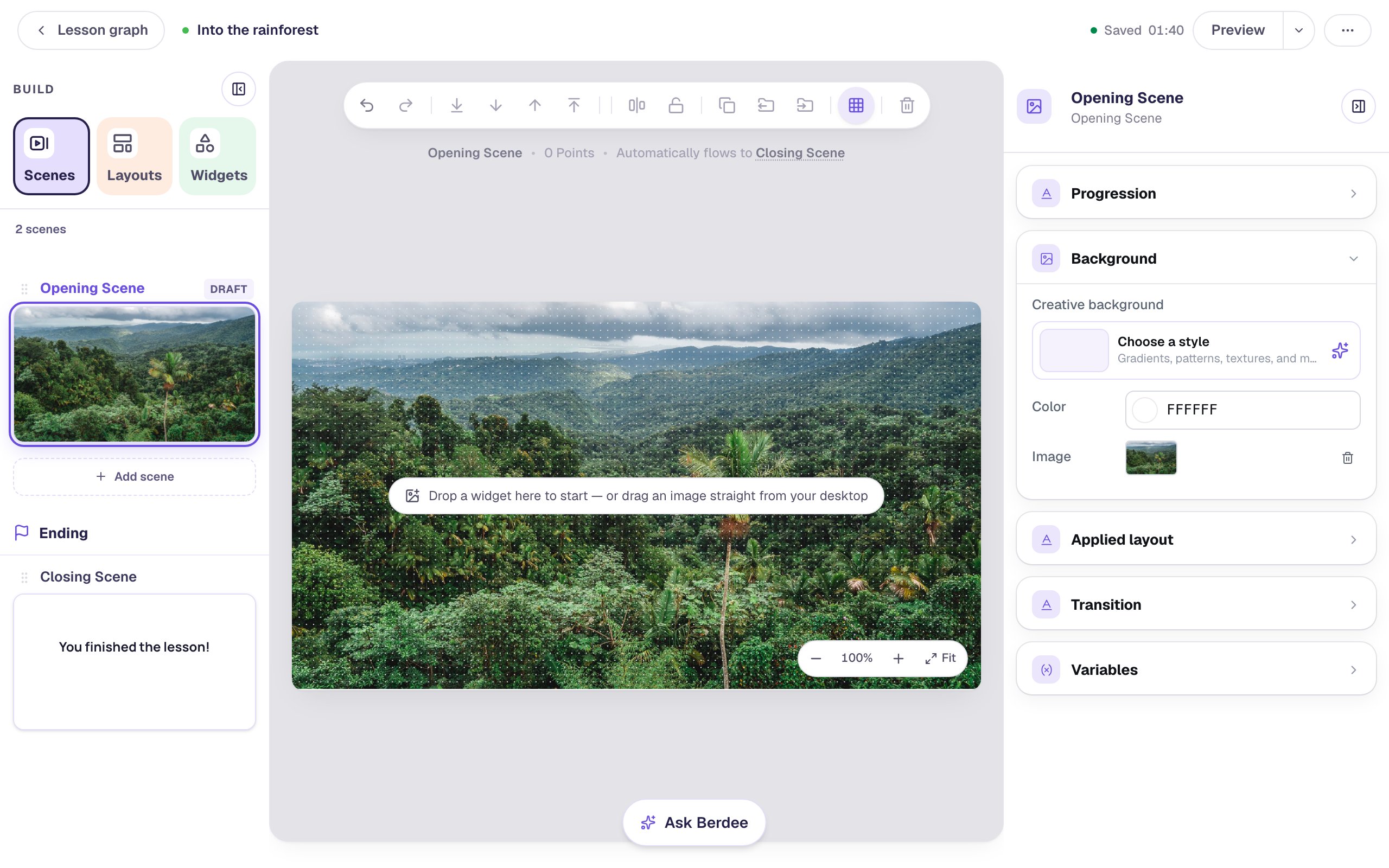
A background isn't a widget: you can't select it or move it by accident, and every widget you add sits on top of it.
Step 2: Add a see-through card
Dark text on a busy photo is hard to read, especially for young readers. A white card behind the words fixes that, and making it slightly see-through keeps the photo in view.
Open the Widgets tab, search for Shape and click it. In the Shape window, pick Rectangle and click Save. Then, under Style & Layout:
- Click Show more options and set Width to
600and Height to280. Drag the card to the middle of the scene. - Set Fill Color and Stroke Color to white.
- Round the corners: drag Border radius up to
24. - Drag Opacity down to
0.85.
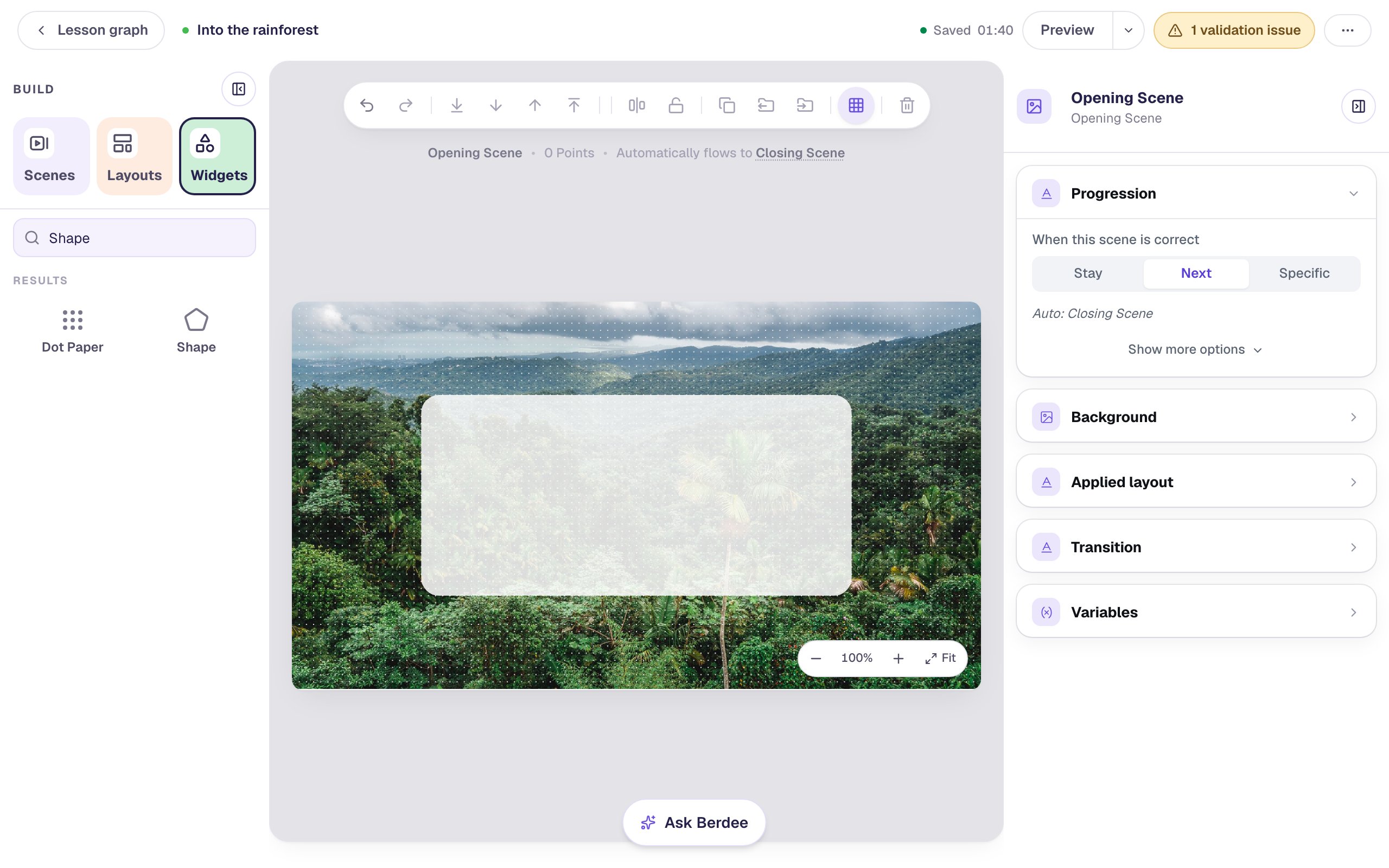
Lower opacity shows more of the photo but makes the text harder to read. Between 0.8 and 0.9 works for most photos.
Step 3: Write the title on the card
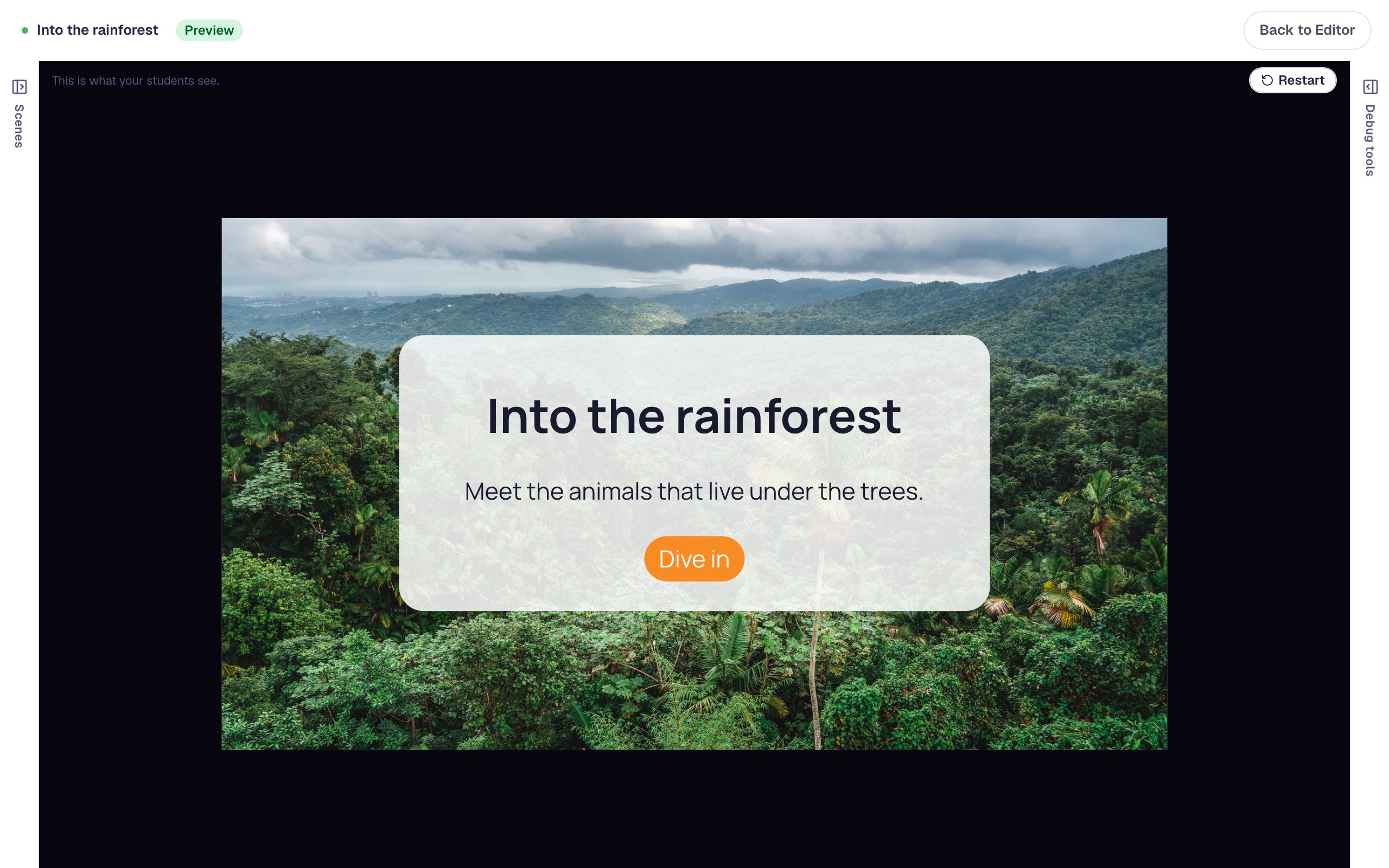
Add a Heading and type Into the rainforest, then a Body with Meet the animals that live under the trees. Put both on the card. Widgets you add later sit on top of earlier ones, so the words land in front of the card.
Add a Button, click ⚙ Configure, set its Label to Dive in and click Save. Under Style & Layout, give it an orange Background and white Text so it stands out from all that green, and place it at the bottom of the card:
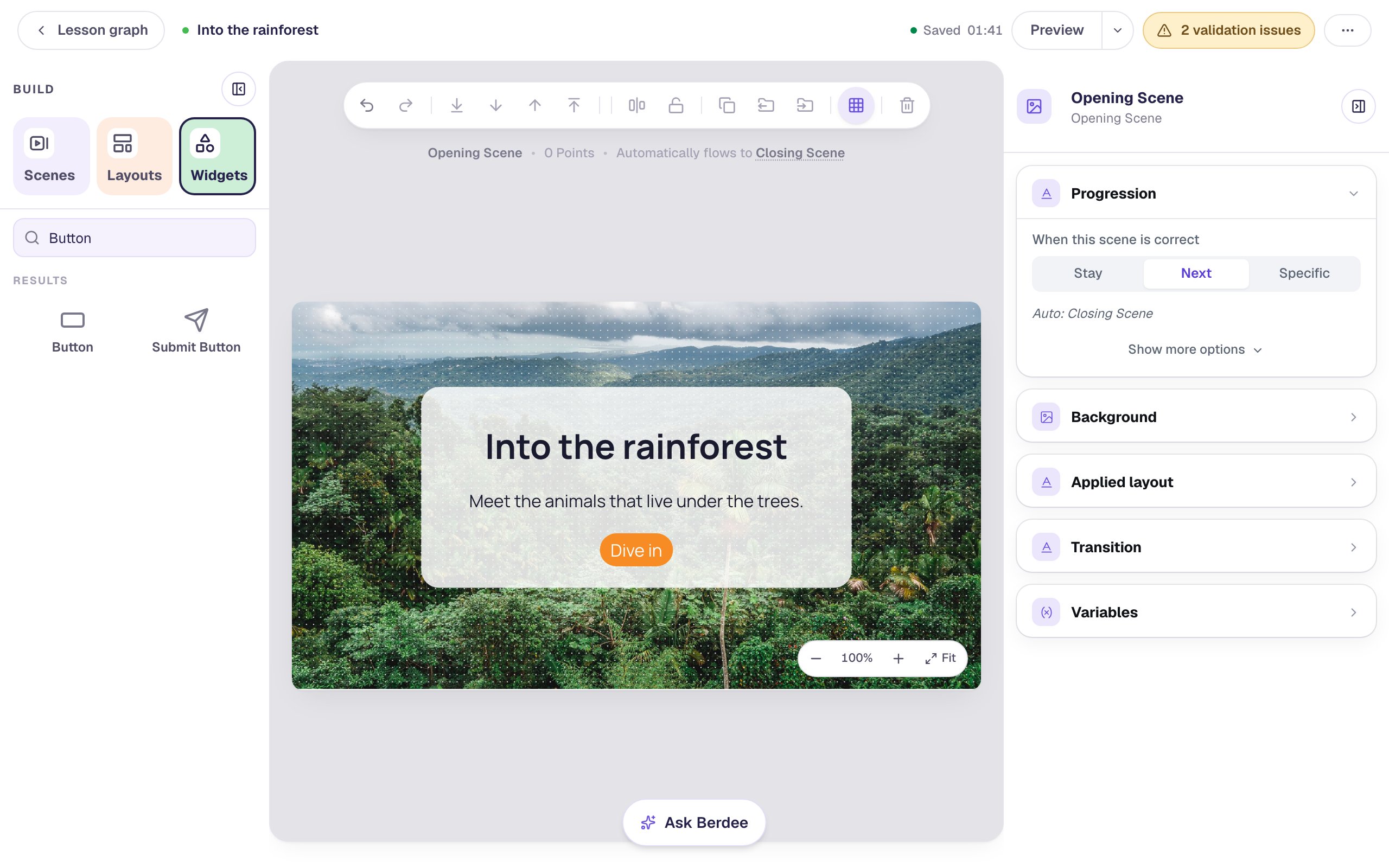
A background photo is decoration: screen readers skip it. Anything students need to know, like the lesson's name, goes in words on the scene, never only in the picture.
Step 4: Reuse the photo on a question scene
Open the Scenes tab and click Add scene. Double-click the new scene's name and call it Rainforest question.
Click an empty spot on the new scene, open Background and click Choose from library again. This time click the Browse tab: the rainforest photo you imported in Step 1 is already in your library. Click it, then Insert:
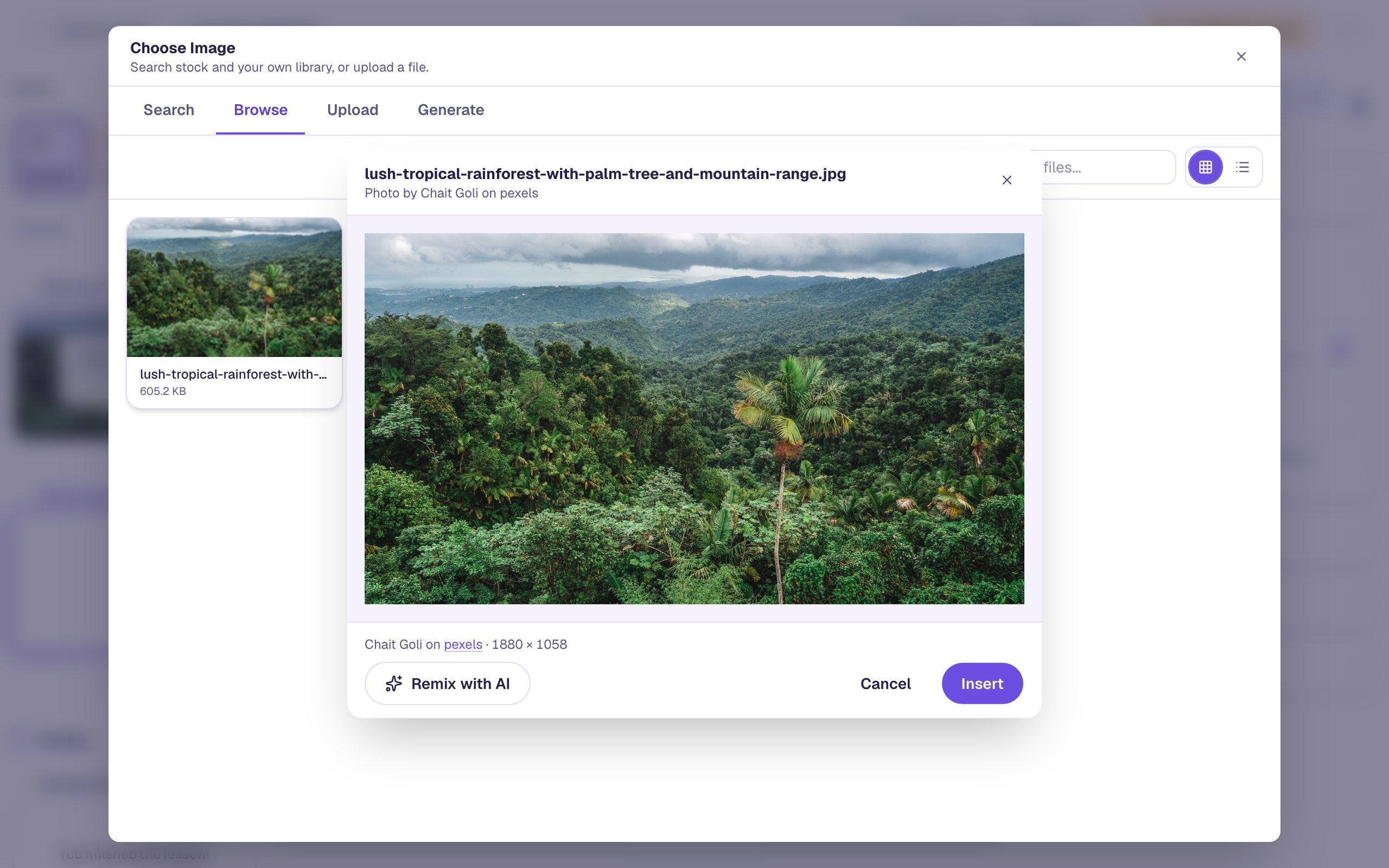
Using one photo on every scene makes the lesson feel like one place. If you'd like a different photo for each scene, search for it the same way as in Step 1. For a lesson with many scenes, a layout can carry the photo for every scene that uses it (an ending takes no layout, so give it the photo yourself).
Step 5: Ask the question on its own card
Add another white card the same way as in Step 2, this time 760 wide and 340 tall. Add a Heading on it: Which animal lives in the rainforest?
Then add a Multi Choice, click ⚙ Configure, and type the four answers: Toucan, Penguin, Camel and Polar bear. The first answer is already marked correct, which is what you want. Click Save, then set the question's Width to 640, Height to 210 and Font size to 24, and put it on the card below the heading:
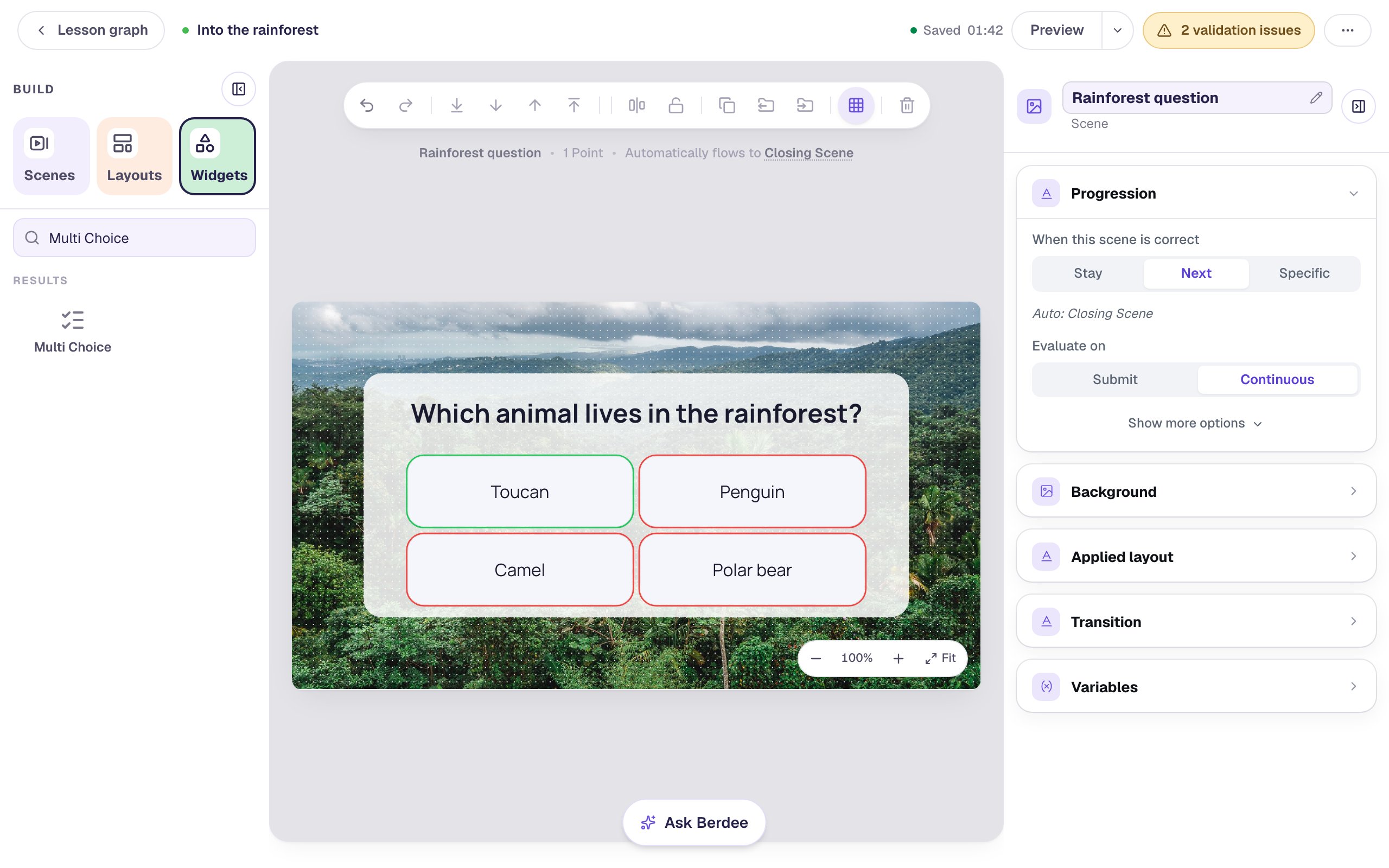
The line above the canvas says Automatically flows to Closing Scene: once a student picks Toucan, the lesson moves on by itself.
Step 6: Send Dive in to the question
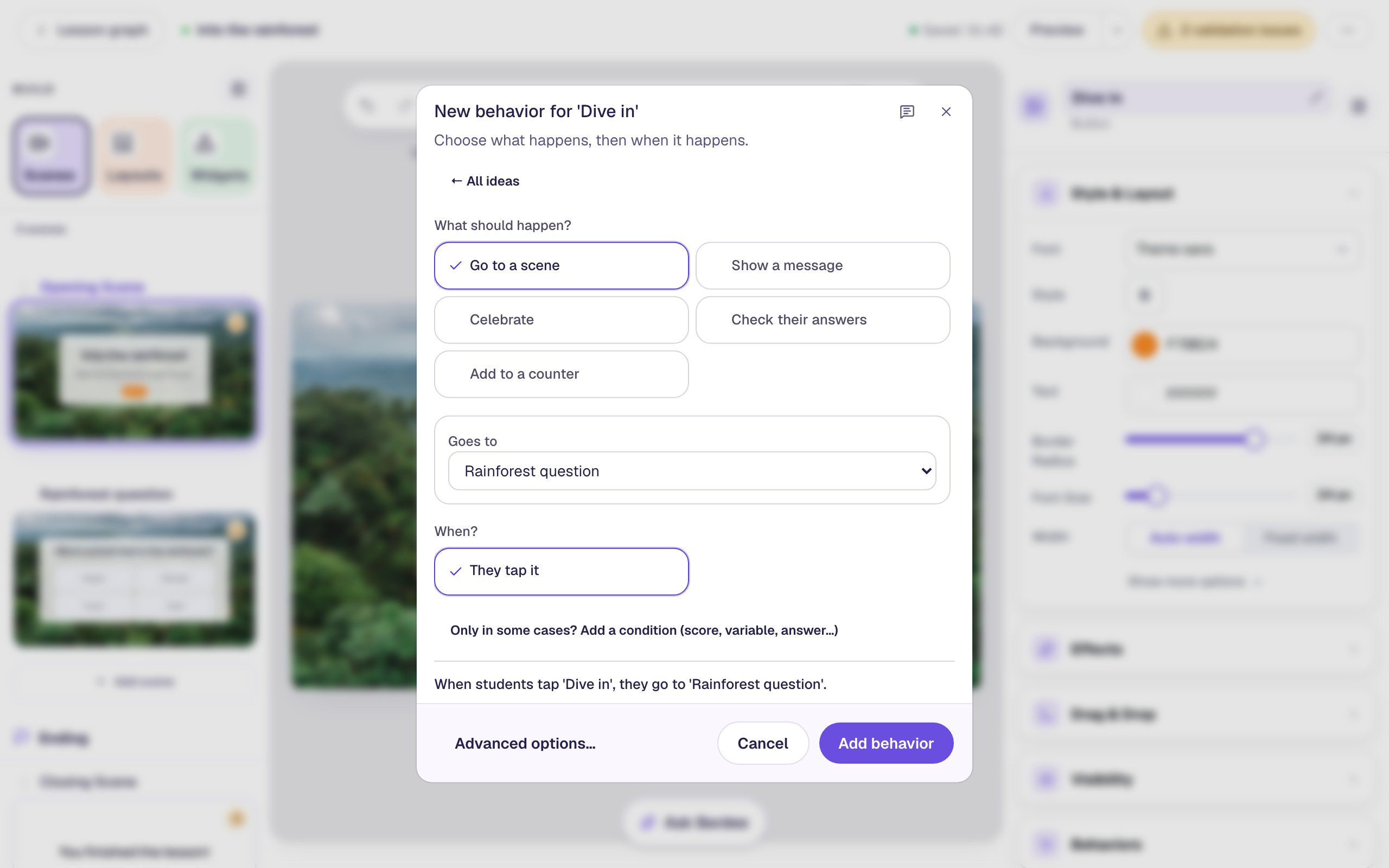
Go back to the Opening Scene in the Scenes tab and click the Dive in button. Click Behaviors on the bar above it, then Make this a "Next" button. Check that Goes to says Rainforest question, then click Add behavior:
Step 7: Give the ending the same look
Open the Closing Scene. Set its background to the rainforest photo from Browse, exactly as in Step 4, and add a third white card, 720 wide and 330 tall, in the middle.
The card is the newest widget, so it sits on top of the ending's score box and hides it. With the card still selected, click To Back on the toolbar above the canvas. The card moves behind everything else on the scene, and the score comes back on top:
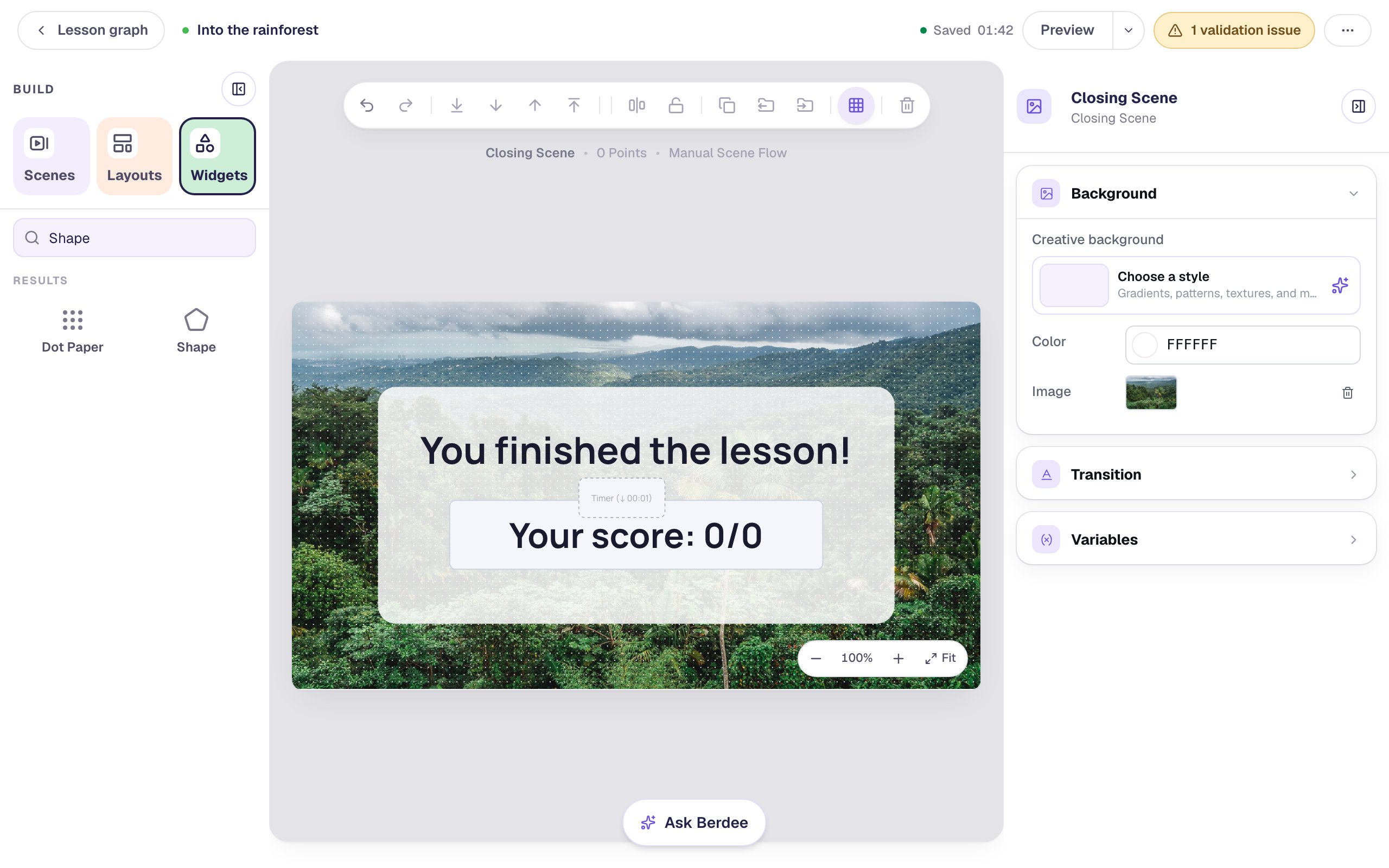
The yellow pill at the top says 1 validation issue: No Lesson-Submit Button. That's about finishing the lesson, not how it looks, so you can leave it for now. Build your first quiz question shows how to add one before you publish.
Step 8: Try it as a student
Open the Opening Scene and click Preview. Press Dive in, pick a wrong answer, then the right one:
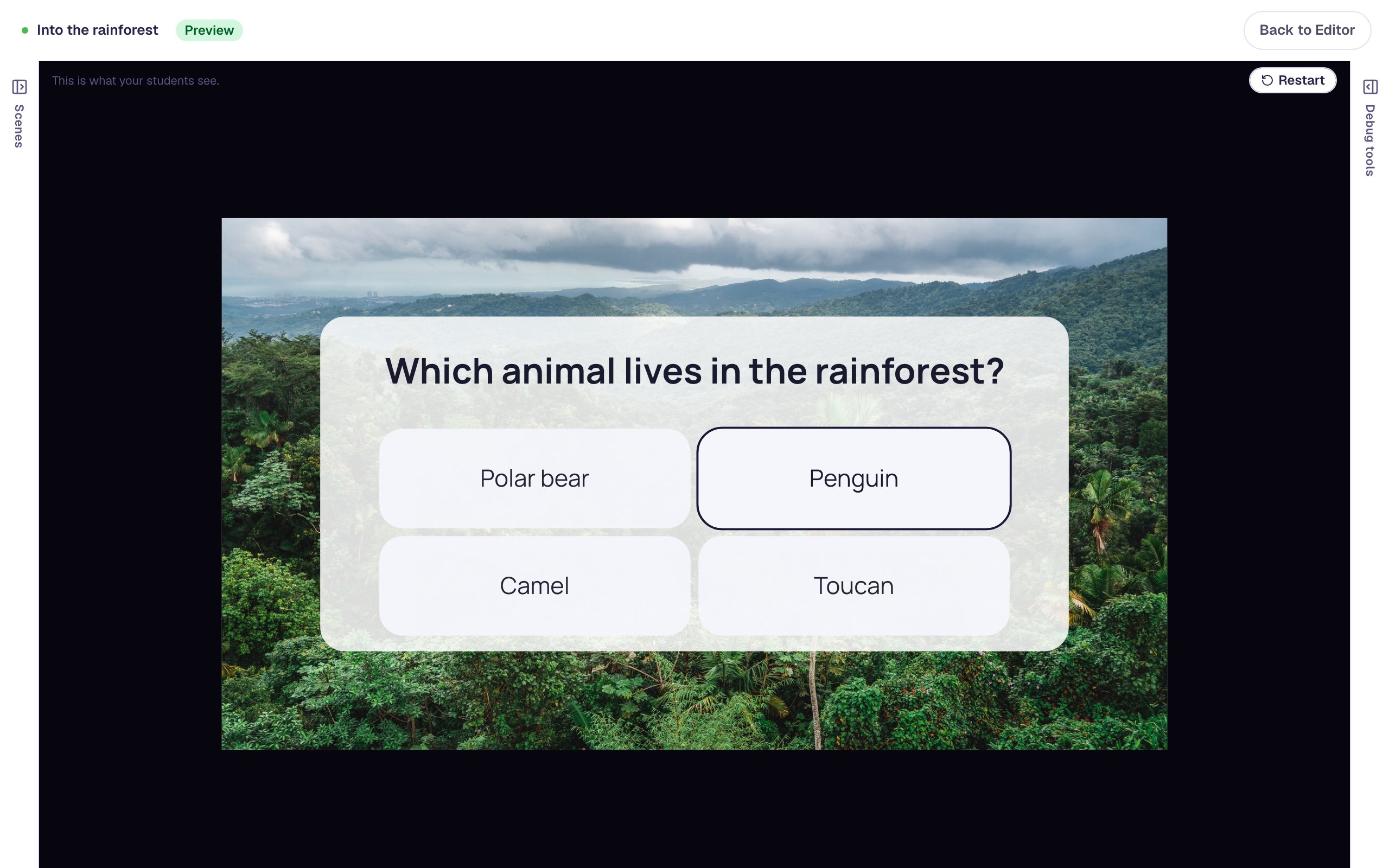
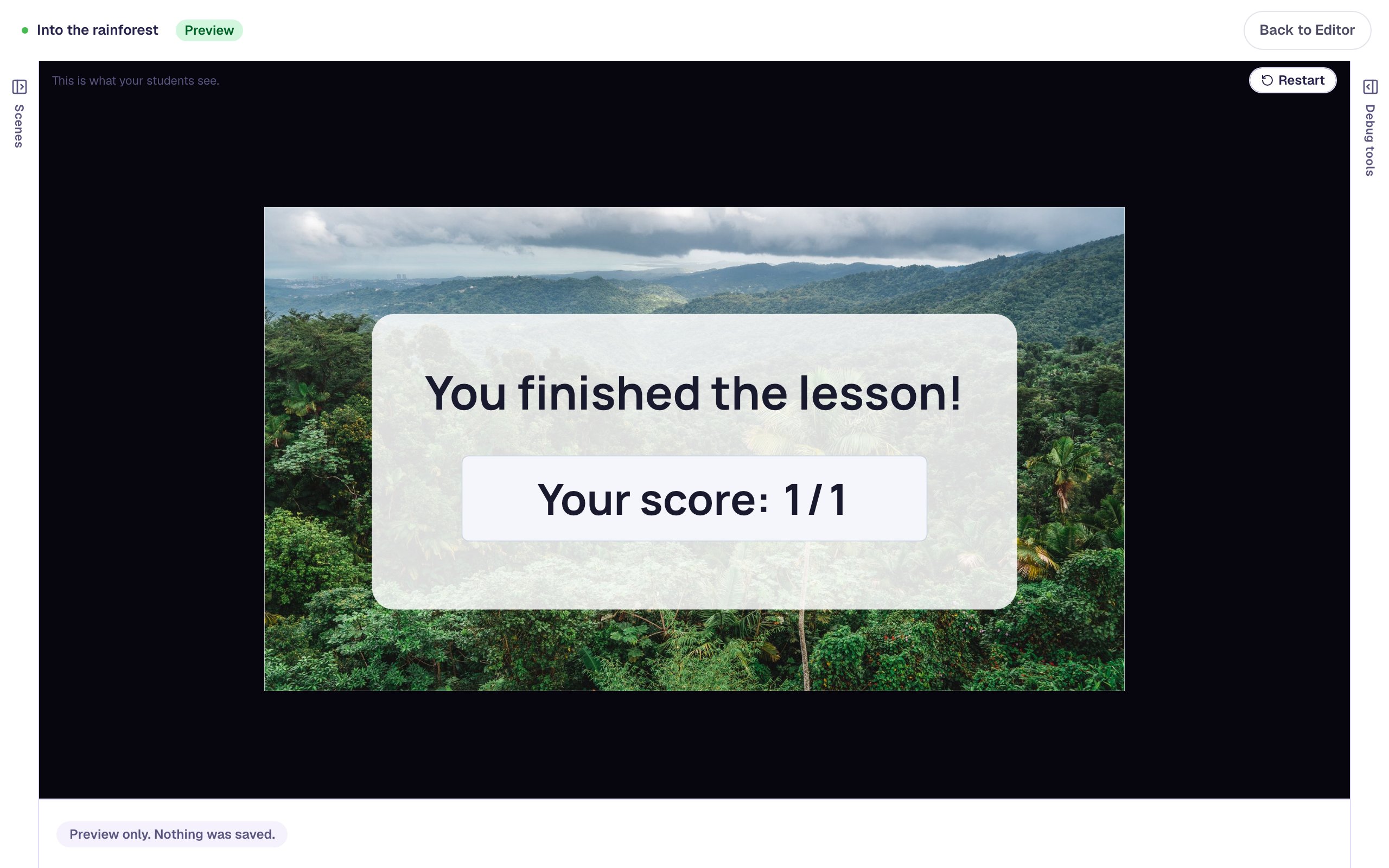
The answers appear in a different order in Preview: Multiple Choice shuffles them for every student.
What you built
A three-scene lesson that feels like one place:
- a wide stock photo as the background of every scene, imported once and reused from Browse;
- a see-through white card behind each scene's words, so dark text stays easy to read on a busy photo;
- To Back to slide a card behind widgets that were already on the scene.
Next, give a scene a generated background instead of a photo in Style a title scene with a palette and display font, or put the photo itself to work with Make a picture students can tap to explore.
Make this lesson yours
Add the lesson you just watched being built to your account, then change it for your class: your questions, your pictures, your colors.
Free to sign up, and you'll come straight back here. I have an account