Give a small group extra practice
Assign a short review lesson to just the students who need it, from your classroom's Assignments dialog, then add one more student to the group later without touching anyone else.
- Level
- Beginner
- Time
- About 8 min
- Steps
- 8
- Updated
- Nov 2, 2026
A water cycle review assigned to three students in a class of four, while the whole class keeps the exit ticket.
Get the finished lesson
Skip straight to the result, or keep it open beside the steps. Add this tutorial's lesson to your account and explore how it works in the studio.
Free to sign up, and you'll come straight back here. I have an account
Not every student needs the same next lesson. After an exit ticket, a few students usually miss the same idea, and the best use of tomorrow's ten minutes is a short review for just them, while everyone else moves on.
In this tutorial you'll give a review lesson to two students in a class of four, add a third student to the group a day later, and then check what each student sees. Everything here works on every plan, Free included.
Step 1: Start from a class that already has a lesson
This tutorial picks up where Assign a lesson and see how a student did leaves off. My Classroom has four students, and all four have the water cycle exit ticket. Maya Chen and Sam Patel both missed the question about water vapor, so they're the group that gets the review.
The review is a one-scene lesson where students type two missing words about how water rises into the air. To follow along with the same one, press Add this lesson to my account on this page; it arrives as Water cycle review. Any lesson you've built works the same way.
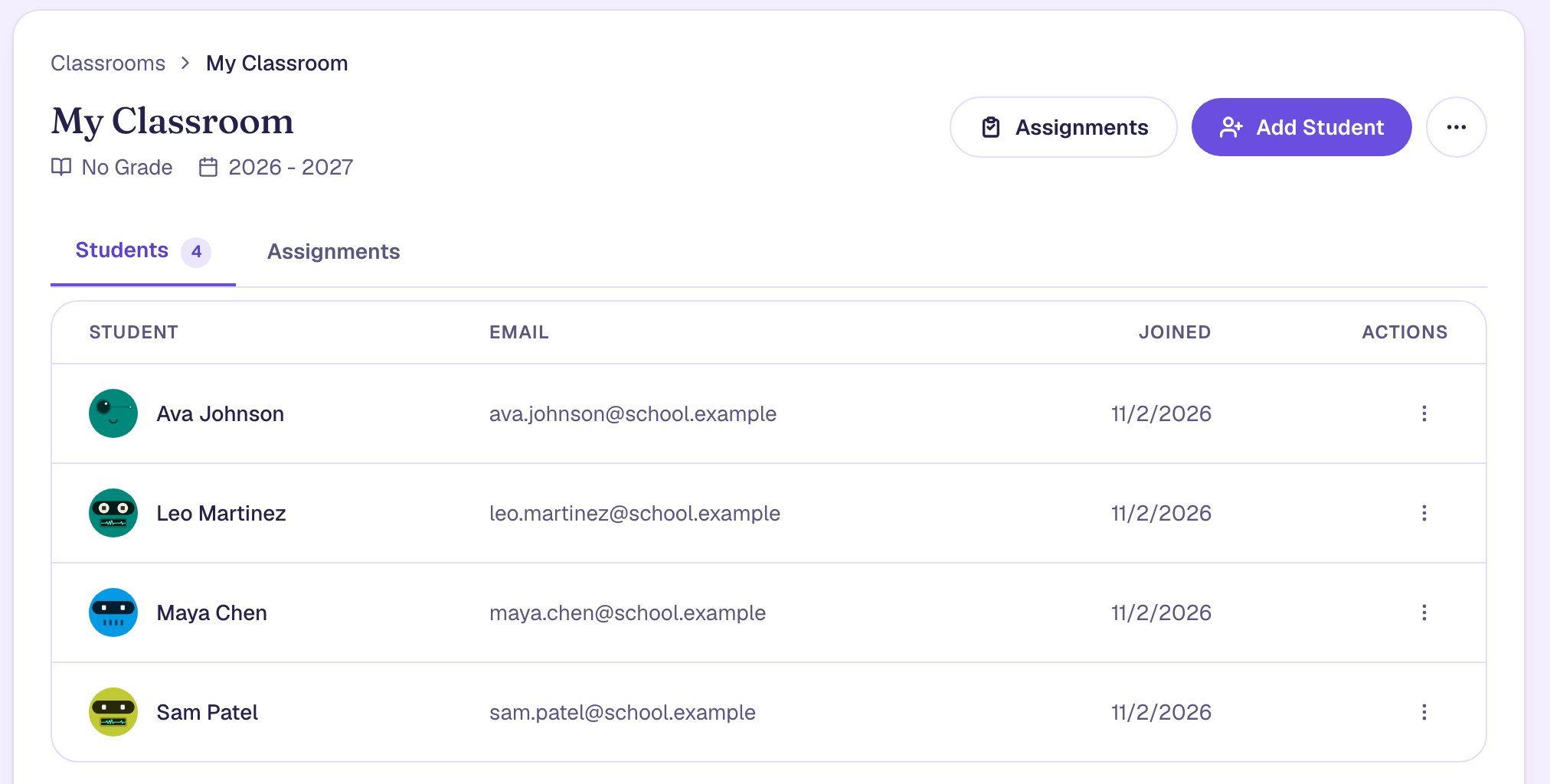
Open Classrooms in the sidebar, then View on My Classroom. The Students tab lists everyone in the class.
Step 2: Open the Assignments dialog
Click Assignments, next to Add Student. The Assign lessons window opens with nobody selected yet, so you choose exactly who gets what.
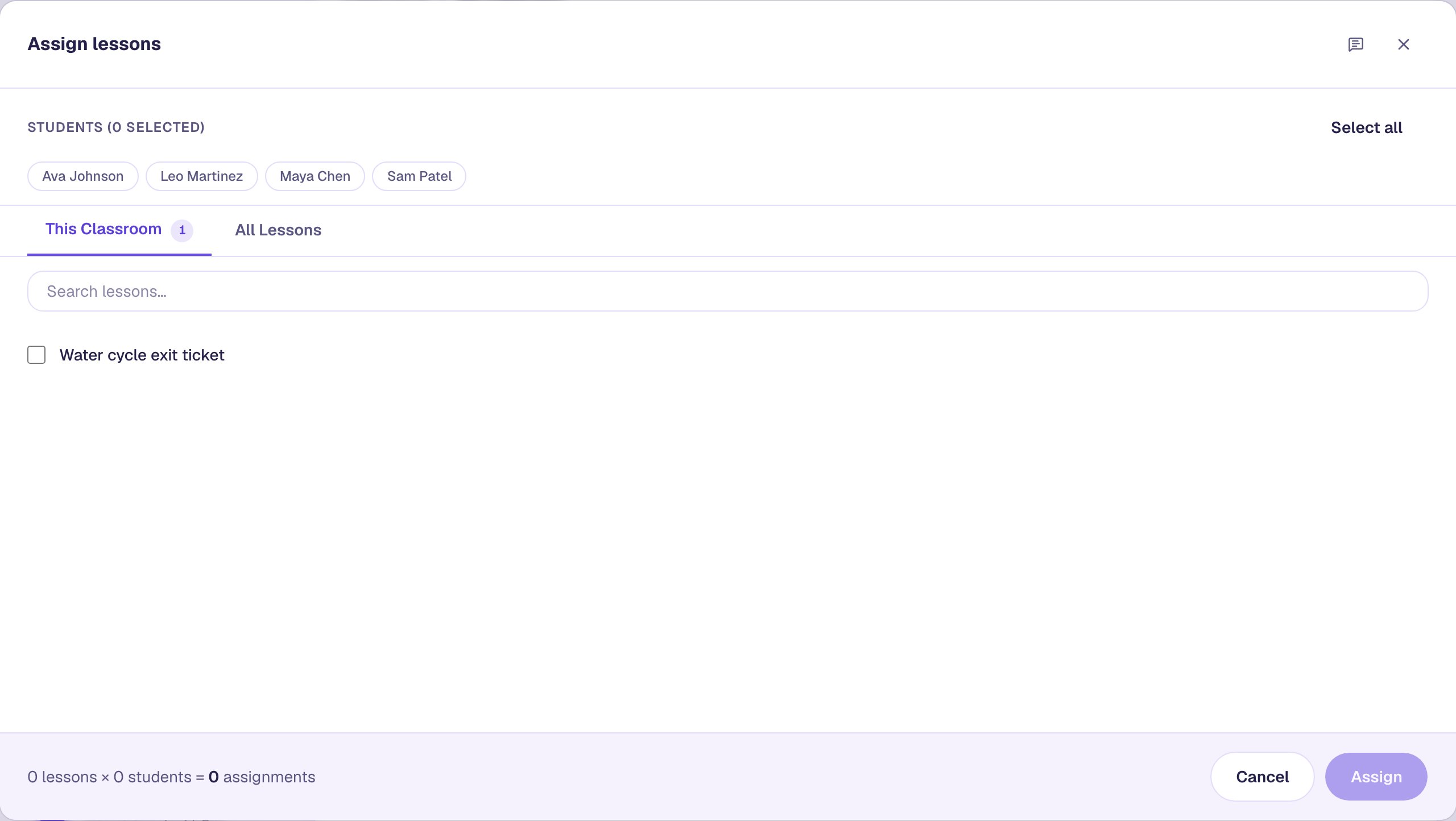
The lesson list has two tabs. This Classroom shows lessons someone in this class already has, which is handy for giving the same lesson to one more student. All Lessons shows every lesson you own.
Step 3: Pick the students in the group
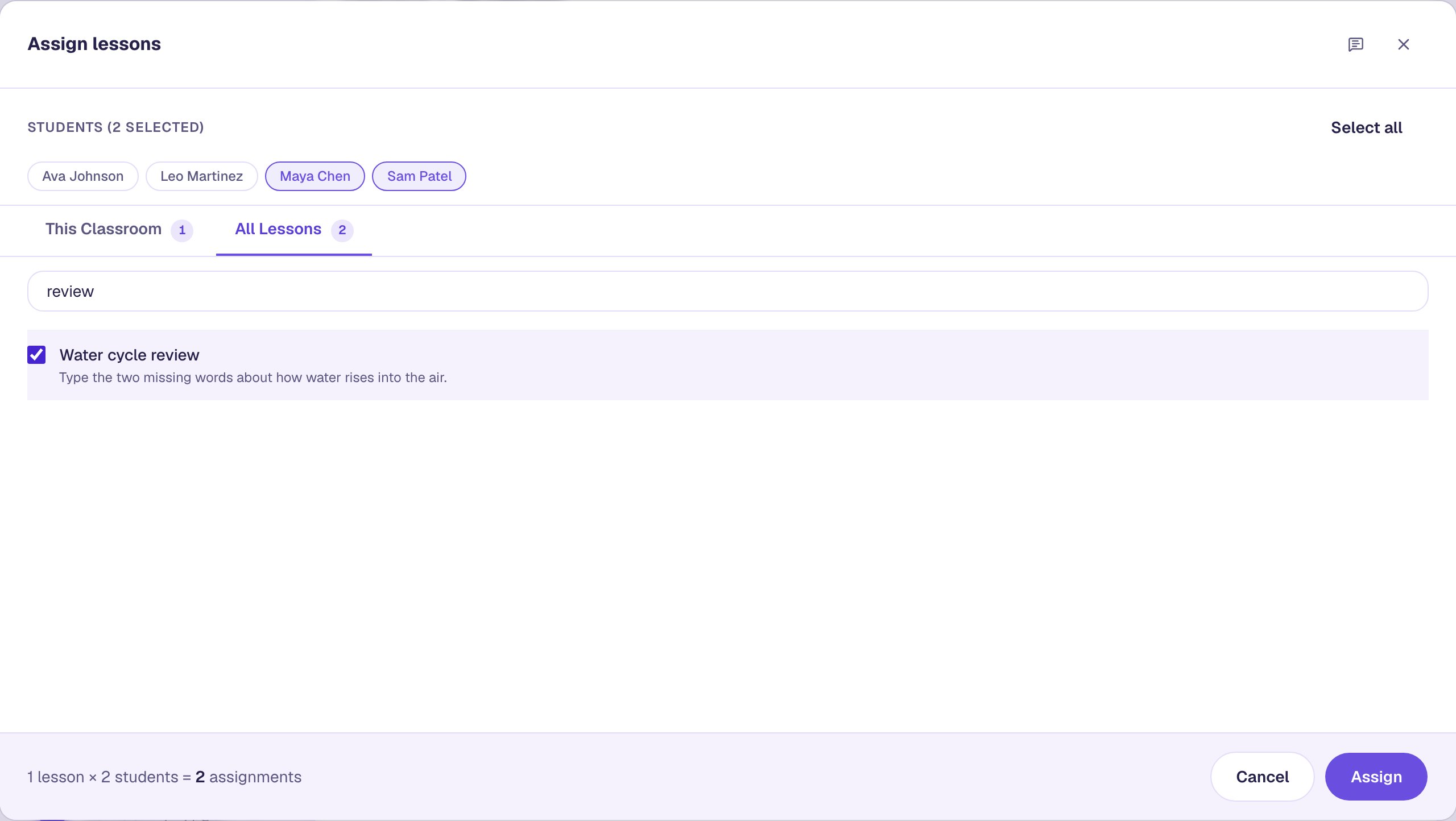
Click Maya Chen and Sam Patel. Each name you pick turns purple, and the heading counts them: Students (2 selected). Click a name again to take it back out.

Don't use Select all here: that's for a lesson the whole class should get.
Step 4: Find the review lesson
The review hasn't been given to anyone in this class yet, so it isn't on This Classroom. Click All Lessons, then type review in the search box. Tick Water cycle review.
The footer does the math for you: 1 lesson × 2 students = 2 assignments. Read it before you assign; it's the quickest way to catch a forgotten name or an extra lesson.
You can tick more than one lesson too. Three review lessons for two students would be six assignments, made in one go.
Step 5: Assign it
Click Assign. Berdee checks the lesson is ready for students first, and if something is missing (such as a way to finish), it lists the problem and assigns nothing. When it works, a green line reports how many assignments it made.
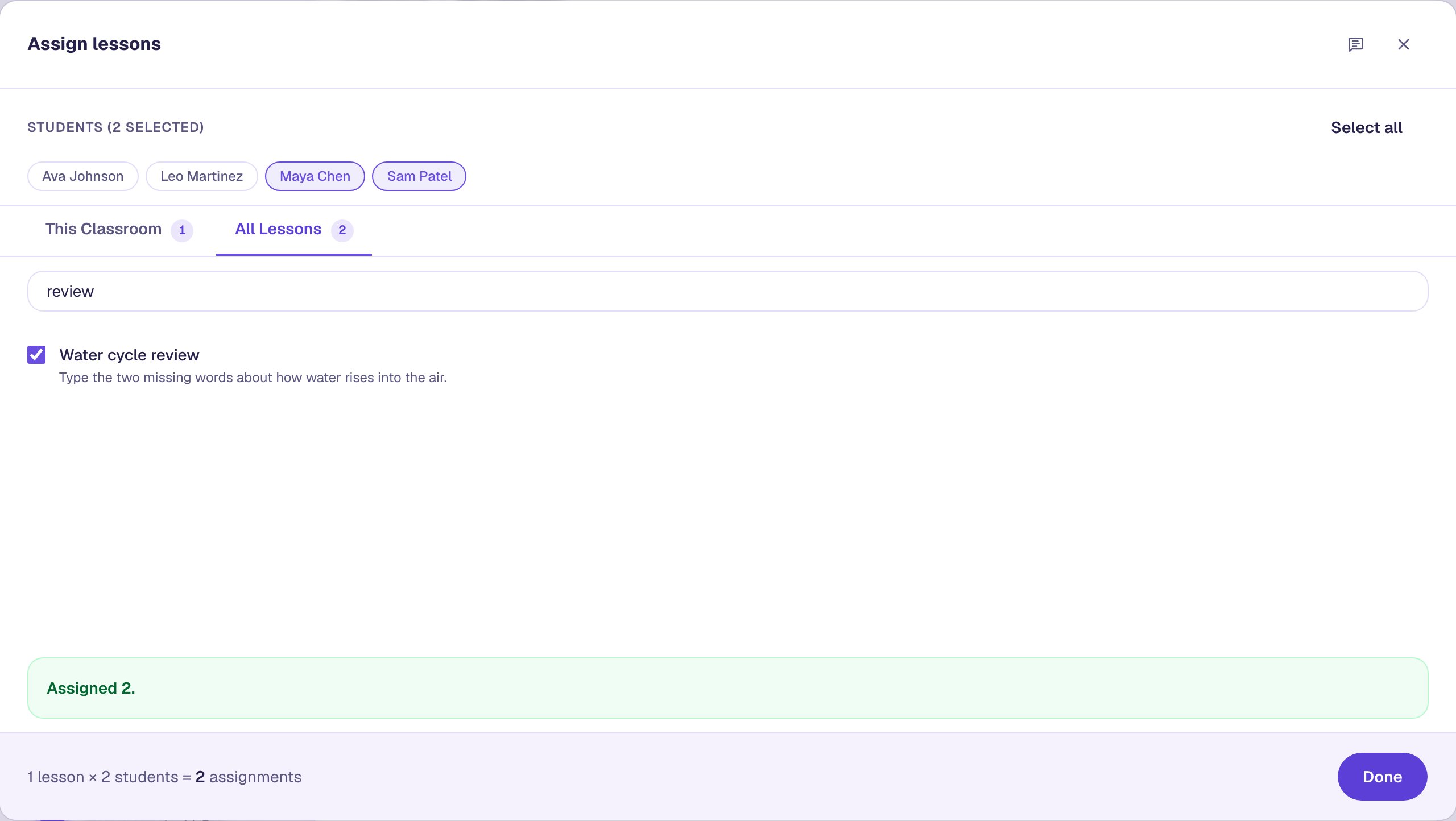
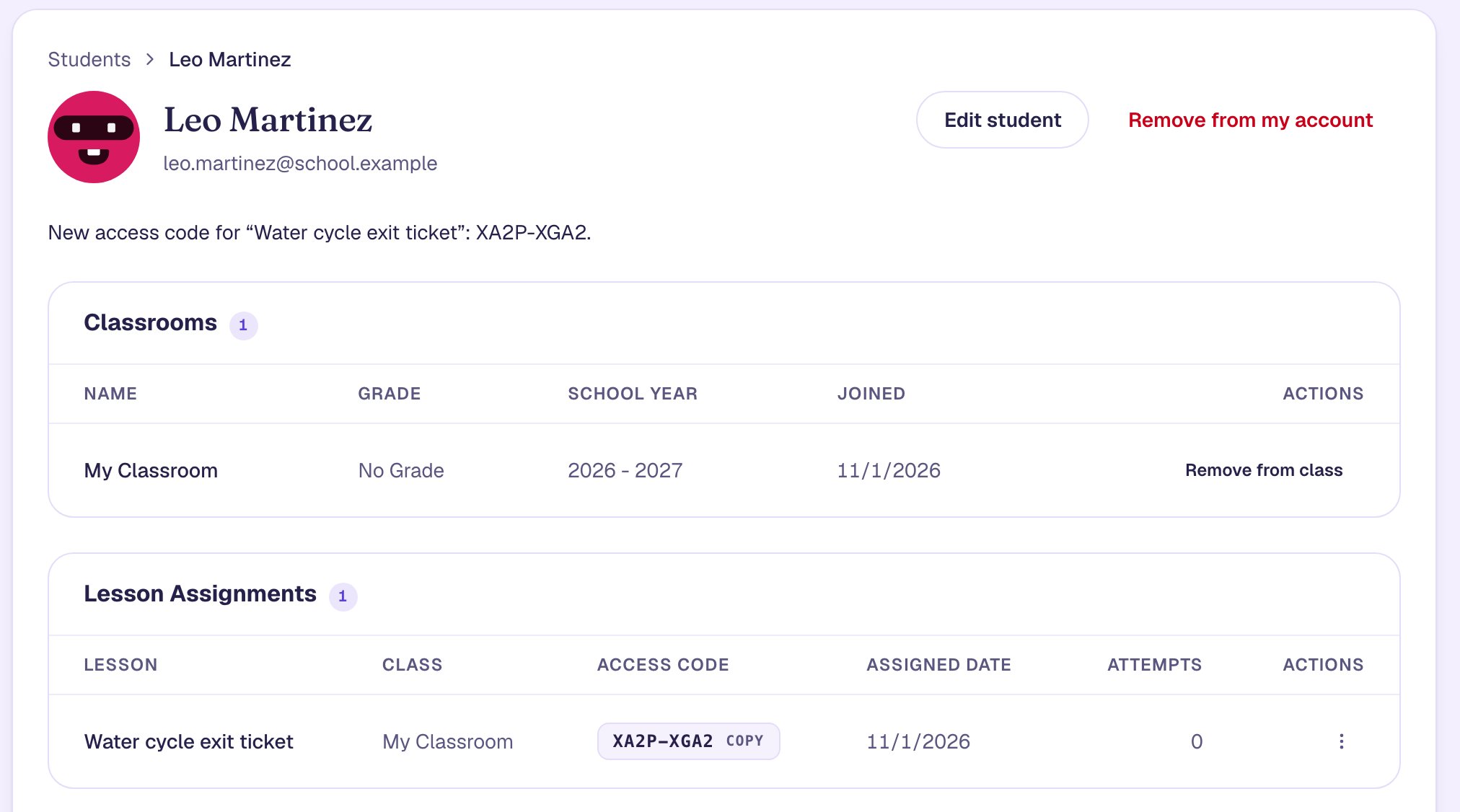
Click Done. Maya and Sam each have the review now, with their own access code, which you'll find on each student's profile under Lesson Assignments.
Step 6: Add one more student to the group
The next day, Leo's work shows he's mixed up the same idea. You don't need to open the dialog for the whole class again. On the Students tab, click the ⋮ at the end of Leo's row and choose Assign.
The same window opens, this time for Leo alone: it says Assigning to Leo Martinez instead of listing the class. Water cycle review is already on This Classroom, because the group has it. Tick it, click Assign, and the window reports Assigned 1.
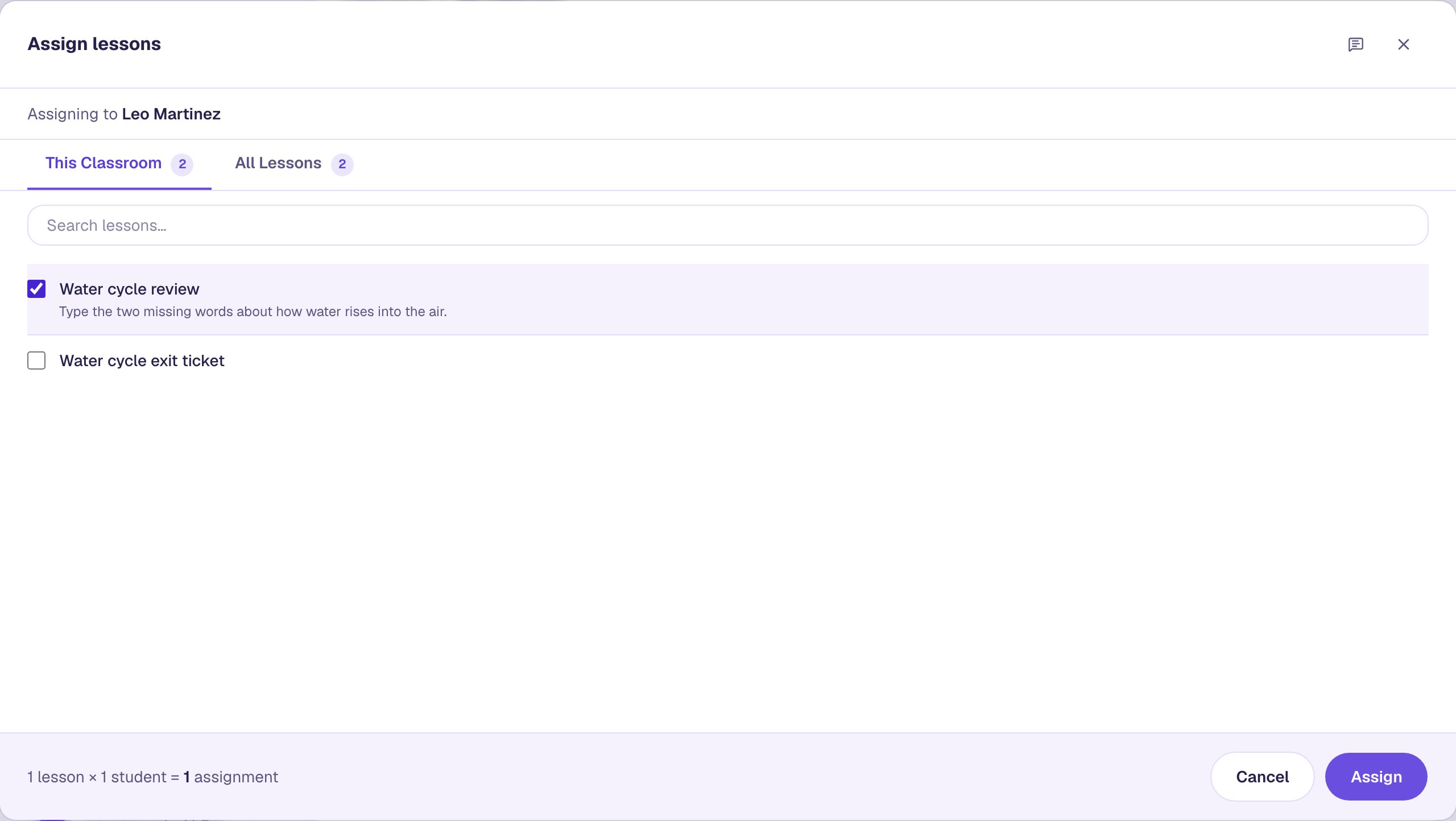
If you ever tick a student who already has the lesson, nothing is doubled: Berdee skips them and says so in the green line.
Step 7: Check who has what
Click the class's Assignments tab. Each lesson anyone in the class has gets a row, with how many students have it.
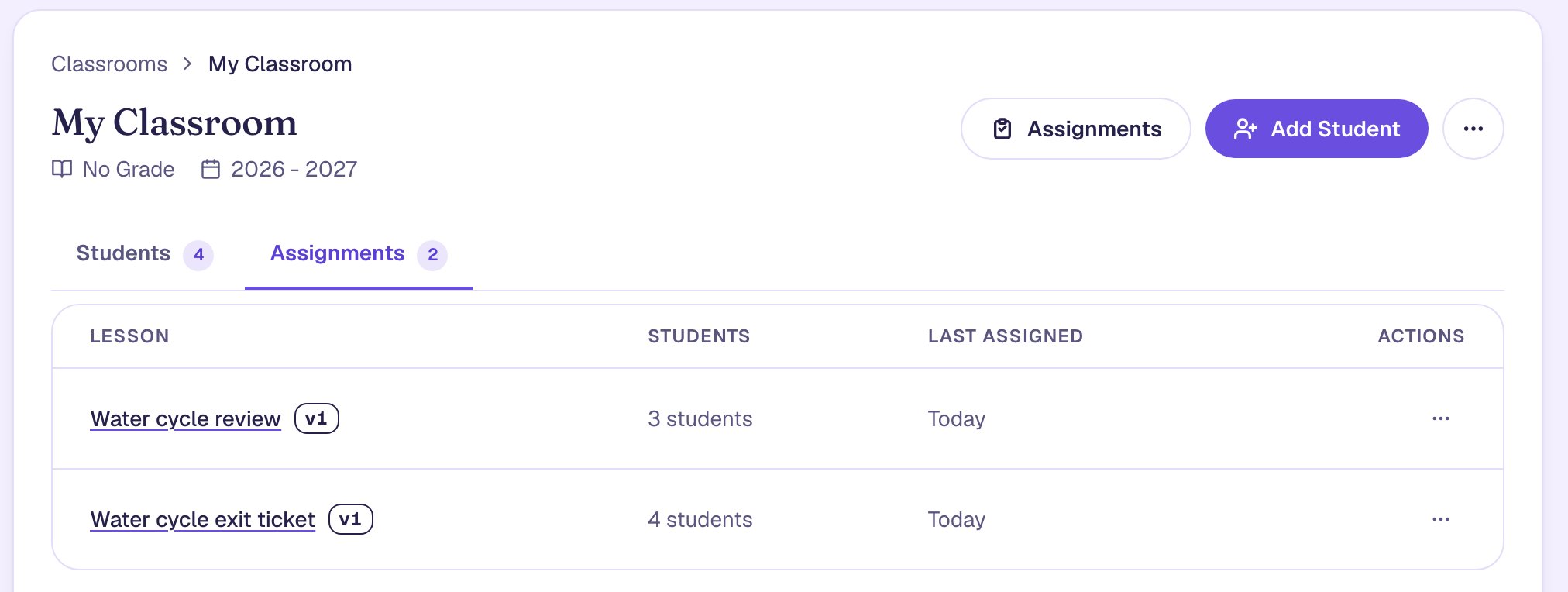
3 students is your group. To see exactly who, open a student's profile from the Students page: their Lesson Assignments lists every lesson they have.
If the group is ready to stop the review early, the row's ⋯ menu has Unassign. It takes the lesson back from everyone in the class who has it, and keeps the work they've already done.
Step 8: See it from a student's side
When Maya signs in with her code at berdee.app/go and opens Home, the review is waiting under To do, beside the exit ticket.
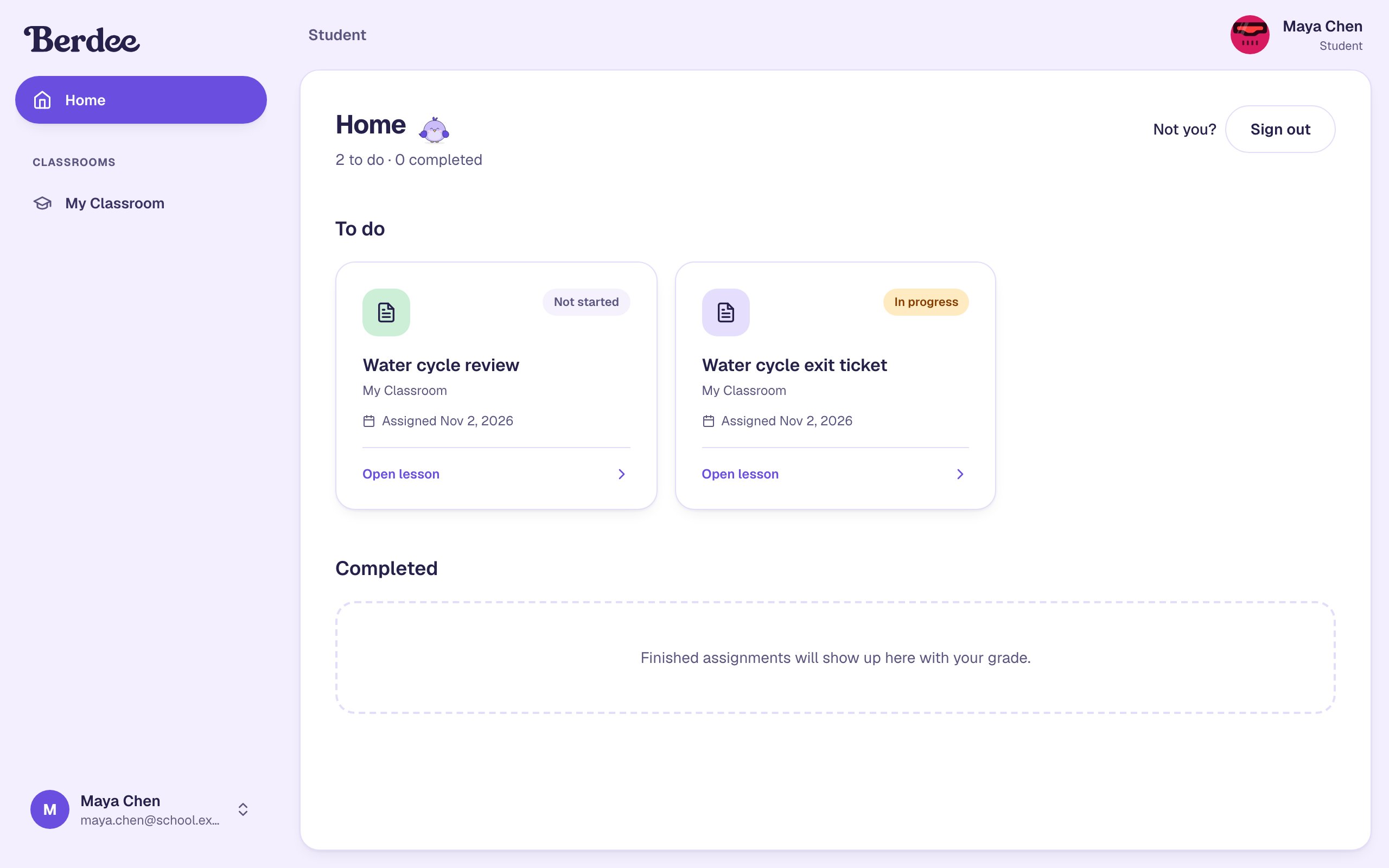
Ava wasn't in the group, so her To do has only the exit ticket. Nothing on her page mentions the review, and nobody in the class can see who else got extra practice.
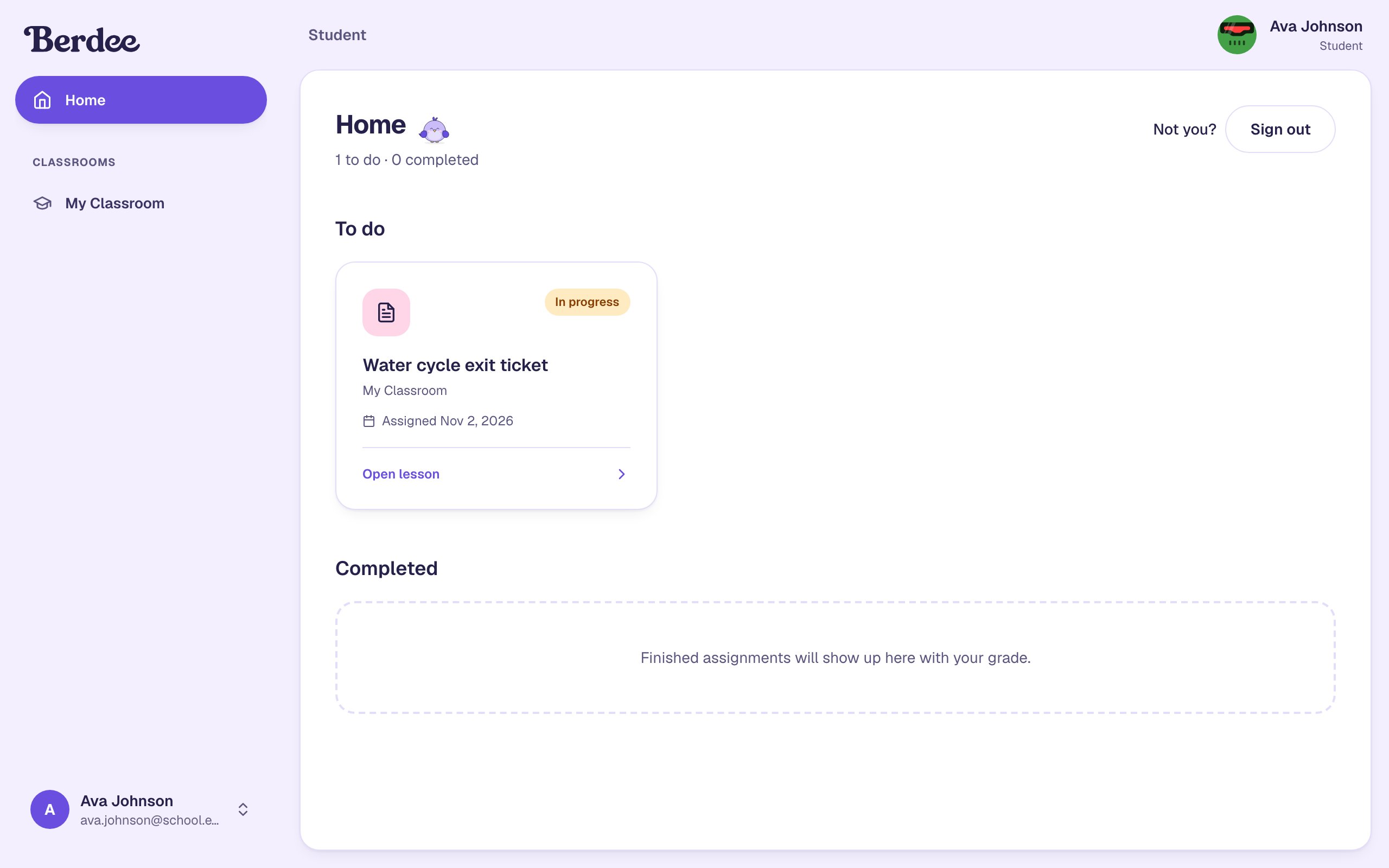
The exit ticket says In progress for both because typing a code opens that code's lesson straight away. A code signs the student in, so Maya can use either of her two codes, and from Home she reaches every lesson you've given her.
What you built
A class where everyone has the same exit ticket, and a small group also has a review:
- Two students picked by name in the Assign lessons window, with a lesson found on All Lessons.
- A third student added later from their own row, without reopening the whole class.
- The class's Assignments tab counting who has each lesson.
- Each student's To do showing only the lessons that are theirs.
Use the same steps for a challenge lesson for students who are ready for more, or a make-up lesson for someone who was away.
When the review is done, open each student's attempt to see whether it worked, as in Assign a lesson and see how a student did.
Make this lesson yours
Add the lesson you just watched being built to your account, then change it for your class: your questions, your pictures, your colors.
Free to sign up, and you'll come straight back here. I have an account