Match pictures to their words
Build a Matching activity where early readers connect four weather photos to the words sunny, rainy, snowy and windy. Pick each photo from the stock library, then describe it for screen readers without giving the answer away.
- Level
- Beginner
- Time
- About 10 min
- Steps
- 7
- Updated
- Oct 27, 2026
A "Weather words" scene where students match four weather photos to their words, get a hint after a wrong pairing, and move on to the ending once every pair is right.
Get the finished lesson
Skip straight to the result, or keep it open beside the steps. Add this tutorial's lesson to your account and explore how it works in the studio.
Free to sign up, and you'll come straight back here. I have an account
Young readers often know a picture long before they can read the word for it. A picture-to-word matching activity uses that: the photo is the clue, and reading the word is the work. It suits any early vocabulary, like animals, food, feelings or the weather.
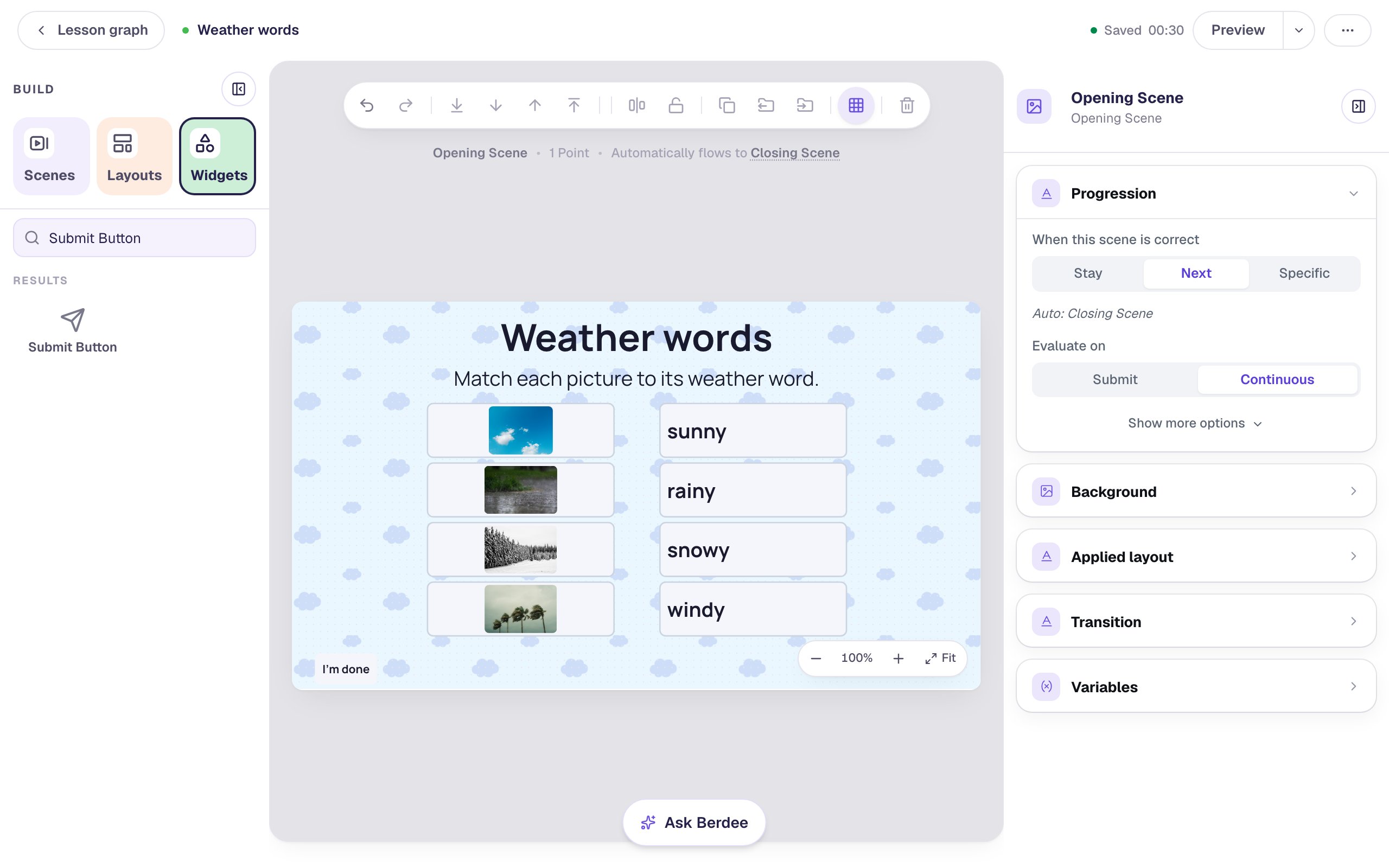
In this tutorial you'll build a weather matching activity. Students see four photos (a blue sky, falling rain, snowy trees and palm trees in a storm) and connect each one to sunny, rainy, snowy or windy. Along the way you'll give every photo a short description, so a student using a screen reader can play too.
If you've never built a matching activity, Build a matching game with instant feedback covers the basics with text on both sides. This tutorial moves faster through those parts.
Step 1: Set the scene
Start a blank lesson (New lesson, then Start from scratch) and name it Weather words by clicking Untitled lesson at the top.
With nothing selected, open Background and click Choose a style. Open Playful, pick Cloud pattern, and click Apply background. Select the Closing Scene in the Scenes panel and give it the same background, so the ending matches.
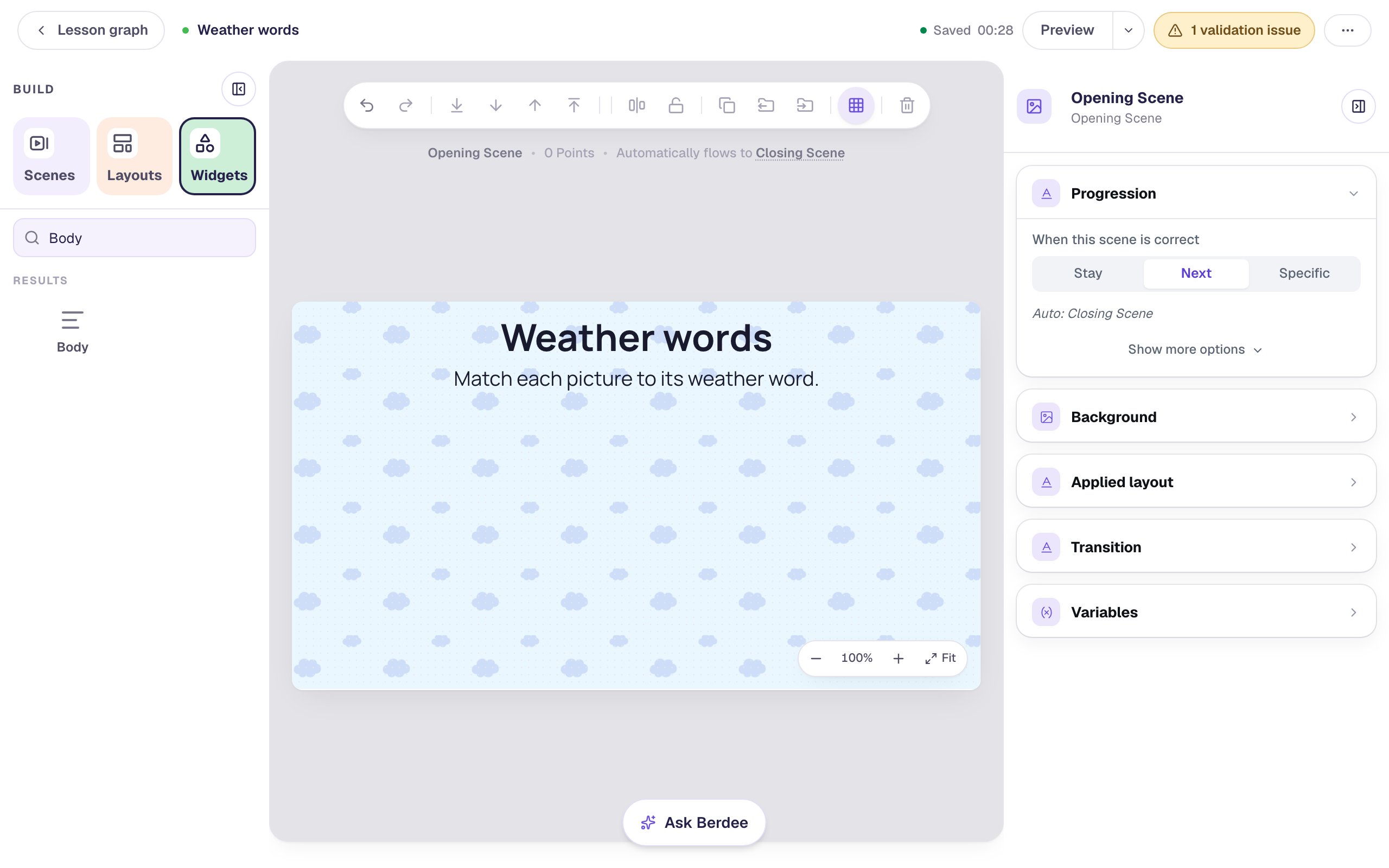
Back on the Opening Scene, add a Heading that says Weather words and a Body under it: Match each picture to its weather word. Set the Body's Font Size to 28.
Step 2: Add a Matching widget and type the words
In Widgets, search for Matching and click it. Then click ⚙ Configure above it.
A new activity has three sample pairs. Click Add Pair to make four. Clear every Prompt field: the photos go there in the next step. Then type one weather word in each Match field: sunny, rainy, snowy and windy.

There's no separate answer key: whatever is on the left of a pair is matched by what's on its right. So the photo you put beside sunny is the sunny one.
Step 3: Give each prompt a photo
Click the picture button beside Pair 1's prompt. The Choose Image window opens. Search for bright sunny day blue sky, click a photo you like, and click Import & insert.
Do the same for the other three pairs. These searches find clear examples:
| Pair | Match | Search for |
|---|---|---|
| 1 | sunny | bright sunny day blue sky |
| 2 | rainy | heavy rain falling |
| 3 | snowy | snow covered pine trees |
| 4 | windy | palm trees bending in strong wind |
Pick wide photos with one clear subject. The activity fits each picture inside its card without cropping, so a tall photo turns into a thin strip, and a tiny sun in a big sky is hard to see at card size. Leave out photos of people: students should be looking at the weather, not at someone's umbrella.

Step 4: Describe each picture
Students never see the words in the box beside a picture: they see the photo. But a student who uses a screen reader can't see the photo, and that box is the only thing their screen reader says for it. Left empty, the picture is read as just "Picture prompt 1".
Click each Describe the picture box and say in a few words what the photo shows:
| Pair | Describe the picture |
|---|---|
| 1 | A bright blue sky with a few small white clouds |
| 2 | Drops of water splashing hard onto wet ground beside green grass |
| 3 | Tall pine trees and the ground all covered in white |
| 4 | Palm trees with their leaves blown to one side under a grey sky |

Notice that no description uses its answer word. "A sunny sky" would tell a screen-reader user the answer while everyone else has to work it out. Describing what's in the photo (drops splashing, trees covered in white) gives every student the same clue to reason from.
Write the description for the photo you actually picked: if your rain photo shows a window, say so. Click Save.
Describe your pictures for screen-reader users has more on writing good descriptions.
Step 5: Give it room
A new matching activity is small, and these words are for children just learning to read. With the activity selected, rename it Weather match by clicking its name at the top of the properties panel. Then open Style & Layout:
- Set Font Size to
28. - Click Show more options and set Width to
600and Height to340.
Drag it under the instructions.
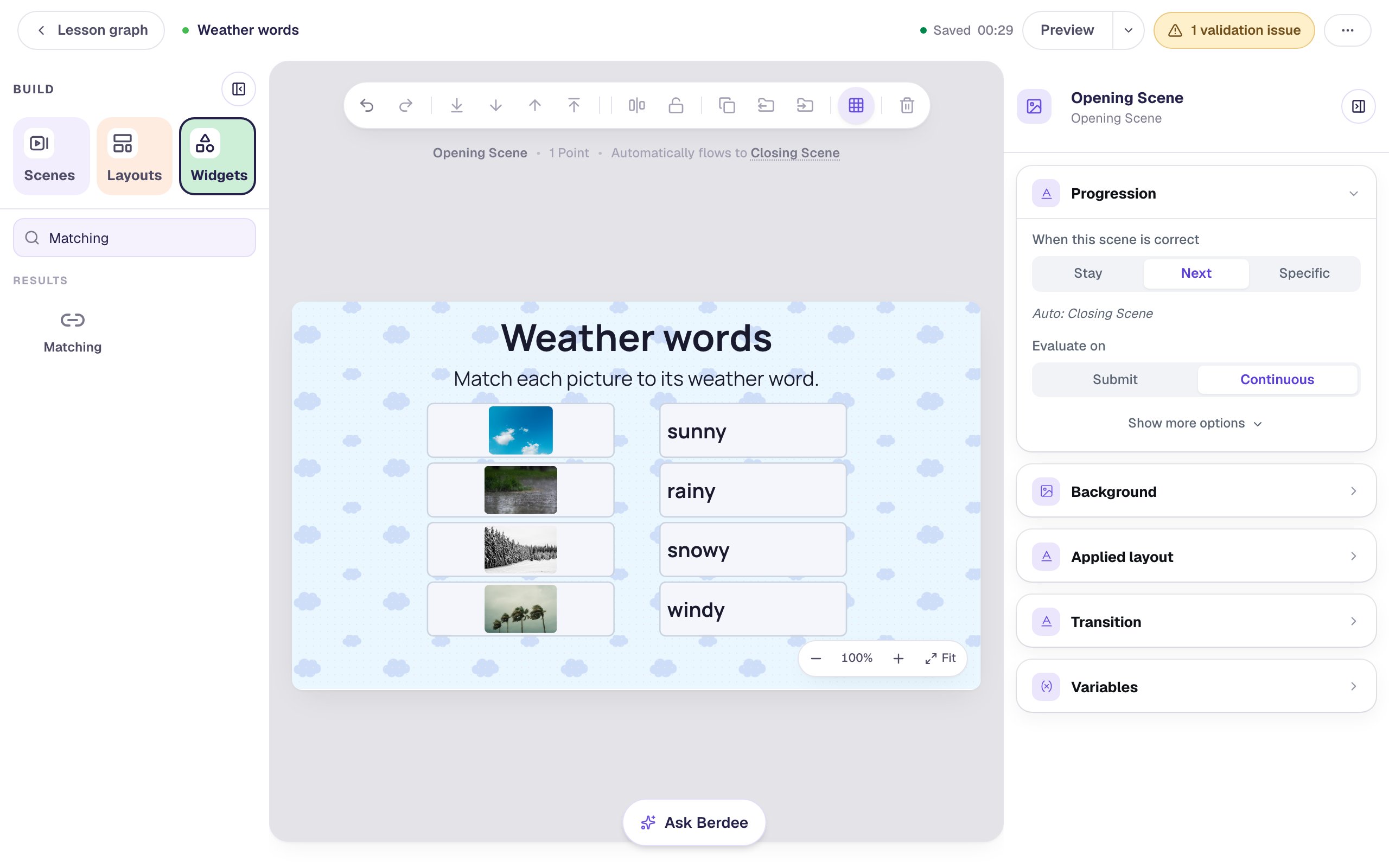
The Height sets how big the photos are: each card shares it with the others, and a picture fills its card's height. Four pairs in 340 leaves room for a photo students can make out without leaning in.
Step 6: Give a hint after a wrong pairing
With the activity selected, click Behaviors above it and choose Give instant feedback on a wrong pick. Change the message to Look at the picture again. What is the sky doing? and click Add behavior.
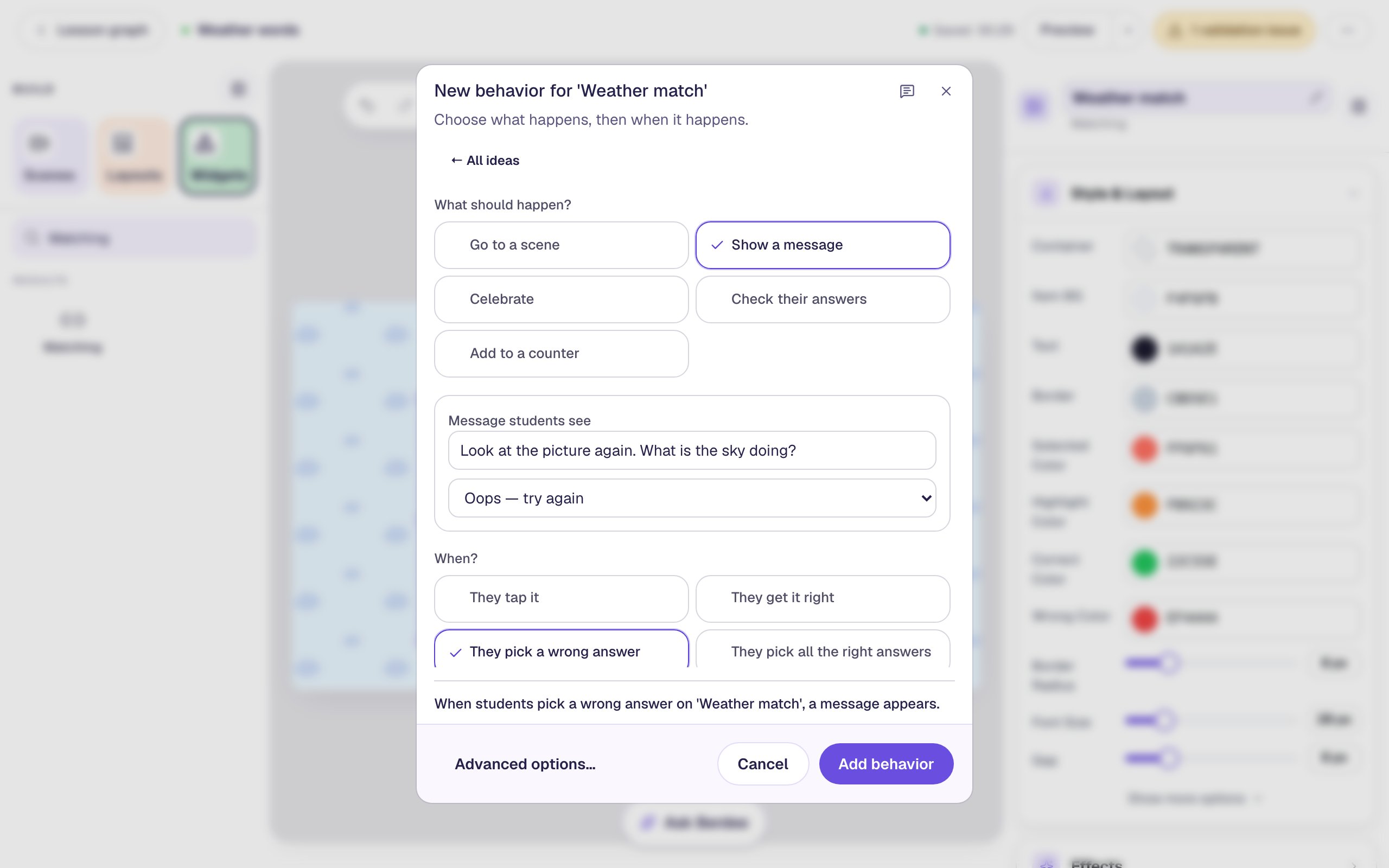
The message comes every time a student pairs a photo with the wrong word. A question that points back at the photo works better than "Wrong!": it tells students where to look.
Berdee also needs a way for students to finish the lesson early before it will publish. Add a Submit Button, set its Label to I'm done and Submits to Lesson in Content, set its Font Size to 16, and tuck it into the bottom-left corner.
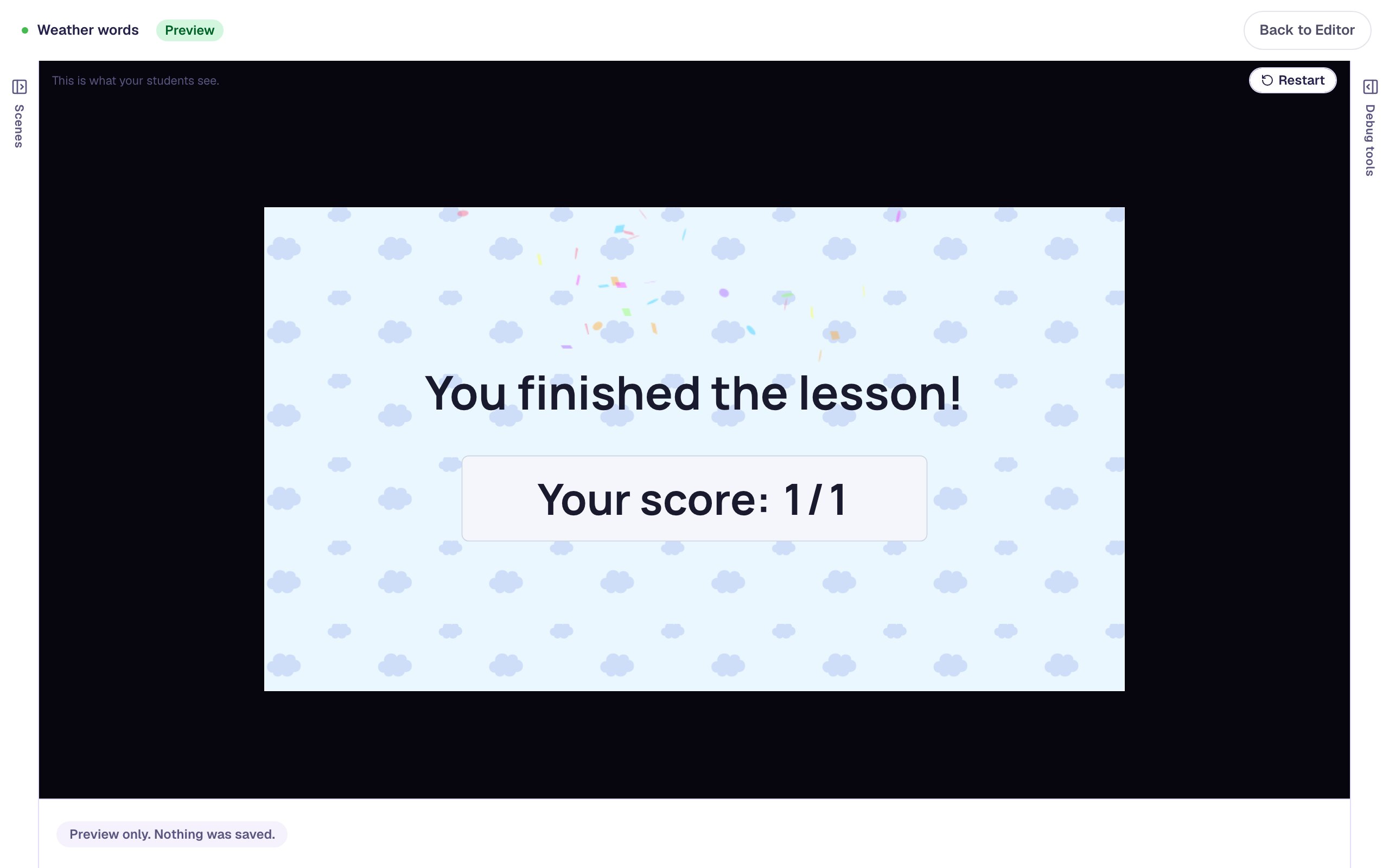
You don't need a Next button. The scene's Progression is already Next with Continuous checking, so the moment every pair is right, students move on to the ending by themselves.
Step 7: Play it as a student
Click Preview. Pair the blue sky with snowy first, to see the hint. To pair, click a photo and then a word, or drag a line from one to the other.
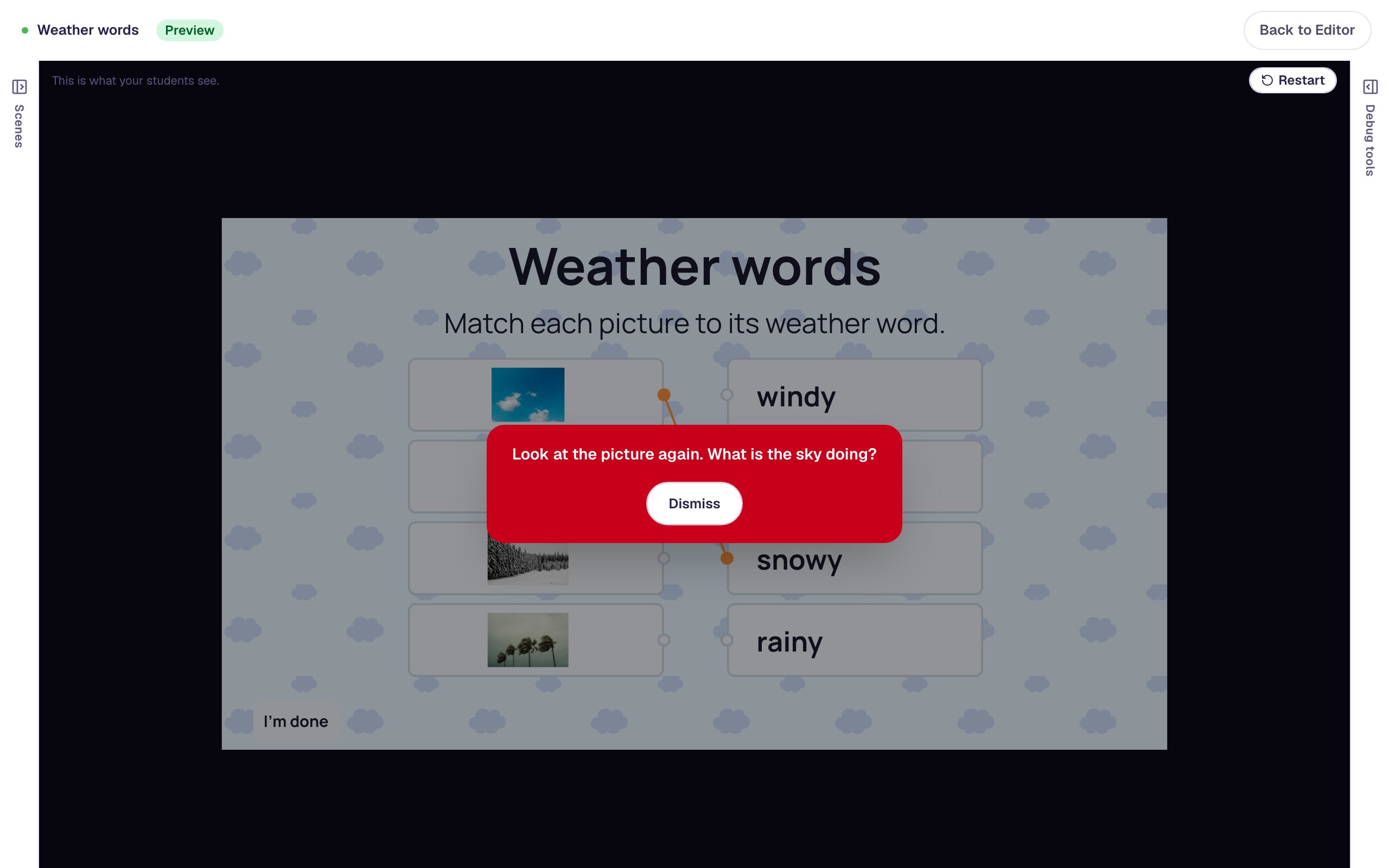
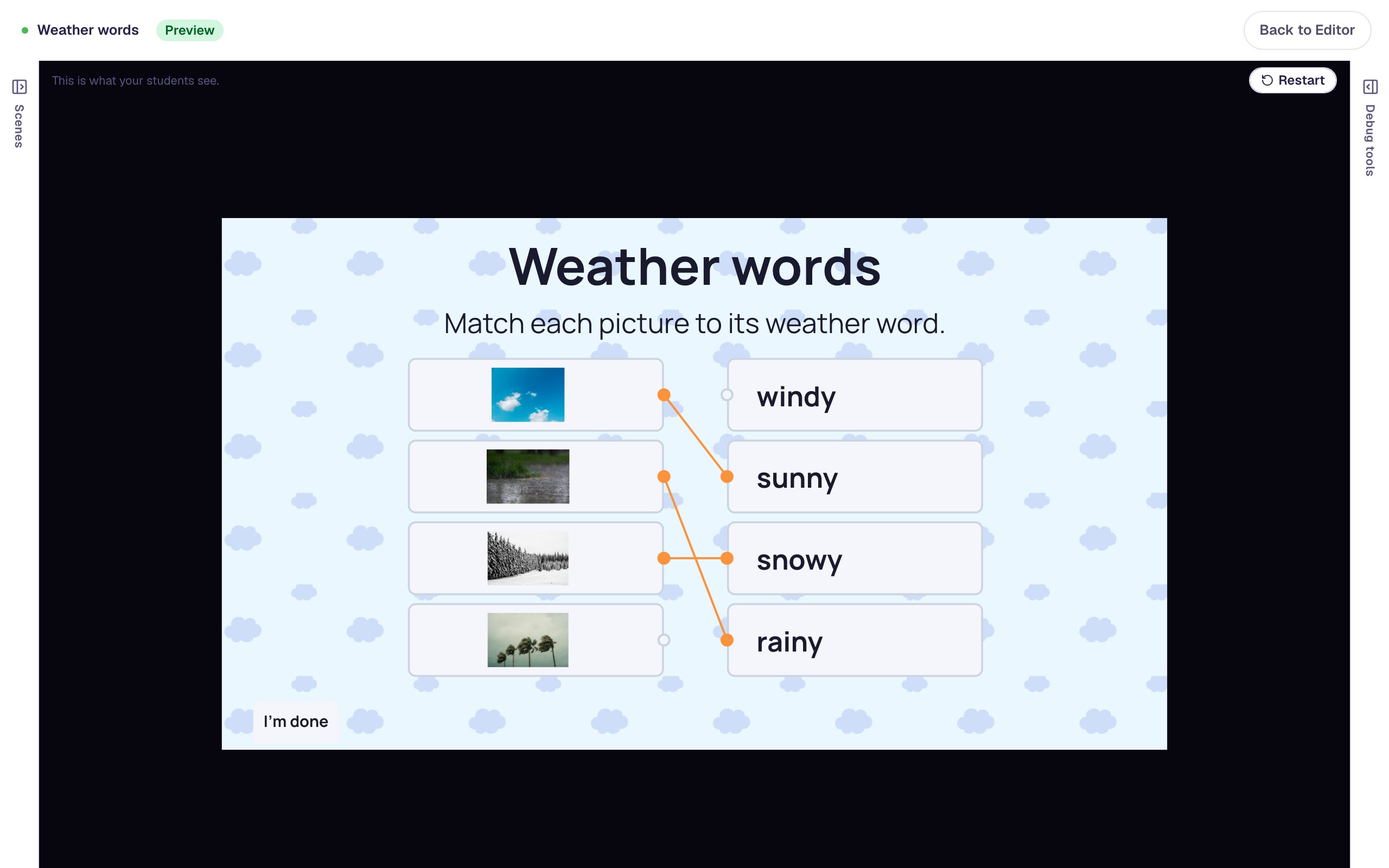
Click Dismiss and pair each photo with its word. The words are shuffled for every student, so the right word is rarely the one opposite. Pairing the blue sky with sunny replaces its wrong line.
When the last line goes in, the lesson moves on by itself. The ending shows Your score: 1/1: the whole activity is worth one point, earned when every pair is right.
What you built
A weather matching activity with:
- four photos from the stock library, each matched to a word early readers are learning,
- a description for every photo that a screen reader says without giving the answer away,
- big cards and 28 px words that small children can read and tap,
- a hint that sends students back to the picture after a wrong pairing, and
- an automatic move to the ending once every pair is right.
The same build works for any picture vocabulary: swap the photos and words for farm animals, fruits or feelings. To have pictures be the answers instead, so students pick every photo that fits, see Ask a "select all that apply" question with pictures.
Make this lesson yours
Add the lesson you just watched being built to your account, then change it for your class: your questions, your pictures, your colors.
Free to sign up, and you'll come straight back here. I have an account