Read a dropdown's choices aloud to pre-readers
Put a dropdown inside a sentence so a child who can't read yet finishes it by ear. Each word says itself when tapped, a second tap chooses it, and your own recording reads the sentence.
- Level
- Beginner
- Time
- About 10 min
- Steps
- 8
- Updated
- Nov 9, 2026
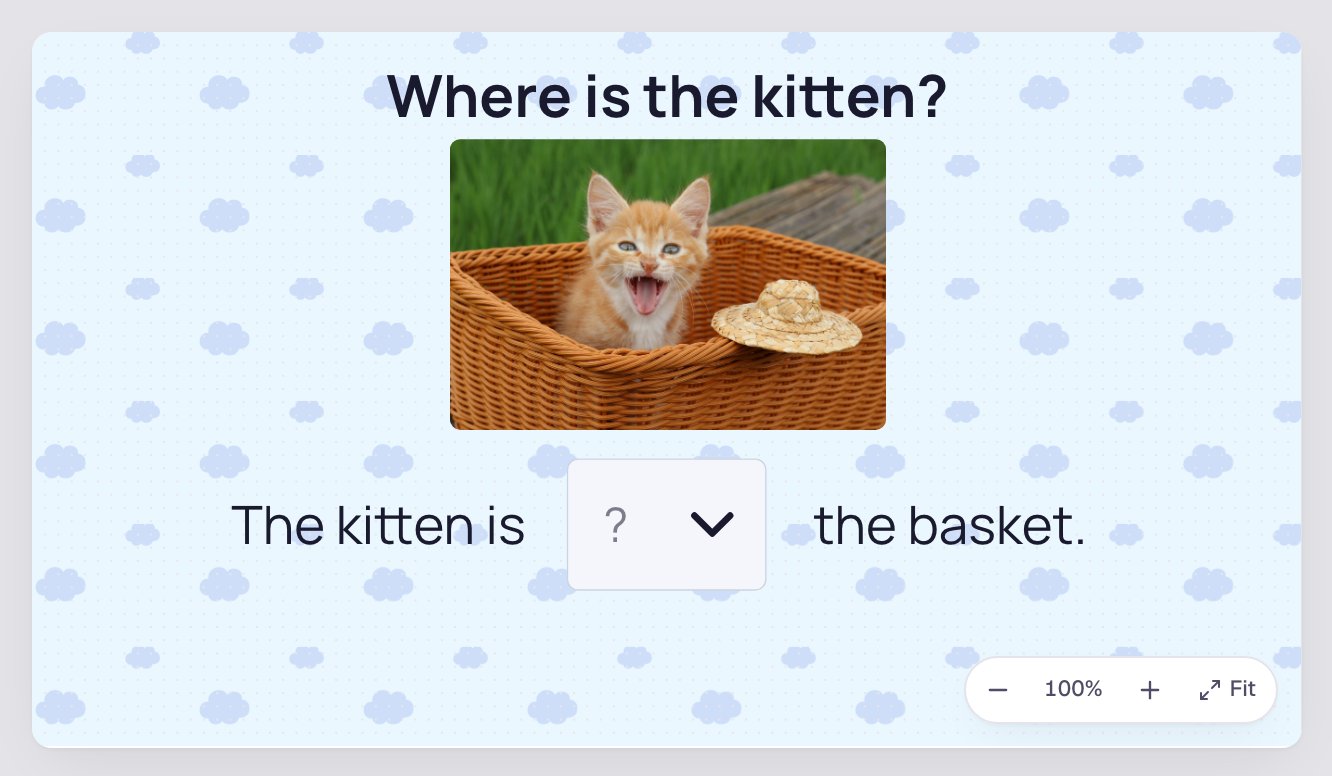
A "Where is the kitten?" scene where a child hears the sentence in your voice, taps the blank to hear in, on and under, chooses one with a second tap, gets a gentle hint after a wrong word, and moves on to the ending after the right one.
Get the finished lesson
Skip straight to the result, or keep it open beside the steps. Add this tutorial's lesson to your account and explore how it works in the studio.
Free to sign up, and you'll come straight back here. I have an account
Position words like in, on and under are some of the first words young children learn to use, but they can't read them yet. A dropdown inside a sentence is a neat way to check them: "The kitten is ___ the basket." The trouble is that the list is written, so a five-year-old can't tell one word from another.
Turn on Read choices aloud and the dropdown fixes that. When a child opens the list, the first tap on a word says it out loud and the second tap chooses it. Hearing a word never answers, so a child can listen to all three before deciding.
In this tutorial you'll build a one-scene lesson around a photo of a kitten in a basket. You'll write the sentence, put a dropdown in its gap, turn on read aloud, add a hint for a wrong word, and record yourself reading the sentence, so the child doesn't need to read anything at all.
If you haven't used a dropdown before, Label a diagram with dropdowns covers the basics.
Step 1: Set the scene
Start a blank lesson and name it Where is the kitten? Then:
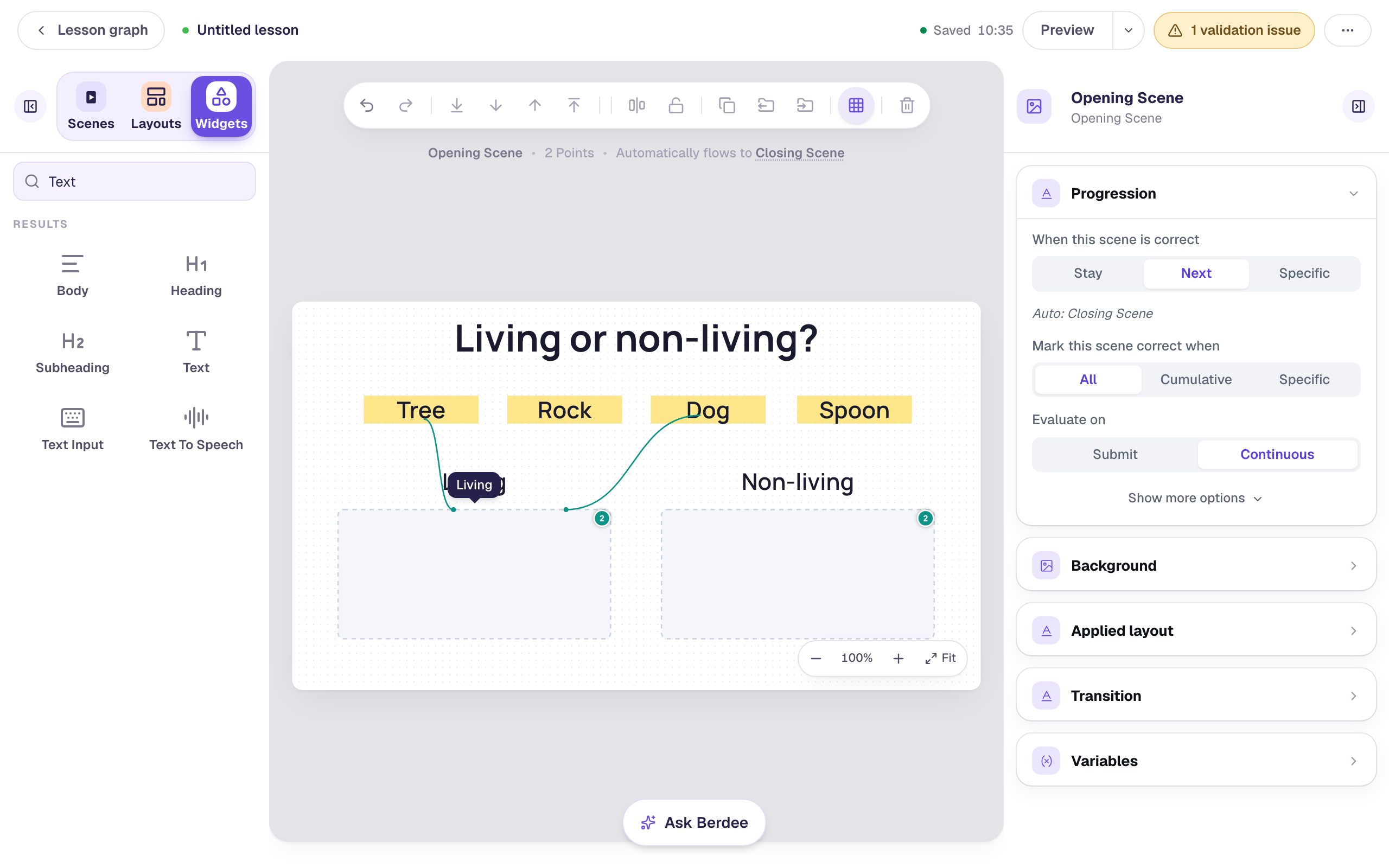
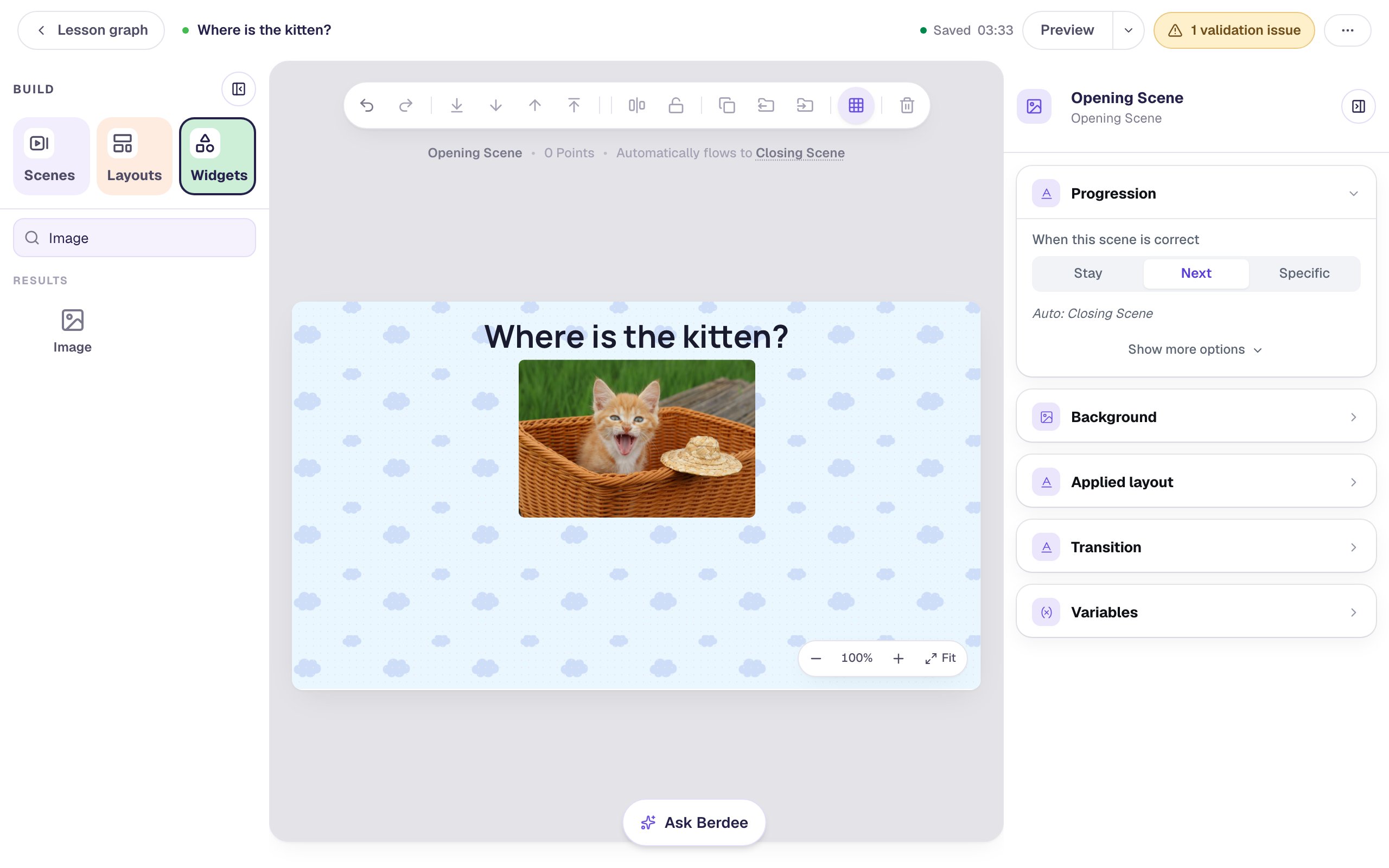
- Click an empty part of the canvas, open Background, click Choose a style and pick Cloud pattern from Playful. Give the Closing Scene the same background, so the ending matches.
- From the Widgets tab, add a Heading that reads
Where is the kitten?and drag it to the top. - Add an Image, click Choose image and search the stock photos for
kitten in a basket. Pick a photo where the kitten is plainly inside the basket: the picture is the clue a child uses to choose. We made it 330 × 220 and put it under the heading. - With the photo selected, open Accessibility and describe it in Alt Text:
An orange kitten with its mouth open, sitting in a wicker basket beside a little straw hat.
Step 2: Write the sentence around a gap
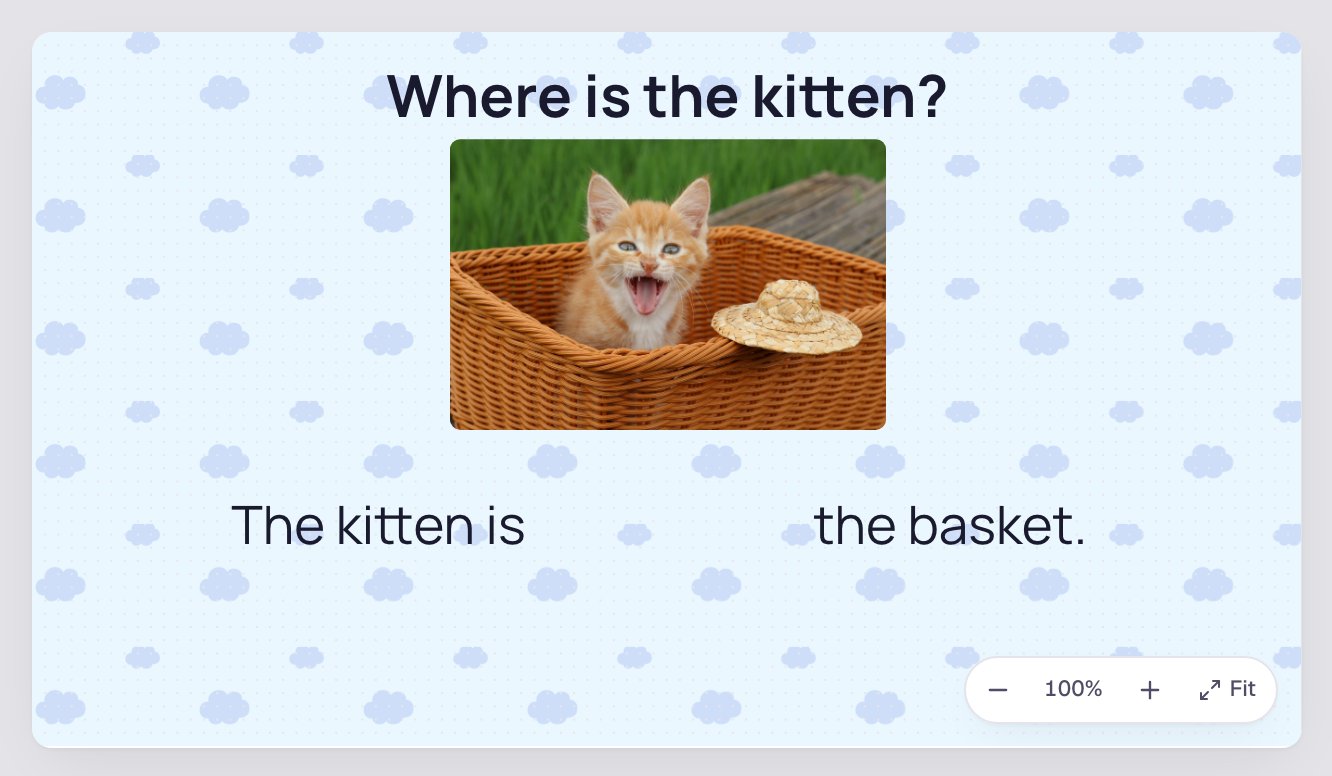
The dropdown goes in the middle of the sentence, so write the sentence as two pieces of text with room between them.
Add a Body that reads The kitten is and another that reads the basket. Give both a big Font size in Style & Layout (we used 40), so a young child can follow along. Drag them onto one line under the photo, with a gap about as wide as a short word between them.
Step 3: Add the dropdown and its three words
Search the Widgets tab for Dropdown and click it. Click ⚙ Configure in the pill above it, then:
- Set the Placeholder to
?. It's what the closed dropdown shows before a child chooses, faded so it never looks like an answer. - Replace the three options with
in,onandunder. - Leave the check mark on
in. A new dropdown marks its first option correct, andinis the right answer here.
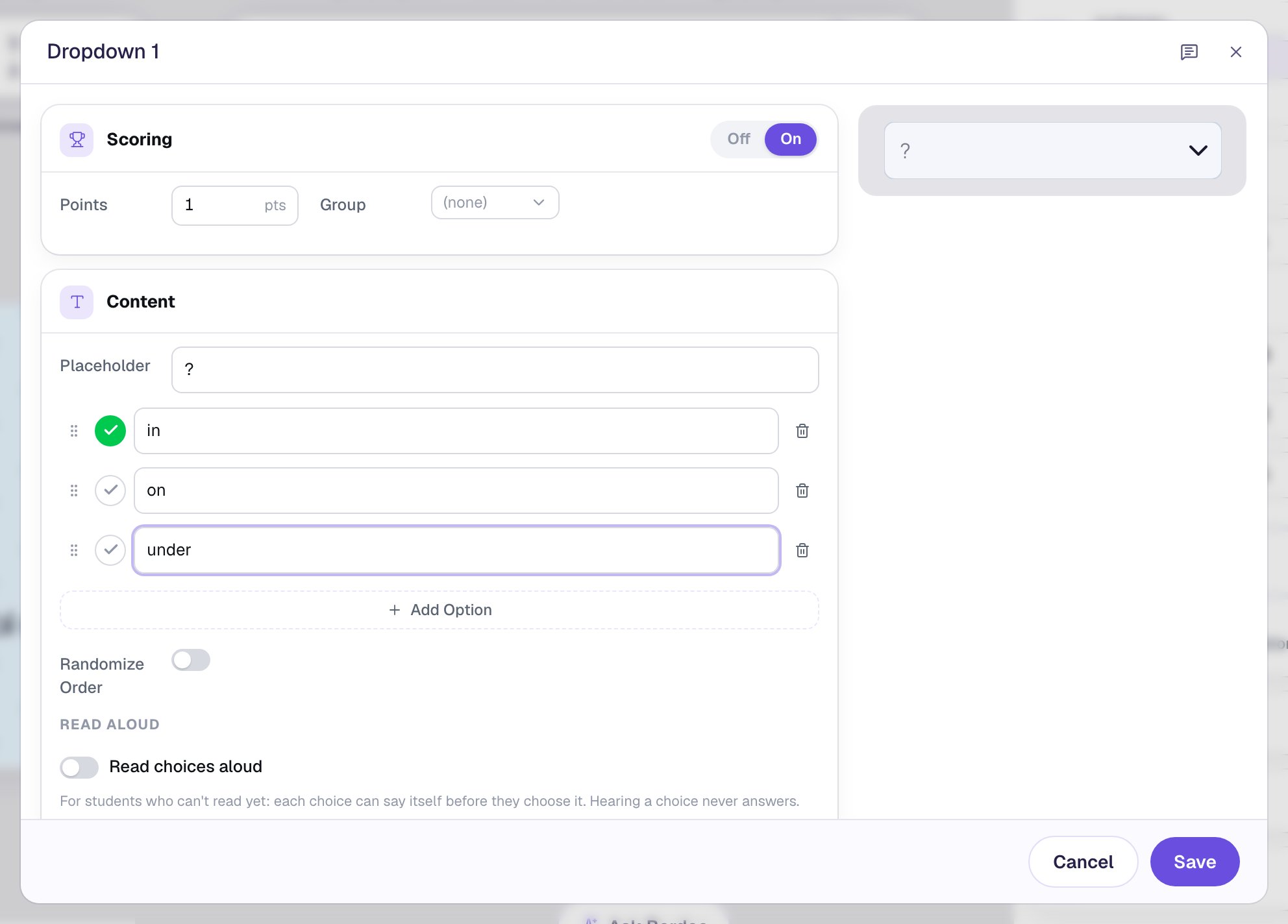
Randomize Order starts off for a dropdown. Leave it off: the words always appear in the same order, which is easier for a young child to remember from one try to the next.
Step 4: Turn on Read choices aloud
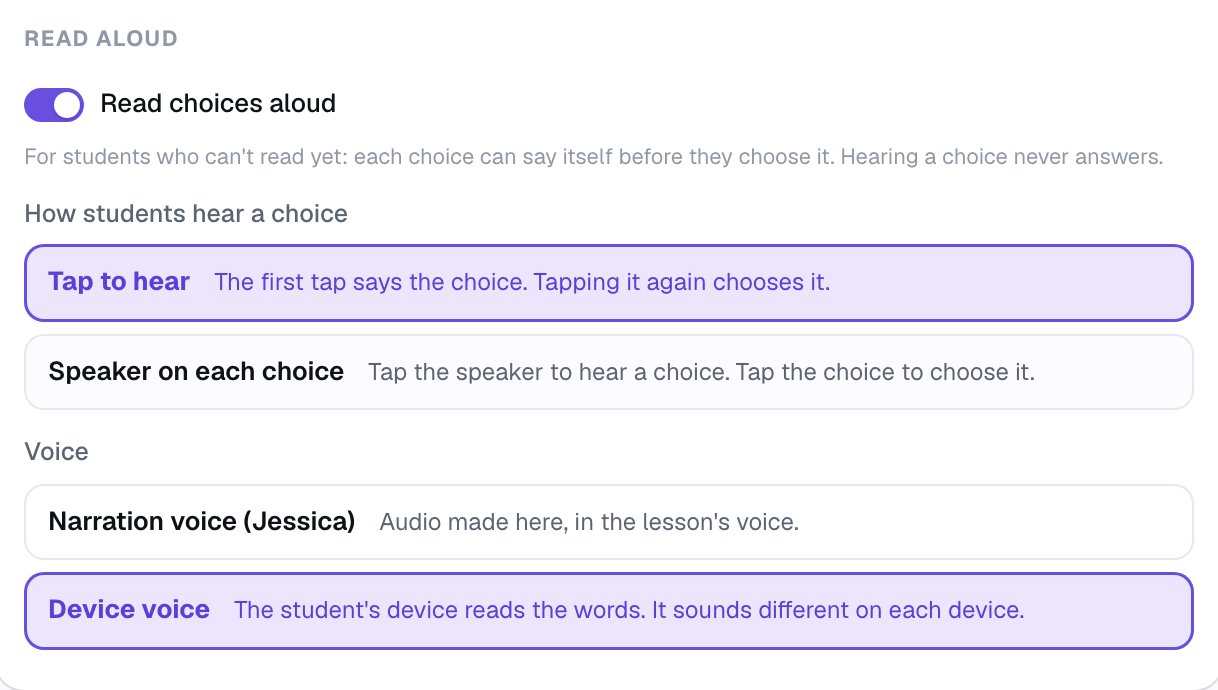
Still in ⚙ Configure, scroll down to Read aloud and turn on Read choices aloud. Two settings appear:
- How students hear a choice. Keep Tap to hear. The first tap on a word says it and marks it with a dashed outline. Tapping the same word again chooses it. There's no small button to aim for, and a stray tap can't answer by accident. Speaker on each choice puts a small speaker beside each word instead, which suits older children.
- Voice. Choose Device voice. The child's tablet or computer reads each word in its own voice, so there's nothing to generate. Narration voice makes a clip of each word in the lesson's voice instead, so every child hears the same voice: press Generate audio for all choices after choosing it.
Click Save.
With read aloud on, the open list is drawn by Berdee instead of by the device, so it looks the same on every tablet and phone. It opens below the dropdown, or above it when the dropdown sits low in the scene, as ours does.
Step 5: Put the dropdown in the gap
With the dropdown selected, open Style & Layout and set its Font size close to the sentence's (we used 36). Click Fixed width and set Width to 150, wide enough for under. The height follows the font size by itself.
Drag it into the gap. Then give it a name in two places: click the name at the top of the properties panel and type Where the kitten is, and type the same words in Accessibility → Alt Text. A screen reader says the Alt Text when the dropdown gets focus, and a new dropdown's is just Answer dropdown.
Step 6: Give a hint after a wrong word
Select the dropdown and click Behaviors in the pill above it. Choose Give instant feedback on a wrong pick, and change the message to Look again! Tap each word to hear it. Click Add behavior.
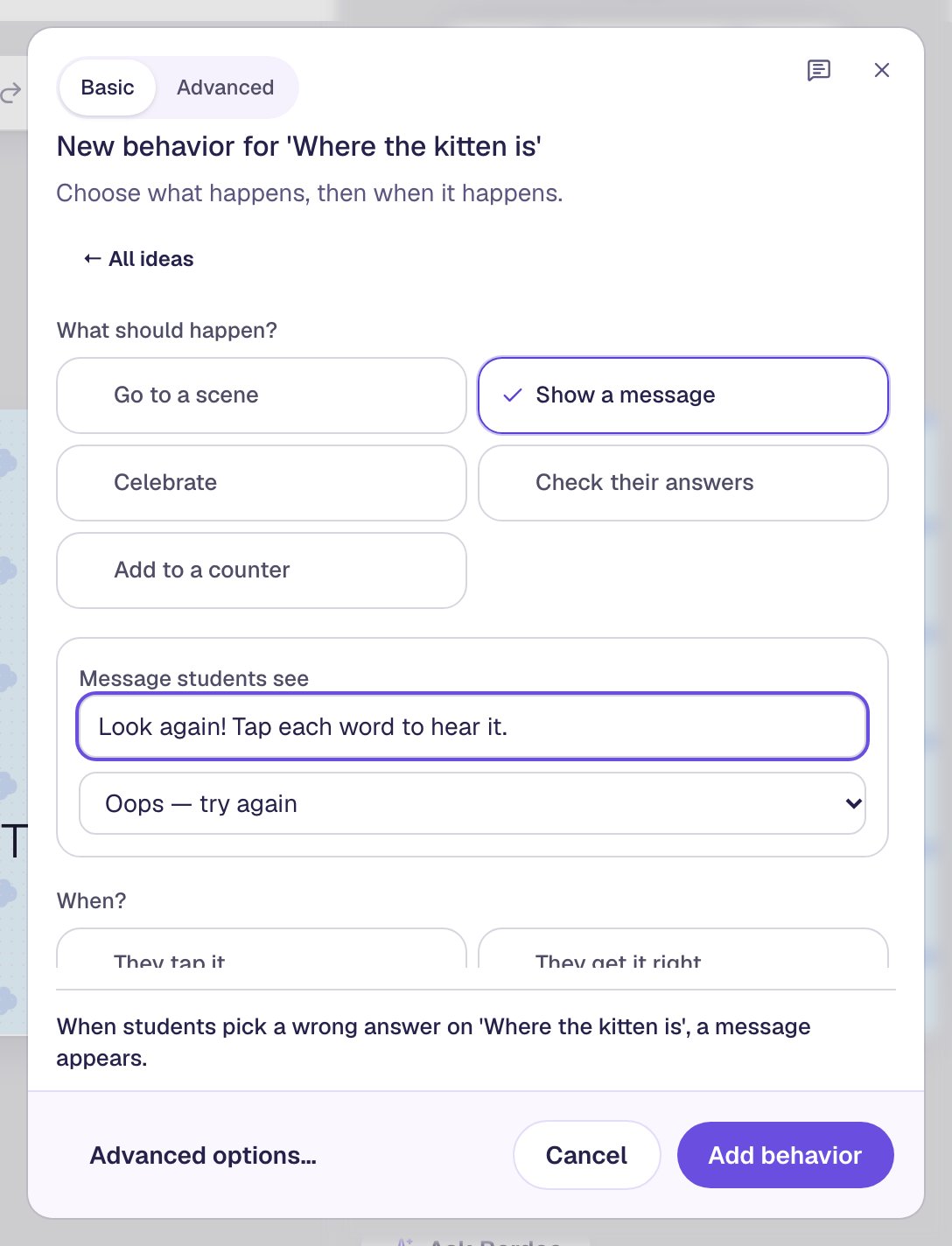
The message reminds the child to listen, not just guess again. A grown-up nearby can read it to them, and the recording you add next tells them what to do from the start.
Step 7: Record yourself reading the sentence
A child who can't read the words can't read the sentence either, so read it to them in your own voice.
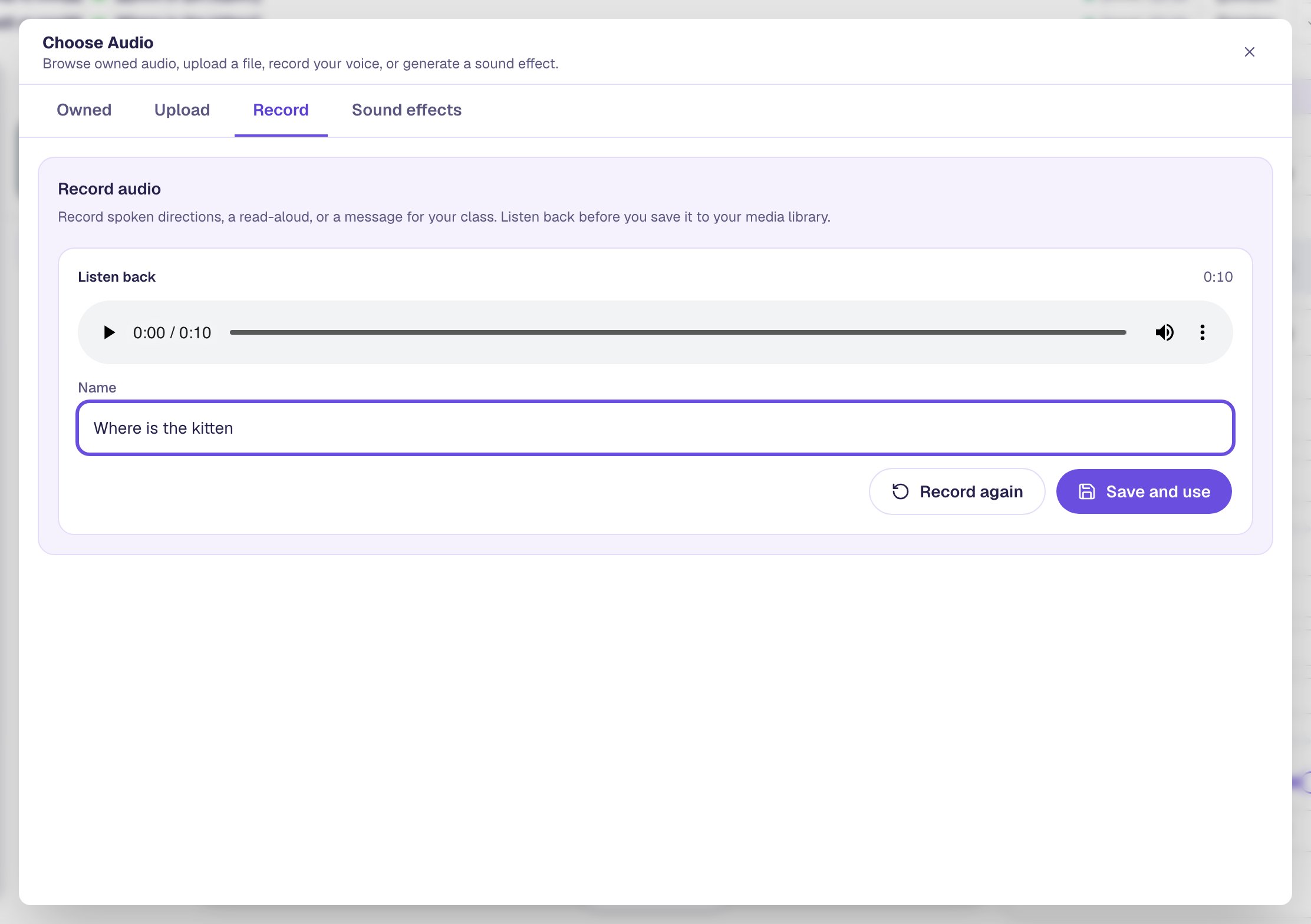
Add an Audio player and drag it under the sentence (we made it 300 × 64). Click ⚙ Configure, then Open Media Library, and open the Record tab. Press Start recording, and read the sentence the way you would to your class, saying "blank" for the gap and how to answer: "Where is the kitten? The kitten is... blank... the basket. Tap the blank to hear the words." Press Stop.
Listen back with the player. If you stumbled, press Record again. Give the take a Name, such as Where is the kitten, and click Save and use, then Save.
Last, select the player, open Accessibility and set its Alt Text to the sentence, so a screen reader announces it as "Play the sentence".
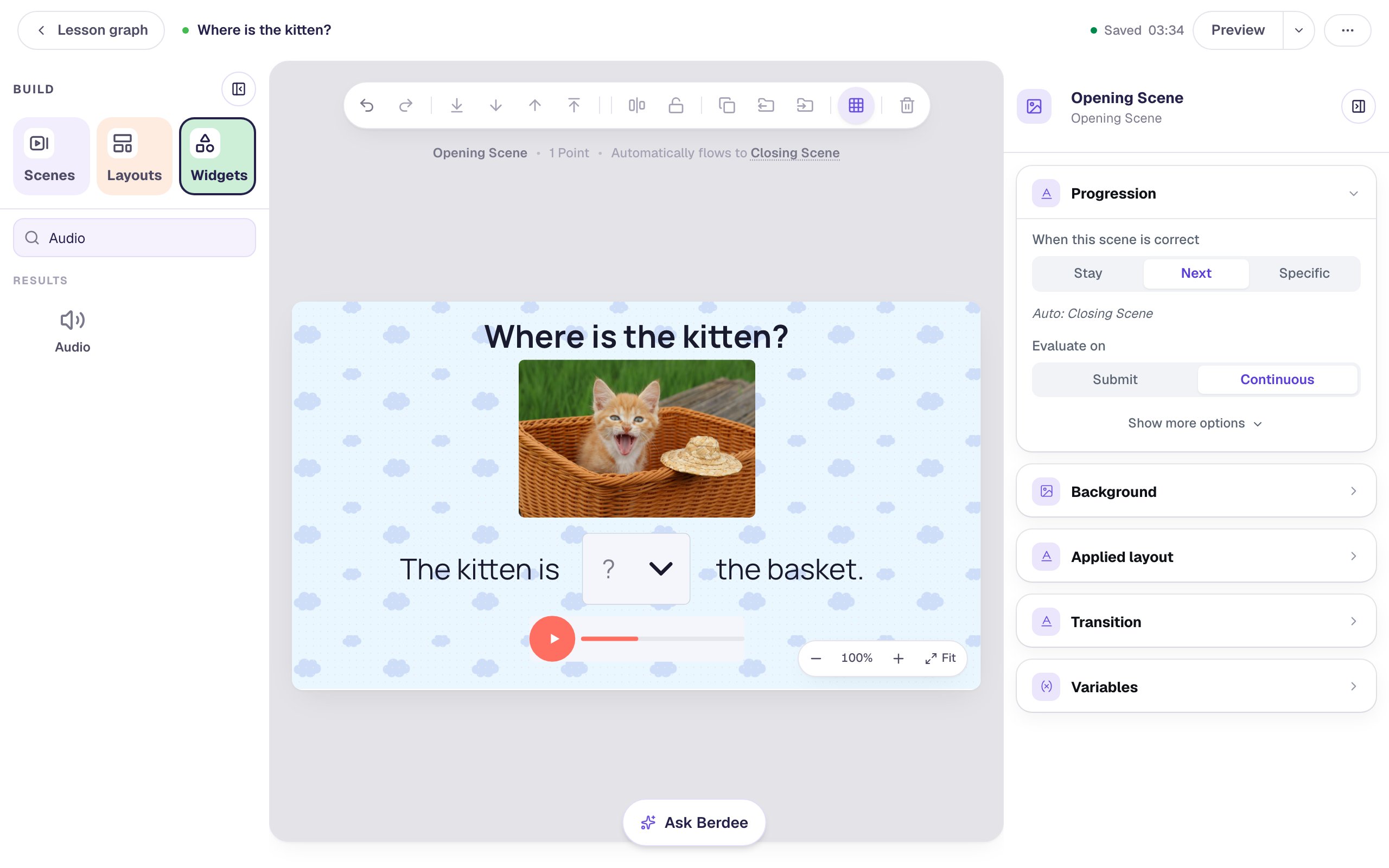
You don't need a button to finish. The scene's Progression is set to Next, and it checks answers Continuously, so the moment a child chooses in the lesson moves to the Closing Scene. A wrong word doesn't move it on, so the child can try again.
Step 8: Try it as a child
Click Preview, and turn your sound on: the recording below is silent, but your Preview isn't. A child would start by pressing the player to hear the sentence.
Tap the blank. The list opens with the three words, and the faded ? at the top, which clears an answer. Tap on: it says "on" and gets a dashed outline, which means "you've heard this one". Nothing is chosen yet.
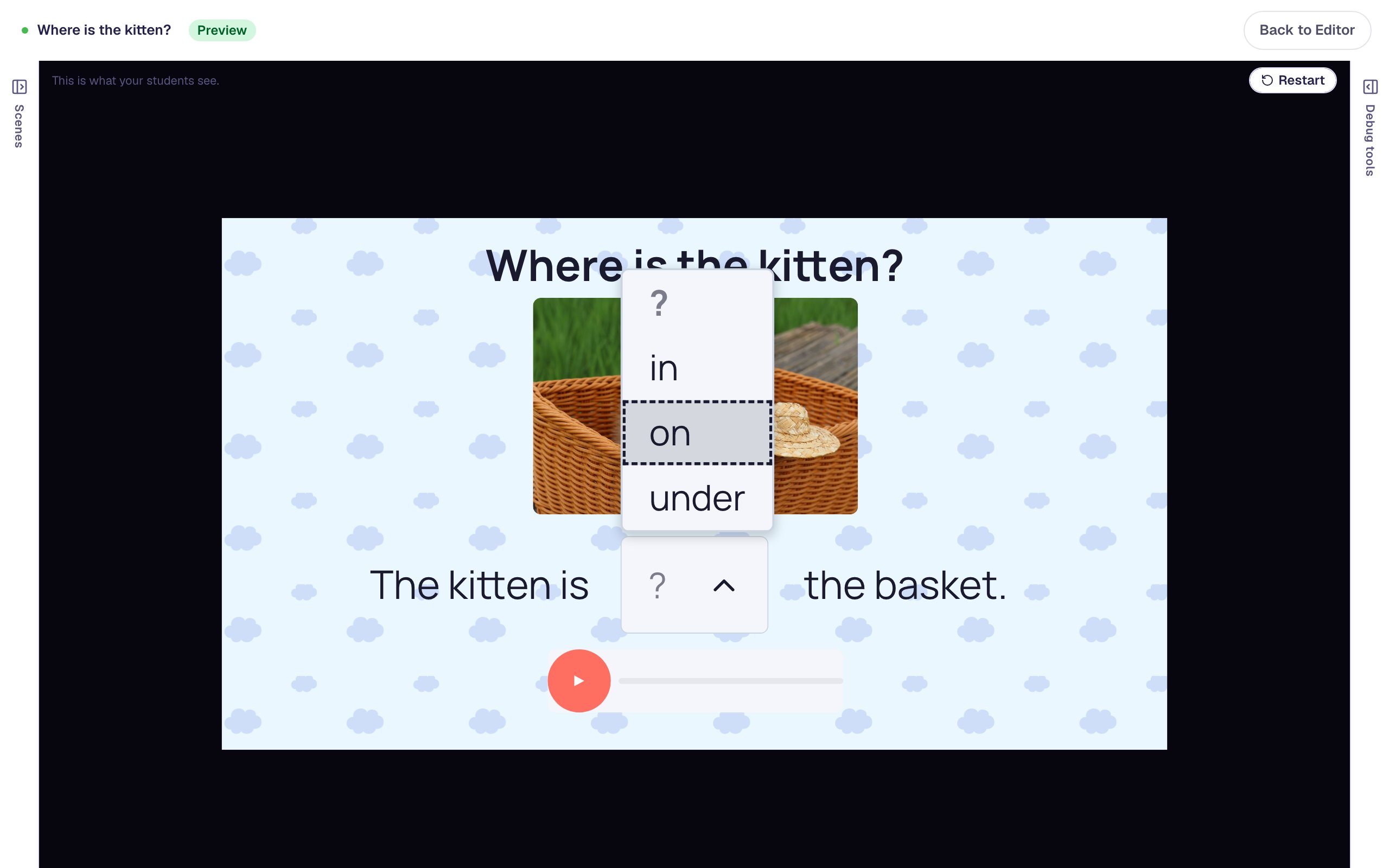
Tap on again to choose it. It's the wrong word, so your hint appears.
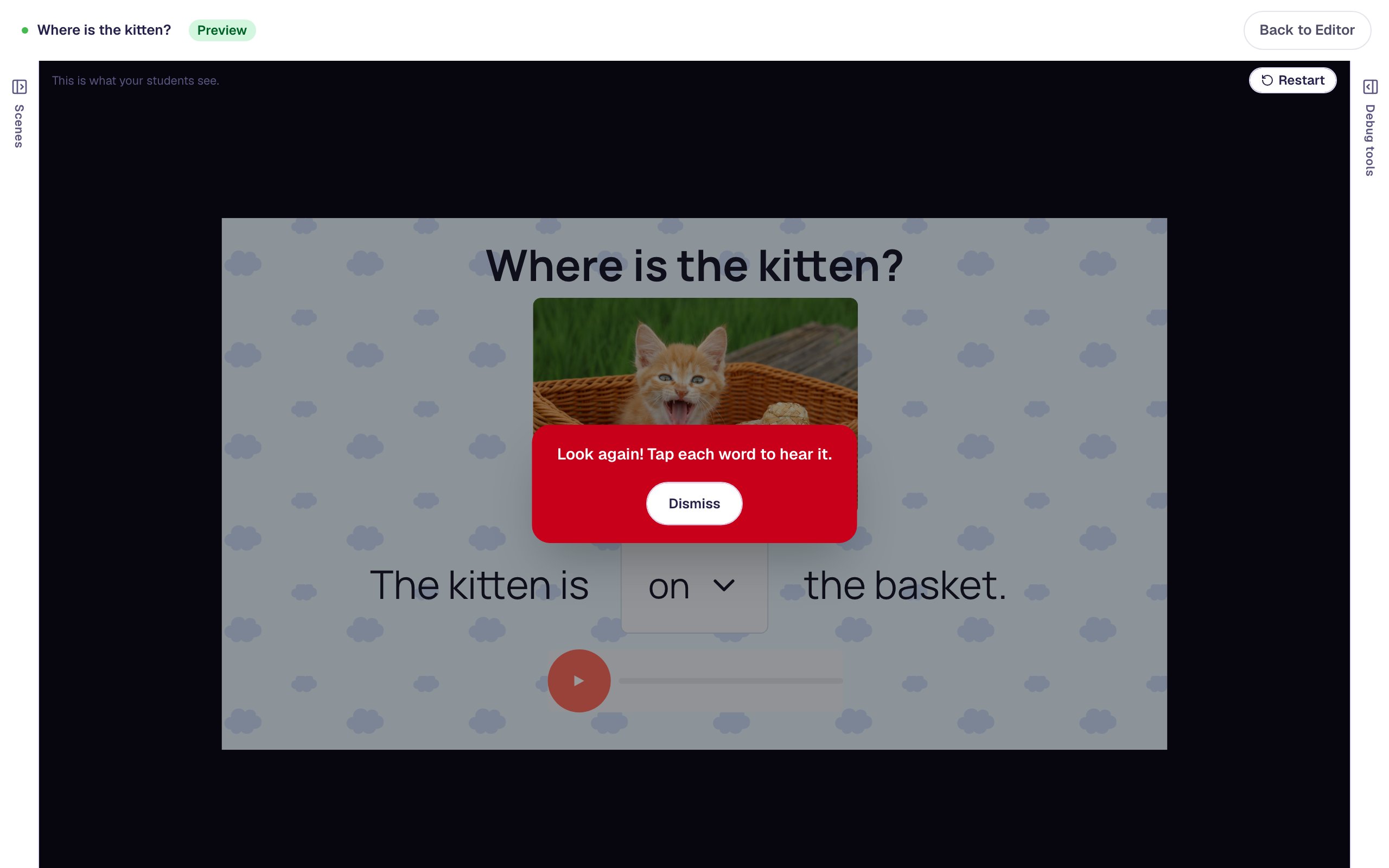
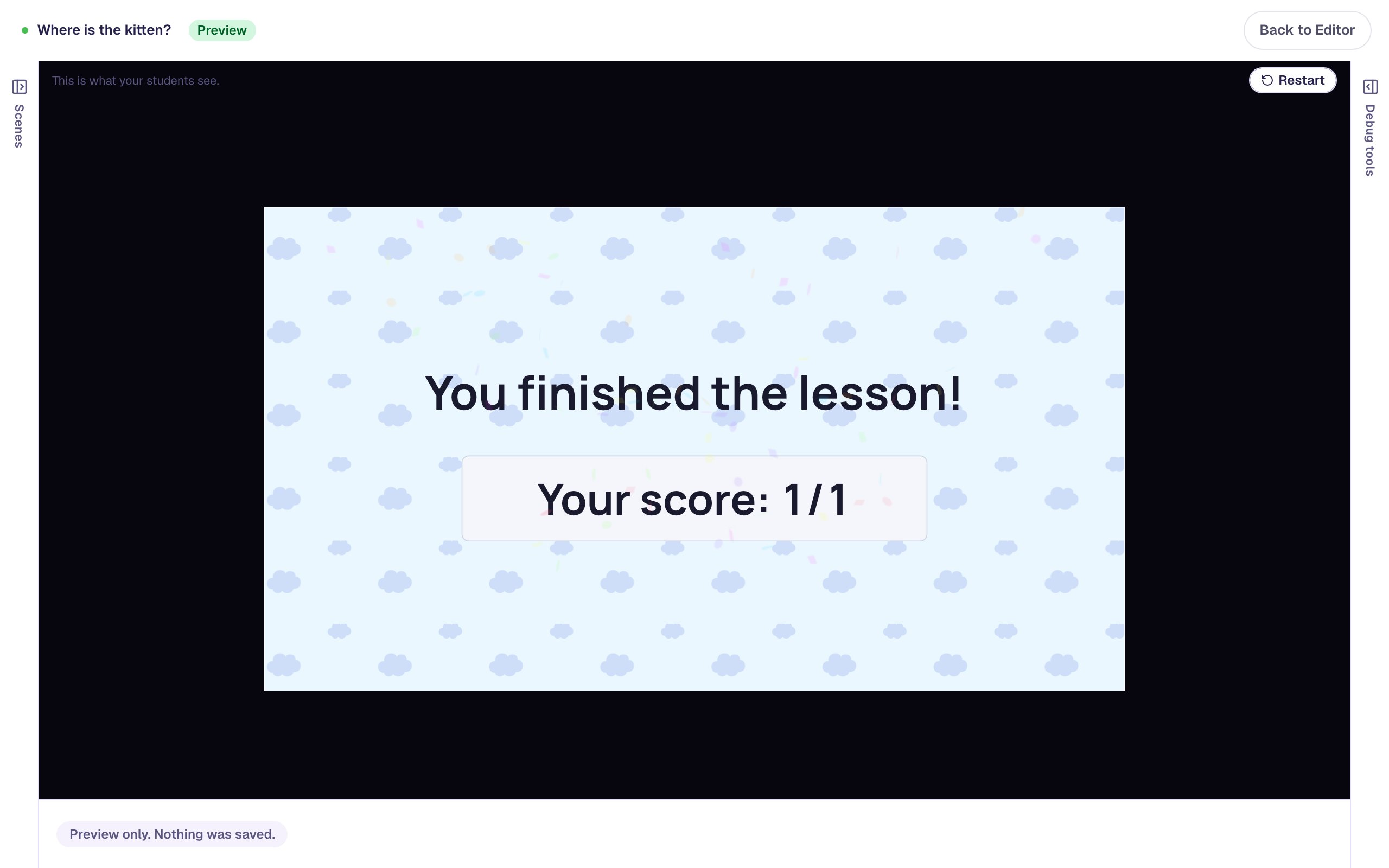
Click Dismiss, open the list again and tap in twice. The lesson moves to the Closing Scene with a score of 1 out of 1.
Keyboard users open the list with the arrow keys, press H to hear the highlighted word, and press Enter or Space to choose it.
What you built
You built a sentence a child who can't read yet can finish on their own:
- a Dropdown inside a sentence, with
inmarked correct, - Read choices aloud with Tap to hear, so the first tap says a word and the second chooses it,
- the Device voice reading the words, with nothing to generate,
- a hint after a wrong word, from Give instant feedback on a wrong pick,
- your own recording of the sentence, and
- a scene that moves to the ending by itself once the right word is chosen.
To build more sentences, duplicate the scene and change the photo, the words and the right answer: The dog is ___ the table. with on, under and in, with under marked correct. Leave read aloud off when reading the words is the skill you're checking.
To have pictures say themselves in a multiple choice question, see Let pre-readers hear every answer choice.
Make this lesson yours
Add the lesson you just watched being built to your account, then change it for your class: your questions, your pictures, your colors.
Free to sign up, and you'll come straight back here. I have an account