Build a scene faster with keyboard shortcuts
Build a "Count the ladybugs" scene with your hands on the keyboard. Paste the question in, drag off copies of a picture with Option, duplicate with ⌘ D, select and nudge a whole row, and undo a mistake, then try it as a student.
- Level
- Beginner
- Time
- About 10 min
- Steps
- 9
- Updated
- Oct 25, 2026
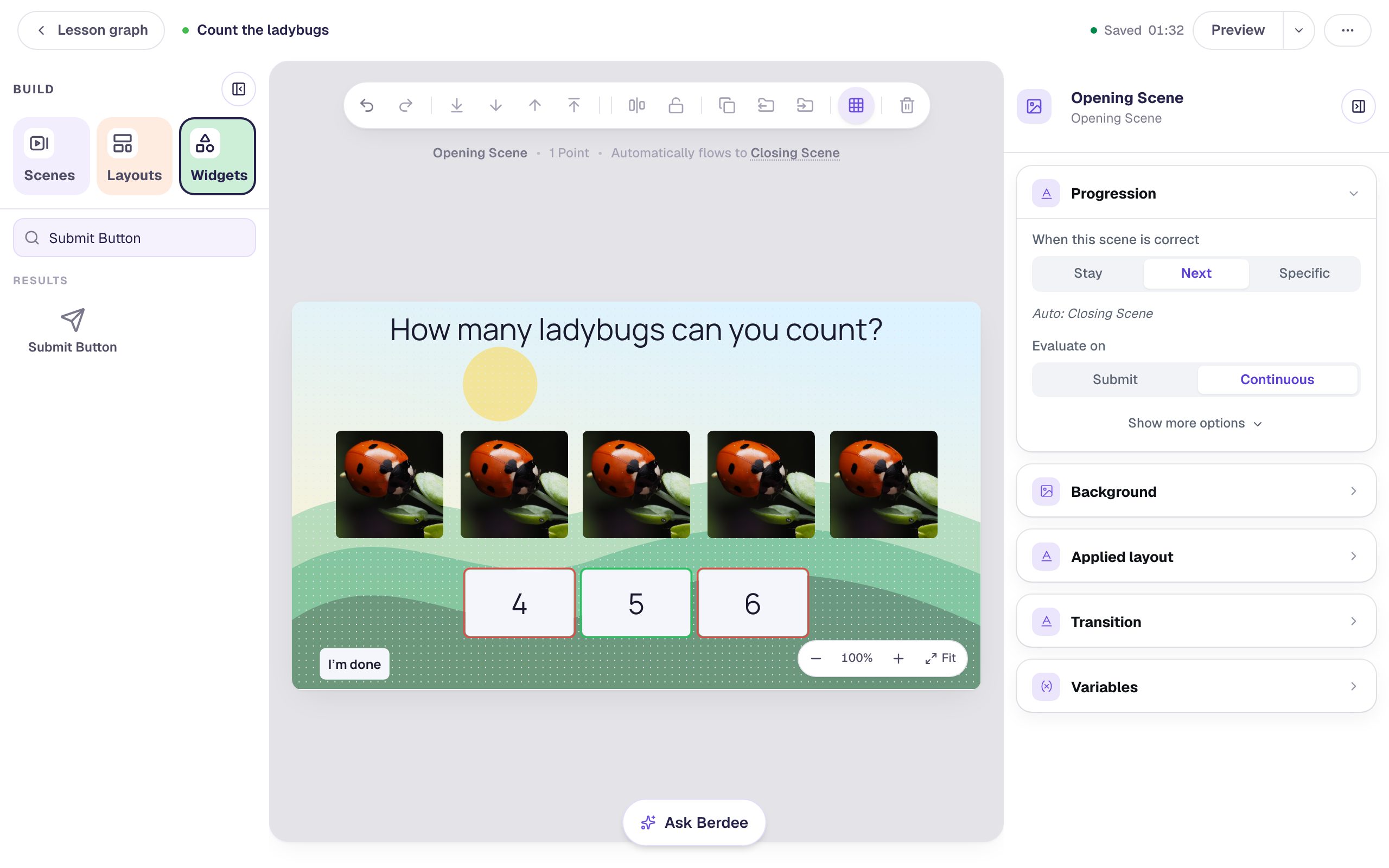
A "Count the ladybugs" counting scene with a question, five ladybug photos in a straight row, and three number answers. Students tap how many they counted and move on to the ending.
Get the finished lesson
Skip straight to the result, or keep it open beside the steps. Add this tutorial's lesson to your account and explore how it works in the studio.
Free to sign up, and you'll come straight back here. I have an account
Most of the time you spend building a lesson goes on small, repeated moves: copying a picture, lining things up, fixing a slip. The studio answers the same shortcuts as most design tools, so each of those moves can take a keypress instead of a trip to a menu.
In this tutorial you'll build a counting scene for young learners, "How many ladybugs can you count?", using a handful of shortcuts: paste, Option-drag, duplicate, Shift-click, nudge, delete and undo. It ends with a question you can try as a student. If you've never added a widget before, start with Build your first quiz question.
The shortcuts are written for a Mac. On Windows or a Chromebook, press Ctrl where you see ⌘, and Alt where you see Option (⌥).
Step 1: Open the list of shortcuts
Start a blank lesson and name it (we used Count the ladybugs). Click an empty part of the canvas, open Background in the properties panel, click Choose a style, and pick Rolling hills from the Nature tab. We gave the Closing Scene the same background so the ending matches.
Now click the canvas and press ?. The studio lists every shortcut it listens for, grouped into Editing, Selection, View and Arranging. It shows the keys for your own computer, so on a Chromebook it says Ctrl instead of ⌘.
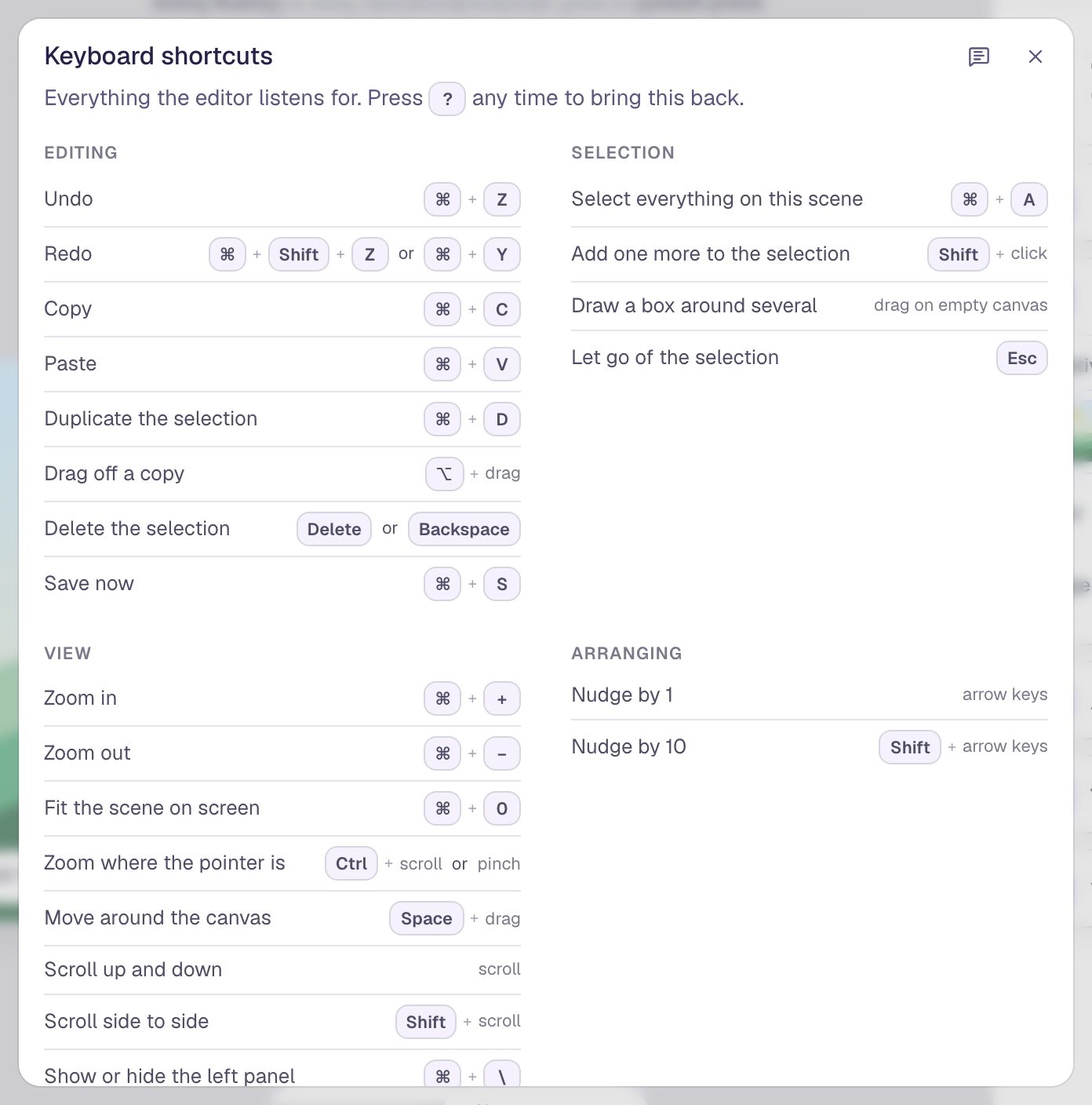
You don't need to learn them all. This tutorial uses about half of the Editing and Selection lists. Press Esc to close the list.
Step 2: Paste the question from your notes
If your questions already live in a document or a lesson plan, you don't have to retype them. Copy the sentence there, click an empty part of the canvas, and press ⌘ V. The studio turns plain text into a new text widget, already selected.
We pasted How many ladybugs can you count?, then set Font Size to 42 in Style & Layout and dragged it to the top of the scene.
Paste works with pictures too: copy a picture and press ⌘ V, and you get an image widget.
Step 3: Add the first ladybug
Add an Image from the Widgets tab. With it selected, open Style & Layout, click Show more options, and set Width and Height to 150. Click Choose image, search the stock photos for ladybug, pick a photo with one ladybug in it, and click Import & insert. Set Fit to Cover so the photo fills its square.
Then open Accessibility and describe the photo in Alt Text (we used A red ladybug with black spots on a green leaf). A student using a screen reader hears that instead of the photo's file name. Drag the picture to the left end of where the row will go.
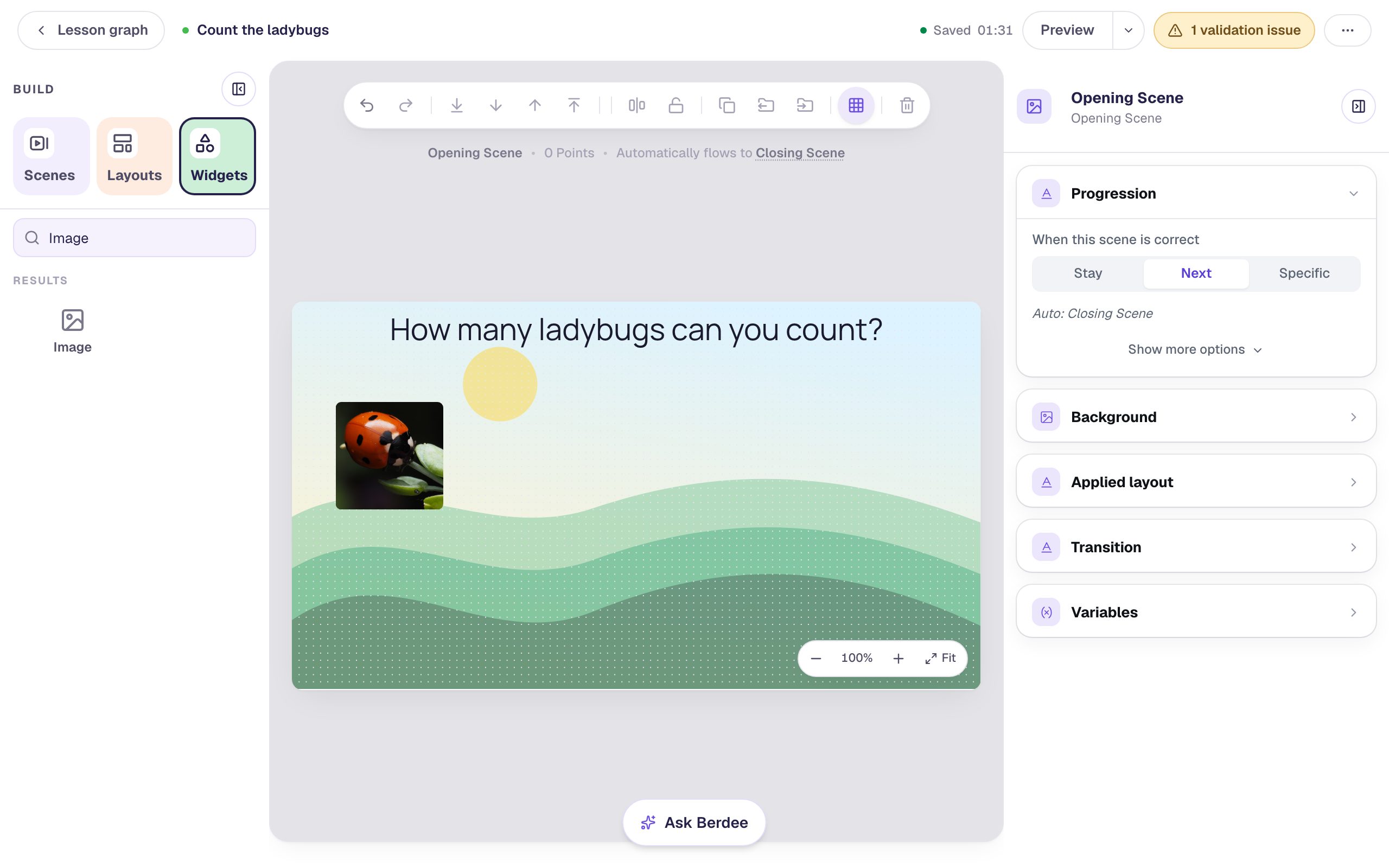
Set everything up on the first picture: its size, fit and alt text. Every copy you make next keeps them.
Step 4: Drag off a copy with Option
Hold Option and drag the ladybug to the right. The original stays where it was, and you drag away a copy.
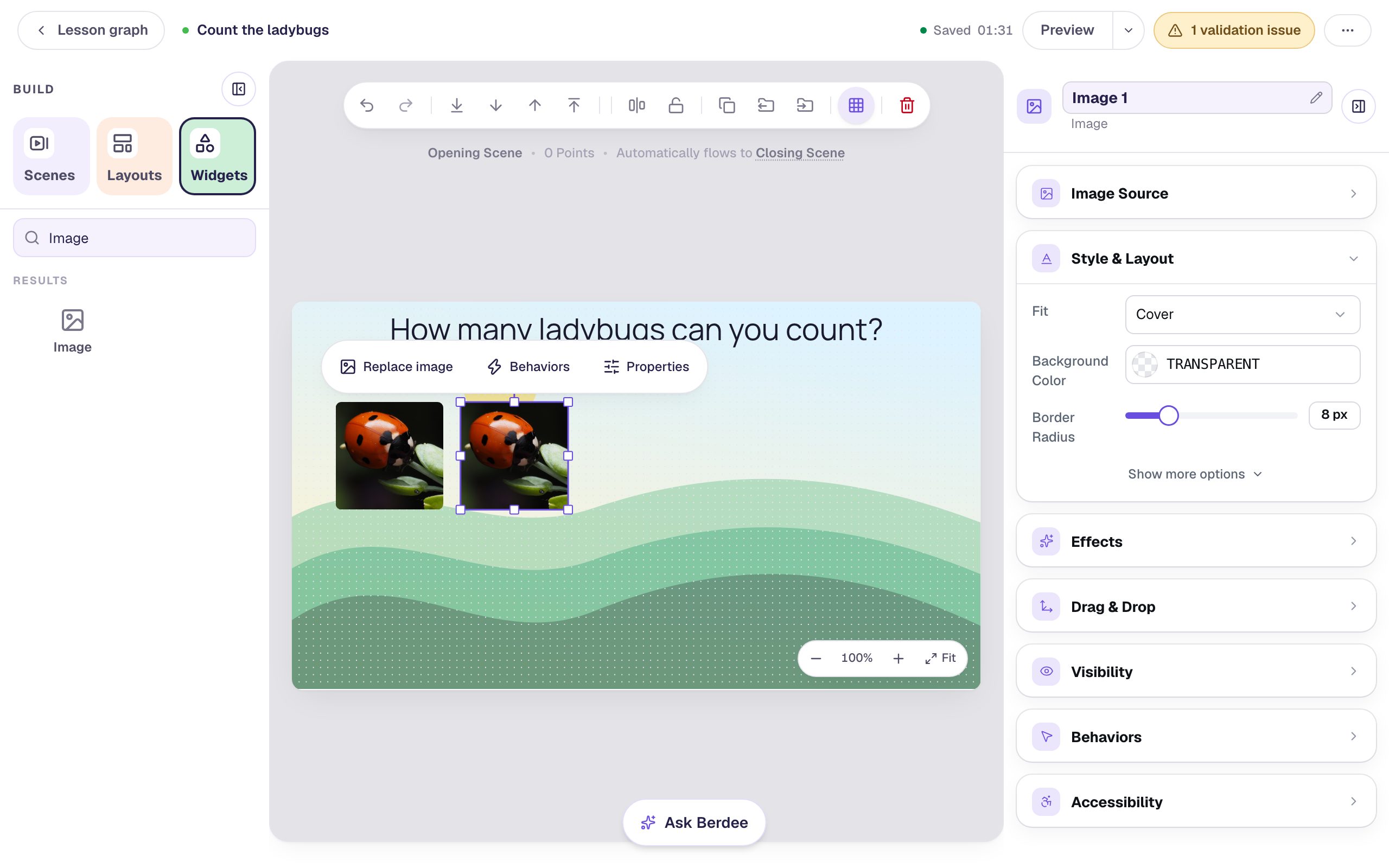
Option-drag is the quickest way to place a copy exactly where you want it, because you copy and move in one gesture.
Step 5: Duplicate the rest with ⌘ D
With the second ladybug still selected, press ⌘ D. A copy appears just beside it, already selected, so you can drag it straight into the next spot. Do that three times for five ladybugs.
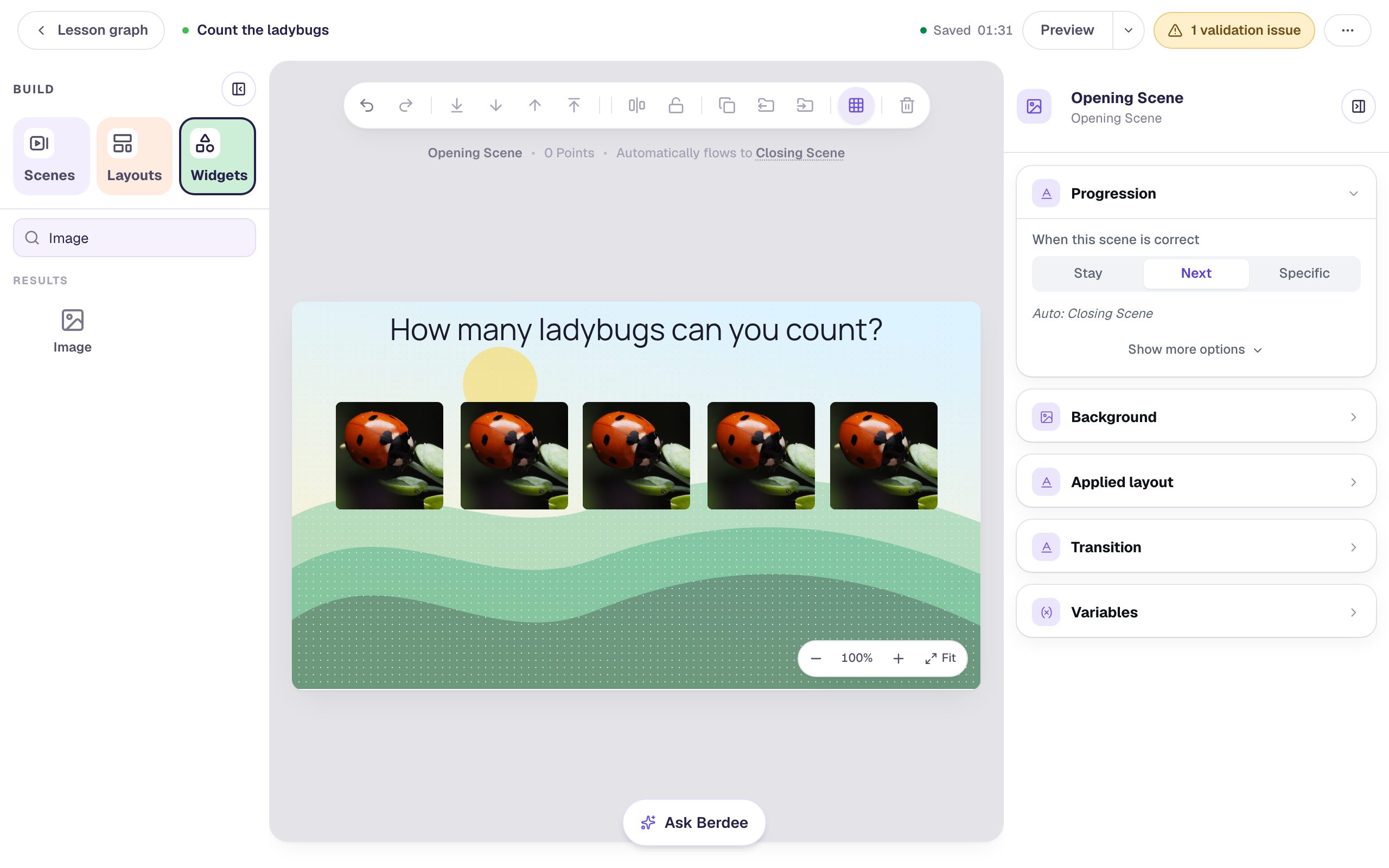
⌘ D and Option-drag do the same job. Use whichever suits your hands: ⌘ D when you'll drag the copy anyway, Option-drag when you can see where it goes.
Step 6: Select the whole row and move it down
The row sits a little close to the question. Move all five at once:
- Click the first ladybug.
- Hold Shift and click each of the other four. The properties panel says 5 widgets selected.
- Press Shift + ↓ four times. Each press moves the selection down 10 pixels, so the row moves 40 pixels and stays perfectly straight.
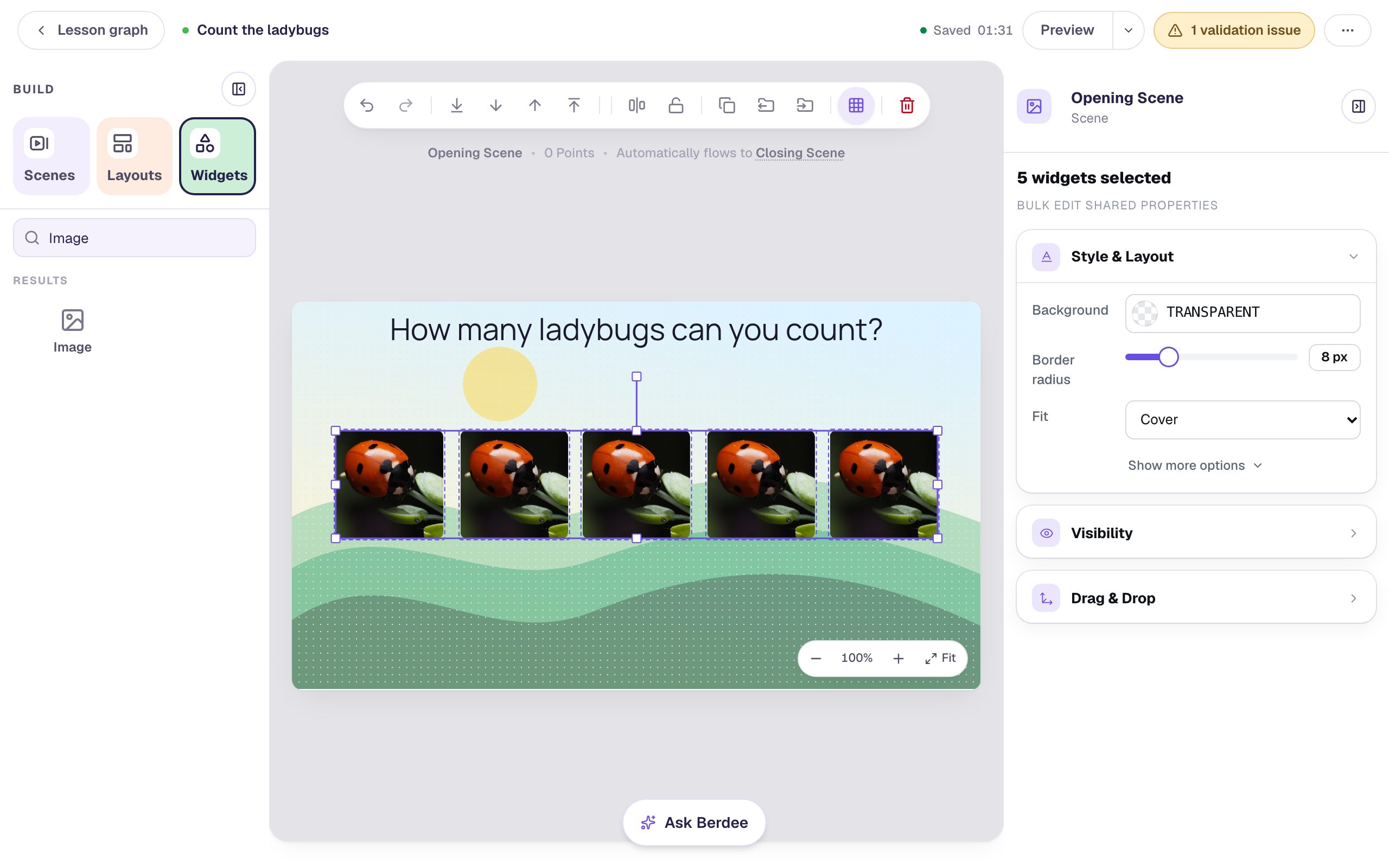
The arrow keys alone move a selection 1 pixel at a time, for the last bit of lining up. Dragging a box across empty canvas around the widgets selects them too, and ⌘ A selects everything on the scene. Press Esc to let go of a selection.
Step 7: Undo a mistake
Everyone deletes the wrong thing sometimes. Click the middle ladybug and press Delete: it's gone, and the row has a gap. Press ⌘ Z and it comes straight back, in exactly the same place.
⌘ Z steps back one change at a time, and ⌘ Shift Z redoes what you undid. To get back something from much earlier, like a scene you deleted yesterday, use History instead: see Bring back a scene you deleted with History.
Step 8: Add the answers and save
Now give students a way to answer:
- Add a Multi Choice question. In Configure, make three answers,
4,5and6, and mark 5 correct (the first answer starts marked; marking 5 moves the mark). Remove any extra answers with their Remove option buttons, and click Save. - In Style & Layout, set Width to
480and Height to96so the answers sit in one row, set Font Size to 40, and turn on Show correctness. Drag it under the ladybugs. - Add a Submit Button, set its Label to
I'm doneand Submits to Lesson, and put it in the bottom-left corner. Every lesson needs one button that finishes it.
Berdee saves as you work, but when you want to be sure before closing the laptop, press ⌘ S. The top bar says Saved.
Step 9: Try it as a student
Click Preview. Try a wrong count first, then the right one:
The answers are shuffled for every student, so they may be in a different order than in the studio. A wrong count turns red, so students can count again:
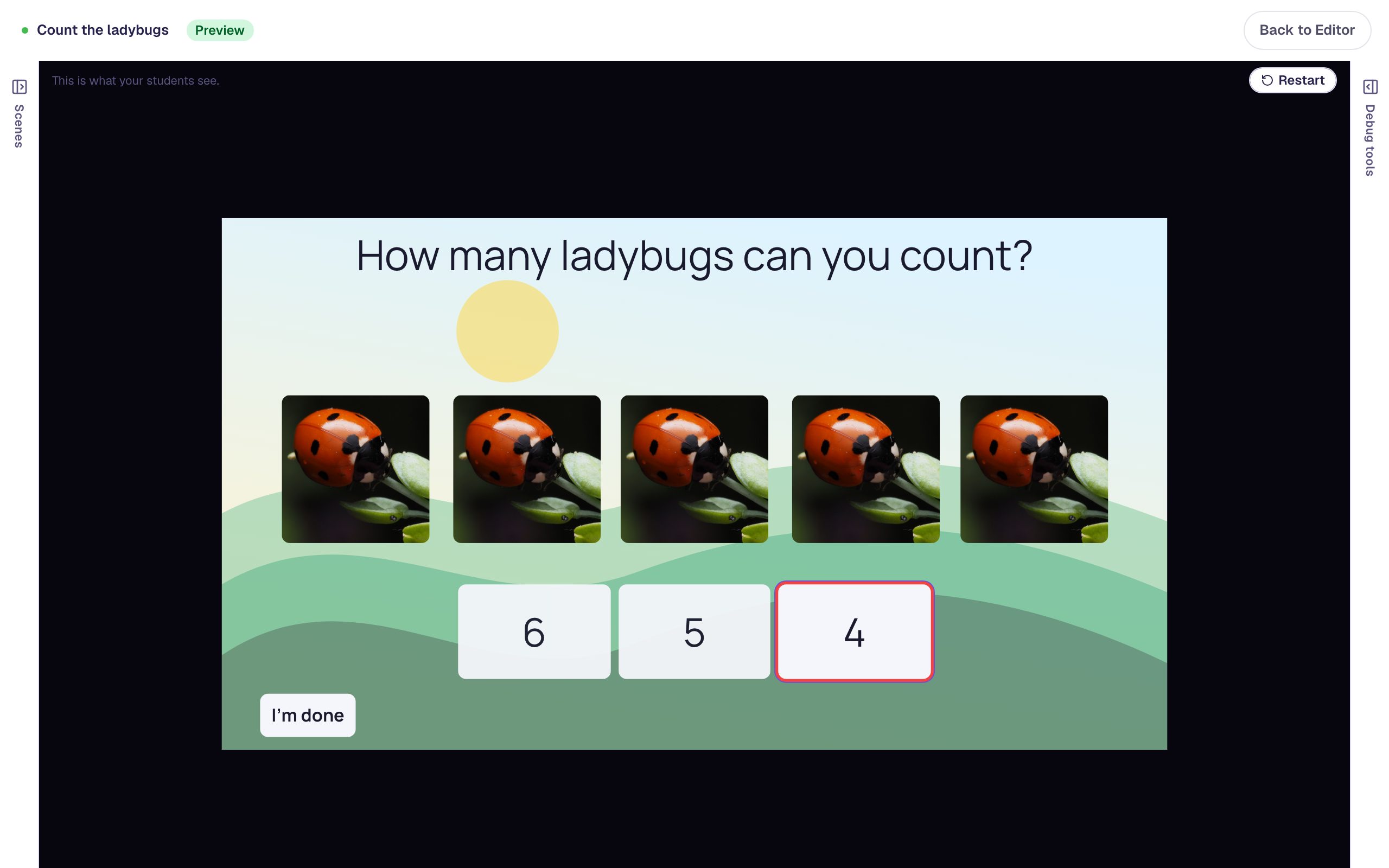
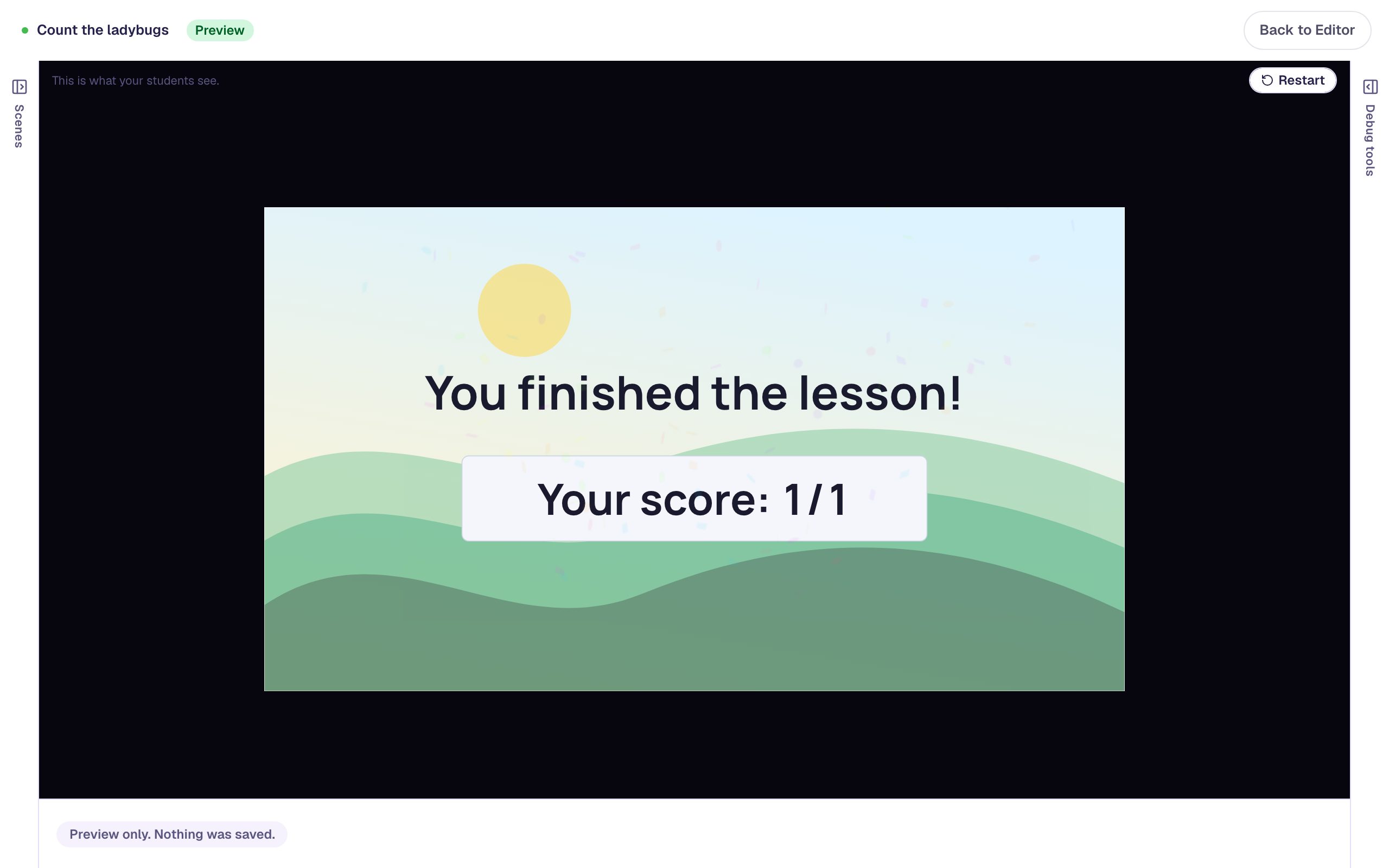
Five is right, so the scene moves on to the Closing Scene:
What you built
You built a whole counting scene while barely touching a menu:
- ? showed every shortcut the studio knows,
- ⌘ V turned a sentence from your notes into a text widget,
- Option + drag and ⌘ D made four copies of a finished picture, size and alt text included,
- Shift + click selected the row and Shift + ↓ moved it in exact 10-pixel steps,
- ⌘ Z undid a mistake, and ⌘ S saved.
Try them on your next lesson and they'll soon be habit. To build a row of pictures and then straighten and space it in one click, try Line up pictures with Tidy up, Gap, and Lock. To copy a whole question scene instead of one widget, try Build a three-question quiz by duplicating a scene. For a counting activity where students drag the objects themselves, try Count a collection of shells, then say how many.
Make this lesson yours
Add the lesson you just watched being built to your account, then change it for your class: your questions, your pictures, your colors.
Free to sign up, and you'll come straight back here. I have an account