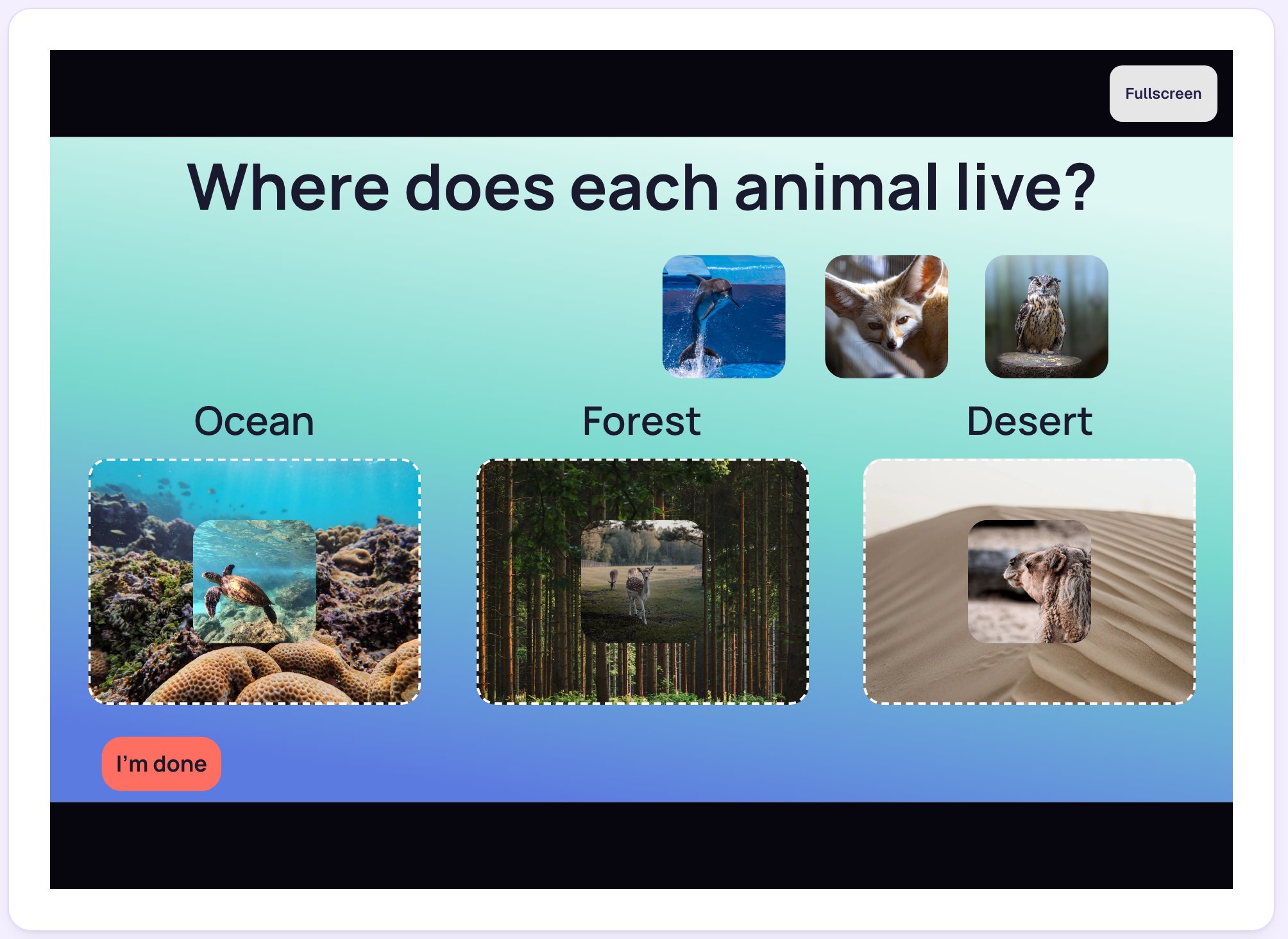
Get a free lesson from the marketplace
Find a ready-made lesson another teacher published, check that it fits your class, add it to your account for free, try it the way your students will, and assign it.
- Level
- Beginner
- Time
- About 8 min
- Steps
- 7
- Updated
- Nov 2, 2026
A free "Parts of a flower" lesson from the marketplace in your Lessons list, previewed and assigned to your class.
Get the finished lesson
Skip straight to the result, or keep it open beside the steps. Add this tutorial's lesson to your account and explore how it works in the studio.
Free to sign up, and you'll come straight back here. I have an account
You don't have to build every lesson yourself. Teachers publish the lessons they've made to the Berdee Marketplace, and many of them are free. Getting one takes a minute: it lands in your Lessons list, ready to assign, and it keeps getting better whenever its publisher improves it.
In this tutorial Ms. Rivera, a 1st grade teacher starting a plants unit, finds a free Parts of a flower lesson, checks that it fits her class, gets it, plays it through, and assigns it to her students.
Step 1: Open the marketplace
Click Marketplace in the left sidebar. The page opens with a search box, a filter panel down the left side, and rows of lessons such as Latest published.
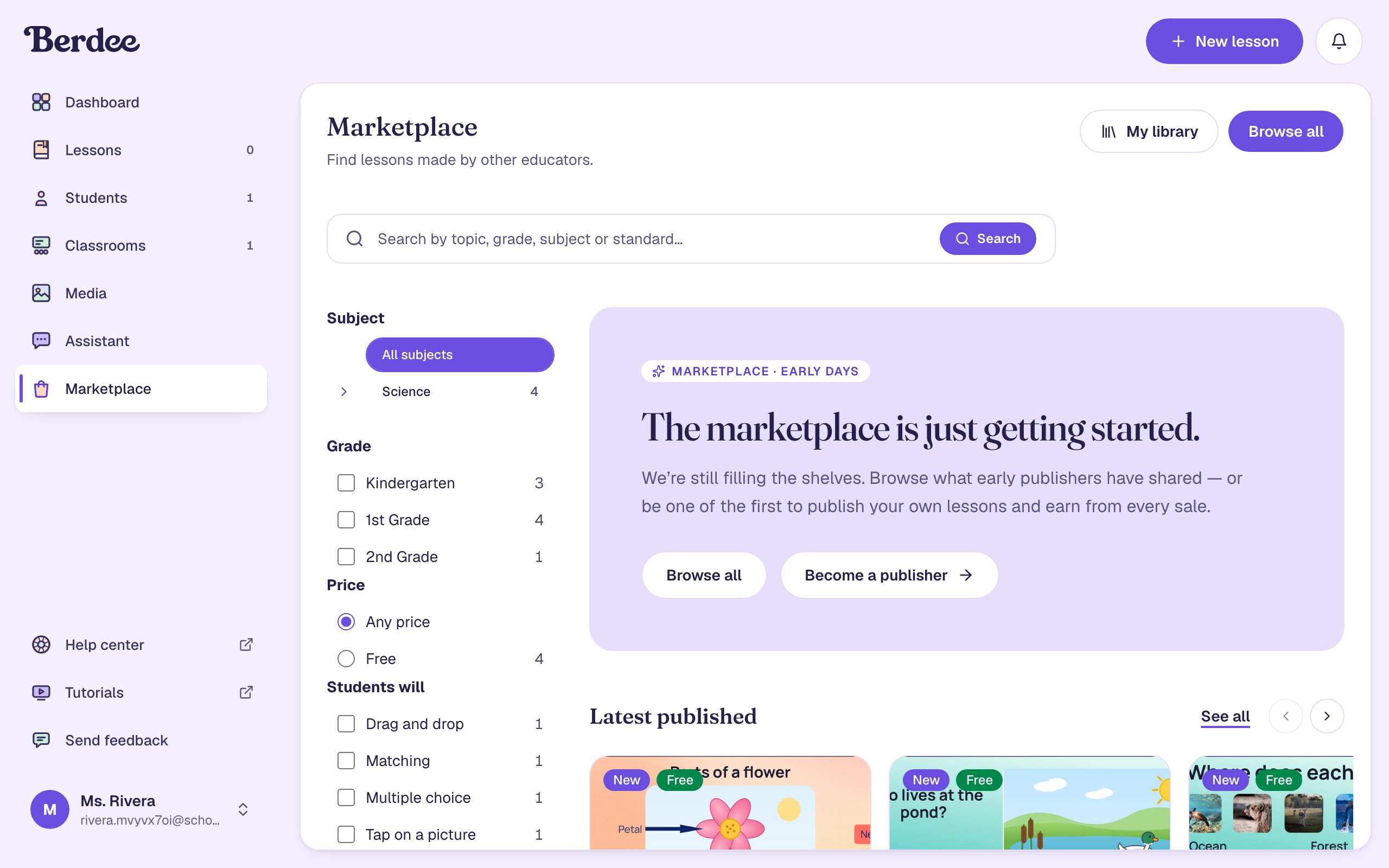
If you already know what you want, type it in the search box: a topic (flowers), a grade (1st grade plants), or a standard code (1-LS1-1). Search looks at each listing's description, subjects, grades and standards, not only its title.
Step 2: Narrow it to free lessons for your grade
Use the filter panel instead when you'd rather browse.
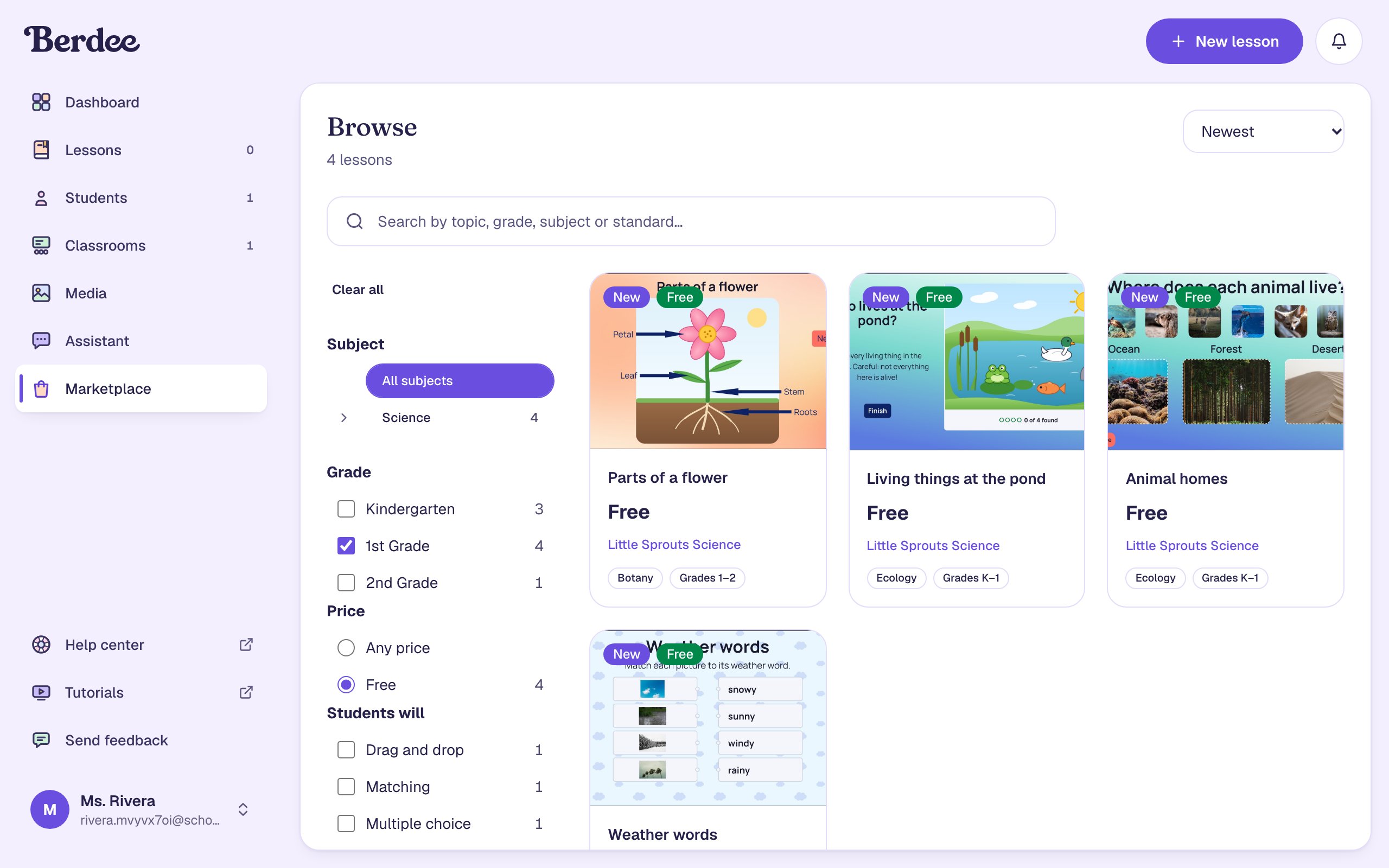
- Under Grade, tick your grade. Ms. Rivera ticks 1st Grade.
- Under Price, choose Free.
The page switches to Browse and shows only the lessons that match. Tick a second grade to see lessons for either, or open Subject to narrow it to a topic like Science.
Step 3: Read the listing before you take it
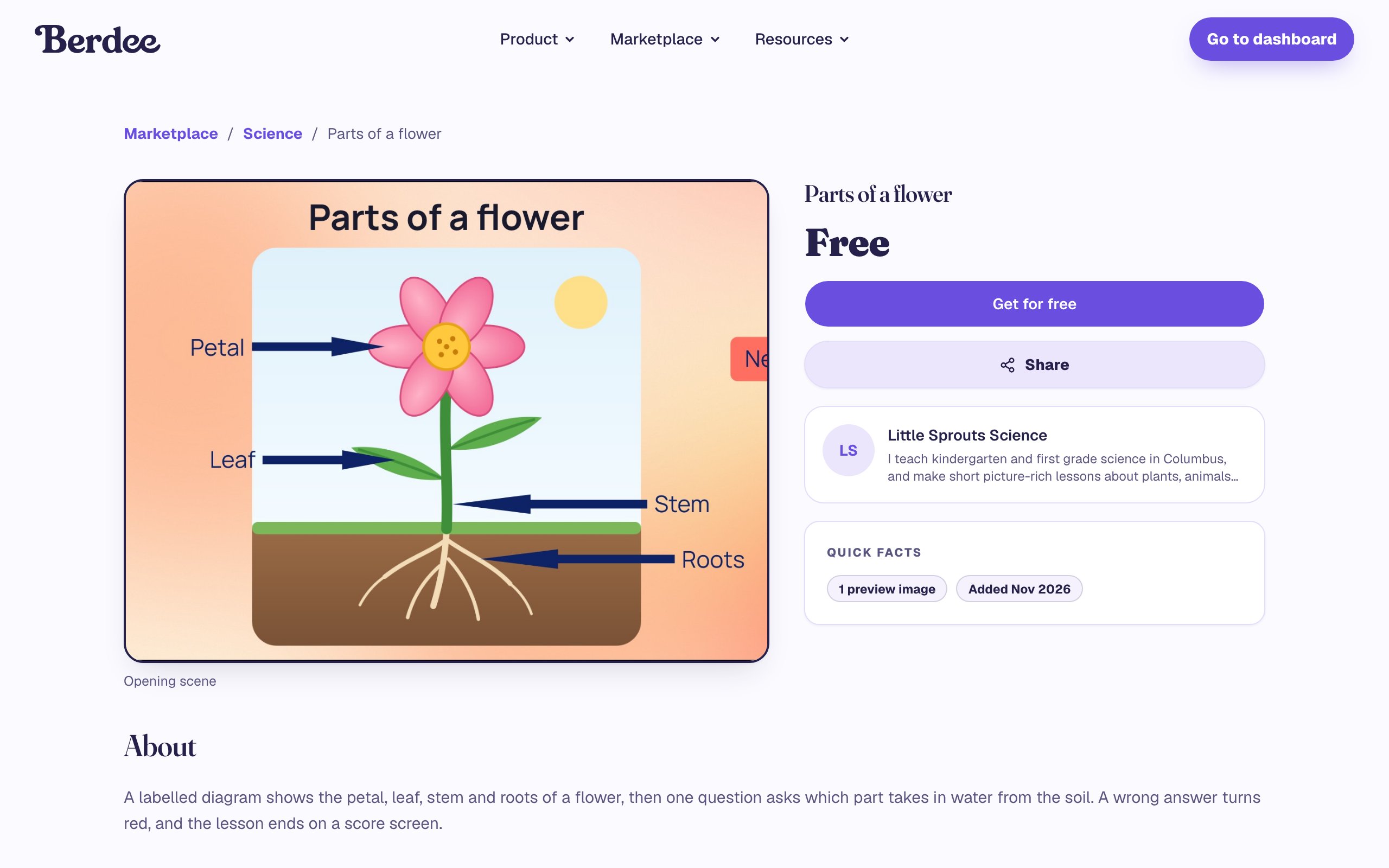
Click a card to open its listing. The top of the page shows a picture of the lesson's opening scene, the price, and the teacher who made it. Under About, the publisher describes what students do.
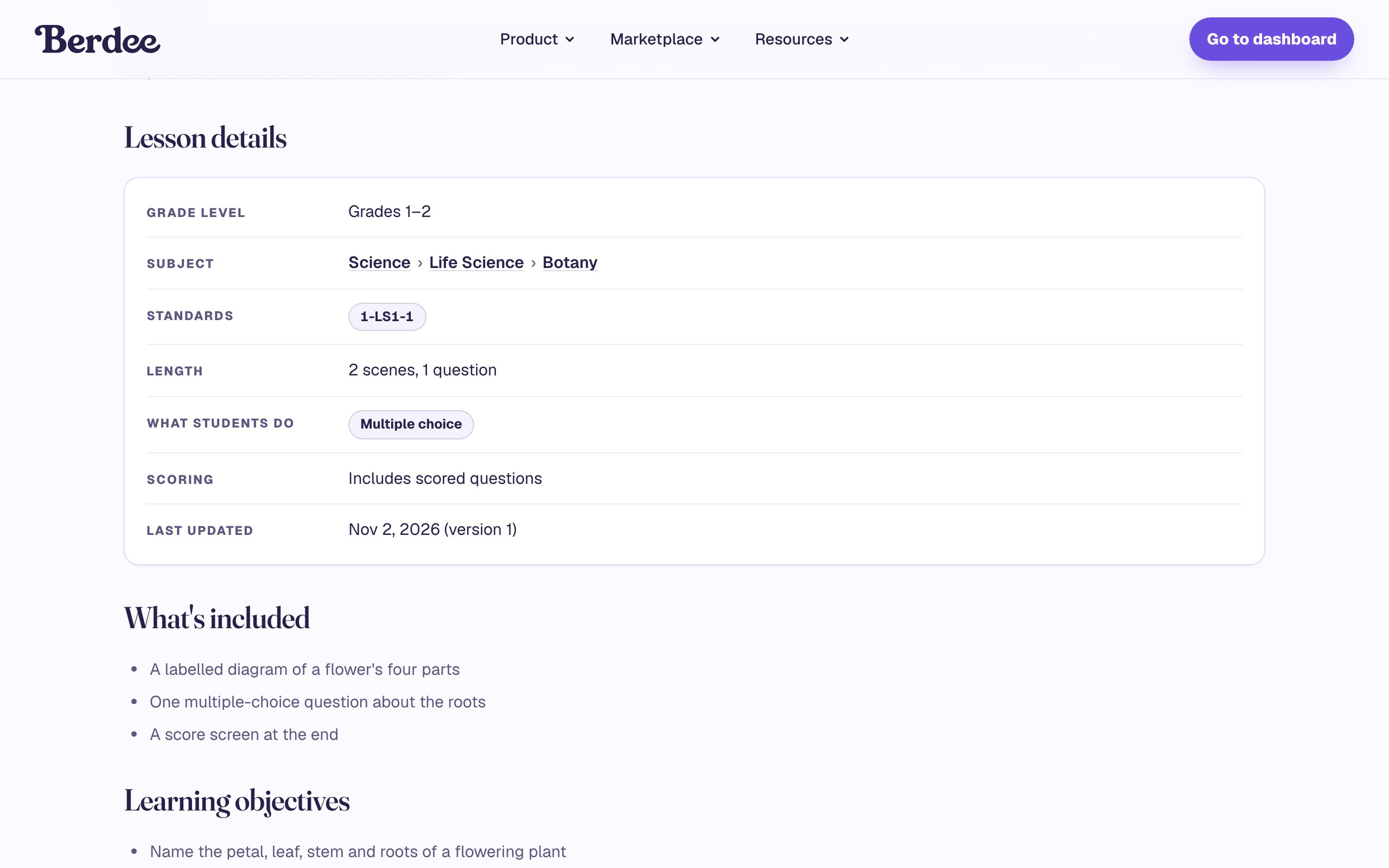
Scroll down to Lesson details before you decide. It answers the questions that matter for your class: the grades, the subject, the standards it covers, how long it is, what students do, and whether it's scored. What's included and Learning objectives follow it.
Step 4: Get it for free
- Scroll back to the top and click Get for free.
- Read the Confirm purchase window: it names the publisher and the price, 0 credits, so your balance doesn't change.
- Click Confirm purchase.
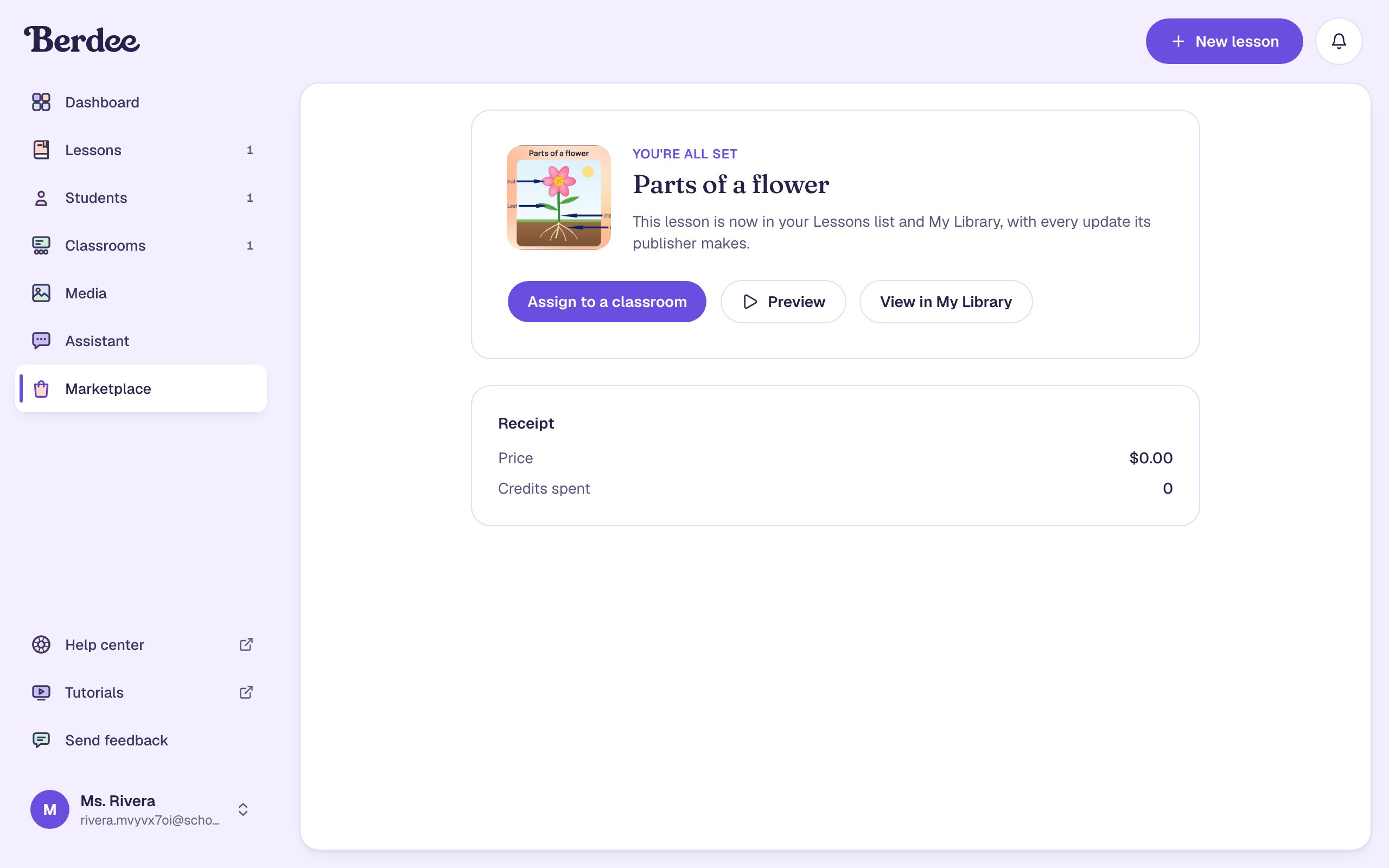
The You're all set page confirms the lesson is yours. From here you can assign it, preview it, or open My Library, where every lesson you've got from the marketplace is listed with its version.
Step 5: Try it the way your students will
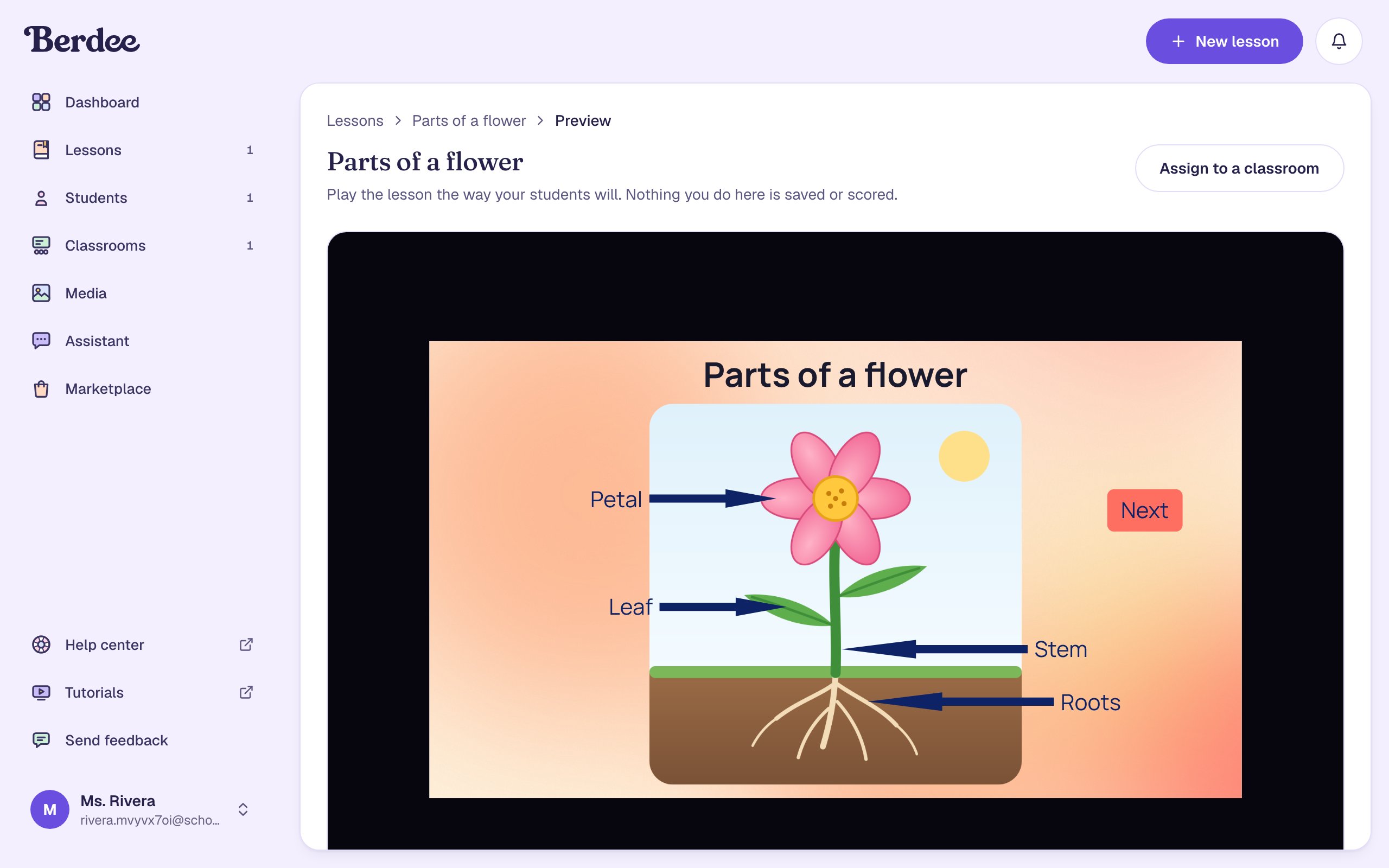
Click Preview. The lesson plays exactly as your students will see it, from the first scene to the ending, and nothing you do here is saved or scored. Answer a question wrong on purpose to see what students see when they make a mistake.
A lesson you get from the marketplace can't be opened in the studio: editing stays with its publisher. If it isn't quite right for your class, keep looking, or build your own from Build your first quiz question.
Step 6: Find it in your Lessons list
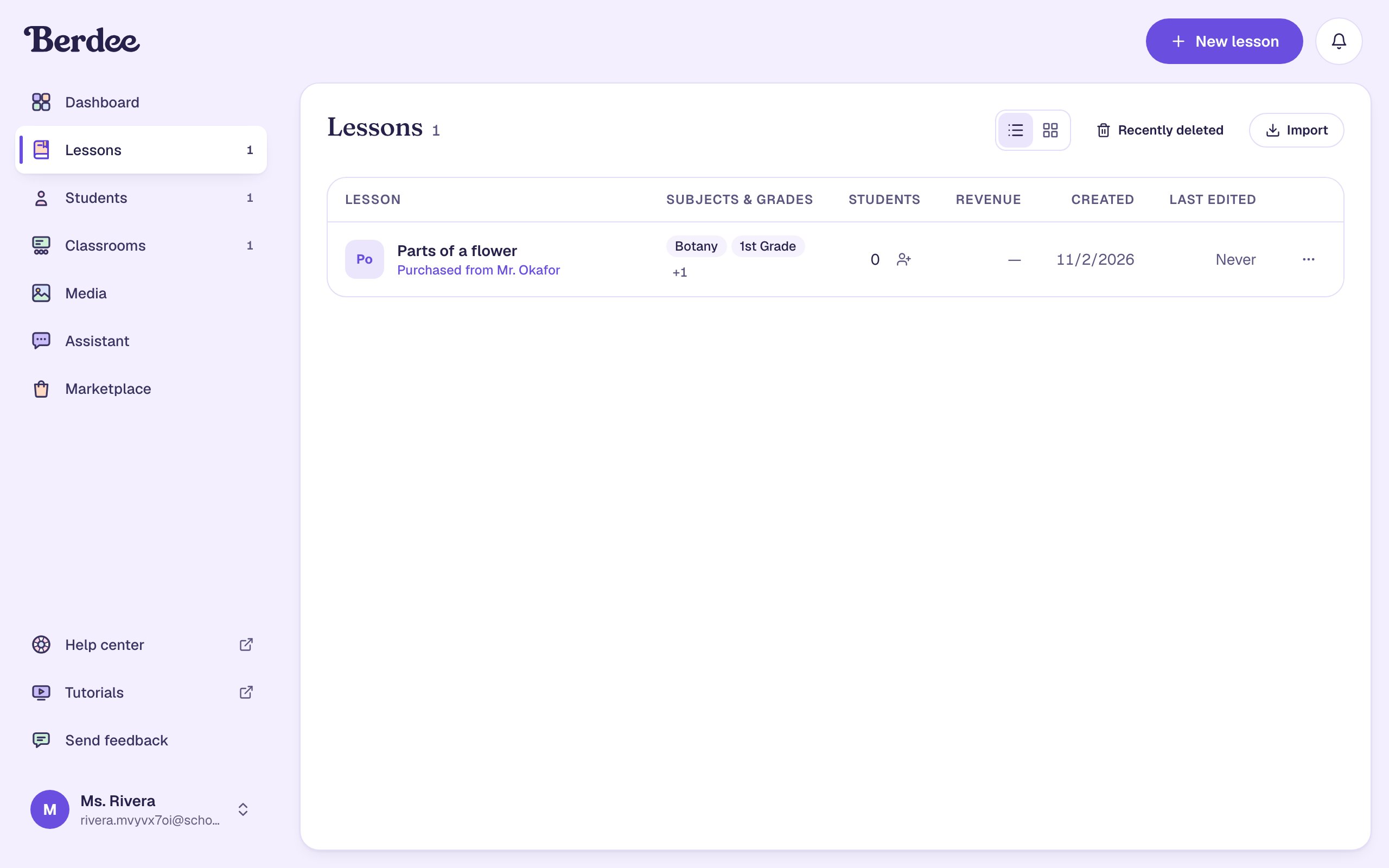
Open Lessons in the sidebar. The lesson sits alongside the ones you made, with Purchased from and the publisher's name under its title. Once your list grows, the Purchased filter shows only the lessons you got from the marketplace.
Step 7: Assign it to your class
A marketplace lesson is assigned like any other.
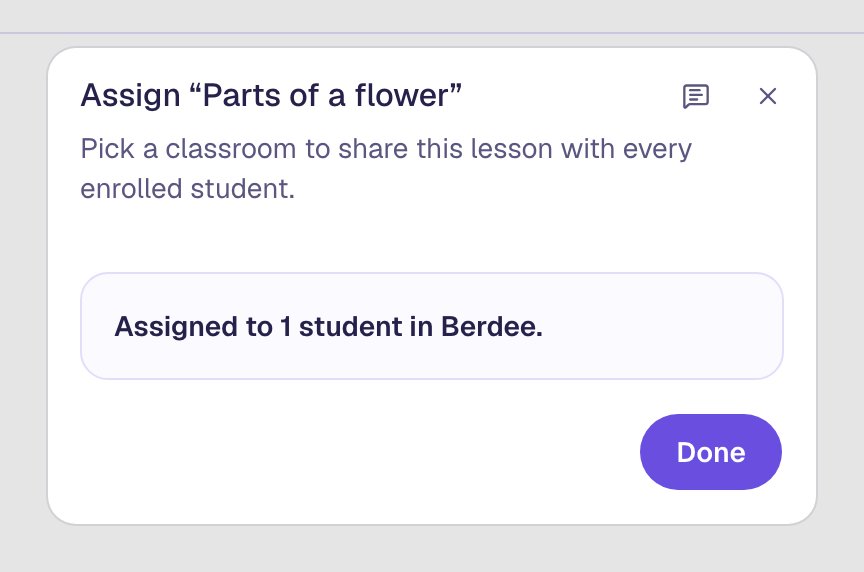
- On its row in Lessons, click the assign button (the person with a plus, in the Students column).
- Pick your classroom.
- Click Assign to Classroom, then Done.
When the publisher improves the lesson, you get the new version automatically, at no cost. Students you've already assigned stay on the version they got, so nobody's lesson changes mid-attempt, until you move them to the latest one.
What you built
A ready-to-teach lesson, without building it:
- You found Parts of a flower by filtering the marketplace to 1st Grade and Free.
- You checked its Lesson details (grades, subject, standard, length and scoring) before taking it.
- Get for free added it to your Lessons list and My Library, marked Purchased from its publisher.
- You played it in Preview the way your students will, and assigned it to your class.
To see how a student plays an assigned lesson and what their answers look like, follow Assign a lesson and see how a student did.
Make this lesson yours
Add the lesson you just watched being built to your account, then change it for your class: your questions, your pictures, your colors.
Free to sign up, and you'll come straight back here. I have an account