Publish a free lesson to the marketplace
Put a finished lesson on the Berdee marketplace for free, so any teacher can find it, add it to their account, and assign it. Set up your publisher profile, fill in the listing, and see it the way other teachers do.
- Level
- Beginner
- Time
- About 10 min
- Steps
- 7
- Updated
- Nov 2, 2026
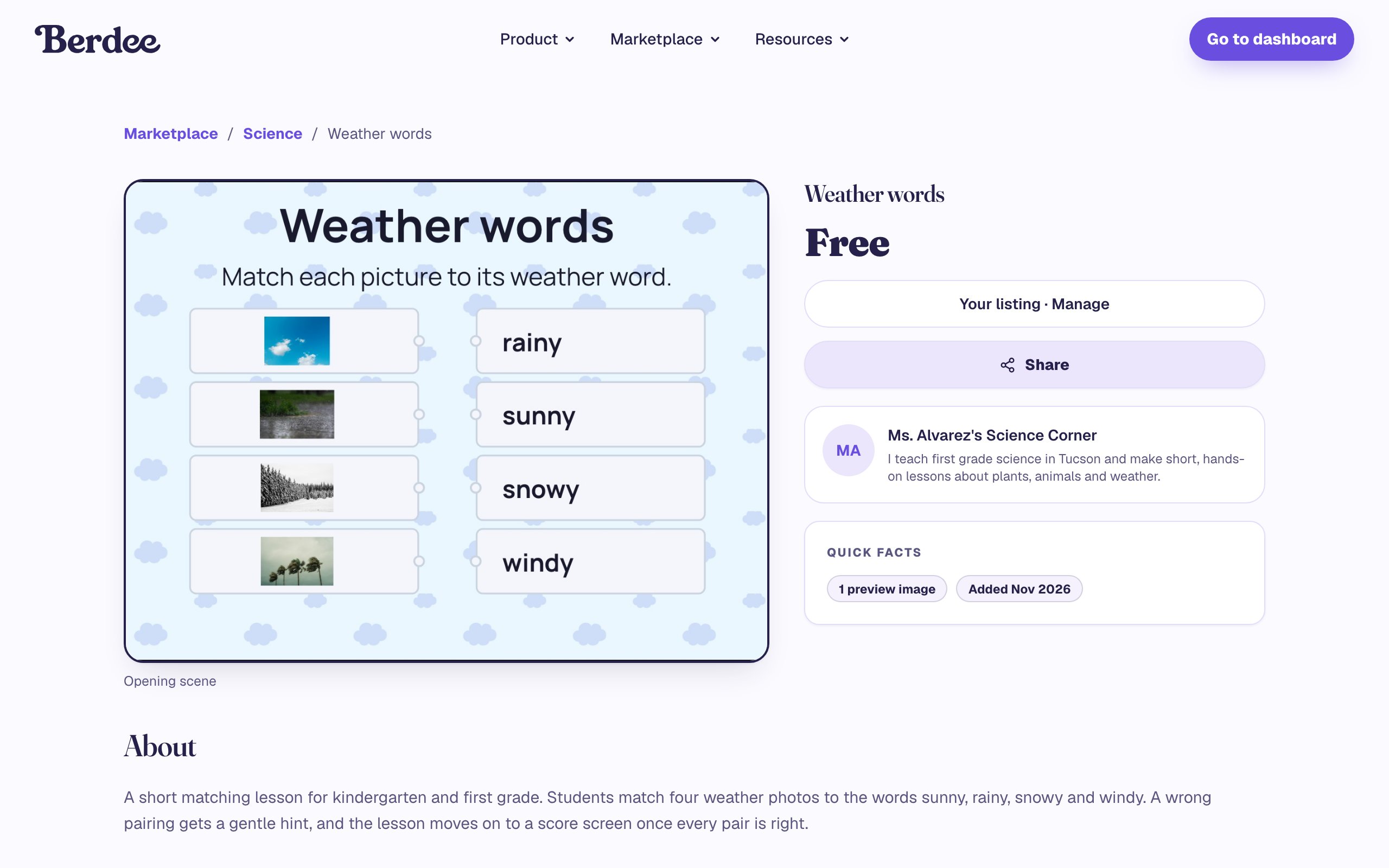
A free "Weather words" listing on the marketplace, with a description, grades, a subject, a standard and a publisher profile, that any teacher can find and add to their account.
Get the finished lesson
Skip straight to the result, or keep it open beside the steps. Add this tutorial's lesson to your account and explore how it works in the studio.
Free to sign up, and you'll come straight back here. I have an account
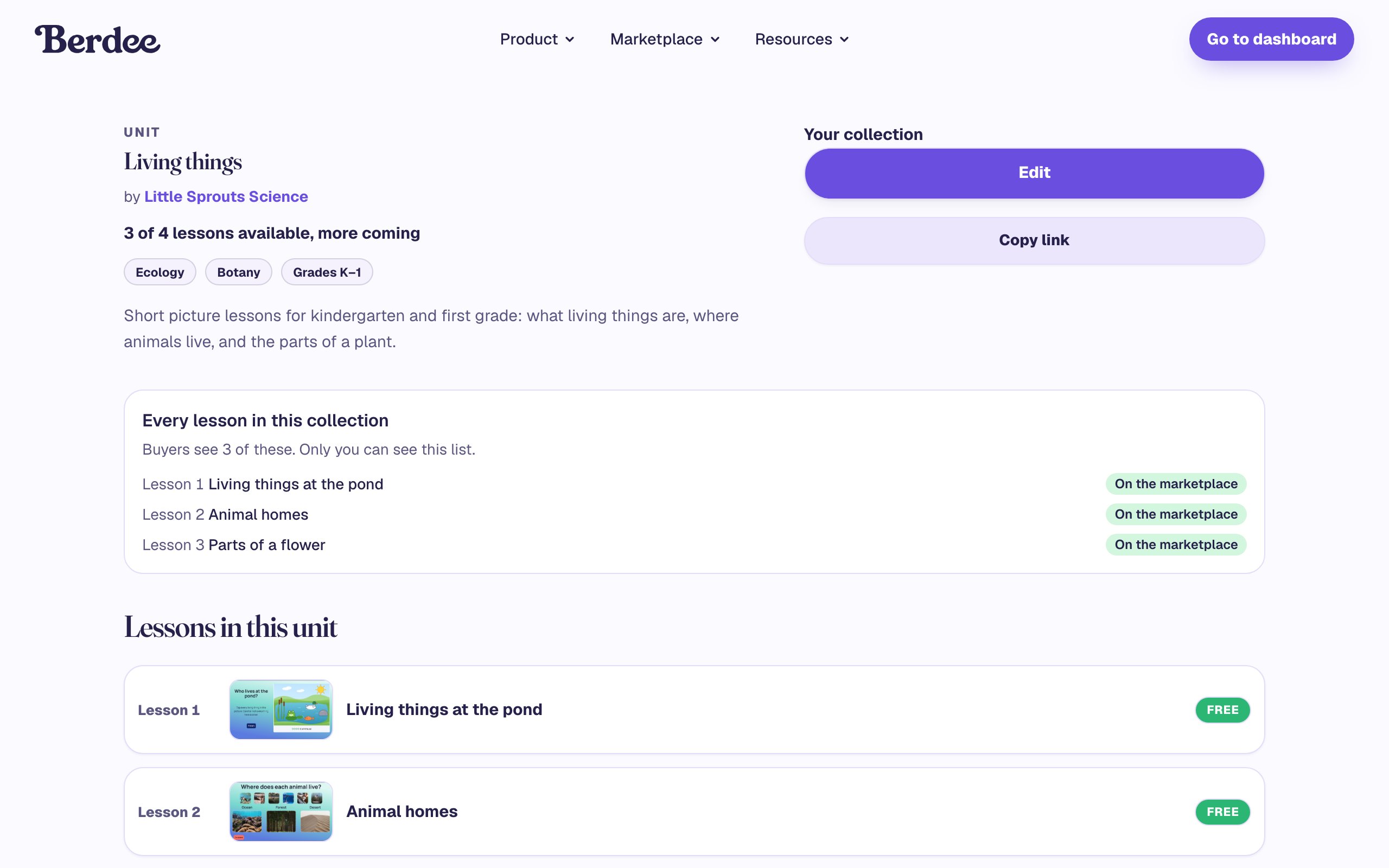
You've built a lesson that works with your class, and other teachers could use it too. Sharing a code reaches the colleagues you know (see Share a lesson with a colleague). Publishing reaches everyone else: your lesson gets its own page on the Berdee marketplace, teachers find it by grade, subject or standard, and they add it to their own account in one click.
In this tutorial Ms. Alvarez publishes her Weather words matching lesson for free. You'll describe the lesson, set up the publisher profile that appears on every listing, fill in the listing, publish it, and open it the way another teacher sees it.
Publishing needs the Studio Pro plan. A free listing needs nothing else: no payouts account, because nothing is charged.
Step 1: Give the lesson its grades and subject
Teachers browse the marketplace by grade and subject, and your listing takes both from the lesson itself. Set them before you publish.
- Open Lessons and click the lesson to open its page.
- Click ⋯ (More lesson actions) at the top right, then Settings.
- Under Description, say in one sentence what students do:
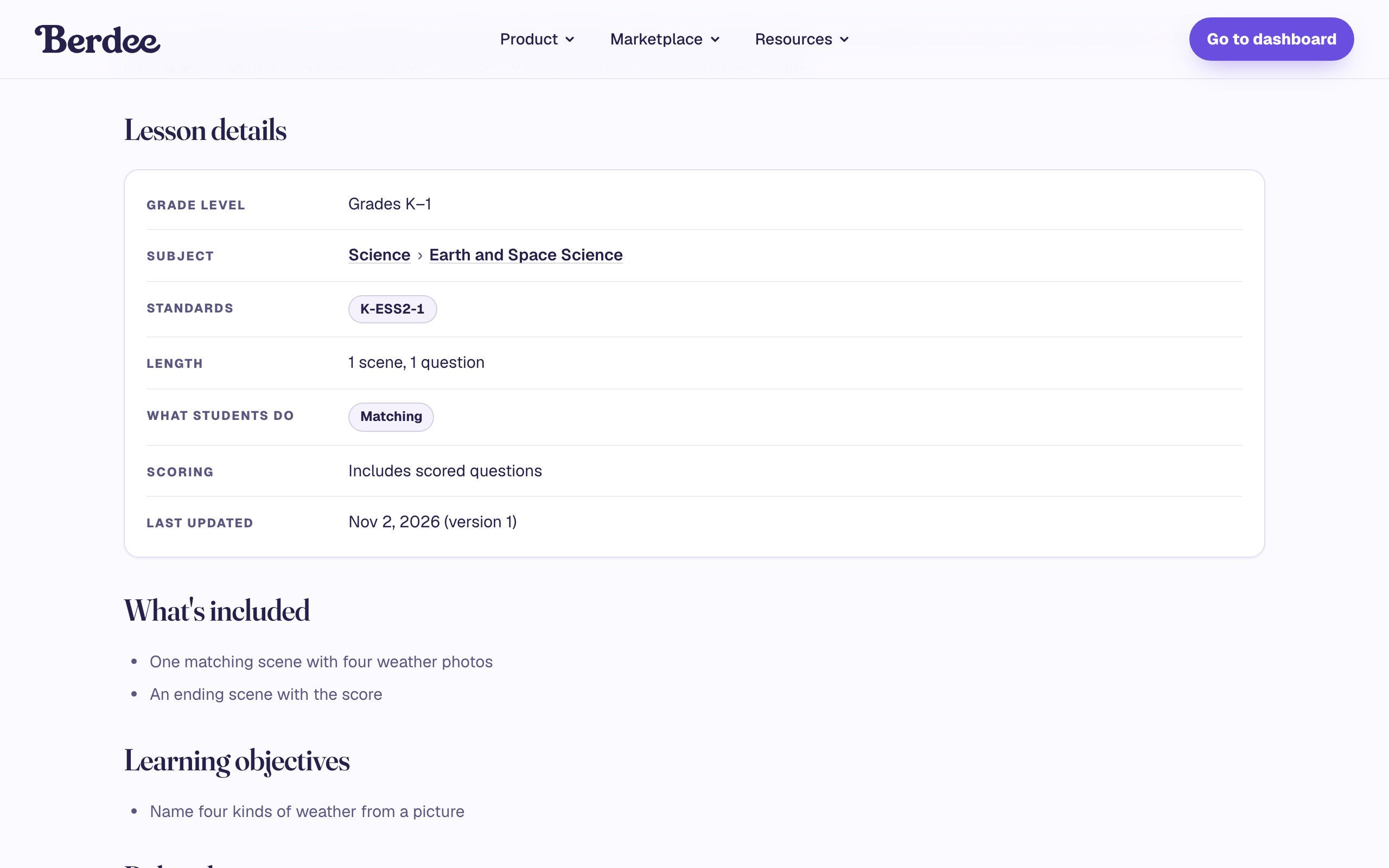
Students match four weather photos to the words sunny, rainy, snowy and windy. - Open Grades and pick Kindergarten and 1st Grade.
- Open Subjects, type
Earthin the search box, and tick Earth and Space Science. - Click Save changes.
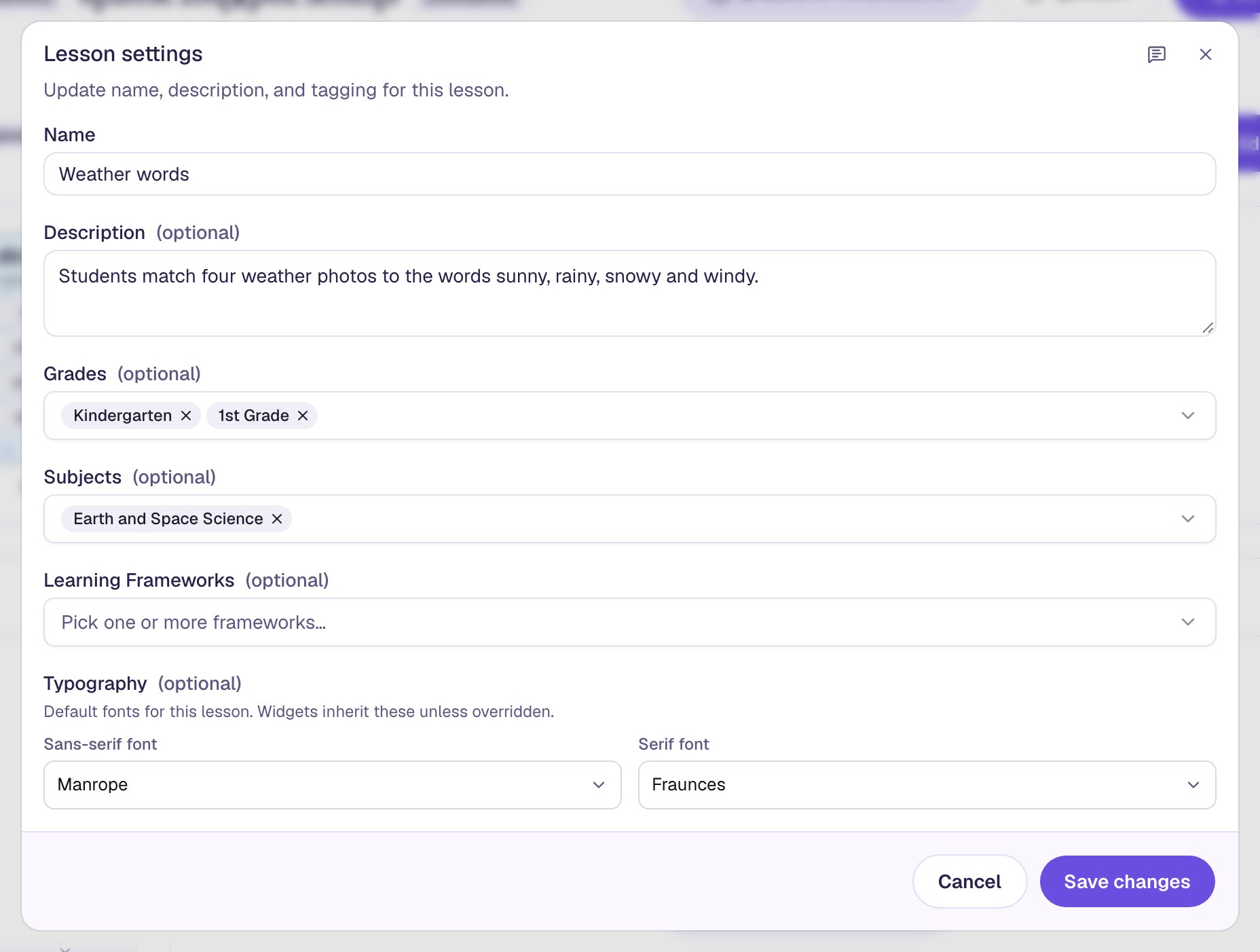
The listing copies these each time you publish, so to change them later, change them here and publish again.
Step 2: Click Publish to marketplace
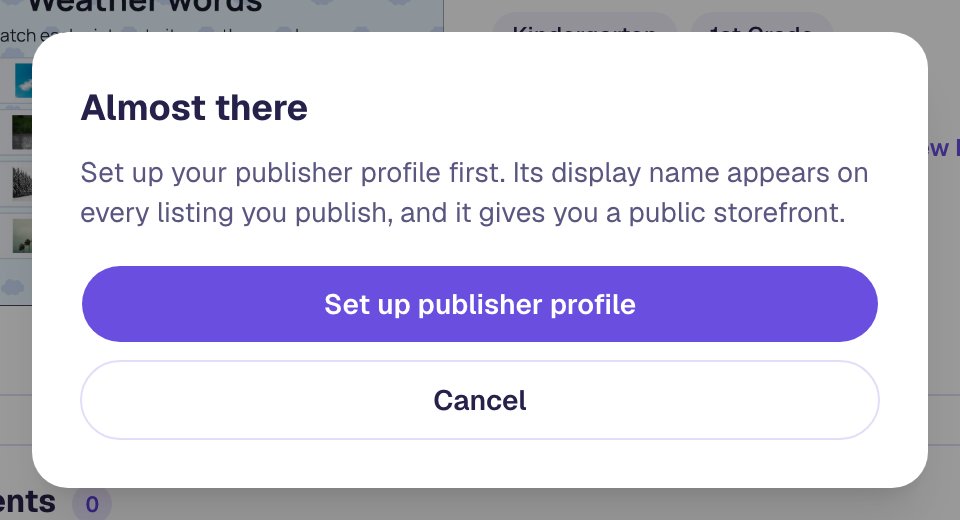
Click Publish to marketplace. The first time, Berdee asks you to set up your publisher profile: the name every listing of yours shows, and your public storefront.
Step 3: Set up your publisher profile
- Click Set up publisher profile.
- Under Display name, type the name teachers will see:
Ms. Alvarez's Science Corner. - Under Bio, say who you are and what you make:
I teach first grade science in Tucson and make short, hands-on lessons about plants, animals and weather. - Click Save profile.
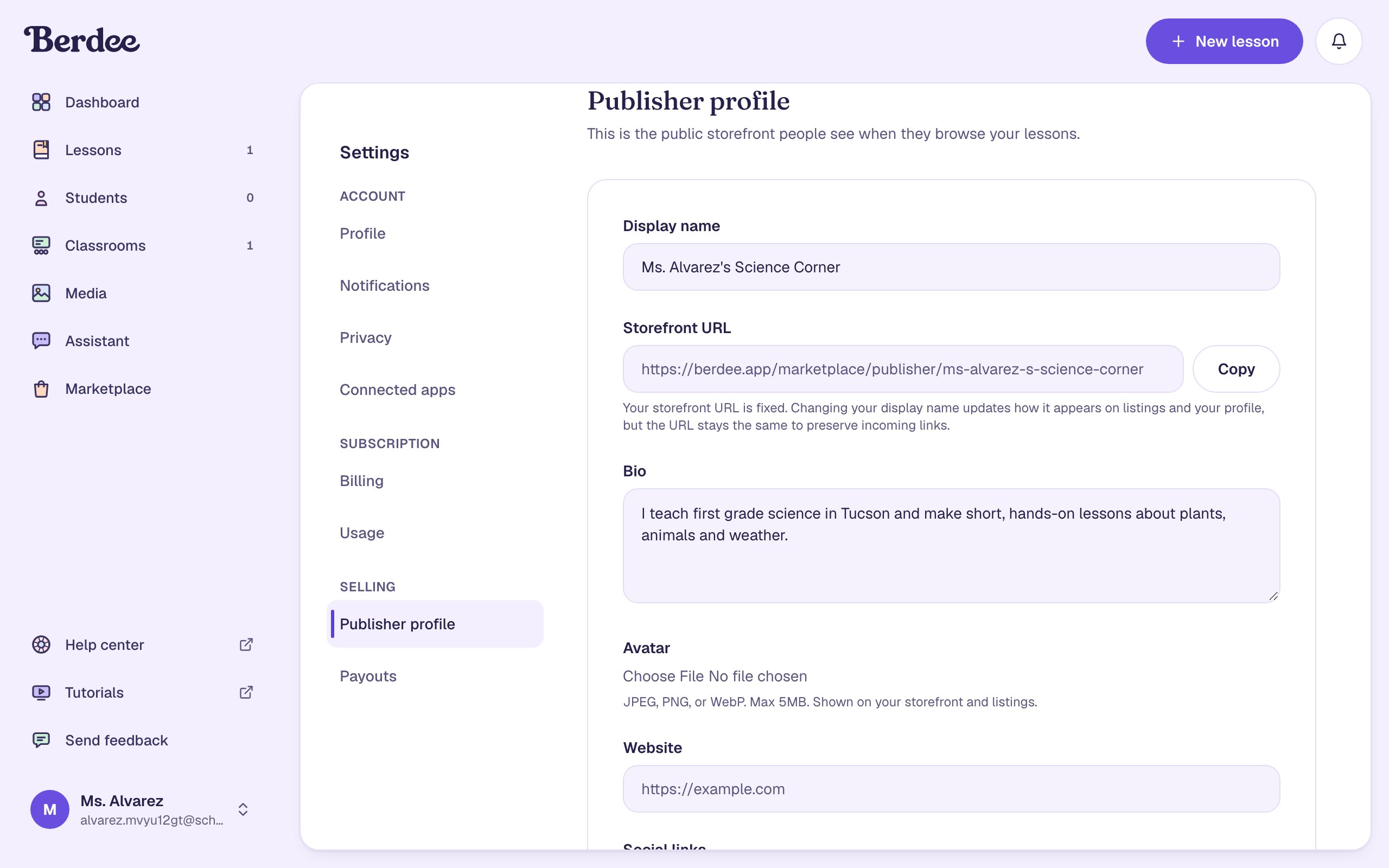
Your storefront address comes from the display name the first time you save, and it never changes after that, so links you share keep working. You can change the display name later; listings show the new name.
Step 4: Fill in the listing
Go back to the lesson's page and click Publish to marketplace again. This time the listing form opens.
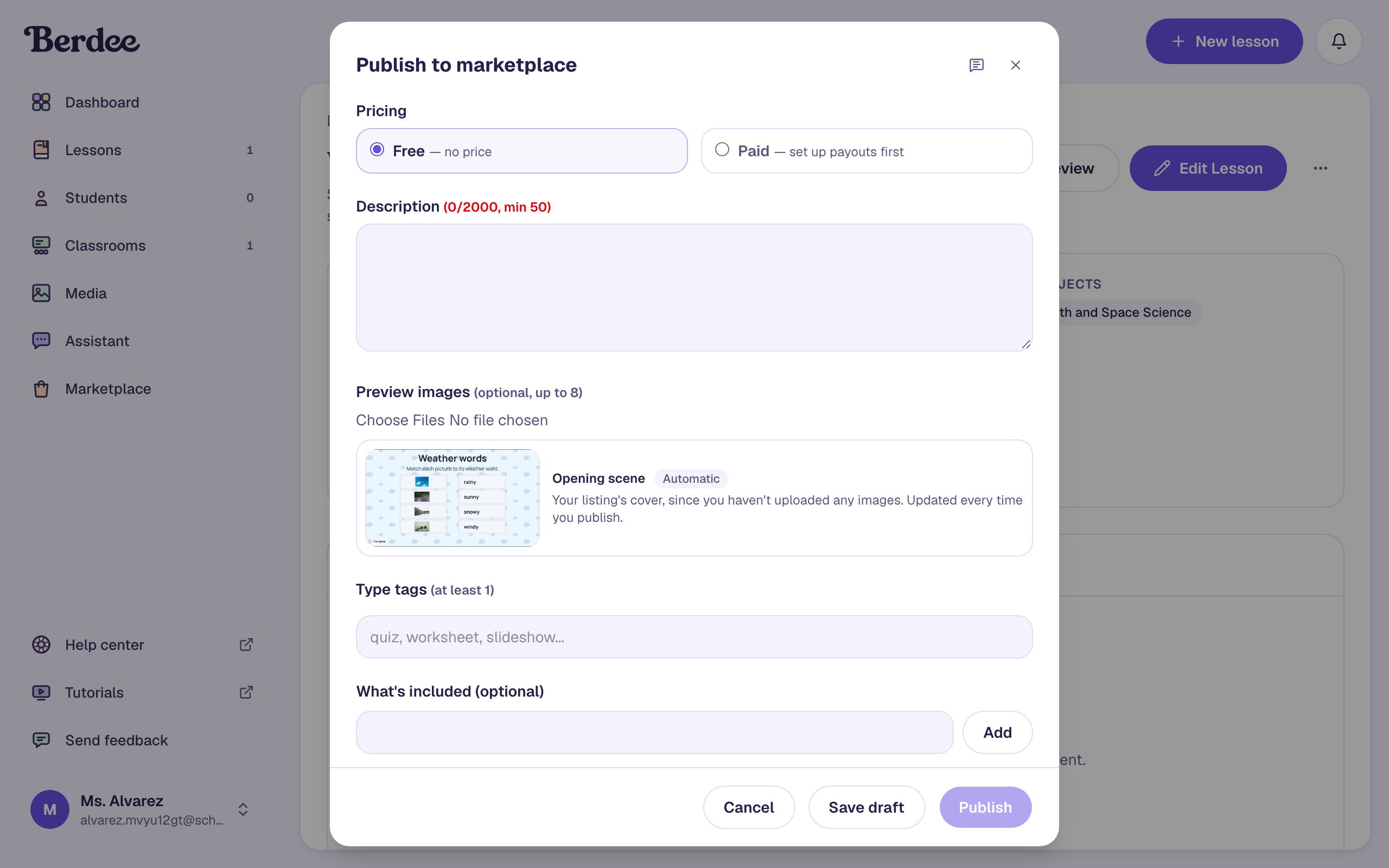
- Leave Pricing on Free.
- Under Description, write for a teacher deciding whether the lesson fits their class. It needs at least 50 characters, and teachers can search for its words:
A short matching lesson for kindergarten and first grade. Students match four weather photos to the words sunny, rainy, snowy and windy. A wrong pairing gets a gentle hint, and the lesson moves on to a score screen once every pair is right. - Under Type tags, type
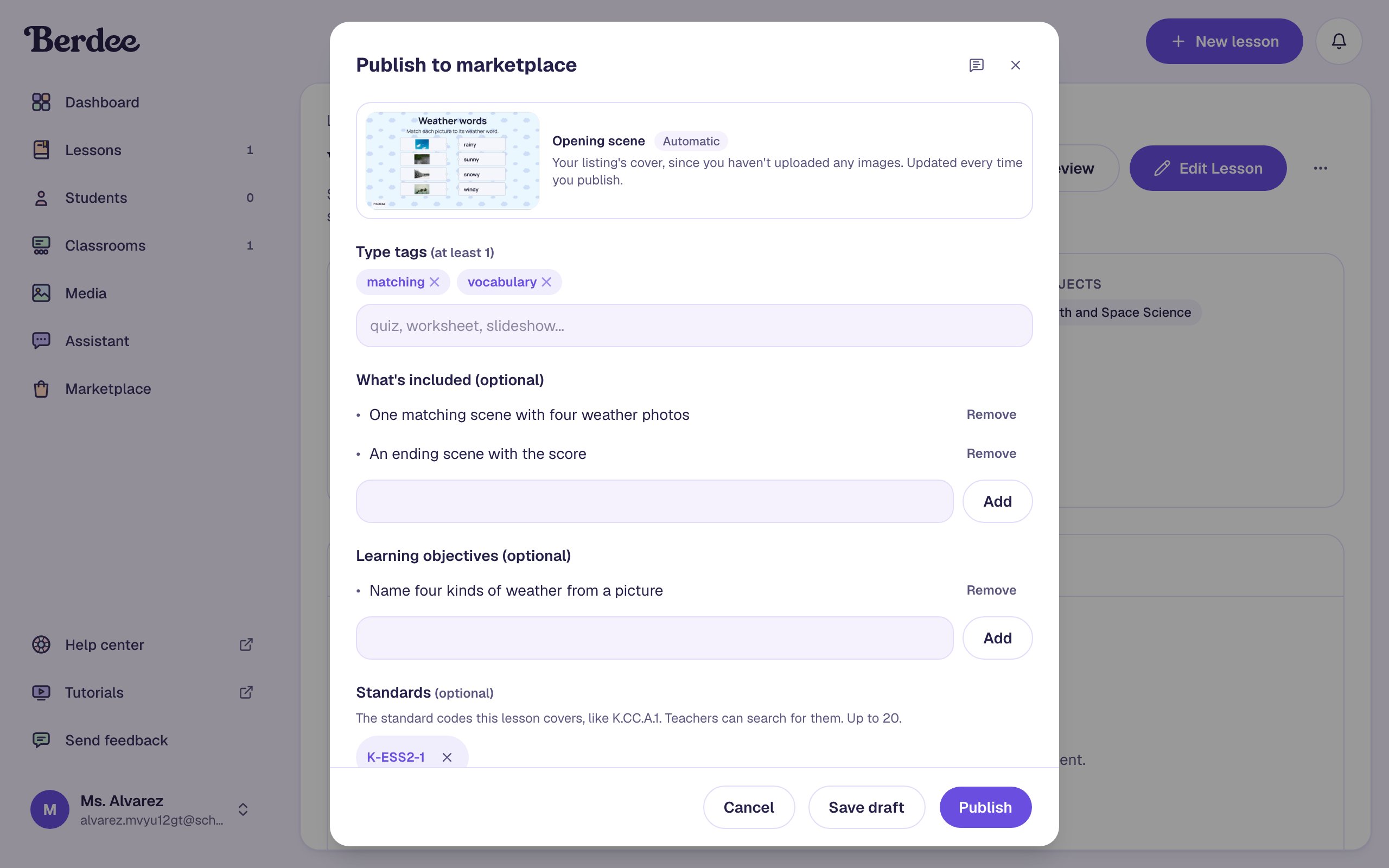
matchingand press Enter, thenvocabularyand press Enter. A listing needs at least one.
You don't need to upload pictures. Without them, the listing's cover is a picture of your lesson's opening scene, updated every time you publish, so make that scene the one that shows the lesson best.
Step 5: Add what's included, objectives and standards
These three are optional, and each one helps a teacher decide.
- Under What's included, type
One matching scene with four weather photosand click Add, thenAn ending scene with the scoreand click Add. - Under Learning objectives, type
Name four kinds of weather from a pictureand click Add. - Under Standards, type the code
K-ESS2-1and press Enter. Teachers who search the marketplace for a code find your lesson by it.
Step 6: Publish
Click Publish. Berdee checks the lesson first, the same way the studio's validation badge does: a lesson with a problem, such as no button that finishes it, isn't published, and the dialog lists what to fix. This lesson passes, so the dialog closes.
The lesson's page now shows On marketplace, Published v1, and Edit listing where Publish to marketplace was.
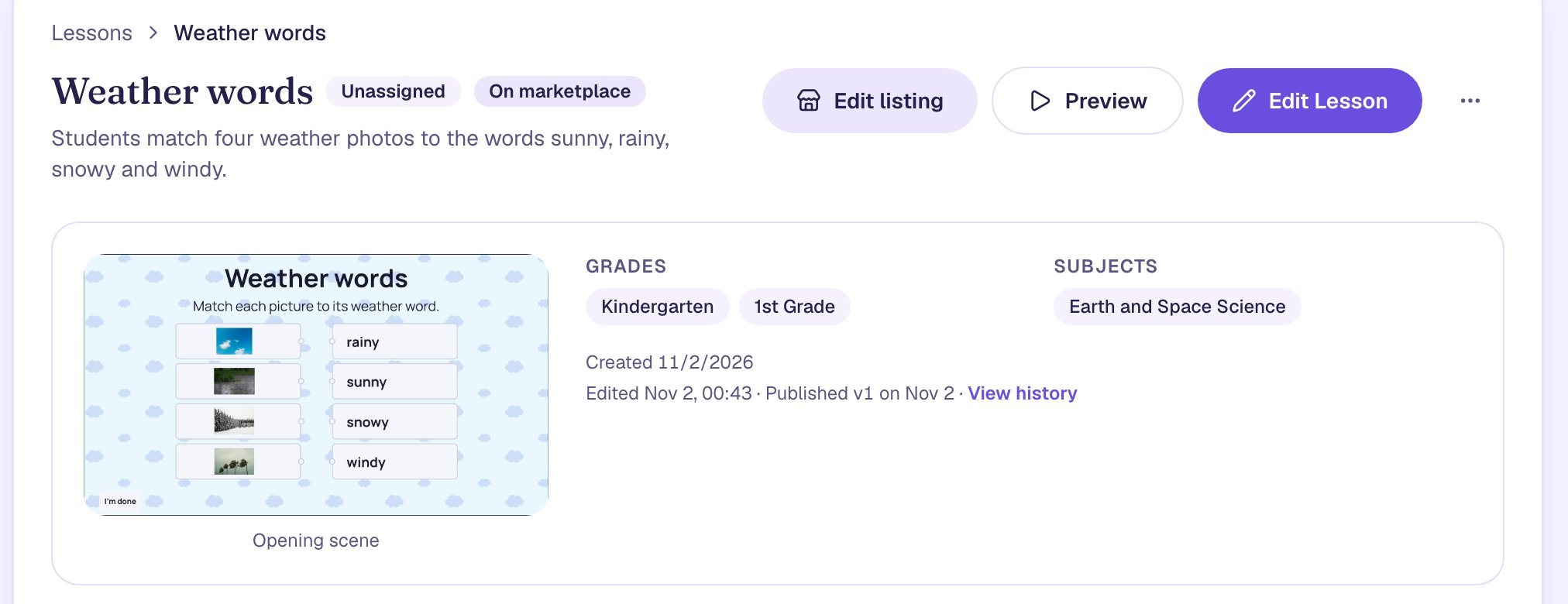
Your edits in the studio stay private until you publish again. When you do, teachers who added the lesson get the new version.
Step 7: See your listing the way teachers do
- Click Marketplace in the sidebar, then Publisher dashboard near the bottom of the page.
- Click the Published tab, then the lesson's title.
The listing page is public: anyone can open it, signed in or not. It shows the price (Free), your publisher name and bio, and the description under About.
Further down, Lesson details shows the grades, subject and standard you set, along with what's included and the objectives.
What you built
A lesson any teacher can find and use:
- Weather words has a description, grades and a subject, which the listing copies each time you publish.
- Ms. Alvarez's Science Corner is her publisher profile, with a storefront address that never changes.
- The free listing has a description, type tags, what's included, an objective and a standard, and its cover is the opening scene.
- Teachers get every version she publishes from now on.
Once you've published a few lessons that belong together, group them into a unit so teachers see them in order: see Group your marketplace lessons into a unit.
Make this lesson yours
Add the lesson you just watched being built to your account, then change it for your class: your questions, your pictures, your colors.
Free to sign up, and you'll come straight back here. I have an account