Show a teen number as ten and some more
Use the Fingers widget's Show mode on four hands to count 17 as one friend's 10 fingers and 7 more, then ask students how many with a Number Input that gives a count-on hint for a wrong answer.
- Level
- Beginner
- Time
- About 10 min
- Steps
- 7
- Updated
- Nov 21, 2026
A one-scene activity where two friends' hands count up to 17 one finger at a time, out loud, and students type how many, with a count-on hint if they miss.
Get the finished activity
Skip straight to the result, or keep it open beside the steps. Add this tutorial's activity to your account and explore how it works in the studio.
Free to sign up, and you'll come straight back here. I have an account
A teen number is 10 and some more: 17 is a full ten and 7 ones. Children can't show 17 on their own two hands, but two friends can. One holds up all 10 fingers, the other holds up 7, and the class counts on from 10.
The Fingers widget draws exactly that. With 4 hands it shows two children's hands side by side, one pair always showing 10 and the other the rest, so the count on screen is always right. In Show mode students watch and read the hands; they can't change them.
In this tutorial you'll build a one-scene activity called Teen numbers on fingers. When the scene opens, the fingers go up one at a time and the count is said out loud, up to 17. Then students type how many fingers they saw. A wrong answer brings up a hint to count on from 10, and the right answer finishes the activity.
If you haven't used the Fingers widget before, Act out a story problem on fingers covers the graded modes, where students raise and lower the fingers themselves.
Step 1: Set the scene
Click New activity, name it Teen numbers on fingers, choose A blank activity, then Build the first scene.
Give both scenes a warm background: click an empty spot on the Opening Scene, open Background, click Choose a style, and pick Mesh sunrise under Gradients. Do the same on the Closing Scene, so the ending matches.
Back on the Opening Scene, open the Widgets tab and add:
- a Heading that says
How many fingers?, across the top of the scene - a Body that says
Two friends hold up their fingers. One friend shows 10. Count on to find how many., in a narrow column on the right (set its Width to300under Style & Layout)
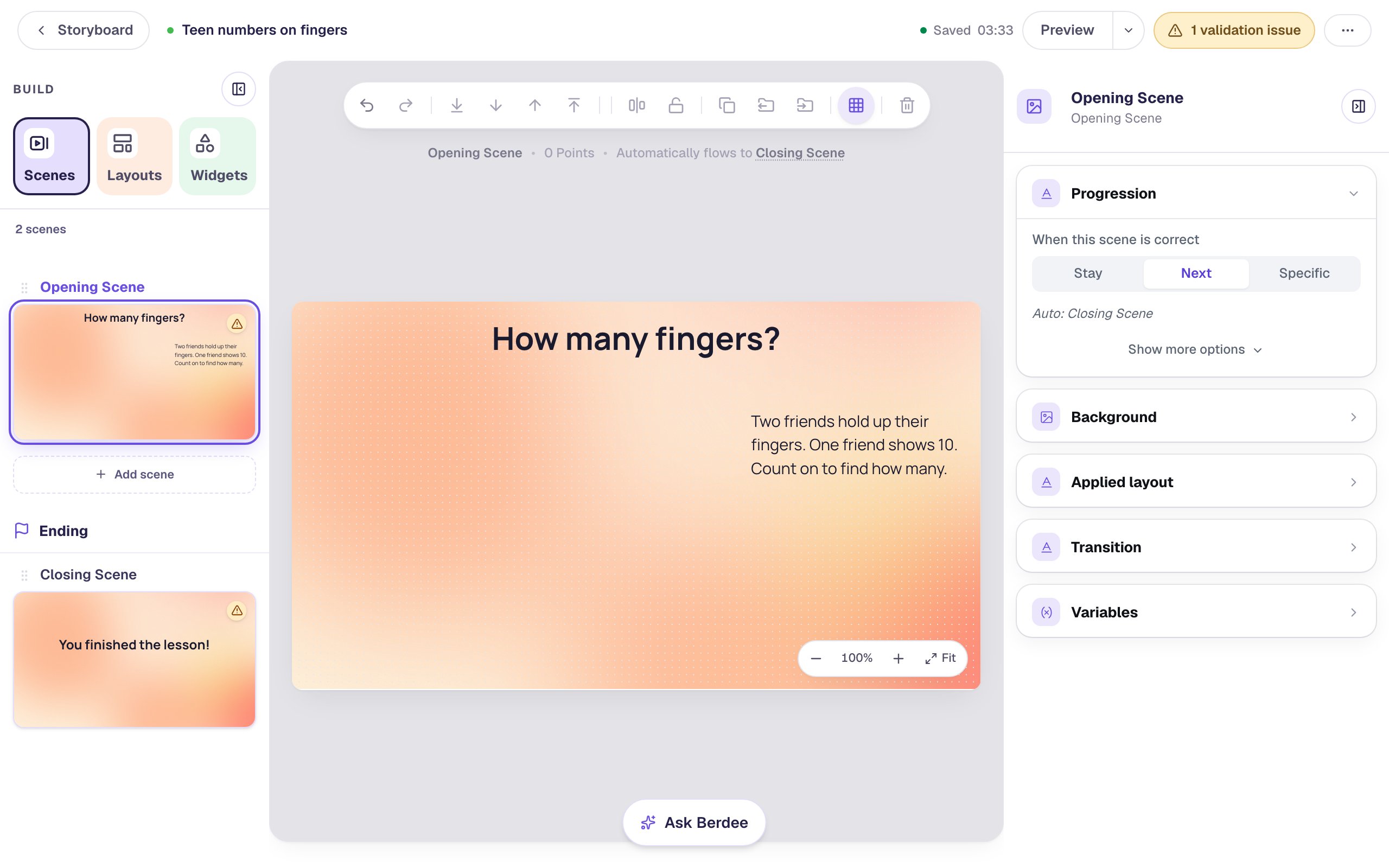
The instruction tells students the strategy, counting on from 10, before they see a single finger.
Step 2: Add a Fingers widget
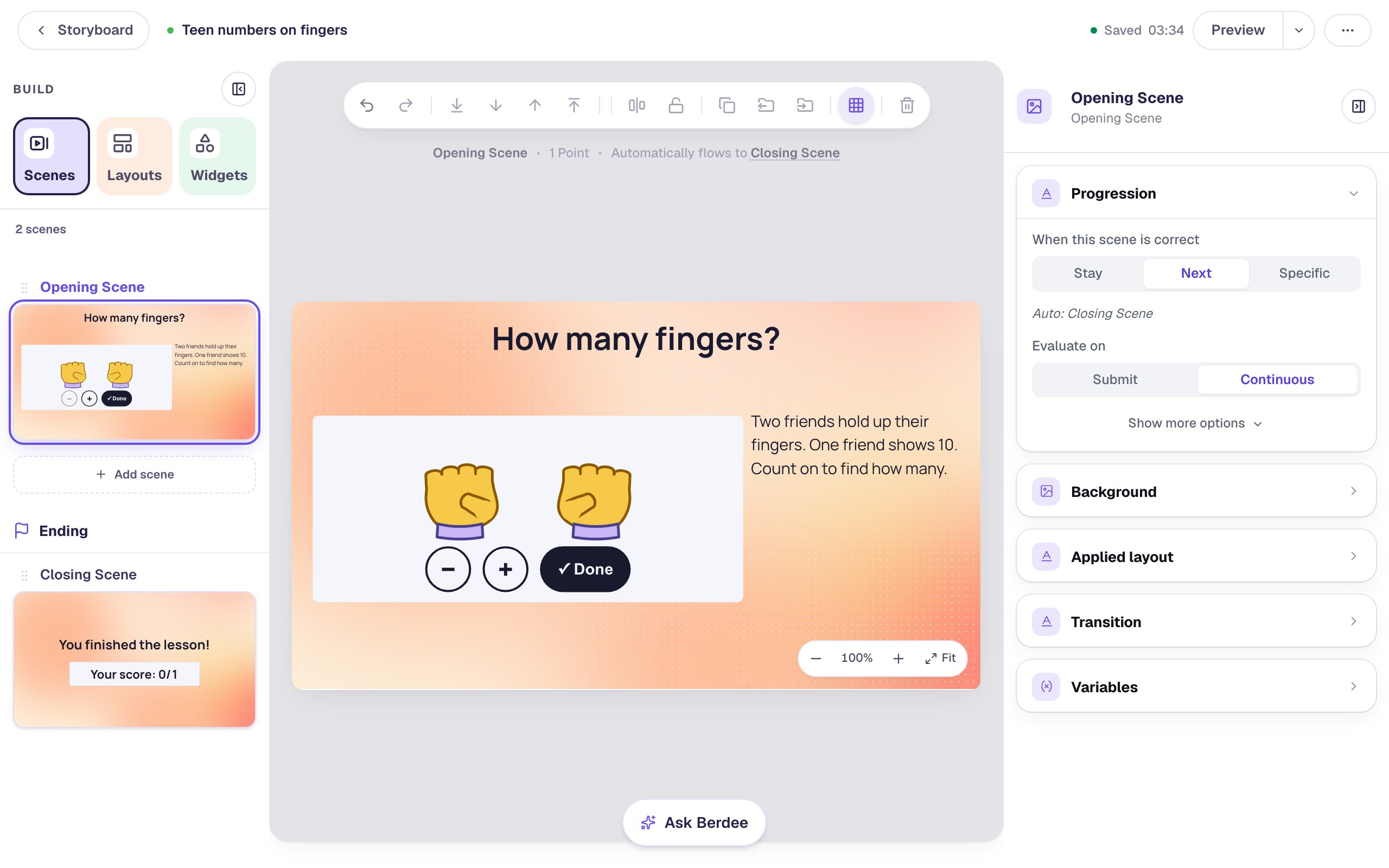
Search the Widgets tab for Fingers and click the tile. A new Fingers widget asks students to show a number on two hands, so it arrives with +, − and ✓ Done buttons under them. You'll change that in the next step.
Under Style & Layout, set Width to 600 and Height to 260, and drag the widget to the left of the scene, under the heading. Rename it Friends' fingers (click its name at the top of the properties panel) so it's easy to find later.
The hands are a picture to a student who can't see them, so describe them: in Accessibility, set Alt Text to Two children's hands held up side by side, showing 17 fingers.
Step 3: Show 17 on four hands
Select the Fingers widget and click ⚙ Configure. Then:
- Under What students do, choose Show. It's marked Not graded: the hands are something to read, not an answer.
- Under Hands, choose 4 hands. That's two children's hands, for numbers up to 20.
- Set Fingers up to
17.
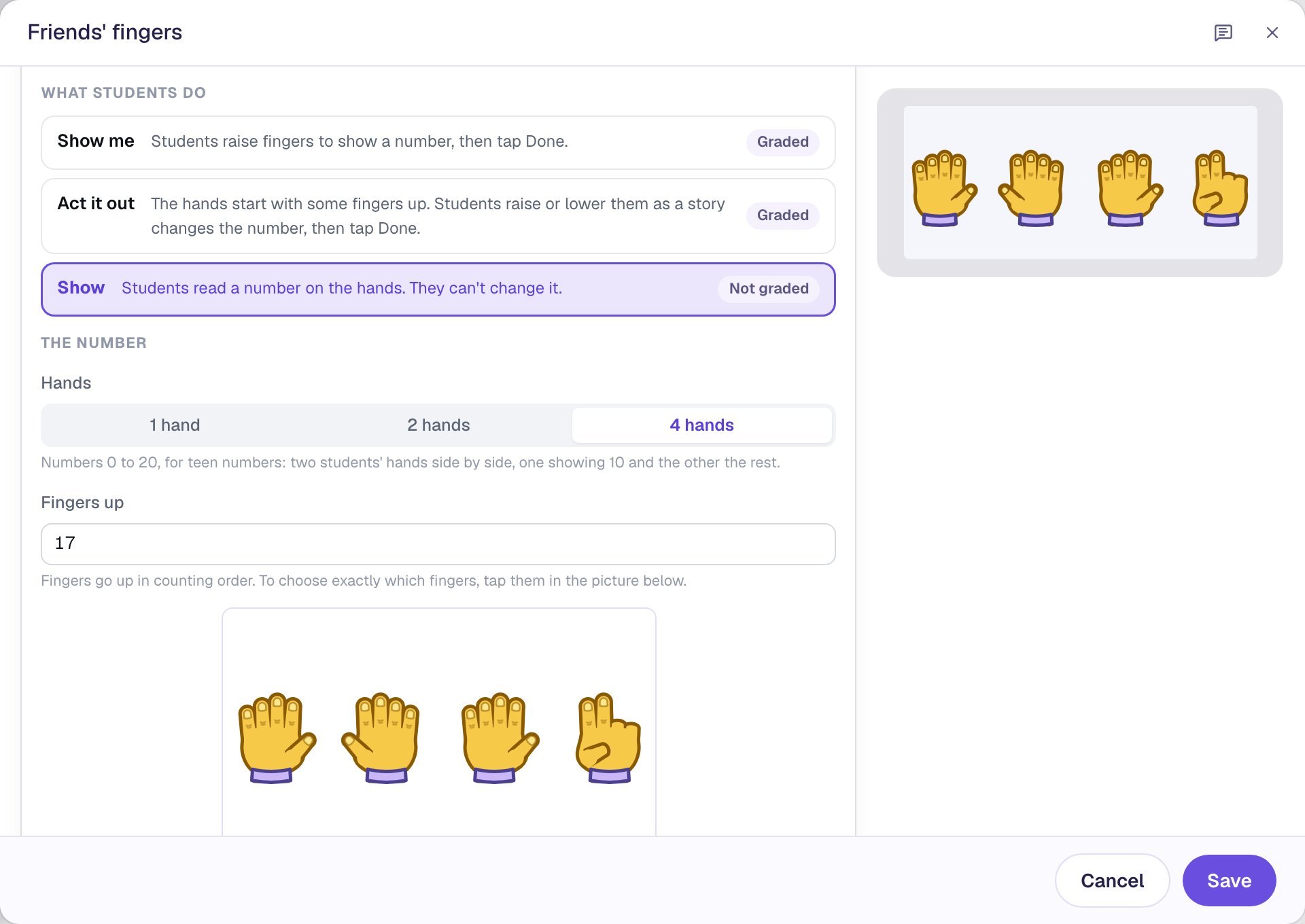
The fingers fill one friend's hands first, so 17 always reads as a full ten and 7 more, never as 9 and 8. To choose exactly which fingers are up, tap them in the picture under Fingers up; Go back to counting order undoes your picks.
Step 4: Count up one finger at a time, out loud
Scroll down to What students see and hear:
- Turn on Count up one finger at a time. Now the hands start closed and the fingers go up one by one when the scene opens, instead of all being up at once.
- Leave Say the count out loud on, so each number is spoken as its finger goes up: "1, 2, 3, … 17".
- Leave Show the number as a numeral on Never. The numeral would give the answer away.
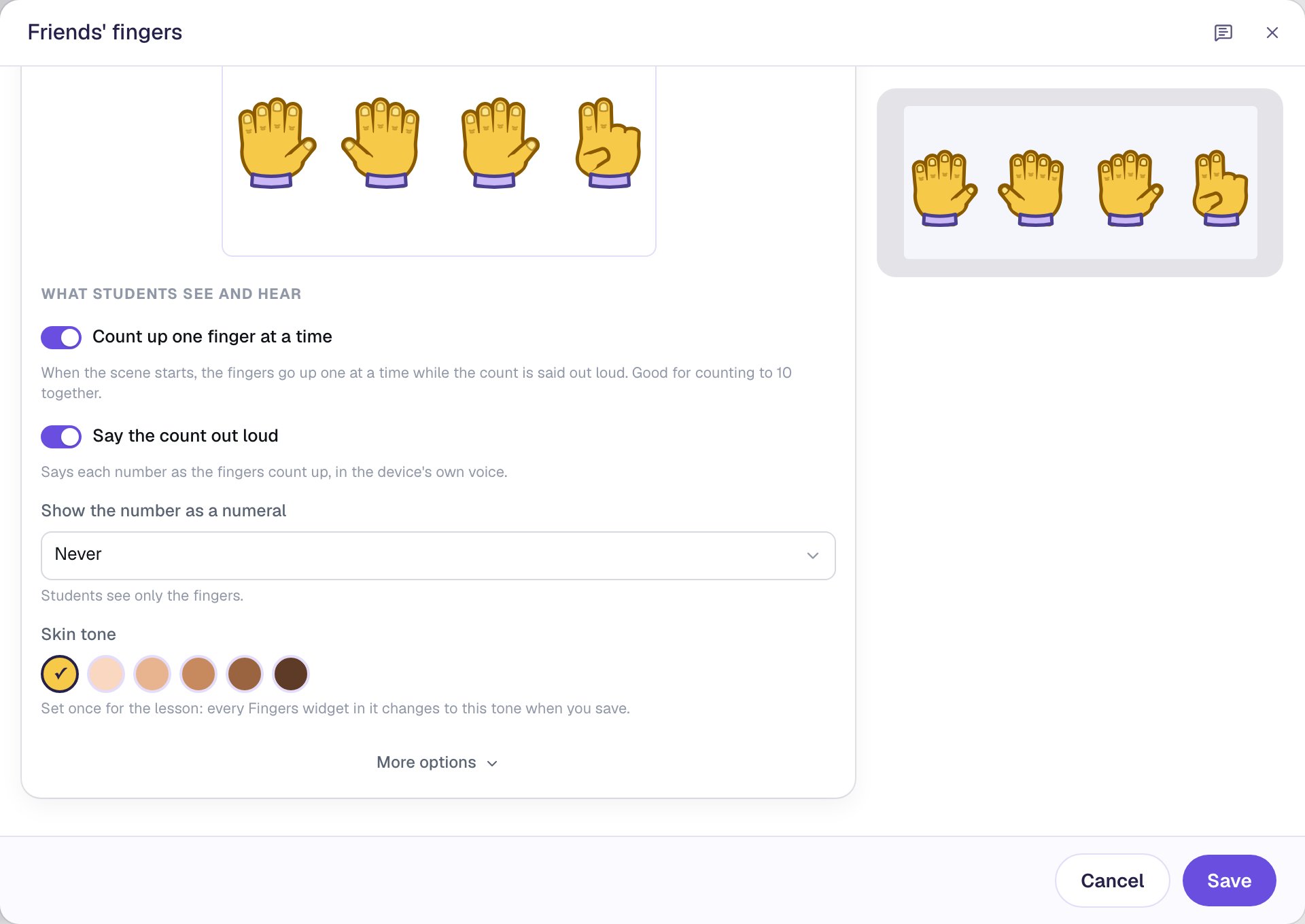
Click Save. On the canvas the hands always show the finished count, 17, so you can lay out the scene around them.
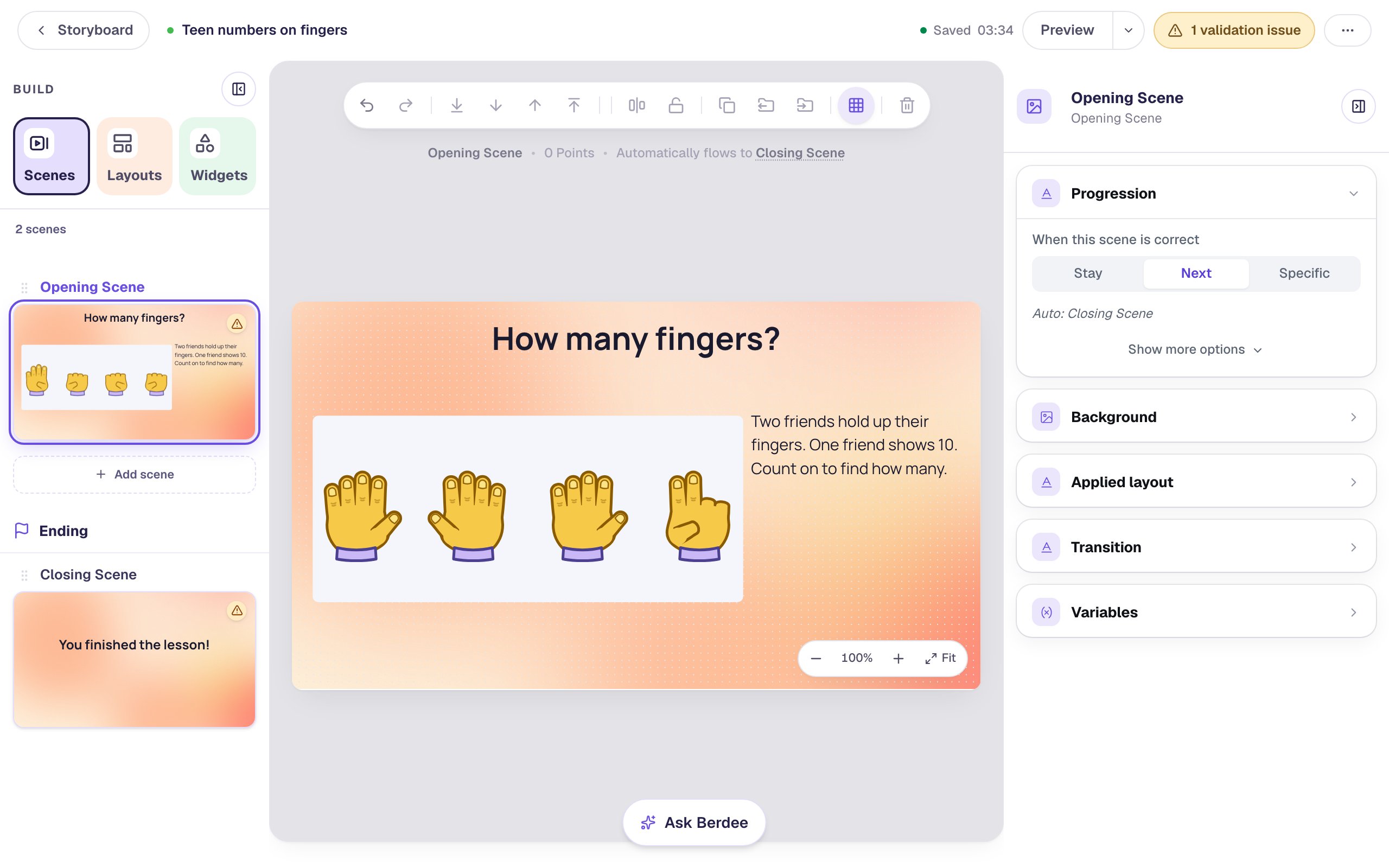
Counting out loud makes this a good scene to do together: pause after 10 and ask the class what comes next.
Step 5: Ask how many with a Number Input
Add a Number Input and click ⚙ Configure:
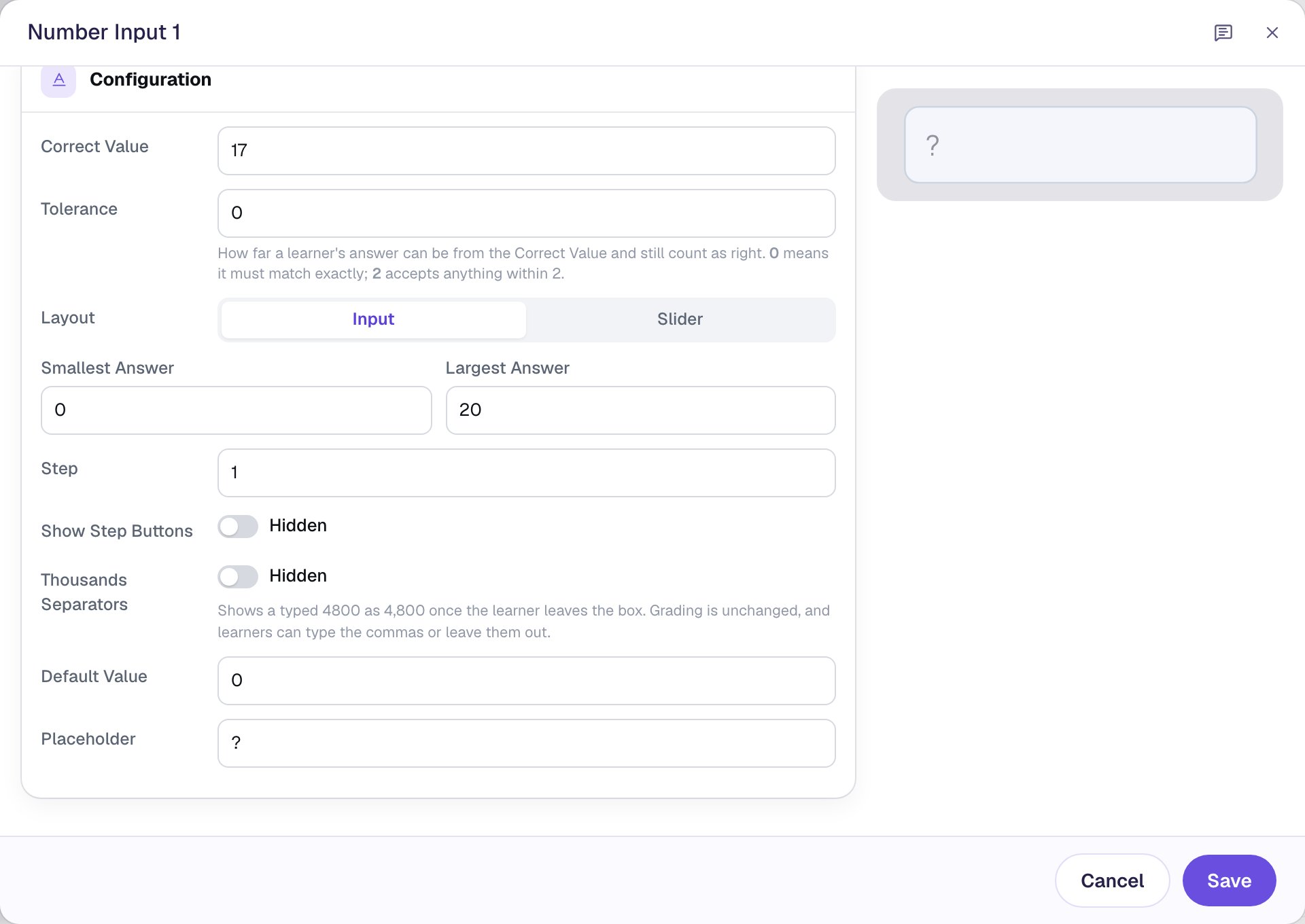
- Set Correct Value to
17. - Set Smallest Answer to
0and Largest Answer to20, the most four hands can show. - Turn Show Step Buttons off, so students type the number rather than click + seventeen times.
- Set Placeholder to
?. It shows in the empty box, so students can see where the answer goes.
Click Save and rename the widget How many. In Accessibility, set its Alt Text to How many fingers in all, so a screen reader names the question rather than reading "Number input". Then, in Style & Layout, set Font Size to 40 and Width to 180, and drag the box under the instruction.
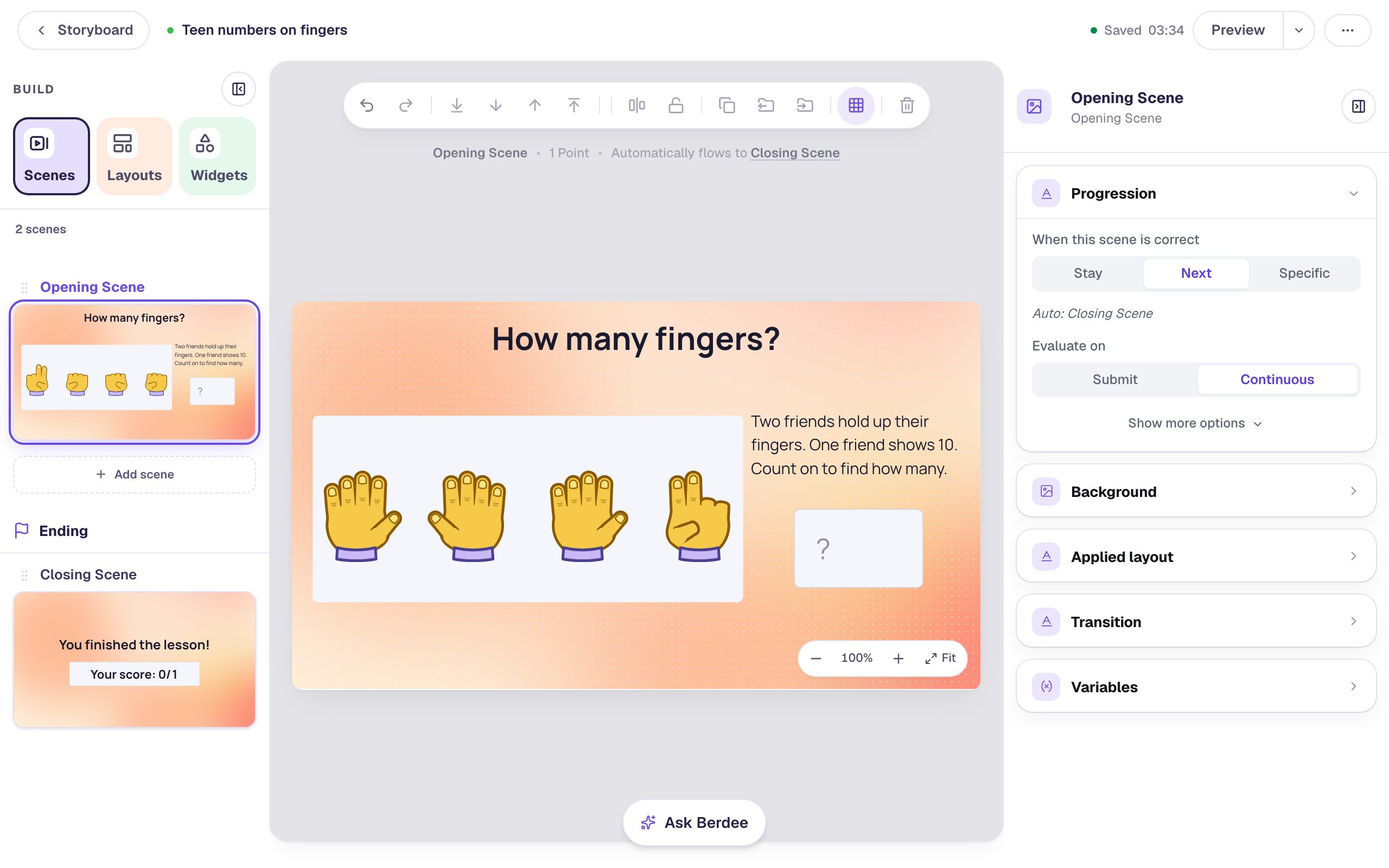
The scene's Progression is already set to move on when the scene is correct, so a right answer goes to the ending. Students press Enter (or tap away from the box) to check what they typed.
Step 6: Add a hint for a wrong answer
The most common slip with a teen number is losing count along the way, so remind students how to count on.
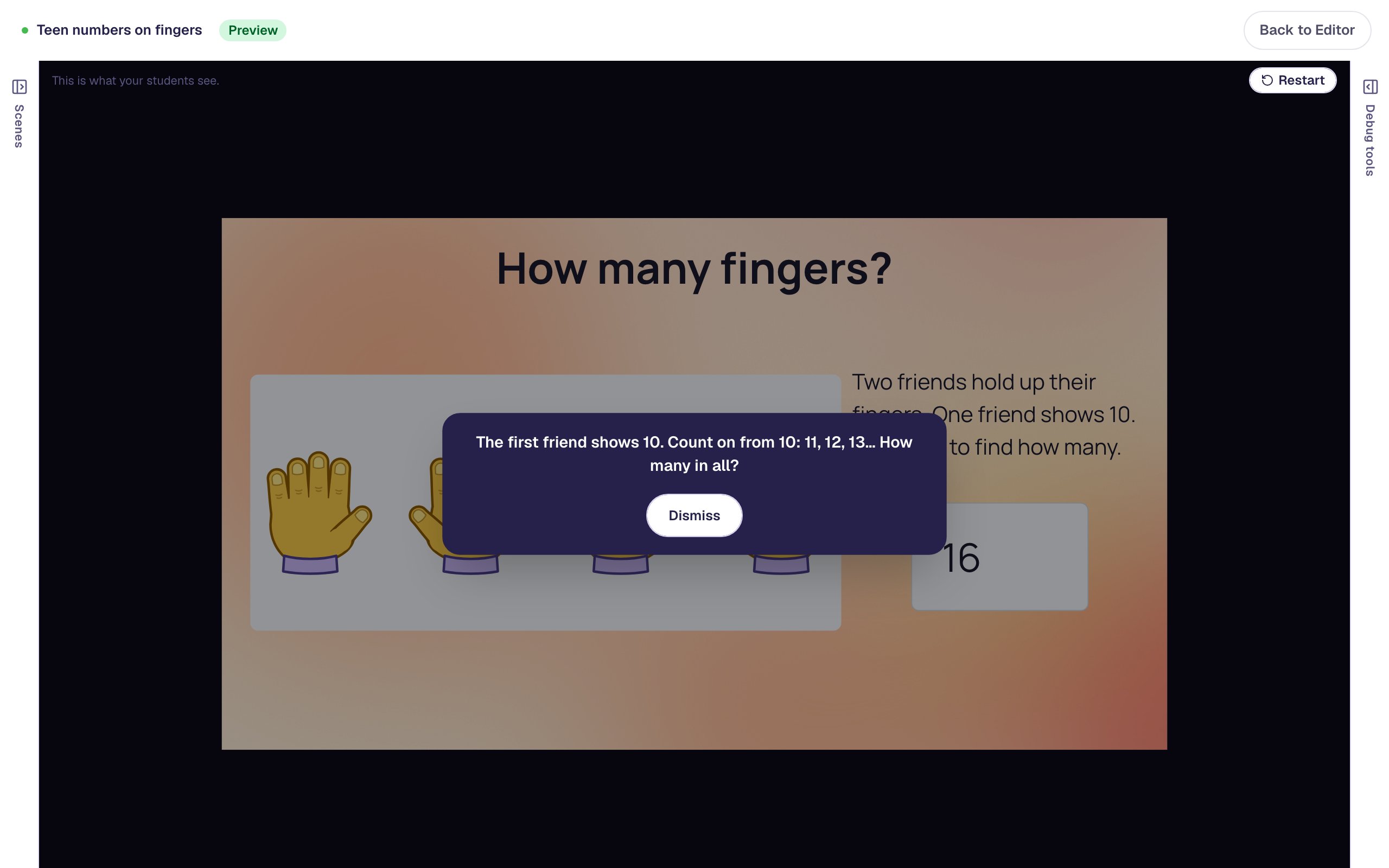
With the How many box selected, open Behaviors in the properties panel, click Add behaviors…, and switch the window to Advanced. Click Add behavior and choose On Wrong Selected. It starts with a Display Message action: type The first friend shows 10. Count on from 10: 11, 12, 13… How many in all?
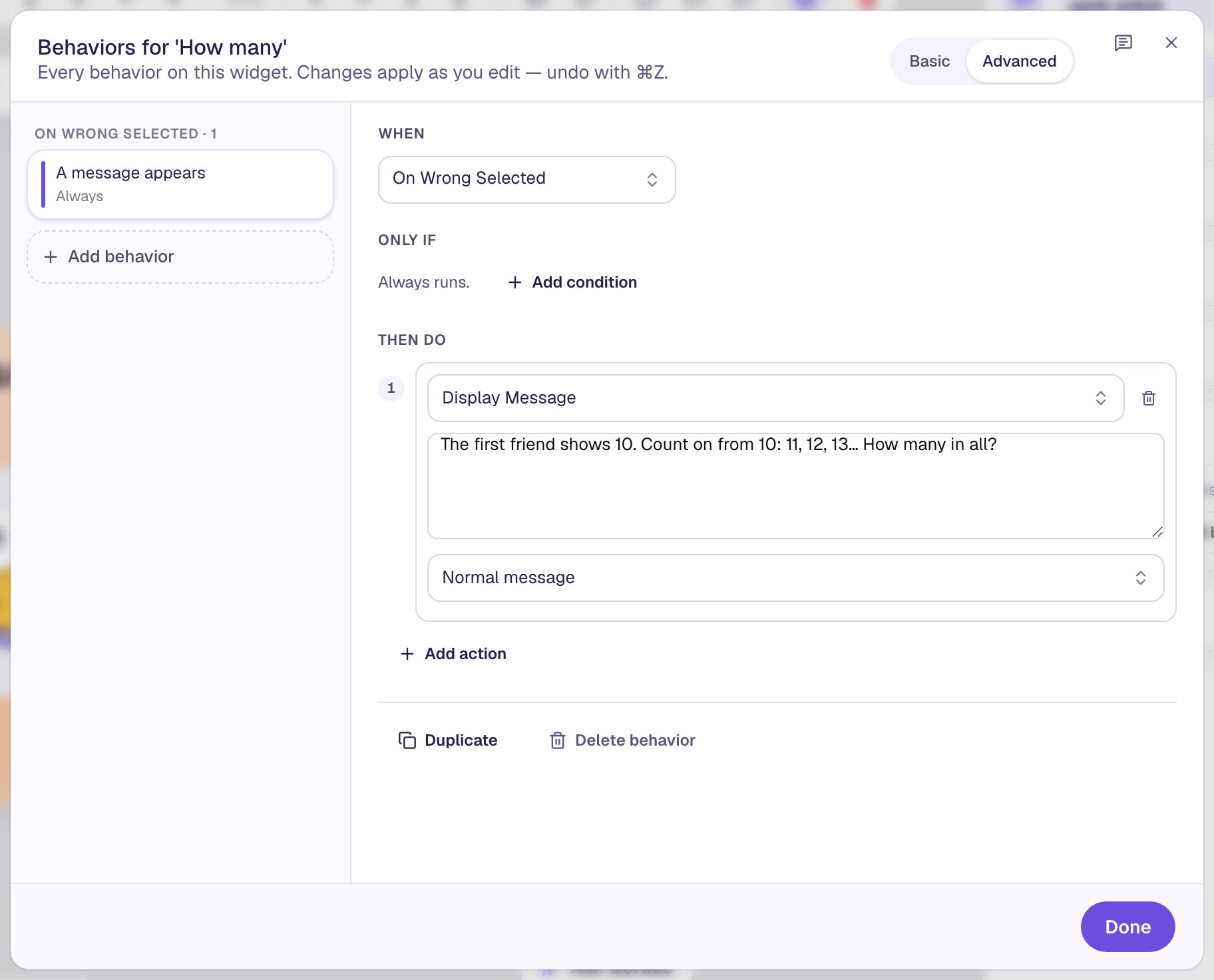
Click Done. A typed Number Input runs On Wrong Selected only when a student checks a wrong answer, never for a right one or an empty box, so this hint needs no condition.
Step 7: Watch and answer in Preview
Click Preview. The hands start closed and count up, one finger at a time.
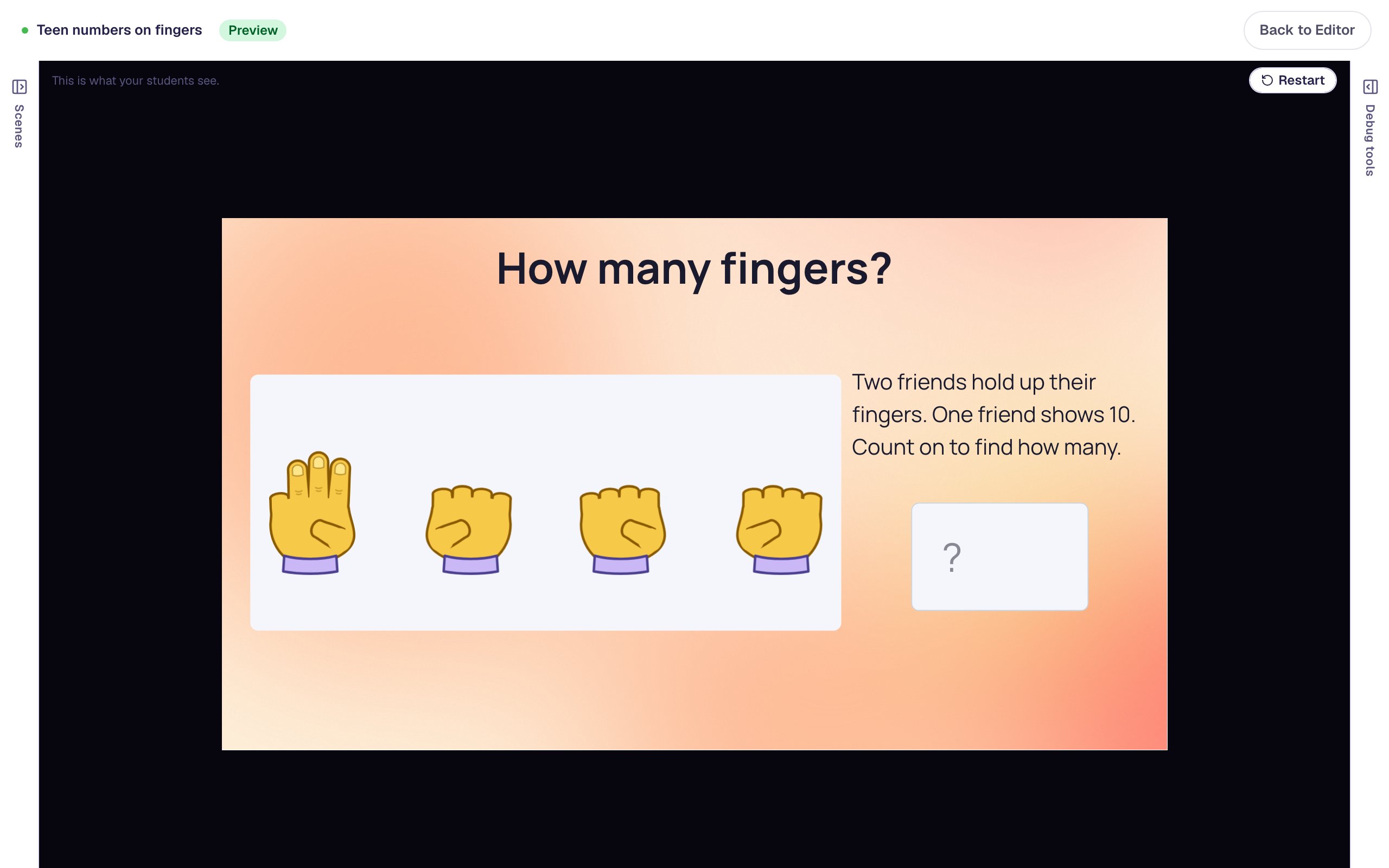
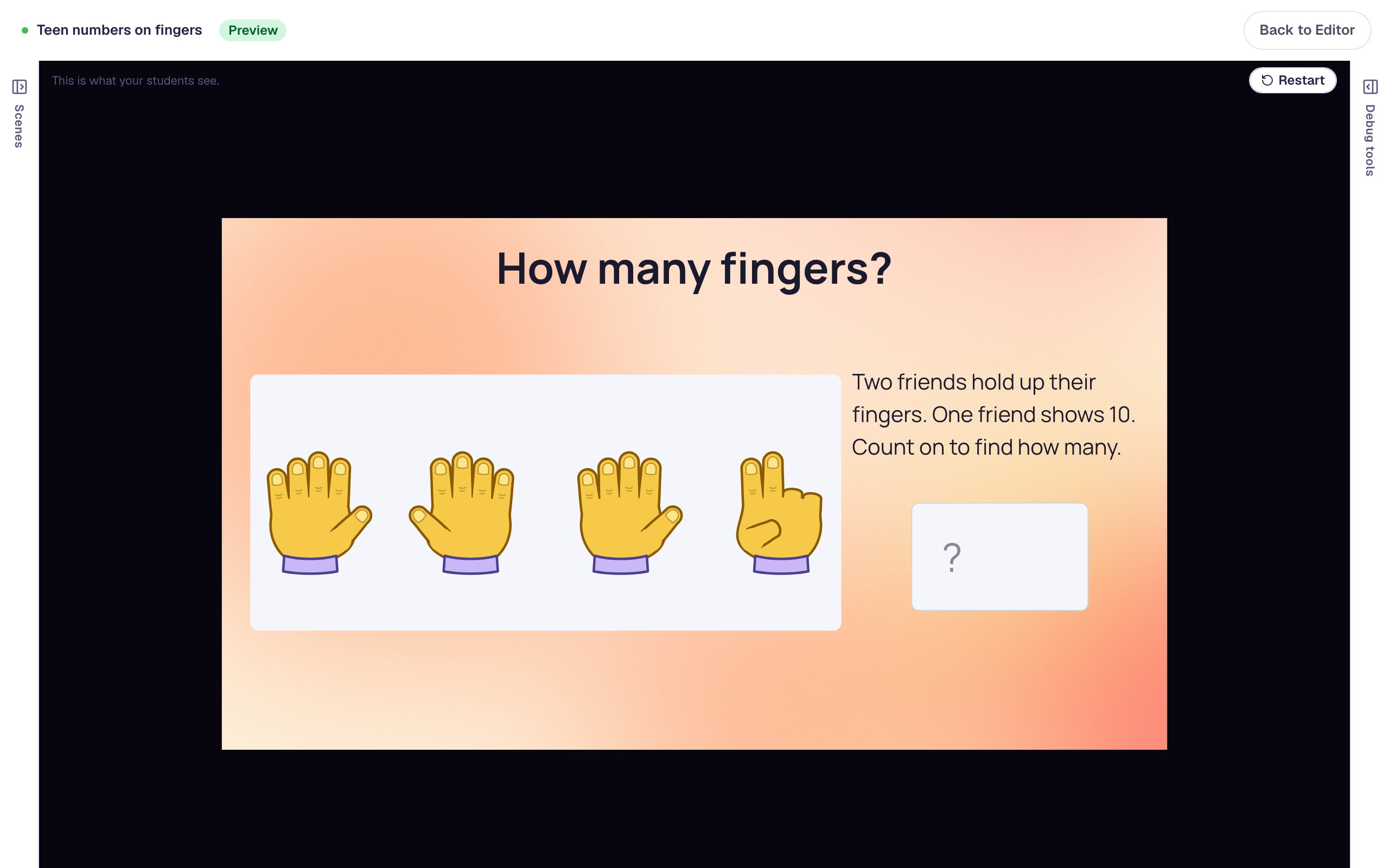
Now answer like a student who lost count: type 16 and press Enter. The hint appears. Dismiss it, change the answer to 17, and press Enter again.
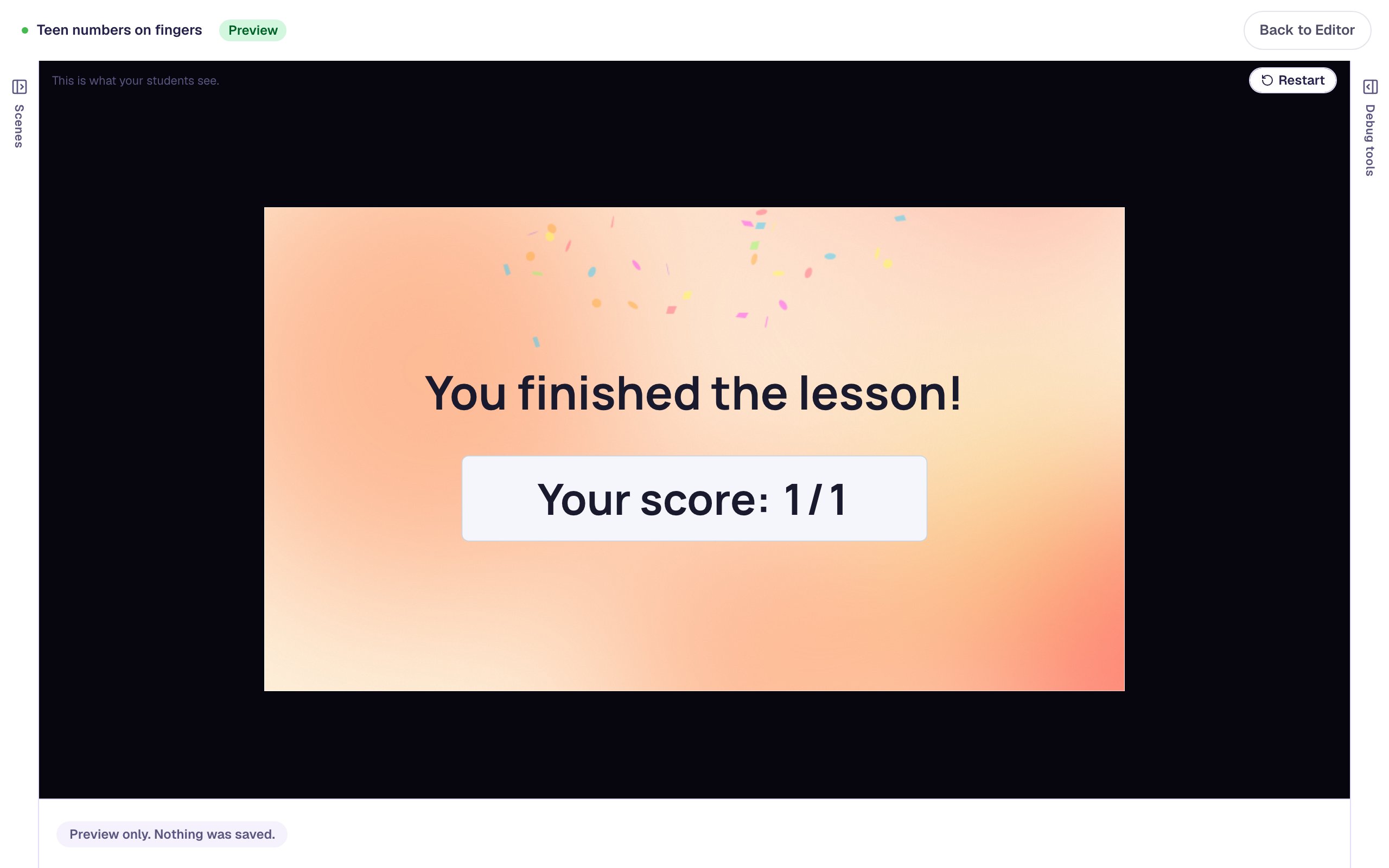
Restart plays the count again from the beginning.
What you built
A one-scene activity that shows a teen number as 10 and some more:
- a Fingers widget in Show mode on 4 hands, so 17 is always one friend's 10 and another friend's 7
- Count up one finger at a time with the count said out loud, so students count along
- a Number Input for the answer, from 0 to 20, with no step buttons
- an On Wrong Selected hint that reminds students to count on from 10
To practice more teen numbers, add a scene for each one (Add scene in the Scenes tab) and build it the same way, changing Fingers up and the Correct Value together and the hands' alt text with them. Keep the numbers between 11 and 19, so every one is a full ten and some more.
Make this activity yours
Add the activity you just watched being built to your account, then change it for your class: your questions, your pictures, your colors.
Free to sign up, and you'll come straight back here. I have an account