Add a Play again button to the ending
Put a Play again button on a quiz's ending that starts the activity over from the opening scene, and choose whether the new run's score replaces the first one.
- Level
- Beginner
- Time
- About 10 min
- Steps
- 6
- Updated
- Nov 21, 2026
A three-question planet quiz whose ending has a Play again button that starts a fresh attempt and replaces the earlier score once the student finishes again.
Get the finished activity
Skip straight to the result, or keep it open beside the steps. Add this tutorial's activity to your account and explore how it works in the studio.
Free to sign up, and you'll come straight back here. I have an account
A short quiz is great practice, and practice works best when students can go again straight away. Reaching the ending finishes the activity, so a plain "go to a scene" button there does nothing: the attempt is already saved and locked. Berdee gives the ending its own behavior instead, Start the activity over, which takes the student back to the opening scene as a brand-new attempt.
In this tutorial you'll build a three-question Planet quiz, add a Play again button to its ending, and decide what happens to the score the student already earned: keep both, or let the new run replace the first one.
Step 1: Build a short quiz
If you already have a quiz, open it and skip to Step 2.
Start from scratch: click New activity, name it Planet quiz, then choose A blank activity and Build the first scene. In the Scenes panel, click Add scene three times and rename the new scenes Question 1, Question 2 and Question 3.
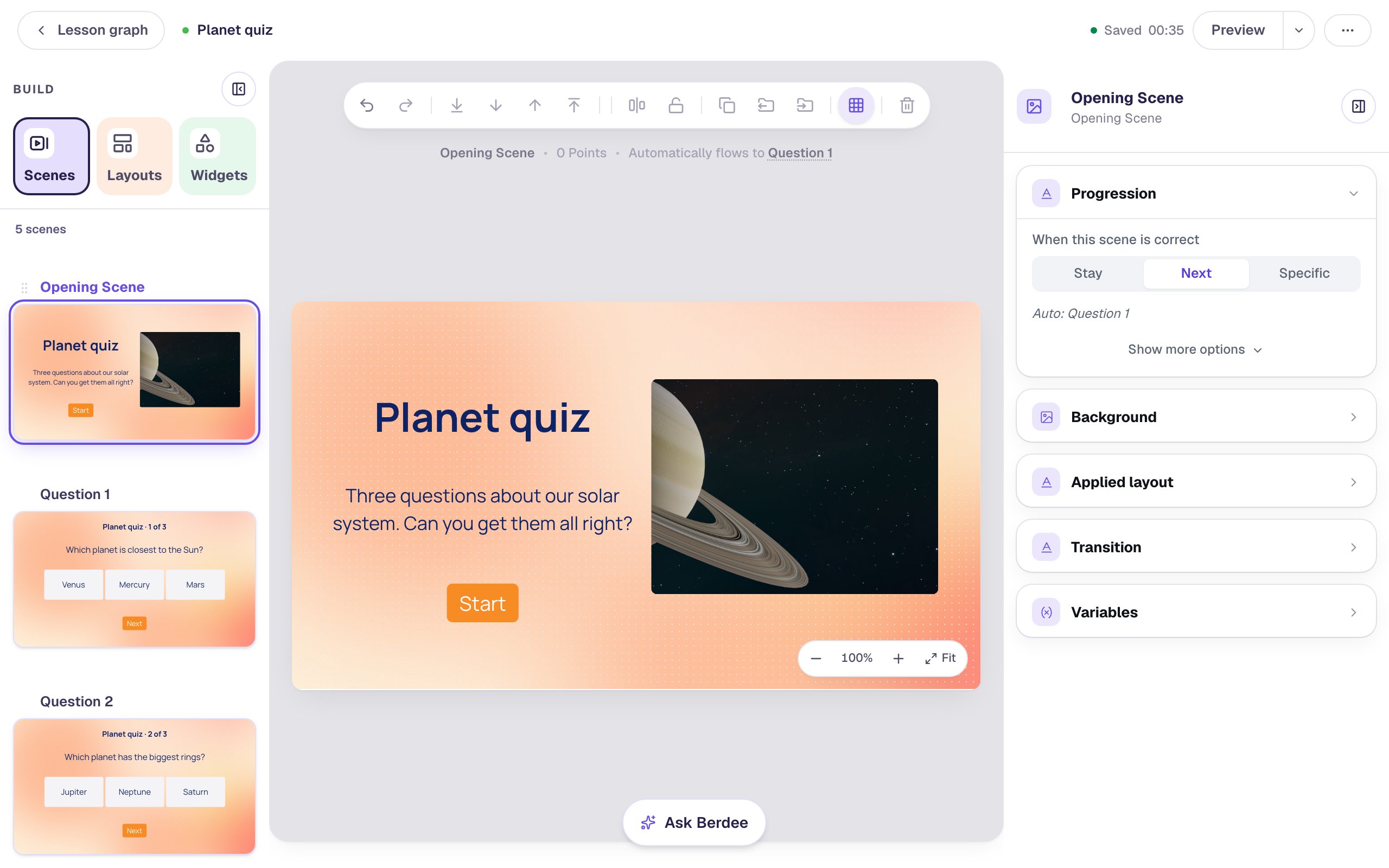
On the Opening Scene, add a Heading (Planet quiz), a Body (Three questions about our solar system. Can you get them all right?), a picture of a planet, and a Button labelled Start. Open the button's Behaviors and pick Make this a "Next" button, then Add behavior. Give the picture its alt text in Accessibility so screen readers can describe it.
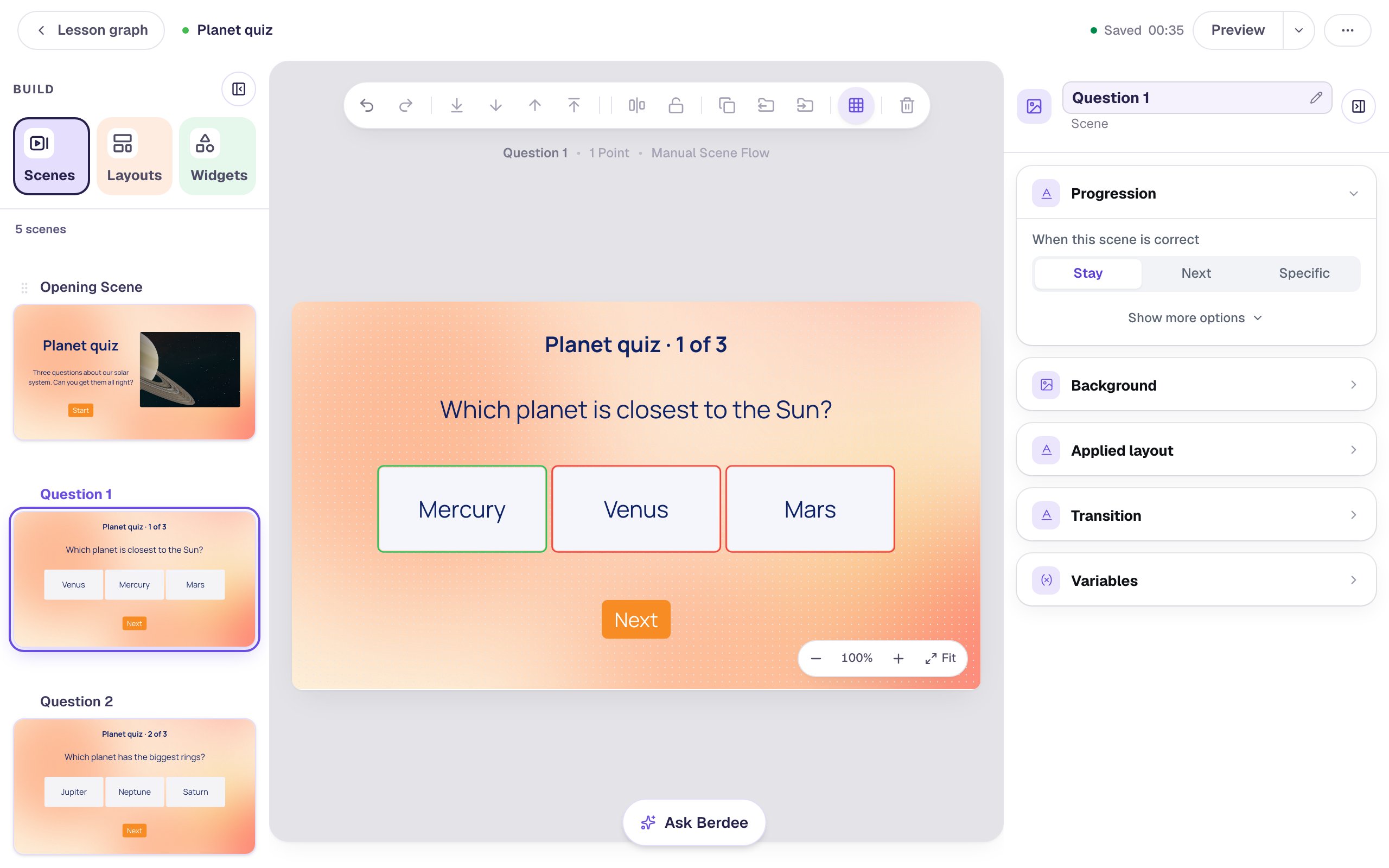
On each question scene, add a Multi Choice with three answers and the right one marked correct (Mercury for Which planet is closest to the Sun?, Saturn for Which planet has the biggest rings?, Earth for Which planet do we live on?), and a Next button made the same way as Start. Then click the scene's background and set Progression to Stay, so a wrong answer still counts and the Next button is the only way on.
Step 2: Open the ending
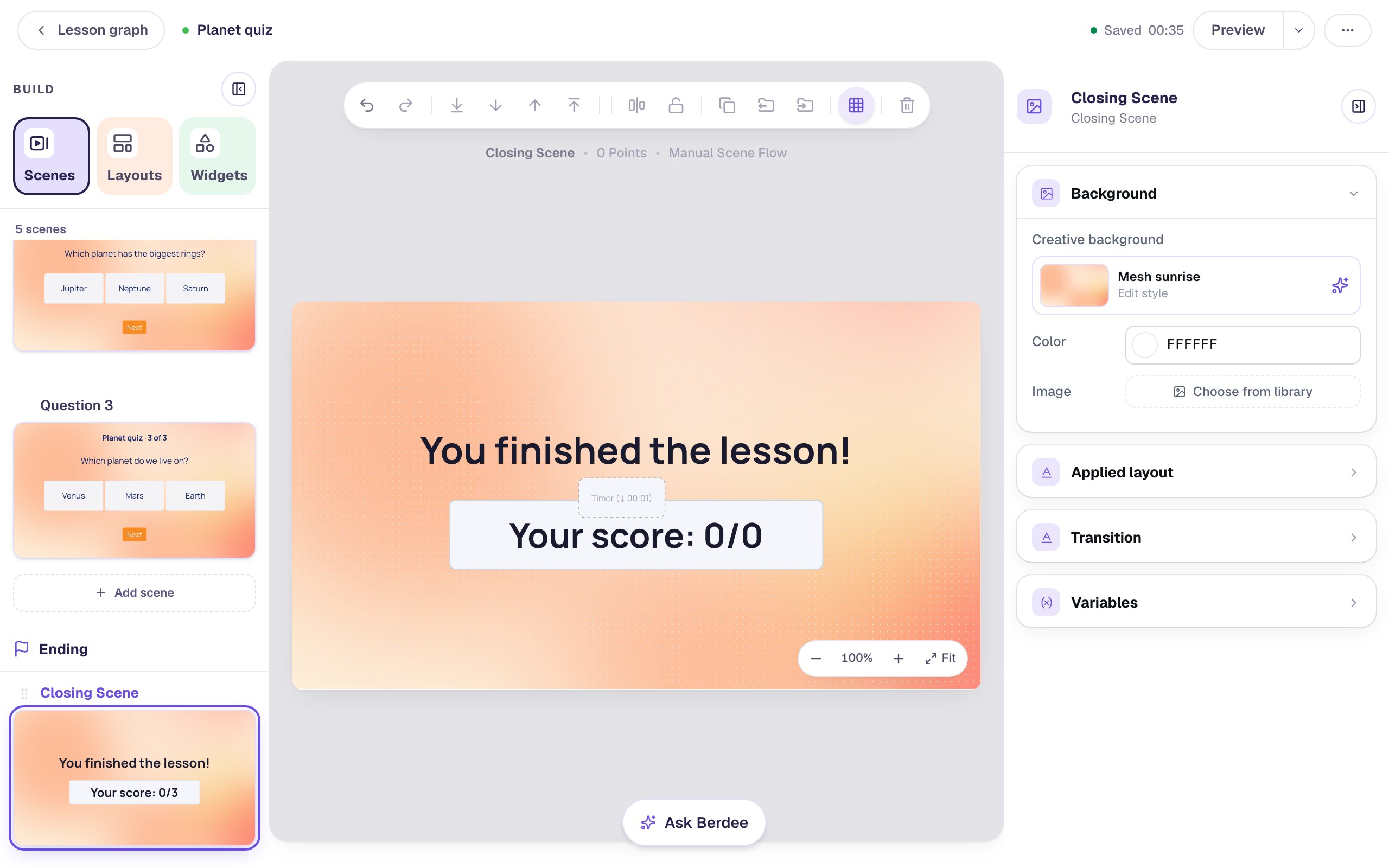
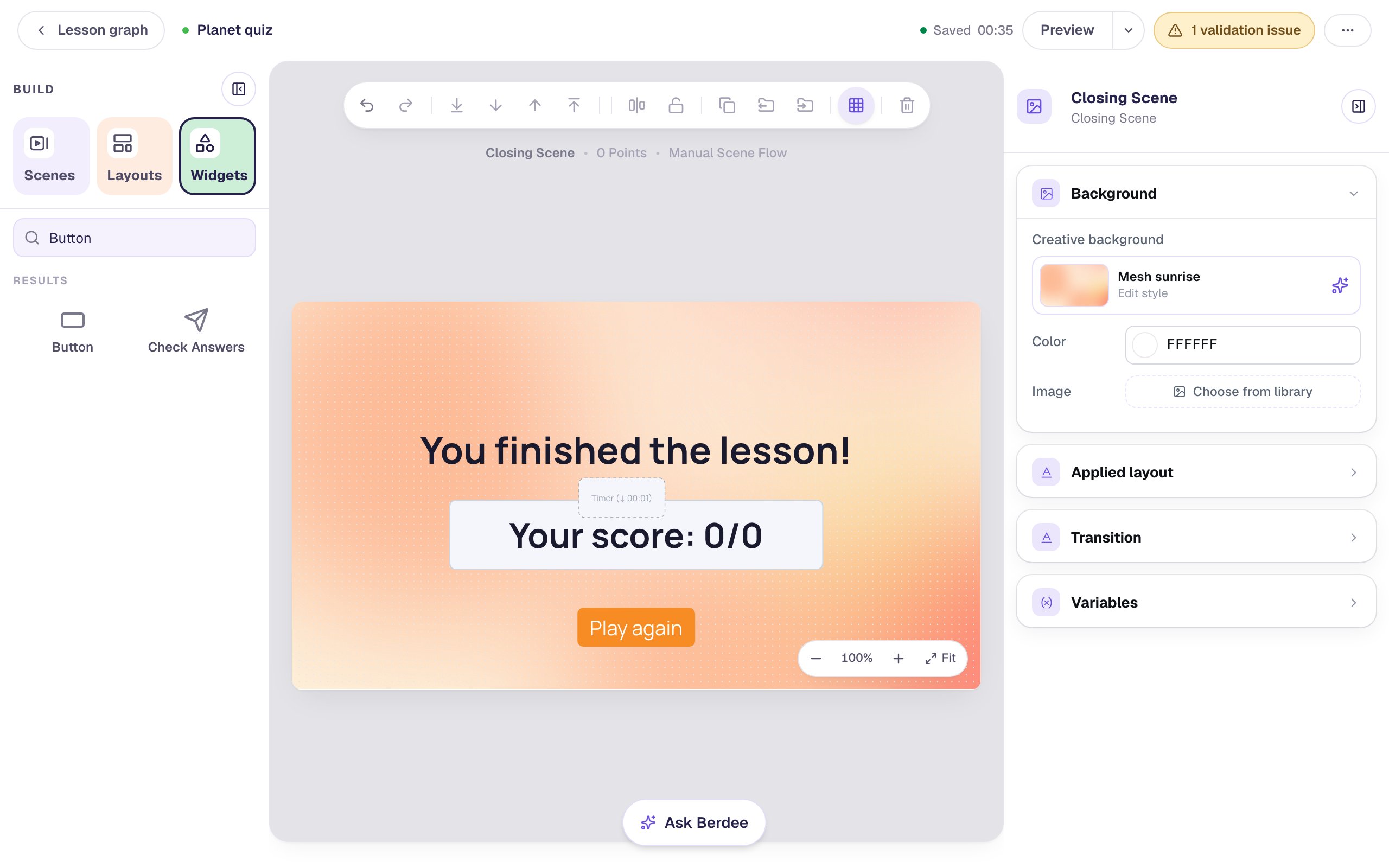
Every activity already has an ending: the Closing Scene at the bottom of the Scenes panel. Click it. Berdee put a headline (You finished the activity!) and the student's score there for you. The score reads 0/0 in the studio; students see their real score.
Step 3: Add a Play again button
Add a Button from Widgets and drag it under the score. Click ⚙ Configure, change its Label to Play again, and click Save. Then click the button's name at the top of the properties panel and rename it Play again too, so the behavior you add next reads in plain words.
Step 4: Make it start the activity over
With the button selected, click ⚡ Behaviors on the widget pill. On an ending, the ideas list offers Make this a "Play again" button. Click it.
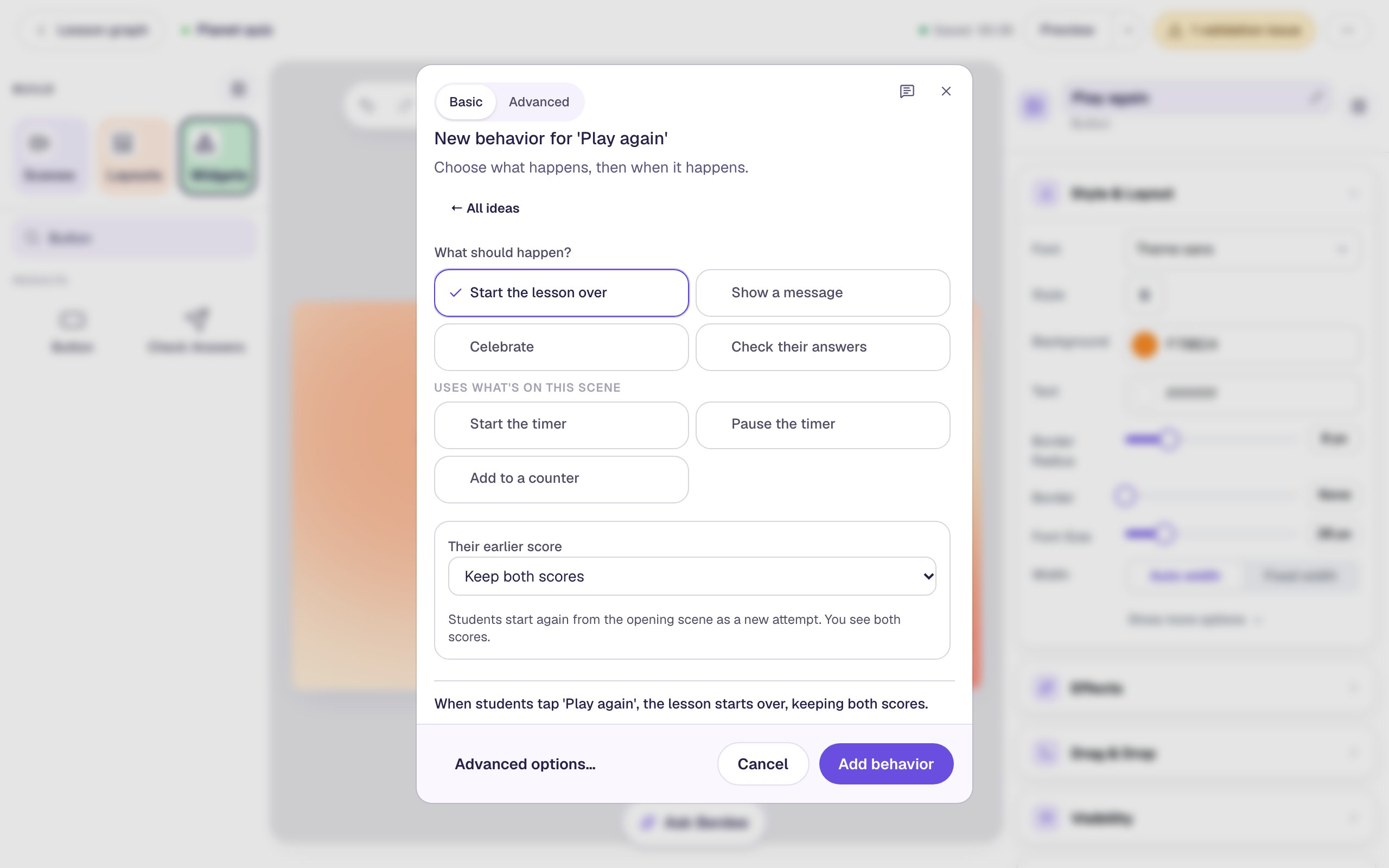
The editor opens with Start the activity over already chosen. Notice there's no Go to a scene here: on an ending, Berdee swaps it for Start the activity over, because a finished activity can't move to another scene.
Below the choices is Their earlier score, which starts on Keep both scores. The sentence at the bottom reads back what the button will do.
Step 5: Choose what happens to the first score
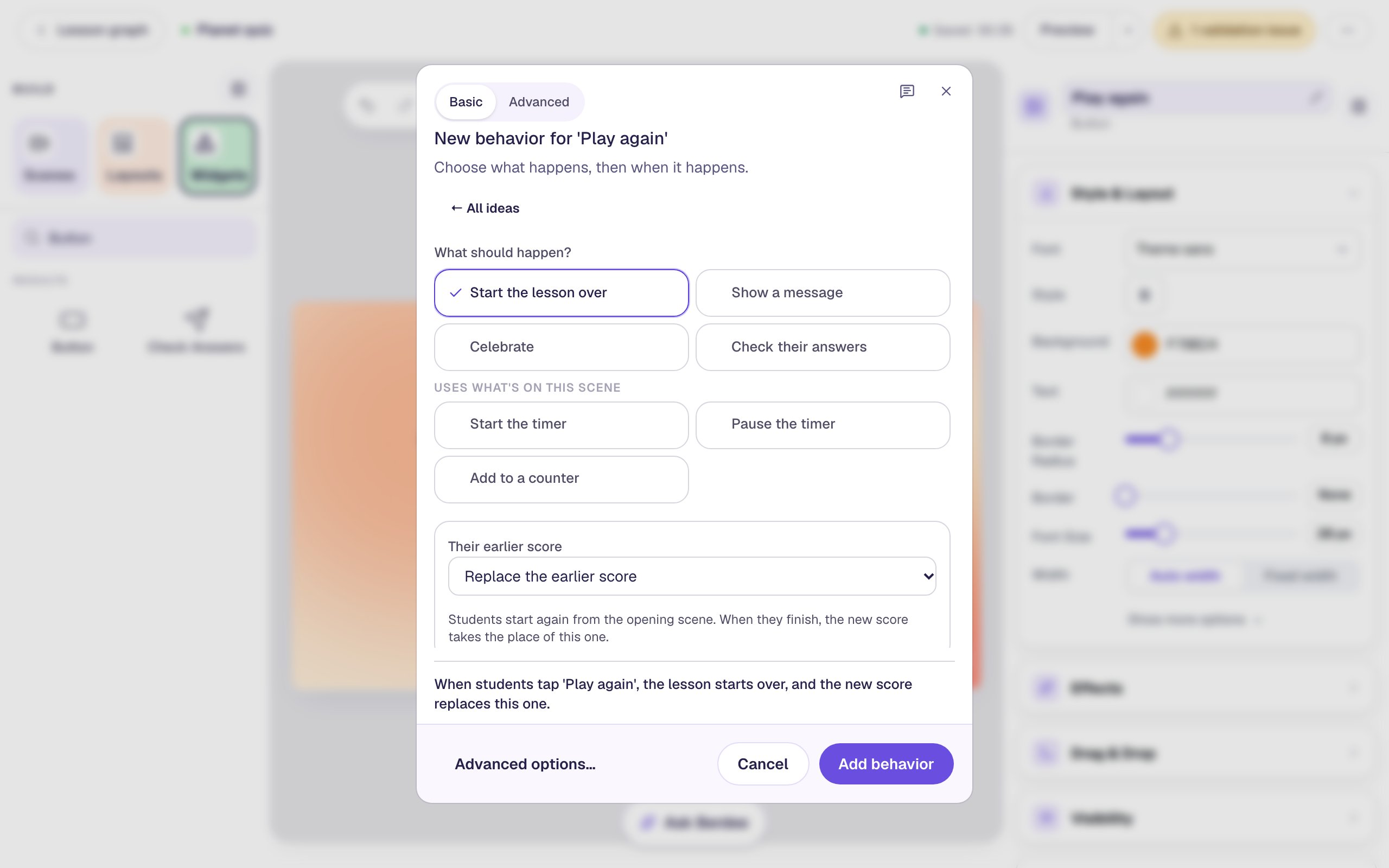
Pick one of the two options in Their earlier score:
- Keep both scores: the finished attempt stays, and the replay is recorded next to it. You see both in the student's attempt history. Good when you want to see how a student improves.
- Replace the earlier score: when the student finishes the replay, its score takes the place of the first one, and the first attempt leaves the history. If they leave before reaching the ending again, nothing is replaced and the score they already earned stands. Good for practice, where only the best run should count.
For the planet quiz, choose Replace the earlier score, so a student who plays until they get all three right is graded on that run. Then click Add behavior.
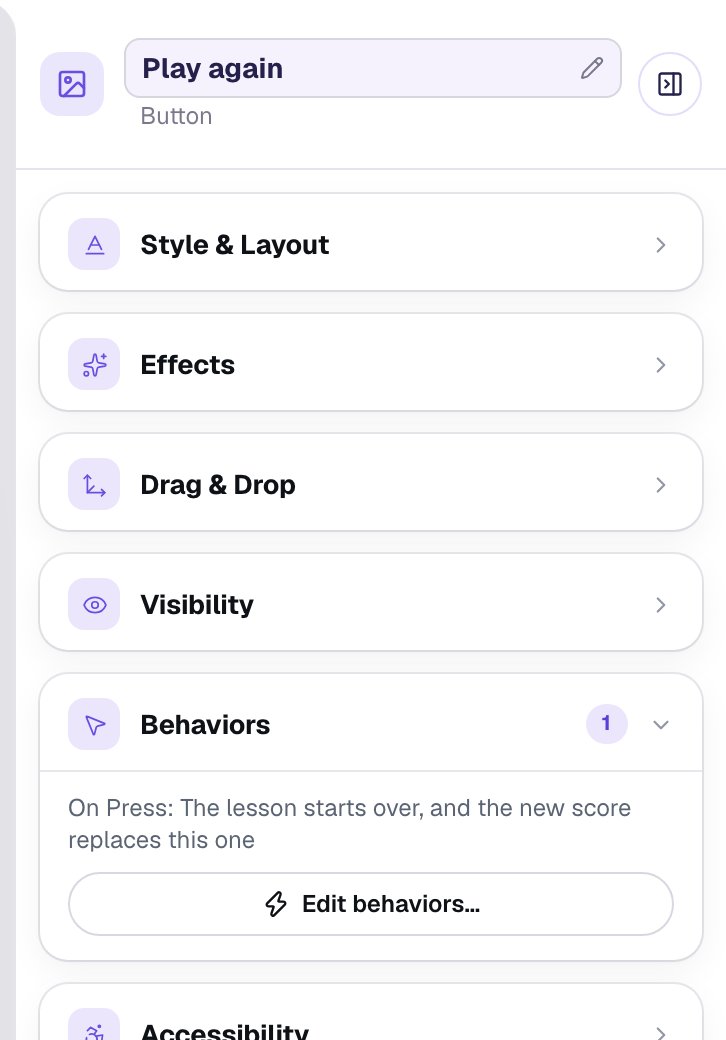
The button's Behaviors section in the properties panel now sums it up. In the Advanced view, the same action is called Reset Activity.
Step 6: Play it in Preview
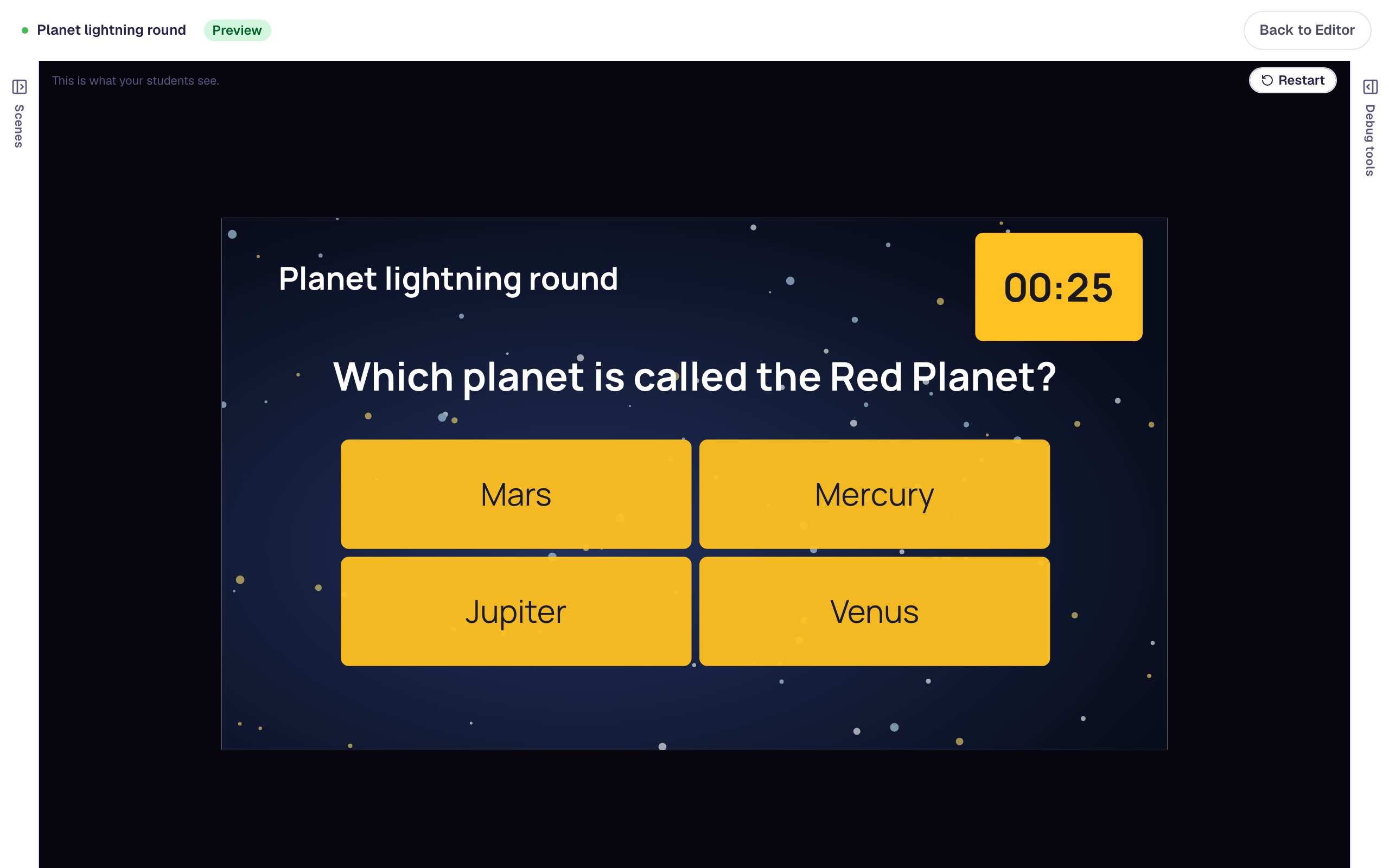
Open the Opening Scene and click Preview. Play the quiz as a student and get one question wrong, say Jupiter for the biggest rings. Answers appear in a different order each time, because Randomize Order is on for multiple choice. The ending shows 2/3.
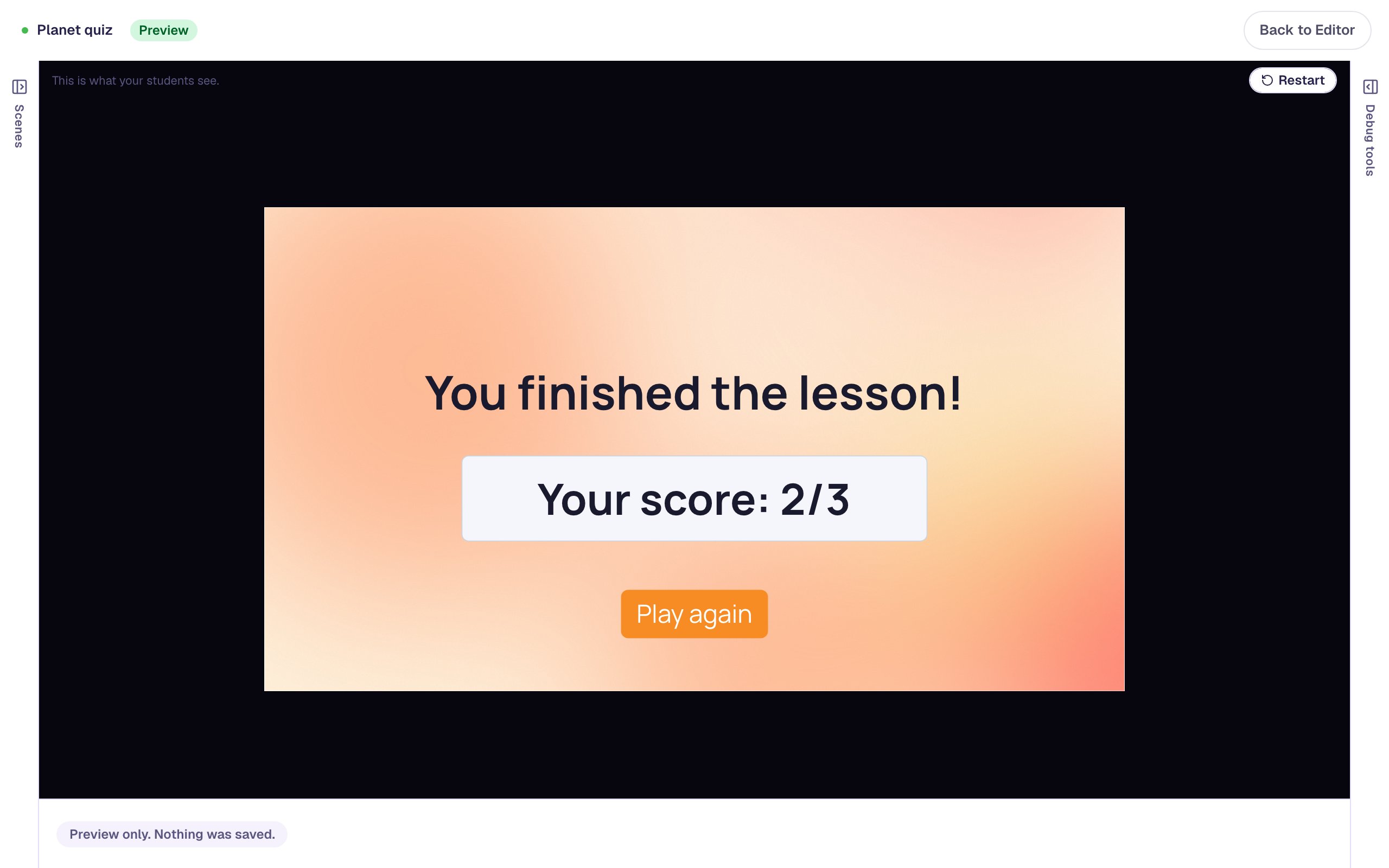
Press Play again. The activity goes straight back to the opening scene with every answer cleared. Play it again, this time with Saturn, and the ending shows 3/3.
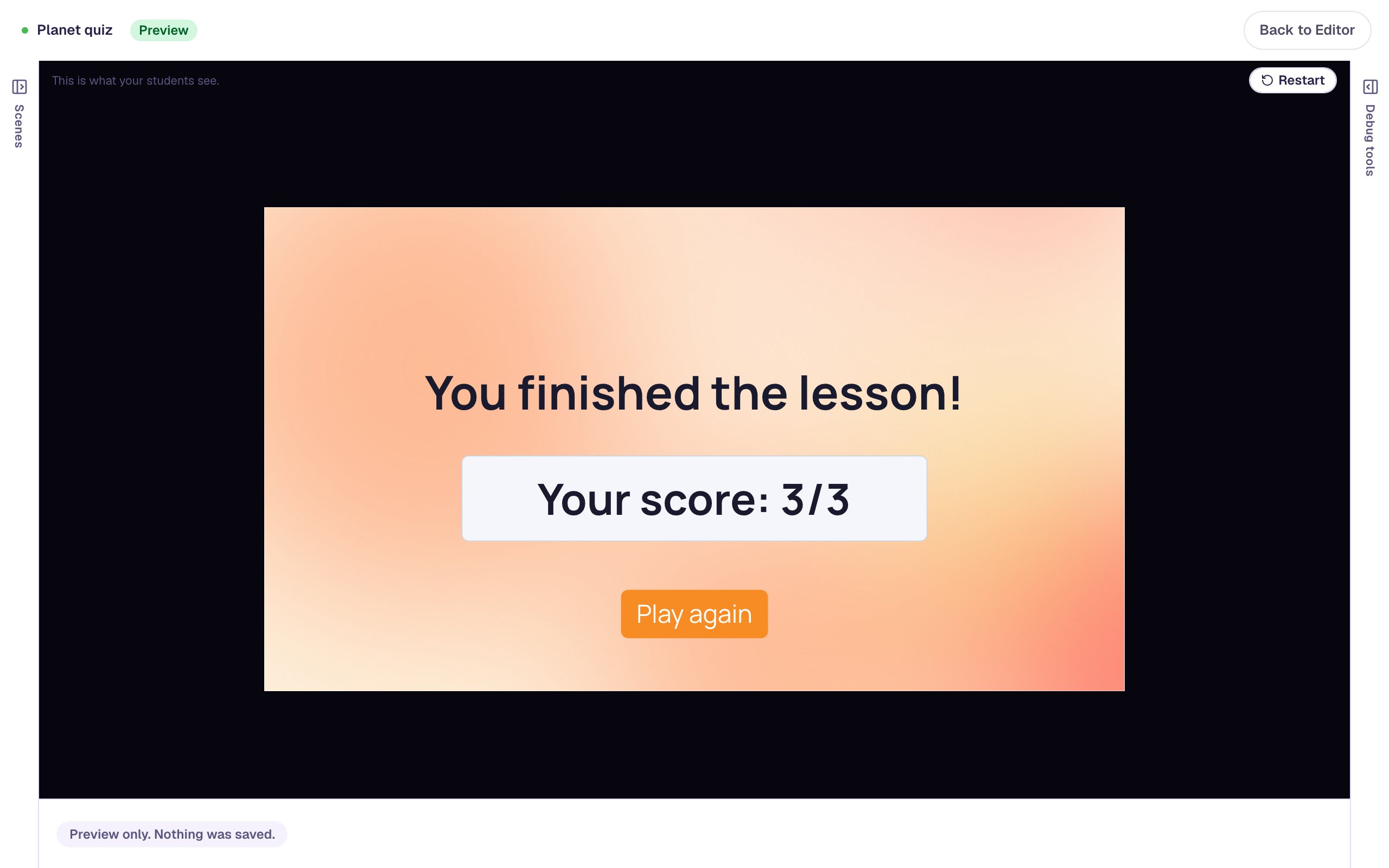
Preview doesn't save anything, so it only shows the restart. For a real student, the replay is a new attempt, and because you chose Replace the earlier score, the 3/3 takes the place of the 2/3 once they reach the ending. If a student presses Play again while their first attempt is still saving, the activity waits for the save to finish before starting over, so the score they just earned is never lost.
What you built
A planet quiz whose ending invites students to go again:
- a Play again button on the Closing Scene,
- with the behavior Start the activity over (Reset Activity in the Advanced view), which starts a new attempt from the opening scene, and
- Their earlier score set to Replace the earlier score, so the replay's score counts once it's finished.
Pick Keep both scores instead when you want every try on the record. To show a different message for a high or a low score on the same ending, continue with Cheer a high score and encourage a low one. To let students fix answers on one scene without starting the whole activity over, see Let students check their work and start over.
Make this activity yours
Add the activity you just watched being built to your account, then change it for your class: your questions, your pictures, your colors.
Free to sign up, and you'll come straight back here. I have an account