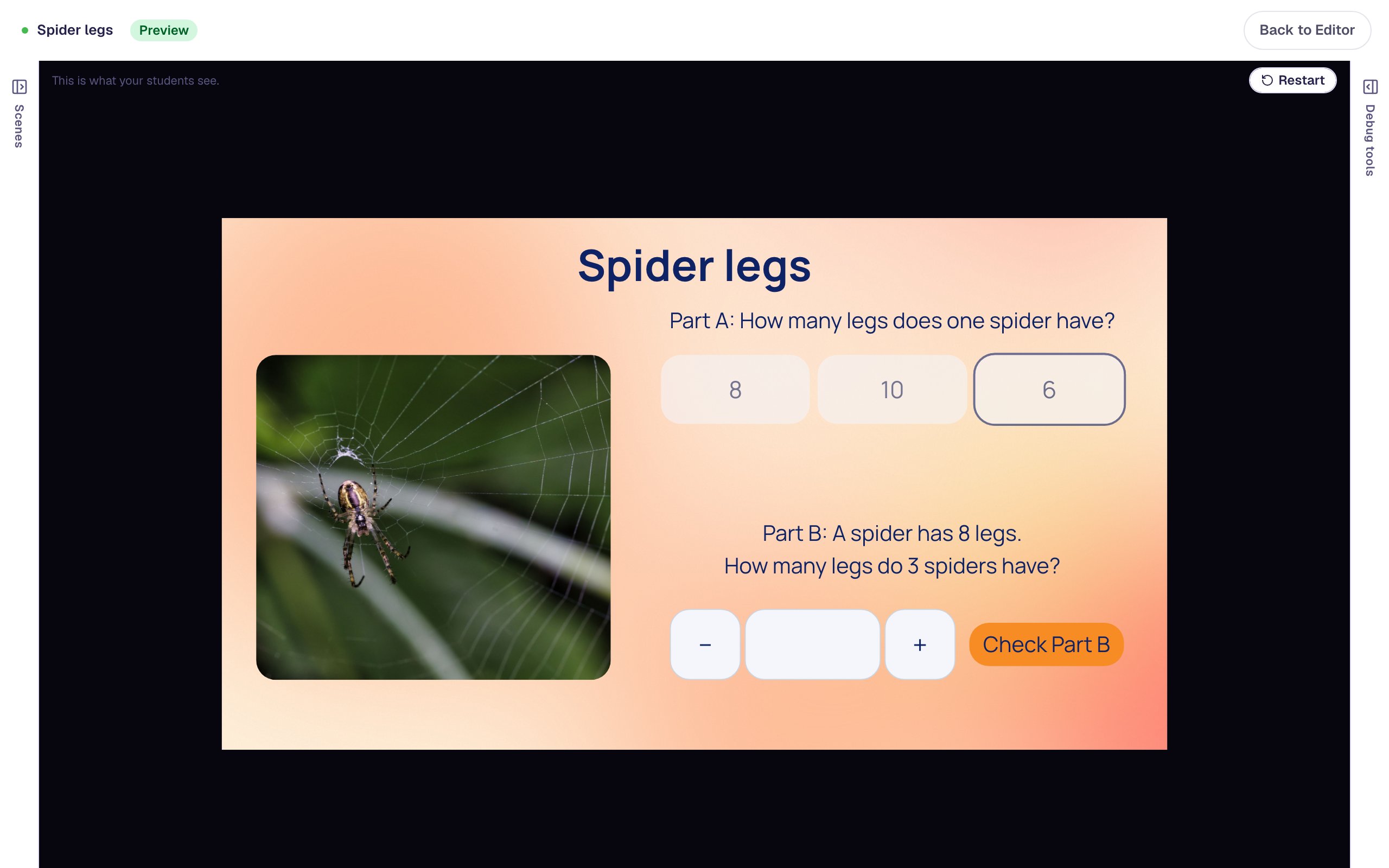
Ask a follow-up question only after a right answer
Add a second question that appears only when a student gets the first one right, using a visibility rule on Is correct. A student who misses the first question is never graded on a follow-up they didn't see.
- Level
- Intermediate
- Time
- About 10 min
- Steps
- 7
- Updated
- Nov 21, 2026
A one-scene ocean quiz where students who pick Whale as the mammal get a follow-up about how whales breathe, and everyone else finishes with a score out of 1 instead of out of 2.
Get the finished activity
Skip straight to the result, or keep it open beside the steps. Add this tutorial's activity to your account and explore how it works in the studio.
Free to sign up, and you'll come straight back here. I have an account
A good follow-up question builds on the answer a student just gave. Once a student knows a whale is a mammal, you can ask how a whale breathes. A student who thought the shark was the mammal isn't ready for that question yet, and it isn't fair to mark them wrong on it.
In this tutorial you'll build Mammals of the sea: one scene with a photo of a humpback whale and the question Which sea animal is a mammal? Students who pick Whale see a follow-up, So how does a whale breathe?, right underneath. Students who pick another animal never see it.
The part that makes this fair is how Berdee grades it. A question behind a "show when" rule counts toward a student's grade only if the rule showed it to them. A student who misses the first question finishes with a score out of 1, not 0 out of 2.
Step 1: Set the scene
Start from scratch: click New activity, name it Mammals of the sea, then choose A blank activity and Build the first scene.
Click an empty part of the Opening Scene, open Background, click Choose a style, and pick Lagoon gradient from Gradients. Give the Closing Scene the same background, so the ending matches.
Then add, on the Opening Scene:
- A Heading:
Mammals of the sea, at about 46 px, across the top. - An Image on the left. Click Choose image, search the stock photos for
humpback whale, and import one you like. In Style & Layout, set Fit to Cover and round the corners a little. - A Body on the right with the first question:
Which sea animal is a mammal?, at about 24 px.
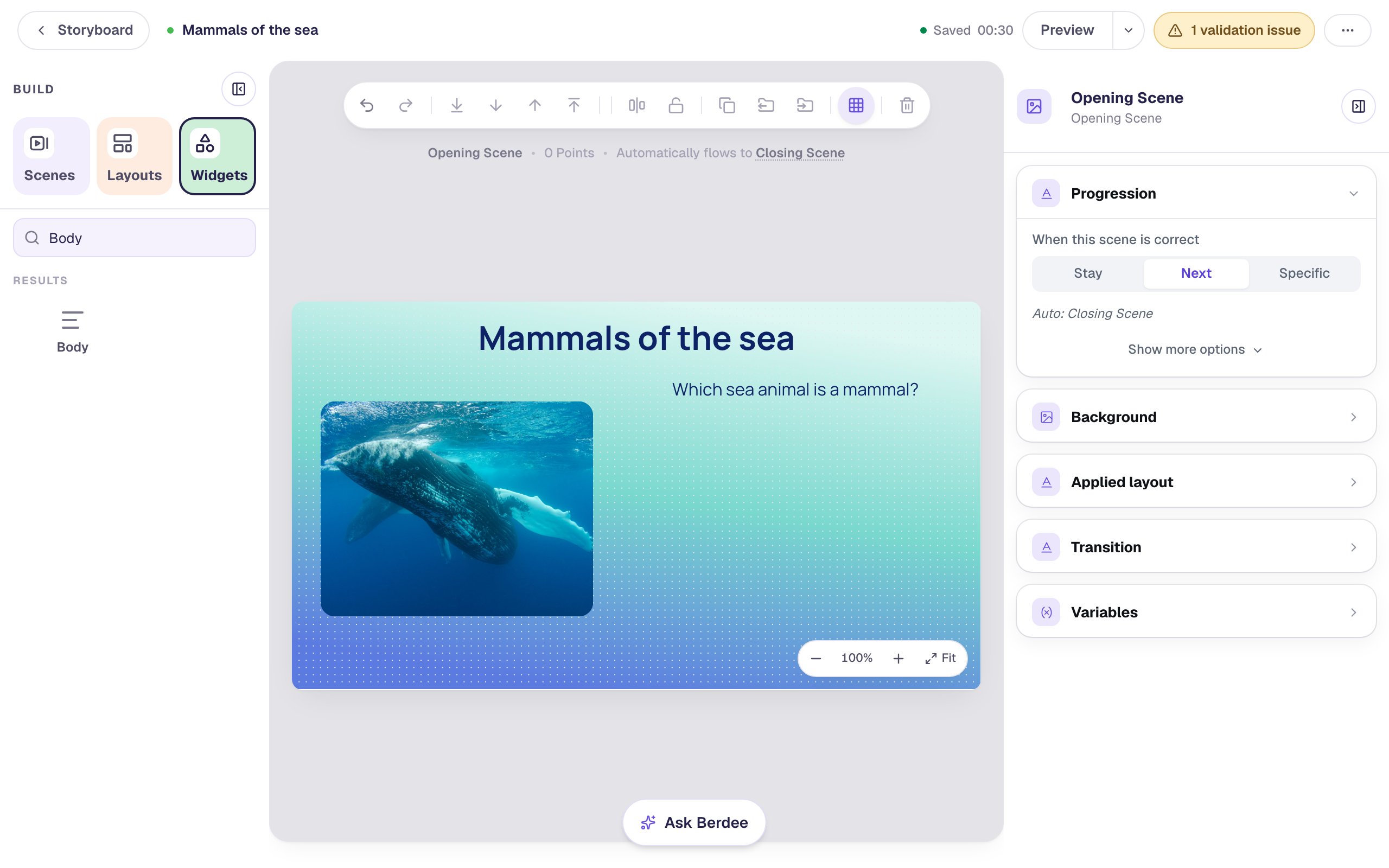
While the photo is selected, open Accessibility and replace the Alt Text with what students see: A humpback whale swimming in clear blue water.
Step 2: Ask the first question
Add a Multi Choice and click ⚙ Configure. Type Shark, Whale and Octopus as the options, and delete the fourth. Option 1 starts marked correct, so click the tick beside Whale and clear the one beside Shark.
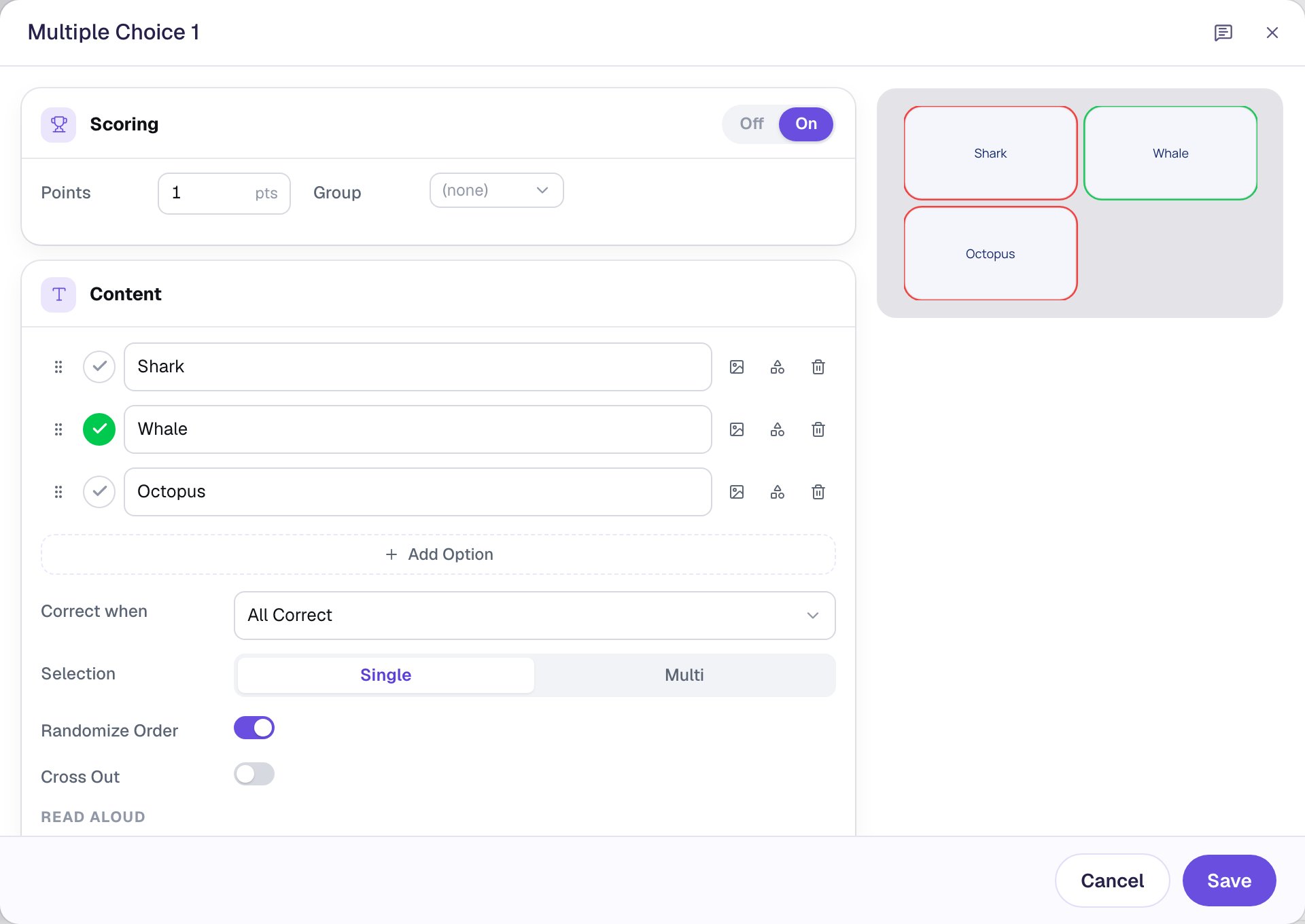
Click Save. Rename the widget Mammal question (click its name at the top of the properties panel). The rule you'll write in Step 4 picks the question by this name, so a clear one helps. Then set the Font size to about 22 px and place it under the question text.
Randomize Order is on, so students see the three animals in a different order each time.
Step 3: Add the follow-up
The follow-up is two more widgets under the first question:
- A Body that says
Yes! Whales are mammals. So how does a whale breathe?, at about 22 px. Rename itFollow-up prompt. - Another Multi Choice with two options,
Through a blowholeandThrough gills. Mark Through a blowhole correct, click Save, and rename the widgetBreathing question.
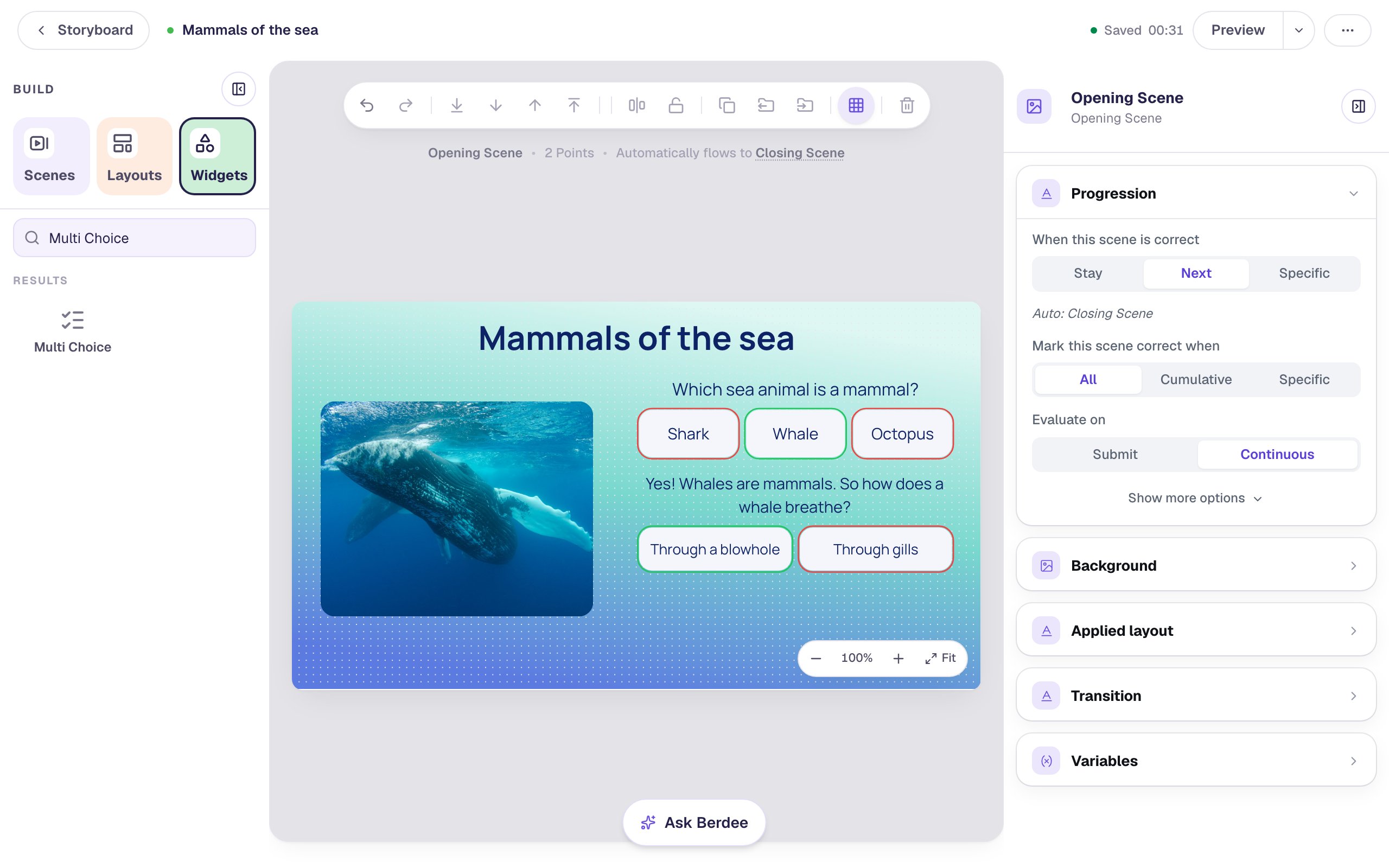
The strip above the scene now says 2 Points: one for each question. Next you'll make the second one appear only for students who've earned it.
Step 4: Show the follow-up only after a right answer
Select the Breathing question and open Visibility in the properties panel:
- Set Mode to Conditional. Behavior is already Show.
- In the condition's first list, pick Multiple Choice: Mammal question.
- In the second list, pick Is correct.
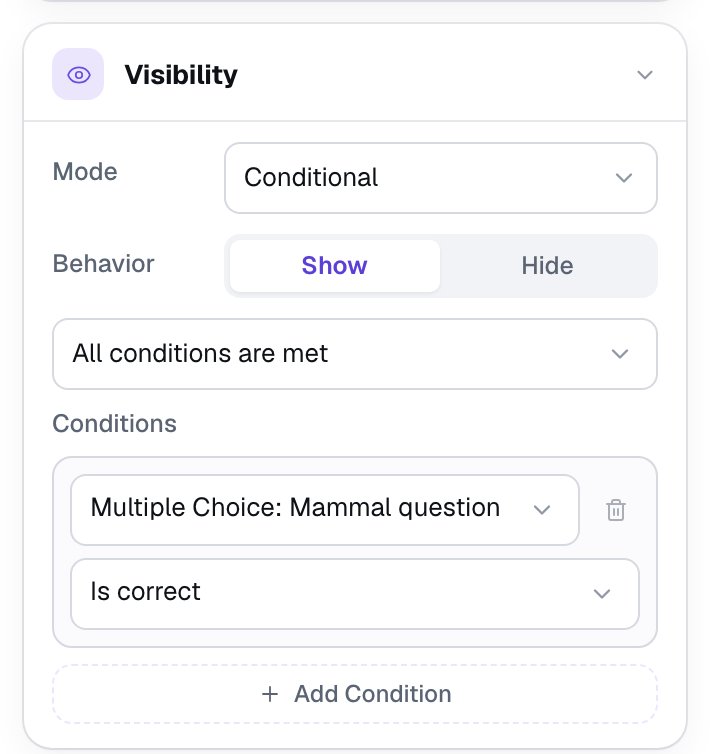
Now select the Follow-up prompt and give it the same rule: Conditional, Multiple Choice: Mammal question, Is correct. The prompt and its question then appear together.
The rule is checked as the student answers, so the follow-up appears the moment they pick Whale. That also tells them their first answer is right, and they can still change it until they press the button you add next. For practice, that's a nice reward. If you'd rather students commit to their first answer, put the follow-up on the next scene instead; Give a challenge to students who get it right shows how.
Step 5: Add a Check button that finishes the activity
Add a Check Answers button and click ⚙ Configure. Change its Label to Check my answers and click Save.
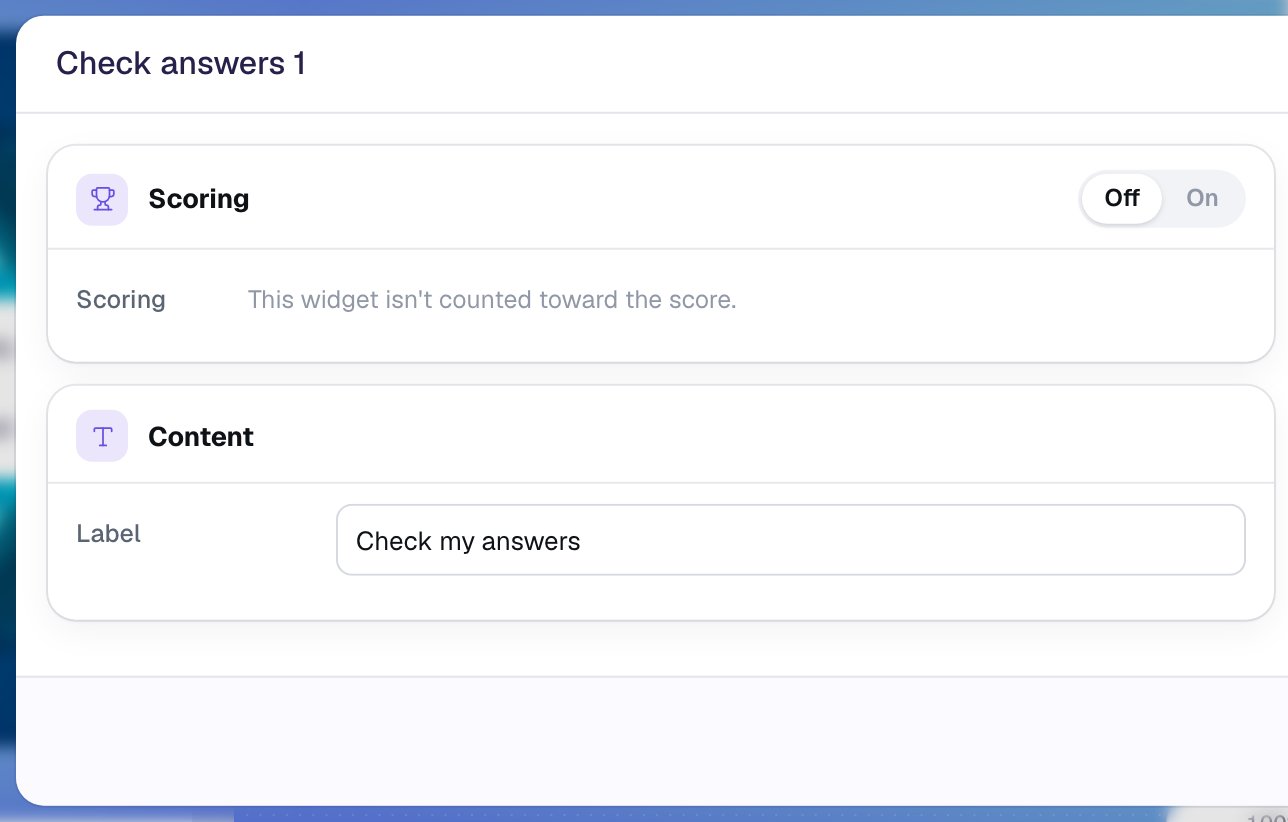
Give it an orange Background and dark blue Text in Style & Layout, and place it under the follow-up. Then make it move on too: open Behaviors, click Make this a "Next" button, check that Goes to says Closing Scene, and click Add behavior. Because the button already checks answers, one press now grades the scene and takes the student to the ending, in that order.
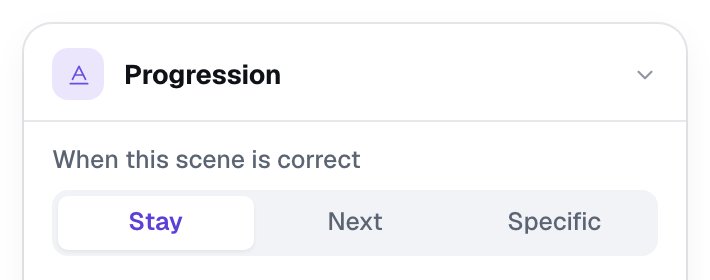
Last, tell the scene to wait for that press. Click an empty part of the scene, open Progression, and set When this scene is correct to Stay.
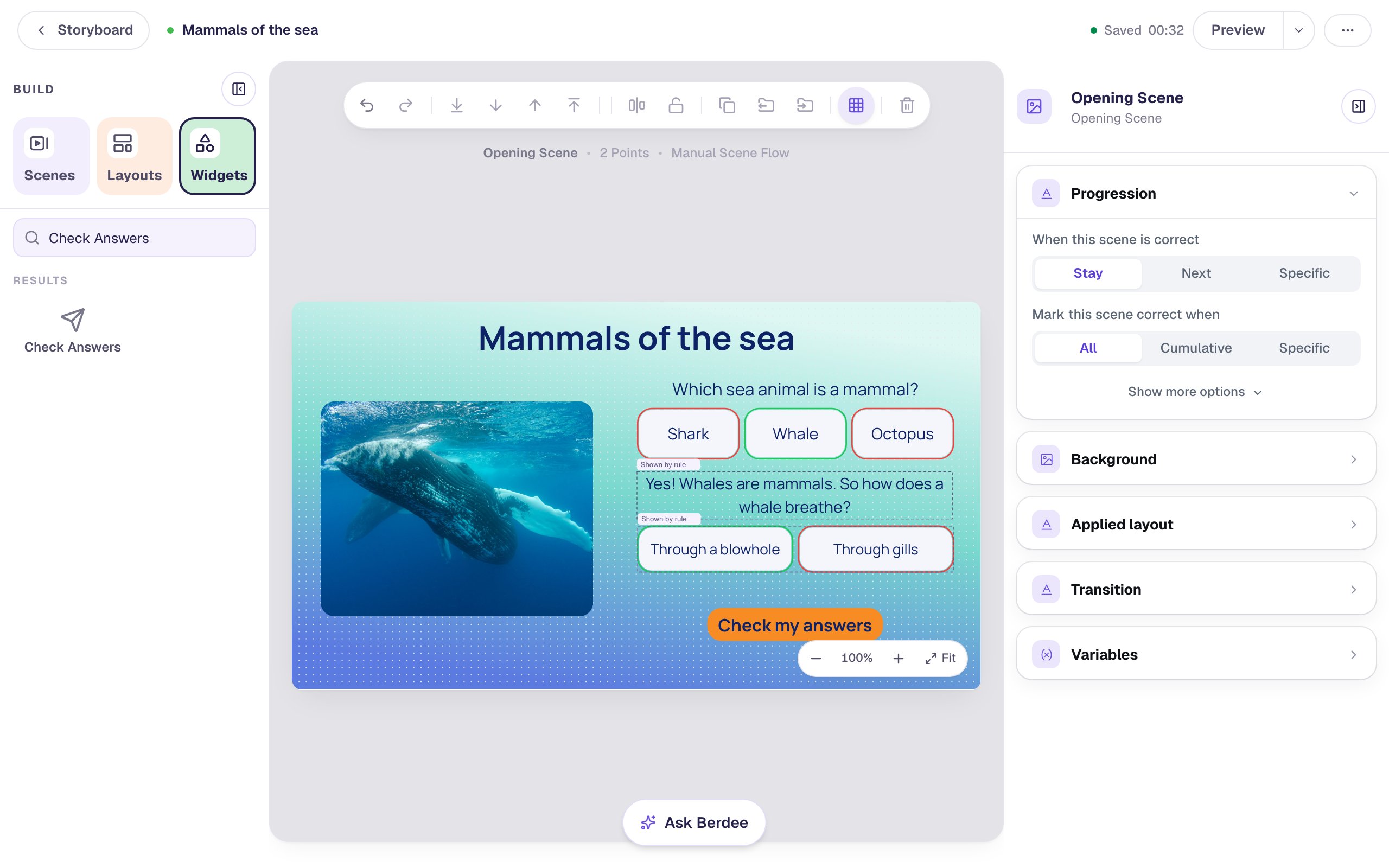
In the studio you still see the follow-up so you can edit it. The Shown by rule tag and dashed outline mean students see it only when the rule says so.
Step 6: Preview a wrong answer
Click Preview and answer the way a student who isn't sure might: pick Shark. Nothing new appears.
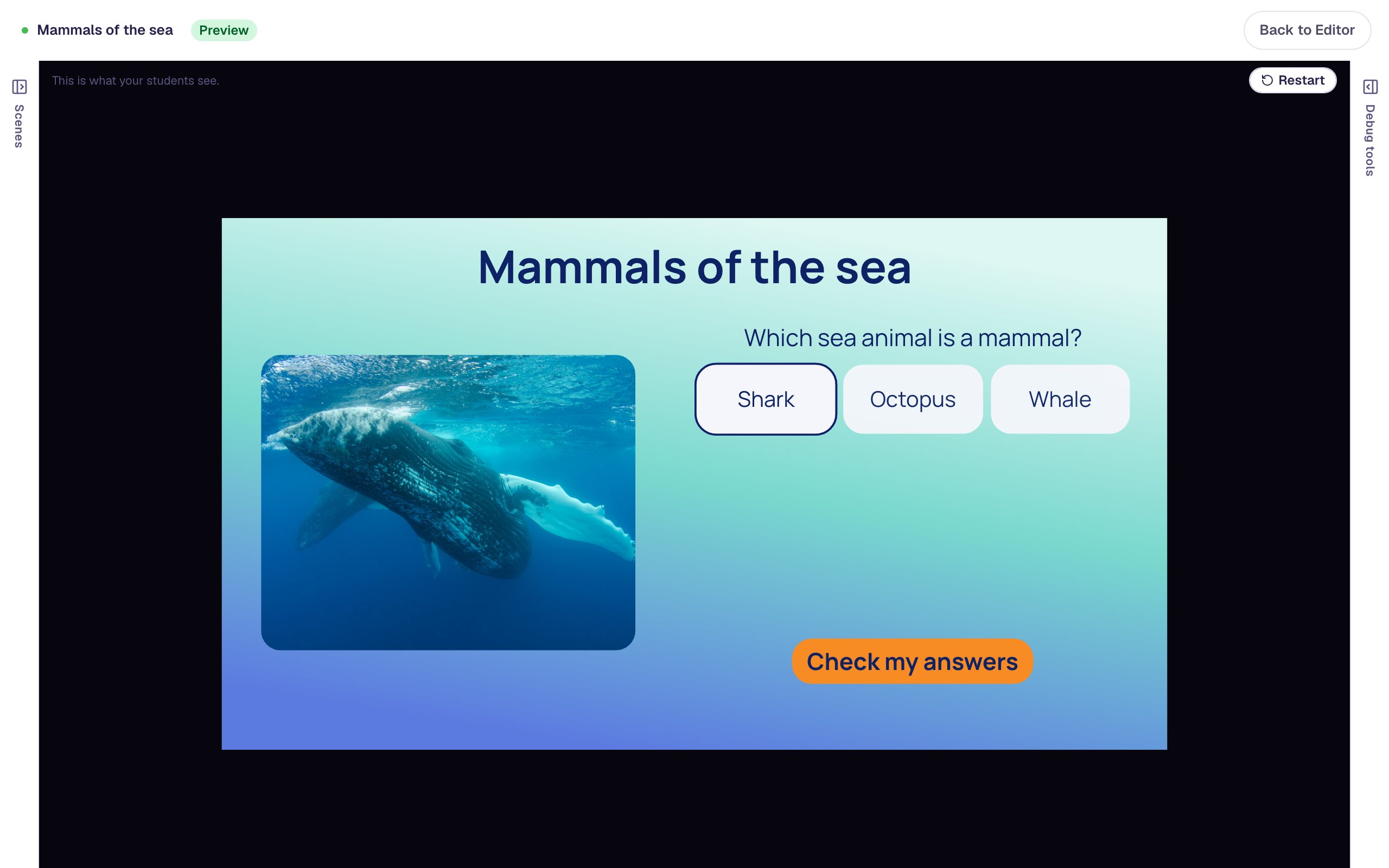
Click Check my answers. The ending says Your score: 0/1.
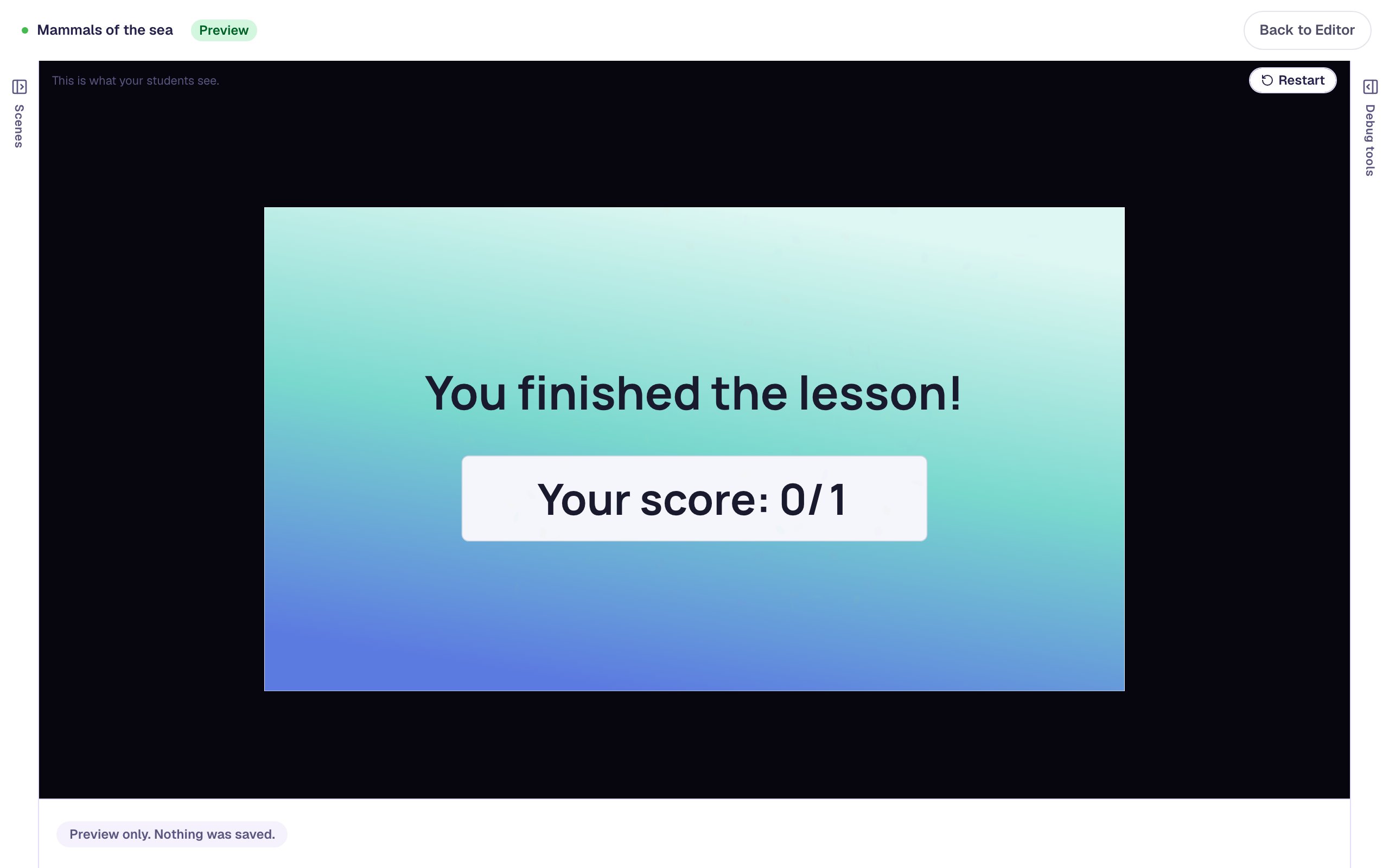
That's the rule at work. When a student finishes, Berdee checks each "show when" rule against the answers they gave. The Breathing question only shows when the Mammal question is correct, and this student got it wrong, so the follow-up is left out of their grade instead of counting as a skipped zero.
Step 7: Preview a right answer
Click Restart and pick Whale this time. The follow-up appears under the first question.
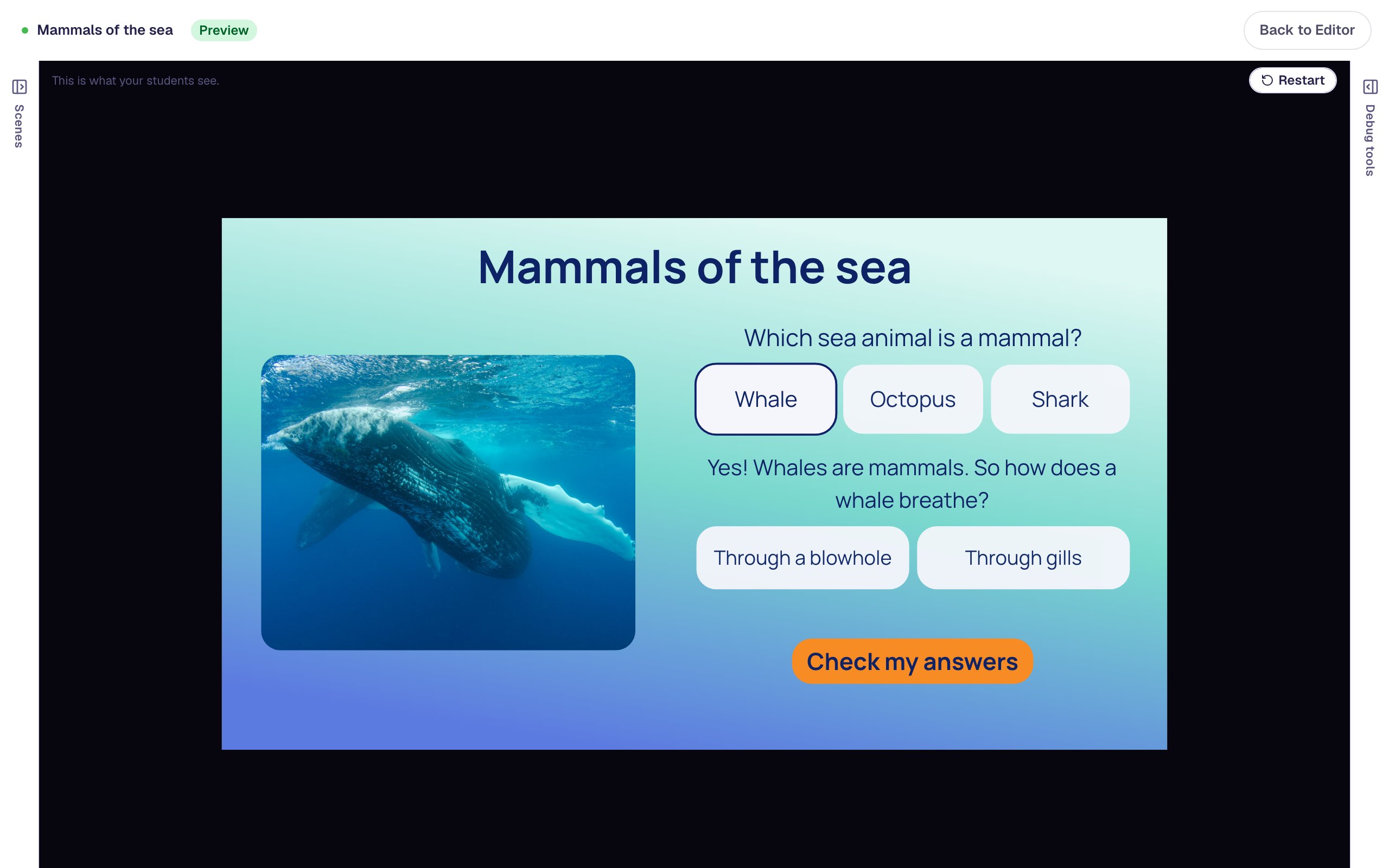
Pick Through a blowhole and click Check my answers. The ending says Your score: 2/2.
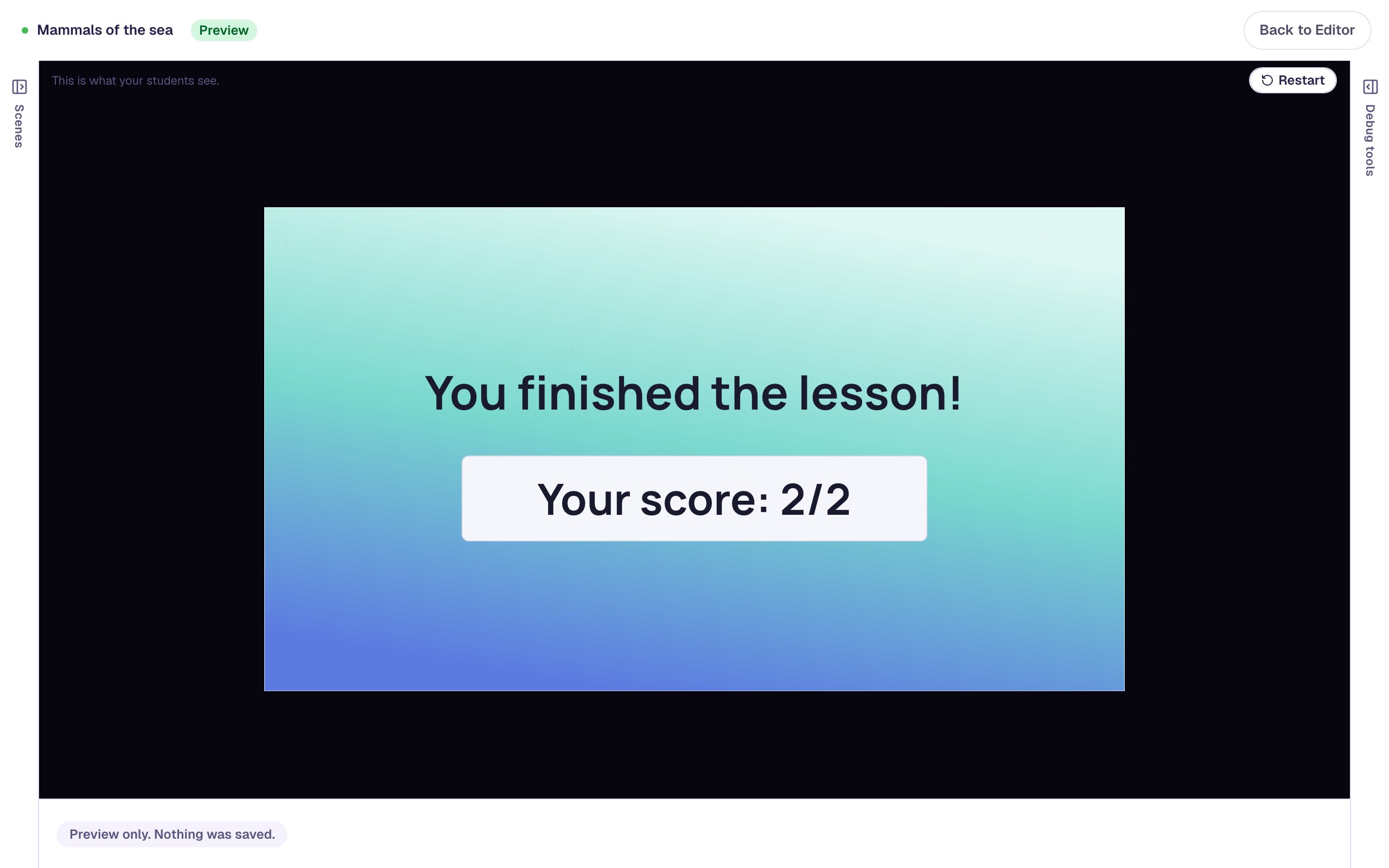
A student who picks Whale and then Through gills finishes with 1/2. The follow-up counts for them, because they saw it.
What you built
A one-scene quiz that:
- asks Which sea animal is a mammal? with three animals in a random order,
- shows a follow-up, So how does a whale breathe?, only when the first answer Is correct, using a Conditional visibility rule on both the prompt and the question,
- grades the follow-up only for students who saw it, so a missed first question means a score out of 1, not a zero on a question they never had,
- finishes with one Check my answers button that grades the scene and goes to the ending.
Rules that read a question's answer, like Is correct, Is answered or a score, are the ones Berdee can check when it grades. A rule on a variable or a button press still counts the question for everyone, so build follow-ups like this one on answers.
Next, try Show a hint after two wrong tries to help the students who missed, or Make some questions count more, and one not at all to make the follow-up worth more points.
Make this activity yours
Add the activity you just watched being built to your account, then change it for your class: your questions, your pictures, your colors.
Free to sign up, and you'll come straight back here. I have an account