Spin a wheel to pick which questions to answer
Build a review game where a Spin Wheel picks two of four ocean questions. Each segment's Shows setting reveals its question, and the score counts only the questions the wheel picked.
- Level
- Intermediate
- Time
- About 15 min
- Steps
- 8
- Updated
- Nov 21, 2026
A review scene where students spin twice, answer the fill-in-the-blank question each spin reveals, and finish with a score out of the two questions they got.
Get the finished activity
Skip straight to the result, or keep it open beside the steps. Add this tutorial's activity to your account and explore how it works in the studio.
Free to sign up, and you'll come straight back here. I have an account
A wheel turns a review into a game show. In this tutorial you'll build an ocean review where students spin a Spin Wheel of four animals. Wherever it lands, that animal's question appears, and students fill in the blank. They get two spins, the wheel never lands on the same animal twice, and the ending scores them out of the two questions they actually got.
That last part is what makes it fair. Four questions sit on the scene, but each student only sees two of them. Berdee counts only the questions the wheel picked, so nobody loses points for a question they never saw. Three pieces do the work:
- a Fill in the Blank question for each animal,
- the Shows setting on each segment of the wheel, which keeps that segment's question hidden until the wheel lands on it, and
- the wheel's Max spins and Never repeat winning segments, which give each student two different questions.
Step 1: Make a title scene
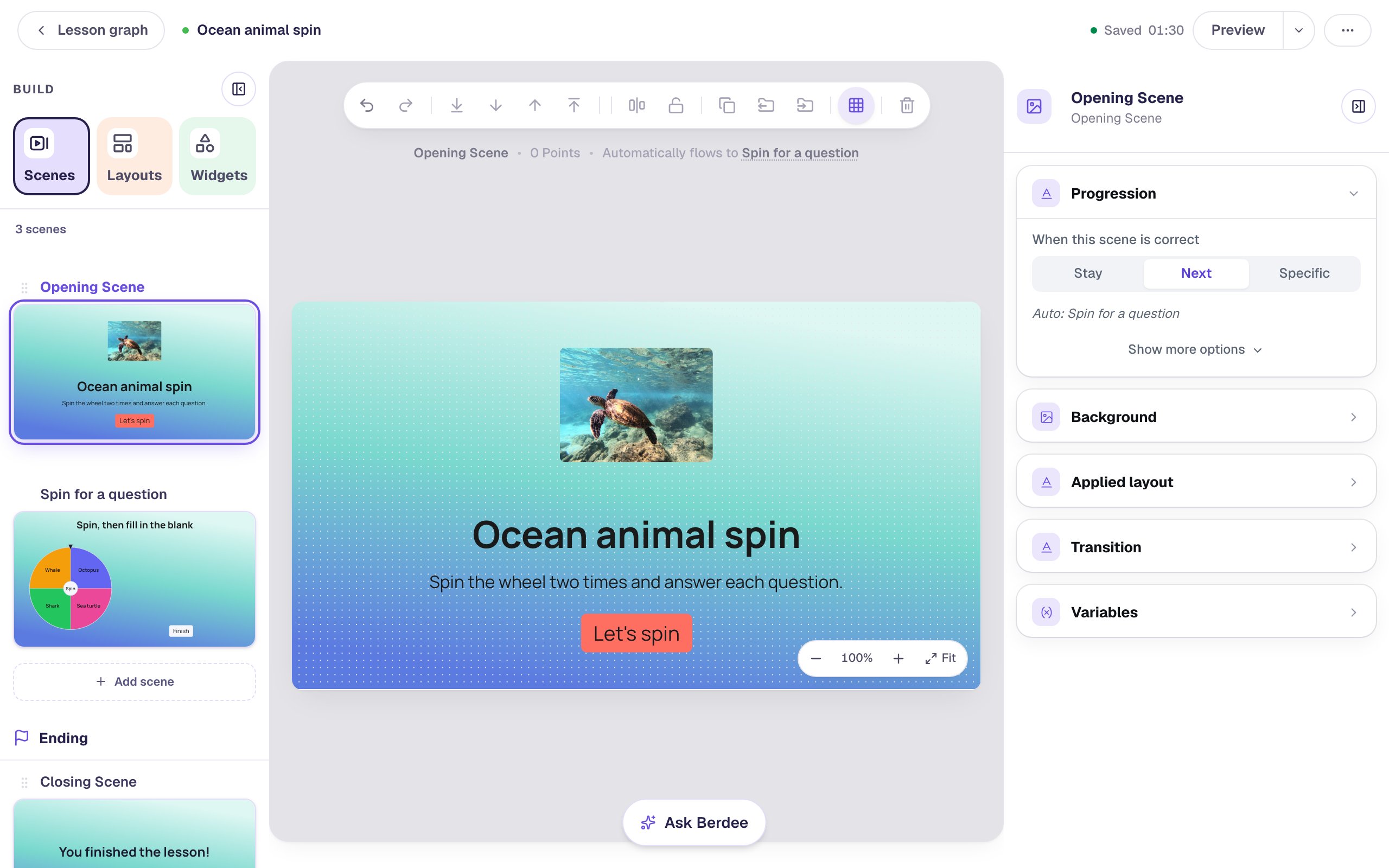
Start from scratch: click New activity, name it Ocean animal spin, then choose A blank activity and Build the first scene.
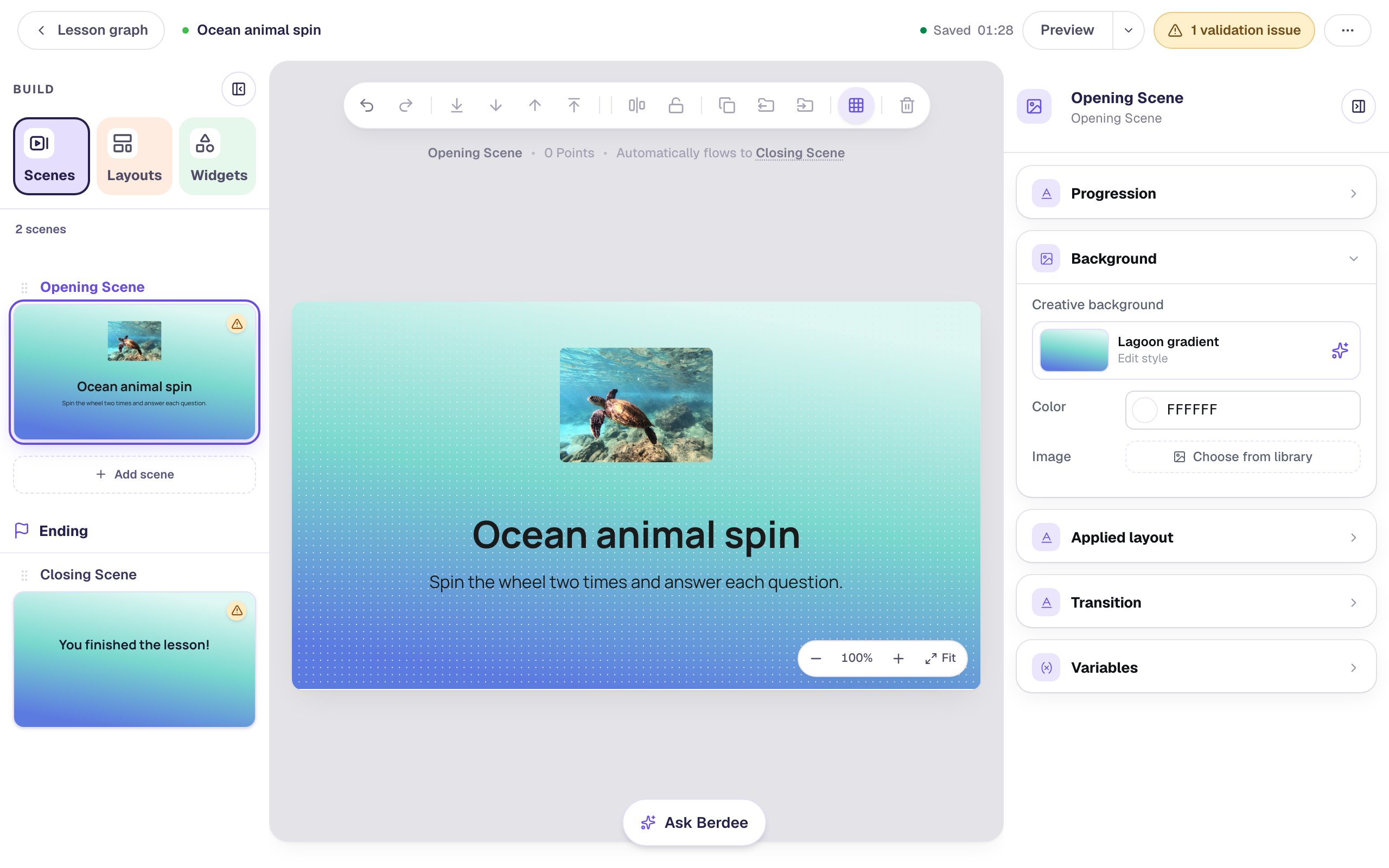
Give the Opening Scene a background first, so you're designing on the real colours: click the gray margin around the scene so nothing is selected, open Background in the properties panel, click Choose a style, pick Lagoon gradient under Gradients, and click Apply background. Do the same on the Closing Scene, so the ending matches.
Back on the Opening Scene:
- Add an Image, click Choose image, search the stock photos for
sea turtle swimming, and insert one you like. Set its Width to360and drag it to the top. - Give the photo Alt Text that says what students see, such as
A sea turtle swimming over a rocky reef in clear blue water. The studio fills in the photo's file name, which a screen reader would read out as gibberish. - Add a Heading that says
Ocean animal spin(Font Size52) and a Body text that saysSpin the wheel two times and answer each question.(Font Size24). Make both Text Color dark, so they stand out on the light part of the gradient.
Step 2: Add the wheel
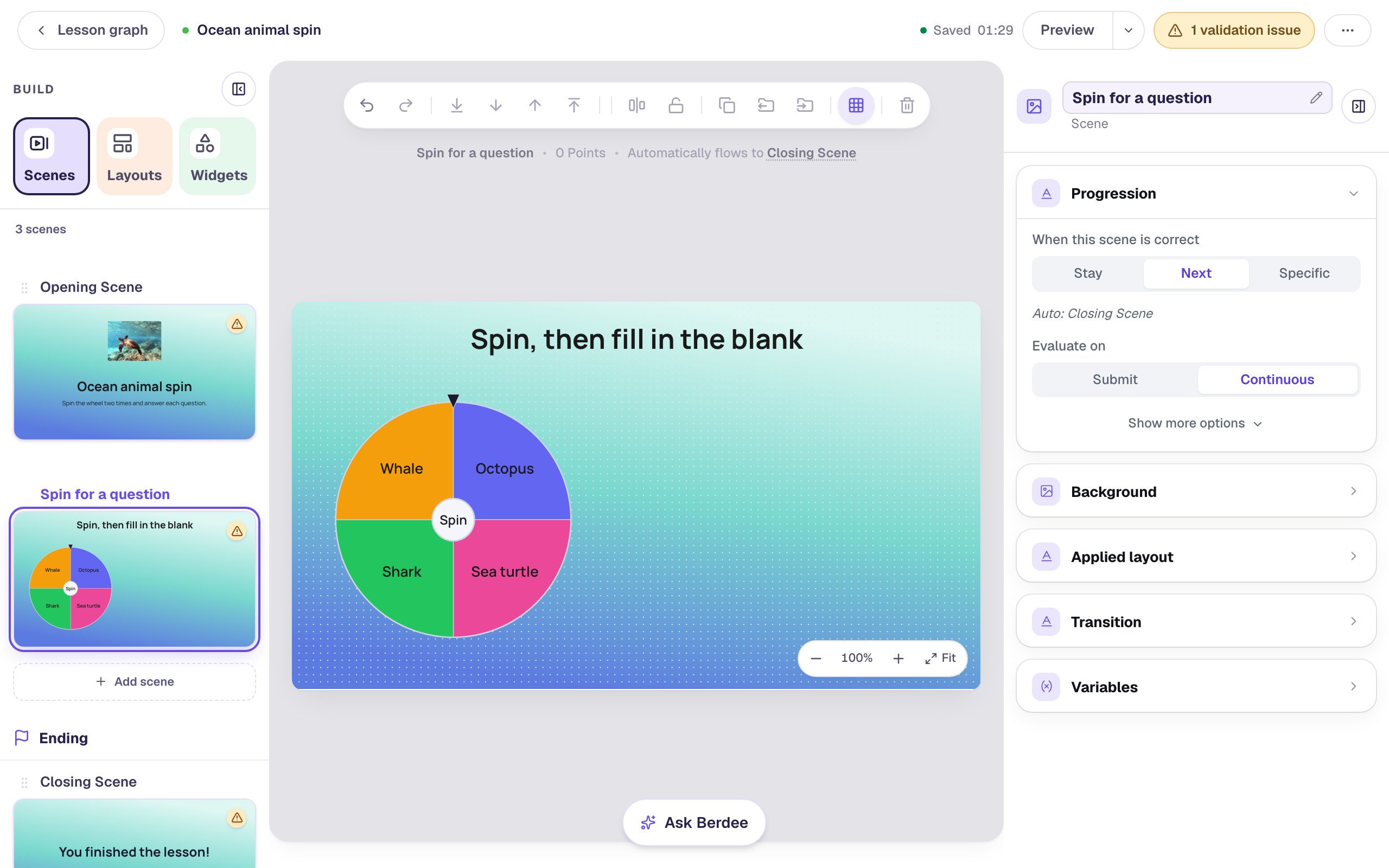
Click Add scene in the Scenes panel. Double-click the new scene's name and call it Spin for a question. Give it the Lagoon gradient background too, and a dark Heading across the top that says Spin, then fill in the blank.
Add a Spin Wheel. Under Style & Layout, set its Width and Height to 340 and its Font Size to 20. Rename it Animal wheel (click its name at the top of the properties panel), then drag it to the left half of the scene.
Click ⚙ Configure and type the four animals into the segment names: Octopus, Sea turtle, Shark, and Whale.
Click Save. The wheel shows its four animals on the canvas.
Step 3: Write a question for each animal
Each animal gets one Fill in the Blank question. It suits this game because the sentence is the question: when the question is hidden, all of it is hidden, with no separate heading left behind.
Add a Fill Blank widget and click ⚙ Configure, then Edit sentence & blanks. Type An octopus has eight arms., double-click eight, and click Mark as blank. Students might type the number instead of the word, so click Add accepted answer and type 8.
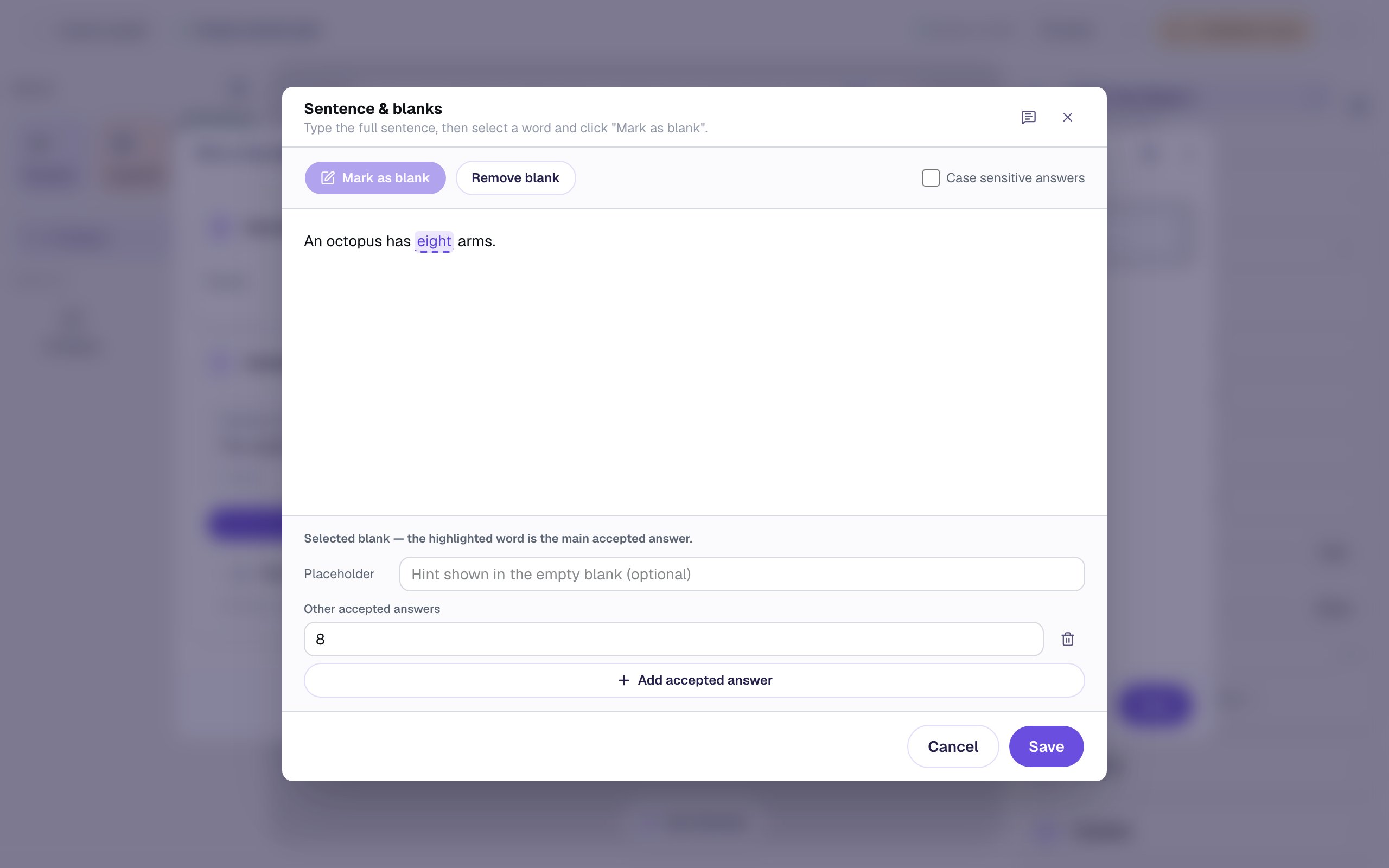
Click Save, then Save again. Now rename the question Octopus question. The wheel lists questions by name in the next step, so a clear name saves you guessing which Fill in the Blank is which. Under Style & Layout, set its Width to 520, its Height to 64, and its Font Size to 24, then drag it to the top right of the scene.
Add the other three the same way, each under the one before:
| Name | Sentence | Blank |
|---|---|---|
Sea turtle question | A sea turtle lays its eggs in the sand. | sand |
Shark question | A shark breathes through its gills. | gills |
Whale question | A whale is a mammal, not a fish. | mammal |
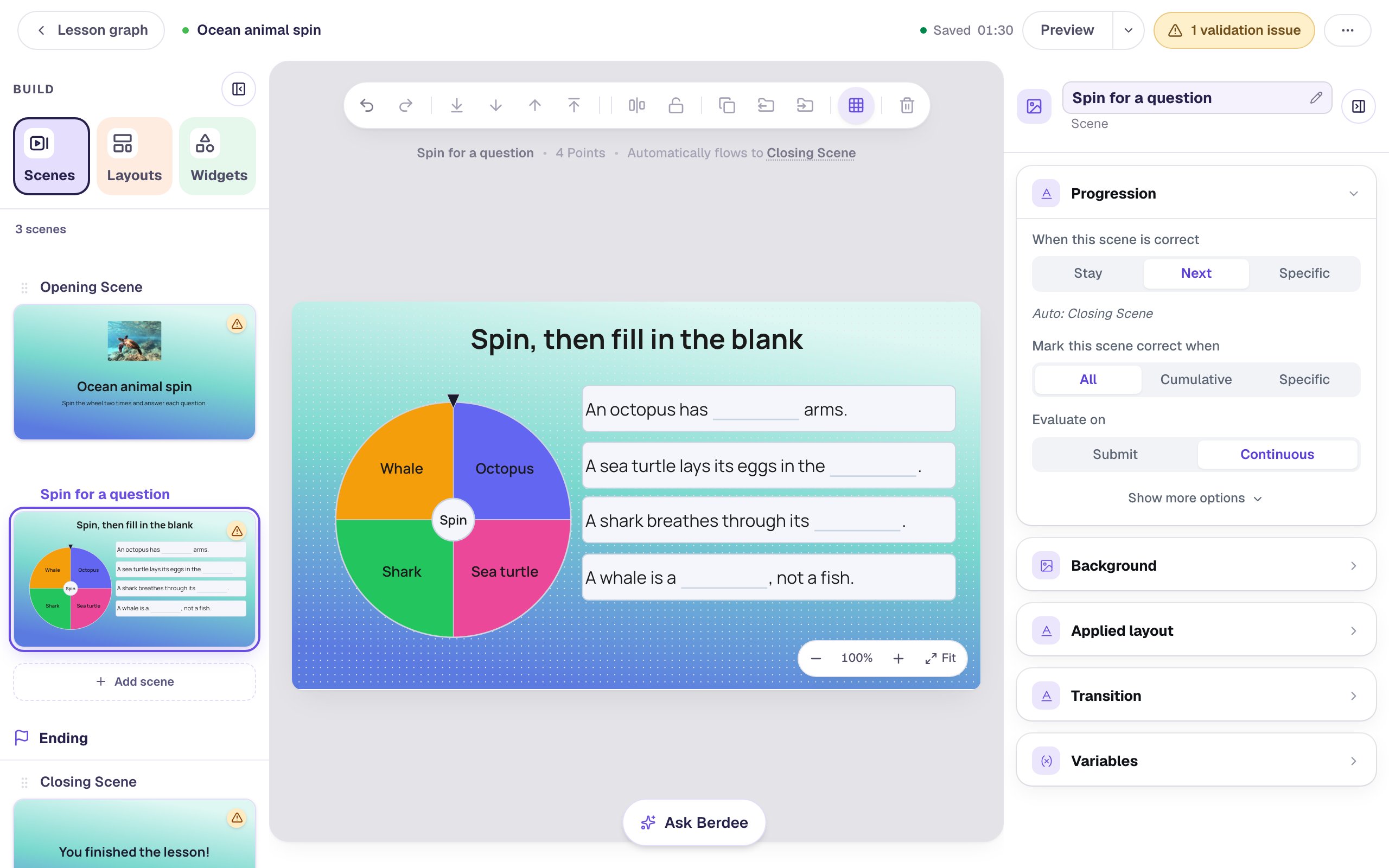
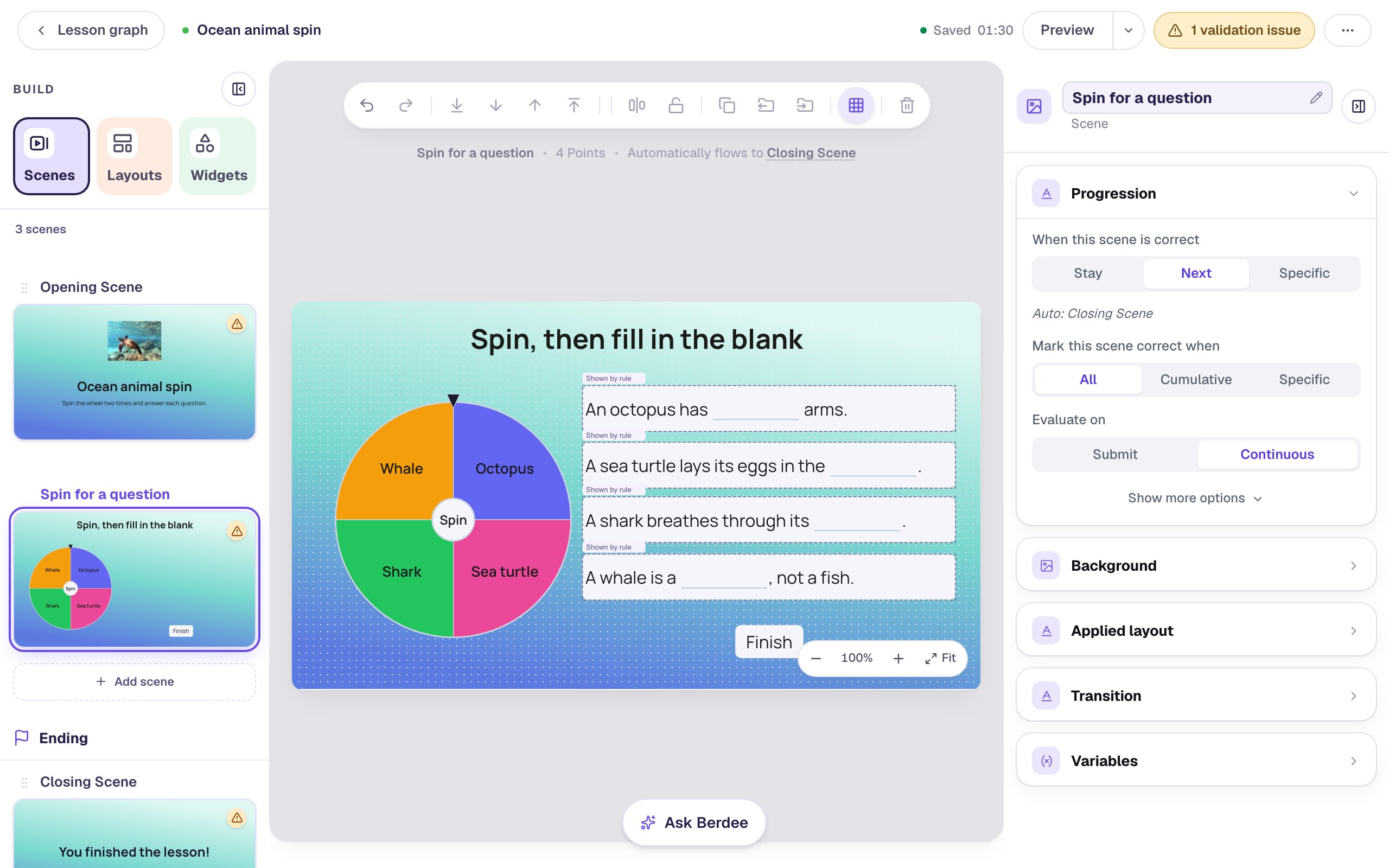
Every question is worth 1 point and is graded as soon as you add it, so the strip above the scene says 4 Points. It keeps saying so after the next step: it adds up everything on the scene. Each student is graded on fewer, as you'll see in Preview.
Step 4: Link each segment to its question
Select the wheel and click ⚙ Configure. Every segment now has a Shows list, offering the graded questions on this scene. Set Octopus to show Octopus question, Sea turtle to show Sea turtle question, and so on down the list.
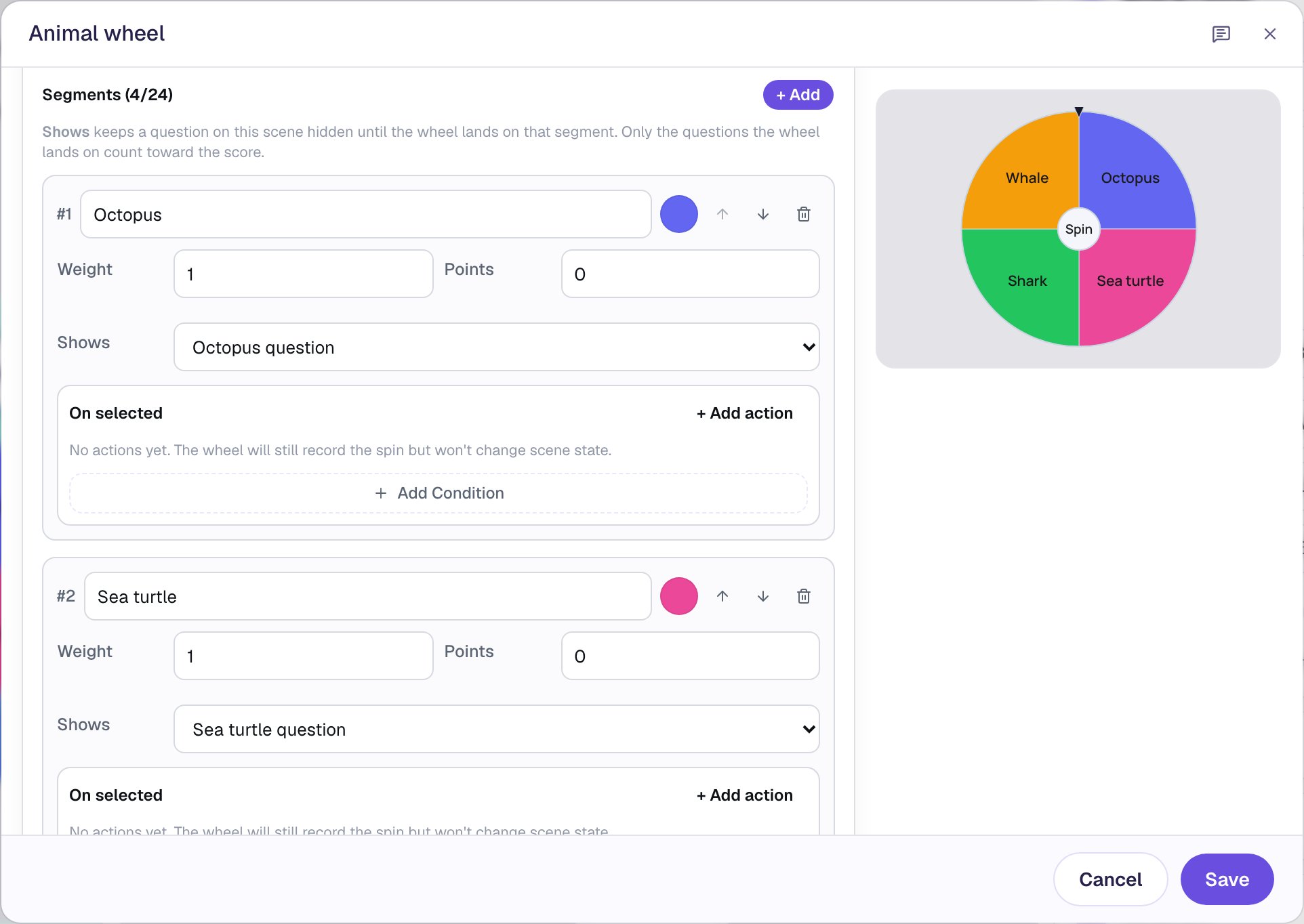
The note above the segments sums it up: each question stays hidden until the wheel lands on its segment, and only the questions the wheel lands on count toward the score. Leave each segment's Points at 0. The wheel itself isn't a question, so it adds nothing to the score.
Step 5: Give students two different spins
Still in Configure, scroll up to Content. Set Max spins to 2 and turn on Never repeat winning segments, so the second spin always lands on a different animal. Leave Scoring on at the top.
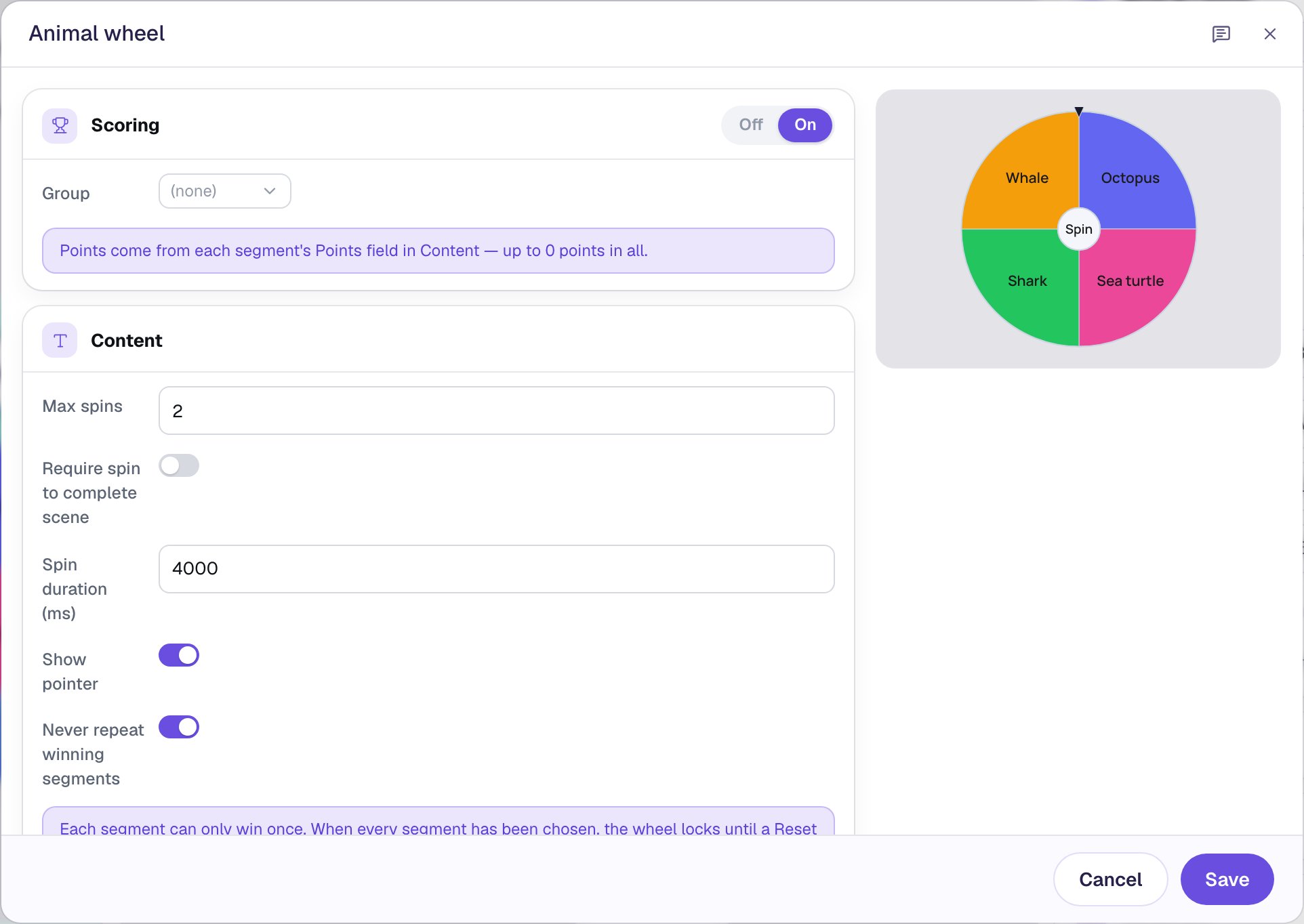
Scoring has to stay on even though the wheel is worth 0 points. With it on, the wheel records each spin, and that record is how Berdee knows which questions were picked. Turn it off and the dialog warns you that every question the wheel shows will count, picked or not.
Click Save.
Step 6: See the rule the wheel wrote
On the canvas, each question now carries a Shown by rule tag. Select the Octopus question and open Visibility in the properties panel.
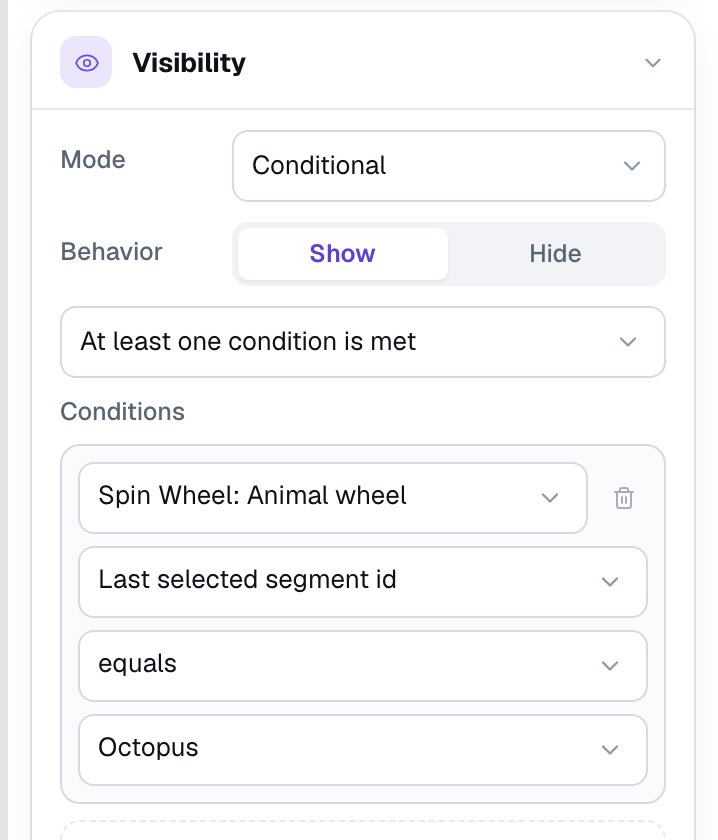
Shows didn't do anything secret: it set the question's own visibility to show when the Animal wheel's last selected segment is Octopus. You could build the same rule here by hand, and the wheel's Shows list and this section always agree. Because the rule follows the last spin, the octopus question hides again when the wheel lands somewhere new, so the second question takes the first one's place on screen. The first answer still counts.
Step 7: Add a Finish button and a Start button
This scene can't move on by itself. A scene moves on when its questions are all right, and two of these four always stay hidden, so students need a button to finish.
Add a Button, click ⚙ Configure, set its Label to Finish, and click Save. Click ⚡ Behaviors on the canvas, choose Make this a "Next" button, and click Add behavior. This is the last scene before the ending, so Next goes to the Closing Scene. Drag the button under the questions.
Now open the Opening Scene and do the same with a button labelled Let's spin, so students can get from the title to the wheel.
Step 8: Try it as a student
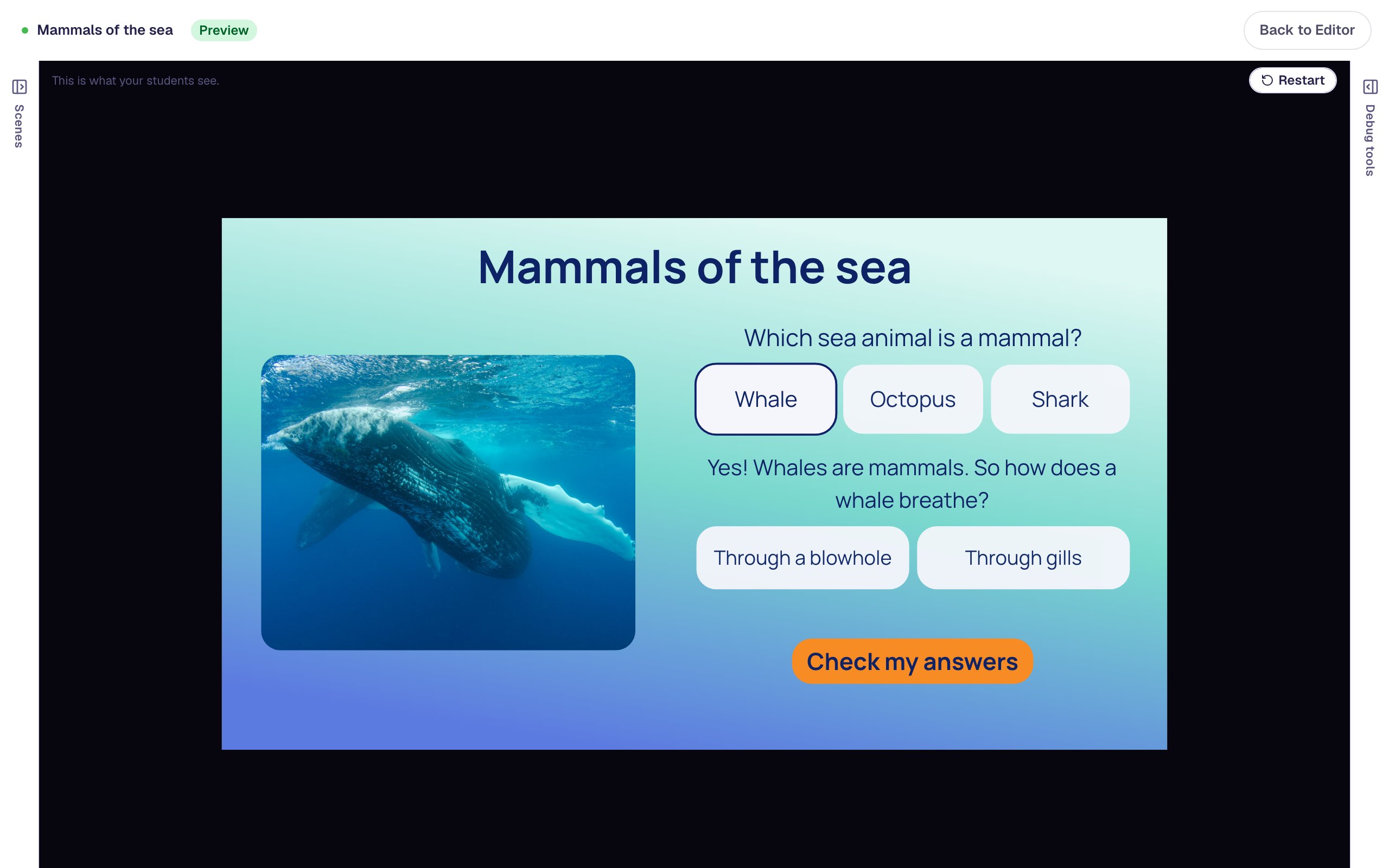
With the Opening Scene open, click Preview and press Let's spin. No question is on screen yet. Press Spin:
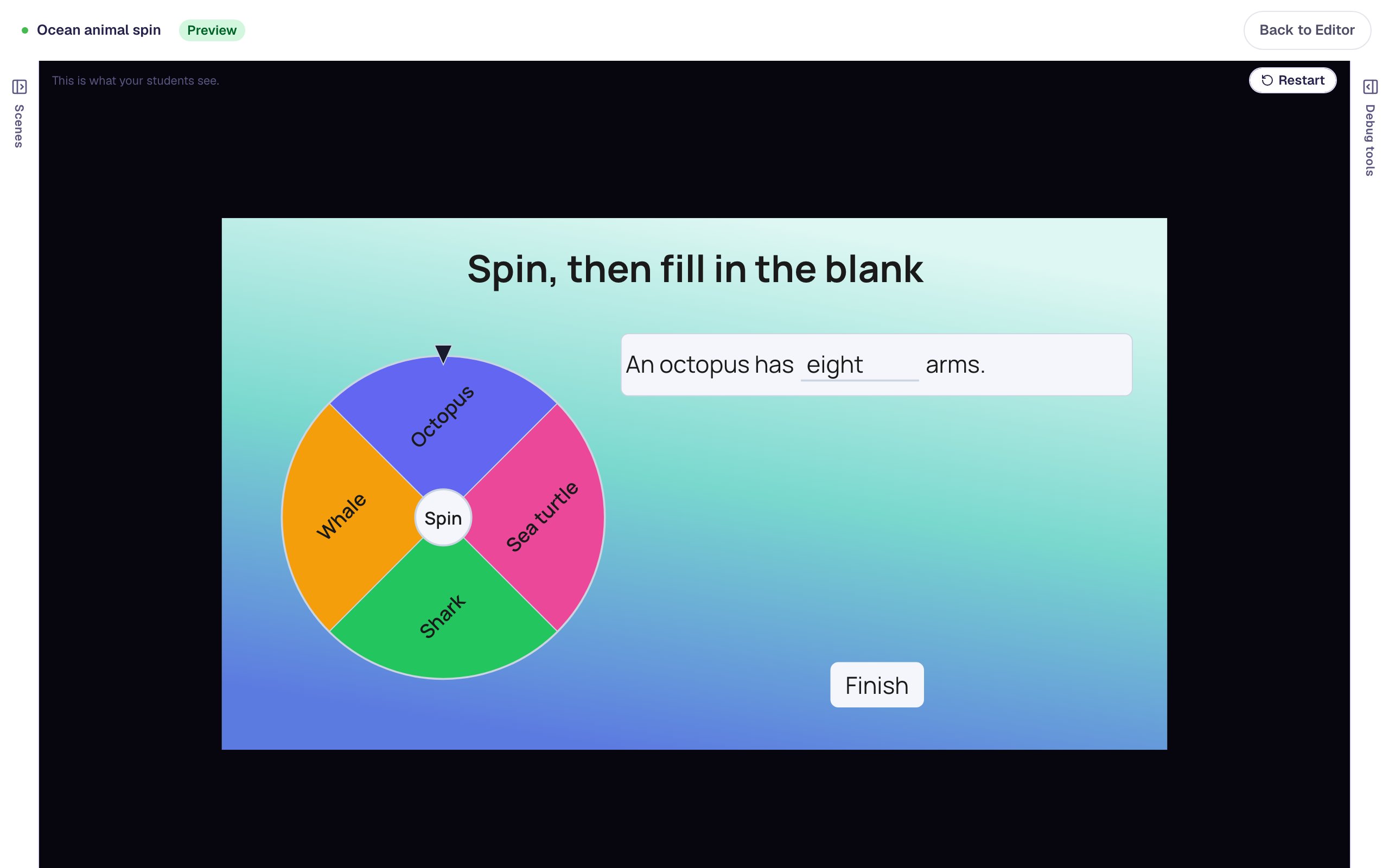
The wheel lands on a random animal, so yours may be different. Type the answer and spin again:
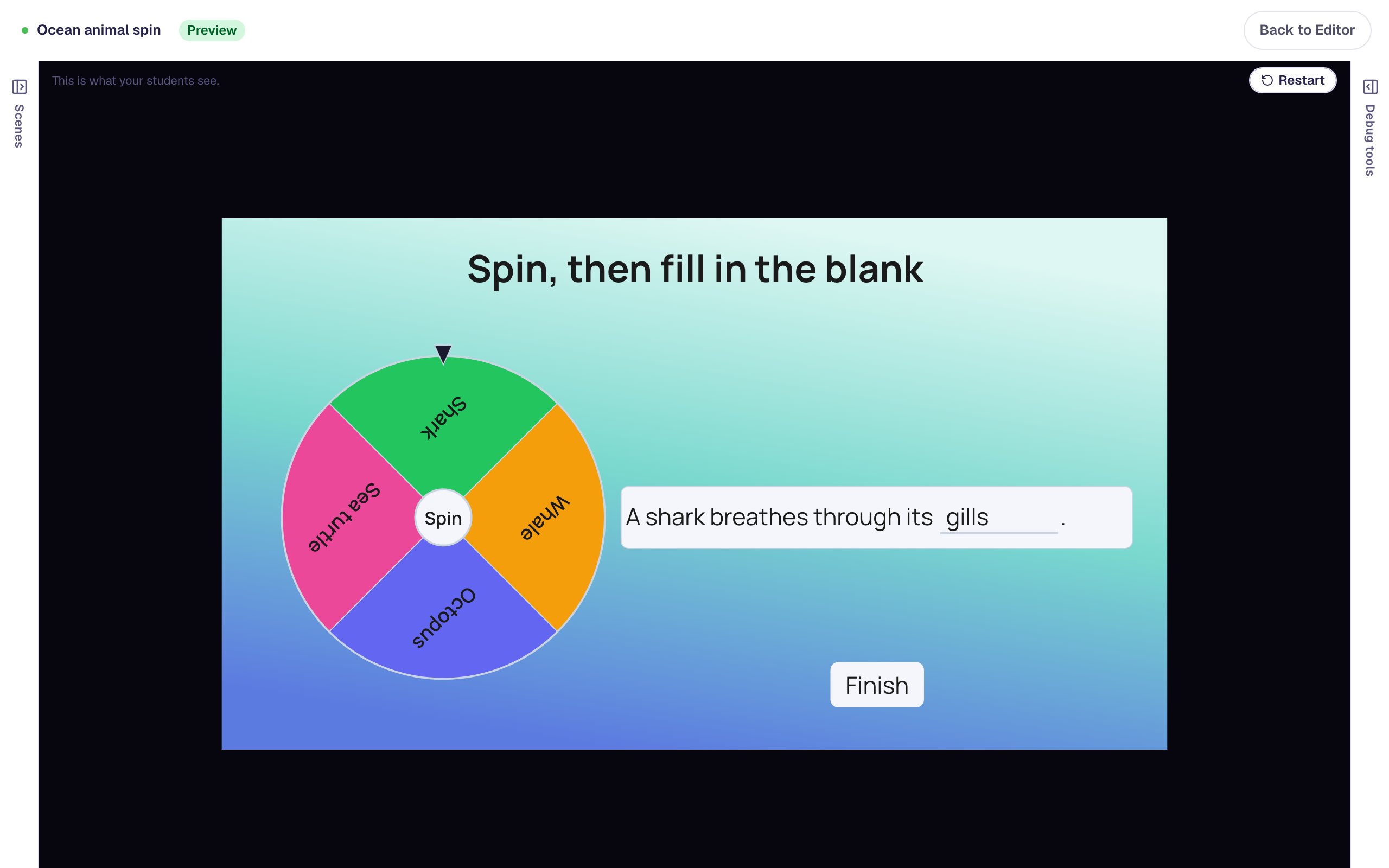
The wheel won't spin a third time. Press Finish:
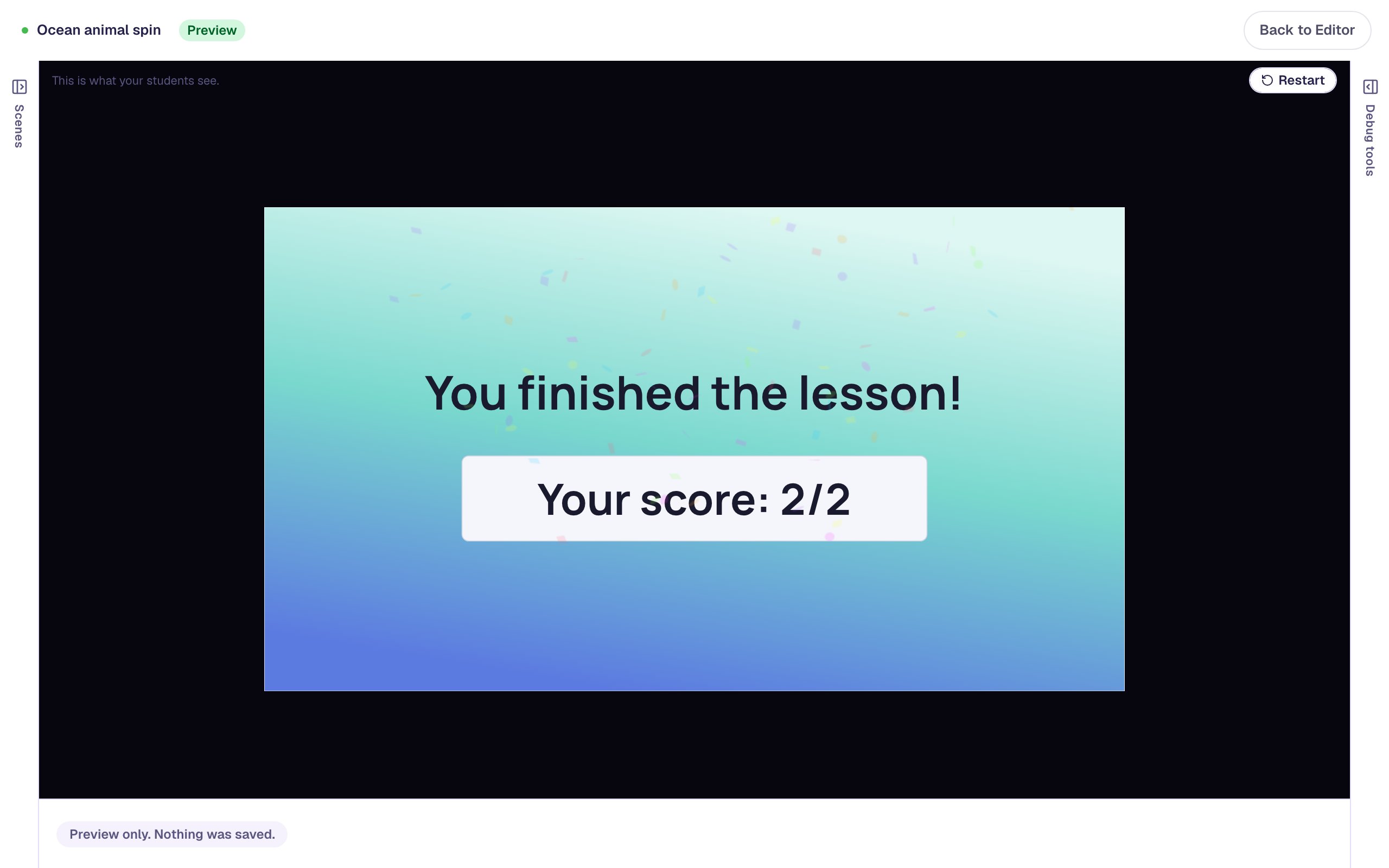
The score is 2/2. The two questions the wheel never landed on don't count against the student at all, even though they were on the scene. A question the wheel picked does count, even if the student spins again without answering it: that one is a zero.
What you built
A review game where chance picks the questions and the score stays fair:
- four Fill in the Blank questions, each named after its animal,
- a Spin Wheel whose segments each Show one question, which hides that question until the wheel lands there,
- Max spins
2and Never repeat winning segments, so every student gets two different questions, - Scoring left on for the wheel, so only the questions it picked count, and
- a Finish button, because a scene with questions that stay hidden can't move on by itself.
For a longer round, add more animals and questions and raise Max spins. To send students to a different scene for each segment instead of revealing a question, see Spin a wheel to pick a random challenge.
Make this activity yours
Add the activity you just watched being built to your account, then change it for your class: your questions, your pictures, your colors.
Free to sign up, and you'll come straight back here. I have an account