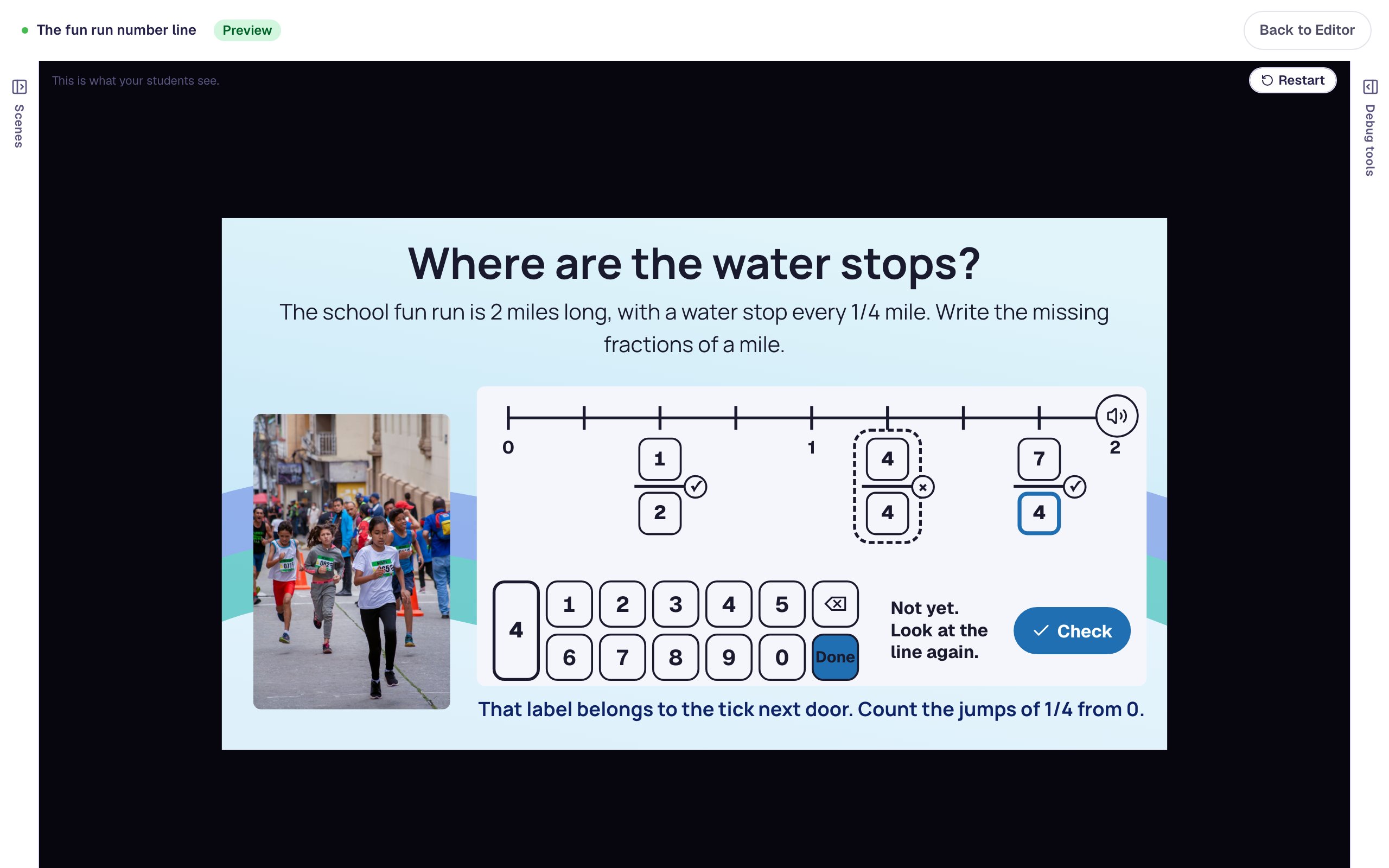
Make a Who am I? riddle with cross-out answers
Build an animal riddle where students read three clues and cross out every animal a clue rules out, using Multiple Choice's Cross Out option, with a gentle warning if they cross out the answer.
- Level
- Beginner
- Time
- About 15 min
- Steps
- 8
- Updated
- Nov 21, 2026
A "Who am I?" riddle with six animal photos, three clues, a ✕ on every photo to rule it out, a warning when the octopus gets crossed out, and an ending that says who it was.
Get the finished activity
Skip straight to the result, or keep it open beside the steps. Add this tutorial's activity to your account and explore how it works in the studio.
Free to sign up, and you'll come straight back here. I have an account
"Who am I?" riddles teach students to reason by elimination: read a clue, rule out everything it doesn't fit, and repeat until one answer is left. On paper, students cross the wrong answers out with a pencil. Multiple Choice's Cross Out option gives them the same pencil on screen.
In this tutorial you'll build an animal riddle with three clues and six animal photos. Students tap the ✕ on each animal a clue rules out, and when only one is left, they pick it. If they cross out the answer by mistake, a message asks them to look again. If you've never built a picture question, Ask a "select all that apply" question with pictures covers the basics.
Step 1: Set the scene
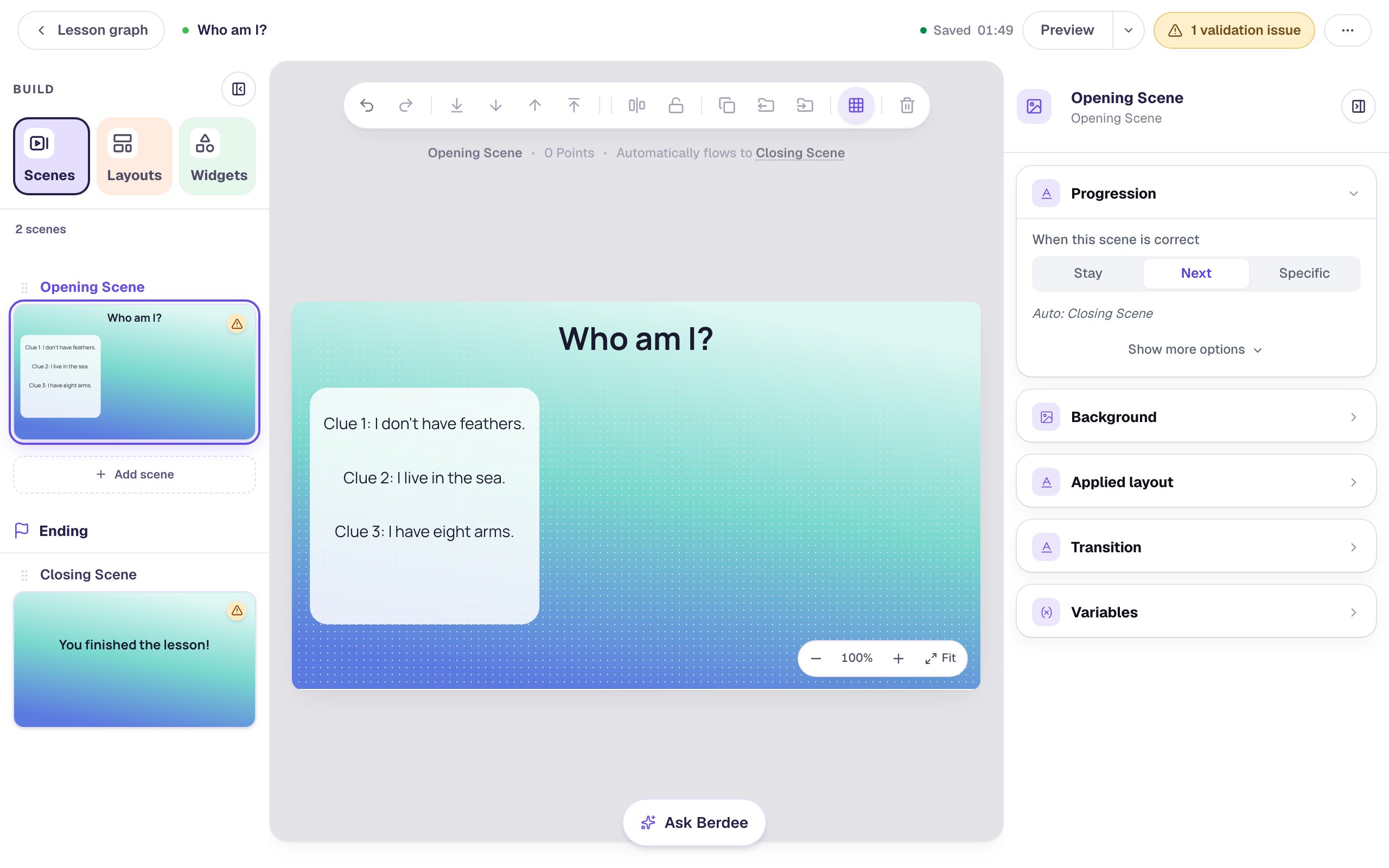
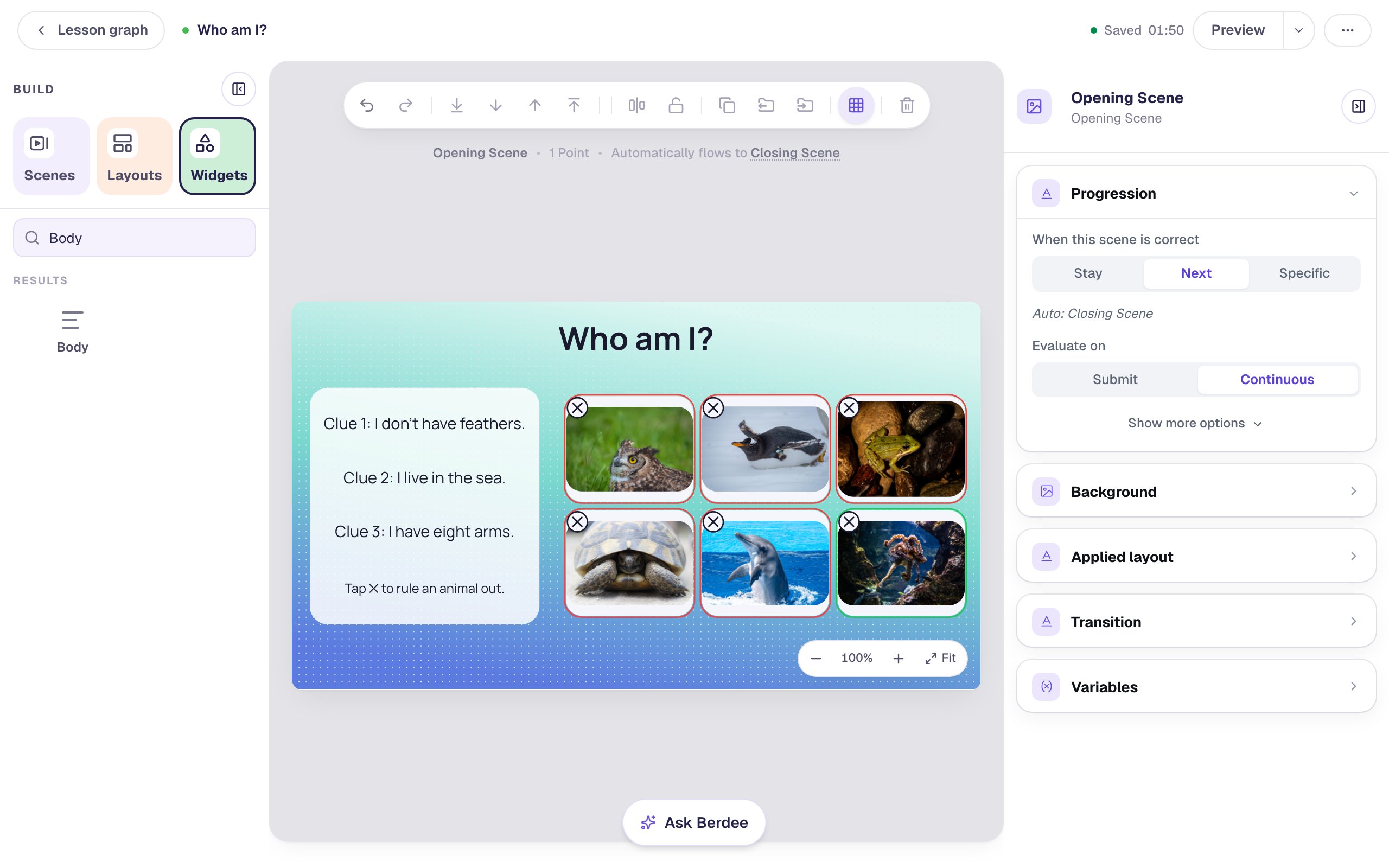
Start a blank activity and name it (we used Who am I?). Dress the Opening Scene first, so you can see how the photos will look against it:
- Click an empty part of the canvas, open Background in the properties panel, and click Choose a style. On the Gradients tab we picked Lagoon gradient, then Apply background. Give the Closing Scene the same background, so the ending matches.
- From the Widgets tab, add a Heading and type
Who am I?. - Add a Shape, choose Rectangle, and make it a card for the clues: Fill Color white, a rounded corner of
24, and Opacity85%. We sized it320by330and put it on the left. - Add three Body texts on the card, one clue each:
Clue 1: I don't have feathers.Clue 2: I live in the sea.Clue 3: I have eight arms.
Order the clues so each one rules out a few animals. The first rules out the birds, the second the land animals, and the third leaves only one.
Step 2: Add the question and give it room
Search the Widgets tab for Multi Choice and click it. Six photos need room, so with the question selected, open Style & Layout, click Show more options, and set Width to 560 and Height to 310. Then drag it to the right of the clue card.
Step 3: Add six animals
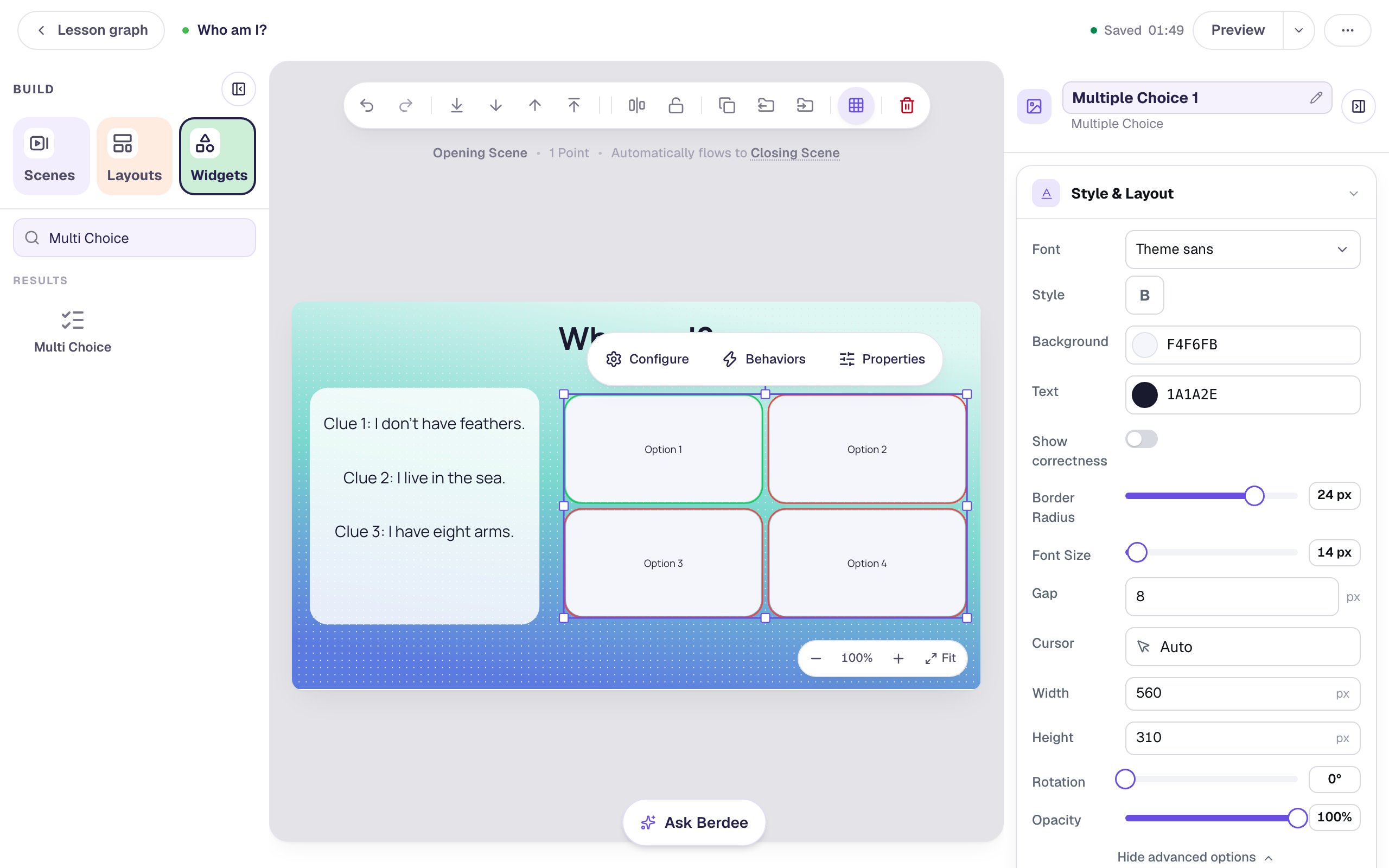
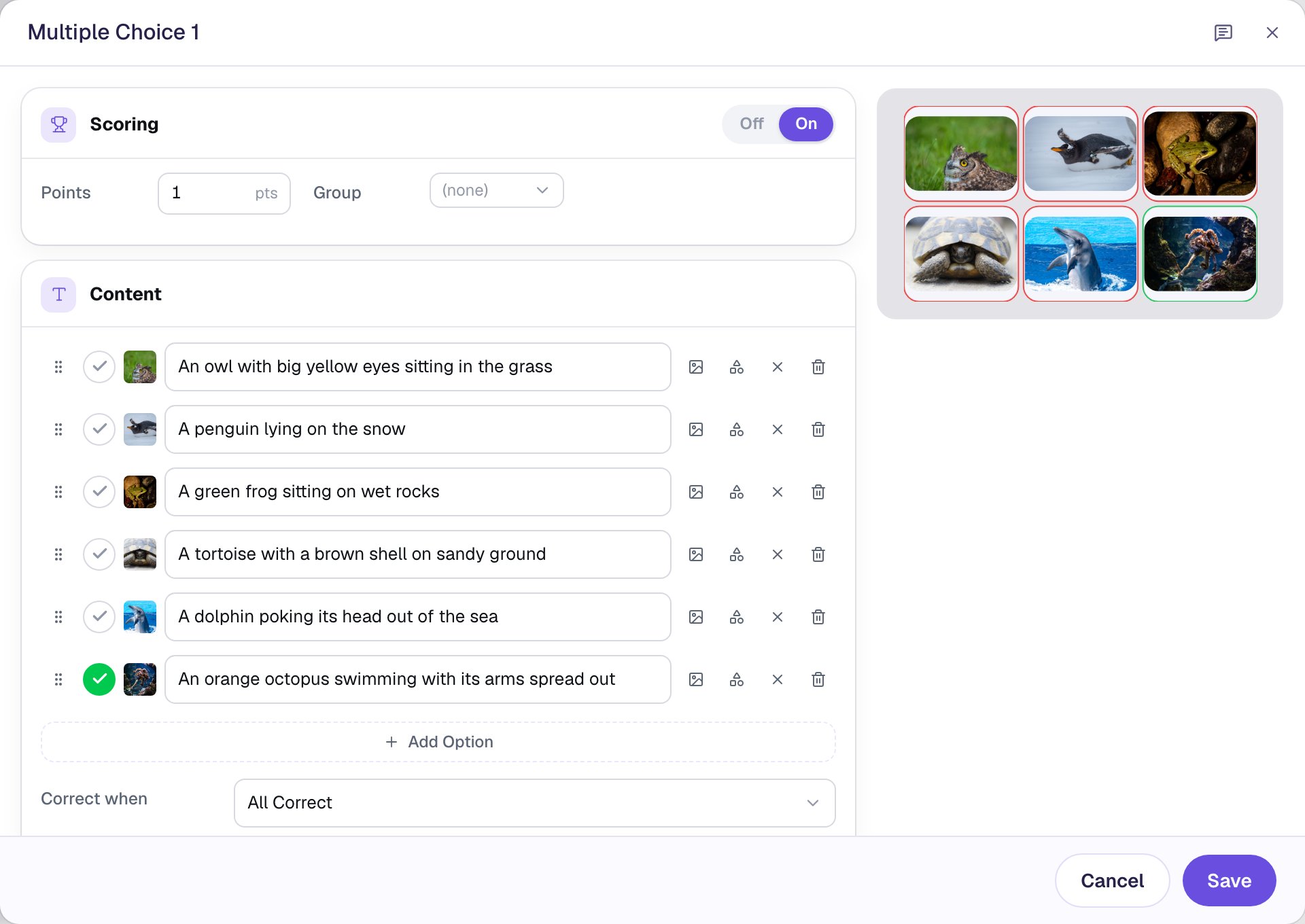
Click ⚙ Configure. The question starts with four answers, so click Add Option twice to get six. Then give each answer a photo: click its Set image button, search the stock photos (owl, penguin, frog, tortoise, dolphin, octopus), and click Import & insert.
Once an answer has a picture, its text box becomes the picture's description. Students don't see it, but a screen reader reads it aloud, so describe what the photo shows:
An owl with big yellow eyes sitting in the grassA penguin lying on the snowA green frog sitting on wet rocksA tortoise with a brown shell on sandy groundA dolphin poking its head out of the seaAn orange octopus swimming with its arms spread out
Pick the animals so each clue rules some out and the dolphin survives until the last clue. A riddle where one clue gives the answer away isn't much of a riddle.
Step 4: Mark the octopus correct
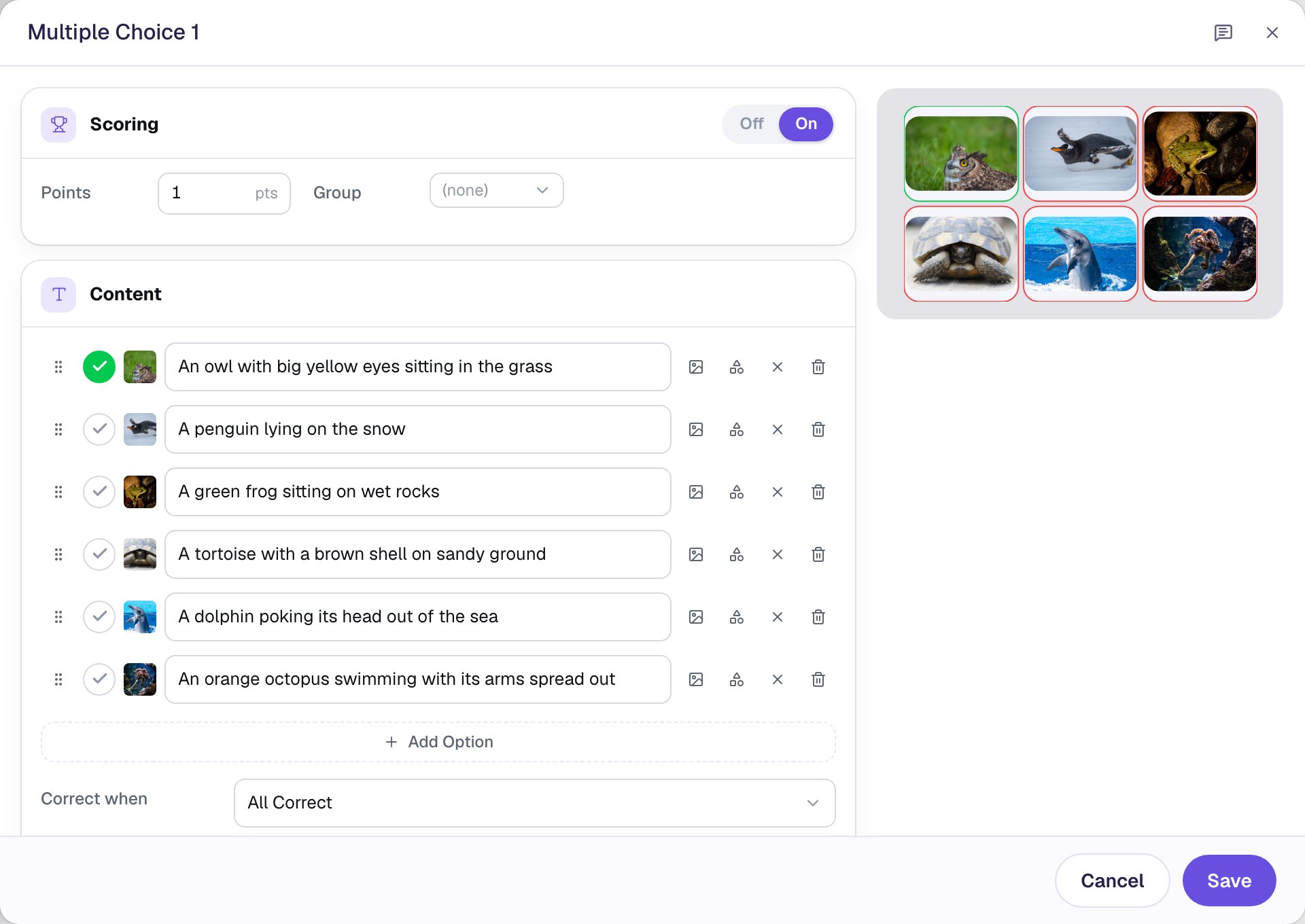
The first answer starts marked correct, which here is the owl. Click the tick next to the octopus instead. With Selection on Single, the mark moves: the octopus is now the only right answer.
Step 5: Turn on Cross Out
Scroll down in the dialog and turn on Cross Out. Every photo in the preview gets a small ✕ in its top-left corner. That's the pencil: tapping it dims the photo and draws a cross over it, and tapping it again brings the photo back. Leave Randomize Order on, so the animals land in a different order for each student. Click Save.
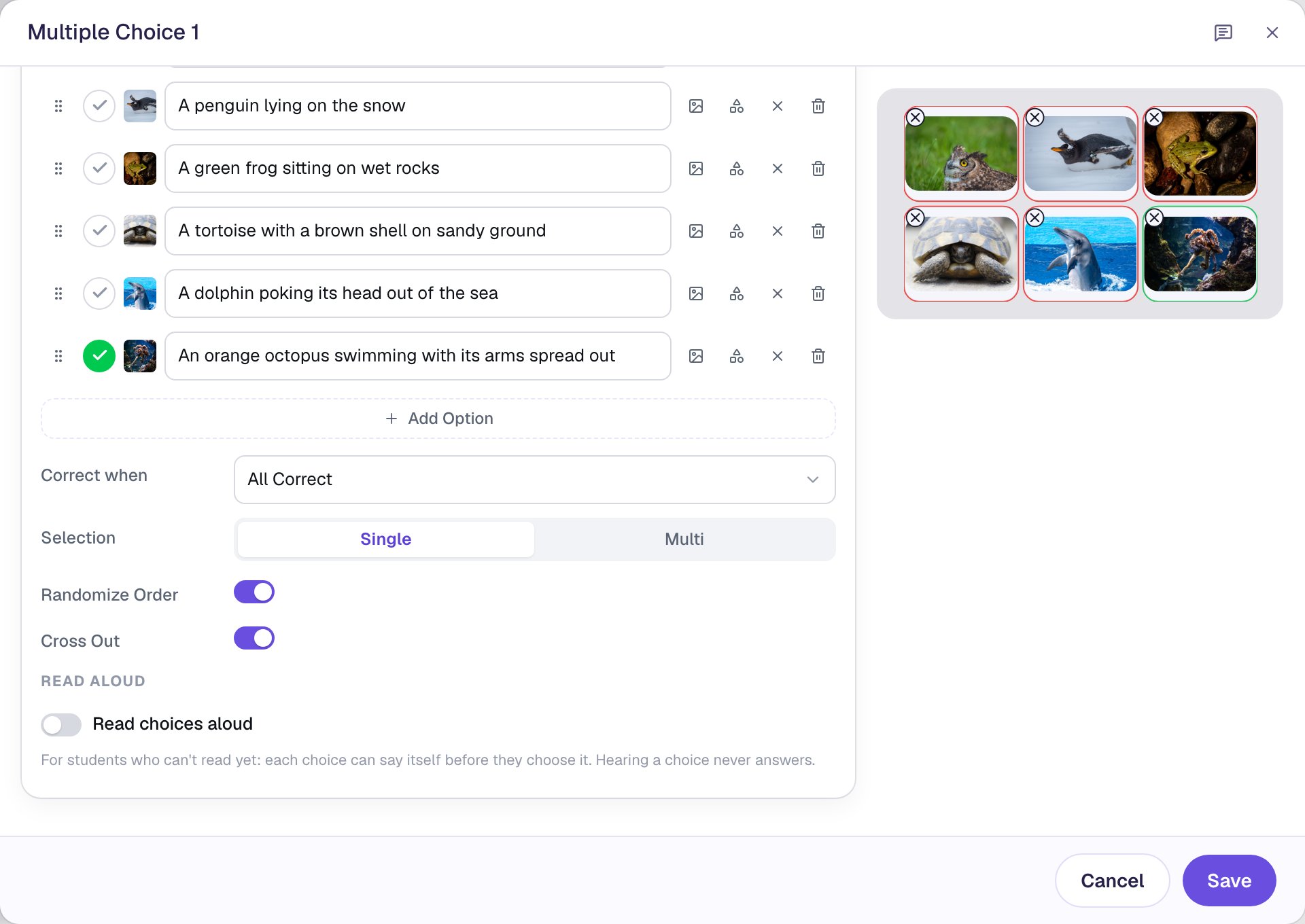
Students won't know what the ✕ is for unless you tell them, so add one more Body on the clue card: Tap ✕ to rule an animal out. We also renamed the question Who am I (click its name at the top of the properties panel), so it's easy to find in the Behaviors dialog.
Step 6: Warn students who cross out the answer
Crossing out the octopus is the one mistake worth catching early: a student who rules out the answer has nothing left to pick. Add a behavior that catches it:
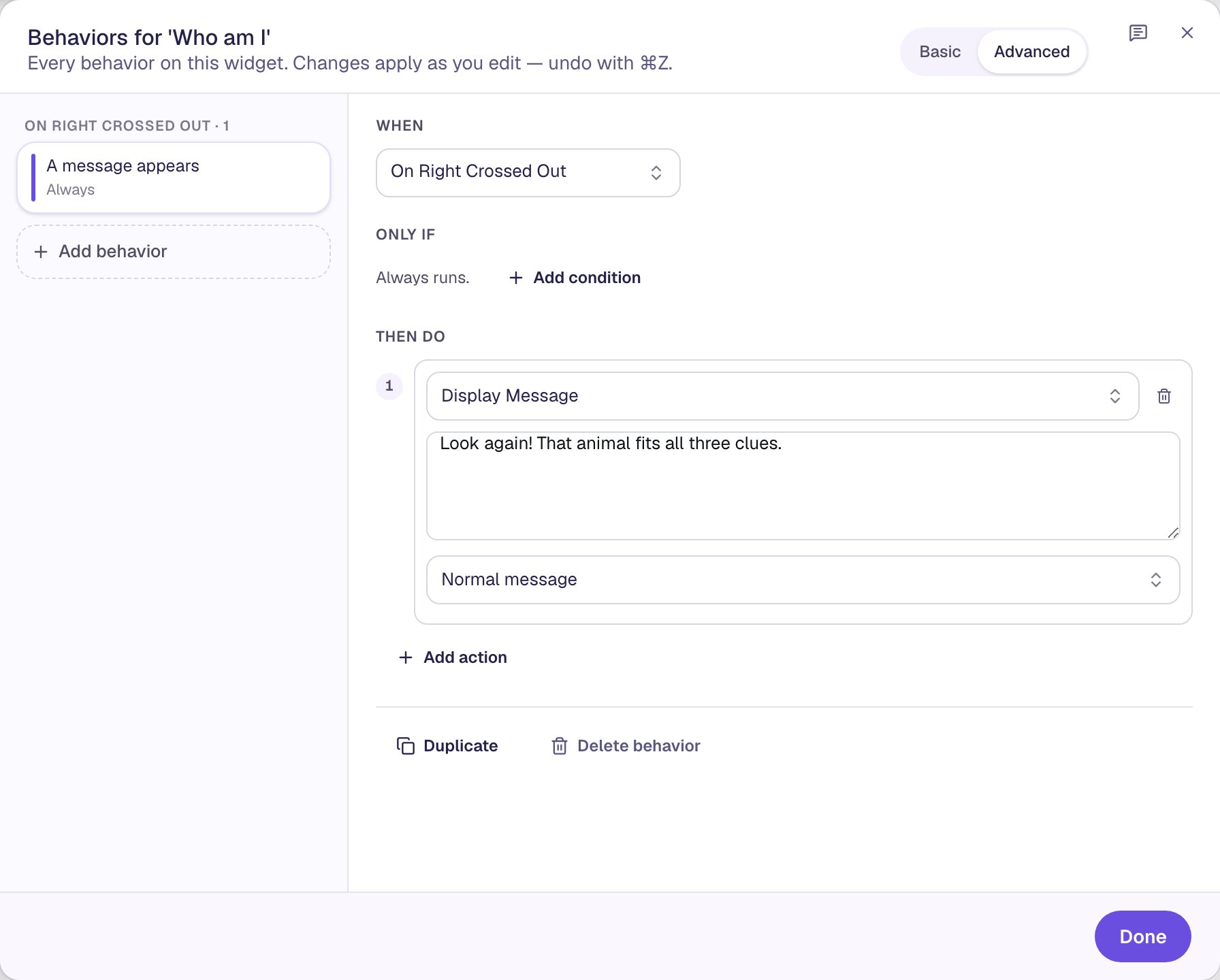
- With the question selected, open Behaviors in the properties panel and click Add behaviors…. The dialog opens on its Advanced view, which lists every moment a question can react to. (The Behaviors button above the canvas opens the guided Basic view, which doesn't offer the crossed-out moments.)
- Click Add behavior and pick On Right Crossed Out. It runs each time a student crosses out the right answer.
- The behavior starts as Display Message. Type
Look again! That animal fits all three clues.in the message box and click Done.
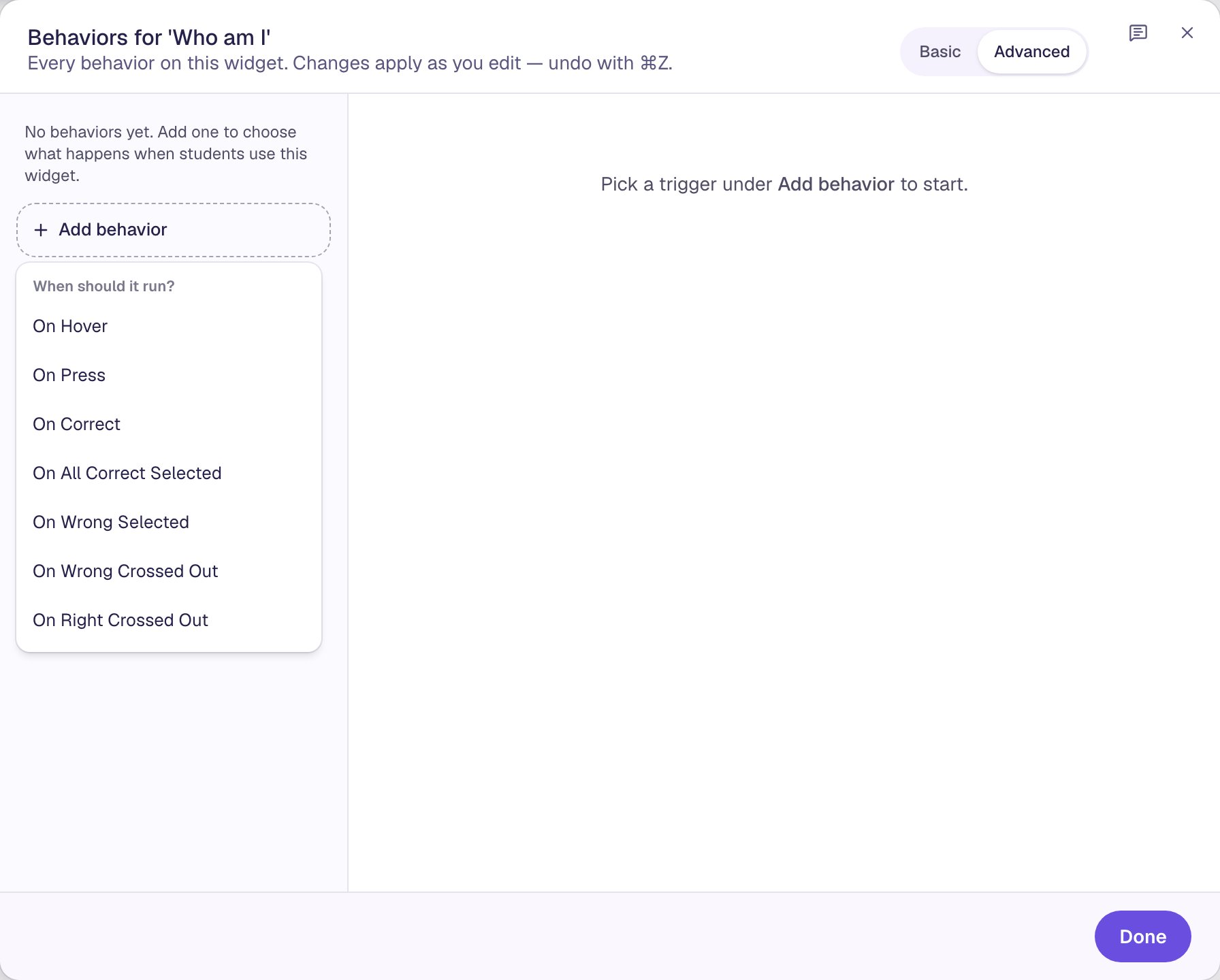
The menu also has On Wrong Crossed Out, which runs each time a student rules out a wrong animal. Use it to cheer them on, like a "That's not me!" message or a sound. Crossing out is never graded, so neither moment changes the score.
Step 7: Give the ending the answer
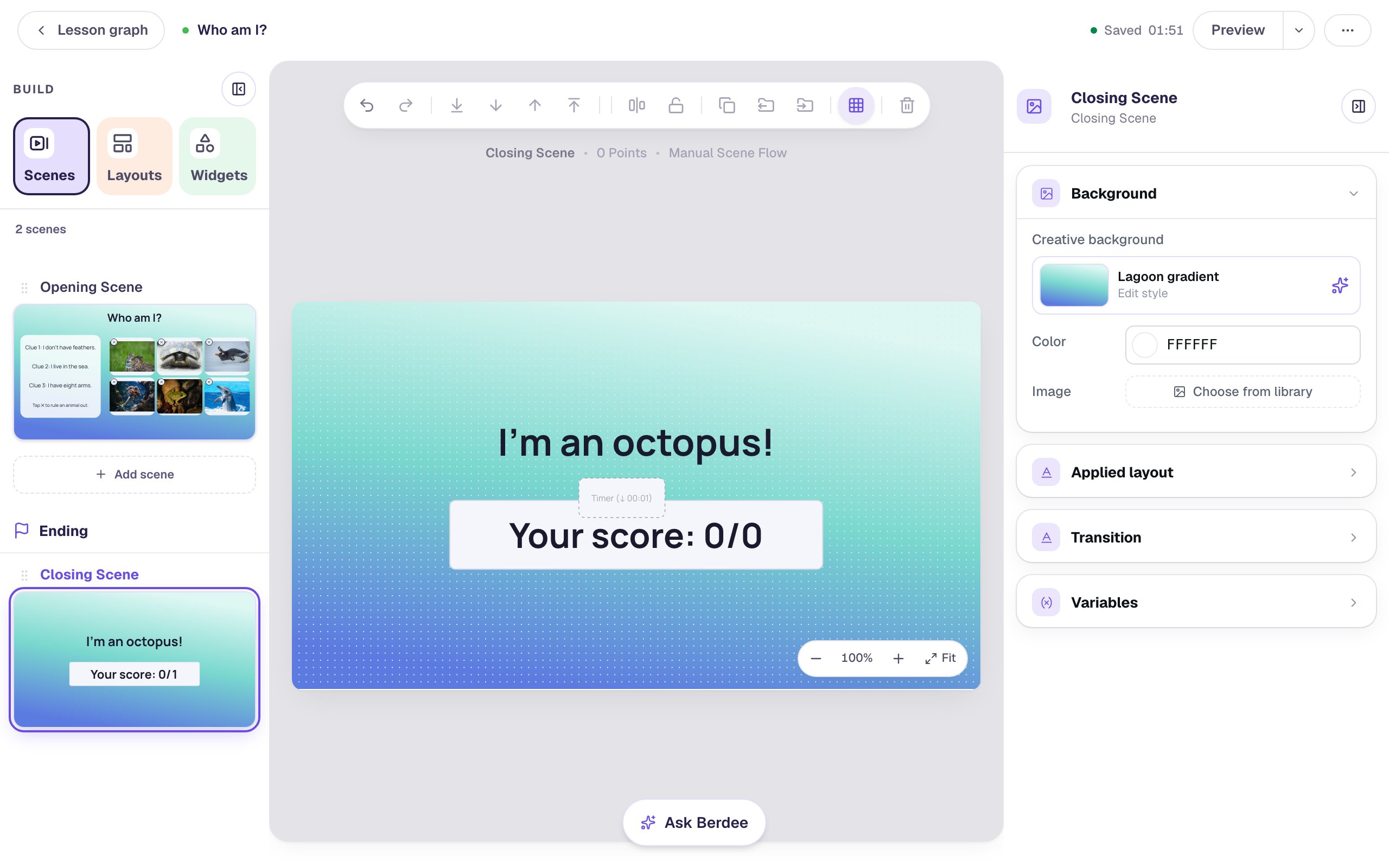
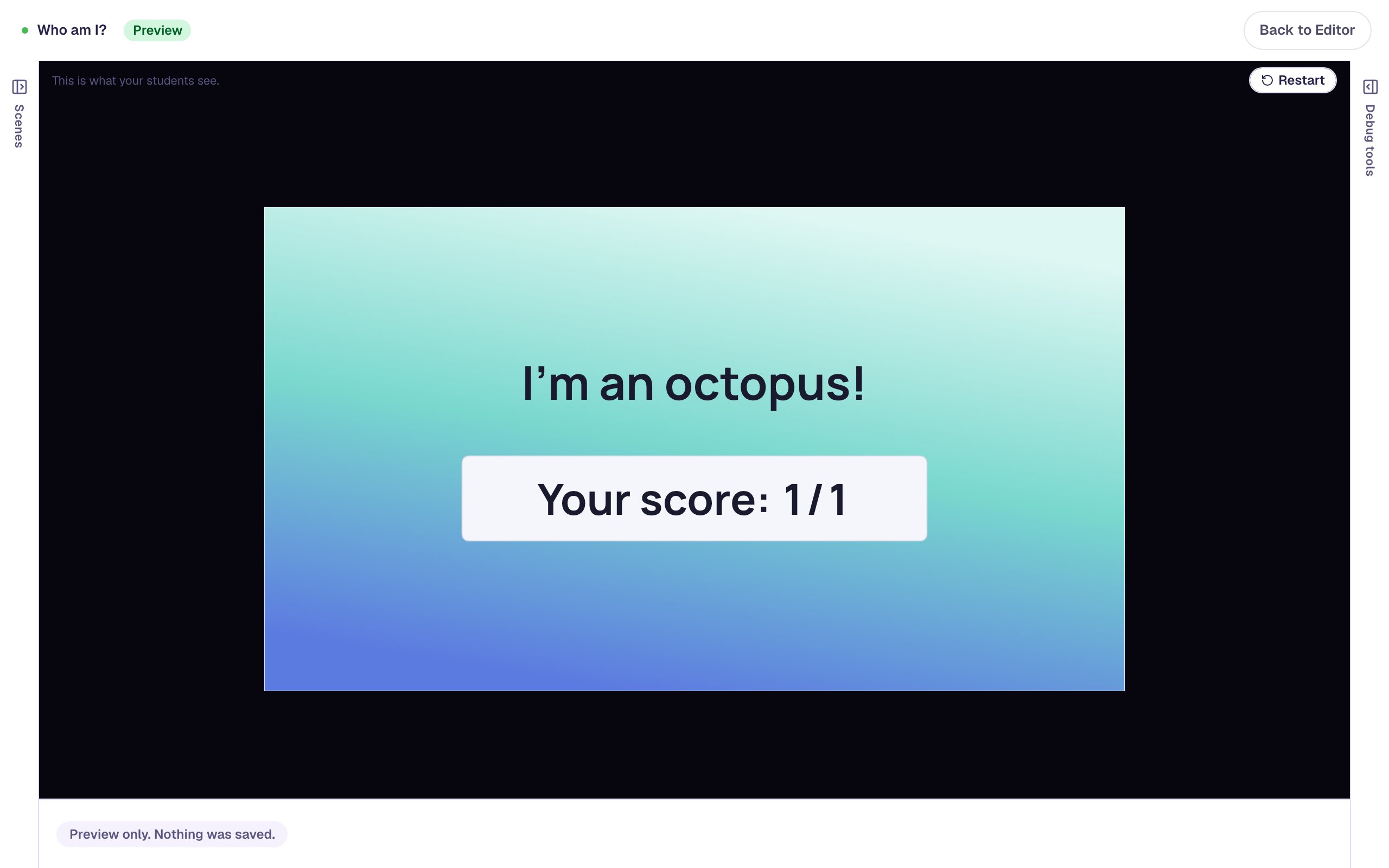
Open the Closing Scene. It already has a headline and the student's score. Click the headline and type the answer: I'm an octopus!. A correct answer moves students here on its own.
Step 8: Solve it as a student
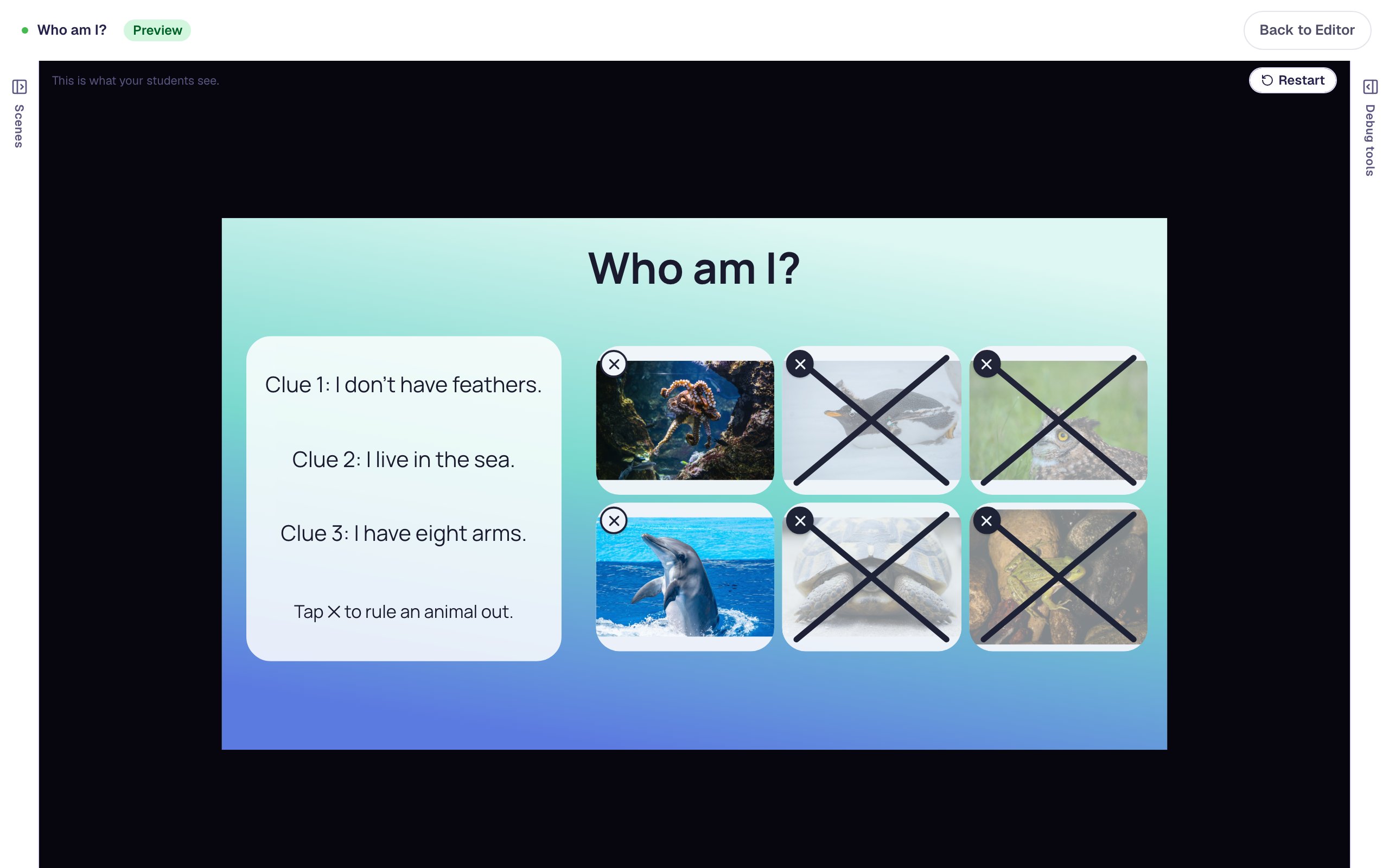
Click Preview and play the riddle the way a student would. The animals shuffle, so yours will be in a different order. Read each clue and tap the ✕ on every animal it rules out: the owl and the penguin for clue 1, the frog and the tortoise for clue 2.
Now cross out the octopus on purpose, to check the warning. The message covers the scene until the student presses Dismiss.
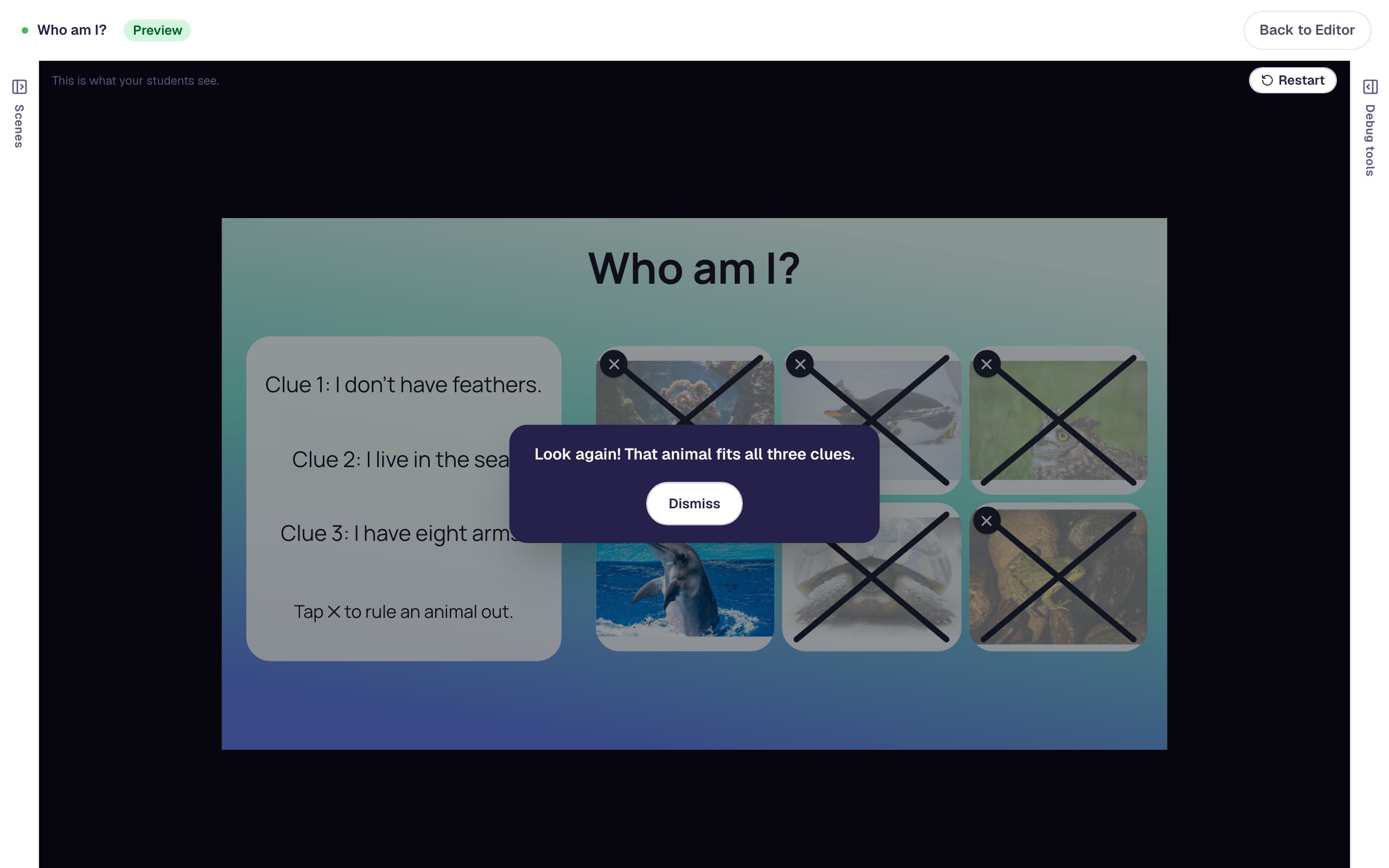
The octopus stays crossed out after the warning, but tapping a crossed-out animal brings it back and picks it in one go. Dismiss the message, cross out the dolphin for clue 3, then tap the octopus. The answer is right, so the activity moves on to the ending.
Crossed-out animals aren't saved with the answer, so a student who leaves and comes back starts with every animal in.
What you built
You built a riddle students solve by elimination:
- three clues, ordered so each one rules out a few animals,
- a Multiple Choice question with six photos, each with a description a screen reader can read,
- Cross Out, so students rule animals out with the ✕ the way they would with a pencil,
- an On Right Crossed Out behavior that warns a student who crosses out the answer, and
- a Closing Scene that reveals who it was.
The same recipe works for any riddle that narrows down: "Which number am I?" with clues like "I'm even" and "I'm more than 10", a mystery shape, a mystery state on a map, or a classmate guessing game with "I'm not wearing glasses". Multiple Choice Widget explains every Cross Out rule.
Make this activity yours
Add the activity you just watched being built to your account, then change it for your class: your questions, your pictures, your colors.
Free to sign up, and you'll come straight back here. I have an account