Fix the problems Berdee finds in your activity
Build a three-scene volcano activity with two common slips in it, then use the validation list in the studio's top bar to see what's wrong, jump straight to each problem, and fix it until the list is empty.
- Level
- Beginner
- Time
- About 8 min
- Steps
- 7
- Updated
- Nov 21, 2026
A three-scene volcano activity (a title, a question and a fun fact) where every scene leads somewhere, with no validation issues left.
Get the finished activity
Skip straight to the result, or keep it open beside the steps. Add this tutorial's activity to your account and explore how it works in the studio.
Free to sign up, and you'll come straight back here. I have an account
As you build, Berdee keeps checking your activity for anything that would leave a student stuck: a button that does nothing, a scene with no way out, an ending nobody can reach. When it finds something, a yellow pill appears in the studio's top bar, such as 2 validation issues.
The pill is a to-do list, not a scolding. Click it, and Berdee lists every problem with a Jump button that takes you to the scene it's about. Fix everything on it and the pill goes away. Until the issues are fixed, Berdee won't let you assign the activity or publish it, so a student never gets an activity they can't finish.
In this tutorial you'll build a short activity about volcanoes with two slips that are easy to make: a Start button with no behavior, and a fun-fact scene with no way forward. Then you'll use the list to find and fix both.
If you haven't built a question before, start with Build your first quiz question. This tutorial moves quickly through the building.
Step 1: Build a three-scene activity, slips included
Start from scratch: click New activity, name it Volcanoes, then choose A blank activity and Build the first scene. In the Scenes panel, click Add scene twice, and rename the new scenes Lava question and Fun fact by double-clicking their names.
Give every scene, the Closing Scene too, the same background: with nothing selected, open Background, click Choose a style, and pick Mesh sunrise under Gradients. Then add:
- On the Opening Scene: a Heading that says
Volcanoes, an Image of an erupting volcano from the stock photos (searchvolcano eruption), and a Button labelledStart. Give the photo a description in Accessibility → Alt Text, such asA volcano erupting at night, with glowing orange lava pouring down its sides and smoke rising above it. Under Progression, set When this scene is correct to Stay, because the button will move students on. - On Lava question: a Heading that asks
What flows out of an erupting volcano?and a Multi Choice with three answers,Lava,SnowandSand, with Lava marked correct. - On Fun fact: a Heading that says
Did you know?, an Image of flowing lava (searchlava flow, Alt TextClose-up of glowing orange lava flowing over dark cooled rock), and a Body:Lava can be hotter than 1,100 degrees Celsius. That is more than ten times as hot as boiling water!
Rename the button Start button by clicking its name at the top of the properties panel. Then stop: don't give the button a behavior, and don't add a button to the fun fact. Those are the two slips.
Step 2: Find the yellow pill
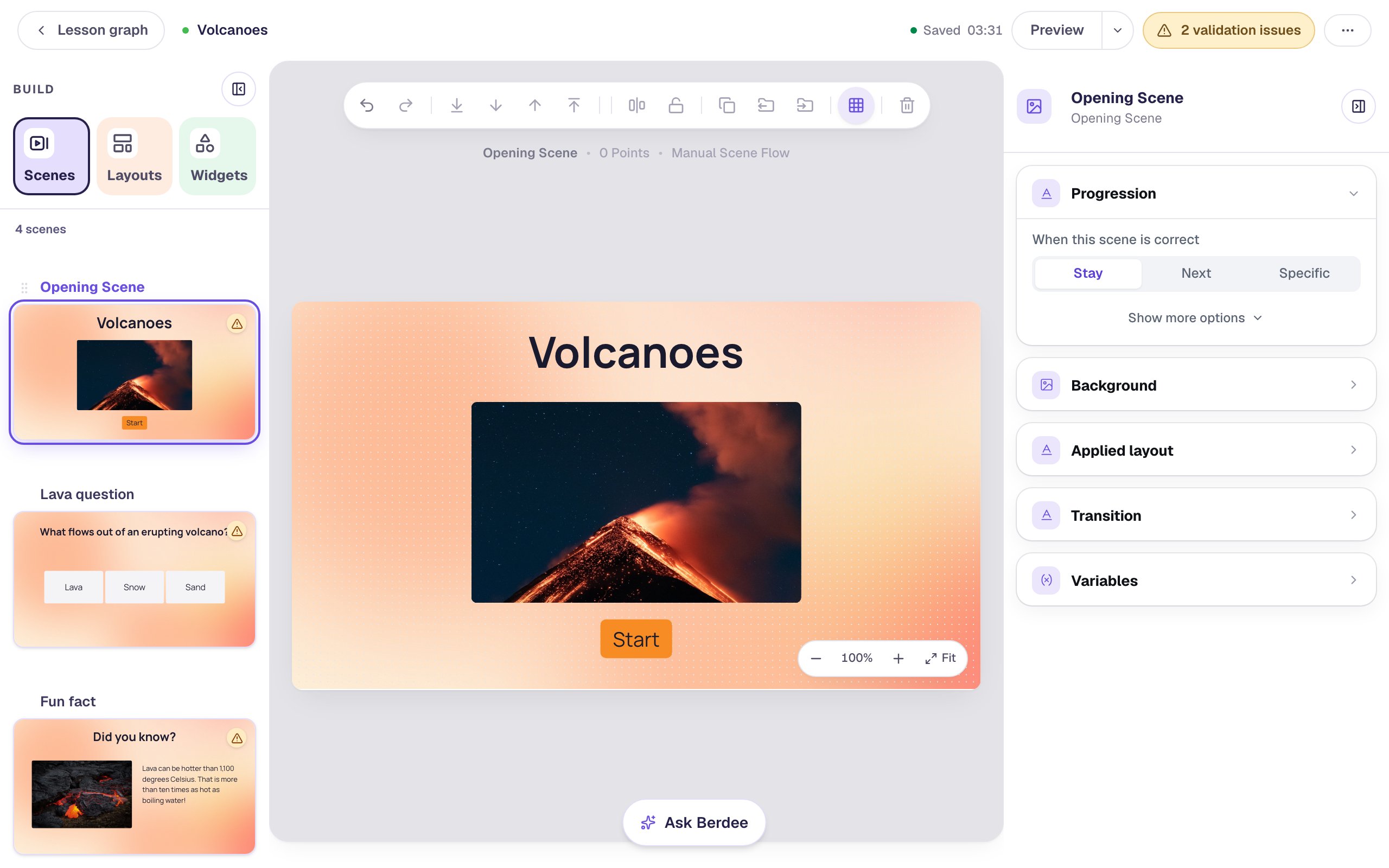
Look at the top bar, beside Preview. The yellow pill says 2 validation issues.

Each scene in the Scenes panel that has a problem also shows a small warning triangle in its corner, so you can see at a glance where the problems are.
The pill stays hidden on a brand-new activity until you add your first widget, so it doesn't greet you with a list of problems about an activity you haven't written yet.
Step 3: Open the list
Click the pill. The list opens under it, one row per problem, each with the scene it's on.
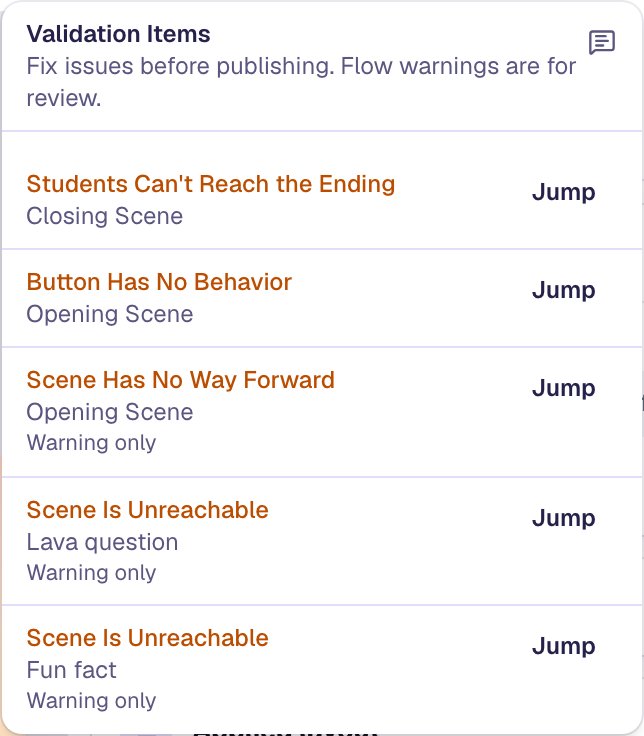
There are two kinds of rows:
- Issues are the problems the pill counts. (With only warnings left, it counts those instead, as in
1 flow warning.) They stop you assigning or publishing the activity. Here there are two: Students Can't Reach the Ending (nothing leads to the Closing Scene, so a student could never finish) and Button Has No Behavior (the Start button does nothing). - Warnings say Warning only under the scene name. They don't block anything, but they're worth reading, because they usually point at something a student would trip over. Here, Scene Has No Way Forward says students would be stuck on the title scene, and Scene Is Unreachable says no student would ever see Lava question or Fun fact.
Five rows, but only two slips. The Start button with nothing to do is behind four of them: it leaves students stuck on the title scene, so they never see the next two scenes, and never reach the ending. Fixing a cause clears every row it caused, so start with the row that names a specific thing to fix.
Step 4: Jump to the first problem
Click Jump on Button Has No Behavior. Berdee opens the scene it's about, here the Opening Scene, wherever you were in the activity.
Step 5: Give the Start button a behavior
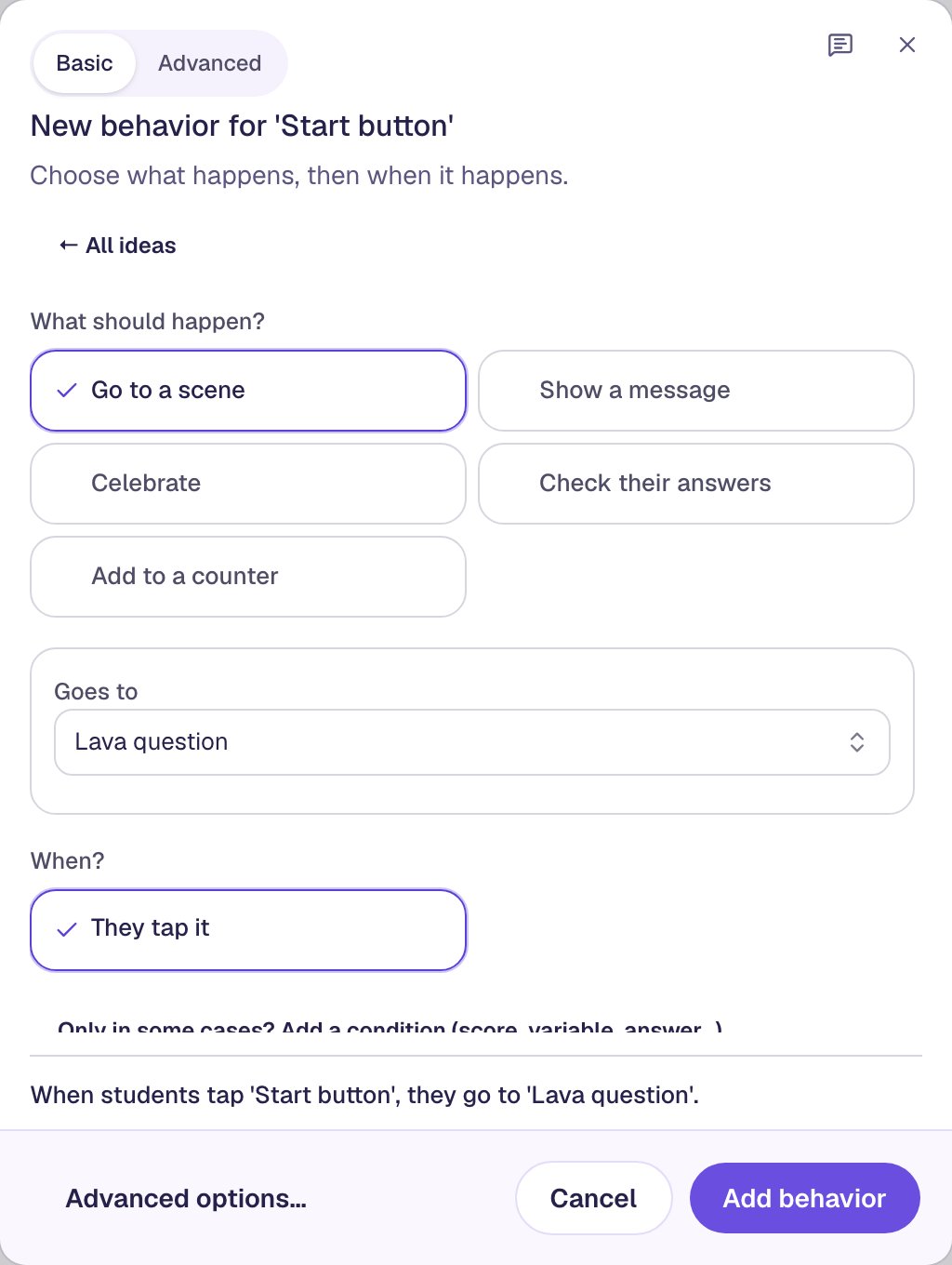
Click the Start button on the canvas, then click Behaviors on the small bar that appears over it. Choose Make this a "Next" button. Berdee fills in the behavior for you: Go to a scene, Goes to the next scene (Lava question), When? They tap it. The sentence at the bottom reads it back: "When students tap 'Start button', they go to 'Lava question'." Click Add behavior.
The pill now says 1 validation issue. Open it again: four rows have gone at once, because students can now get from the title scene to the question, and from the question to the fun fact. One new warning has taken their place.
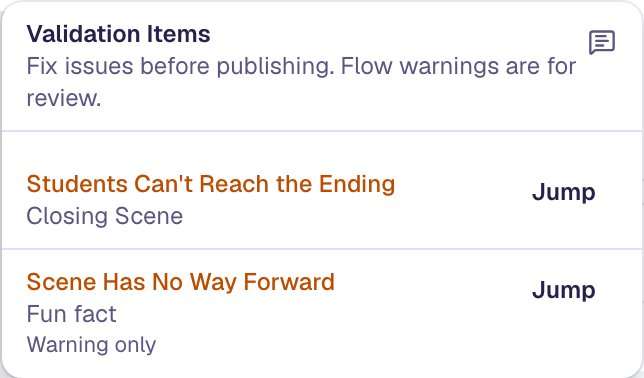
The activity still can't be finished, and the warning tells you why: the dead end has moved to Fun fact.
Step 6: Give the fun fact a way forward
Click Jump beside Scene Has No Way Forward.
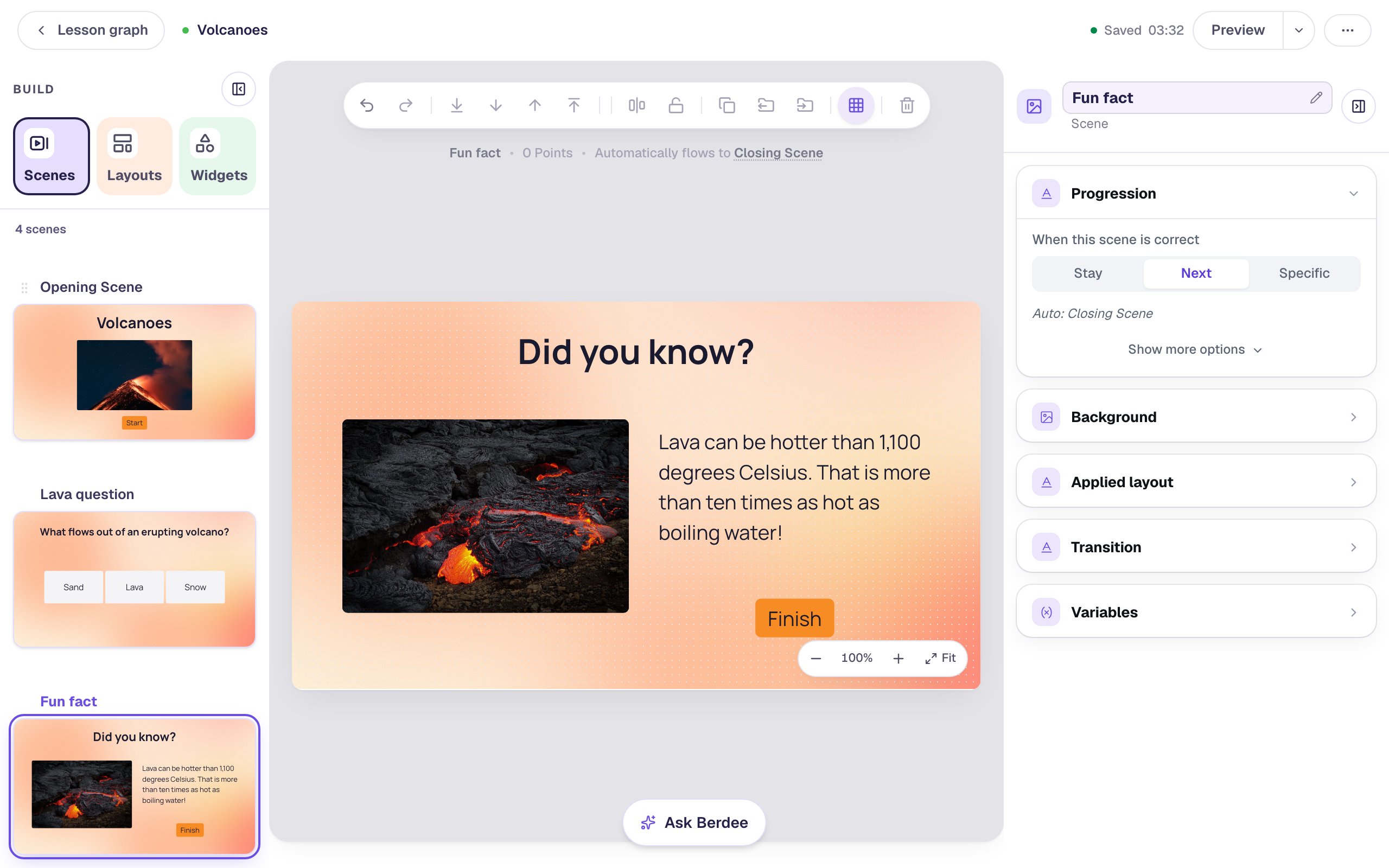
Under Progression, the scene already says Next, and the line under the canvas says it automatically flows to the Closing Scene. So why is it stuck? Next only fires when the scene is answered correctly, and a scene with no question in it is never "correct". A scene without a question needs a button.
Add a Button, label it Finish in ⚙ Configure, rename it Finish button, and put it under the fact. Then do what you did for Start: Behaviors, Make this a "Next" button. This time Goes to is the Closing Scene, the scene after Fun fact. Click Add behavior.
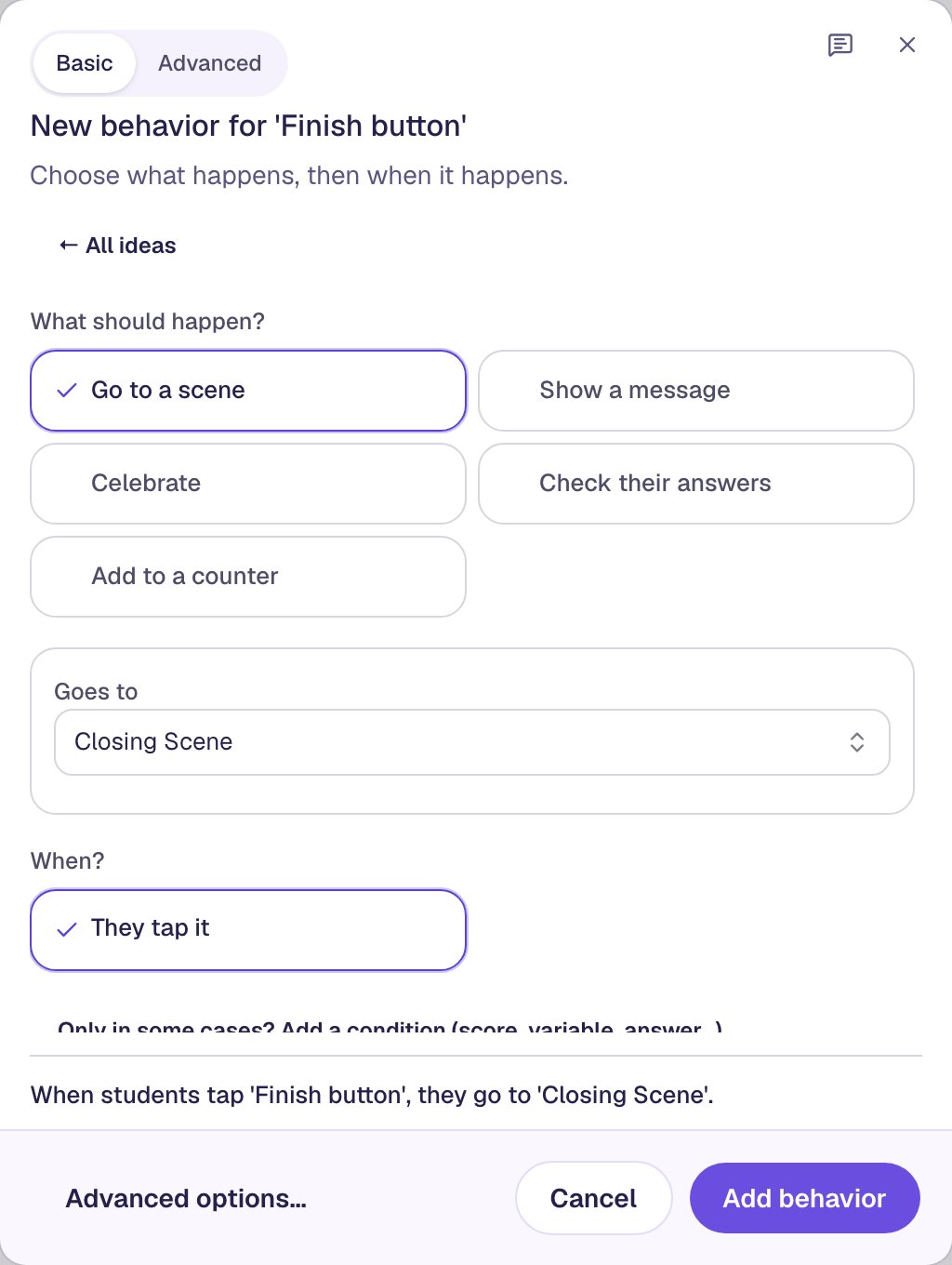
The pill is gone, and so are the warning triangles in the Scenes panel. Every scene now leads somewhere, and the Closing Scene can be reached.
Step 7: Play it through in Preview
An empty list means nothing is broken in the way the scenes connect. It can't tell you whether the activity teaches well, so play it the way a student would. Go back to the Opening Scene and click Preview.
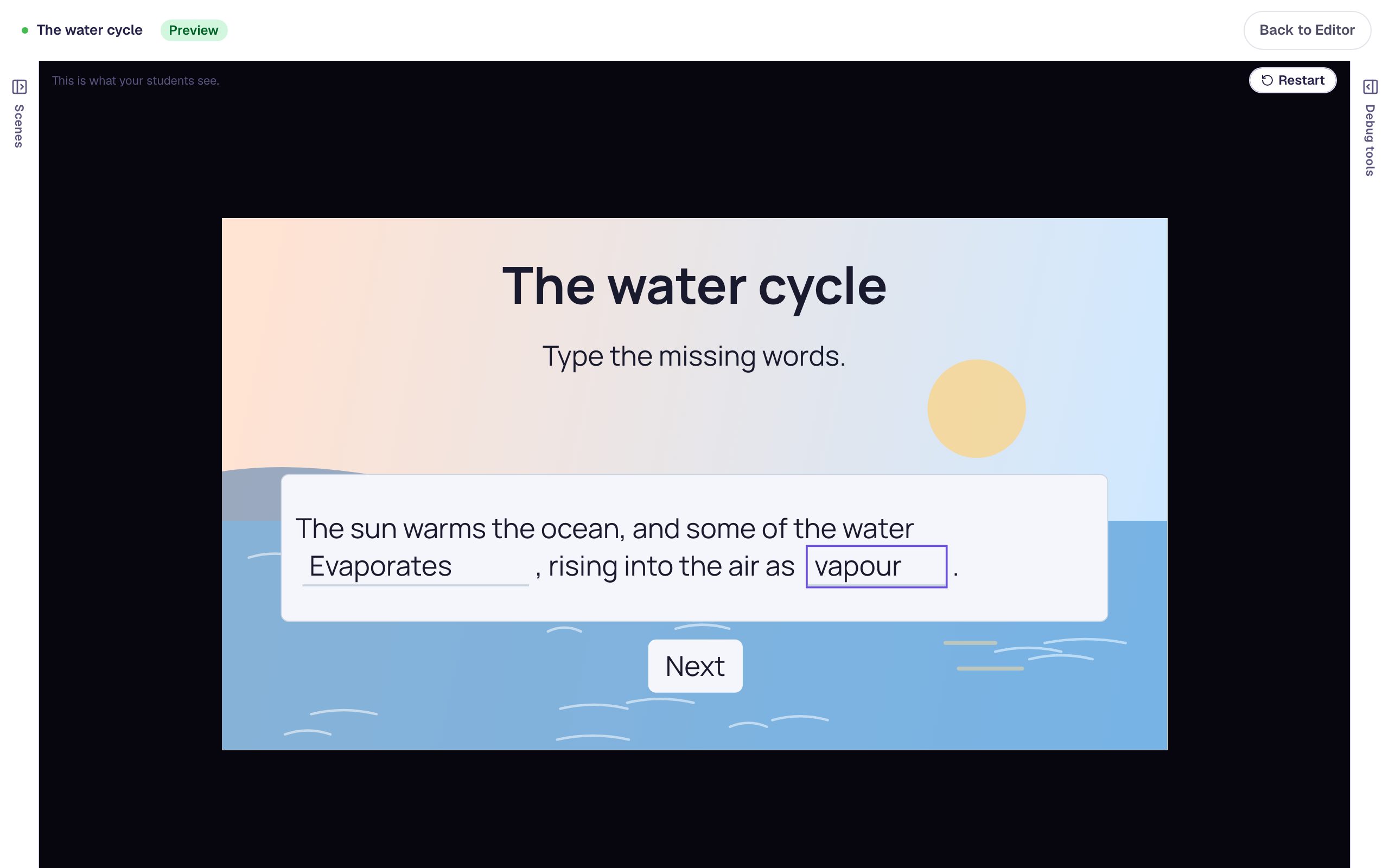
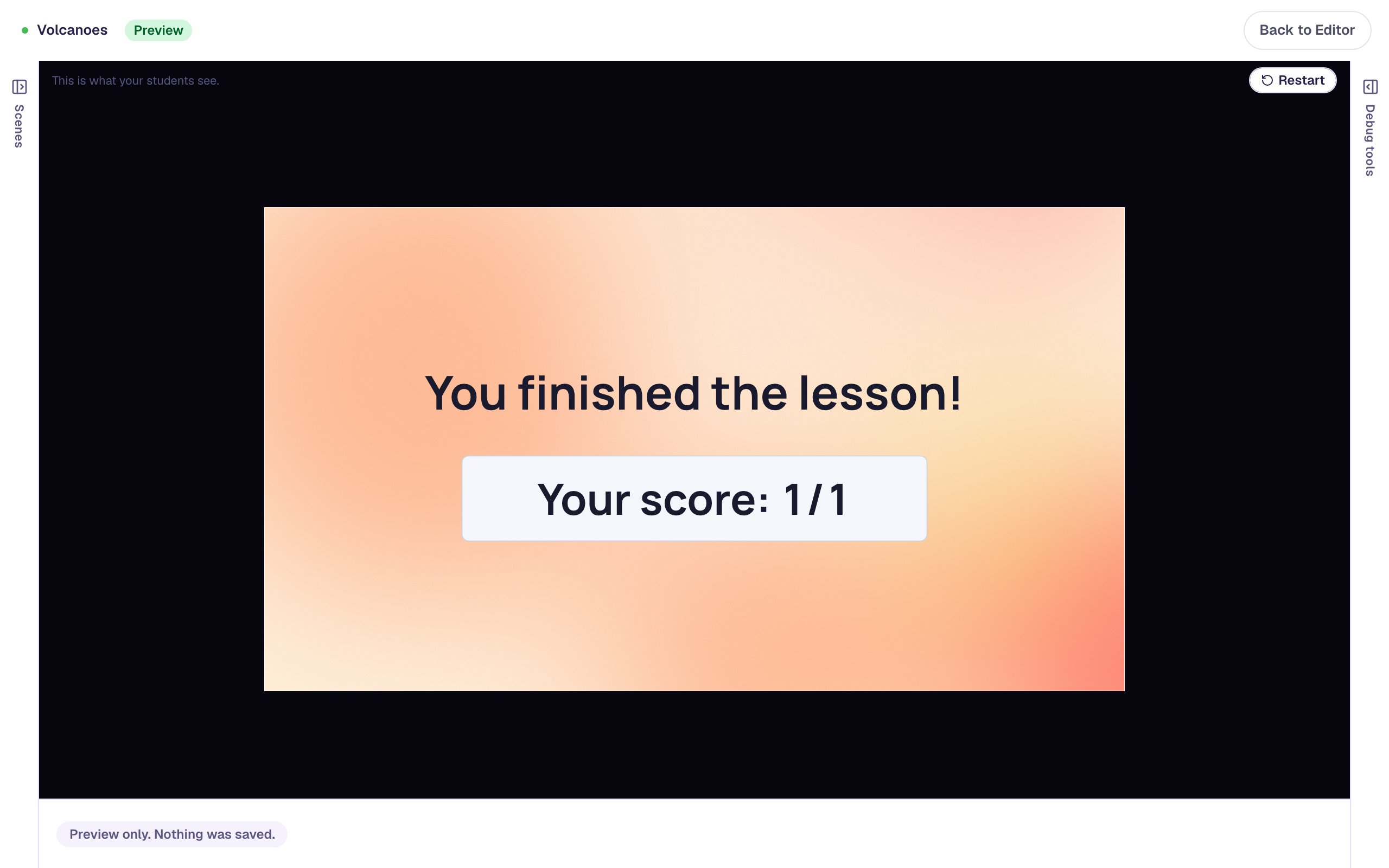
Press Start. On the question, tap Snow first: nothing moves on, because the scene waits for the right answer. Then tap Lava. The activity moves to the fun fact. Press Finish, and you reach the ending.
What you built
You built a three-scene activity about volcanoes:
- a title scene whose Start button goes to the question,
- a Multi Choice question that moves on when a student picks Lava, and
- a fun fact whose Finish button goes to the ending.
Along the way you used the validation list:
- The yellow pill counts issues: problems that stop you assigning or publishing. Rows marked Warning only don't block anything, but read them, because they often explain an issue.
- Jump takes you to the scene a row is about.
- One slip can cause several rows. Fix the cause, and every row it caused goes away.
- A scene with no question never moves on by itself. Give it a button.
When a button does something you didn't expect, rather than nothing at all, Preview's Debug tools can tell you why: see Find out why a button won't work in Preview.
Make this activity yours
Add the activity you just watched being built to your account, then change it for your class: your questions, your pictures, your colors.
Free to sign up, and you'll come straight back here. I have an account