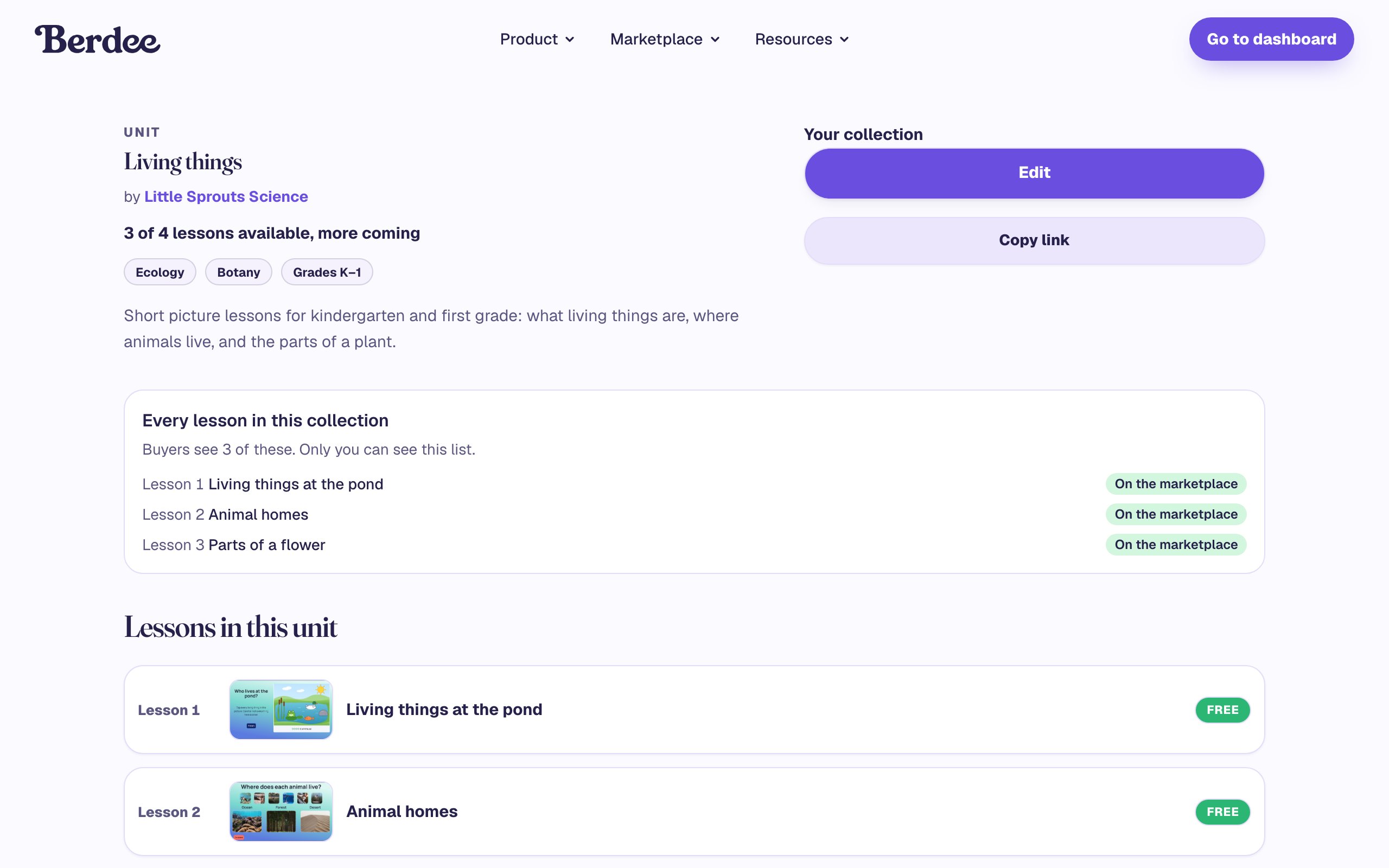
Publish an update to a marketplace activity
Fix an activity you've already put on the marketplace, check what changed since the version teachers have, and publish the new version with a short note they can read in its version history.
- Level
- Beginner
- Time
- About 8 min
- Steps
- 8
- Updated
- Nov 21, 2026
Version 2 of a listed "Weather words" activity, with a typo fixed, a new ending headline, and a release note that every teacher who owns it can read.
Get the finished activity
Skip straight to the result, or keep it open beside the steps. Add this tutorial's activity to your account and explore how it works in the studio.
Free to sign up, and you'll come straight back here. I have an account
An activity on the marketplace isn't frozen. When you fix a typo or improve a question, every teacher who added it gets the new version, and a short note tells them what changed. Nothing reaches them until you say so: the studio keeps saving your edits to your own draft, and you choose when the draft becomes the next version.
In this tutorial Ms. Alvarez updates her free Weather words activity, which she published in Publish a free activity to the marketplace. A teacher has pointed out a typo in the directions. You'll fix it, rewrite the ending's headline while you're there, check what changed since the version teachers have, publish version 2 with a note, and see that note the way a teacher who owns the activity does.
You need an activity that's already listed on the marketplace. Listing and publishing need the Studio Pro plan.
Step 1: Open your listed activity in the studio
Open Activities, click the activity, then Open in studio.
A listed activity shows its publish status in the top bar, next to the save status. Published v1 with a green check means teachers have exactly what you see.
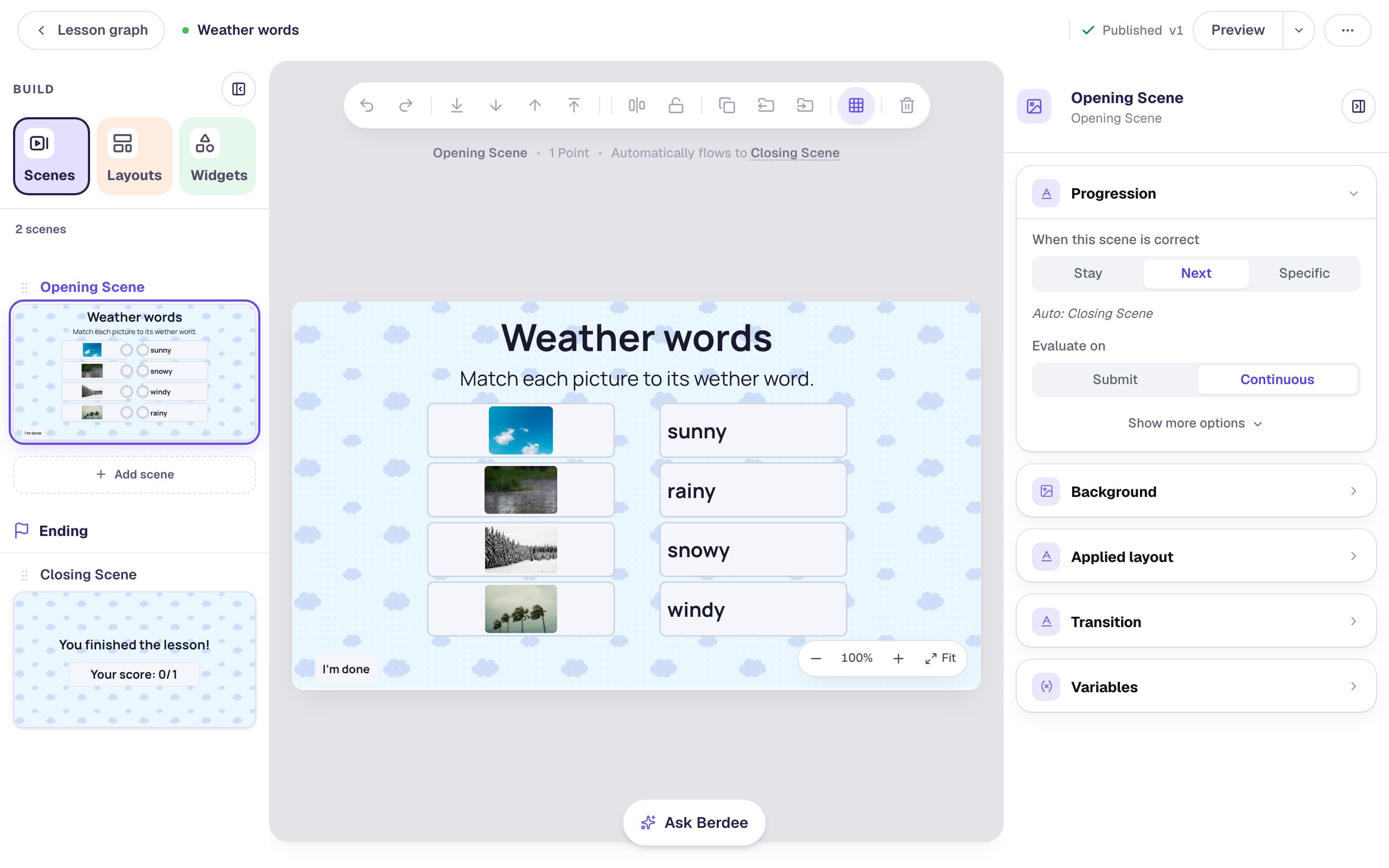

The status shows only on activities you've listed. On any other activity the top bar shows just the save status, because assigning an activity to your own class already gives your students a fixed copy.
Step 2: Fix the typo
Edit the activity the way you always do. Here, the directions under the title say wether instead of weather.
- Click the directions on the canvas, then double-click them to edit the words.
- Retype the line as
Match each picture to its weather word. - Press Esc, or click an empty part of the canvas.
The studio saves the change straight away, and the top bar changes to Unpublished changes since v1, with a Publish v2 button. Saving and publishing are two separate things. Your draft now has the fix; teachers still have version 1 and keep it until you publish.
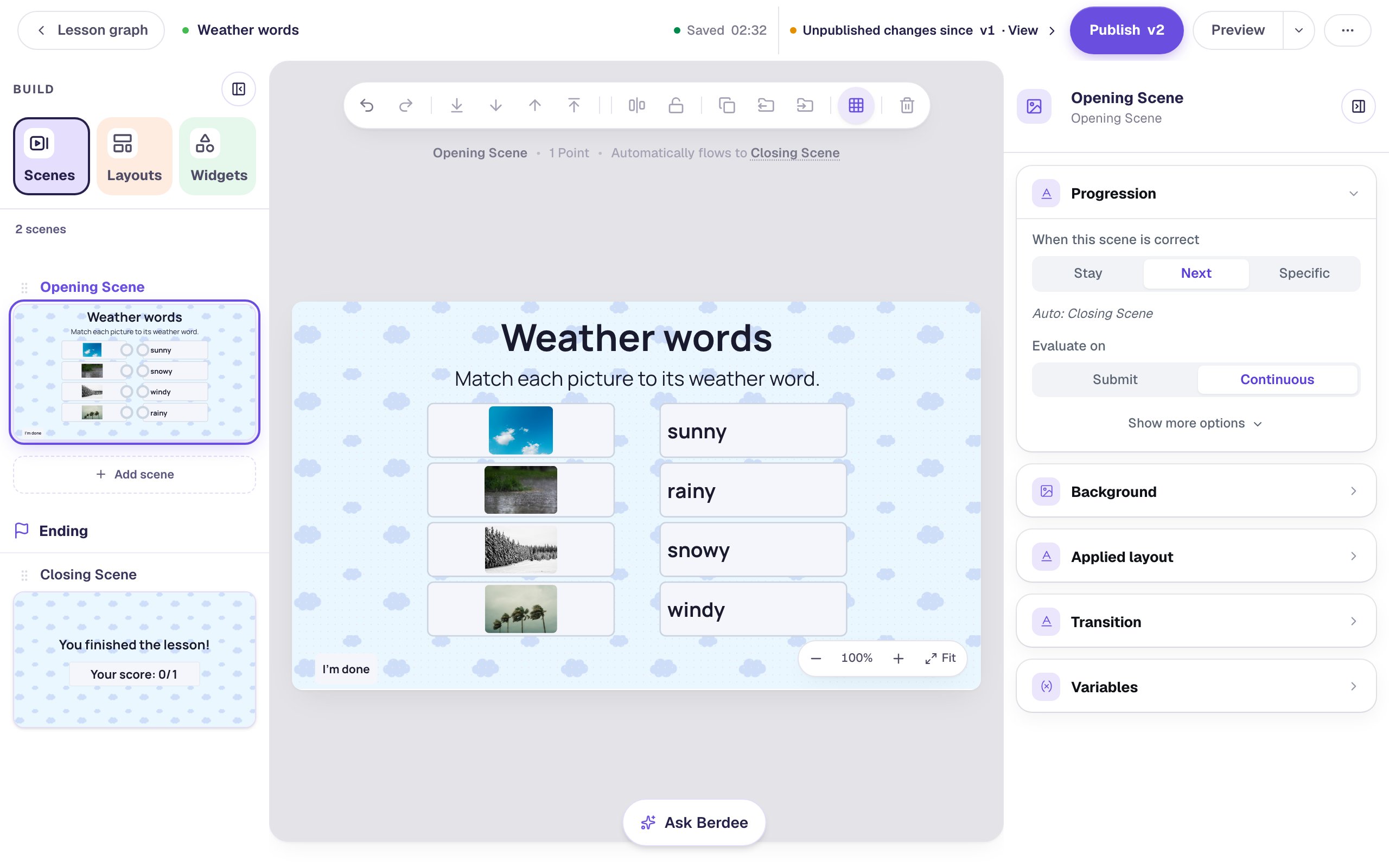
That means you can take your time. Fix one thing today, another tomorrow, and publish once when the activity is ready.
Step 3: Make any other changes
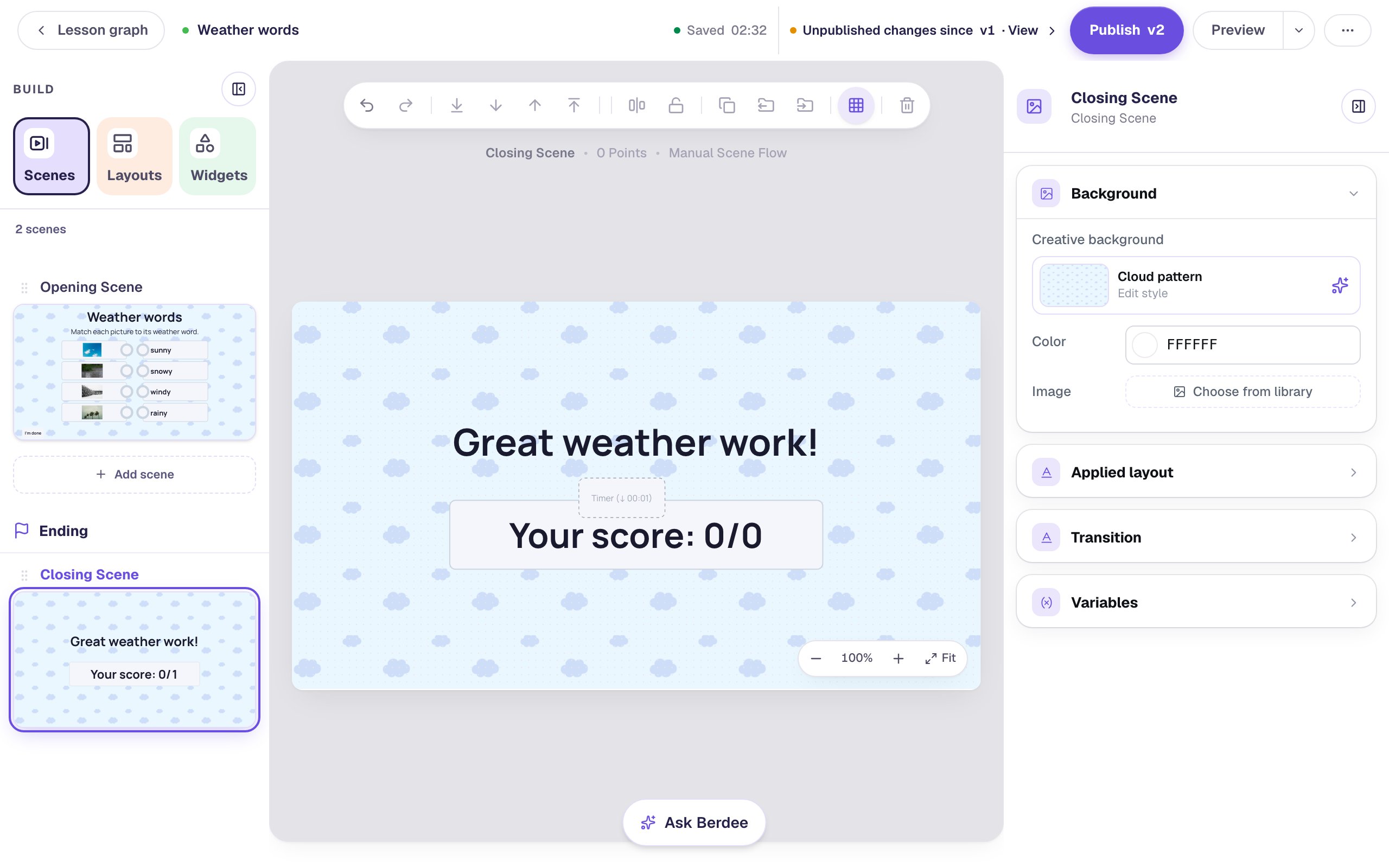
While the activity is open, Ms. Alvarez gives the ending a friendlier headline.
- Click Scenes in the left panel, then Closing Scene.
- Double-click the headline, You finished the activity!, and type
Great weather work! - Click an empty part of the canvas.
Step 4: Check what changed since v1
Before you publish, look over everything you changed since the version teachers have. It's easy to forget a half-finished experiment.
Click Unpublished changes since v1 · View in the top bar. History opens, starting from the version you last published.
The timeline on the right lists each saved change, newest first, down to the entry marked v1. Under the preview, Recorded changes since v1 sums up what version 2 will add: here, the ending headline and the directions.
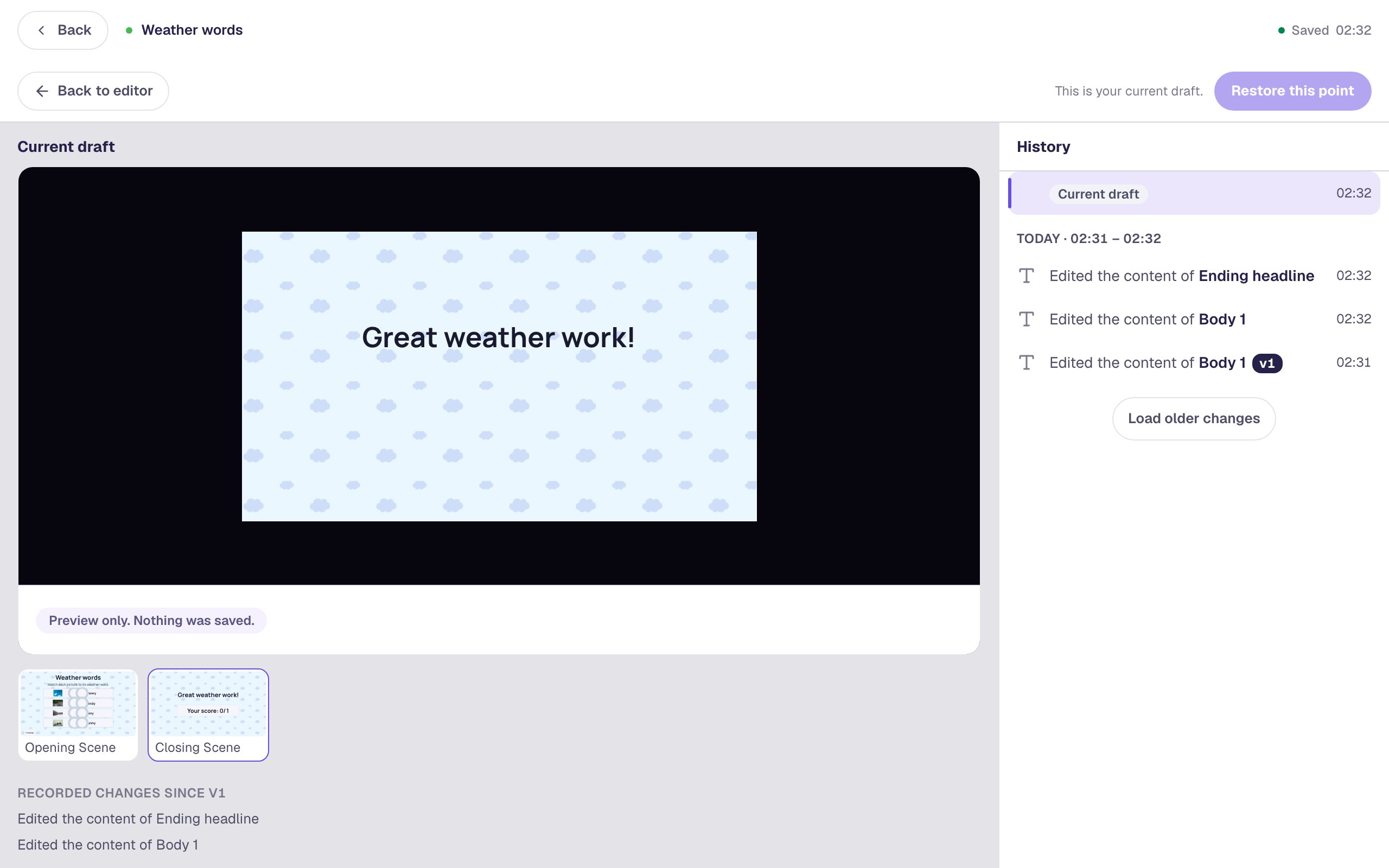
If something on the list shouldn't go out, go back and undo it, or restore an earlier point. Restoring changes only your draft, never what teachers have. When the list looks right, click Back to editor.
Step 5: Open Publish v2
Click Publish v2 in the top bar. Nothing is published yet: the window that opens is a last check.
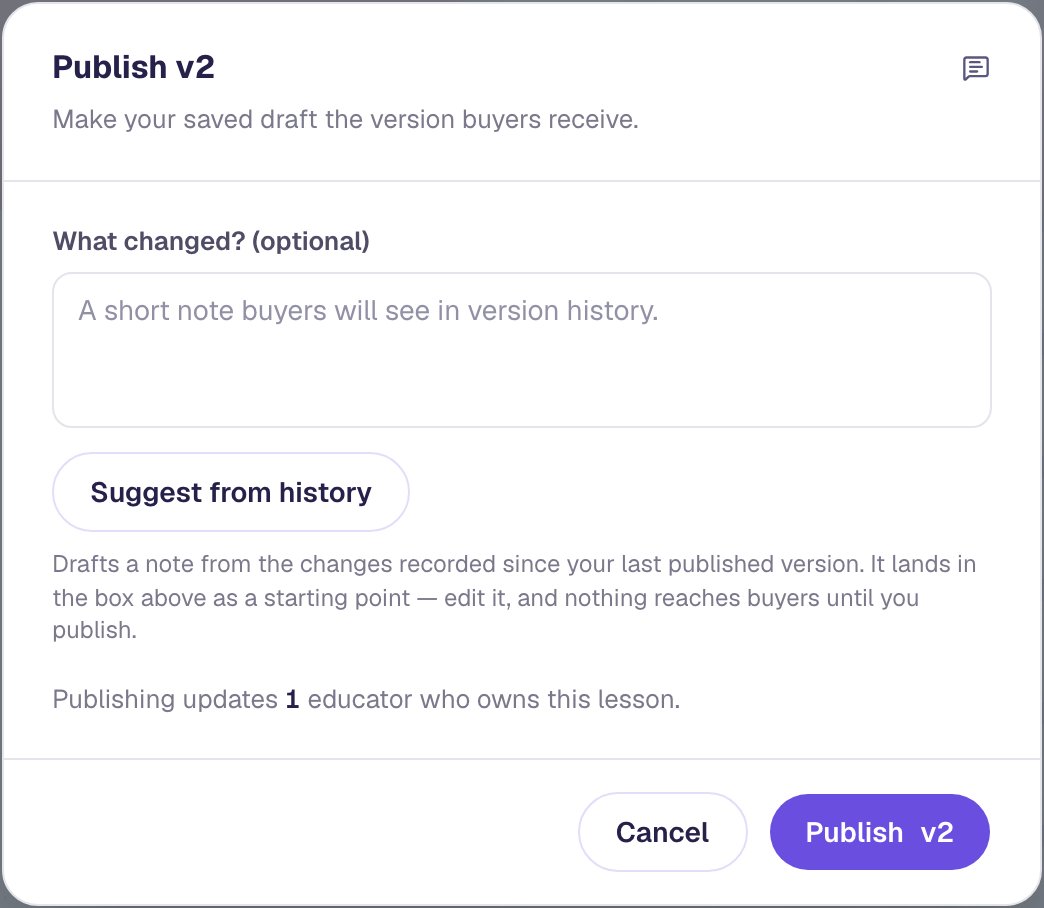
Publishing updates 1 educator who owns this activity counts the teachers who added your activity to their account. Mr. Okafor added Weather words to his account for free, so this update reaches him.
Step 6: Write what changed
The What changed? note is optional, but it's how teachers who own your activity decide whether to take a closer look. Keep it to one sentence about what they'll notice.
- Click Suggest from history. Berdee drafts a note from the changes listed in Step 4 and puts it in the box.
- Read the draft, then rewrite it in your own words. Ms. Alvarez's draft read Edited the content of Ending headline and Edited the content of Body 1, which names her widgets rather than what a teacher would notice. She replaces it with
Fixed a typo in the directions and gave the ending a new headline.
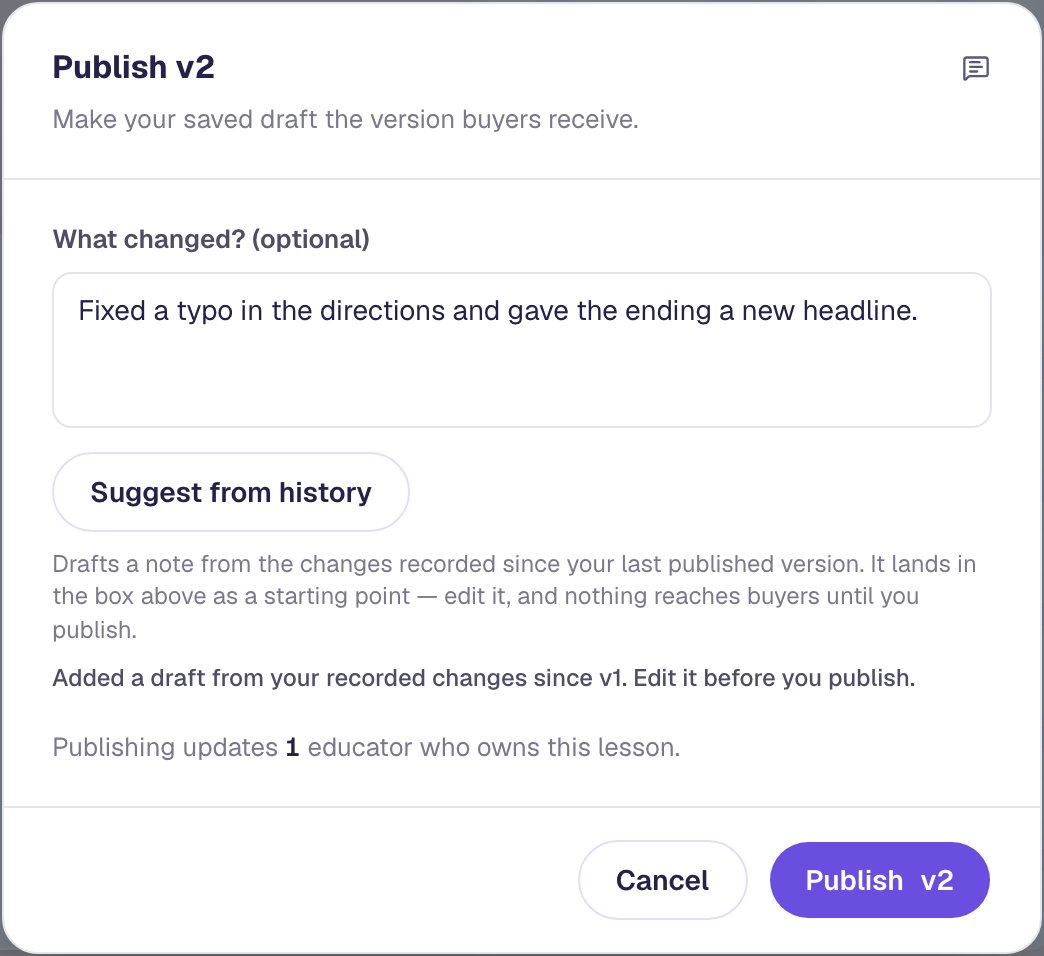
The suggestion uses your widget and scene names, which teachers never see until you publish them. Naming widgets for what they do (Directions rather than Body 1) makes the draft closer to something you can send as it is: see Widgets and Widget Settings.
Step 7: Publish
Click Publish v2 in the window. It closes, and the top bar changes to Published v2 with a green check.

From now on, every teacher who owns the activity gets version 2. They get a notification in Berdee, and an email, but at most one email a day per activity: if you notice another typo and publish v3 an hour later, they're notified in Berdee without a second email.
Students who are already working through an assigned copy keep the version they were assigned, so nobody's activity changes halfway through. Teachers move their class to the new version when they're ready, as in Update an activity your students already have.
Step 8: See the update the way teachers do
Mr. Okafor opens Weather words from My library on the Marketplace page. On its page, he expands Version history.
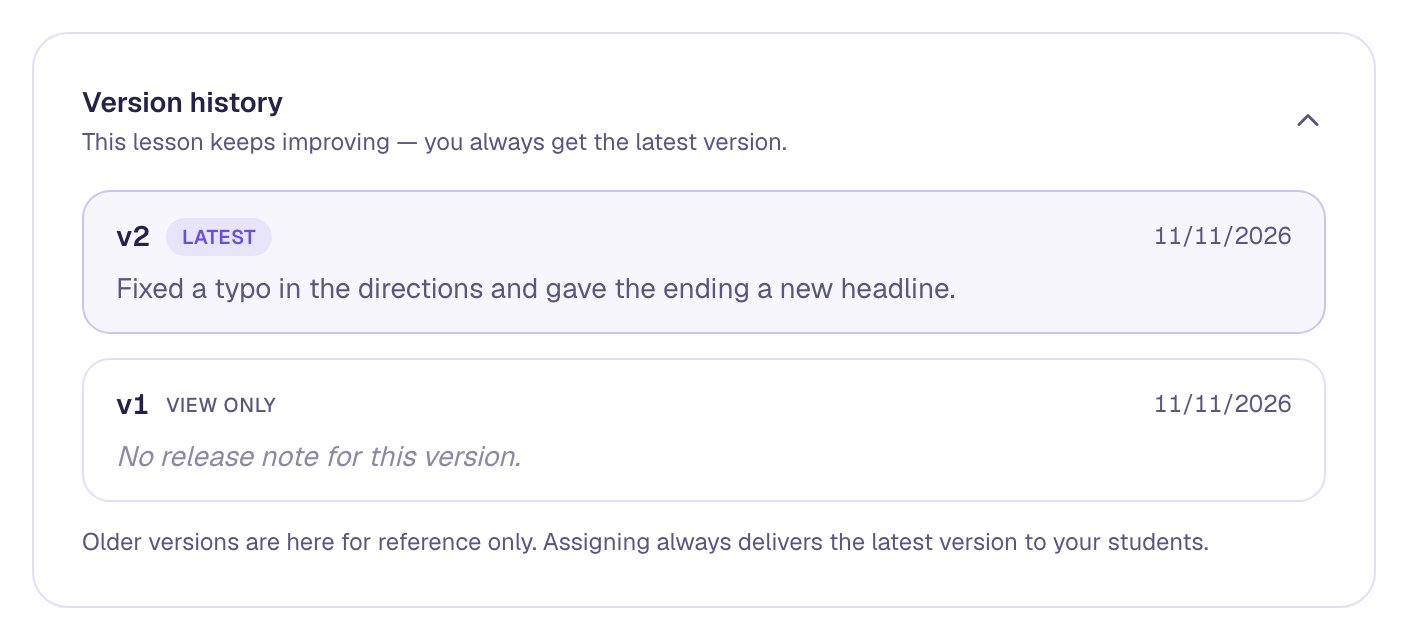
v2 is marked Latest: it's the version he assigns from now on. Older versions stay in the list, marked View only, so teachers can see how the activity has changed.
What you built
An updated marketplace activity:
- Weather words version 2 has the typo fixed and a new headline on the ending.
- You checked every change since v1 in History before publishing.
- Teachers who own the activity get version 2, and read Fixed a typo in the directions and gave the ending a new headline. in its version history.
The same steps work for bigger changes: a new scene, a reworded question or a better picture. Edit freely, check Unpublished changes since vN · View before you publish, and write one sentence for the teachers who'll get it.
Make this activity yours
Add the activity you just watched being built to your account, then change it for your class: your questions, your pictures, your colors.
Free to sign up, and you'll come straight back here. I have an account