Make a picture rain game that speeds up
Build a Rain Game where pictures of animals fall and students tap the ones that live in the sea. Add picture items with alt text, make the rain speed up with every catch, and end the round when a sea animal gets away.
- Level
- Beginner
- Time
- About 15 min
- Steps
- 8
- Updated
- Nov 21, 2026
A sea-animals game where eight animal photos fall down a deep-blue game area, every catch makes the rain fall faster, and the round restarts if a sea animal reaches the bottom.
Get the finished activity
Skip straight to the result, or keep it open beside the steps. Add this tutorial's activity to your account and explore how it works in the studio.
Free to sign up, and you'll come straight back here. I have an account
Young students who can't read yet can still sort the world into groups, as long as the game uses pictures instead of words. A Rain Game can drop photos as easily as words. Add a little pressure by making the rain speed up with every right answer, and a simple sorting task becomes a game students want to play again.
In this tutorial you'll build "Sea animal rain". Eight animal photos fall down the screen: a clownfish, an octopus, a crab and a sea turtle, mixed in with a cow, a lion, a rabbit and an elephant. Students tap the animals that live in the sea. Each catch makes the rain fall a little faster. If a sea animal reaches the bottom, the round ends with Try again!
If you've never built a Rain Game, Make a rain game where students tap the nouns covers the basics with words. This tutorial moves quickly through the parts that one already explains.
Step 1: Set the scene
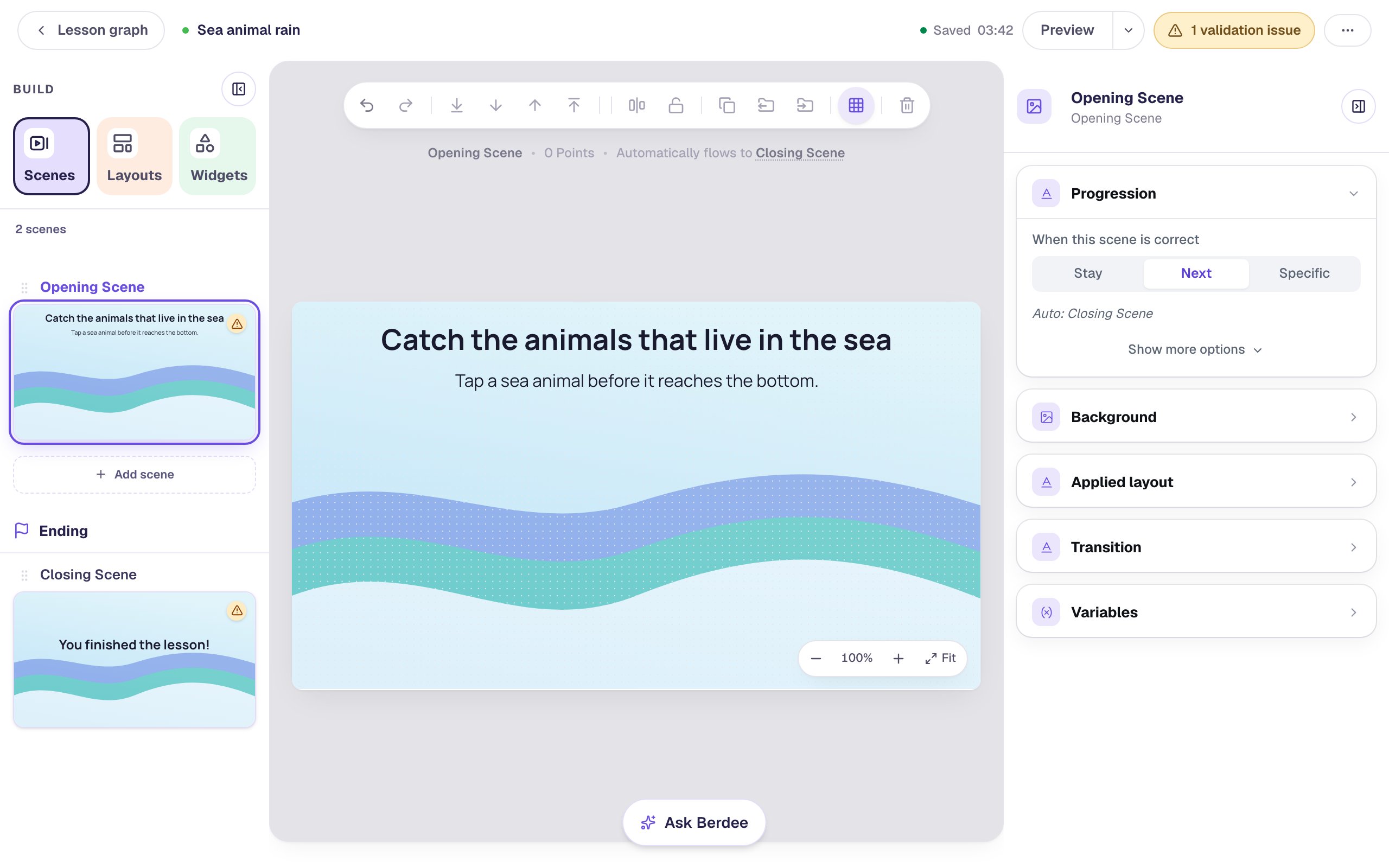
Start from scratch: click New activity, name it Sea animal rain, then choose A blank activity and Build the first scene.
With nothing selected, open Background, click Choose a style, pick Nature, then Layered waves, and click Apply background. Give the Closing Scene the same background, so the ending matches.
Back on the Opening Scene, add a Heading that says Catch the animals that live in the sea (Font Size 40) and, under it, a Body that says Tap a sea animal before it reaches the bottom. (Font Size 24).
Step 2: Add the Rain Game
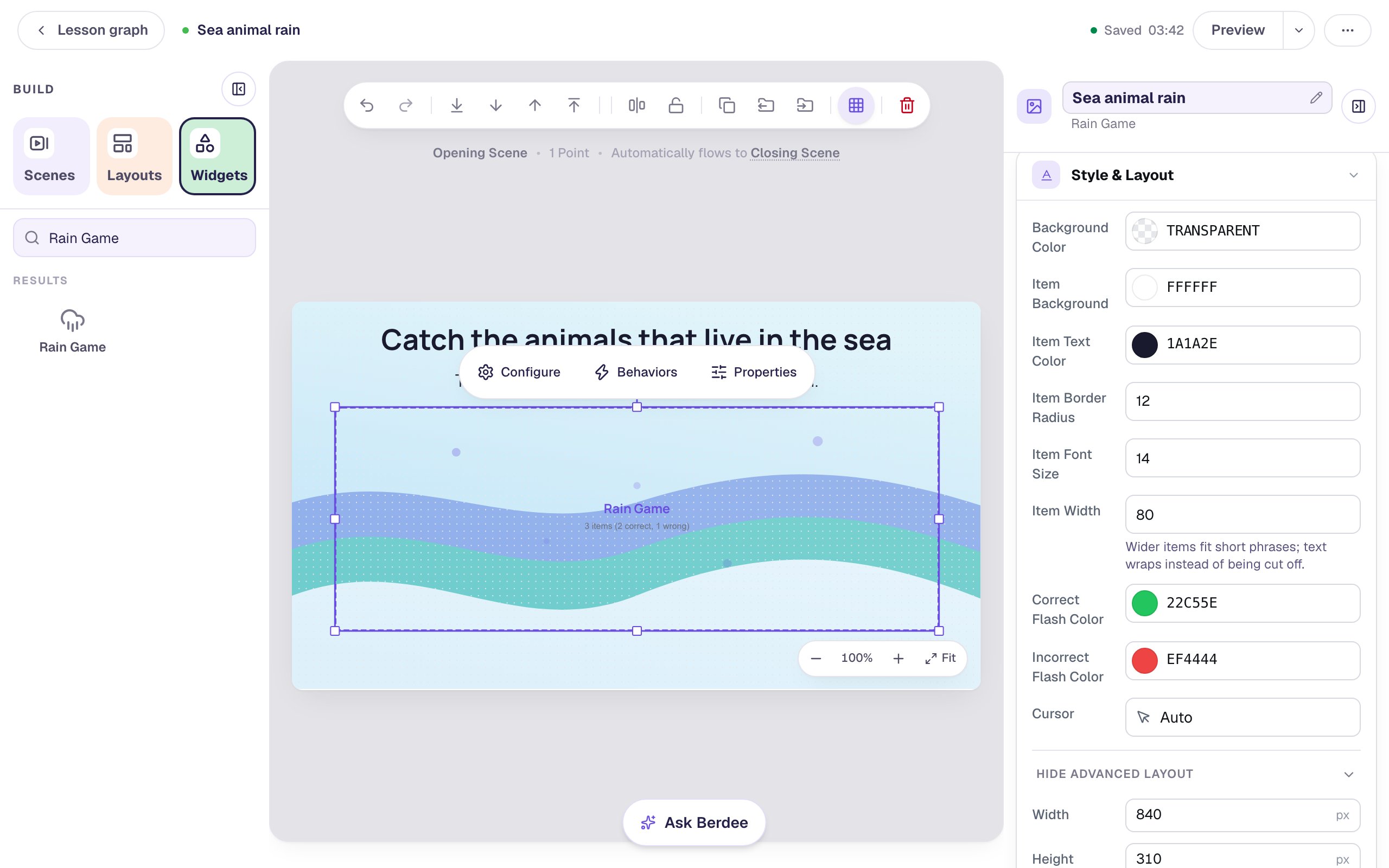
In Widgets, search for Rain Game and click it. Rename it Sea animal rain by clicking its name at the top of the properties panel.
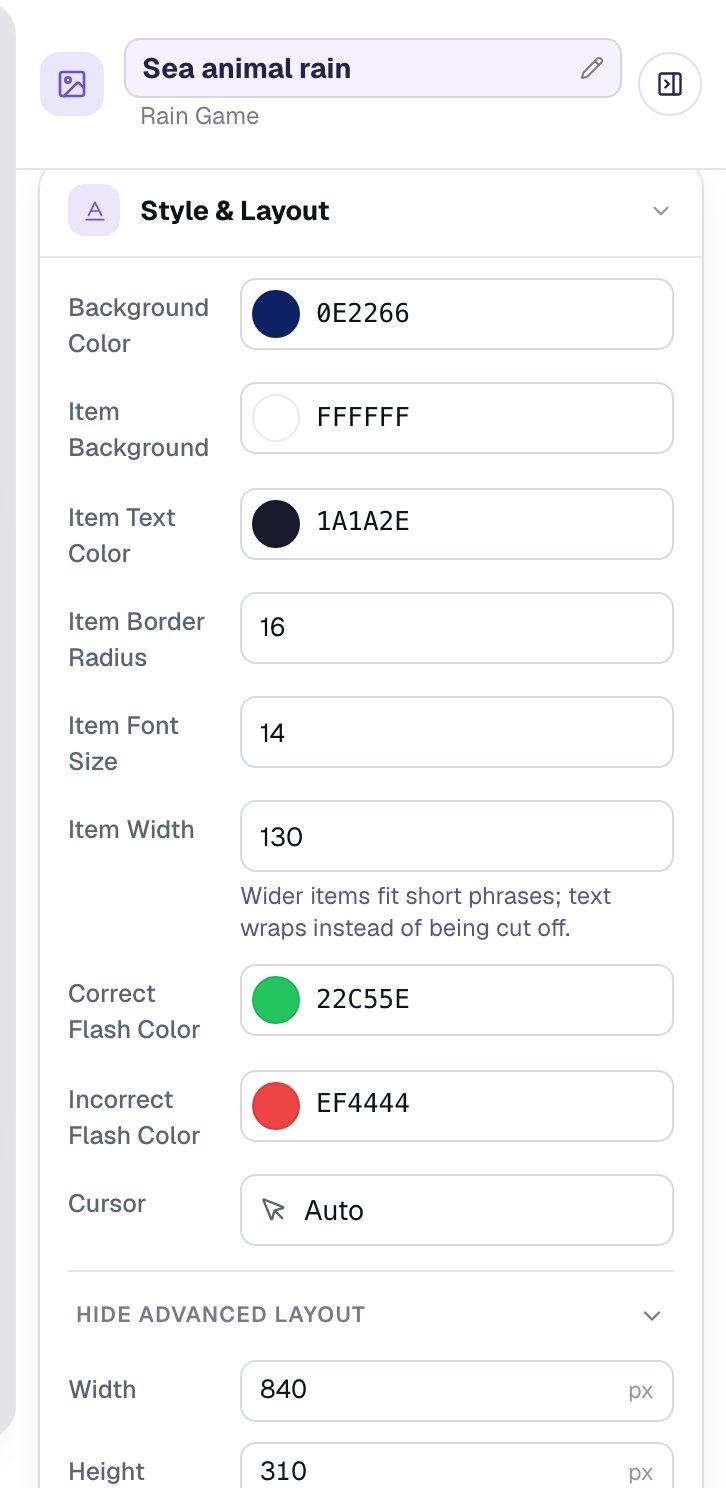
In Style & Layout, click Show advanced layout and set Width to 840 and Height to 310. Then drag the game so it sits under the text.
Step 3: Add the pictures and describe each one
Click ⚙ Configure above the game. Under Content, Rain Items starts with three words. Remove all three with their trash icons.
Now click Image. The image picker opens: search the stock photos for clownfish and pick a clear, close-up photo. Then click the new item's Alt text box and type An orange and white clownfish.
Do the same for the other seven animals, in this order, so sea and land animals alternate:
- a cow:
A cow with horns - an octopus:
An octopus - a lion:
A lion with a big mane - a crab:
A crab - a rabbit:
A rabbit on the grass - a sea turtle:
A sea turtle swimming - an elephant:
An elephant
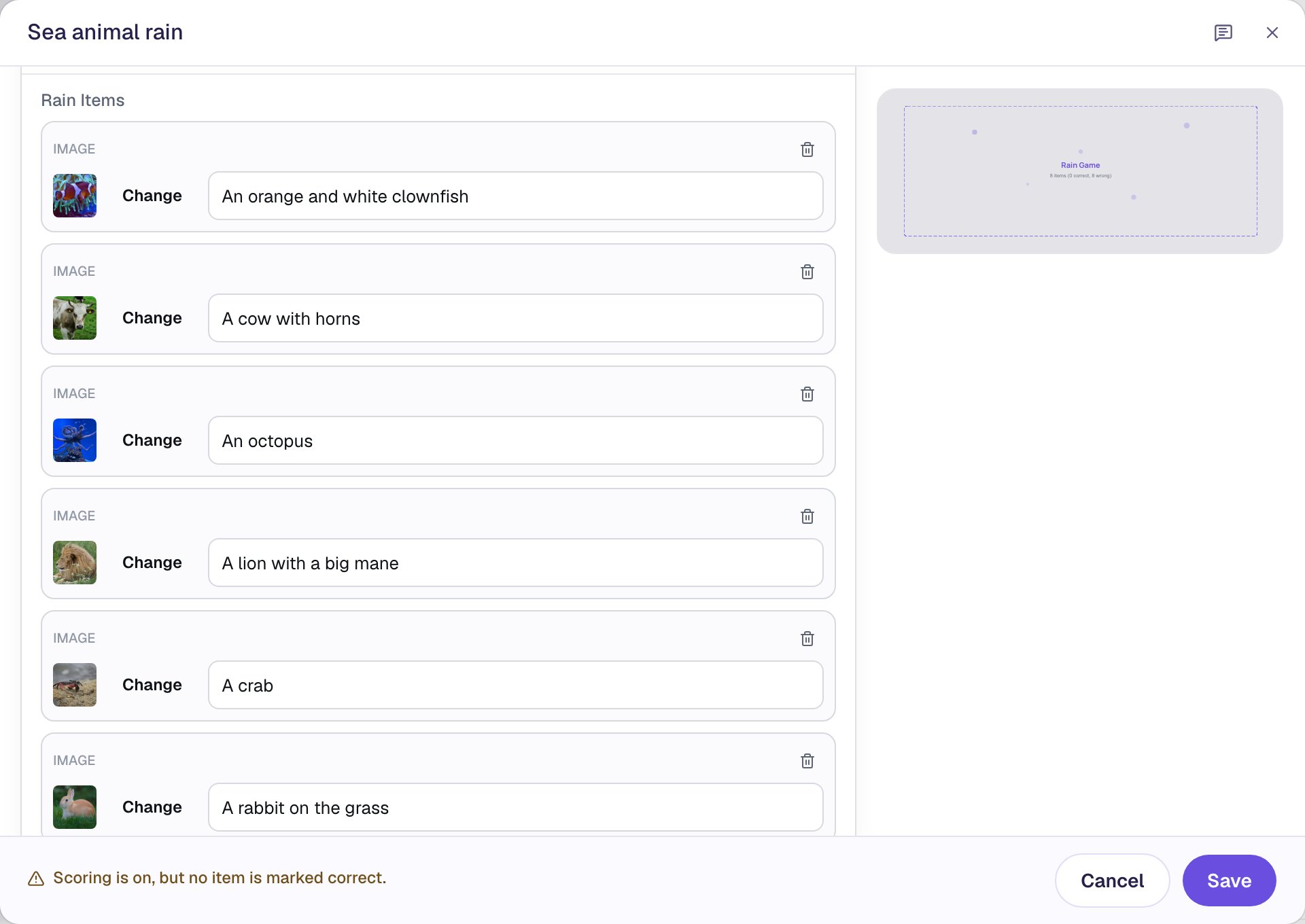
The alt text matters twice. A screen reader reads it out, so a student who can't see the photo can still play. The studio also uses it to name the picture everywhere else in the game's settings, as you'll see in the next step.
Choose photos that show one animal clearly, filling most of the frame. In the game each picture falls on a small card, about as tall as a thumb, so a whole reef or a herd of cows turns into a blur.
Step 4: Mark the sea animals
Scroll up to Scoring in the same window. Correct items shows a chip for every picture, named by its alt text. A chip with a tick counts as correct.
Click the chips for the clownfish, octopus, crab and sea turtle so they show a tick, and make sure the cow, lion, rabbit and elephant stay unticked.
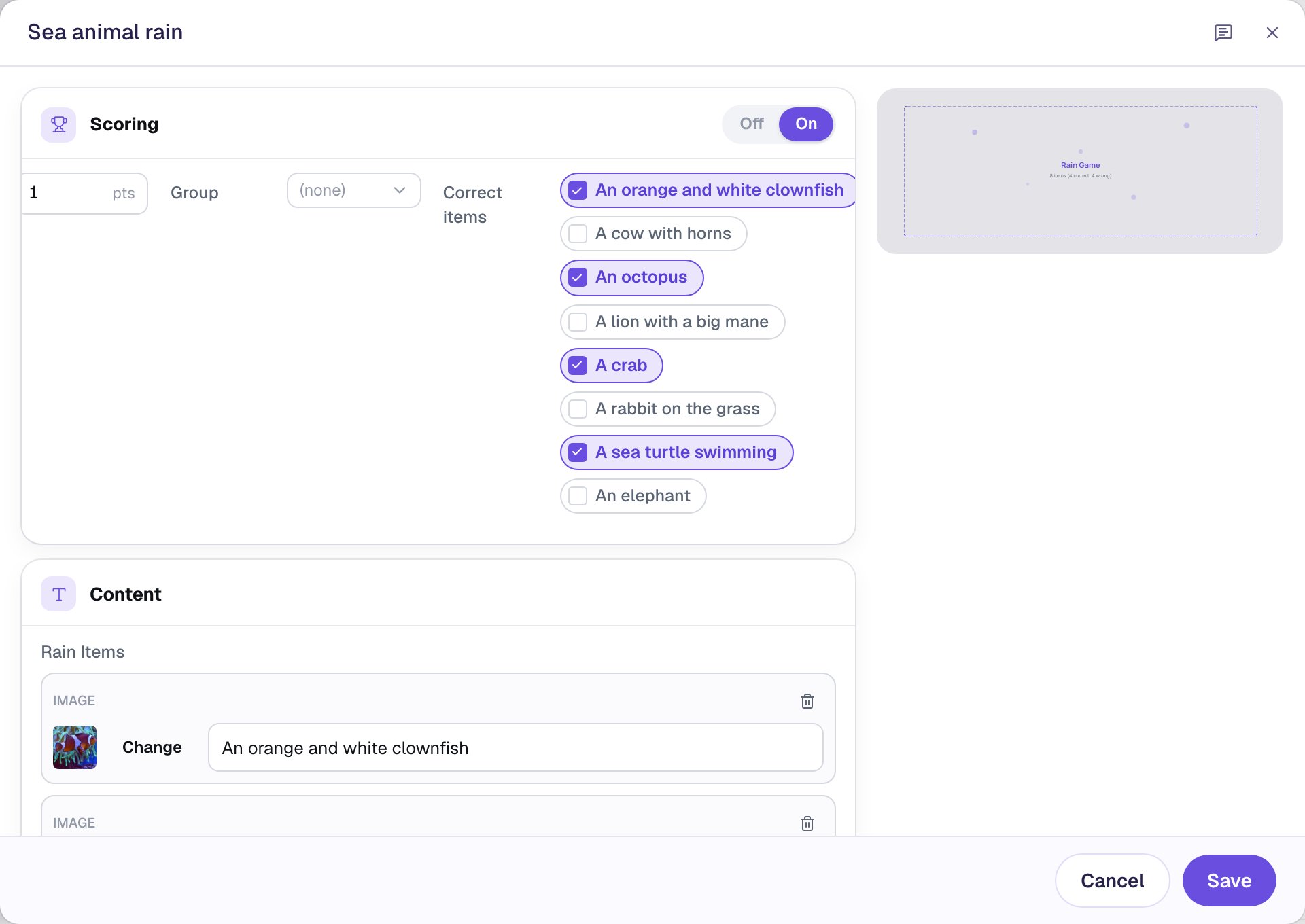
A Rain Game is graded all or nothing. A student earns its point only by catching every sea animal without tapping a single land animal.
Step 5: Make it speed up
Scroll down to the settings under the pictures. Start slowly:
- Fall Speed (px/s) to
50, half the default, so students have time to look at each picture. - Spawn Interval (ms) to
1400, so a new picture appears about every second and a half. - Lanes to
5, so the pictures fall in five columns with room between them.
Then turn on Speed Up (Fall) and choose On Correct Select. Every sea animal a student catches makes the rain fall 15% faster. With four sea animals, the last one falls at about 80 px/s instead of 50. That's fast enough to feel exciting, but still fair for young players.
Over Time is the other choice: the rain speeds up by 5% every second, whatever the student does. Either way the speed never goes past three times the starting Fall Speed. Speed Up (Spawn) works the same way for how often new pictures appear. Leave it off here, so there are never too many pictures on screen at once.
Step 6: End the round when one gets away
Under End Conditions, keep All correct selected ticked: catching the last sea animal ends the round with Great job! Tick Correct missed too, so a sea animal that reaches the bottom ends the round with Try again! Untick Incorrect selected. A tap on a land animal still flashes red and costs the point, but it doesn't stop the game.
Set Repeat Mode to No Repeats, so each picture falls once.
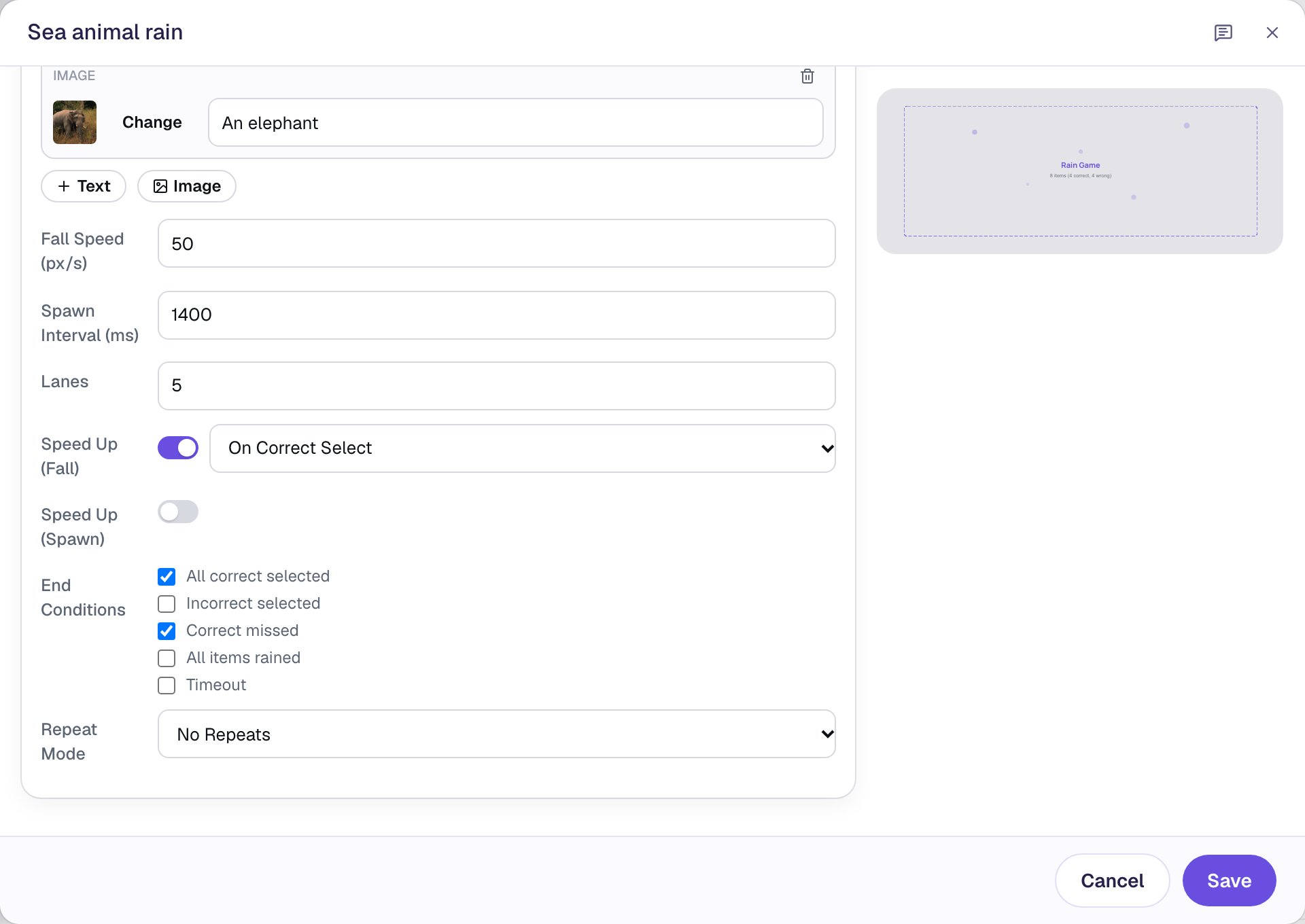
With No Repeats, a sea animal that falls past can never be caught, so the round couldn't be won anyway. Correct missed ends it straight away and shows the student what happened, instead of leaving them waiting for pictures that will never come.
Click Save.
Step 7: Give it a deep-sea look
With the game still selected, open Style & Layout in the properties panel. Set Background Color to a deep blue (#0e2266), the water the animals fall through. Set Item Width to 130, so each photo card is wide enough for a landscape photo, and Item Border Radius to 16 to round the cards.
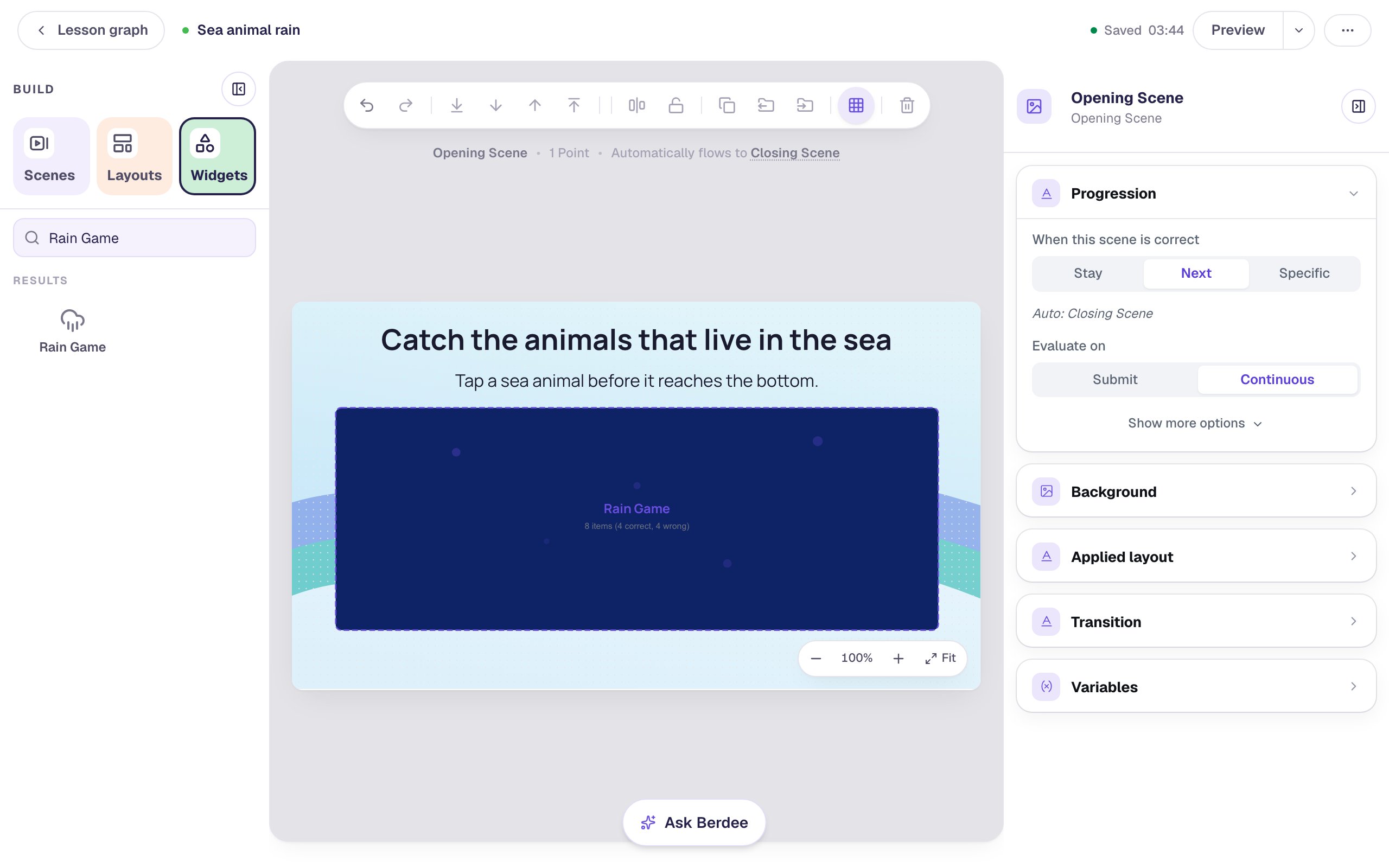
Finally, click an empty spot on the scene. Under Progression, click Show more options and set Advance delay to 2500 ms, so students see Great job! for two and a half seconds before the activity moves on.
Step 8: Try it as a student
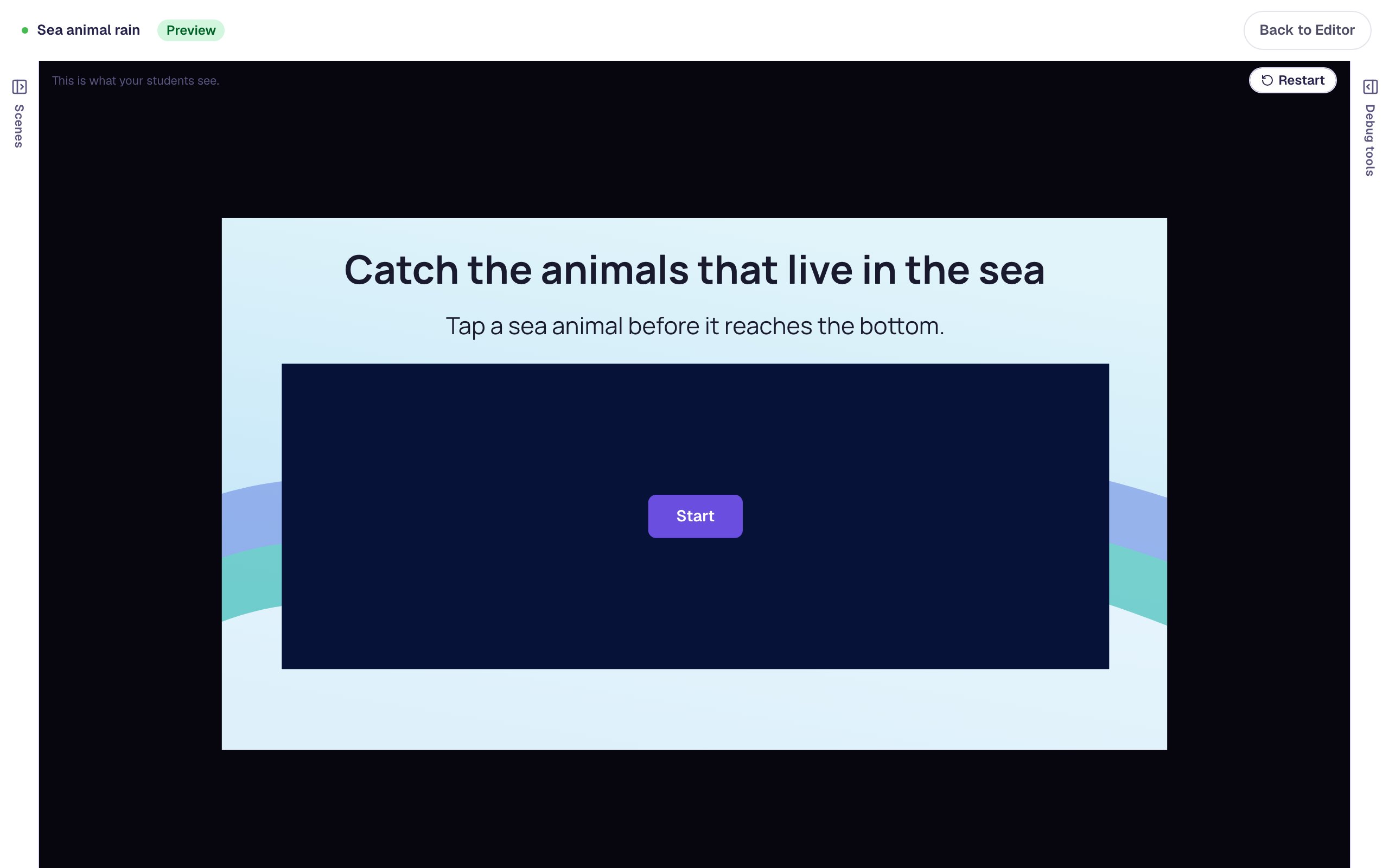
Click Preview. The game waits behind a Start button.
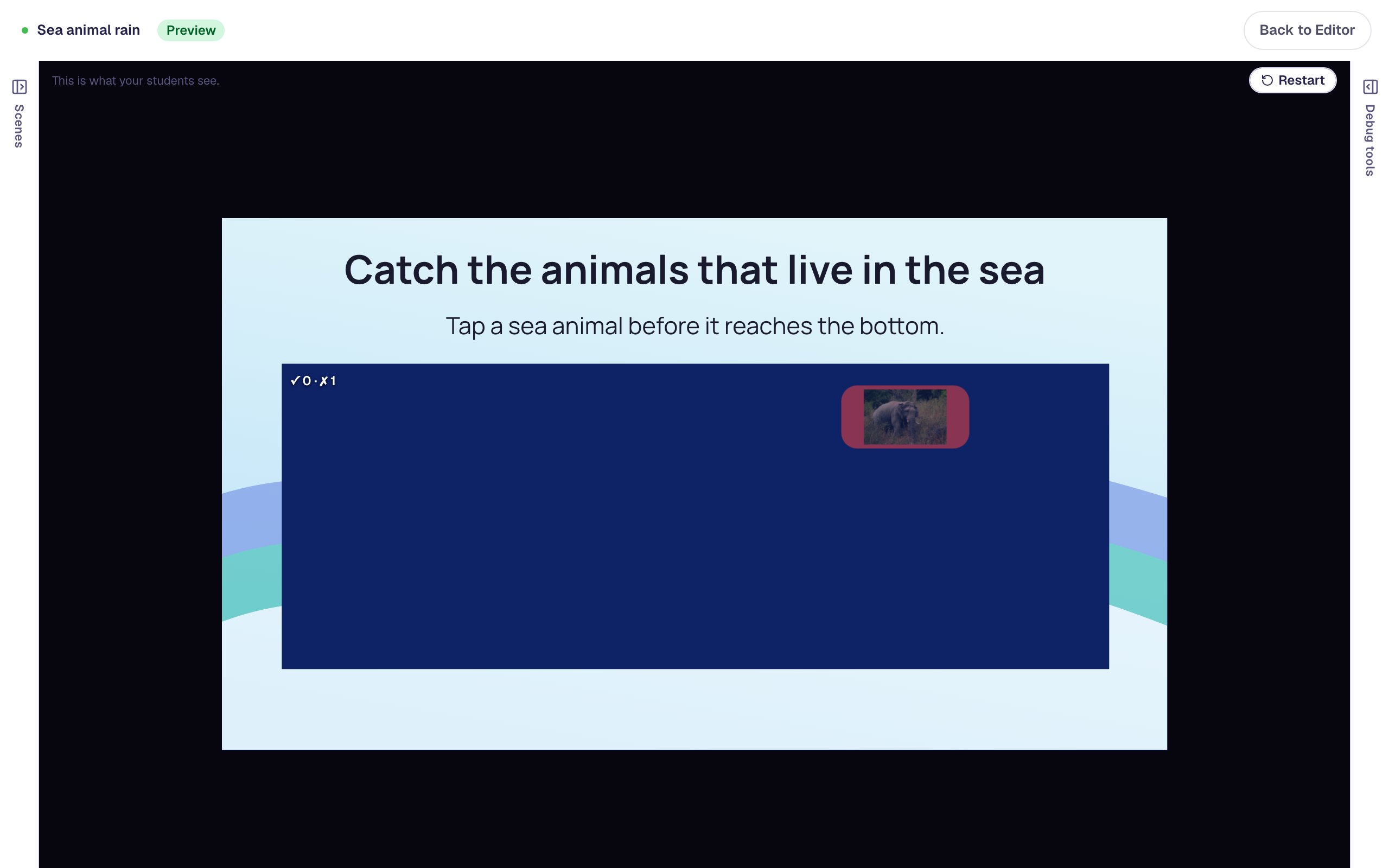
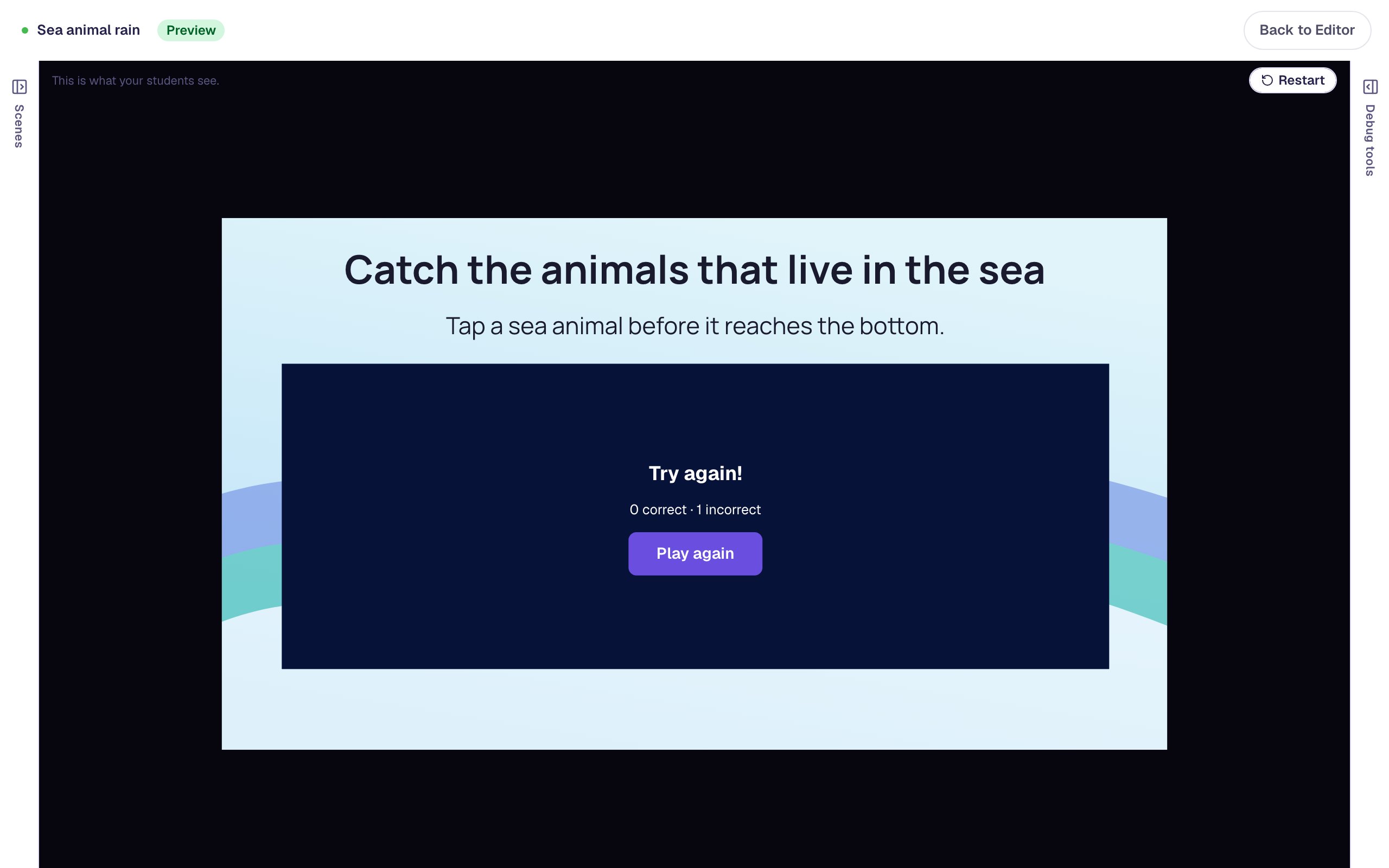
Press Start and play the way a student having a bad round might. Tap a land animal: it flashes red, and the tally in the corner counts a wrong tap (✗). Then let a sea animal fall to the bottom, and the round ends.
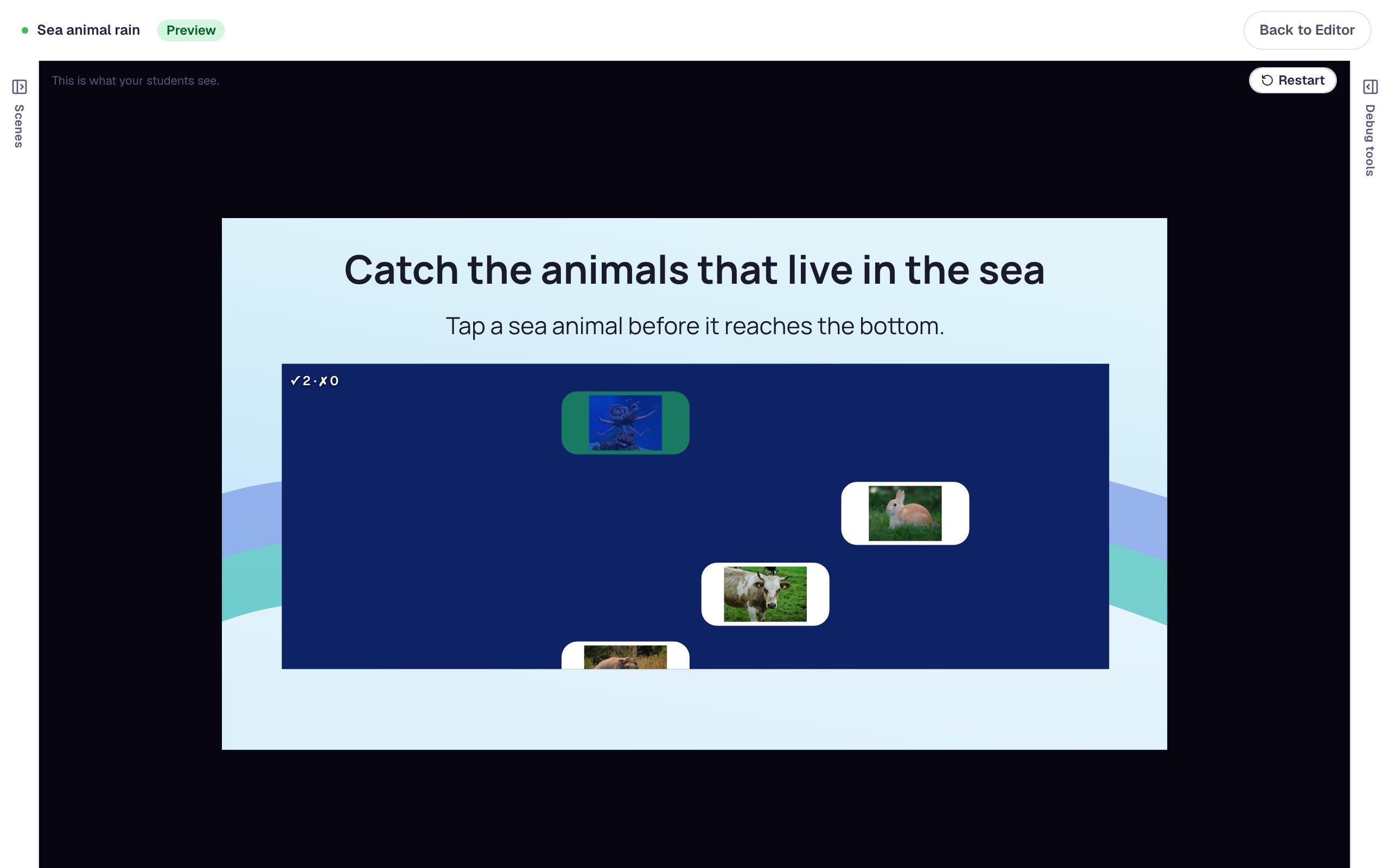
Press Play again and, this time, tap only the sea animals. Watch each one fall a little faster than the last.
When the last sea animal is caught, the game shows Great job! Two and a half seconds later the activity moves on to the ending.
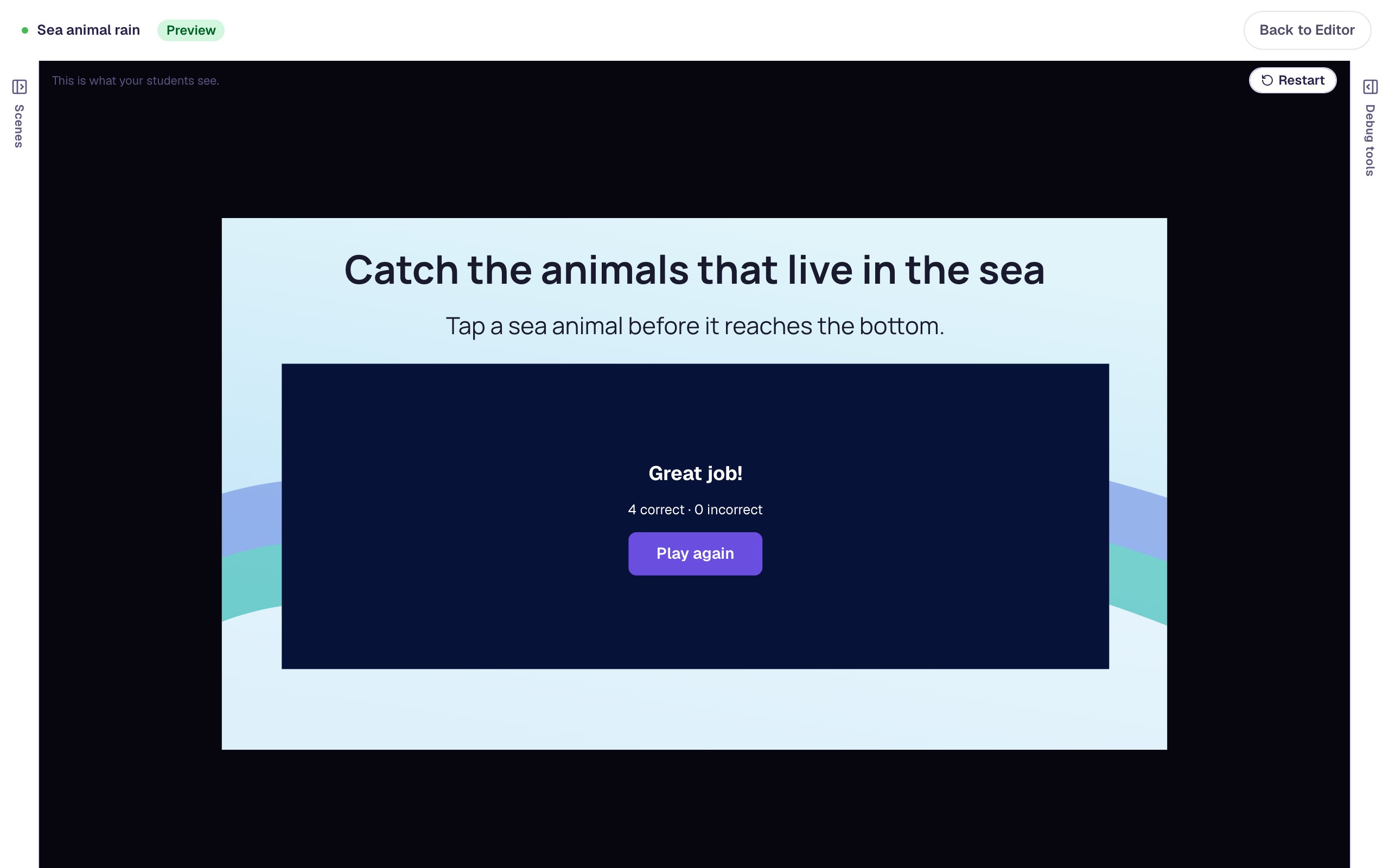
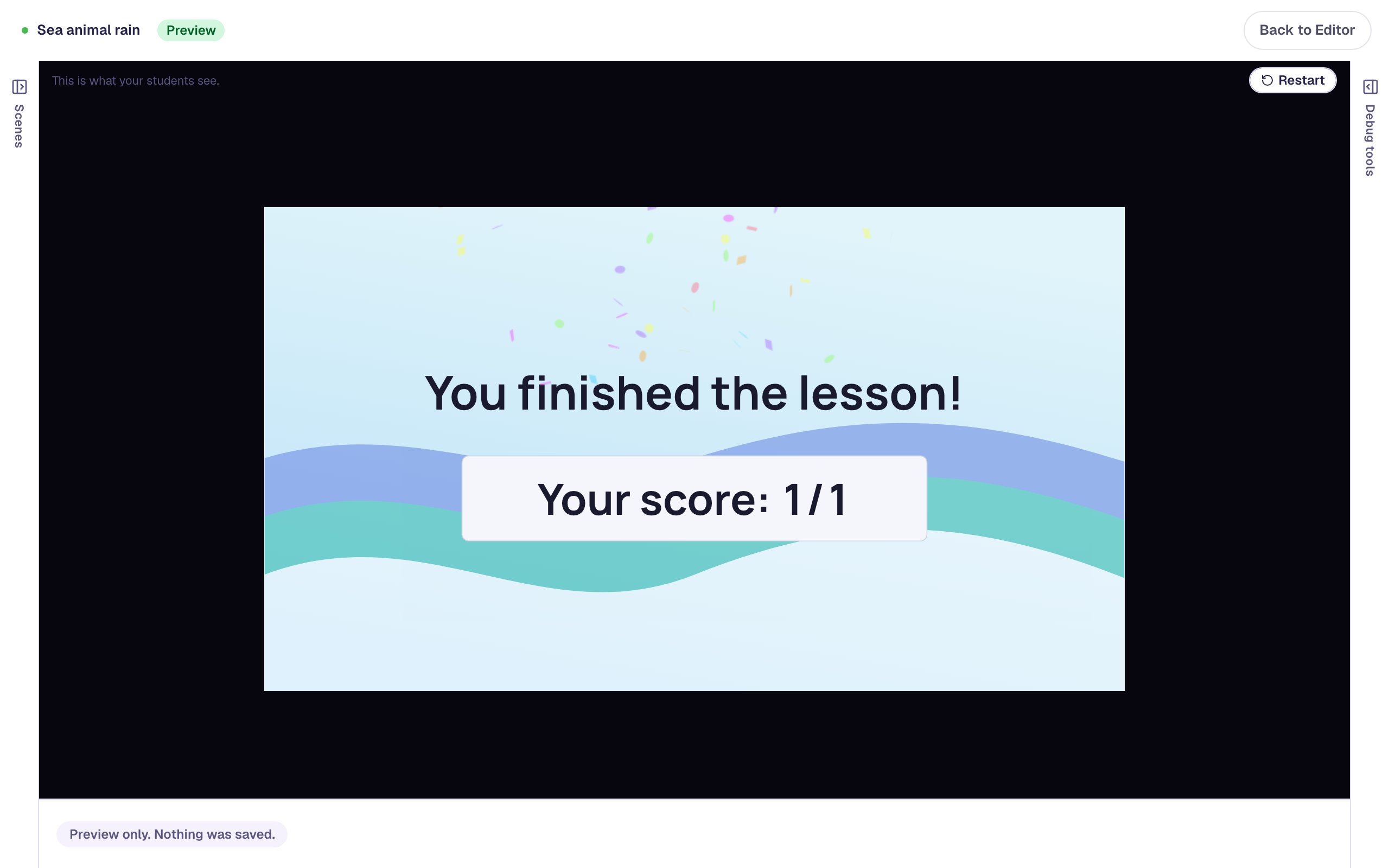
A round with a wrong tap can still end with Great job! if every sea animal was caught, but it doesn't earn the point, so the activity stays on the game until the student plays a clean round.
What you built
A picture-sorting game with:
- a Rain Game of eight animal photos, each with alt text, four of them marked correct,
- a slow start (Fall Speed
50) that speeds up with every catch (Speed Up (Fall) on On Correct Select), - a round that ends when the last sea animal is caught (Great job!) or when one gets away (Try again!),
- a deep blue game area with wider, rounded picture cards, and
- a longer Advance delay, so students see their win before the activity moves on.
The same game works for any picture sort: living and not living, things that float, shapes with four sides, foods that grow on trees. For older students, add more pictures and switch Speed Up (Spawn) on as well, so new pictures arrive faster too.
Make this activity yours
Add the activity you just watched being built to your account, then change it for your class: your questions, your pictures, your colors.
Free to sign up, and you'll come straight back here. I have an account