Make a rain game where students tap the nouns
Turn a word list into an arcade game. Words fall down a night-sky game area, students tap the nouns before they reach the bottom, and one wrong tap ends the round so they try again.
- Level
- Beginner
- Time
- About 12 min
- Steps
- 8
A "Noun rain" scene where twelve short words fall in six lanes, a right tap flashes green, a wrong one ends the round with "Try again!", and a clean round shows "Great job!" before the lesson moves on.
Get the finished lesson
Skip straight to the result, or keep it open beside the steps. Add this tutorial's lesson to your account and explore how it works in the studio.
Free to sign up, and you'll come straight back here. I have an account
Sorting words into "noun" and "not a noun" is good practice, and it's better practice when it's fast. A Rain Game drops words down the screen and asks students to tap the right ones before they fall away. Students have to recognise a noun at a glance, which is the skill they need when they read.
In this tutorial you'll build a "Noun rain" round from these twelve words:
frog · ran · cake · happy · tree · ate · beach · soft · girl · sing · ball · big
Six are nouns (frog, cake, tree, beach, girl, ball). Students tap those as they fall. A right tap flashes green, a missed noun comes back for another try, and a wrong tap ends the round with Try again!, so the only way through is a clean round. That makes the game's all-or-nothing grade easy for a student to understand: no wrong taps, every noun caught.
If you haven't used the studio before, start with Build your first quiz question: this tutorial moves quickly through the parts it already covers.
Step 1: Set the scene
Start a blank lesson (New lesson, then Start from scratch) and name it Noun rain by clicking Untitled lesson at the top.
With nothing selected, open Background, click Choose a style, pick Playful, then Cloud pattern, and click Apply background. Select the Closing Scene in the Scenes panel and give it the same background, so the ending matches.
Back on the Opening Scene, add a Heading that says Tap the nouns as they fall (Font Size 44) and, under it, a Body that says A noun names a person, place, or thing. (Font Size 24).
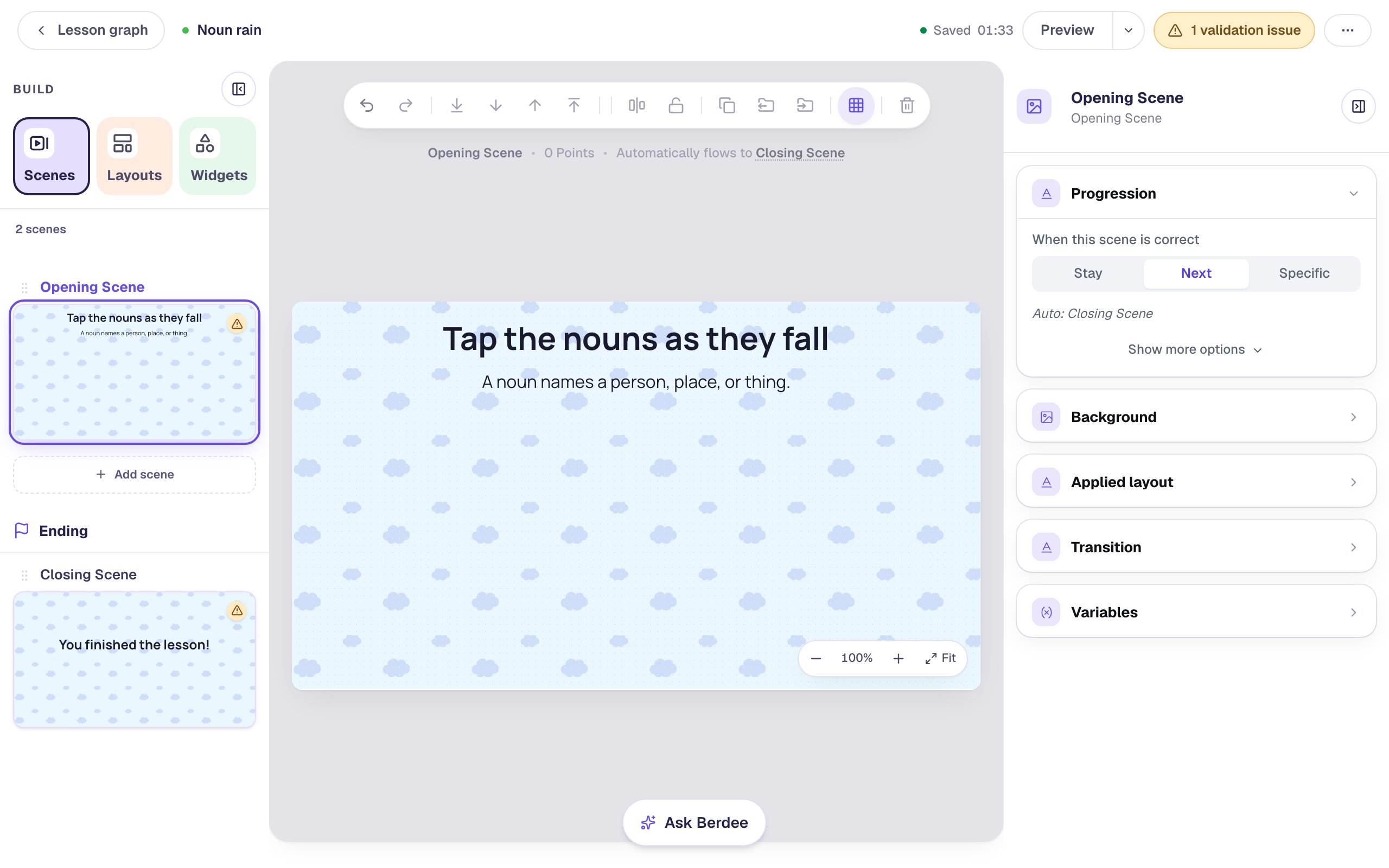
Keep the reminder short. Once the words start falling there's no time to read a paragraph.
Step 2: Add the Rain Game
In Widgets, search for Rain Game and click it. A new game fills the whole scene. Rename it Noun rain by clicking its name at the top of the properties panel.
In Style & Layout, click Show advanced layout and set Width to 840 and Height to 310. Then drag the game so it sits under the text, with an even margin on each side.
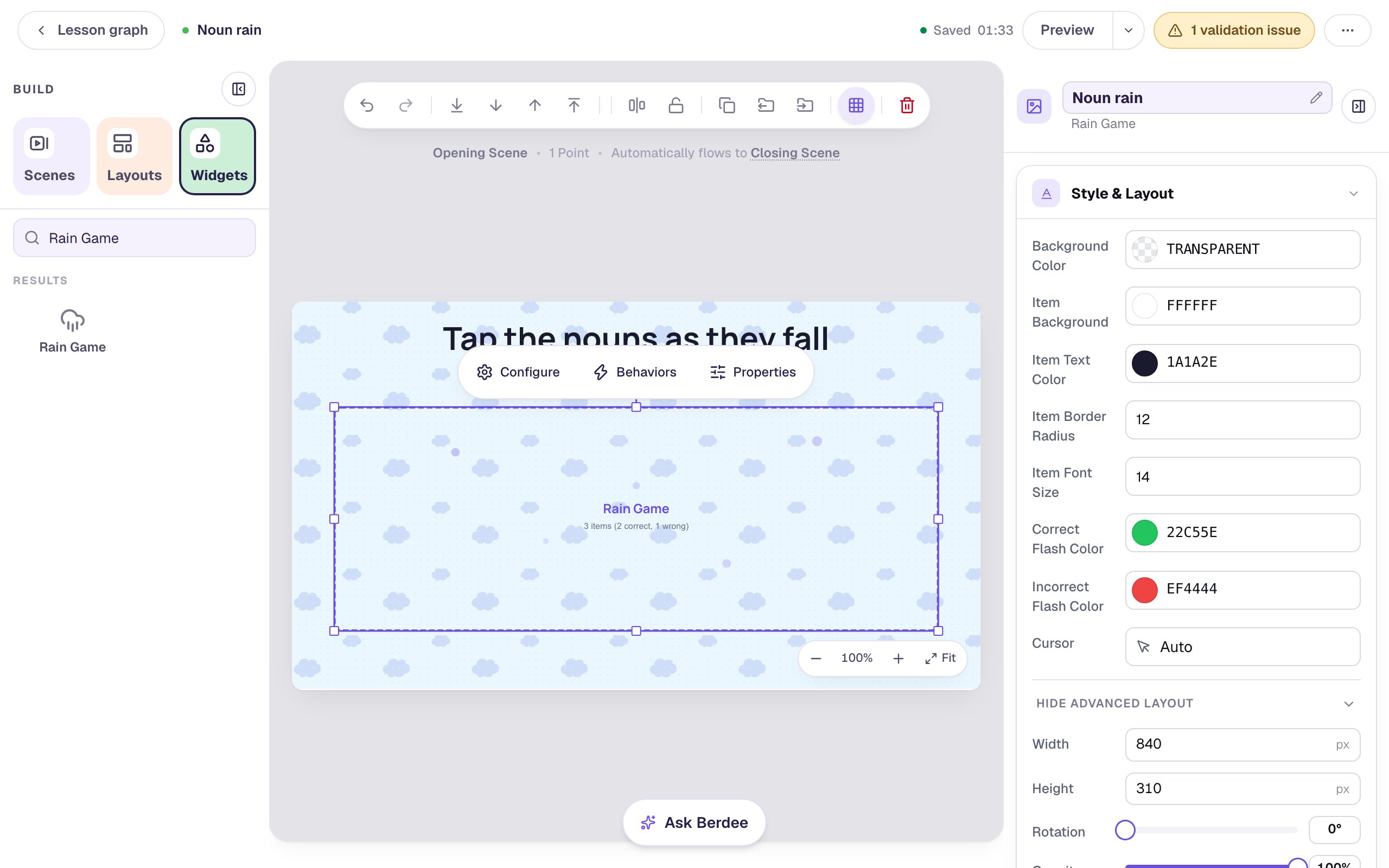
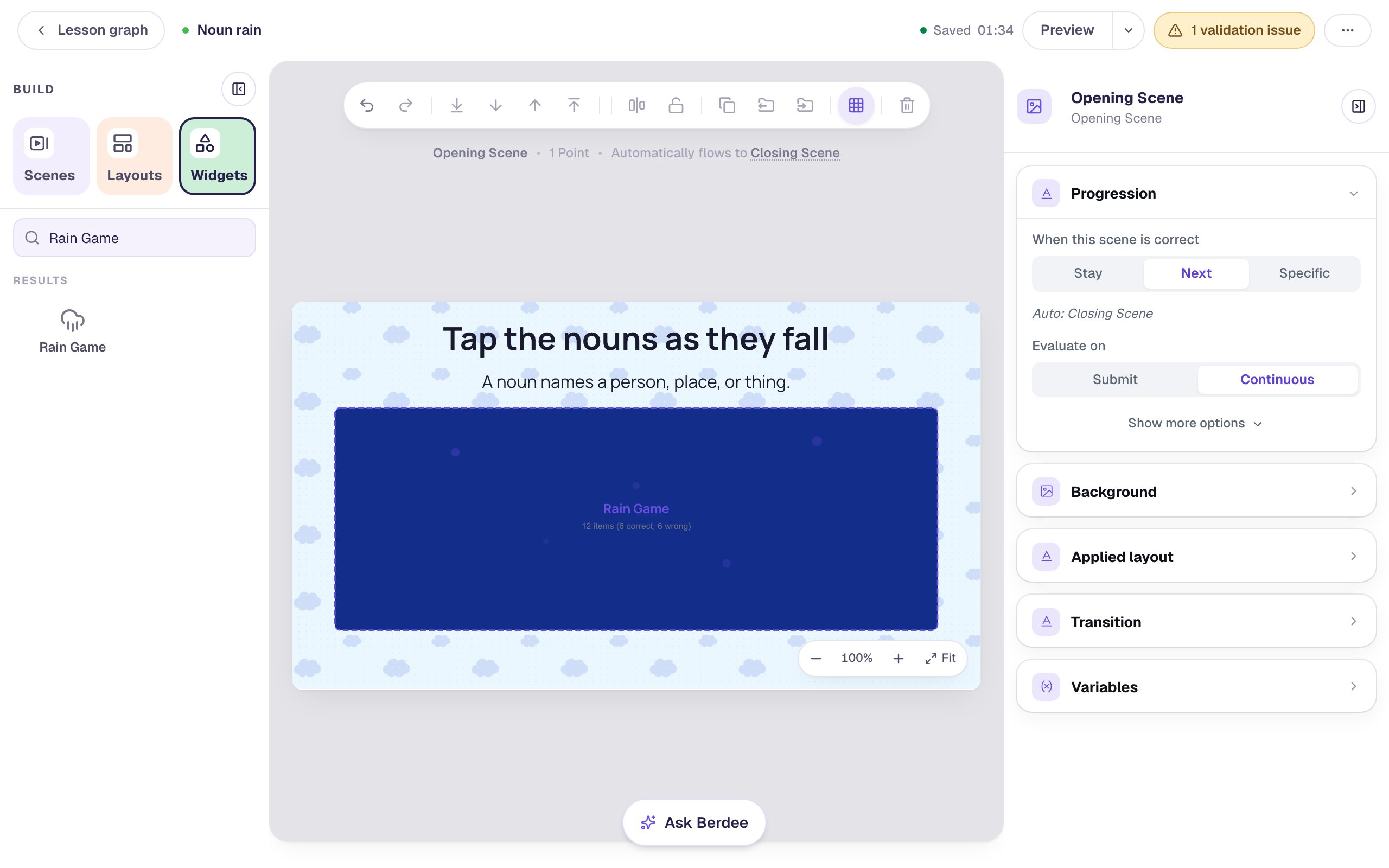
The canvas draws the game as a box with its name and how many items it holds, never the falling words. You'll see the real thing in Step 8.
Step 3: Type the words
Click ⚙ Configure above the game. Under Content, Rain Items lists the falling words. A new game starts with three: Correct 1, Wrong 1 and Correct 2. Type over them with frog, ran and cake, then click + Text to add each of the other nine words, in this order: happy, tree, ate, beach, soft, girl, sing, ball, big.
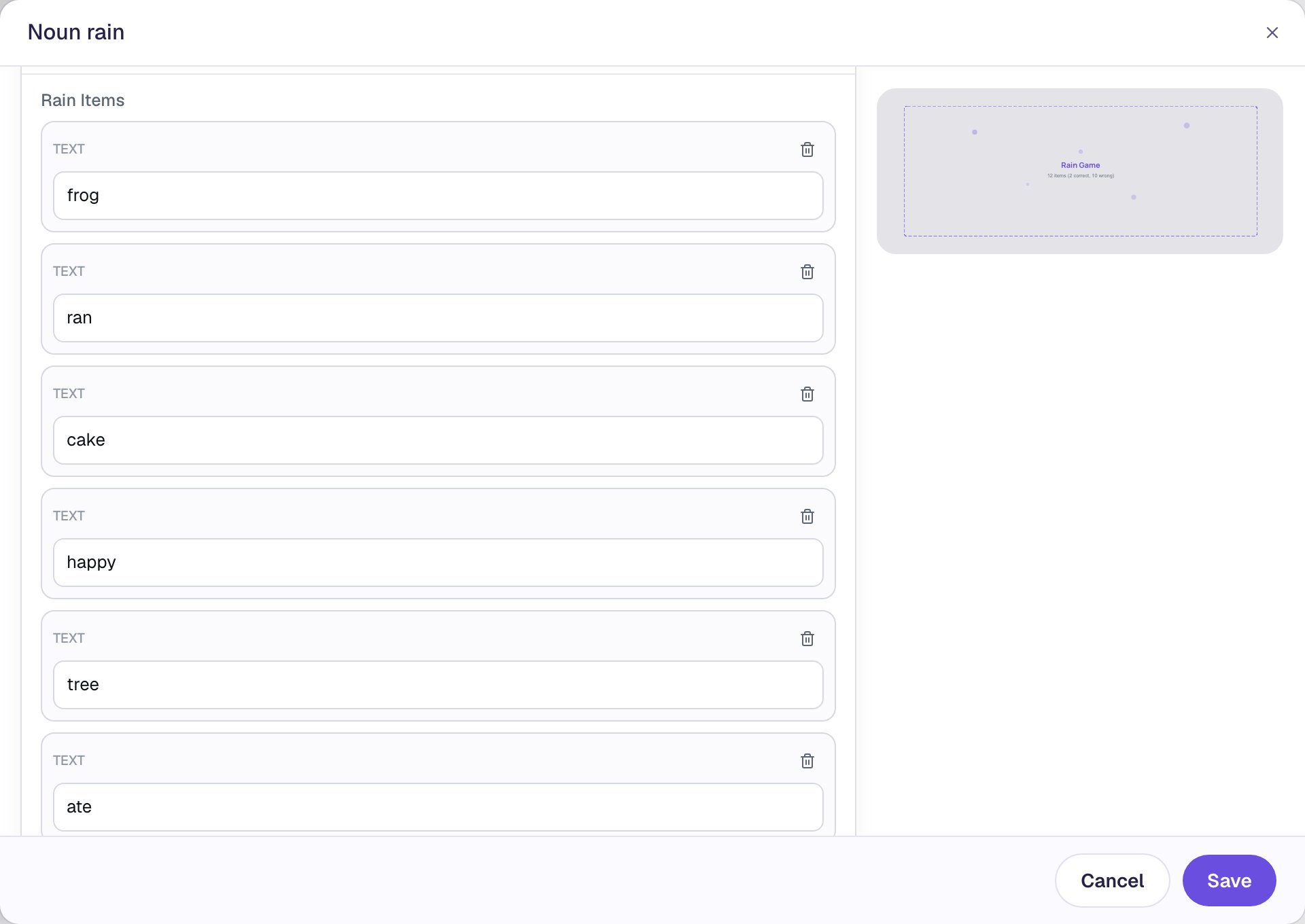
Choose words that are only ever one part of speech. On its own, run can be a noun ("a long run") and park can be a verb ("park the car"), so a student who taps either has a fair argument. Past-tense verbs like ran and ate, and adjectives like happy and soft, can't be nouns.
Keep every word short. Each word falls on a pill of the same width, and at the size you'll set in Step 6 a word of about five letters fits. A longer word is cut off with "…", which turns a reading game into a guessing game.
Step 4: Mark the nouns as correct
Scroll up to Scoring in the same window. Scoring is already On, and Correct items shows every word as a chip. A chip with a tick counts as correct.
The starter items were marked correct, wrong, correct, and typing over them kept those marks, so frog and cake are already ticked. Click tree, beach, girl and ball to tick them too, and check that the six other words stay unticked.
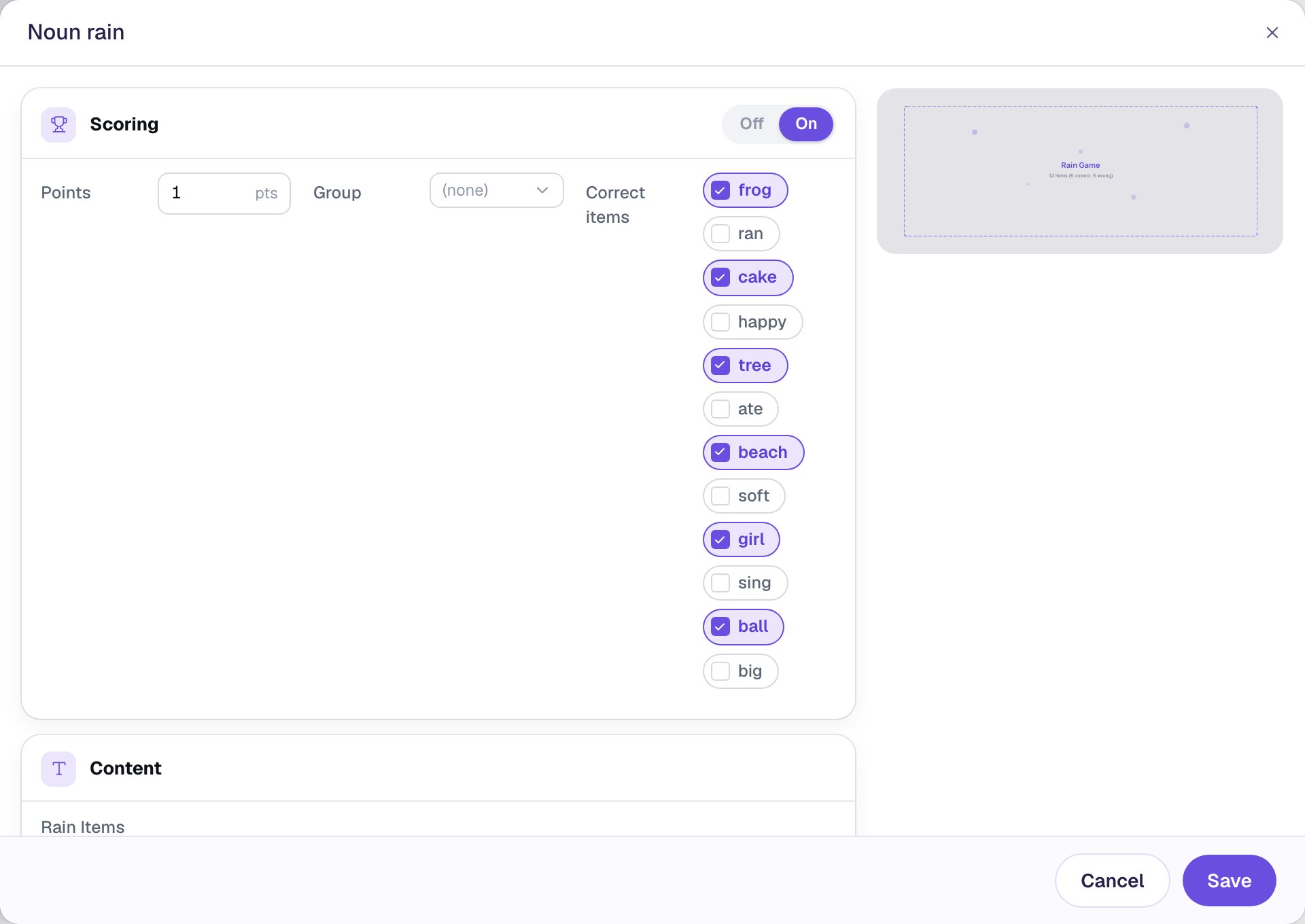
A Rain Game is graded all or nothing. A student earns its points only by tapping every correct word at least once without a single wrong tap.
Step 5: Set the pace and when a round ends
Scroll down to the settings under the words and change these:
- Fall Speed (px/s) to
50, half the default, so young readers have time to read each word before it's gone. - Spawn Interval (ms) to
1000, so a new word appears every second. - Lanes to
6, so words fall in six columns across the wide game area. - Repeat Mode to Un-clicked Only. A noun that falls past without being tapped comes back for another try, and so does every other word not yet tapped.
Then choose what ends the round under End Conditions. All correct selected is already ticked: catching the last noun ends the round with Great job! Tick Incorrect selected too, so a wrong tap ends the round with Try again! Finally tick Timeout and set it to 60 seconds. Because words keep coming back, the round needs a time limit for a student who stops tapping, and the window warns you until it has one.
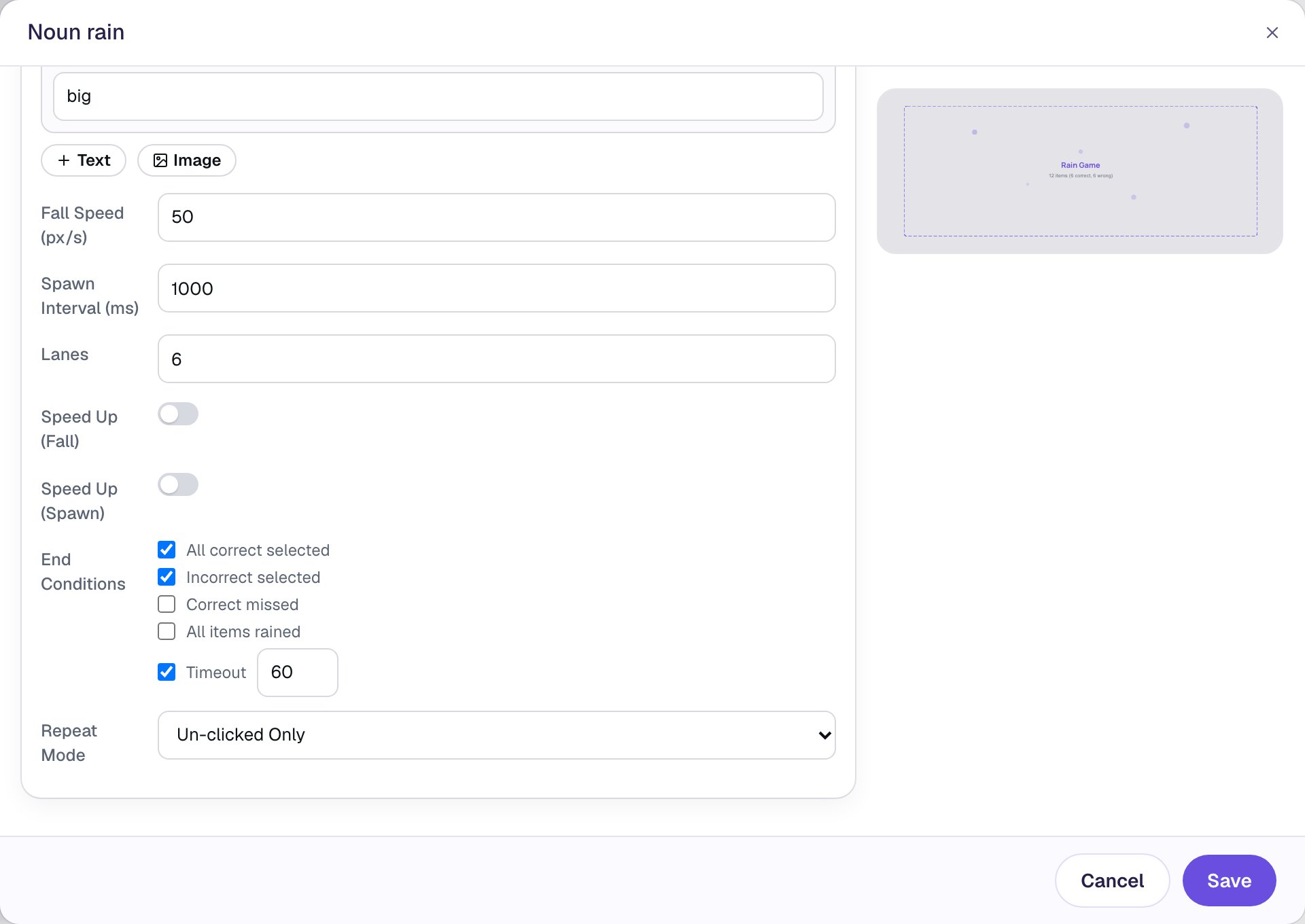
Ending the round on a wrong tap matches the grade. A wrong tap already means the round can't earn its point, so stopping right there tells the student what went wrong and lets them start again, instead of letting them catch five more nouns that count for nothing.
Click Save.
Step 6: Give it a night sky and bigger words
With the game still selected, open Style & Layout in the properties panel. Set Background Color to a deep blue (#132d8a). That's the sky the words fall through, and it makes the white word pills stand out from the cloud pattern behind the game. Then set Item Font Size to 20, so the words are easy to read, and Item Border Radius to 18, which rounds the pills.
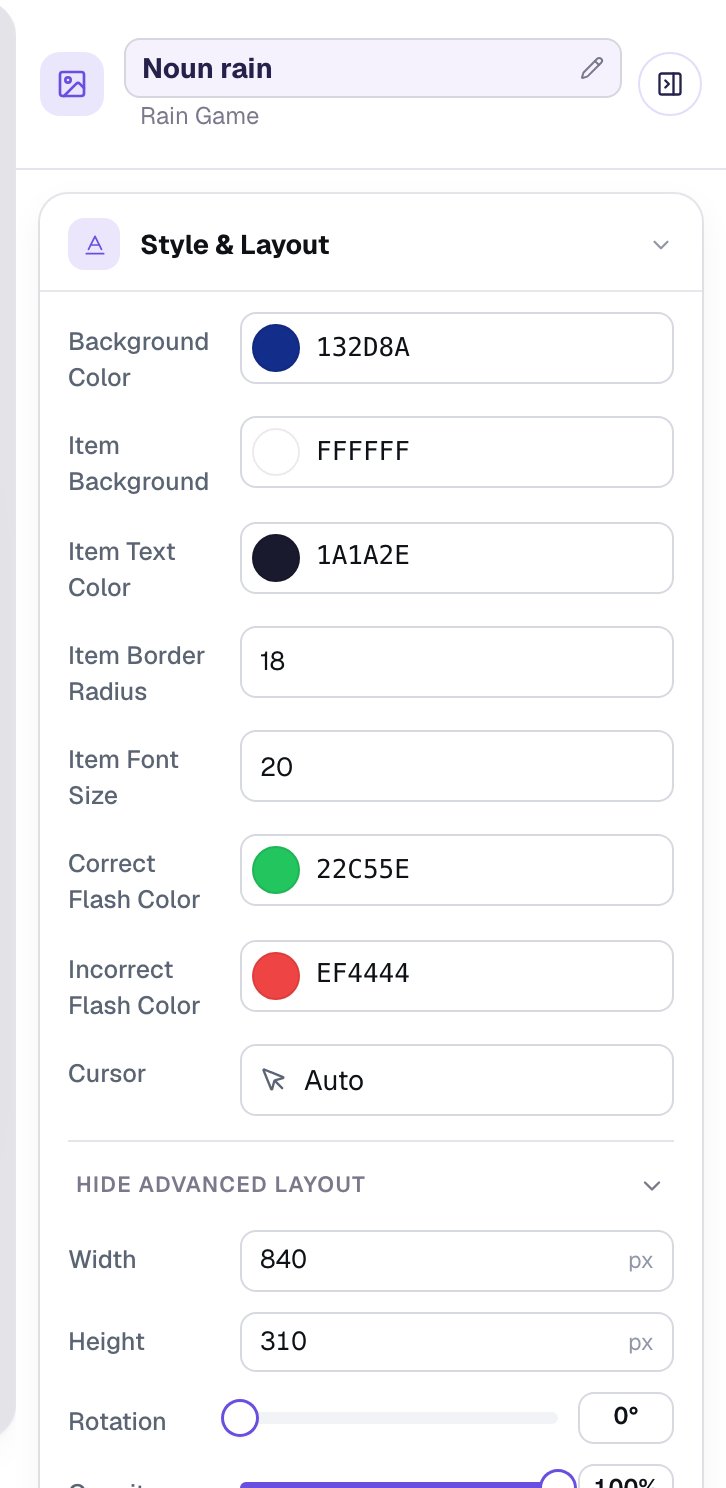
Leave Correct Flash Color green and Incorrect Flash Color red: they are the colours students expect for right and wrong.
Step 7: Hold the "Great job!" for a moment
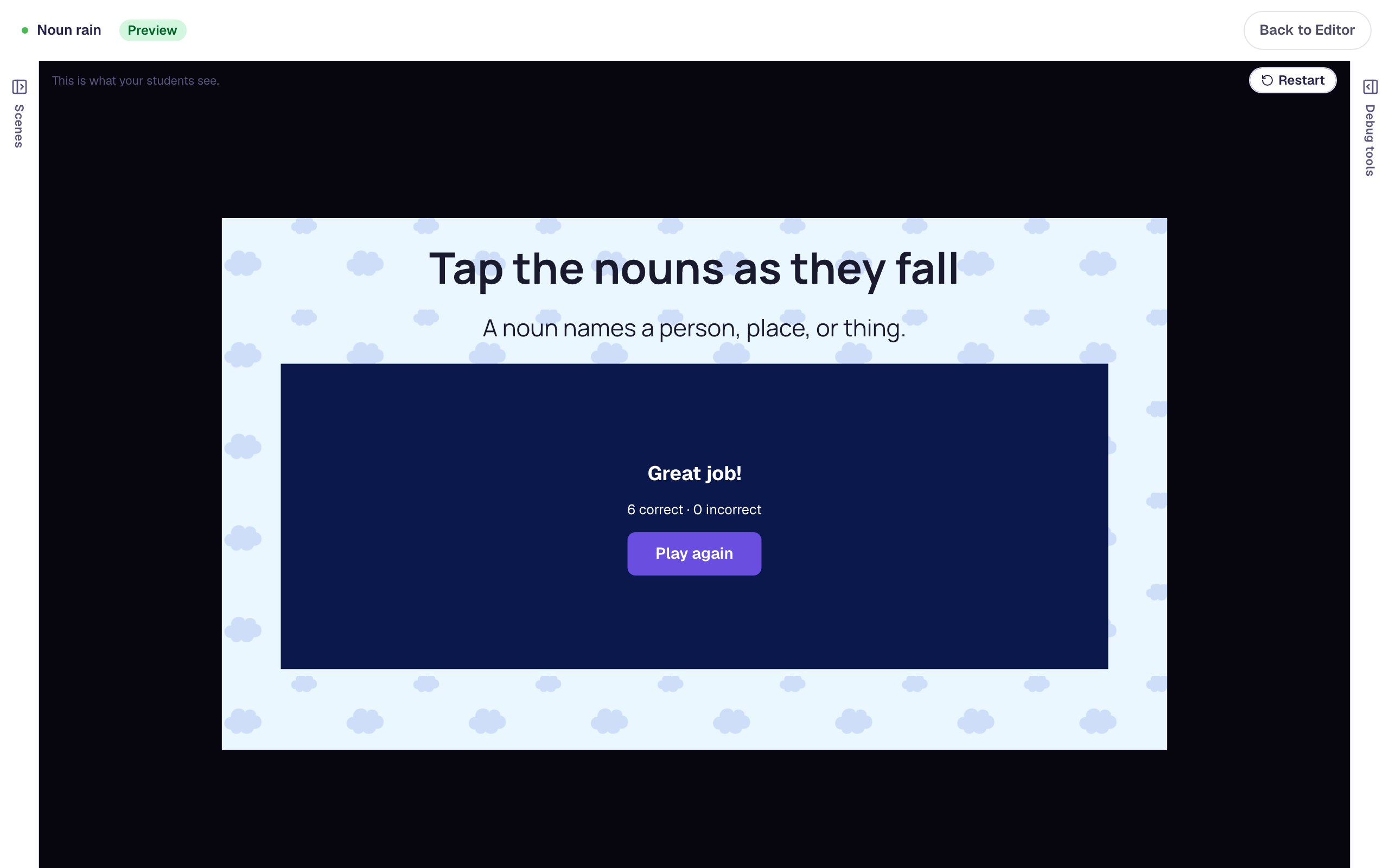
Click an empty spot on the scene to see the scene's settings. Progression is on Next, so once a student wins the round the lesson moves on by itself. By default that happens 0.6 seconds later, too quickly to read Great job!
Under Progression, click Show more options and set Advance delay to 2500 ms. Now the end screen stays up for two and a half seconds before the ending arrives.
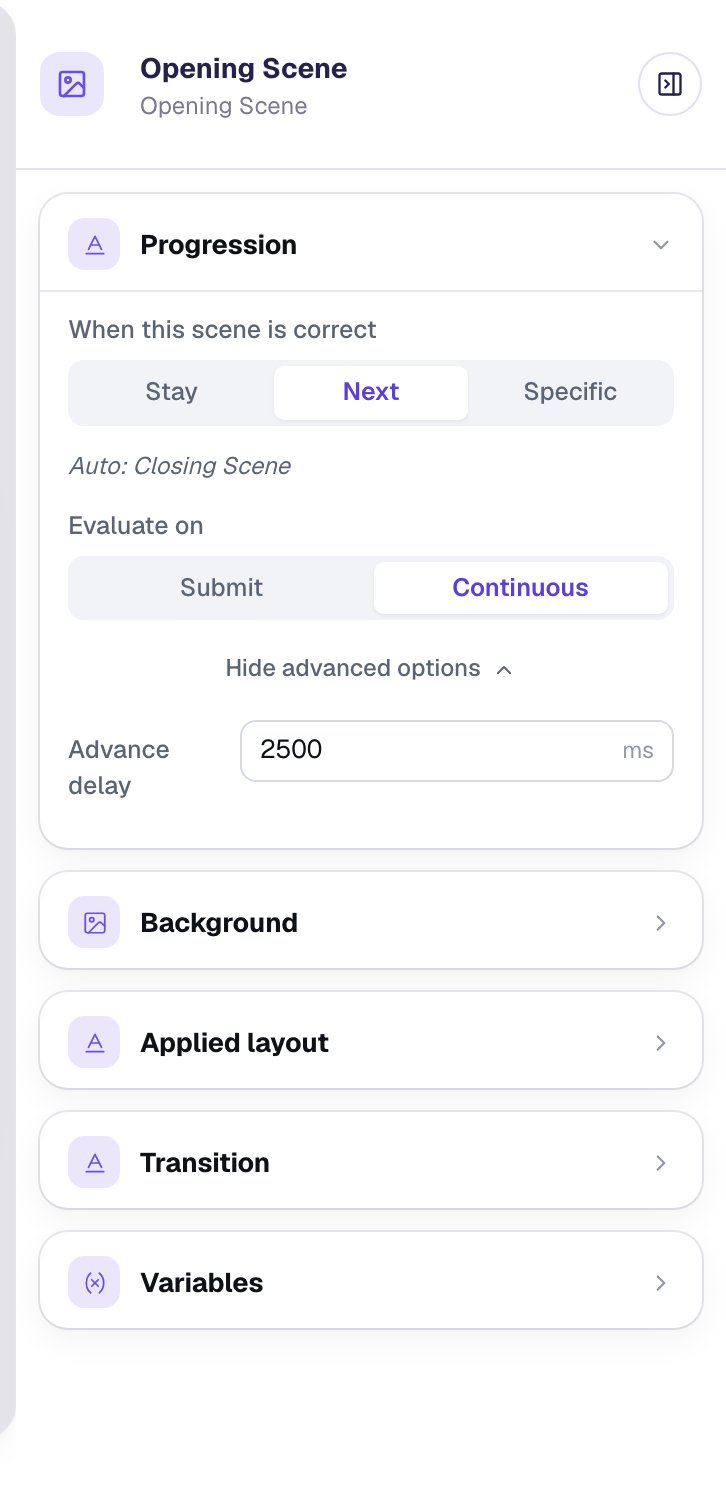
A lost round never moves on, because the scene only advances when the game is correct. The student stays on Try again! until they press Play again and win a round.
Step 8: Play it as a student
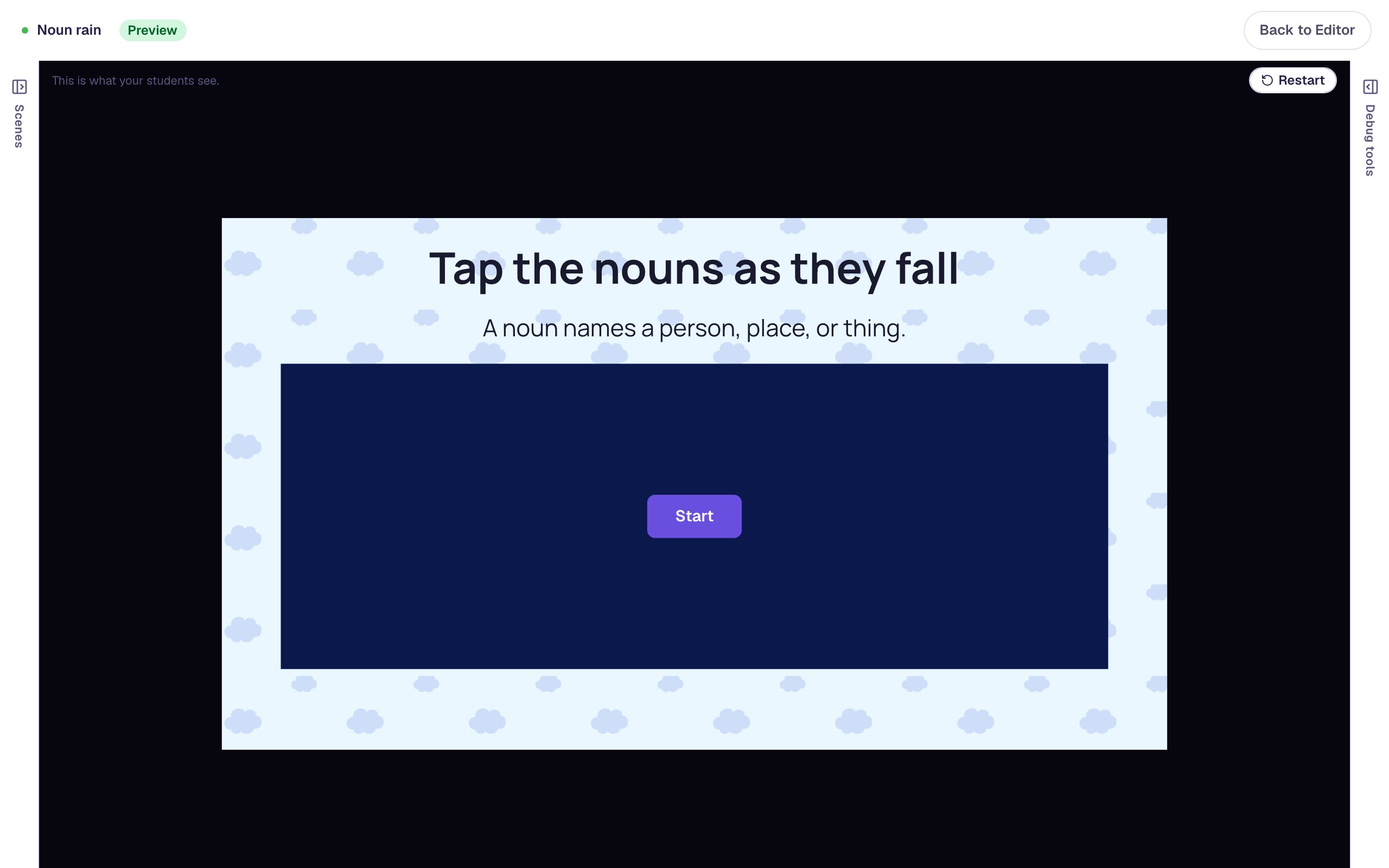
Click Preview. The game waits behind a Start button, so students can read the rule first.
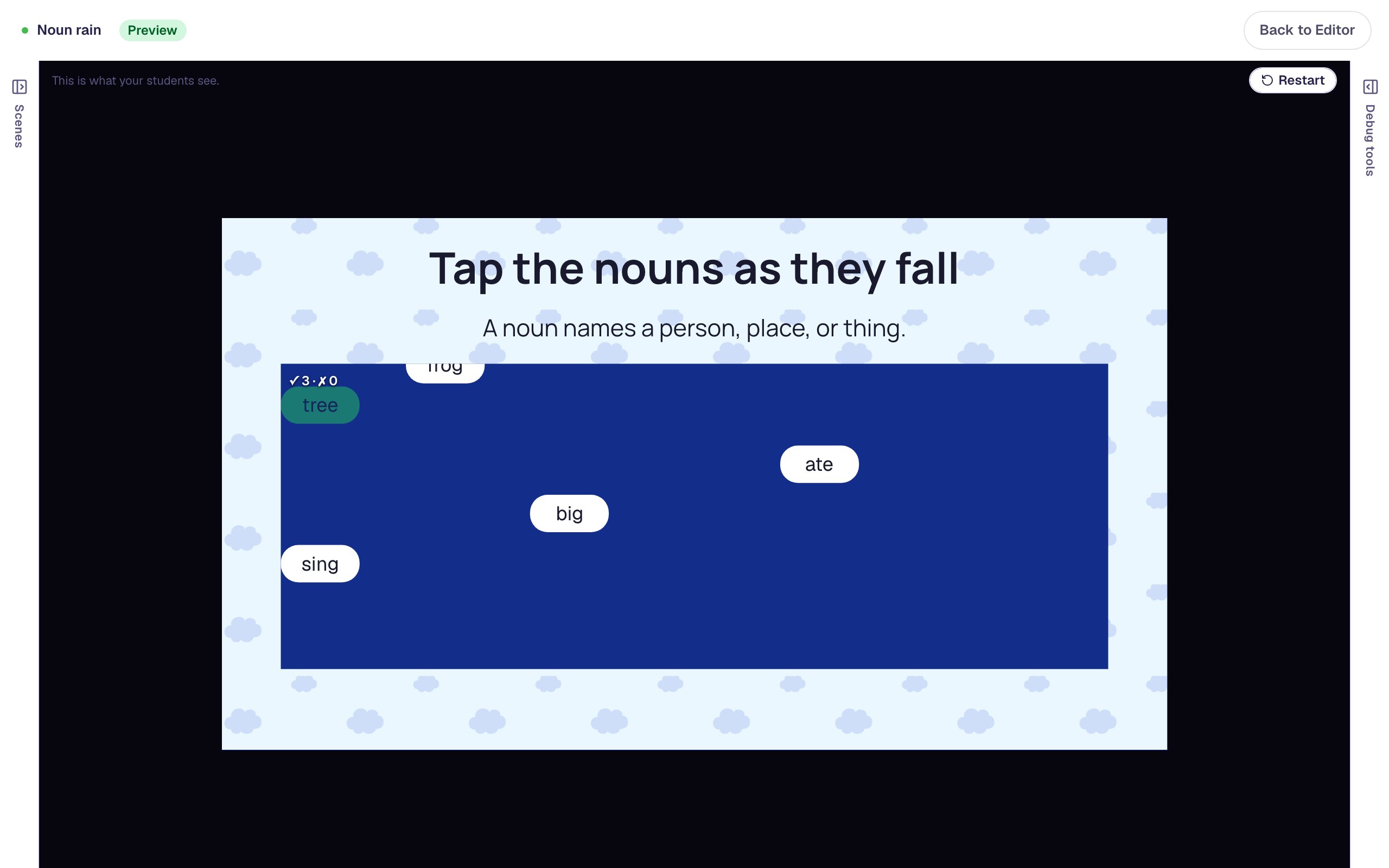
Press Start. Words begin to fall, and a tally in the corner counts right (✓) and wrong (✗) taps. Tap a noun and it flashes green. Then tap a word that isn't a noun: it flashes red and the round ends.
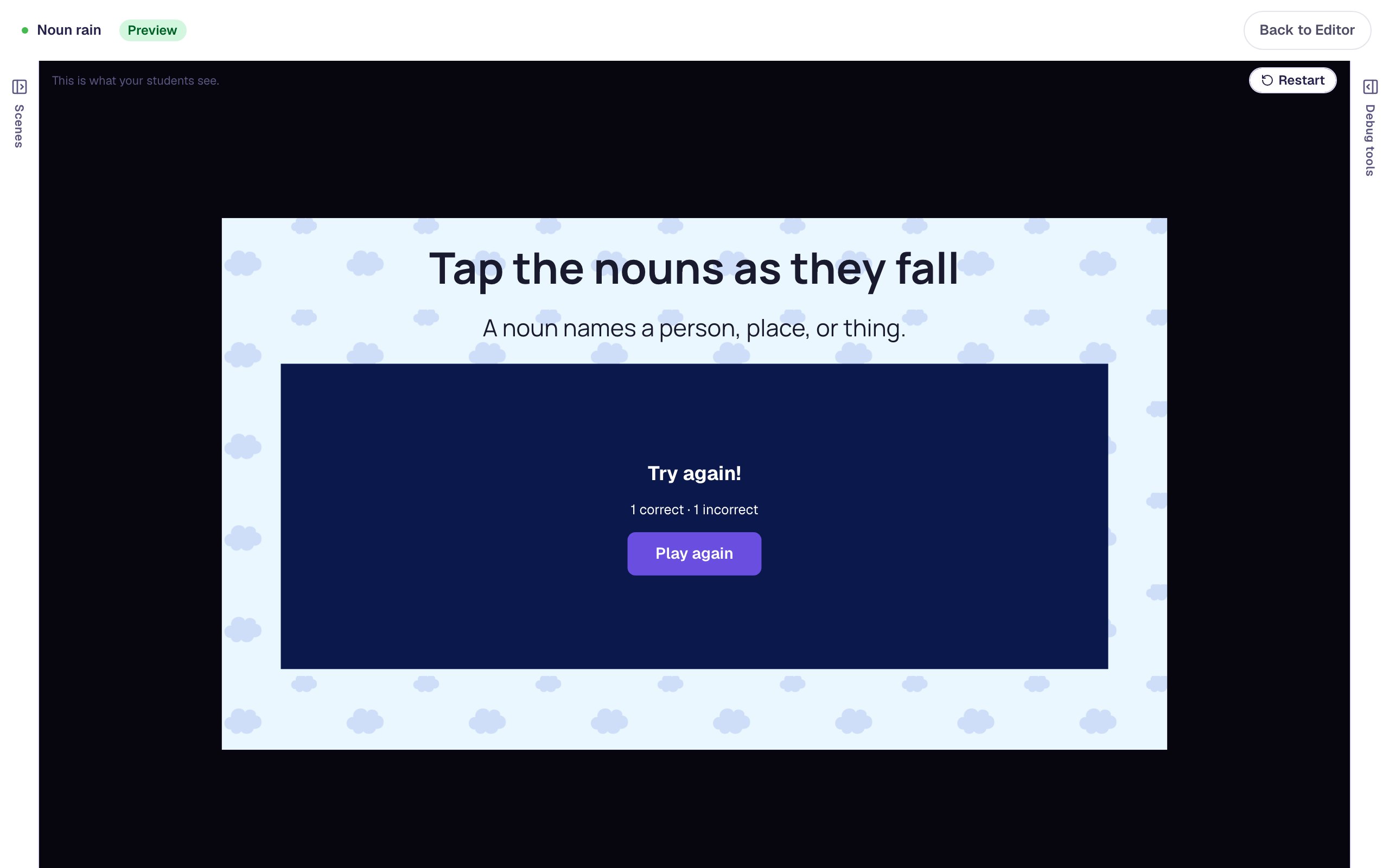
Press Play again and, this time, tap only the nouns. Each new round starts fresh and replaces the last one's result, so an earlier slip doesn't count against the student.
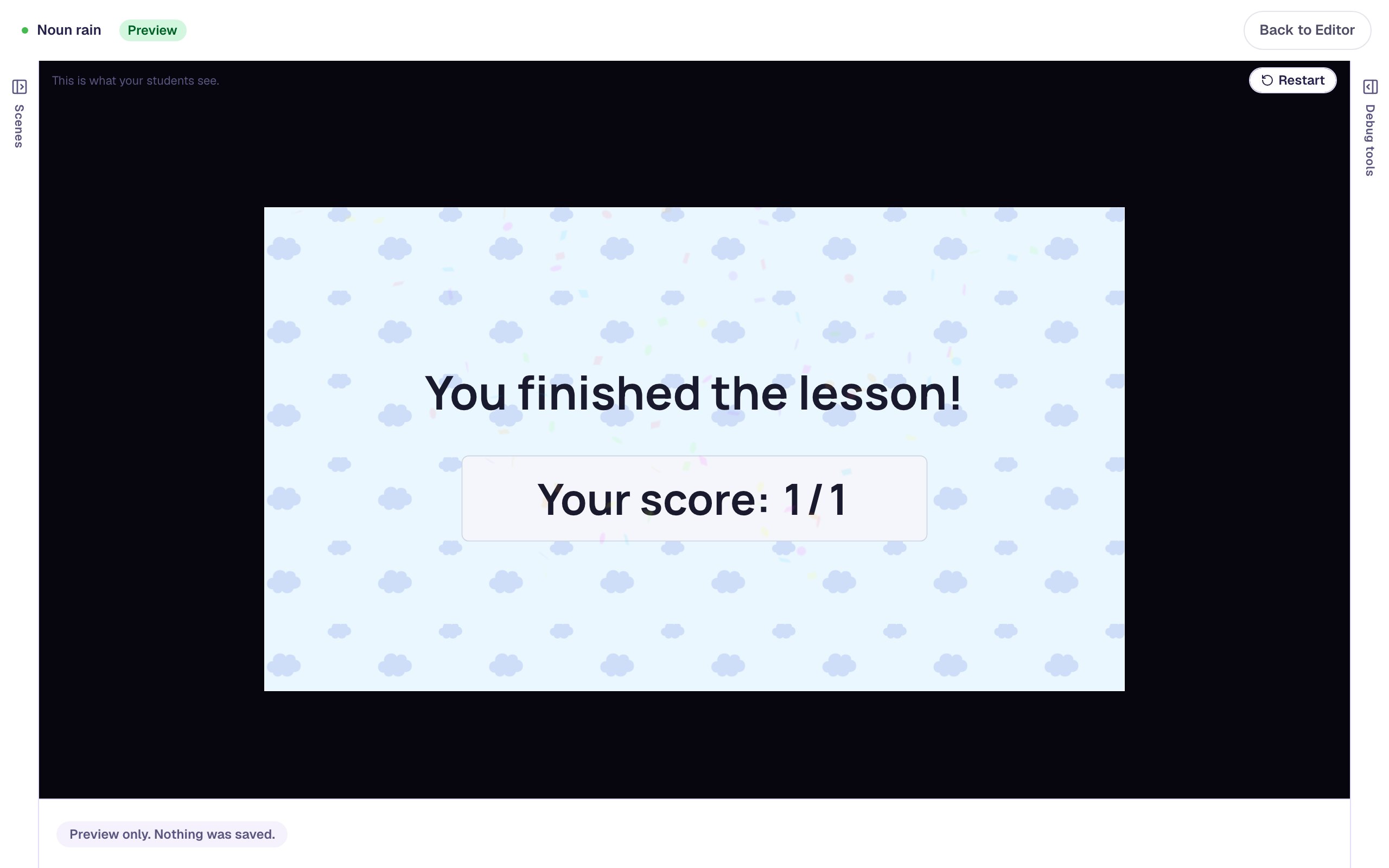
When the last noun is caught, the game shows Great job! with the round's tally. Two and a half seconds later the lesson moves on to the ending, which shows the score.
What you built
A word-recognition game with:
- a Rain Game of twelve short words, six of them marked correct,
- a gentle pace (Fall Speed
50, a new word every second, six lanes) where missed nouns come back, - a round that ends on the last noun caught (Great job!), on a wrong tap (Try again!), or after 60 seconds,
- a deep blue game area with large, rounded word pills, and
- a longer Advance delay, so students see their win before the lesson moves on.
The same game works for any "spot the ones that fit" skill: verbs, words that rhyme with _cat_, even numbers, or pictures (+ Image adds a picture item; give each one alt text). To make a harder round, duplicate the scene, raise Fall Speed to 80, and turn on Speed Up (Fall) so the words speed up as the round goes on. Before you publish, the lesson also needs an I'm done button (a Submit Button that submits the Lesson); that's the one validation issue showing at the top of the studio. Build your first quiz question shows where it goes.
For another arcade-style game, Build a conveyor-belt math game with a live score scrolls numbers past on a belt and counts every find.
Make this lesson yours
Add the lesson you just watched being built to your account, then change it for your class: your questions, your pictures, your colors.
Free to sign up, and you'll come straight back here. I have an account