Move on when a rain game's time runs out
Give a Rain Game a 20-second round, then show a Keep going button the moment the round ends, so every student moves on, whether they caught every word or slipped once.
- Level
- Intermediate
- Time
- About 12 min
- Steps
- 8
- Updated
- Nov 21, 2026
A "Rhymes with cat" scene where words fall for 20 seconds, and a Keep going button appears when the round ends to take every student to the ending.
Get the finished activity
Skip straight to the result, or keep it open beside the steps. Add this tutorial's activity to your account and explore how it works in the studio.
Free to sign up, and you'll come straight back here. I have an account
A Rain Game is graded all or nothing: a student earns its point only by catching every right word without a single wrong tap. That makes a good grade, but a scene that moves on only when the game is correct keeps a student who slipped once on the same screen, pressing Play again until they get a perfect round.
For a quick warm-up you usually want the opposite: everyone plays one short round, then everyone moves on, and the score records how it went. In this tutorial you'll build that. Words that rhyme with cat fall for 20 seconds, and when the round ends, however it ends, a Keep going button appears and takes the student to the ending.
The trick is a behavior on the game itself: On Rain Game End runs the moment a round stops, whether the student caught every rhyme or the clock ran out.
If you haven't built a Rain Game before, Make a rain game where students tap the nouns covers the game's settings in more detail.
Step 1: Set the scene
Start from scratch: click New activity, name it Rhymes with cat, then choose A blank activity and Build the first scene.
With nothing selected, open Background, click Choose a style, pick Gradients, then Mesh sunrise, and click Apply background. Select the Closing Scene in the Scenes panel and give it the same background, so the ending matches.
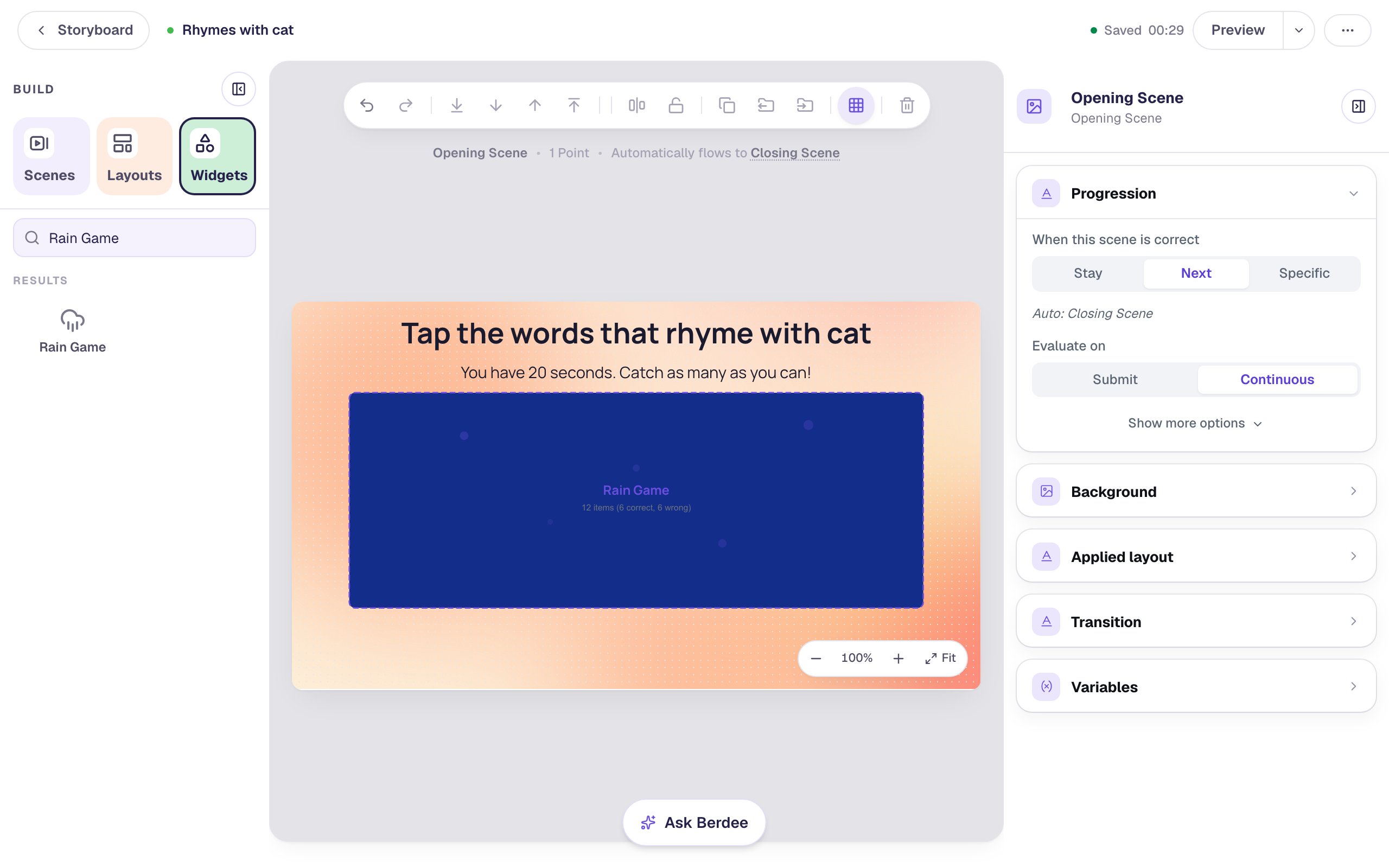
Back on the Opening Scene, add a Heading that says Tap the words that rhyme with cat (Font Size 40) and, under it, a Body that says You have 20 seconds. Catch as many as you can! (Font Size 22).
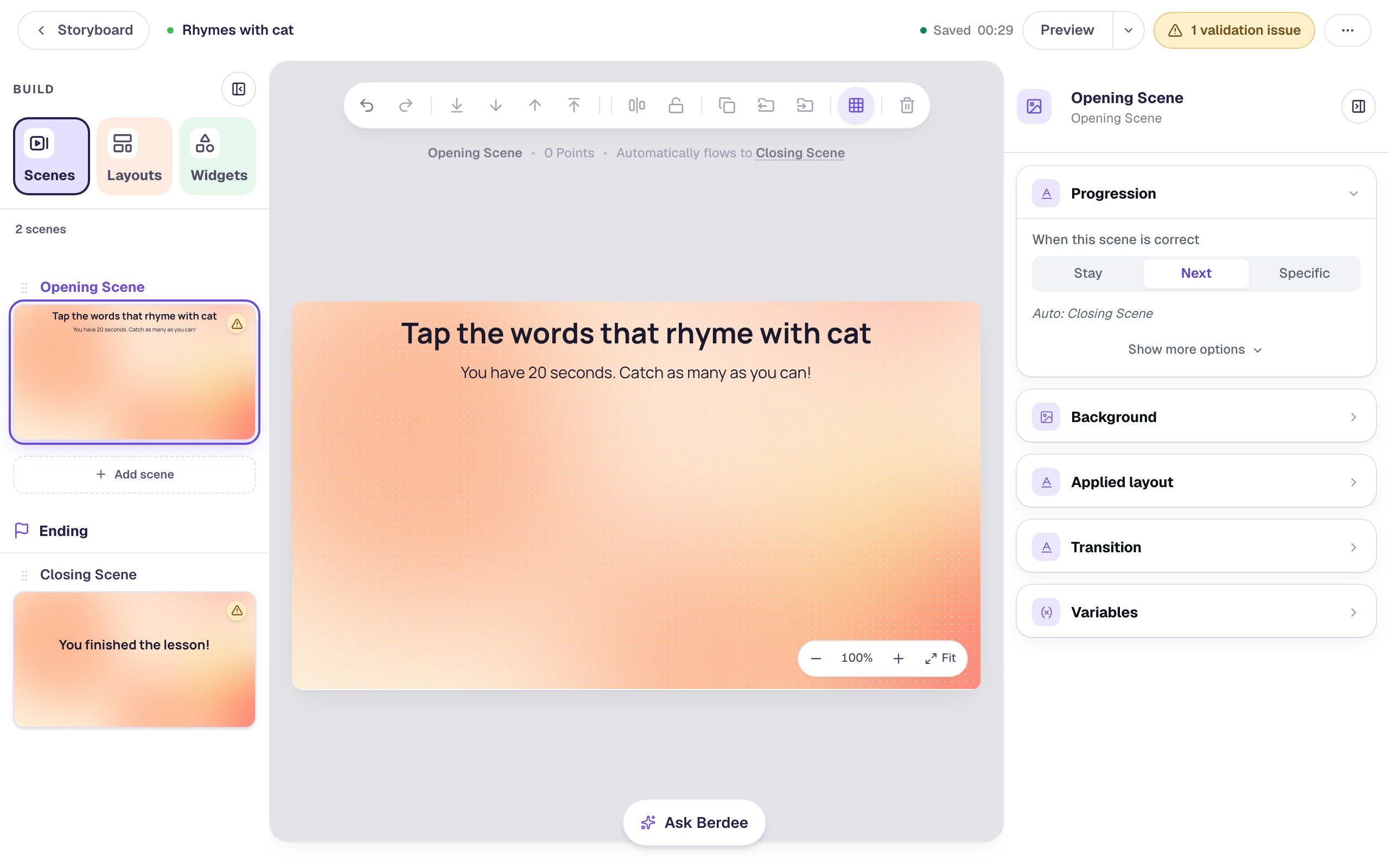
Saying how long the round lasts matters here. Students who know the clock is running don't stop to wonder why the game ended.
Step 2: Add the game and its words
In Widgets, search for Rain Game and click it. Rename it Cat rhymes by clicking its name at the top of the properties panel. In Style & Layout, click Show advanced layout, set Width to 800 and Height to 300, and drag the game under the text.
Click ⚙ Configure. Under Rain Items, type over the three starter items with hat, dog and bat, then click + Text for each of the other words, in this order: sun, mat, cup, rat, pig, sat, bed, pat, top. Then, under Scoring, tick the six rhymes in Correct items: hat, bat, mat, rat, sat and pat.
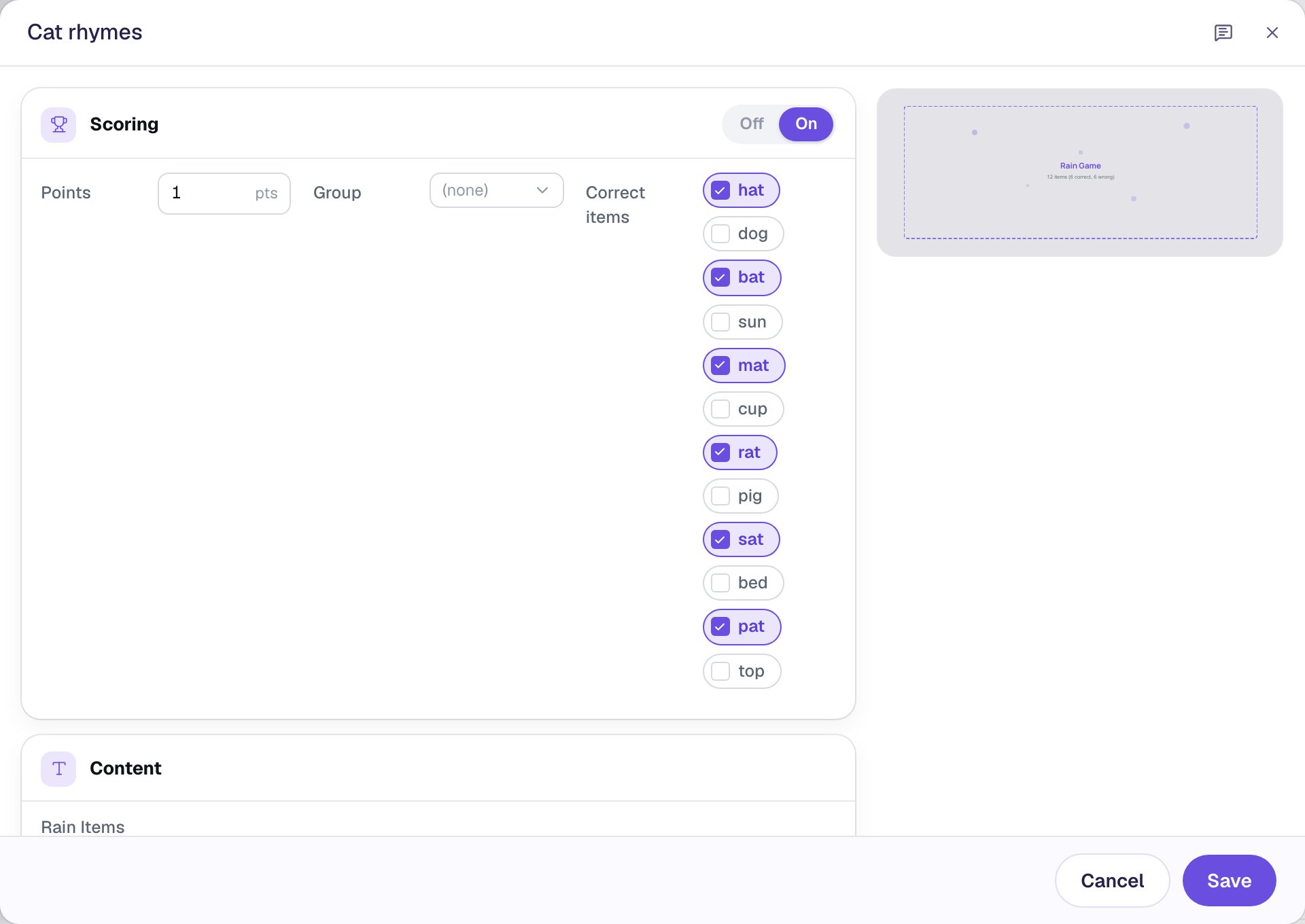
Typing over the starters keeps their marks, which is why hat and bat are ticked already. Alternate rhymes and other words in the list, so the rain mixes them from the first second.
Step 3: Give the round 20 seconds
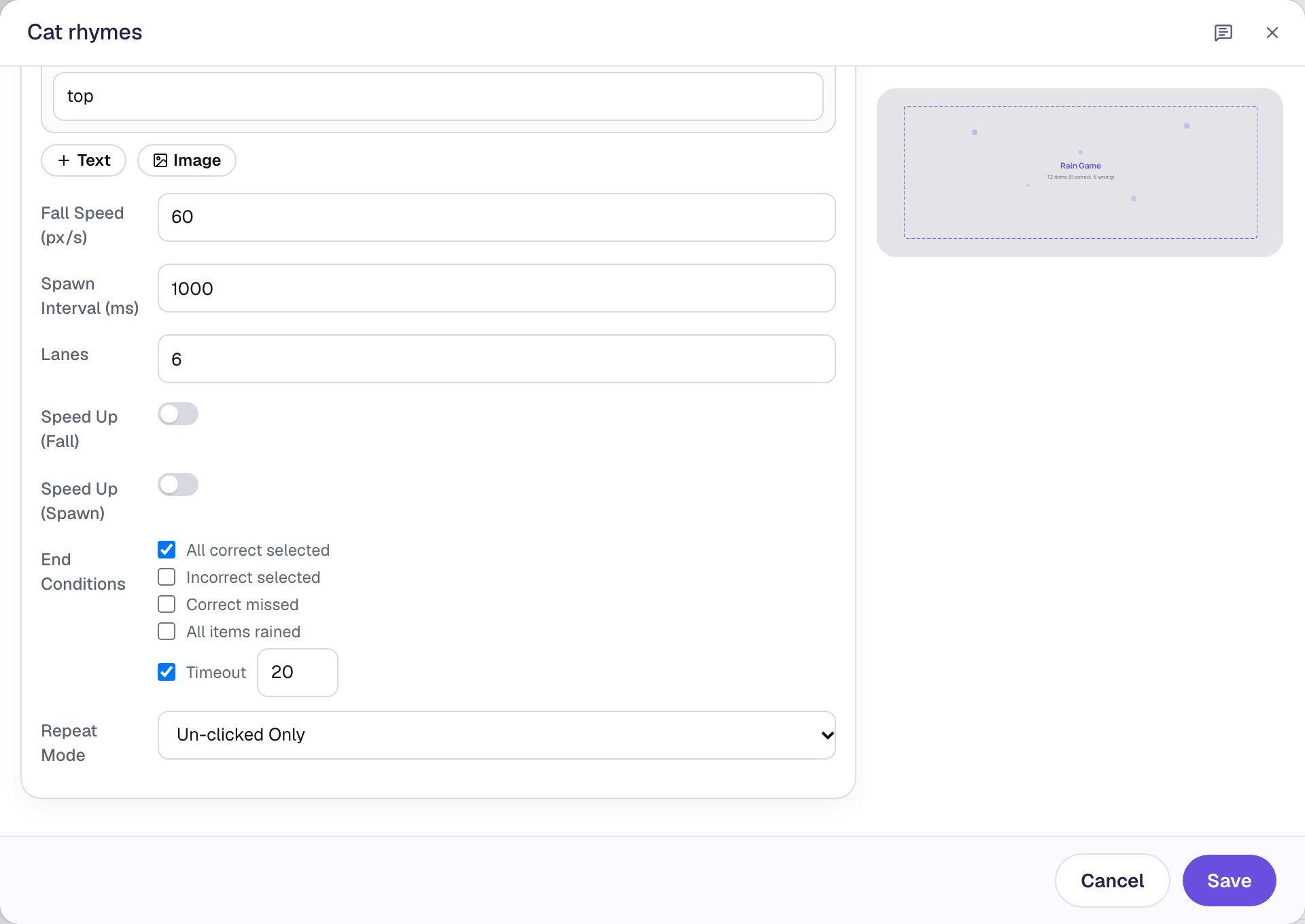
Scroll down to the settings under the words and change these:
- Fall Speed (px/s) to
60, so young readers have time to read each word. - Spawn Interval (ms) to
1000, a new word every second. - Lanes to
6. - Repeat Mode to Un-clicked Only, so a rhyme that falls past comes back for another try.
Under End Conditions, leave All correct selected ticked, and tick Timeout and set it to 20. Leave Incorrect selected unticked: in a timed round a wrong tap flashes red and the round carries on.
Click Save. Then, in Style & Layout, set Background Color to a deep blue (#132d8a), Item Font Size to 20 and Item Border Radius to 18, so white word pills stand out on a night sky.
Step 4: Add a Keep going button
Click an empty spot on the scene, then add a Button from Widgets. Click ⚙ Configure, set Label to Keep going, and click Save. Rename the button Keep going too, so it's easy to find in a list later. In Style & Layout, set Font Size to 22, Background to orange (#f78b24) and Text to navy (#0e2266).
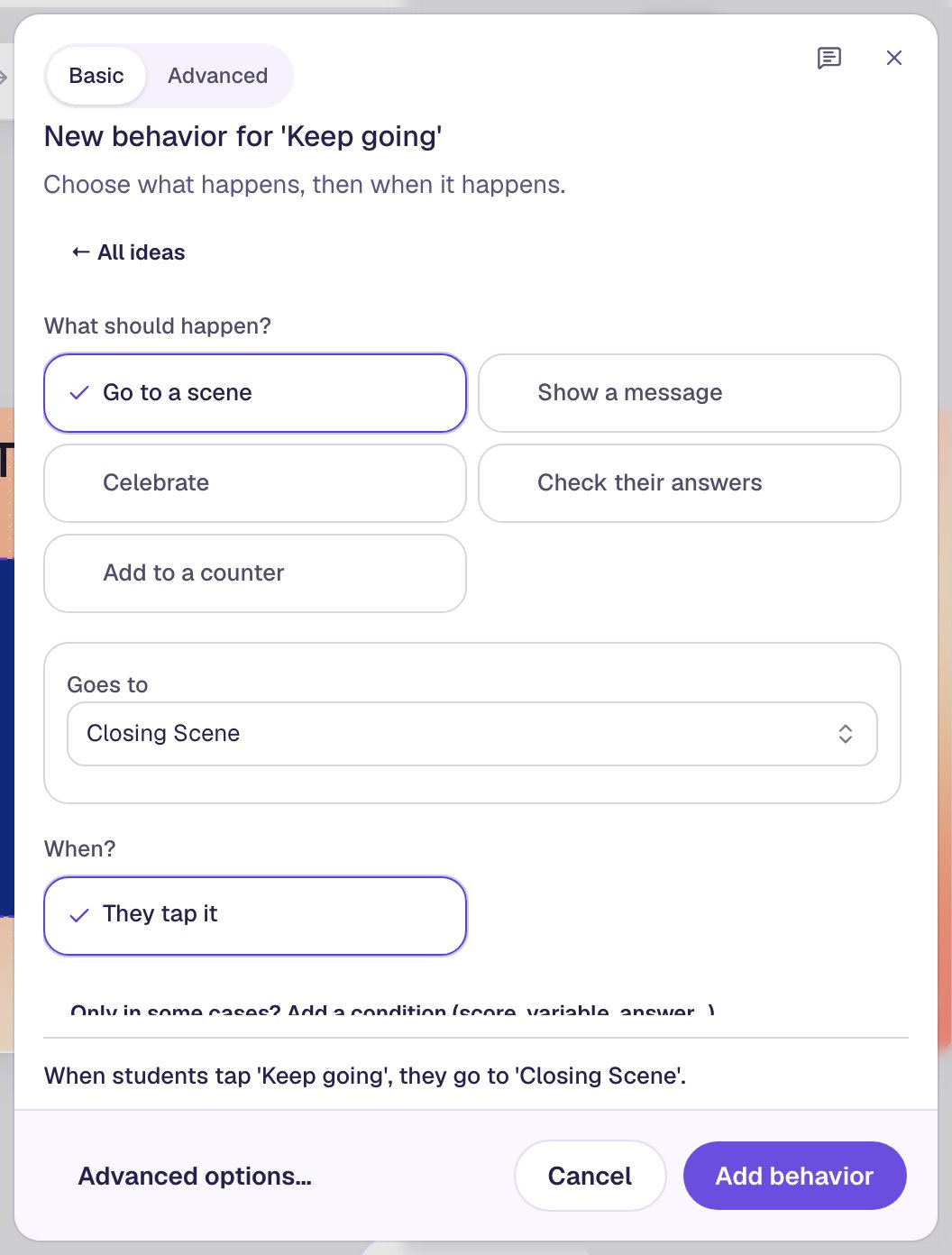
Then click Behaviors above the button and choose Make this a "Next" button. It fills in Go to a scene, Closing Scene, and They tap it for you. Click Add behavior.
Drag the button under the game, in the middle of the scene.
Step 5: Hide the button until the round is over
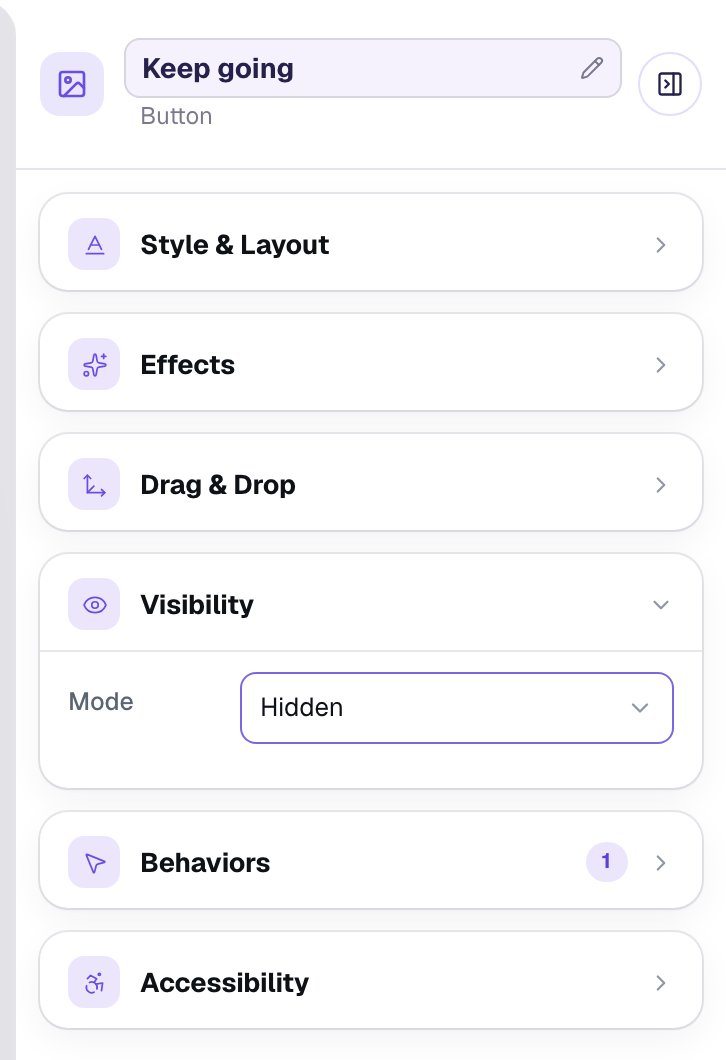
With the button still selected, open Visibility in the properties panel and set Mode to Hidden.
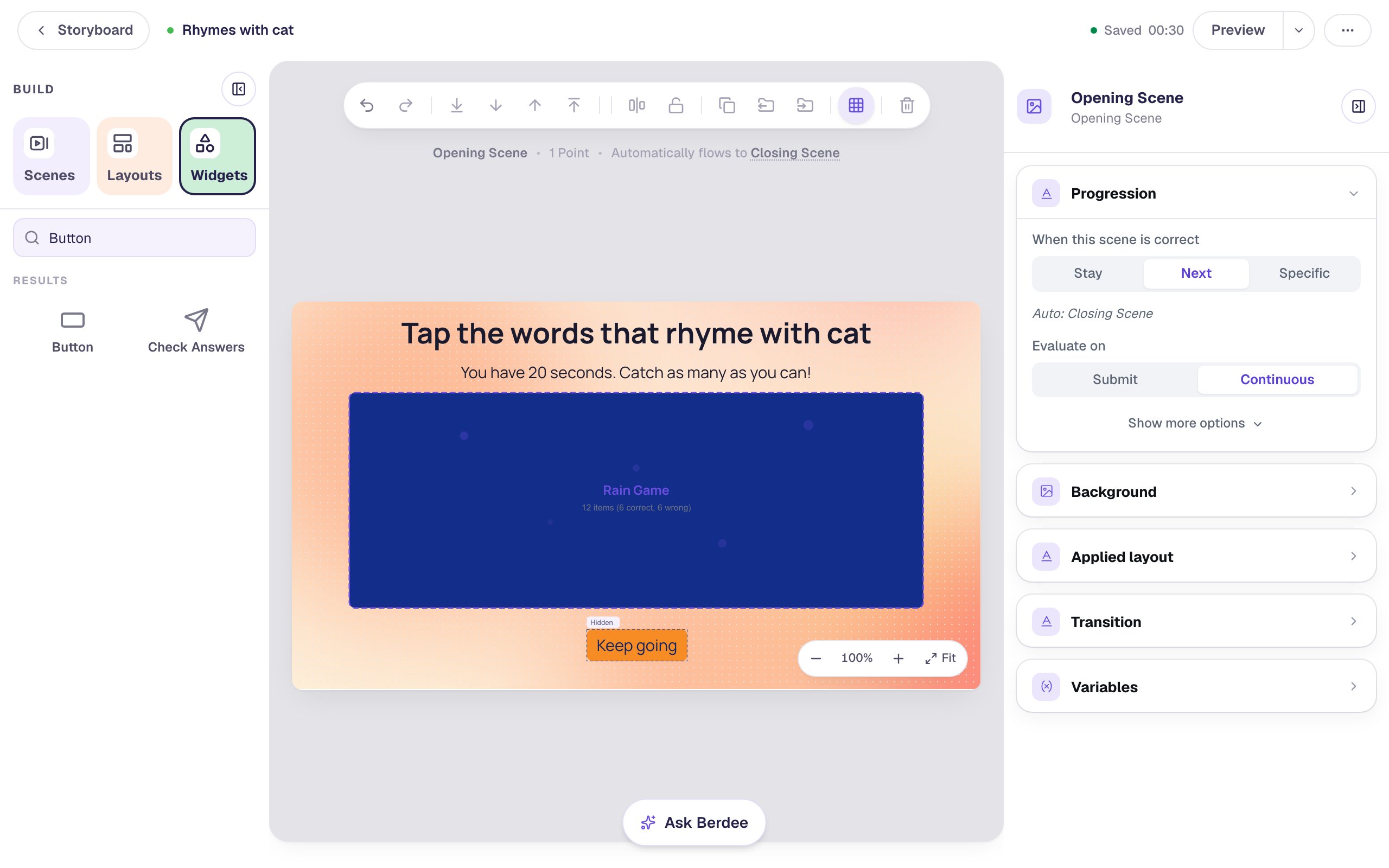
On the canvas the button stays where you can see it and edit it, with a small Hidden tag above it. Students won't see it when the scene opens.
Step 6: Show the button when the round ends
Now tell the game to show the button. Click the game to select it, click Behaviors above it, then Advanced. Click Add behavior and choose On Rain Game End. Under Then do, change the action to Widget Method, pick the Keep going button, and pick Show.
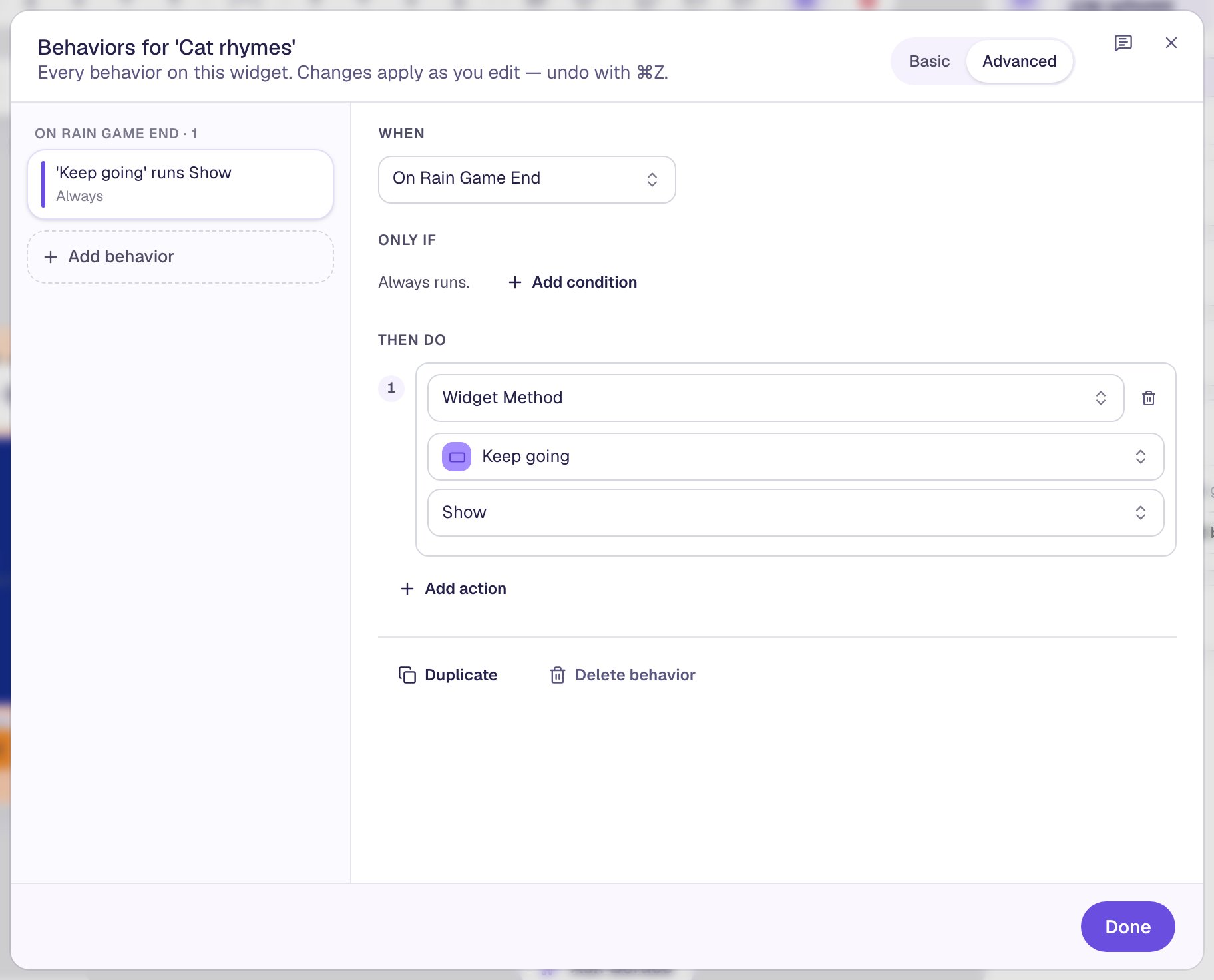
On Rain Game End runs however the round stops: every rhyme caught (Great job!), the 20 seconds up (Done!), or any other end condition you tick. That's what makes it the right moment. Click Done.
Step 7: Keep the scene still
Click an empty spot on the scene to see the scene's settings. Under Progression, change When this scene is correct from Next to Stay.
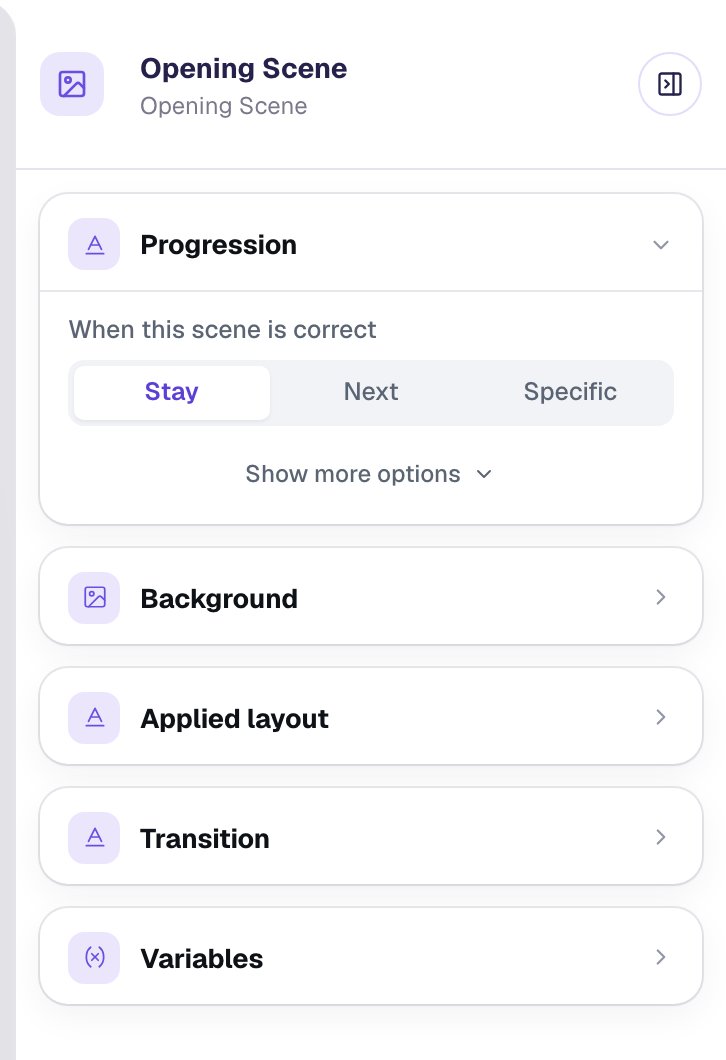
On Next, a student who catches every rhyme without a slip would be whisked to the ending as Great job! appears, while everyone else waits for the button. Stay gives every student the same ending to the round: they read the result, then press Keep going when they're ready.
Step 8: Play it as a student
Click Preview. There's no Keep going button yet, only the game's Start button.
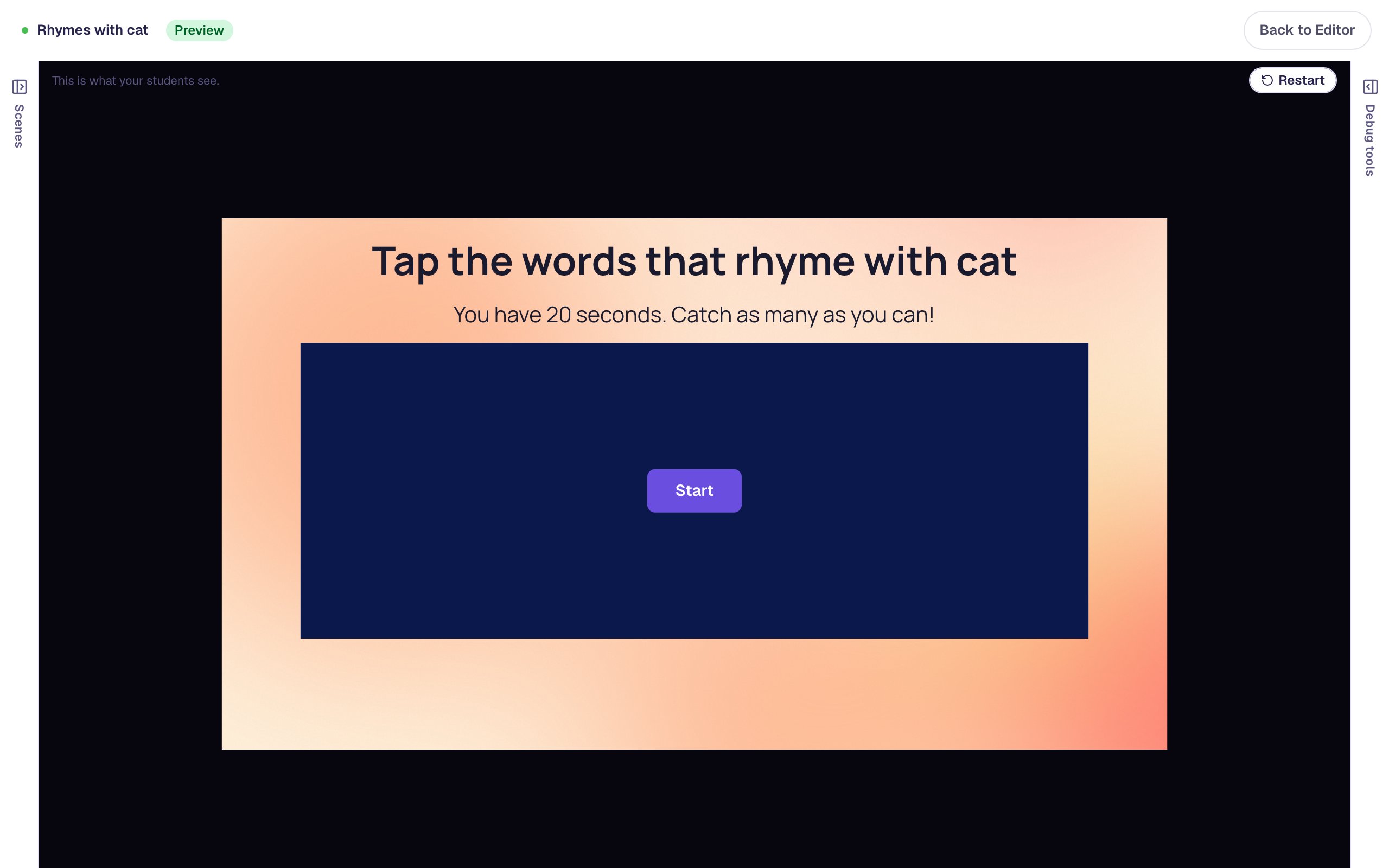
Press Start and play. Catch a couple of rhymes, then tap a word that doesn't rhyme. It flashes red and the tally in the corner counts it, but the round keeps going.
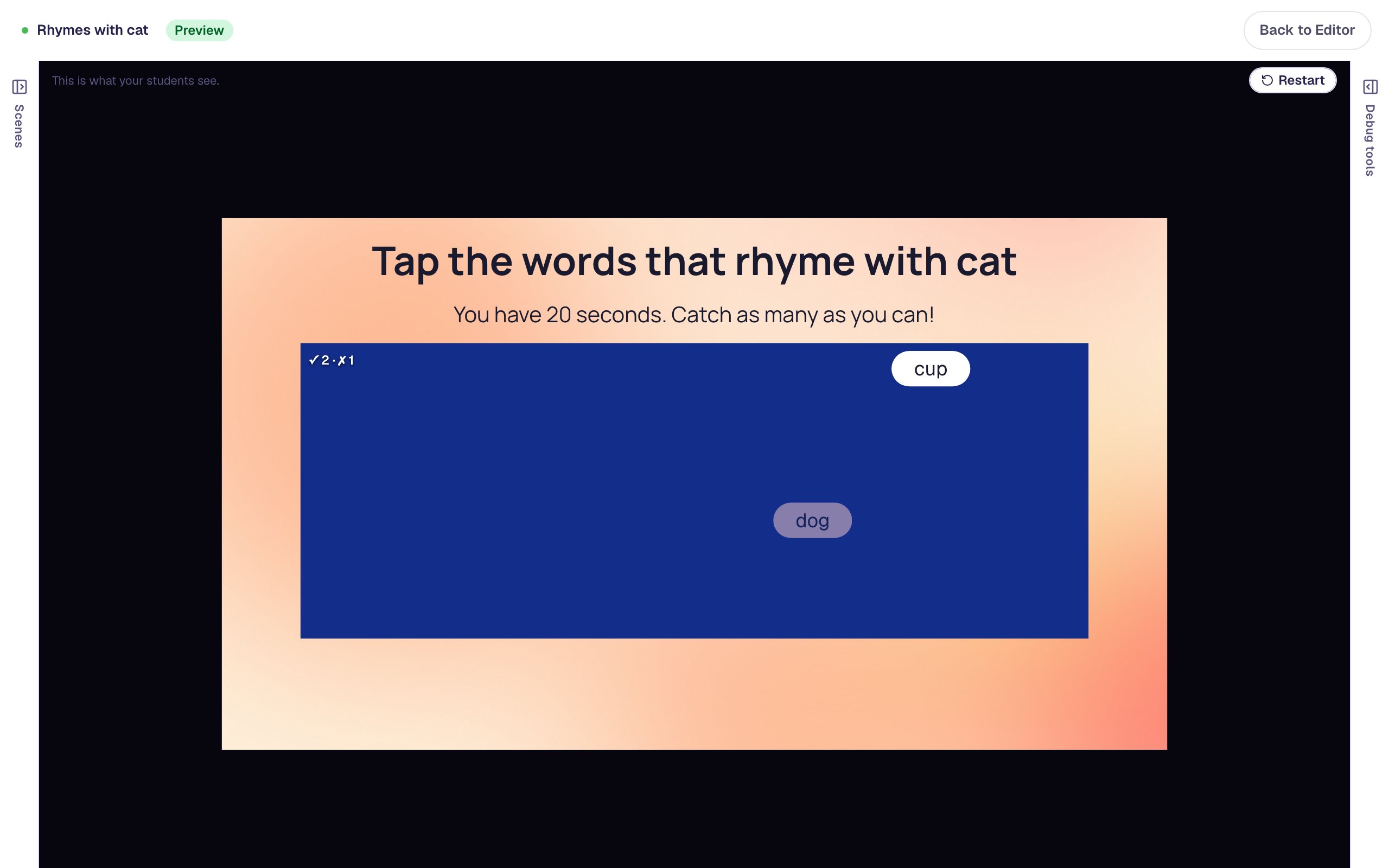
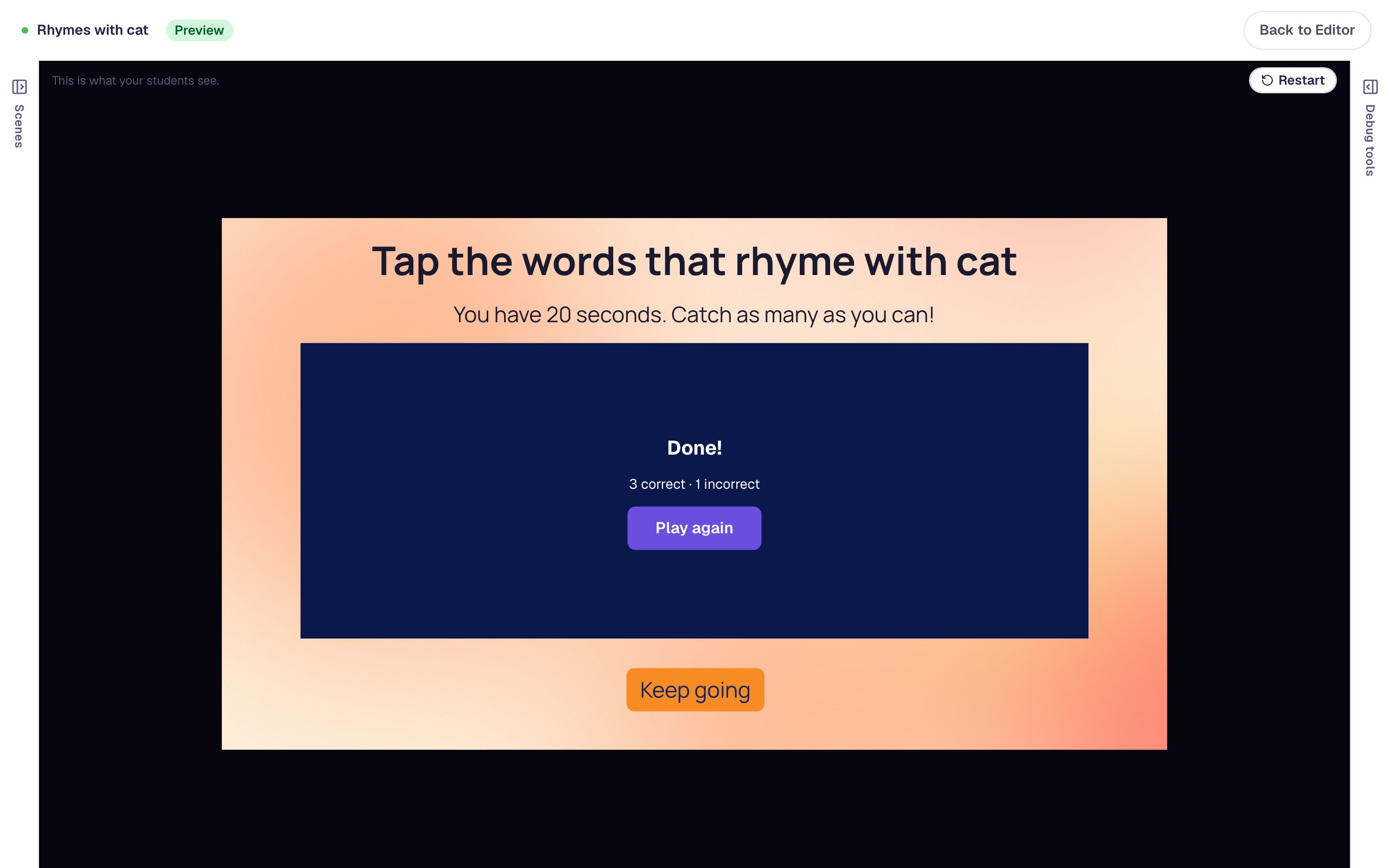
Now stop tapping and let the clock run out. After 20 seconds the game shows Done! with the round's tally, and Keep going appears under it.
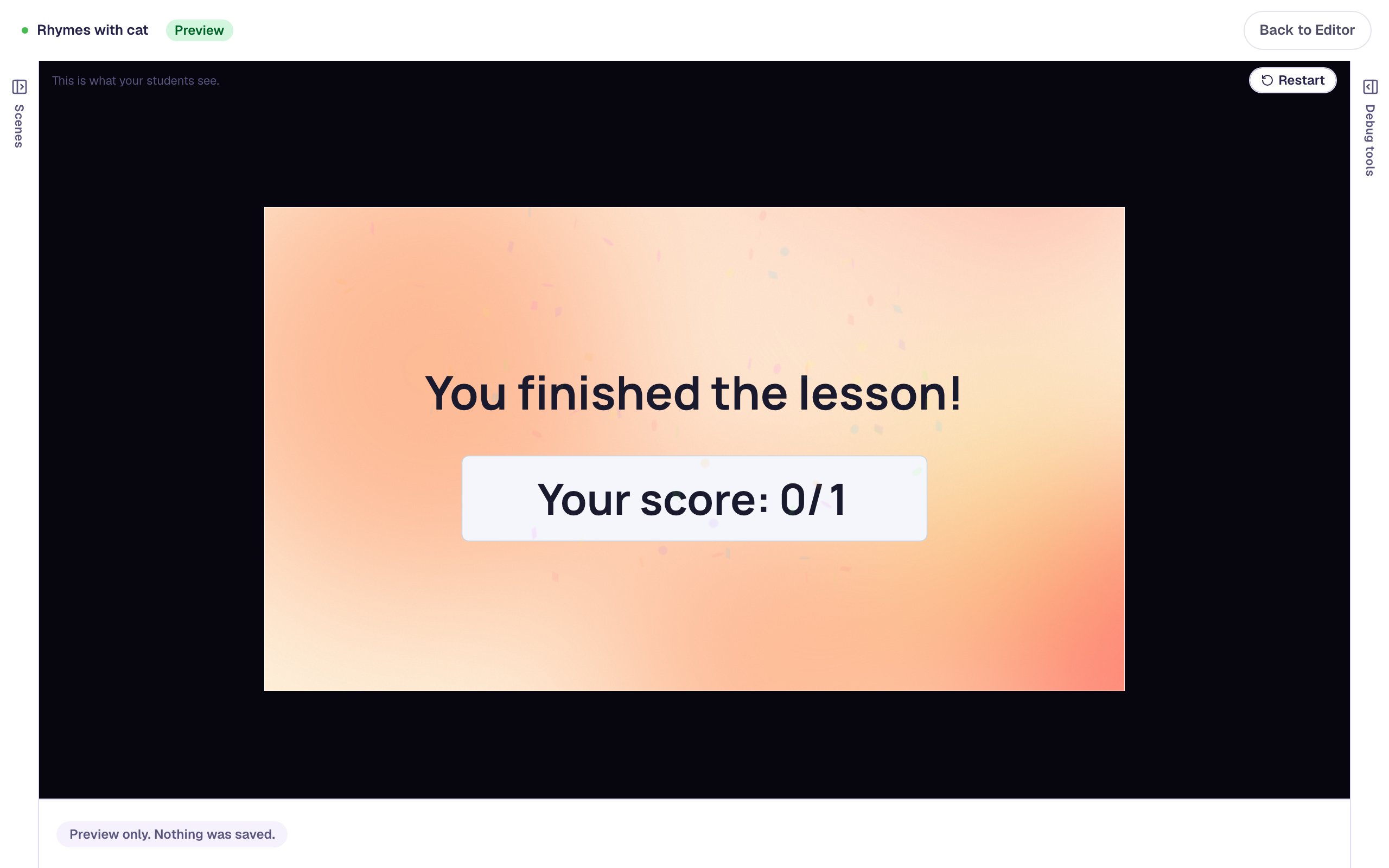
Press Keep going and the ending shows the score. This round had a slip, so it reads 0/1: the student moved on, and the score still tells you they didn't catch every rhyme cleanly.
A student who wants another go can still press Play again before Keep going. The button stays on screen, and the new round's result replaces the last one, so a clean second round earns the point.
What you built
A timed warm-up that never traps anyone:
- a Rain Game of twelve short words, six of them rhymes, that runs for 20 seconds or until every rhyme is caught,
- a Keep going button that's Hidden when the scene opens,
- an On Rain Game End behavior on the game that shows the button however the round ends, and
- a scene on Stay, so every student leaves through the button, with the score recording whether their round was clean.
The same pattern works for the other arcade games. A Conveyor Belt has On Belt Complete, and a Word Search has On All Words Found: give either one a hidden button and show it from that behavior.
For a different way to keep an activity moving on a timer, Play a memory game that moves on after ten seconds uses a Timer to leave the scene by itself.
Make this activity yours
Add the activity you just watched being built to your account, then change it for your class: your questions, your pictures, your colors.
Free to sign up, and you'll come straight back here. I have an account