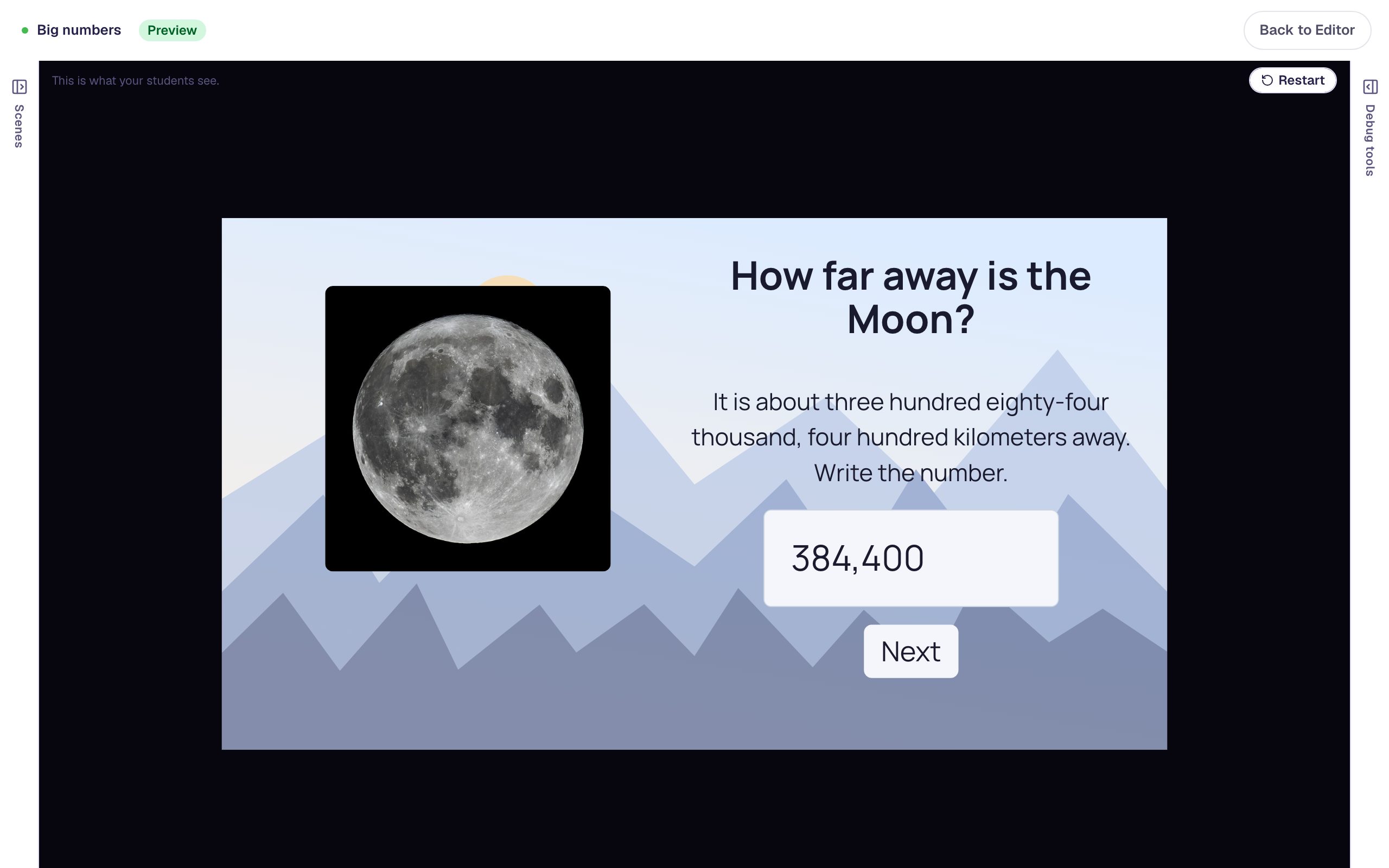
Split a number line to show an equal fraction
Students split each fourth of a number line into eighths, then place point C at 6/8, and see it land exactly where 3/4 is. A tip appears the moment the line is in eighths.
- Level
- Intermediate
- Time
- About 15 min
- Steps
- 7
- Updated
- Nov 21, 2026
A one-question garden activity where students split a 1-metre carrot row from fourths into eighths, drag point C to 6/8, and see it named 3/4.
Get the finished activity
Skip straight to the result, or keep it open beside the steps. Add this tutorial's activity to your account and explore how it works in the studio.
Free to sign up, and you'll come straight back here. I have an account
Equal fractions are easy to say and hard to see. A student can learn that 6/8 equals 3/4 by rule, but on a number line they can watch it happen: cut every fourth in half, count six of the new eighths, and you land on the same spot as 3/4.
In this tutorial you'll build a one-question activity called Eighths in the garden:
- a garden row 1 metre long, drawn as a Number Line from 0 to 1 in fourths,
- a Split each part control students use to cut every fourth into smaller parts,
- point C to drag to 6/8, which Berdee names 3/4 once it's right,
- a tip that appears only once the line is in eighths.
If you haven't used the Number Line before, start with Place a fraction on a number line.
Step 1: Set the scene
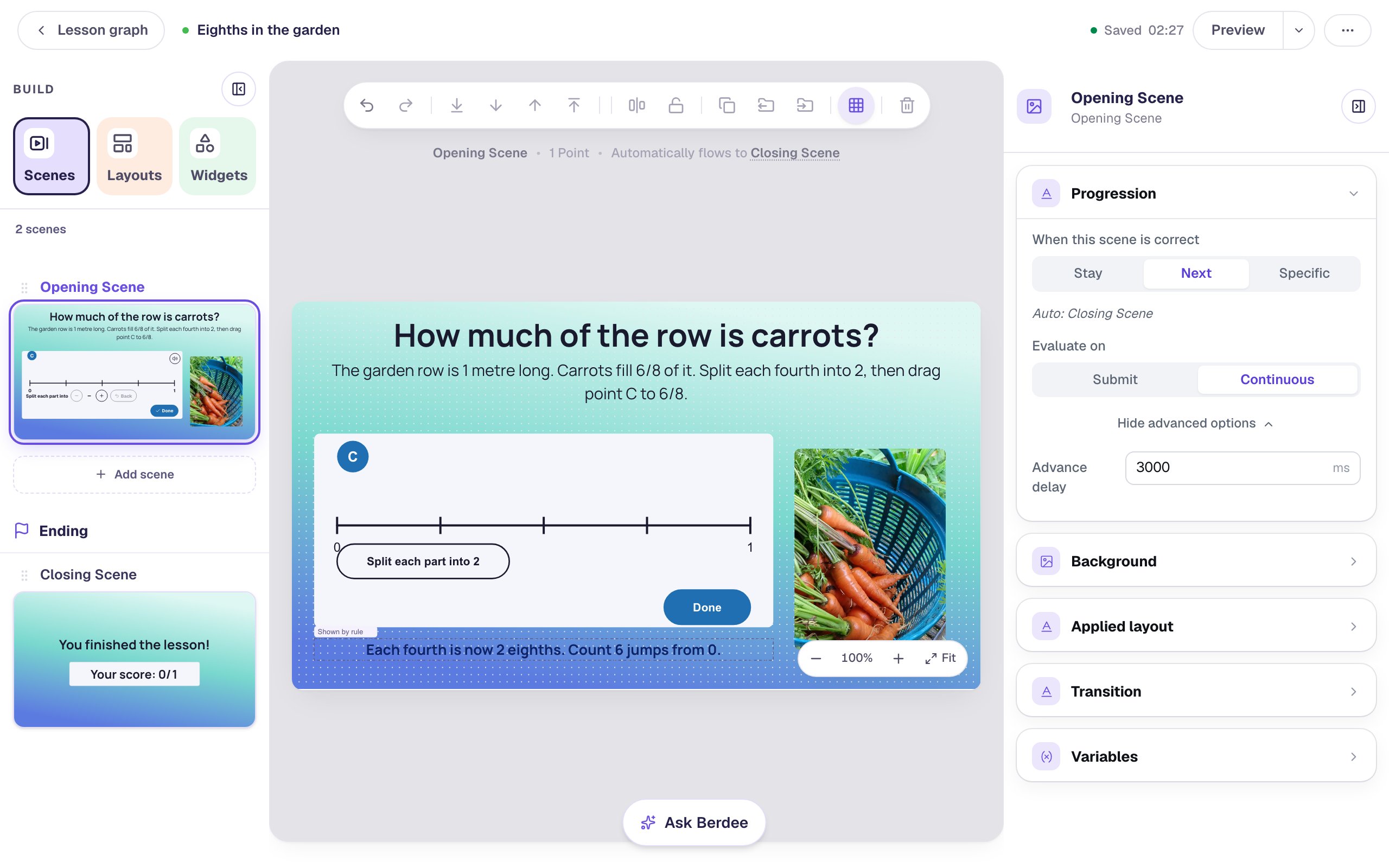
Start from scratch: click New activity, name it Eighths in the garden, then choose A blank activity and Build the first scene.
Give the scene a background. Click an empty spot on the scene, open Background, click Choose a style, and pick Lagoon gradient. Give the Closing Scene the same background so the ending matches.
Then add what students read and see:
- A Heading at the top:
How much of the row is carrots?. Set its Font Size to44. - A Body under it:
The garden row is 1 metre long. Carrots fill 6/8 of it. Split each fourth into 2, then drag point C to 6/8.Set it to Fixed width,880wide, and its Font Size to22. - An Image on the right,
240wide and280tall. Click Choose image, search the stock photos forcarrots harvest, and pick a tall photo.
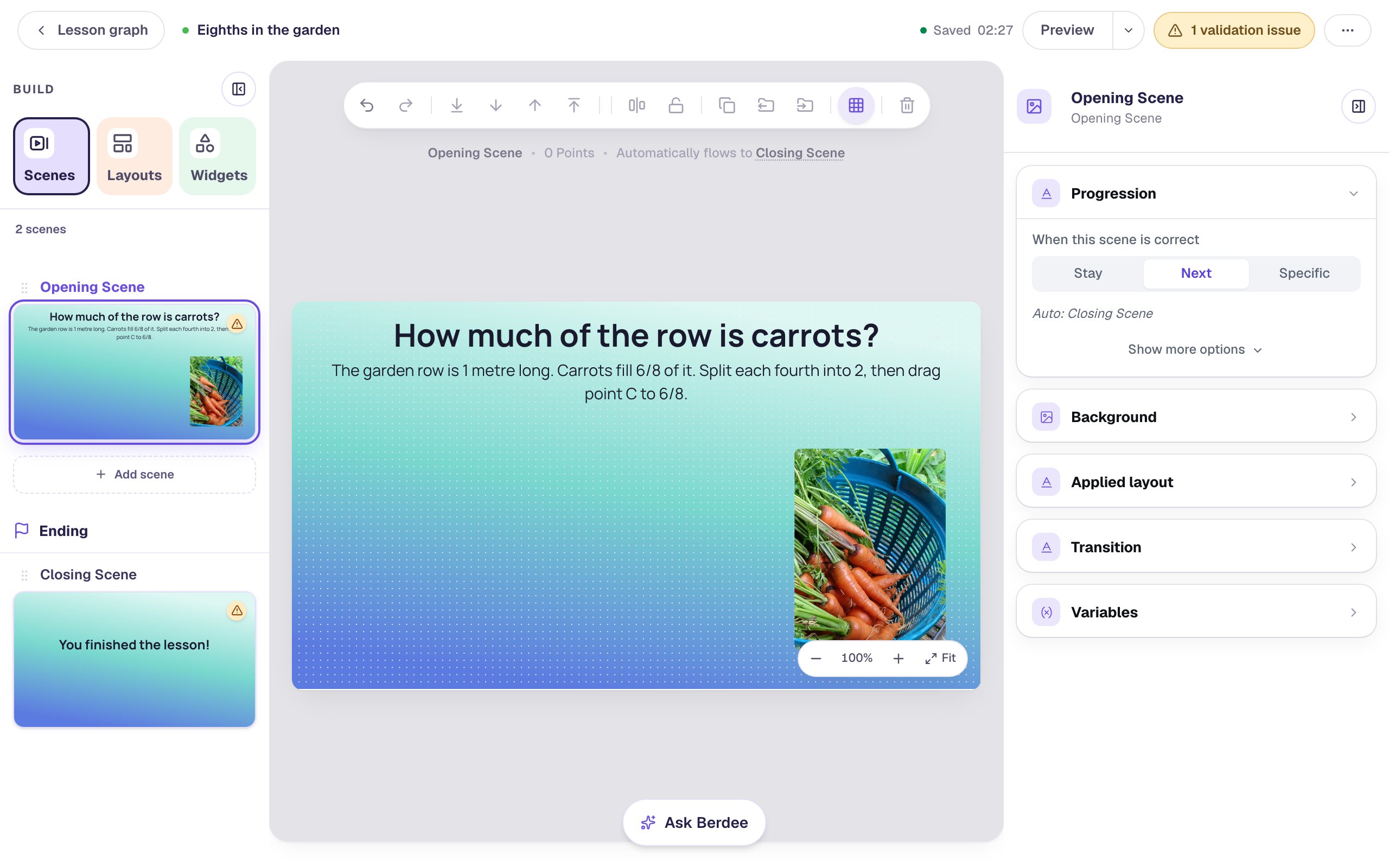
Describe the photo for students who use a screen reader. With the image selected, open Accessibility and type its Alt Text: Freshly pulled orange carrots with green leafy tops in a blue basket. The studio fills that field with the photo's file name, which a screen reader would read out word by word.
The top bar says 1 validation issue for now: the scene has nothing to answer yet.
Step 2: Add a Number Line
Search the Widgets tab for Number Line and click it. Rename it Carrot row with the pencil at the top of the properties panel: you'll pick it by that name in Step 5. Under Style & Layout, set Width to 640 and Height to 270, and drag it to the left of the photo.
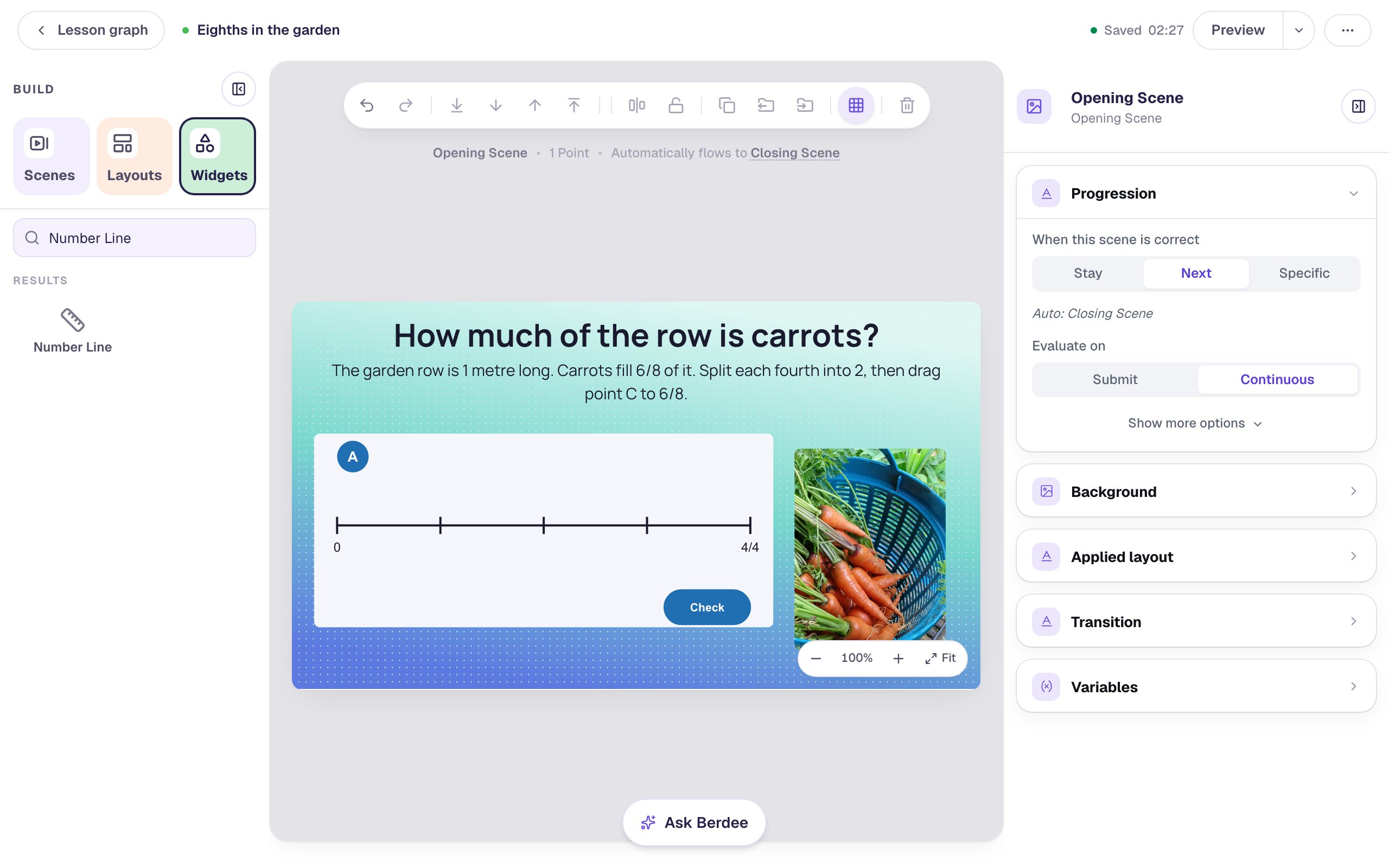
A new number line arrives graded and already cut into 4 equal parts, which is the line this activity starts from. Students would drag point A to 3/4 and tap Check. The next step turns it into a splitting question.
Step 3: Ask students to split, then place C at 6/8
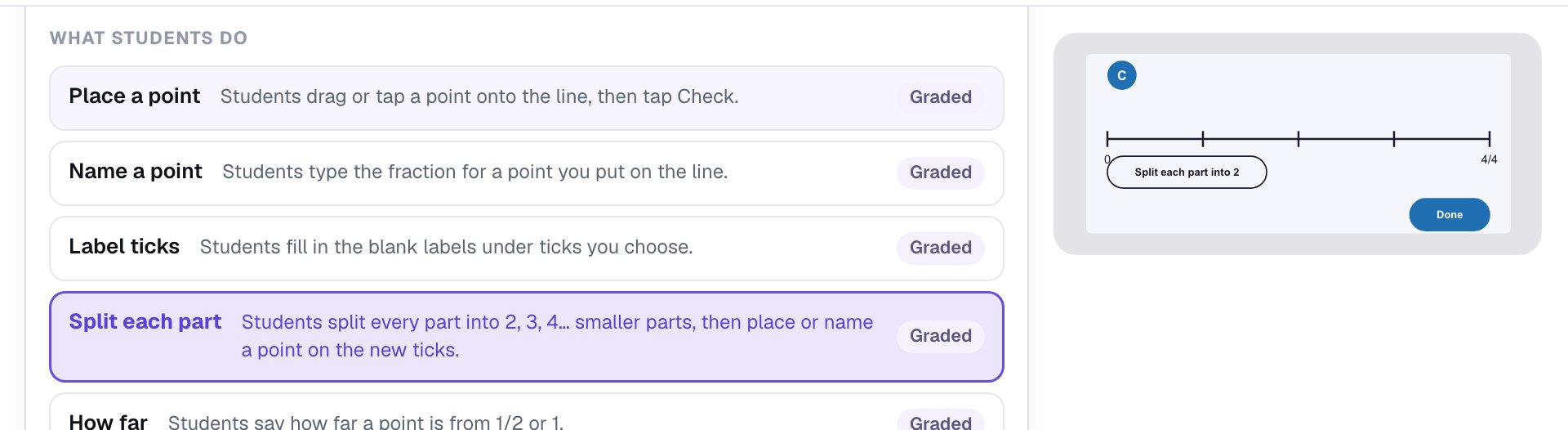
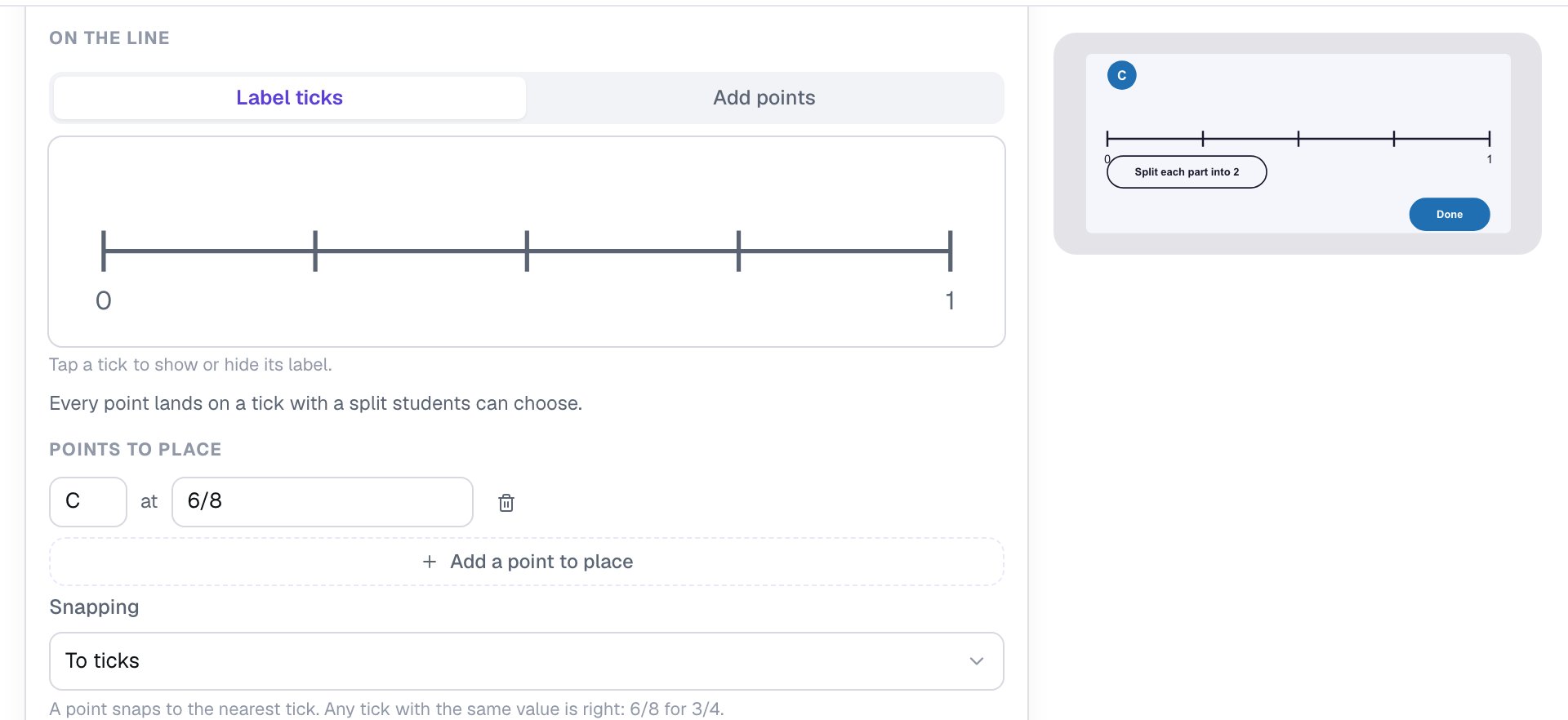
Select the number line and click the floating ⚙ Configure button. Under What students do, click Split each part. Then scroll to Points to place and change point A at 3/4 into point C at 6/8.
Under On the line, Berdee checks the point against every split students can choose and says Every point lands on a tick with a split students can choose. Splitting each fourth into 2 makes eighths, and the sixth one is 6/8. It's also the third fourth, because 6/8 and 3/4 are the same number, and that's what students are about to see.
Scroll up to The lines and set Write labels as to Lowest terms, so the end of the line reads 1 instead of 4/4. Leave Equal parts at 4 and Labels on Ends: students should count the parts, not read them.
Step 4: Choose which splits students can use
Scroll to The split. Splits students can choose starts with 2, 3, 4 and 5 ticked. Untick 5, so students pick from 2, 3 and 4.
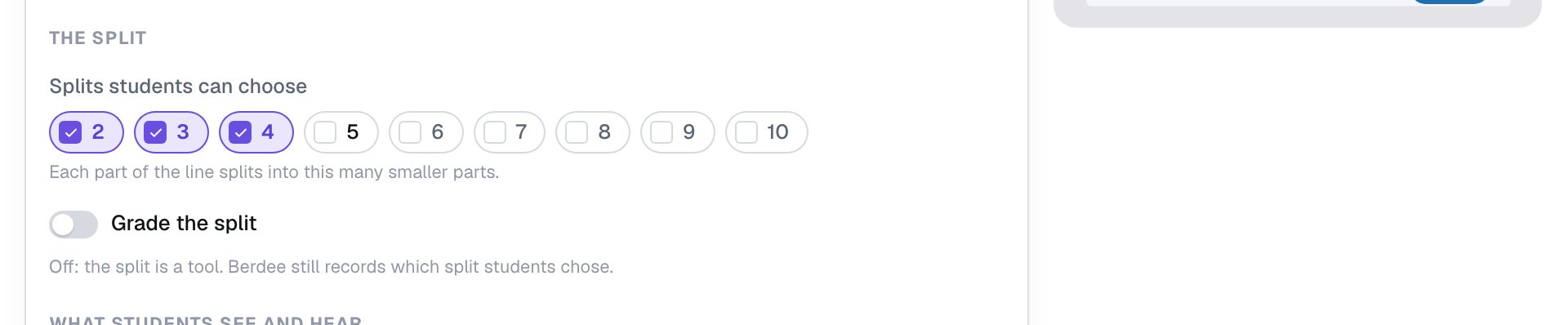
Leave Grade the split off. The answer is where C lands, and any split that gets it there is right. Split into 3 and the line has twelfths, with 9/12 at the same spot as 6/8; split into 4 and it's 12/16. Berdee grades by value, so all three are correct, and the attempt page still shows which split each student chose.
With the split off, a student who already knows that 6/8 is 3/4 can also drop C on the third fourth without splitting at all, and that's right too: it's the same point. If you want every student to make eighths first, turn Grade the split on and type 1/8 in Must land on a tick. Only a split that puts 1/8 on a tick (into 2 or into 4) then counts. Grading the split fits best when the split itself is the skill, such as "make halves on a line in fifths".
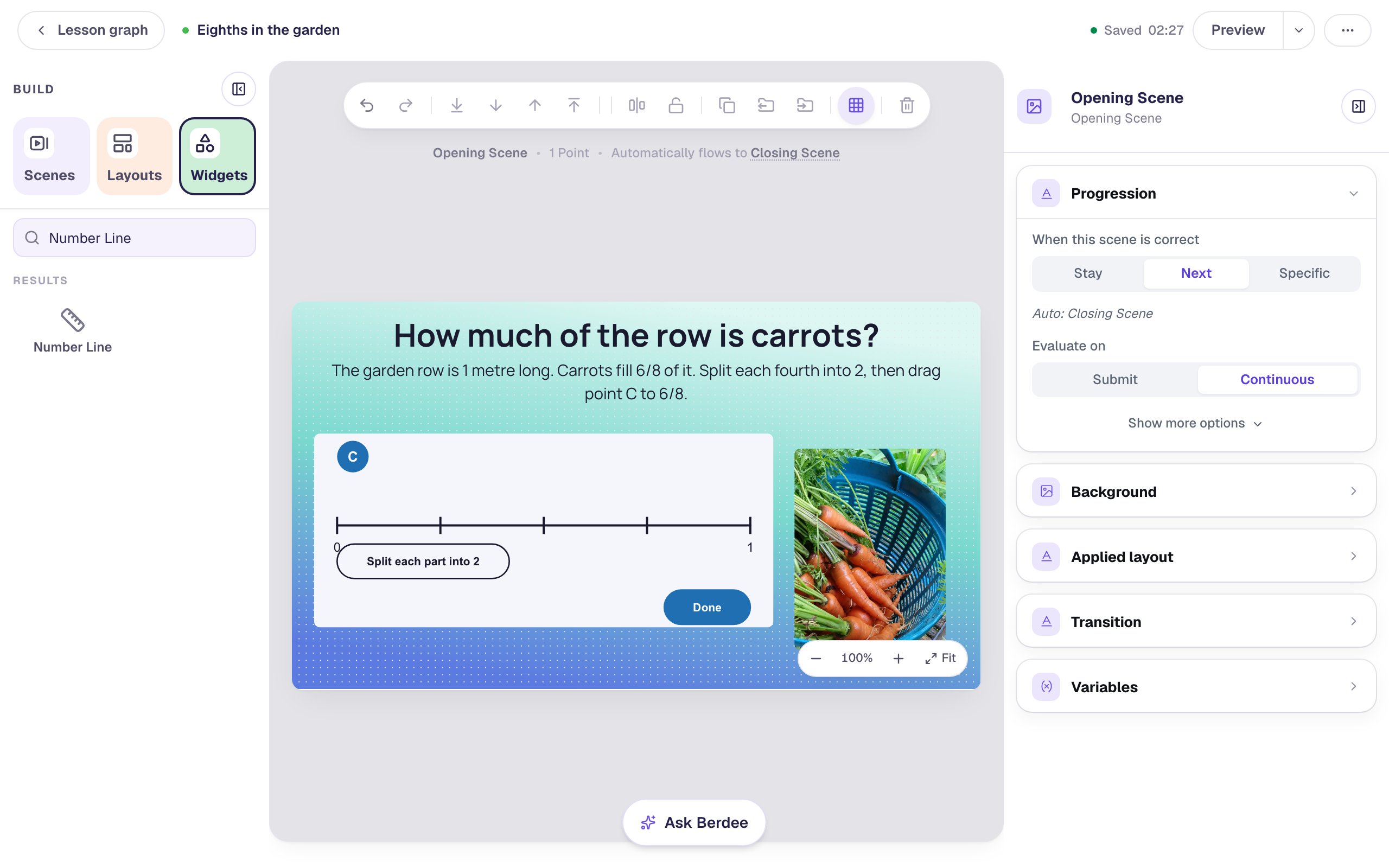
Click Save. On the canvas the line now shows a Split each part into 2 button and Done instead of Check.
Step 5: Show a tip once the line is in eighths
Students who split into 2 now face eight small parts and need to count six of them. A short tip at that moment helps, and it shouldn't appear before they've split.
Add a Body under the number line that says Each fourth is now 2 eighths. Count 6 jumps from 0., rename it Eighths tip, and set it Fixed width 640, Font Size 20, bold, in a dark navy Text Color so it reads well on the blue.
Then open Visibility and set Mode to Conditional. In the condition, pick Number Line: Carrot row, then Parts (after a split), equals, and type 8.
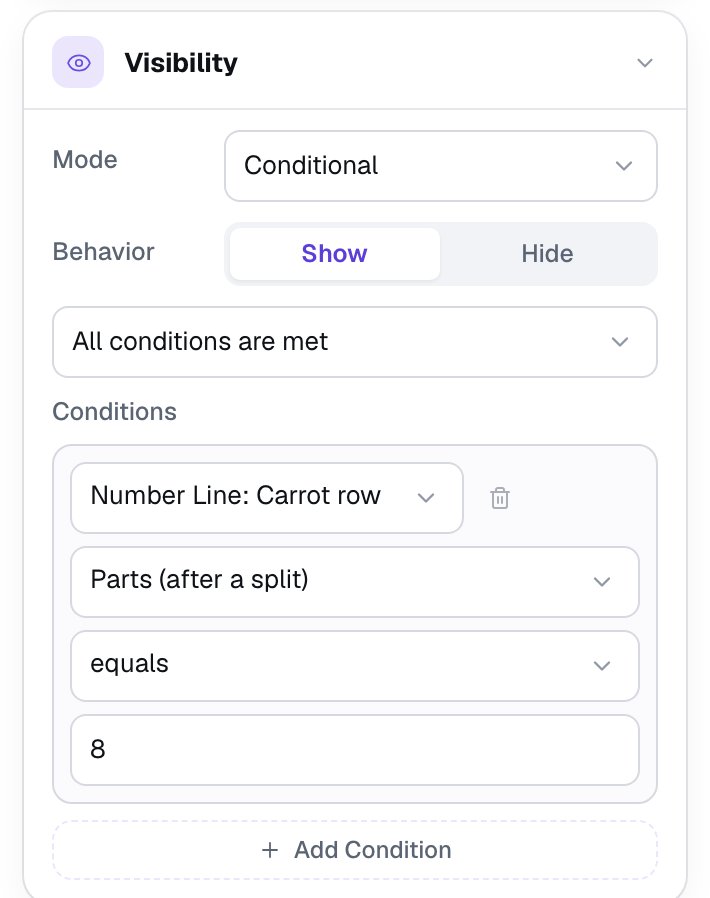
Parts (after a split) is the number of equal parts on the line: 4 before any split, 8 after splitting into 2, 12 after splitting into 3. The tip only talks about eighths, so it only shows for 8.
Step 6: Give students a moment before the ending
When C lands in the right place and the student taps Done, the scene moves on by itself. Click an empty spot on the scene, and in Progression click Show more options and set Advance delay to 3000 ms, so students have time to see their ✓.
Step 7: Try it as a student
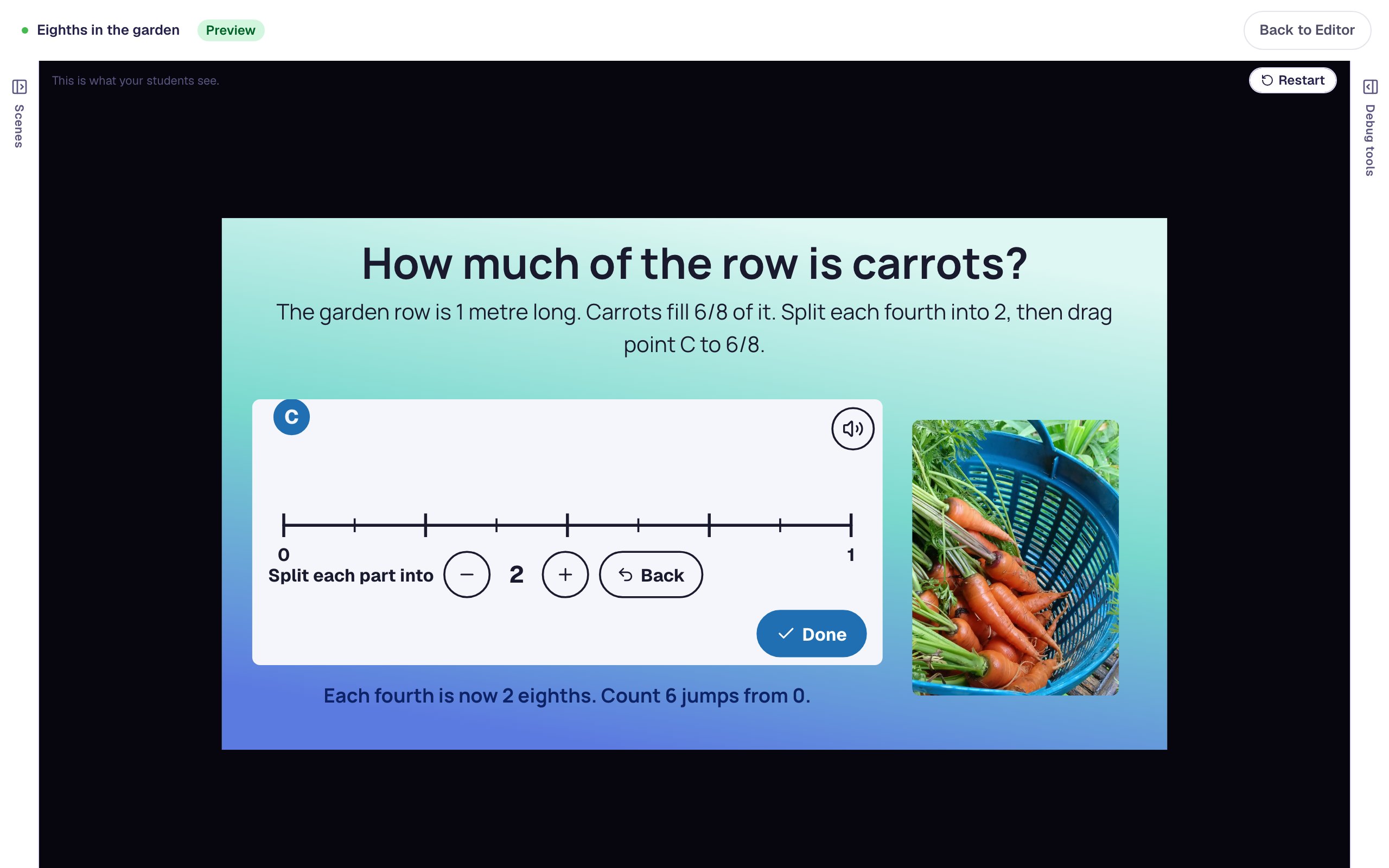
Click Preview. Under the line, Split each part into shows a dash: nothing is split yet. Tap + once. A shorter tick appears in the middle of every fourth, the count changes to 2, and the tip appears under the card.
Now drag C six jumps from 0 and tap Done.
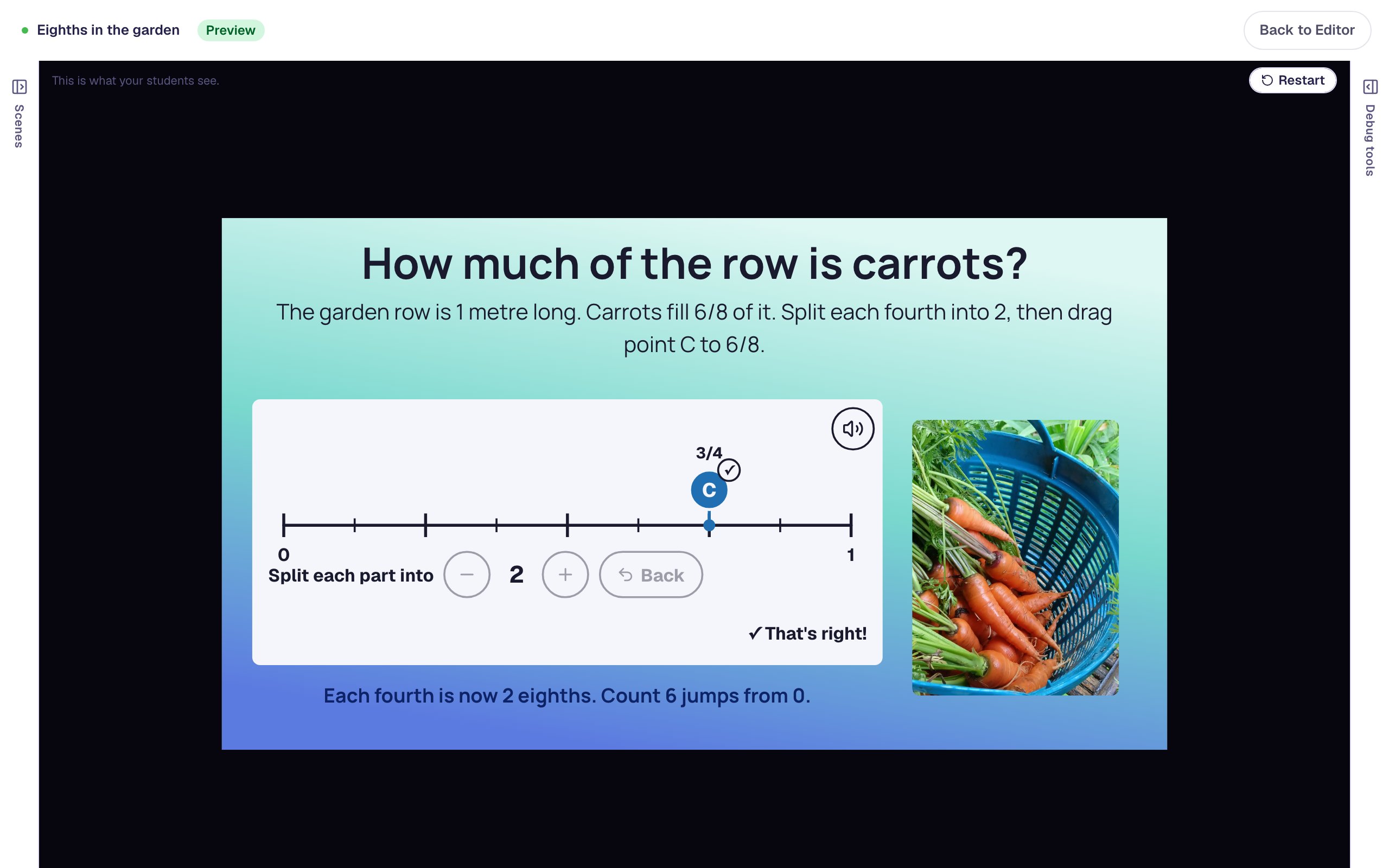
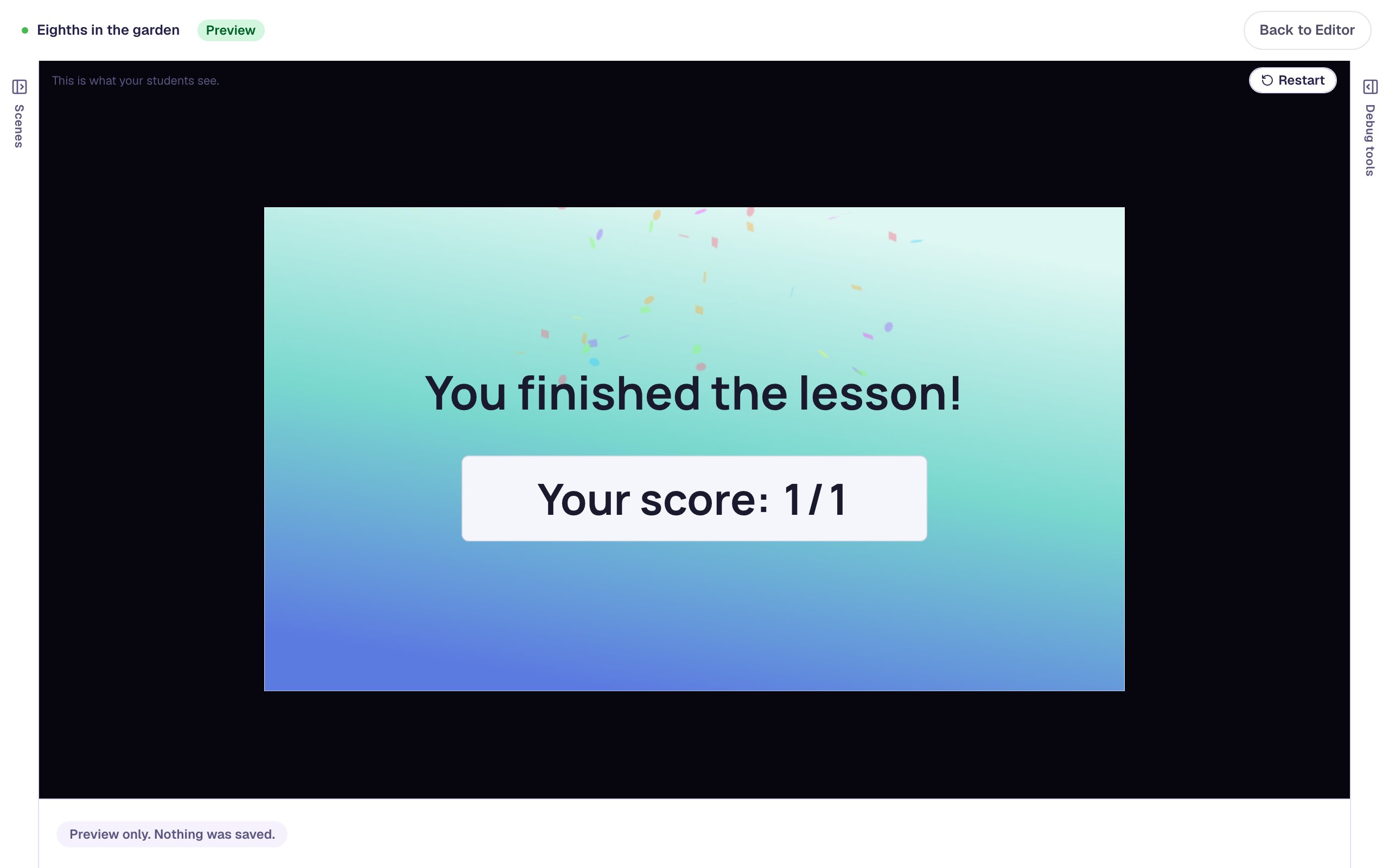
C gets a ✓ and the label 3/4. That's the line's Lowest terms setting at work, and it's the point of the activity: the student counted 6/8, and the line tells them it's 3/4. After 3 seconds the activity moves on to the ending.
On a student's attempt page you'll see the split they chose and where they put C.
What you built
A one-question Eighths in the garden activity with:
- a story about a real length and a photo of the harvest, described for screen readers,
- a Number Line from 0 to 1 in fourths, set to Split each part, labelled only at its ends and in lowest terms,
- point C to place at 6/8, which Berdee checked a split can reach,
- splits of 2, 3 or 4, with Grade the split off so any split that reaches 6/8 is right,
- a tip that shows only when Parts (after a split) equals 8,
- a 3-second pause, so students see their ✓ before the ending.
To compare the two fractions side by side, add a second line from 0 to 1 in fourths and set Scale to Lined up: 3/4 on one line sits right above 6/8 on the other. For equal fractions written as a sentence instead of on a line, try Find an equal fraction with a number sentence.
Make this activity yours
Add the activity you just watched being built to your account, then change it for your class: your questions, your pictures, your colors.
Free to sign up, and you'll come straight back here. I have an account