Ask for a big number and show it with commas
Ask students to write numbers in the thousands from their words, and turn on Thousands Separators so 384400 reads as 384,400 the moment they finish typing.
- Level
- Beginner
- Time
- About 15 min
- Steps
- 6
- Updated
- Nov 21, 2026
A two-question "Big numbers" activity where students write Mount Everest's height and the Moon's distance as numbers, see their answers grouped with commas, and finish on a score out of 2.
Get the finished activity
Skip straight to the result, or keep it open beside the steps. Add this tutorial's activity to your account and explore how it works in the studio.
Free to sign up, and you'll come straight back here. I have an account
Reading and writing numbers in the thousands is a big step in place value. A student who reads "three hundred eighty-four thousand, four hundred" has to turn it into 384400, and then check it. Six digits in a row are hard to check: is that 38 thousand or 384 thousand? Commas make the groups visible. 384,400 reads the way the words say it.
A Number Input can add those commas for the student. Turn on Thousands Separators, and a typed 384400 shows as 384,400 as soon as the student leaves the box. Students can type the commas themselves or leave them out: both are the same answer.
In this tutorial you'll build Big numbers, a two-question activity:
- Mount Everest is eight thousand, eight hundred forty-nine meters tall: students write
8,849. - The Moon is about three hundred eighty-four thousand, four hundred kilometers away: students write
384,400.
If you haven't used the studio before, start with Build your first quiz question: this tutorial moves quickly through the parts it already covers.
Step 1: Set up the first question
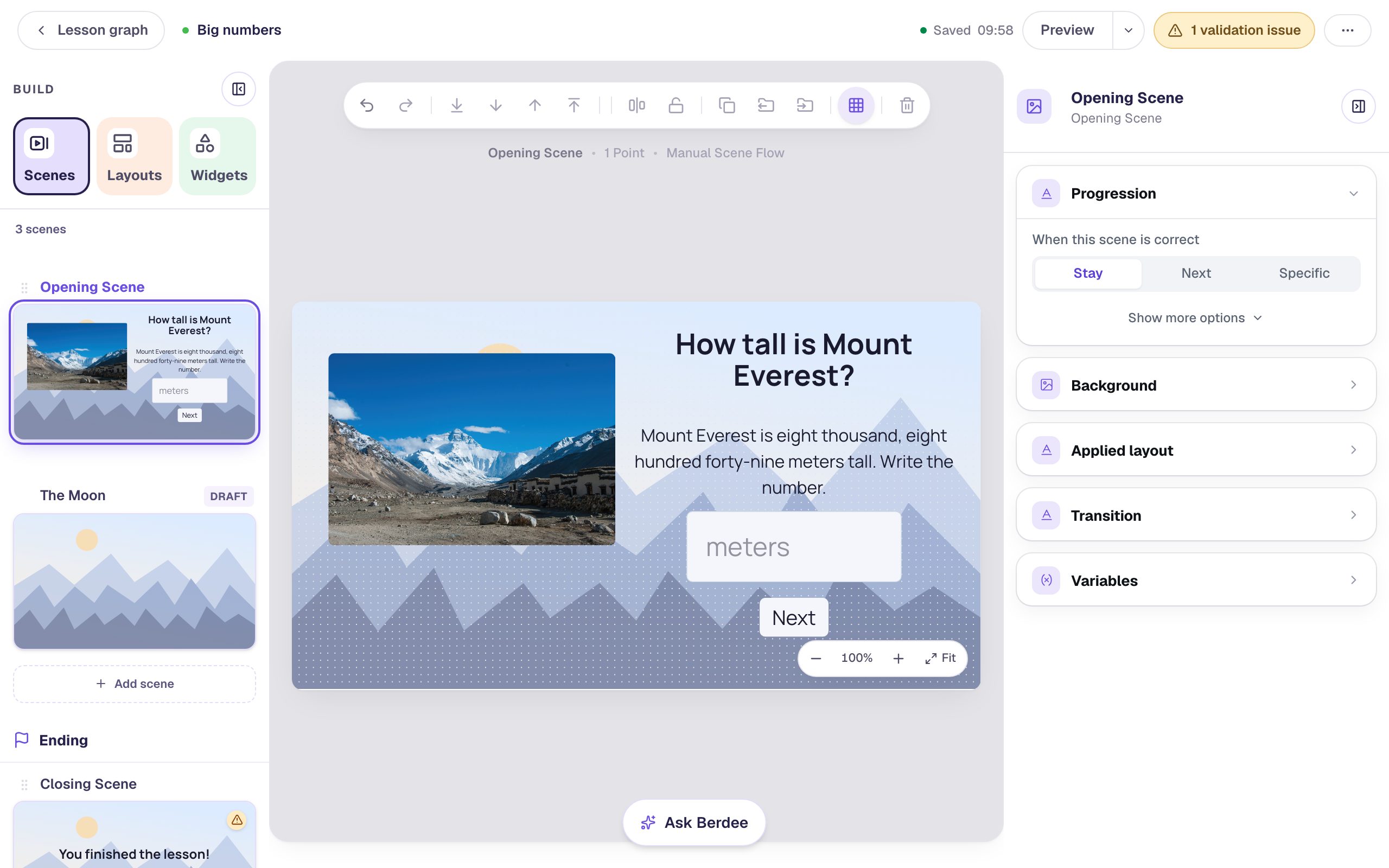
Start from scratch: click New activity, name it Big numbers, then choose A blank activity and Build the first scene.
In the Scenes panel, click Add scene, select the new scene, click its name at the top of the properties panel, and call it The Moon. Make it now: the first scene's Next button points at a specific scene, so that scene has to exist first.
Give every scene a background, the Closing Scene too: with nothing selected, open Background, click Choose a style, pick Nature, then Mountain range, and click Apply background.
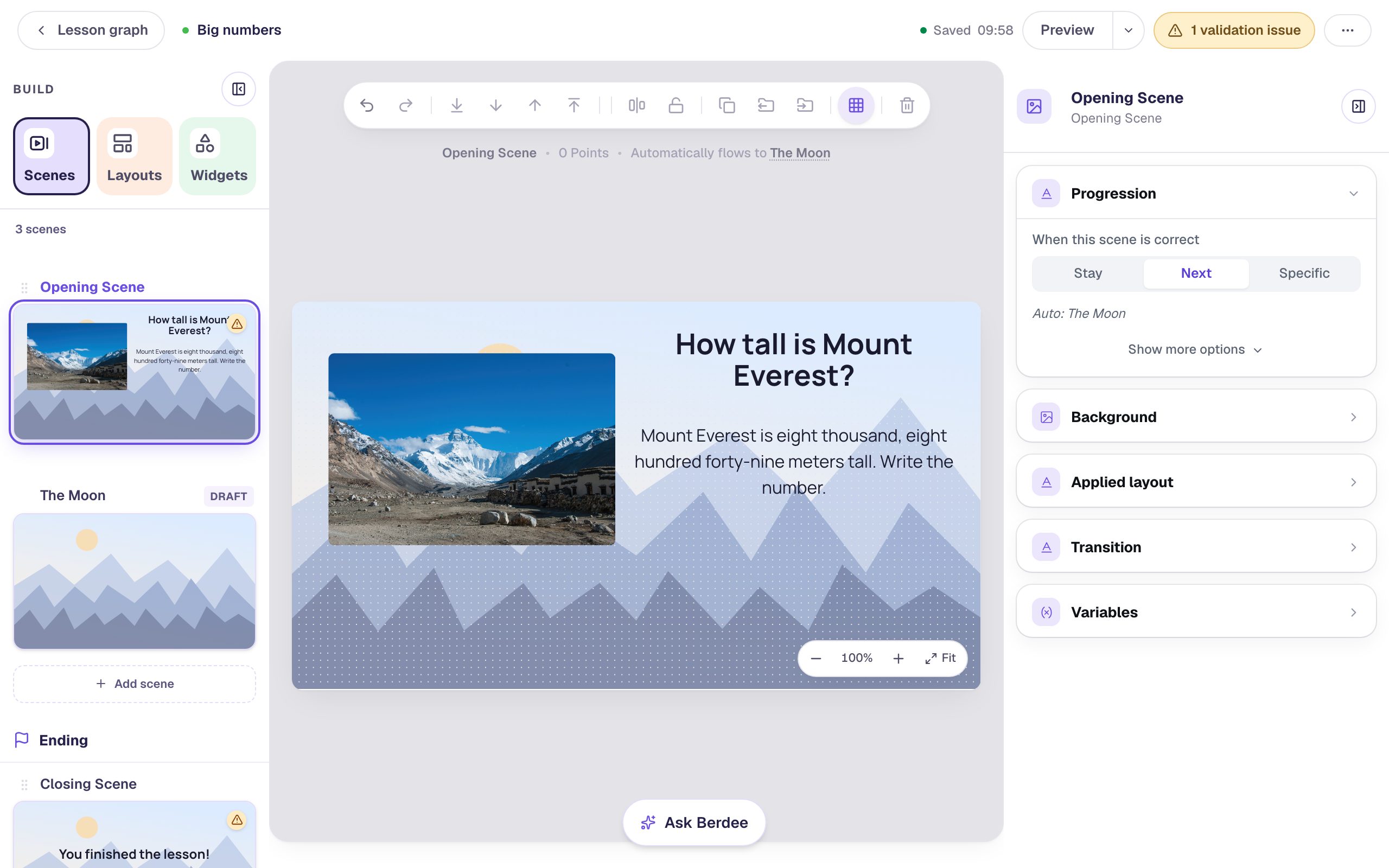
On the Opening Scene, put the picture on the left and the words on the right:
- an Image. Click Choose image, search the stock photos for
mount everest, and import one. Drag it to the top left. In Accessibility, replace the file name in Alt Text with a sentence that says what the photo shows, such asThe snowy peak of Mount Everest under a clear blue sky. - a Heading,
How tall is Mount Everest?, at Font Size40. - a Body with the number in words:
Mount Everest is eight thousand, eight hundred forty-nine meters tall. Write the number.In Style & Layout, choose Fixed width and set Width to460so it wraps beside the photo. Give the Heading Fixed width440too, and line both up on the right.
Why the alt text matters: a student using a screen reader hears it in place of the photo. Describe your pictures for screen-reader users goes into it.
Step 2: Add the question and its answer
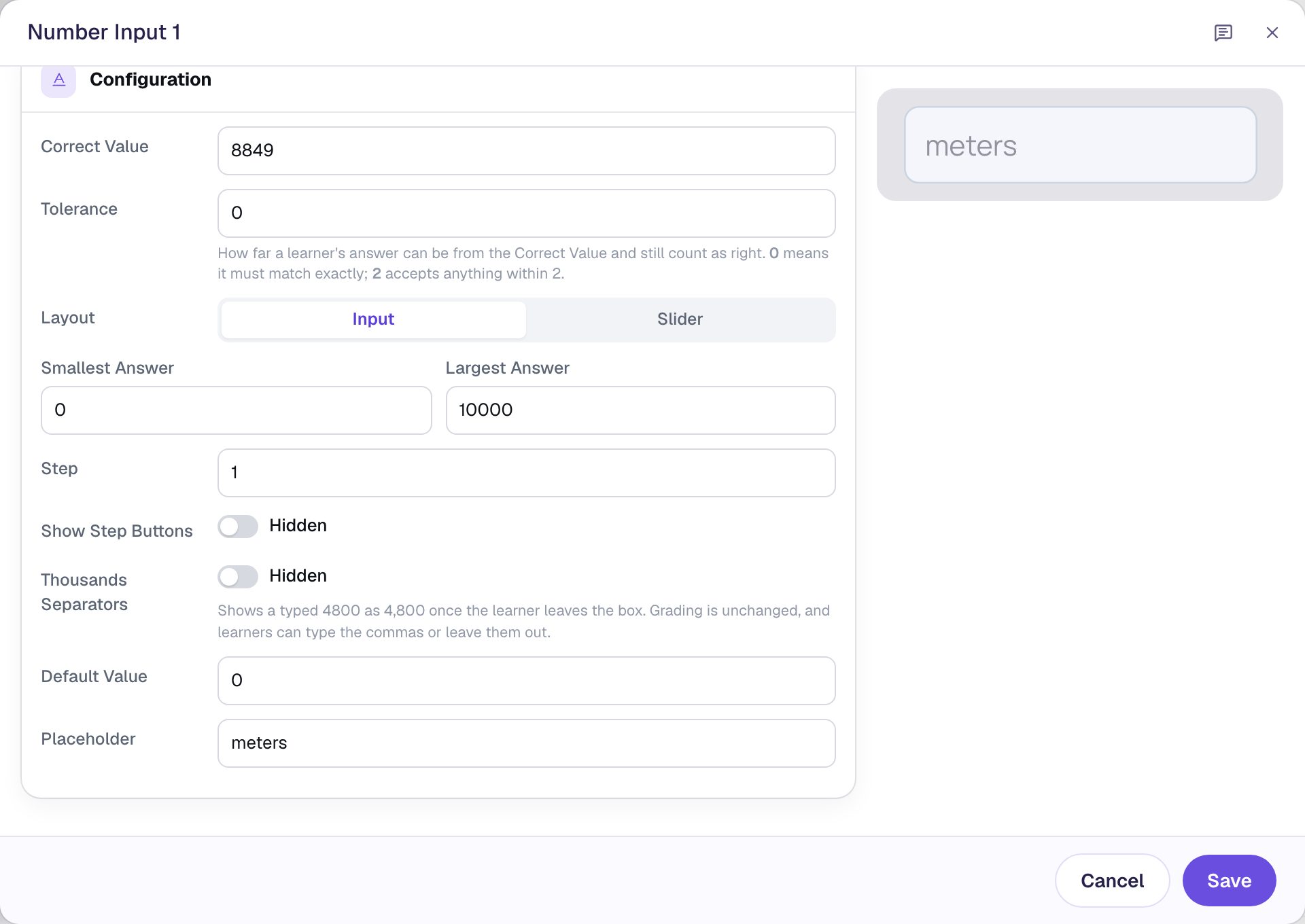
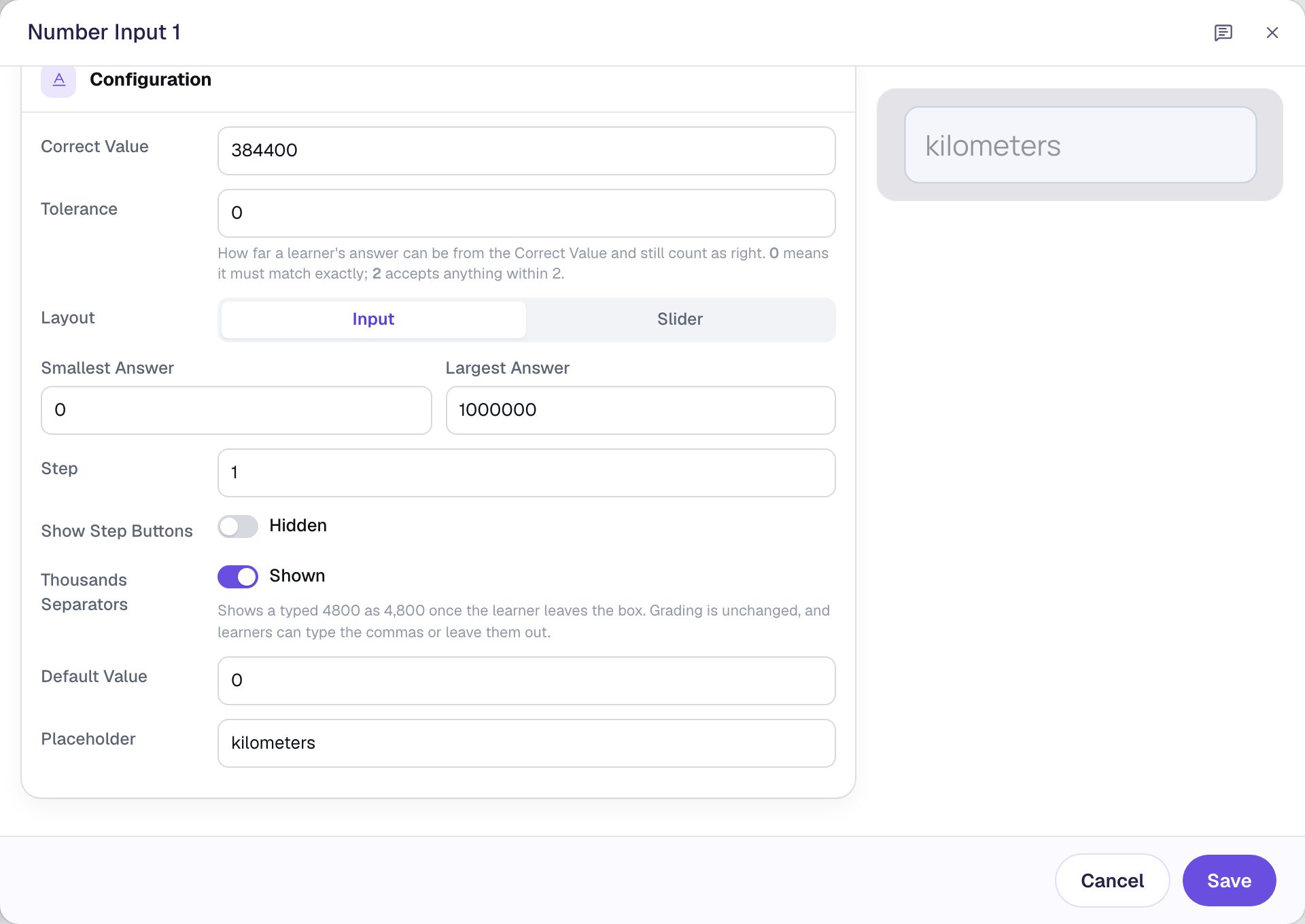
In Activity Widgets, search for Number Input and click it, then click ⚙ Configure above it. In Configuration:
- Set Correct Value to
8849. Type it without a comma: this box takes plain digits. - Set Largest Answer to
10000. A new Number Input only allows answers up to100, so until you raise it, a warning says the correct value is outside the range, and nobody could type8849.
Then turn Show Step Buttons off (stepping up to 8,849 one at a time is no help), and set Placeholder to meters so the unit shows in the empty box.
Keep Largest Answer comfortably above the answer, not exactly on it, so a student who writes 88,490 (a common place-value slip) can still type it and be marked wrong, rather than being stopped by the range.
Step 3: Turn on Thousands Separators
Still in Configuration, turn on Thousands Separators.
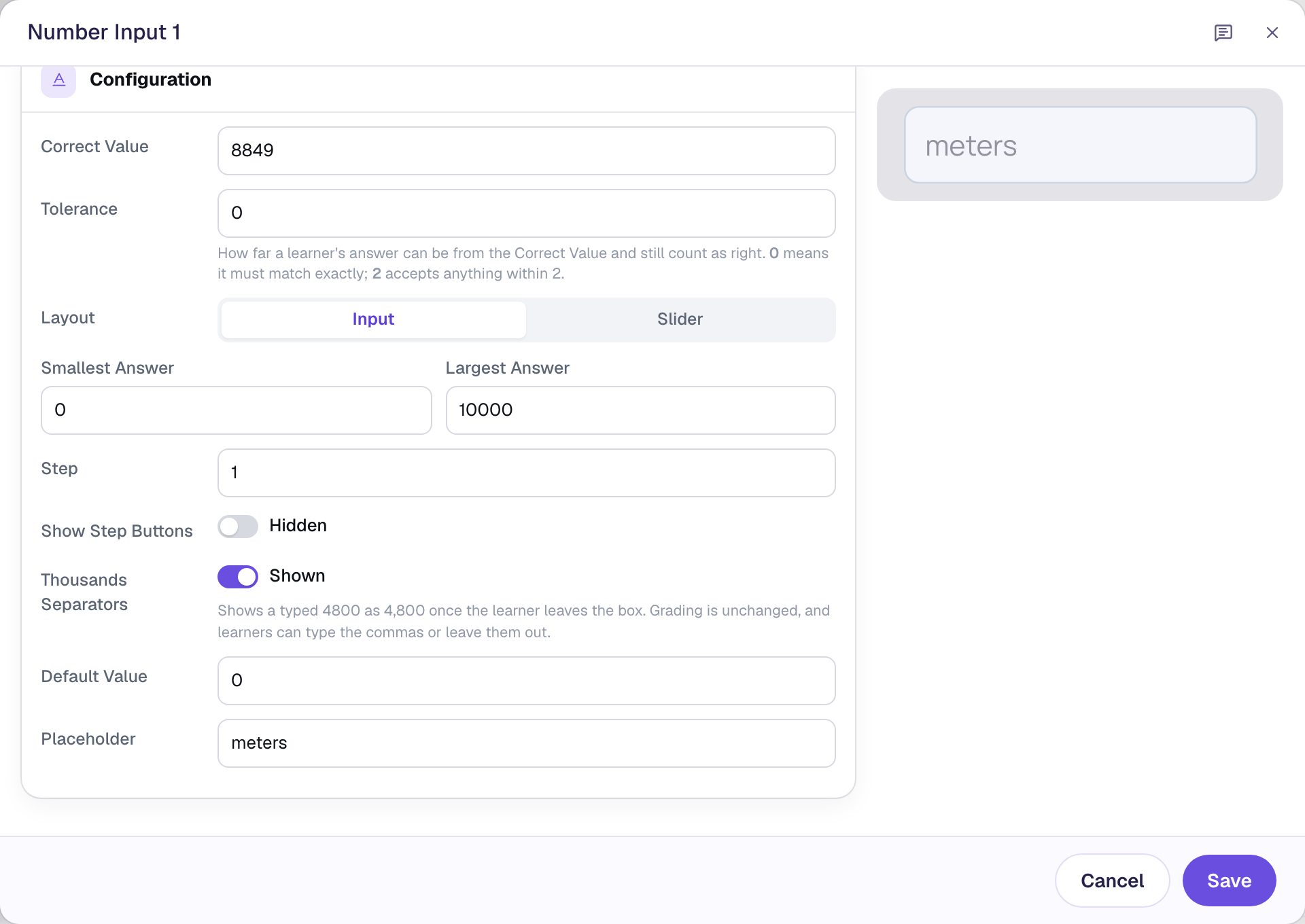
Here's what it does for students:
- While they type, the box shows plain digits, so the commas never jump around under their fingers.
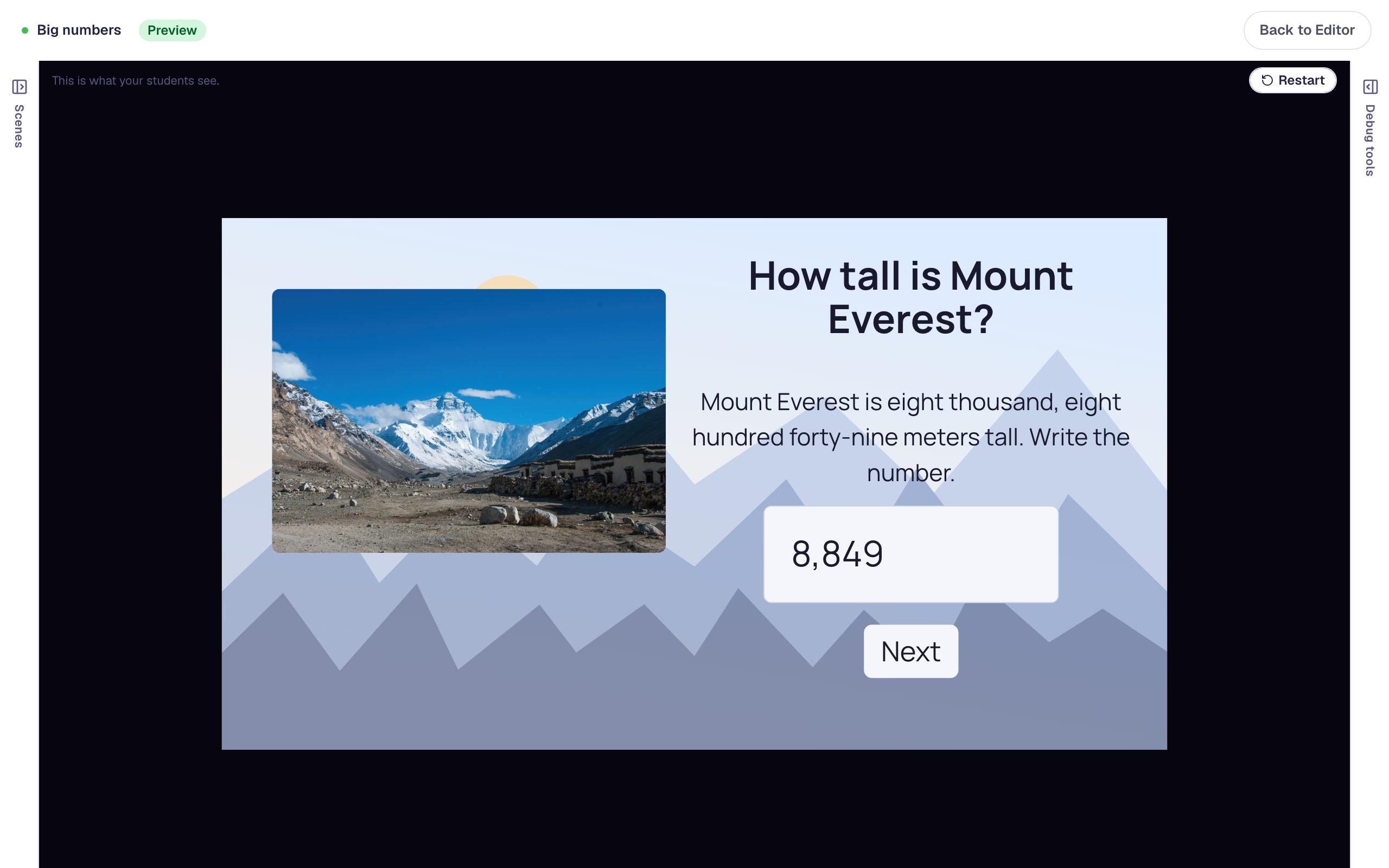
- When they leave the box, their number is shown grouped:
8849becomes8,849. - They can type the commas themselves.
8,849and8849are the same answer, so a student isn't marked wrong for writing it either way.
The setting is only for a typed box. A Number Input set to Slider doesn't offer it.
Step 4: Size the box and add a Next button
Click Save. Rename the widget Everest height (click its name at the top of the properties panel) so it reads well in your results. Then open Accessibility and change Alt Text from Number input to Mount Everest's height in meters: a screen reader announces the box by that name, so a student who can't see the scene still knows what to type. In Style & Layout, set Font Size to 36, then click Show more options and set Width to 300. The commas take room, so make the box wide enough for the grouped number, not just the digits. Drag it under the Body text.
Add a Button, click ⚙ Configure, change its Label to Next, and click Save. Click Behaviors, choose Make this a "Next" button, check that Goes to says The Moon, and click Add behavior. Set its Font Size to 28 and drag it under the box.
Then click an empty spot on the scene and, in Progression, change When this scene is correct from Next to Stay. A typed answer is checked when the student leaves the box, so with Next a right answer would whisk them away before they see their number with its commas, and a wrong one would leave them sitting there, which gives the answer away. With Stay, only the Next button moves them on.
Step 5: Build the Moon question the same way
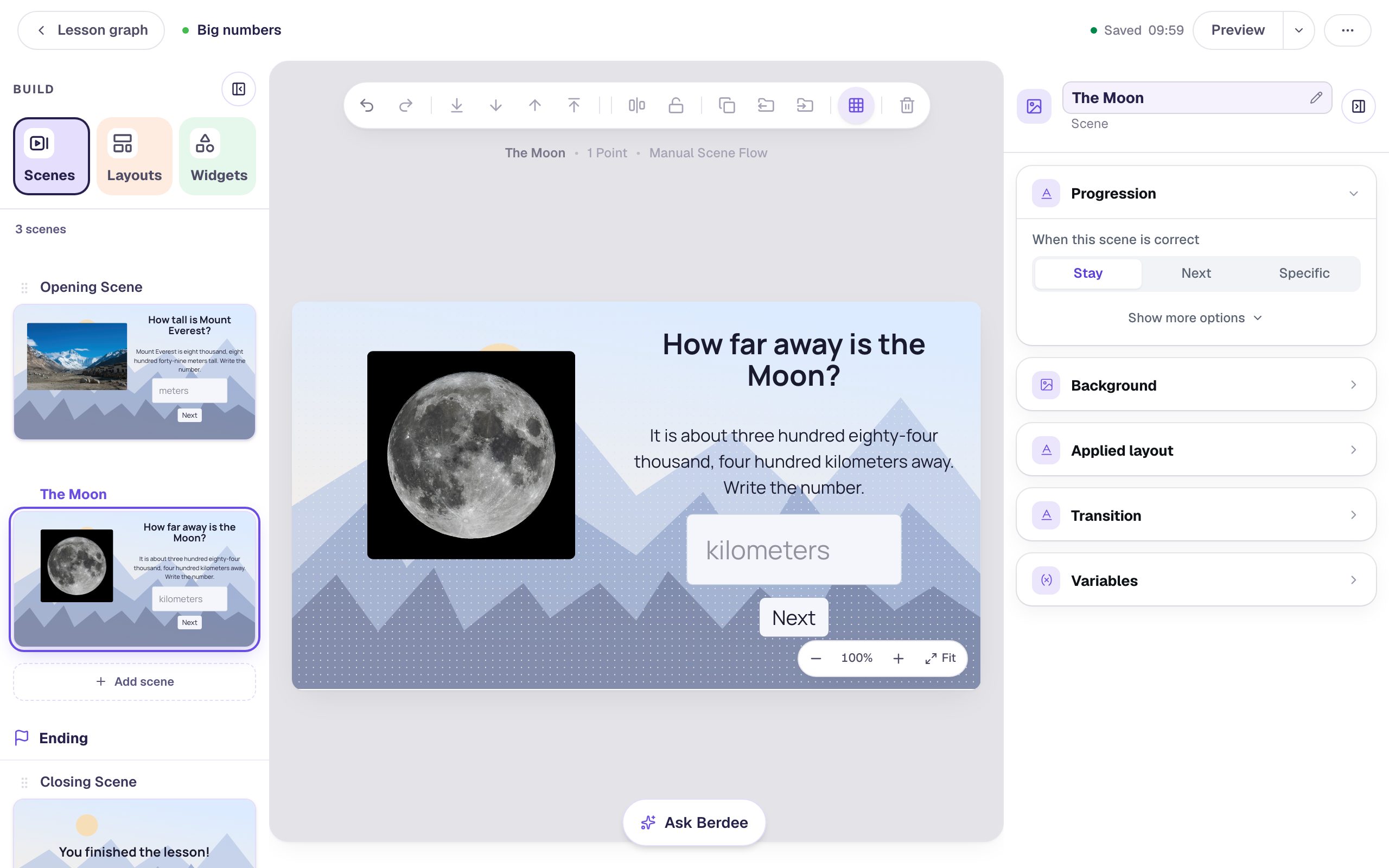
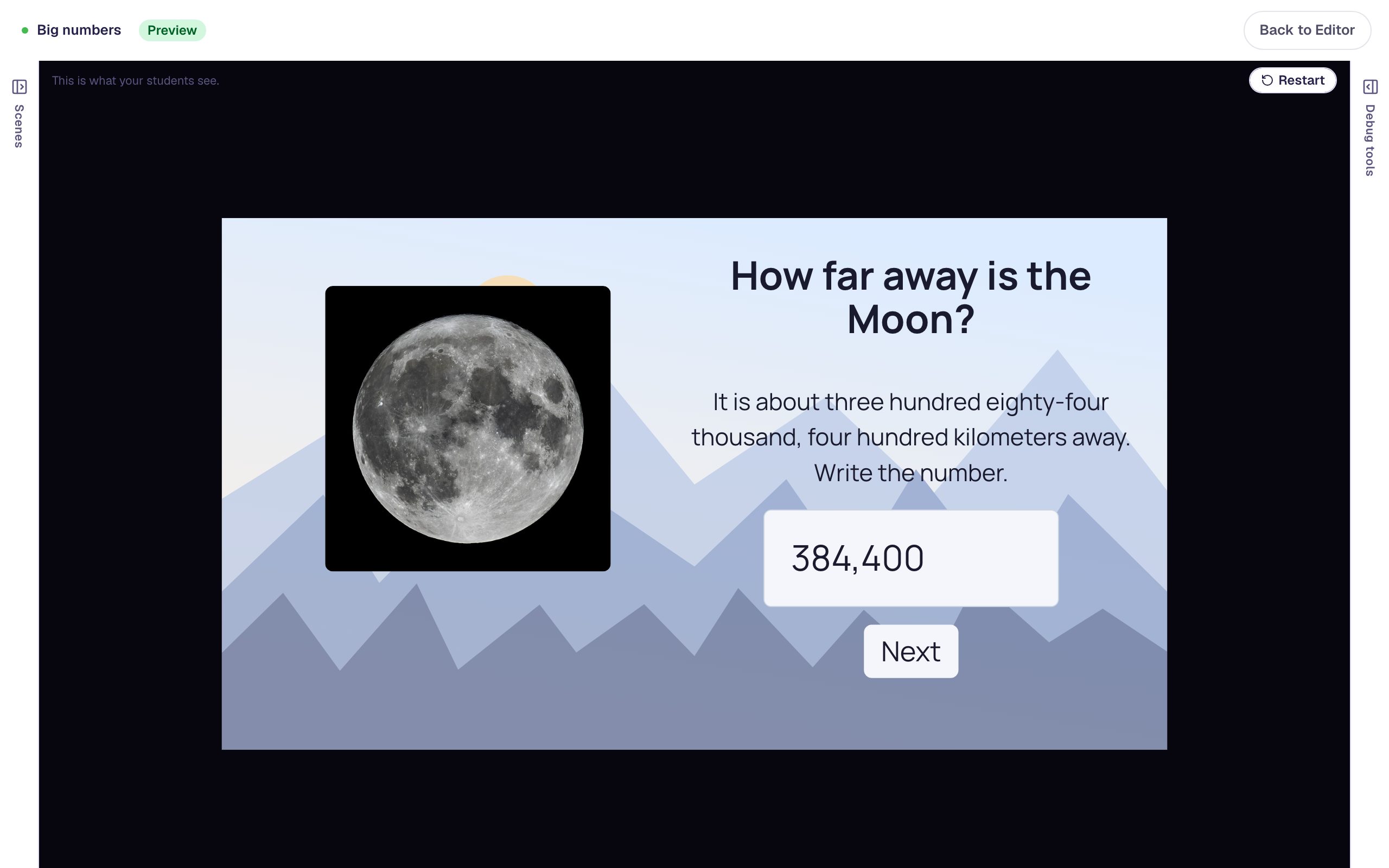
Open The Moon and build the same scene:
- an Image of the full Moon (search
full moonand pick a close-up), with Alt Text such asThe full Moon, its craters showing, in a black night sky. A square picture suits it: set its Width and Height to290. - a Heading,
How far away is the Moon? - a Body,
It is about three hundred eighty-four thousand, four hundred kilometers away. Write the number., at Width460 - a Number Input with Correct Value
384400, Largest Answer1000000, Show Step Buttons off, Placeholderkilometers, and Thousands Separators on. Rename itMoon distance, set its Alt Text toThe Moon's distance in kilometers, and give it the same Font Size36and Width300.
Add a Next button the same way. This time Goes to says Closing Scene. Set the scene to Stay too.
Step 6: Preview it
Click Preview on the Opening Scene and answer the way two different students might: one types the digits, the other types the commas too.
On the first question, type 8849 and click away. The box now shows 8,849. Click back into it and the commas go away again while you edit.
Press Next. On the Moon question, type 384,400, commas and all, and click away.
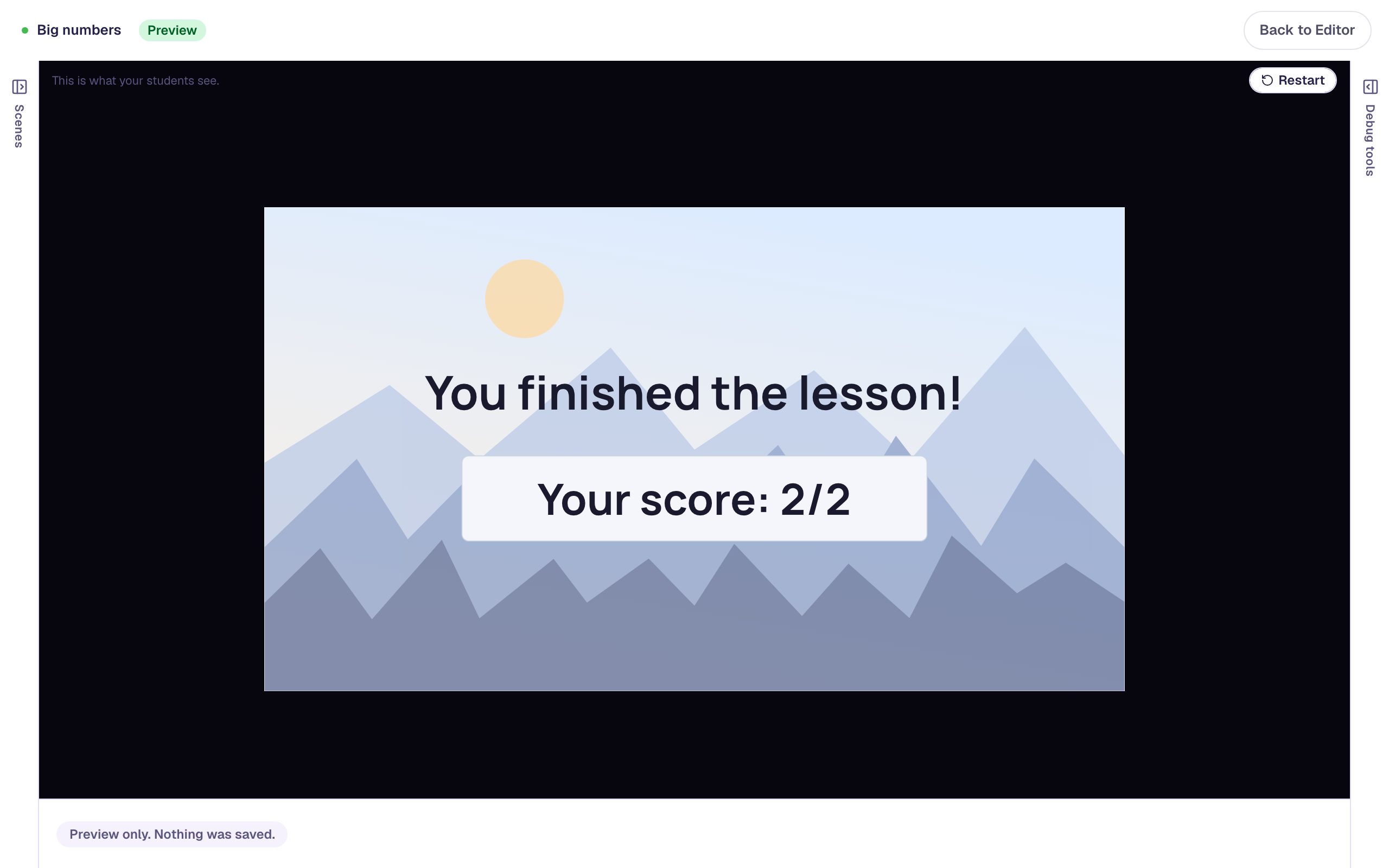
Press Next. The ending shows a score of 2/2: both answers counted, one typed without commas and one with them.
When you look at a student's attempt, their answers show with the same commas. See Student Experience and Attempts.
What you built
A two-question Big numbers activity where:
- each question gives a number in words and asks for it in digits, in a Number Input whose Largest Answer leaves room for wrong answers and whose Alt Text tells screen-reader users what to type,
- Thousands Separators shows each answer grouped with commas once the student leaves the box, while grading accepts it with or without them,
- Stay and a Next button let students see their number before moving on, and the ending scores both questions.
Next, let a guess that's close still count with Accept close-enough answers to a number question, or let students build the number before they write it with Build a three-digit number with base-ten blocks.
Make this activity yours
Add the activity you just watched being built to your account, then change it for your class: your questions, your pictures, your colors.
Free to sign up, and you'll come straight back here. I have an account