Pause the countdown while students read a hint
Put a 30-second countdown on a question, then add a Show a hint button that pauses the clock while the hint is open and a Got it! button that starts it again.
- Level
- Intermediate
- Time
- About 15 min
- Steps
- 8
- Updated
- Nov 22, 2026
A timed space question whose clock stops while a student reads the hint and picks up where it left off when they close it.
Get the finished activity
Skip straight to the result, or keep it open beside the steps. Add this tutorial's activity to your account and explore how it works in the studio.
Free to sign up, and you'll come straight back here. I have an account
A clock on a question builds fluency, and a hint helps a student who's stuck. Put both on one question and they work against each other: every second spent reading the hint is a second off the clock, so the students who need help most are the ones who run out of time.
In this tutorial you'll build a timed question where opening the hint stops the clock. Closing the hint starts it again, from where it stopped. Four widgets do the work:
- a Multi Choice question,
Which planet is the Red Planet?, - a Timer that counts down from 30 seconds as soon as the scene opens,
- a hidden Hint card, and
- two buttons: Show a hint, which pauses the clock and opens the card, and Got it!, which closes the card and starts the clock again.
This tutorial puts together two earlier ones, Give students 15 seconds to answer a question and Add a hint students can open when they're stuck, and moves quickly through the parts they cover.
Step 1: Build the question
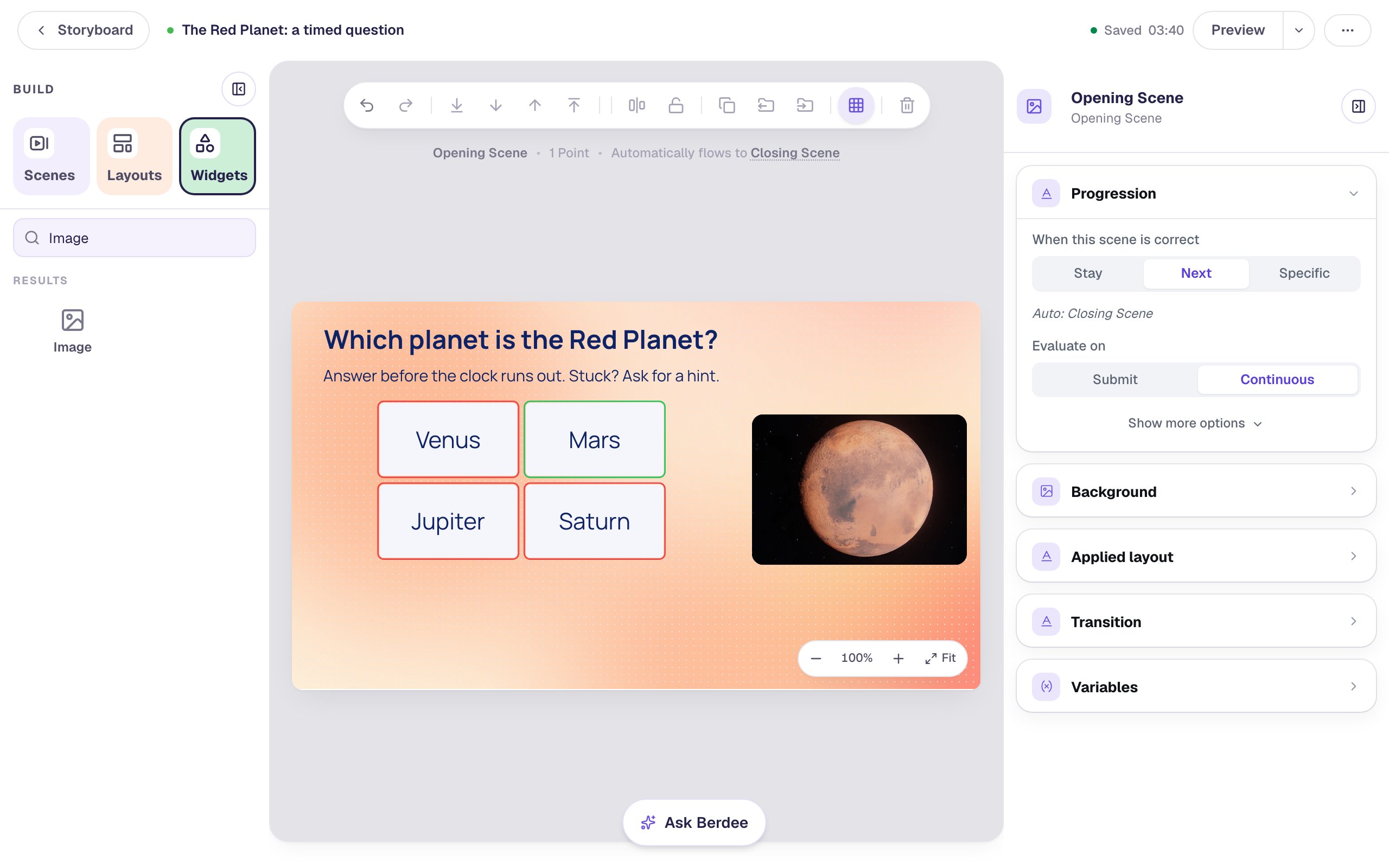
Start from scratch: click New activity, name it The Red Planet: a timed question, then choose A blank activity and Build the first scene. On the Opening Scene:
- Give the scene a background: open Background, click Choose a style, and pick Mesh sunrise under Gradients. Do the same on the Closing Scene, so the ending matches.
- Add a Heading that says
Which planet is the Red Planet?and a Body that saysAnswer before the clock runs out. Stuck? Ask for a hint.Drag them toward the top left, leaving the top-right corner free for the clock. - Add a Multi Choice, click ⚙ Configure, and type the answers
Venus,Mars,Jupiter, andSaturn. A new question starts with its first answer marked correct, so click the check mark next to Mars to move the mark there. Click Save, then set Font Size to32in Style & Layout. - Add an Image on the right, search the stock photos for
planet mars, and pick a photo of the planet. In Accessibility, replace the file name in Alt Text with a description, likeThe planet Mars, a rusty orange-red ball against black space.
Step 2: Add a 30-second countdown
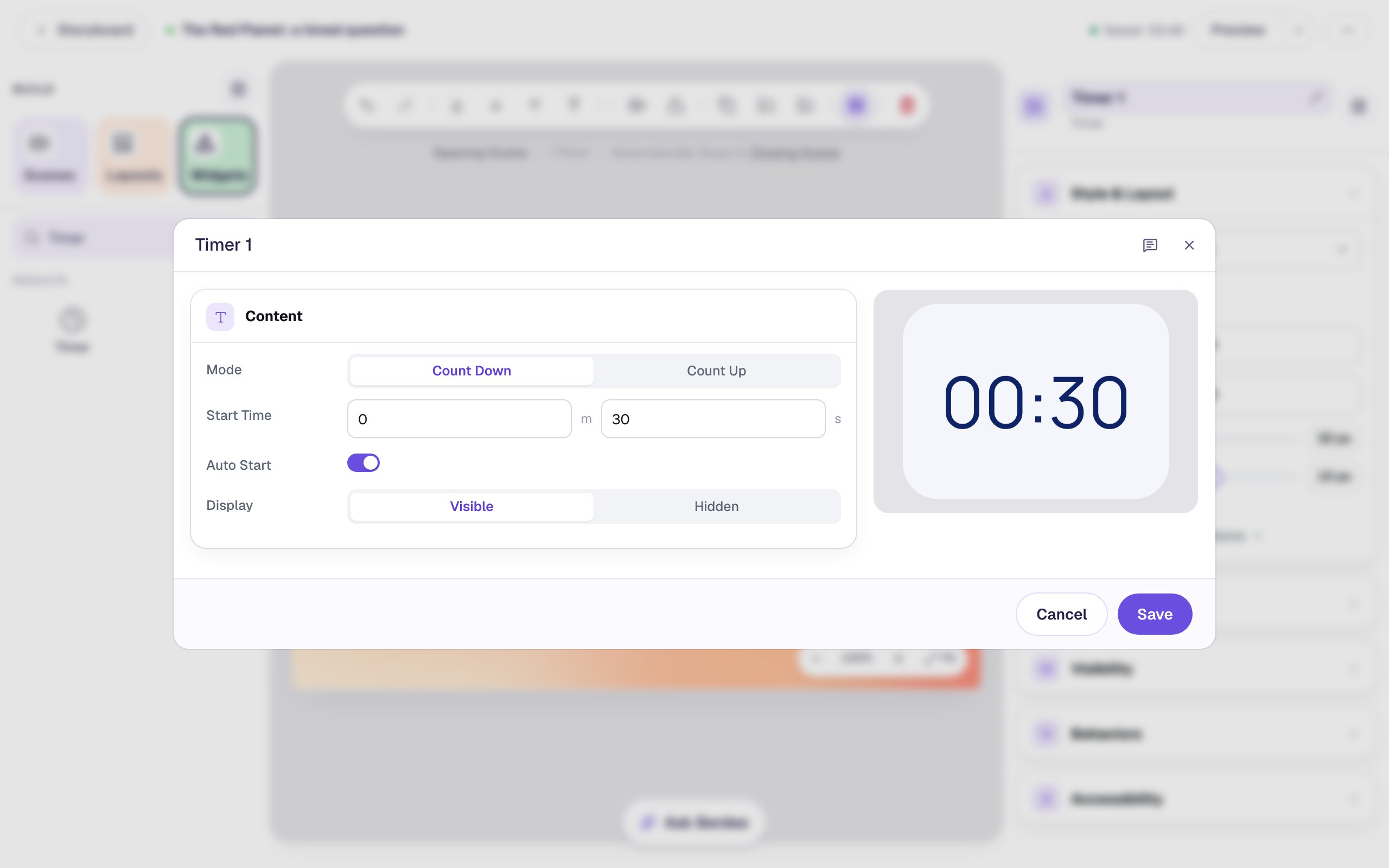
Search the widgets for Timer and add one. Click ⚙ Configure, set Start Time to 0 m and 30 s, and switch on Auto Start, so the clock starts the moment the scene opens. Click Save.
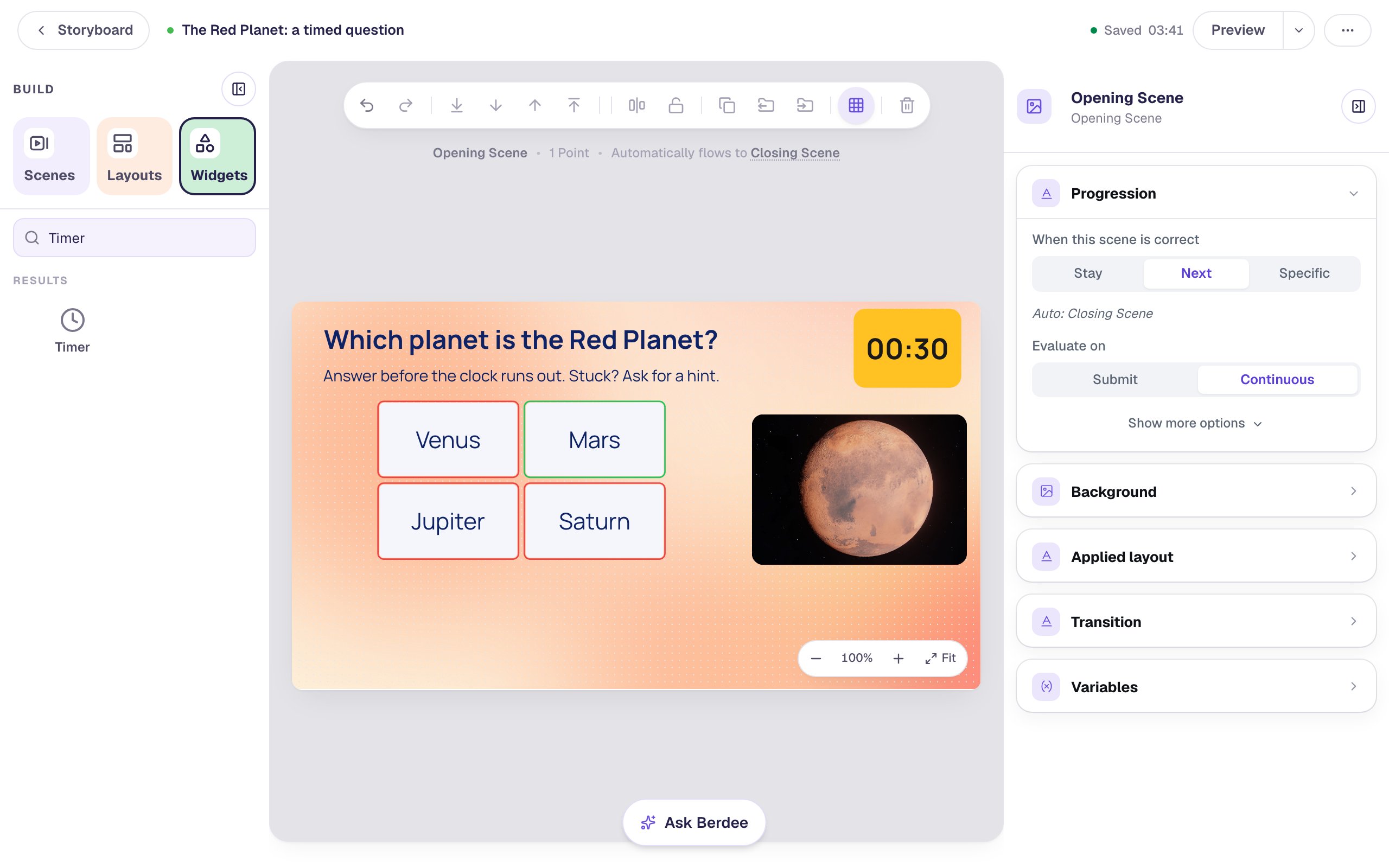
Then make the clock easy to see. Rename the timer Countdown (click its name at the top of the properties panel, type, and press Enter): you'll pick it from a list by that name in Step 6. In Style & Layout, set Font Size to 40, turn on bold, give it a yellow Background and a near-black Text Color, and drag it into the top-right corner.
Step 3: End the round when time runs out
With the clock selected, open Behaviors in the properties panel and press Add behaviors…. The ⚡ Behaviors dialog opens in Advanced. Click Add behavior, choose On Timer Complete, change the action to Navigate to Scene, and pick Closing Scene. Press Done.
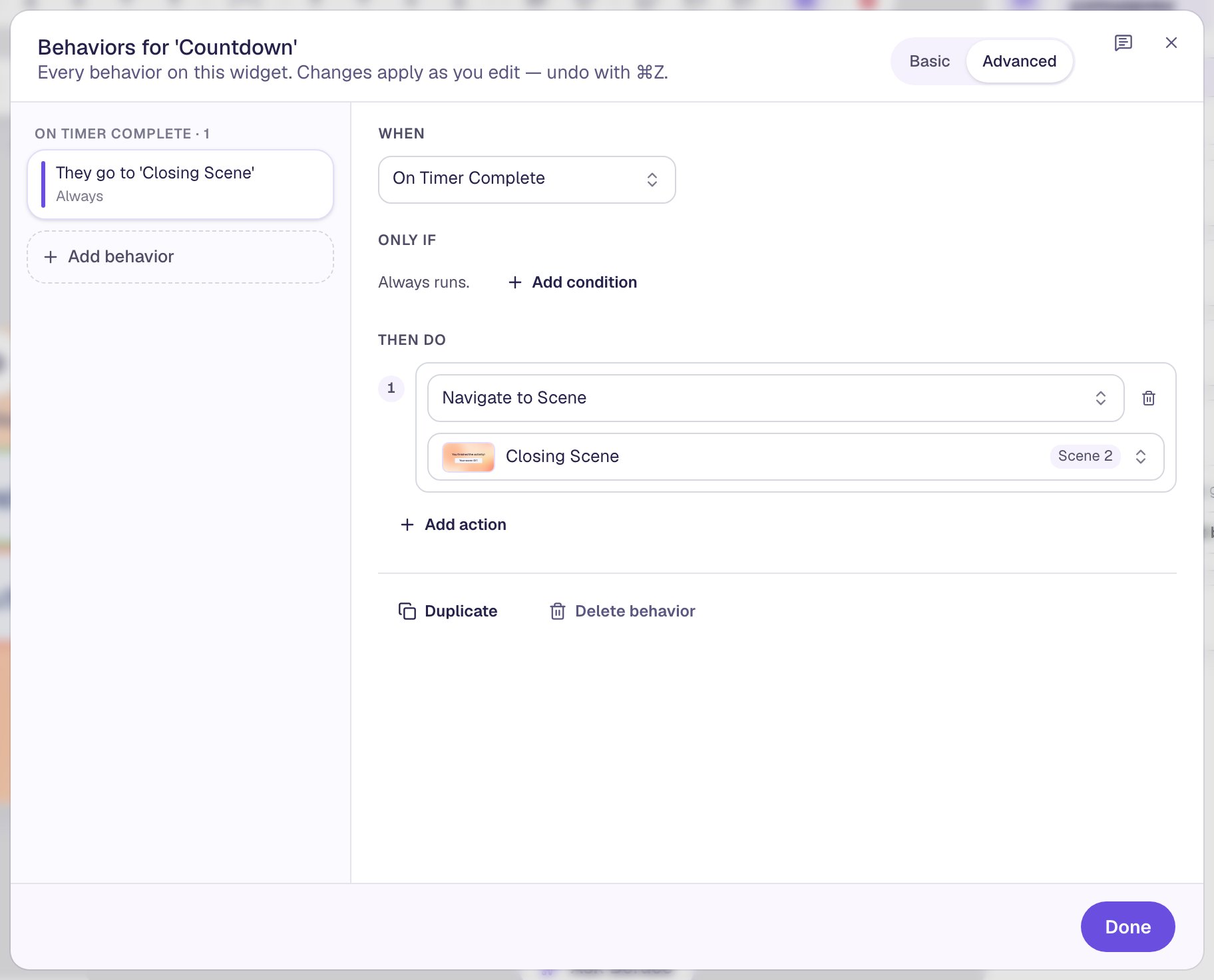
A right answer already goes to the ending on its own, so the student leaves this scene one of two ways: by answering, or when the clock reaches zero. A student who runs out of time sees a score of 0 on the ending. To show the answer first, add an Out of time scene, as Give students 15 seconds to answer a question does.
Step 4: Write the hint and hide it
Add a Body under the answers and type the hint: Hint: this planet is covered in rusty red dust, and it is the fourth planet from the Sun. In Style & Layout, set Font Size to 22 and give it a white Background Color, so it reads as a card. Rename it Hint card.
Then open Visibility and change Mode from Visible to Hidden.
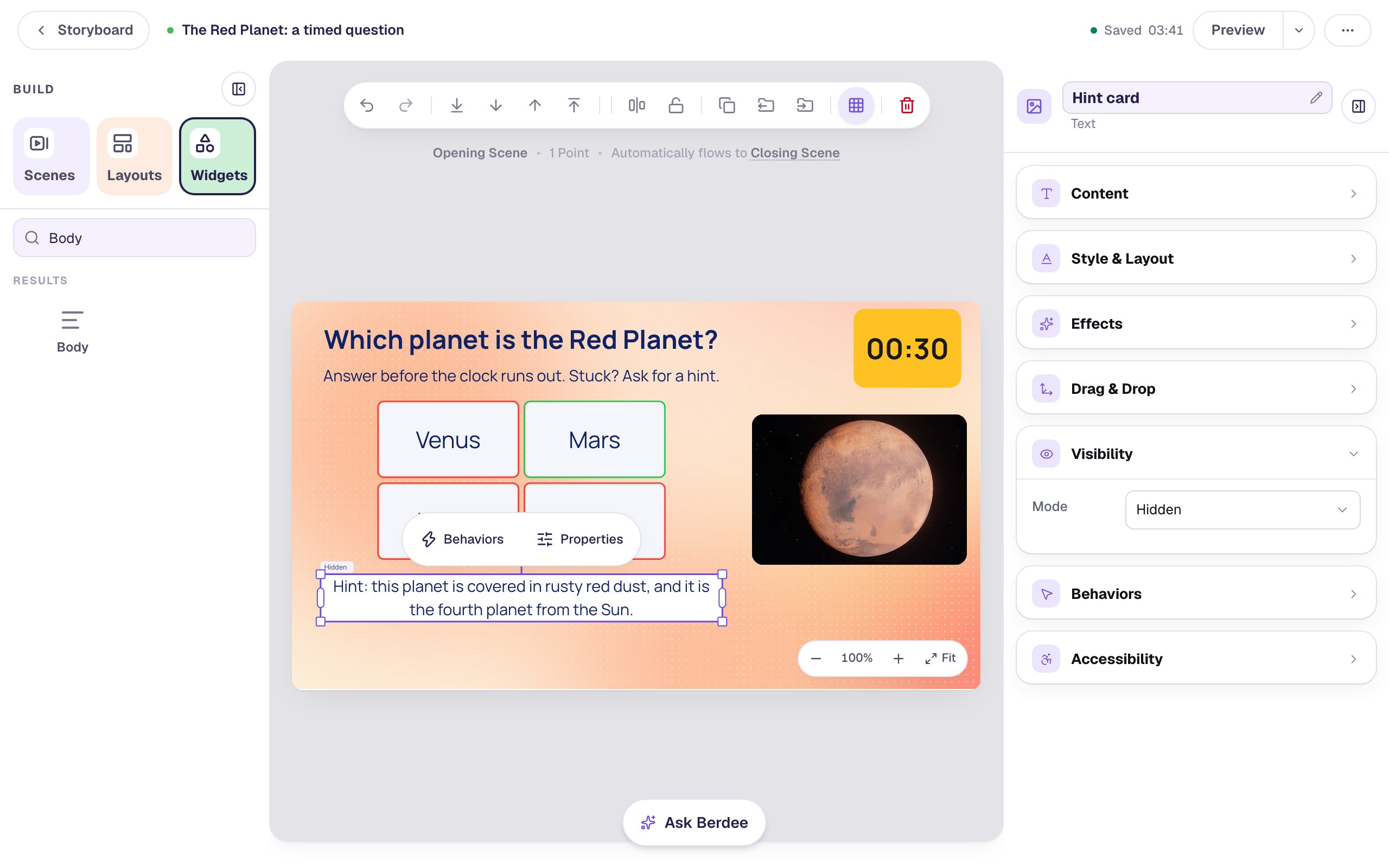
The studio still draws the card, with a dashed outline and a Hidden tag, so you can keep editing it.
Step 5: Add the two buttons
Add a Button under the hint, set its Label to Show a hint in ⚙ Configure, and rename the widget Show a hint too. Add a second Button beside it, labelled and named Got it!, and set its Visibility to Hidden as well: it only makes sense while the hint is open.
Give them different colours so they're easy to tell apart. Here Show a hint is navy with white text and Got it! is orange with navy text.
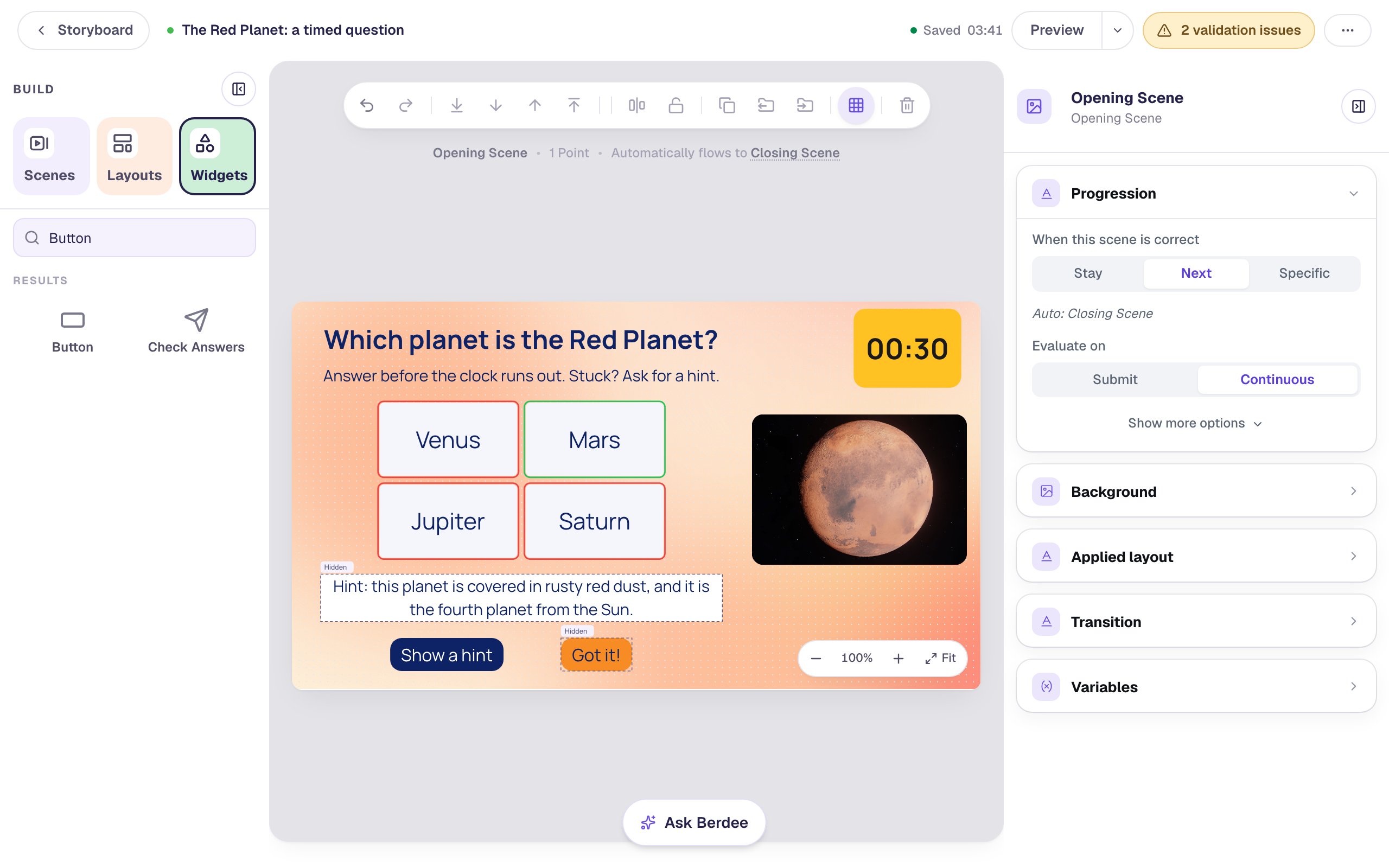
The top bar now says 2 validation issues: two buttons that don't do anything yet. Steps 6 and 7 give them their behaviors, and the issues go away.
Step 6: Make Show a hint pause the clock
Select Show a hint, open its ⚡ Behaviors dialog in Advanced, and add an On Press behavior with three actions. Each is a Widget Method: an action that tells another widget to do something.
- Change Display Message to Widget Method, pick Timer: Countdown, and pick Pause. The method starts on Show, so change it.
- Click Add action, change it to Widget Method, pick Text: Hint card, and pick Show.
- Click Add action again, change it to Widget Method, pick Button: Got it!, and pick Show.
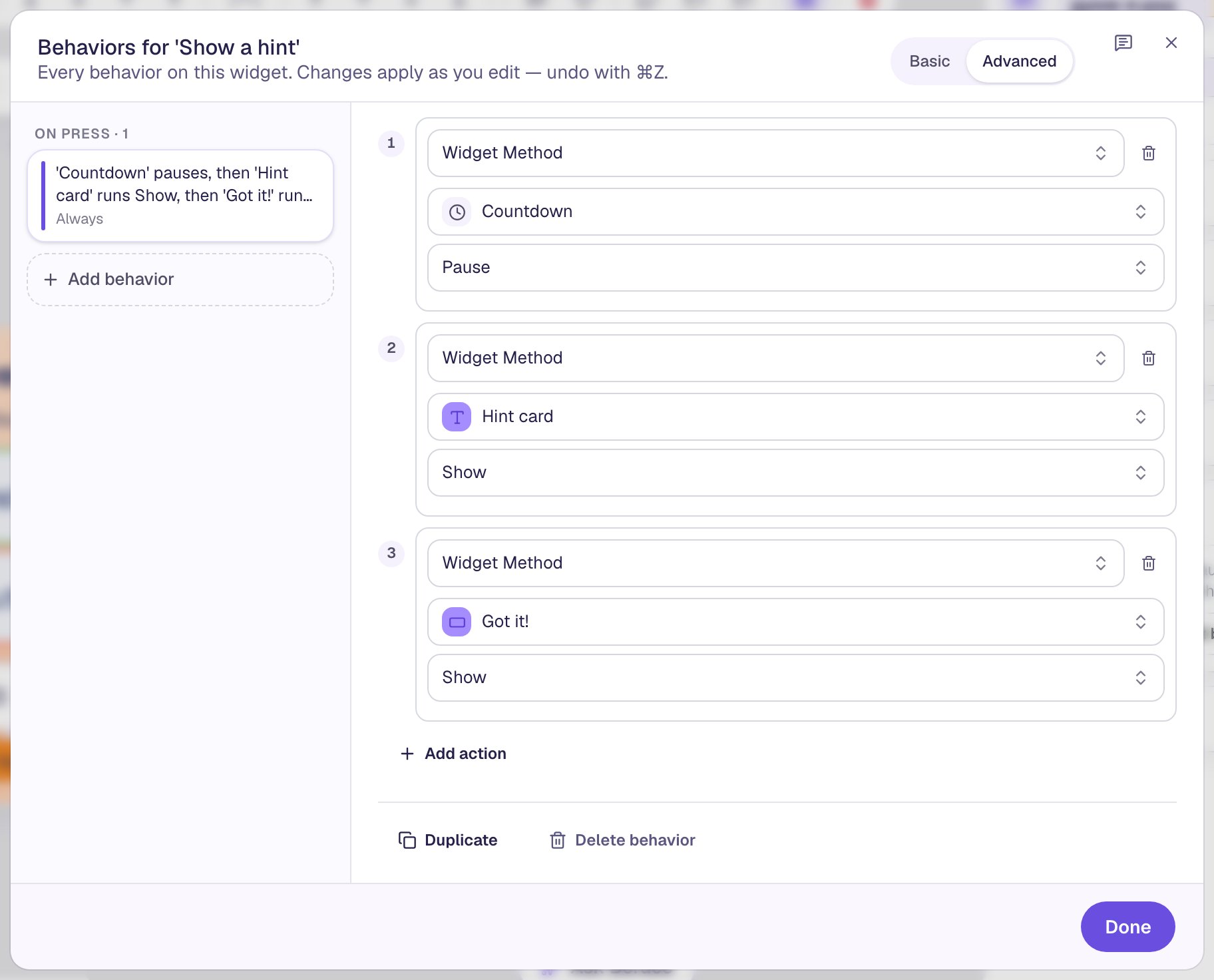
Auto Start keeps students from pausing the clock by tapping it, so a timed question stays timed. A behavior can still pause it: that's what makes this work.
Step 7: Make Got it! start the clock again
Select Got it! and give it an On Press behavior with three Widget Method actions too, the first two undoing what Show a hint did:
- Text: Hint card, Hide.
- Button: Got it!, Hide.
- Timer: Countdown, Start.
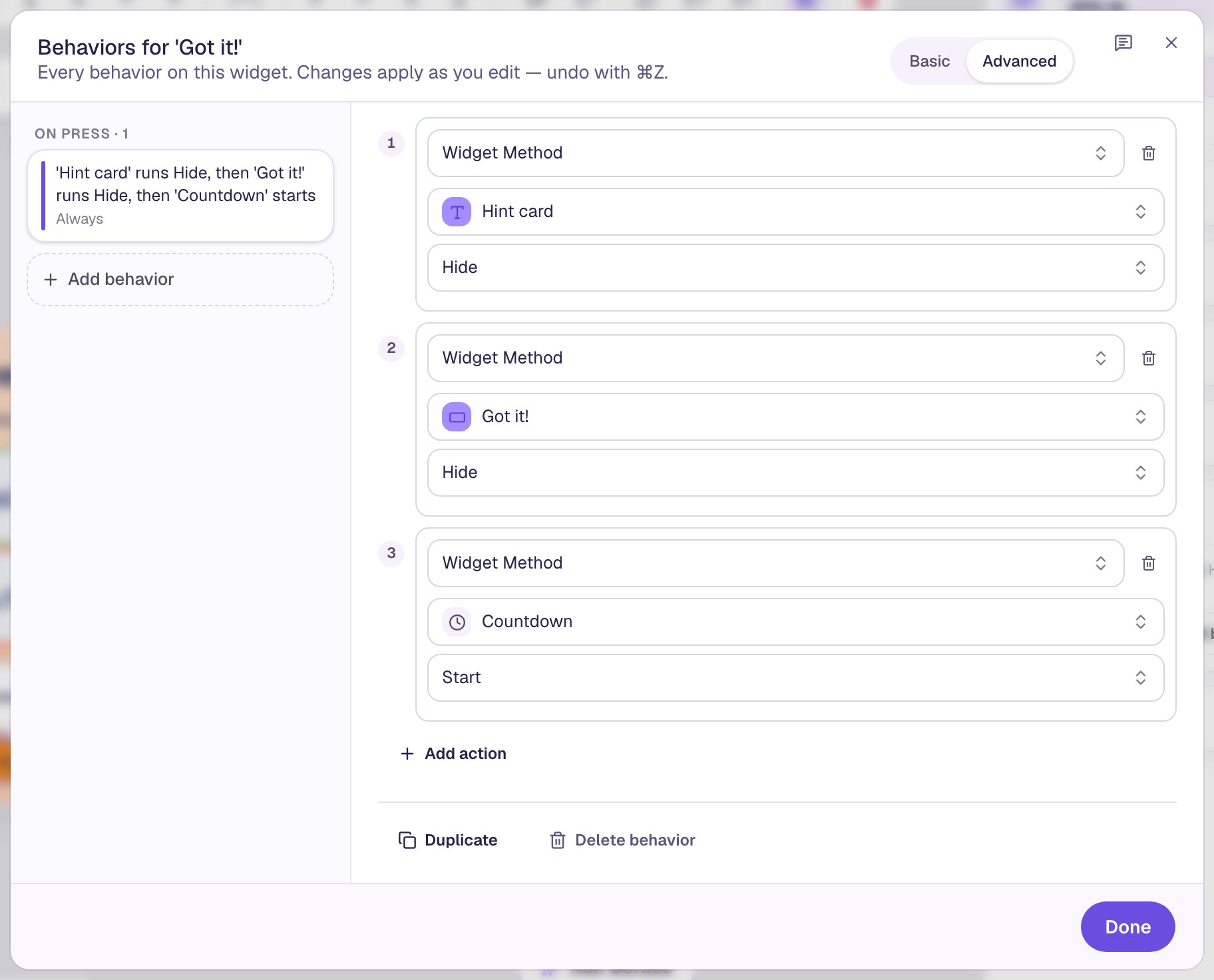
Start on a paused countdown carries on from where it stopped; it doesn't go back to 30. Only a countdown that has reached zero starts over from the top.
Step 8: Try it as a student
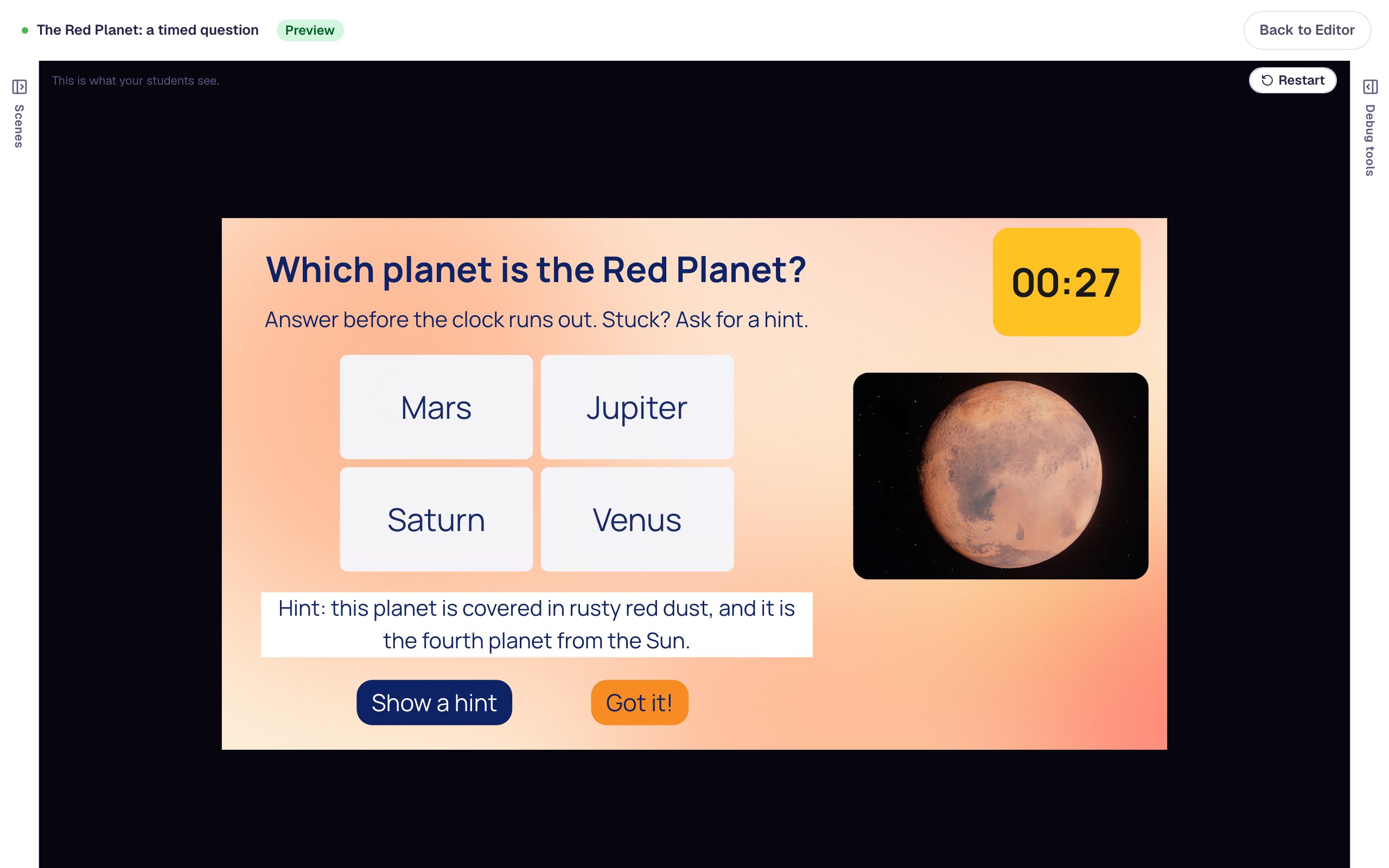
Click Preview. Let the clock run for a few seconds, then press Show a hint:
The hint card and the Got it! button appear, and the clock stops. Wait as long as you like: it doesn't move.
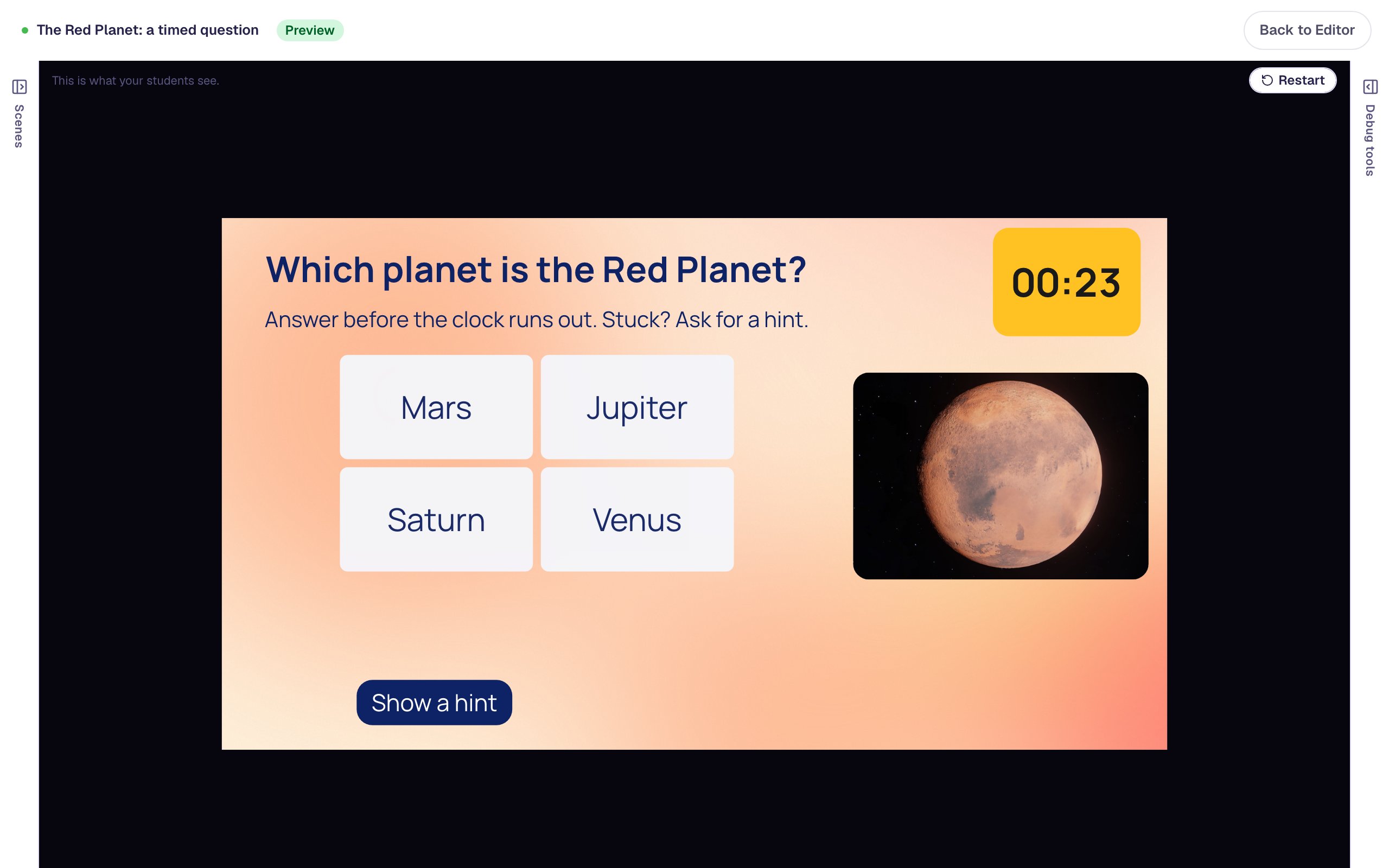
Press Got it!. The card closes and the clock counts down again, from where it stopped.
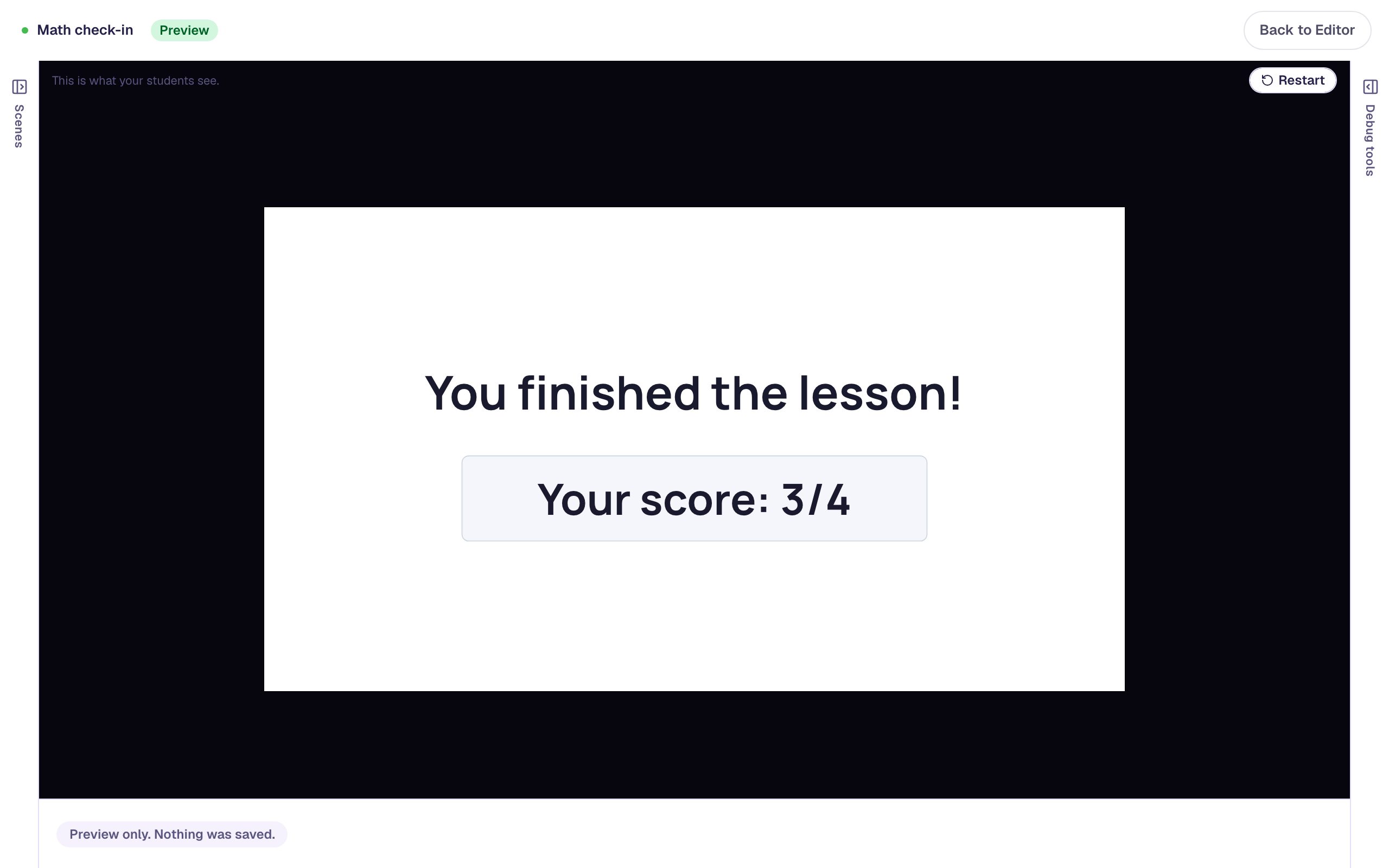
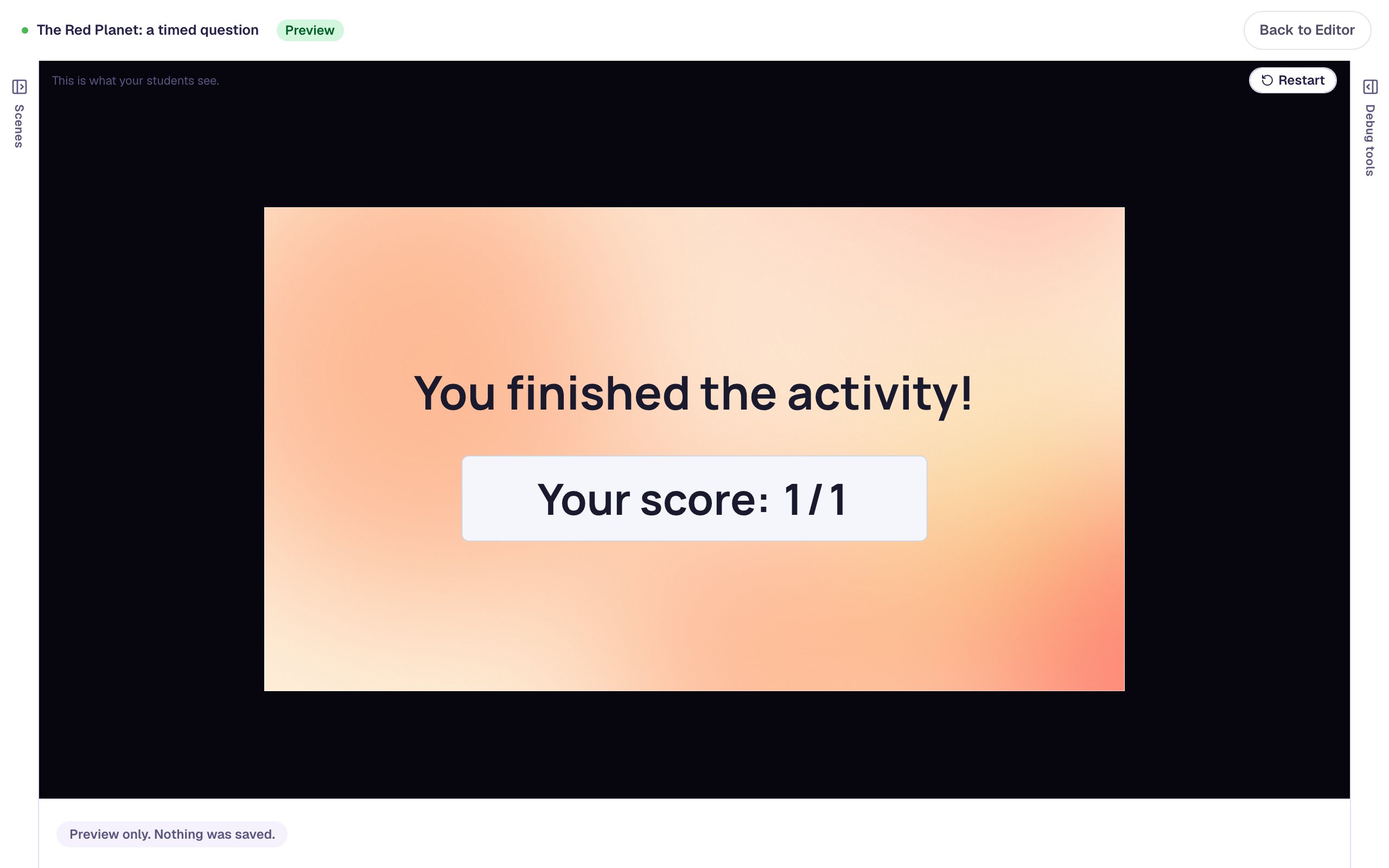
Pick Mars, and the activity moves on to the ending with Your score: 1/1. The answers may come up in a different order than in the studio: a multiple-choice question shuffles them each time, unless you turn off Randomize Order in ⚙ Configure.
What you built
A timed question with a hint that costs no time:
- a Timer counting down from 30 seconds with Auto Start on, and an On Timer Complete behavior that moves on to the ending,
- a hidden Hint card and a hidden Got it! button,
- a Show a hint button whose On Press runs Pause on the timer and Show on the card and Got it!, and
- a Got it! button that hides the card and itself and runs Start on the timer.
The same pause works for anything a student opens on a timed question: a word bank, a worked example, a picture to look at closely. To group several pieces into one card that opens and closes together, see Pop up a fact card with a Container.
Make this activity yours
Add the activity you just watched being built to your account, then change it for your class: your questions, your pictures, your colors.
Free to sign up, and you'll come straight back here. I have an account