Bring back an activity you deleted
Delete an activity from your Activities page, see what that does to your class, and restore it from Recently deleted with its assignments and student work.
- Level
- Beginner
- Time
- About 5 min
- Steps
- 6
- Updated
- Nov 21, 2026
A water cycle exit ticket deleted by mistake and back on your Activities page, still assigned to your class.
Get the finished activity
Skip straight to the result, or keep it open beside the steps. Add this tutorial's activity to your account and explore how it works in the studio.
Free to sign up, and you'll come straight back here. I have an account
Tidying up your activities is a good habit, especially on the Free plan, which saves three. But it's easy to delete the wrong one: two activities with similar names, a click on the wrong row, an activity you thought nobody was using.
None of that is permanent. A deleted activity waits in Recently deleted for 30 days, and restoring it brings back everything it had: its scenes, its history, its assignments and your students' work. In this tutorial you'll delete an activity your class is using, see what changes for the class, and bring it back.
Step 1: Start on your Activities page
Open Activities in the sidebar. This tutorial uses two activities: Water cycle exit ticket, assigned to one student in My Classroom, and Animal homes, which isn't assigned yet. To follow along, press Add this activity to my account on this page for the exit ticket, then add a student and assign it as Assign an activity and see how a student did shows. Animal homes stands in for any other activity you have, and any activity of your own works in place of the exit ticket too.
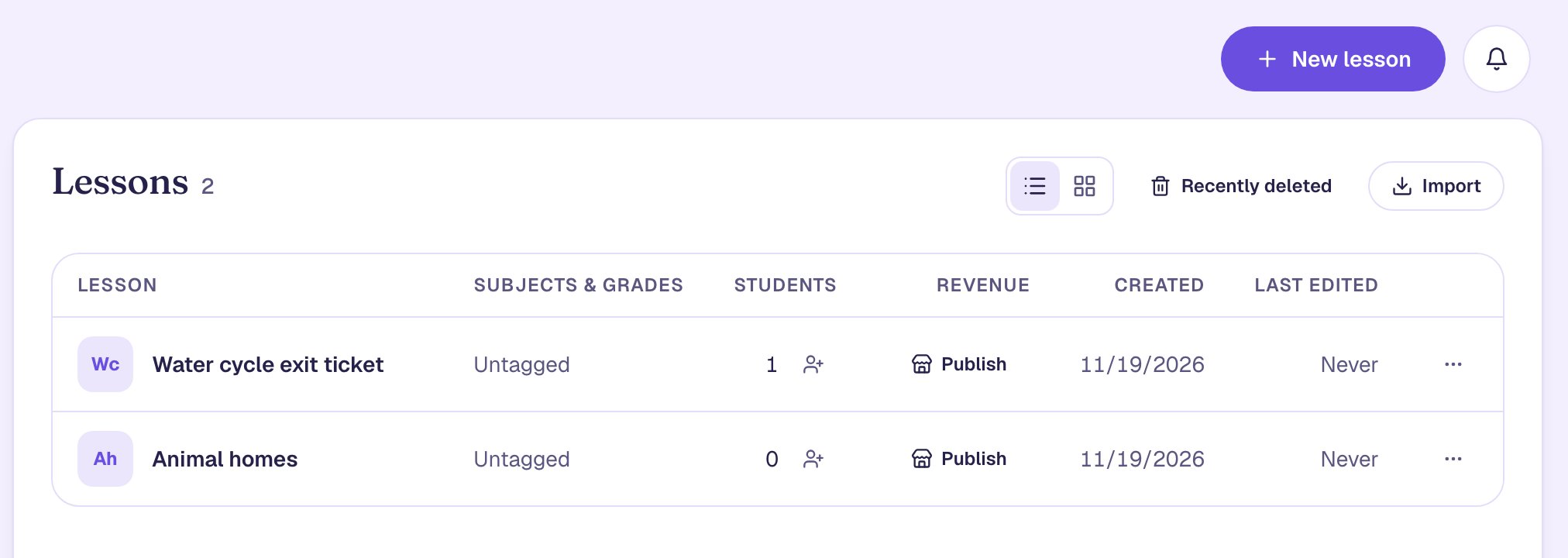
The Students column is worth a glance before you delete anything: the exit ticket has 1, so someone has it assigned.
Step 2: Delete the activity
Click the ⋯ button at the end of the Water cycle exit ticket row and choose Delete activity.
Before anything is deleted, your browser asks you to confirm in a small window of its own. Berdee counts who has the activity at that moment, so for this activity it says:
“Water cycle exit ticket” is assigned to 1 student in 1 class. Delete it anyway? You can restore it from Recently deleted on your Activities page for 30 days. Its assignments and student work come back with it.
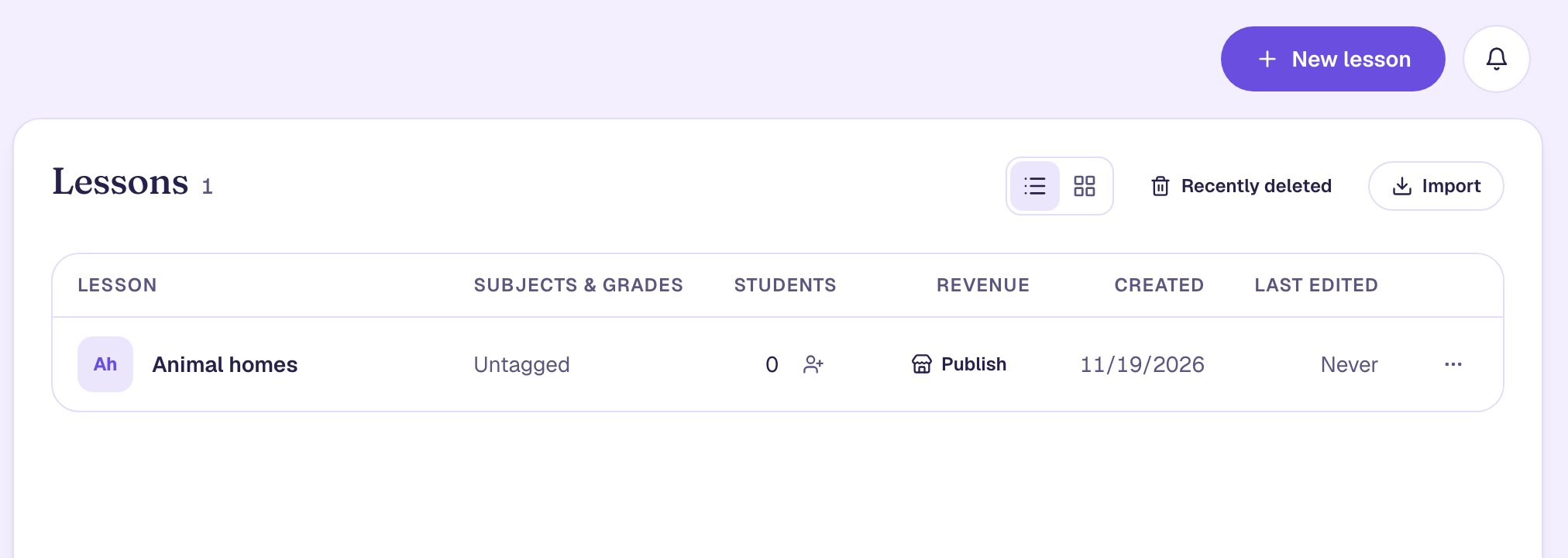
Read the count. If you didn't expect any students, this is the moment to press Cancel. Here, press OK to go ahead, the way you would if you'd clicked the wrong row without noticing.
Step 3: See what changes for your class
Open Classrooms, click View on My Classroom, and switch to the Assignments tab. The exit ticket isn't there any more: while an activity is deleted, it drops out of the Assignments tab of every class it was assigned to.
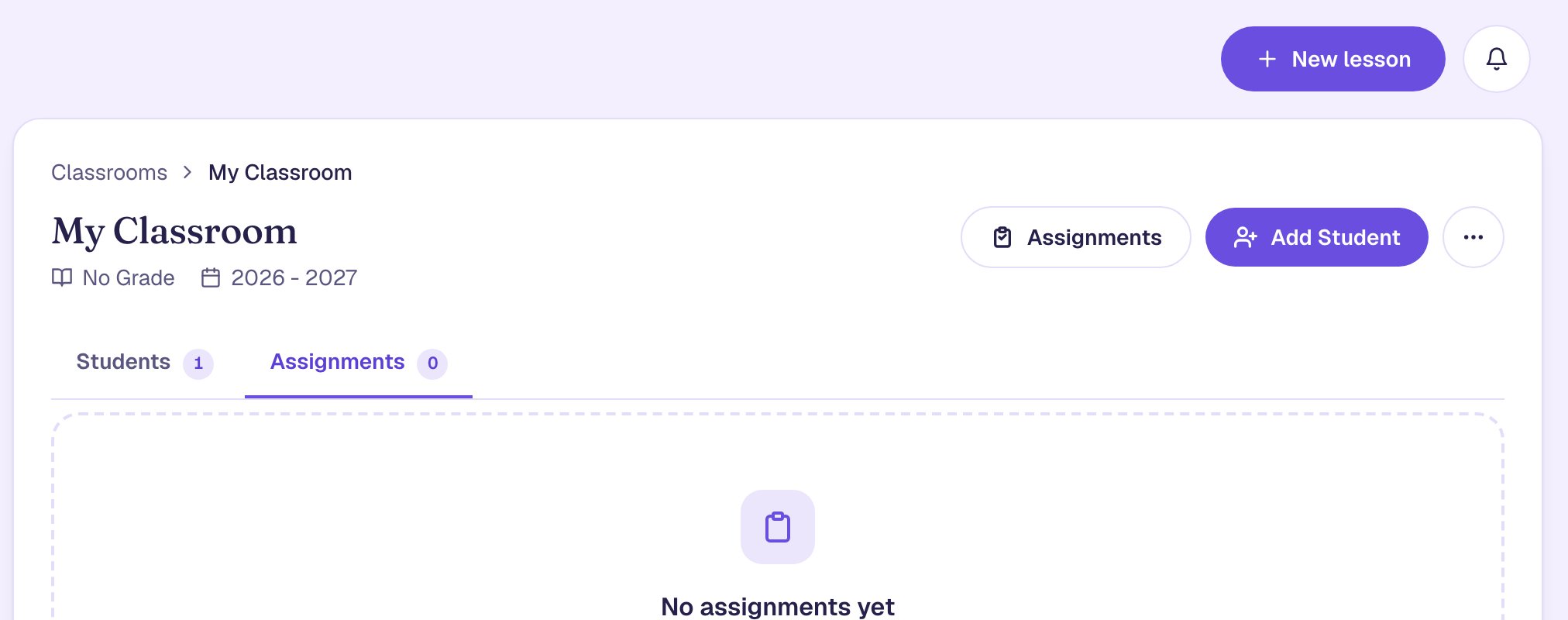
Your students aren't cut off: a student's code still opens the activity while it's deleted. What you lose is your view of it, because you can't manage the assignment from the class until the activity is back. The assignment and the student's work aren't gone. They're kept with the activity, and they come back with it in the next step.
Step 4: Open Recently deleted
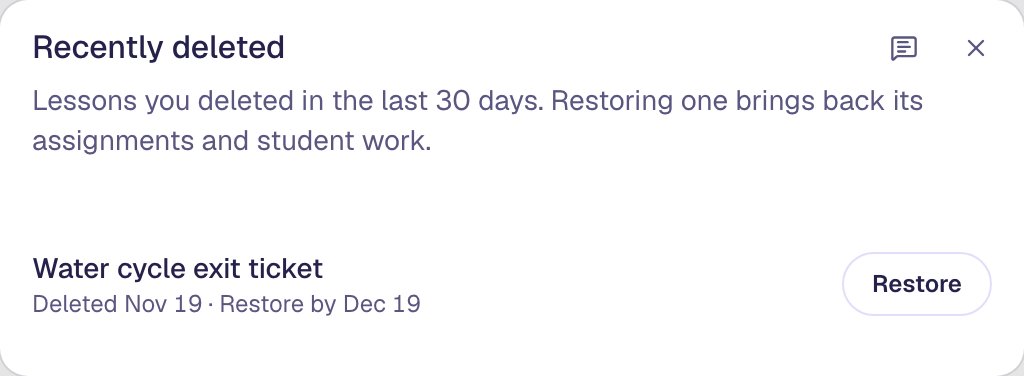
Go back to Activities and click Recently deleted, above the list next to Import. It lists every activity you deleted in the last 30 days, with the day you deleted it and the last day you can bring it back.
Step 5: Restore the activity
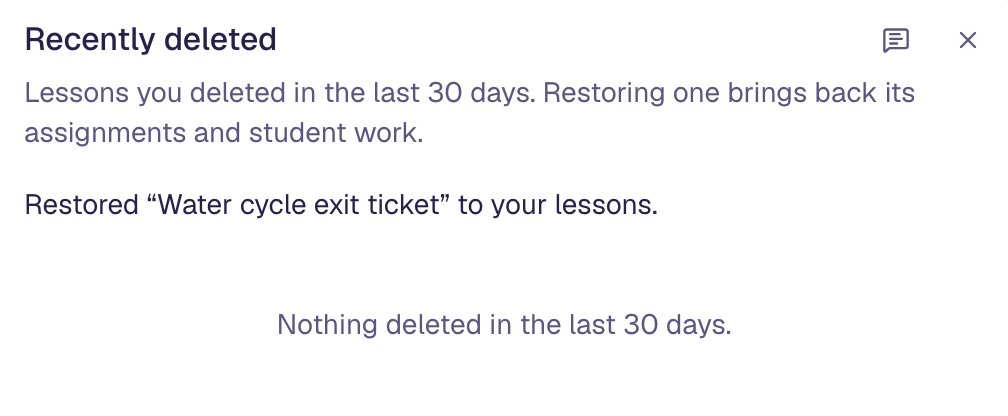
Click Restore next to Water cycle exit ticket. The window confirms it, and the activity reappears in your list behind it.
A restored activity counts toward your plan's activity limit again. On the Free plan, if you already have three activities, Berdee tells you so and leaves the activity in Recently deleted: delete an activity you don't need, or change your plan, then restore it.
Step 6: Check it's back where it was
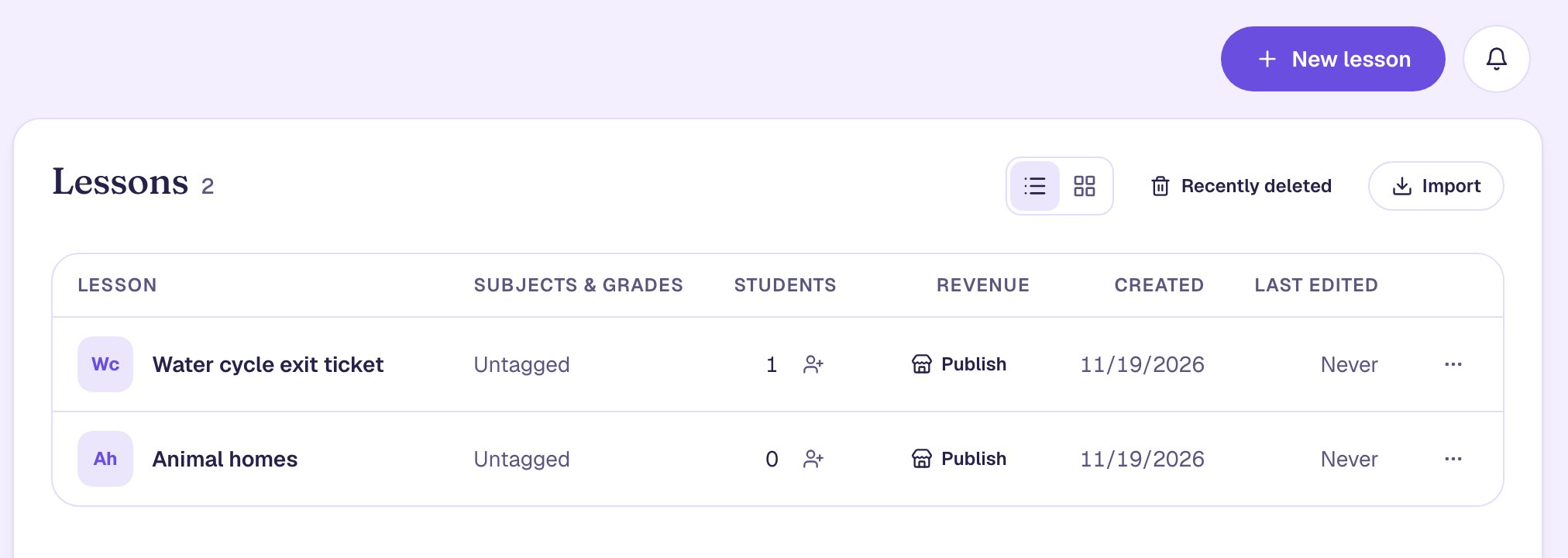
Close the window. The exit ticket is back in your list, still showing 1 student.
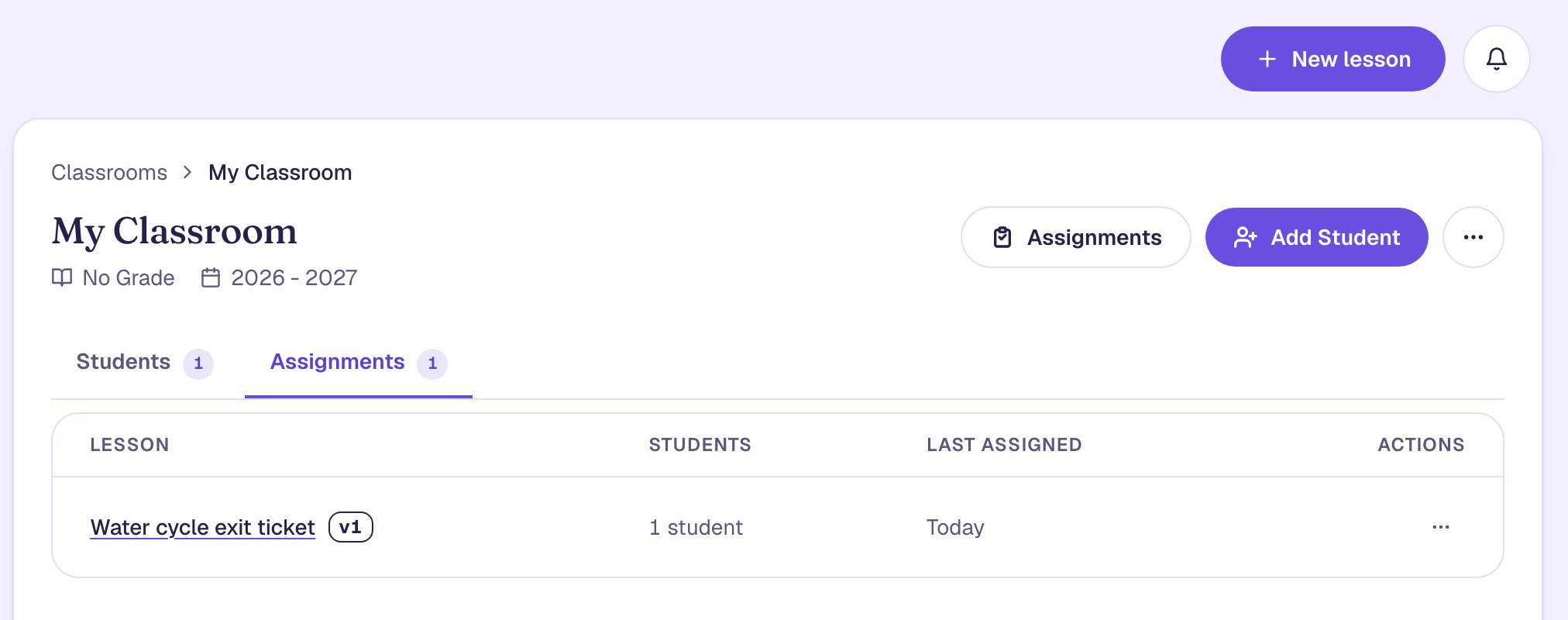
Open My Classroom and its Assignments tab once more. The assignment is back, on the same version, v1, and you can manage it from the class again.
What you built
Nothing new this time, which is the point: you got an activity back after deleting it.
- Delete activity, in an activity's ⋯ menu, first tells you how many students and classes have the activity.
- While an activity is deleted, it leaves your list and your classes' Assignments tabs, though students can still open it with their codes.
- Recently deleted, on the Activities page, keeps each deleted activity for 30 days, and Restore brings it back with its scenes, history, assignments and student work.
After 30 days an activity leaves Recently deleted, but it still isn't destroyed: contact Berdee support and they can bring it back. To undo a change inside an activity rather than the whole activity, use Bring back a scene you deleted with History.
Make this activity yours
Add the activity you just watched being built to your account, then change it for your class: your questions, your pictures, your colors.
Free to sign up, and you'll come straight back here. I have an account