Learn Berdee by building
Step-by-step walkthroughs with a screenshot for every step. Follow along in the studio and finish with an activity that works. Looking up one setting instead? The help center covers every control.
Try “timer”, “drag” or “score”. 173 of 174 come with a ready-made activity you can add to your account.
16 tutorials found
Studio basics16 tutorials
Your first steps in the studio: scenes, widgets, preview, and the score.
 Beginner · 10 min · 6 steps
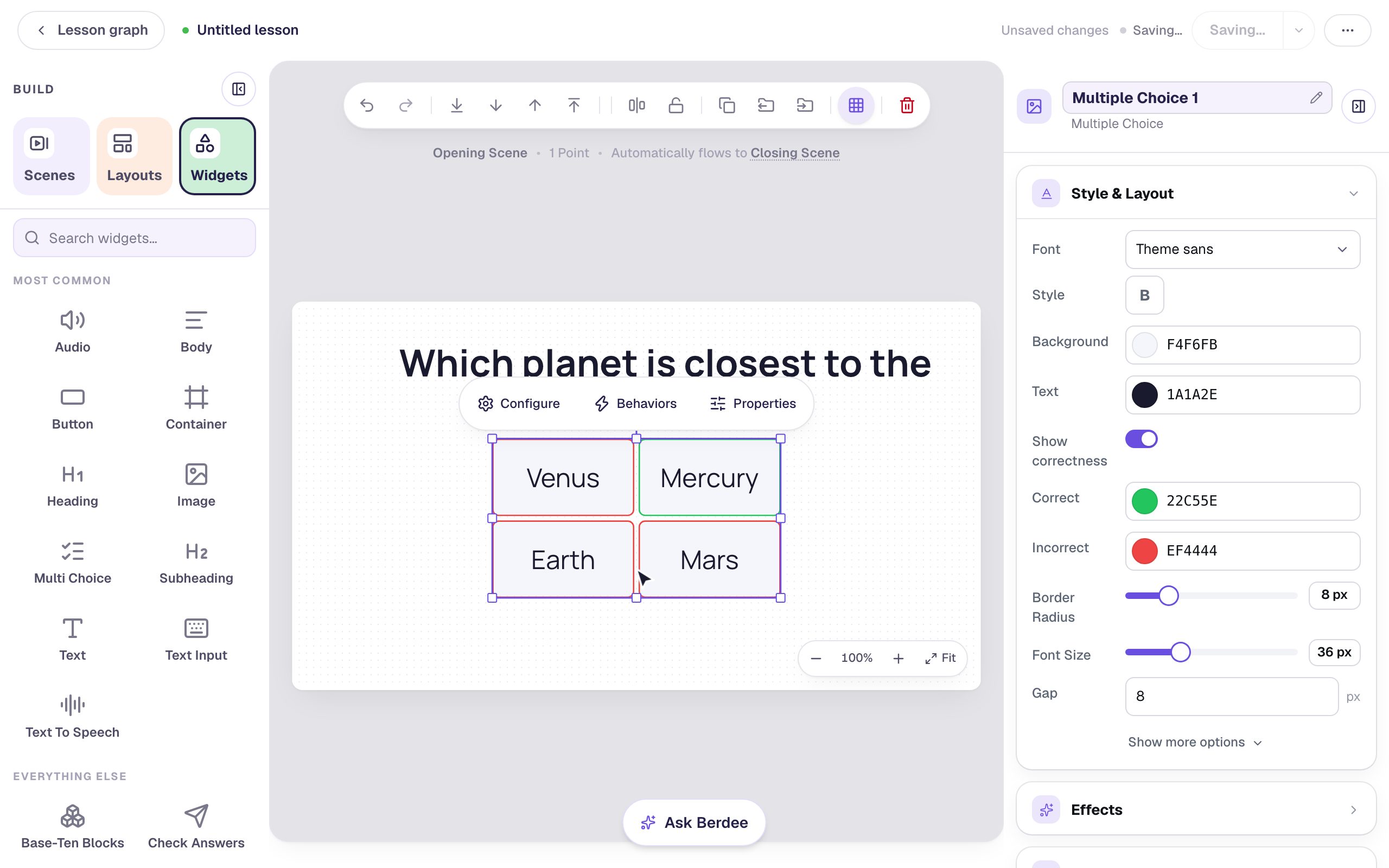
Build your first quiz question
Start a blank activity, add a multiple-choice question, and watch it score in preview, one click at a time.
 Beginner · 10 min · 7 steps
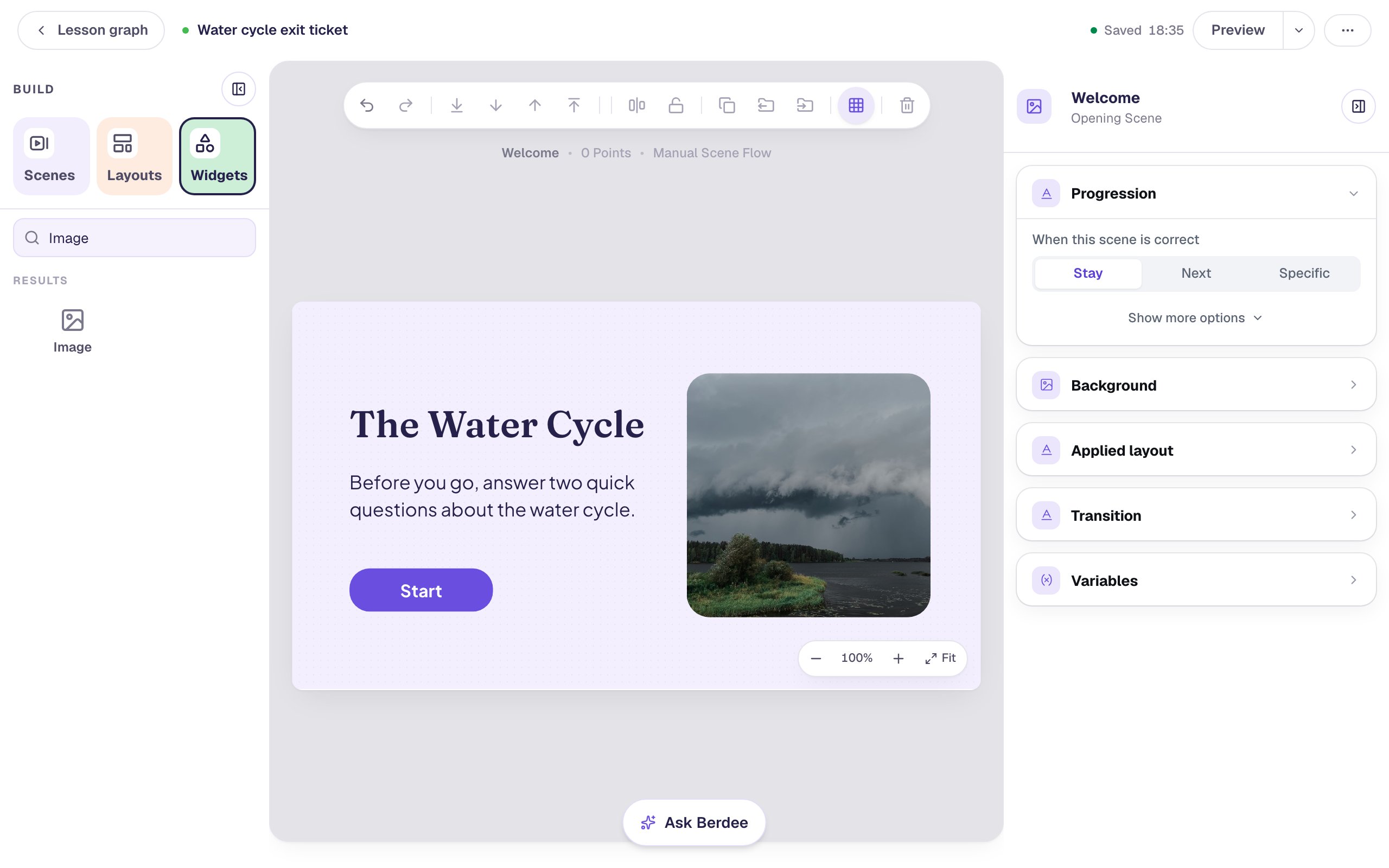
Start an activity from a template
Pick the Exit Ticket template, then make it yours. Name it, rewrite the title, both questions and the ending, add a photo, and check it in Preview, all without building a single scene from scratch.
 Beginner · 12 min · 9 steps
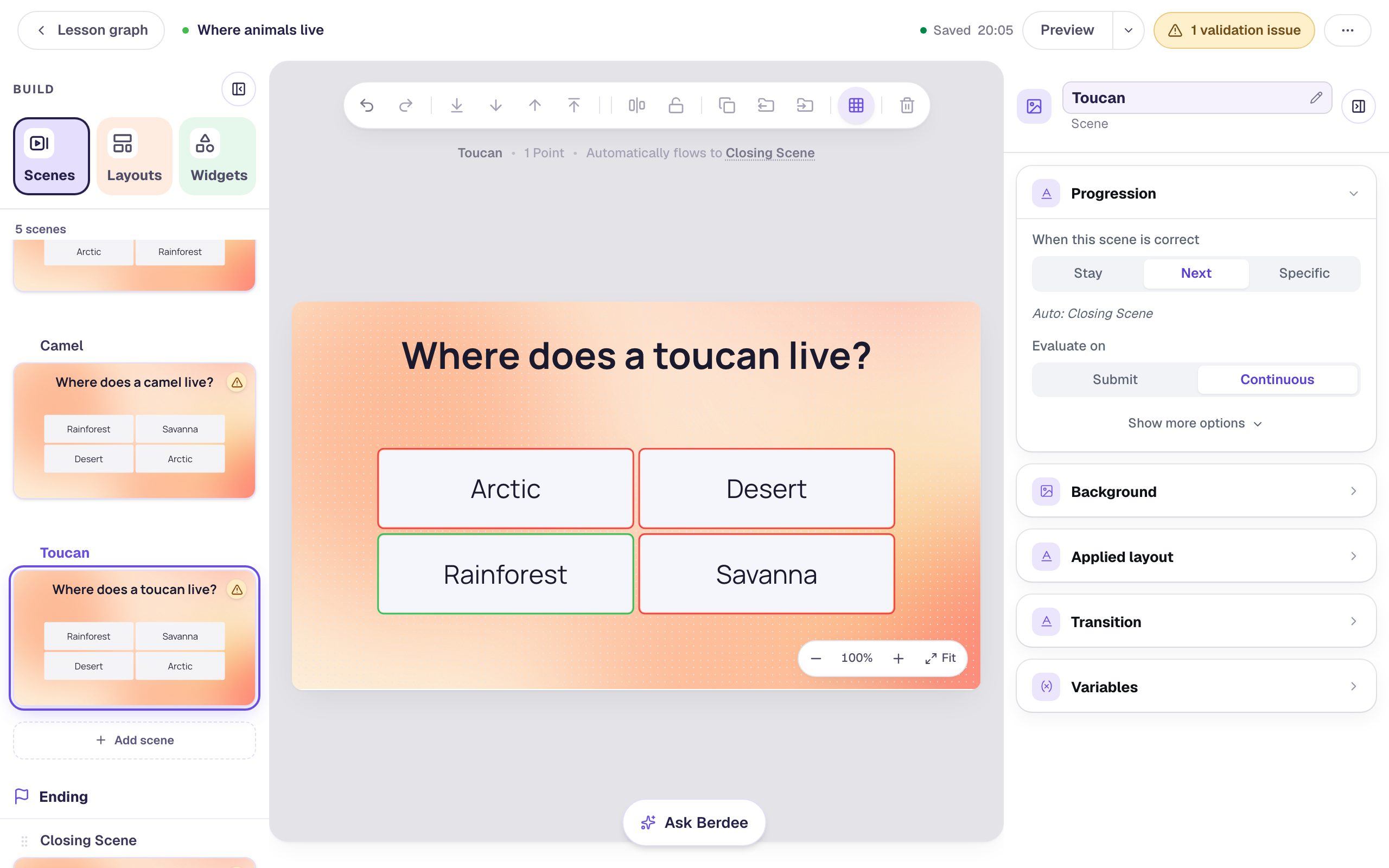
Build a three-question quiz by duplicating a scene
Build one question scene properly, then duplicate it and change only what's different, so every question in the quiz has the same look and layout. Reorder the questions by dragging and watch the activity follow the new order.
 Beginner · 15 min · 8 steps
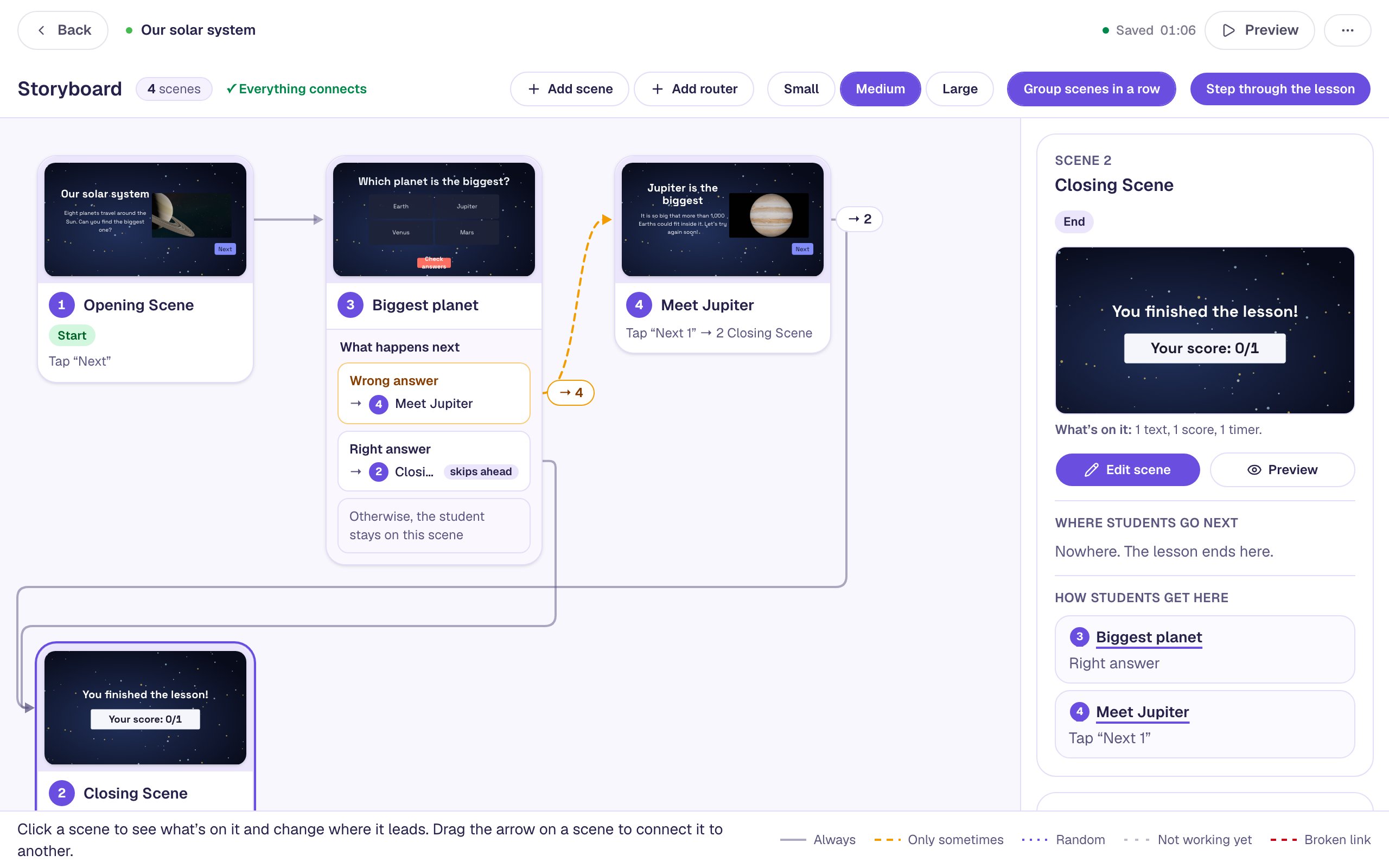
Plan an activity in the Storyboard
Lay out a whole activity as a row of scene cards before you fill any of them in. Add the scenes, connect them with a Next button and a wrong-answer path, then step through every route.
 Beginner · 15 min · 8 steps
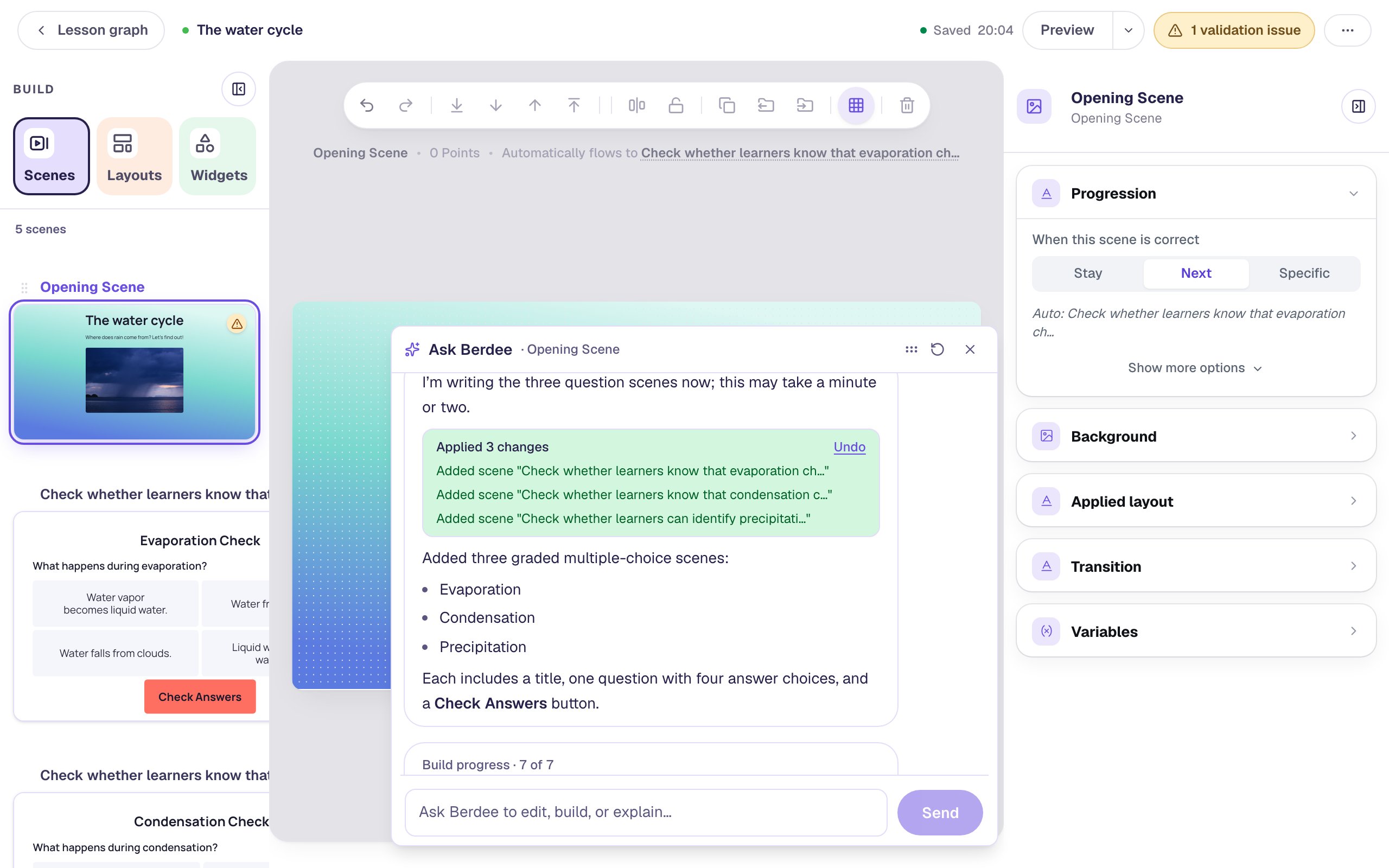
Add quiz questions to an activity with Ask Berdee
Build a title scene yourself, then ask Ask Berdee, the chat in the studio, to plan and build three graded question scenes and tidy them up, checking its work as you go.
 Beginner · 12 min · 8 steps
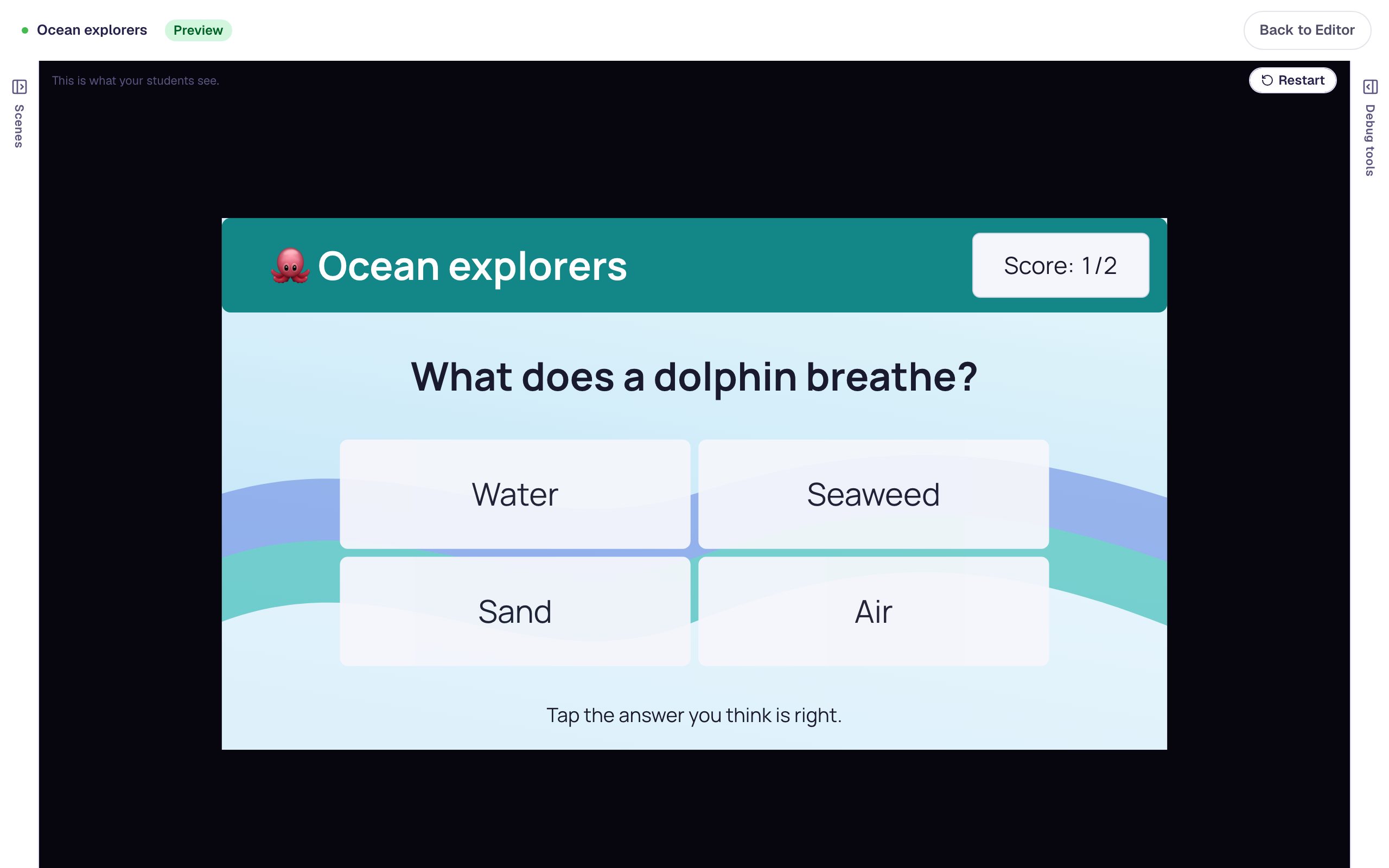
Give every question the same frame with a layout
Design a title bar, a running score, and a background once as a layout, then use it behind every question in a quiz. Change the layout later and every scene that uses it changes with it.
 Beginner · 10 min · 8 steps
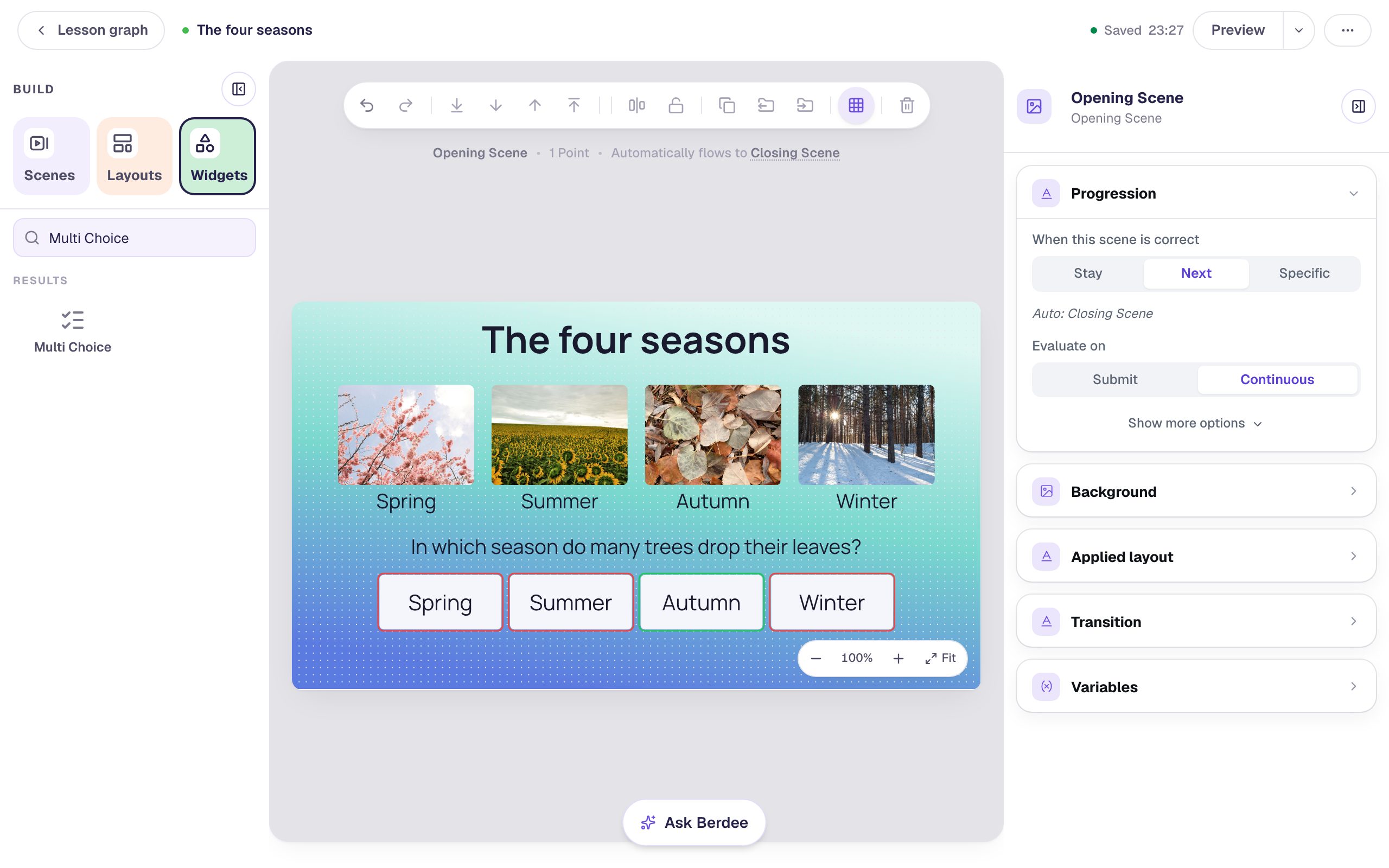
Line up pictures with Tidy up, Gap, and Lock
Drop four pictures and their names roughly where they go, then let the Align & distribute menu line them up, space them evenly, centre them, and lock the finished row so it can't be knocked out of place.
 Beginner · 10 min · 9 steps
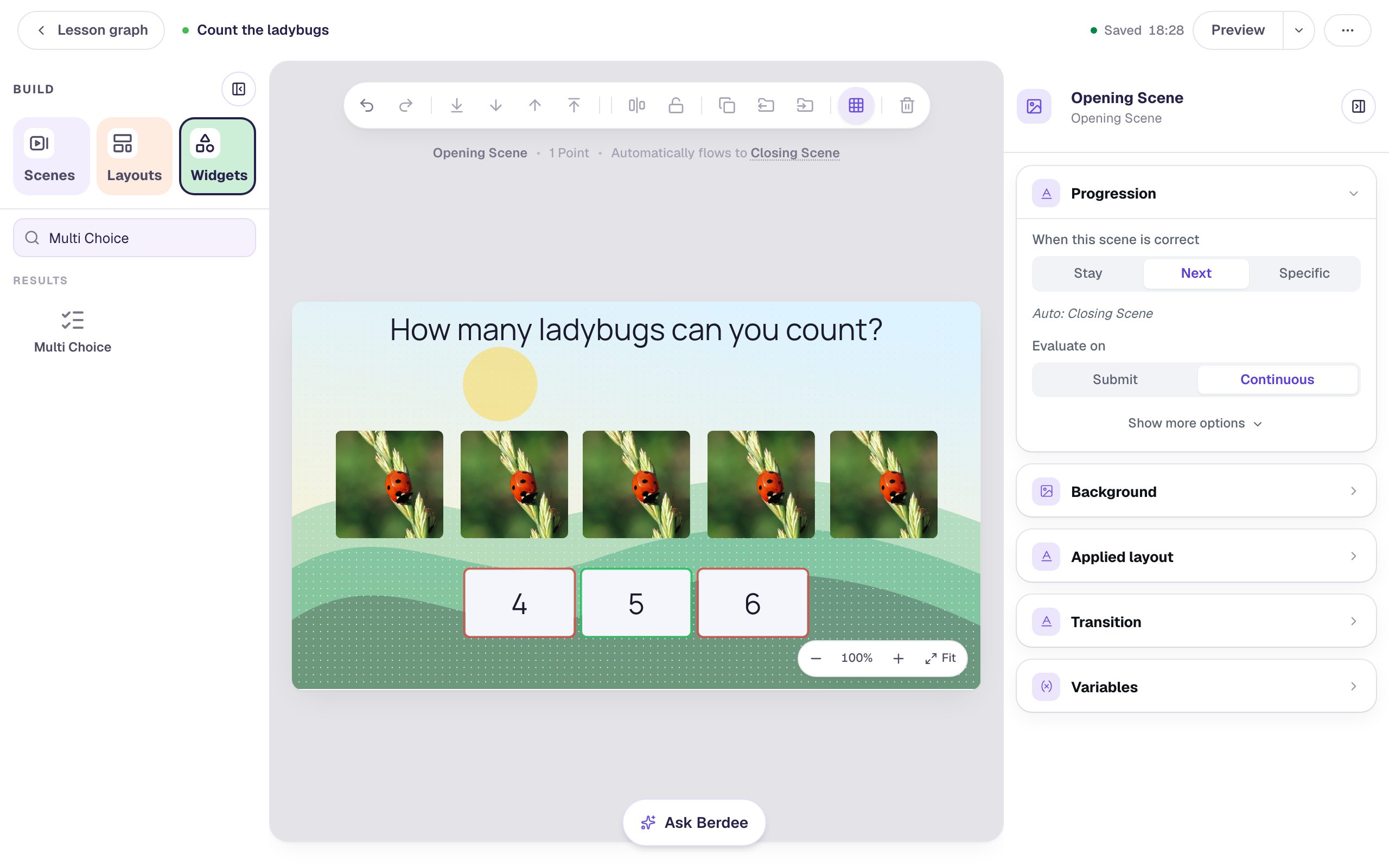
Build a scene faster with keyboard shortcuts
Build a "Count the ladybugs" scene with your hands on the keyboard. Paste the question in, drag off copies of a picture with Option, duplicate with ⌘ D, select and nudge a whole row, and undo a mistake, then try it as a student.
 Beginner · 8 min · 6 steps
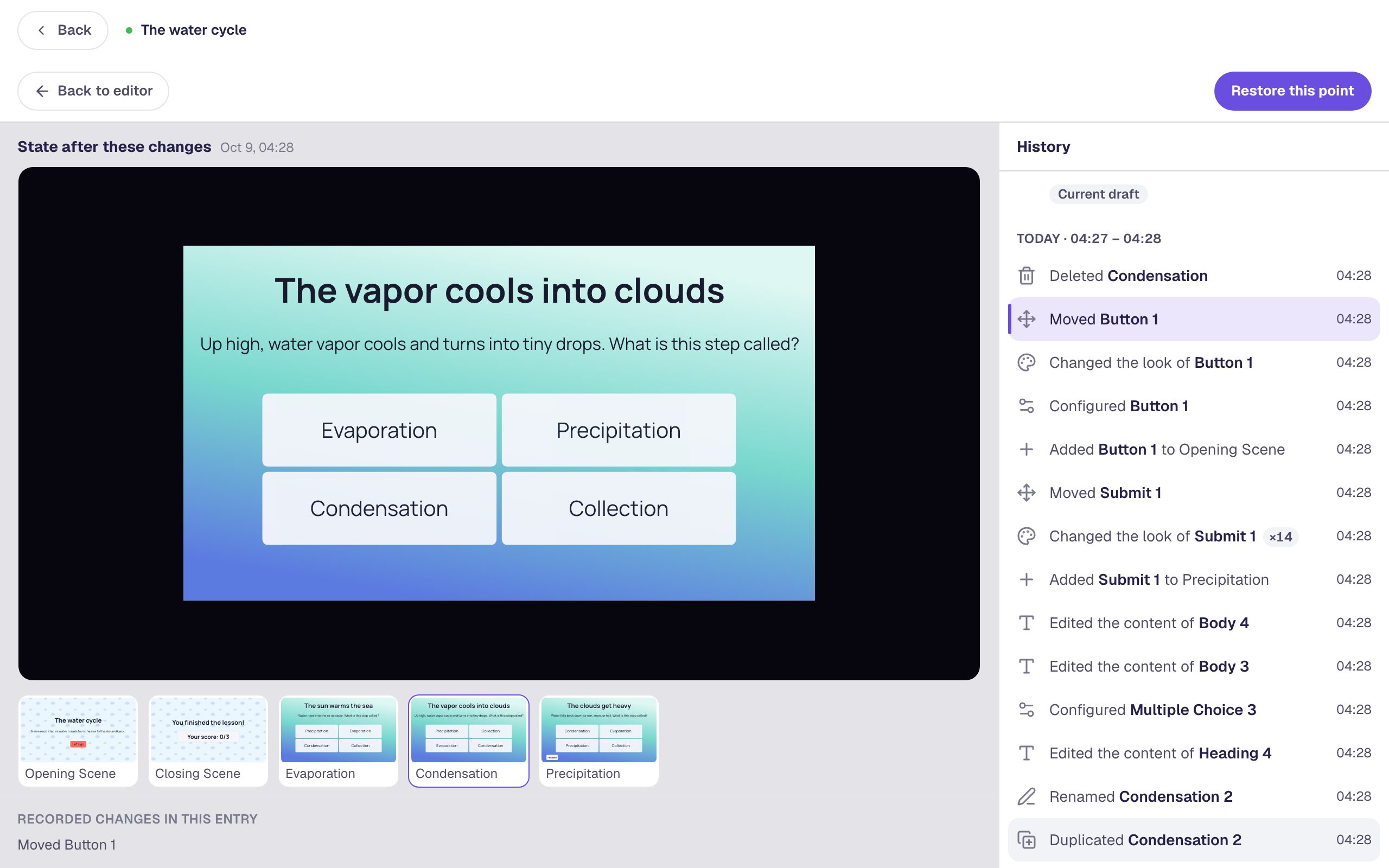
Bring back a scene you deleted with History
Delete a question scene by mistake, then use History to find the moment just before, preview it, and restore it, even after you've closed the activity and come back.
 Beginner · 10 min · 9 steps
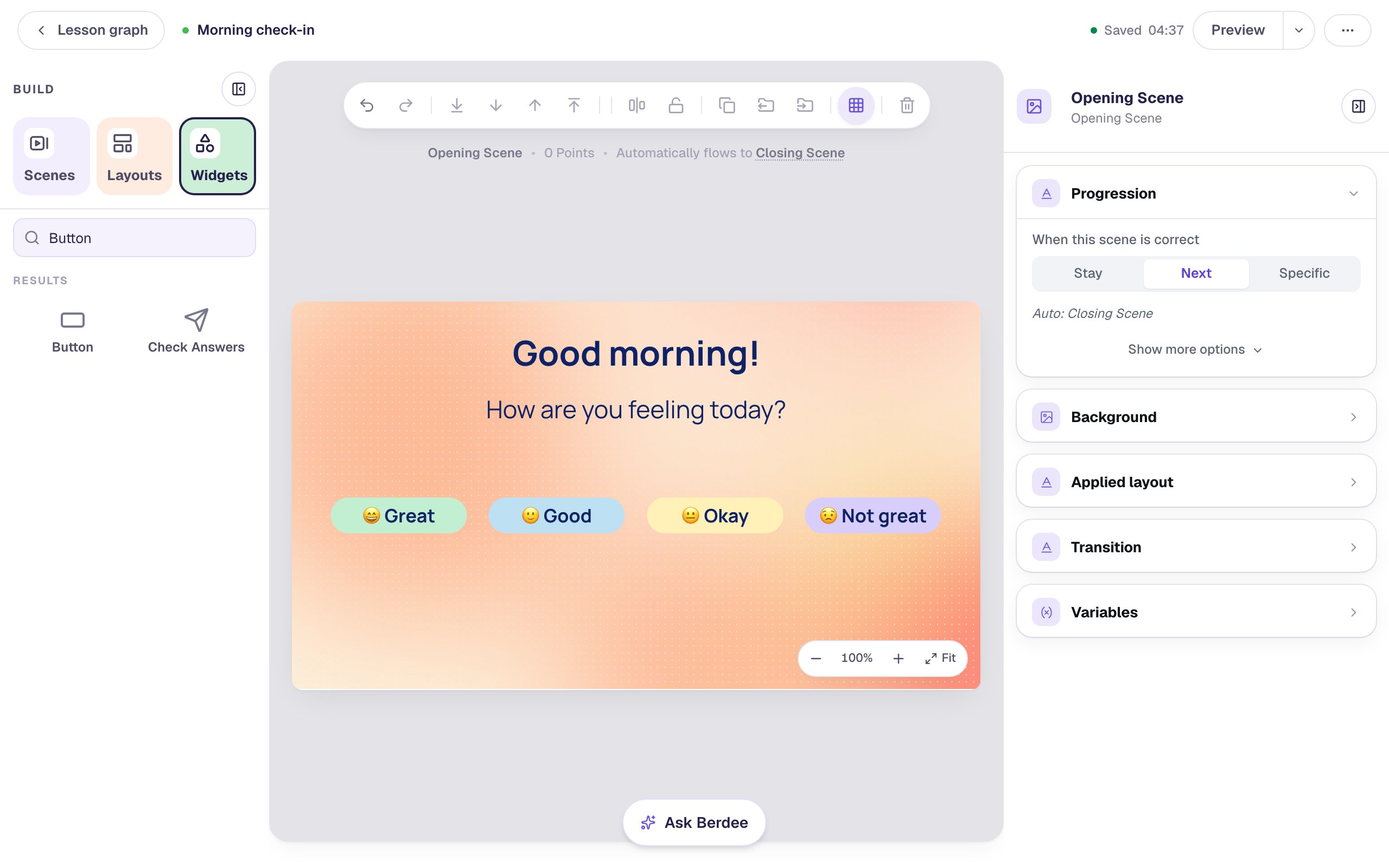
Restyle a row of buttons all at once
Build one button, copy it three times, then select all four and change their size, weight, colour, corners and width in one pass. Finish by giving each button a colour of its own.
 Beginner · 10 min · 8 steps
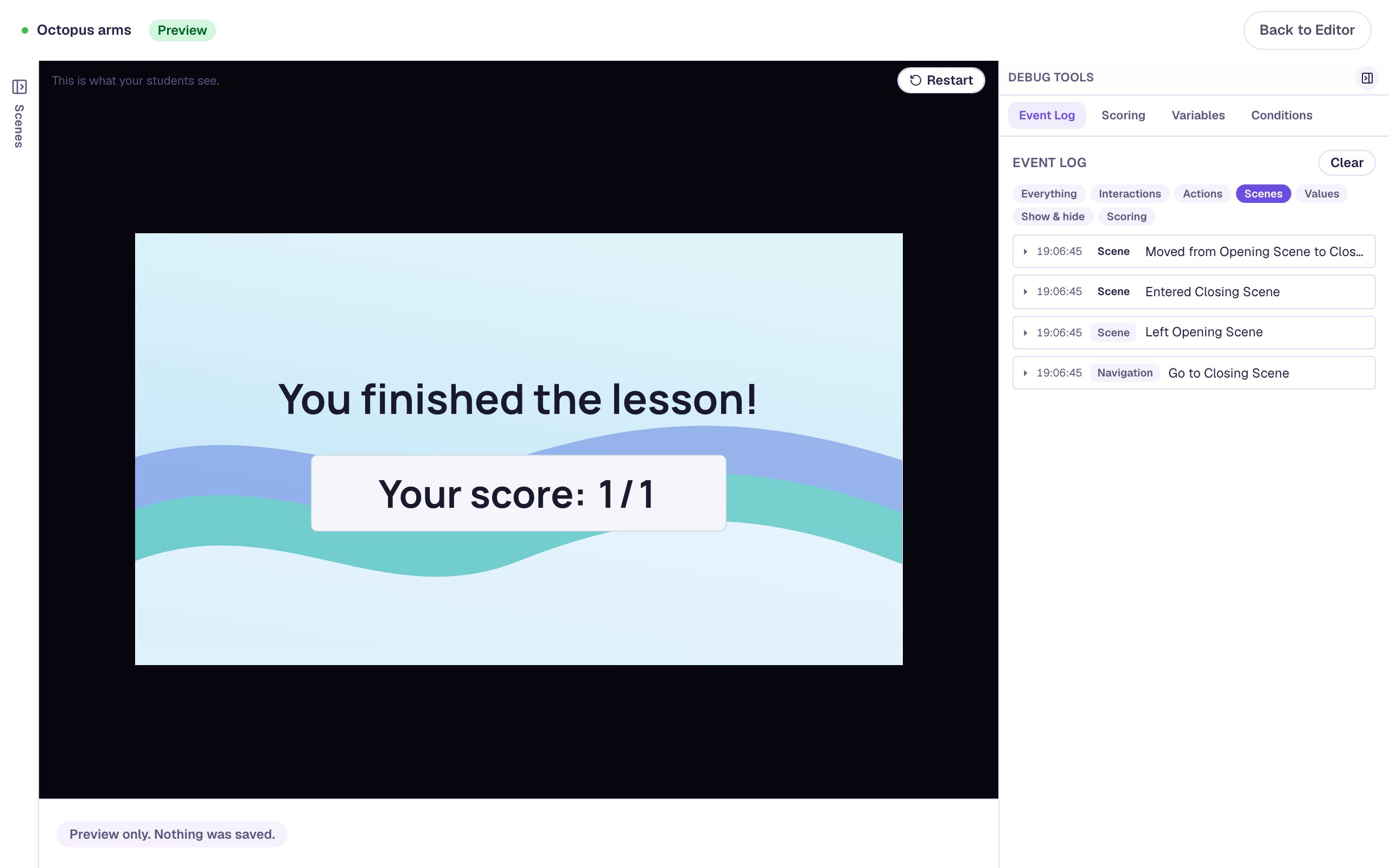
Find out why a button won't work in Preview
Build a one-question activity with a small mistake in it, then use Preview's Debug tools to find the mistake. Read the Event Log, the Conditions view and the Scoring view, fix the answer, and test it again.
 Beginner · 10 min · 9 steps
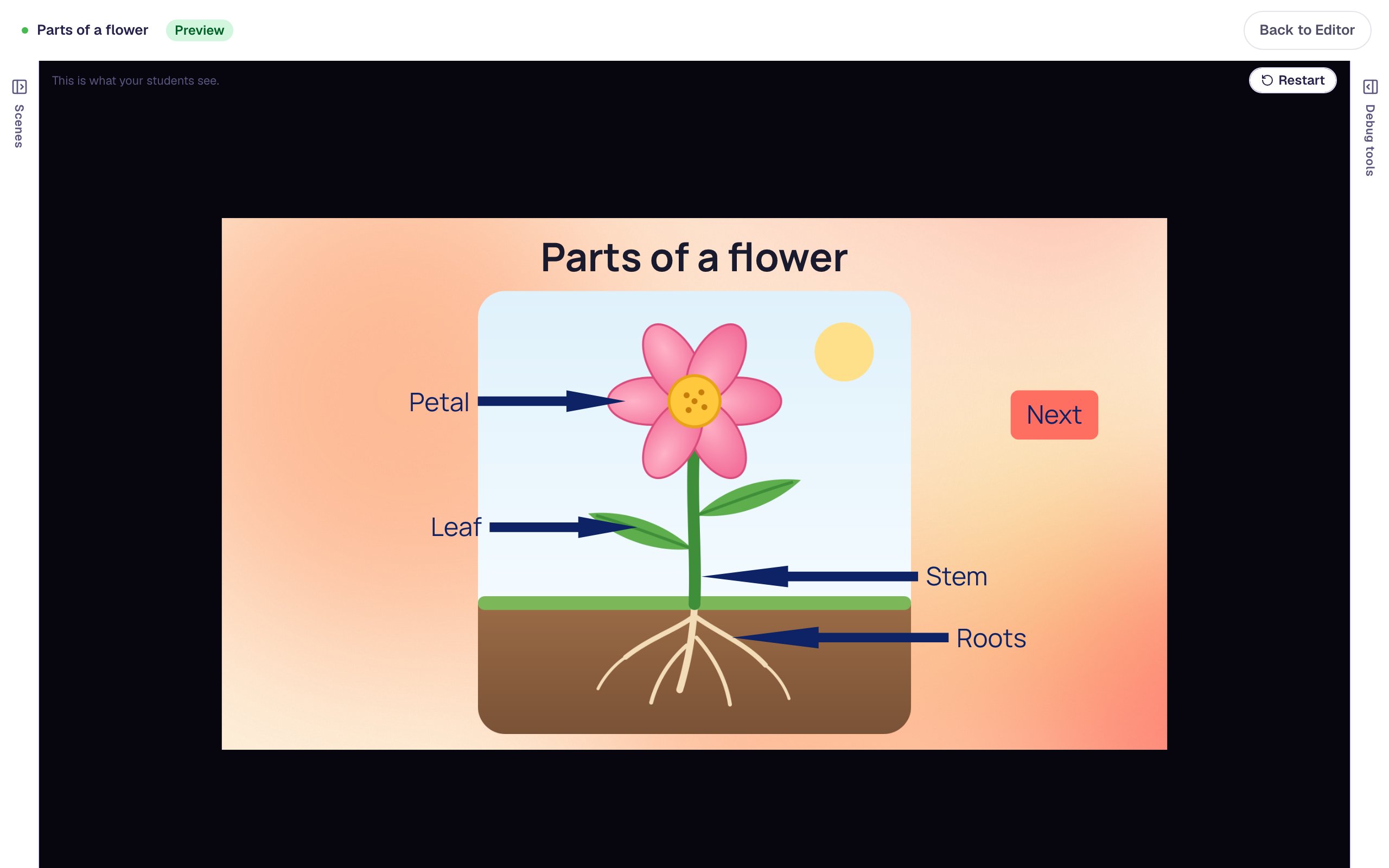
Zoom in to label a diagram precisely
Label the parts of a flower with arrows that point exactly at the petal, leaf, stem and roots, by zooming in, panning across the scene with the space bar, and snapping back to Fit to check the whole diagram.
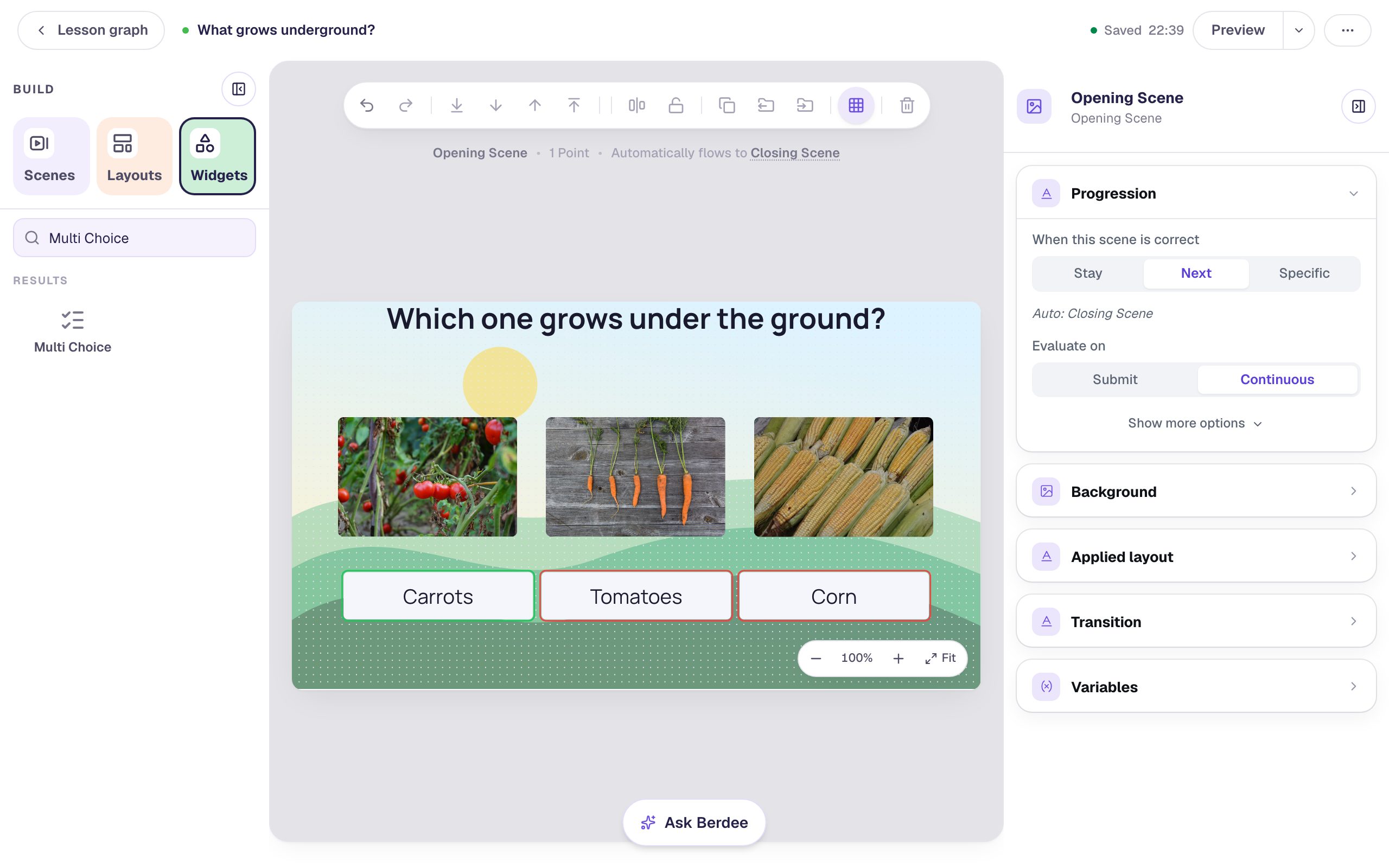 Beginner · 10 min · 8 steps
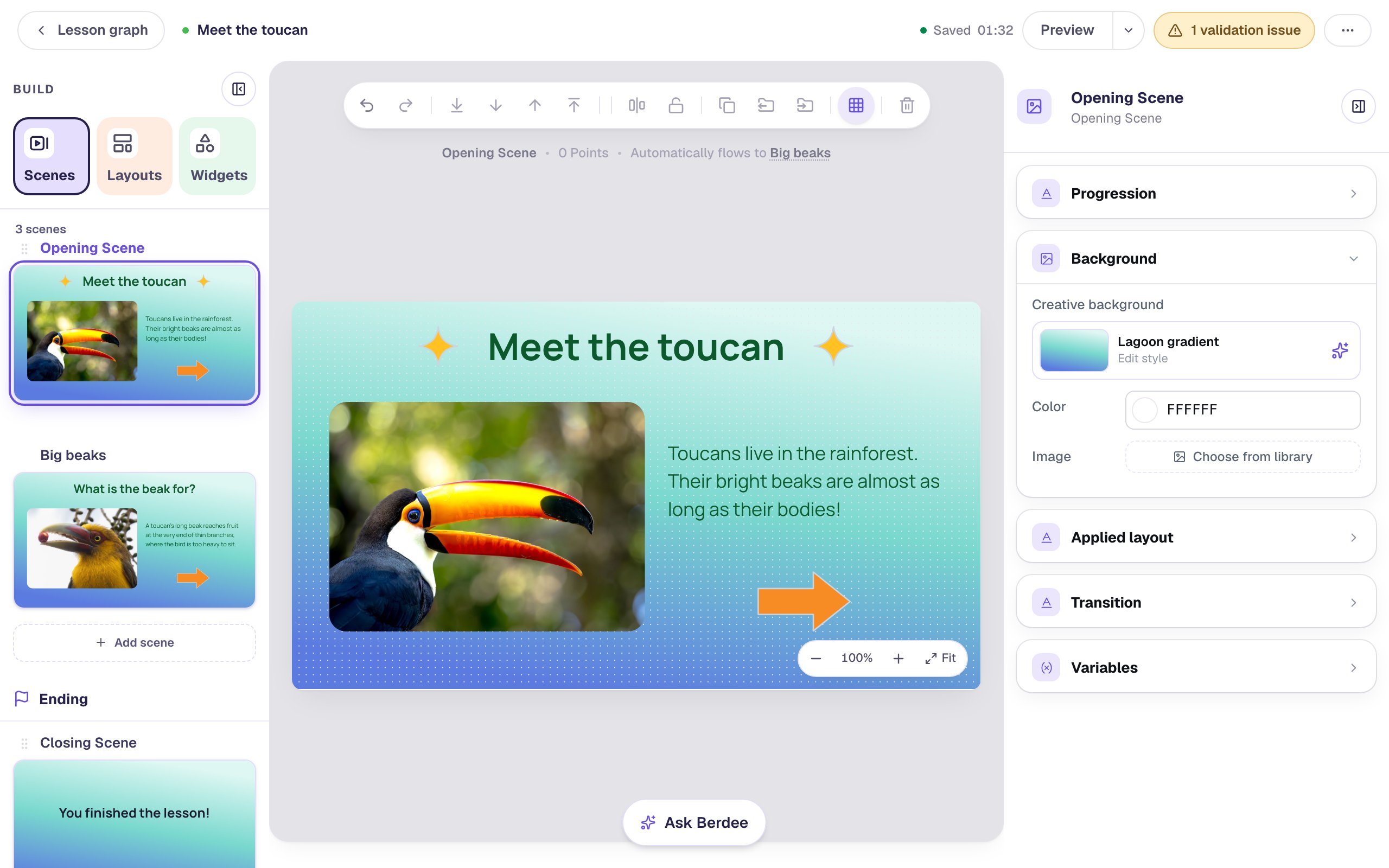
Add your own photos by dropping them on a scene
Drag three of your own photos onto the canvas at once, line them up, describe each one for screen readers, paste a fourth onto the ending, and reuse one from your media library, all without opening a single upload window.
 Beginner · 8 min · 7 steps
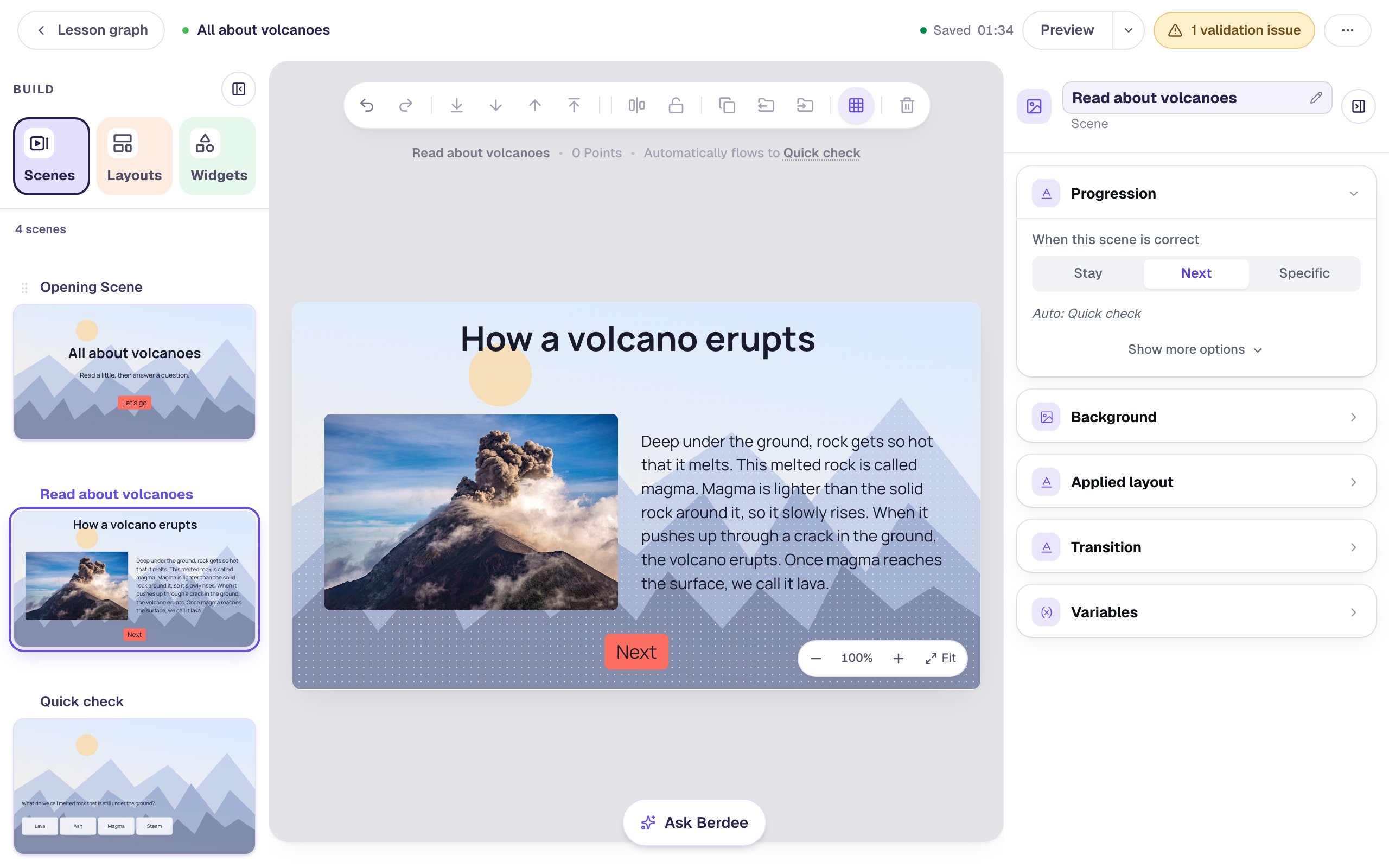
Split a crowded scene into two
Turn one scene that teaches and quizzes at the same time into a reading scene and a question scene. Add a scene, move the question onto it with Move to Scene, give each one room, and add a Next button.
 Beginner · 10 min · 7 steps
Describe your pictures for screen-reader users
Write alt text a student's screen reader can say for every photo in an activity, name a clickable arrow for what it does, leave decoration undescribed, and check it all with the keyboard in Preview.
 Beginner · 8 min · 7 steps
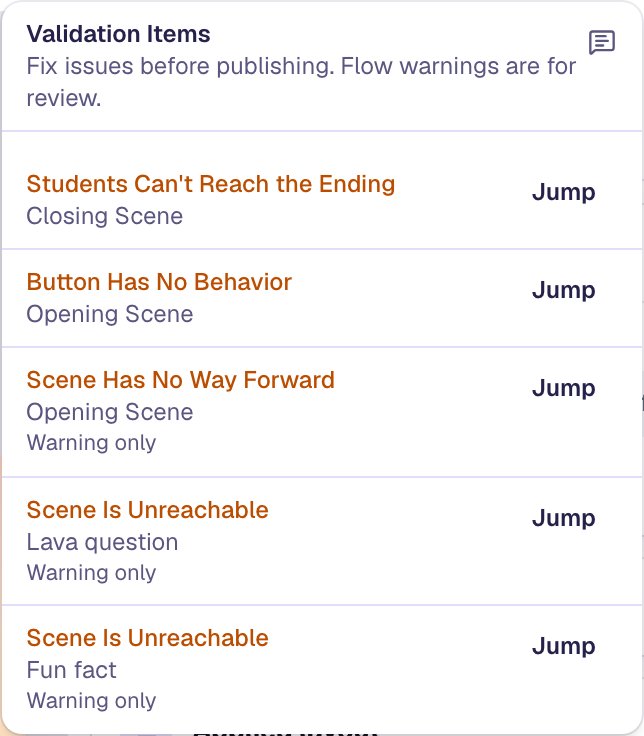
Fix the problems Berdee finds in your activity
Build a three-scene volcano activity with two common slips in it, then use the validation list in the studio's top bar to see what's wrong, jump straight to each problem, and fix it until the list is empty.