Learn Berdee by building
Step-by-step walkthroughs with a screenshot for every step. Follow along in the studio and finish with an activity that works. Looking up one setting instead? The help center covers every control.
Try “timer”, “drag” or “score”. 173 of 174 come with a ready-made activity you can add to your account.
96 tutorials found
Ask questions96 tutorials
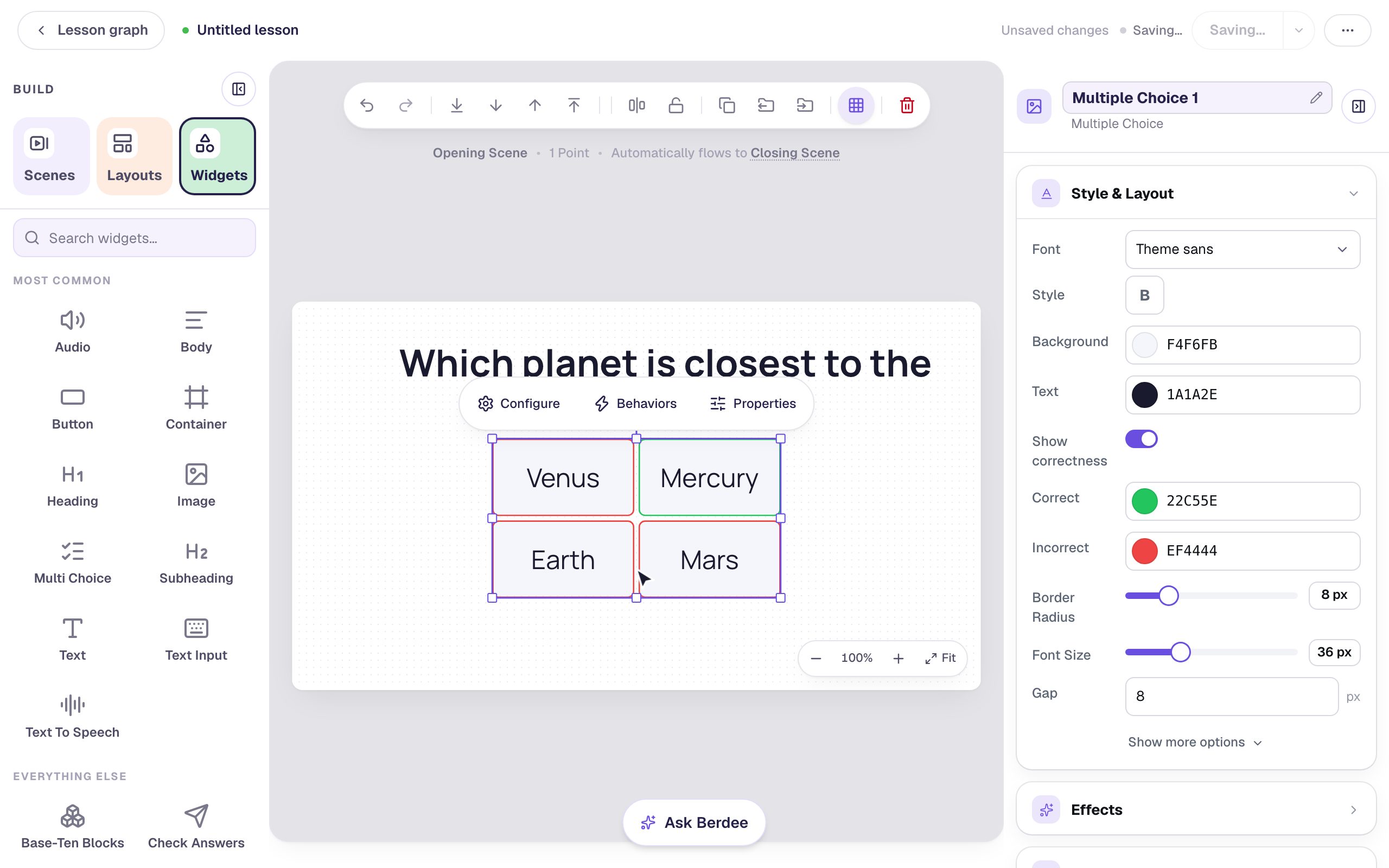 Beginner · 10 min · 6 steps
Build your first quiz question
Start a blank activity, add a multiple-choice question, and watch it score in preview, one click at a time.
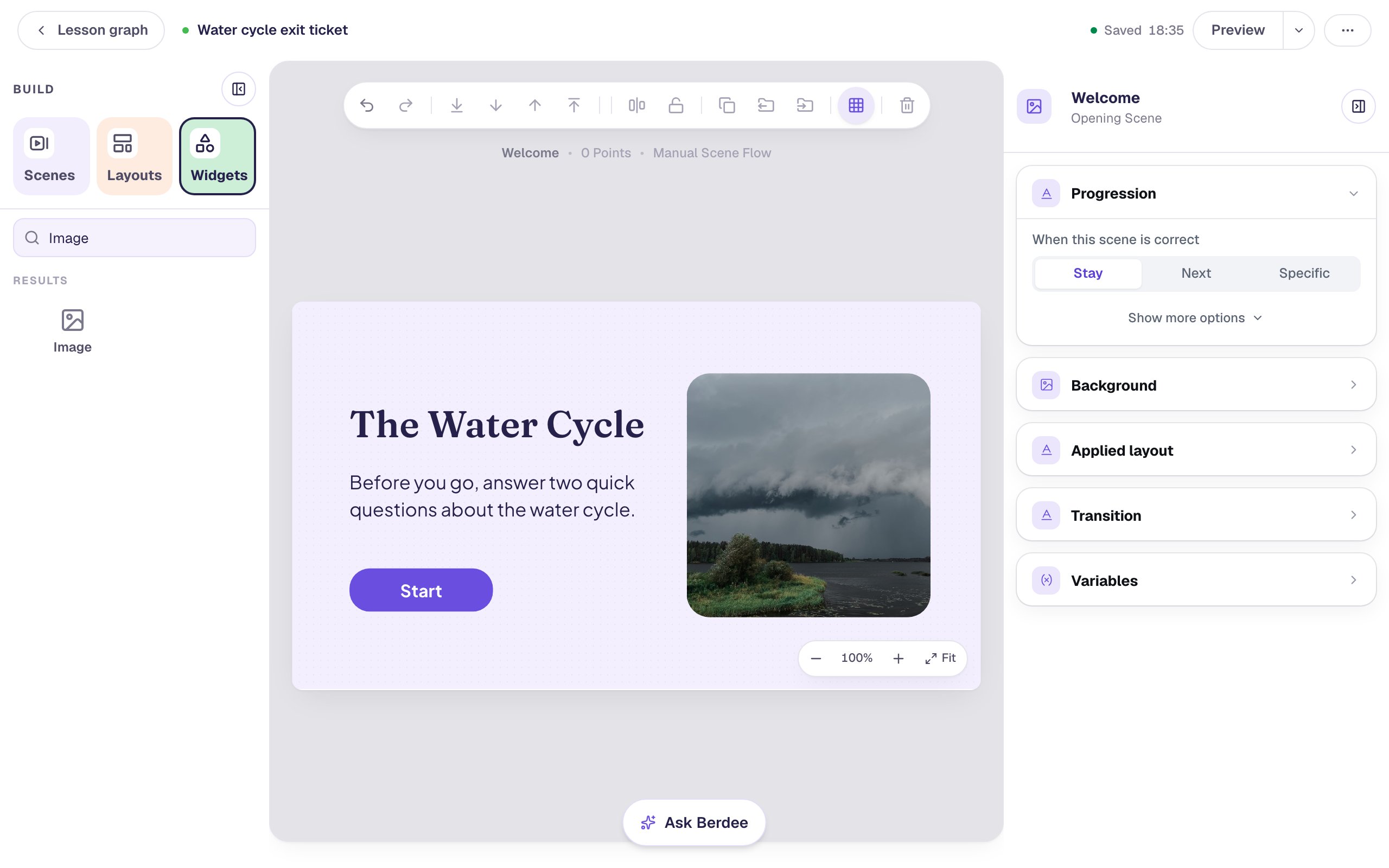 Beginner · 10 min · 7 steps
Start an activity from a template
Pick the Exit Ticket template, then make it yours. Name it, rewrite the title, both questions and the ending, add a photo, and check it in Preview, all without building a single scene from scratch.
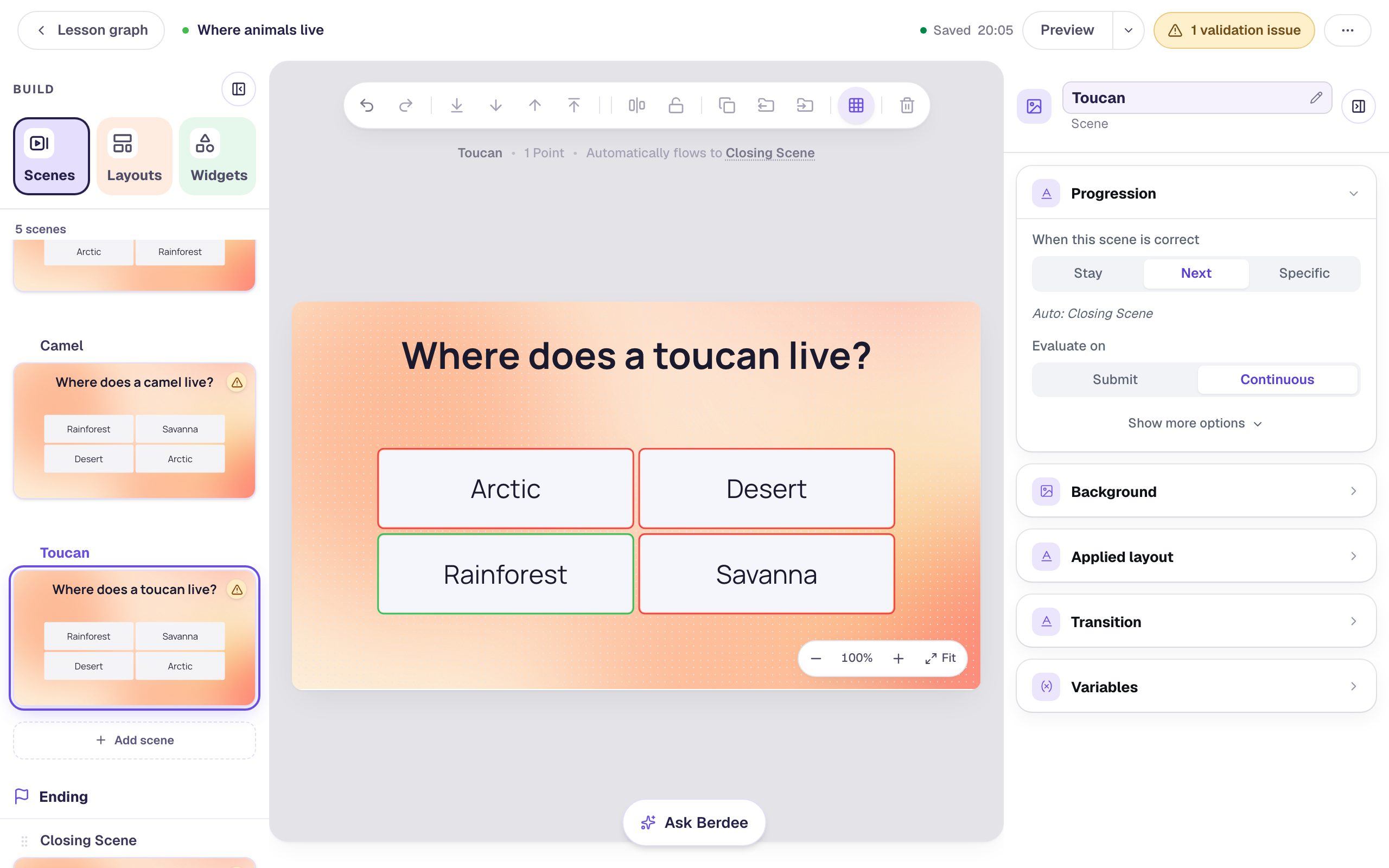 Beginner · 12 min · 9 steps
Build a three-question quiz by duplicating a scene
Build one question scene properly, then duplicate it and change only what's different, so every question in the quiz has the same look and layout. Reorder the questions by dragging and watch the activity follow the new order.
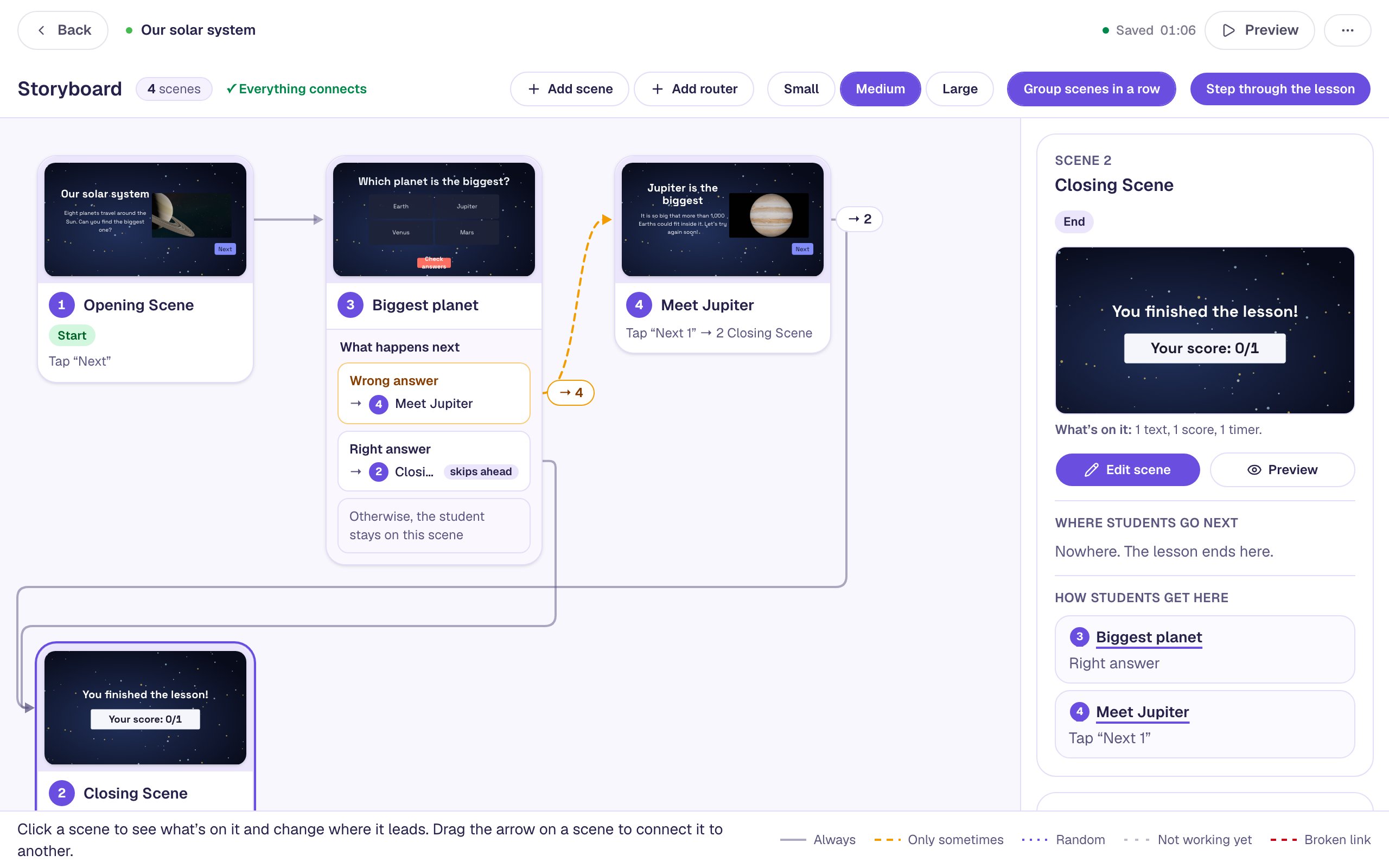 Beginner · 15 min · 8 steps
Plan an activity in the Storyboard
Lay out a whole activity as a row of scene cards before you fill any of them in. Add the scenes, connect them with a Next button and a wrong-answer path, then step through every route.
 Beginner · 15 min · 8 steps
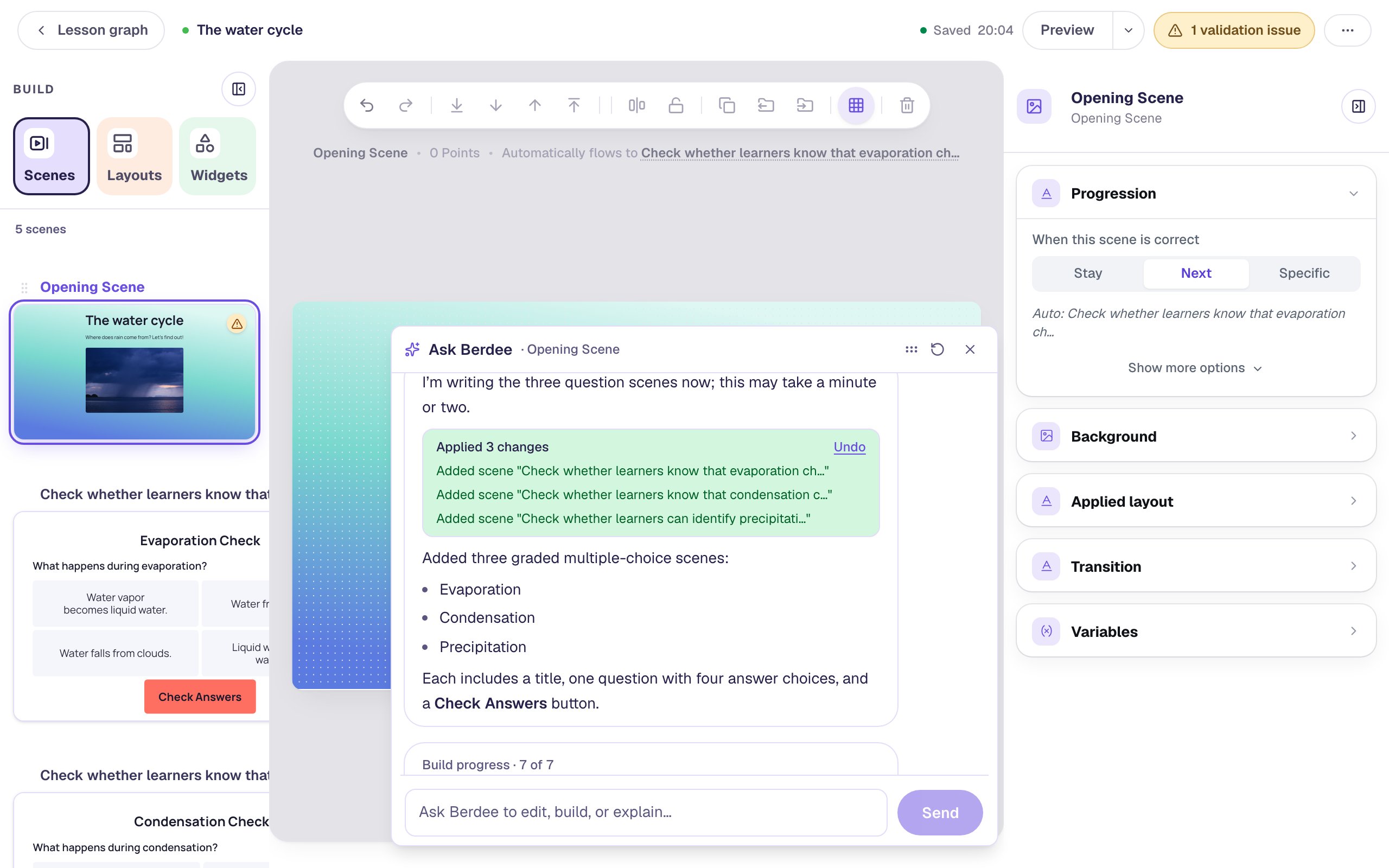
Add quiz questions to an activity with Ask Berdee
Build a title scene yourself, then ask Ask Berdee, the chat in the studio, to plan and build three graded question scenes and tidy them up, checking its work as you go.
 Beginner · 12 min · 8 steps
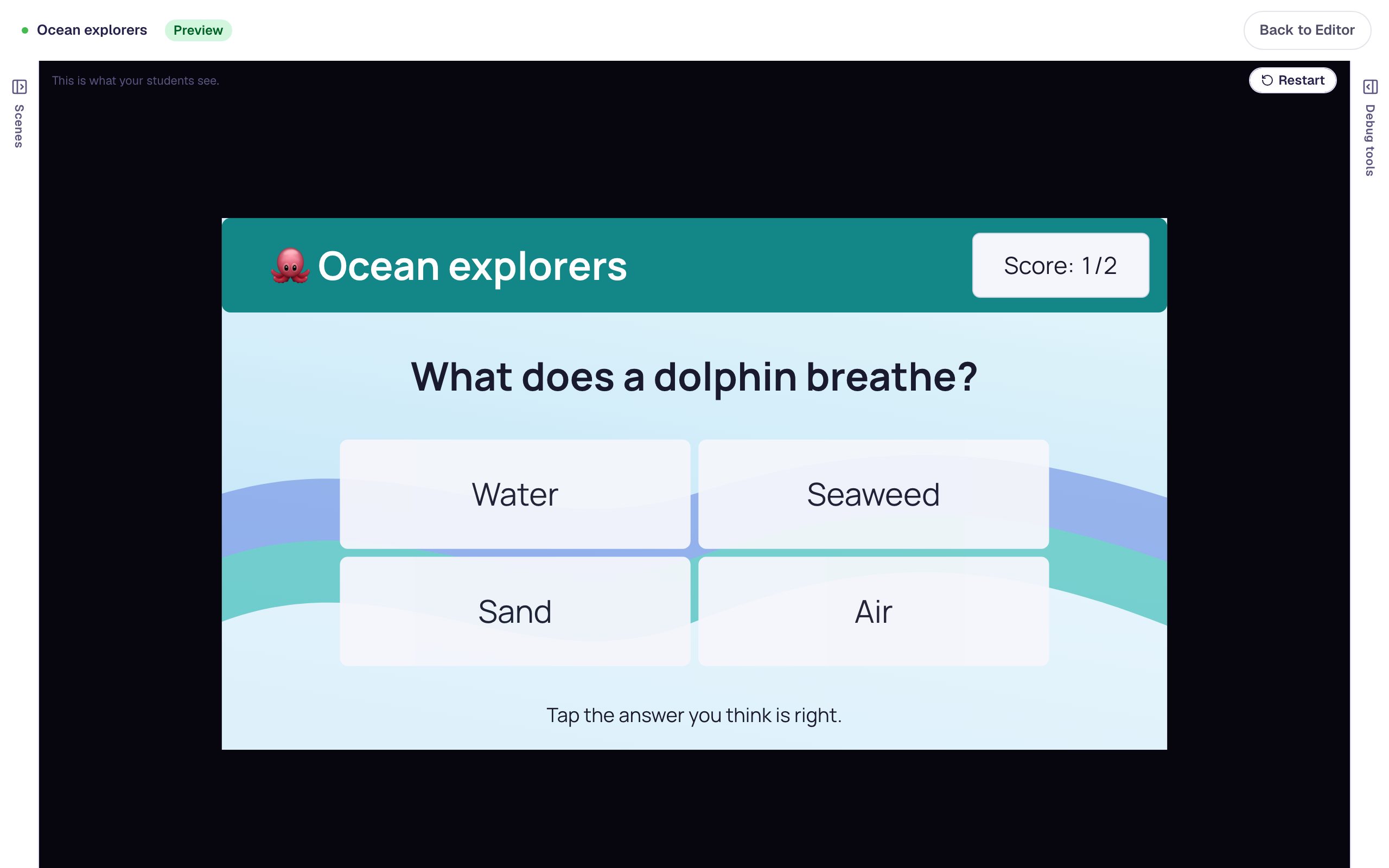
Give every question the same frame with a layout
Design a title bar, a running score, and a background once as a layout, then use it behind every question in a quiz. Change the layout later and every scene that uses it changes with it.
 Beginner · 10 min · 8 steps
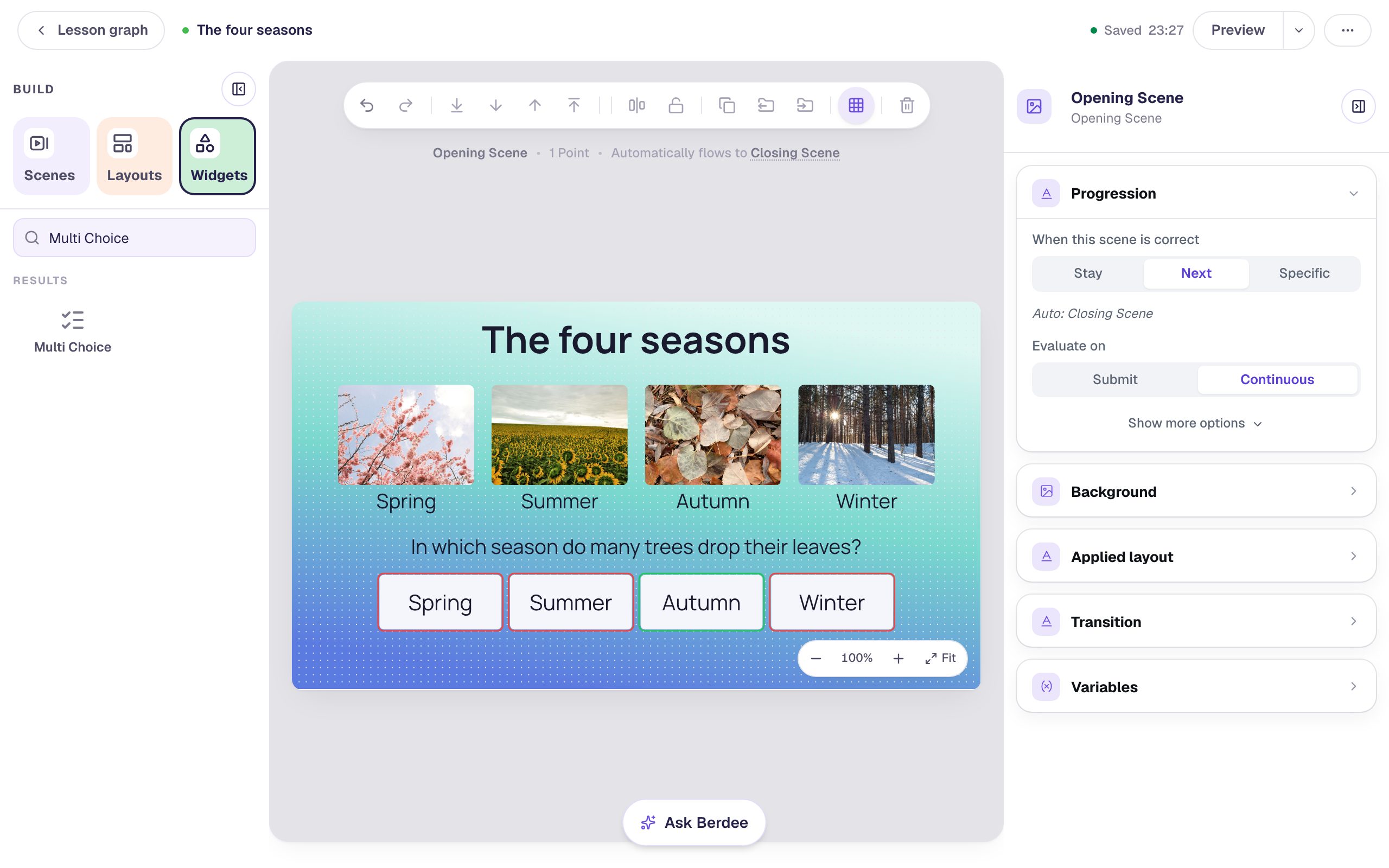
Line up pictures with Tidy up, Gap, and Lock
Drop four pictures and their names roughly where they go, then let the Align & distribute menu line them up, space them evenly, centre them, and lock the finished row so it can't be knocked out of place.
 Beginner · 10 min · 9 steps
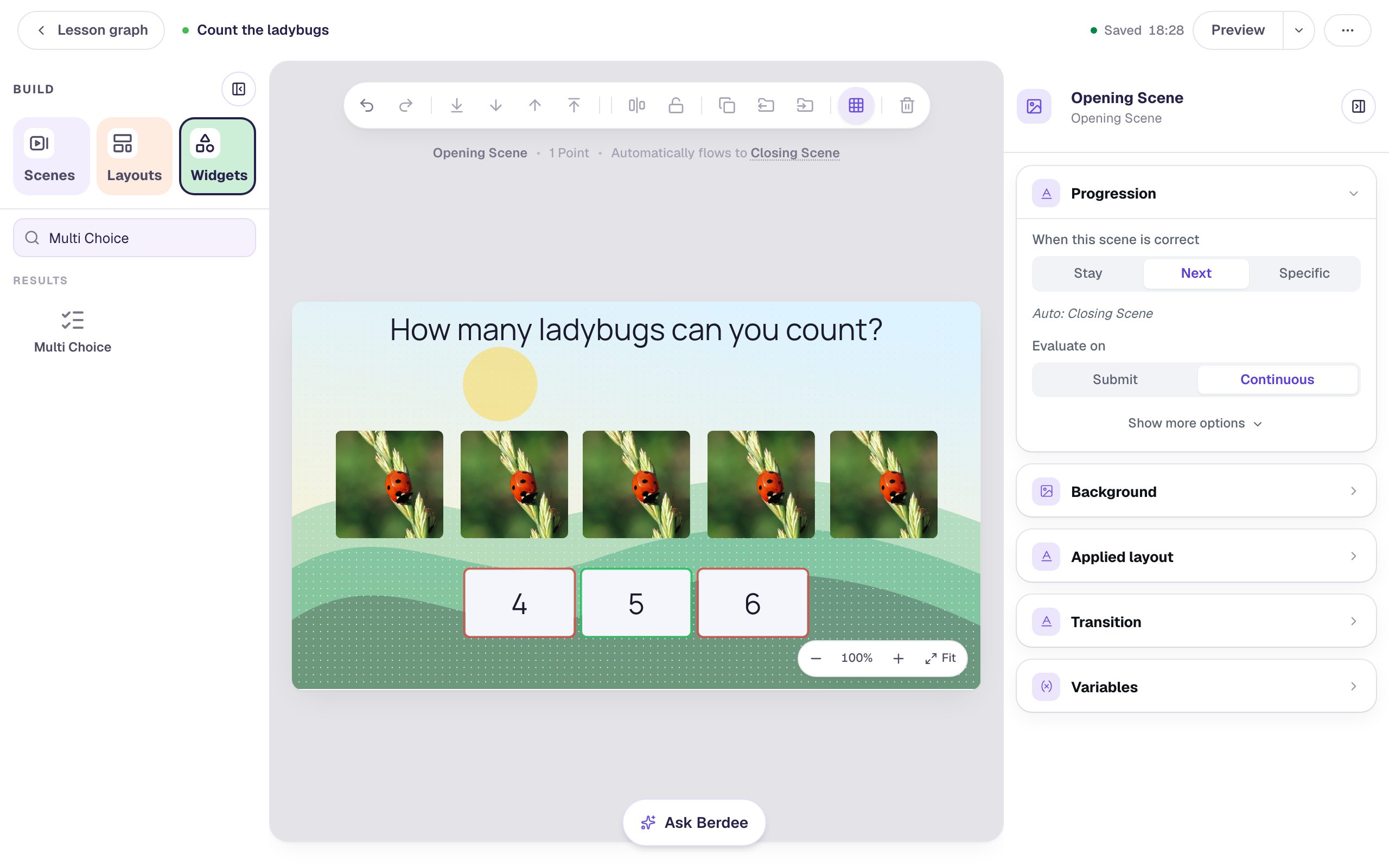
Build a scene faster with keyboard shortcuts
Build a "Count the ladybugs" scene with your hands on the keyboard. Paste the question in, drag off copies of a picture with Option, duplicate with ⌘ D, select and nudge a whole row, and undo a mistake, then try it as a student.
 Beginner · 8 min · 6 steps
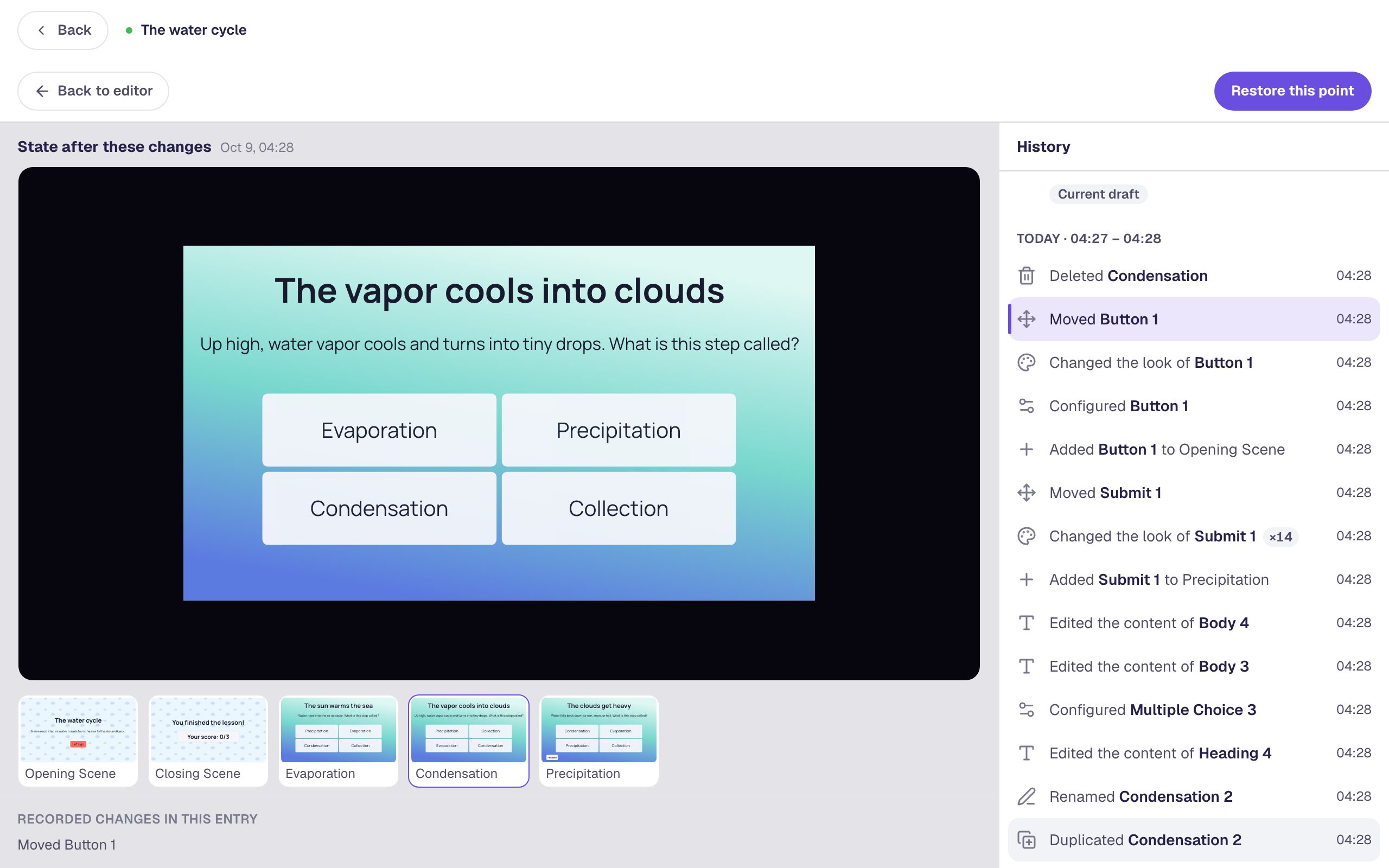
Bring back a scene you deleted with History
Delete a question scene by mistake, then use History to find the moment just before, preview it, and restore it, even after you've closed the activity and come back.
 Beginner · 10 min · 8 steps
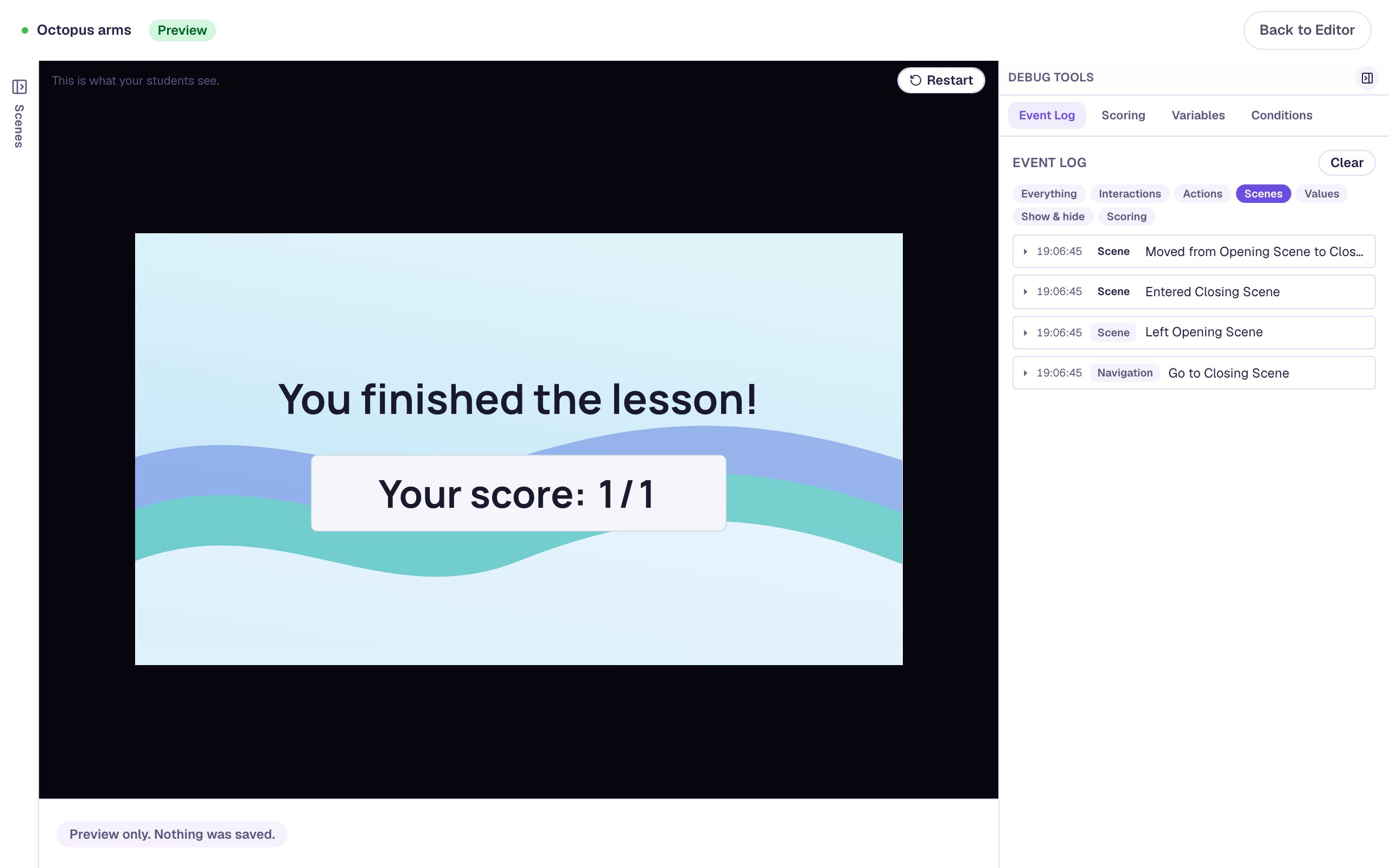
Find out why a button won't work in Preview
Build a one-question activity with a small mistake in it, then use Preview's Debug tools to find the mistake. Read the Event Log, the Conditions view and the Scoring view, fix the answer, and test it again.
 Beginner · 10 min · 9 steps
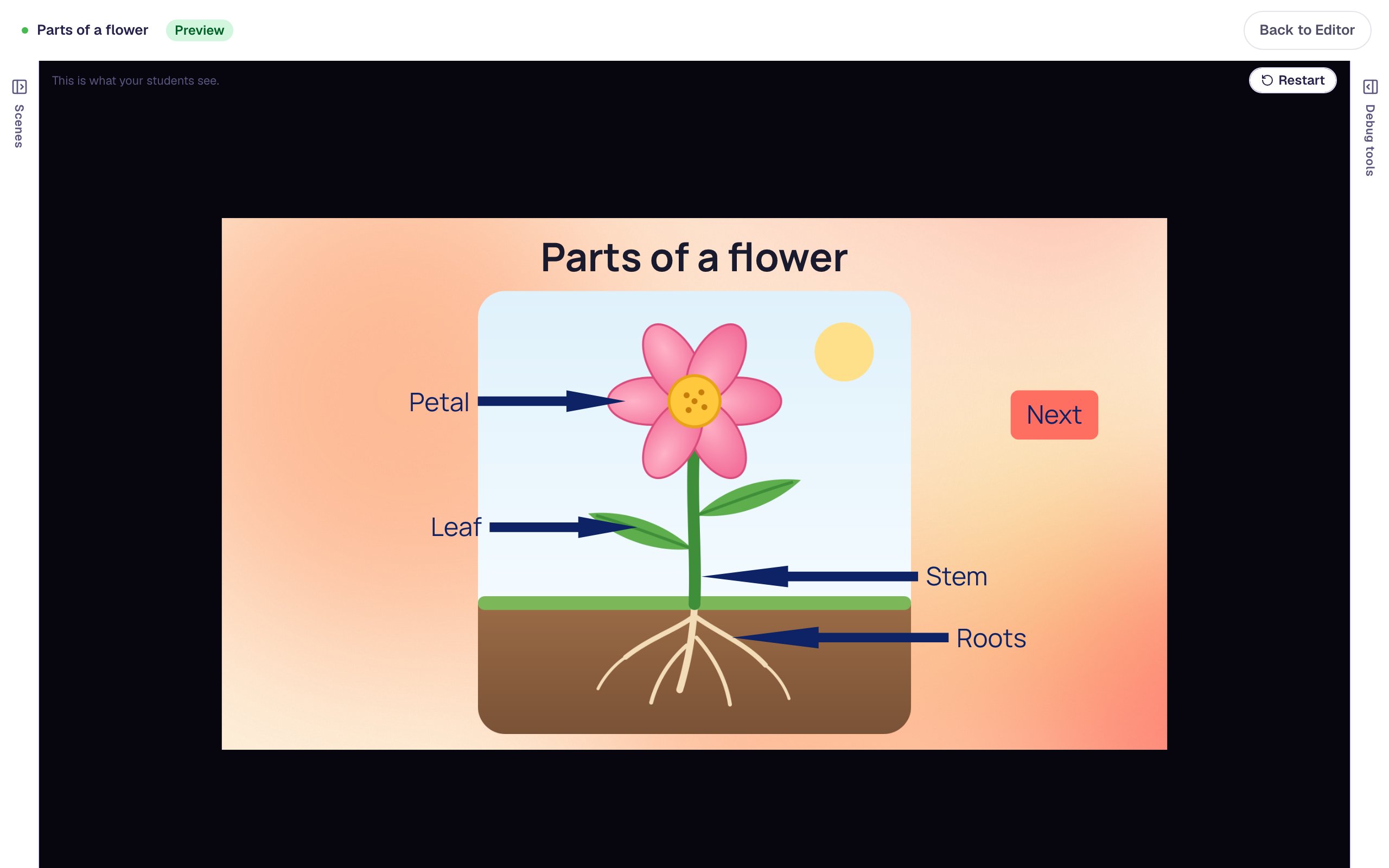
Zoom in to label a diagram precisely
Label the parts of a flower with arrows that point exactly at the petal, leaf, stem and roots, by zooming in, panning across the scene with the space bar, and snapping back to Fit to check the whole diagram.
 Beginner · 10 min · 8 steps
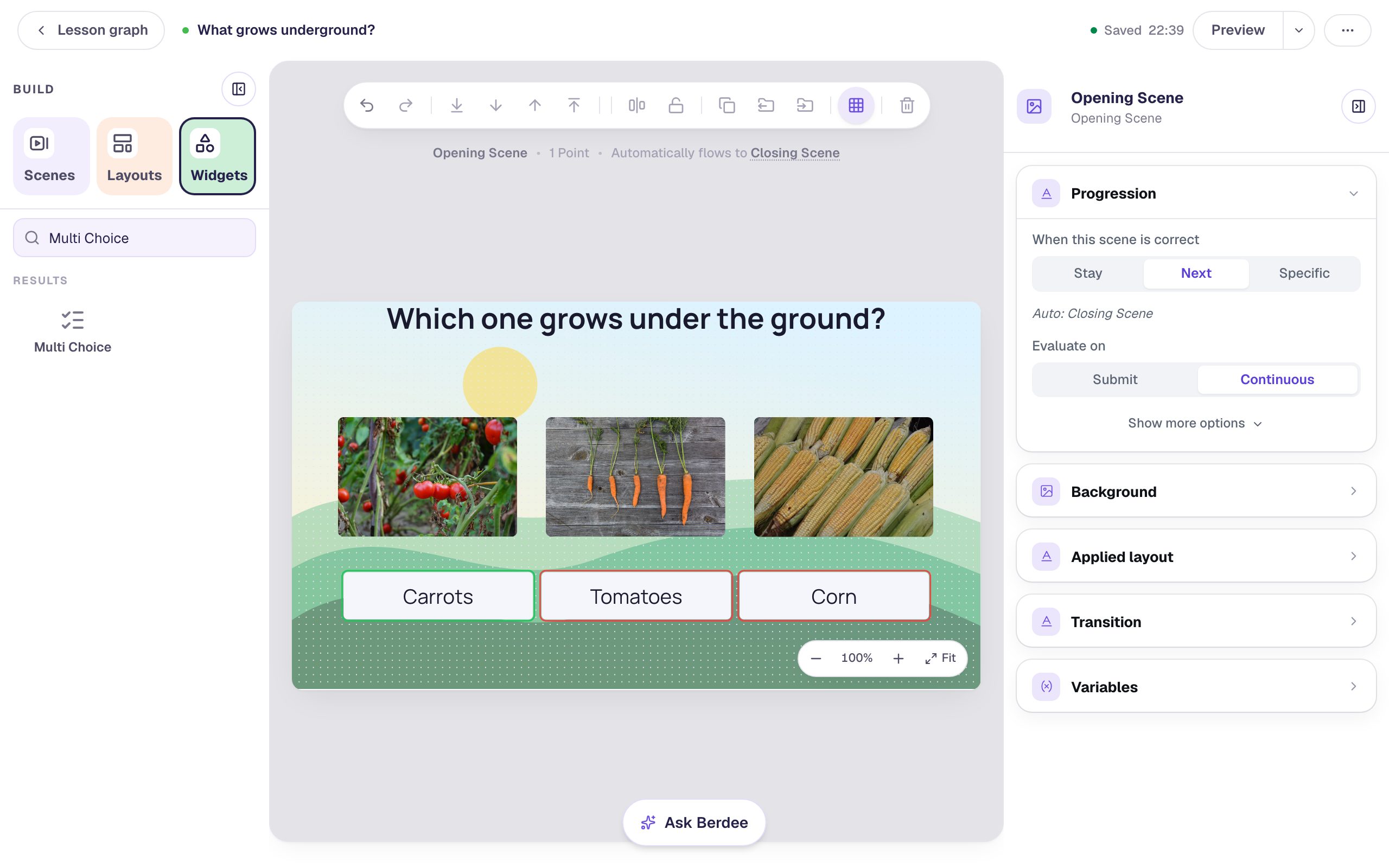
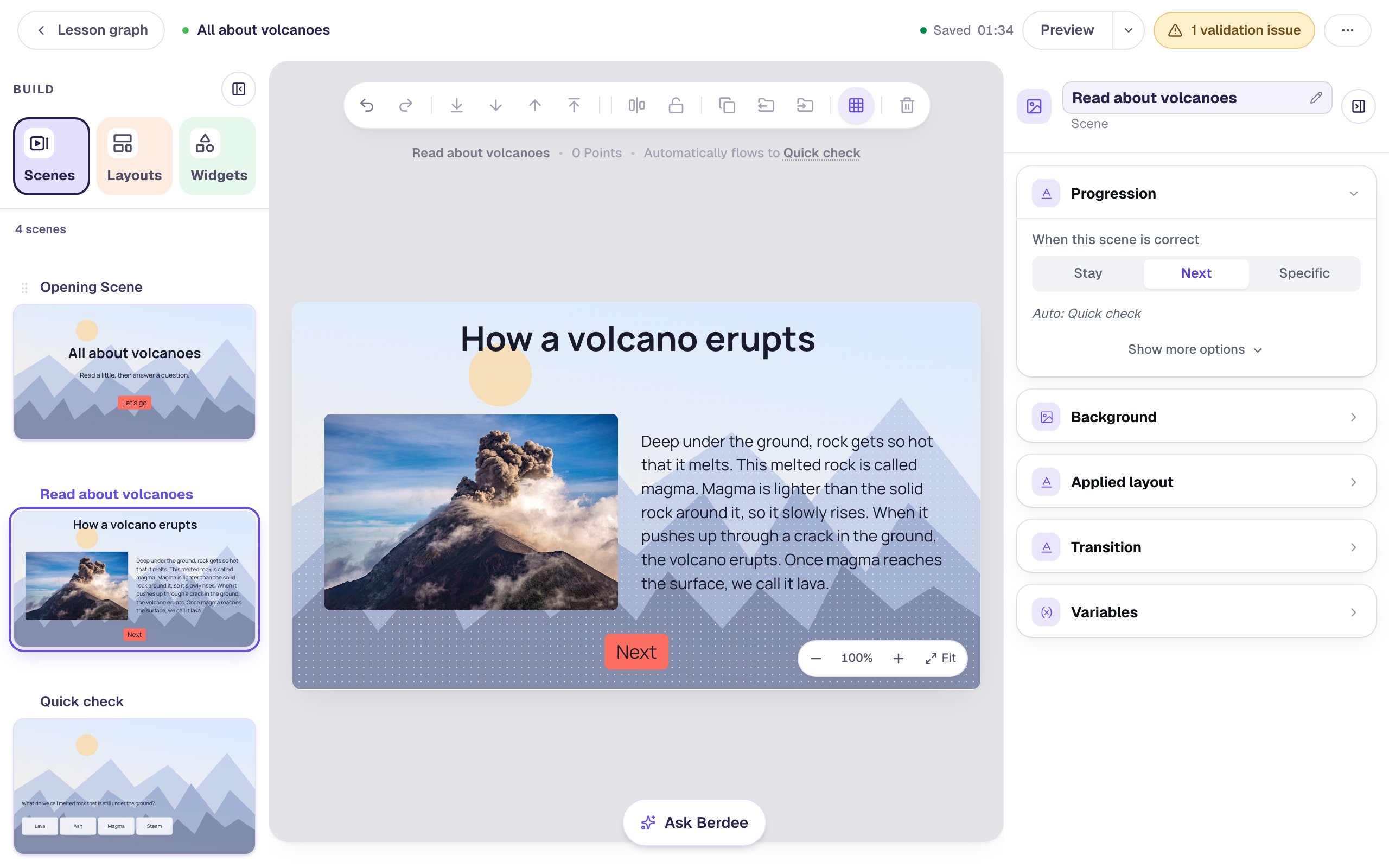
Add your own photos by dropping them on a scene
Drag three of your own photos onto the canvas at once, line them up, describe each one for screen readers, paste a fourth onto the ending, and reuse one from your media library, all without opening a single upload window.
 Beginner · 8 min · 7 steps
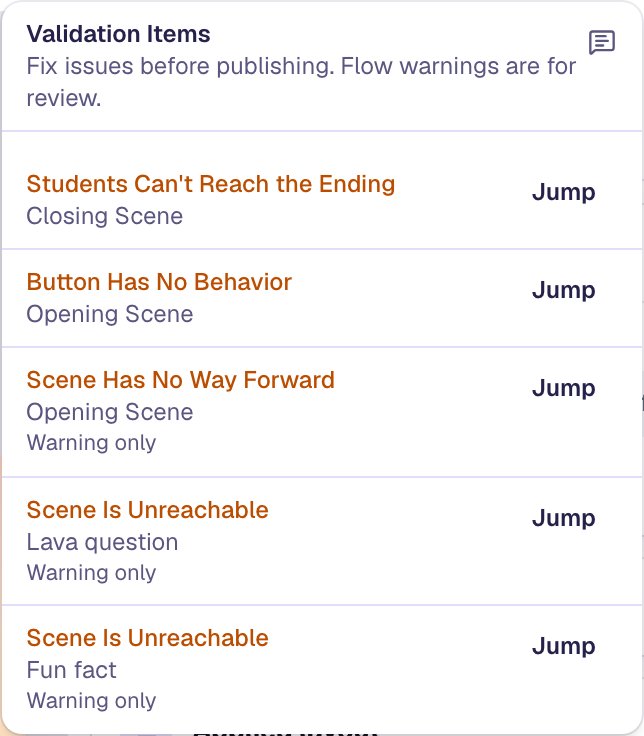
Split a crowded scene into two
Turn one scene that teaches and quizzes at the same time into a reading scene and a question scene. Add a scene, move the question onto it with Move to Scene, give each one room, and add a Next button.
 Beginner · 8 min · 7 steps
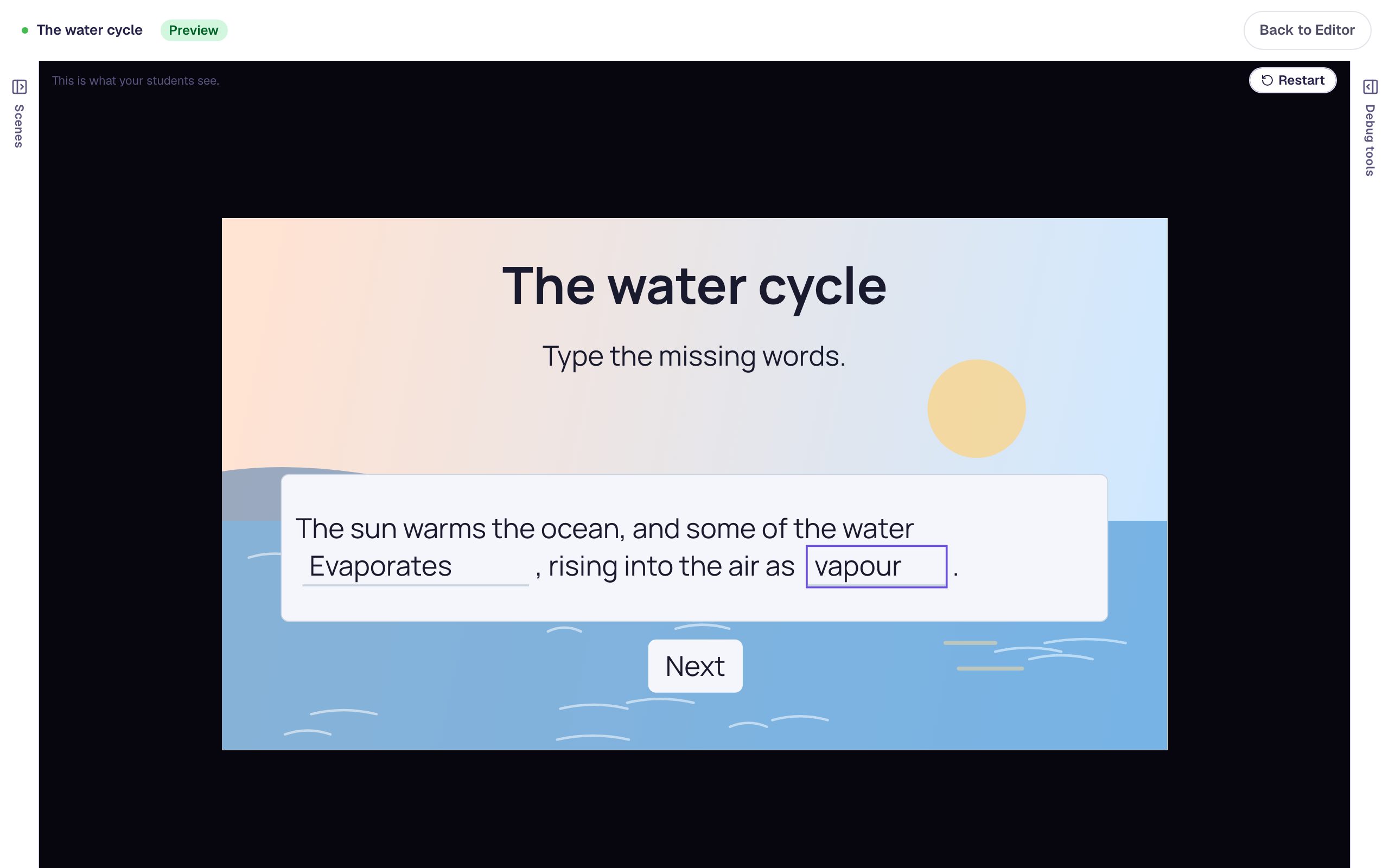
Fix the problems Berdee finds in your activity
Build a three-scene volcano activity with two common slips in it, then use the validation list in the studio's top bar to see what's wrong, jump straight to each problem, and fix it until the list is empty.
 Beginner · 10 min · 8 steps
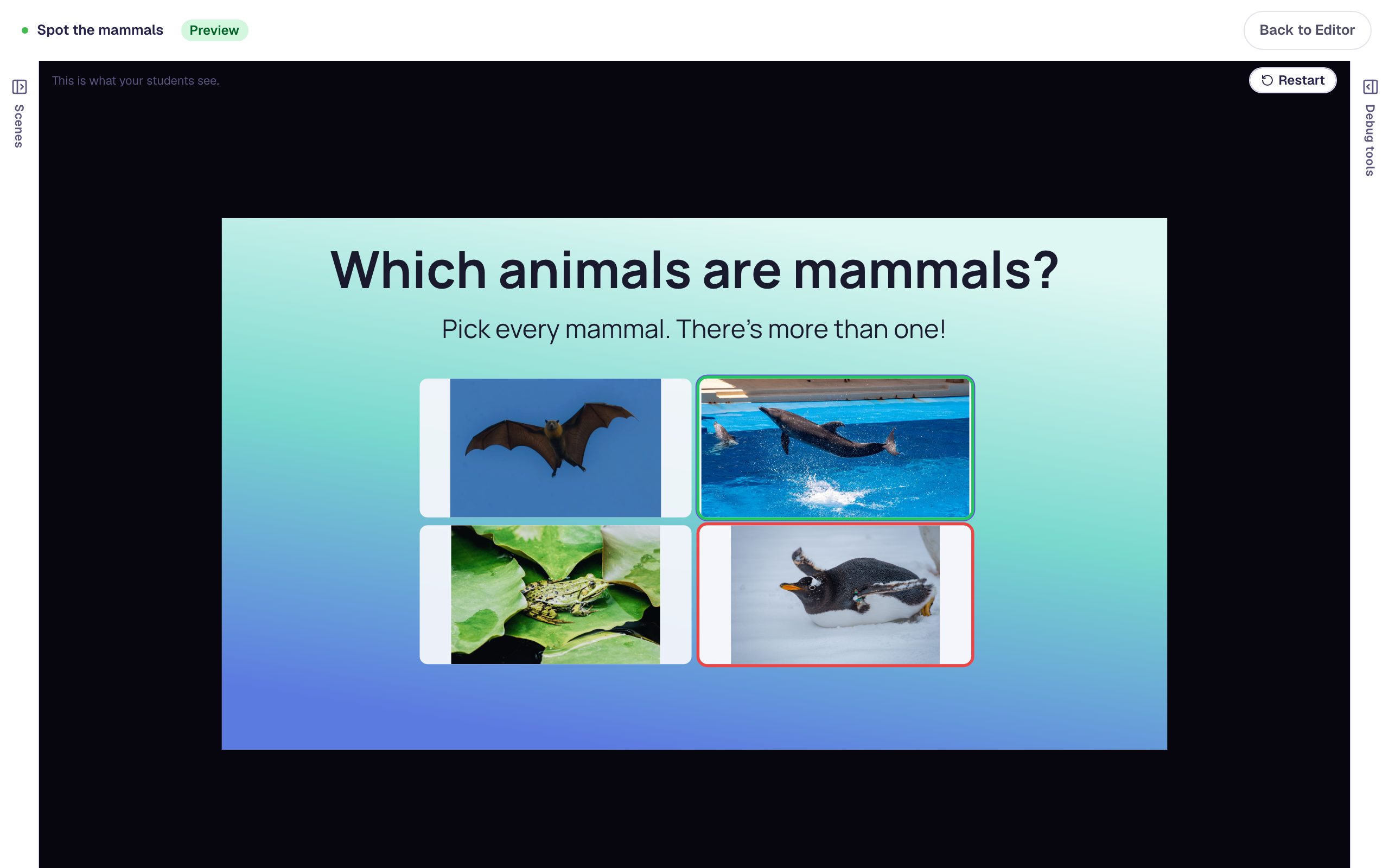
Accept more than one answer in a fill-in-the-blank
Build a Fill in the Blank question by typing the real sentence and marking the missing words, then add hints and a second spelling so a right answer is never marked wrong.
 Beginner · 10 min · 8 steps
Ask a "select all that apply" question with pictures
Turn a Multiple Choice question into a select-all question with more than one right answer, give every answer a stock photo, and describe each picture so screen readers can read it.
 Beginner · 10 min · 7 steps
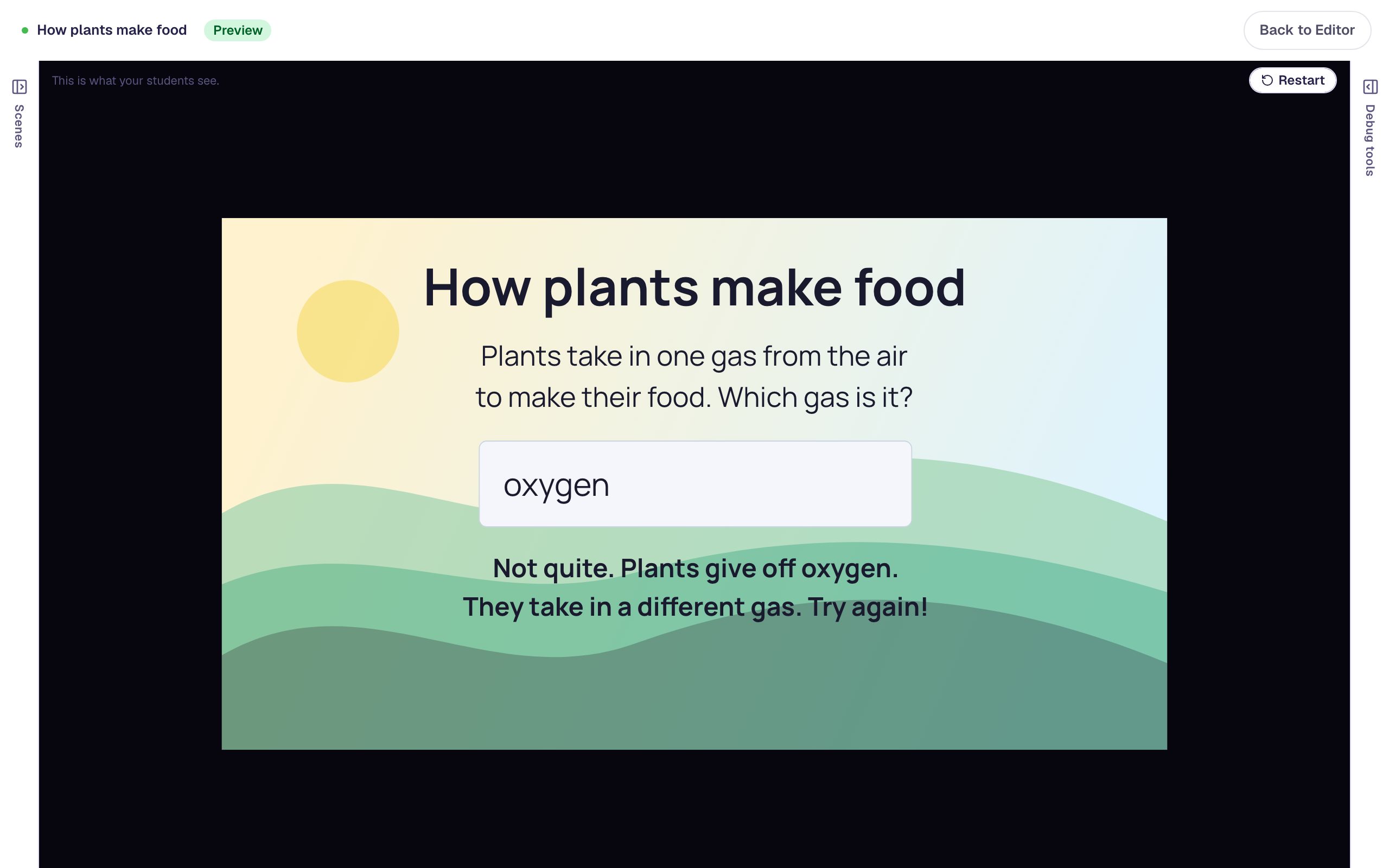
Ask a short-answer question that coaches a wrong try
Build a Text Input question that accepts more than one way of writing the answer, then add a "try again" message that appears only after a wrong answer.
 Beginner · 12 min · 9 steps
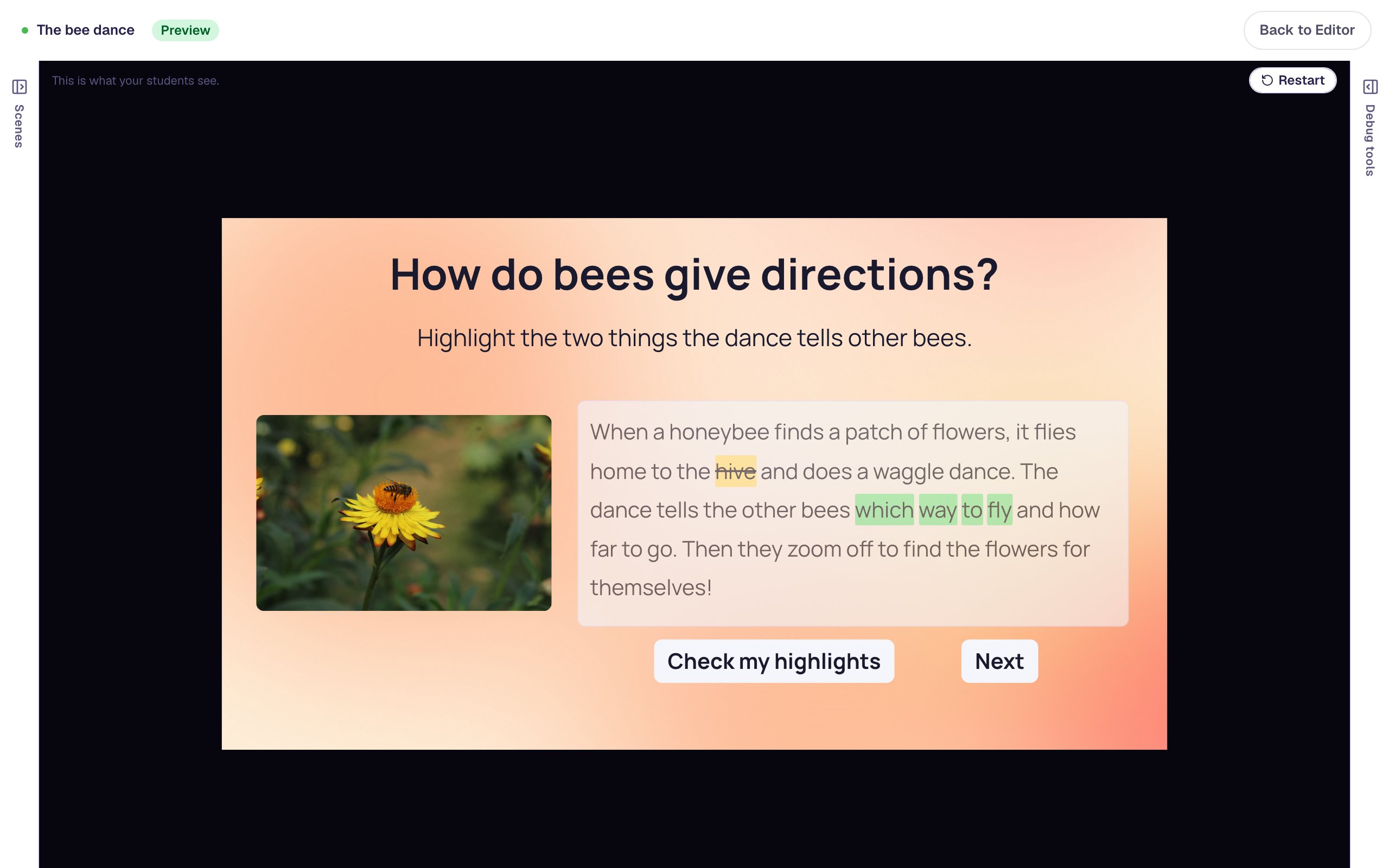
Ask students to highlight the evidence in a passage
Build a close-reading question with the Highlighter. Students read a short passage about honeybees, highlight the words that answer the question, and press Check to see which highlights were right.
 Beginner · 15 min · 7 steps
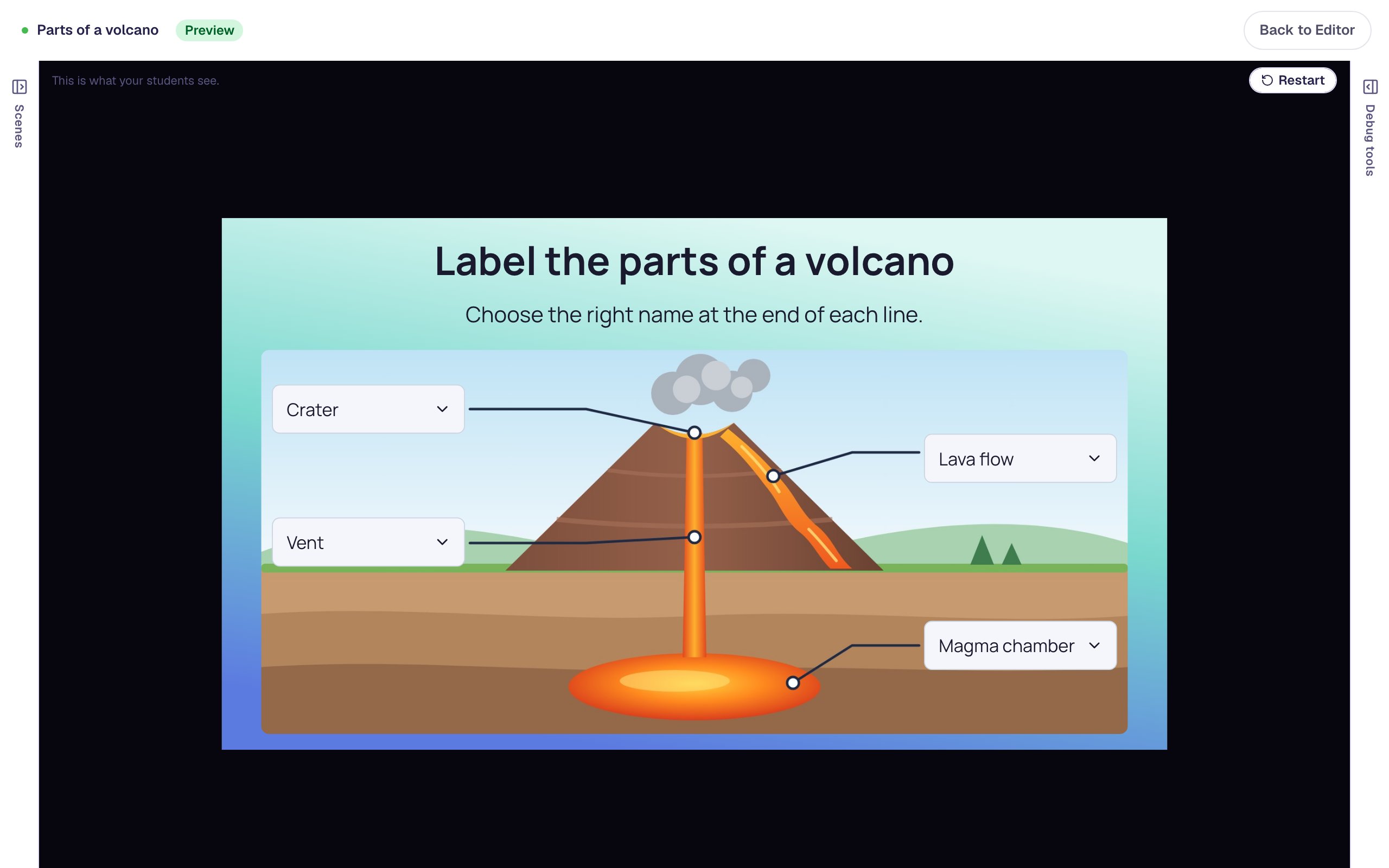
Label a diagram with dropdowns
Put four dropdowns on a picture of a volcano so students label each part by choosing its name from a list. Each dropdown is marked like a quiz question, and a wrong pick gets a try-again message straight away.
 Beginner · 10 min · 7 steps
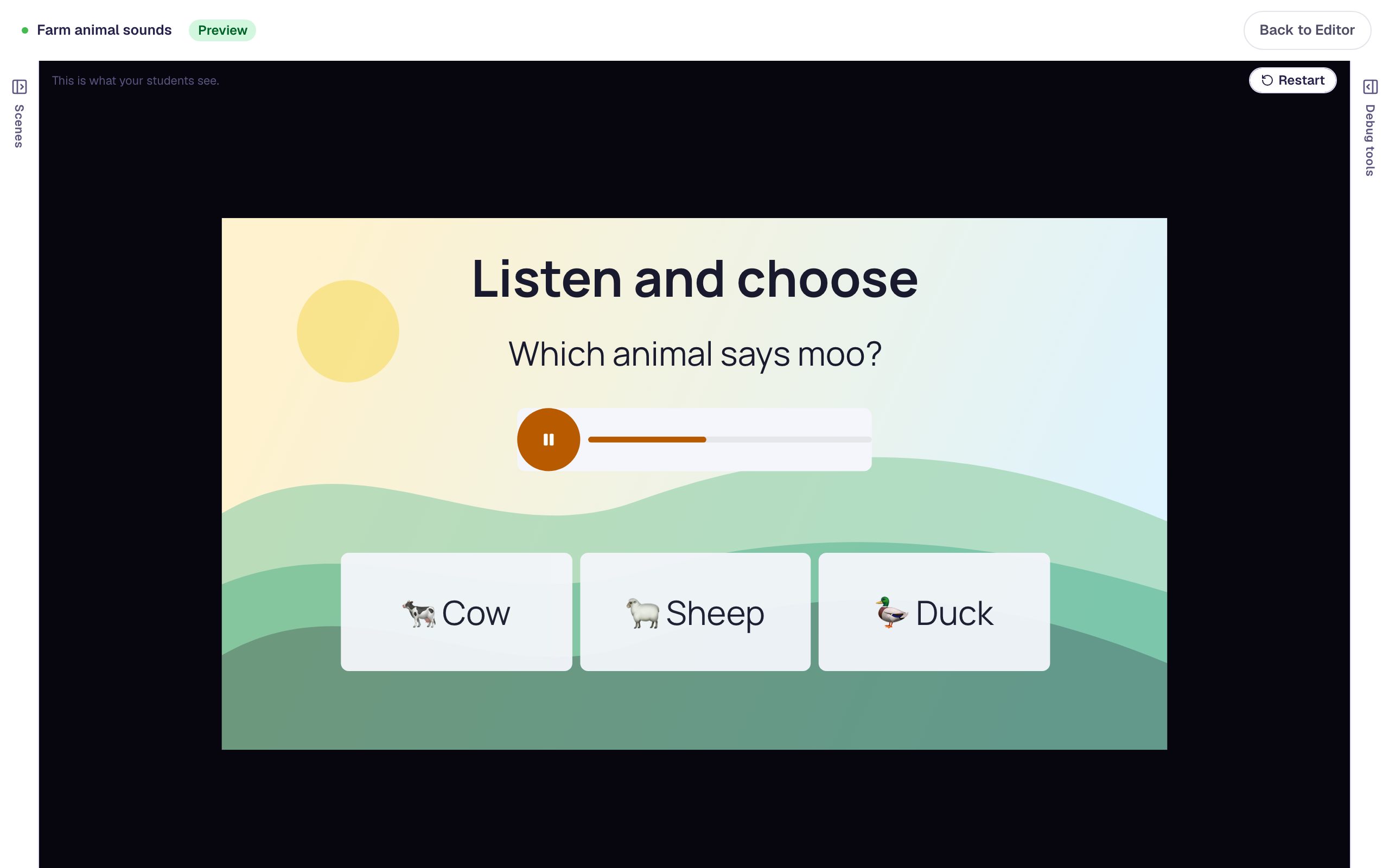
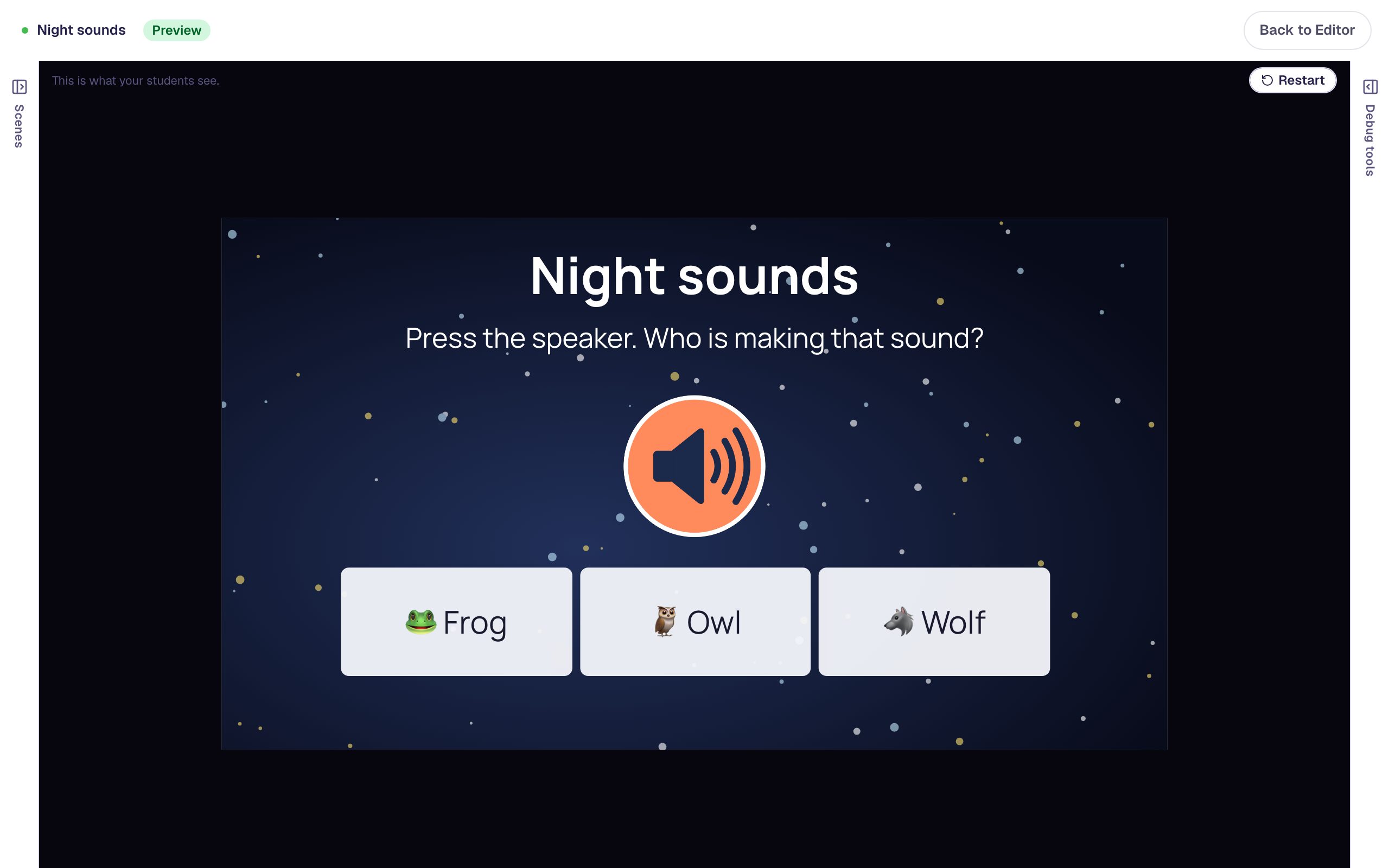
Read a question aloud for early readers
Add a Text To Speech player beside a question so students can hear it as many times as they need, in a voice you choose, with no recording or audio file to upload.
 Beginner · 10 min · 7 steps
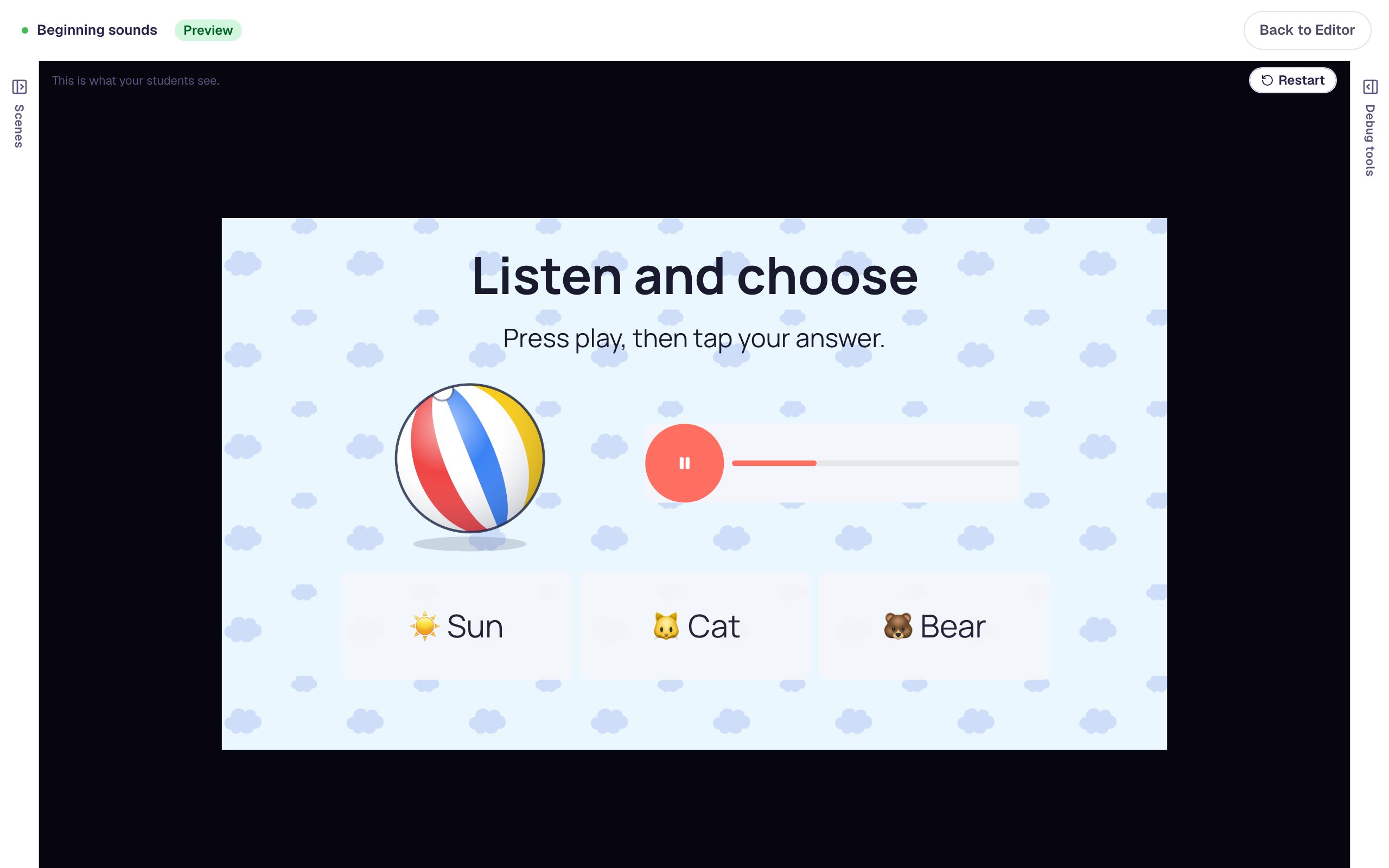
Turn a picture into a play button for listening
Make a "Who's making that sound?" question where students press a big speaker picture to hear a mystery animal. Give the Audio player your own picture for its play button, and a second one that shows while the sound plays.
 Beginner · 10 min · 7 steps
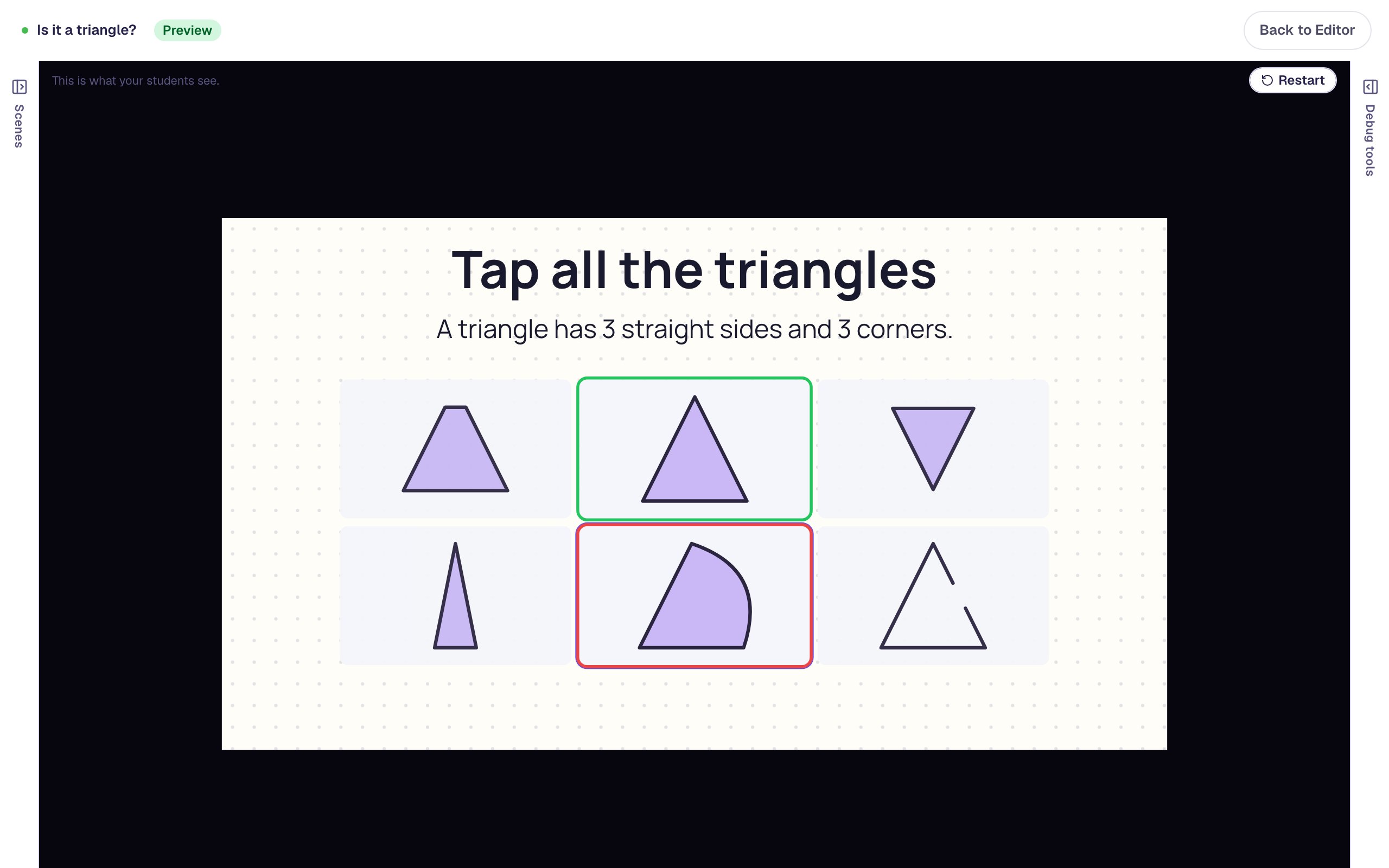
Record your own voice for a question
Record spoken directions in your own voice on the Audio player's Record tab, listen back, and save the take, so early readers can hear you explain a beginning-sounds question as often as they need.
 Beginner · 10 min · 8 steps
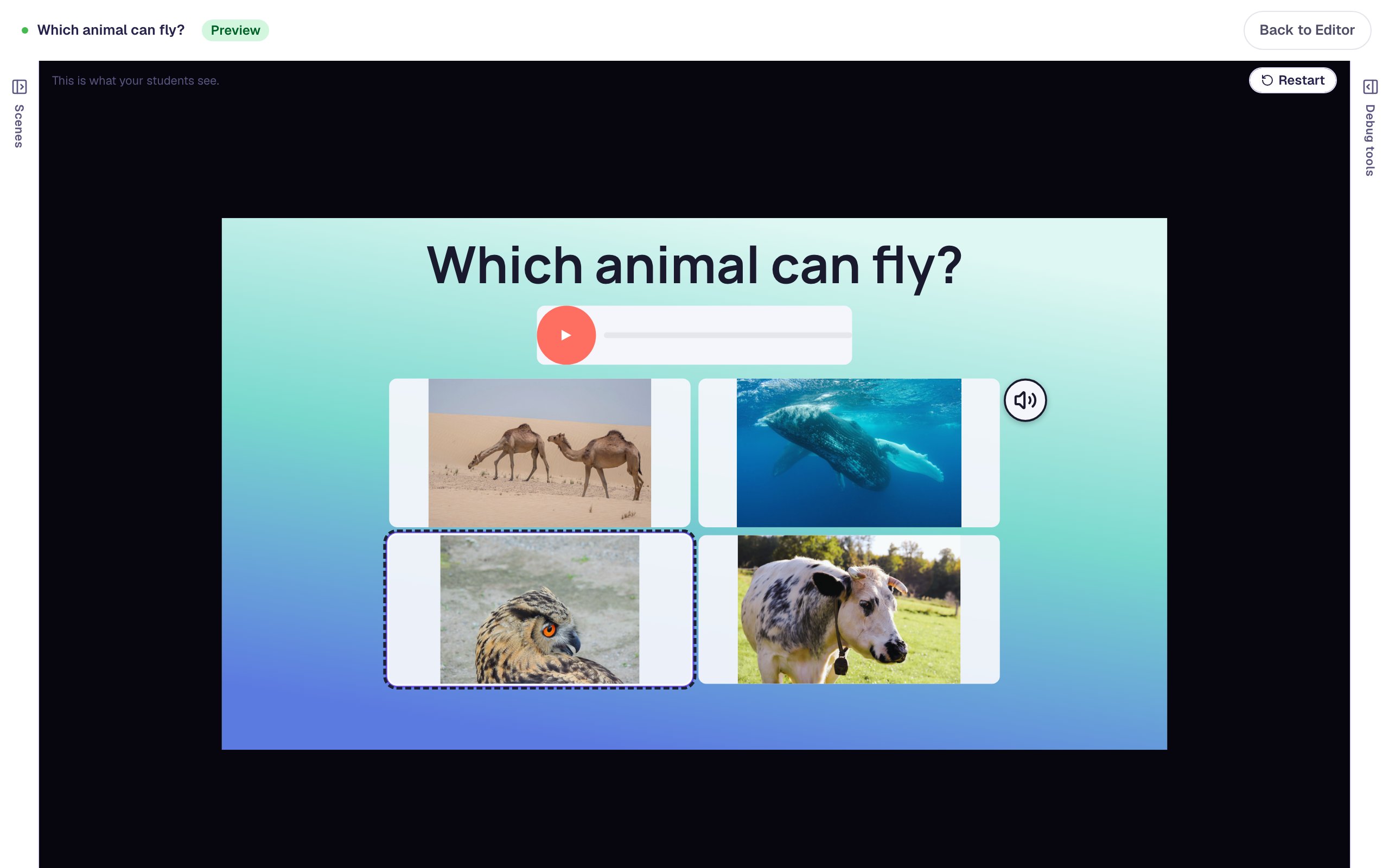
Ask students to tap all the triangles
Turn Multiple Choice answers into shapes Berdee draws for you, then mix real triangles (turned, smaller, skinny) with near-misses like a pizza slice and an open shape, so students sort by the rule, not the look.
 Beginner · 10 min · 7 steps
Let pre-readers hear every answer choice
Turn on Read choices aloud for a picture question, so children who can't read yet tap a picture to hear its name and tap it again to choose it. Give each picture a short spoken name and make the audio in the activity's narration voice.
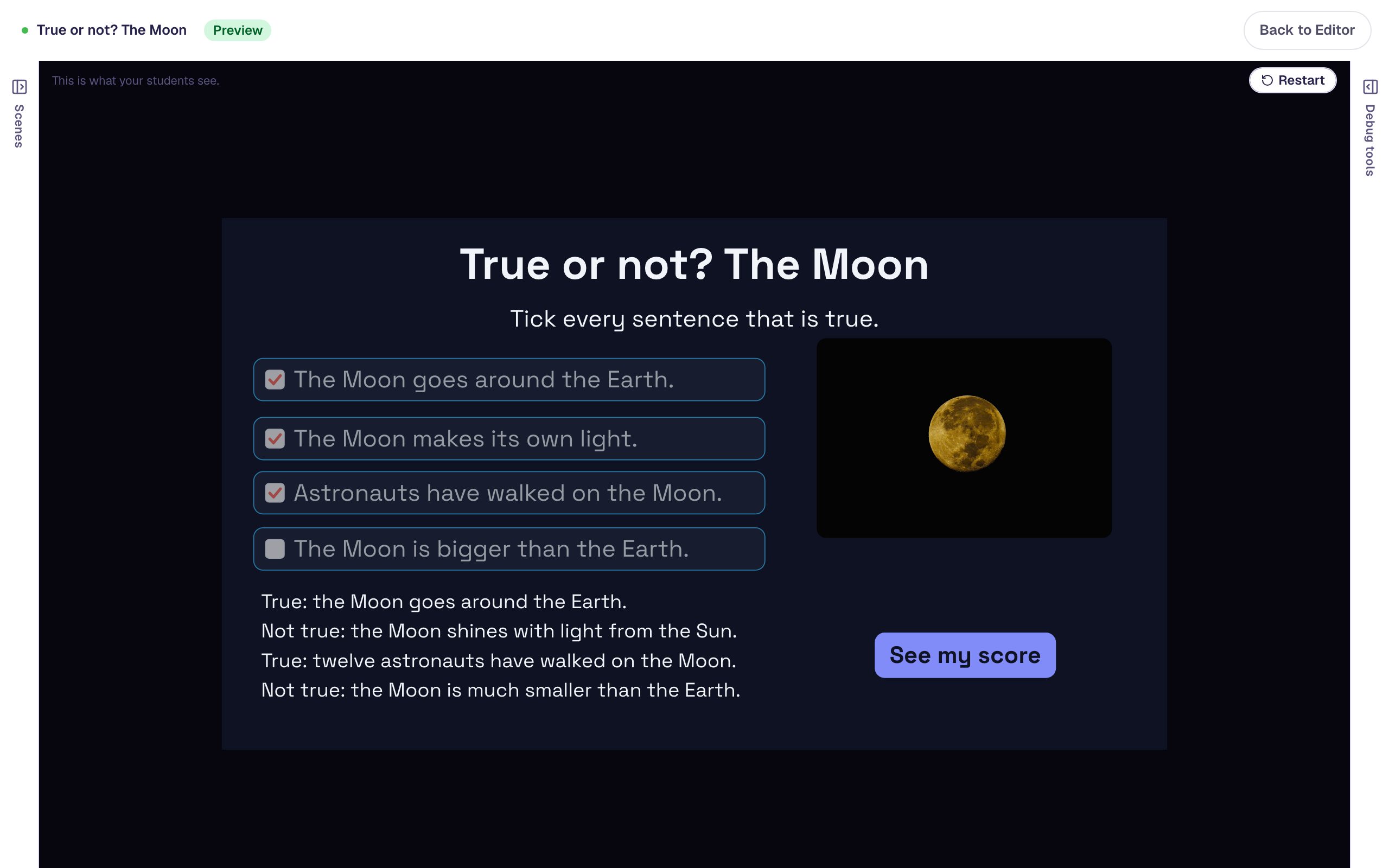 Beginner · 12 min · 8 steps
Tick every true sentence with checkboxes
Build a true-or-not check on the Moon from four graded checkboxes, where students tick the true sentences and leave the others alone. One Check button grades them all, then an answer key and a See my score button appear.
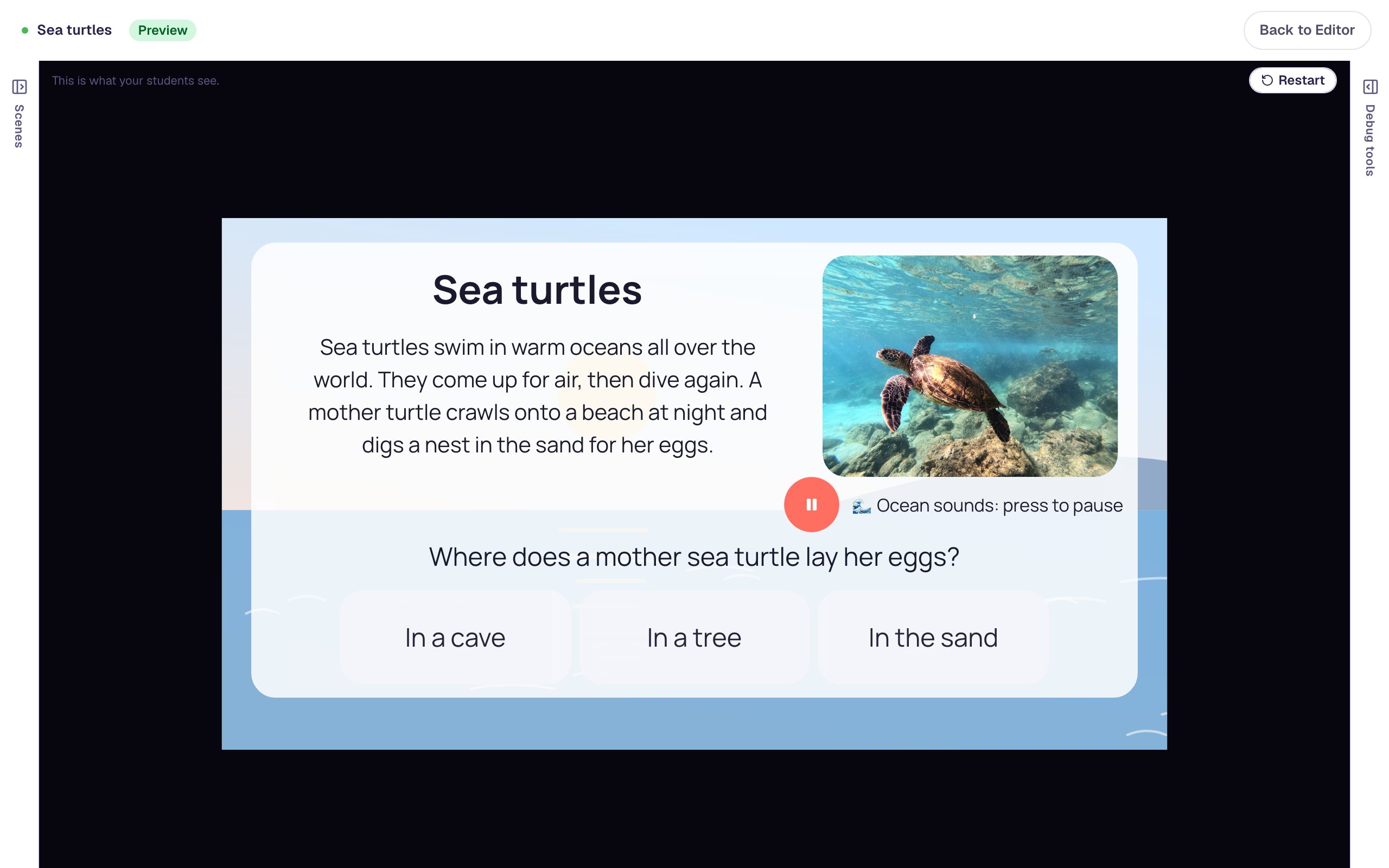 Beginner · 12 min · 8 steps
Play ocean sounds while students read
Build a sea turtle reading page with the sound of waves playing quietly behind it. Generate a seamless loop, start it with Auto Play and Loop, and give students a button to pause it.
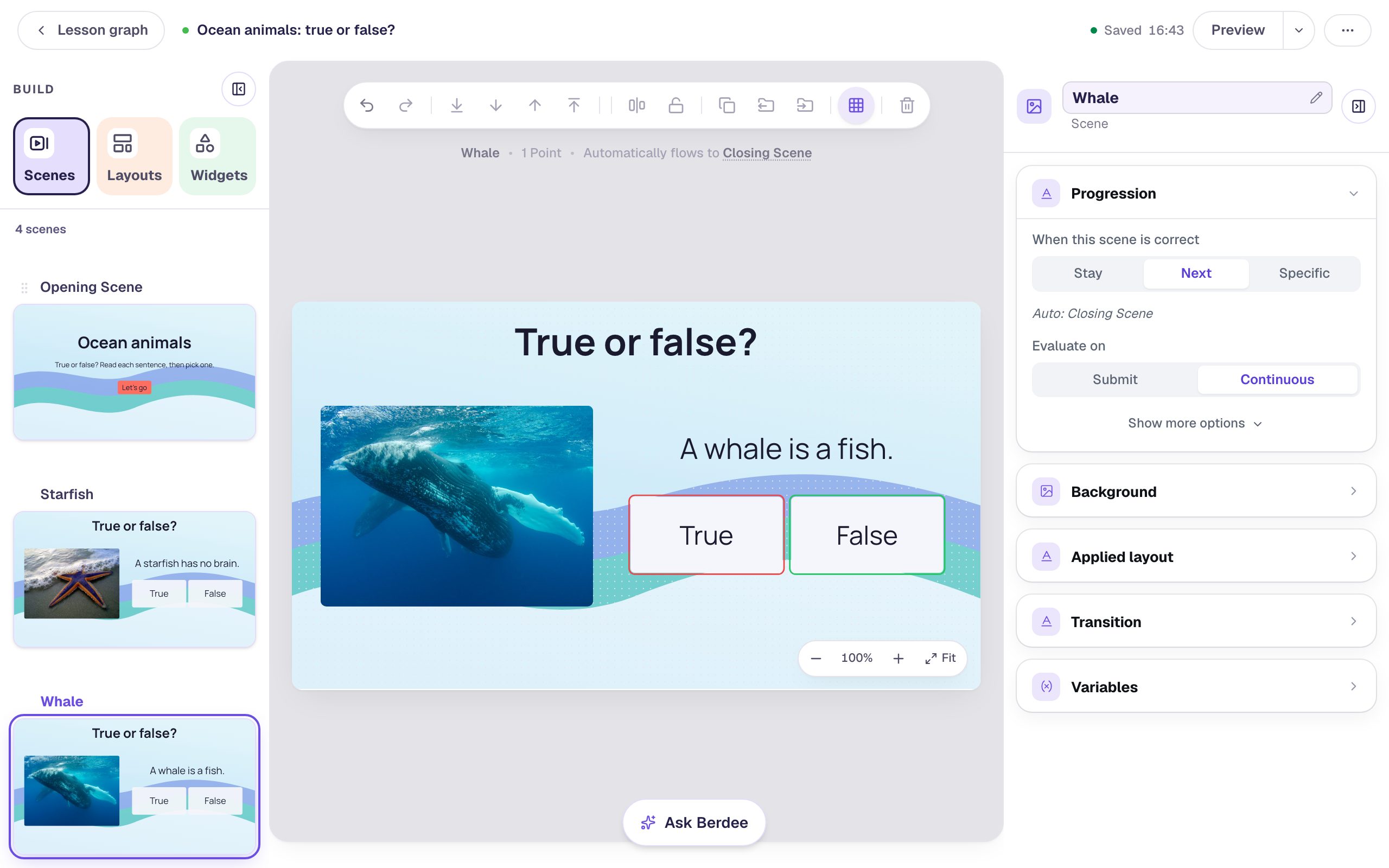 Beginner · 15 min · 9 steps
Make a true-or-false question
Turn a Multiple Choice into a True or False question with its two answers side by side, explain the fact after every answer with a message, and move students on after a wrong pick so their first answer is the one that counts.
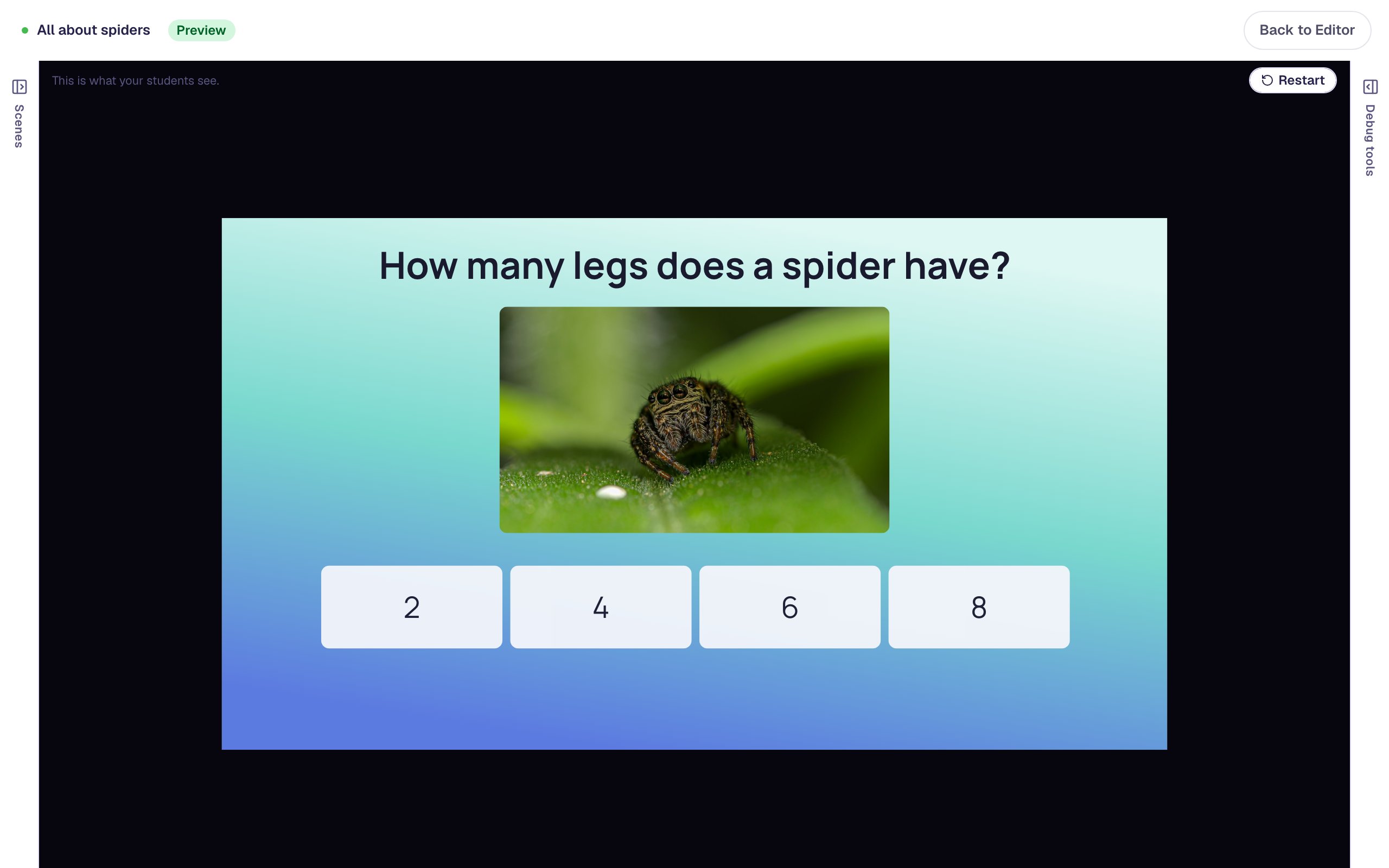 Beginner · 10 min · 6 steps
Keep number answers in order, shuffle the rest
Multiple Choice shuffles its answers for every student. Turn Randomize Order off for a question whose answers are numbers, so 2, 4, 6, 8 read in order, and leave it on where the order you typed would give the answer away.
 Beginner · 10 min · 7 steps
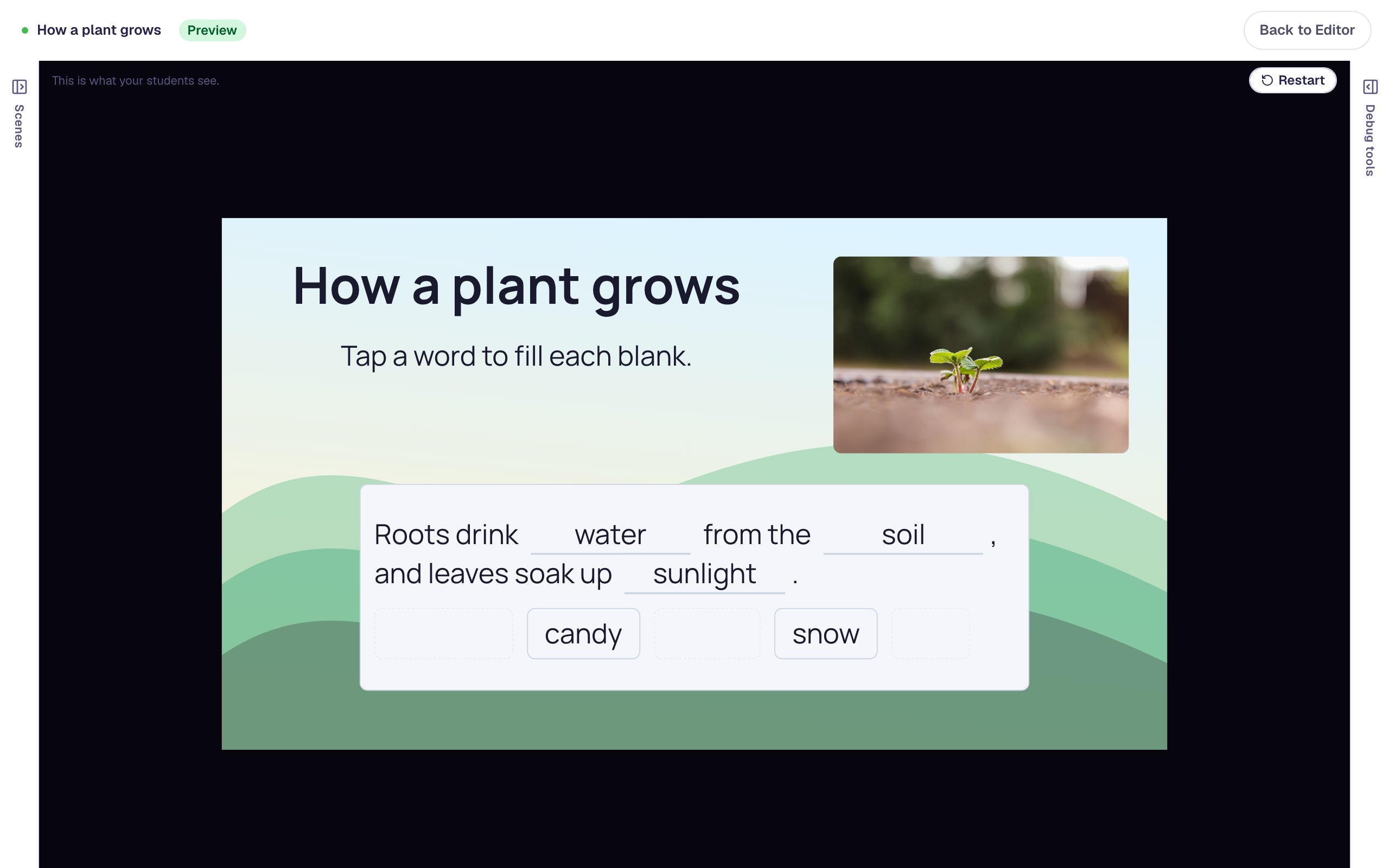
Fill in the blanks from a word bank
Turn a Fill Blank question into a tap-to-place word bank, add extra words to rule out, and mix up their order so the bank doesn't give the answers away.
 Beginner · 10 min · 7 steps
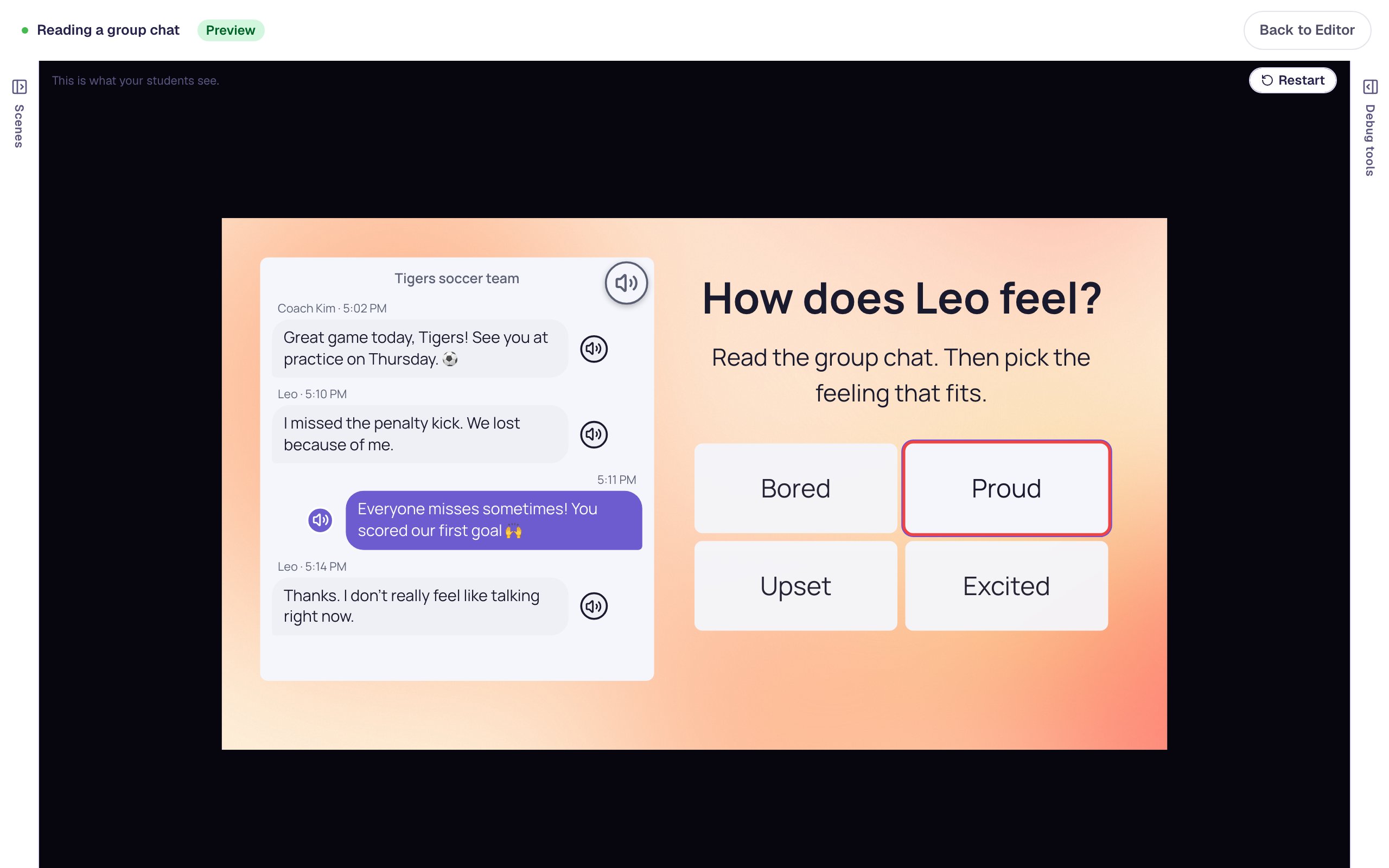
Ask how someone feels in a group chat
Show a phone-style group chat with the Message Thread widget, put the student's own messages on the right, let pre-readers hear each message, and ask a question about what they read.
 Beginner · 10 min · 8 steps
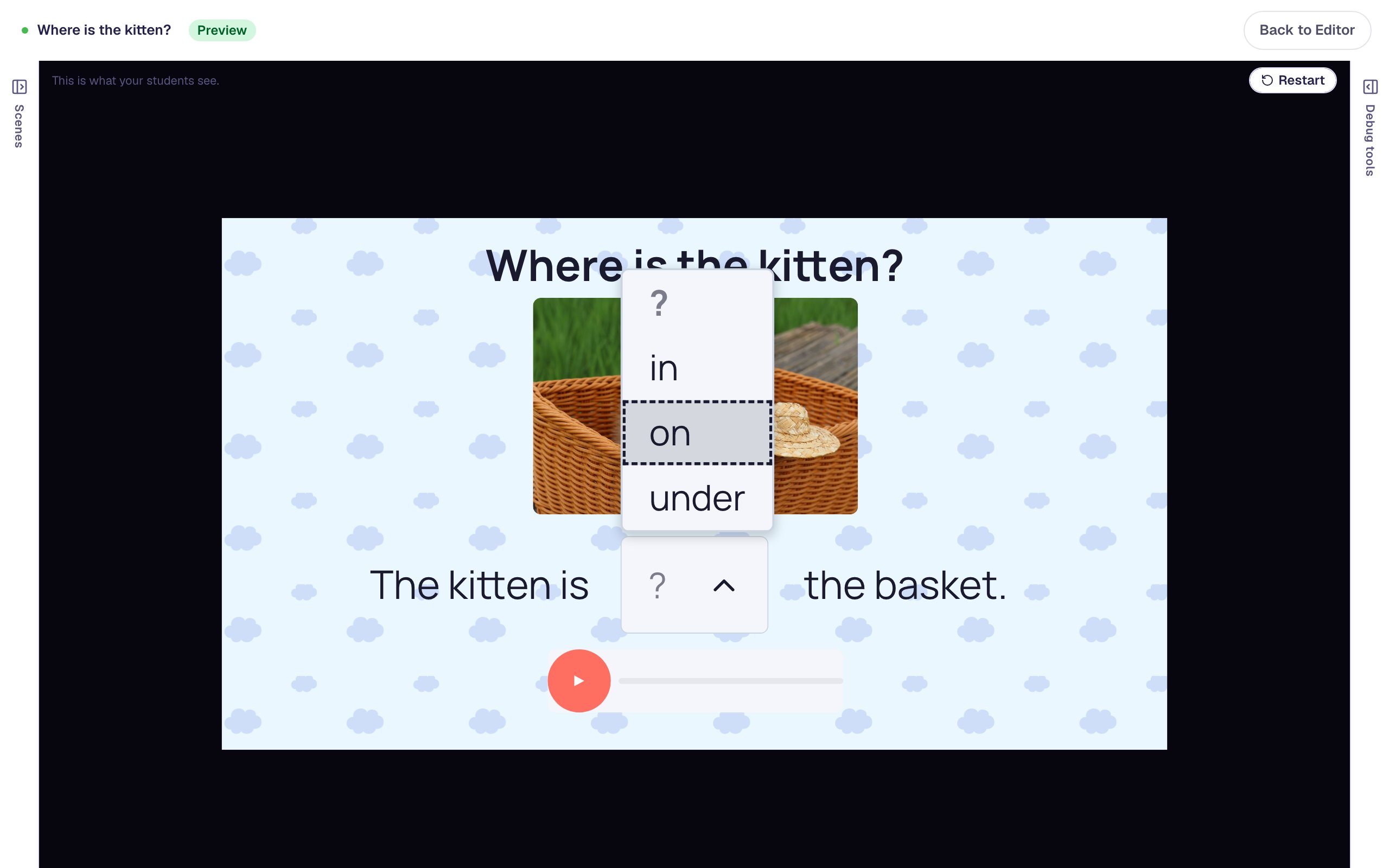
Read a dropdown's choices aloud to pre-readers
Put a dropdown inside a sentence so a child who can't read yet finishes it by ear. Each word says itself when tapped, a second tap chooses it, and your own recording reads the sentence.
 Beginner · 15 min · 6 steps
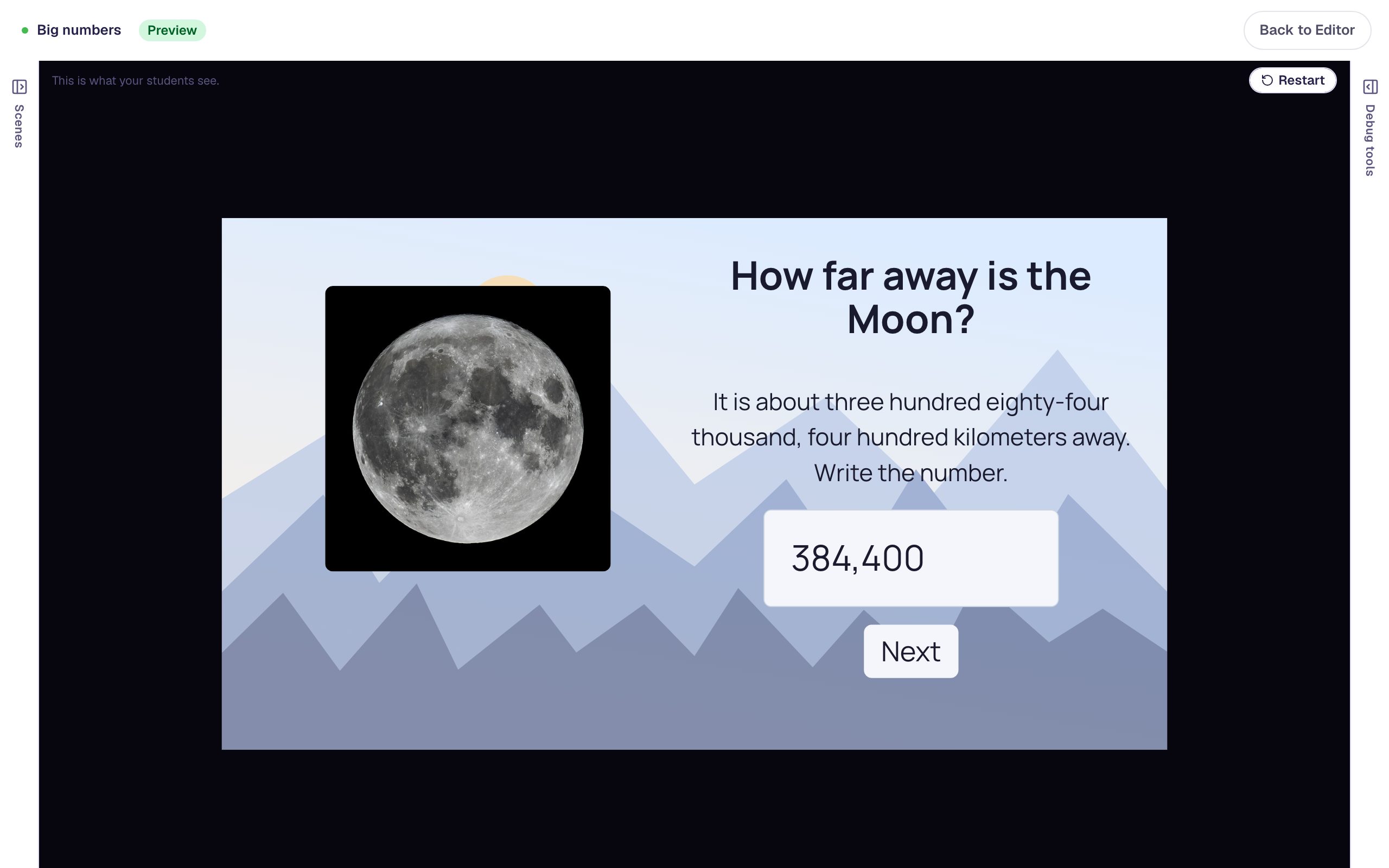
Ask for a big number and show it with commas
Ask students to write numbers in the thousands from their words, and turn on Thousands Separators so 384400 reads as 384,400 the moment they finish typing.
 Beginner · 15 min · 8 steps
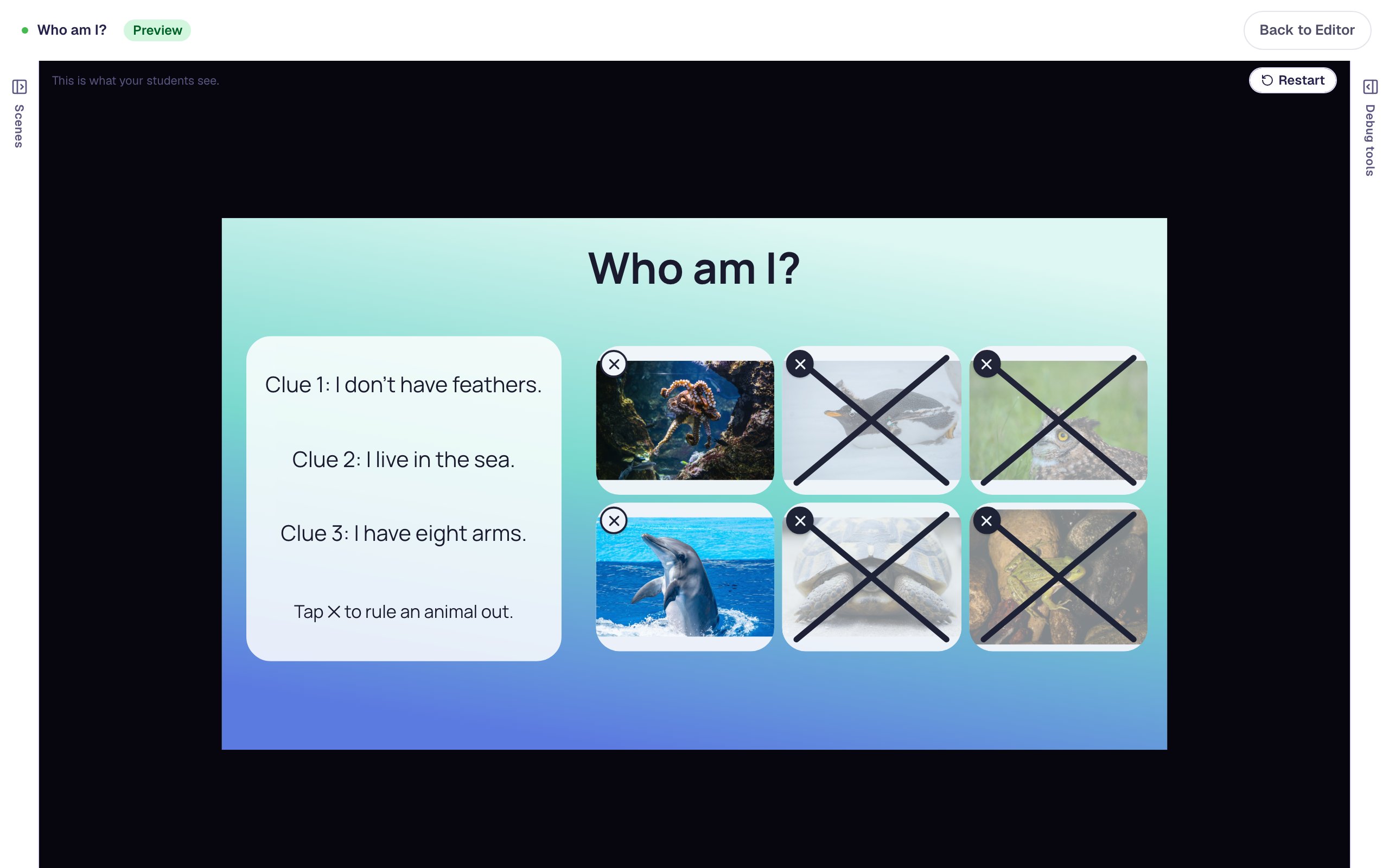
Make a Who am I? riddle with cross-out answers
Build an animal riddle where students read three clues and cross out every animal a clue rules out, using Multiple Choice's Cross Out option, with a gentle warning if they cross out the answer.
 Beginner · 10 min · 7 steps
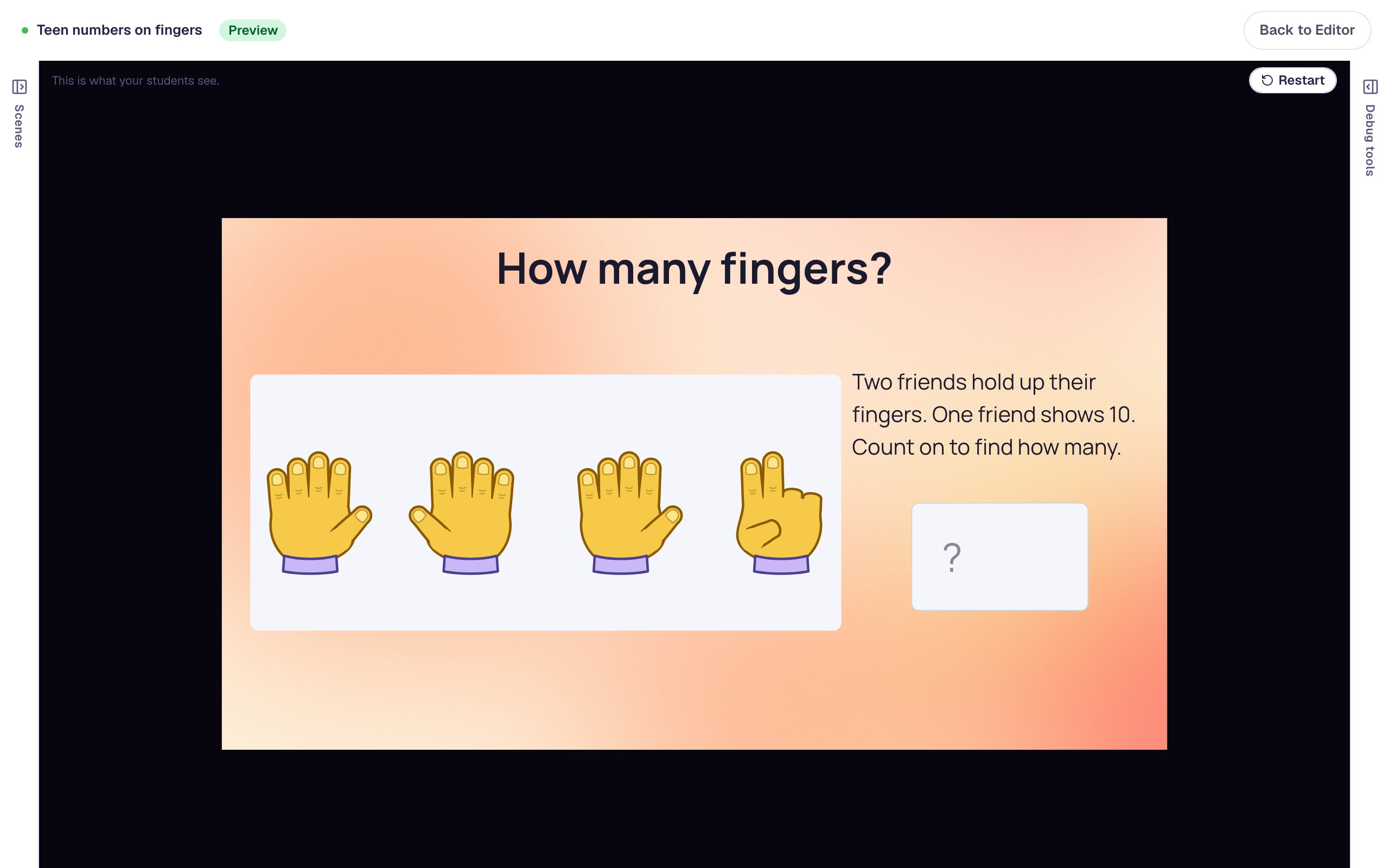
Show a teen number as ten and some more
Use the Fingers widget's Show mode on four hands to count 17 as one friend's 10 fingers and 7 more, then ask students how many with a Number Input that gives a count-on hint for a wrong answer.
 Beginner · 10 min · 6 steps
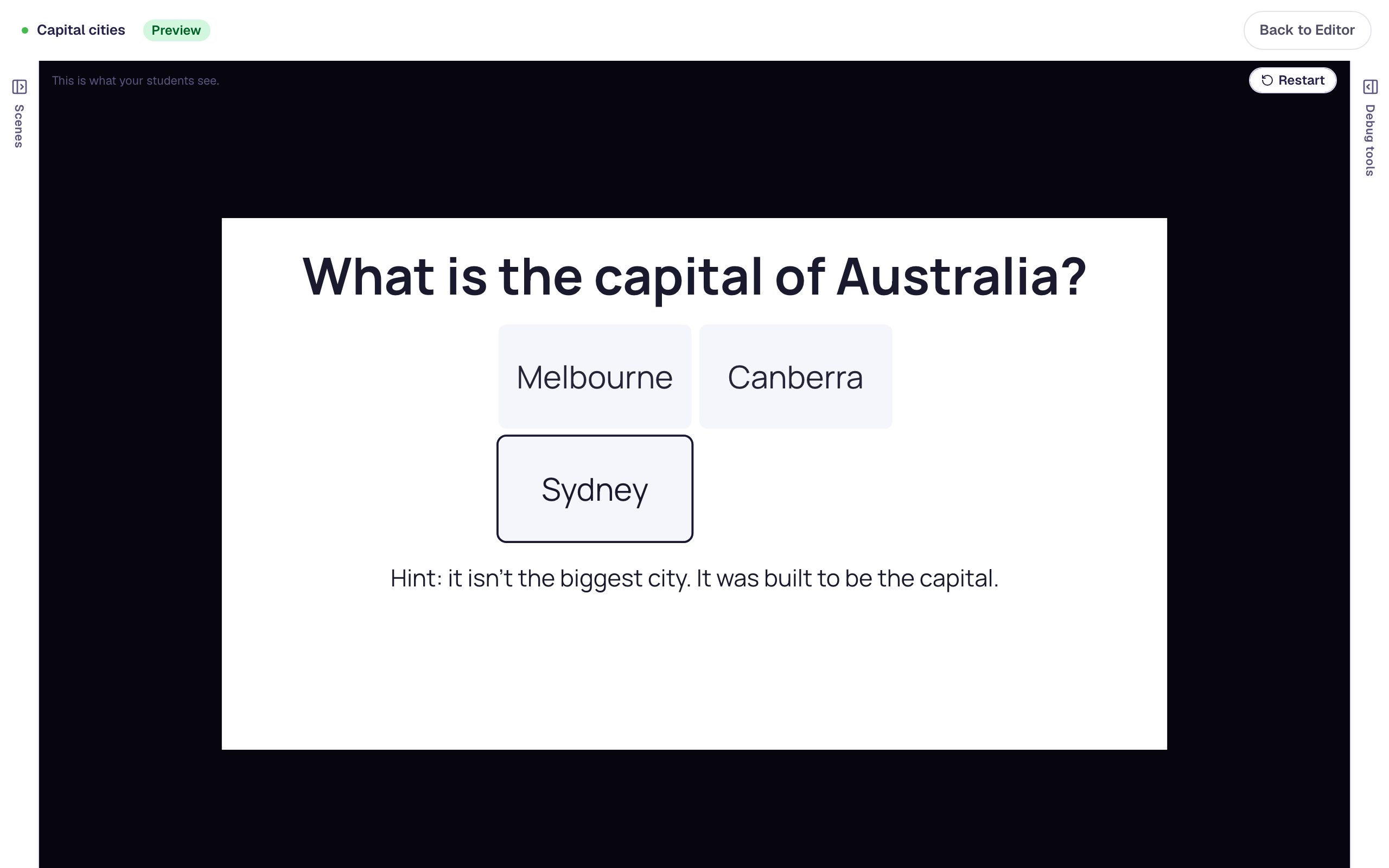
Add a hint students can open when they're stuck
Hide a hint under a question and add a Show hint button that reveals it, so students get help only when they ask for it.
 Intermediate · 15 min · 8 steps
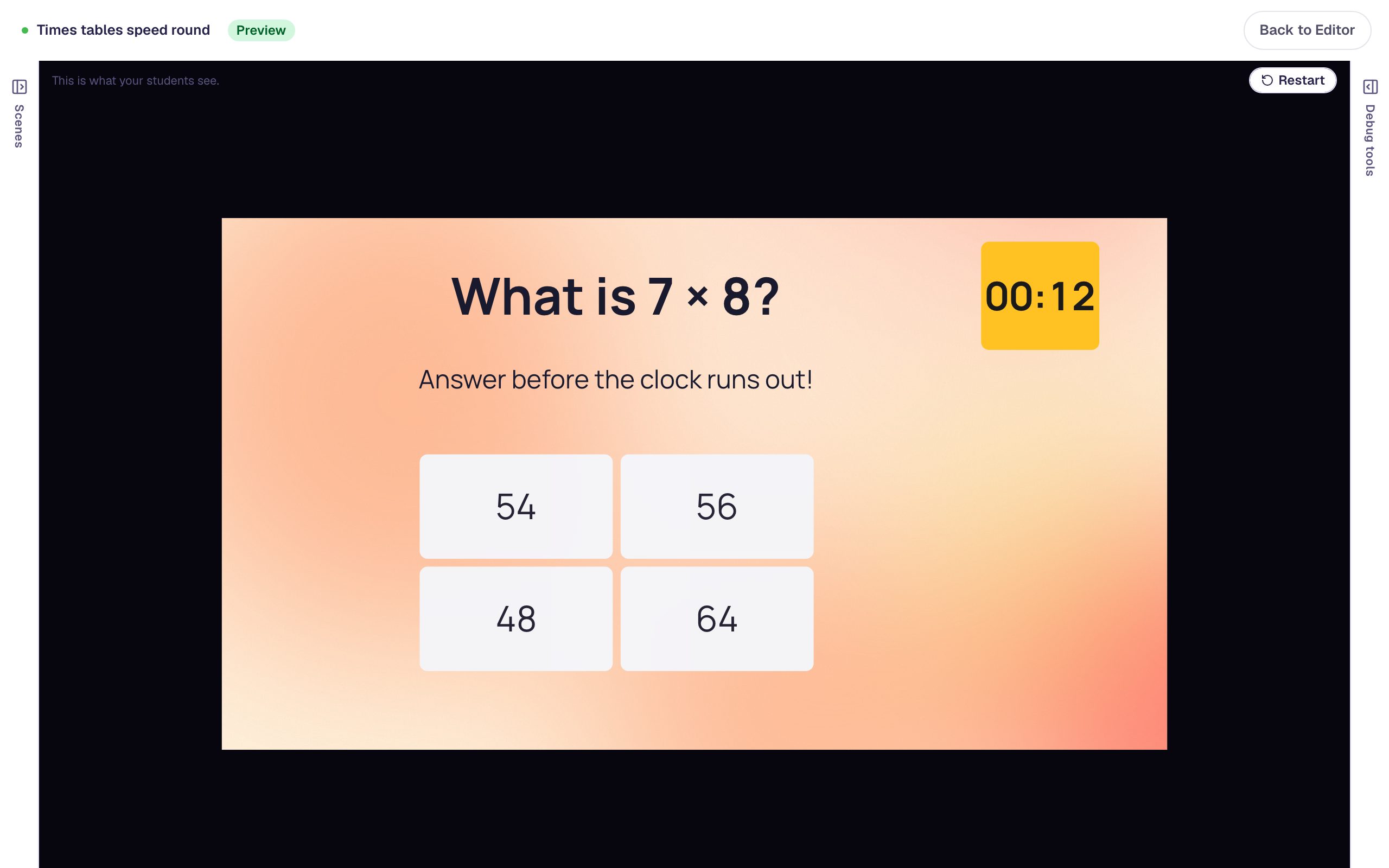
Give students 15 seconds to answer a question
Put a countdown Timer next to a multiple-choice question and send students to an "Out of time" scene when it reaches zero, while a quick right answer goes straight to the ending.
 Beginner · 15 min · 7 steps
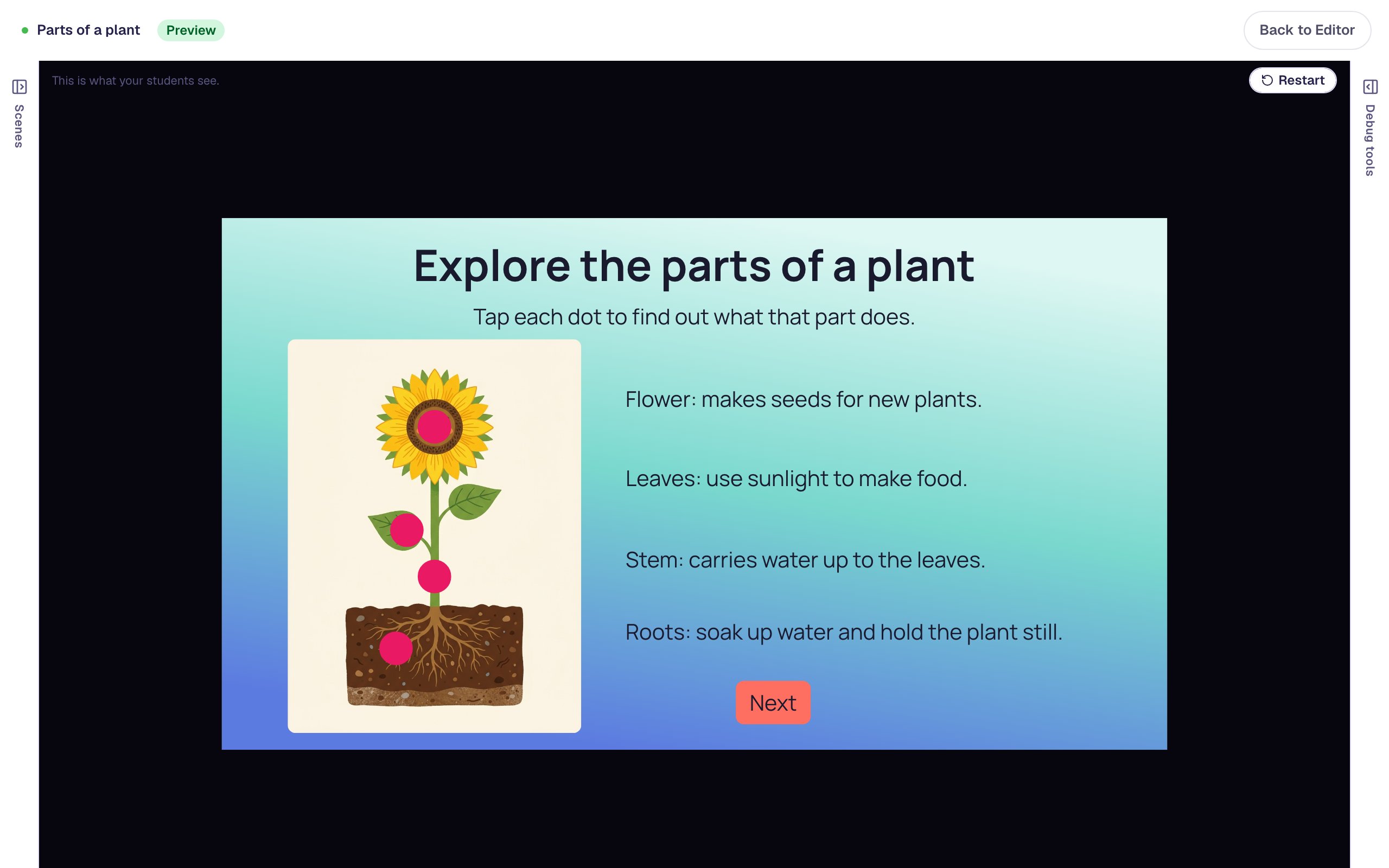
Make a picture students can tap to explore
Put Hotspot dots on a picture of a plant and make each one reveal what that part does, so students explore a diagram by tapping it instead of reading a wall of labels.
 Intermediate · 15 min · 8 steps
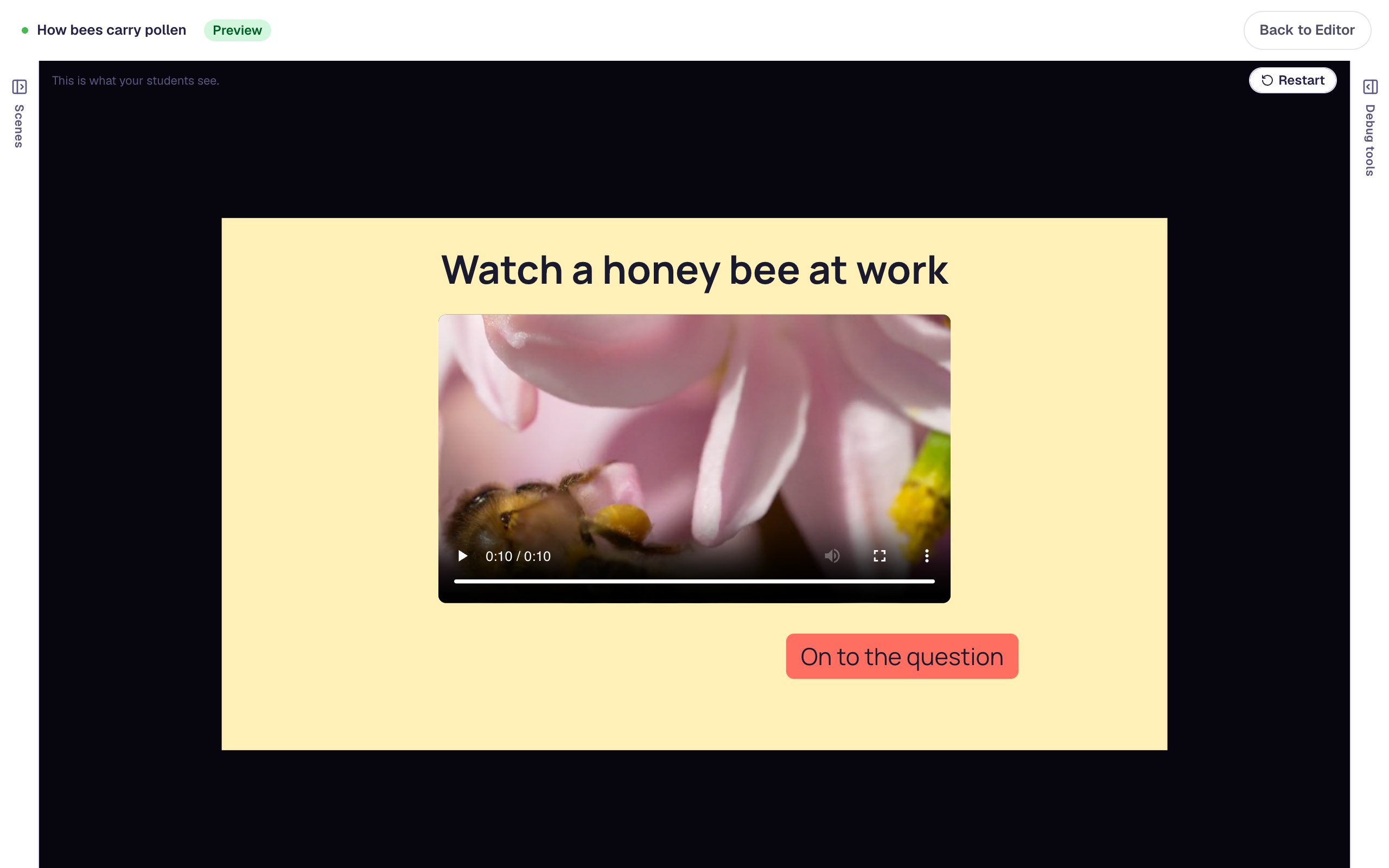
Unlock a question only after students watch a video
Upload a short clip to a Video widget, then use visibility rules so the button to the question appears only once the video has played to the end.
 Beginner · 12 min · 8 steps
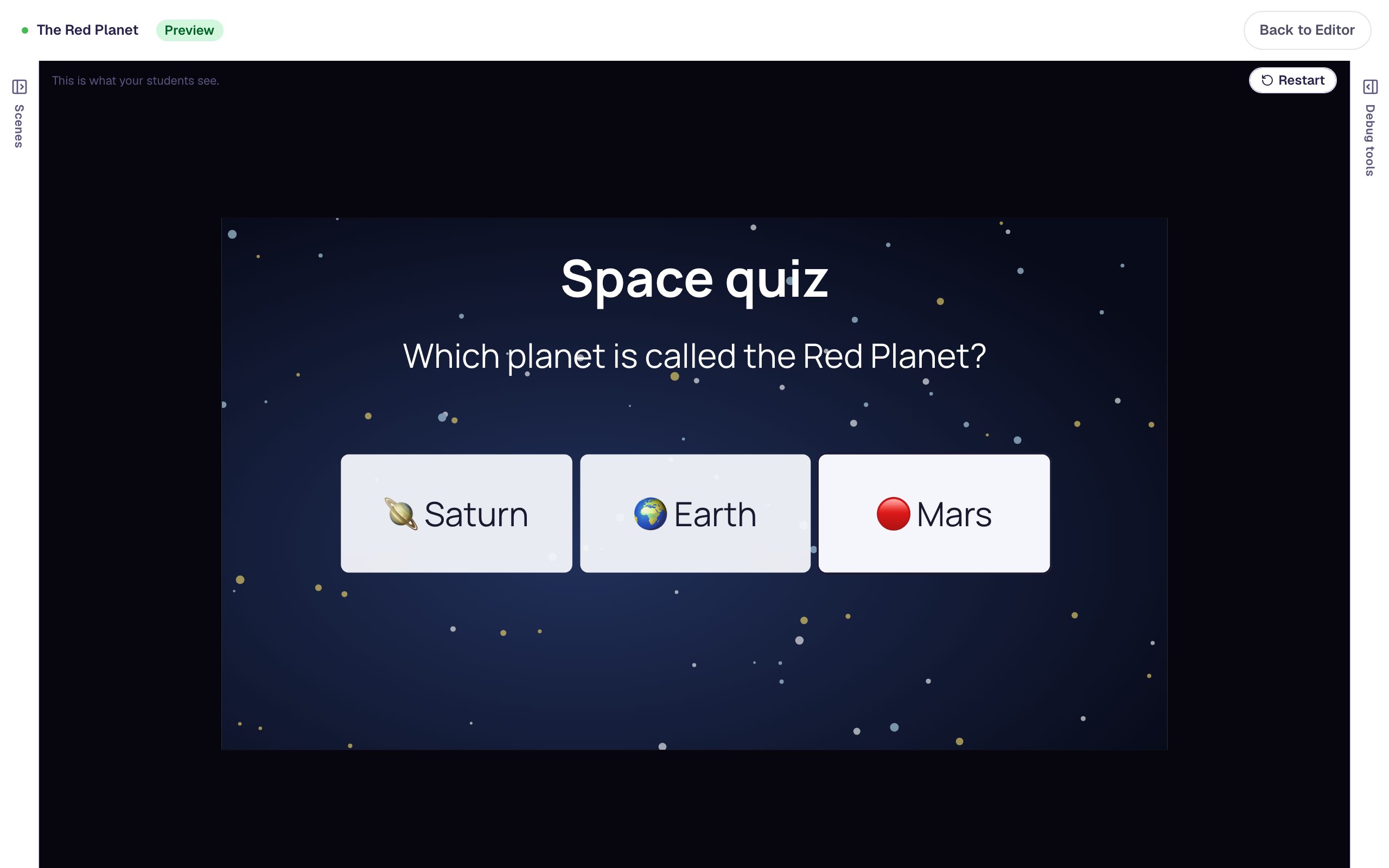
Play a sound for right and wrong answers
Generate two sound effects, hide their players, and use behaviors so a question plays one sound when students get it right and another when they pick a wrong answer.
 Beginner · 15 min · 8 steps
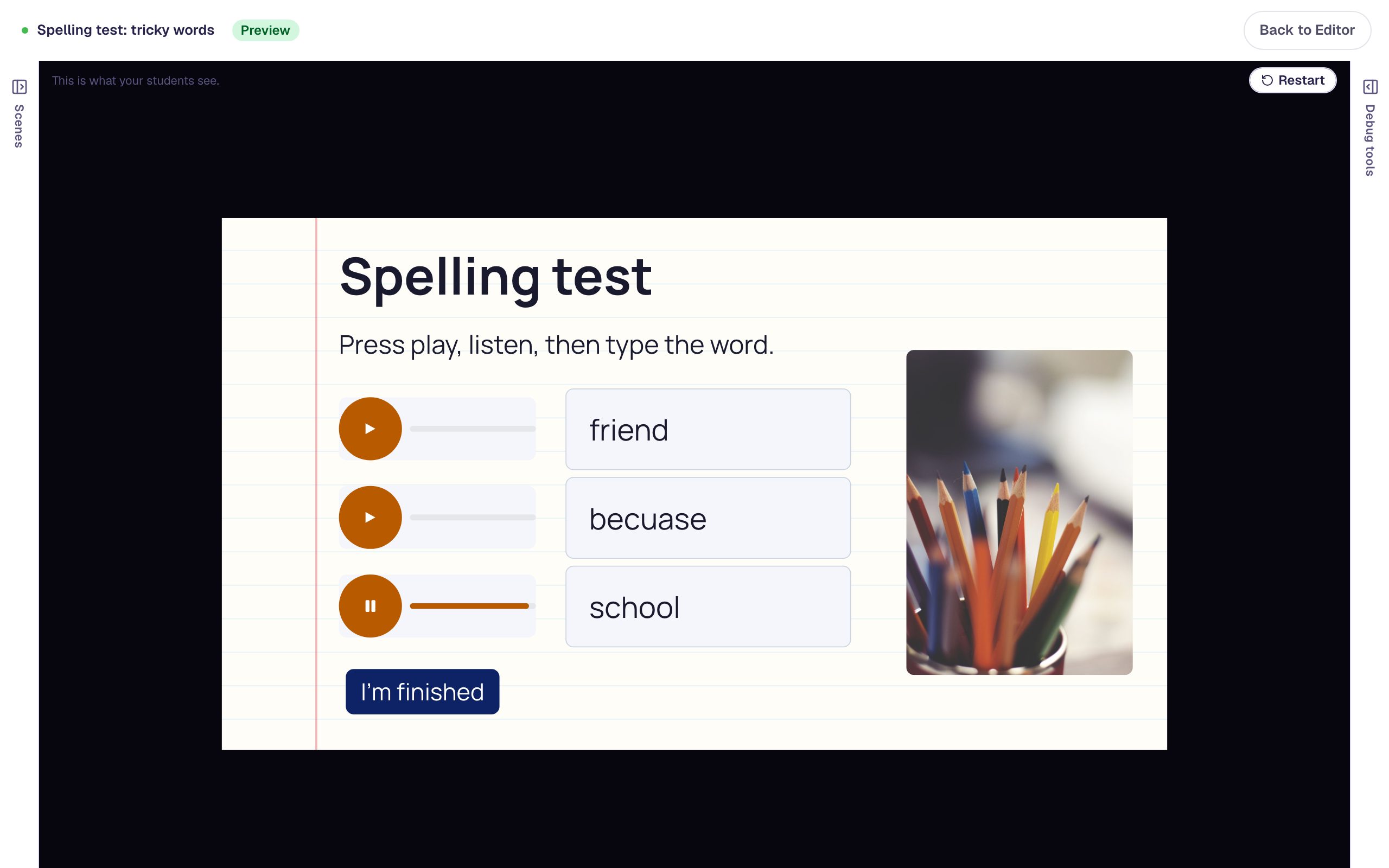
Give a spelling test students listen to
Build a three-word spelling test where each word has its own play button that says it in a sentence, an answer box beside it, and one I'm finished button that grades every word and shows the score.
 Intermediate · 15 min · 7 steps
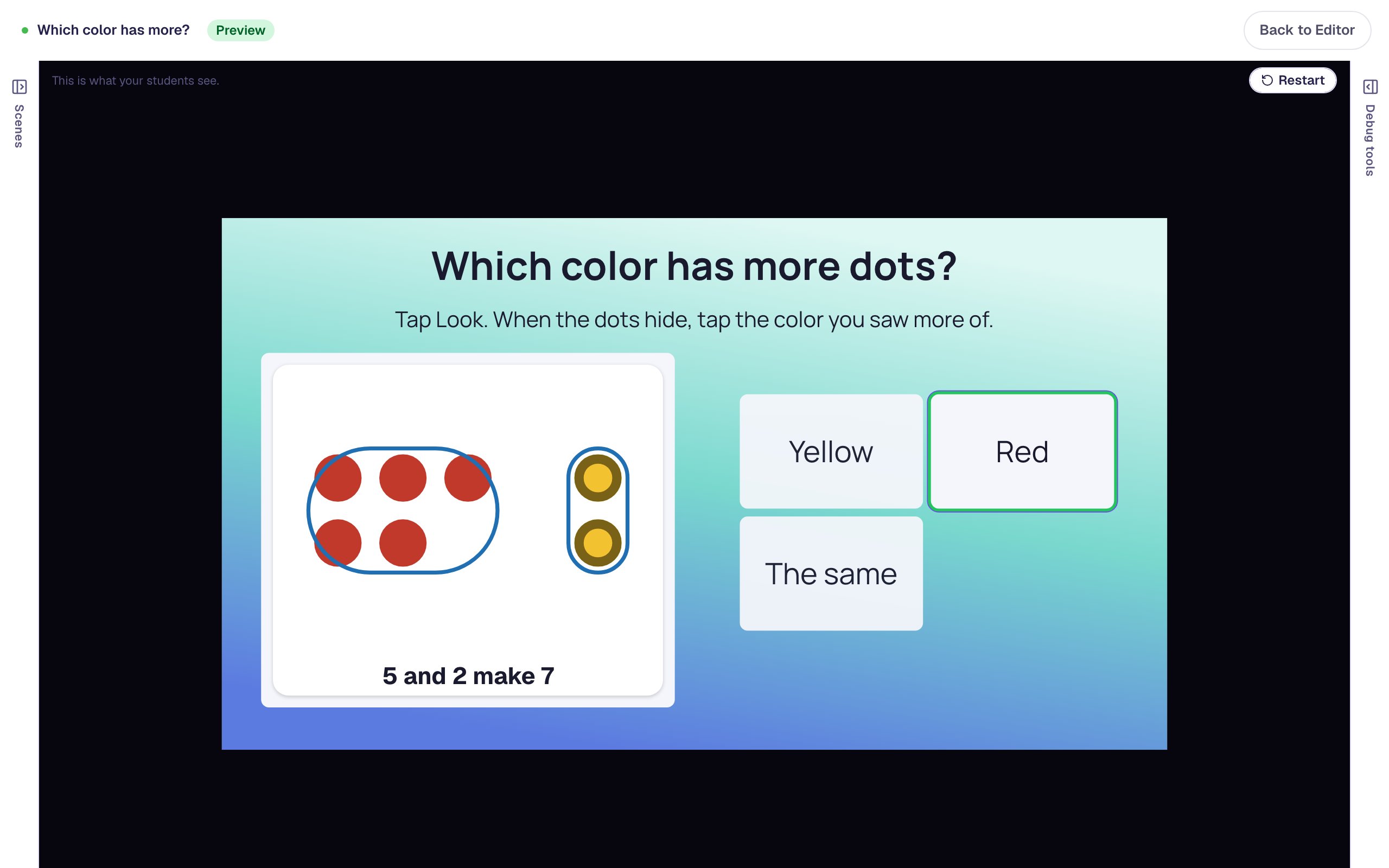
Flash a dot card, then ask your own question
Flash a red-and-yellow dot card with a Quick Look set to Just look, keep a Multiple Choice question hidden until the cover comes down, and bring the card back with rings after a right answer.
 Beginner · 15 min · 8 steps
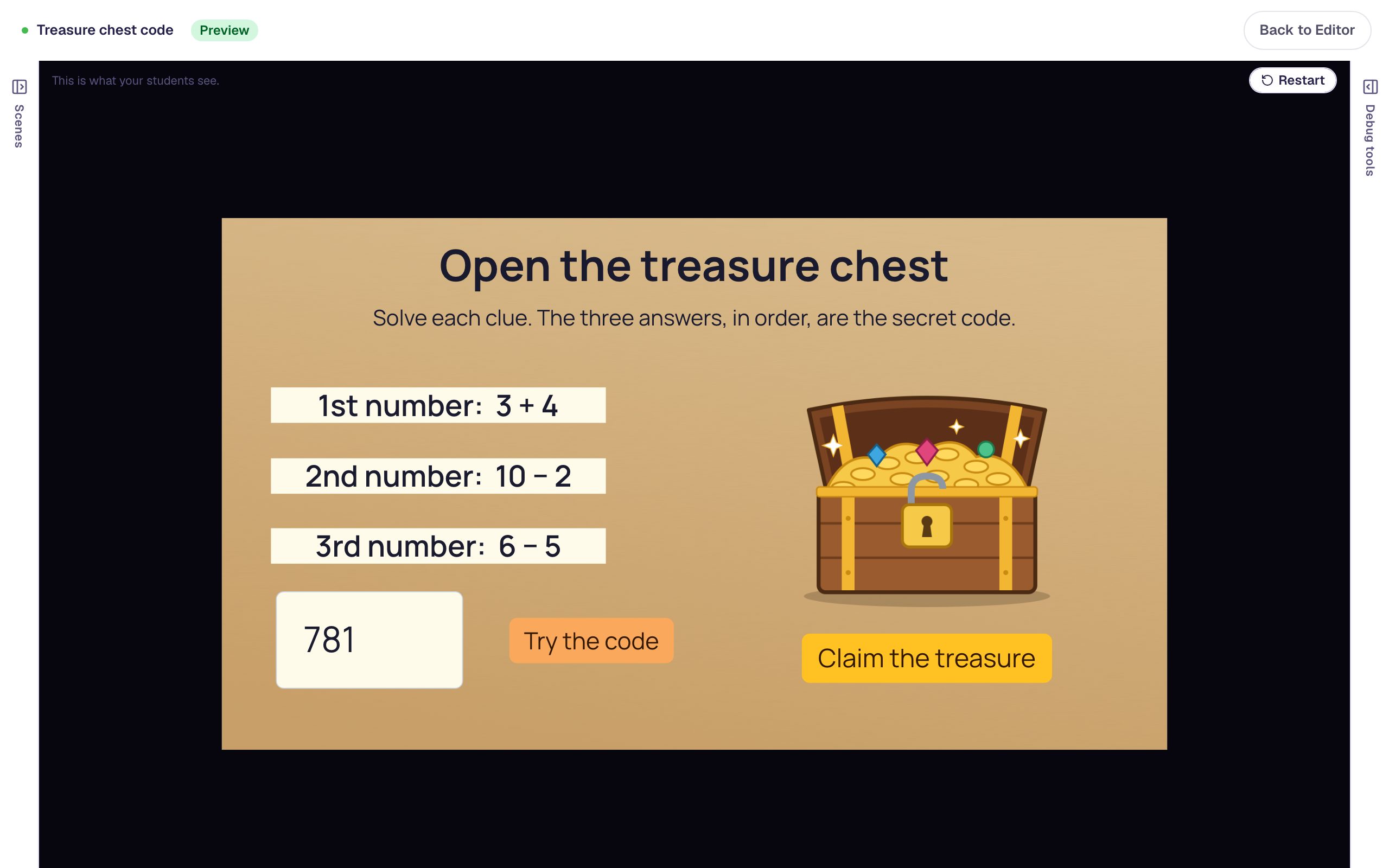
Open a treasure chest with a secret code
Build an escape-room style puzzle where three clue answers make a secret code. A Number Input is the lock, a button explains a wrong code, and Visibility rules swap a closed chest for an open one when the code is right.
 Intermediate · 15 min · 8 steps
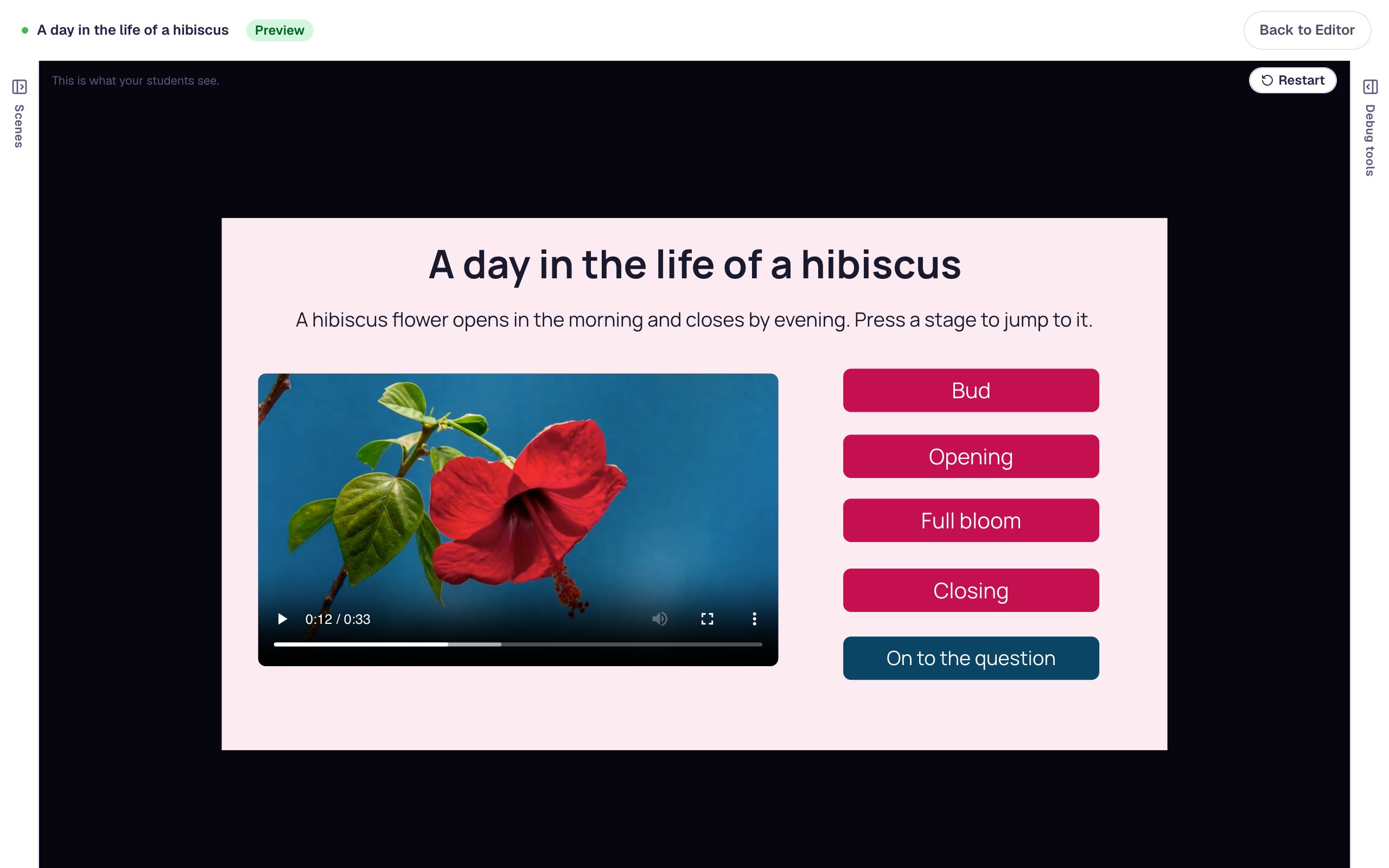
Jump to key moments in a video with buttons
Put a time-lapse in a Video widget and add a button for each stage, so one press takes students straight to the moment that matters. Build one button with a Seek action, copy it, and change only the second it jumps to.
 Beginner · 15 min · 9 steps
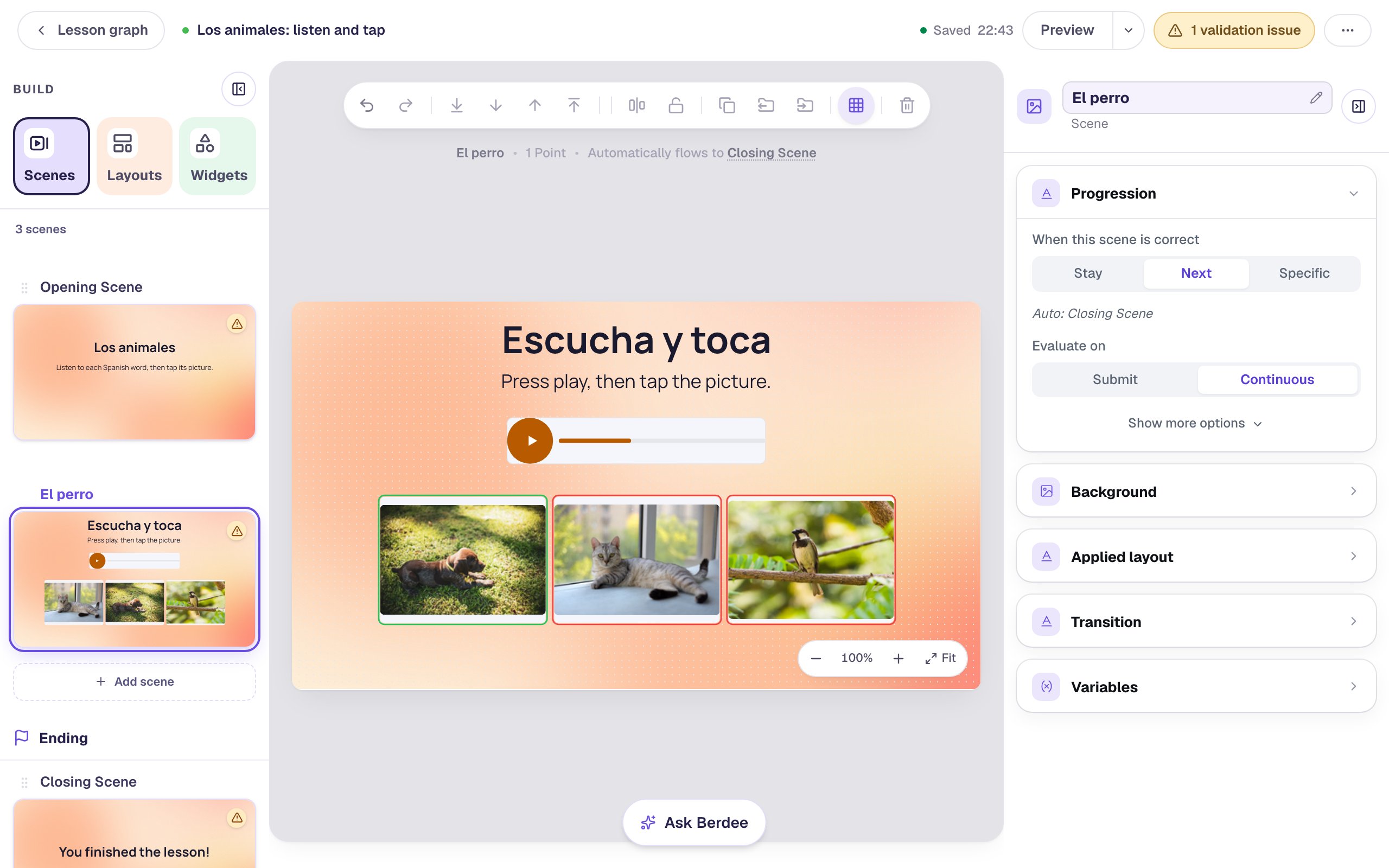
Make a Spanish listening quiz with pictures
Build a two-question world-language quiz where students press play, hear a Spanish sentence read by a voice that speaks Spanish, and tap the picture it names. Set the activity's voice once, then duplicate the first question for the next word.
 Beginner · 15 min · 8 steps
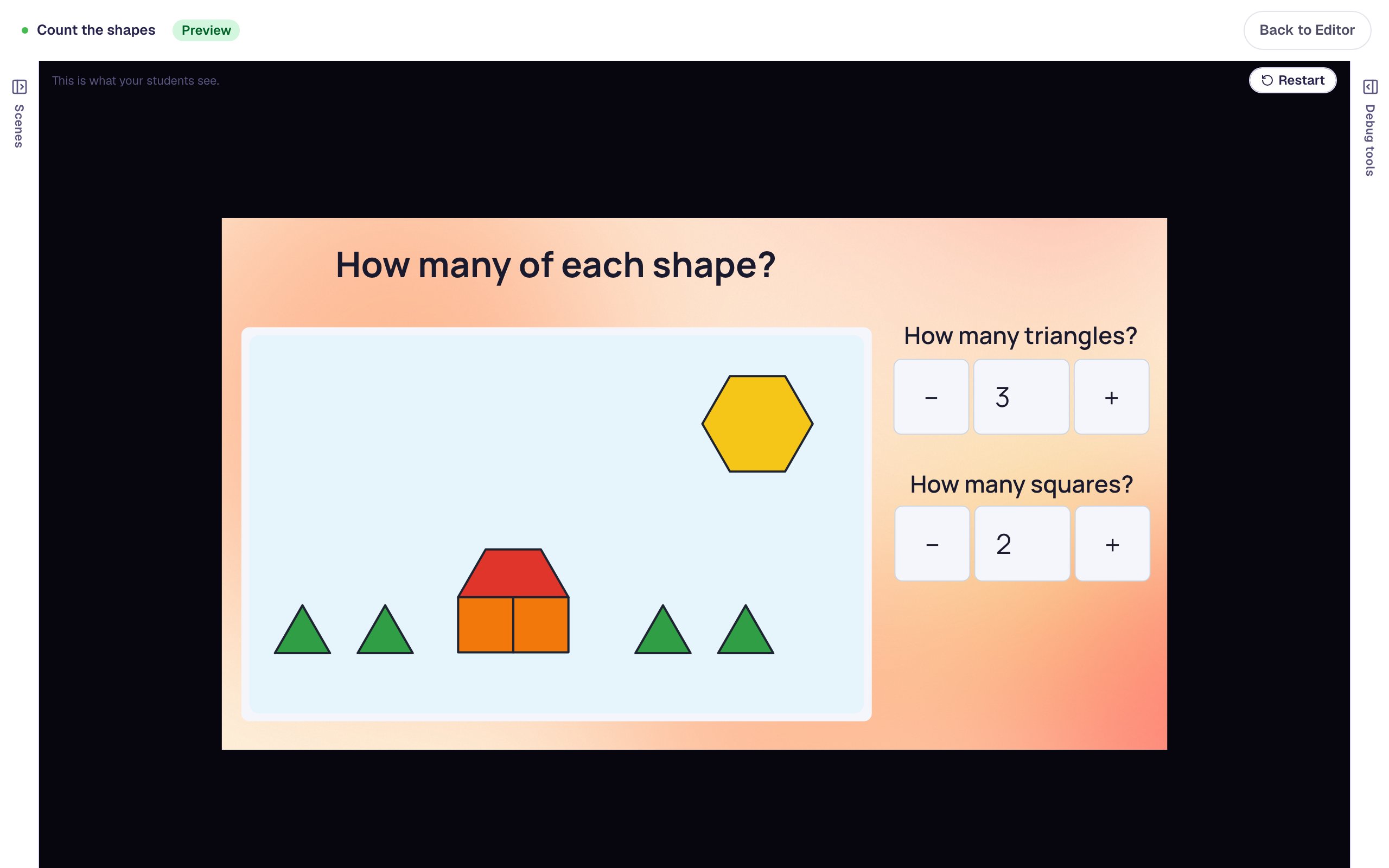
Count the shapes in a pattern block picture
Build a picture out of pattern blocks with the Pattern Blocks widget's Show mode, then ask "How many triangles?" and "How many squares?" with two Number Inputs that young learners answer by tapping + and −.
 Intermediate · 12 min · 7 steps
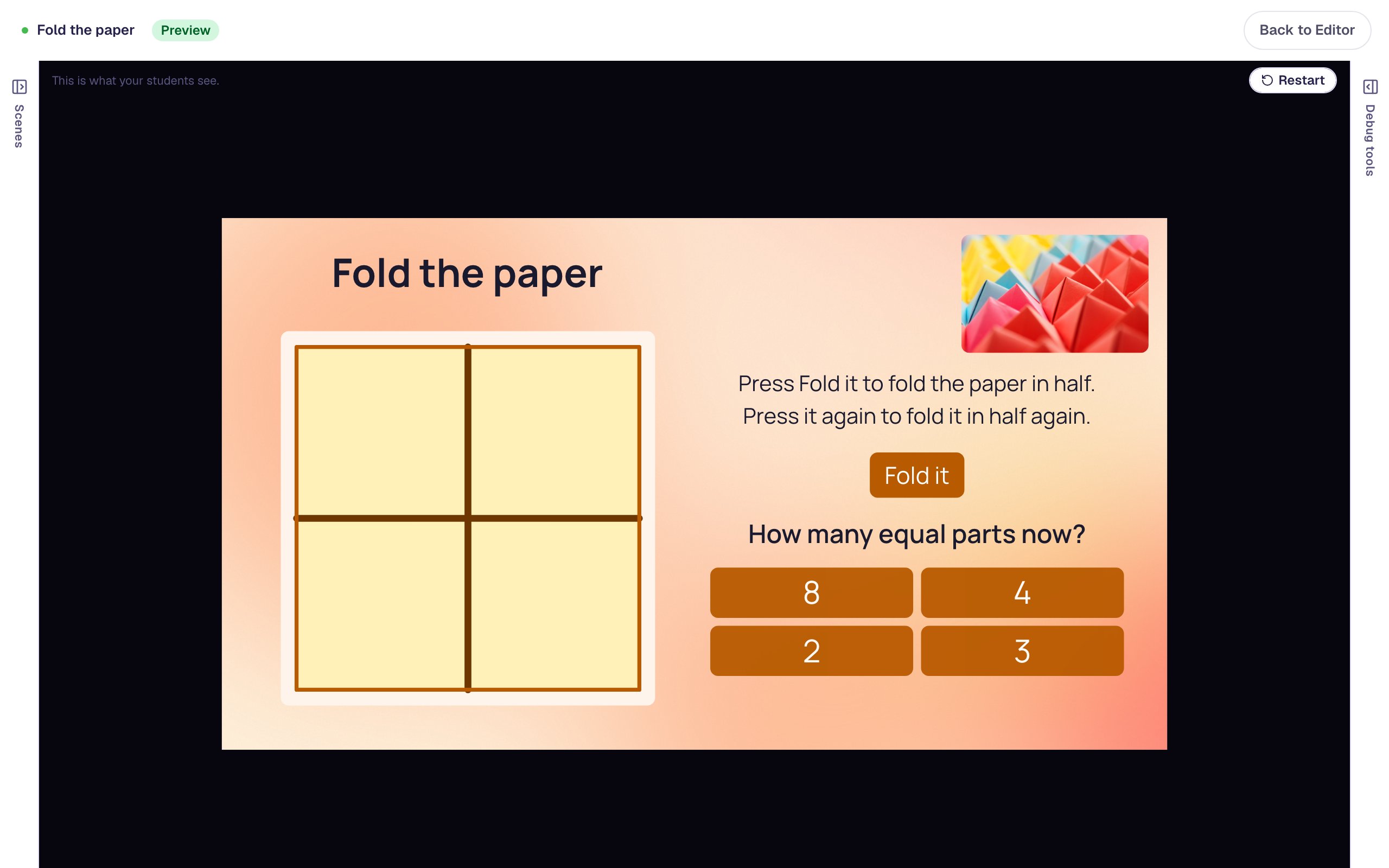
Fold a square in half, then in half again
Draw two folds on an Equal Shares card and turn on Reveal the cut one line at a time, then add a Fold it button that shows one fold per press, so students watch a square become 4 equal parts before they say how many there are.
 Beginner · 15 min · 6 steps
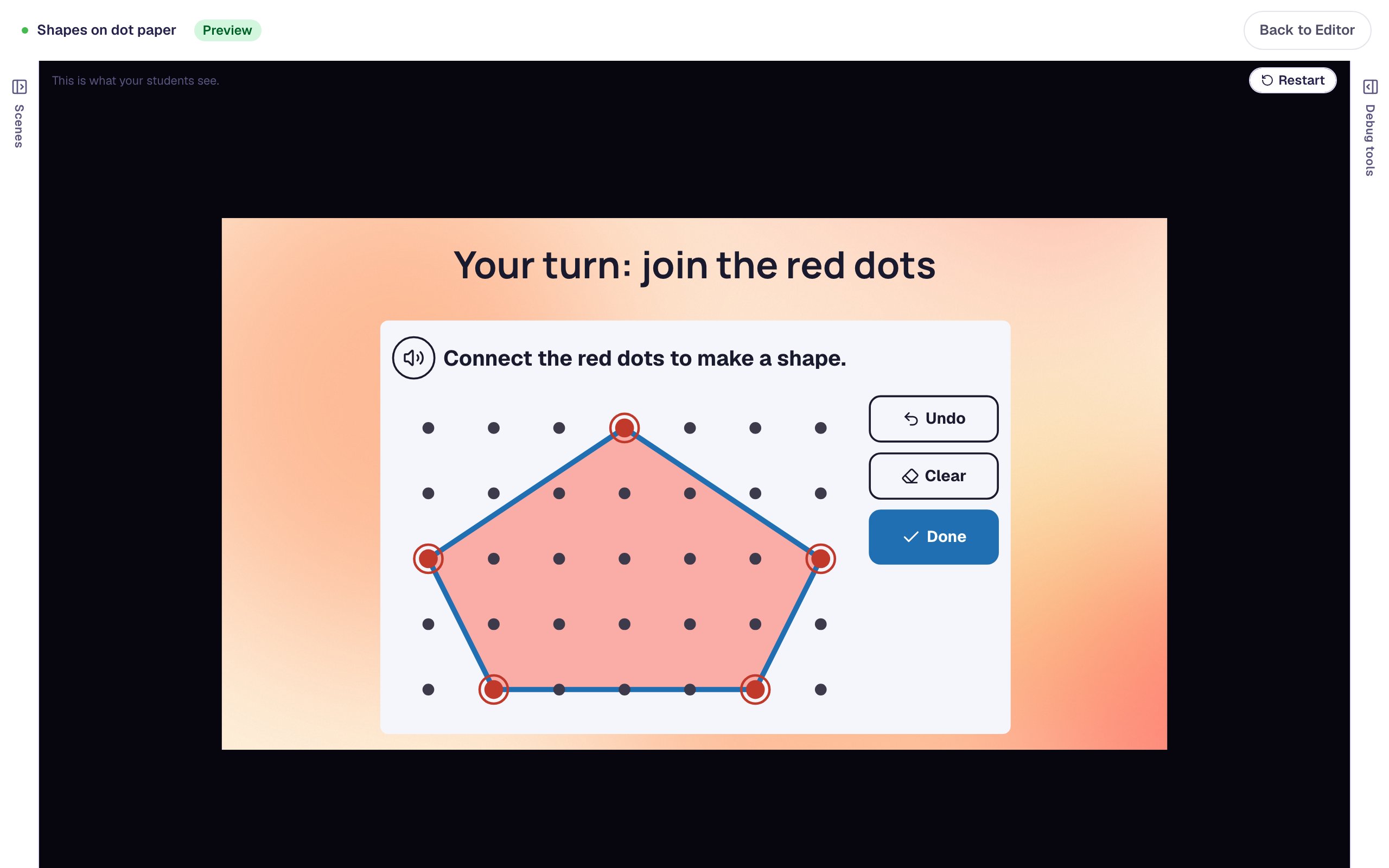
Count a shape's sides, then join the dots
Show a hexagon on dot paper and ask how many sides it has, then let students join five red dots into a shape of their own. Two Dot Paper modes, Show a shape and Connect the dots, in one short geometry lesson.
 Beginner · 10 min · 8 steps
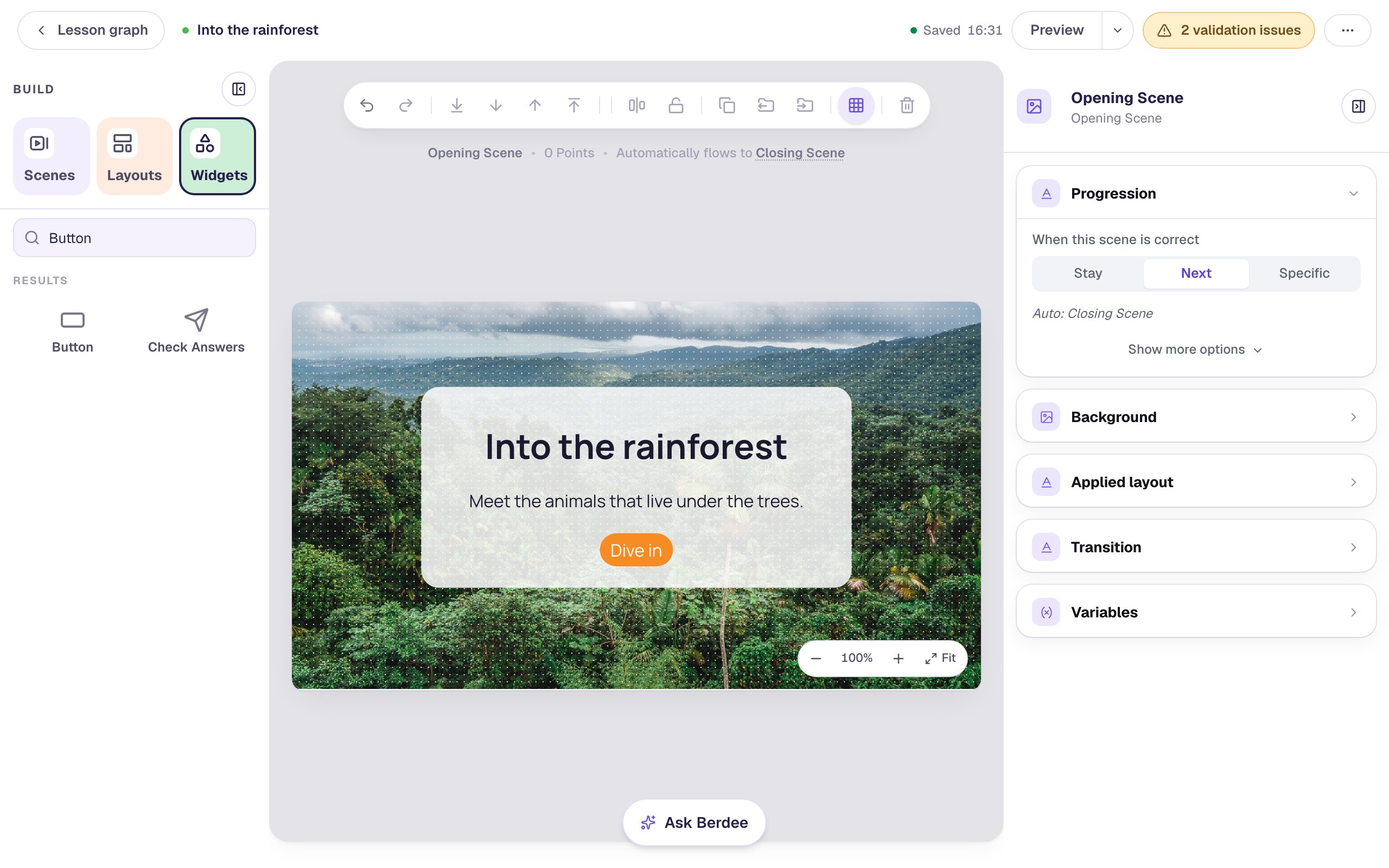
Use a photo as a scene background
Fill a scene with a rainforest photo from the stock library, put the words on a see-through card so they stay easy to read, and reuse the same photo on the next scenes.
 Beginner · 10 min · 8 steps
Illustrate an activity with pictures you generate
Describe a picture in a sentence and Berdee draws it for your activity. Then remix that picture into a second one in the same style, so every scene looks like it belongs to the same story.
 Beginner · 10 min · 7 steps
Style a question's answer buttons
Turn a Multiple Choice question's plain grey answer boxes into big, rounded, friendly buttons that match your activity, then show right and wrong picks in colours you choose. Every setting is in Style & Layout.
 Beginner · 12 min · 9 steps
Make a picture-book story whose pages turn
Build a short picture book where every page asks one quick question, and a right answer slides the next page in. Set the transition once, duplicate the page, and give the ending a softer fade.
 Beginner · 10 min · 8 steps
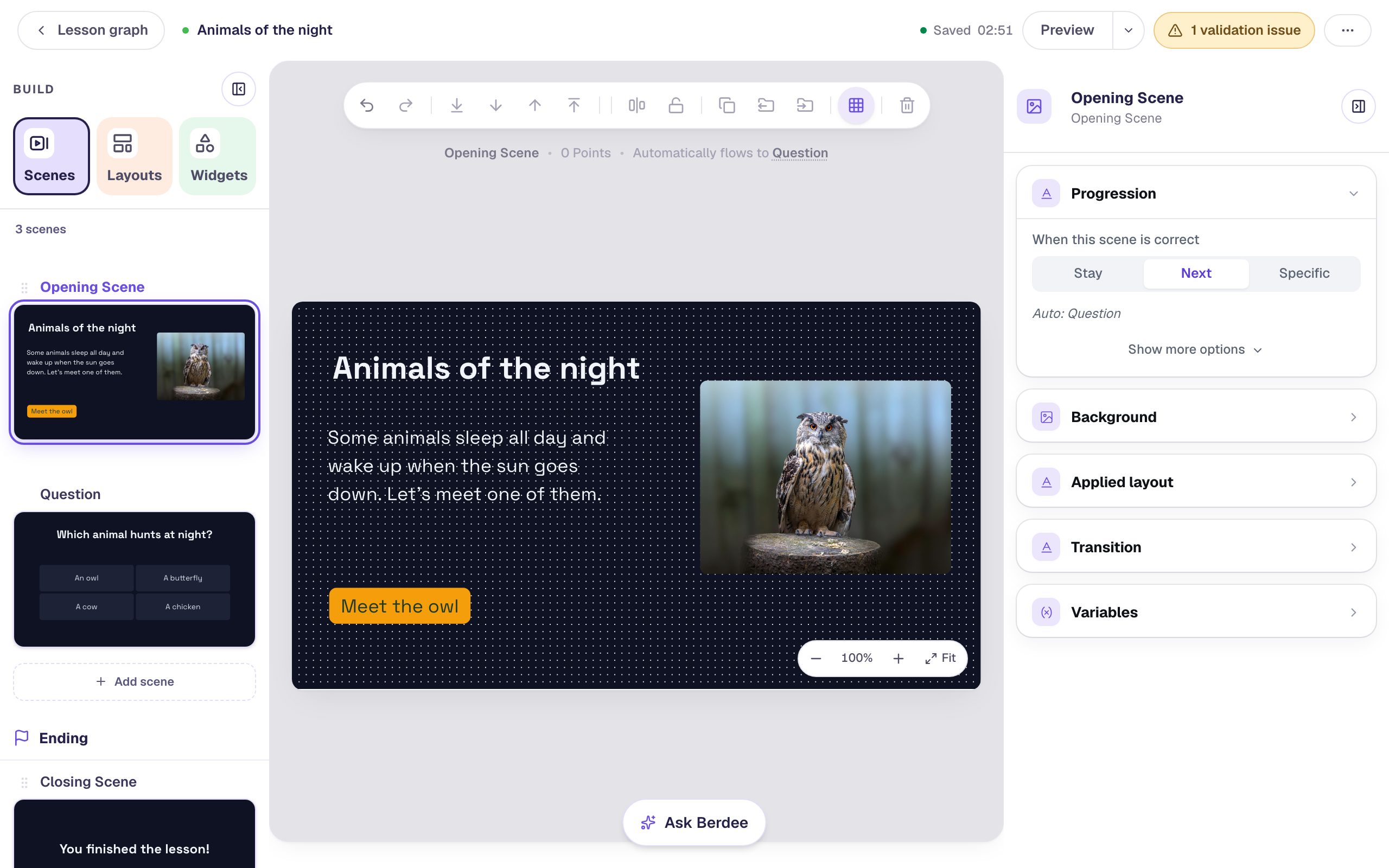
Make a reading passage easy to read
Set a short nonfiction passage the way struggling and dyslexic readers find easiest. Start from the dyslexia-friendly Lexend Clear palette, then give the text short lines, a bigger size, a picture, and a question on a scene of its own.
 Beginner · 10 min · 9 steps
Give a finished activity a new look with a theme
Build a two-scene activity in the Meadow palette, pick one button's colours by hand, then switch the whole activity to Midnight from Activity settings. Every scene restyles in one click, your own colours stay, and one Undo brings the old look back.
 Beginner · 10 min · 7 steps
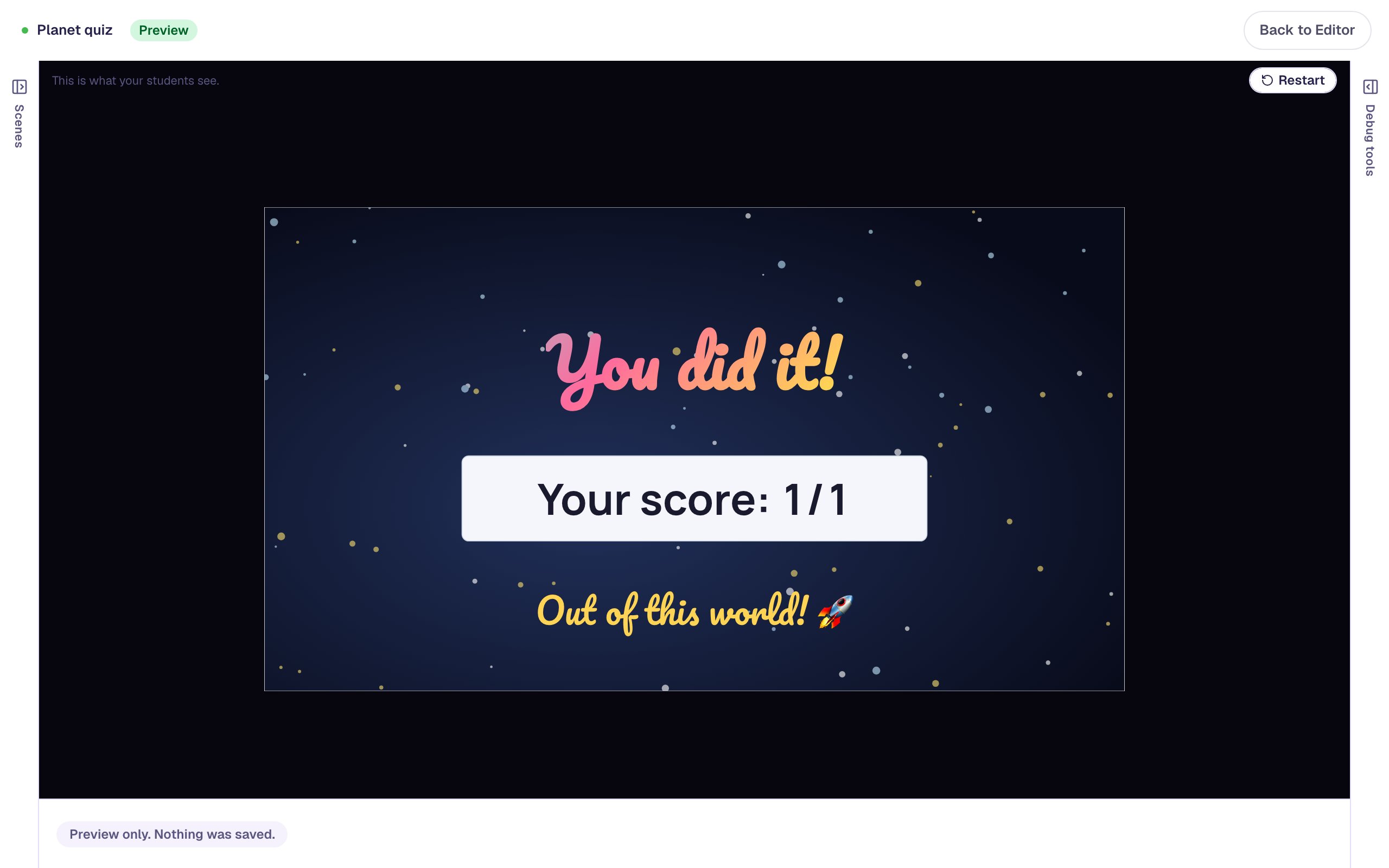
Make a celebration screen with text effects
Turn an activity's ending into a celebration. A headline in a shimmering gradient types itself out, and a line of praise underneath keeps changing to a new cheer.
 Beginner · 10 min · 8 steps
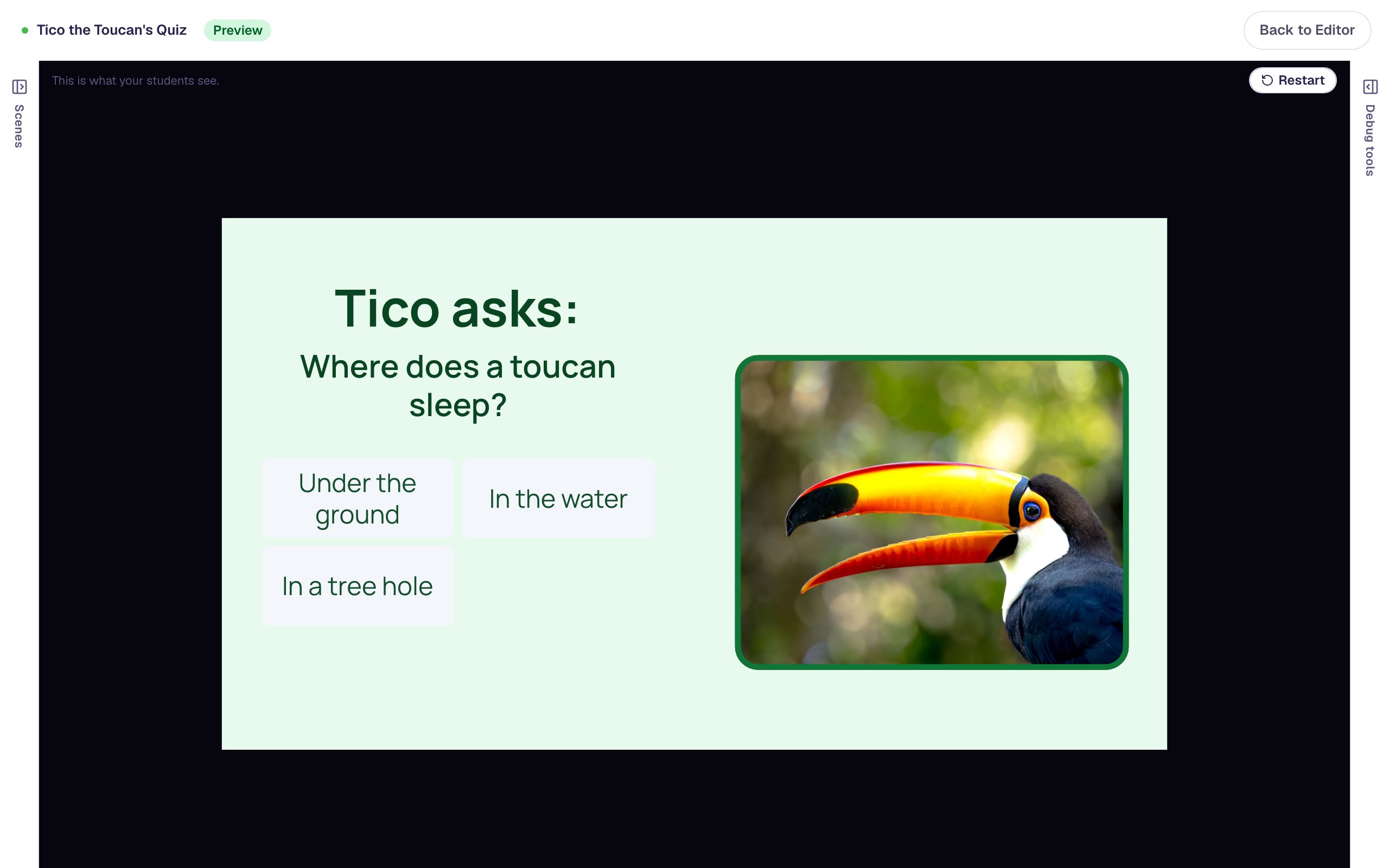
Flip a picture so it faces the question
Put a guide character on every question scene and keep it looking at the question, whichever side it's on. Round the photo's corners, give it an outline, copy the scene, swap sides, and turn on Flip horizontally.
 Beginner · 10 min · 6 steps
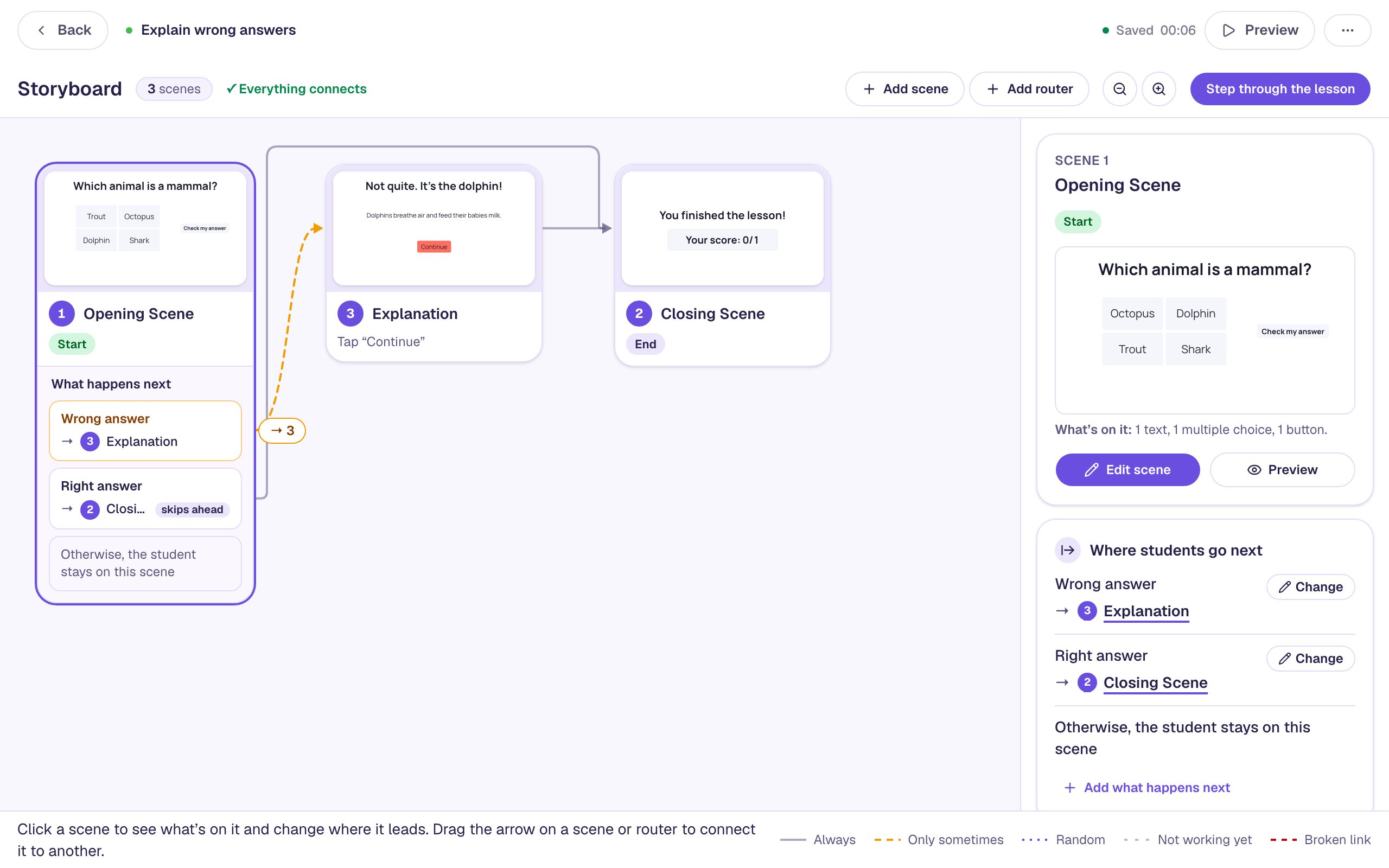
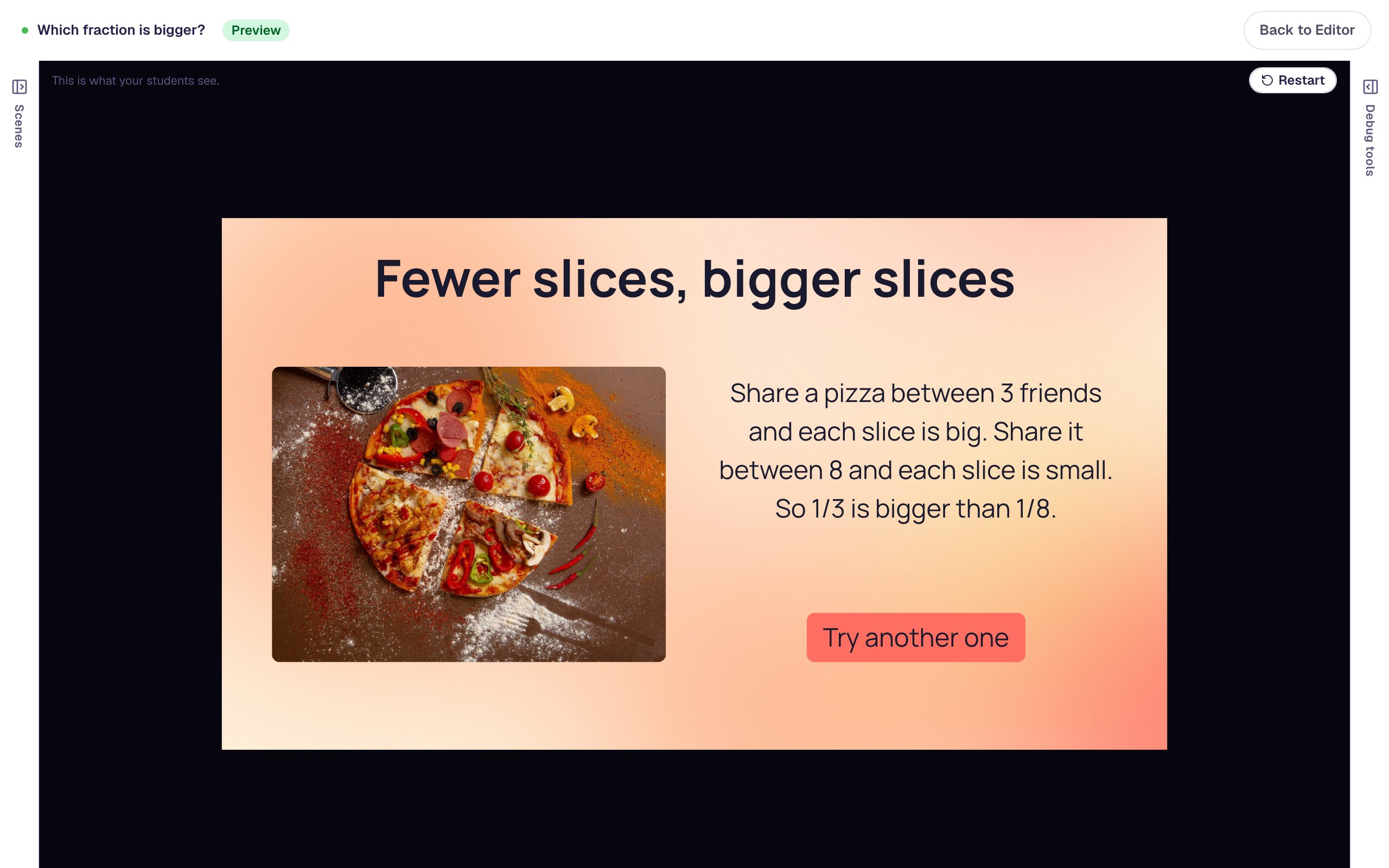
Show an explanation when a student gets it wrong
Use the Activity Storyboard to send wrong answers to a short explanation scene, while right answers go straight to the ending.
 Intermediate · 15 min · 8 steps
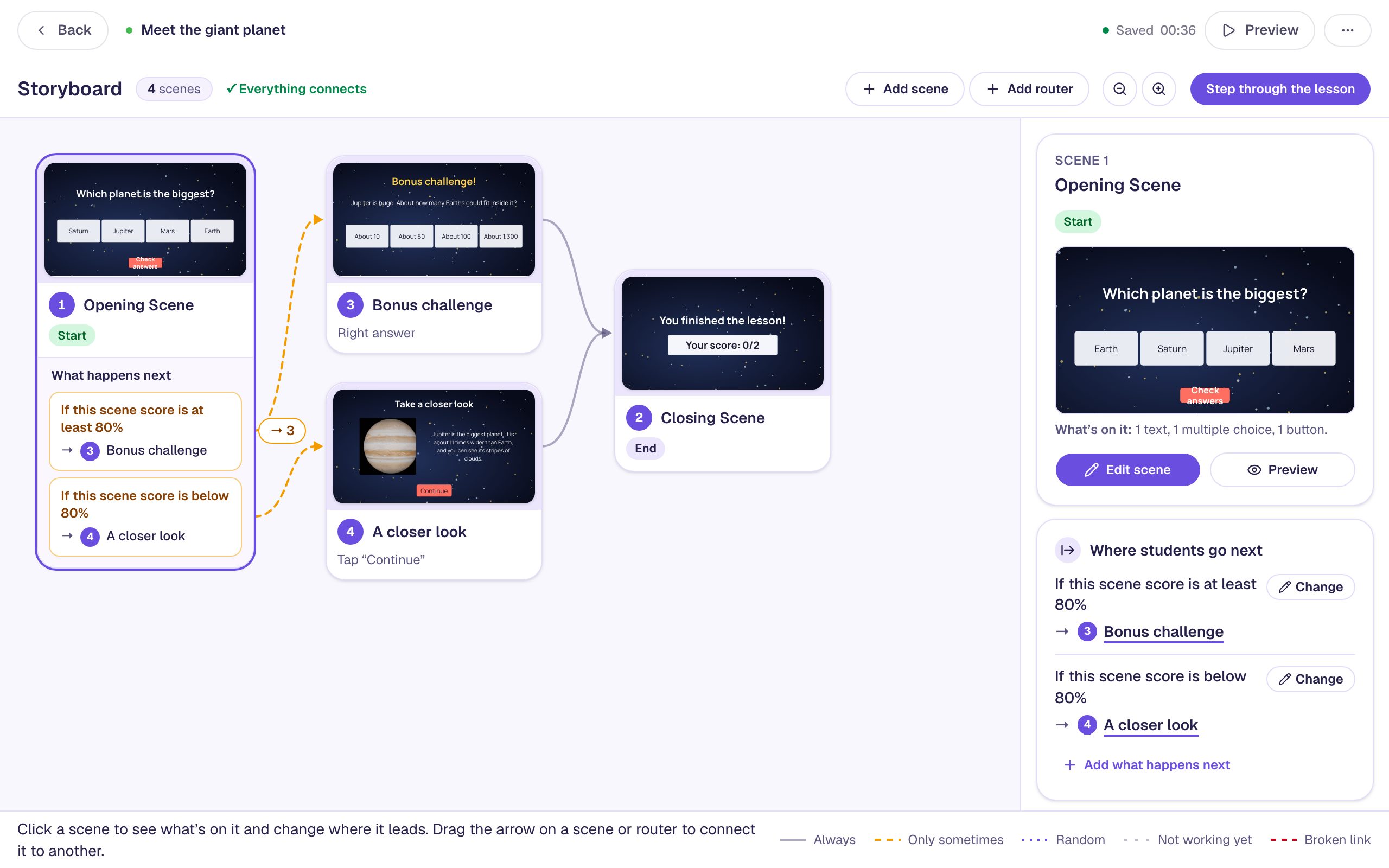
Give students a second try after a review
Send students who miss a question to a short review, then give them a fresh question to try again. Students who miss twice go to a scene that brings in the teacher, and every route ends at the ending.
 Beginner · 15 min · 8 steps
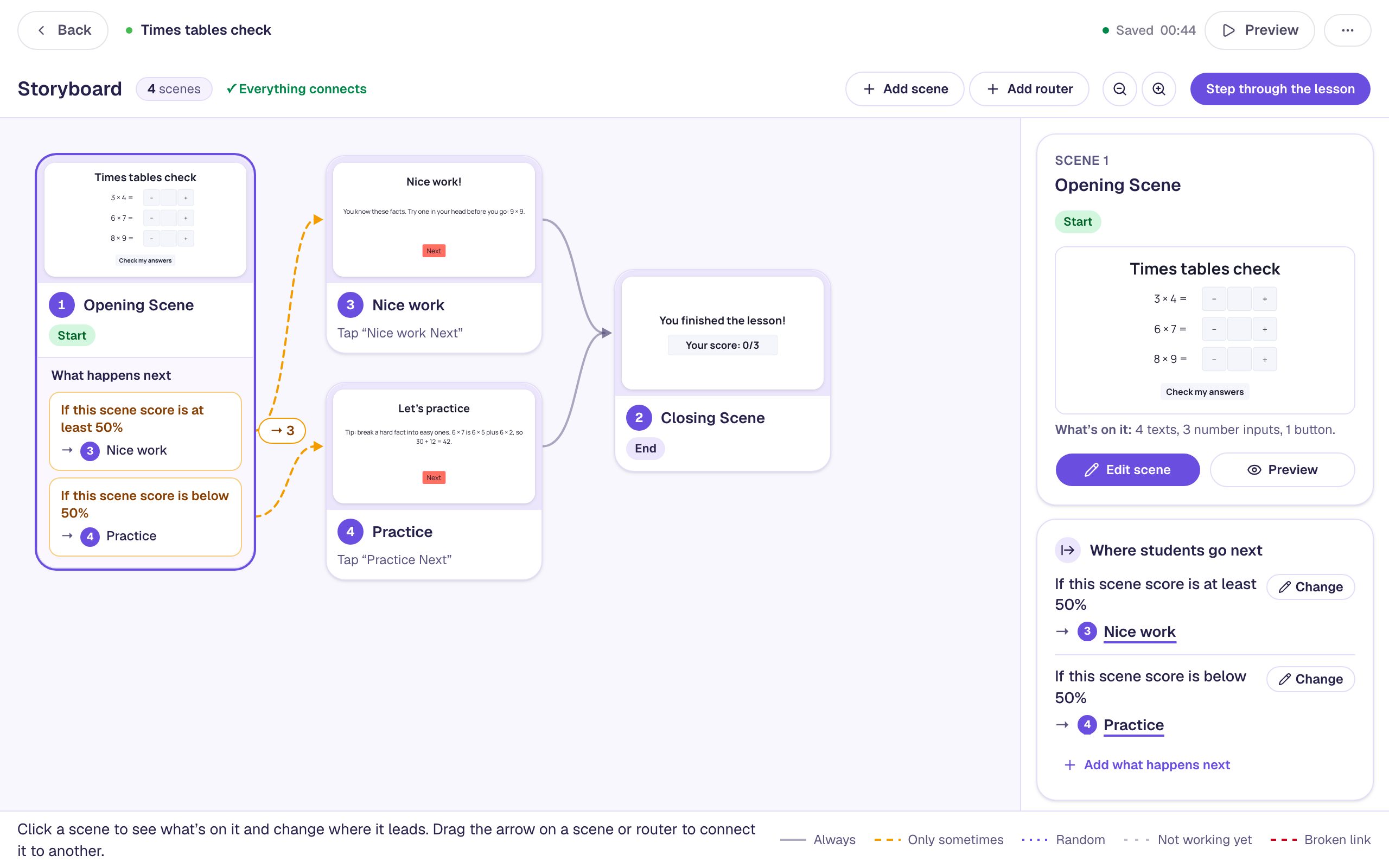
Give a challenge to students who get it right
Use the Activity Storyboard's Right or wrong choice to send students who answer a question correctly to a harder bonus question, and students who miss it to a picture that shows the answer.
 Intermediate · 15 min · 7 steps
Send students down different paths by their score
Put three questions on one scene and use the Activity Storyboard's **By score** choice to send students who got most of them right one way and students who need practice another.
 Beginner · 10 min · 6 steps
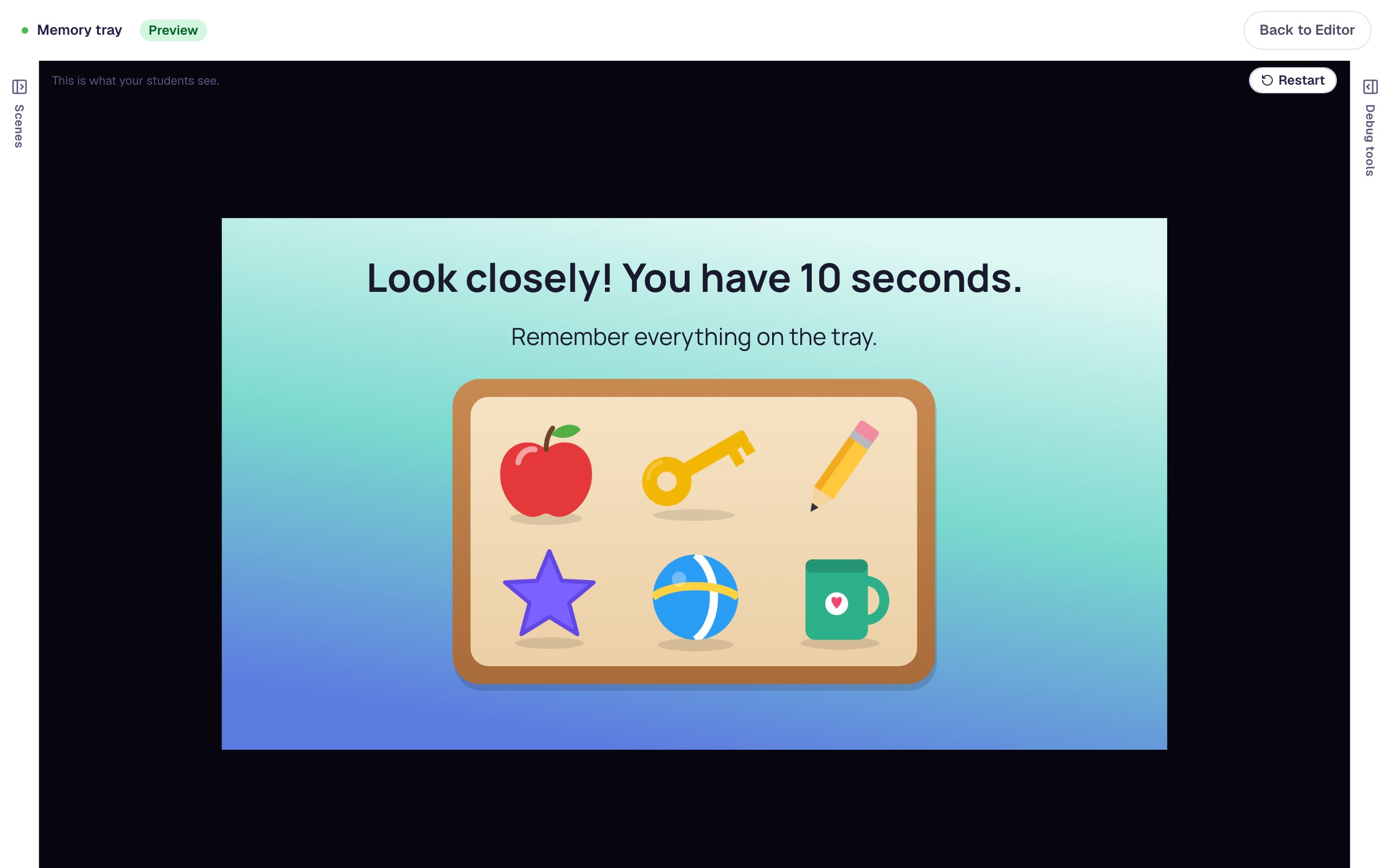
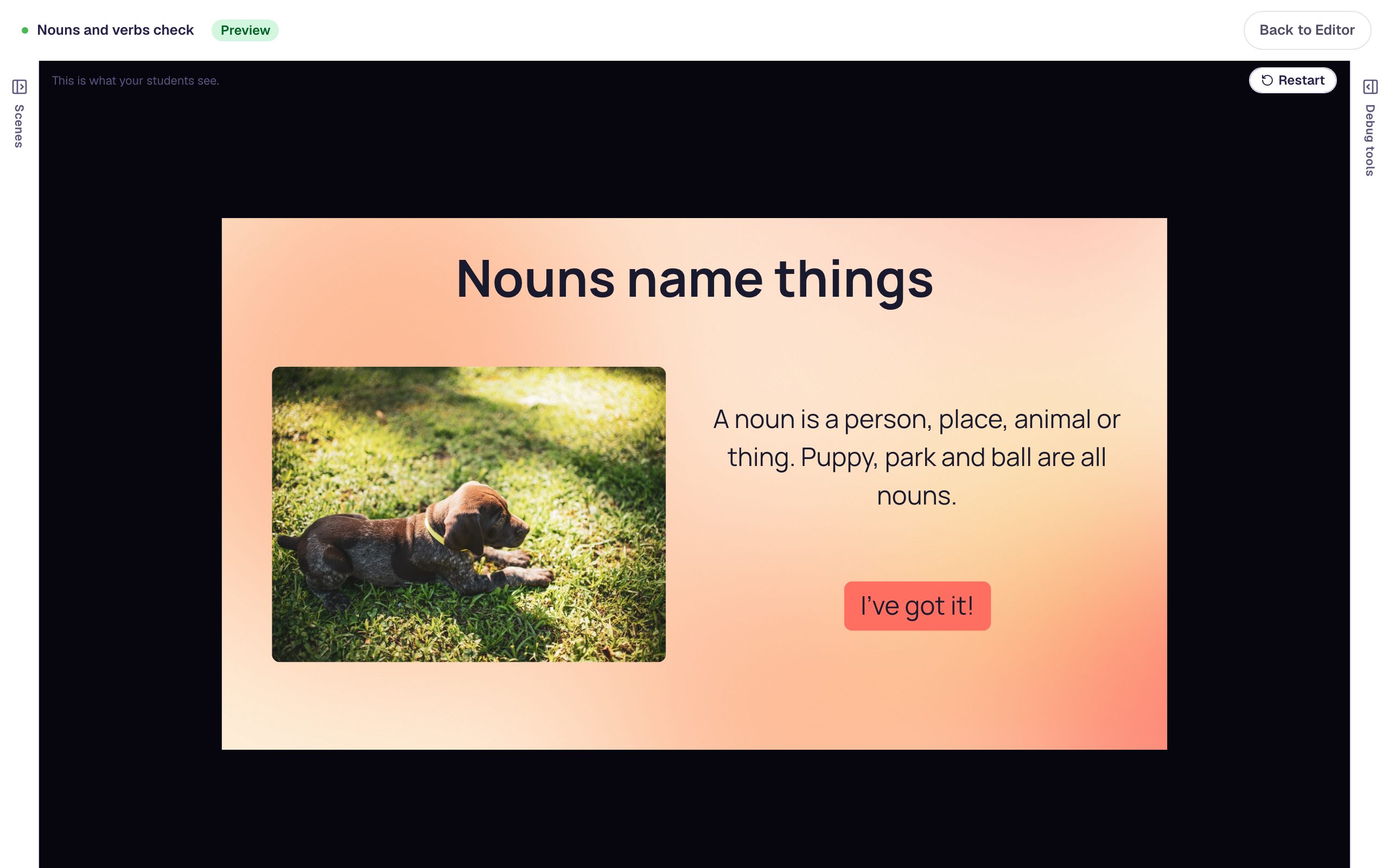
Play a memory game that moves on after ten seconds
Show students a picture for ten seconds, then move them on to a question about it automatically, with a Time runs out path added from the Storyboard.
 Intermediate · 15 min · 8 steps
Send each student to the tip they need
Ask one question per skill, each on its own scene, then add a router that reads both scenes' scores and sends every student to the tip for the question they missed, or straight to the ending if they got both right.
 Intermediate · 15 min · 7 steps
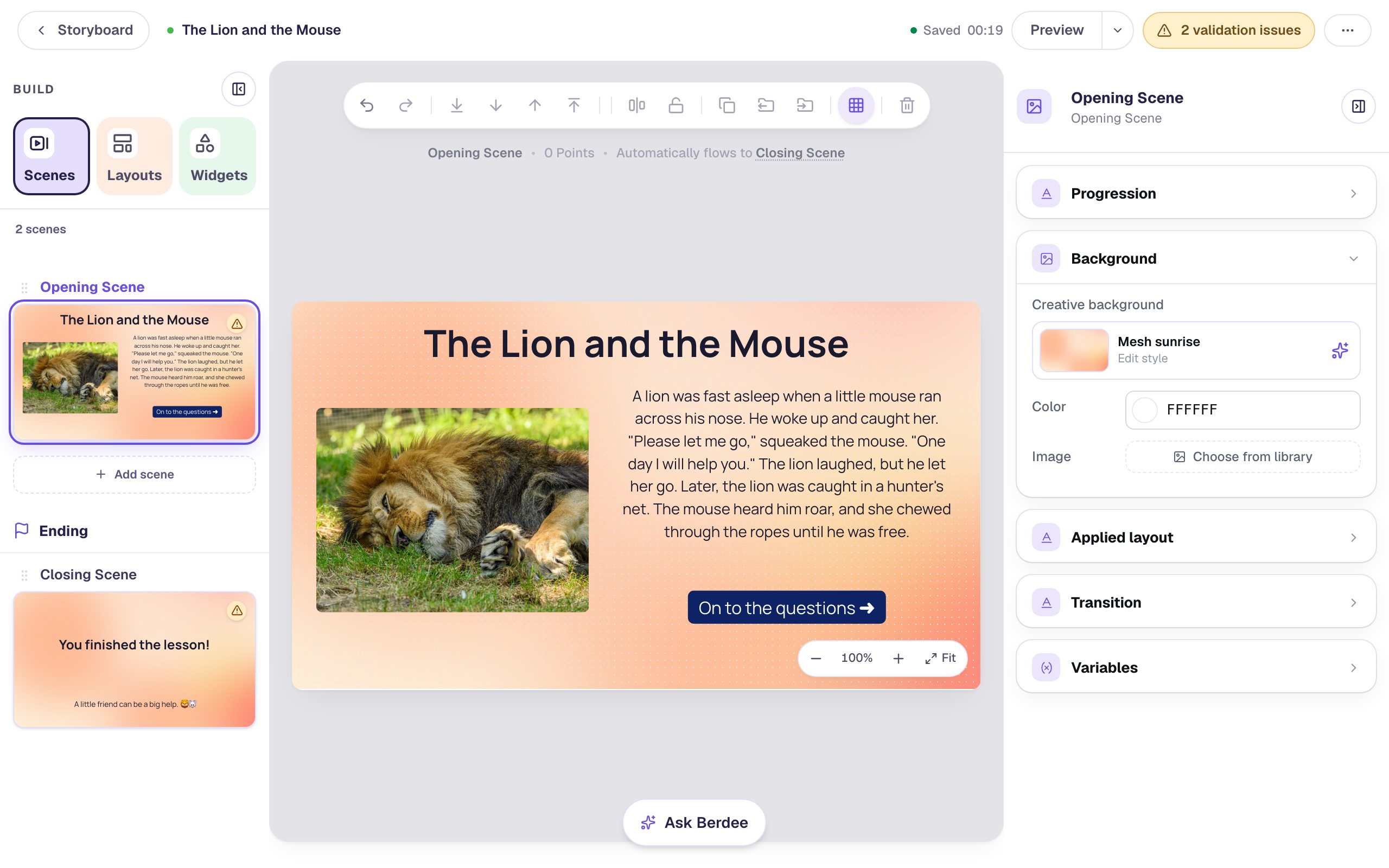
Let students go back and reread the story
Put a Read the story again button on every question, and use a router so the story always sends students back to the question they left.
 Intermediate · 15 min · 9 steps
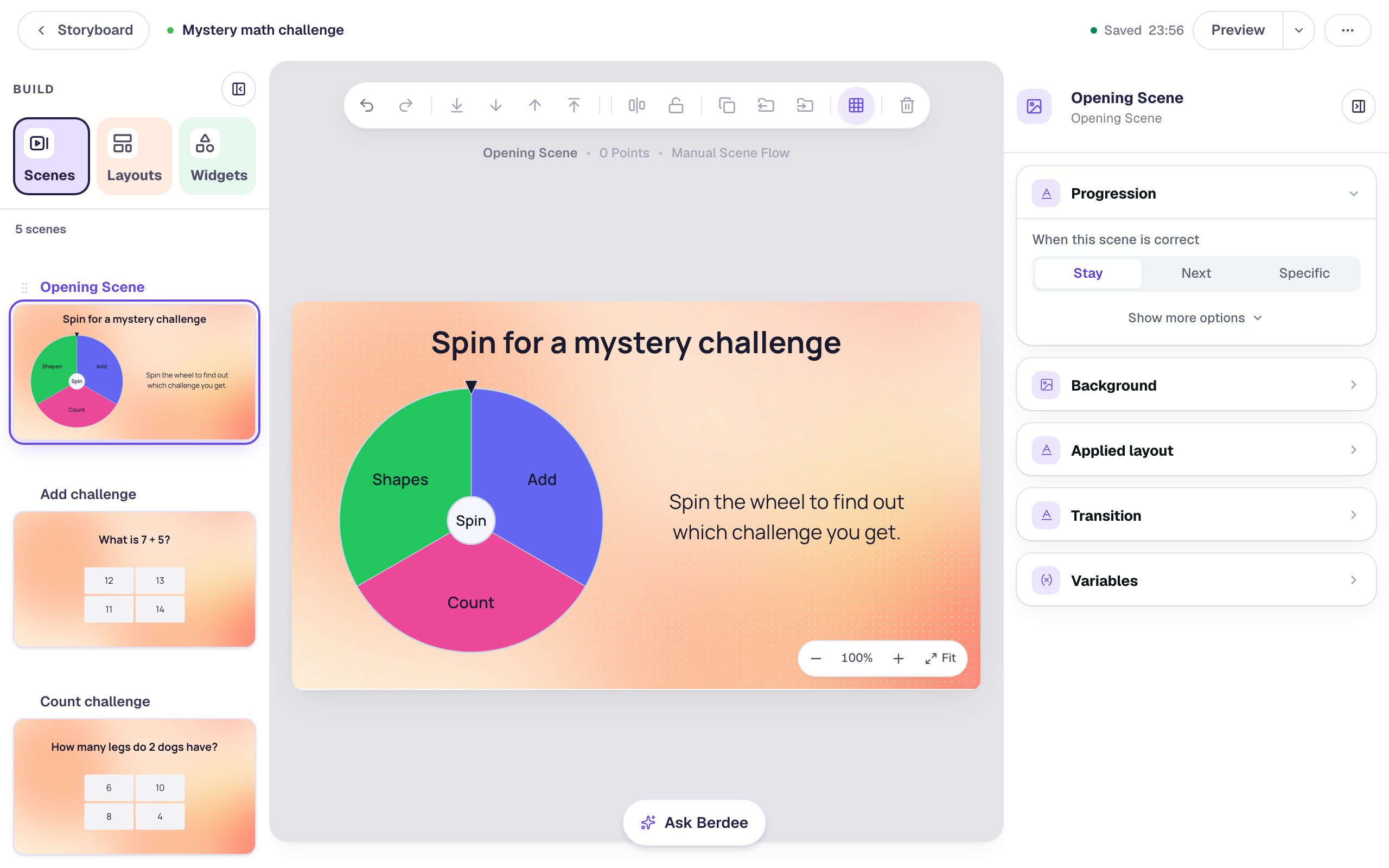
Spin a wheel to pick a random challenge
Build three challenge scenes and a Spin Wheel whose segments each lead to one of them, so every student spins and lands on a surprise question before the activity ends.
 Intermediate · 20 min · 9 steps
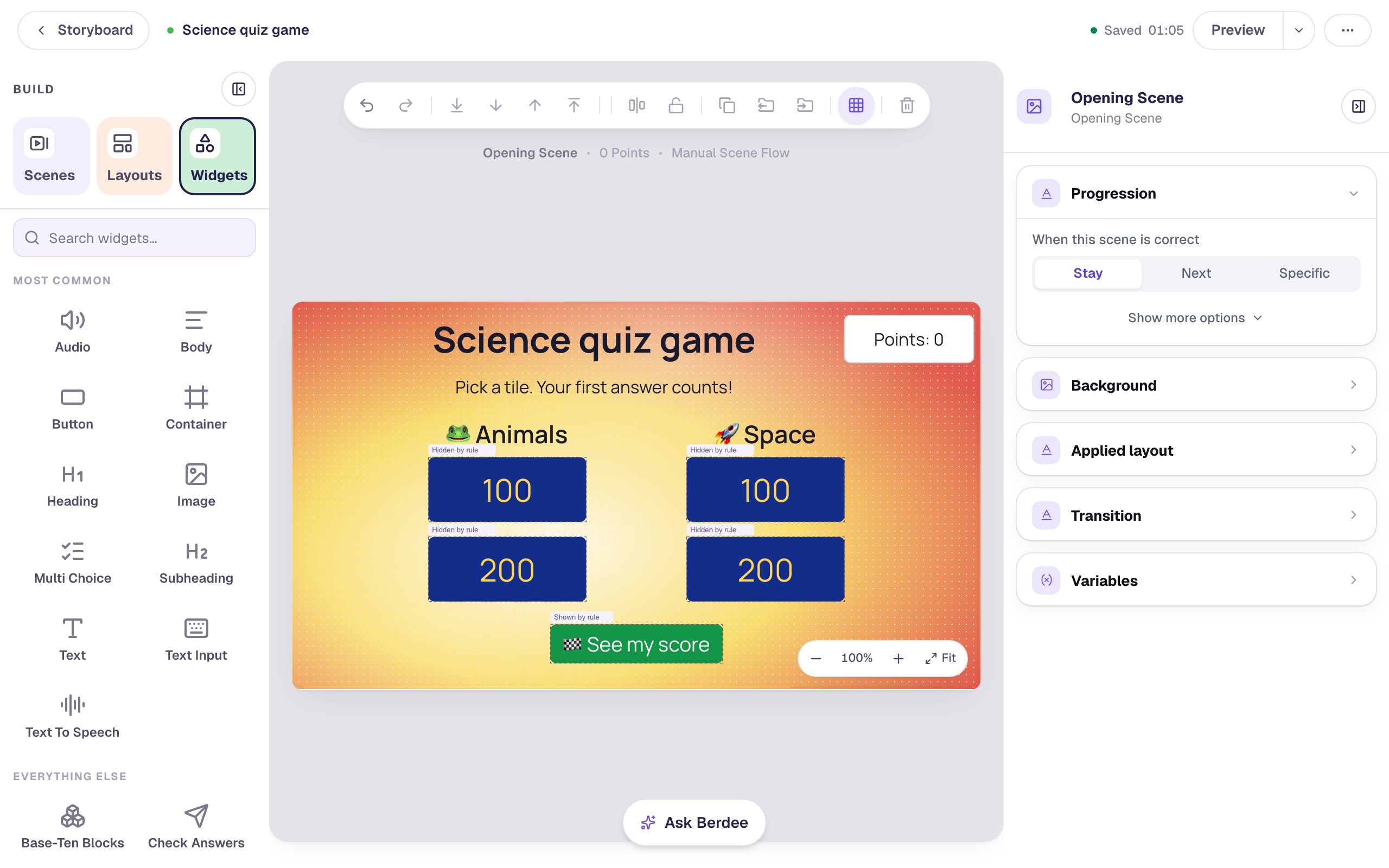
Make a game board students pick questions from
Build a quiz-show board of point tiles. Each tile opens its own question, every answer comes back to the board, a tile disappears once it's played, a running score adds up the points, and a Finish button appears when the board is clear.
 Beginner · 10 min · 6 steps
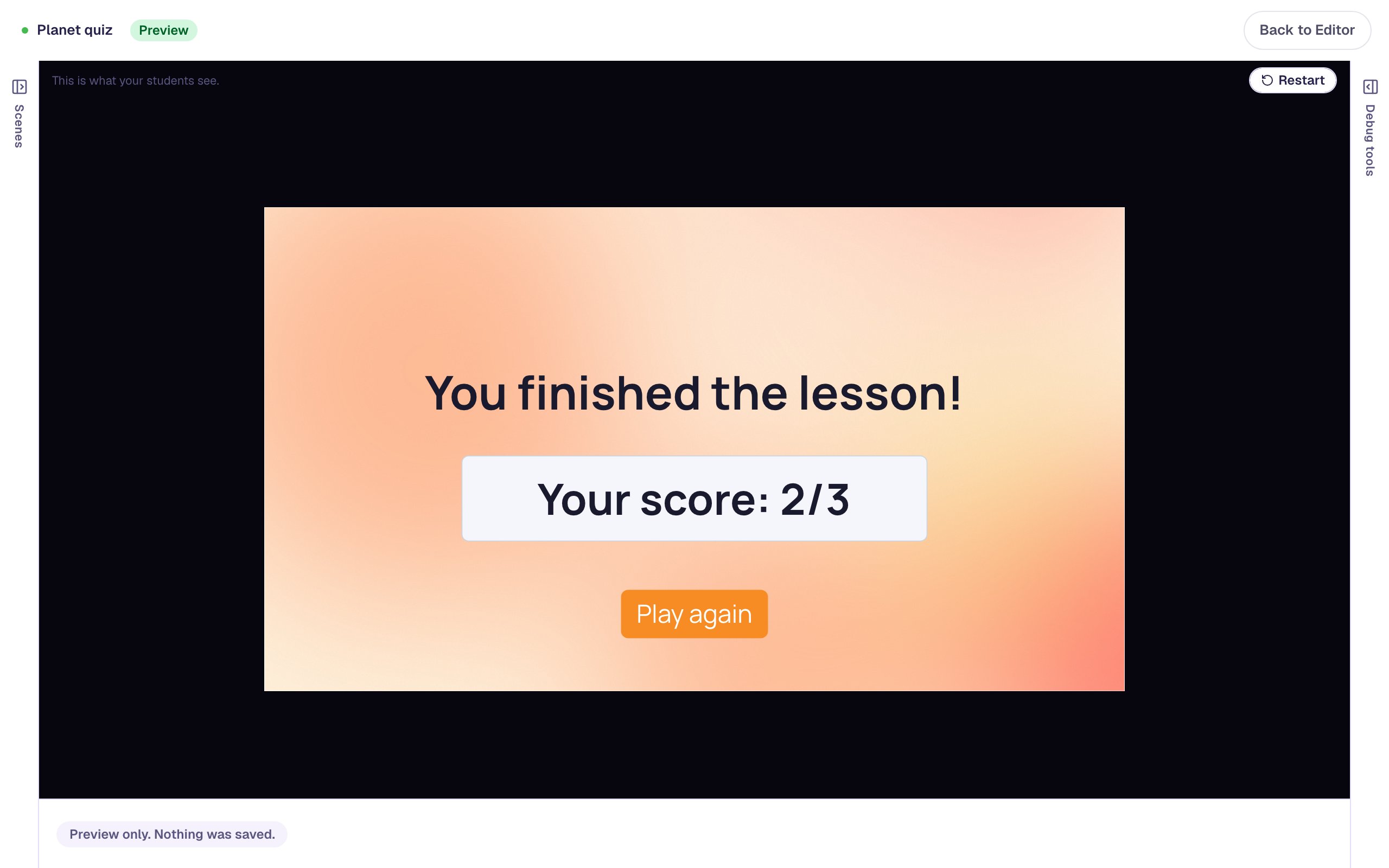
Add a Play again button to the ending
Put a Play again button on a quiz's ending that starts the activity over from the opening scene, and choose whether the new run's score replaces the first one.
 Intermediate · 15 min · 9 steps
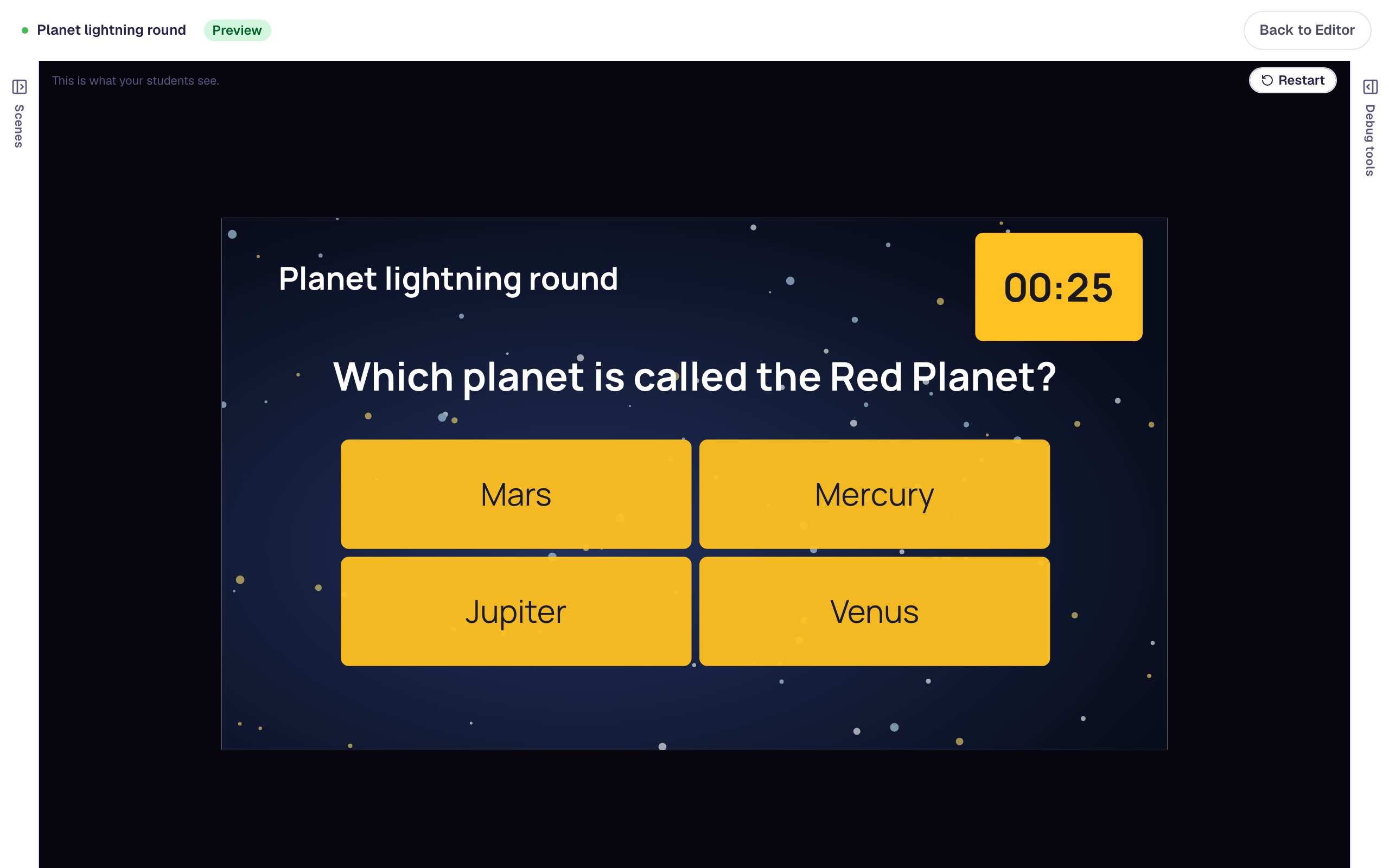
Give a whole quiz one time limit
Put one countdown on a layout and turn on Keep changes between scenes, so a 30-second clock keeps running across three questions instead of starting over on each one.
 Intermediate · 15 min · 9 steps
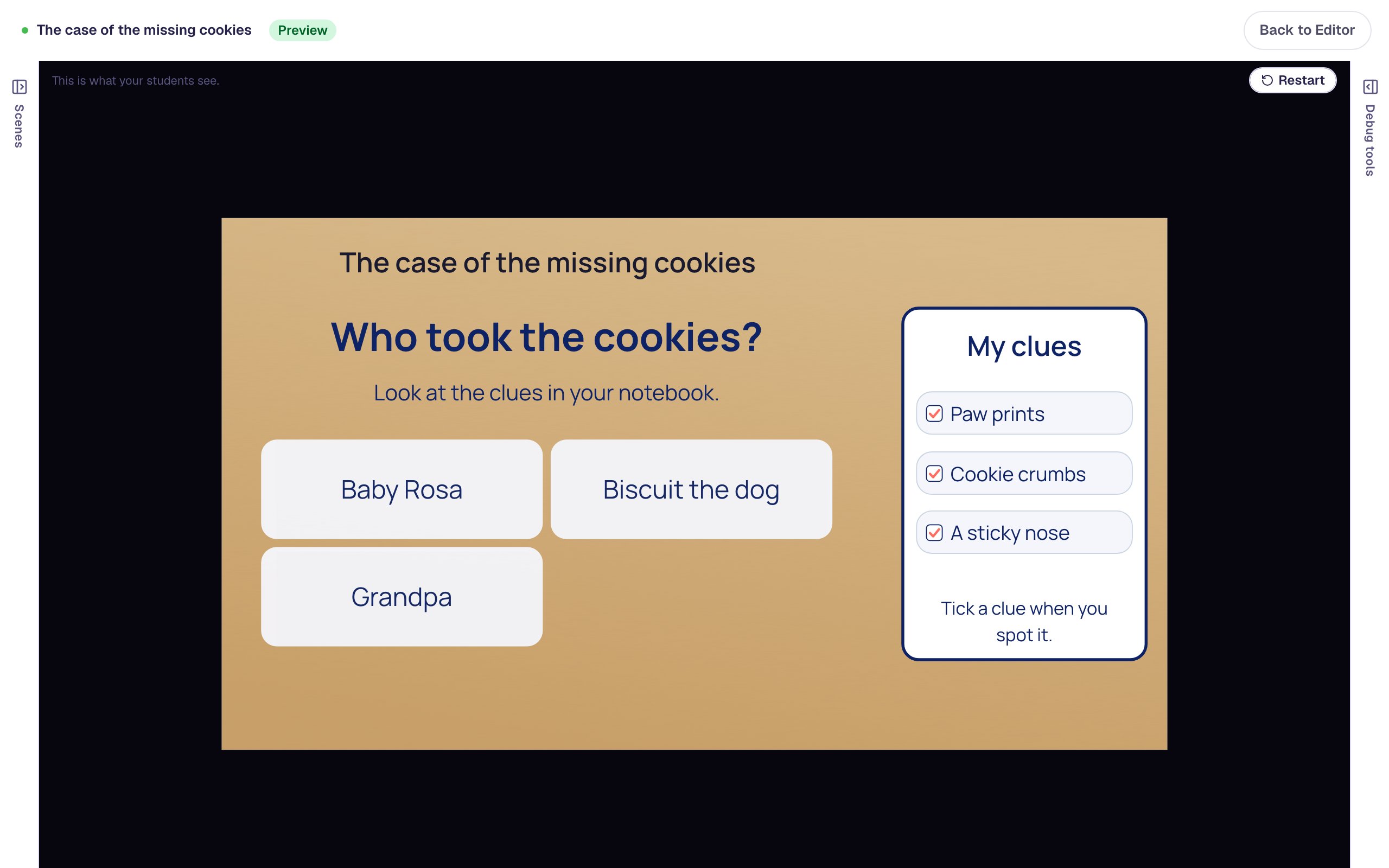
Keep a clue checklist on every page of a story
Put a checklist on a layout and turn on Keep changes between scenes, so the clues students tick on one page of a mystery story are still ticked on the next.
 Beginner · 12 min · 8 steps
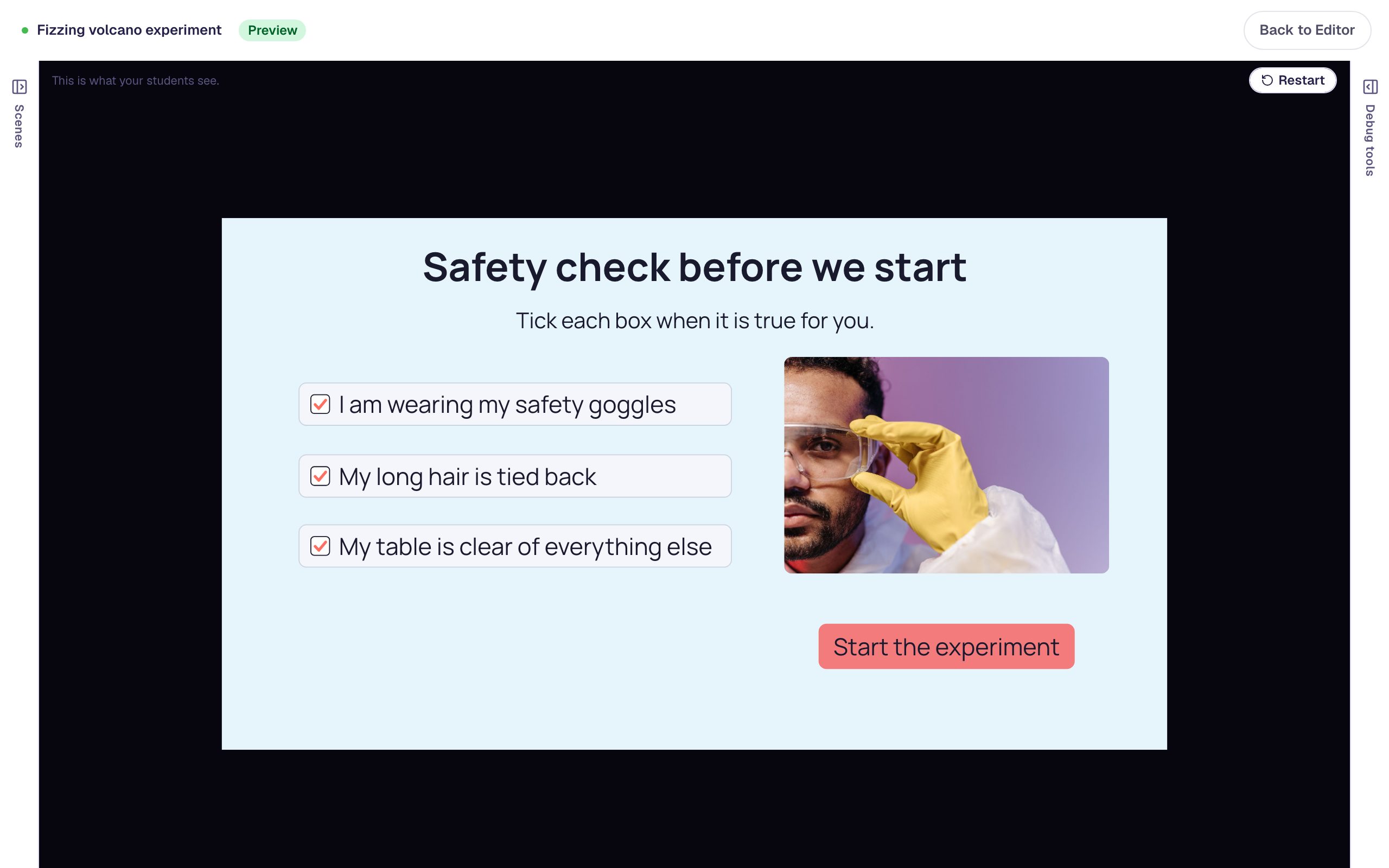
Unlock a button when every checklist box is ticked
Build a lab safety checklist from three checkboxes, then give the Start button one visibility rule with three conditions so it appears only once every box is ticked.
 Intermediate · 15 min · 6 steps
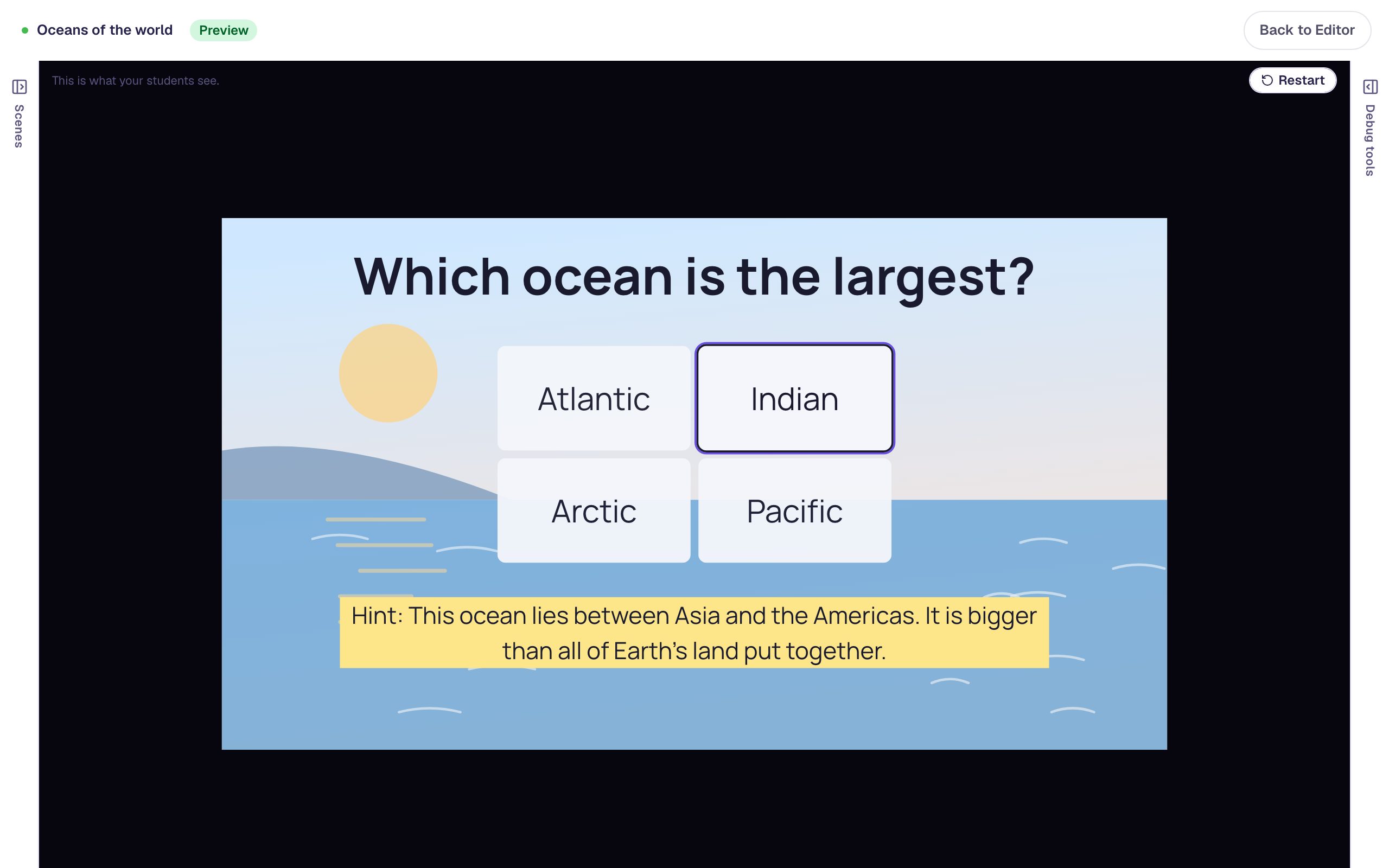
Show a hint after two wrong tries
Count a student's wrong answers in a number variable, then let a hint appear on its own once they've missed twice, so students try first and get help only when they need it.
 Intermediate · 15 min · 8 steps
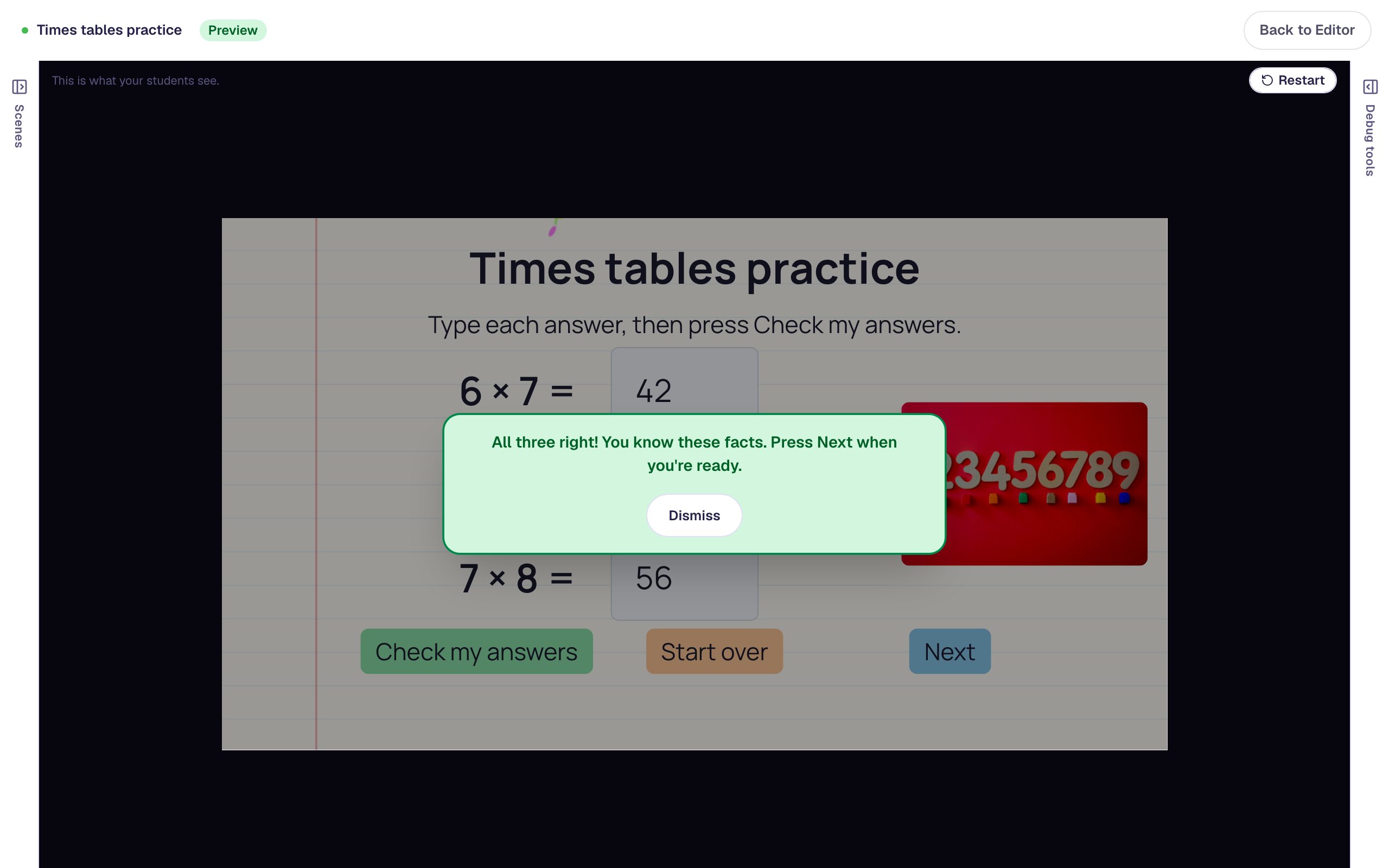
Let students check their work and start over
Build a times-tables practice sheet with a Check my answers button that says whether every answer is right, and a Start over button that clears the answers so students can practice again.
 Beginner · 15 min · 7 steps
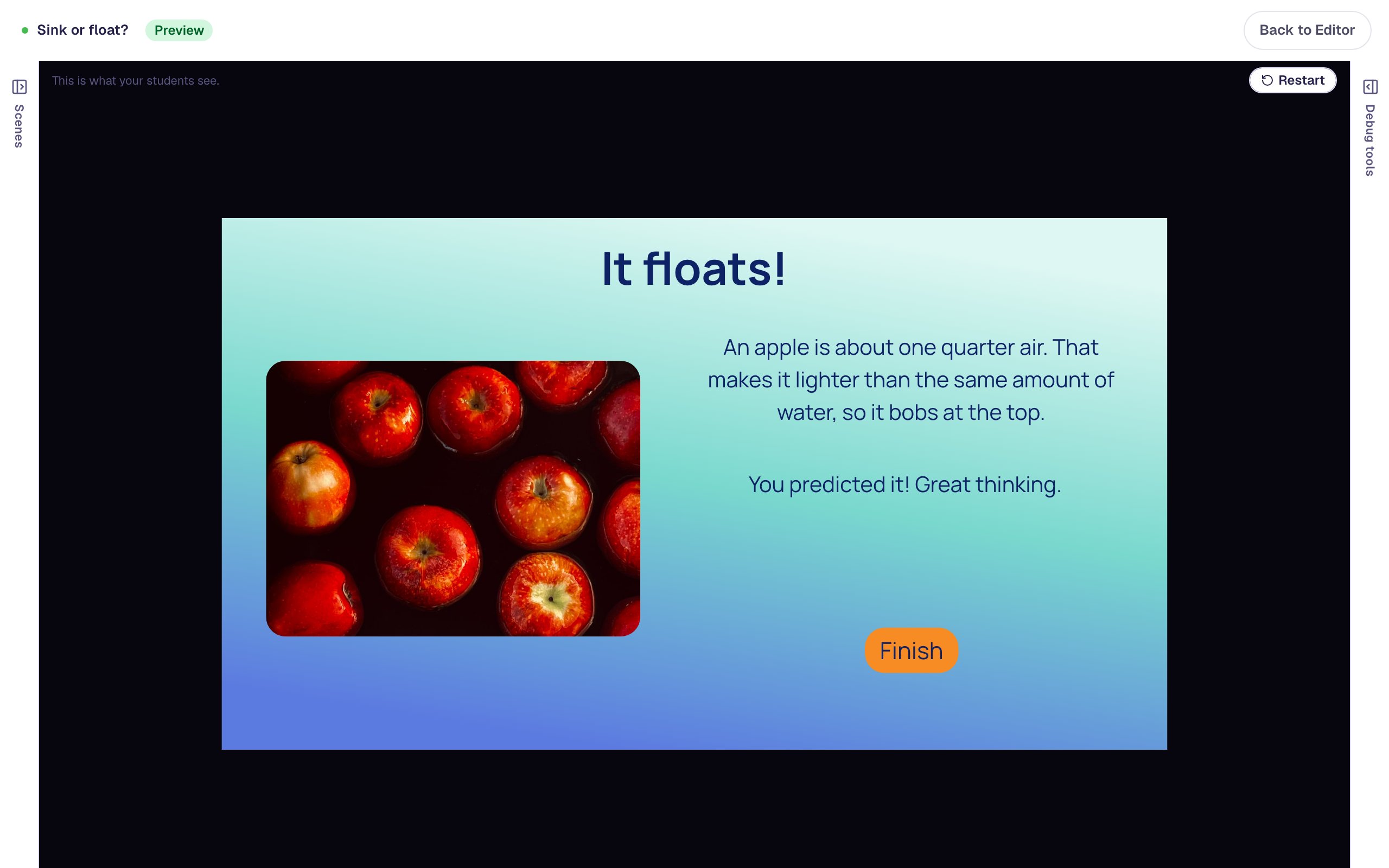
Ask students to predict before you reveal
Ask for an ungraded prediction with a Multiple Choice, show the Let's find out! button only once students have made one, and have the reveal scene answer their prediction with a different line for a right or wrong guess.
 Intermediate · 20 min · 6 steps
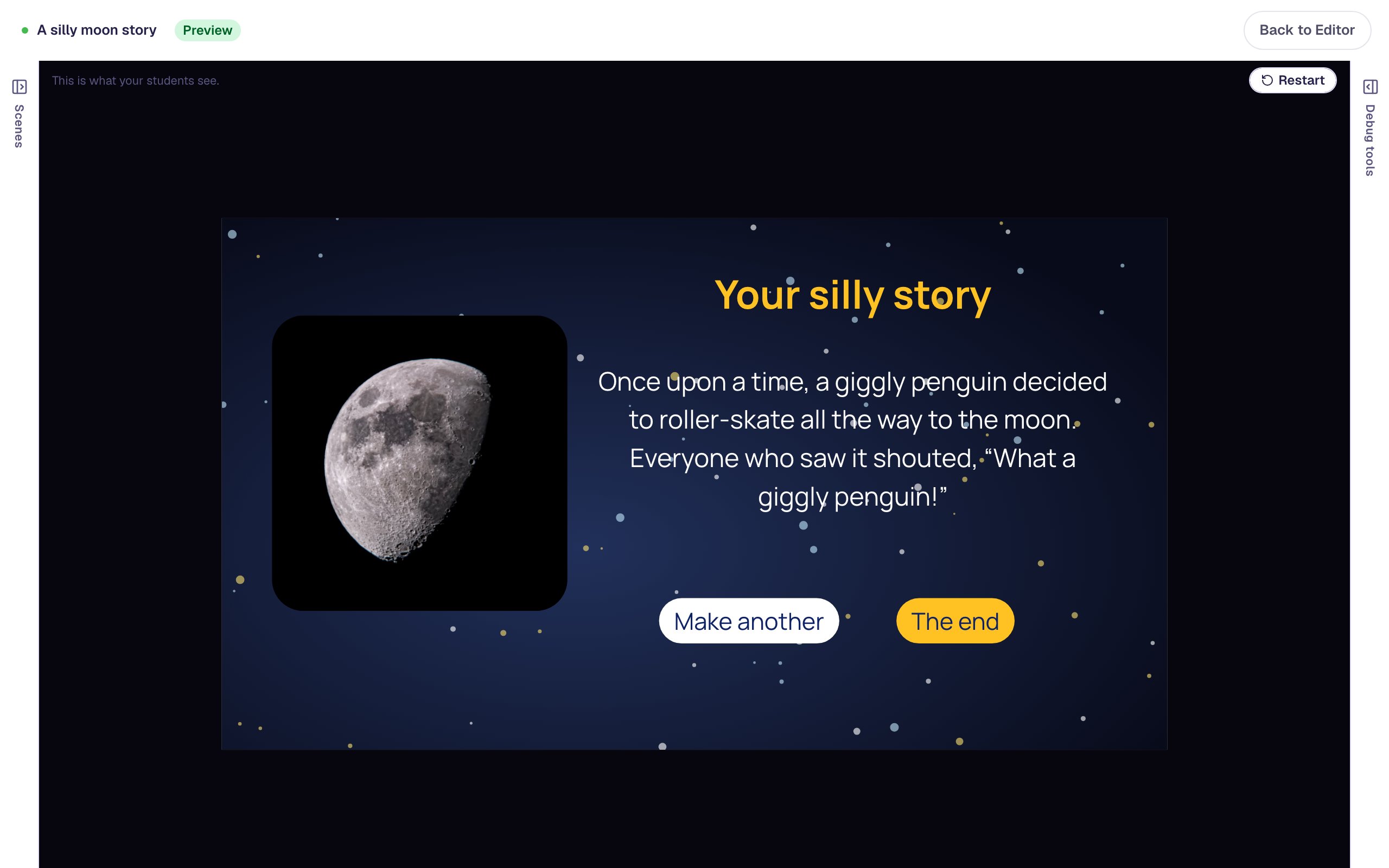
Build a silly story from words students pick
Students pick a describing word, an animal and an action from three dropdowns, and the next scene tells a story with their words in it. Set Variable copies each dropdown's choice into a variable with Widget property, and {{ }} placeholders show it.
 Beginner · 15 min · 7 steps
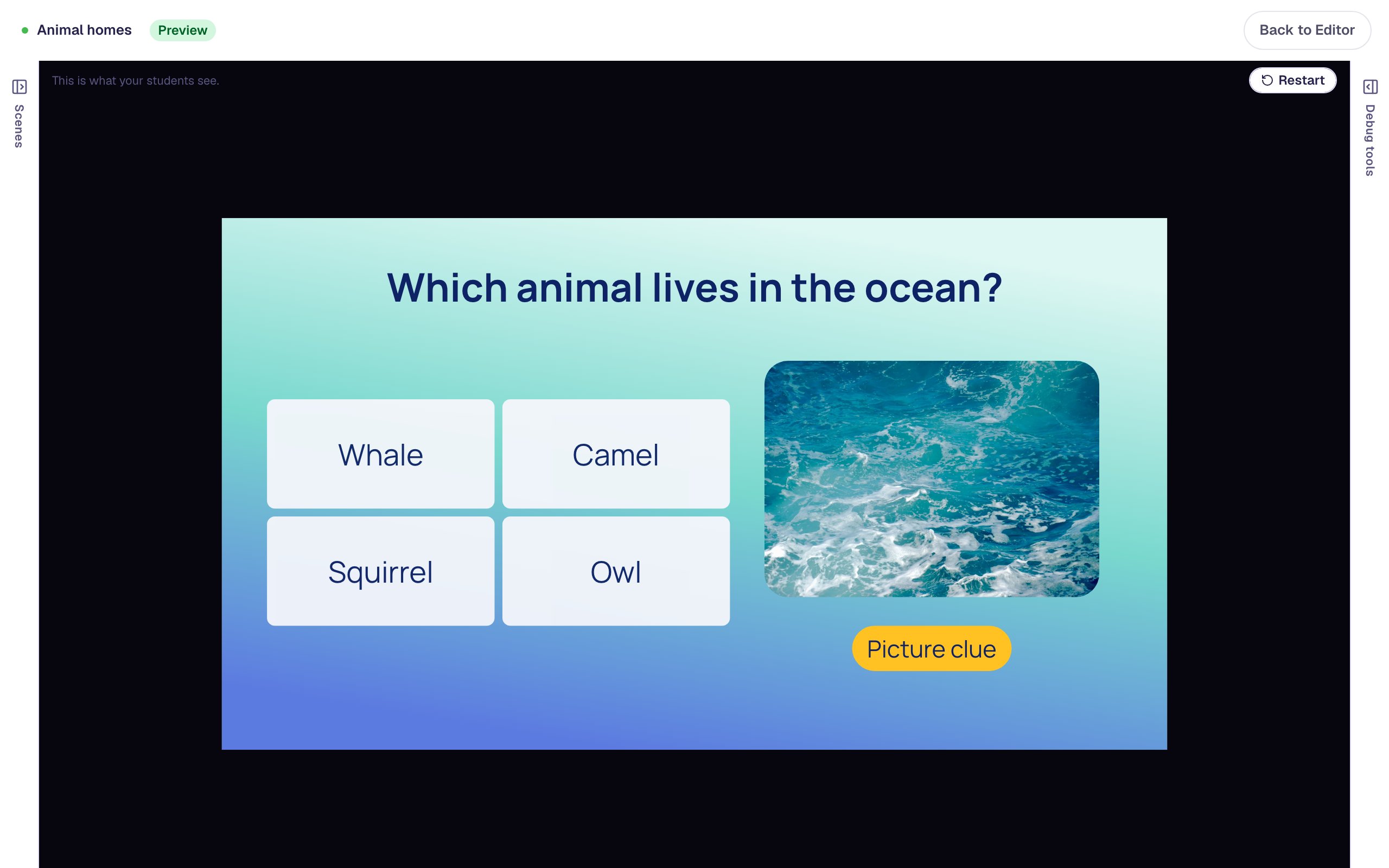
Let students turn picture clues on and off
Give early readers a Picture clue button that shows a photo of the question's key word, and that hides it again when pressed a second time. A yes-or-no variable remembers the choice, so a student who turns clues on gets them on every question.
 Intermediate · 20 min · 7 steps
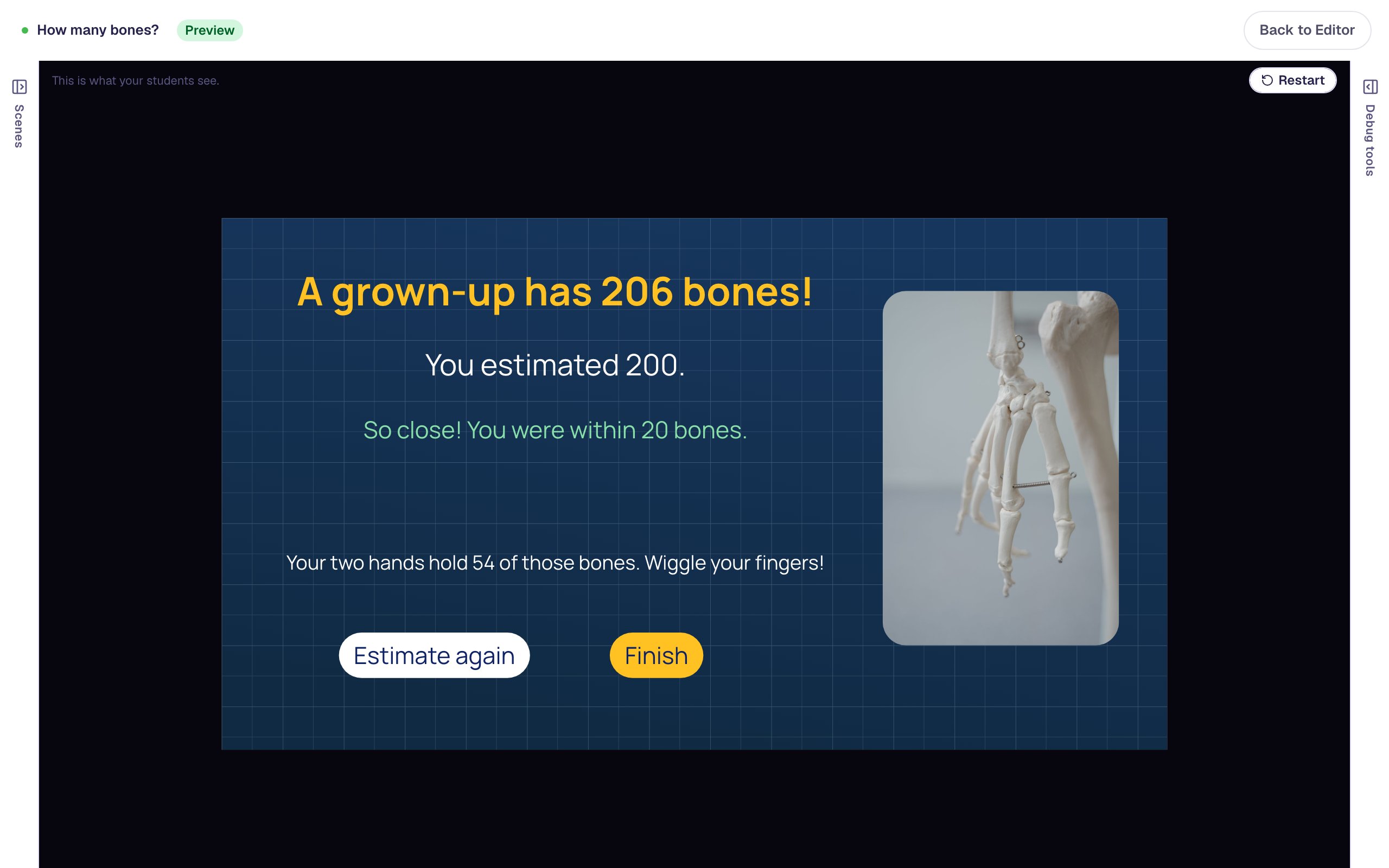
Reveal how close a student's estimate was
Students type an estimate into a Number Input, a button saves it in a number variable with Set Variable → Widget property, and the next scene shows their number beside the real one, with a "So close!" message only for estimates within 20.
 Intermediate · 20 min · 9 steps
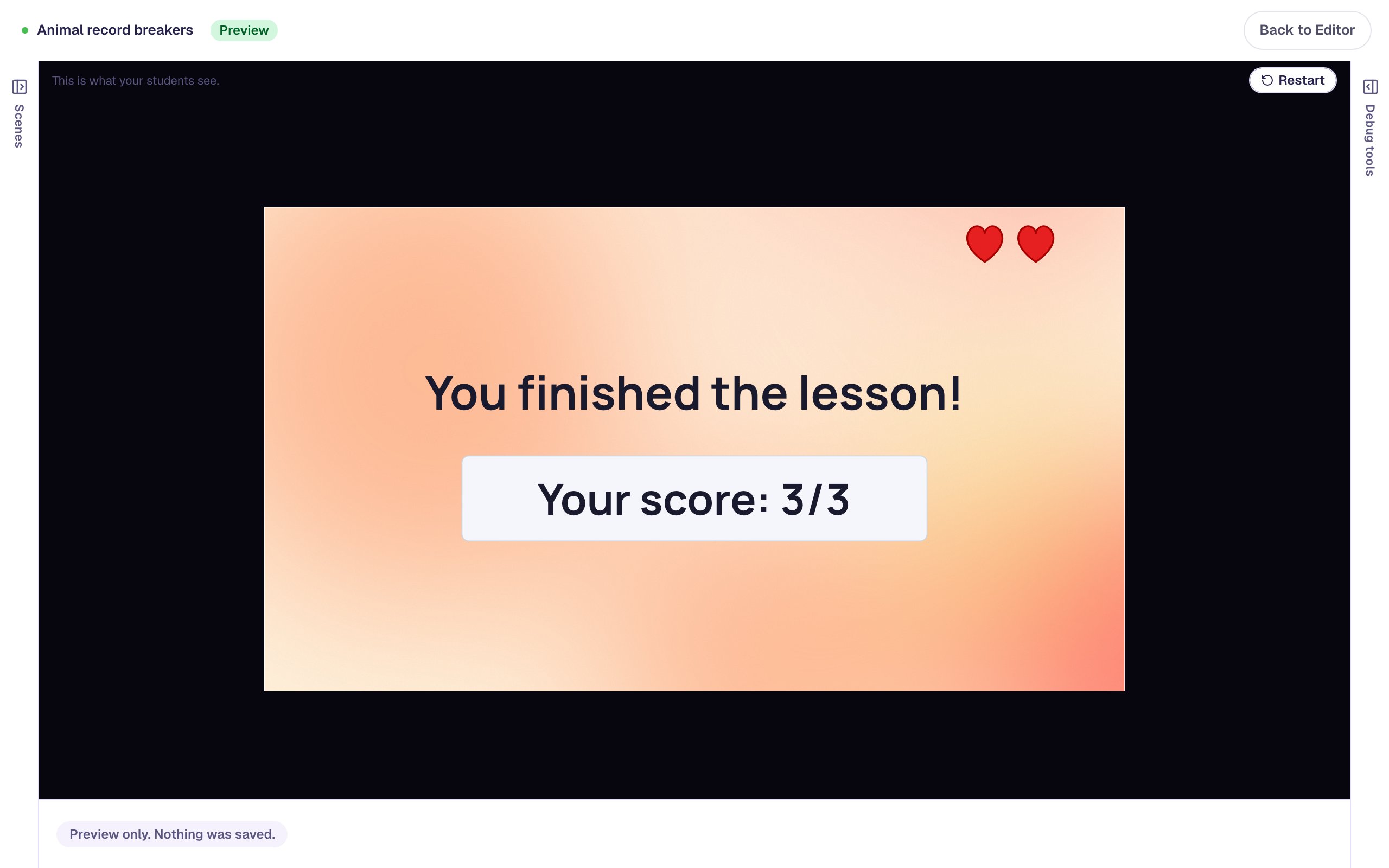
Make a quiz game with three hearts
Give students three hearts at the start of a quiz. Every wrong answer takes one away, the hearts in the corner disappear as they go, and losing the last one ends the game early. A number variable, three visibility rules and two behaviors do it all.
 Intermediate · 12 min · 5 steps
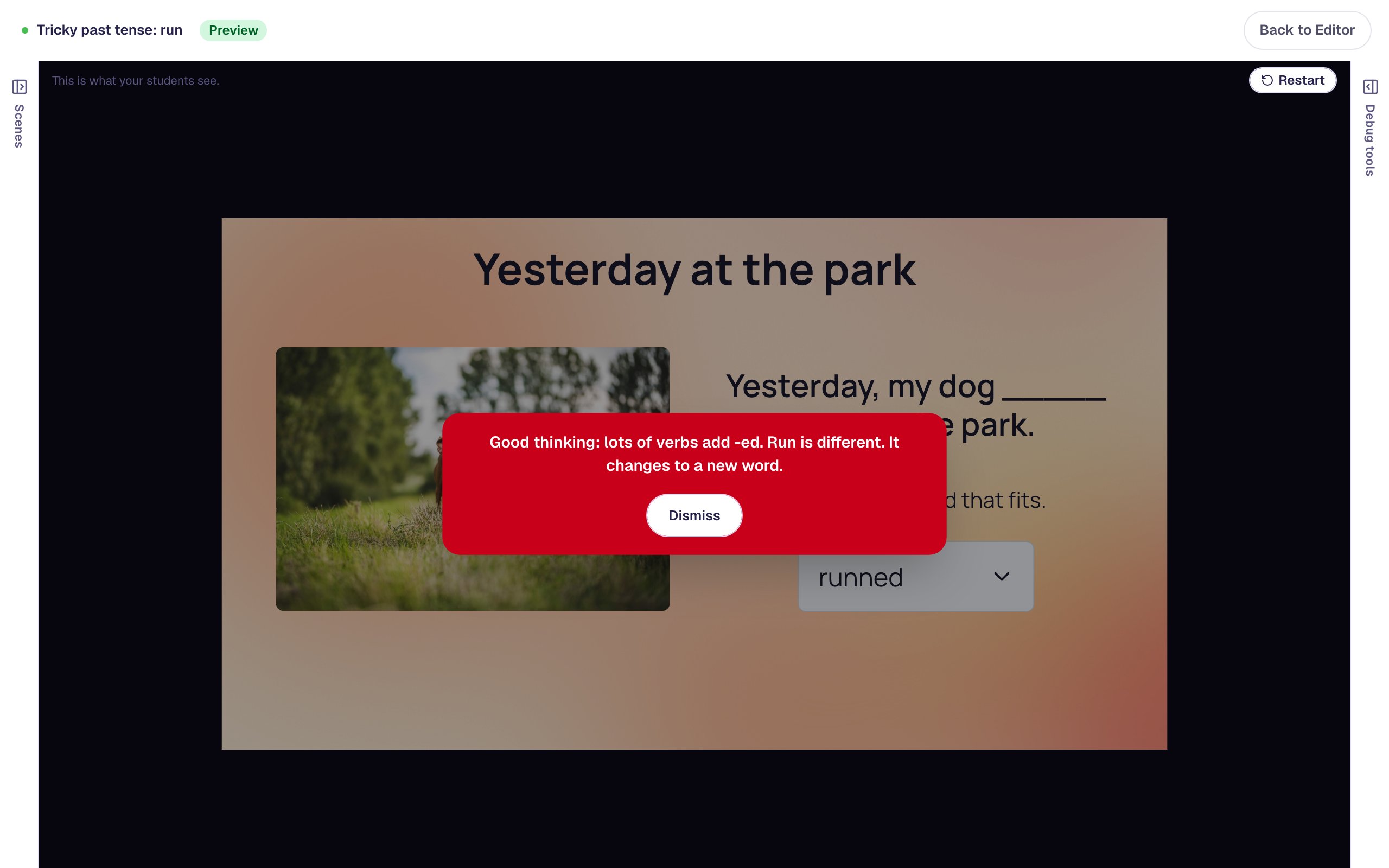
Give a different tip for each wrong answer
Build a past-tense question where every wrong word gets its own tip. Three "They pick a wrong answer" behaviors on one dropdown each check its Selected value, so the student who writes "runned" hears something different from the one who picks "will run".
 Intermediate · 12 min · 8 steps
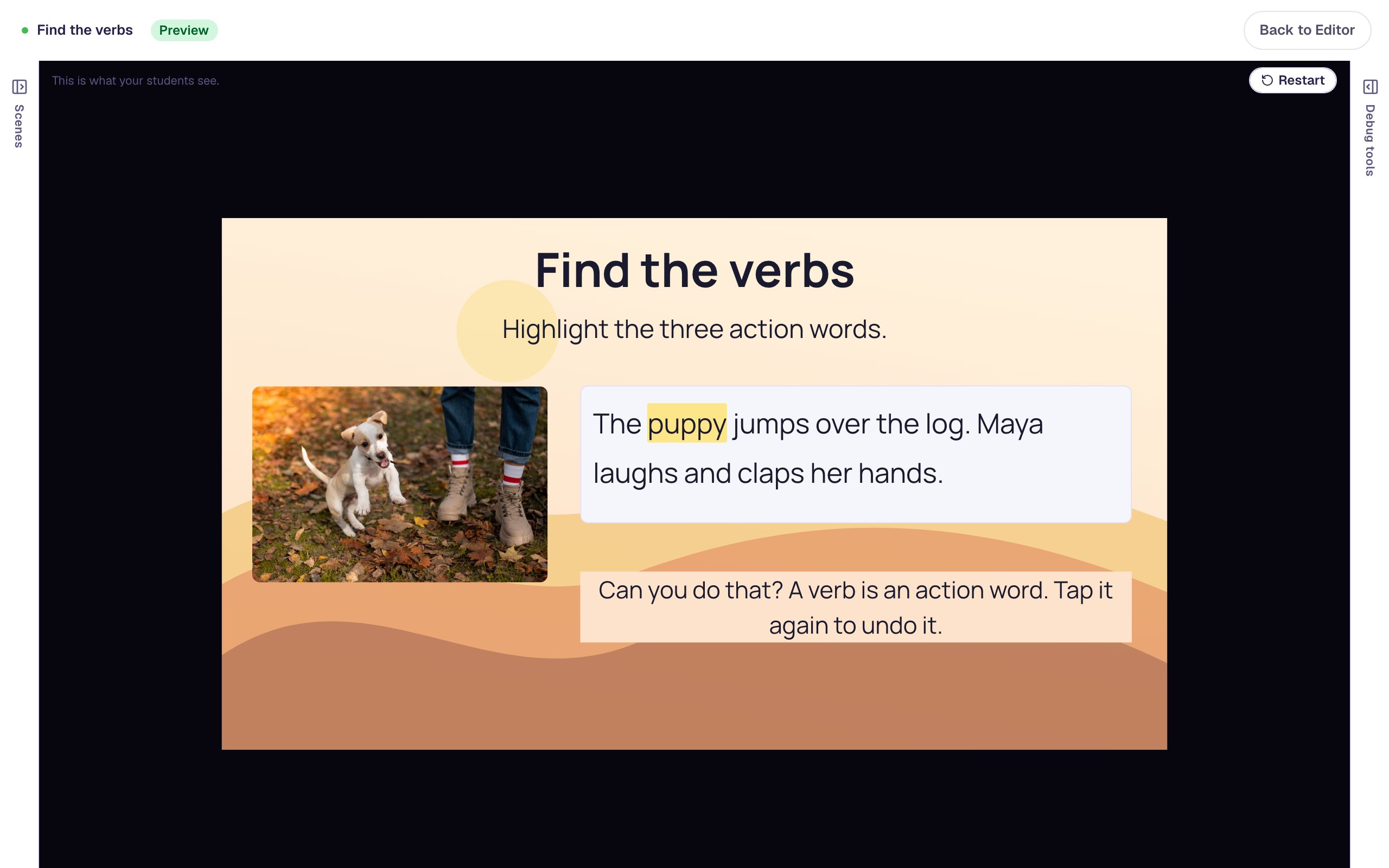
Show a tip until a student fixes a mistake
Build a "find the verbs" Highlighter where a tip pops up the moment a student highlights a word that isn't a verb, and goes away again as soon as they take it back. On Wrong Selected shows the tip, On Wrong Cleared hides it.
 Beginner · 15 min · 9 steps
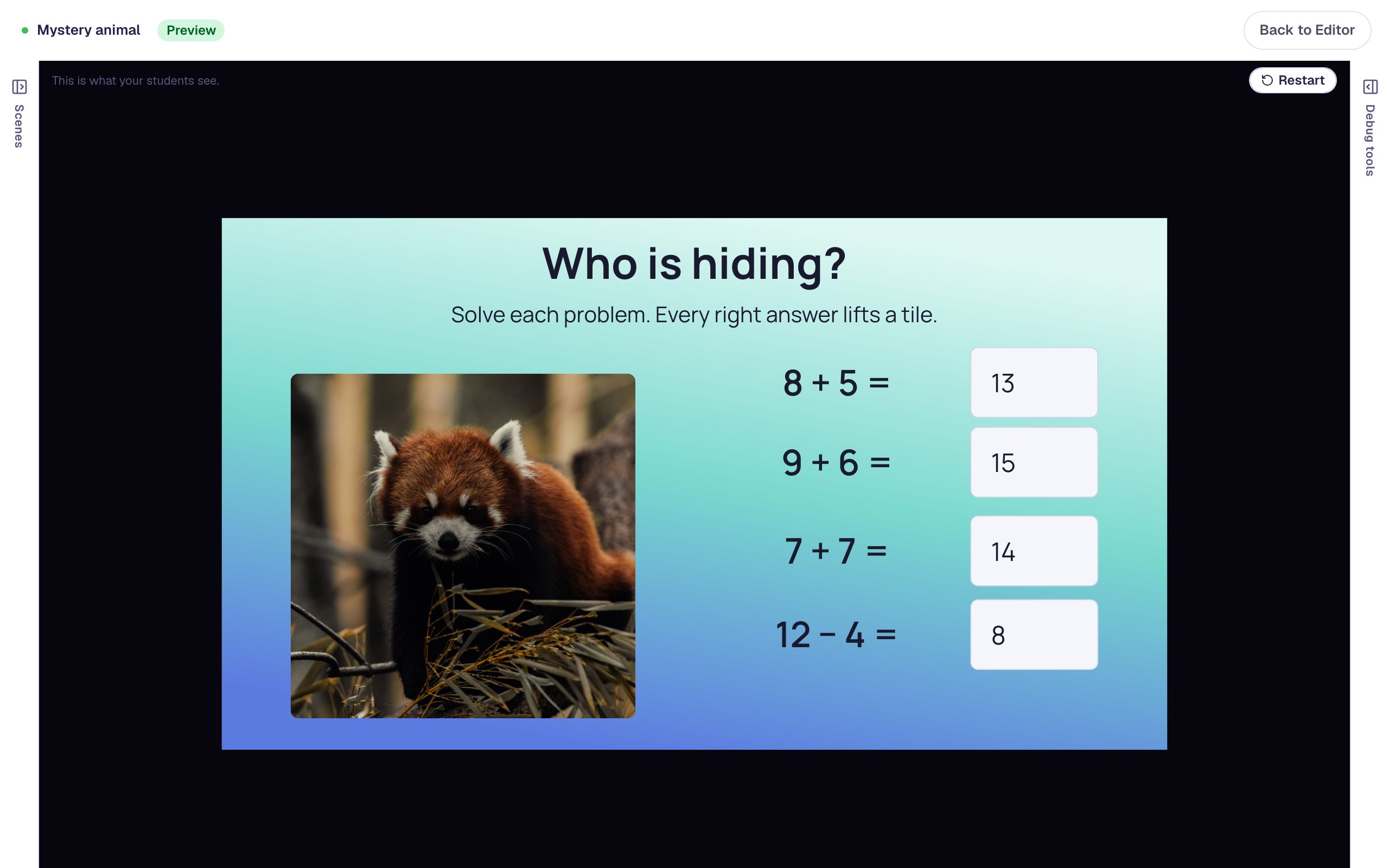
Uncover a mystery picture with right answers
Hide a photo under four coloured tiles and give each tile a visibility rule, so every right answer lifts one tile and students race to see who's hiding.
 Intermediate · 15 min · 7 steps
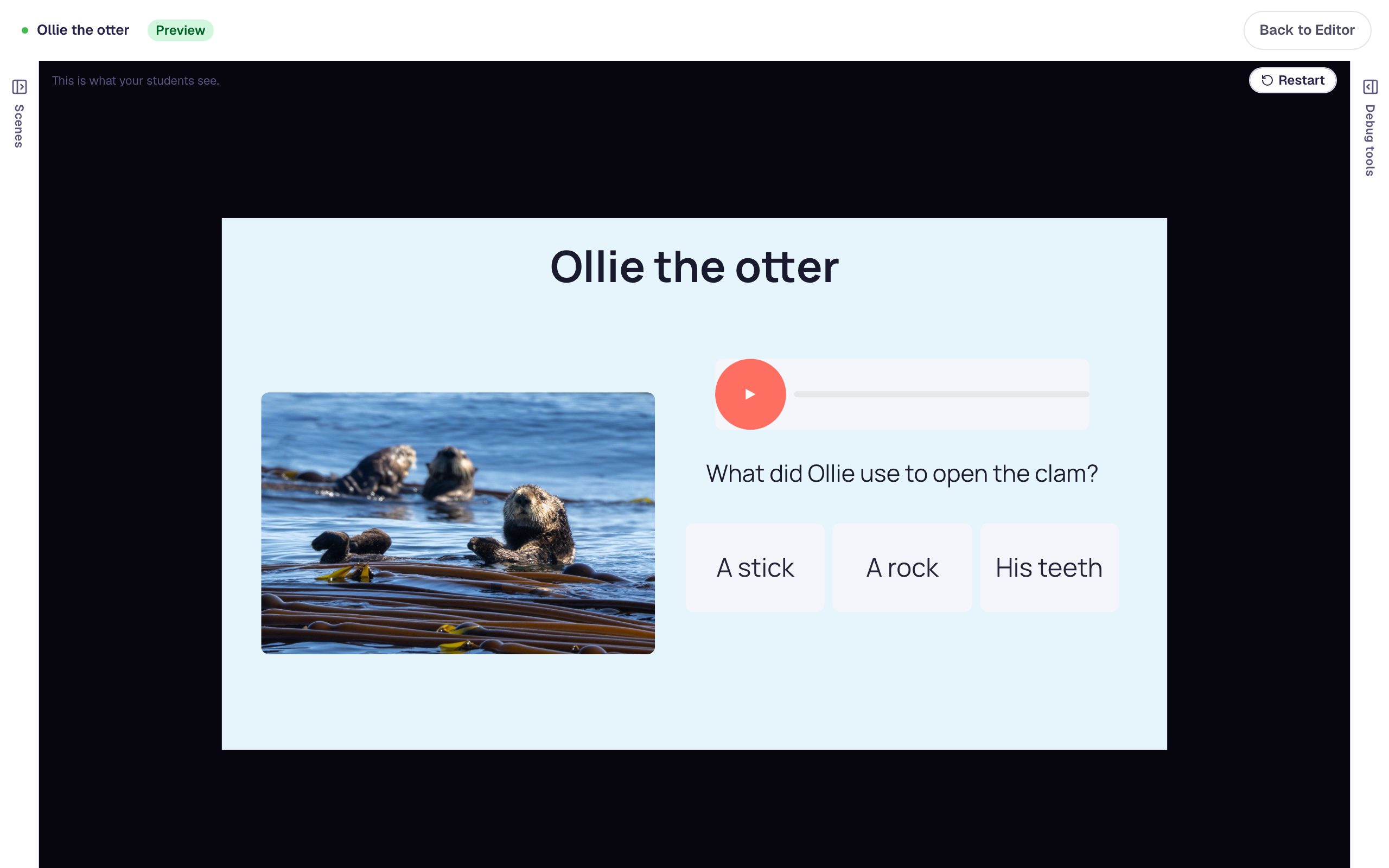
Ask a question after students hear a story
Record a short story in your own voice on an Audio player, then use visibility rules so the question appears only once the story has played to the end.
 Intermediate · 15 min · 8 steps
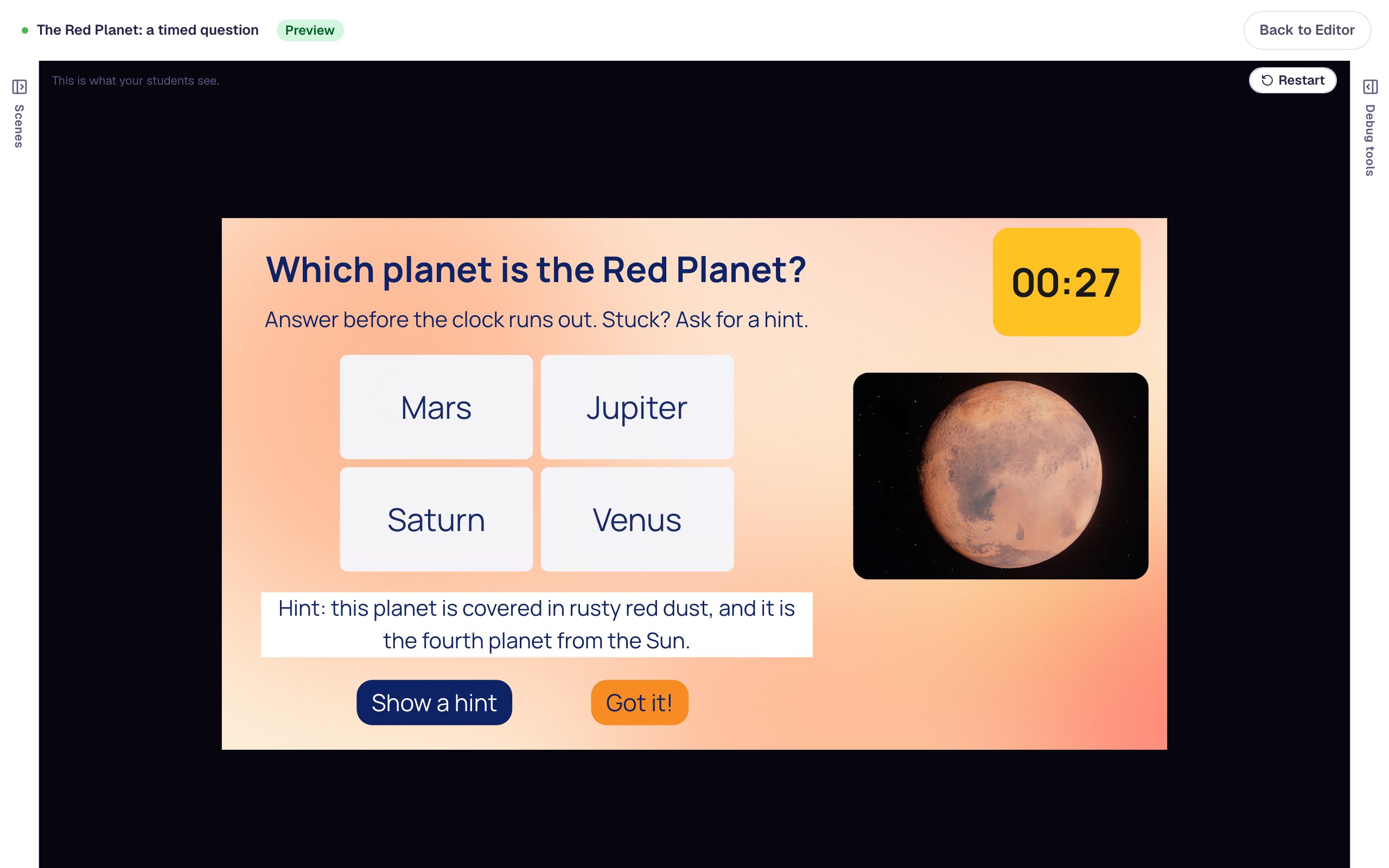
Pause the countdown while students read a hint
Put a 30-second countdown on a question, then add a Show a hint button that pauses the clock while the hint is open and a Got it! button that starts it again.
 Beginner · 15 min · 7 steps
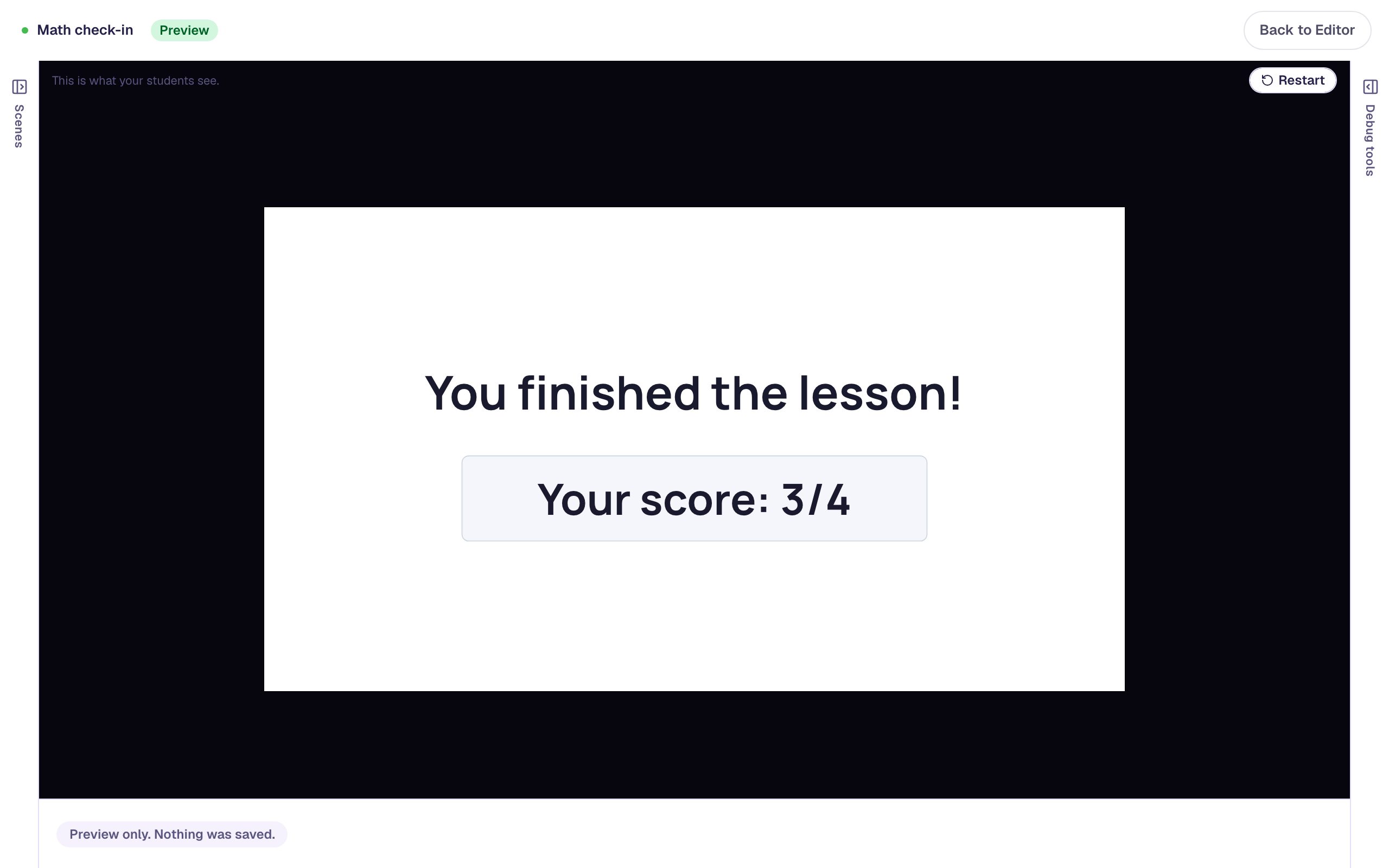
Make some questions count more, and one not at all
Give a harder question more points, turn scoring off for a practice question, and check the score students see at the end.
 Beginner · 15 min · 7 steps
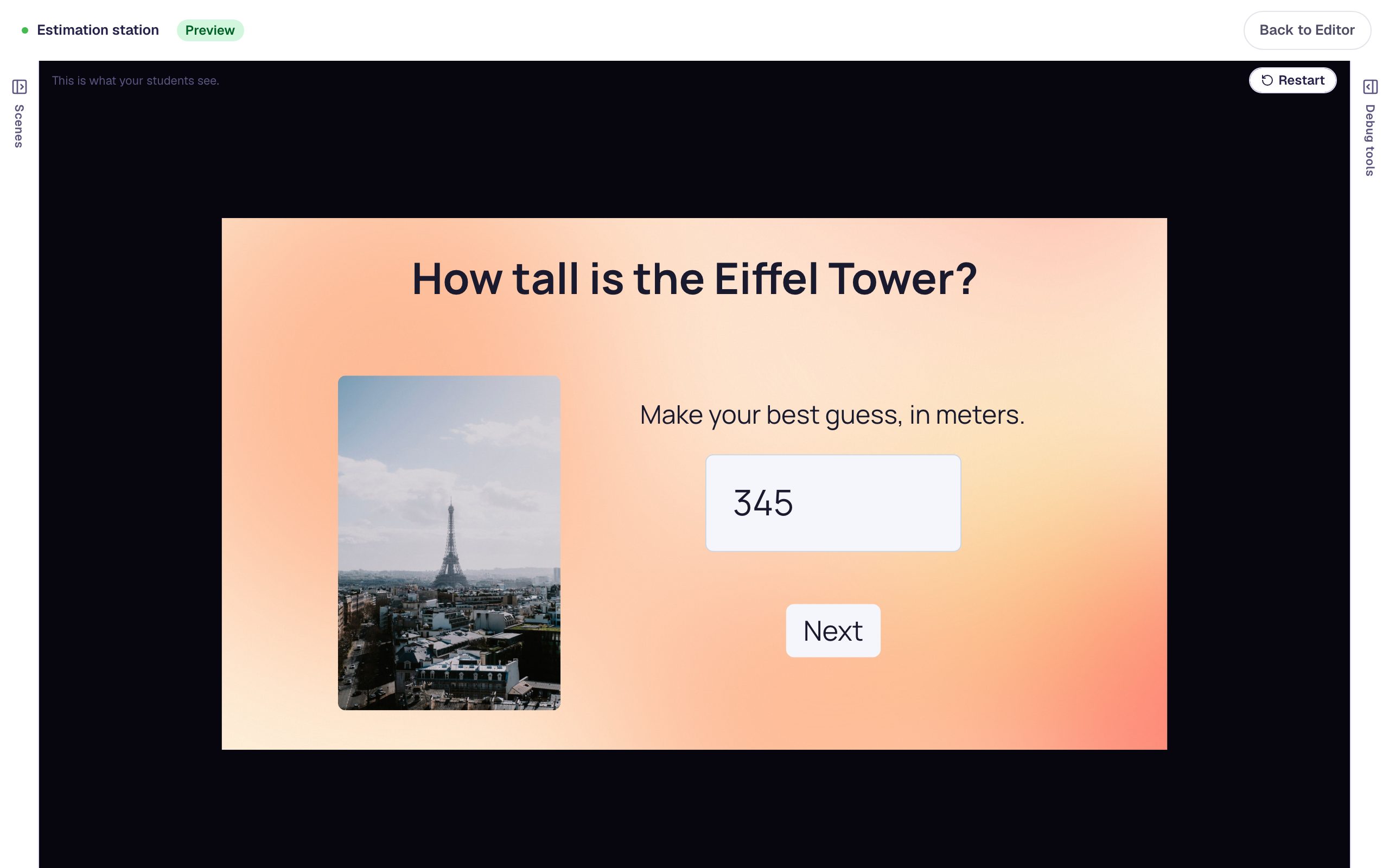
Accept close-enough answers to a number question
Ask students to estimate the Eiffel Tower's height and place 3/4 on a number line, and use Tolerance so an answer that's close still counts as right.
 Intermediate · 15 min · 8 steps
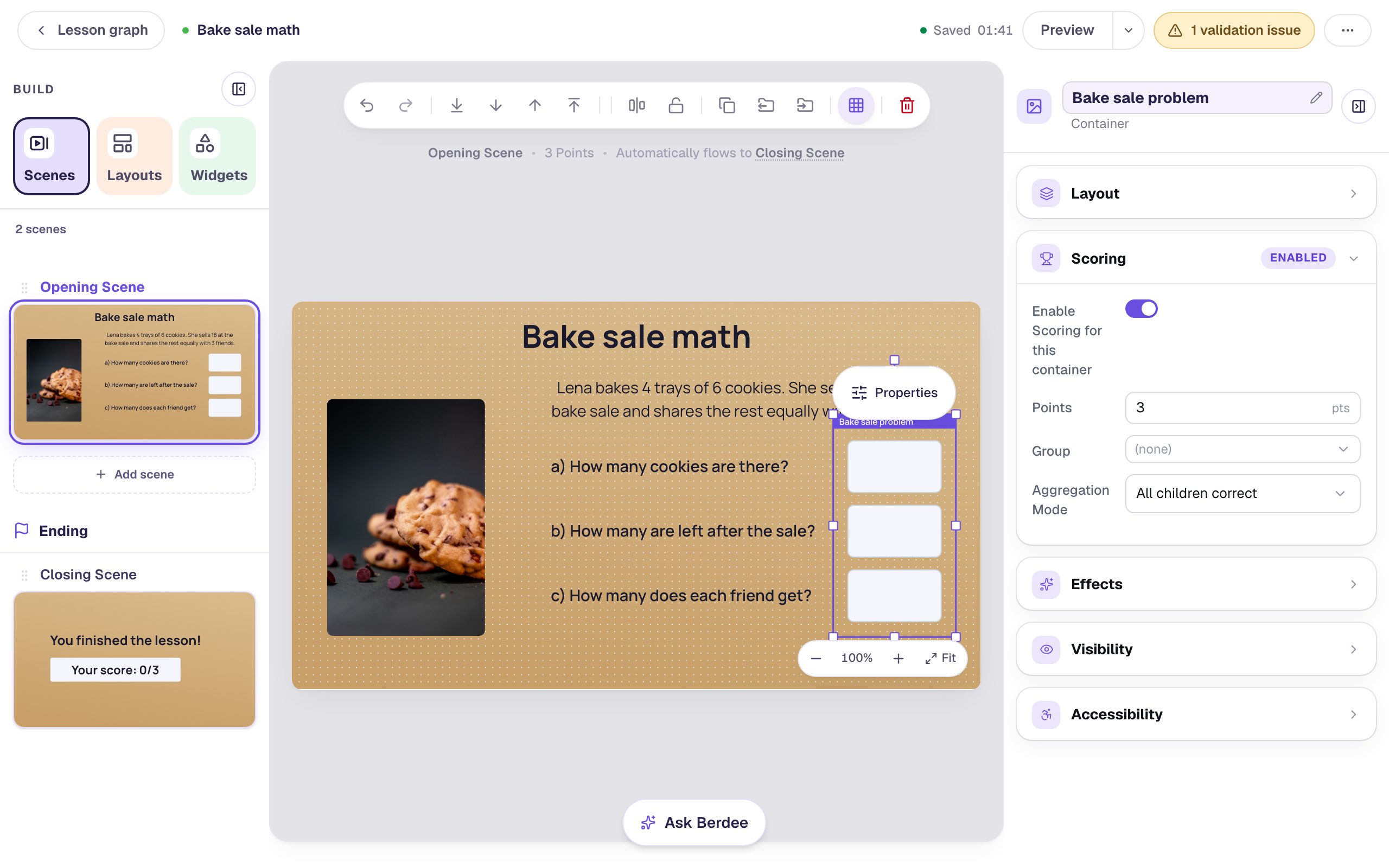
Score a three-part word problem as one question
Group the answers to a multi-part problem in a container so they earn one score together, then decide whether students need every part right or most of them.
 Intermediate · 15 min · 7 steps
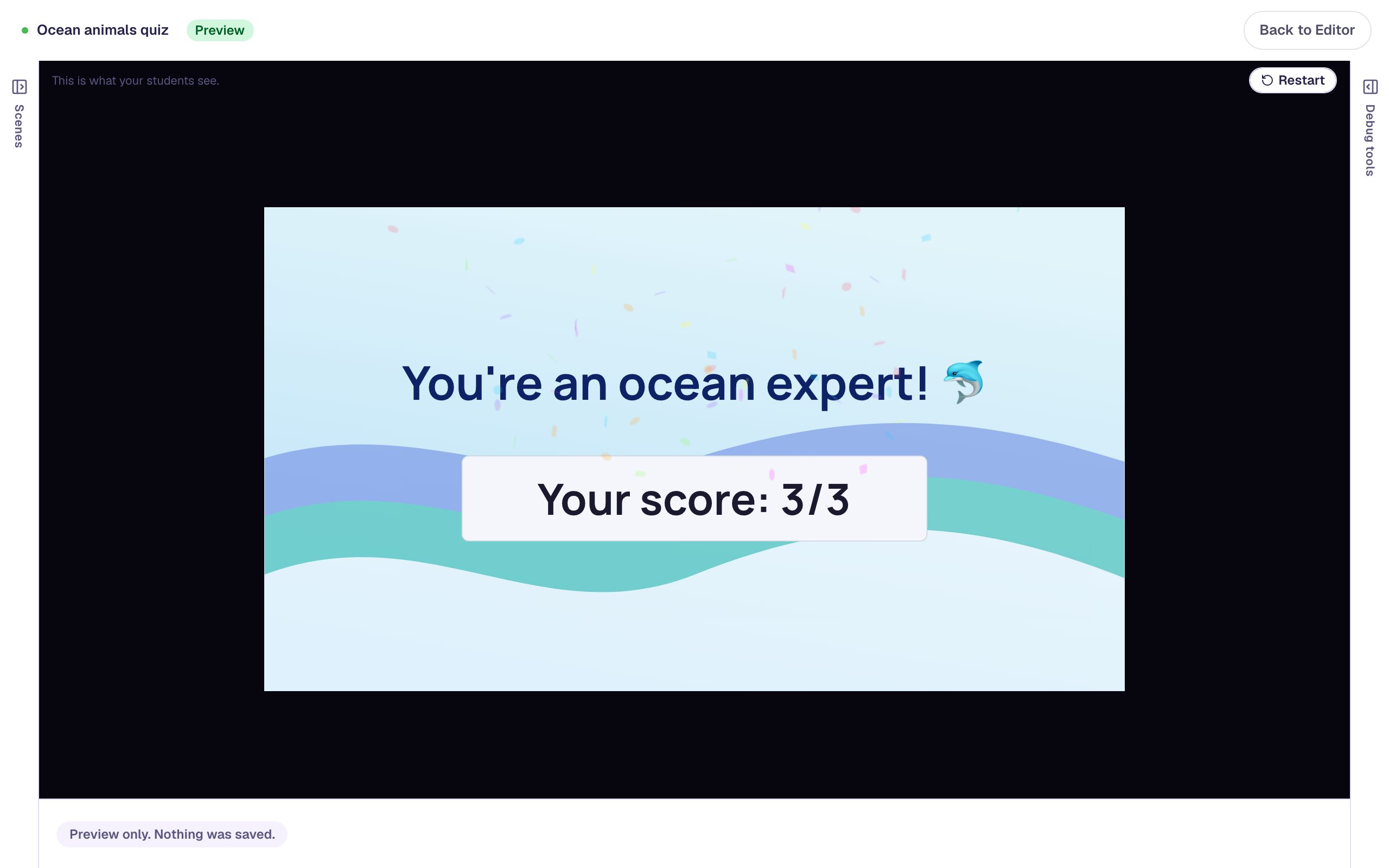
Cheer a high score and encourage a low one
Give the ending two messages, one for students who scored 80% or more and one for everyone else, and save the confetti for the high scores, using visibility rules and a behavior condition on the activity score.
 Intermediate · 15 min · 7 steps
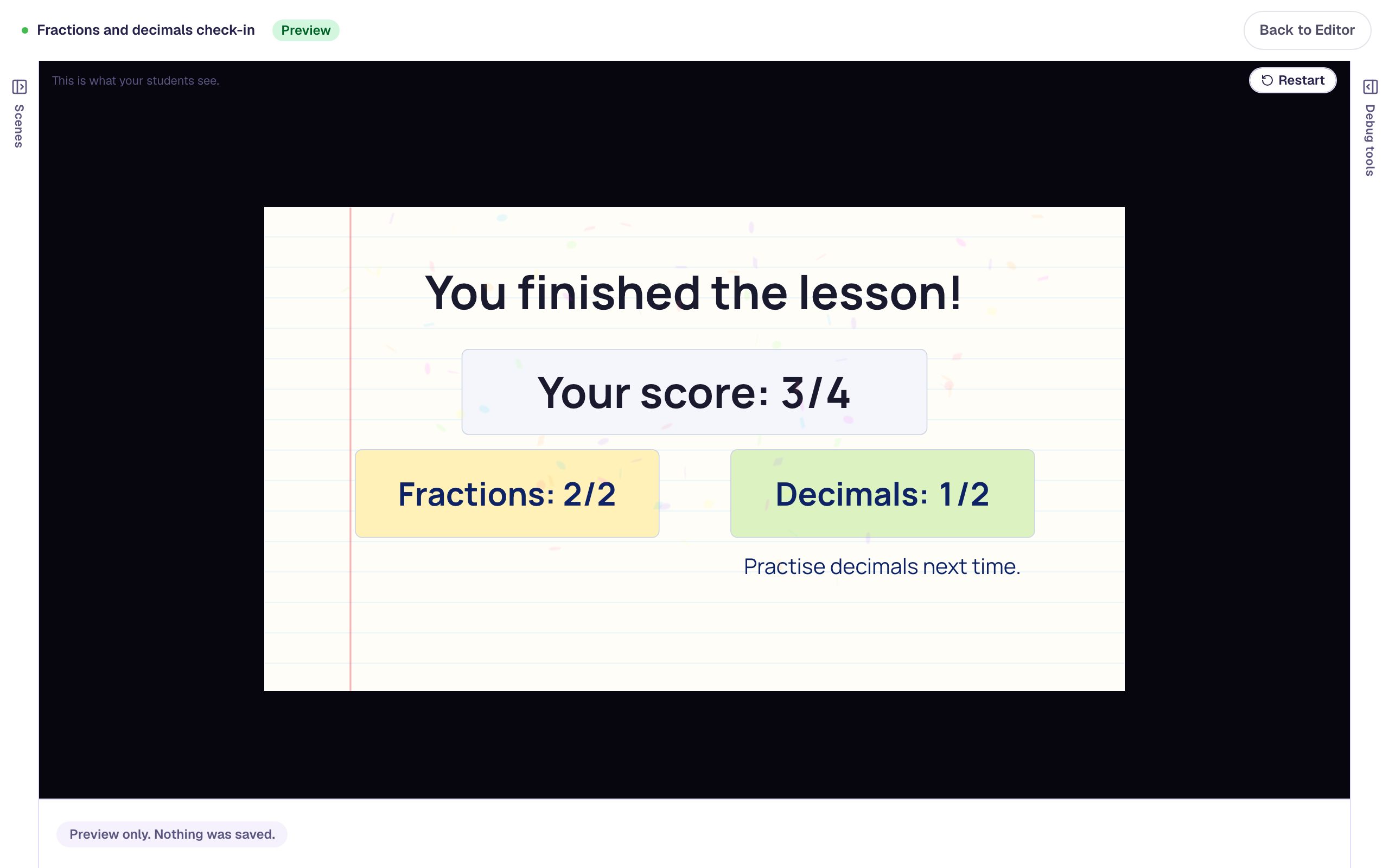
Score each skill separately with grading groups
Put each question in a grading group named after the skill it checks, then show one score per group on the ending, with a note that appears only for the skill a student still needs to practise.
 Intermediate · 15 min · 8 steps
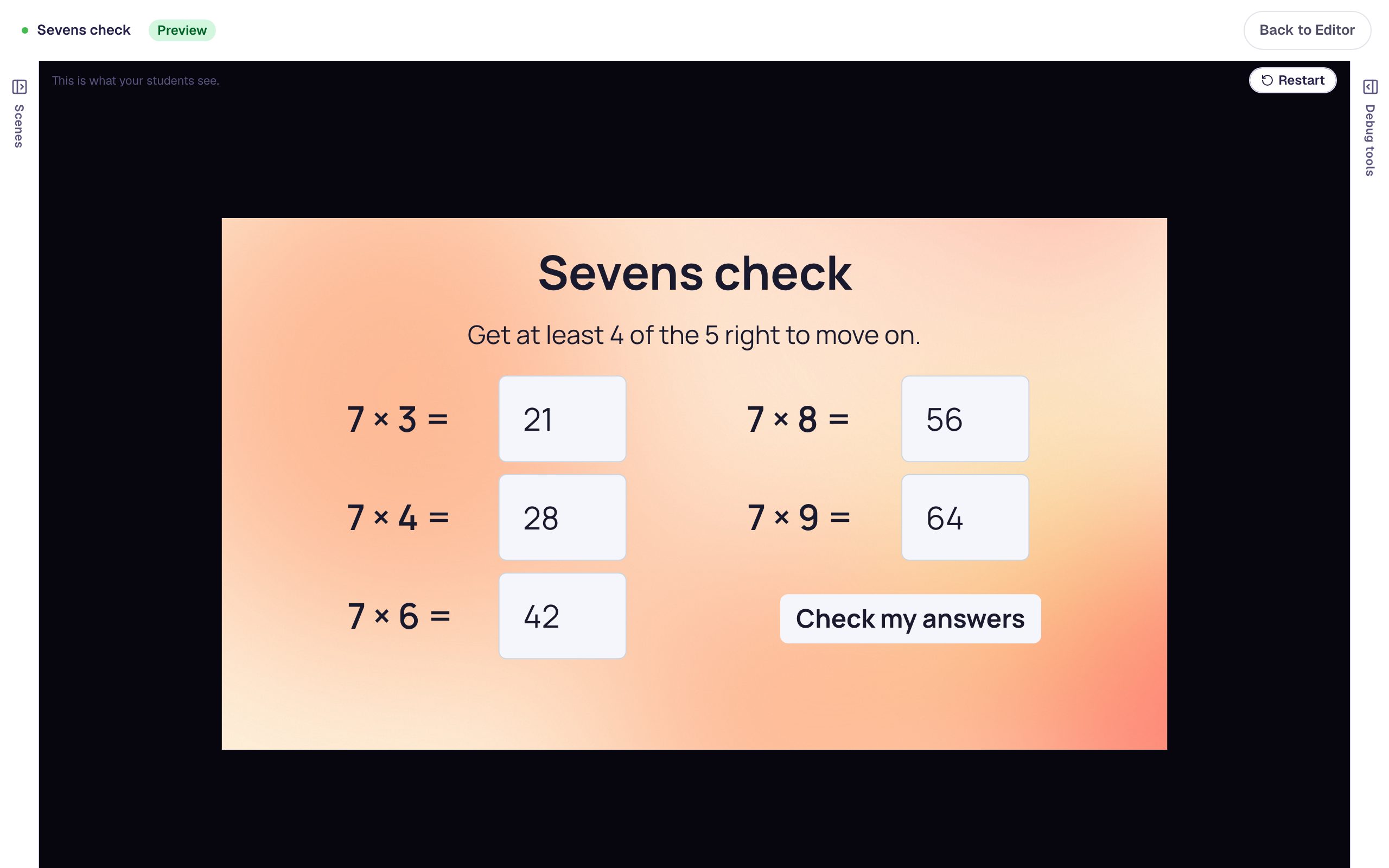
Move on when students get four of five right
Build a five-problem times-tables check that lets students move on with 80% right, using the scene's Cumulative rule and Passing %, and sends everyone below that to a short practice scene.
 Intermediate · 20 min · 8 steps
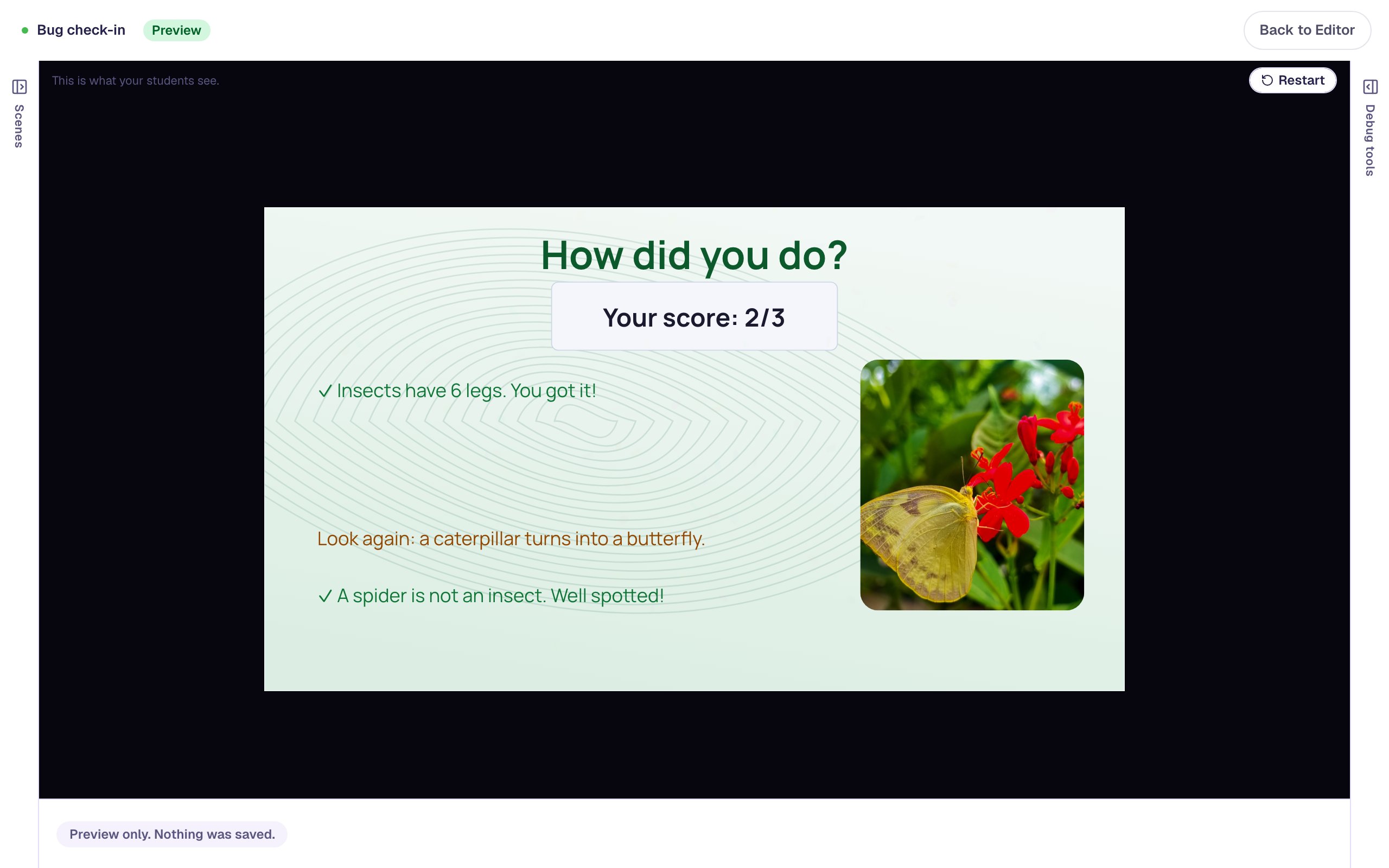
Show students which questions they got right
Hold every answer until the end of a three-question check-in, then give the ending one line per question, a well-done line when it's right and the correct answer when it isn't, with visibility rules that read each question.
 Intermediate · 15 min · 8 steps
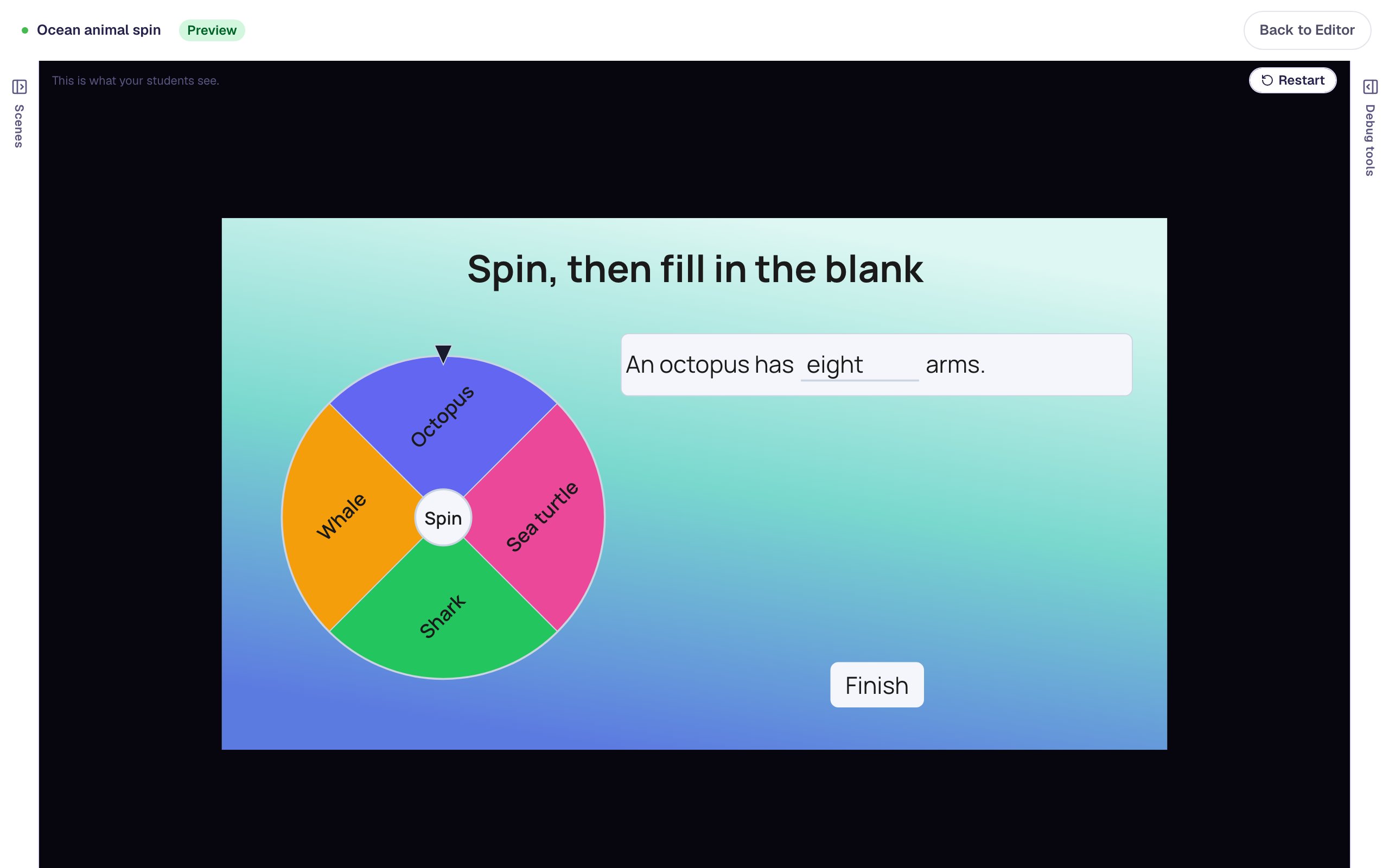
Spin a wheel to pick which questions to answer
Build a review game where a Spin Wheel picks two of four ocean questions. Each segment's Shows setting reveals its question, and the score counts only the questions the wheel picked.
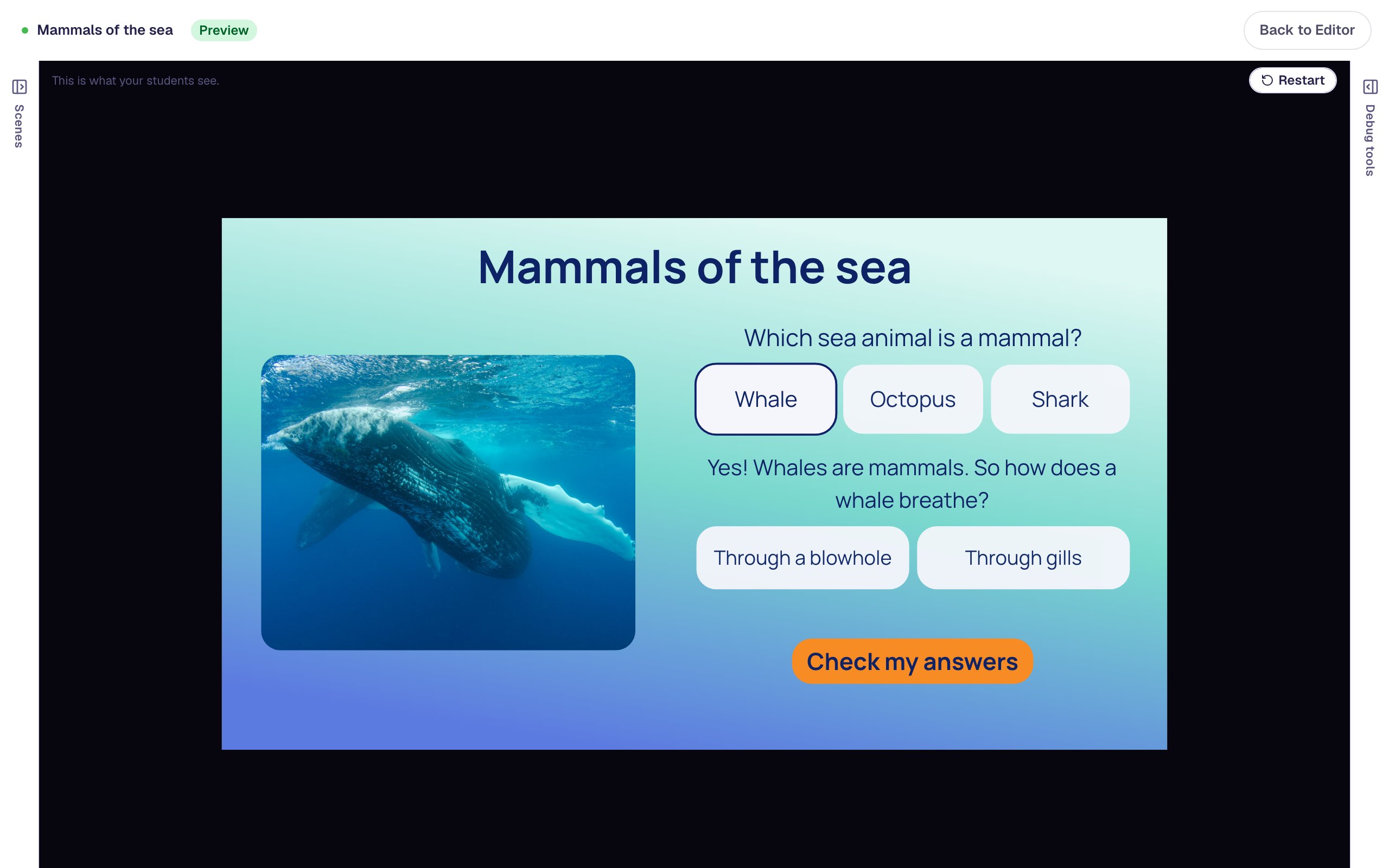 Intermediate · 10 min · 7 steps
Ask a follow-up question only after a right answer
Add a second question that appears only when a student gets the first one right, using a visibility rule on Is correct. A student who misses the first question is never graded on a follow-up they didn't see.
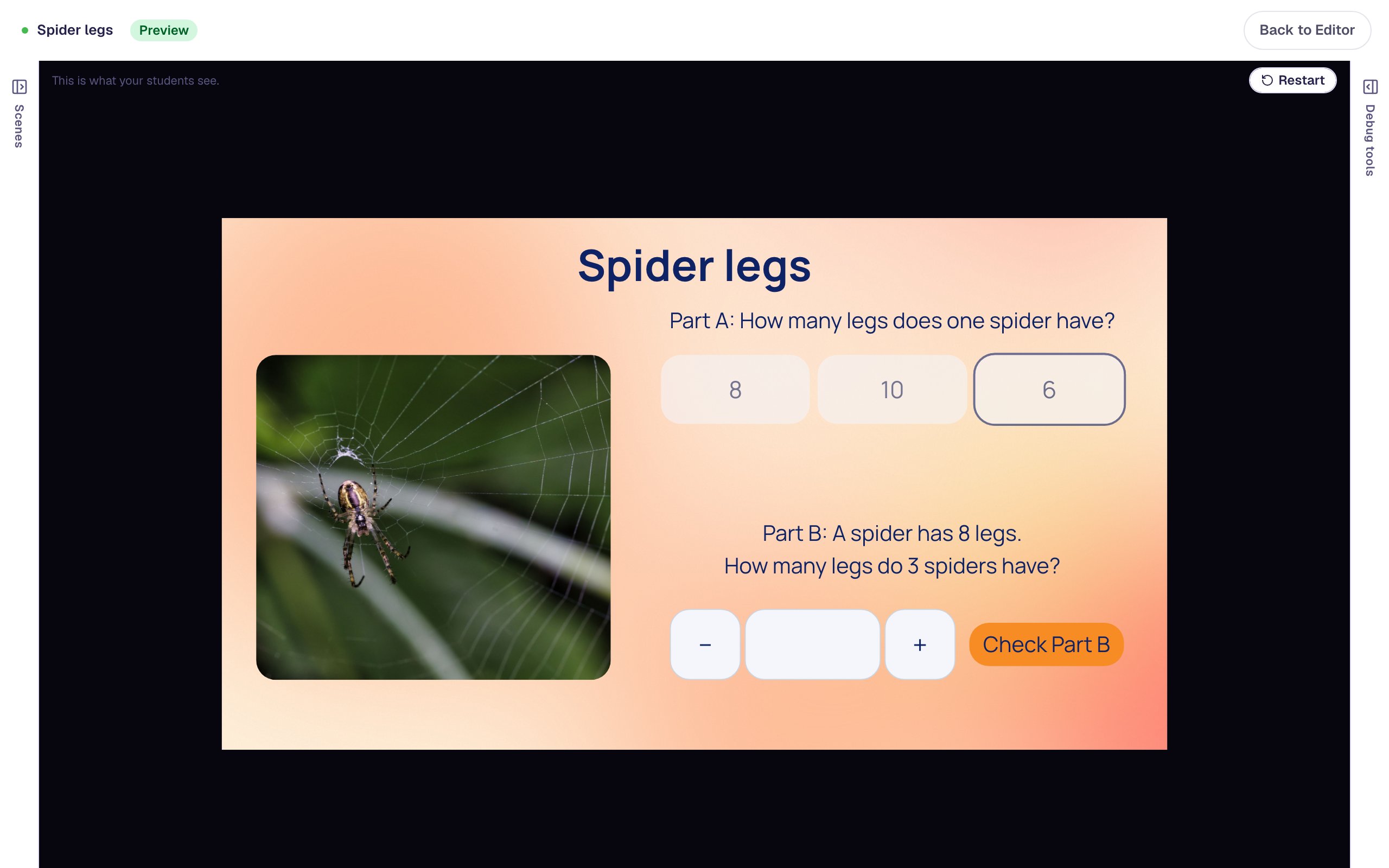 Intermediate · 15 min · 7 steps
Check Part A before students start Part B
Put each part of a two-part question in its own grading group, add a button that checks only Part A, and show Part B once Part A is checked.
 Beginner · 10 min · 7 steps
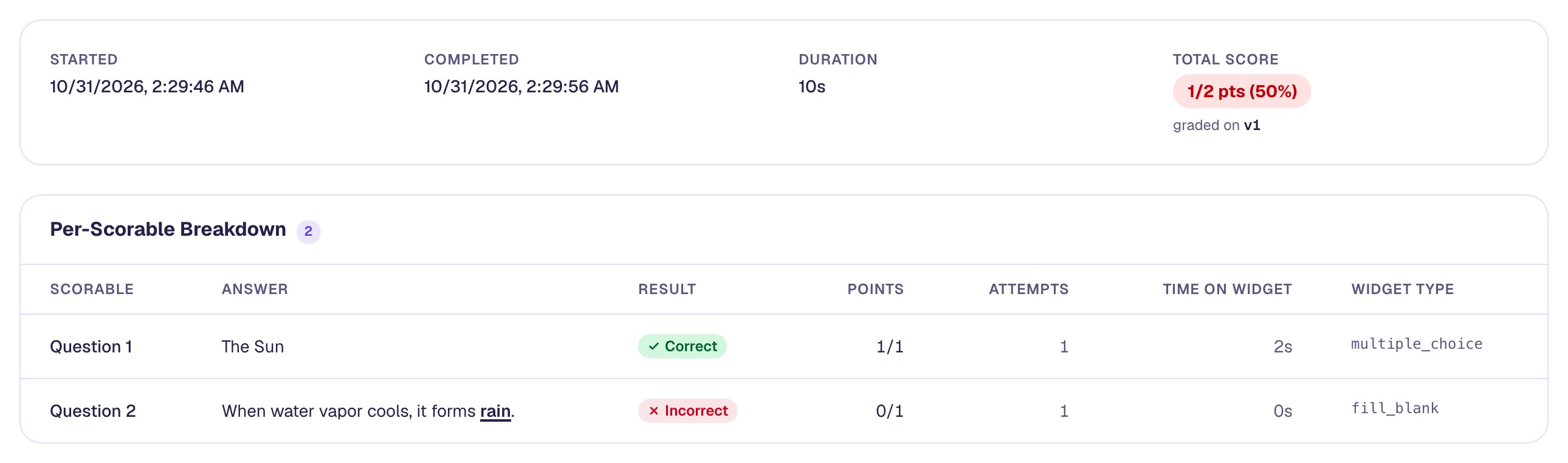
Assign an activity and see how a student did
Add a student to your classroom, assign them a finished activity, give them their access code, and then read exactly what they answered, question by question.
 Beginner · 8 min · 6 steps
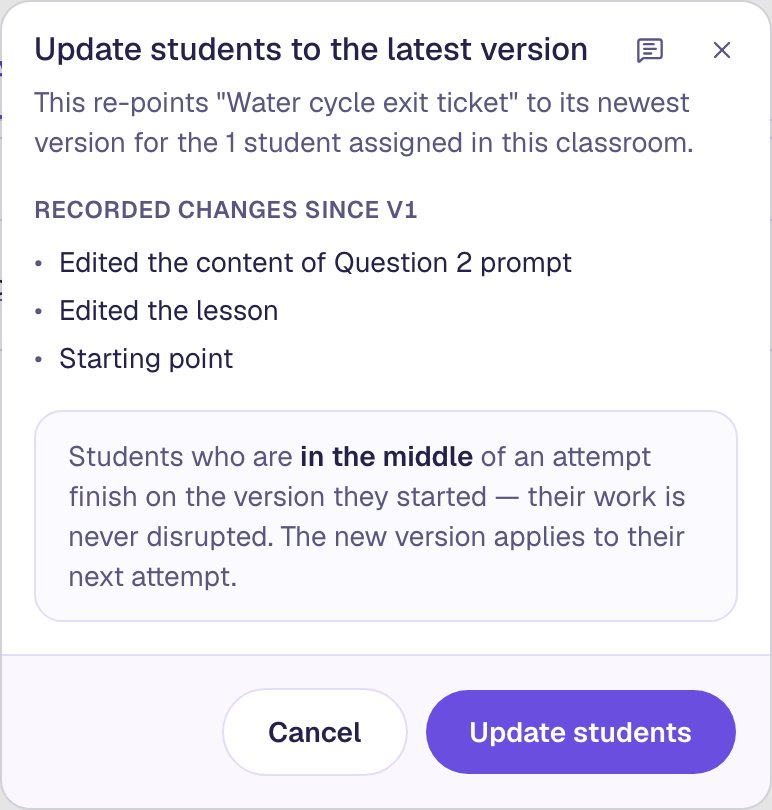
Update an activity your students already have
Improve an activity after you've assigned it, check that your class is still on the old version, and move everyone to the new one with Update students to latest.
 Beginner · 8 min · 8 steps
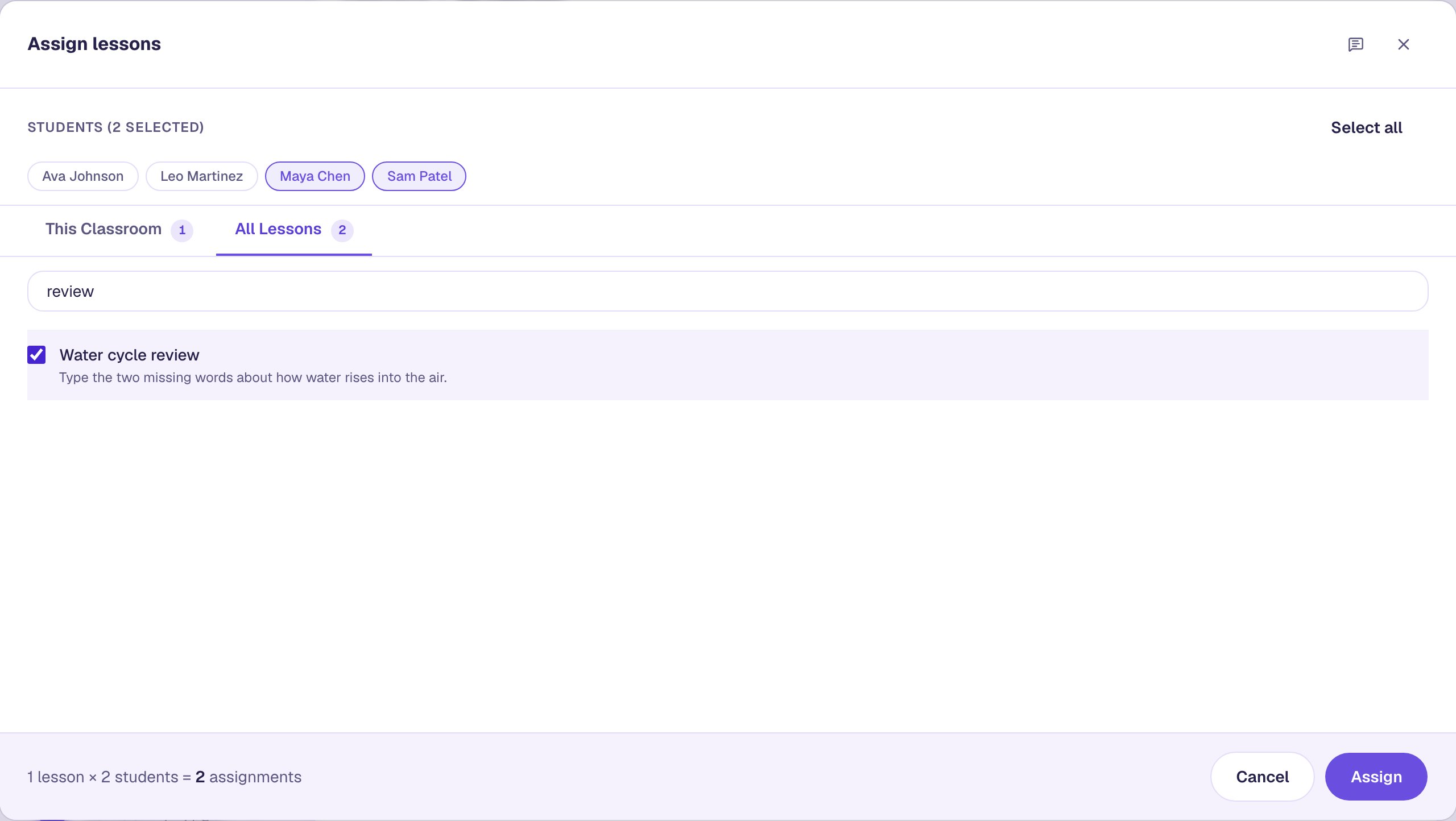
Give a small group extra practice
Assign a short review activity to just the students who need it, from your classroom's Assignments dialog, then add one more student to the group later without touching anyone else.
 Beginner · 5 min · 5 steps
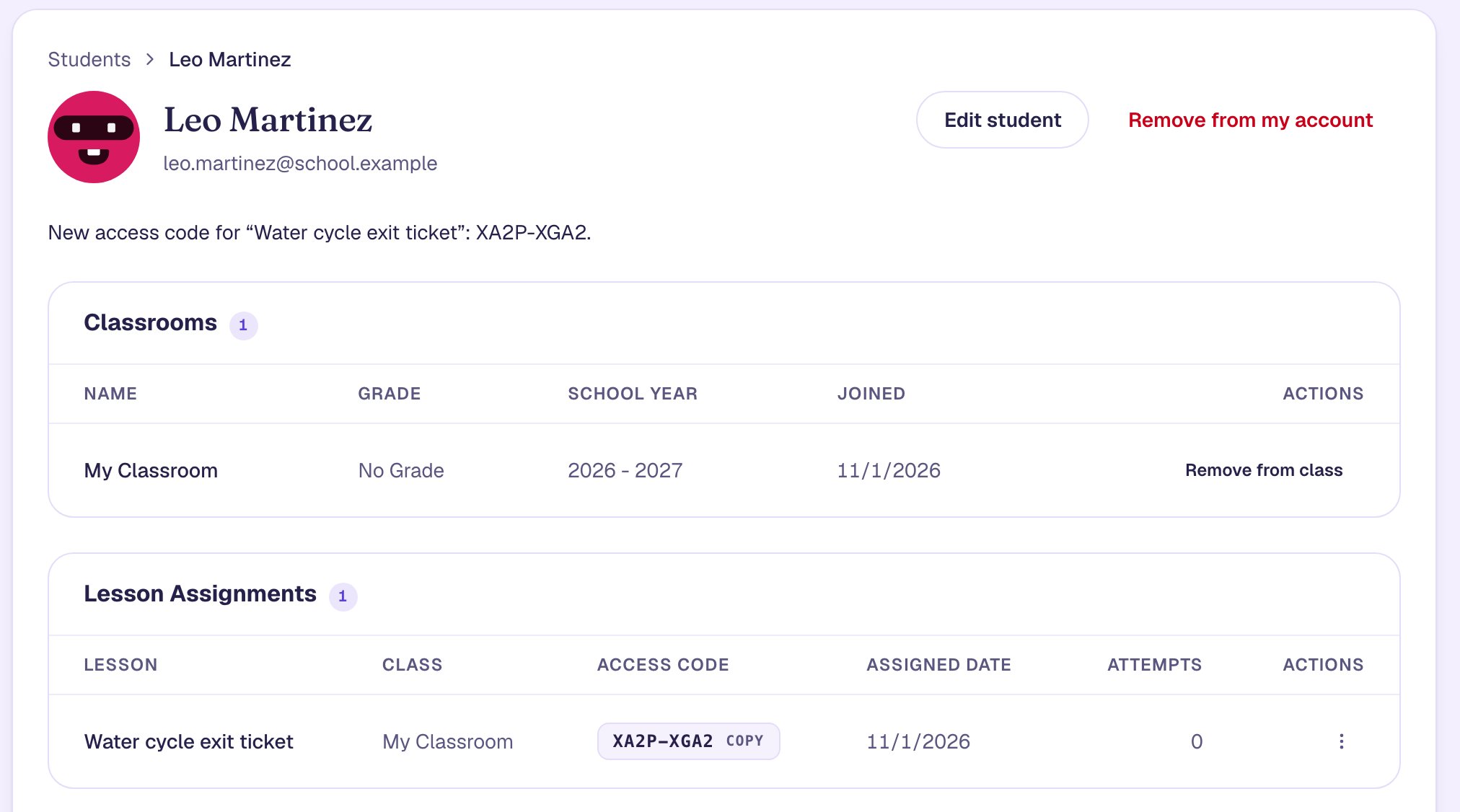
Fix a student's name and replace their code
Correct a typo in a student's name and give them a new access code when the old one reaches the wrong person, without losing anything they've done.
 Beginner · 5 min · 6 steps
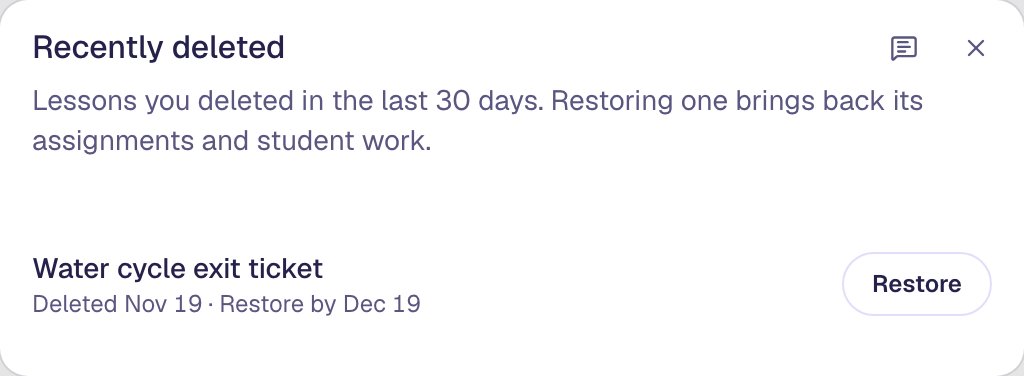
Bring back an activity you deleted
Delete an activity from your Activities page, see what that does to your class, and restore it from Recently deleted with its assignments and student work.
 Beginner · 8 min · 7 steps
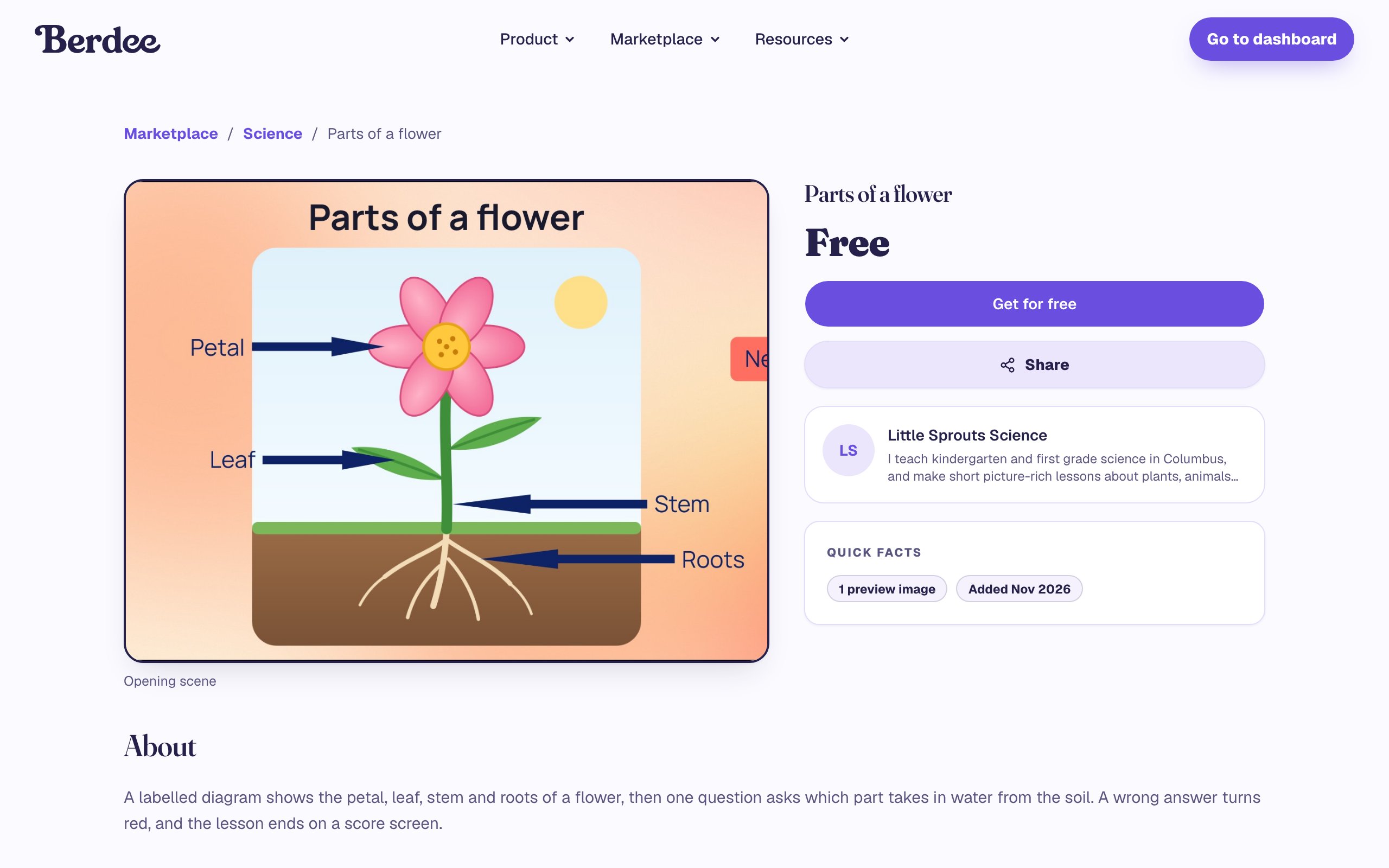
Get a free activity from the marketplace
Find a ready-made activity another teacher published, check that it fits your class, add it to your account for free, try it the way your students will, and assign it.